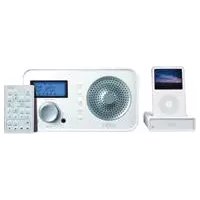
Sound 102 iPod - Radio ETON - Free user manual and instructions
Find the device manual for free Sound 102 iPod ETON in PDF.


| Brand | ETON |
| Model | Sound 102 iPod |
| Product type | Radio alarm clock with iPod dock |
| FM frequency range | 87.5 - 108.0 MHz |
| DAB frequency range | Band III 174 - 240 MHz, L-Band 1452 - 1492 MHz |
| Speaker output power | 5 W |
| Power supply (input) | 230 VAC, 50 Hz |
| Power supply (adapter output) | 12 VAC, 1.6 A |
| Headphone jack | 3.5 mm stereo jack (1/8 inch) |
| iPod dock | Built-in, with additional adapter depending on model |
| Remote control | Included, with CR/DL2025 battery |
| Number of presets | 5 per mode (DAB and FM) |
| Alarm function | Buzzer, DAB, FM or iPod, with snooze (3 x 10 min) |
| Sleep function | From 15 to 90 minutes |
| Display | DAB information (service name, scrolling text, signal strength, program type, bitrate), RDS FM (program name, text, type, time/date) |
| AUX input | AUX-IN jack at the back |
| Line-out output | LINE-OUT jack at the back |
| Antenna | Deployable |
| Care and cleaning | Clean with a dry cloth only, do not use detergents or solvents |
| Safety | Do not expose to rain or moisture, unplug during storms, do not open the casing |
| Included accessories | AC adapter, remote control, iPod dock, user manual |
| Warranty | Limited warranty, registration recommended at www.etoncorp.com |
Frequently Asked Questions - Sound 102 iPod ETON
User questions about Sound 102 iPod ETON
0 question about this device. Answer the ones you know or ask your own.
Ask a new question about this device
Download the instructions for your Radio in PDF format for free! Find your manual Sound 102 iPod - ETON and take your electronic device back in hand. On this page are published all the documents necessary for the use of your device. Sound 102 iPod by ETON.
USER MANUAL Sound 102 iPod ETON
FM/DAB With Dock for iPod
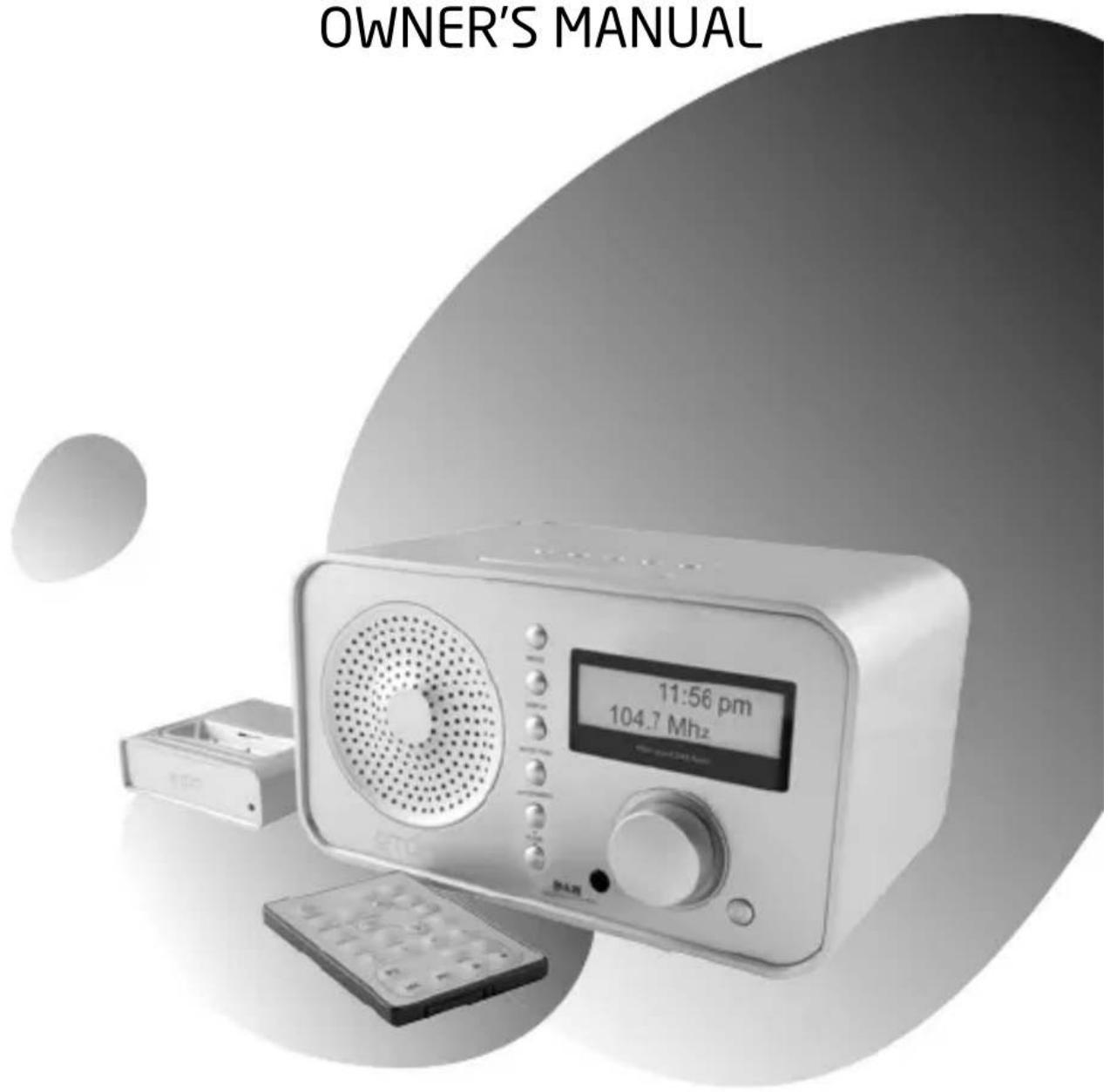
OWNER'S MANUAL
Need Help? Contact Us.
Etón Corporation, 1015 Corporation Way, Palo Alto, CA 94303, USA. 1-800-872-2228 (U.S.); 1-800-637-1648 (Canada); 650-903-3866 (worldwide); M-F, 8:30-4:00, Pacific Standard Time; www.etoncorp.com.
WARNING
- Do not expose this appliance to rain or moisture.
- Do not submerge or expose for extended period to water.
- Protect from high humidity and rain.
- Only operate within specified temperature range (0 °C to 40 °C).
- Unplug immediately if liquid has been spilled or object have fallen into the apparatus.
- Clean only with a dry cloth. Do not use detergents or chemical solvents as this might damage the finish.
- Unplug and disconnect external antennas during lightning storms.
- Do not remove cover [or back].
Refer servicing to qualified service personnel.
ENVIRONMENT
Disposal According to the European Directive 2002/96/EC all electrical and electronic products must be collected separately by a local collection system.
Please act according to your local rules and do not dispose of your old products with your normal household waste.
WHAT THE ETON SOUND DAB RADIO INCLUDES
Owner's manual; remote control, iPOD docking station, mains power adaptor.
PREPARING THE REMOTE FOR USE
Grip the plastic piece on the bottom of the remote unit and pull it out. All of the controls on the Etón Sound DAB Radio are found on the remote, but only the remote has the MUTE control. If the battery drains replace it with type CR/DL2025.
POWERING THE ETON SOUND DAB RADIO
Plug the Etón Sound Radio Power adaptor into an AC (mains) outlet and plug the lead into the power socket on the rear of the unit.
When it is first plugged in, the set will be in the standby mode. The display indicates the current mode and the time. To turn the radio on, use a short press of the power button on the radio or the remote. To place it back into standby mode, use a short press of the power button.
VOLUME CONTROL
The volume is controlled with the volume knob or the VOL buttons on the remote. Turning the volume knob clockwise increases the volume; counterclockwise decreases volume. Pressing the remote's VOL increases the volume; pressing the VOL button decreases the volume.
MUTE CONTROL
Press the remote's MUTE control to mute the audio. Press it again to restore the audio. On the set, pressing the SNOOZE button, when the receiver is on, has the same function.
Before placing headphones/earphones in/on you ears, turn the volume all the way down. Use headphones/earphones with 1/8 inch (3.5 mm) stereo plug. Plug them into the earphone socket on the back of the Etón Sound Radio.
iPOD OPERATION
The iPod docking cradle is connected to the socket on the rear panel of the ES102 receiver. The protective cover should be removed from the iPod connector before use. Depending on the model of iPod, the additional insert provided may be required on the docking station.
SELECTING DAB, FM, AUX-IN OR iPOD
After turning on the radio, use sequential presses of the MODE button on the radio or the remote to select DAB, FM or AUX-IN. DAB→FM, FM→AUX, AUX iPOD, iPOD DAB.
DAB RECEPTION
DAB Tuning
Turn the radio on. If required, press the MODE button on the radio or the remote to select DAB mode.
DAB RECEPTION continued
Auto Tuning
Two types of channel scan are available, QUICK SCAN and FULL SCAN. During the scan a list is created of all the DAB services available in your area, and the set will then tune to the first service on the list. The list is in alphabetical order of the station name. Fully extend the antenna before starting the scan.
A short press of AUTOTUNE will start a QUICK SCAN. This will scan the frequencies commonly used in most countries, and can be used to quickly check for new or modified stations. It is much quicker than FULL SCAN.
A long press of AUTOTUNE will start a FULL SCAN. This will scan all the available frequencies and takes several minutes. After the first power-on, or after a SYSTEM RESET, a FULL SCAN is performed.
Selecting DAB Services
Use the down buttons on the set or the TUNE - or TUNE ^+ buttons on the remote control to display the list of DAB services available. When the service you want to listen to is displayed, press the ENTER/ button to tune to the service.
Auto Enter Mode
You can change the operation so that the DAB service is tuned automatically by waiting 3 seconds after displaying the service. To turn AUTO ENTER ON, press and hold ENTER/for 2 seconds. AUTO ENTER ON will be displayed. Use the same procedure to turn AUTO ENTER OFF
Storing into Memory Presets
There are 5 memory resets in DAB mode. Note that the procedures
DAB RECEPTION continued
below will also overwrite what has been previously stored into the memory. That is, a memory cannot be 'erased', but can be overwritten.
- Tune to the DAB service that you wish to store.
- Press and hold one of the 1-5 buttons on the radio or the remote to store that station into memory, as indicated in the display. 'Preset # Saved' is briefly shown in the display.
Accessing Memory Presets
- Use quick, short presses of the remote's 1-5 buttons to choose the stored station of your choice.
- If a button with no station stored is selected, 'Preset # Free' is shown in the display.
The DISPLAY Button
Sequentially press the DISPLAY button on the radio or the remote to see special information in the display, as noted below.
- Name of the DAB service provider
- Time and Date
- Scrolling Text information
- Signal strength
- Program Type
- Transmission type and bitrate
Secondary Services
Some DAB transmissions may have special or extra services added for special programs or sports coverage. These are known as second-
DAB RECEPTION continued
ary services, and are indicated by a symbol on the top line of the display. When this indication is on, you can select the secondary service by pressing ENTER/To return to the original primary service, press ENTER/again.
Manual Tune
Manual tune mode enables you to select individual channels to monitor the reception conditions. It is not intended for normal use.
To select manual tune mode, press and hold the DISPLAY button on the remote, or the set, until "Manual Tune" is displayed. Then press ENTER/ The DAB channel number and frequency is displayed. Use the TUNE up or down buttons on the set or the remote to select the DAB channel. To select a channel press ENTER/ The TUNE up or down buttons can now be used to select the individual services on the DAB channel. To exit Manual Tune mode, press ENTER again.
FM RECEPTION
FM Tuning
Turn the radio on. Press the MODE button on the set or the remote to select DAB FM. FM shows in the display.
Manual Tuning
Use quick, short presses of the radio's TUNE buttons to tune up or down frequency, or use the remote's TUNE +/- buttons. The frequency is shown in the display in MHz.
Auto Tuning
With auto tuning the radio stops at the next station with good signal strength. Auto tuning is engaged by pressing the AUTO TUNE buttons. To auto tune up the frequency, use a quick, short press. To
FM RECEPTION continued
auto-tune down the frequency, use a long, two second press.
Storing into Memory Presets
There are 5 memory presets in FM. Note that the procedures below will also overwrite what has been previously stored into the memory. That is, a memory cannot be 'erased', but can be overwritten.
- Tune to the radio station that you wish to store.
- Press and hold one of the 1-5 buttons on the radio or the remote to store that station into memory, as indicated in the display. 'Preset # Saved' is briefly shown in the display.
Accessing Memory Presets
- Use quick, short presses of the remote's 1-5 buttons to choose the stored station of your choice.
- If a button with no station stored is selected, 'Preset # Free' is shown in the display.
The DISPLAY Button
The ES102 can display RDS (Radio Data System) information, which is transmitted on some FM stations. Press the DISPLAY button repeatedly on the radio or the remote to see RDS and signal information in the order below:
- RDS Program Name
- RDS Scrolling text
- RDS Program Type. (PTY)
- Time/Date.
- Signal Strength Indicator.
AUX-IN MODE
To access the AUX-IN mode, sequentially press the radio's or remote's MODE button until FM-AUX is seen in the display. The AUX-IN mode is used to run external audio through the Etón Sound DAB Radio. Such audio may be from an external MP3 player, CD, cassette unit, radio or phonograph with line out. The AUX-IN socket is on the back of the unit.
iPOD MODE
Play on your iPod is started automatically when you select iPod mode. You can use the remote to control the iPod functions.
Use the MENU button to scroll through the iPOD menu. Use the up or down buttons to scroll up/down the menu. Use the ENTER button to select the item and to play the song you've selected. Use the >11 button to play/pause the song that you've selected. Use quick short presses on the 1 < < > > 1 buttons to advance to the next song or skip back to the previous song. Press 1 < < 片 twice to go back to the beginning of the last song. Use continuous pressure on the 1 < < > > 1 keys to skip forward/reverse through the song that's been selected.
LINE-OUT SOCKET
The LINE-OUT mode is used to run the Etón Sound DAB Radio's stereo audio out to a pre-amplified external speaker system or to a stereo system. The LINE-OUT socket is on the back of the unit.
SETTING THE CLOCK
Most DAB services transmit clock information, which enables the ES102 to accurately set the time, when the set has been tuned for a few seconds. In some locations, the DAB transmissions do not trans-
SETTING THE CLOCK continued
mit the correct local time, and the clock will need to be set manually. The clock is displayed and entered in the 24 hour format.
To set the clock manually, you need to turn the CLOCK SETTING to the ON state, and set the time, using the following procedure:
- Press and hold the DISPLAY button on the remote or on the set until MANUAL TUNE is displayed.
- Press DISPLAY quickly. CLOCK SETTING is displayed.
- Press/release ENTER/ to confirm. OFF flashes on the display.
- Press the TUNE - or TUNE + buttons to change the display to ON.
- Press/release the ENTER/ button. The hour flashes.
- Press the TUNE - or TUNE + buttons to adjust the hour to the correct time.
- Press/release the ENTER/ button. The minutes flash.
- Press the TUNE buttons to adjust the minutes to the correct time.
- Press/release the ENTER/ button.
To turn the clock setting back to automatic mode:
- Press and hold the DISPLAY button on the remote or on the set until MANUAL TUNE is displayed.
- Press DISPLAY quickly. CLOCK SETTING is displayed.
- Press/release ENTER/ to confirm. ON flashes on the display.
- Press the TUNE - or TUNE + buttons to change the display to OFF.
- Press/release the enter button 3 times to return to normal operation.
SETTING THE CLOCK continued
AUTOMATIC CLOCK SETTING
When power to the set has been interrupted, the clock will be lost. When the automatic mode is on, the set will tune to a DAB signal when the power is restored, and will attempt to automatically update the clock. If the set has been set to CLOCK SETTING ON or there is no available DAB signal with clock information, you will need to set the clock manually, as described above.
ALARM FUNCTIONS
The alarm can be set to wake you by beeping tones (BUZZER mode), or with music or speech from DAB radio, FM radio, or your iPod. The volume of the alarm will start quietly and gradually increase. In iPod mode, play will start from the last track played.
Note: if the set is in AUX mode, only BUZZER operation is possible.
SETTING AND ACTIVATING THE ALARM TIME AND WAKE-UP MODE
To set the alarm, the radio can be in standby mode, or turned on, in DAB, FM or iPod mode.
Use the buttons on the radio or the remote. Watch the display.
- Press and hold the ALARM button for about 2 seconds, then release it - ON or OFF flash on the left side of the display.
- Press the tune buttons to toggle the alarm ON and OFF.
- Press/release the ENTER/ button - the hour flashes.
- Press the TUNE buttons to adjust the hour.
ALARM FUNCTIONS
- Press/release the ENTER/ button - the minutes flash.
- Press the TUNE buttons to adjust the minutes.
- Press/release the ENTER button - the RADIO, IPOD or BUZZ symbol flashes in the display.
- Press the TUNE buttons to select RADIO or BUZZ.
- Press/release the ENTER/ button.
The alarm activates for 30 minutes. When the alarm activates, press the POWER button to turn it off. Or press the SNOOZE button to turn off the alarm for 10 minutes.
THE SNOOZE BUTTON
Once the alarm activates, press the SNOOZE button on the radio or the remote to enter the snooze mode. Snooze mode is for 10 minutes, then the alarm activates again. SNOOZE can be activated 3 times.
THE SLEEP TIMER
The sleep timer turns the set off after a preset time. To enable the sleep timer, the set must be on.
- Press SLEEP for two seconds. The SLEEP display is shown, and the OFF indicator will flash.
- Press TUNE+ / TUNE- on the remote or the set to select ON or OFF.
- Press ENTER/J
- Press TUNE+ / TUNE- on the remote or the set, to select sleep for 15 to 90 minutes.
- Press ENTER/J
SYSTEMRESET
This clears all the stored presets and the DAB channel list. Use this function if the set is moved to a different location where different DAB services are transmitted. A DAB full scan is done after the reset.
When in DAB mode:
- Press DISPLAY for 2 seconds.
- Quickly press and release DISPLAY twice - SYSTEM RESET is shown on the display.
- Press ENTER/J
- After a few seconds, remove and reconnect the power connector.
When in FM mode:
- Press DISPLAY for 2 seconds.
- Press DISPLAY once again.
- Press ENTER.
- Note that the FM screen goes back to 87.5 MHz.
SPECIFICATIONS
- FM Frequency 87.5 - 108.0 MHz
DAB Frequencies Band III 174-240MHz L Band 1452-1492MHz - Speaker Output power 5W
- Power Supply: Input 230VAC 50Hz, output 12VAC 1.6A
- Specifications and the design are subject to possible modifications without notice due to improvements.
WARRANTY REGISTRATION
To ensure full warranty coverage or product updates, registration of your product should be completed as soon as possible after purchase or receipt. You may use one of the following options to register your product:
- By visiting our website at http://www.etoncorp.com.
- Mail in enclosed warranty card.
- Mail your registration card or information to following address; include your name, full mailing address, phone number, email address, model purchased, date purchased, retail vendor name:
Etón Corporation
1015 Corporation Way
Palo Alto, CA 94303 USA
LIMITED WARRANTY
Retain the warranty information from your warranty card with your proof of purchase or the Limited Warranty information can also be viewed at www.etoncorp.com.
SERVICE FOR YOUR PRODUCT
To obtain service for your product, we recommend first contacting an Etón service representative at 1-800-872-2228 US, 1-800-637-1648 Canada, (650) 903-3866, customersvc@etoncorp.com or your respective country distributor in Europe (see enclosed list) for problem determination and trouble-shooting. If further service is required, the technical staff will instruct how to proceed based on whether the radio is still under warranty or needs non-warranty service.
SERVICE FOR YOUR PRODUCT continued
WARRANTY - If your product is still in warranty and the Etón service representative determines warranty service is needed, a return authorization will be issued and instructions will be given. DO NOT ship your radio back without obtaining the return authorization.
NON-WARRANTY - If your product is no longer under warranty and requires service, the Etón service representative will refer you to the nearest repair facility that will best handle the repair.
For service outside North America, please refer to the distributor information included at time of purchase/receipt.
LIST OF EUROPEAN DISTRIBUTORS
Please see attached Distributors List.
Made for
iPod
etón
re_inventing radio
www.etoncorp.com
FOURNI AVEC LA RADIO ETON SOUND DAB
SELECTIONNER DAB, FM, AUX-IN OU iPod
iPod is a trademark of Apple Computer, Inc., registered in the U.S. and other countries.
Etón Corporation
Corporate Headquarters
1015 Corporation Way
Palo Alto, California 94303 USA
tel +1 650-903-3866
tel +1 800-872-2228
fax +1 650-903-3867
Etón Europe/Lextronix Germany
Rosenstrasse 2
D-10178 Berlin, Germany
tel +49 [0]30 243102142
Etón Canada
1 Yonge Street, Suite 1801
Toronto, Ontario M5E 1W7 Canada
tel+1416-214-6885


- Need Help? Contact Us.
- WARNING
- ENVIRONMENT
- WHAT THE ETON SOUND DAB RADIO INCLUDES
- PREPARING THE REMOTE FOR USE
- POWERING THE ETON SOUND DAB RADIO
- VOLUME CONTROL
- MUTE CONTROL
- iPOD OPERATION
- SELECTING DAB, FM, AUX-IN OR iPOD
- DAB RECEPTION
- DAB Tuning
- DAB RECEPTION continued
- Auto Tuning
- Selecting DAB Services
- Auto Enter Mode
- Storing into Memory Presets
- Accessing Memory Presets
- The DISPLAY Button
- Secondary Services
- Manual Tune
- FM RECEPTION
- FM Tuning
- Manual Tuning
- FM RECEPTION continued
- AUX-IN MODE
- iPOD MODE
- LINE-OUT SOCKET
- SETTING THE CLOCK
- SETTING THE CLOCK continued
- AUTOMATIC CLOCK SETTING
- ALARM FUNCTIONS
- SETTING AND ACTIVATING THE ALARM TIME AND WAKE-UP MODE
- THE SNOOZE BUTTON
- THE SLEEP TIMER
- SYSTEMRESET
- When in DAB mode:
- When in FM mode:
- SPECIFICATIONS
- WARRANTY REGISTRATION
- LIMITED WARRANTY
- SERVICE FOR YOUR PRODUCT
- SERVICE FOR YOUR PRODUCT continued
- LIST OF EUROPEAN DISTRIBUTORS
- FOURNI AVEC LA RADIO ETON SOUND DAB
- SELECTIONNER DAB, FM, AUX-IN OU iPod
- Etón Corporation
- Etón Europe/Lextronix Germany
- Etón Canada
Brand : ETON
Model : Sound 102 iPod
Category : Radio