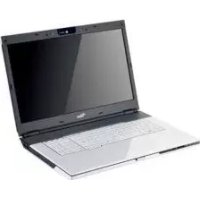
AMILO Xi 3650 - Laptop FUJITSU - Free user manual and instructions
Find the device manual for free AMILO Xi 3650 FUJITSU in PDF.



| Product type | Laptop |
| Brand | Fujitsu |
| Model | AMILO Xi 3650 |
| Dimensions (L x D x H) | 440 mm x 294 mm x 40/48 mm |
| Weight (with 8-cell battery and 2 hard drives) | Approximately 3.9 kg |
| Power supply | 90 W AC adapter, input 100-240 V, output 20 V / 4.5 A |
| Optical drive | CD/DVD reader/writer, Blu-ray reader depending on equipment |
| Connectivity | LAN, Wireless LAN, Bluetooth 2.1, infrared |
| Ports | 3 USB 2.0, 1 combined eSATA/USB port, 1 FireWire, 1 HDMI, 1 VGA, 1 LAN port, 1 headphone jack, 1 microphone, 1 Line-In, 1 SPDIF, 1 antenna connector (optional), 1 multi-connector jack (optional) |
| Card reader | Multi-format |
| Webcam | Integrated |
| Microphones | Integrated digital microphones |
| Speakers | Stereo + Subwoofer |
| Keyboard | With separate numeric keypad |
| Security | Kensington Lock device, BIOS password protection |
| Operating system | Microsoft Windows (preinstalled, depending on version) |
| Options | Integrated TV tuner (optional), Wireless USB interface (optional WUSB), second hard drive (RAID) |
Frequently Asked Questions - AMILO Xi 3650 FUJITSU
User questions about AMILO Xi 3650 FUJITSU
0 question about this device. Answer the ones you know or ask your own.
Ask a new question about this device
Download the instructions for your Laptop in PDF format for free! Find your manual AMILO Xi 3650 - FUJITSU and take your electronic device back in hand. On this page are published all the documents necessary for the use of your device. AMILO Xi 3650 by FUJITSU.
USER MANUAL AMILO Xi 3650 FUJITSU

AMILO Notebook Xi 3650
Getting started
12
Quick Start Guide
Cunstige
2017
302 109 124 1416
27 440 4898827
1.
Punik
to 100% of the 2023/2024/2025
In 1000000000000000000000000000000000000000000000000000000
Inge the rights of each user not to transmit or use the content in any form, without the prior written permission.
1

1000223456
Wu mao yue

AMILONotebookXi3650
English
Deutsch
François
Espanol
Italiano
Nederlandsls
Portugués
Microsoft,MS WindowsandWindowsVistaeregisteredtrademarksoftheMicrosoftCorporation.
AdobeReaderis atrademarkofAdobeSystemslncorporated.
MultiMediaCard is a registered trademark of Infineon Technologies AG
SonyandMemory StickareregisteredtrademarksofSonyElectronics,Inc.
Allothetradem arksreferencedaretrademarksoRegisteredtrademarksoftheir respectiveowners,whoseprotectedrightsareacknowledged.
Copyright@Fuji tsuSiemensComputersGmbH2008
Allrightsreserv ed,includingrightsoftranslation,reproductionbyprinting,copying orsimilarmethods,eitherinpartorinwhole.
Non-compliance ssubjecttocompensationfordamages.
Allrightsreserv ed,includingrightscreatedbypatentgrantorregistrationofautitymodelordesign.
Subjecttoavaila bilityandtechnicalmodifications.
Contents
Thankstoinnovativetechnology 1
Hybridgraphics 2
Changeographicsmode 2
SecondharddriveinRAID group 3
Intel® Callup Matrix Storage Manager and Help function
Further information 4
"AMILO Notebook" Operating Manual 4
Portsandoperatingelements 5
Important notes 7
Preparing your notebook for use 8
Unpacking and checking your notebook 8
Selectingthelocation 9
Connecting the mains adapter 10
Switching the notebook on for the first time 11
Technical data 12
Notebook 12
Mainsadapter. 12
Thankstoinnovativetechnology
...andergonomicdesign, yourAMILON notebookXi3650isreliableandconvenient.
If you have purchased a notebook with a Microsoft Windows operating system, this is pre-installed and optimally configured for you. The notebook is ready to use immediately the first time you switch it on.
Your notebook features the everylatest technology so that you get the best performance from your computing experience.
- AdriveforreadingandwritingCDs/DVDsand,dependingonyourparticular model,forreadingBlu-raydiscs.
-
ThreeUSBports,providingsimplexexpansionoptionsforgamepads,printersandmore
-
A combined eSATA/USB port for connecting an external SATA hard disk or another USB device
- A Wireless USB (WUSB) interface (optional, cannot be retrofitted) for speedy data transfer in accordance with the USB standard without atroublesomecable
LANandWirelessLANforInternetandnetworkaccess
Depending on the device, there might be a second hard disk so you can operate yournotebookwithtwhoarddisksintheRAIDgroup.
-AFireWireportforspeedydataexchangewithmultimediadevices
AnHDMlportforall-digitaltransferofaudioandvideodata
Anintegratedwebcamandddigitalmicrophonesforawidevarietyofmultimediaapplications
- Amulti-formatcardreaderforrapidtransferofdigitalphotos,musicand videoclipspontoyournotebook
- Anintegratedaudiocontroller, stereoloudspeaker, andabassloudspeaker (subwoofer) for optimum audio enjoyment.
- Bluetooth 2.1 for wireless operation of different accessories
-inaddition,inputandoutputportsforhigh-qualityaudioaccessories
- An integrated TV tuner (optional, cannot be retrofitted) for receiving terrestrial television programmes
-Akeyboardwithseparatenumberblock
- Anon-screendisplayforvisualcontrolloftekeysettingsofyournotebook
- Hybridgraphicsforfullperformanceandbattery-savingworkingmode forlessdemandingapplications
- Amulti-connectorinterface(optional,onlyin conjunction with the TVTuner) to receive audio and videosignals from external multimedia devices.
The user-friendly "BIOS Setup Utility" offers powerful password protection functions which can be used to control your notebook's hardware and protect your system better against unauthorised use.
ThisOperatingManualtellsyouhowtogetyourAMILONotepadupand runningandhowtooperateitindailyuse.
Hybridgraphics
Yournotebookisequippedwithahybridgraphicssystem.ByclickingtheQuickStart button, you can switch between battery-saver and performance mode.

Usethegraphicsunitintegratedinthechipsetforapplicationswhichare less graphics-intensive, such as video playback, e-mail and Internet surfing. This reduces heat generation, noise levels and power consumption. Asa result, battery life is increased (battery savermode).
If you require a high-level of performance, forexample, forgames, you can switch to the external graphics unit (performance mode).
Changeographicsmode
In your notebook, the external graphics mode is preconfigured ex works (performance mode).
AdeviceconnectedtoanHDMIportofyournotebook(FullHDresolution)canonlybe activatedinperformancemodeviatheexternalgraphicsunit.
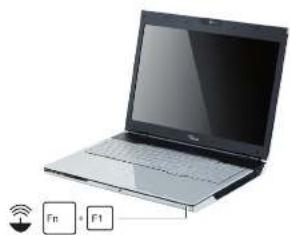
▶ ClicktheQuickStartbutton HybridVGA ontheMultimediaBoardofyournotebook:
Thegraphicsdisplayswitchestobattery-savermode.
▶ ClicktheQuickStart HybridVGA buttonagain.
Thegraphicsdisplayswitchestoperformancemode.

SecondharddriveinRAIDgroup

Removalandinstallationofthesecondharddiskmustonlybeperformedby authorisedserviceagentsofFujitsuSiemensComputersGmbH.Unauthorized removalandinstallationwill invalidateyourwarranty.
For further information and addresses ofourservicepartners, please see"http://www.fujitsu-siemens.com/support".
RAID(RedundantArrayofIndependentDisks,also:DiskArray)isaprocedurefor combiningtwharddiskstocreatealogicalunit.
A so-called disk array can be used advantageously to improve performance or alternatively to improve error tolerance (dataprotection).
Errortoleranceisfacilitatedbymeansofdataredundancy.Ifonedrivemalfunctions, adifferentdrivecontainsanexactcopyofthedata.Thisscanpreventanoperating systemfrommalfunctioningordatafrombeinglost.
Theoperatingsystemdetectsallharddisksinadiskarraysasasinglephysical hard disk. The individual disk drives in a disk array are called "members". Member configuration information is recorded in the reserved sector of the hard disk. With this information the hard disk can be identified as a member.
Thereareusuallyafewmethodsbywhichharddiskscanbecombined.Thesemethods areereferredtoasdifferentRAIDlevels. ThedifferentRAIDlevelsrepresentdifferent performanceandsecuritylevelsaswellasimplementationcosts.

Depending on the size of the hard disk, the process for combining two hard drives creates a RAID group that takes several hours. During this time period, your screen will turn black.
For further information regarding the configuration of your RAID systems, please seetheHelpfunctionofyourIntel ® MatrixStorageManagerProgram.
Intel® CallbackMatrixStorageManagerandHelpfunction
TocalluptheIntel MatrixStorageManagerprogramandtheHelpfunction,proceedasfollows:
ChooseStart-AllPrograms-Intel MatrixStorageManager-Intel MatrixStorageManager.
Theprogrammeisstarted.
In the upper menubar, click on Help.
TheHelpfunctionfortheIntel MatrixStorageManagerprogramiscalledup.
Furtherinformation
General information about your AMILO Notebook can be found in the "AMILO Notebook" operating manual.
TheWindowsVistadriversforyourAMILOnotebookareavailabletodownload fromourwebsite. Thiscomputerisnotdesignedtosupportanyotheroperating systems.FujitsuSiemensComputersacceptsnoliabilityforconsequences arisingfromtheuseofotheroperatingsystems.
Software-related portionsofthis manualrelatetoMicrosoftproductsif theyareincludedwithyourAMILONotepad.
Please refer to the manufacturer's operating instructions when installing others software products.
"AMILONotebook"OperatingManual
The "AMILO Notebook" Operating Manual can be found in the Windows Start menu oronthelInternetat"www.fujitsu-siemens.com/support".
Portsandoperatingelements
This chapter presents the individual hardware components of your notebook. It gives an overview of the displays and portsoftenotebook. Please familiarise yourself with these components before you start using your notebook.
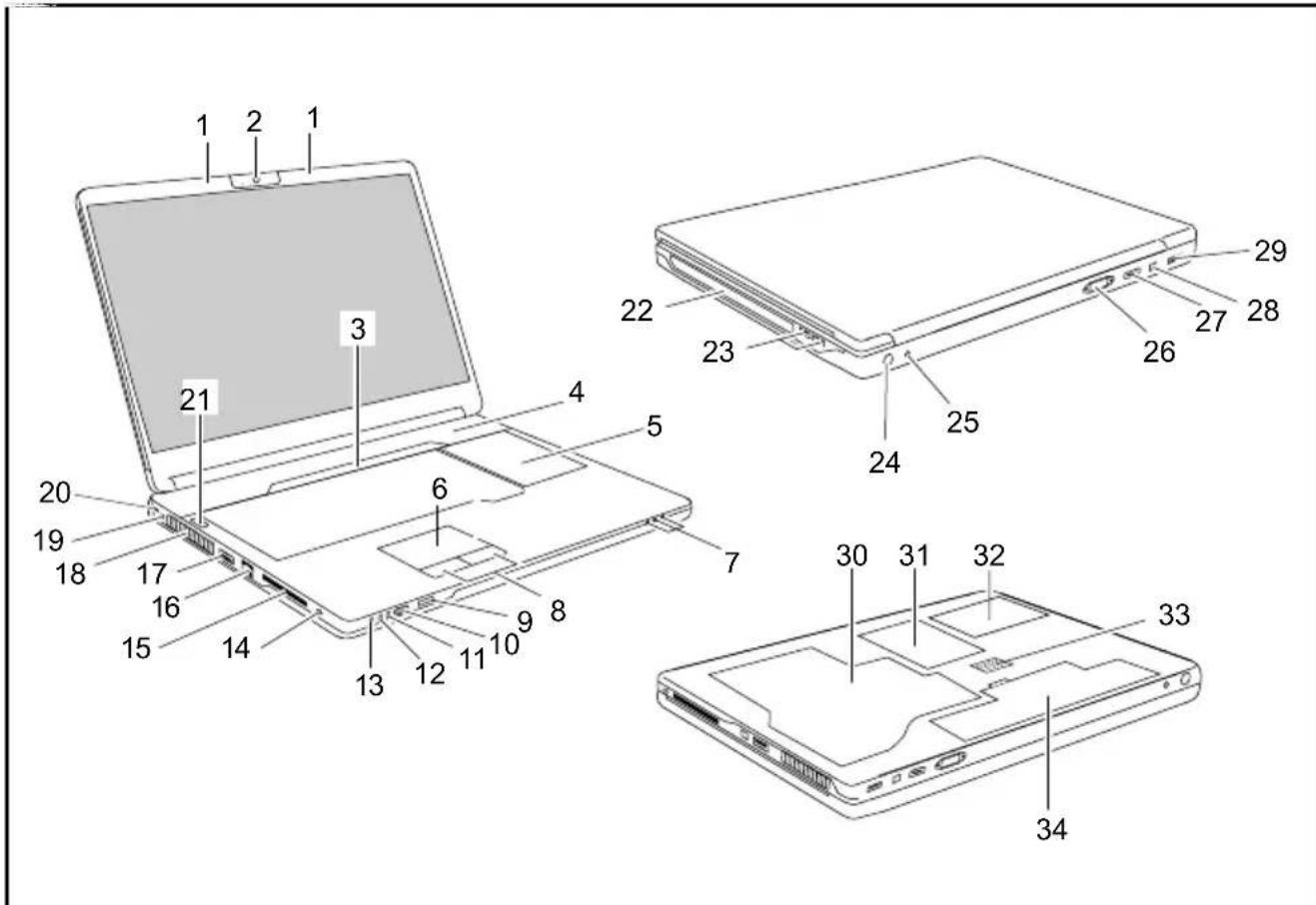
1=Microphones
2=Webcam
3=Multimediaboard
4=Loudspeaker
5=Keyboardwithseparatenumberblock andapplicationbuttons
6=Touchpad
7=Statusindicators
8=Touchpadbuttons
9=Infraredinterfaceforremotecontrol
10=Multi-formatcardreader
11=Line-Inport
12=Microphoneport
13=Headphones/line-outport
14=SPDIF/line-outport
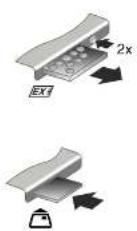
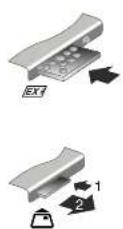
15=ExpressCardslotwithmultimedia remotecontrol
16=LANport
17=eSATA/USBcombinationport
18=Ventilationslots
19=DCinputconnector(DCIN)
20=Kensingtonlockdevice
21=ON/OFFswitch
22=CD/DVDdrive
23=USBports
24=Antennacableport(optional)
25=Multiconnectorport(optional)
26=VGAmonitorport
27=HDMIport
28=FireWireport
29=USBport
30=Memoryservicecompartment
31=Hardisk2servicecompartment
32=Hardisk1servicecompartment
33=Subwoofer
34=Battery
Importantnotes

Please read and observe the safety instructions in the "Safety" manual and in the "AMILON Notebook" operating manual.
If using a TV tuner card, ensure that it complies with standard IEC 60950-1: 2005, paragraph 7.2.
OnlyeverconnectanexternalITVtunertoaTNV-1circuit.
WhenconnectingacoaxialcabletoanexternalTVtuner,ensurethatitiscorrectly connectedtothebuilding'searthingsystem.
Preparing your notebook for use

If your notebook comes with a Windows operating system then allofthenecessary hardware drivers and the supplied software will already be pre-installed.
WiththeoperatingsystemMicrosoftVista, it may take up 20 minute stop prepare your notebook for use depending on the hardware fitted and the software supplied.
When you switch on the notebook for the first time it will perform a system check. Anumberofdifferentmessagesmaybedisplayed. Intheprocess, thedisplaymayflickerordarkentemporarily.
Pleasefollowtheinstructionsontheshcreen.
Itisveryimportantthatyoudonotswitchthenotebookoffduringthisinitialset-upprocess.
Before you can use your notebook for the first time you will need to charge the battery.
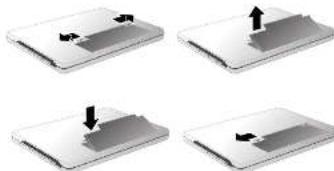
Ondelivery, the battery can be found in the battery compartment mentor in the accessorieskit. The battery must be charged if you want to operate your notebook with the battery.
Whennotpluggedintoamainsssocket,thenotepadrunsonitsbuilt-inbattery.Youcan increasethebattery'slifebyenablingthesystem'senergysavingfunctions.
If you use the notebook inathomeorinanoffice, werecommendyou use themainsadapter instead of the battery.
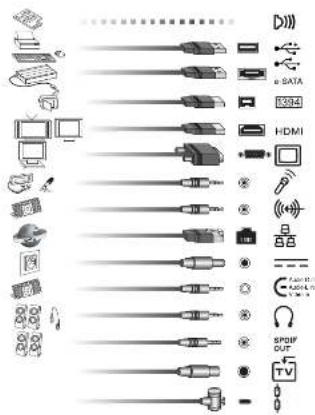
Please refer to the "AMILO Notebook" operating manual for instructions on how to connect externaldevices(e.g.amouseoraprinter)tothenotebook.
Unpackingandcheckingyournotebook

Shouldyoudiscovanydamage incurred during transportation,notify yourlocalsalesoutletimmediately!
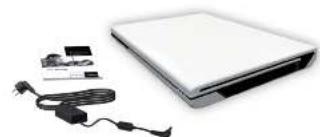
Unpackalltheindividualparts.
Checkyournotebookfordamageincurredduringtransportation.

Werecommendthatyoukeeptheoriginalpackagingmaterial.
Youmayneedthepackaginginthefutureifyouneedtotransportyourdevice.
Selectingthelocation

Selectasuitablelocationforthenotebookbeforesettingitup.Consider thefollowingpointswhenselectingalocation:
- Neverplacethenotebookandthemainsadapteronaheat-sensitive surface. Thiscoulddamagethesurface.
- Neverplacethenotebookonasoftsurface(e.g.carpeting,upholsteredfurniture, bed).Thisscanblocktheairventsandcausedamageduetooverheating.
-
Donotplacehenotebookdirectlyonyourlegsforextendedperiods.The undersideofthenotebookheatsupduringnormaloperation. Extendedcontact withtheskincanbecomeunpleasantarevenresultinburns.
-
Place the notebook on a stable, flat, non-slip surface. Please note that therubberfeetmaymarkcertaintypesofsurfaced.
-
Keepotherobjects100mmawayfromthenotebookanditsmains adaptertoensureadequateventilation.
-
Nevercovertheventilationslotsonthenotebook.
-
Do not expose the notebook to extreme environmental conditions. Protect thenotebookagainstdust,humidityandheat.
Connectingthemainsadapter

Pleaseobservethesafetyprecautionsintheenclosed"Safety"manual.
Thesuppliedmainscableconformstotherequirementsofthecountryinwhich youpurchasedyournotebook.Makesurethatthemainscableisapproved foruseinthecountryinwhichyouintendtouseit.
Themainscableofthemainsadaptermustonlybeconnectedtoamains socketifthenotebookisconnectedtothemainsadapter.
Makesurethathteratedcurrentofthemainsadapterisnothigherthanthat ofthepowersystemtowhichyouconnectthemainsadapter(refertothe "TechnicalData"section, "Mainsadapter",Page12).
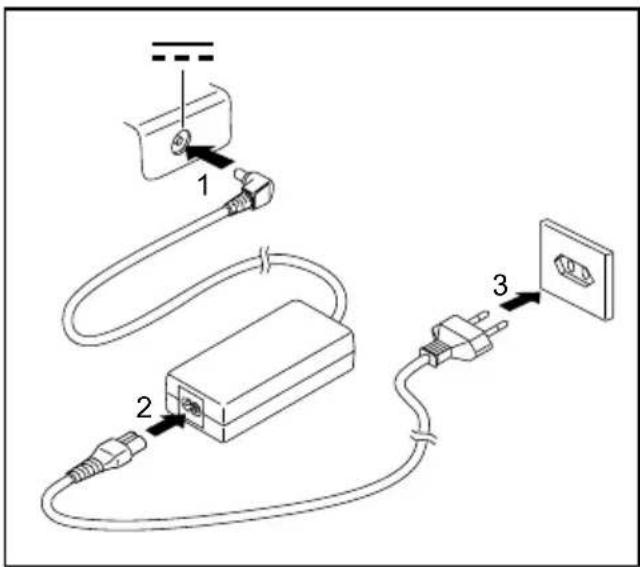
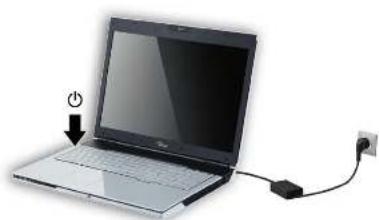
Connectthemainsadaptercable(1)tothe DCjack(DCIN)onthenotebook.
Connectthemainscable(2)tothemainsadapter.
Plugthemainscable(3)intoamainsoutlet.
Switching the notebook on for the first time

Werecommendthatthenotebookissuppliedwithpowerthrough themainsadapterduringthisprocedure.
When you switch your notebook on for the first time, the supplied software is installed and configured. Because this installation procedure must not be interrupted, you should setasideenoughtimeforittofullycompleted and connectthenotebooktothemainsoutletusingthemainsadapter.
Duringinstallation,thenotebookmustonlyberebootedwhenyouarererequestedtodoso!
Youwillbepromptedtocreateabackupcopyofthepre-installedoperatingsystem.This backup copy can be used later to restore your notebook to its delivery configuration.
You can find information on how to restore the operating system, drivers, manuals and special software in the RecoveryProcessmanual.
Youroperatingsystemispre-installedonthearddisktohelpyouwhenyou start using your notebook for the first time.
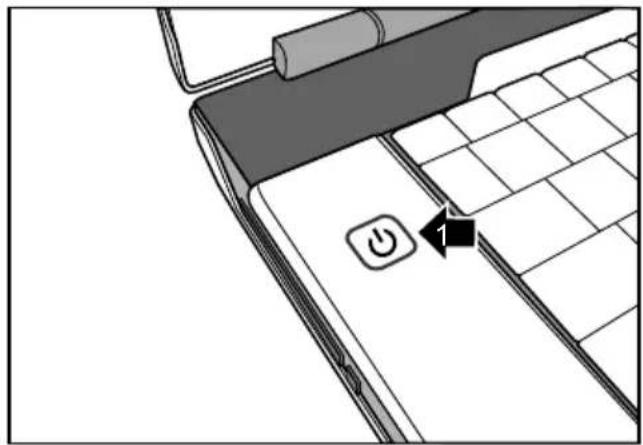
Switchthenotebookon(1).
Duringinstallation, followtheon-screeninstructions.
Consulttheoperationsystemmanualifanythingisunclearaboutthererequestedinputdata.

If a Windows operating system is installed on your notebook, you will find additional informationonthesystemanddrivers, helpprogrammes, updates, manualsetc. on your notebook or on the Internet at "www.fujitsu-siemens.com/support".
Technicaldata
Notebook
| Ambientconditions | |
| Operatingtemperature5°C-35°C | |
| Dimensions | |
| WidthxDepthxHeight(front/back)440mmx294mm | 40/48mm |
| Weight(including8-cellrechargeablebattery and2harddisks) | Approx.3.9kg |

The datasheetforthisnotebookcontainsfurthertechnicaldata. Thedata sheetcanbefoundonyournotebook,oralternativelyitisalsoavailableto downloadfromthelnternetat"www.fujitsu-siemens.com".
Mainsadapter
| Electricaldata | |
| Primary(device-dependent) | 90 W |
| Ratedvoltage | 100V-240V(automatic) |
| Ratedfrequency50Hz-60Hz(automatic) | |
| Secondary | |
| Ratedvoltage20V | |
| Maximumratedcurrent(device-dependent) | 4.5A |
Anadditionalmainsdapterorpowercablecanbeorderedatanytime.
AMILONotebookXi3650
English
Deutsch
François
Espanol
Italiano
Nederlandsls
Portugués
Microsoft,MS WindowsandWindowsVistaeregisteredtrademarksoftheMicrosoftCorporation.
AdobeReaderis atrademarkofAdobeSystemslncorporated.
MultiMediaCard is a registered trademark of Infineon Technologies AG
SonyandMemory StickareregisteredtrademarksofSonyElectronics,Inc.
Allothetradem arksreferencedaretrademarksoRegisteredtrademarksoftheir respectiveowners,whoseprotectedrightsareacknowledged.
Copyright@Fuji tsuSiemensComputersGmbH2008
Allrightsreserv ed,includingrightsoftranslation,reproductionbyprinting,copying orsimilarmethods,eitherinpartorinwhole.
Non-compliance sssubjecttocompensationfordamages.
Allrightsreserv ed,includingrightscreatedbypatentgrantorregistrationofautitymodelordesign.
Subjecttoavaila bilityandtechnicalmodifications.
Inhalt
Innovative Technologie 1
Hybrid-Grafik 2
MultiMediaCard is a registered trademark of Infineon Technologies AG
SonyandMemory StickareregisteredtrademarksofSonyElectronics,Inc.
Allothetradem arksreferencedaretrademarksoRegisteredtrademarksoftheir respectiveowners,whoseprotectedrightsareacknowledged.
Copyright@Fuji tsuSiemensComputersGmbH2008
Allrightsreserv ed,includingrightsoftranslation,reproductionbyprinting,copying orsimilarmethods,eitherinpartorinwhole.
Non-compliance sssubjecttocompensationfordamages.
Allrightsreserv ed,includingrightscreatedbypatentgrantorregistrationofautitymodelordesign.
Subjecttoavaila bilityandtechnicalmodifications.
Sommaire
Graceaunetechnologienovatrice 1
Systemegraphiquehybride. 2
Changerlemodegraphique 2
DeuxiemedisquedurenRAID 3
Appelerleprogrammel Intel 假 Matrix Storage Manageretsafonctiond'aide .
MultiMediaCard is a registered trademark of Infineon Technologies AG
SonyandMemory StickareregisteredtrademarksofSonyElectronics,Inc.
Allothetradem arksreferencedaretrademarksoRegisteredtrademarksoftheir respectiveowners,whoseprotectedrightsareacknowledged.
Copyright@Fuji tsuSiemensComputersGmbH2008
Allrightsreserv ed,includingrightsoftranslation,reproductionbyprinting,copying orsimilarmethods,eitherinpartorinwhole.
Non-compliance sssubjecttocompensationfordamages.
Allrightsreserv ed,includingrightscreatedbypatentgrantorregistrationofautitymodelordesign.
Subjecttoavaila bilityandtechnicalmodifications.
Contidente
Suinnovadoratecnologia 1
MultiMediaCard is a registered trademark of Infineon Technologies AG
SonyandMemory StickareregisteredtrademarksofSonyElectronics,Inc.
Allothetradem arksreferencedaretrademarksoRegisteredtrademarksoftheir respectiveowners,whoseprotectedrightsareacknowledged.
Copyright@Fuji tsuSiemensComputersGmbH2008
Allrightsreserv ed,includingrightsoftranslation,reproductionbyprinting,copying orsimilarmethods,eitherinpartorinwhole.
Non-compliance sssubjecttocompensationfordamages.
Allrightsreserv ed,includingrightscreatedbypatentgrantorregistrationofautitymodelordesign.
Subjecttoavaila bilityandtechnicalmodifications.
Contenuo
Grazieallatecnologiainnovativa 1
Grafica ibrida 2
MultiMediaCard is a registered trademark of Infineon Technologies AG
SonyandMemory StickareregisteredtrademarksofSonyElectronics,Inc.
Allothetradem arksreferencedaretrademarksoRegisteredtrademarksoftheir respectiveowners,whoseprotectedrightsareacknowledged.
Copyright@Fuji tsuSiemensComputersGmbH2008
Allrightsreserv ed,includingrightsoftranslation,reproductionbyprinting,copying orsimilarmethods,eitherinpartorinwhole.
Non-compliance sssubjecttocompensationfordamages.
Allrightsreserv ed,includingrightscreatedbypatentgrantorregistrationofautitymodelordesign.
Subjecttoavaila bilityandtechnicalmodifications.
Inhoud
MultiMediaCard is a registered trademark of Infineon Technologies AG
SonyandMemory StickareregisteredtrademarksofSonyElectronics,Inc.
Allothetradem arksreferencedaretrademarksoRegisteredtrademarksoftheir respectiveowners,whoseprotectedrightsareacknowledged.
Copyright@Fuji tsuSiemensComputersGmbH2008
Allrightsreserv ed,includingrightsoftranslation,reproductionbyprinting,copying orsimilarmethods,eitherinpartorinwhole.
Non-compliance sssubjecttocompensationfordamages.
Allrightsreserv ed,includingrightscreatedbypatentgrantorregistrationofautitymodelordesign.
Subjecttoavaila bilityandtechnicalmodifications.
Indices
Tecnologiainovadora 1
Placa grfica Hybrid 2
- 12
- AMILONotebookXi3650
- Contents
- Thankstoinnovativetechnology 1
- Portsandoperatingelements 5
- Important notes 7
- Preparing your notebook for use 8
- Technical data 12
- Thankstoinnovativetechnology
- Hybridgraphics
- Changeographicsmode
- SecondharddriveinRAIDgroup
- Intel® CallbackMatrixStorageManagerandHelpfunction
- Furtherinformation
- "AMILONotebook"OperatingManual
- Portsandoperatingelements
- Importantnotes
- Preparing your notebook for use
- Unpackingandcheckingyournotebook
- Selectingthelocation
- Connectingthemainsadapter
- Switching the notebook on for the first time
- Technicaldata
- Inhalt
- Innovative Technologie 1
- Sommaire
- Contidente
- Suinnovadoratecnologia 1
- Contenuo
- Grazieallatecnologiainnovativa 1
- Inhoud
- Indices
- Tecnologiainovadora 1
Brand : FUJITSU
Model : AMILO Xi 3650
Category : Laptop