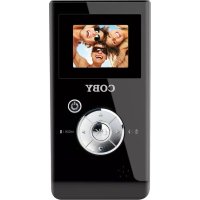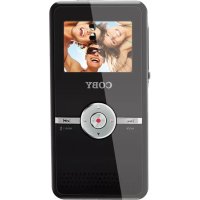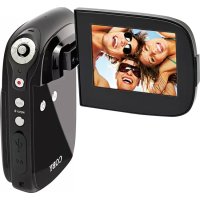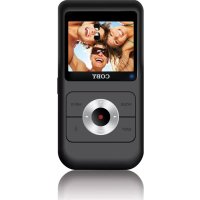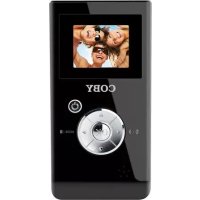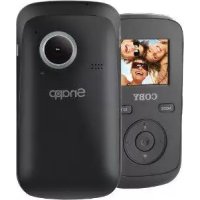
CAM3005 - Camcorder COBY - Free user manual and instructions
Find the device manual for free CAM3005 COBY in PDF.


| Product type | Digital camcorder |
| Brand | Coby |
| Model | CAM3005 |
| Screen | TFT LCD 1.77 inch (4.5 cm) |
| Image sensor | 0.3 Megapixel |
| Maximum video resolution | VGA (640 x 480) |
| Maximum photo resolution | 1024 x 768 (1 MP) |
| Digital zoom | 4x |
| Lens | F 2.8, f=3.8 mm, focal range 120 cm ~ infinity |
| Memory support | SD/SDHC/MMC card (max. 16 GB) |
| Connectivity | USB 2.0 (hi-speed), composite A/V output |
| Power supply | 3 AAA batteries (1.5 V) |
| Dimensions (L x W x H) | 11.4 x 6.0 x 2.3 cm (4.49 x 2.36 x 0.91 inches) |
| Main functions | Video recording, photo taking, playback mode, webcam, slideshow, digital zoom, white balance, exposure, voice memo |
| Maintenance and cleaning | Clean the lens with a microfiber cloth; do not use organic solvents; store in a dry place |
| Safety | Do not open the casing; avoid moisture and extreme temperatures; use recommended batteries |
| Included software | muvee autoProducer 6.1 Basic (Windows) |
Frequently Asked Questions - CAM3005 COBY
User questions about CAM3005 COBY
0 question about this device. Answer the ones you know or ask your own.
Ask a new question about this device
Download the instructions for your Camcorder in PDF format for free! Find your manual CAM3005 - COBY and take your electronic device back in hand. On this page are published all the documents necessary for the use of your device. CAM3005 by COBY.
USER MANUAL CAM3005 COBY
Snapp™ Digital Camcorder
Instruction Manual. Page 2

Turning the Camcorder On and Off.....10
Choosing a Mode 11
MOVIE MODE 12
Movie Mode Screen 13
Shooting Movies 14
Movie Controls. 14
Adjusting the Movie Options 15
PHOTO MODE 17
Photo Mode Screen 18
Taking Photos 19
Photo Controls 19
Adjusting the Photo Options 20
REVIEW MODE 22
Review Mode Screen. 22
Review Controls 23
Adjusting the Review Options. 24
SYSTEM OPTIONS 27
Adjusting the System Options 27
CONNECTING TO A TV 30
TRANSFERRING FILES TO A COMPUTER 32
Connecting to a Computer. 32
USING THE INCLUDED SOFTWARE 35
Installing muveeTM autoProducer. 36
Using muveeTM autoProducer. 41
Making a muveeTM 42
WEBCAMERAFUNCTION 45
Installing the Web Camera Driver.....46
Using the Web Camera. 50
TROUBLESHOOTING & SUPPORT. 51
SPECIFICATIONS. 53
SAFETY & REGULATORY STATEMENTS.54

Thank You
Thank you for purchasing this product from Coby Electronics. For optimal performance and safety, please read this manual carefully. Before connecting, operating, or adjusting this product, please read the instructions completely. Please retain this manual for future reference.
In the Box
Please make sure that the items shown below are included in the package. Should an item be missing, please contact the local retailer from which you purchased this product.
CAM3005 camcorder
喜 A/V cable
USB extension cable
+ Hand strap
+ Pouch
+ Installation CD
喜 Instruction Manual

This package may contain plastic bags or other materials that pose a hazard to children. Be sure to safely dispose of all packing materials after opening.

Camcorder at a Glance
In this section, you will:
Learn about the camcorder, and what each part does.
Front View
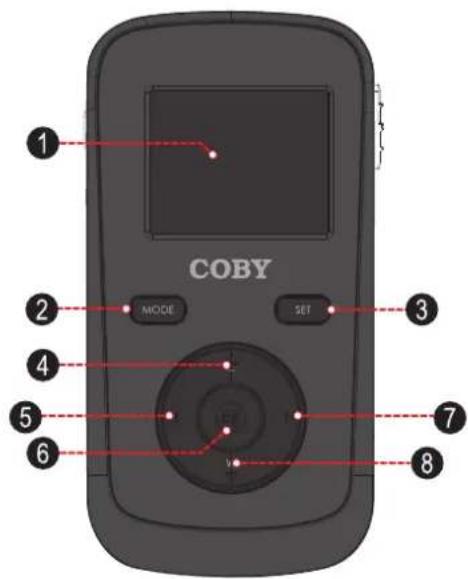
| Part Description | |||
| 1 LCD Screen | Displays the image captured by the lens as well as system status and menus. | ||
| 2 MODE | MODE | Change between Movie, Photo, and Review modes. Change between MSDC and PC CAM modes when connected to a computer. | |
| 3 SET | SET | Press to display a settings menu the camcorder's options. | |
| 4 T | (Tele-scopic) | Zoom in while shooting a movie or photo. | |
| 5 LEFT | Choose the recording quality while shooting a movie or photo. | ||
| 6 OK | Choose the recording quality while shooting a movie or photo. | ||
| 7 RIGHT | Choose the recording quality while shooting a movie or photo. | ||
| 8 W (Wide) | Zoom out while shooting a movie or photo. | ||
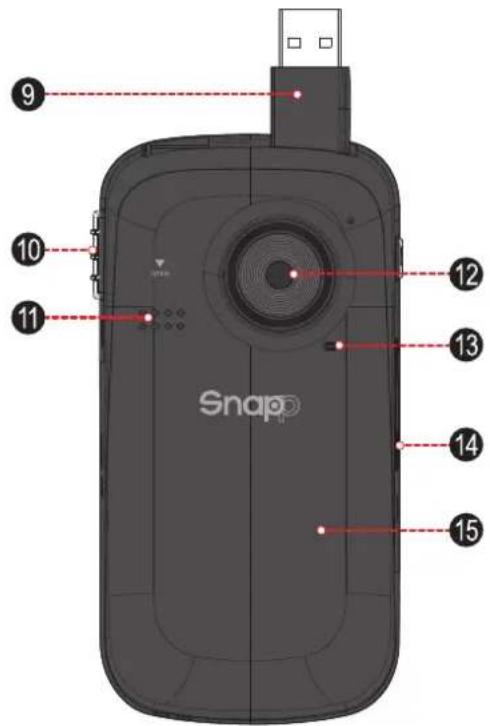
Rear View
| Part | ||
| 9 USB Plug | Connect to a computer to transfer files from the camcorder. | |
| 10 USB Switch | Slide down to release the USB plug. | |
| 11 Speaker | Provides sound when reviewing movies on the camcorder. | |
| 12 Lens | Point the lens towards the subject you wish to record. Avoid touching or scratching the surface of the lens. | |
| 13 Microphone | Records sound. Avoid covering the microphone while shooting a movie with the camcorder. | |
| 14 AV Output | Use with the included A/V cable to connect the camcorder to a TV or other display device. | |
| 15 Battery Compartment Cover | Slide the cover down to reveal the battery compartment. | |
Left View
| Part | |||
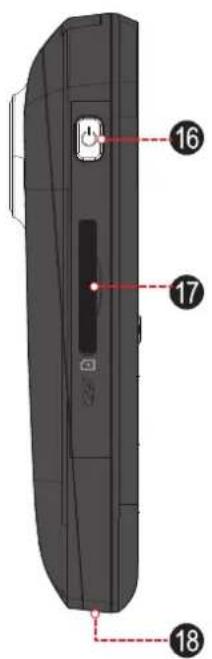
| 16 POWER | Press and hold to turn the camcorder on. Press to turn the camcorder off. | ||
| 17 Memory Card Slot | Load SD or SDHC memory cards here. The metal contacts of the card should face the same direction as the LCD screen. | ||
| 18 Strap Mount | Attach the included hand strap here. | ||

Getting Started
In this section, you will:
Learn how to choose and load a memory card.
Learn how to install batteries.
Learn how to turn the camcorder on.
Learn how to change between movie, photo, and review modes.
Loading a Memory Card
The camcorder records to SD, SDHC, or MMC memory cards (maximum 16 GB).
Load a memory card by inserting it into the memory card slot on the left side of the camcorder. Make sure that the gold contacts of the memory card face the LCD screen. Press the memory card into the slot until it clicks into place.
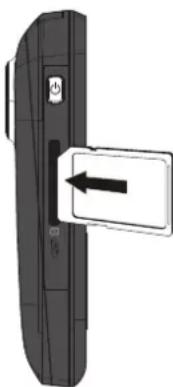
To remove the memory card, press it further into the slot and then release. The card will spring out of the slot.

To avoid data corruption, turn off the camcorder before loading or removing a memory card. Do not attempt to place any object other than a compatible memory card into the memory card slot. Compatible cards should slide easily into the memory card slot; if you encounter resistance, do not attempt to force the card in.
Avoid touching the metal contacts of the memory card.

If your memory card has a write protection switch, make sure that the switch is set to the "Unlock" position.
Installing Batteries
The camcorder requires three (3) "AAA" batteries for operation.
- Remove the battery compartment cover by sliding it down toward the base of the camera.
- Load three (3) "AAA" batteries into the battery compartment. Be sure to match the positive and negative terminals of the batteries to the markings inside the battery compartment.
- Replace the battery compartment cover and slide it up into place.
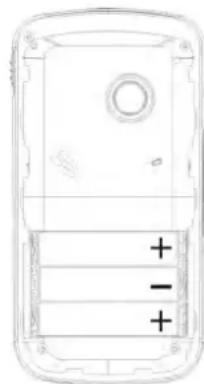

The battery used in this device may present a fire or chemical burn if mistreated. Do not disassemble, incinerate, or heat the batteries. Used batteries should be disposed of safely. Keep batteries out of the reach of children.
Turning the Camcorder On and Off
To turn the camcorder on, press and hold POWER. The camcorder will automatically check to see if a memory card has been loaded. If the camcorder does not detect a memory card, the LCD screen will prompt you to insert a memory card.
To turn the camcorder off, press POWER.
Choosing a Mode
The camcorder has three modes. Press MODE to change between them.
The mode icon in the upper left corner of the screen indicates the current camera mode.
| Icon Mode Function | |
| Movie Shoot movies. | |
| Photo Take photos. | |
| Review Review movie and photo files on the camcorder. | |

Movie Mode
In this section, you will:
Learn about the different indicators displayed on the Movie Mode screen.
Learn how to shoot movies with your camcorder.
Learn how to adjust the movie options and what they do.
Movie Mode Screen
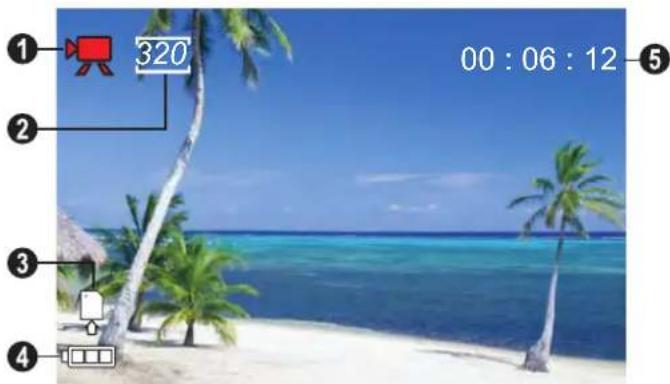
| Indicator Description | ||
| 1 Mode Movie mode. | ||
| 2 Movie Size | 640 | High. Record at a resolution of 640 x 480. |
| 320 | Low. Record at a resolution of 320 x 240. | |
| 3 Memory Card Indicates that a memory card has been loaded. | ||
| 4 Battery Level | Full | |
| Half | ||
| Low | ||
| 5 Timer | Displays the amount of recording time remaining when recording is stopped. Displays the elapsed recording time when recording. | |
Shooting Movies
When the camcorder is in Movie mode:
Press OK to start recording a movie.
Press OK to stop recording and save the movie.

Recording will stop automatically when the memory card becomes full.

When the camcorder is recording, the total elapsed recording time is displayed in the upper right hand corner of the LCD screen.
When the camcorder is not recording, the estimated available recording time will be displayed in the upper right hand corner.
Movie Controls
| Key Action Function | |
| Press Start or stop recording a movie. | |
| Press Increase the zoom level. The zoom level indicator will appear on the bottom right of the LCD screen. The quality of the image will decrease as the zoom level increases. | |
| Hold Increase the zoom level quickly. | |
| Press Decrease the zoom level. The zoom level indicator will appear on the bottom right of the LCD screen. | |
| Hold Decrease the zoom level quickly. | |
| / | Press Change the Movie Size. |
| MODE | Press Change the camcorder mode. |
| SET | Press Access the movie options menu |
Adjusting the Movie Options
Press SET to access the movie options menu when the camcorder is in Movie mode.
Press UP or DOWN to browse the menu items.
Press OK to select the highlighted item.
Press SET to return to the previous screen.
| Option | Description | |
| Movie Size | 640 | High. Record movies at the highest quality resolution of 640 x 480. This will decrease the available recording time. |
| 320 | Low. Record movies at a lower quality resolution of 320 x 240. This will increase the available recording time. | |
| Option Description | ||
| Frame Rate | 30 | High. Record movies at 30 frames per second for fast-moving subjects. This will decrease the available recording time. |
| 15 | Low. Record movies at 15 frames per second for still subjects. This will increase the available recording time. | |
| Metering | [◎] | Center. Determine the exposure level from the center zone of the image. |
| [■] | Multi. Determine the exposure level from multiple zones of the image. | |
| [○] | Spot. Determine the exposure level from a small spot at the center of the screen. | |
| Option Description | ||
| White Balance | Auto Auto. Automatically adjust the white balance to in order to achieve a natural color balance. | |
| Daylight. Set the white balance to adjust for daylight conditions. | ||
| Cloudy. Set the white balance to adjust for cloudy conditions. | ||
| Fluorescent. Set the white balance to adjust for fluorescent lighting. | ||
| Tungsten. Set the white balance to adjust for tungsten lighting. | ||

Photo Mode
In this section, you will:
Learn about the different indicators displayed on the Photo Mode screen.
Learn how to take still photos with your camcorder.
Learn how to adjust the photo options and what they do.
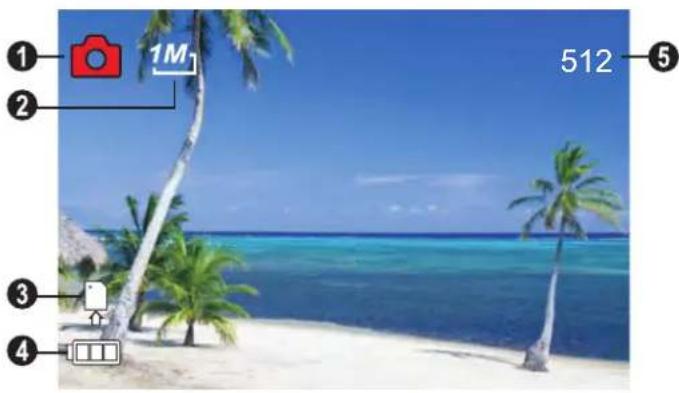
Photo Mode Screen
| Indicator Description | ||
| 1 Mode Photo mode. | ||
| 2 Photo Size | 1M | High. Record at a resolution of 1024 x 768. |
| VGA | Low. Record at a resolution of 640 x 480. | |
| 3 Memory Card Indica-tes that a memory card has been loaded. | ||
| 4 Battery Level | Full | |
| Half | ||
| Low | ||
| 5 Counter Displays how many photos can be taken. | ||
Taking Photos
When the camcorder is in Photo mode:
Press OK to take a photo.

The estimated number of available photos on the memory card is displayed on the upper right corner of the screen.
Photo Controls
| Key Action Function | |
| Press Take a photo. | |
| Press Increase the zoom level. The zoom level indicator will appear on the bottom right of the LCD screen. The quality of the image will decrease as the zoom level increases. | |
| Hold Increase the zoom level quickly. |
| Key Action Function | |
| Press Decrease the zoom level. The zoom level indicator will appear on the bottom right of the LCD screen. | |
| Hold Decrease the zoom level quickly. | |
| Press Change the resolution (photo size). | |
| Press Change the camcorder mode. | |
| Press Access the photo options menu |
Adjusting the Photo Options
Press SET to access the photo options menu when the camcorder is in Photo mode.
Press UP or DOWN to browse the menu items.
Press OK to select the highlighted item.
Press SET to return to the previous screen.
| Option Description | |
| Resolution | 1M |
| High. Record photos at the highest quality resolution of 1024 x 768. This will decrease the available number of photos. | |
| VGA | |
| Low. Record photos at a lower quality resolution of 640 x 480. This will increase the available number of photos. | |
| Option Description | ||
| Quality | ↓== | High. Record photos with low compression for best quality images. This uses the most amount of space on the memory card. |
| ←= | Medium. Record photos with medium compression for medium quality images. | |
| →- | Low. Record photos with high compression. This uses the least amount of space on the memory card. | |
| Metering | [◎] | Center. Determine the exposure level from the center zone of the image. |
| [■] | Multi. Determine the exposure level from multiple zones of the image. | |
| [○] | Spot. Determine the exposure level from a small spot at the center of the screen. | |
| Option Description | ||
| White Bal- ance | Auto Auto. Automatically adjust the white balance to in order to achieve a natural color balance. | |
| Daylight. Set the white balance to adjust for daylight conditions. | ||
| Cloudy. Set the white balance to adjust for cloudy conditions. | ||
| Fluorescent. Set the white balance to adjust for fluorescent lighting. | ||
| Tungsten. Set the white balance to adjust for tungsten lighting. | ||
| Exposure | EV Adjust the exposure level of the image. | |
| Option Description | |
| Driver Mode Activate | the self-timer or burst mode. • OFF. Take a single photo. • Self-timer 2s. Take a photo after 2 seconds. • Self-timer 10s. Take a photo after 10 seconds. • Burst. Take photos rapidly. |
| Effect Apply special | filter effects. |

Review Mode
In this section, you will:
Learn about the different indicators displayed on the Review Mode screen.
Learn how to review and manage your movies and photos on the camcorder.
Indicator Description
3 File
Number
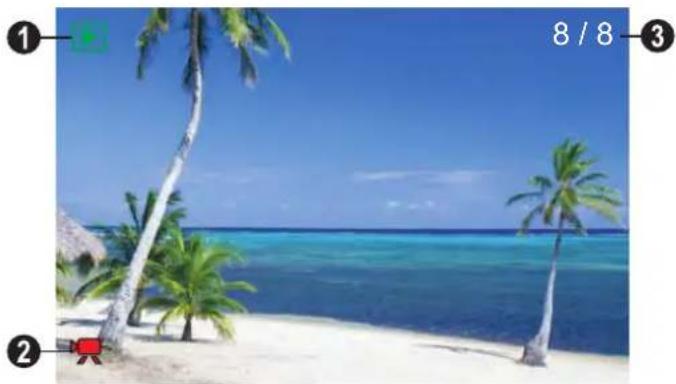
Current file / Total number of files.
Review Mode Screen
| Indicator Description | |
| 1 Mode Review mode. | |
| 2 Movie Indicates that the current file is a movie. Press OK to play the movie. If no icon is displayed, the current file is a photo. In thumbnail view, movie files are marked with the letter “V”. |
Review Controls
| Key Action Function | |
| Press Full screen mode Start playback when a movie file is selected. • Press OK to stop the movie and return to full screen mode. Thumbsail mode Display the highlighted file in full screen mode. | |
| Press Full screen mode Increase the zoom level when a photo is selected; press DOWN to decrease the zoom level. Zoom does not work for movie files. Thumbsail mode Browse the files. | |
| Key Action Function | |
| M | Press Full screen mode Change the view to thumbnail mode. Thamburger mode Browse the files. |
| Press View/select the previous file. | |
| Press View/select the next file. | |
| MODE | Press Change the camcorder mode. |
| SET | Press Access the review options menu. |
Adjusting the Review Options
Press SET to access the review options menu when the camcorder is in Review mode.
Press UP or DOWN to browse the menu items.
Press OK to select the highlighted item.
Press SET to return to the previous screen.
| Option Description | |
| Lock Lock a file | to keep it from being deleted. • Lock/Unlock one: Lock or unlock the current file. • Lock All: Lock all files. • Unlock All: Unlock all files. |
| Delete Delete a | file. • One: Delete the current file. • All: Delete all files. |
| Option Description | |
| Slide Show Set | and start slide show photo display. • Start: Start the slide show with the options set below. • Interval: Change the time between photos. • Repeat: Set the slide show to repeat. |
| This option is not available for video files. | |
| Effect Apply a special filter effect to the current photo. A copy of the photo with the effect will be created; the original photo will not be modified. | |
| This option is not available for video files. | |
| Option Description |
| Rotate Rotate the current photo. • Rotate: Rotates the photo 90 degrees clockwise. • Save: Save the rotated photo. A copy of the rotated photo will be created; the original photo will not be modified. • Back: Return to the previous screen |
| Resize Decrease the resolution of the current photo. A copy of the resized photo will be created; the original photo will not be modified. This option is not available for video files. |
| Option Description | |
| Voice Memo Record a voice memo and add it to the current photo. • Add: Record a voice memo. Press OK to start recording; press OK again to stop recording and add it to the current photo. • Delete: Remove the voice memo attached to the current photo (if available). Photos that contain a voice memo are marked with a microphone icon. Press OK to listen to the voice memo. | |
| Start-up Image | Display the current photo when you turn on the camcorder. • Set: Save the current photo as the start-up image. • Cancel: Return to the previous screen. |
| TV Out Set the | TV format of the A/V output signal. ·NTSC: The standard used in North America and elsewhere. ·PAL: The standard used in Europe and elsewhere. |
| USB Set the computer connection mode. ·MSDC: Connect to a computer as a storage device for transferring files. ·PCCAM: Connect to a computer as a web camera. | |
| Option Description | |
| Start-up Im-age | Manage the start-up image after a photo has been saved as the start-up. • Off: Do not display an image when the camcorder is turned on. • System: Display the default image when the camcorder is turned on. • My Image: Display the image saved as the start-up image when the cam-corder is turned on. |

System Options
In this section, you will:
Learn about the camcorder's system options and how to adjust them.
Adjusting the System Options
Press SET to access the options menu, and then press RIGHT to select the System Options tab.
Press UP or DOWN to browse the menu items.
Press OK to select the highlighted item.
Press SET to return to the previous screen.
| Option Description | |
| unds Customize the sound cues. | • Shutter: Turn the sound on/off when you take a picture. |
| • Start-up: Customize the sound when you turn on the camcorder. Choose “None” to turn the start-up sound off. | |
| • Beep: Turn the sound on/off when you press a key. | |
| • Volume: Set the loudness of the sound cues. | |
| Auto Review After | you take a picture, the camcorder can be set to display the results on screen immediately for your review. • Off: Disable the Auto Review feature. • 1 sec: Display the review results for one second. • 3 sec: Display the review results for three seconds. |
| Power Frequency | Toggle the power frequency between 60 and 50 Hz. Use 60 Hz in North America. |
| Option Description | |
| Power Save When the camcorder is idle, it can be set to turn off automatically in order to conserve battery power. ·1min.: Turn the camcorder off after one minute of idle time. ·3min.: Turn the camcorder off after three minutes of idle time. ·5min.: Turn the camcorder off after five minutes of idle time. | |
| Date & Time Set | the system clock. ·Press LEFT or RIGHT to select a field. ·Press UP or DOWN to adjust the selected field. |
| Language Set | the menu display language. |
| Format Reinitialize the installed memory card. | |
| FORMATTING WILL ERASE AND DESTROY ALL FILES/DATA. Make a backup copy of all your video and photo files before using this feature. | |
| Reset All Return all of the camcorder's options to their factory-default state. | |

Connecting to a TV
In this section, you will:
Learn how to view your movies and photos on a TV
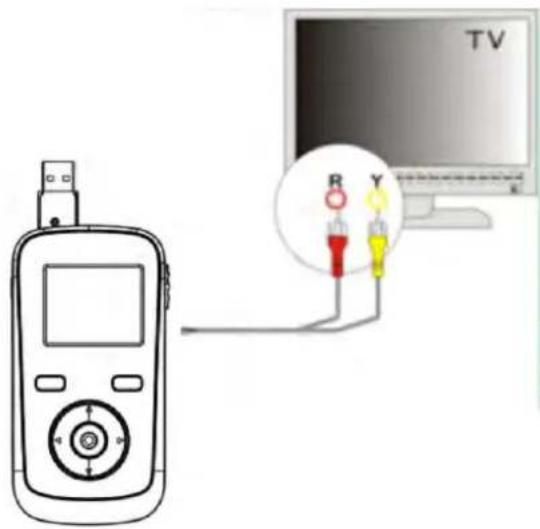
To view your video and photo files on a bigger screen, use the included A/V cable to connect your camcorder to a television.
- Locate the Composite Video input connectors on the TV.
Connect the cable's yellow RCA plug to the Composite Video In jack of the TV.
Connect the cable's white RCA plug to the white Audio In jack of the TV. (The red jack is unused.)
- Turn the camera on. Connect the cable's mini plug to the A/V output jack located on the bottom of the camcorder. The camcorder's screen will turn off automatically.
-
Turn on the TV. Set the TV's input source mode to display the composite video signal. When the TV source mode is set properly, you will see the camcorder's display on the TV screen.
-
Press
on the camera to place it Review mode. Use the review mode controls to play videos or view photos on the TV.

The Video Out format of the camcorder can be changed in the System Settings menu. By default, the camcorder is set to be used in North America (NTSC format, 60 Hz refresh rate).
For more information, please refer to the section "Setting the System Options".

Please refer to the documentation provided with your TV If you need help setting its input source mode.

Transferring Files to a Computer
In this section, you will:
- Learn how to connect the camcorder to a computer.
Learn how to move movies and photos from the camcorder to a computer.
Connecting to a Computer
Connect the camcorder to a computer to save movies and photos onto your computer.
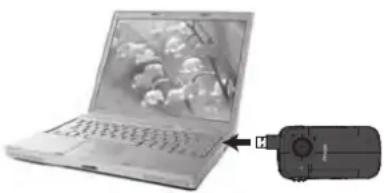

If you are planning to install the software on the included CD, please install these programs BEFORE connecting the camcorder to your computer.
- Press the USB Plug Release to flip the USB plug out.
- Connect the USB plug to an available USB port on your computer.
- Turn the camcorder on; it will display a USB icon labeled "MSDC". The computer will automatically recognize the camcorder as a removable disk.
If this is the first time you are making this connection, your computer will automatically install device drivers. Wait until the computer has completed installation of the drivers before proceeding.
If you have not made the web camera connection yet (PC CAM), you may see the message "Device driver software was not successfully installed". This is normal and will not affect operation of the camcorder. This message will not appear once the PC CAM connection is made; please refer to the section "Web Camera (PC CAM)" for more information.
- Follow the prompt on the computer screen to view files on the camcorder (e.g., "Open folders to view files").
If no prompt appears, you may view files on the camcorder via "My Computer" on a Windows computer, or via a Finder window on Mac OS X.
- Use your computer's operating system commands to transfer files from the camcorder to your computer as you would with any external disk.
Use your mouse to drag and drop files from one window to another.
Use your keyboard to copy/paste files (e.g., Ctrl-C/Ctrl-V).
When the camcorder is connected to a computer, you can also use the operating system commands to browse, delete, and move files on the camcorder.

The camcorder must be connected to a powered USB computer port. The camcorder will not work with low-power USB ports designed for use with keyboards/mice.
The first time you connect the camera to a computer, it may take a moment for the computer to recognize and install the appropriate drivers for the camera.

For best performance, connect the camcorder to a USB 2.0 Hi-speed computer port.
If your computer has a memory card reader that supports SD, SDHC, or MMC memory cards, you can simply remove the memory card from the cam-corder and load it into the card reader to transfer/manage files.

Using the Included Software
For your convenience, the following software is included:
+ muveeTM autoProducer 6.1 Basic.
muvee autoProducer 6 is the latest release in the range of award-winning autoProducer software. With over 100 styles, there are many ways to personalize your home production. Whether you are trying to create a slideshow or a quick home movie – muvee autoProducer 6 brings a level of simplicity to the task. Add your photos and video, select a style, and let it automatically create and sync a movie to the beat of your music.
The minimum system requirements for this software are:
A computer running Windows 7, Windows Vista, or Windows XP.
A computer with an optical DVD/CD-ROM drive.
- Processor: Intel Pentium III 1 GHz, AMD Athlon, or equivalent with MMX support
念 Memory: 512MB RAM
Other Requirements: Microsoft DirectX 9.0 or higher, Apple QuickTime (for MOV files)

For more information about DirectX, please visit the Microsoft support website: http://support.microsoft.com/kb/179113/
For more information about Apple QuickTime, please visit the Apple website: http://www.apple.com/quicktime/download/.
Installing muvee™ autoProducer
To install muvee autoProducer 6.1 Basic:
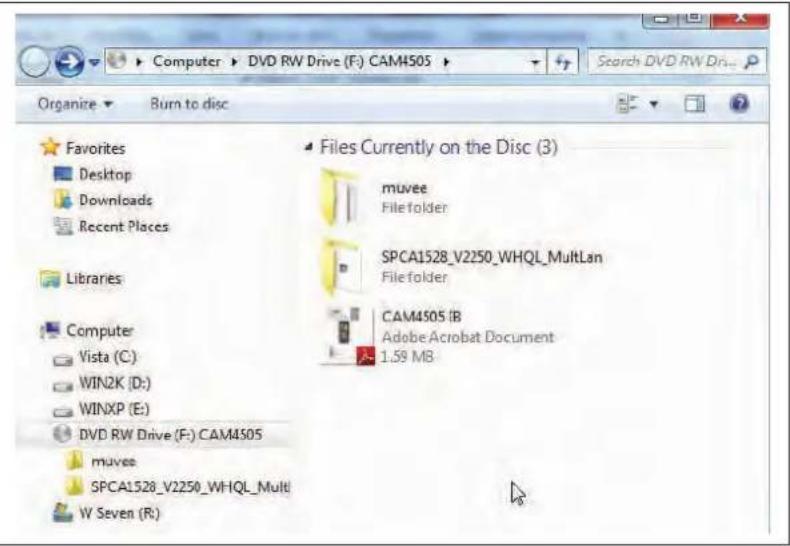
Load the included software CD into your computer's optical DVD/CD-ROM drive. When the AutoPlay window appears, click "Open folder to view files".
Note: If an AutoPlay window does not appear, open Windows Explorer and double-click the DVD/CD-ROM drive icon to view its contents.
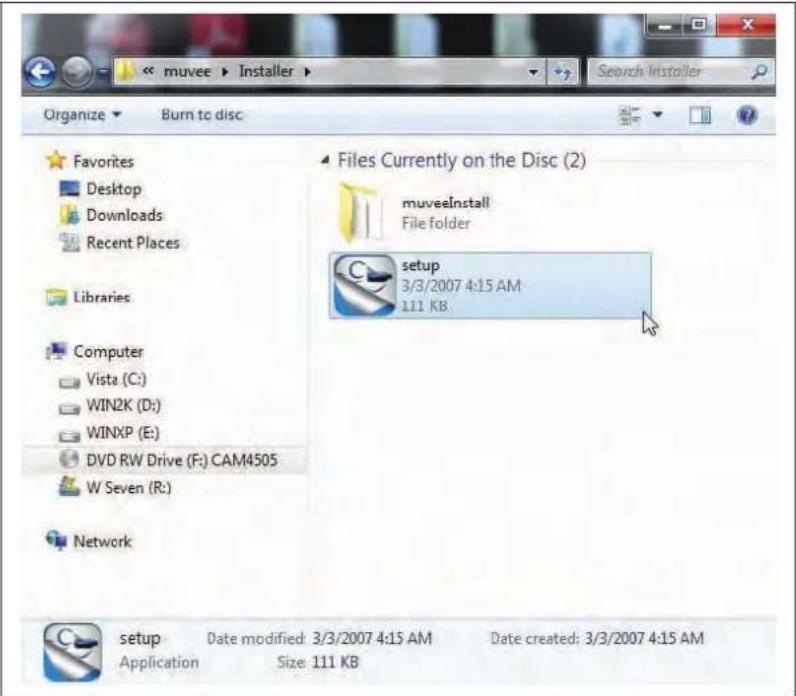
Double-click the folder "muvee" to view its contents, then double-click the folder "Installer" to view its contents.
Double-click the file "setup" to start the installer.
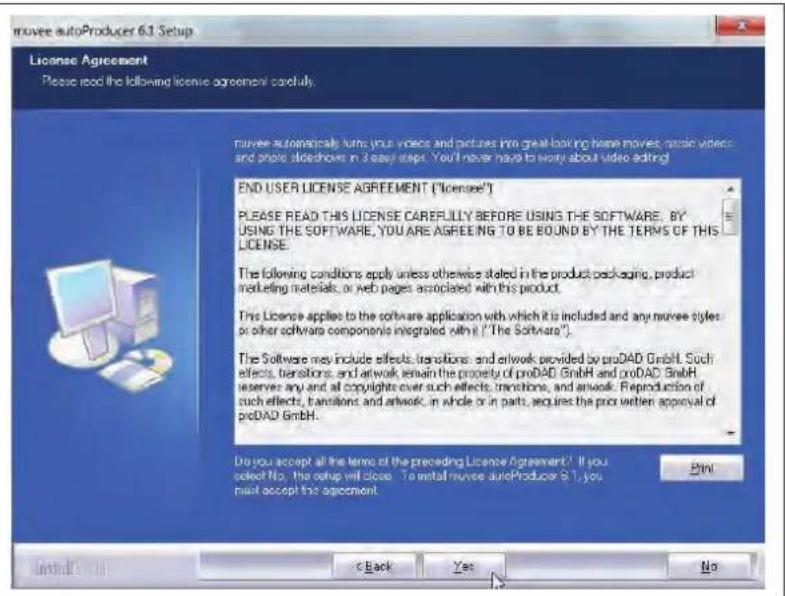
Follow the on-screen instructions to install the driver
Restart your computer to complete the installation.
Using muvee™ autoProducer
muvee autoProducer allows you to get creative with your videos and photos. Whether you are trying to create a slideshow or a quick home movie – muvee autoProducer 6 brings a level of simplicity to the task.
To learn more about muvee autoProducer, press the "F1" key on your keyboard to view the Help files (or select "Help" from the menu bar).

The help documentation refers to the full version of autoProducer 6, not the Basic version that is included. The basic version of muvee autoProducer 6.1 has the following limitations:
| Video files per muvee: 3 Add voiceovers: No |
| Pictures per muvee: 30 MPEG-1 and MPEG-2 output: No |
| Music tracks per muvee: 1 DVD burning: No |
| Add captions: No |
Making a muveeTM
| 1. Start the program.From your computer's Start menu, click:All Programs → muvee → muvee autoProducer 6.1 → Home movies made easy! | |
| 2. Turn on the CAM4505 and connect it to yourcomputer using the supplied USB cable. | |
| 3. Press MODE until the screen displays aUSB icon labeled "MSDC". | |
| 4. Add videos and photos from the CAM4505:a. Click on the "Import from Device" icon. | Video/PicturesImport video/pictures from a device |
| b. Click “From My Camera Device” | Video/Pictures From My Camera/Device... From My Camcorder... Mucir |
| c. Use the drop-down menu to choose the CAM4505. The internal memory will appear as the first removable disk; the SD card (if loaded) is the second removable disk. | Get media from ... Import my pictures/video from: Choose your device from this list Refresh List Removable drive(G:\) Removable drive(H\) G:\} Choose your device from this list R:\Users\md\Pictures Browse folder... |
| d. Click “OK”. | |
| 5. To add a soundtrack to the project, click the music icon. | |
| 6. Click on a style to choose a visual style for this project. | Select Style Show all styles Back-in-Time Classic Extreme Music Video Journal Modern Multi-frame |
| 7. Click the “make muvee” icon to finish creating your muvee. | make muvee |
| 8. To save and share your finished muvee, click the muveeShare icon. |

To upload videos to YouTube, you must have a valid YouTube account. To sign up for a free account, please visit http://www.youtube.com/create_account/.

Web Camera Function
Use your camcorder as a web camera (PC CAM mode).
The web camera function requires:
- A computer running Windows 7, Windows Vista, or Windows XP.
- A computer with an optical DVD/CD-ROM drive.
- Installation of the included web camera driver.

The CAM3005 supports video only in web camera mode; the integrated microphone is disabled.
Installing the Web Camera Driver
To install the SPCA1528 PC Driver:
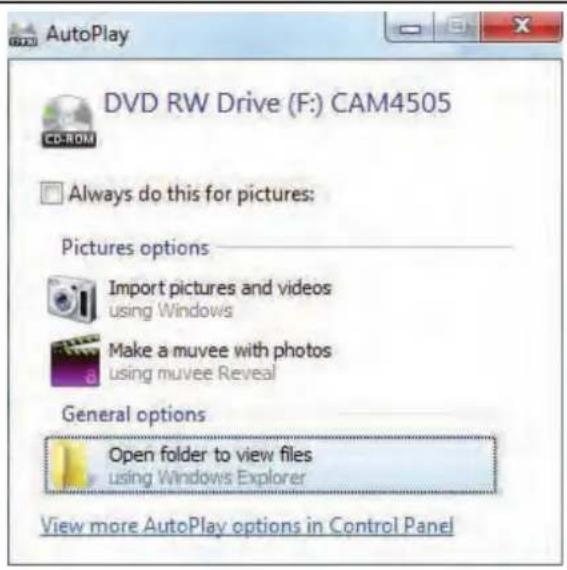
- Load the included software CD into your computer's optical DVD/CD-ROM drive. When the AutoPlay window appears, click "Open folder to view files".
Note: If an AutoPlay window does not appear, open Windows Explorer and double-click the DVD/CD-ROM drive icon to view its contents.
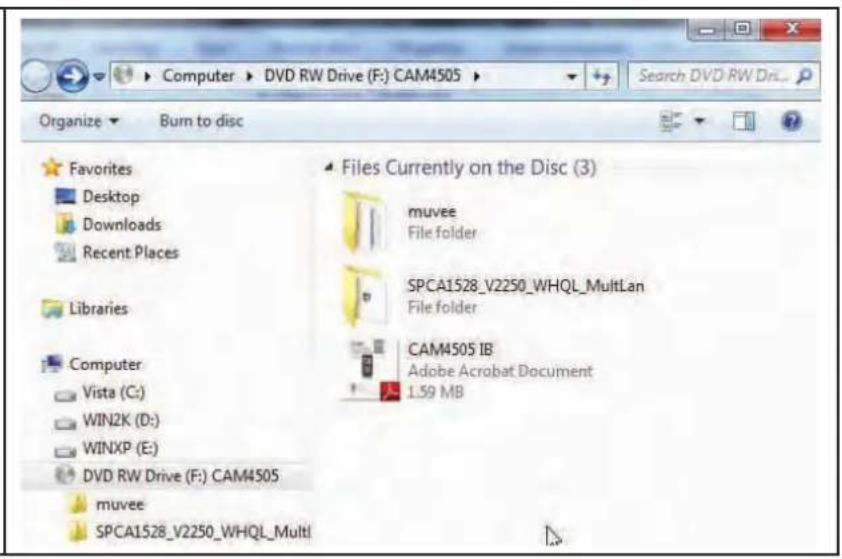
- Double-click the folder "SPCA1528_V2250_WHQL_MultLan" to view its contents.
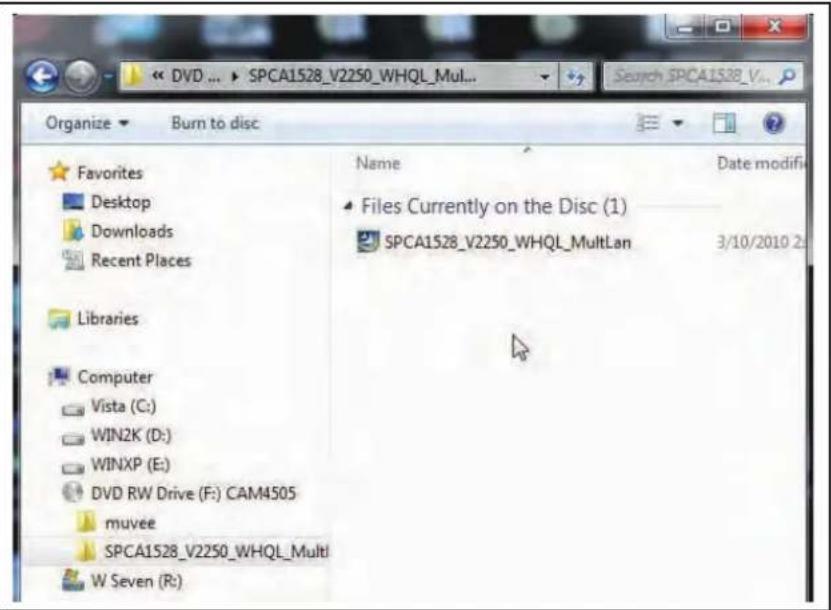
- Double-click the file "SPCA1528_v2250_WHQL_MultiLan" to start the installer.
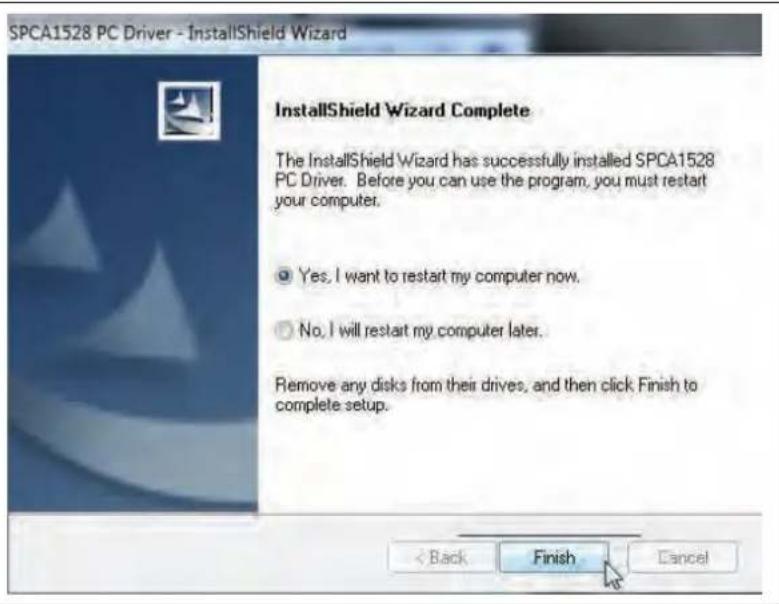
| 4. Follow the on-screen instructions to install the driver. | SPCA1528 PC Driver - InstallShield Wizard Welcome to the InstallShield Wizard for SPCA1528 PC Driver The InstallShield Wizard will install SPCA1528 PC Driver on your computer. To continue, click Next. Back Next Cancel |
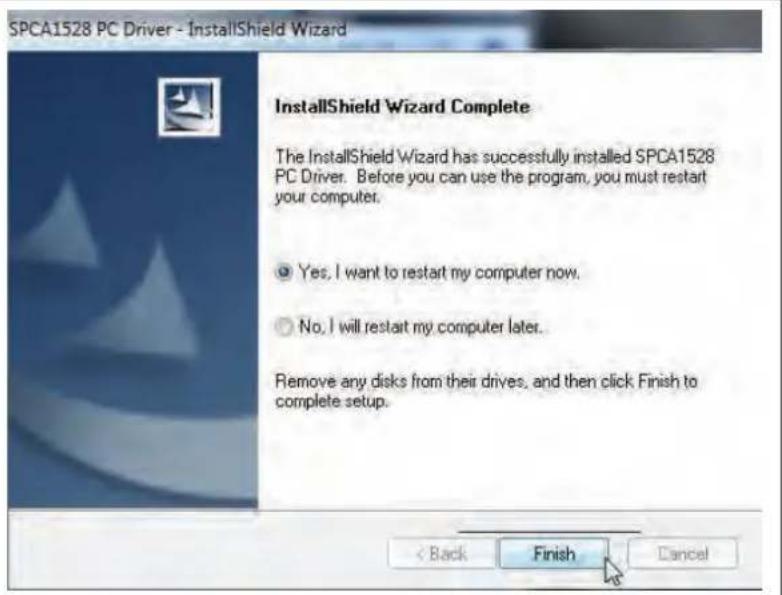
| 5. Restart your computer to complete the installation. | SPCA1528 PC Driver - InstallShield Wizard InstallShield Wizard Complete The InstallShield Wizard has successfully installed SPCA1528 PC Driver. Before you can use the program, you must restart your computer. Yes, I want to restart my computer now. No, I will restart my computer later. Remove any clicks from their drivers, and then click Finish to complete setup. Back Finish Cancel |
Web Camera Function Page 49
Using the Web Camera
After the web camera driver has been installed:
- Connect the camcorder to your computer with the included USB cable.
- Press MODE until the camcorder's display shows a USB icon labeled "PC CAM".
If this is the first time you are making this connection, your computer will automatically install device drivers. Wait until the computer has completed installation of the drivers before proceeding.
After the drivers are installed, your camcorder is ready for use as a web camera with other programs that support video.

The CAM3005 supports video only in web camera mode; the integrated microphone is disabled.

Troubleshooting & Support
If you experience a problem with this device, please read the troubleshooting guide below and check our website at www.cobyusa.com for Frequently Asked Questions (FAQ) and firmware updates. If these resources do not resolve the problem, please contact Technical Support.
Address
Coby Electronics Technical Support
150 Knowlton Way
Savannah, Georgia 31407
techsupport@cobyusa.com
Web
www.cobyusa.com
Phone
800-727-3592:
Monday to Friday, 8:30AM-9:00PM EST
Saturday, 9:00AM-5:30PM EST
718-416-3197
Monday to Friday, 8:00AM-5:30PM EST
Troubleshooting & Support Page 51
Camera does not power on.
The battery level may be low. Connect the camera to a computer to charge.
The camera does not take pictures/video.
The camera's memory or memory card may be full. Delete several files and try again.
The memory card type may not be supported. Make sure that you are using an SD or SDHC memory card 16GB or less in size.
The memory card format may not be supported. Make sure that you are using a FAT-formatted card.
Image is blurry or out of focus.
Blurry images or video may result when the camera is not held steady during recording. Hold the camera steady and try again.
Blurry images or video may result when there is not enough light on the subject. Try recording in a brightly lit location.
Recorded images are not saved in memory.
- Images will not save if the camera is turned off before data has finished processing. Be sure to allow adequate time for the image to save completely before turning off the video camera.

Specifications
Please visit www.cobyusa.com for the latest product information. Design, specifications, and manual are subject to change without notice.
| Display Type 1.77" TFT LCD | |
| Image Sensor 0.3 MP | |
| Video Resolution VGA (640 x 480) QVGA (320 x 240) | |
| Photo Resolution 1024 x 768 640 x 480 | |
| Video Format AVI | |
| Photo Format JPEG | |
| Zoom 4x digital | |
| Lens F 2.8, f = 3.8 mm | |
| Focal Range 120 cm ~ infinite | |
| Removable Memory Support | SD, SDHC, MMC (max 16 GB) |
| A/V Output Composite (requires included cable) | |
| PC Connection USB 2.0 | Hi-Speed |
| Power | Three (3) "AAA" batteries |
| Dimensions | 4.49 × 2.36 × 0.91 in (L x W x H) |

Safety & Regulatory Statements
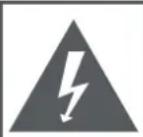
CAUTION
WARNING: SHOCK HAZARD. DO NOT OPEN. AVIS: RISQUE DE CHOC ELECTRIQUE. NE PAS OUVRIR

CAUTION: TO REDUCE THE RISK OF FIRE AND ELECTRIC SHOCK, DO NOT REMOVE THE COVER (OR BACK) OF THE UNIT. REFER SERVICING ONLY TO QUALIFIED SERVICE PERSONNEL.

The lightning flash with arrowhead symbol within an equilateral triangle is intended to alert the user to the presence of uninsulated "dangerous voltage" within the product's enclosure that may be of sufficient magnitude to constitute a risk of electric shock.

The exclamation point within an equilateral triangle is intended to alert the user to the presence of important operation and servicing instructions in the literature accompanying the appliance.

For recycling or disposal information about this product, please contact your local authorities or the Electronics Industries Alliance: www.eiae.org.
For Customer Use:
Enter below the serial number that is located on the rear of the unit. Retain this information for future reference.
Model No.
Serial No.
WARNING: To prevent fire or shock hazard, do not expose this device to rain or moisture. Dangerous high voltage is present inside the enclosure. Do not open the cabinet.
Note: If the product suddenly has no response or powers off, an electrostatic discharge may be the cause. In this circumstance, please follow the procedures below for recovery:
- Remove the batteries. Wait 30 seconds.
After 30 seconds, replace the batteries and turn it on again.
FCC Statement:
This device complies with Part 15 of the FCC Rules. Operation is subject to the following two conditions:
(1) This device may not cause harmful interference, and
(2) This device must accept any interference received, including interference that may cause undesired operation.
Note: This equipment has been tested and found to comply with the limits for Class B digital devices, pursuant to Part 15 of the FCC rules. These limits are designed to provide reasonable protection against harmful interference in a residential installation. This equipment generates, uses and can radiate radio frequency energy and, if not installed and used in accordance with the instructions, may cause harmful interference to radio communications. However, there is no guarantee that interference will not occur in a particular installation. If this equipment does cause harmful interference to radio or television reception, which can be determined by turning the equipment off and on, the user is encouraged to try to correct the interference by one or more of the following measures:
- Reorient or relocate the receiving antenna.
- Increase the separation between the equipment and receiver.
- Connect the equipment into an outlet on a circuit different from that to which the receiver is connected.
- Consult the dealer or an experienced radio/TV technician for help
Use of shielded cable is required to comply with Class B limits in Subpart B of Part 15 of the FCC rules.
Do not make any changes or modifications to the equipment unless otherwise specified in the manual. If such changes or modifications should be made, you could be required to stop operation of the equipment.
Important Safety Instructions
- Read Instructions: All the safety and operating instructions should be read before the product is operated.
- Retain Instructions: The safety and operating instructions should be retained for future reference.
- HeedWarnings: All warnings on the product and in the operating instructions should be adhered to.
- Follow Instructions: All operating and usage instructions should be followed.
- Cleaning: Unplug this product from the wall outlet before cleaning. Do not use liquid cleaners or aerosol cleaners. Use a damp cloth for cleaning.
- Attachments: Use only attachments recommended by the manufacturer. Use of other attachments may be hazardous.
- Water and Moisture: Do not use this product near water (e.g., near a bath tub, washbowl, kitchen sink, laundry tub, in wet basements, or near a swimming pool and the like).
- Ventilation: Slots and openings in the cabinet are provided for ventilation to ensure reliable operation of the product and to protect it from overheating. These openings should never be blocked by placing the product on a bed, sofa, rug, or other similar surface. This product should not be placed in a built-in installation such as a bookcase or rack unless proper ventila
tion is provided or the manufacturer instructions have been adhered to.
- Power Sources: This product should be operated only from the type of power source indicated on the rating label. If you are not sure of the type of power supply to your home, consult your product dealer or local power company. For products intended to operate from battery power or other sources, refer to the operating instructions.
- Overloading: Do not overload wall outlets, extension cords, or integral convenience receptacles as this can result in a risk of fire or electric shock.
- Object and Liquid Entry: Never push objects of any kind into this product through openings as they may tap dangerous voltage points or shout-out parts that could result in a fire or electric shock. Never spill liquid of any kind on the product.
- Servicing: Do not attempt to service this product yourself as opening or removing covers may expose you to dangerous voltage or other hazards. Refer all servicing to qualified service personnel.
- Damage Requiring Service: Unplug this product from the wall outlet and refer servicing to qualified service personnel under the following conditions: a) when the power-supply or plug is damaged; b) if liquid has been spilled or if objects have fallen into the product; c) if the product has been exposed to rain or water; d) if
the product does not operate normally by following the operating instructions. Adjust only those controls that are covered by the operating instructions as improper adjustment of other controls may result in damage and will often require extensive work by a qualified technician to restore the product to its normal operation; e) if the product has been dropped or damaged in any way; f) when the product exhibits a distinct change in performance—this indicates a need for service.
- Replacement Parts: When replacement parts are required, be sure that your service technician has used replacement parts specified by the manufacturer or have the same characteristics as the original part. Unauthorized substitutions may result in fire, electric shock, or other hazards.
- Safety Check: Upon completion of any service or repairs to this product, ask the service technician to perform safety checks to ensure that the product is in proper operating condition.
- Heat: The product should be situated away from heat sources such as radiators, heat registers, stoves, or other products (including amplifiers) that produce heat.
Maintenance and Care
- Always secure the camera with the wristband when in use to prevent accidental damage to the camera.
-
Always store the camera in the pouch provided to prevent scratches to the camera lens and screen.
-
To clean the lens:
Blow away the dust from the surface of the lens.
Gently wipe the lens clean with a microfiber cloth designed for cleaning lenses/ optical devices. If necessary, use lens cleaner ONLY. Never use organic solvents to clean the camera.
- Never touch the lens.
-
This digital video camera is suitable for environments between 0^ - 40^ (32^ - 104^) . Do not expose the camera to extremely high temperatures, such as in a car parked in direct sunlight, or to excessive humidity.
-
To prevent condensation, keep the camera in a sealed plastic bag when moving from a cold place to a warm place. The camera can be removed from the bag when it reaches the indoor temperature.
Legal and Trademark Notices
Coby is a registered trademark of Coby Electronics Corporation. Snapp and the Snapp logo used are trademarks of COBY Electronics Corporation.
The YouTube logo used is a registered trademark of Google, Inc.
muvee and the muvee logo are trademarks of muvee Technologies
Pte. Ltd., Inc.
SDHC is a registered trademark of the SD Card Association. USB is a registered trademark of the USB Implementers Forum, Inc.
All other trademarks and logos are property of their respective owners, unless indicated otherwise.
Safety & Regulatory Statements Page 59

Press SET to access the photo options menu when the camcorder is in Photo mode.
Learn how to adjust the camcorder's system options and what they do.
Ajuste de las options delsystema
Para instalar muvee autoProducer 6.1 Basic:
| 4. Siga las instrucciones en pantalla para instalar el controlador. | SPCA1528 PC Driver - InstallShield Wizard Welcome to the InstallShield Wizard for SPCA1528 PC Driver The InstallShield Wizard will install SPCA1528 PC Driver on your computer. To continue, click Next. Back Next Cancel |
| 5. Reinicie la computadora para completar la instalación. | SPCA1528 PC Driver - InstallShield Wizard InstallShield Wizard Complete The InstallShield Wizard has successfully installed SPCA1528 PC Driver. Before you can use the program, you must restart your computer. Yes, I want to restart my computer now. No, I will restart my computer later. Remove any clicks from their drives, and then click Finish to complete setup. Finish Cancel |
Troubleshooting & Support
Coby Electronics Technical Support
150 Knowlton Way
Savannah, Georgia 31407
Correo
techsupport@cobyusa.com
Electrónica
SITIO Web
www.cobyusa.com
Telefonos y
800-727-3592: De Lunes a Viernes, 8:30AM-9:00PM EST
Sábados, 9:00AM-5:30PM EST
718-416-3197 De Lunes a Viernes, 8:00AM-5:30PM EST
(1) Este dispositivo pode noCausei interferencias perjudiciales,y
(2) This device must accept any interference received, including interference that may cause undesired operation.
Press SET to access the photo options menu when the camcorder is in Photo mode.
Pour installer muvee autoProducer 6.1 Basic:
| 4. Suívez les instructions de l'écran pour installer le lecteur. | SPCA1528 PC Driver - InstallShield Wizard Welcome to the InstallShield Wizard for SPCA1528 PC Driver The InstallShield Wizard will install SPCA1528 PC Driver on your computer. To continue, click Next. Back Next Cancel |
| 5. Redémarrez votre ordinateur pour terminer l'installation. | SPCA1528 PC Driver - InstallShield Wizard InstallShield Wizard Complete The InstallShield Wizard has successfully installed SPCA1528 PC Driver. Before you can use the program, you must restart your computer. Yes, I want to restart my computer now. No, I will restart my computer later. Remove any clicks from their drivers, and then click Finish to complete setup. Finish Cancel |
Fonction De Web Camera Page 169
Coby Electronics Technical Support
150 Knowlton Way
Savannah, Georgia 31407
Courriel
techsupport@cobyusa.com
Internet
www.cobyusa.com
Heures
800-727-3592:
Téléphoniques
Lundi du Vendredi, 8:30AM-9:00PM EST
Samedi, 9:00AM-5:30PM EST
718-416-3197
Lundi du Vendredi, 8:00AM-5:30PM EST
Camera does not power on.
Coby Electronics Corp.
1991 Marcus Ave, Suite 301
Lake Success, NY 11042
www.cobyusa.com
www.ecoby.com
Coby is a registered trademark of Coby Electronics Corporation. Printed in China.
COBY es lamarca registrada de COBY Electronics Corporation. Imprimido en China.