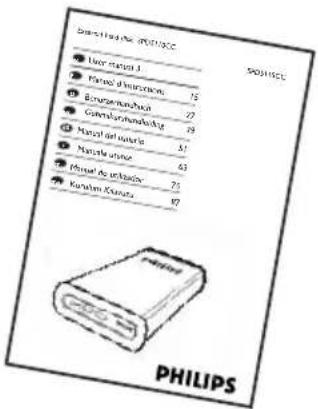
SPD5130CC - External hard drive PHILIPS - Free user manual and instructions
Find the device manual for free SPD5130CC PHILIPS in PDF.
User questions about SPD5130CC PHILIPS
0 question about this device. Answer the ones you know or ask your own.
Ask a new question about this device
Download the instructions for your External hard drive in PDF format for free! Find your manual SPD5130CC - PHILIPS and take your electronic device back in hand. On this page are published all the documents necessary for the use of your device. SPD5130CC by PHILIPS.
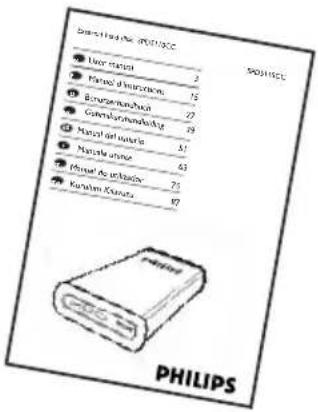
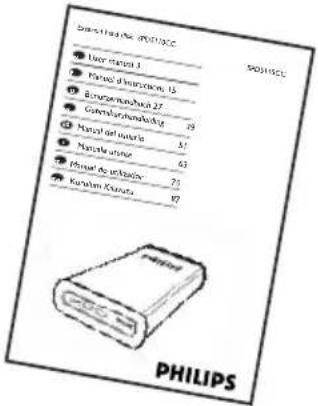
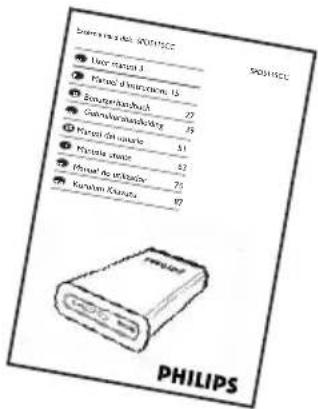
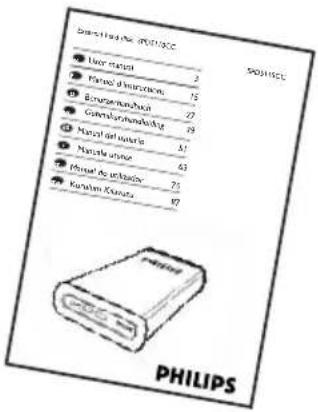
USER MANUAL SPD5130CC PHILIPS
natural_image
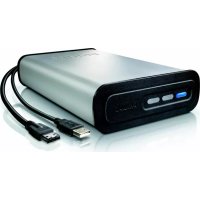
Exterior view of a Philips 3.0 power bank with black casing and blue indicator light (no text or symbols on body)3 What's in the box?
4 How to connect this external hard disk to your computer?
5 How to safely disconnect and shut down using the Safe-Shutdown button?
6 How to make a back-up using the One-Click Back-Up button?
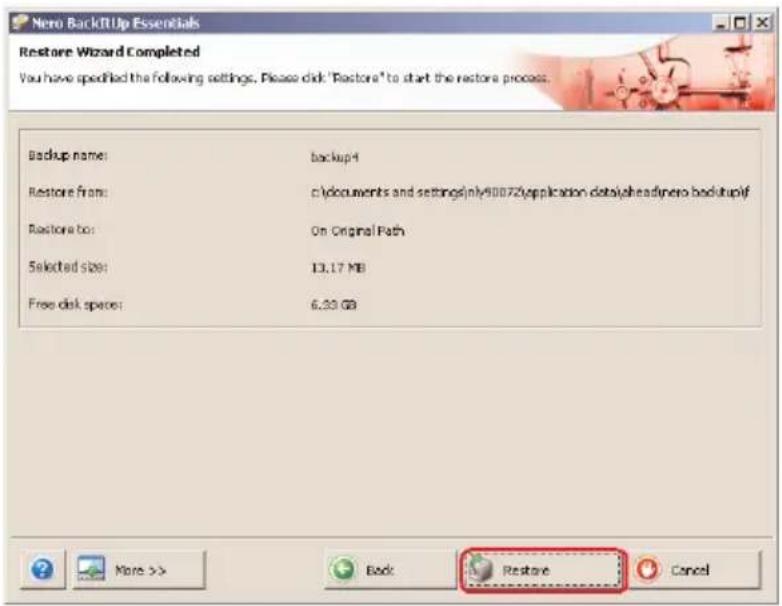
10 How to restore a back-up?
I3 Warranty, Environment and Safety
14 Specifications
Important note
To use the One-Click Back-Up button and Safe-Shutdown button
(works only via USB connection), first install the Nero BackItUp software. For instructions and more information, see page 5-6.
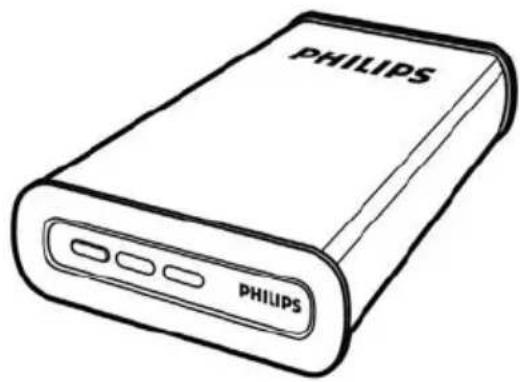
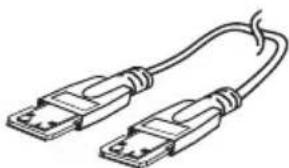
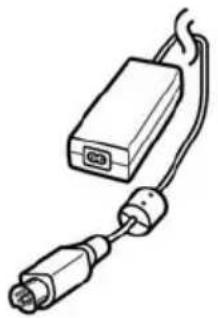
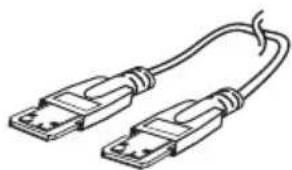
What's in the box?
EN

natural_image
Line drawing of a Philips power bank with two ports and label (no additional text or symbols)
natural_image
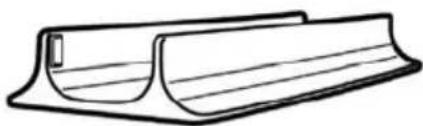
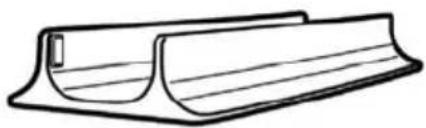
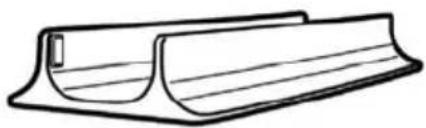
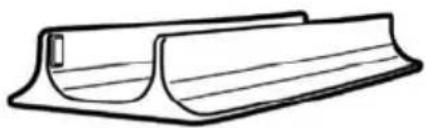
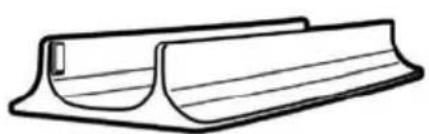
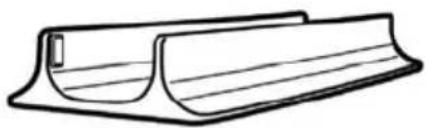
Simple line drawing of a curved mechanical component or bracket (no text or symbols)A : External hard disk B : Vertical stand

natural_image
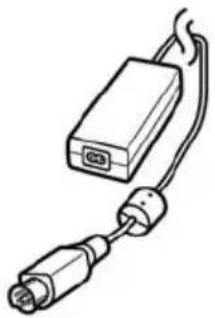
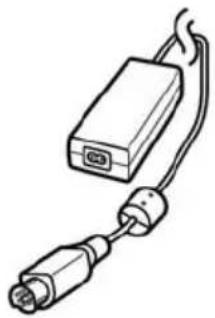
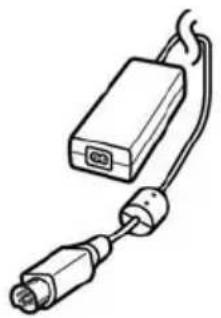
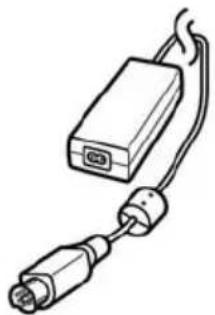
Line drawing of a USB drive with two connectors (no text or symbols)C : Power adapter

natural_image
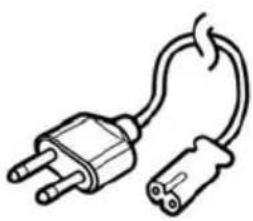
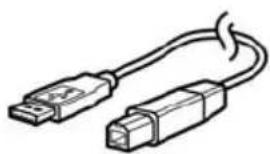
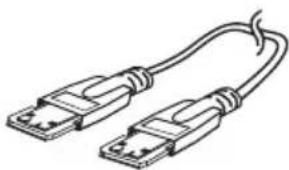
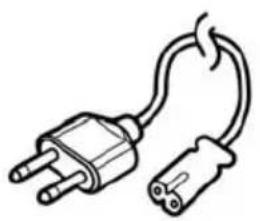
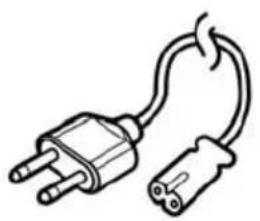
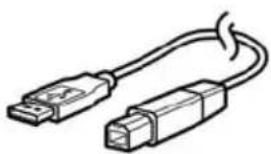
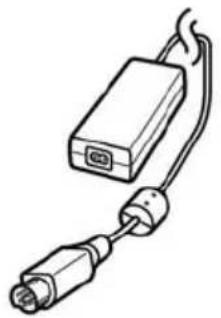
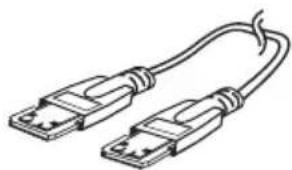
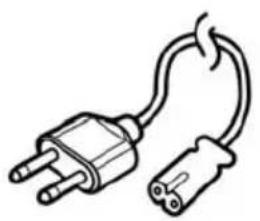
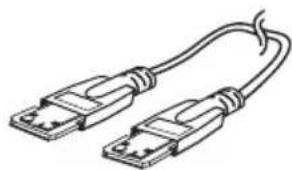
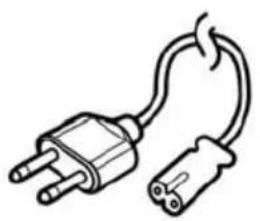
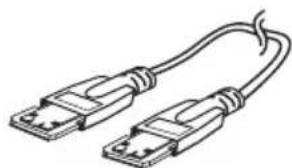
Simple line drawing of an electrical plug with two leads (no text or symbols)D : Power cord E : USB cable

natural_image
Line drawing of a USB cable with two connectors (no text or symbols)
natural_image
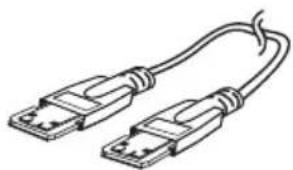
Line drawing of two USB connectors with coiled cable (no text or symbols)

text_image
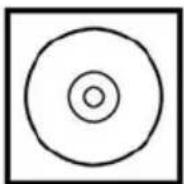
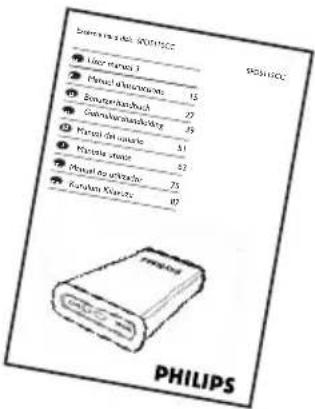
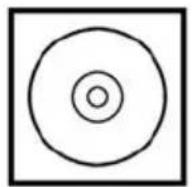
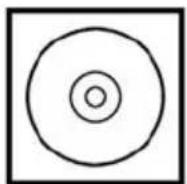
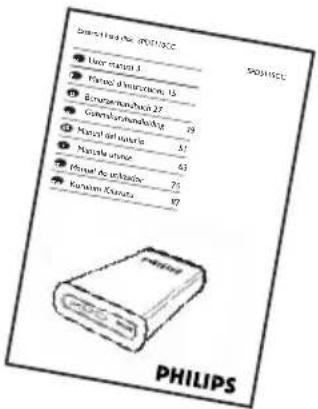
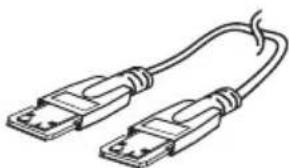
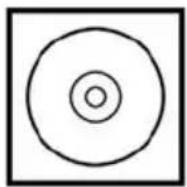
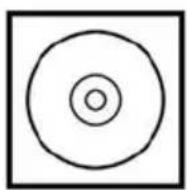
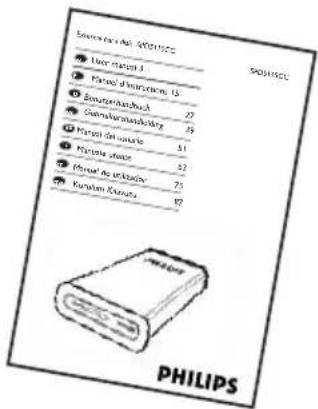
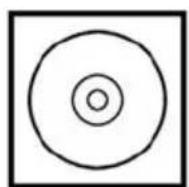
Benedes 100% (SCH150C) ● Laser mini 1 ● Mineral instruments ● Eungelanzbuch ● Gastrocardiastkling ● Mineral de ##### ● Mineral steuer ● Mineral de ##### ● Mineral Klaratz PHILIPSF : eSATA cable G : Installation CD H : User manual
EN
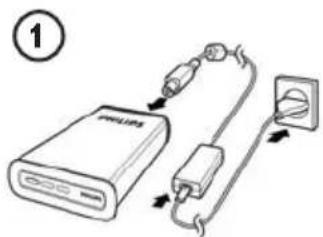
How to connect this external hard disk to your system?
text_image
①Put the Power adapter (C) and the Power cord (D) together and connect them to the external hard disk and a power outlet.
text_image
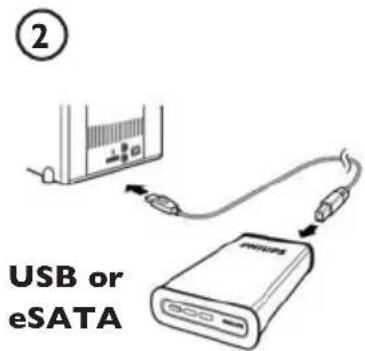
② USB or eSATA- For USB: Connect the USB cable (E) to your external hard disk. Connect the other side of the USB cable to an empty USB port of your computer.
- For eSATA: Plug the eSATA cable (F) in a eSATA port of the external disk. Connect the other side of the eSATA cable to an empty eSATA port of your computer.
A drive icon, Philips External Hard Disk, appears in Windows Explorer and the blue light should light up. (The computer sometimes needs to be restarted, before you can use the new hardware).
Your hard disk is now ready to use and you can save and copy data on the drive by moving files and folders to the drive, just as you do when using your internal hard disk.
Important note
To use the One-Click Back-Up button and Safe-Shutdown button (works only via USB connection), first install the Nero BackItUp software. For instructions and more information, see page 5-6.
How to safely disconnect and shut down using the Safe-Shutdown button?
How to use the Safe-Shutdown button? (Works only via USB connection)
The Nero software, supplied together with this product, has to be installed to enable the Safe-Shutdown functionality.
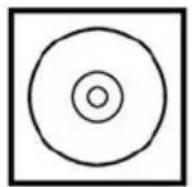
To install Nero BackItUp, insert the Nero installation CD, wait for a pop-up to appear and select Nero from the list of options.
When the pop-up screen doesn't appear, click on the Setup.exe file from the CD in the Windows Explorer to start the installation.
I Please close Windows Explorer and Nero BackItUp.
2 Press the Safe-Shutdown button
3 Wait until the blue light on front of the hard disk is not functioning anymore.
4 You can now safely disconnect the hard disk from your computer.
How to safely disconnect without using the Safe-Shutdown button?
I Double-click the Safely Remove Hardware icon in the task bar in the lower right part of the screen.
2 In the window that appears, select the name of the device that is to be removed, then click the Stop button.
3 When the Stop a hardware device screen appears, make sure the correct information is displayed, and then click the OK button.
4 When the message Safe to remove hardware appears, remove the drive from the computer's USB port.
How to make a back-up, using the One-Click Back-Up button?
(Works only via USB connection)
The Nero software, supplied together with this product, has to be installed to enable the One-Click Back-Up functionality.
To install Nero BackItUp, insert the Nero installation CD, wait for a pop-up to appear and select Nero from the list of options.
When the pop-up screen doesn't appear, click on the Setup.exe file on the CD in the Windows Explorer to start the installation.
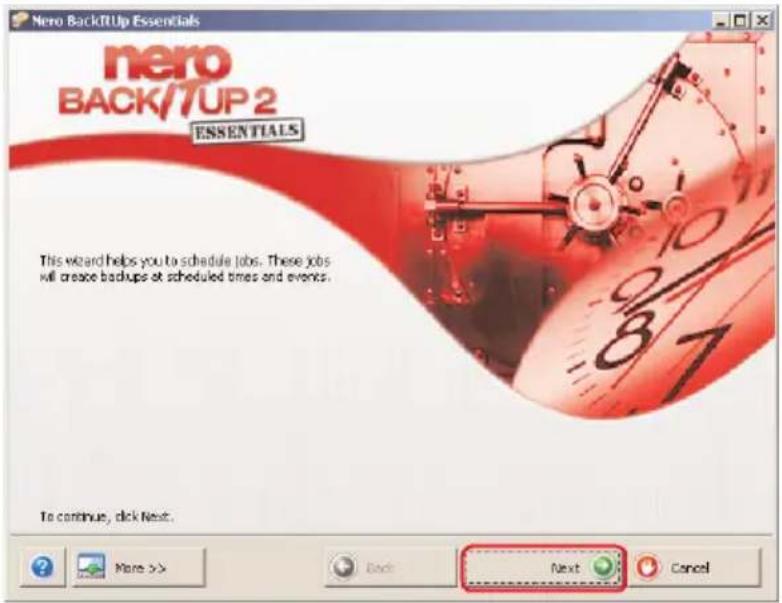
If you push the One-Click Back-Up button 📄 for the first time after installation of the Nero software the following screen will appear:
text_image
nero Back/7UP Essentials nero BACK/7UP 2 ESSENTIALS This wizard helps you to schedule jobs. These jobs will create backups at scheduled times and events. To continue, click Next. Next CancelI Click on the Next button to start the Job Wizard.
text_image
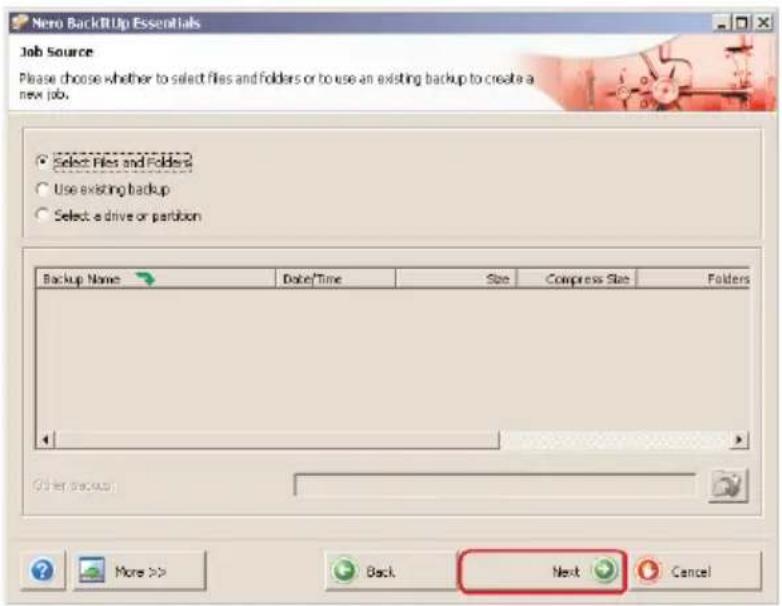
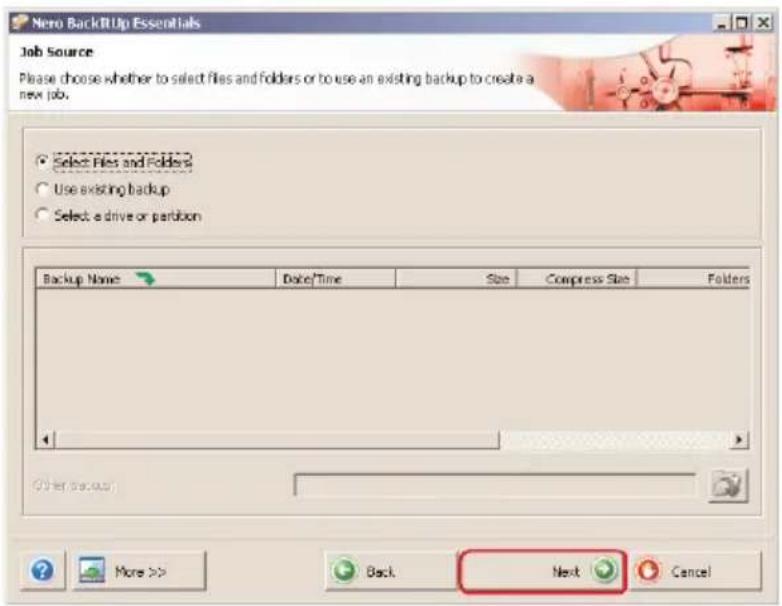
Nero BackItUp Essentials Job Source Please choose whether to select files and folders or to use an existing backup to create a new job. Select Files and Folders Use existing backup Select a drive or partition Backup Name Date/Time Size Compress Size Folders Other BackItUp Back Next Cancel2 Click on the Next button in order to select the files you want to make a back-up of.
text_image
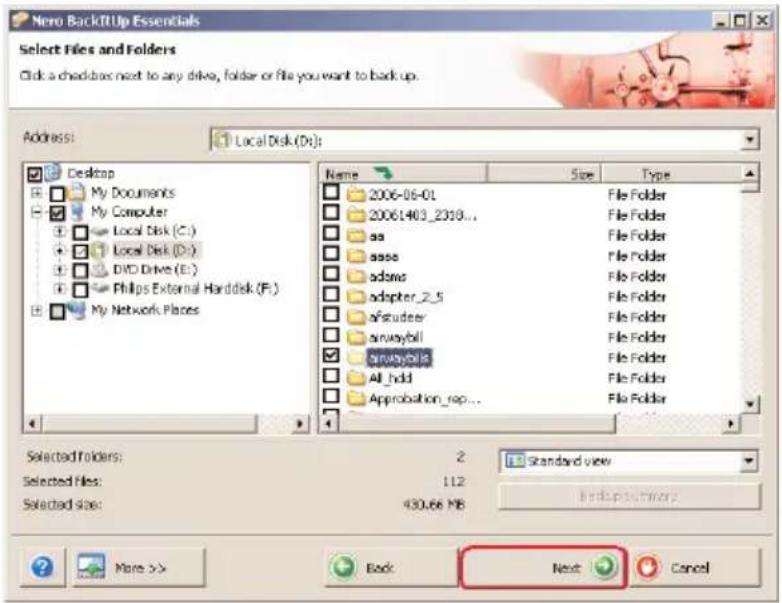
Nero BackIt Up Essentials Select Files and Folders Click a checkboxes next to any drive, folder or file you want to back up. Address: Local Disk (Dr): Desktop My Documents My Computer Local Disk (C:) Local Disk (D:) DVD Drive (E:) Philips External Harddisk (F:) My Network Places Name Size Type 2006-06-01 File Folder 20061403_2318... File Folder aa File Folder asse File Folder adams File Folder adapter_2_5 File Folder afstruder File Folder arraybill File Folder envayable File Folder All_hdd File Folder Approbation_rep... File Folder Selected folders: 2 Standard view Selected files: 112 Selected size: 430.66 MB Backup summary? More >> Back Next Cancel3 Select the files and folders you want to backup and click the Next button.
text_image
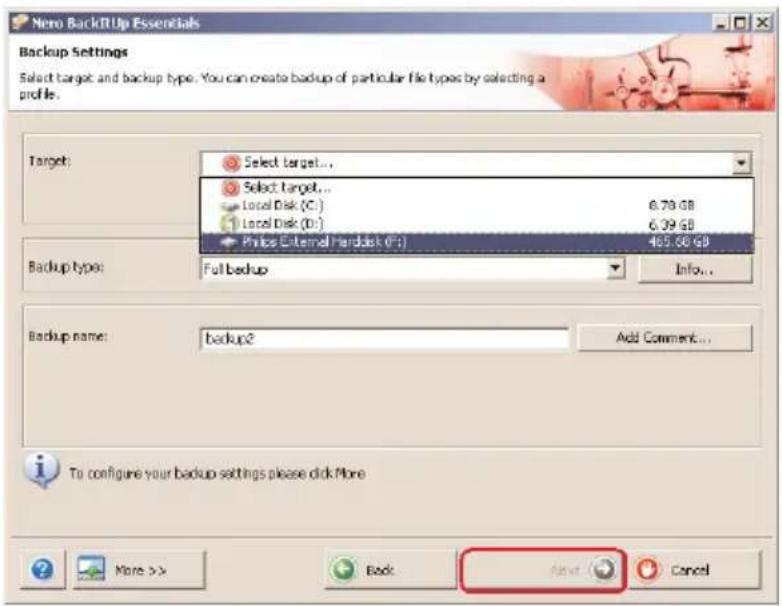
Nero BackItUp Essentials Backup Settings Select target and backup type. You can create backup of particular file types by selecting a profile. Target: Select target... Select target... Local Disk (C:) 8.79 GB Local Disk (D:) 6.09 GB Philos External Perdisk (P:) 465.86 GB Backup type: Full backup Info... Backup name: backup2 Add Comment... To configure your backup settings please click More More >> Back Next Cancel4 Select the Philips External Hard Disk as target using the dropdown function, then click the Next button.
text_image
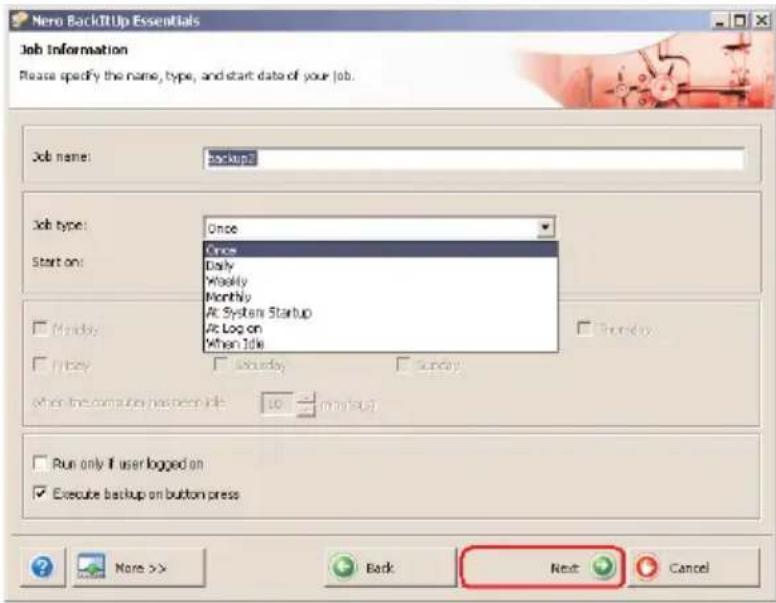
Nero Back/Up Essentials Job Information Please specify the name, type, and start date of your job. Job name: backup Job type: Once Once Daily Weekly Monthly At System Startup At Log on When Idle Start on: Monday Tuesday Wednesday Sunday After the computer has been done 10 - (min/put) Run only if user logged on Execute backup on button press Next Cancel5 To execute the job only by using the One-Click Back-Up button, select Job type Once using the dropdown function.
text_image
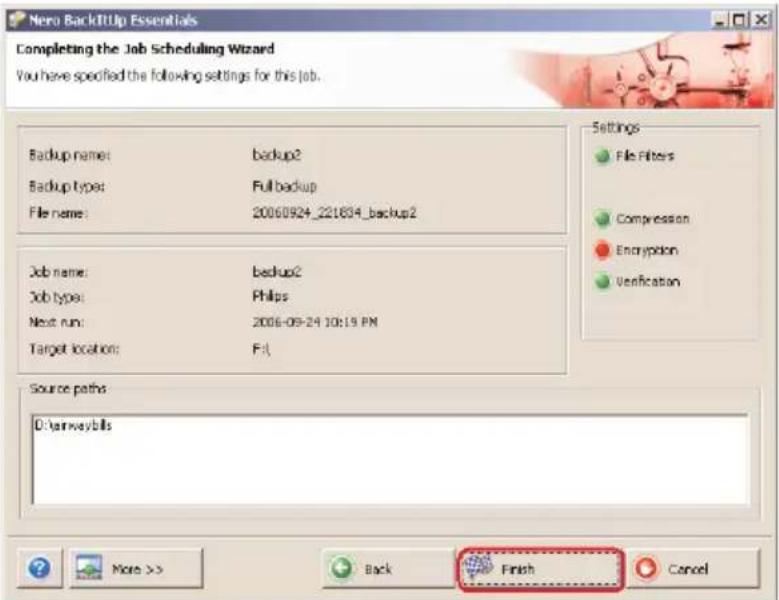
Nero BackUP Essentials Completing the Job Scheduling Wizard You have specified the following settings for this job. Backup name: backup2 Backup type: Full backup File name: 20060924_221804_backup2 Job name: backup2 Job type: Philips Next run: 2006-09-24 10:19 PM Target location: F: Settings File Filters Compression Encryption Verification Source paths D:\arwaybills Finish More >> Back Cancel6 This screen gives you an overview of the job you have added. Click the Finish button to complete the wizard.
The next time you push the One-Click Back-Up button the back-up will start automatically.
See www.nero.com for additional information on Nero BackItUp
text_image
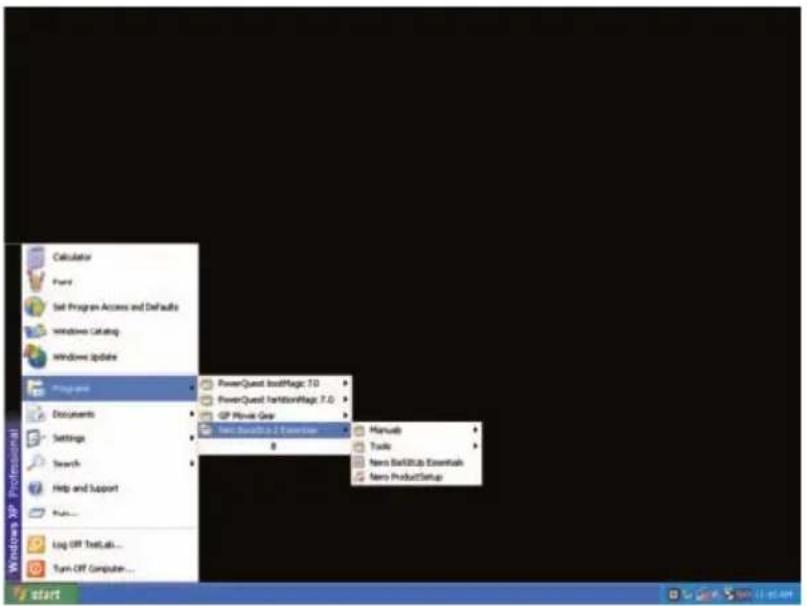
Calculator Funt Set Program Access and Defaults Windows Catalog Windows Update Programs PowerQuest InstMagic 7.0 PowerQuest InstitionMagic 7.0 GP Movie Gear New Product1 - Calendar 8 Manufeb Tools New BookItabs Essentials New ProductSetup Log OFF TextLab... Turn OFF Computer... StartI Start the Nero BackItUp software.
When the main screen of Nero BackItUp opens, click on Restore back-up button.

text_image
Nero BackItUp Essentials Restore Settings Please specify the backup information file path or backup archive file path or image file path for the restoration. Backup name: Select where you want to restore this backup Restore on signal path Restore on broadcast speeded path Source Path Restore Path Backup Size Free Disc Size Restore path: More >> Back Next Cancel2 Select the file source and restore path.
Click on the Next button.
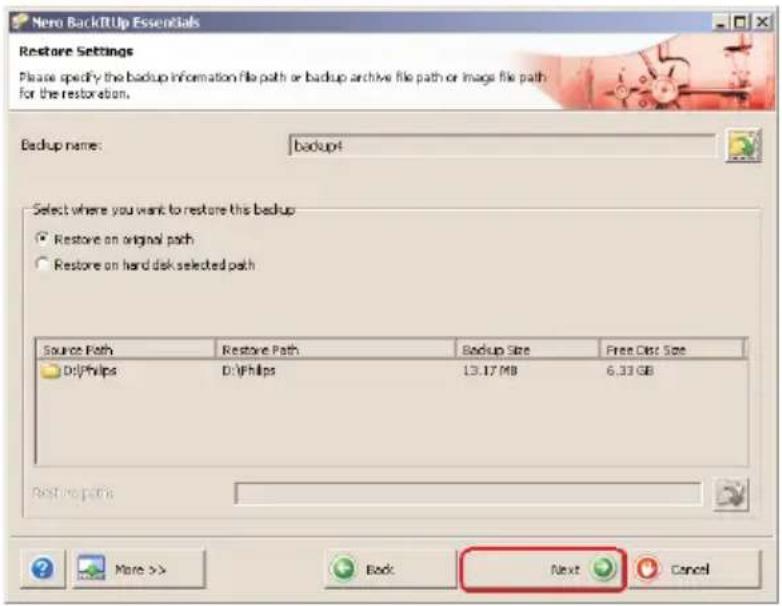
text_image
Nero Back/Up Essentials Restore Settings Please specify the backup information file path or backup archive file path or image file path for the restoration. Backup name: backup4 Select where you want to restore this backup Restore on original path Restore on hard disk selected path Source Path Restore Path Backup Size Free Disk Size DrJPhilips DJPhilips 13.17 MB 6.33 GB Restore paths More >> Back Next Cancel3 Click the Next button.

text_image
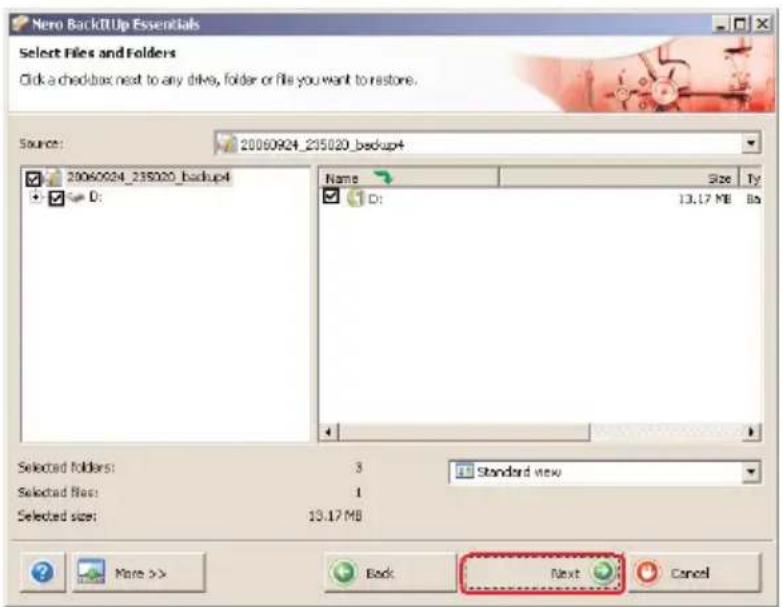
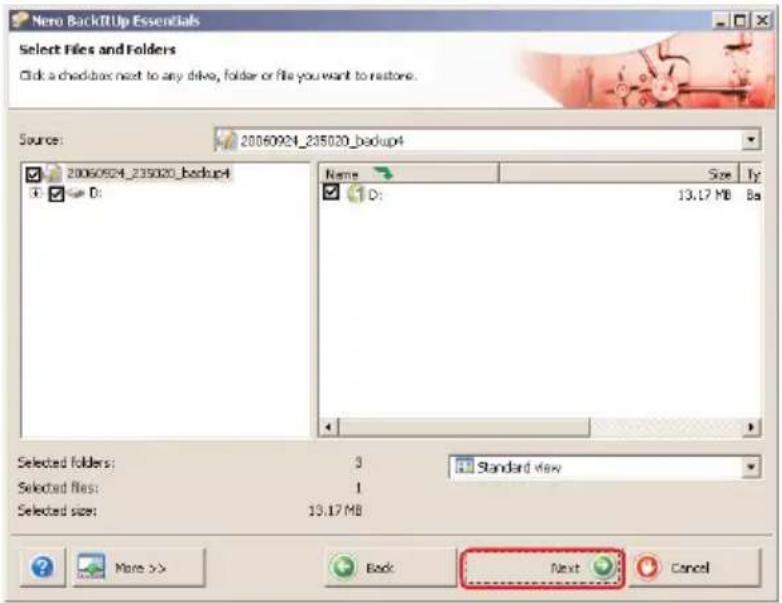
Nero Back/Up Essentials Select Files and Folders Click a checkbox next to any drive, folder or file you want to restore. Source: 20060924_235020_backup+ 20060924_235020_backup4 D: Name Size Ty 13.17 MB 8% D: Selected folders: 3 Standard view Selected files: 1 Selected size: 13.17 MB Next Cancel More >> Back4 Click the Next button.

text_image
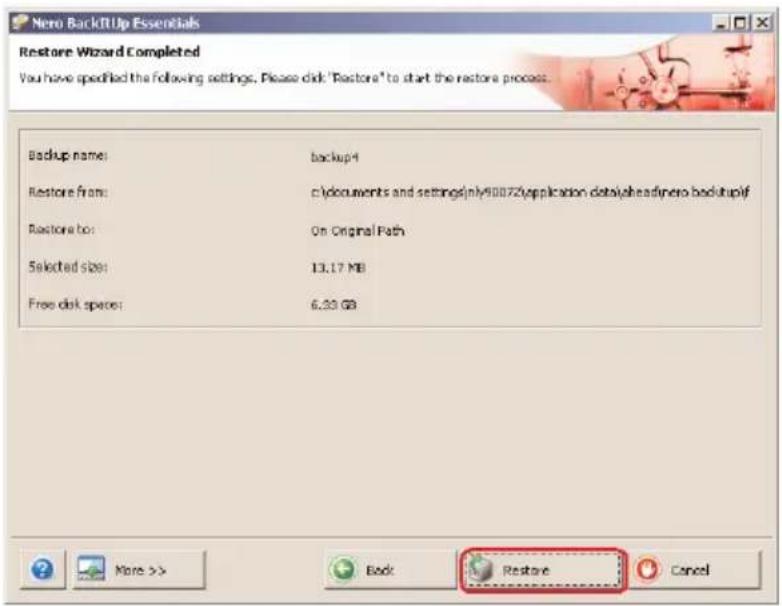
Nero Back/TL Up Essentials Restore Wizard Completed You have specified the following settings. Please click 'Restore' to start the restore process. Backup name: backup4 Restore from: c:\documents and settings\my90072\application_data\head\nero BosniaUP# Restore to: On Original Path Selected sizes: 13.17 MB Free disk space: 6.33 GB More >> Back Restore Cancel5 Click on the Restore button to finish the wizard. You now have successfully restored your back-up.
See www.nero.com for additional information on Nero BackItUp.
How to find warranty information?
Additional warranty information is available in the “Philips Warranty” folder on the Nero software disc.
You need Adobe Reader software to open these files. If you don't have Adobe Reader, you can download it for free on www.adobe.com.
The Philips warranty may not apply if damage is caused by accidents, shock, misuse or neglect.

Be responsible Respect copyrights
"The making of unauthorized copies of copy-protected material including computer programmes, files, broadcasts and sound recordings, may be an infringement of copyrights and constitute a criminal offence. This equipment should not be used for such purposes."
WEEE mark: "Information to the Consumer". Disposal of your old product

Your product is designed and manufactured with high quality materials and components, which can be recycled and reused. Please inform yourself about the local separate collection system for electrical and electronic products, including those marked by the crossed-out wheel bin symbol. Please act according to your local rules and do not dispose of your old products with your normal household waste.
WARNING
Plastic bags can be dangerous
To avoid danger of suffocation, keep this bag away from babies and small children.
Although this product has been designed with utmost care for long-lasting performance. Philips does advise you to handle electronics with good care: Avoid contact with water, exposure to extreme forces.
Please make sure you place the device in a well-ventilated environment, to ensure longest possible lifetime and optimal performance.
Philips does not provide any data recovery services and cannot under any circumstance be held responsible for loss of data. It is the customer's responsibility to back-up all data stored on the Philips disk. All data will be deleted when offering the product to Philips for service.
Specifications
Technical Specifications:
Capacity Depending on model
Interface Hi-Speed USB 2.0 and eSATA
Transfer speed USB 2.0 480 Mb/s, eSATA 2400 Mb/s
Rotational speed 7200 rpm
Cache memory Depending on model
System requirements USB 1.1 (USB 2.0 for max. transfer speed)
Windows 2000, Windows XP, Vista
Additional information available at our website:
www.philips.com/support
www.philips.com/storage

Table des matières
natural_image
Line drawing of a Philips power bank with two ports and label (no text beyond branding)
natural_image
Simple line drawing of a curved mechanical component or bracket (no text or symbols)natural_image
Line drawing of a USB drive with two connectors (no text or symbols)natural_image
Simple line drawing of an electrical plug with two leads and a terminal outlet (no text or symbols)natural_image
Line drawing of a USB cable with two connectors (no text or symbols)
natural_image
Line drawing of two USB connectors with coiled cable (no text or symbols)

other
| Category | Value | |---|---| | Low margin | 2 | | Market diversification | 15 | | Bourgarianucho | 27 | | Gainsbury wealth | 29 | | Monthly dividend | 51 | | Netishe above | 43 | | Monthly dividend (net) | 75 | | Kunshan Krasas | 87 | PHILIPStext_image
nero Back/7UP Essentials nero BACK/7UP 2 ESSENTIALS This wizard helps you to schedule jobs. These jobs will create backups at scheduled times and events. To continue, click Next. Next Canceltext_image
Nero BackItUp Essentials Job Source Please choose whether to select files and folders or to use an existing backup to create a new job. Select Files and Folders Use existing backup Select a drive or partition Backup Name Date/Time Size Compress Size Folders Other BackUp Back Next Canceltext_image
Nero BackIt Up Essentials Select Files and Folders Click a checkboxes next to any drive, folder or file you want to back up. Address: Local Disk (Dr): Desktop My Documents My Computer Local Disk (C:) Local Disk (D:) DVD Drive (E:) Philips External Harddisk (F:) My Network Places Name Size Type 2006-06-01 File Folder 20061403_2318... File Folder aa File Folder asse File Folder adams File Folder adapter_2_5 File Folder afstruder File Folder arraybill File Folder onvaydila File Folder All_hdd File Folder Approbation_rep... File Folder Selected folders: 2 Standard view Selected files: 112 Selected size: 430.66 MB Back Next Canceltext_image
Nero Back/Up Essentials Backup Settings Select target and backup type. You can create backup of particular file types by selecting a profile. Target: Select target... Select target... Local Disk (C:) 8.79 GB Local Disk (D:) 6.39 GB Phone External Hard disk (H:) 465.66 GB Backup type: Full backup Info... Backup name: backup2 Add Comment... To configure your backup settings please click More More >> Back Next Canceltext_image
Nero Back/Up Essentials Job Information Please specify the name, type, and start date of your job. Job name: backup Job type: Once Once Daily Weekly Monthly At System Startup At Log on When Idle Start on: Madey Sunday Run only if user logged on Execute backup on button press Back Next Canceltext_image
Nero BackItUp Essentials Restore Wizard Completed You have specified the following settings. Please click "Restore" to start the restore process. Backup name: backup4 Restore from: c:\documents and settings\jly90072\application data\ahead\inero backup\if Restore to: On Original Path Selected size: 13.17 MB Free disk space: 6.33 GB More >> Back Restore Canceltext_image
Nero BackIt Up Essentials Restore Settings Please specify the backup information file path or backup archive file path or image file path for the restoration. Backup name: Select where you want to restore this backup Restore on signal path Restore on broadcast speeded path Source Path Restore Path Backup Size Free Disc Size Restore path: More >> Back Next Canceltext_image
Nero BackItUp Essentials Restore Settings Please specify the backup information file path or backup archive file path or image file path for the restoration. Backup name: backup4 Select where you want to restore this backup Restore on original path Restore on hard disk selected path Source Path Restore Path Backup Size Free Disc Size DrJPhilips DJPhilips 13.17 MB 6.33 GB Restore paths: More >> Back Next Canceltext_image
Nero BackIt Up Essentials Select Files and Folders Click a checkboxes next to any drive, folder or file you want to restore. Source: 20060924_235020_backup4 20060924_235020_backup4 D: Name Size Ty: 13.17 MB Ba Selected folders: 3 Standard view Selected files: 1 Selected size: 13.17 MB Next Cancel More >> Backtext_image
Nero BackItUp Essentials Restore Wizard Completed You have specified the following settings. Please click 'Restore' to start the restore process. Backup name: backup4 Restore from: c:\documents and settings\nly90072\application data\head\nero backup\if Restore to: On Original Path Selected size: 13.17 MB Free disk space: 6.33 GB Restore CancelBe responsible Respect copyrights
www.philips.com/support
www.philips.com/storage
Inhalt
natural_image
Line drawing of a Philips power bank with two ports and label (no text beyond branding)
natural_image
Simple line drawing of a curved mechanical component or bracket (no text or symbols)natural_image
Simple line drawing of a device with two connectors (no text or symbols)C : Netzteil

natural_image
Simple line drawing of an electrical plug with two leads and a terminal outlet (no text or symbols)natural_image
Line drawing of a USB cable with two connectors (no text or symbols)
natural_image
Line drawing of two USB connectors with coiled cable (no text or symbols)

text_image
Bened Haul de 2011/02 ● Uer mabel 1 ● Faisal d'incision 12 ● Borgansbuch 27 ● Carvalentwicklung 29 ● Macrolar products 51 ● Nataler products 43 ● Faisal d'incision 75 ● Karam Klass 87 PHILIPStext_image
nero Back/7UP Essentials nero BACK/7UP 2 ESSENTIALS This wizard helps you to schedule jobs. These jobs will create backups at scheduled times and events. To continue, click Next. Next Canceltext_image
Nero BackUp Essentials Job Source Please choose whether to select files and folders or to use an existing backup to create a new job. Select Files and Folders Use existing backup Select a drive or partition Backup Name Dake/Time Size Compress Size Folders Other backup Back Next Canceltext_image
Nero BackItUp Essentials Select Files and Folders Click a checkbox next to any drive, folder or file you want to back up. Address: Local Disk (Dc): Desktop My Documents My Computer Local Disk (C:) Local Disk (D:) DVD Drive (E:) Philips External Harddek (H:) My Network Places Name Size Type 2006-06-01 File Folder 2006L463_2318... File Folder aa File Folder aaaa File Folder adams File Folder adapter_2_5 File Folder afstudier File Folder arraybill File Folder amvssales File Folder al_jdd File Folder approbion_rep... File Folder Selected folders: 2 Standard view Selected files: L12 Selected size: 430.66 MB Back Next Canceltext_image
Nero Back/Up Essentials Backup Settings Select target and backup type. You can create backup of particular file types by selecting a profile. Target: Select target... Select target... Local Disk (C:) 8.79 GB Local Disk (D:) 6.39 GB Phics External Perdack (P:) 465.06 GB Backup type: Full backup Info... Backup name: backup2 Add Comment... To configure your backup settings please click More More >> Back Next Canceltext_image
Nero Back/Up Essentials Job Information Please specify the name, type, and start date of your job. Job name: backup Job type: Once Once Daily Weekly Monthly At System Startup At Log on When Idle Start on: Madey Sunday Run only if user logged on Execute backup on button press Back Next Canceltext_image
Nero Back!!Up Essentials Completing the Job Scheduling Wizard You have specified the following settings for this job. Backup name: backup2 Backup type: Fullbackup File name: 20060924_221894_backup2 Job name: backup2 Job type: Philips Next run: 2006-09-24 10:19 PM Target location: Fil. Settings File Filters Compression Encryption Verification Source paths D:\verkeybits Finish More >> Back Canceltext_image
Nero BackUP Essentials Restore Settings Please specify the backup information file path or backup archive file path or image file path for the restoration. Backup name: Select where you want to restore this backup Restore on signal path Restore on broadcast speeded path Source Path Restore Path Backup Size Free Disc Size Restore path: More >> Back Next Canceltext_image
Nero Back/Up Essentials Restore Settings Please specify the backup information file path or backup archive file path or image file path for the restoration. Backup name: backup4 Select where you want to restore this backup Restore on original path Restore on hard disk selected path Source Path Restore Path Backup Size Free Disk Size DrJ/Philips DJ/Philips 13.17 MB 6.33 GB Restore paths More >> Back Next Canceltext_image
Nero Back/Up Essentials Select Files and Folders Click a checkbox next to any drives, folder or file you want to restore. Source: 20060924_235020_backup+ 20060924_235020_backup4 D: Name Size Ty 13.17 MB 8% D: Selected folders: 3 Standard view Selected files: 1 Selected size: 13.17 MB Next Cancel More >> Backtext_image
Nero BackItUp Essentials Restore Wizard Completed You have specified the following settings. Please click 'Restore' to start the restore process. Backup name: backup4 Restore from: c:\documents and settings\only90072\application data\head\nero backup\if Restore to: On Original Path Selected sizes: 13.17 MB Free disk space: 6.33 GB More >> Back Restore CancelBe responsible Respect copyrights
www.philips.com/support
www.philips.com/storage
Inhoud
natural_image
Line drawing of a Philips power bank with two ports and a label (no text beyond branding)
natural_image
Simple line drawing of a curved mechanical component or bracket (no text or symbols)A : Externe harde schijf B : Verticale steun

natural_image
Simple line drawing of a USB drive with two connectors (no text or symbols)C :Voedingsadapter

natural_image
Simple line drawing of an electrical plug with two leads and a terminal outlet (no text or symbols)D : Stroomsnoer E : USB-kabel

natural_image
Line drawing of a USB cable with two connectors (no text or symbols)
natural_image
Illustration of two USB connectors with coiled cable (no text or symbols)

text_image
Benedierte für PRINCEC ● Uder mabel 1 ● Parnal Alterschuss 15 ● Burenschuss 27 ● Cohnschaftskredite 29 ● Nasel der Waals 31 ● Niselle derer 63 ● Nasel der Waals 75 ● Karsten Klass 87 PHILIPStext_image
② USB of eSATAtext_image
nero Back/7Up Essentials nero BACK/7UP 2 ESSENTIALS This wizard helps you to schedule jobs. These jobs will create backups at scheduled times and events. To continue, click Next. Next CancelI Klik op de knop Next om de Job Wizard te starten.


text_image
Nero BackUp Essentials Job Source Please choose whether to select files and folders or to use an existing backup to create a new job. Select Files and Folders Use existing backup Select a drive or partition Backup Name Date/Time Size Compress Size Folders Other Backups Back Next Canceltext_image
Nero BackItUp Essentials Select Files and Folders Click a checkboxes next to any drive, folder or file you want to back up. Address: Local Disk (Dr): Desktop My Documents My Computer Local Disk (C:) Local Disk (D:) DVD Drive (E:) Philips External Harddisk (F:) My Network Places Name Size Type 2006-06-01 File Folder 20061403_2318... File Folder as File Folder asse File Folder adams File Folder adapter_2_5 File Folder afstruder File Folder anuvylil File Folder cnrvpsells File Folder All_hdd File Folder Approbation_rep... File Folder Selected folders: 2 Standard view Selected files: 112 Selected size: 430.66 MB Backup summary ? More >> Back Next Canceltext_image
Nero Back/Up Essentials Backup Settings Select target and backup type. You can create backup of particular file types by selecting a profile. Target: Select target... Select target... Local Disk (C:) 8.79 GB Local Disk (D:) 6.39 GB Philos External Hard disk (F:) 465.66 GPs Backup type: Full backup Info... Backup name: backup2 Add Comment... To configure your backup settings please click More More >> Back Next Canceltext_image
Nero Back/Up Essentials Job Information Please specify the name, type, and start date of your job. Job name: backup Job type: Once Once Daily Weekly Monthly At System Startup At Log on When Idle Start on: Made: Every: Saturday: Sunday: When the computer has been done 10 - (start up) Run only if user logged on Execute backup on button press Next Canceltext_image
Nero BackItUp Essentials Completing the Job Scheduling Wizard You have specified the following settings for this job. Backup name: backup2 Backup type: Full backup File name: 20060924_221804_backup2 Job name: backup2 Job type: Philips Next run: 2006-09-24 10:19 PM Target location: Fit Settings File Filters Compression Encryption Verification Source paths D:\arwaybills Finish More >> Back CancelI Start Nero BackItUp.
text_image
Nero BackIt Up Essentials Restore Settings Please specify the backup information file path or backup archive file path or image file path for the restoration. Backup name: Select where you want to restore this backup Restore on signal path Restore on broadcast speeded path Source Path Restore Path Backup Size Free Disc Size Restore path: More >> Back Next Canceltext_image
Nero Back/Up Essentials Restore Settings Please specify the backup information file path or backup archive file path or image file path for the restoration. Backup name: backup4 Select where you want to restore this backup Restore on original path Restore on hard disk selected path Source Path Restore Path Backup Size Free Disk Size DrJPhilips DJPhilips 13.17 MB 6.33 GB Restore paths More >> Back Next Cancel3 Klik op Next.

text_image
Nero BackIt Up Essentials Select Files and Folders Click a checkboxes next to any drive, folder or file you want to restore. Source: 20060924_235020_backup4 20060924_235020_backup4 D: Name Size Ty D: 13.17 MB Bs Selected folders: 3 Standard view Selected files: 1 Selected size: 13.17 MB ? More >> Back Next Cancel4 Klik op Next.

text_image
Nero BackItUp Essentials Restore Wizard Completed You have specified the following settings. Please click 'Restore' to start the restore process. Backup name: backup4 Restore from: c:\documents and settings\only90072\application data\head\nero backup\if Restore to: On Original Path Selected size: 13.17 MB Free disk space: 6.33 GB Restore More >> Back CancelBe responsible Respect copyrights
www.philips.com/support
www.philips.com/storage
Contenido
natural_image
Line drawing of a Philips power bank with two ports and label (no additional text or symbols)
natural_image
Simple line drawing of a mechanical component or bracket (no text or symbols)A : Disco duro externo B : Soporte vertical

natural_image
Line drawing of a USB drive with two connectors (no text or symbols)natural_image
Simple line drawing of an electrical outlet plug with two leads (no text or symbols)natural_image
Line drawing of a USB cable with two connectors (no text or symbols)E : Cable USB

natural_image
Line drawing of two USB connectors with coiled cable (no text or symbols)

text_image
Buenes van de 2011/02 ● New model I ● Fillet's instruction, 13 ● Grenzerbachou ● Gremzerbachou ● Kernel of new ● Kernel of new ● Kernel of new ● Kernel of new ● Kernel of new PHILIPStext_image
nero Back/7Up Essentials nero BACK/7UP 2 ESSENTIALS This wizard helps you to schedule jobs. These jobs will create backups at scheduled times and events. To continue, click Next. Next Canceltext_image
Nero BackUp Essentials Job Source Please choose whether to select files and folders or to use an existing backup to create a new job. Select Files and Folders Use existing backup Select a drive or partition Backup Name Dake/Time Size Compress Size Folders Other backup Back Next Canceltext_image
Nero BackItUp Essentials Select Files and Folders Click a checkbox next to any drive, folder or file you want to back up. Address: Local Disk (Dc): Desktop My Documents My Computer Local Disk (C:) Local Disk (D:) DVD Drive (E:) Philips External Harddek (H:) My Network Places Name Size Type 2006-06-01 File Folder 2006L463_2318... File Folder sa File Folder aao File Folder adams File Folder adapter_2_5 File Folder afstudier File Folder arraybill File Folder aniverside3 File Folder al_jdd File Folder Approbotion_rep... File Folder Selected folders: 2 Standard view Selected files: L12 Selected size: 430.66 MB Desktop Summary More >> Back Next Canceltext_image
Nero Back/Up Essentials Backup Settings Select target and backup type. You can create backup of particular file types by selecting a profile. Target: Select target... Select target... Local Disk (C:) 8.79 GB Local Disk (D:) 6.39 GB Philos External Hard disk (H:) 465.66 GPs Backup type: Full backup Info... Backup name: backup2 Add Comment... To configure your backup settings please click More More >> Back Next Canceltext_image
Nero Back/Up Essentials Job Information Please specify the name, type, and start date of your job. Job name: backup Job type: Once Once Daily Weekly Monthly At System Startup At Log on When Idle Start on: Made: Type: Wednesday Sunday When the computer has been done to - (start up) Run only if user logged on Execute backup on button press Next Canceltext_image
Nero Back!!Up Essentials Completing the Job Scheduling Wizard You have specified the following settings for this job. Backup name: backup2 Backup type: Fullbackup File name: 20060924_221894_backup2 Job name: backup2 Job type: Philips Next run: 2006-09-24 10:19 PM Target location: Fil Settings File Filters Compression Encryption Verification Source paths D:\verkeybits Finish More >> Back Canceltext_image
Nero BackItUp Essentials Restore Settings Please specify the backup information file path or backup archive file path or image file path for the restoration. Backup name: Select where you want to restore this backup Restore on signal path Restore on audio path selected path Source Path Restore Path Backup Size Free Disc Size Restore path: More >> Back Next Canceltext_image
Nero Back/Up Essentials Restore Settings Please specify the backup information file path or backup archive file path or image file path for the restoration. Backup name: backup4 Select where you want to restore this backup Restore on original path Restore on hard disk selected path Source Path Restore Path Backup Size Free Disk Size DrJPhilips DJPhilips 13.17 MB 6.33 GB Restore paths More >> Back Next Canceltext_image
Nero Back/Up Essentials Select Files and Folders Click a checkbox next to any drive, folder or file you want to restore. Source: 20060924_235020_backup+ 20060924_235020_backup4 D: Name Size Ty D: 13.17 MB 8% Selected folders: 3 Standard view Selected files: 1 Selected size: 13.17 MB Next Cancel More >> Backtext_image
Nero BackItUp Essentials Restore Wizard Completed You have specified the following settings. Please click 'Restore' to start the restore process. Backup name: backup4 Restore from: c:\documents and settings\only90072\application data\head\nero backup\if Restore to: On Original Path Selected size: 13.17 MB Free disk space: 6.33 GB Restore CancelBe responsible Respect copyrights
www.philips.com/support
www.philips.com/storage
Sommario
natural_image
Line drawing of a Philips power bank with two ports and label (no text beyond branding)
natural_image
Simple line drawing of a curved mechanical component or bracket (no text or symbols)A : Disco rigido esterno B : Supporto verticale
IT

natural_image
Simple line drawing of a rectangular device connected to a cable with two connectors (no text or symbols)C :Trasformatore

natural_image
Simple line drawing of an electrical plug with two leads and a cord (no text or symbols)natural_image
Line drawing of a USB cable with two connectors (no text or symbols)
natural_image
Line drawing of two USB connectors with coiled cable (no text or symbols)

other
| Institution | Value | |---|---| | user market | 2 | | Financial Institutions | 15 | | Borgentechan | 27 | | Caringenbank | 29 | | Many of clients | 51 | | Natrische | 43 | | Private & other | 75 | | Kunshan Krasas | 87 | PHILIPStext_image
nero Back/7UP Essentials nero BACK/7UP 2 ESSENTIALS This wizard helps you to schedule jobs. These jobs will create backups at scheduled times and events. To continue, click Next. Next Canceltext_image
Nero BackUp Essentials Job Source Please choose whether to select files and folders or to use an existing backup to create a new job. Select Files and Folders Use existing backup Select a drive or partition Backup Name Date Time Size Compress Size Folders Other BackUp Back Next Canceltext_image
Nero BackIt Up Essentials Select Files and Folders Click a checkboxes next to any drive, folder or file you want to back up. Address: Local Disk (Dr): Desktop My Documents My Computer Local Disk (C:) Local Disk (D:) DVD Drive (E:) Philips External Harddisk (F:) My Network Places Name Size Type 2006-06-01 File Folder 20061403_2318... File Folder aa File Folder asse File Folder adams File Folder adapter_2_5 File Folder afsctudeer File Folder arraybill File Folder onvssbldg File Folder All_hdd File Folder Approbation_rep... File Folder Selected folders: 2 Standard view Selected files: 112 Selected size: 430.66 MB Backup Systemers? More >> Back Next Canceltext_image
Nero Back/Up Essentials Backup Settings Select target and backup type. You can create backup of particular file types by selecting a profile. Target: Select target... Select target... Local Disk (C:) 8.79 GB Local Disk (D:) 6.39 GB Philos External Hard disk (H:) 465.66 GPs Backup type: Full backup Info... Backup name: backup2 Add Comment... To configure your backup settings please click More More >> Back Next Canceltext_image
Nero Back/Up Essentials Job Information Please specify the name, type, and start date of your job. Job name: backup Job type: Once Once Daily Weekly Monthly At System Startup At Log on When Idle Start on: Made: Every: Saturday: Sunday: When the computer has been done 10 - (start up) Run only if user logged on Execute backup on button press Next Canceltext_image
Nero BackItUp Essentials Completing the Job Scheduling Wizard You have specified the following settings for this job. Backup name: backup2 Backup type: Full backup File name: 20060924_221804_backup2 Job name: backup2 Job type: Philips Next run: 2006-09-24 10:19 PM Target location: F#.t Settings File Filters Compression Encryption Verification Source paths D:\raybills Finish More >> Back Canceltext_image
Nero BackItUp Essentials Restore Settings Please specify the backup information file path or backup archive file path or image file path for the restoration. Backup name: Select where you want to restore this backup Restore on signal path Restore on audio peak speed path Source Path Restore Path Backup Size Free Disc Size Restore path: More >> Back Next Canceltext_image
Nero Back/Up Essentials Restore Settings Please specify the backup information file path or backup archive file path or image file path for the restoration. Backup name: backup4 Select where you want to restore this backup Restore on original path Restore on hard disk selected path Source Path Restore Path Backup Size Free Disk Size DrJPhilips DJPhilips 13.17 MB 6.33 GB Restore paths More >> Back Next Canceltext_image
Nero BackIt Up Essentials Select Files and Folders Click a checkboxes next to any drive, folder or file you want to restore. Source: 20060924_235020_backup4 20060924_235020_backup4 D: Name Size Ty: 13.17 MB Ba Selected folders: 3 Standard view Selected files: 1 Selected size: 13.17 MB Next Cancel More >> Backtext_image
Nero BackItUp Essentials Restore Wizard Completed You have specified the following settings. Please click 'Restore' to start the restore process. Backup name: backup4 Restore from: c:\documents and settings\only90072\application data\head\nero backup\if Restore to: On Original Path Selected size: 13.17 MB Free disk space: 6.33 GB More >> Back Restore CancelBe responsible Respect copyrights
IT
www.philips.com/support
www.philips.com/storage
Conteúdo
natural_image
Line drawing of a Philips power bank with three ports and label (no additional text or symbols)
natural_image
Simple line drawing of a mechanical component or bracket (no text or symbols)A : Disco rígido externo B : Suporte vertical

natural_image
Line drawing of a USB cable connector with two connectors (no text or symbols)natural_image
Simple line drawing of an electrical plug with two leads and a terminal outlet (no text or symbols)natural_image
Line drawing of a USB cable with two connectors (no text or symbols)E : Cabo USB

natural_image
Line drawing of two USB connectors with coiled cable (no text or symbols)

text_image
Energetele del 2015/02 ● Polar metal I ● Polar metal II ● Polar metal III ● Polar metal IV ● Polar metal V ● Polar metal VI ● Polar metal VII ● Polar metal VIII ● Polar metal IX ● Polar metal XII ● Polar metal XIII ● Polar metal IVII ● Polar metal VIIIII ● Polar metal IXII ● Polar metal VIIIIII ● Polar metal IXIII ● Polar metal VIIIIV ● Polar metal IXIVII ● Polar metal VIIIV ● Polar metal IXVII ● Polar metal VIIIVI ● Polar metal IXVIII ● Polar metal VIIIVII ● Polar metal IXVIII PHILIPStext_image
nero Back/UP Essentials nero BACK/UP 2 ESSENTIALS This wizard helps you to schedule jobs. These jobs will create backups at scheduled times and events. To continue, click Next. Next Canceltext_image
Nero BackUp Essentials Job Source Please choose whether to select files and folders or to use an existing backup to create a new job. Select Files and Folders Use existing backup Select a drive or partition Backup Name Dake/Time Size Compress Size Folders Other backup Back Next Canceltext_image
Nero BackItUp Essentials Select Files and Folders Click a checkbox next to any drive, folder or file you want to back up. Address: Local Disk (Dc): Desktop My Documents My Computer Local Disk (C:) Local Disk (D:) DVD Drive (E:) Philips External Harddek (H:) My Network Places Name Size Type 2006-06-01 File Folder 2006L463_2318... File Folder sa File Folder aao File Folder adams File Folder adapter_2_5 File Folder afstudier File Folder arraybill File Folder enterplus File Folder all_hdd File Folder Approbotion_rep... File Folder Selected folders: 2 Standard view Selected files: 112 Selected size: 430.66 MB Desktop Summary More >> Back Next Canceltext_image
Nero Back/Up Essentials Backup Settings Select target and backup type. You can create backup of particular file types by selecting a profile. Target: Select target... Select target... Local Disk (C:) 8.79 GB Local Disk (D:) 6.39 GB Philos External Hard disk (H:) 465.66 GPs Backup type: Full backup Info... Backup name: backup2 Add Comment... To configure your backup settings please click More More >> Back Next Canceltext_image
Nero Back/Up Essentials Job Information Please specify the name, type, and start date of your job. Job name: backup Job type: Once Once Daily Weekly Monthly At System Startup At Log on When Idle Start on: Made: Sunny: Saturday: Sunday: When the computer has been done 10 - (start up) Run only if user logged on Execute backup on button press Next More >> Back Canceltext_image
Nero Back!!Up Essentials Completing the Job Scheduling Wizard You have specified the following settings for this job. Backup name: backup2 Backup type: Full backup File name: 20060924_221694_backup2 Job name: backup2 Job type: Philips Next run: 2006-09-24 10:19 PM Target location: Fil Settings File Filters Compression Encryption Verification Source paths D:\verkeybits Finish More >> Back Canceltext_image
Nero Back/Up Essentials Restore Settings Please specify the backup information file path or backup archive file path or image file path for the restoration. Backup name: Select where you want to restore this backup Restore on signal path Restore on audio peak speed path Source Path Restore Path Bidup Size Free Disc Size Restore path: More >> Back Next Canceltext_image
Nero Back/Up Essentials Restore Settings Please specify the backup information file path or backup archive file path or image file path for the restoration. Backup name: backup4 Select where you want to restore this backup Restore on original path Restore on hard disk selected path Source Path Restore Path Backup Size Free Disk Size DrJPhilips DJPhilips 13.17 MB 6.33 GB Restore paths More >> Back Next Canceltext_image
Nero Back/Up Essentials Select Files and Folders Click a checkbox next to any drive, folder or file you want to restore. Source: 20060924_235020_backup+ 20060924_235020_backup4 D: Name Size Ty 13.17 MB 8% D: Selected folders: 3 Standard view Selected files: 1 Selected size: 13.17 MB Next Cancel More >> Backtext_image
Nero Back/Up Essentials Restore Wizard Completed You have specified the following settings. Please click 'Restore' to start the restore process. Backup name: backup4 Restore from: c:\documents and settings\nly90072\application data\head\nero backup\if Restore to: On Original Path Selected sizes: 13.17 MB Free disk space: 6.33 GB Restore More >> Back CancelPT
Be responsible Respect copyrights
www.philips.com/support
www.philips.com/storage
İçindekiler
natural_image
Line drawing of a Philips power bank with two ports and label (no text beyond branding)
natural_image
Simple line drawing of a curved mechanical component or bracket (no text or symbols)A : Harici sabit disk B : Dikey kaide
TR

natural_image
Line drawing of a USB drive with two connectors (no text or symbols)C : Güç adaptörü

natural_image
Simple line drawing of an electrical plug with two leads and a terminal outlet (no text or symbols)natural_image
Line drawing of a USB cable with two connectors (no text or symbols)
natural_image
Illustration of two USB connectors with coiled cable (no text or symbols)

other
| Item | Value | |---|---| | User capital | 1 | | Fiscal transactions | 15 | | Corporate ownership | 27 | | Cash flow distribution | 29 | | Market capital | 31 | | Market share | 43 | | Market & trading | 75 | | Kumental assets | 87 | PHILIPStext_image
nero Back/Up Essentials nero BACK/UP 2 ESSENTIALS This wizard helps you to schedule jobs. These jobs will create backups at scheduled times and events. To continue, click Next. Next Canceltext_image
Nero BackUp Essentials Job Source Please choose whether to select files and folders or to use an existing backup to create a new job. Select Files and Folders Use existing backup Select a drive or partition Backup Name Date Time Size Compress Size Folders Other BackUp Back Next Canceltext_image
Nero BackIt Up Essentials Select Files and Folders Click a checkboxes next to any drive, folder or file you want to back up. Address: Local Disk (Dr): Desktop My Documents My Computer Local Disk (C:) Local Disk (D:) DVD Drive (E:) Philips External Harddisk (F:) My Network Places Name Size Type 2006-06-01 File Folder 20061403_2318... File Folder aa File Folder asse File Folder adams File Folder adapter_2_5 File Folder afstruder File Folder arraybill File Folder onviseid File Folder All_hdd File Folder Approbation_rep... File Folder Selected folders: 2 Standard view Selected files: 112 Selected size: 430.66 MB Backup Systemers ? More >> Back Next Canceltext_image
Nero Back/Up Essentials Backup Settings Select target and backup type. You can create backup of particular file types by selecting a profile. Target: Select target... Select target... Local Disk (C:) 8.79 GB Local Disk (D:) 6.39 GB Philos External Hard disk (H:) 465.66 GPs Backup type: Full backup Info... Backup name: backup2 Add Comment... To configure your backup settings please click More More >> Back Next Canceltext_image
Nero Back/Up Essentials Job Information Please specify the name, type, and start date of your job. Job name: backup Job type: Once Once Daily Weekly Monthly At System Startup At Log on When Idle Start on: Madey Sunday Run only if user logged on Execute backup on button press Back Next Canceltext_image
Nero BackItUp Essentials Completing the Job Scheduling Wizard You have specified the following settings for this job. Backup name: backup2 Backup type: Full backup File name: 20060924_221804_backup2 Job name: backup2 Job type: Philips Next run: 2006-09-24 10:19 PM Target location: Fil. Settings File Filters Compression Encryption Verification Source paths D:\arraybills ? More >> Back Finish Canceltext_image
Nero BackItUp Essentials Restore Settings Please specify the backup information file path or backup archive file path or image file path for the restoration. Backup name: Select where you want to restore this backup Restore on signal path Restore on broadcast speed-up path Source Path Restore Path Backup Size Free Disc Size Restore path: More >> Back Next Canceltext_image
Nero Back/Up Essentials Restore Settings Please specify the backup information file path or backup archive file path or image file path for the restoration. Backup name: backup4 Select where you want to restore this backup Restore on original path Restore on hard disk selected path Source Path Restore Path Backup Size Free Disk Size DrJPhilips DJPhilips 13.17 MB 6.33 GB Restore paths More >> Back Next Canceltext_image
Nero BackIt Up Essentials Select Files and Folders Click a checkboxes next to any drive, folder or file you want to restore. Source: 20060924_235020_backup4 20060924_235020_backup4 D: Name Size Ty: 13.17 MB Ba Selected folders: 3 Standard view Selected files: 1 Selected size: 13.17 MB Next Cancel More >> Backtext_image
Nero BackItUp Essentials Restore Wizard Completed You have specified the following settings. Please click 'Restore' to start the restore process. Backup name: backup4 Restore from: c:\documents and settings\only90072\application data\head\nero backup\if Restore to: On Original Path Selected size: 13.17 MB Free disk space: 6.33 GB More >> Back Restore CancelBe responsible Respect copyrights
www.philips.com/support
www.philips.com/storage

text_image
PHILIPSSpecifications subject to change without notice.
All dimensions shown are approximate.
All rights reserved.
Reproduction, copying, usage, modifying, hiring, renting, public performance,
transmission and/or broadcasting in whole or part is prohibited without the written consent of Philips Electronics N.V.