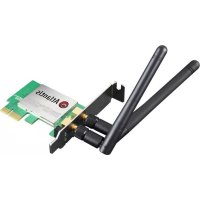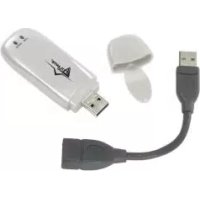
NetFly U 108 - Network card / adapter ATLANTIS-LAND - Free user manual and instructions
Find the device manual for free NetFly U 108 ATLANTIS-LAND in PDF.


| Product Type | IEEE 802.11g 108Mbps Wireless USB Adapter |
| Standard | IEEE 802.11g/b, Super G (108 Mbps) |
| Interface | USB 2.0 (compatible with USB 1.1) |
| Maximum Data Rate | 108 Mbps (Super G), 54 Mbps (802.11g), 11 Mbps (802.11b) |
| Security | WEP 64/128-bit, WPA, WPA-PSK, 802.1x |
| Operating Modes | Infrastructure (with access point) and Ad-Hoc (peer-to-peer) |
| Supported Operating Systems | Windows 2000, Windows XP |
| Frequency | 2.4 GHz |
| Channels | 1 to 11 (FCC), 1 to 13 (ETSI), 1 to 14 (Japan) |
| Power Supply | Via USB port (bus-powered) |
| LED Indicators | Power (steady when powered) and Link (blinking during search, steady when connected) |
| Package Contents | USB adapter, USB cable, quick start guide in English, CD-ROM (drivers and manual) |
| System Requirements | PC with free USB port, Pentium III 600 MHz processor, 128 MB RAM, 15 MB disk space, CD-ROM drive |
| Dimensions | Compact (adapter and adjustable cable) |
| Care and Cleaning | Avoid moisture, clean with a soft dry cloth |
| Security | WEP/WPA encryption to protect data |
| Spare Parts and Repairability | Device not user-serviceable, no spare parts available |
Frequently Asked Questions - NetFly U 108 ATLANTIS-LAND
User questions about NetFly U 108 ATLANTIS-LAND
0 question about this device. Answer the ones you know or ask your own.
Ask a new question about this device
Download the instructions for your Network card / adapter in PDF format for free! Find your manual NetFly U 108 - ATLANTIS-LAND and take your electronic device back in hand. On this page are published all the documents necessary for the use of your device. NetFly U 108 by ATLANTIS-LAND.
USER MANUAL NetFly U 108 ATLANTIS-LAND
No part of this publication may be reproduced, stored in a retrieval system, or transmitted in any form or by any means, whether electronic, mechanical, photocopying, recording or otherwise without the prior writing of the publisher. Windows™ 98SE/2000/ME/XP are trademarks of Microsoft® Corp. Pentium is trademark of Intel. All copyright reserved.
The Atlantis Land logo is a registered trademark of Atlantis Land SpA. All other names mentioned may be trademarks or registered trademarks of their respective owners. Subject to change without notice. No liability for technical errors and/or omissions.
Wireless LAN, Health and Authorization for use
Radio frequency electromagnetic energy is emitted from Wireless LAN devices. The energy levels of these emissions however are far much less than the electromagnetic energy emissions from wireless devices like for example mobile phones. Wireless LAN devices are safe for use frequency safety standards and recommendations. The use of Wireless LAN devices may be restricted in some situations or environments for example:
- On board of airplanes, or
In an explosive environment, or
In case the interference risk to other devices or services is perceived or identified as harmful
In case the policy regarding the use of Wireless LAN devices in specific organizations or environments (e.g. airports, hospitals, chemical/oil/gas industrial plants, private buildings etc.) is not clear, please ask for authorization to use these devices prior to operating the equipment.
Regulatory Information/disclaimers
Installation and use of this Wireless LAN device must be in strict accordance with the instructions included in the user documentation provided with the product. Any changes or modifications made to this device that are not expressly approved by the manufacturer may void the user's authority to operate the equipment. The Manufacturer is not responsible for any radio or television interference caused by unauthorized modification of this device, of the substitution or attachment. Manufacturer and its authorized resellers or distributors will assume no liability for any damage or violation of government regulations arising from failing to comply with these guidelines.
CE Mark Warning
This is a Class B product. In a domestic environment, this product may cause radio interference, in which case the user may be required to take adequate measures.
CE in which Countries where the product may be used freely:
Germany, UK, Italy, Spain, Belgium, Netherlands, Portugal, Greece, Ireland, Denmark, Luxembourg, Austria, Finland, Sweden, Norway and Iceland.
France: except the channel 10 through 13, law prohibits the use of other channels.
Federal Communication Commission Interference Statement
This equipment has been tested and found to comply with the limits for a Class B digital device, pursuant to Part 15 of the FCC Rules. These limits are designed to provide reasonable protection against harmful interference in a residential installation.
This equipment generates, uses and can radiate radio frequency energy and, if not installed and used in accordance with the instructions, may cause harmful interference to radio communications. However, there is no guarantee that interference will not occur in a particular installation. If this equipment does cause harmful interference to radio or television reception, which can be determined by turning the equipment off and on, the user is encouraged to try to correct the interference by one of the following measures:
- Reorient or relocate the receiving antenna.
- Increase the separation between the equipment and receiver.
- Connect the equipment into an outlet on a circuit different from that to which the
receiver is connected. - Consult the dealer or an experienced radio/TV technician for help.
FCC Caution: To assure continued compliance, (example - use only shielded interface cables when connecting to computer or peripheral devices) any changes or modifications not expressly approved by the party responsible for compliance could void the user's authority to operate this equipment.
This device complies with Part 15 of the FCC Rules. Operation is subject to the following two conditions:
1) This device may not cause harmful interference, and
2) This device must accept any interference received, including interference that may cause undesired operation.
INDEX
ENGLISH
1
1. Introduction 1
1.1 IEEE 802.11g Wireless 108Mbps USB Adapter 1
1.2 Product Features 1
1.3 How the Adapter works 2
1.4 System Requirements 3
1.5 Package Contents 3
1.6 Product View/LED Indicators 4
2. Connecting the USB Extension Cable 5
2.1 Hardware Installation 6
3. Software Installation 7
3.1 Utility Installation 7
3.2 Installing on Windows XP/2000 8
4. Wireless Network Utility 9
4.1 Introduction 9
4.2 Disable "Windows XP Wireless Zero Configuration 9
4.3 Using the Configuration Utility 10
4.3.1 Link Info 11
4.3.2 Configuration 13
4.3.3 Advanced 15
4.3.4 Site Survey 18
4.3.5 About 19
5. Troubleshooting
Common Problems and Solutions 20
Frequently Asked Questions 20
6. Support
ITALIANO
1. Introduzione
1.1 IEEE 802.11g Wireless Adapter USB 23
23
Appendix A: Technical Features 77
Appendix B: Regulatory Domains 79
ENGLISH
1. Introduction
Thank you for purchasing the IEEE 802.11g Wireless 108Mbps USB Adapter that provides the easiest way to wireless networking. This User Manual contains detailed instructions in the operation of this product. Please keep this manual for future reference.
1.1 IEEE 802.11g Wireless 108Mbps USB Adapter
IEEE 802.11g Wireless 108Mbps USB Adapter (hereafter called the Adapter) is a high-efficiency wireless LAN adapter for wireless networking at home, in office or in public places. The data rate can be up to 108 Mbps and auto-negotiated to 54, 48, 36, 24, 18, 12, 9, 6Mbps (IEEE 802.11g), or 11, 5.5, 2, 1Mbps (IEEE802.11b).
Wireless network security is protected with standard WEP encryption, Wi-Fi Protected Access (WPA) with PSK and WPA, and further enhanced with 802.1x authentication security.
With the Adapter, you can roam between conference room and office without being disconnected the LAN cables; in addition, sharing files and printers can be easy tasks.
The wireless LAN adapter is available to Microsoft Windows operating systems (Windows® XP/2000) and can be integrated into networking with either Ad-hoc mode (computer-to-computer, without an Access Point) or Infrastructure mode (computer-to-access point, an Access Point is required).
1.2 Product Features
Fully IEEE 802.11g and 802.11b standards compliant.
- Highly efficient design mechanism to provide unbeatable performance achieving data rate up to 54Mbps for 802.11g, 108Mbps for Super G and 11Mps for 802.11b wide range coverage.
- Strong network security with 802.1x available in Windows XP, Wi-Fi Protect Access (WPA), WPA with PSK and WEP encryption.
- Auto-switch between the two standards, IEEE 802.11b and g that the corresponding networking device is using.
- Driver/Utility support most commonly used operating systems including Windows 200/XP.
- Pen Size which is easy easy to carry provides users the most mobility and flexibility.
- Support USB2.0 and USB1.1 at the same time, especially for USB2.0 the data rate reaches 480Mbytes.
1.3 How the Adapter works
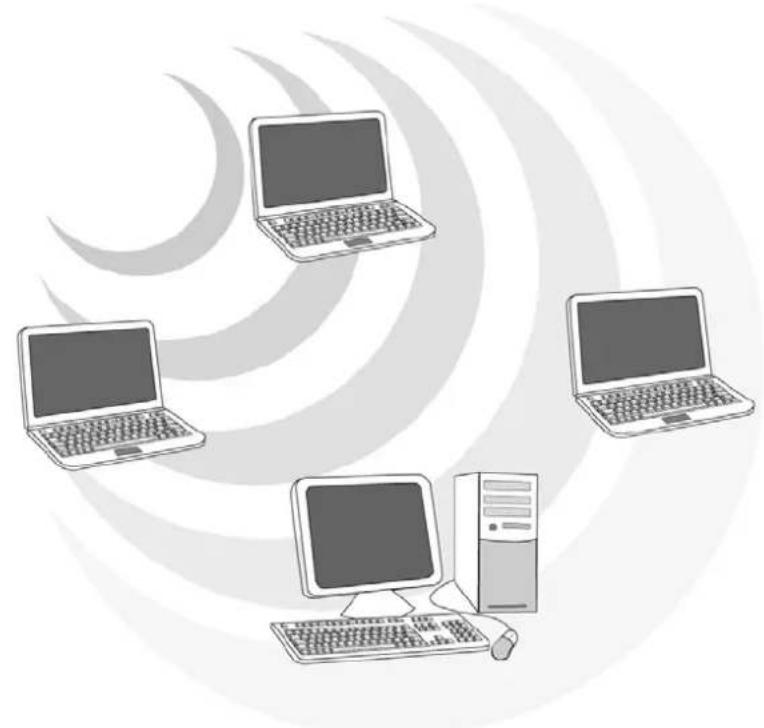
Ad-hoc Mode: An Ad-hoc network is a local area network or other small network, especially one with wireless or temporary plug-in connections, in which some of the network devices are part of the network only for the duration of a communications session. Users in the network can share files, print to a shared printer, and access the Internet with a shared modem. In this kind of network, new devices can be quickly added; however, users can only communicate with other wireless LAN computers that are in this wireless LAN workgroup, and are within range.
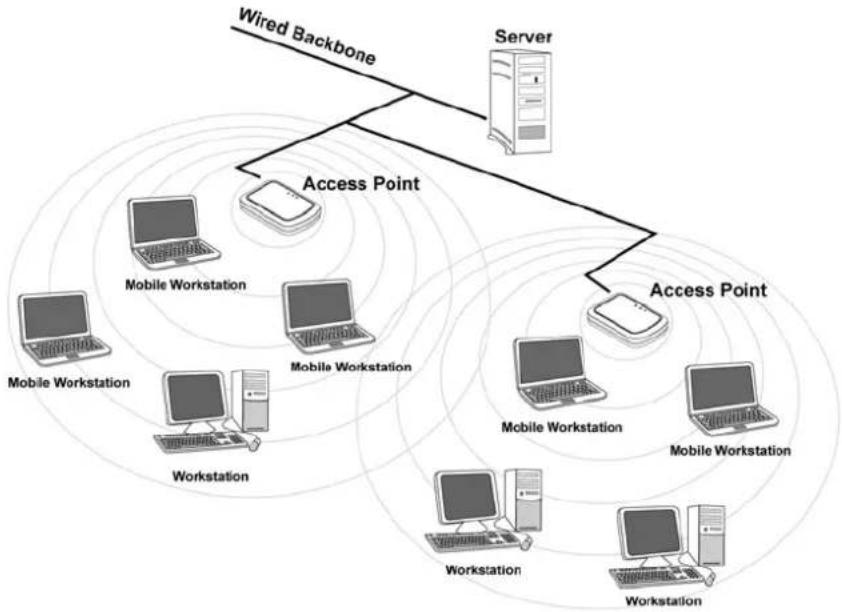
Infrastructure Networking Mode: The difference between Infrastructure network and Ad-hoc network is that the former one includes an Access Point. In an Infrastructure network, the Access Point can manage the bandwidth to maximize bandwidth utilization. Additionally, the Access Point enables users on a wireless LAN to access an existing wired network, allowing wireless users to take advantage of the wired networks resources, such as Internet, email, file transfer, and printer sharing. The scale and range of the Infrastructure networking are larger and wider than that of the Ad-hoc networking.
1.4 System Requirements
Before installing the Adapter, your PC should meet the following:
PC with available USB V2.0/1.1* slot
Intel® Pentium®III 600Mhz or compatible processor with 128MB RAM
Windows 2000/XP operating system
Minimum 15 Mbytes free disk space for installing the driver and utilities
- CD-Rom drive
*When plug the device in the USB 1.1/1.0 port, the real throughput will be up to 6Mbps only when running 11Mbps or higher speed
1.5 Package Contents
Unpack the package and check all the items carefully. If any item contained is damaged or missing, please contact your local dealer as soon as possible. Also, keep the box and packing materials in case you need to ship the unit in the future. The package should contain the following items:
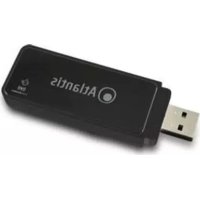
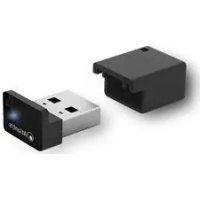
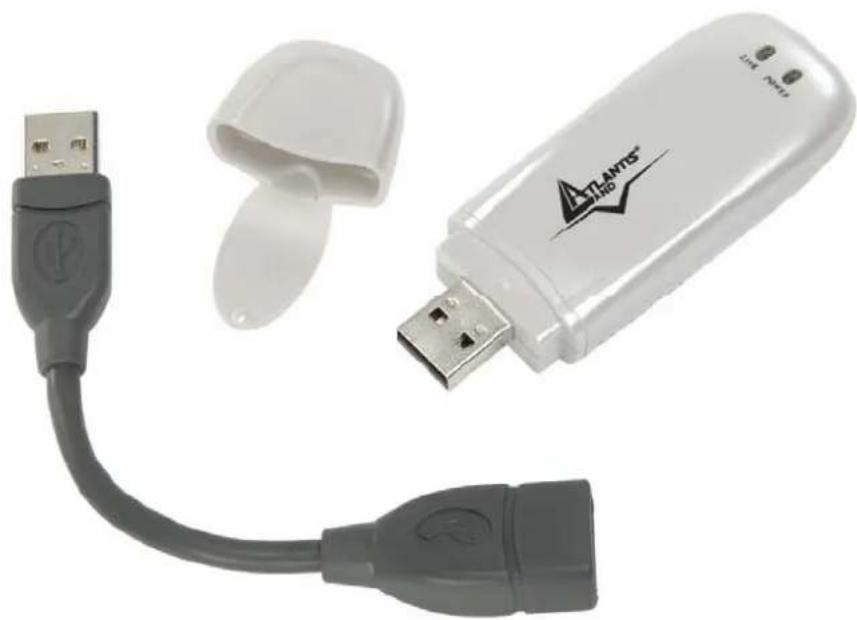
One IEEE802.11g Wireless USB Adapter
One A-type USB male to female extension cable
One Quick Start Guide
One CD with driver/utilities and user's manual
1.6 Product View/LED Indicators
2. Connecting the USB Extension Cable
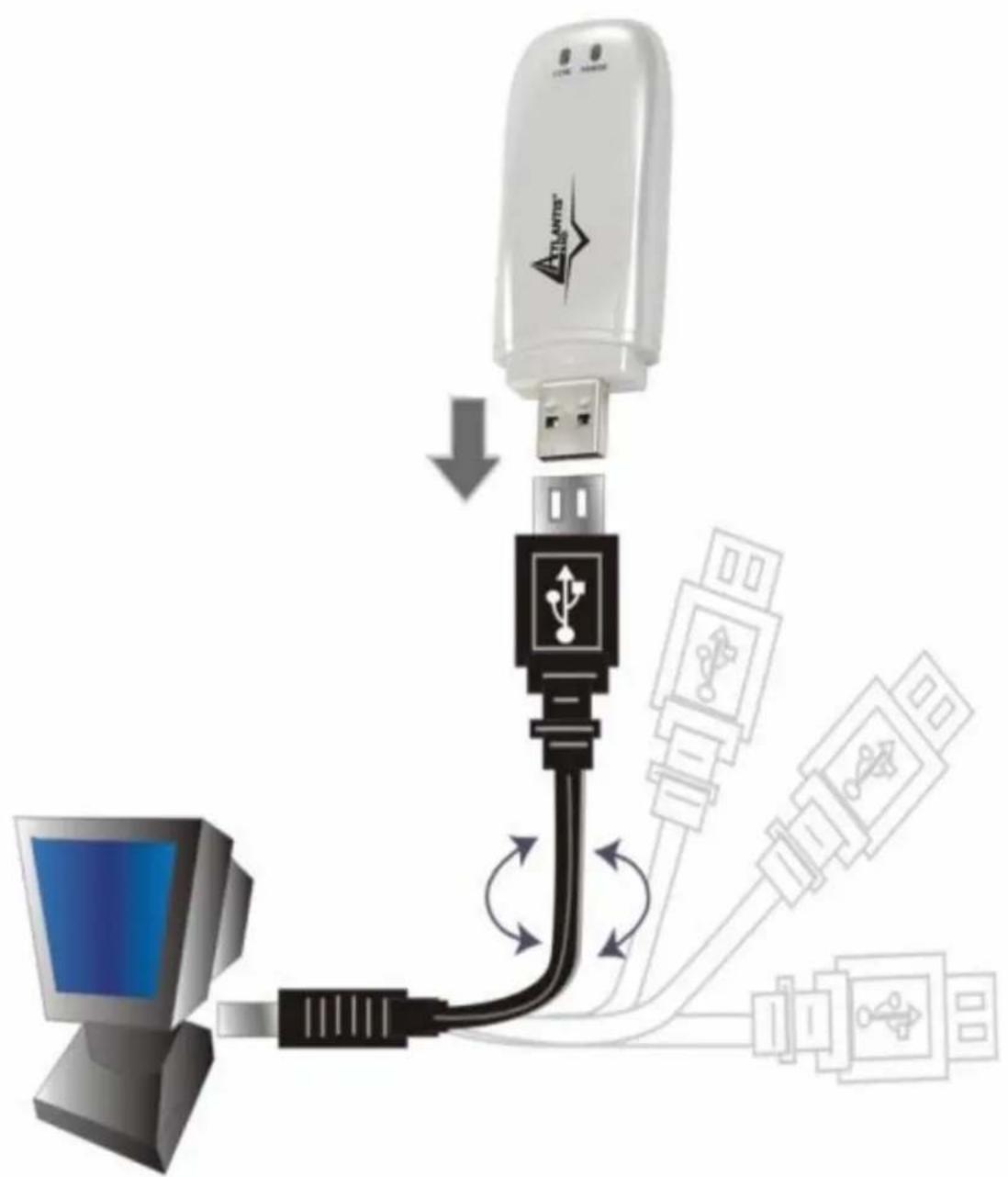
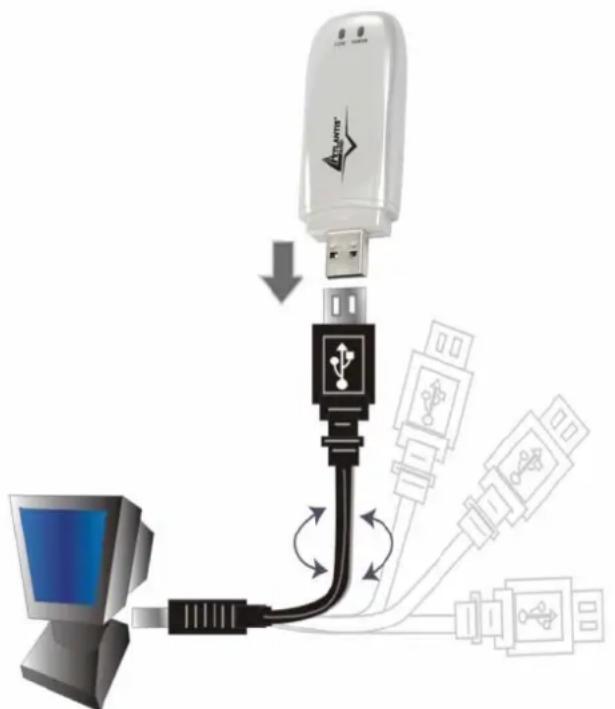
The USB extension cable that comes with the Adapter has Type A connectors on both ends. One is a male Type A connector that plugs into the PC's USB port, and the other is a female Type A connector that plugs into the Adapter.
This USB extension cable have a special function, it can be twist to any direction to have the best connection in the air. It is recommended that the Pen Size Wireless 108Mbps USB Adapter was vertically plane with the ground.
Before insert USB Dongle into the PC USB of your computer, please install the Utility Program first.
2.1 Hardware Installation
LED Indicator
The Power LED will be ON when the unit is powered up.
The Link LED will be blinking indicates a WLAN connection.
Check the installation
The LEDs of the Wireless USB 2.0 Adapter are clearly visible and the status of the network link can be seen instantly:
When connected to the USB port and the driver was installed, the LNK LINKwill start blinking, it means that the device is starting to scanning a 802.11g wireless device near the Wireless USB 2.0 Adapter.
While the Wireless USB 2.0 Adapter linked up to the Access Point or to other Wireless LAN station, the LNK LED will always blinking.
3. Software Installation
This section describes the procedures of installing the driver and utility. Follow the instruction step by step to finish the installation.
3.1 Utility Installation
This section describes the procedures of installing the driver and utility. Before insert USB Dongle into the PC USB of your computer, please install the Utility Program first. Make sure that the 108Mbps Wireless Network USB Dongle is NOT inserted into the USB slot.
Go to your Windows Start menu and choose Run, type "CDRom:\Setup.exe" in the dialog box and click OK.
Follow the instruction step by step to finish the installation.
The USB extension cable that comes with the Adapter has Type A connectors on both ends. One is a male Type A connector that plugs into the PC's USB port, and the other is a female Type A connector that plugs into the Adapter. This USB extension cable have a special function, it can be twist to any direction to have the best connection in the air. It is recommended that the Pen Size Wireless USB Adapter was vertically plane with the ground.
After restarting the computer, insert the USB dongle into USB port. Few seconds later, there will be a window popup.
3.2 Installing on Windows XP/2000
After the opening banner, Windows will tell you that the new device has been detected. Click "Next >".
Select "Install the software automatically(recommended)" then click "Next>". In next window, click "Continue Anyway" then click "Finish".
After installing the driver of USB, there will be another pop-up window to guide you to keep installing the driver of USB Dongle.
Click "Next >". Select "Install the software automatically(recommended)" then click "Next>". In next window, click "Continue Anyway" then click "Finish".
To make sure if the installation is successful, you could check it through the device management.
4. Wireless Network Utility
4.1 Introduction
After installing the driver, the Adapter provides a convenient and powerful utility that allows you to set up, configure, and know your networking status easily and clearly. To launch the utility, just double click the icon.
You will see the icon on the Windows task bar when you finish the installation.
When the icon in the toolbar represents in green color ( ) , it is proper connected to the network and if it represents in white color ( ) , then it is not connected to the network.
4.2 Disable "Windows XP Wireless Zero Configuration
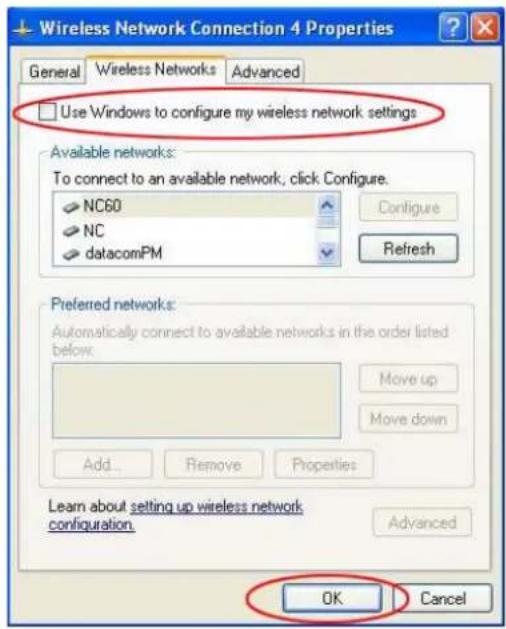
In Windows XP, it is recommended that you use the WLAN 802.11g Utility. Right after the installation, before opening the Utility, please follow the steps below to disable the Windows XP Zero Configuration:
1 Go to "Control Panel" and double click "Network Connections".
2 Right-click "Wireless Network Connection" of WLAN 802.11g USB2.0 Wireless LAN, and select "Properties".
3 Select "Wireless Networks" tab, and uncheck the check box of "Use Windows to configure my wireless network settings", and then click "OK".
4.3 Using the Configuration Utility
Double-click the Wireless LAN icon to launch the Configuration Utility.
With the Wireless 108Mbps USB Adapter utility, users can configure all the functions provided by the Wireless Monitor Utility. Double-click the utility icon that appears in the taskbar.
The Wireless Monitor Utility includes five tabs: Link Info, Configuration, Advanced, Site Survey and About.
4.3.1 Link Info
The Link Info screen shows you the status of the USB Adapter, it shows that where the device is connected to, the Network mode, the Channel, the transmit rate and the encryption mode.
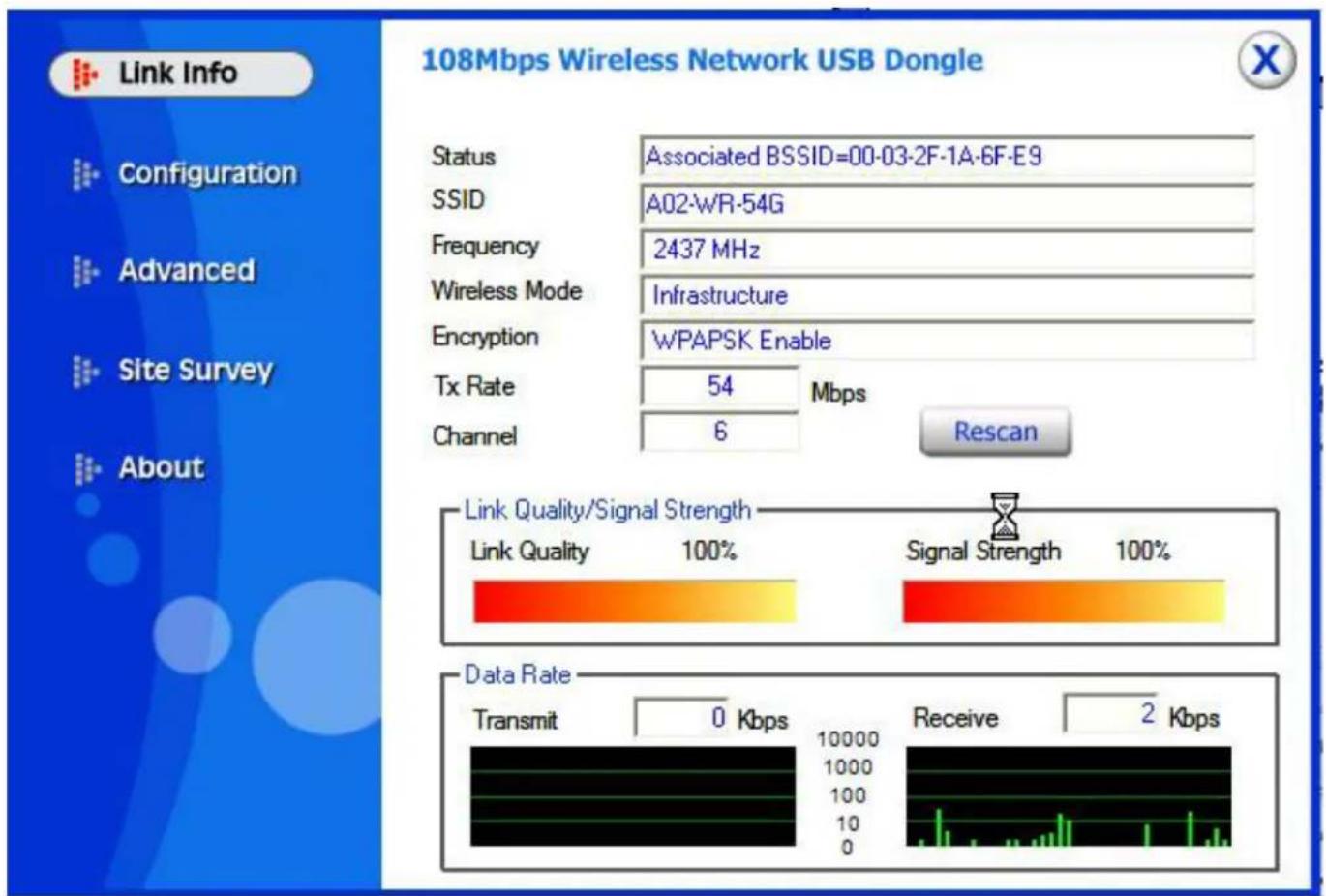
There is another dialog box showing the data transmitted and data received. The two signal lines show the Signal Strength and the Link Quality of the device.
Status: Shows the SSID associated, which can be used to identify the wireless network.
SSID: Shows current SSID, which must be the same for the wireless client and AP in order for communication to be established.
Frequency: Shows the current frequency used for wireless network.
Wireless Mode: Shows the current wireless mode used for wireless communication.
Encryption: Shows the current encryption mode used for wireless network.
Tx Rate: Shows the current data rate used for transmitting.
Channel: Shows the current channel for communication.
Link Quality: Shows the link quality of the 108Mbps Wireless Network USB Dongle with the Access Point when operating under Infrastructure mode.
Wireless 108Mbps USB Adapter
Signal Strength: Shows the wireless signal strength of the connection between the 108Mbps Wireless Network USB Dongle with the Access Point.
Data Rate: Shows the statistics of data transfer, and the calculation is based on the number of packets transmitted and received.

The range of radio frequencies used by IEEE 802.11g wireless devices is called a "channel". Channels available depend on your geographical area. You may have a choice of channels (for your region) so you should use a different channel than an adjacent AP (access point) to reduce interference. Interference occurs when radio signals from different access points overlap causing interference and degrading performance.
Adjacent channels partially overlap however. To avoid interference due to overlap, your AP should be on a channel at least five channels away from a channel that an adjacent AP is using. For example, if your region has 11 channels and an adjacent AP is using channel 1, then you need to select a channel between 6 or 11.
4.3.2 Configuration
This is the page where you can change the basic settings of the Access Point with the minimum amount of effort to implement a secure wireless network environment.
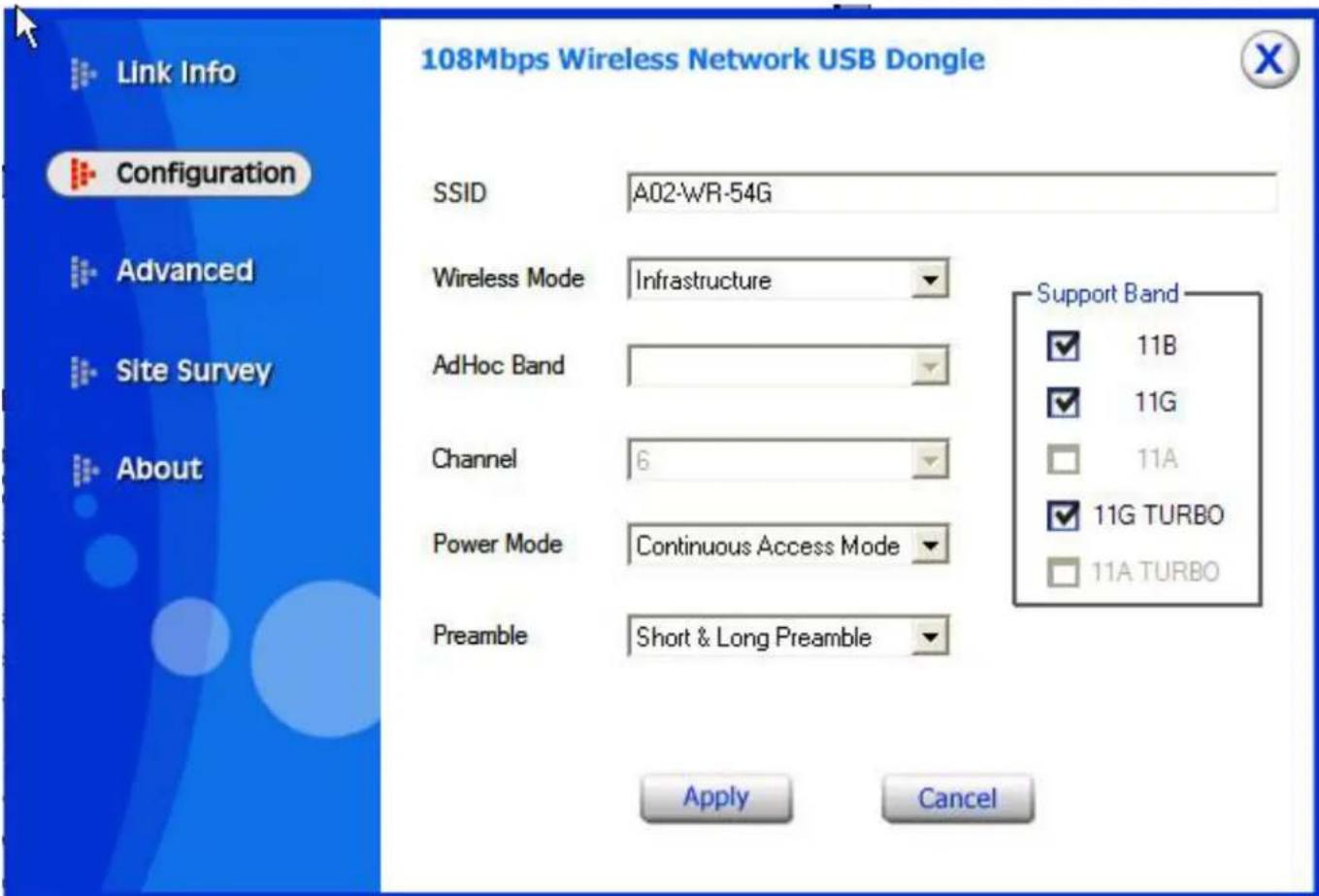
SSID: Service Set Identifier, which is a unique name shared among all clients and nodes in a wireless network. The SSID must be identical for each client and nodes in the wireless network.
Wireless Mode: There are two types available for selection
- Infrastructure - to establish wireless communication with LAN and other wireless clients through the use the Access Points.
- Ad-Hoc - to establish point-to-point wireless communication directly with other wireless client devices such as wireless network Adapter.
Hoc Band: There are 3 bands available for selection- 11B.11G and 11G Turbo Channel: The value of channel that AP will operate in. You can select the channel range of 1 to 11 for North America (FCC) domain and 1 to 13 for European (ETSI) domain and 1 to 14 for Japanese domain.
Power Mode: There are 3 modes to choose.
- Continuous Access Mode (default) - the USB Dongle is constantly operating with full power and it consumes the most power.
Maximum Power Save - the USB Dongle consumes the least power and only operates when there is wireless network activity.
Power Save - the USB Dongle consumes the moderate level of power.
Preamble: Select Long or Short Preamble type. Preamble is a sequence of bits transmitted at 1Mbps that allows the PHY circuitry to reach steady-state demodulation and synchronization of bit clock and frame start. Two different preambles and headers are defined: the mandatory supported Long Preamble and header, which interoperates with the 1 Mbit/s and 2 Mbit/s DSSS specification (as described in IEEE Std 802.11), and an optional Short Preamble and header (as described in IEEE Std 802.11b). At the receiver, the Preamble and header are processed to aid in demodulation and delivery of the PSDU. The Short Preamble and header may be used to minimize overhead and, thus, maximize the network data throughput. However, the Short Preamble is supported only from the IEEE 802.11b (High-Rate) standard and not from the original IEEE 802.11. That means that stations using Short-Preamble cannot communicate with stations implementing the original version of the protocol. Click "Apply" for the changes to take effect.
4.3.3 Advanced
This is the page where you configure advanced settings of your 108Mbps Wireless Network USB Dongle.
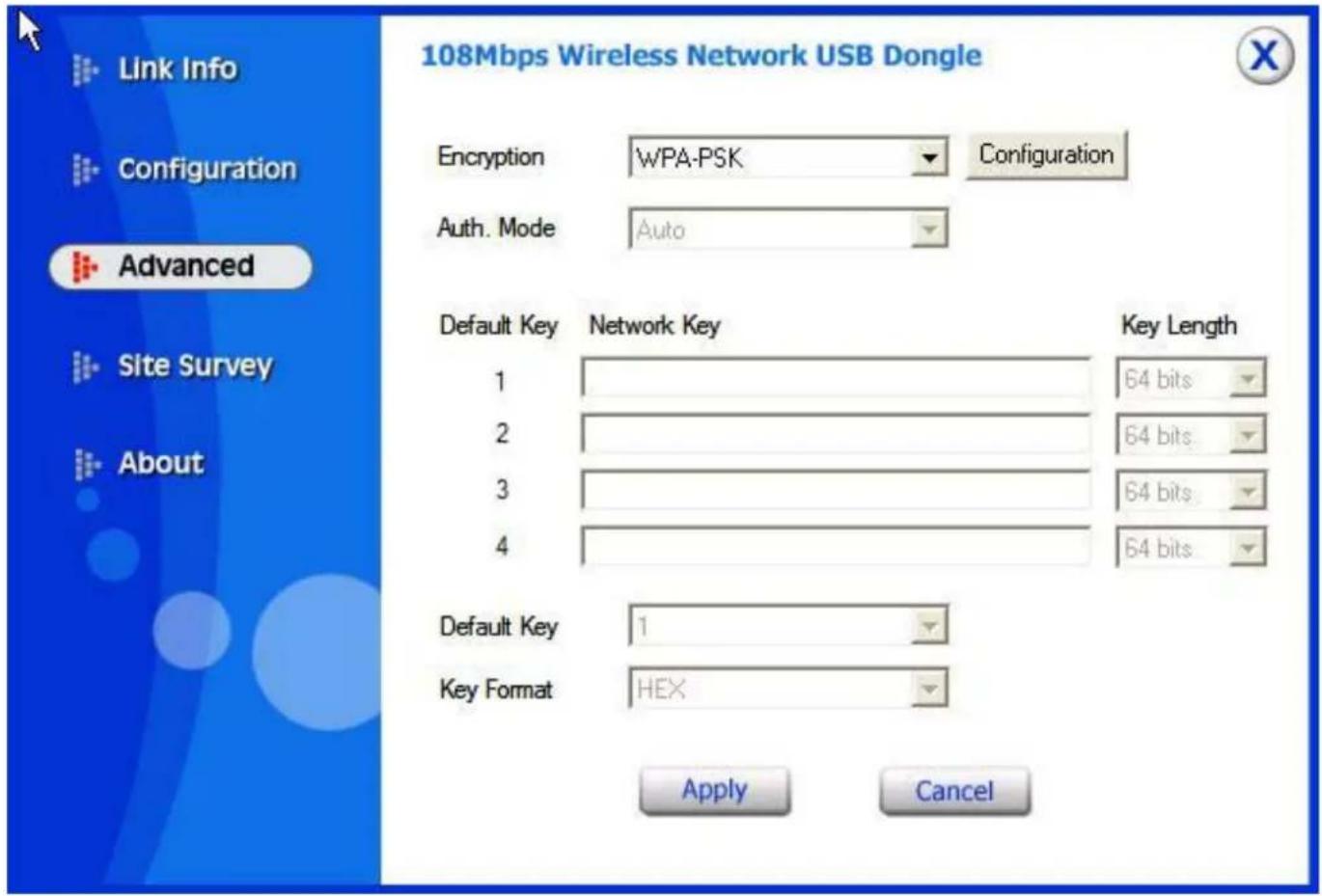
Security: the setting of the Network Encryption. This function is used to protect wireless communication from eavesdropping. A secondary function of encryption is to prevent unauthorized access to a wireless network, and it can be achieved by using the Encryption function.
Encryption Mode:
There are 4 kinds of encryption mode: Disable, Enable(WEP encryption), WPA-PSK, WPA.
1) Disable:
2) Enable(WEP):Click the Enable Encryption to activate the WEP security of the USB Adapter. WEP-Key: WEP (Wired Equivalent Privacy) relies on a secret key that is shared between a mobile station and a base station (Access Point).
Authentication Mode:
- Open System: with the same WEP key between the stations, the stations don't need to be authenticated, and this algorithm was set to default.
- Shared Key: with the same WEP key between the stations in this Authentication algorithm, this type will use packets with encryption by transferring a challenge text which will be acknowledge by both side of the stations. In order to choose which authentication algorithm will be used, you must know which one the station supports this algorithm first.
- Auto: It is recommended to select "Auto" if you are not familiar with the setting.
Default Key (Key 1 ~ Key 4):
You can type the key that you want to use from Key#1 to Key #4, and the key that you type will be the encryption between the stations that you connected with.
Key Length, Key Format and WEP Key:
If you select 64bit in Hex format, you must type 10 values in the following range (0~F, hexadecimal), or 64bit in ASCII format, you must type 5 values in the following range (0~9, A~Z and a~z Alphanumeric).
If you select 128bit in Hex format, you must type 26 values (0~F, hexadecimal), or 128bit in ASCII format, you must type 13 values in the following range (0~9, A~Z and a~z Alphanumeric).
Be sure that the USB Adapter and the wireless station were set in the same key.
Note: After all the settings are completed, click Apply to save the setting.

WEP is not completely secure. If possible please use WPA-PSK.
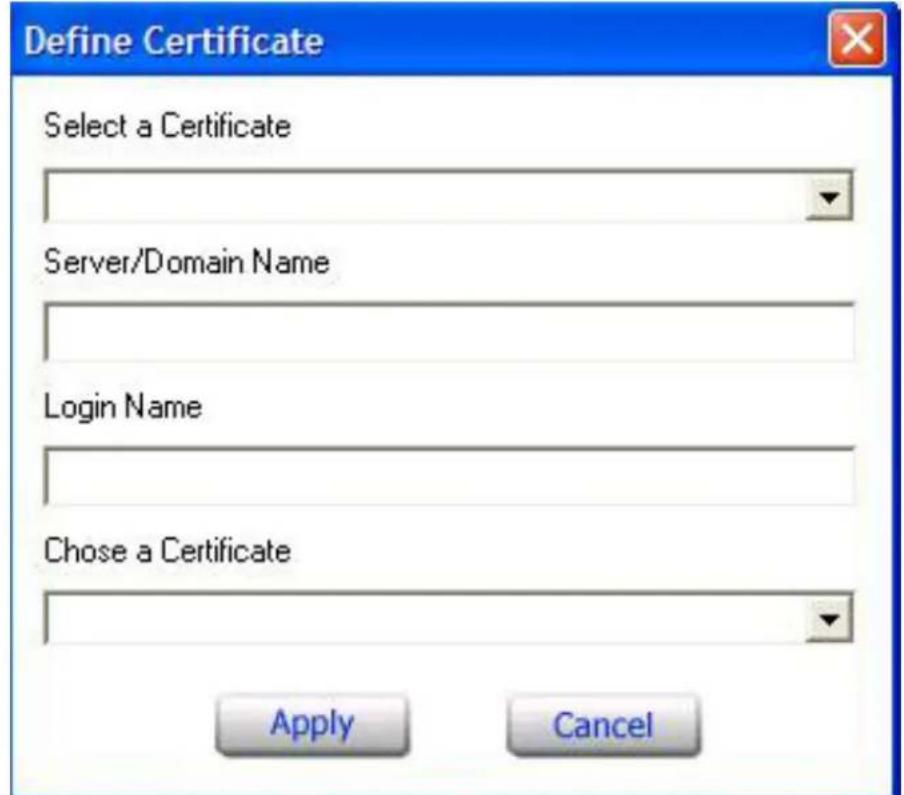
3)WPA: if WPA is selected, configuration is enabled. Please click the "configuration". The below window is pop up. Then, please select the certificate that user wants to use and enter the server name and login name
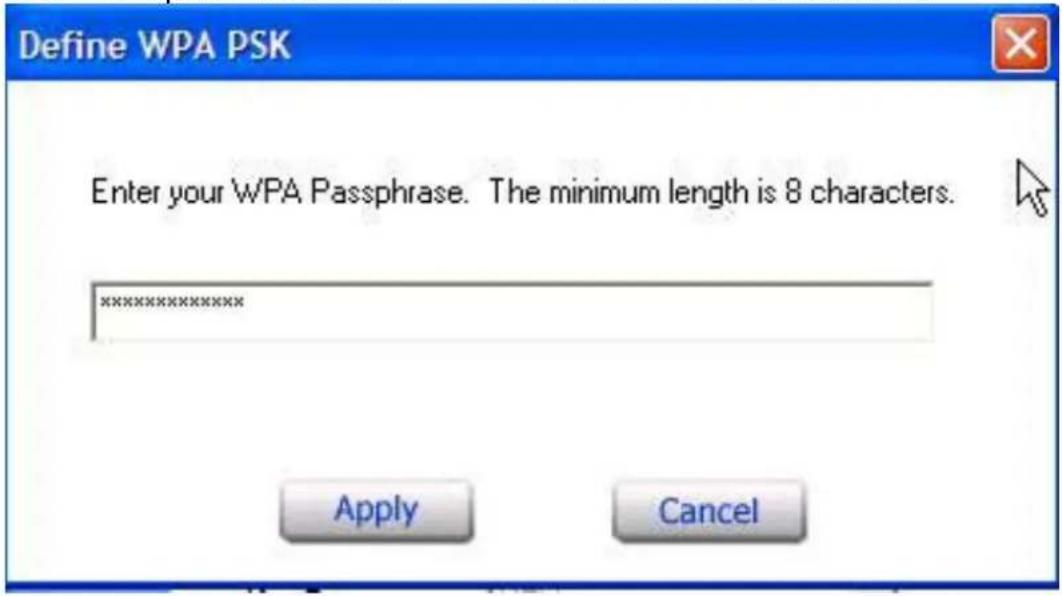
4)WPA-PSK: WPA-PSK (Wi-Fi Protected Access pre-shared key) is a simpler version that does not support 802.1x and requires a separate RADIUS server for mutual authentication.
Enter a Passphrase in the WPA-PSK dialog box. This passphrase must be the same on each computer that is connected to the wireless network.
4.3.4 Site Survey
This page allows you to enable the Site Survey function to scan for the available wireless network (wireless clients and Access Points) and establish wireless communications with one.
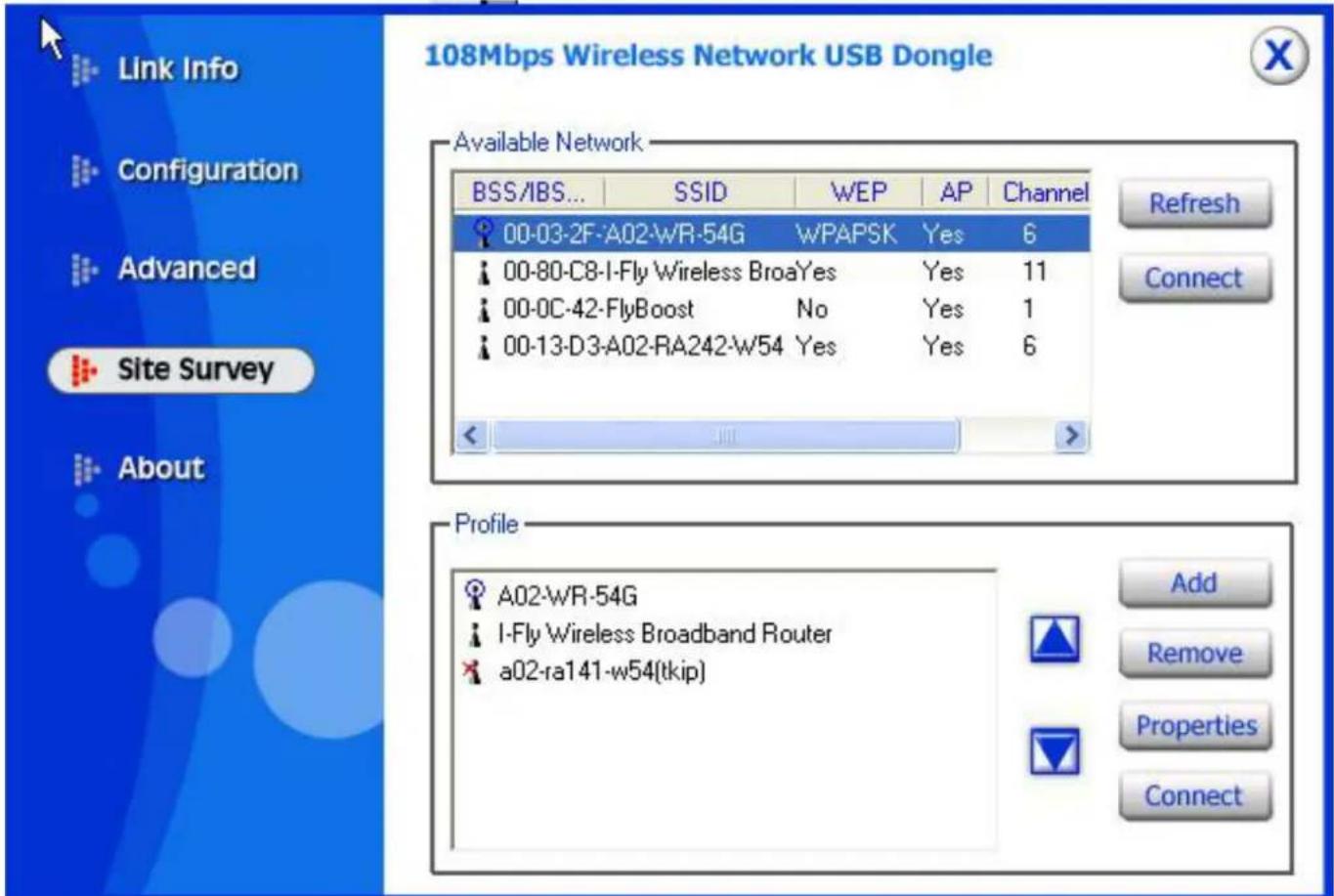
Available Network - displays the wireless networks (wireless clients and Access Points) that are in your signal range. Select any one of them to establish communications by simply mouse double-click or click on the "Connect" button. Click "Refresh" button to start scanning for available network again.
Profile - You can create and manage the created profiles for Home, offices or public areas. By double-clicking on one of the created profile, the setting will adapt to the configuration such as SSID, channel, and WEP settings saved by that particular profile.
- Remove: To remove the selected the profile
Properties: To view and change its settings of the profile. - Add: To add a profile. Then, the following screen would appear.
4.3.5 About
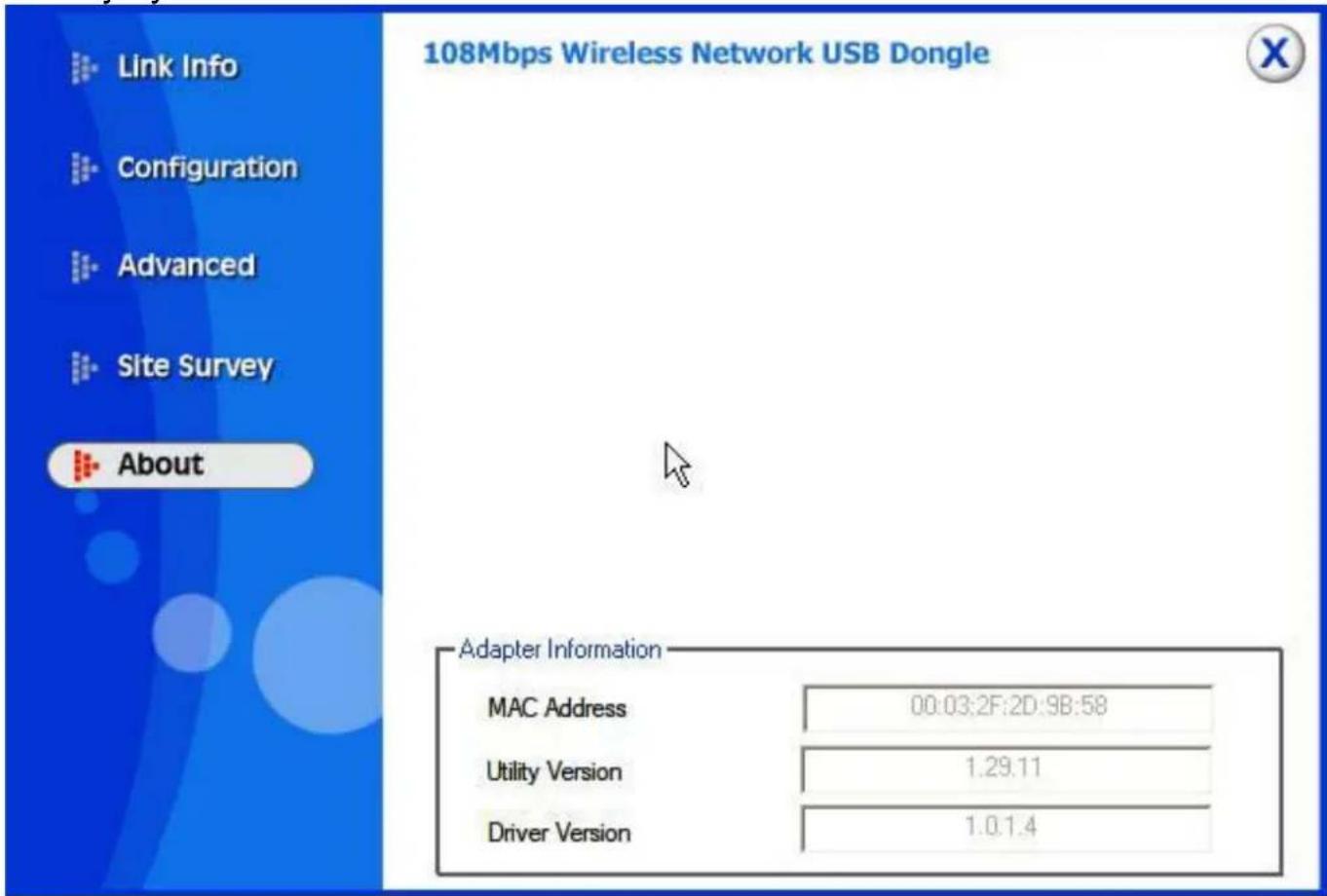
This page displays some information about the 108Mbps Wireless Network USB Dongle utility, which includes the version numbers for Driver, Firmware and Utility. When there is new version of software available for upgrade, you will be able to identify by version numbers.
5. Troubleshooting
Common Problems and Solutions
This chapter provides solutions to problems that may occur during the installation and operation of the WLAN 802.11g USB Adapter. Read the descriptions below to solve your problems.
2. My computer cannot find the Adapter
Make sure the Adapter has no physical damage.
- Make sure the Adapter is properly inserted in the USB slot.
Try the Adapter in other USB slots.
- Try another Adapter in that particular USB slot.
2. Cannot access any network resources from the computer.Make sure that the notebook PC is powered on.
- Make sure that the notebook PC is powered on.
- Make sure that the Cardbus is configured with the same SSID and security options as the other computers in the infrastructure configuration.
Frequently Asked Questions
1. Can I run an application from a remote computer over the wireless network?
This will depend on whether or not the application is designed to be used over a network. Consult the application's user guide to determine if it supports operation over a network.
2. Can I play computer games with other members of the wireless network?
Yes, as long as the game supports multiple players over a LAN (local area network).
Refer to the game's user guide for more information.
3. What is Spread Spectrum?
Spread Spectrum technology is a wideband radio frequency technique developed by the military for use in reliable, secure, mission-critical communications systems. It is designed to trade off bandwidth efficiency for reliability, integrity, and security.
In other words, more bandwidth is consumed than in the case of narrowband transmission, but the trade-off produces a signal that is, in effect, louder and thus easier to detect, provided that the receiver knows the parameters of the spread-spectrum signal being broadcast. If a receiver is not tuned to the right frequency, a spread-spectrum signal looks like background noise. There are two main alternatives, Direct Sequence Spread Spectrum (DSSS) and Frequency Hopping Spread Spectrum (FHSS).
4. What is DSSS? What is FHSS? And what are their differences?
Frequency-Hopping Spread-Spectrum (FHSS) uses a narrowband carrier that changes frequency in a pattern that is known to both transmitter and receiver. Properly synchronized, the net effect is to maintain a single logical channel. To an unintended receiver, FHSS appears to be short-duration impulse noise. Direct-Sequence Spread-Spectrum (DSSS) generates a redundant bit pattern for each bit to be transmitted. This bit pattern is called a chip (or chipping code). The longer the chip, the greater the probability that the original data can be recovered. Even if one or more bits in the chip are damaged during transmission, statistical techniques embedded in the radio can recover the original data without the need for retransmission. To an unintended receiver, DSSS appears as low power wideband noise and is rejected (ignored) by most narrowband receivers.
5. Would the information be intercepted while transmitting on air?
WLAN features two-fold protection in security. On the hardware side, as with Direct Sequence Spread Spectrum technology, it has the inherent security feature of scrambling. On the software side, WLAN offers the encryption function (WEP) to enhance security and access control.
6. What is WEP?
WEP is Wired Equivalent Privacy, a data privacy mechanism based on a 64-bit or 128-bit shared key algorithm, as described in the IEEE 802.11 standard.
7. What is infrastructure mode?
When a wireless network is set to infrastructure mode, the wireless network is configured to communicate with a wired network through a wireless access point.
8. What is roaming?
Roaming is the ability of a portable computer user to communicate continuously while moving freely throughout an area greater than that covered by a single access point. Before using the roaming function, the workstation must make sure that it is the same channel number with the access point of dedicated coverage area.
9. What is ISM band?
The FCC and their counterparts outside of the U.S. have set aside bandwidth for unlicensed use in the ISM (Industrial, Scientific and Medical) band. Spectrum in the vicinity of 2.4 GHz, in particular, is being made available worldwide. This presents a truly revolutionary opportunity to place convenient high-speed wireless capabilities in the hands of users around the globe.
10. What is the IEEE 802.11g standard?
Approved in June, 2003 as an IEEE standard for wireless local area networks (WLANs), 802.11g offers wireless transmission over relatively short distances at up to 54 megabits per second (Mbps) compared with the 11 megabits per second of the 802.11b (Wi-Fi) standard. Like 802.11b, 802.11g operates in the 2.4 GHz range and is thus compatible with it.
6. Support
If you have any problems with the Wireless 108Mbps USB Adapter, please consult this manual. If you continue to have problems you should contact the dealer where you bought this device. If you have any other questions you can contact the Atlantis Land company directly at the following address:
Atlantis Land SpA
Viale De Gasperi 122
Key Length, Key Format and WEP Key:
In attesa delle ratifica dello standard IEEE802.11i la Wi-Fi Alliance has derived from the latest version of the Wi-Fi Protected Access.
Auth. Mode: Choix parmi 3 options:
4.3.4 Menu "Site Survey"
Appendix A: Technical Features
Physical Interface:
- Host Interface : USB V2.0 (or USB V1.1*)
- LEDs: Power, Link
Wireless Interface:
- Chipset: Atheros™ AR5005UG [R2112 Radio-on-a-Chip for 2.4 GHz WLAN, AR5523 Multiprotocol MAC/baseband processor]
- Antenna: printed antenna
Security:
- 64-bit/128-bit WEP encryption
- WPA-PSK (TKIP, AES)
Radio Specifications:
- Frequency Range: 2.412 ~ 2.497Ghz
- Standard Compliance: 802.11b, 802.11g
- Modulation:
802.11g: OFDM [BPSK, QPSK, 16-QAM, 64QAM]
- Operating Channel: Europe: 14 (1~14)
- Transmission Rate:
802.11b: 1, 2, 5.5, 11Mbps
802.11g:6,9,12,18,24,36,48,54Mbps
SuperG: up to 108Mbps
- Operation Range: Indoor: < 30m / Outdoor: < 100m****
- RF max. output power: 15+/-2 dBm @ 802.11g mode, 15+/-2 dBm @ 802.11b mode
- Receiver Sensitivity(SuperG 108Mbps): -68 dBm (typically)**
- Receiver Sensitivity(802.11g mode): -72 dBm (typically)**
- Receiver Sensitivity(802.11b mode): -84 dBm (typically)***
- Access Mode: Ad-Hoc and Infrastructure mode
Advanced Features:
- Atheros XRTM eXtended Range technology to give Wi-Fi products twice the range of existing designs
- Super G® mode delivers up to 108 Mbps raw data rate with typical end-user throughput exceeding 60 Mbps
-
Wireless Multimedia Enhancements Quality of Service support (QoS)
-
Hardware encryption for the Wi-Fi Protected Access (WPA) and IEEE 802.11i security specifications, provides Advanced Encryption Standard (AES), Temporal Key Integrity Protocol (TKIP) and Wired Equivalent Privacy (WEP) without performance degradation
Physical and Environmental:
-Storage Temperature: -10~65°C
-Operating Temperature: 0 40^
-Humidity: 10% -95% RH, no condensation
-Dimensions(W x H x D): 87 x 30 x 13 mm
-Continuous Current Consumption: IEEE802.11g [300 mA (Rx), 400 mA (Tx), 30
mA(StandBy)], IEEE802.11g [250 mA (Rx), 350 mA (Tx), 30 mA(StandBy)],
System requirements:
-Intel® Pentium®III 600Mhz or compatible processor with 128MB RAM
-USB V2.0 or USB V1.1
-CDRom drive and 15 MB on HD
When plug the device in the USB 1.1/1.0 port, the real throughput will be up to 6Mbps only when running 11Mbps or higher speed
10% PER(Packet Error Rate)
8% PER(PacketError Rate)
***depends on environment
NOTE: The supplier reserves the rights to change any information in this document without notice. SuperG is a trademark of ATheros Communications.
Appendix B: Regulatory Domains
This appendix lists the IEEE 802.11g channels supported by the world's regulatory domains.
| Identifier | 802.11b Frequency | Regulatory Domains Channel | ||||
| FCC (North America) | ETSI (Europe) | France | Israel | MKK (Japan) | ||
| 1 | 2412 | X | X | |||
| 2 | 2417 | X | X | |||
| 3 | 2422 | X | X | X | ||
| 4 | 2427 | X | X | X | ||
| 5 | 2432 | X | X | X | ||
| 6 | 2437 | X | X | X | ||
| 7 | 2442 | X | X | X | ||
| 8 | 2447 | X | X | X | ||
| 9 | 2452 | X | X | X | ||
| 10 | 2457 | X | X | X | ||
| 11 | 2462 | X | X | X | ||
| 12 | 2467 | X | X | |||
| 13 | 2472 | X | X | |||
| 14 | 2484 | |||||
For some European Country, it may have its own domain; users are responsible for ensuring that the channel set configuration is in compliance with the regulatory standards of these countries.
Atlantis Land S.p.A.
Viale De Gasperi, 122