WDH 229 PTC - Air-conditioner QLIMA - Free user manual and instructions

Find the device manual for free WDH 229 PTC QLIMA in PDF.

📄 256 pages English EN Download 💬 AI Question
Notice QLIMA WDH 229 PTC - page 96

User questions about WDH 229 PTC QLIMA

0 question about this device. Answer the ones you know or ask your own.

Ask a new question about this device

L'email reste privé : il sert seulement à vous prévenir si quelqu'un répond à votre question.

No questions yet. Be the first to ask one.

Download the instructions for your Air-conditioner in PDF format for free! Find your manual WDH 229 PTC - QLIMA and take your electronic device back in hand. On this page are published all the documents necessary for the use of your device. WDH 229 PTC by QLIMA.

USER MANUAL WDH 229 PTC QLIMA
natural_image White rectangular electronic device with a horizontal screen and a digital display showing '88' (no visible text or symbols on the device body)

QLIMA WDH 229 PTC - 1

text_image • GARANTIA • GARANTIE • GUARANTEE • ANS YEARS AÑOS JAAR JAHRE
DGEBRAUCHSANWEISUNG2
EINSTRUCCIONES DE USO34
FMANUEL D’UTILISATION64
GBOPERATING MANUAL94
IISTRUZIONI D’USO126
NLGEBRUIKSAANWIJZING158
PMANUAL DE INSTRUÇÕES190
SLOPRIROČNIK ZA UPORABO222

WICHTIGE TEILE

natural_image Line drawing of a rectangular electronic device casing with ventilation slots and a handle (no text or symbols)

1

QLIMA WDH 229 PTC - WICHTIGE TEILE - 1

natural_image Pure geometric diagram with dots and circles, no text or symbols present

2

QLIMA WDH 229 PTC - WICHTIGE TEILE - 2

natural_image Two overlapping rectangular shapes with no text or symbols

3

QLIMA WDH 229 PTC - WICHTIGE TEILE - 3
4

QLIMA WDH 229 PTC - WICHTIGE TEILE - 4
6

QLIMA WDH 229 PTC - WICHTIGE TEILE - 5
7

natural_image Simple diagram with three circles and a horizontal bar inside a rectangle (no text or symbols)

1

QLIMA WDH 229 PTC - WICHTIGE TEILE - 6

natural_image Simple line drawing of a handheld electric tool (no text or symbols)

2

QLIMA WDH 229 PTC - WICHTIGE TEILE - 7

natural_image Simple geometric diagram with a circle and two overlapping squares, no text or symbols present.

3

QLIMA WDH 229 PTC - WICHTIGE TEILE - 8

natural_image Simple line drawing of a rectangular object with three diagonal lines and a protruding rod (no text or symbols)

4

QLIMA WDH 229 PTC - WICHTIGE TEILE - 9

natural_image Two identical mechanical drill bit designs shown side by side, no text or symbols present.

7

QLIMA WDH 229 PTC - WICHTIGE TEILE - 10

natural_image Simple line drawing of a rectangular shape with a triangular tip and a small circle inside (no text or symbols)

6

QLIMA WDH 229 PTC - WICHTIGE TEILE - 11
8

BENÖTIGTES WERKZEUG

text_image 8.8°C 8.8°F 88h POWER MODE FAN LED ▲ TEMP ▼ PTC SILENT SWING TIMER
text_image QR code with a blue home icon in the center, likely linking to a digital service or application.
text_image Log In Register
text_image User Agreement and Privacy Policy We understand the importance of privacy. In order to more fully present our collection and use of your personal information, we have revised our privacy policy and user agreement in detail in accordance with the latest laws and regulations. When you click [Agree], you have fully read, understood and accepted all of the updated Privacy Policy and User Agreement. Please take some time to become familiar with our privacy policy, and if you have any questions, please feel free to contact us. Privacy Policy and User Agreements Disagree Agree
text_image Register United Kingdom Email red verification code I Agree User Agreement and Privacy Policy

Verification code has been sent to: Resend(57s)

QLIMA WDH 229 PTC - BENÖTIGTES WERKZEUG - 1

text_image 1 2 3 - 4 5 6 , 7 8 9 . 0 _ ✓
text_image Set Password Password must contain A-20 letters and numbers Down

QLIMA WDH 229 PTC - BENÖTIGTES WERKZEUG - 2

text_image no hi so q w e r t y u i o p a s d f g h j k l z x c v b n m 120 ,
text_image Enjoy your smart life Add Home Lug out
text_image Enjoy your smart life Add Home Long wait
text_image Add Home Done Name Enter your home name Location Set geographic location Smart devices in Living Room Bedroom Second Bedroom Dining Room Kitchen Study Room Add another room

STANDORT EINRICHTEN

text_image Verification Code Verification code has been sent to: Resend(57s) 1 2 3 - 4 5 6 , 7 8 9 . 0 _ ✓

RAUM HINZUFÜGEN

text_image my home 19.3 Medi... All Devices Loving Room Bedroom No. 10 Add Device My Home Send Service My Info
text_image SELECT DEVICE TYPE No device to be connected Re-scan Wall switch > Lighting devices > Lighting devices (Bluetooth-enabled) > Air conditioner > Robot vacuum > Water heater > Heater > Oil heater >
text_image ADD DEVICE AP Mode Power on the device and confirm that indicator light rapidly blinks How to make indicator rapidly blink Confirm indicator rapidly blink
text_image Cancel Enter Wi-Fi password OK NEW築築 Change network Confirm This app is supported only on 2.4GHz Wi-Fi channels
pie Connecting Now | Category | Value (%) | |---|---| | Describing for Device | 8 | | Registering Device to the Cloud | 0 | | Instalizing your Device | 0 |
text_image my home 19.3 Medi... All Devices Living Room Bedroom Add Device
text_image SELECT DEVICE TYPE No device to be connected Re-scan Wall switch > Lighting devices > Lighting devices (Bluetooth-enabled) > Air conditioner > Robot vacuum > Water heater > Heater > Oil heater >
text_image ADD DEVICE AP Mode Power on the device and confirm that indicator light rapidly blinks How to make indicator rapidly blink Confirm indicator rapidly blink
text_image ADD DEVICE Power on the device and confirm that indicator light slowly blinks How to make indicator slowly blink Confirm indicator slowly blink
text_image Cancel Enter Wi-Fi password W-Fi password: 10.0000 Change network Confirm This app is supported only on 2.4GHz Wi-Fi channels
text_image Wi-Fi SKYED58D Connected SmartLife-38C9 tarkus Virgin Media
text_image my home 19.3 °C - Medi... Outdoor Time Outdoor AGI Outdoor Hi... All Devices Living Room Bedroom No devices yet Add Device My Home Smart Scenes Profile
text_image my home 19.3 °C - Medi... Options Temp: Another UI: Another UI... All Devices Living Rooms Checkout Add Devices Add Devices My Home Smart Games Update
text_image Edit Intelligent + Scene Automation
text_image Add Scene Please Select Type Scene One key control or select "Automatic" for automatic... Automation Execute automatically according to weather device.

QLIMA WDH 229 PTC - RAUM HINZUFÜGEN - 1

text_image Smart Setting Save Please Enter Scene Name 1 Execute following actions Add a execution action. Show on dashboard
text_image my home 19.3 Medi... All Devices Listing Rtnsh Bedroom No device jsd Add Device No Home Show Store Profile
text_image Add Scene Please Select Type Scene One key control or select "Automatic" for automatic... Automation Execute automatically according to weather, device...

QLIMA WDH 229 PTC - RAUM HINZUFÜGEN - 2

text_image Smart Setting Save Please Enter Scene Name When any condition is satisfied When the following conditions are met Execute following actions Add a session action.
text_image Select Condition Select Condition for Sale Temperature > Humidity > Weather > PM2.5 > Air Quality > Sunrise/Sunset >
text_image Select Function Set Humidity > Wind Speed > Lock > Shake >
text_image PROFILE Settings Tap to set your name > Scenes > Device Sharing > Message Center > Integration > Experience Center > Scan QR Code > FAQ > Feedback > Devices Scenes Profile
natural_image Simple line drawing of a trash bin with no text or symbols
natural_image Line drawing of a rectangular electronic device casing with ventilation slots and a handle (no text or symbols)

1

QLIMA WDH 229 PTC - RAUM HINZUFÜGEN - 3

natural_image Pure geometric diagram with dots and circles, no text or symbols present

2

QLIMA WDH 229 PTC - RAUM HINZUFÜGEN - 4

natural_image Two overlapping rectangular shapes with no text or symbols

3

QLIMA WDH 229 PTC - RAUM HINZUFÜGEN - 5
4

QLIMA WDH 229 PTC - RAUM HINZUFÜGEN - 6
6

QLIMA WDH 229 PTC - RAUM HINZUFÜGEN - 7
7

natural_image Simple diagram with three circles and a horizontal bar inside a rectangle (no text or symbols)

1

QLIMA WDH 229 PTC - RAUM HINZUFÜGEN - 8

natural_image Simple line drawing of a handheld electric tool (no text or symbols)

2

QLIMA WDH 229 PTC - RAUM HINZUFÜGEN - 9

natural_image Simple geometric diagram with a circle and two overlapping squares, no text or symbols present.

3

QLIMA WDH 229 PTC - RAUM HINZUFÜGEN - 10

natural_image Simple line drawing of a rectangular object with three diagonal lines and a protruding rod (no text or symbols)

4

QLIMA WDH 229 PTC - RAUM HINZUFÜGEN - 11

natural_image Two identical mechanical drill bit designs shown side by side, no text or symbols present.

7

QLIMA WDH 229 PTC - RAUM HINZUFÜGEN - 12

natural_image Simple line drawing of a rectangular shape with a triangular tip and a small circle inside (no text or symbols)

6

QLIMA WDH 229 PTC - RAUM HINZUFÜGEN - 13
8

text_image QR code with a blue home icon in the center, likely linking to a digital service or application.
text_image Log In Register
text_image User Agreement and Privacy Policy We understand the importance of privacy. In order to more fully present our collection and use of your personal information, we have revised our privacy policy and user agreement in detail in accordance with the latest laws and regulations. When you click [Agree], you have fully read, understood and accepted all of the updated Privacy Policy and User Agreement. Please take some time to become familiar with our privacy policy, and if you have any questions, please feel free to contact us. Privacy Policy and User Agreements Disagree Agree
text_image Register United Kingdom Email Net Verbatimize Code I Agree Use Agreement and Privacy Policy

Verification code has been sent to iResend(57s)
QLIMA WDH 229 PTC - RAUM HINZUFÜGEN - 14

text_image 1 2 3 - 4 5 6 , 7 8 9 . 0 _ ✓
text_image Enjoy your smart life Add Home Lag nut
text_image Enjoy your smart life Add Home Long time
text_image Add Home Done Name Enter your home name Location Set geographic location Smart devices in Living Room Bedroom Second Bedroom Dining Room Kitchen Study Room Add another room
text_image Verification Code Verification code has been sent to: Resend(57s) 1 2 3 - 4 5 6 , 7 8 9 . 0
text_image my home 19.3 Medi... All Devices Loving Room Bedroom Add Device
text_image SELECT DEVICE TYPE No device to be connected Re-scan Wall switch > Lighting devices > Lighting devices (Bluetooth-enabled) > Air conditioner > Robot vacuum > Water heater > Heater > Oil heater >
text_image ADD DEVICE AP Mode Power on the device and confirm that indicator light rapidly blinks How to make indicator rapidly blink Confirm indicator rapidly blink
text_image Cancel Enter Wi-Fi password No. 1 No. 2 Change network Confirm This app is supported only on 2.4GHz WiFi channels
pie Connecting Now | Category | Value (%) | |---|---| | Deshilling for Device | 8 | | Registering Device to the Cloud | 0 | | Instalizing your Devices | 0 |
text_image my home 19.3 Medi... All Devices Living Room Bedroom Add Device My Home Smart Games Profile
text_image SELECT DEVICE TYPE No device to be connected Re-scan Wall switch > Lighting devices > Lighting devices (Bluetooth-enabled) > Air conditioner > Robot vacuum > Water heater > Heater > Oil heater >
text_image ADD DEVICE AP Mode Power on the device and confirm that indicator light rapidly blinks How to make indicator rapidly blink Confirm indicator rapidly blink
text_image ADD DEVICE Power on the device and confirm that indicator light slowly blinks How to make indicator slowly blink Confirm indicator slowly blink
text_image Cancel Enter Wi-Fi password Hi-Fi: 10.55588 Change network Confirm This app is supported only on 2.4GHz Wi-Fi channels
text_image Wi-Fi SKYED58D Connected SmartLife-38C9 tarkus Virgin Media
text_image my home 19.3 °C - Outdoor Time Outdoor AGI Outdoor Hi... Medi... All Devices Living Room Bedroom No devices yet Add Device My Home Smart Scenes Profile
text_image my home 19.3 °C - Medi... Options Temp: Another Help All Devices Living Rooms Checkout Add Devices Add Devices My Home Smart Games Update
text_image Edit Intelligent + Scene Automation
text_image Add Scene - Please Select Type Scene One key control or select "Automatic" for automatic... Automation Exercise automatically according to weather device.

QLIMA WDH 229 PTC - RAUM HINZUFÜGEN - 15

text_image Smart Setting Save Please Enter Scene Name 1 Execute following actions Add a execution action Show on dashboard
text_image my home 19.3 Medi... All Devices Living Right Bedroom No Devices 0 Add Device No Home Select Camera Profile
text_image Edit Intelligent + Scene Automation My Computer Smart Express Reaction
text_image Add Scene Please Select Type Scene One key control or select "Automatic" for automatic. Automation Exercise automatically according to weather device.

QLIMA WDH 229 PTC - RAUM HINZUFÜGEN - 16

text_image Smart Setting Save Please Enter Scene Name When any condition is satisfied When the following conditions are met Execute following actions Add a session action.
text_image Select Condition select Condition for Sale Temperature > Humidity > Weather > PM2.5 > Air Quality > Sunrise/Sunset >
text_image Select Function Set Humidity > Wind Speed > Lock > Shake >
text_image PROFILE Settings Tap to set your name > Scenes > Device Sharing > Message Center > Integration > Experience Center > Scan QR Code > FAQ > Feedback > Devices Scenes Profile

PESTAÑA PROFILE (PERFIL)

natural_image Symbolic illustration of a trash bin with crossed lines indicating no waste or plastic (no text or labels)
text_image ARRIÈRE ⑤ ⑤ ⑥ ⑦ ⑦ ⑧

QLIMA WDH 229 PTC - PESTAÑA PROFILE (PERFIL) - 1

natural_image Line drawing of a rectangular electronic device casing with ventilation slots and a handle (no text or symbols)

1

QLIMA WDH 229 PTC - PESTAÑA PROFILE (PERFIL) - 2

natural_image Simple diagram with dots and circles, no text or symbols present

2

QLIMA WDH 229 PTC - PESTAÑA PROFILE (PERFIL) - 3

natural_image Two overlapping rectangular shapes with no text or symbols

3

QLIMA WDH 229 PTC - PESTAÑA PROFILE (PERFIL) - 4
4

QLIMA WDH 229 PTC - PESTAÑA PROFILE (PERFIL) - 5
6

QLIMA WDH 229 PTC - PESTAÑA PROFILE (PERFIL) - 6
7

QLIMA WDH 229 PTC - PESTAÑA PROFILE (PERFIL) - 7
9
10

QLIMA WDH 229 PTC - PESTAÑA PROFILE (PERFIL) - 8
5

natural_image Simple diagram with three circles and a horizontal bar inside a rectangle (no text or symbols)

1

QLIMA WDH 229 PTC - PESTAÑA PROFILE (PERFIL) - 9

natural_image Simple line drawing of a handheld electric tool (no text or symbols)

2

QLIMA WDH 229 PTC - PESTAÑA PROFILE (PERFIL) - 10

natural_image Simple geometric diagram with a circle and two overlapping squares, no text or symbols present.

3

QLIMA WDH 229 PTC - PESTAÑA PROFILE (PERFIL) - 11

natural_image Simple line drawing of a rectangular object with three diagonal lines and a protruding rod (no text or symbols)

4

QLIMA WDH 229 PTC - PESTAÑA PROFILE (PERFIL) - 12

natural_image Two identical mechanical drill bit designs shown side by side, labeled with number 5 (no text or symbols on the drill bit itself)

7

QLIMA WDH 229 PTC - PESTAÑA PROFILE (PERFIL) - 13

natural_image Simple line drawing of a rectangular shape with a triangular tip and a small circle inside (no text or symbols)

6

QLIMA WDH 229 PTC - PESTAÑA PROFILE (PERFIL) - 14
8

OUTILS REQUIS

text_image 8.8°C 8.8°F 8.8h POWER MODE FAN LED ▲ TEMP ▼ PTC SILENT SWING TIMER
text_image QR code with a blue home icon in the center, likely linking to a digital service or application.

MÉTHODES DE CONNEXION DISPONIBLES POUR LA CONFIGURATION

text_image Log In Register
text_image User Agreement and Privacy Policy We understand the importance of privacy. In order to more fully present our collection and use of your personal information, we have revised our privacy policy and user agreement in detail in accordance with the latest laws and regulations. When you click [Agree], you have fully read, understood and accepted all of the updated Privacy Policy and User Agreement. Please take some time to become familiar with our privacy policy, and if you have any questions, please feel free to contact us. Privacy Policy and User Agreements Disagree Agree
text_image Register United Kingdom Email Mail Verbatim Code I Agree User Agreement and Privacy Policy

Verification code has been sent to: Resend(57s)

QLIMA WDH 229 PTC - MÉTHODES DE CONNEXION DISPONIBLES POUR LA CONFIGURATION - 1

text_image 1 2 3 - 4 5 6 , 7 8 9 . 0 _ ✓

Password must contain 8-20 letters and numbers

QLIMA WDH 229 PTC - MÉTHODES DE CONNEXION DISPONIBLES POUR LA CONFIGURATION - 2

QLIMA WDH 229 PTC - MÉTHODES DE CONNEXION DISPONIBLES POUR LA CONFIGURATION - 3

text_image no hi so q w e r t y u i o p a s d f g h j k l z x c v b n m 1123 ,
text_image Enjoy your smart life Add Home Lag out

CONFIGURATION DE VOTRE MAISON DANS L'APPLICATION

text_image Enjoy your smart life Add Home
text_image Add Home Done Name Enter your home name Location Set geographic location Smart devices in Living Room Bedroom Second Bedroom Dining Room Kitchen Study Room Add another room

CONFIGURATION DE VOTRE EMPLACEMENT

text_image Verification Code Verification code has been sent to: Reward(57s)

AJOUTER UNE AUTRE PIÈCE

text_image my home 19.3 Medi... All Devices Leasing Room Bedroom No need Add Device My Home Smart Services My Info
text_image SELECT DEVICE TYPE No device to be connected Re-scan Wall switch > Lighting devices > Lighting devices (Bluetooth-enabled) > Air conditioner > Robot vacuum > Water heater > Heater > Oil heater >
text_image ADD DEVICE AP Mode Power on the device and confirm that indicator light rapidly blanks How to make indicator rapidly blink Confirm indicator rapidly blink
text_image Cancel Enter Wi-Fi password No. 1 No. 2 Change network Confirm This app is supported only on 2.4GHz WiFi channels
pie Connecting Now | Category | Percentage (%) | |---|---| | Searching for Devices | 8 | | Registering Device to the Cloud | 0 | | Installating your Devices | 0 | Make sure your phone and device are as close to your router as possible.

CONNEXION EN MODE AP (AUTRE MÉTHODE)

text_image my home 19.3 Medi_ All Devices Listing Room Rooms Add Device My Home Smart Locks Profile
text_image SELECT DEVICE TYPE No device to be connected Re-scan Wall switch > Lighting devices > Lighting devices (Bluetooth-enabled) > Air conditioner > Robot vacuum > Water heater > Heater > Oil heater >
text_image ADD DEVICE AP Mode Power on the device and confirm that indicator light rapidly blinks How to make indicator rapidly blink Confirm indicator rapidly blink
text_image ADD DEVICE Power on the device and confirm that indicator light slowly blinks How to make indicator slowly blink Confirm indicator slowly blink
text_image Cancel Enter Wi-Fi password Hi-Fi: 1650000 Change network Confirm This app is supported only on 2.4GHz Wi-Fi channels
text_image Wi-Fi SKYED58D Connected SmartLife-38C9 tarkus Virgin Media
text_image my home 19.3 °C - Medi... Outdoor Time Outdoor AGI Outdoor Hi... All Devices Living Room Bedroom No devices yet Add Device My Home Smart Scenes Profile
text_image my home 19.3 Medi... All Devices Living Room Balance Add Device Add Device yet! Add Device My Home What Items Finish
text_image Edit Intelligent + Scene Automation
text_image Add Scene Please Select Type Scene One key control or select "Automatic" for automatic... Automation Execute automatically according to weather device.

QLIMA WDH 229 PTC - CONNEXION EN MODE AP (AUTRE MÉTHODE) - 1

text_image Smart Setting Save Please Enter Scene Name 1 Execute following actions Add a execution action Show on dashboard
text_image my home 19.3 Medi... Add Devices Listing Rtns Bedroom No device j+5 Add Device No Home Other License Profile
text_image Add Scene Please Select Type Scene One key control or select "Automatic" for automatic... Automation Exercise automatically according to weather, device...

QLIMA WDH 229 PTC - CONNEXION EN MODE AP (AUTRE MÉTHODE) - 2

text_image Smart Setting Save Please Enter Scene Name When any condition is satisfied When the following conditions are met Execute following actions Add a session action.
text_image Select Condition Select Condition for Sale Temperature > Humidity > Weather > PM2.5 > Air Quality > Sunrise/Sunset >
text_image Select Function Set Humidity > Wind Speed > Lock > Shake >
text_image PROFILE Settings Tap to set your name > Scenes > Device Sharing > Message Center > Integration > Experience Center > Scan QR Code > FAQ > Feedback > Devices Scenes Profile

ONGLET PROFIL

G CONDITIONS DE GARANTIE

natural_image Pure electrical circuit lines without any symbols

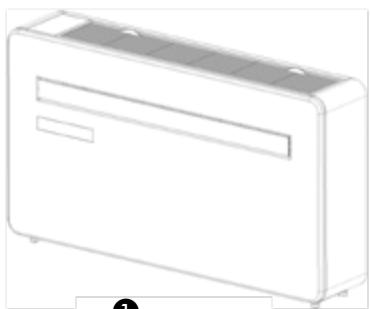
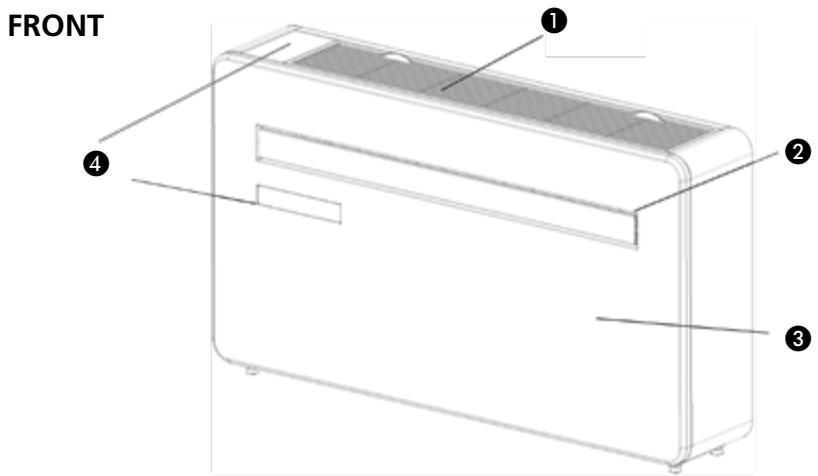
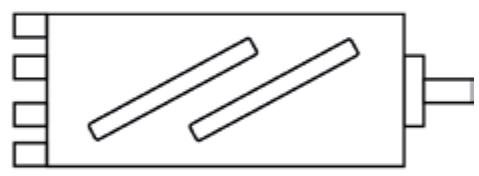
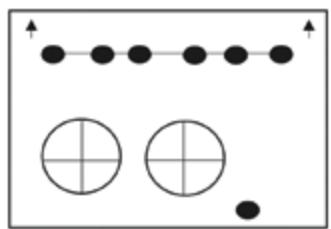
① Air inlet
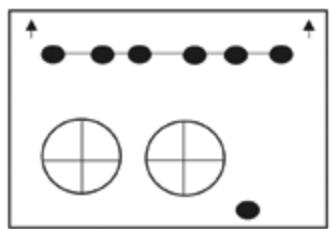
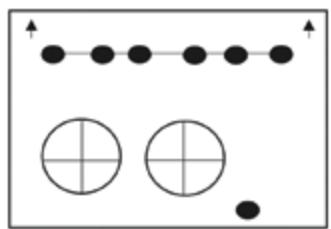
② Louvre
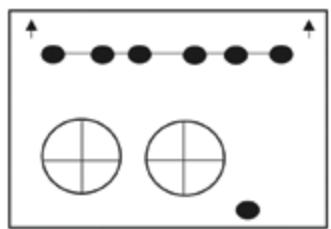
3 Front panel
4 Control panel (depending on model)
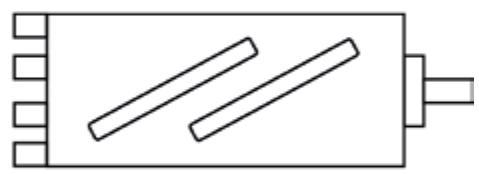
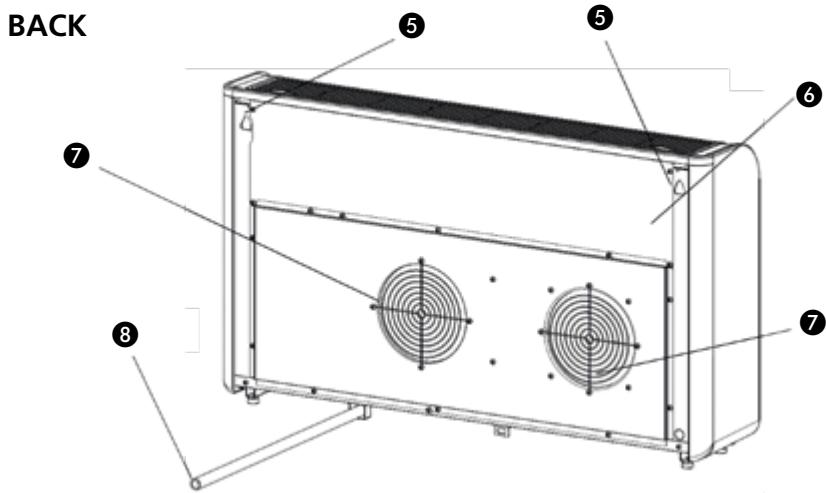
⑤ Wall hanging mounts
6 Back panel
⑦ Vent
8 Drainage pipe

WHAT'S INCLUDED

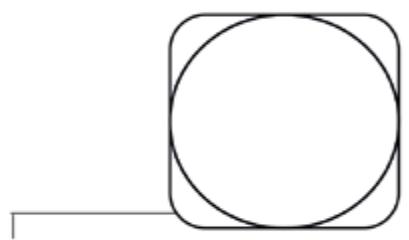
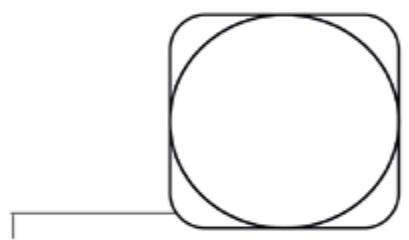
① Air conditioner
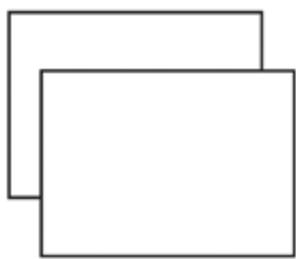
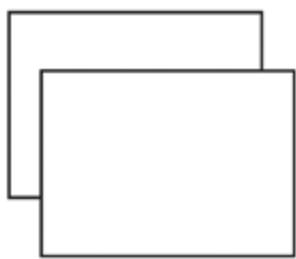
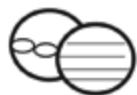
② Wall template
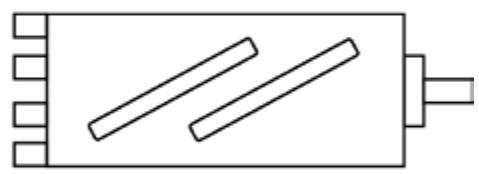
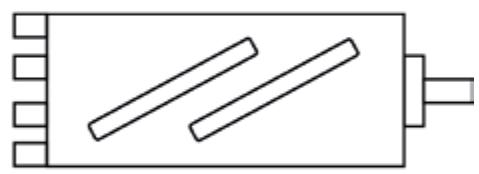
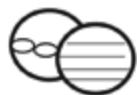
③ Plastic ducting sheet (x2)
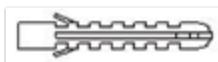
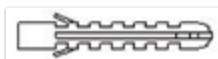
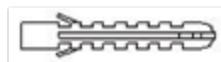
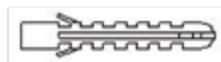
4 Wall plugs
⑤ Vent cover (x2) (chain, indoor ring and outdoor cover)
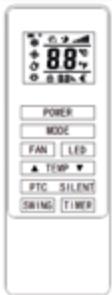
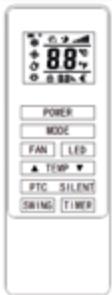
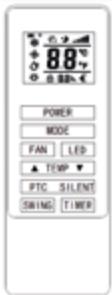
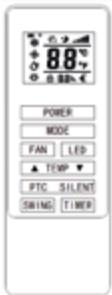
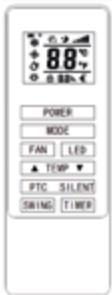
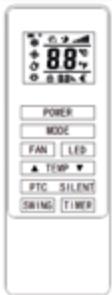
6 Remote control
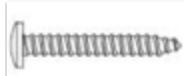
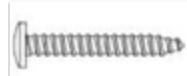
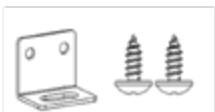
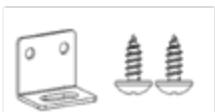
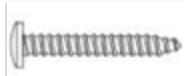
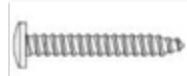
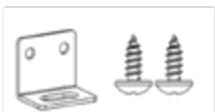
7 Screws
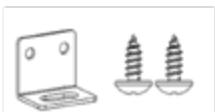
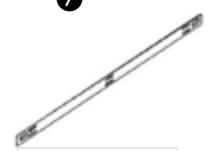
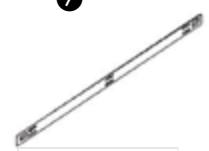
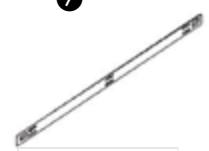
8 Wall bracket
9 Fixed Plate
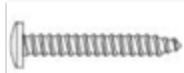
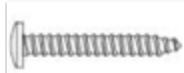
10 4x10 topping screw

QLIMA WDH 229 PTC - WHAT'S INCLUDED - 1

text_image FRONT ① ② ③ ④

QLIMA WDH 229 PTC - WHAT'S INCLUDED - 2

text_image BACK 5 5 6 7 7 8

QLIMA WDH 229 PTC - WHAT'S INCLUDED - 3

natural_image Line drawing of a rectangular electronic device casing with ventilation slots and a handle (no text or symbols)

1

QLIMA WDH 229 PTC - WHAT'S INCLUDED - 4

natural_image Pure geometric diagram with dots and circles, no text or symbols present

2

QLIMA WDH 229 PTC - WHAT'S INCLUDED - 5

natural_image Two overlapping rectangular shapes with no text or symbols

3

QLIMA WDH 229 PTC - WHAT'S INCLUDED - 6
4

QLIMA WDH 229 PTC - WHAT'S INCLUDED - 7
6

QLIMA WDH 229 PTC - WHAT'S INCLUDED - 8
7

QLIMA WDH 229 PTC - WHAT'S INCLUDED - 9
9
10
Diagrams for illustrative purposes only

  1. READ THE DIRECTIONS FOR USE FIRST.
  2. IN CASE OF ANY DOUBT, CONTACT YOUR DEALER.

QLIMA WDH 229 PTC - WHAT'S INCLUDED - 10

natural_image Simple diagram with three circles and a horizontal bar inside a rectangle (no text or symbols)

1

QLIMA WDH 229 PTC - WHAT'S INCLUDED - 11

natural_image Simple line drawing of a handheld electric tool (no text or symbols)

2

QLIMA WDH 229 PTC - WHAT'S INCLUDED - 12

natural_image Simple geometric diagram with a circle and two overlapping squares, no text or symbols present.

3

QLIMA WDH 229 PTC - WHAT'S INCLUDED - 13

natural_image Simple line drawing of a rectangular object with three diagonal lines and a protruding rod (no text or symbols)

4

QLIMA WDH 229 PTC - WHAT'S INCLUDED - 14

natural_image Two identical mechanical drill bit designs shown side by side, no text or symbols present.

7

QLIMA WDH 229 PTC - WHAT'S INCLUDED - 15

natural_image Simple line drawing of a rectangular shape with a triangular tip and a small circle inside (no text or symbols)

6

QLIMA WDH 229 PTC - WHAT'S INCLUDED - 16
8

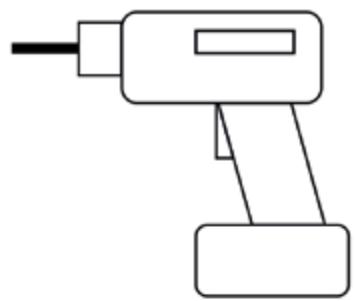
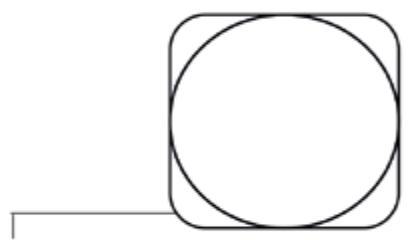
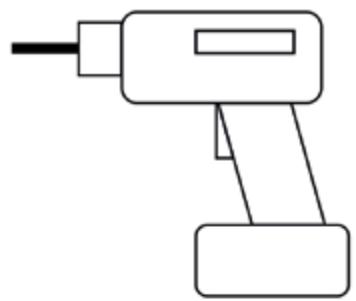
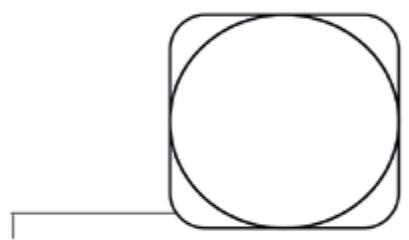
TOOLS REQUIRED

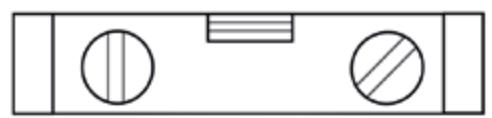
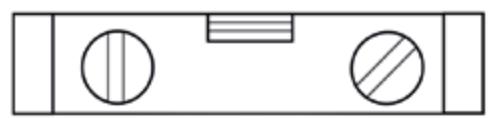
① Spirit level
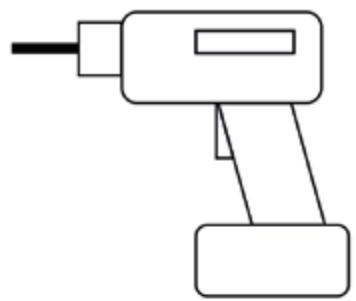
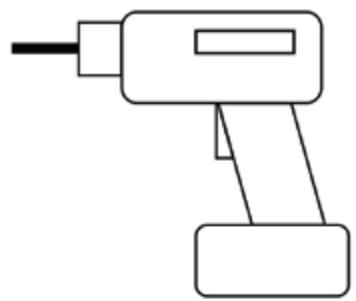
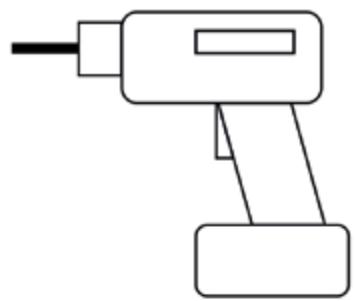
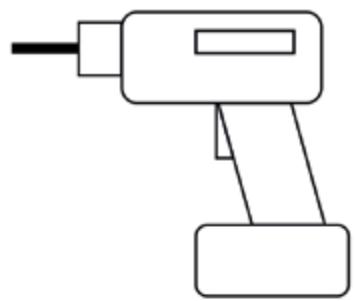
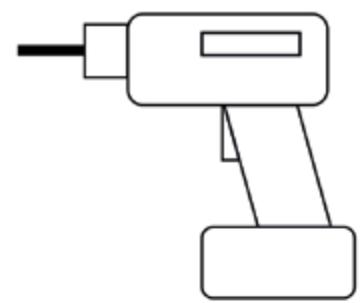
2 Drill
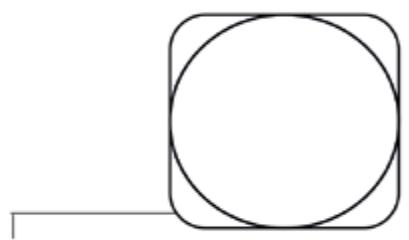
③ Tape measure
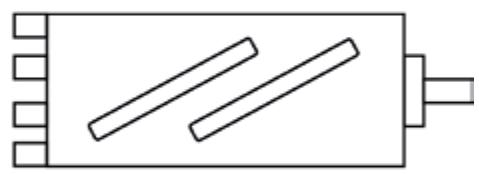
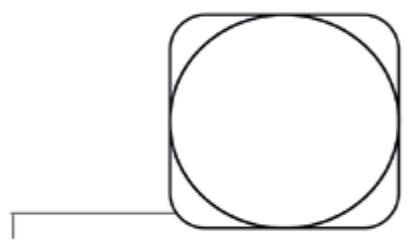
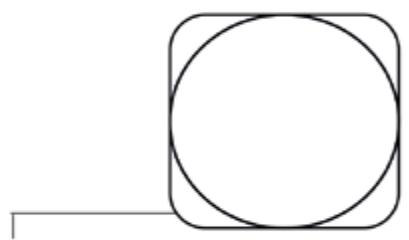
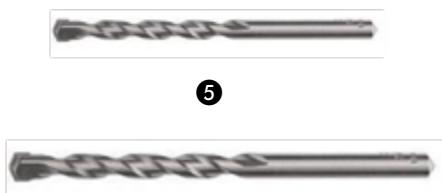
4 180 mm Core drill
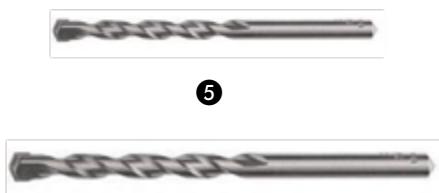
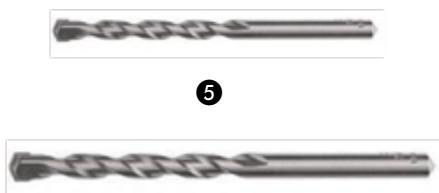
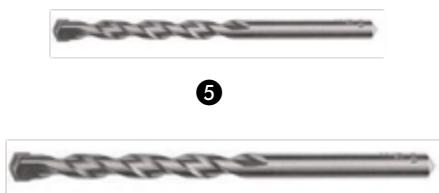
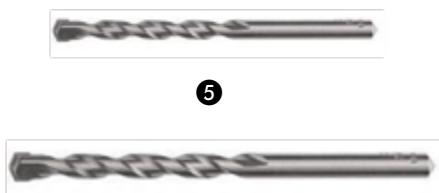
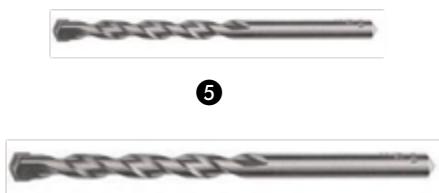
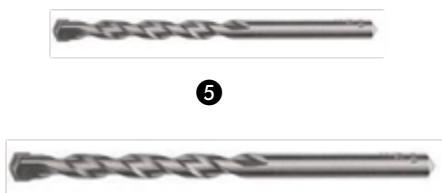
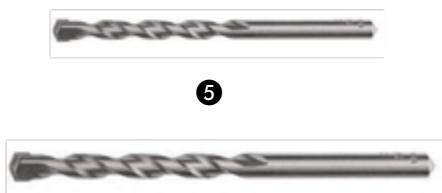
⑤ 8 mm Masondry drill bit
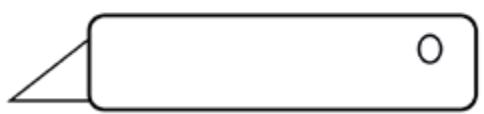
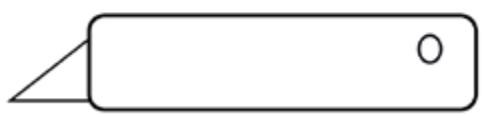
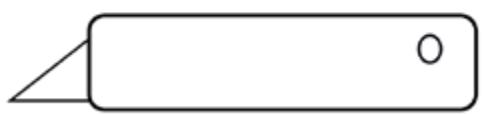
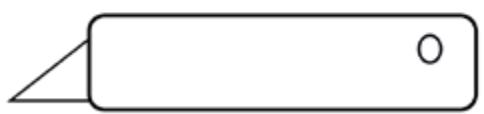
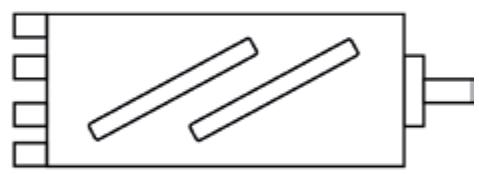
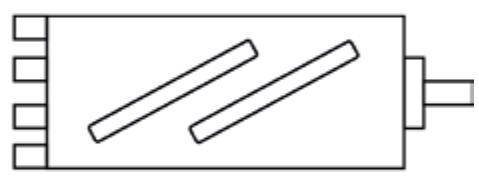
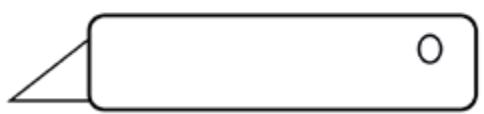
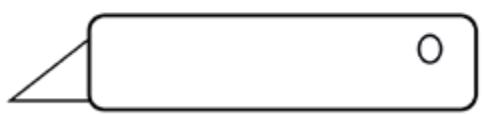
6 Sharp knife
⑦ 20 mm Masondry rll bitt
8 Pencil

Dear Sir, Madam,

Congratulations on the purchase of your air conditioner. You have acquired a high quality product that will provide you with many years of pleasure, on condition that you use it responsibly. Reading these instructions for use before operating your air conditioner will optimise its life span. We wish you comfort with your air conditioner.

Yours sincerely,

PVG Holding B.V.

Customer service department

A SAFETY INSTRUCTIONS

Read this user manual carefully before using the appliance and keep it for future reference. Install this device only when it complies with local/national legislation, ordinances and standards. This product is intended to be used as an air conditioner in residential houses and is only suitable for use in dry locations, in normal household conditions, indoors in living room, kitchen and garage.

QLIMA WDH 229 PTC - A SAFETY INSTRUCTIONS - 1

IMPORTANT

  • Never use the device with a damaged power cord, plug, cabinet or control panel. Never trap the power cord or allow it to come into contact with sharp edges.
  • The installation must be completely in accordance with local regulations, ordinances and standards.
  • The device is suitable exclusively for use in dry places, indoors.
  • Check the mains voltage. This device is suitable exclusively for earthed sockets – connection voltage 220-240 Volt/ 50 Hz.
  • The device MUST always have an earthed connection. You may absolutely not connect the device if the power supply is not earthed.
  • The plug must always be easily accessible when the device is connected.
  • Read these instructions carefully and follow the directions.

Before connecting the device, check that:

  • The connection voltage corresponds to that on the type plate.
  • The socket and power supply are suitable for the device.
  • The plug on the cable fits the socket.
  • The device is on a stable and flat surface.

Have the electrical installation checked by a recognised expert if you are not sure that everything is in order.

  • The airconditioner is a safe device, manufactured in accordance with CE safety standards. Nevertheless, as with every electrical device, exercise caution when using it.
  • Never cover the air inlets and outlets.
  • Empty the water reservoir through the water drain before moving it.
  • Never allow the device to come into contact with chemicals.
  • Do not insert objects into the openings of the device.
  • Never allow the device to come into contact with water. Do not spray the device with water or submerge it as this may cause a short circuit.
  • Always take the plug out of the socket before cleaning or replacing the device or a part of the device.
  • NEVER connect the device with the aid of an extension cable. If a suitable, earthed socket is not available, have one fitted by a recognised electrician.
  • Always consider the safety of children in the vicinity of this device, as with every electrical device.

- Always have any repairs – beyond regular maintenance – carried out by a recognised service engineer. Failure to do so may lead to invalidation of the guarantee.

- Always take the plug out of the socket when the device is not in use.

- If the power cable is damaged it must be replaced by the manufacturer, its customer service department or persons with comparable qualifications in order to prevent danger.

- This appliance is not intended for use by persons (including children) with reduced physical, sensory or mental capabilities, or lack of experience and knowledge, unless they have been given supervision or instruction concerning use of the appliance by a person responsible for their safety.

- Children should be supervised to ensure that they do not play with the appliance.

- This appliance can be used by children aged from 8 years and above and persons with reduced physical, sensory or mental capabilities or lack of experience and knowledge if they have been given supervision or instruction concerning use of the appliance in a safe way and understand the hazards involved.

• Children shall not play with the appliance.

- Cleaning and user maintenance shall not be made by children without supervision.

QLIMA WDH 229 PTC - IMPORTANT - 1

ATTENTION!

  • Never seal the room - where this device will be used - completely airtight. This will prevent under pressure in this room. Under pressure can disrupt the safe operation of geysers, ventilation systems, ovens, etc.
  • Failing to follow the instructions may lead to nullification of the guarantee on this device.

Specific information regarding appliances with R290 / R32 refrigerant gas.

• Thoroughly read all of the warnings.
- When defrosting and cleaning the appliance, do not use any tools other than those recommended by the manufacturing company.
- The appliance must be placed in an area without any continuously sources of ignition (for example: open flames, gas or electrical appliances in operation).
- Do not puncture and do not burn.
- This appliance contains Y g (see rating label back of unit) of R290 / R32 refrigerant gas.
- R290 / R32 is a refrigerant gas that complies with the European directives on the environment. Do not puncture any part of the refrigerant circuit. Be aware the refrigerants may not contain an odour.
- If the appliance is installed, operated or stored in a nonventilated area, the room must be designed to prevent to the accumulation of refrigerant leaks resulting in a risk of fire or explosion due to ignition of

the refrigerant caused by electric heaters, stoves, or other sources of ignition.

  • The appliance must be stored in such a way as to prevent mechanical failure.
  • Individuals who operate or work on the refrigerant circuit must have the appropriate certification issued by an accredited organization that ensures competence in handling refrigerants according to a specific evaluation recognized by associations in the industry.
  • Repairs must be performed based on the recommendation from the manufacturing company.

Maintenance and repairs that require the assistance of other qualified personnel must be performed under the supervision of an individual specified in the use of flammable refrigerants.

Appliances shall be installed, operated and stored in a room with a floor area larger than 15 m^2 . The appliance shall be stored in a well-ventilated area where the room size corresponds to the room area as specified for operation.

INSTRUCTIONS FOR REPAIRING APPLIANCES CONTAINING R290 / R32

1 GENERAL INSTRUCTIONS

This instruction manual is intended for use by individuals possessing adequate backgrounds of electrical, electronic, refrigerant and mechanical experience.

1.1 Checks to the area

Prior to beginning work on systems containing flammable refrigerants, safety checks are necessary to ensure that the risk of ignition is minimised. For repair to the refrigerating system, the following precautions shall be complied with prior to conducting work on the system.

1.2 Work procedure

Work shall be undertaken under a controlled procedure so as to minimise the risk of a flammable gas or vapour being present while the work is being performed.

1.3 General work area

All maintenance staff and others working in the local area shall be instructed on the nature of work being carried out. Work in confined spaces shall be avoided. The area around the workspace shall be sectioned off. Ensure that the conditions within the area have been made safe by control of flammable material.

1.4 Checking for presence of refrigerant

The area shall be checked with an appropriate refrigerant detector prior to and during work, to ensure the technician is aware of potentially flammable atmospheres. Ensure that the leak detection equipment being used is suitable for use with flammable refrigerants, i.e. nonsparking, adequately sealed or intrinsically safe.

1.5 Presence of fire extinguisher

If any hotwork is to be conducted on the refrigeration equipment or any associated parts, appropriate fire extinguishing equipment shall be available to hand. Have a dry powder or CO_2 fire extinguisher adjacent to the charging area.

1.6 No ignition sources

No person carrying out work in relation to a refrigeration system which involves exposing any pipe work that contains or has contained flammable refrigerant shall use any sources of ignition in such a manner that it may lead to the risk of fire or explosion. All possible ignition sources, including cigarette smoking, should be kept sufficiently far away from the site of installation, repairing, removing and disposal, during which flammable refrigerant can possibly be released to the surrounding space. Prior to worktaking place, the area around the equipment is to be surveyed to make sure that there are no flammable hazards or ignition risks. “No Smoking” signs shall be displayed.

1.7 Ventilated area

Ensure that the area is in the open or that it is adequately ventilated before breaking into the system or conducting any hot work. A degree of ventilation shall continue during the period that the work is carried out. The ventilation should safely disperse any released refrigerant and preferably expel it externally into the atmosphere.

1.8 Checks to the refrigeration equipment

Where electrical components are being changed, they shall be fit for the purpose and to the correct specification. At all times the manufacturer's maintenance and service guidelines shall be followed. If in doubt consult the manufacturer's technical department for assistance. The following checks shall be applied to installations using flammable refrigerants: - the charge size is in accordance with the room size within which the refrigerant containing parts are installed;

- the ventilation machinery and outlets are operating adequately and are not obstructed;

  • if an indirect refrigerating circuit is being used, the secondary circuit shall be checked for the presence of refrigerant;
  • marking to the equipment continues to be visible and legible. Markings and signs that are illegible shall be corrected;
  • refrigeration pipe or components are installed in a position where they are unlikely to be exposed to any substance which may corrode refrigerant containing components, unless the components are constructed of materials which are inherently resistant to being corroded or are suitably protected against being so corroded.

1. 9 Checks to electrical devices

Repair and maintenance to electrical components shall include initial safety checks and component inspection procedures. If a fault exists that could compromise safety, then no electrical supply shall be connected to the circuit until it is satisfactorily dealt with. If the fault cannot be corrected immediately but it is necessary to continue operation, an adequate temporary solution shall be used. This shall be reported to the owner of the equipment so all parties are advised. Initial safety checks shall include:

  • that capacitors are discharged: this shall be done in a safe manner to avoid possibility of sparking;
  • that there no live electrical components and wiring are exposed while charging, recovering or purging the system;
    • that there is continuity of earth bonding.

2 REPAIRS TO SEALED COMPONENTS

2.1 During repairs to sealed components, all electrical supplies shall be disconnected from the equipment being worked upon prior to any removal of sealed covers, etc. If it is absolutely necessary to have an electrical supply to equipment during servicing, then a permanently operating form of leak detection shall be located at the most critical point to warn of a potentially hazardous situation.
2.2 Particular attention shall be paid to the following to ensure that by working on electrical components, the casing is not altered in such a way that the level of protection is affected. This shall include damage to cables, excessive number of connections, terminals not made to original specification, damage to seals, incorrect fitting of glands, etc.

Ensure that apparatus is mounted securely.

Ensure that seals or sealing materials have not degraded such that they no longer serve the purpose of preventing the ingress of flammable atmospheres. Replacement parts shall be in accordance with the manufacturer's specifications.

NOTE The use of silicon sealant may inhibit the effectiveness of some types of leak detection equipment. Intrinsically safe components do not have to be isolated prior to working on them.

3 REPAIR TO INTRINSICALLY SAFE COMPONENTS

Do not apply any permanent inductive or capacitance loads to the circuit without ensuring that this will not exceed the permissible voltage and current permitted for the equipment in use.

Intrinsically safe components are the only types that can be worked on while live in the presence of a flammable atmosphere. The test apparatus shall be at the correct rating.

Replace components only with parts specified by the manufacturer. Other parts may result in the ignition of refrigerant in the atmosphere from a leak.

4 CABLING

Check that cabling will not be subject to wear, corrosion, excessive pressure, vibration, sharp edges or any other adverse environmental effects. The check shall also take into account the effects of aging or continua! vibration from sources such as compressors or fans.

5 DETECTION OF FLAMMABLE REFRIGERANTS

Under no circumstances shall potential sources of ignition be used in the searching for or detection of refrigerant leaks. A halide torch (or any other detector using a naked flame) shall not be used.

6 LEAK DETECTION METHODS

The following leak detection methods are deemed acceptable for systems containing flammable refrigerants. Electronic leak detectors shall be used to detect flammable refrigerants, but the sensitivity may not be adequate, or may need recalibration. (Detection equipment shall be calibrated in a refrigerant-free area.)

Ensure that the detector is not a potential source of ignition and is suitable for the refrigerant used. Leak detection equipment shall be set at a percentage of the LFL of the refrigerant and shall be calibrated to the refrigerant employed and the appropriate percentage of gas (25 % maximum) is confirmed.

Leak detection fluids are suitable for use with most refrigerants but the use of detergents containing chlorine shall be avoided as the chlorine may react with the refrigerant and corrode the copper pipework.

If a leak is suspected, all open flames shall be removed/extinguished.

If a leakage of refrigerant is found which requires brazing, all of the refrigerant shall be recovered from the system, or isolated (by means of shut off valves) in a part of the system remote from the leak. Oxygen free nitrogen (OFN) shall then be purged through the system both before and during the brazing process.

7 REMOVAL AND EVACUATION

When breaking into the refrigerant circuit to make repairs - or for any other purpose - conventional procedures shall be used. However, it is important that best practice is followed since flammability is a consideration. The following procedure shall be adhered to: remove refrigerant; purge the circuit with inert gas; evacuate; purge again with inert gas; open the circuit by cutting or brazing.

The refrigerant charge shall be recovered into the correct recovery cylinders. The system shall be “flushed” with OFN to render the unit safe. This process may need to be repeated several times. Compressed air or oxygen shall not be used for this task. Flushing shall be achieved by breaking the vacuum in the system with OFN and continuing to fill until the working pressure is achieved, then venting to atmosphere, and finally pulling down to a vacuum. This process shall be repeated until no refrigerant is within the system.

When the final OFN charge is used, the system shall be vented down to atmospheric pressure to enable work to take place. This operation is absolutely vital if brazing operations on the pipework are to take place. Ensure that the outlet for the vacuum pump is not close to any ignition sources and !here is ventilation available.

8 CHARGING PROCEDURES

In addition to conventional charging procedures, the following requirements shall be followed. Ensure that contamination of different refrigerants does not occur when using charging equipment. Hoses or lines shall be as short as possible to minimise the amount of refrigerant contained in them. Cylinders shall be kept upright. Ensure that the refrigeration system is earthed prior to charging the system with refrigerant. Label the system when charging is complete (if not already). Extreme care shall be taken not to overfill the refrigeration system. Prior to recharging the system it shall be pressure tested with OFN. The system shall be leak tested on completion of charging but prior to commissioning. A follow up leak test shall be carried out prior to leaving the site.

9 DECOMMISSIONING

Before carrying out this procedure, it is essential that the technician is completely familiar with the equipment and all its detail. It is recommended good practice that all refrigerants are recovered safely. Prior to the task being carried out, an oil and refrigerant sample shall be taken in case analysis is required prior to re-use of reclaimed refrigerant. It is essential that 4 GB electrical power is available before the task is commenced.

a) Become familiar with the equipment and its operation.
b) Isolate system electrically.
c) Before attempting the procedure ensure that: mechanical handling equipment is available, if required, for handling refrigerant cylinders;
d) All personal protective equipment is available and being used correctly; the recovery process is supervised at all times by a competent person;
e) recovery equipment and cylinders conform to the appropriate standards.

f) Pump down refrigerant system, if possible. g) If a vacuum is not possible, make a manifold so that refrigerant can be removed from various parts of the system. h) Make sure that cylinder is situated on the scales before recovery takes place.

i) Start the recovery machine and operate in accordance with manufacturer's instructions.

j) Do not overfill cylinders. (No more than 80 % volume liquid charge).

k) Do not exceed the maximum working pressure of the cylinder, even temporarily.

I) When the cylinders have been filled correctly and the process completed,

make sure that the cylinders and the equipment are removed from site promptly and all isolation valves on the equipment are closed off. m) Recovered refrigerant shall not be charged into another refrigeration system unless it has been cleaned and checked.

10 LABELLING

Equipment shall be labelled stating that it has been de-commissioned and emptied of refrigerant. The label shall be dated and signed. Ensure that there are labels on the equipment stating the equipment contains flammable refrigerant.

11 RECOVERY

When removing refrigerant from a system, either for servicing or decommissioning, it is recommended good practice that all refrigerants are removed safely. When transferring refrigerant into cylinders, ensure that only appropriate refrigerant recovery cylinders are employed. Ensure that the correct number of cylinders for holding the total system charge are available. All cylinders to be used are designated for the recovered refrigerant and labelled for that refrigerant (i.e. special cylinders for the recovery of refrigerant). Cylinders shall be complete with pressure relief valve and associated shut-off valves in good working order. Empty recovery cylinders are evacuated and, if possible, cooled before recovery occurs.

The recovery equipment shall be in good working order with a set of instructions concerning the equipment that is at hand and shall be suitable for the recovery of flammable refrigerants. In addition, a set of calibrated weighing scales shall be available and in good working order. Hoses shall be complete with leak-free disconnect couplings and in good condition. Before using the recovery machine, check that il is in satisfactory working order, has been properly maintained and that any associated electrical components are sealed to prevent ignition in the event of a refrigerant release. Consult manufacturer if in doubt.

The recovered refrigerant shall be returned to the refrigerant supplier in the correct recovery cylinder, and the relevant Waste Transfer Note arranged. Do not mix refrigerants in recovery units and especially not in cylinders.

If compressors or compressor oils are to be removed, ensure that they have been evacuated to an acceptable level to make certain that flammable refrigerant does not remain within the lubricant. The evacuation process shall be carried out prior to returning the compressor to the suppliers. Only electric healing to the compressor body shall be employed to accelerate this process. When oil is drained from a system, il shall be carried out safely.

B INSTALLATION

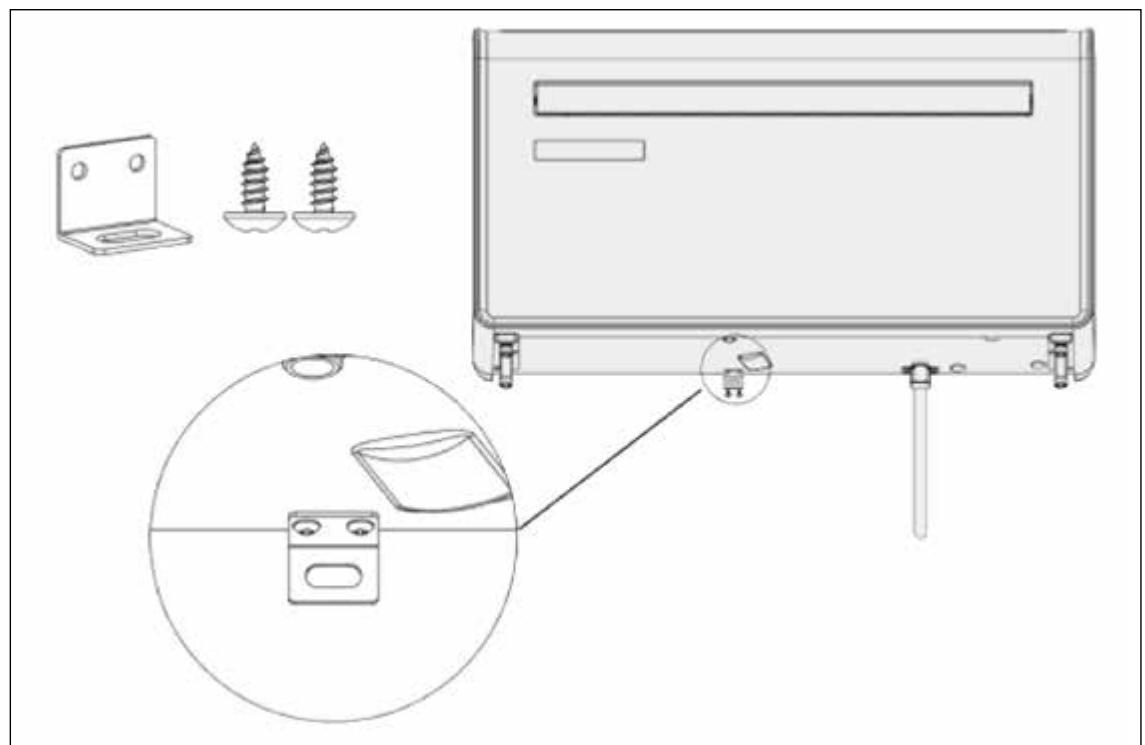
Corresponding images can be found on pages 252 - 253.

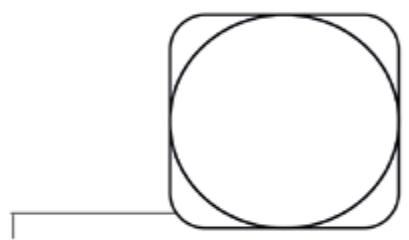
  1. This unit must be installed on an external wall, as it vents directly out of its rear. ①
  2. Only install the unit on a flat, solid and reliable wall. Ensure that there are no cables, pipes, steel bars or other obstructions behind the wall.
  3. Leave at least 10 cm of space to the left, right and base of the machine. At least 20cm of space must be left above the unit to help air flow smoothly.
  4. Paste the supplied installation template paper in position on the wall, ensuring that the reference line is level using a spirit level. ②
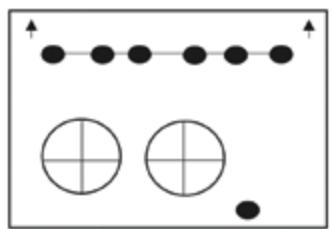
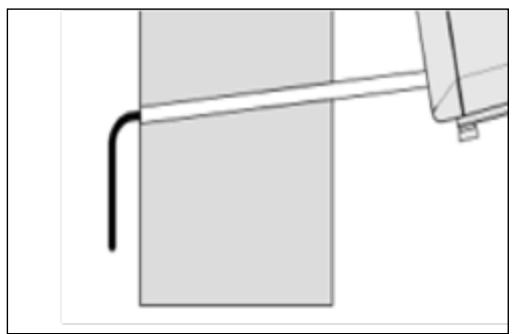
  5. The hole for the drainage pipe must be drilled using a 20mm Drill bit. Ensure the hole is at a downward angle (min 5 degrees) so that the water will drain correctly. ③
  6. Use a 180mm core drill to drill the two holes for the units ventilation, ensuring that both the holes are aligned with the template. ④

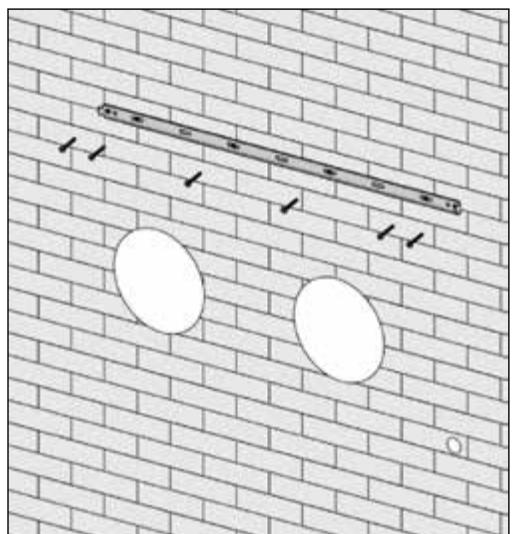
  7. Use the template to mark the position of the screws for the hanging rail, using a spirit level to ensure it is straight and level.

  8. Drill the marked holes using a suitable 8mm drill bit and insert wall plugs. Line the hanging rail with the holes, and fix the rail into position using the supplied screws.
  9. Ensure that the hanging rail is securely fastened onto the wall, and that there is no risk of the unit tipping or falling.
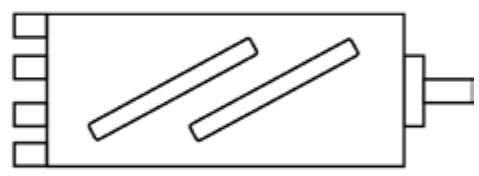
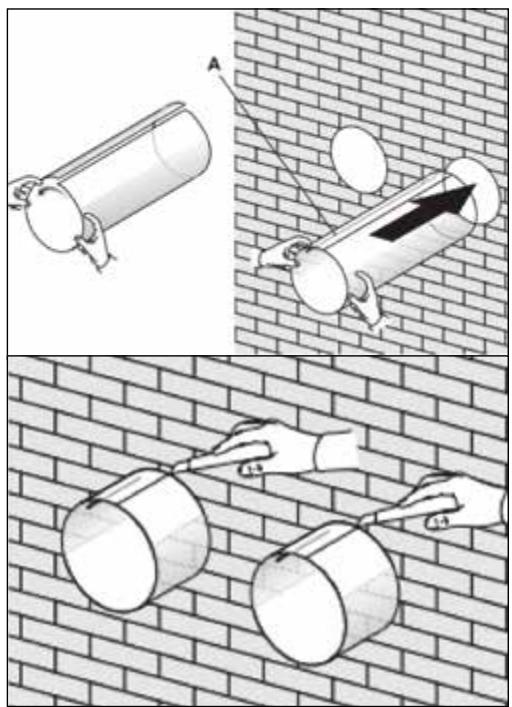
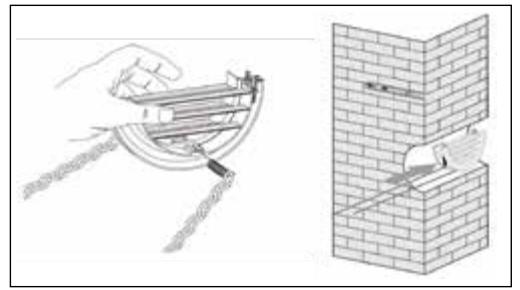
  10. Roll the plastic vent sheets into a tube and feed them from the inside into the holes previously made. Ensure the tubes sit flush to the interior wall. ⑤
  11. Go outside and trim off the excess vent tube using a sharp knife, keeping the edge as neat as possible.

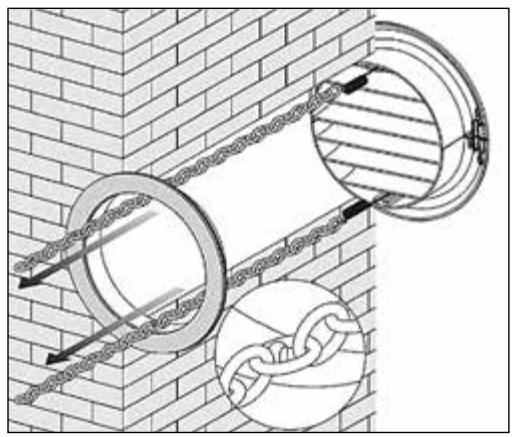
  12. Insert the indoor fixing ring from the vent cover onto the indoor side of the air vent. Then fold the external vent cover in half. Attach the chains to each side of the vent cover, before sliding the cover outside through the vent hole. ⑥

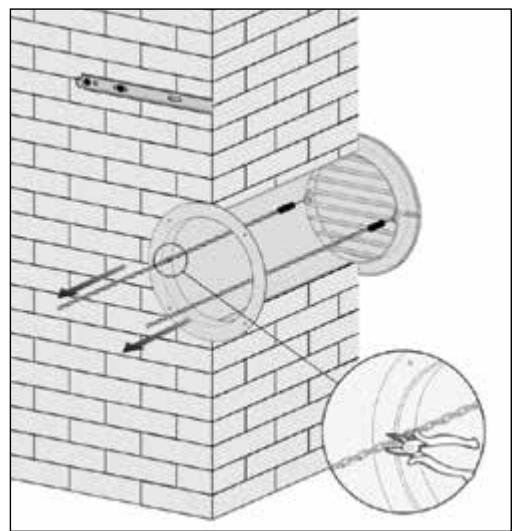
  13. Expand the external cover, before tightly fixing the chains by hooking onto the indoor fixing ring. This will hold the external cover firmly in position. Repeat for the second vent. ⑦
  14. Once the chains are fitted and secure, any excess chain should be removed by cutting the chain. ⑧
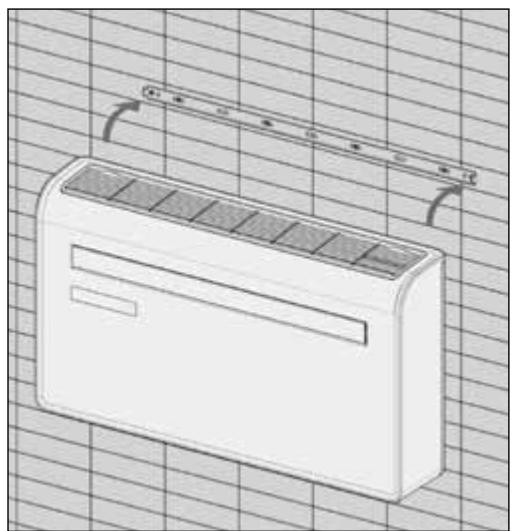
  15. Lift the unit onto the wall, align the hanging holes with the hooks on the hanging rail and gently rest the unit into place. At the same time, slide the drain pipe through the drainage hole. If the wireless controller (Available separately) has been purchased, it should then be installed, and connected. ⑨

NOTE: The end of the external water pipe must be placed in an open space or drain. Avoid damage or constriction to the drainage pipe to ensure the unit drains.

C OPERATION

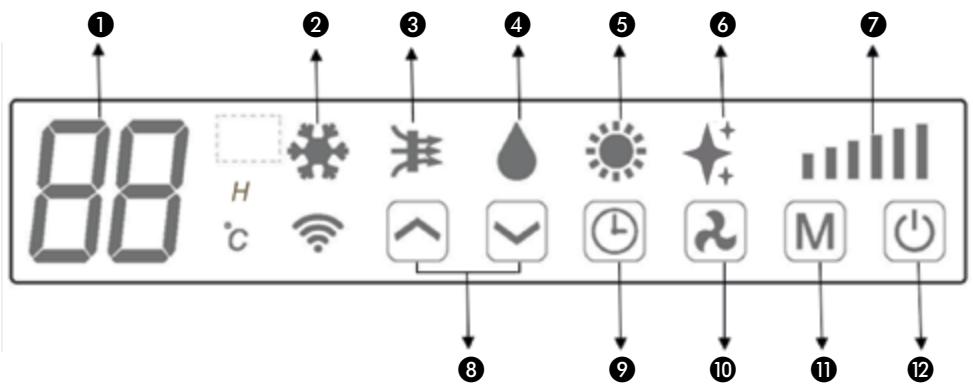
CONTROL PANEL
QLIMA WDH 229 PTC - C OPERATION - 1

text_image 88 H °C ① ② ③ ④ ⑤ ⑥ ⑦ ⑧ ⑨ ⑩ ⑪ ⑫
  1. Digital display 7. Speed
  2. Cooling 8. Increase/Decrease
  3. Air supply 9. Timer
  4. Dry 10. Speed
  5. Heating 11. Mode
  6. PTC 12. Power

REMOTE CONTROL

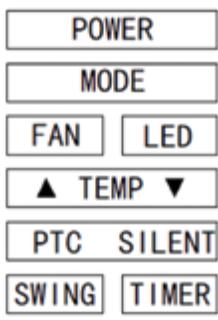
The air conditioner can be controlled with the remote control. Two AAA-batteries are required.

NOTE: Further details of the functions can be found on the following page.

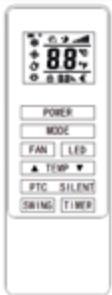
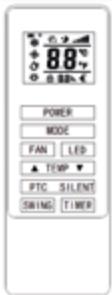
POWERPress the POWER button to turn the machine on or off.
MODEPress the MODE button to switch between cooling, heating, fan and dry modes.
FANPress the FAN button to change between high, medium and low fan speeds
LEDPress the LED button to open or close the LED light on unit, it can be a choice for sleep condition.
Press the UP button to increase the desired temperature or timer duration
Press the DOWN button to decrease the desired temperature or timer duration
PTCPress it to turn PTC on or off. When PTC turned on, the display indicates *, lights up on remote control at the same time; when PTC turned off, goes out on display and remote control at the same time. (only activated in heating mode)
SILENTPress it for silent mode. When silent mode turned on, the display indicates “SL” and the lights doesn’t dim out. When silent mode turned off, the lights goes out. In Silent mode, noise will be SILENT lower, fan works in low speed, frequency is low.
SWINGPress to turn the swing function on and off (Can only be activated from the remote)
TIMERPress the TIMER button to set the timer.

QLIMA WDH 229 PTC - REMOTE CONTROL - 1

QLIMA WDH 229 PTC - REMOTE CONTROL - 2

text_image POWER MODE FAN LED ▲ TEMP ▼ PTC SILENT SWING TIMER

FUNCTIONS

QLIMA WDH 229 PTC - REMOTE CONTROL - 3POWERPress “POWER” to turn the unit On or Off
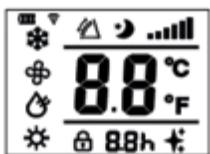
QLIMA WDH 229 PTC - REMOTE CONTROL - 4MODEPress to change between the 4 different modes. The display will show the symbol for the mode currently selected.
QLIMA WDH 229 PTC - REMOTE CONTROL - 5COOLINGCooling mode defaults to 22°C and will cool the air while sending warm air outside. The desired temperature can be adjusted using the increase and decrease button between 16°C and 30°C. The fan speed can also be adjusted using the speed button.
QLIMA WDH 229 PTC - REMOTE CONTROL - 6DRYDry mode will extract moisture from the air, which will be drained outside using the installed drain pipe. The fan speed cannot be adjusted in dry mode.
QLIMA WDH 229 PTC - REMOTE CONTROL - 7FANIn fan mode the appliance will recirculate the air within the room, and will not cool, heat or dehumidify. The fan speed can be adjusted using the Speed button.
[ZSHW]HEATINGHeating mode defaults to 24°C and will heat the air while sending cool air outside. The desired temperature can be adjusted using the increase and decrease button between 16°C and 30°C. The fan speed can also be adjusted using the speed button.
QLIMA WDH 229 PTC - REMOTE CONTROL - 8QLIMA WDH 229 PTC - REMOTE CONTROL - 9SILENTSilent mode can be activated from APP or the remote control, It can also be activated by pressing “☐”+“☐” on unit control panel at the same time. It will only operate in cooling modes, the fan speed will change to low and noise will be lower.
QLIMA WDH 229 PTC - REMOTE CONTROL - 10FAN SPEEDQLIMA WDH 229 PTC - REMOTE CONTROL - 11Press to change the fan speed between Low, Medium and High. The fan speed cannot be adjusted in Dry or Silent modes.
[2SAH]TIMERThe air conditioner contains a 24 hour timer, which can be used to either set a delayed start, or a set period of operation. The timers cannot be combined, although the app can be used to program periods of operation.
SHUTDOWN TIMER: While the unit is running press the timer button, the display will flash “0” 5 times. After the 5thflash, use the up and down buttons to adjust the duration in 1 hout increments between 1 to 24 hours. When the timer has elapsed, the unit will shutdown automatically.
DELAYED START TIMER: With the unit in standby, press the timer button, the display will flash “0” 5 times. After the 5thflash, use the up and down buttons to adjust the duration in 1 hout increments between 1 and 24 hours. After the timer has elapsed, the unit will start up in the same mode with the same settings as when it was turned off.
QLIMA WDH 229 PTC - REMOTE CONTROL - 12INCREASE AND DECREASEUsed within cooling and heating modes to adjust the desired room temperature. Also used while setting the timer to adjust the duration.
SWING MODEAfter machine turns on, press the “SWING” button, louver will swing continuously up and down; by pressing the button again the movement will stop and the louver remain in that position. Swing mode can only be adjusted from the remote, and will initially be turned on by default.
COMPRESSOR PROTECTIONThere is a 3 minutes delay on power on. In order to protect the life of the compressor and electronic components please do not switch on the unit for at least 5 minutes after you turned the unit off.

PTC ELECTRIC HEATING FUNCTION

The unit has an additional PTC electric heating element. When the weather conditions outside are bad, you can press the PTC button on the remote control to turn on the electric heating function to increase the heat. The heat power of the PTC is equal to 800W.

PTC TURN ON

  1. Only in the heating mode, press the PTC button on the remote control to send the turn-on command to the unit.

At this time, the remote control and the unit display ✦ lights up at the same time.

  1. After the unit receives the remote control command, the system will carry out self-testing, PTC will work when the following points are satisfied at the same time:

a. Unit is in heating mode.
b. Tw<25°C (outdoor temperature keeps lower than 25°C for 10 seconds).
c. Ts-Tr≥5°C (The Set temperature is more than 5 degrees higher than the Room temperature).
d. Room temperature Tr ≤ 18^ .
e. Coil Temperature of evaporator Te ≤48°C.
f. Compressor is keep working for 3 minutes.

  1. PTC will stop working when the system self-testing detects one of the following points:

a. Outdoor temperature keeps higher than 28^ C for 10 seconds
b. The room temperature is greater than the setpoint;
c. Room temperature Tr ≥23°C.
d. Compressor stop working.
e. The ventilation stops or the fan is faulty.
f. 4-way valve get disconnected.
g. Coil Temperature of evaporator Te ≥54°C or sensor error.
h. Unit didn't work in heating mode.
i. Unit is in defrost function.

PTC TURN OFF

Presses the PTC button again or change to other mode to turn off PTC function, the lights on remote control and the unit display will be off at the same time.

NOTE:

  • The unit will work without PTC function as a default until the "PTC" button on remote control is pressed.
  • If unit is turn off, the PTC setting will be cleared, it need to be set again.

WIFI SETUP AND SMART FEATURES

WIFI SETUP

BEFORE YOU START

  • Ensure your router provides a standard 2.4ghz connection.
  • If your router is dual band ensure that both networks have different network names (SSID). The provider of your router / Internet service provider will be able to provide advice specific to your router.
  • Place the air conditioner as close as possible to the router during setup.
  • Once the app has been installed on your phone, turn off the data connection, and ensure your phone is connected to your router via wifi.

DOWNLOAD THE APP TO YOUR PHONE

- Download the "SMART LIFE" app, from your chosen app store, using the QR codes below, or by searching for the app in your chosen store.

QLIMA WDH 229 PTC - DOWNLOAD THE APP TO YOUR PHONE - 1

text_image QR code with a blue home icon in the center, likely linking to a digital service or application.

CONNECTION METHODS AVAILABLE FOR SETUP

  • The air conditioner has 2 different setup modes: Bluetooth Connection and Wifi connection (Quick Connection and AP (Access Point)). The Bluetooth and Quick Connection is a quick and simple way to set the unit up. The AP connection uses a direct local wifi connection between your phone and the air conditioner to upload the network details.
  • Before starting the setup, with the air conditioner plugged in, but turned off, press and hold the Speed button for 3 seconds (until you hear a bleep) to enter the wifi connection mode.
  • Please ensure your device is in the correct wifi connection mode for the connection type you are attempting, the flashing of the wifi light on your air conditioner will indicate this.
Connection Type Frequency of FlashesFrequency of Flashes
Bluetooth connection
Quick ConnectionFlashes twice per second
AP (Access Point)Flashes once per three seconds

CHANGING BETWEEN CONNECTION TYPES

To change the unit between the two wifi connection modes, hold the Speed button for 3 seconds.

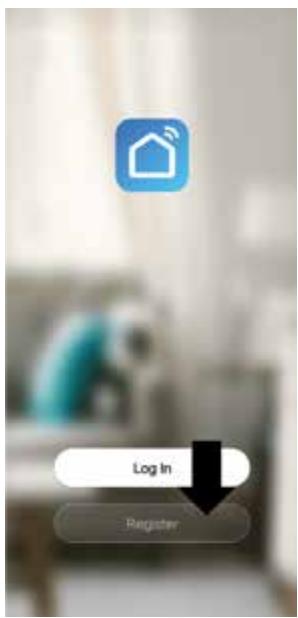
  1. Press on the register button at the bottom of the screen.

QLIMA WDH 229 PTC - CHANGING BETWEEN CONNECTION TYPES - 1

text_image Log In Register
  1. Read the Privacy policy and press the Agree Button.

QLIMA WDH 229 PTC - CHANGING BETWEEN CONNECTION TYPES - 2

text_image User Agreement and Privacy Policy We understand the importance of privacy. In order to more fully present our collection and use of your personal information, we have revised our privacy policy and user agreement in detail in accordance with the latest laws and regulations. When you click [Agree], you have fully read, understood and accepted all of the updated Privacy Policy and User Agreement. Please take some time to become familiar with our privacy policy, and if you have any questions, please feel free to contact us. Privacy Policy and User Agreements Disagree Agree
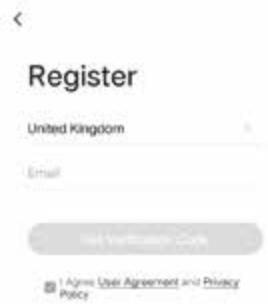
  1. Enter your email address or phone number and press continue to register.

QLIMA WDH 229 PTC - CHANGING BETWEEN CONNECTION TYPES - 3

text_image Register United Kingdom Email Net Verbatimize Code I Agree Use Agreement and Privacy Policy
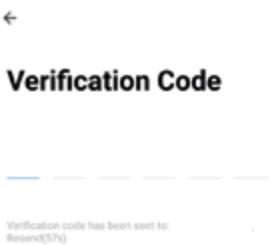
  1. A verification code will be sent by the method selected in step 3. Enter the code into the app.

QLIMA WDH 229 PTC - CHANGING BETWEEN CONNECTION TYPES - 4

text_image Verification Code Verification code has been sent to: Resend(57s)
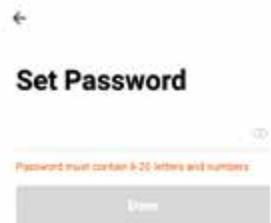
  1. Type in the password you would like to create. This needs to be 6-20 characters, with letters and numbers.

QLIMA WDH 229 PTC - CHANGING BETWEEN CONNECTION TYPES - 5

text_image Set Password Password must contain 6-20 letters and numbers Drawn
  1. The app is now registered. It will automatically log you in following registration.

QLIMA WDH 229 PTC - CHANGING BETWEEN CONNECTION TYPES - 6

text_image Enjoy your smart life Add Home Lag out

QLIMA WDH 229 PTC - CHANGING BETWEEN CONNECTION TYPES - 7

text_image 1 2 3 - 4 5 6 , 7 8 9 . 0 _ ✓

QLIMA WDH 229 PTC - CHANGING BETWEEN CONNECTION TYPES - 8

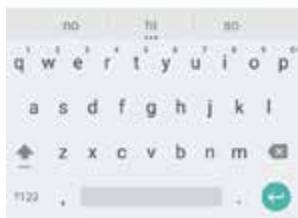
text_image no hi so q w e r t y u i o p a s d f g h j k l z x c v b n m 1123

SETTING UP YOUR HOME WITHIN THE APP

SMART LIFE is designed so it can work with a large number of compatible smart devices within your home. It can also be set up to work with multiple devices within different houses As such during the setup process, the app requires that differen t areas are created and named to allow easy management of all your devices. When new devices are added, they are assigned to one of the rooms you have created.

CREATING ROOMS

  1. Press on the ADD HOME button.

QLIMA WDH 229 PTC - CREATING ROOMS - 1

text_image Enjoy your smart life Add Home
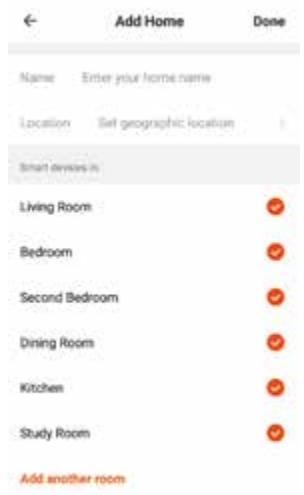
  1. Type in a name for your home,
  2. Press on the location button to select the location of your home. (See SETTING YOUR LOCATION below)
  3. New rooms can be added by pressing the ADD ANOTHER ROOM option at the bottom. (See ADD ANOTHER ROOM below)
  4. Untick any rooms that are not required on the app.
  5. Press DONE in the top right corner.

QLIMA WDH 229 PTC - CREATING ROOMS - 2

text_image Add Home Done Name Enter your home name Location Set geographic location Smart devices in Living Room Bedroom Second Bedroom Dining Room Kitchen Study Room Add another room

Use your finger to move the orange HOME symbol. When the symbol is in the approximate location of your home, press the confirm button in the top right corner.

QLIMA WDH 229 PTC - CREATING ROOMS - 3

text_image Verification Code Verification code has been sent to: Resend(57%)

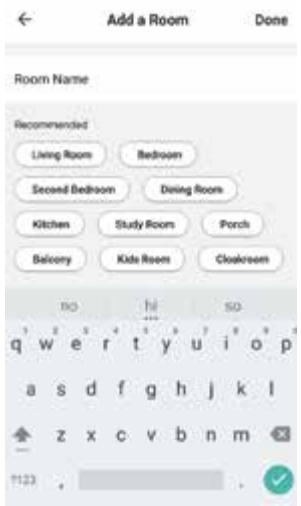
ADD ANOTHER ROOM

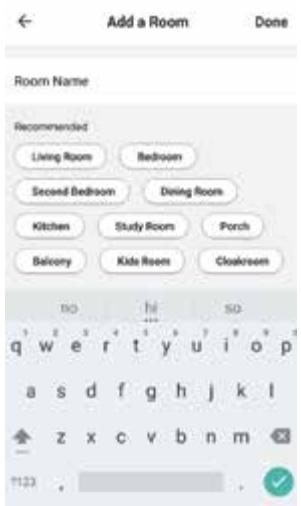
Type in the name of the room, and press Done in the top right corner

QLIMA WDH 229 PTC - ADD ANOTHER ROOM - 1

text_image Add a Room Done Room Name Recommended Living Room Bedroom Second Bedroom Dining Room Kitchen Study Room Porch Balcony Kids Room Clockroom NO hi so q w e r t y u i o p a s d f g h j k l z x c v b n m 1123

CONNECTING USING QUICK CONNECTION

Before initiating the connection, make sure the unit is in standby mode, with the WIFI light flashing twice per second. If not follow the instructions for changing the connection mode. Also ensure your phone is connected to the wifi network. (We advise turning mobile data off during setup)

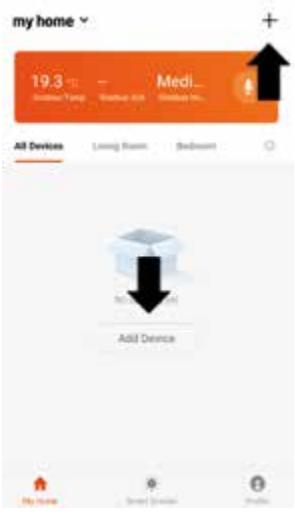
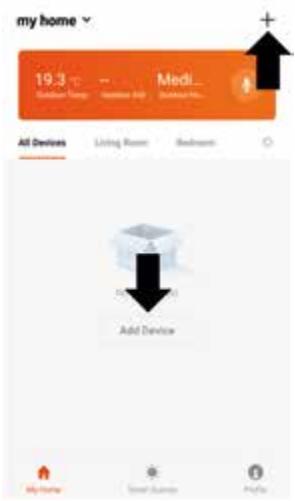
  1. Open app and press "+" to add device, or use the add device button

QLIMA WDH 229 PTC - CONNECTING USING QUICK CONNECTION - 1

text_image my home 19.3 Medi... All Devices Loving Room Bedroom No. 1 Add Device
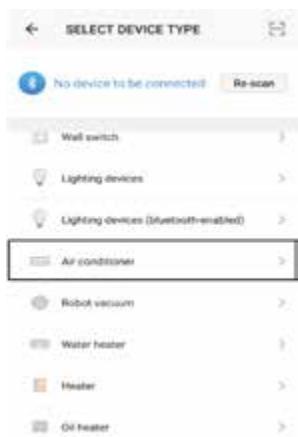
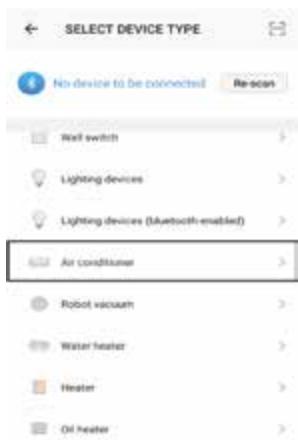
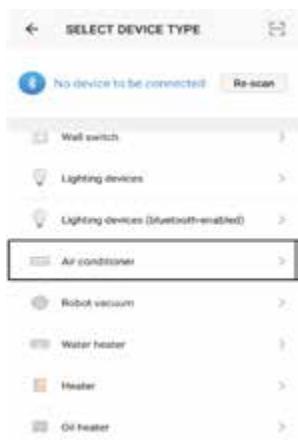
  1. Select the type of device as "Air Conditioner"

QLIMA WDH 229 PTC - CONNECTING USING QUICK CONNECTION - 2

text_image SELECT DEVICE TYPE No device to be connected Re-scan Wall switch > Lighting devices > Lighting devices (Bluetooth-enabled) > Air conditioner > Robot vacuum > Water heater > Heater > Oil heater >
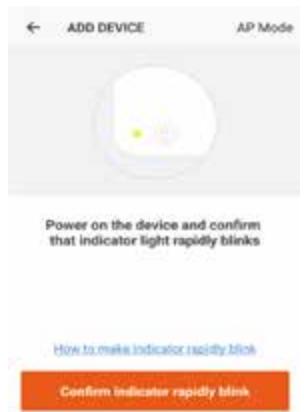
  1. Ensure the wifi light on the airconditioner is flashing twice per second, then press on the orange button at the bottom of the screen to confirm.

QLIMA WDH 229 PTC - CONNECTING USING QUICK CONNECTION - 3

text_image ADD DEVICE AP Mode Power on the device and confirm that indicator light rapidly blinks How to make indicator rapidly blink Confirm indicator rapidly blink
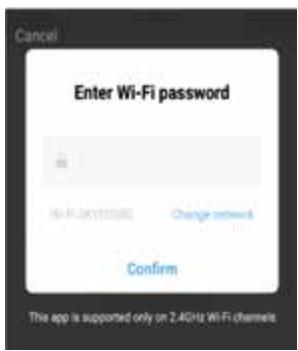
  1. Enter your wifi password and press confirm.

QLIMA WDH 229 PTC - CONNECTING USING QUICK CONNECTION - 4

text_image Cancel Enter Wi-Fi password No. 1 No. 2 Change network Confirm This app is supported only on 2.4GHz WiFi channels
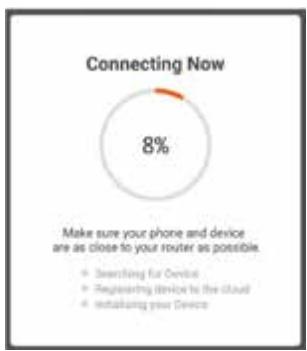
  1. This will then transfer the settings to the air conditioner. Wait for this to complete. If this fails, retry. If still unsuccessful please review the troubleshooting section for further help.

QLIMA WDH 229 PTC - CONNECTING USING QUICK CONNECTION - 5

pie Connecting Now | Category | Value (%) | |---|---| | Deshilling for Device | 8 | | Registering Device to the Cloud | 0 | | Instalizing your Devices | 0 |

CONNECTING USING AP MODE (ALTERNATIVE METHOD)

Before initiating the connection, make sure the unit is in standby mode, with the wifi light flashing once per second. If not follow the instructions for changing the wifi connection mode. Also ensure your phone is connected to the wifi network. (We advise turning mobile data off during setup)

  1. Open app and press "+" to add device, or use the add device button

QLIMA WDH 229 PTC - CONNECTING USING AP MODE (ALTERNATIVE METHOD) - 1

text_image my home 19.3 Medi... All Devices Living Room Bedroom Add Device My Home Smart Games Profile
  1. Select the type of device as "Air Conditioner".

QLIMA WDH 229 PTC - CONNECTING USING AP MODE (ALTERNATIVE METHOD) - 2

text_image SELECT DEVICE TYPE No device to be connected Re-scan Wall switch > Lighting devices > Lighting devices (Bluetooth-enabled) > Air conditioner > Robot vacuum > Water heater > Heater > Oil heater >
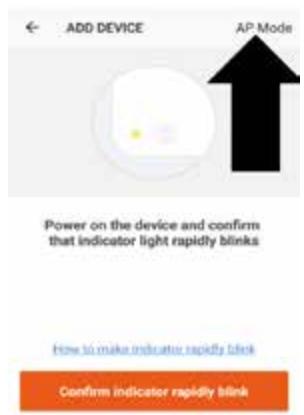
  1. Press on the AP mode button in the top right of the screen.

QLIMA WDH 229 PTC - CONNECTING USING AP MODE (ALTERNATIVE METHOD) - 3

text_image ADD DEVICE AP Mode Power on the device and confirm that indicator light rapidly blinks How to make indicator rapidly blink Confirm indicator rapidly blink
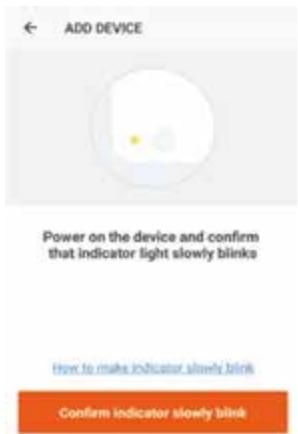
  1. Ensure the wifi light on the air conditioner is slowly-flashing (once per three seconds), then press on the orange button at the bottom of the screen to confirm

QLIMA WDH 229 PTC - CONNECTING USING AP MODE (ALTERNATIVE METHOD) - 4

text_image ADD DEVICE Power on the device and confirm that indicator light slowly blinks How to make indicator slowly blink Confirm indicator slowly blink
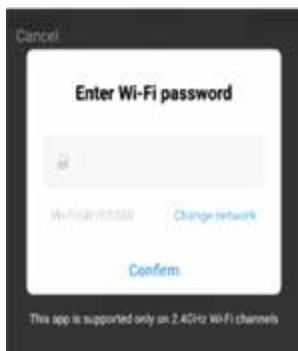
  1. Enter your wifi password and press confirm.

QLIMA WDH 229 PTC - CONNECTING USING AP MODE (ALTERNATIVE METHOD) - 5

text_image Cancel Enter Wi-Fi password Hi-Fi: 10.55388 Change network Confirm This app is supported only on 2.4GHz Wi-Fi channels
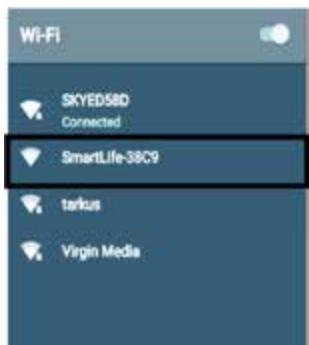
  1. Go to network settings in your phone and connect to the "SmartLife xxx" connection. There is no password to enter. Then return back to the app to complete setup.

QLIMA WDH 229 PTC - CONNECTING USING AP MODE (ALTERNATIVE METHOD) - 6

text_image Wi-Fi SKYED58D Connected SmartLife-38C9 tarkus Virgin Media

This will then transfer the settings to the air conditioner. Once the connection process has completed, go back to the network settings on your phone to ensure your phone has reconnected to your wifi router.

CONTROLLING YOUR DEVICE THROUGH THE APP

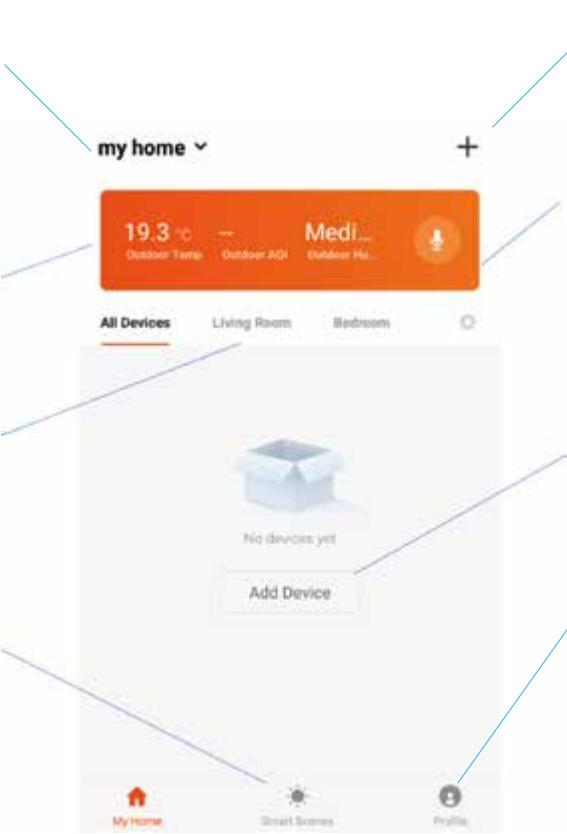
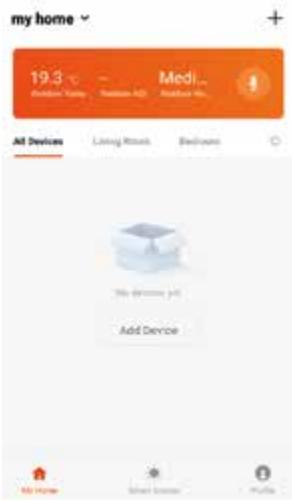
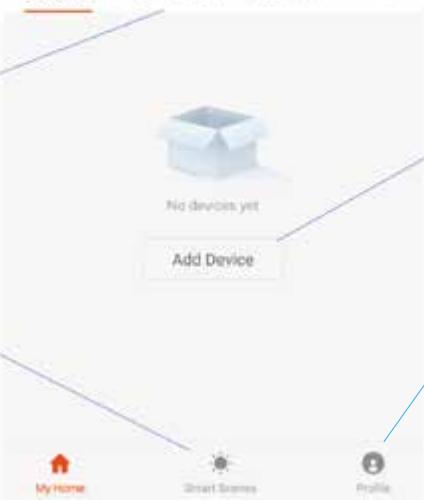
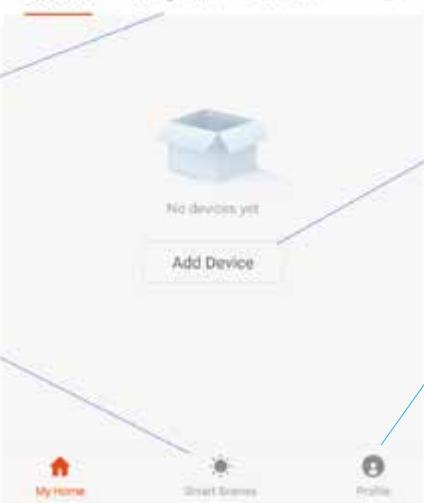
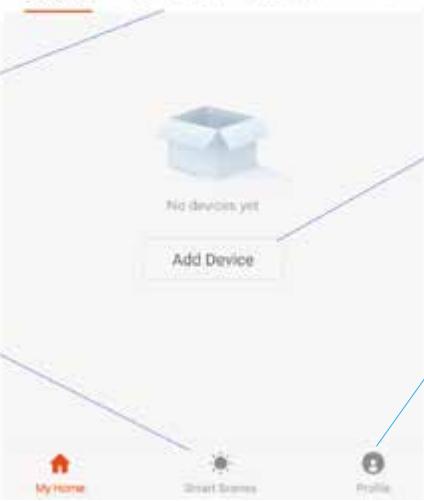
THE HOME SCREEN

Change Home: If you have a number of units at different houses, you can change between them

Environmental information: Provides outdoor temperature and humidity based on the location details entered

Rooms: Use to view the units set up within each room

Smart Scene: Allows you to program intelligent behaviour based on the internal and external environment

QLIMA WDH 229 PTC - THE HOME SCREEN - 1

text_image my home 19.3 ° Outdoor Time Outdoor AQI Medi... Outdoor Hi... All Devices Living Room Bedroom No devices yet Add Device My Home Smart Games Profile

Add Device: Add a device to the app, and go through the setup process.

Room Management: Allows rooms to be added, removed or renamed.

Add Device: Add a device to the app, and go through the setup process.

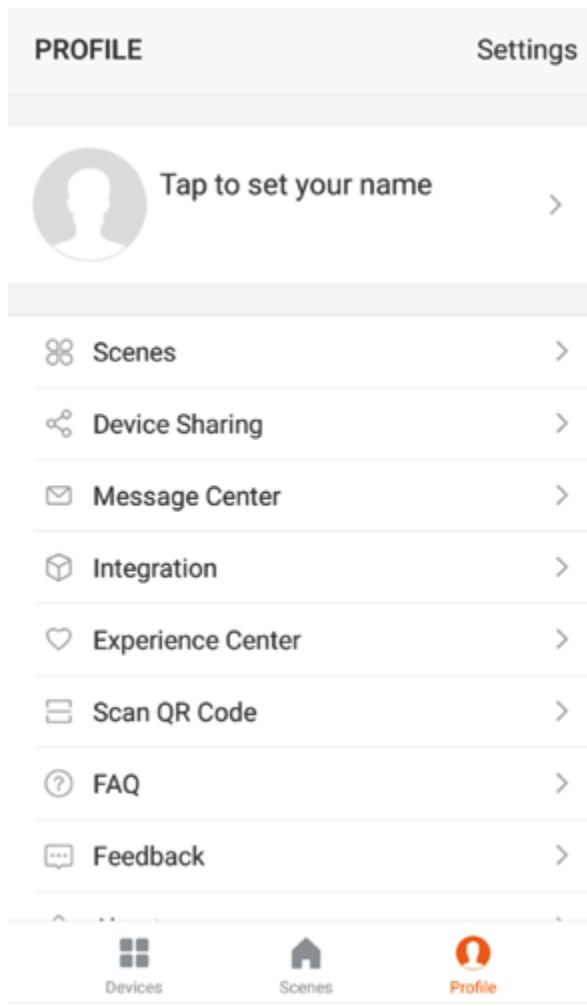
Profile: Provides the option for changing settings, and adding devices using a QR code provided by a friend.

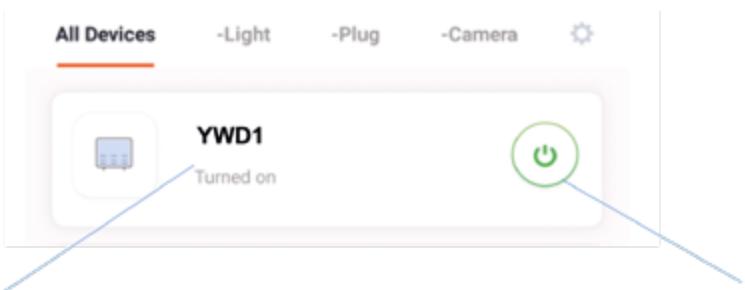
Each device has its own entry on the home screen to allow the user to either quickly turn the unit on or off, or to enter the device screen to make other changes.

DEVICE SCREEN

QLIMA WDH 229 PTC - DEVICE SCREEN - 1

text_image All Devices -Light -Plug -Camera YWD1 Turned on

Name of Air Conditioner: Press to enter the Device Screen
ON / OFF Button: Use to quickly turn the unit on or off.

DEVICE SCREEN

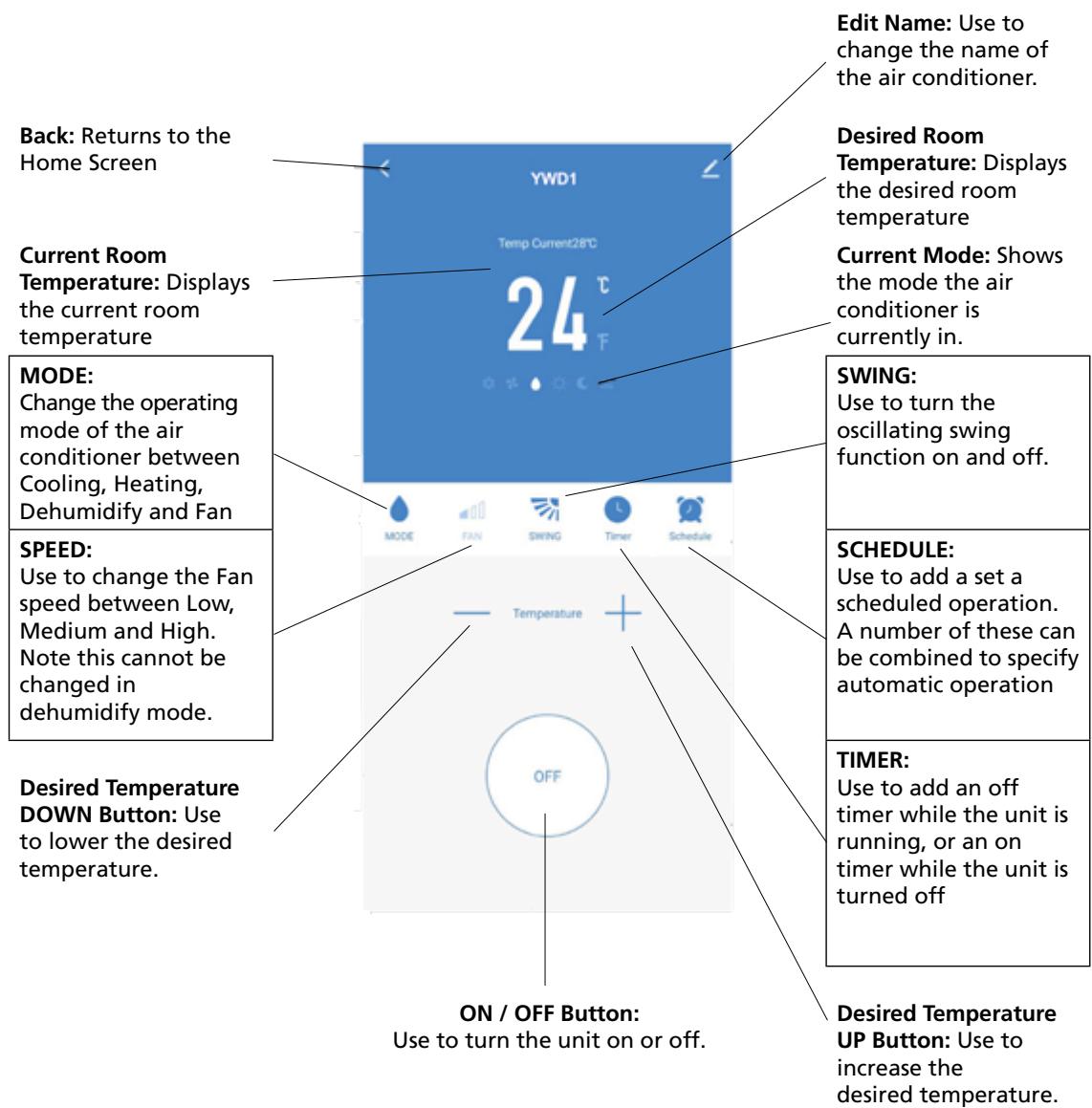
The device screen is the main control screen for the air conditioner, providing access to the controls to amend the functions and settings

QLIMA WDH 229 PTC - DEVICE SCREEN - 1

text_image Back: Returns to the Home Screen Current Room Temperature: Displays the current room temperature MODE: Change the operating mode of the air conditioner between Cooling, Heating, Dehumidify and Fan SPEED: Use to change the Fan speed between Low, Medium and High. Note this cannot be changed in dehumidify mode. Desired Temperature DOWN Button: Use to lower the desired temperature. YWD1 Temp Current28°C 24 °C MODE FAN SWING Timer Schedule Temperature ON / OFF Button: Use to turn the unit on or off. Edit Name: Use to change the name of the air conditioner. Desired Room Temperature: Displays the desired room temperature Current Mode: Shows the mode the air conditioner is currently in. SWING: Use to turn the oscillating swing function on and off. SCHEDULE: Use to add a set a scheduled operation. A number of these can be combined to specify automatic operation TIMER: Use to add an off timer while the unit is running, or an on timer while the unit is turned off Desired Temperature UP Button: Use to increase the desired temperature.

* Due to continuous development of the app, the layout and available features may be subject to change.

SMART SCENES

Smart Scenes is a powerful tool providing the option to customise the operation of the air conditioner based both on conditions within the room and outside influences. This gives the user the option of specifying much more intelligent actions. These are split into two categories Scene and Automation.

SCENE

Scene allows for a one touch button to be added to the Home screen. The button can be used to change a number of settings in one go, and can change all the settings within the unit. A number of scenes can easily be setup, allowing the user to easily change between a number of preset configurations.

Below is an example of how to set up a scene:

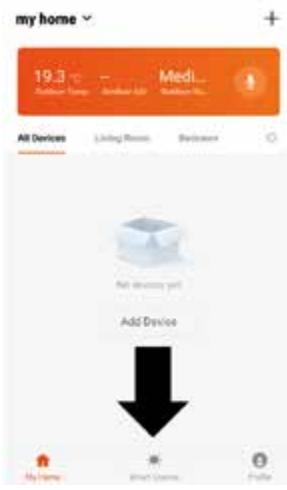
  1. Press on the Smart Scene tab at the bottom of the Home screen

QLIMA WDH 229 PTC - SCENE - 1

text_image my home 19.3 °C - Medl_ All Devices Living Room Balance Add Devices Add Devices My Home Smart Games Finish
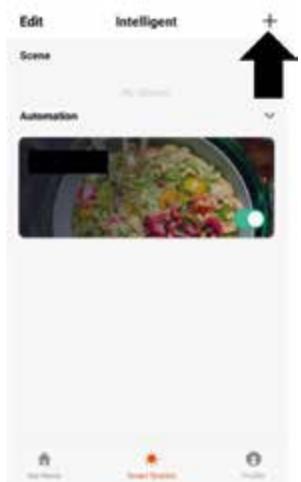
  1. Press on the Plus in the topright corner to add a smartscene.

QLIMA WDH 229 PTC - SCENE - 2

text_image Edit Intelligent + Scene Automation
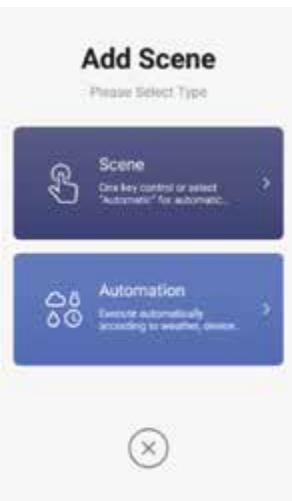
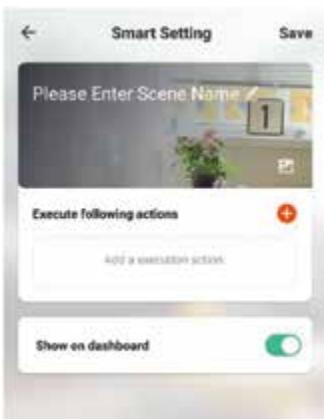
  1. Select Scene to create a new Scene

QLIMA WDH 229 PTC - SCENE - 3

text_image Add Scene Please Select Type Scene One key control or select "Automatic" for automatic... Automation Execute automatically according to weather, device...

QLIMA WDH 229 PTC - SCENE - 4

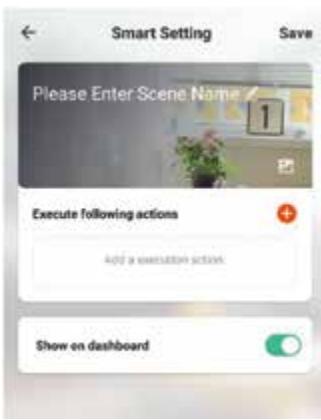
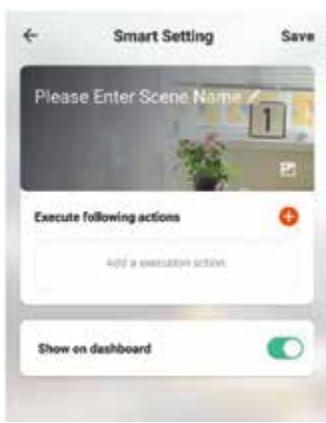
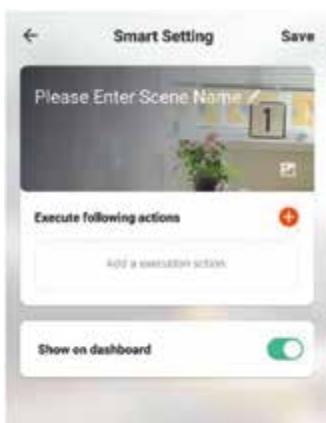
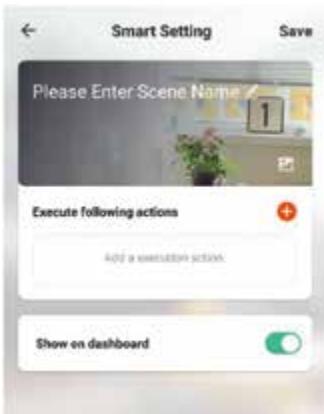
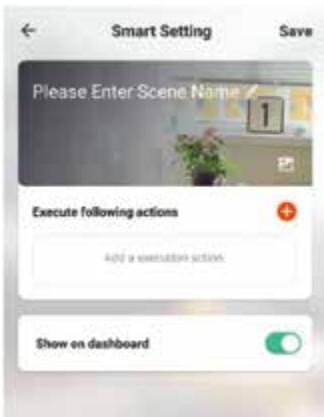
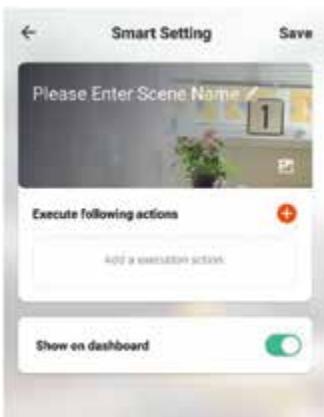
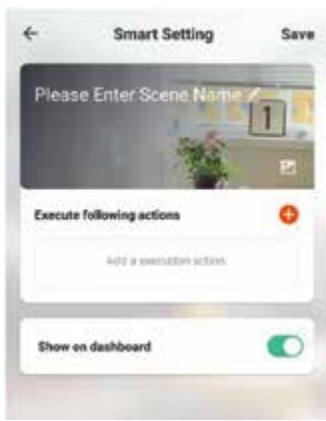
text_image Smart Setting Save Please Enter Scene Name 1 Execute following actions Add a execution action Show on dashboard
  1. Press the Pen next to "Please Enter Scene Name" to input the name for your Scene

Show on Dashboard: Leave this on if you require the scene to be displayed as a button on the Home Screen

Press the Red Plus to add the action required. Then select the air conditioner from the list of devices.

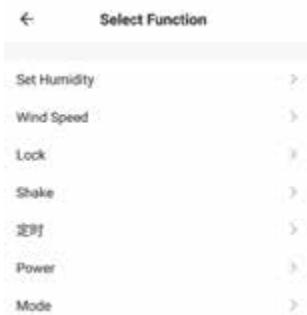
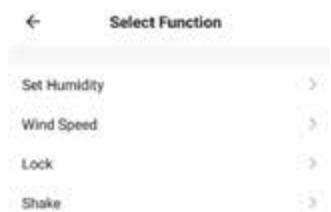
  1. Chose the function, set the value for the function, and then press the back button in the top right corner, to return to the previous screen.

QLIMA WDH 229 PTC - SCENE - 5

text_image Select Function Set Humidity > Wind Speed > Lock > Shake > 定时 > Power > Mode >
  1. Once all the functions required have been added, press the Save button in the top right corner to finalise and save your new Scene

AUTOMATION

Automation allows an automatic action to be set up for the device. This can be triggered by the Time, indoor temperature, humidity of the room, weather conditions, and a range of other influences.

  1. Press on the Smart Scene tab at the bottom of the Home screen
    QLIMA WDH 229 PTC - AUTOMATION - 1
text_image my home 19.3 Medi... All Devices Listing Website Bedroom No device yet Add Device My Home Show Store Puzzle
  1. Press on the Plus in the top right corner to add a smart scene.
    QLIMA WDH 229 PTC - AUTOMATION - 2
text_image Edit Intelligent + Scene Automation My Computer Smart Server Help
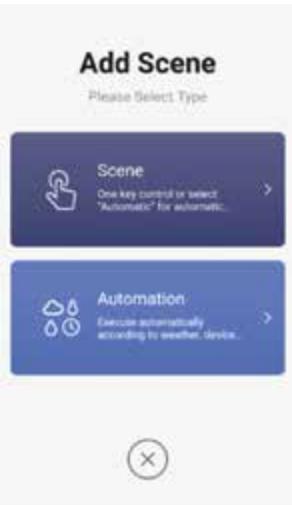
  1. Select Automation to create a new Automation Scene
    QLIMA WDH 229 PTC - AUTOMATION - 3
text_image Add Scene Please Select Type Scene One key control or select "Automation" for automatic... Automation Exercise automatically according to weather device.

QLIMA WDH 229 PTC - AUTOMATION - 4

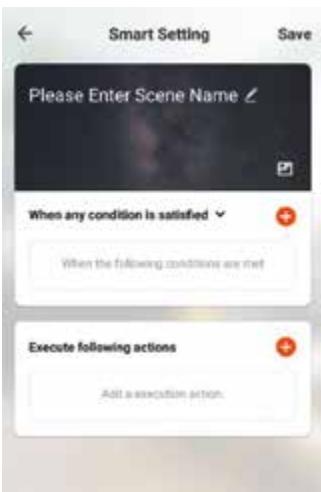
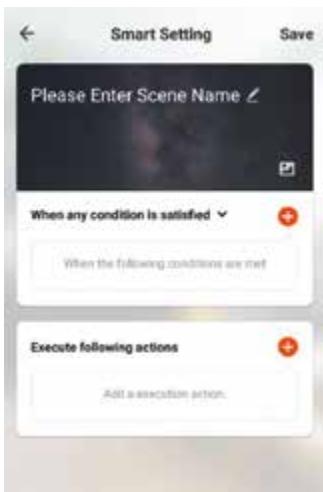
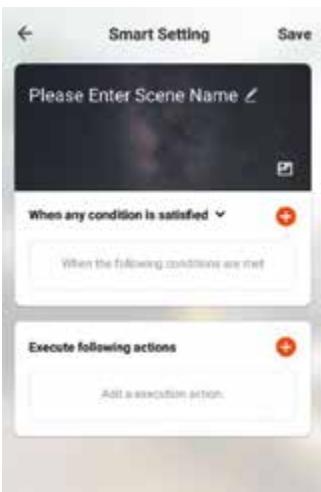
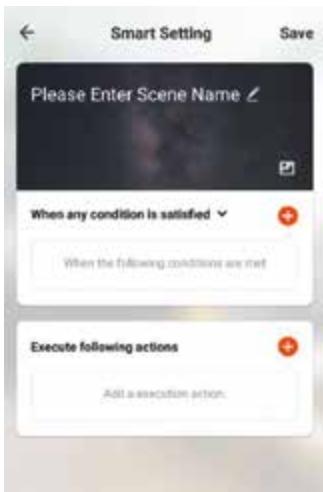
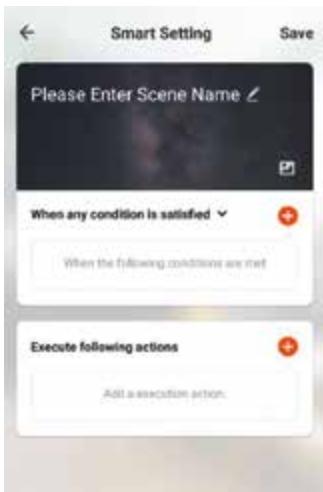
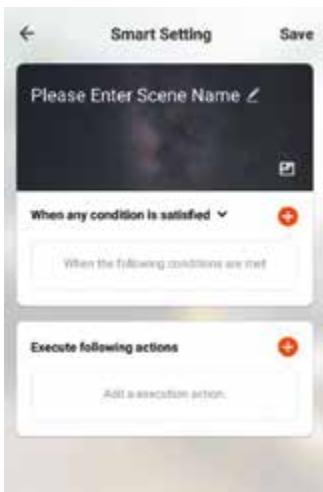
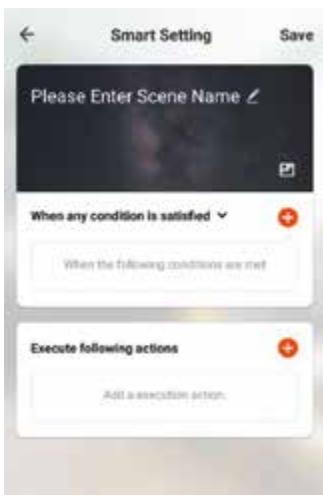
text_image Smart Setting Save Please Enter Scene Name When any condition is satisfied When the following conditions are met Execute following actions Add a session action.
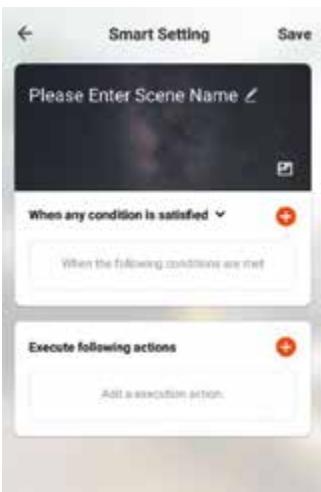
  1. Setup is very similar to the scene setup on the previous page, and includes an extra section for specifying a trigger for the scene to start.

Press the Pen next to "Please Enter Scene Name" to input the name for your Scene

Press the Red Plus next to "When any condition is satisfied" to add the trigger

Press the Red Plus next to "Execute following actions" to add the action required. Then select the air conditioner from the list of devices.

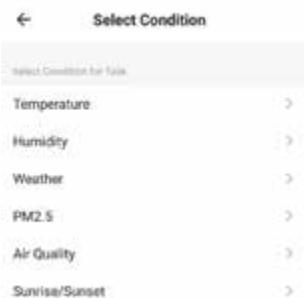
  1. Select the condition when the automation should start. A number of triggers can be combined.
    QLIMA WDH 229 PTC - AUTOMATION - 5
text_image Select Condition Select Condition for Sale Temperature > Humidity > Weather > PM2.5 > Air Quality > Sunrise/Sunset >
  1. Chose the function, set the value for the function, and then press the back button in the top right corner, to return to the previous screen.
    QLIMA WDH 229 PTC - AUTOMATION - 6
text_image Select Function Set Humidity > Wind Speed > Lock > Shake >
  1. Once all the functions required have been added, press the Save button in the top rightcorner to finalise and save your new scene.

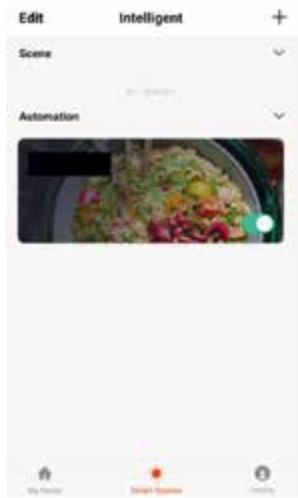
The automation is now set up, it can be turned on and off using the toggle on the image shown on step 2.

QLIMA WDH 229 PTC - AUTOMATION - 7

text_image PROFILE Settings Tap to set your name > Scenes > Device Sharing > Message Center > Integration > Experience Center > Scan QR Code > FAQ > Feedback > Devices Scenes Profile

PROFILE TAB

The profile tab gives you the option to edit both your detail, and use the added features of the unit.

CHANGING THE NAME OF YOUR DEVICE

When in any of the device screens further settings for the device can be accessed, by pressing on the three dots in the top right hand corner. The top option within this allows you to change the name of the device to something relevant to the use of the product, such as "Living Room Air Conditioner". Within the menu, you also have the option of setting up a pattern lock or change your password.

DEVICE SHARING

This allows you to share access to the controls of your air conditioner with friends and family.

INTEGRATION

This allows the unit to be integrated with your favourite home automation hardware such as Google Home and the Amazon Echo.

D MAINTENANCE

QLIMA WDH 229 PTC - D MAINTENANCE - 1

WARNING!

Switch off the unit and remove the electrical plug from the mains before cleaning the appliance or filter, or before replacing the filters.

Clean the housing with a soft, damp cloth. Never use aggressive chemicals, petrol, detergents or other cleansing solutions.

E TROUBLE SHOOTING

Do not repair or disassemble the air conditioning. Unqualified repair will invalidate the warranty and may lead to failure, causing injuries and property damage. Only use it as directed in this user manual and only perform operations advised here.

ProblemReasonsSolution
The air conditioner does not work.There is no electricity.Check the unit is plugged in, and the socket is working normally.
The ambient temperature is too low or too high.Only use to use the machine with a room temperature between 7 and 35°C.
In cooling mode, the room temperature is lower than the desired temperature; in heating mode, the room temperature is higher than the desired temperature.Adjust the desired room temperature.
In dehumidification (dry) mode, the ambient temperature is low.Ensure that the room temperature is above 17°C for dry mode.
Doors or windows are open; there are a lot of people; or in cooling mode, there are other sources of heat (e.g. fridges).Close doors and windows; increase air conditioning power.
The cooling or heating effect is poor.Doors or windows are open; there are a lot of people; or in cooling mode, there are other sources of heat (e.g. fridges).Close doors and windows; increase air conditioning power.
The filters screen is dirty.Clean or replace the filter screen.
The air inlet or outlet is blocked.Clear obstructions; make sure the unit is installed as per the instructions.
The air conditioner is leaking.The unit is not straight.Use a spirit level to check the unit is horizontal, if not remove from the wall and straighen.
The drain pipe is blocked.Check the drain pipe to ensure it is not blocked or constricted.
Compressor does not work.Overheat protection operational.Wait for 3 minutes until the temperature is lowered, and then restart the machine.
The remote control does not work.The distance between the machine and the remote control is too far.Let the remote control get close to the air conditioner, and make sure that the remote control directly faces to the direction of the remote-control receiver.
The remote control is not aligned with the direction of the remote-control receiver.
Batteries are dead.Replace batteries.

If problems not listed in the table occur or recommended solutions do not work, please contact the service centre.

F ERROR CODES

Fault CodeFault DescriptionFault CodeFault Description
F1Compressor IPM errorFEEE error(outdoor)
F2PFC/IPM errorPAReturn air sensor temperature abnormal protection
F3Compressor start errorP1Over-heat protection on top of compressor
F4Compressor running out of stepPEAbnormal refrigerant circulation
F5Location detection loop failurePHExhaust temperature protection
FAPhase current overcurrent protectionPCCoil tube overload protection (outdoor)
P2Dc bus voltage Undervoltage protectionE3DC fan Feedback failure (indoor)
E4Communication error (indoor and outdoor)P6Coil tube overload protection (indoor)
F6PCB communication errorP7Defrost protection on coil tube (indoor)
P3AC Input voltage protectionE2Sensor error on indoor coil tube
P4AC over-current protectionE1Temperature sensor error (indoor)
P5AC undervoltage protectionP8Zero-crossing fault detection (indoor)
F7Coil sensor error (outdoor)EEEE error (indoor)
F8Sensor on suction pipe errorE5Water-splash motor error
E0Sensor on discharge pipe errorE8Fan feedback fault
E6Temperature sensor error (outdoor)FLWater-full protection
E7Fan motor error (outdoor)

G GUARANTEE CONDITIONS

The air conditioner is supplied with a 24-month guarantee, commencing on the date of purchase. All material and manufacturing defects will be repaired or replaced free of charge within this period. The following rules apply:

  1. We expressly refuse all further damage claims, including claims for collateral damage.
  2. Repairs to or replacement of components within the guarantee period will not result in an extension of the guarantee.
  3. The guarantee is invalidated if any modifications have been made, non-genuine parts are fitted or repairs are carried out by third parties.
  4. Components subject to normal wear, such as the filter, are not covered by the guarantee.
  5. The guarantee is valid only when you present the original, dated purchase invoice and if no modifications have been made to the product nor to the purchase invoice.
  6. The guarantee is invalid for damage caused by neglect or by actions that deviate from those in this instruction booklet.
  7. Transportation costs and the risks involved during the transportation of the air conditioner or air conditioner components shall always be for the account of the purchaser.
  8. Damage caused by not using suitable filters is not covered by the guarantee.

To prevent unnecessary expense, we recommend that you always first carefully consult the instructions for use. Take the air conditioner to your dealer for repairs if these instructions do not provide a solution.

QLIMA WDH 229 PTC - G GUARANTEE CONDITIONS - 1

natural_image Pure electrical circuit lines without any symbols

Do not dispose of electrical appliances as unsorted municipal waste, use separate collection facilities. Contact your local government for information regarding the collection systems available. If electrical appliances are disposed of in landfills or dumps, hazardous substances can leak into the groundwater and get into the food chain, damaging your health and well-being. When replacing old appliances with new once, the retailer is legally obligated to take back your old appliance for disposal at least for free of charge. Do not throw batteries into the fire, where they can explode or release dangerous liquids. If you replace or destroy the remote control, remove the batteries and throw them away in accordance with the applicable regulations because they are harmful to the environment.

Environmental information: This equipment contains fluorinated greenhouse gases covered by the Kyoto Protocol. It should only be serviced or dismantled by professional trained personnel.

This equipment contains R290 / R32 refrigerant in the amount as stated in the table above. Do not vent R290 / R32 into atmosphere: R290 / R32, is a fluorinated greenhouse gas with a Global Warming Potential (GWP) = 3.

COMPONENTI PRINCIPALI

natural_image Line drawing of a rectangular electronic device casing with ventilation slots and a handle (no text or symbols)

1

QLIMA WDH 229 PTC - COMPONENTI PRINCIPALI - 1

natural_image Pure geometric diagram with dots and circles, no text or symbols present

2

QLIMA WDH 229 PTC - COMPONENTI PRINCIPALI - 2

natural_image Two overlapping rectangular shapes with no text or symbols

3

QLIMA WDH 229 PTC - COMPONENTI PRINCIPALI - 3
4

QLIMA WDH 229 PTC - COMPONENTI PRINCIPALI - 4
6

QLIMA WDH 229 PTC - COMPONENTI PRINCIPALI - 5
7

QLIMA WDH 229 PTC - COMPONENTI PRINCIPALI - 6
9
10

QLIMA WDH 229 PTC - COMPONENTI PRINCIPALI - 7
5

QLIMA WDH 229 PTC - COMPONENTI PRINCIPALI - 8
8
Schemi Solo A Fini Illustrativi

  1. LEGGERE DAPPRIMA LE ISTRUZIONI D'USO.
  2. IN CASO DI DUBBIO, RIVOLGERSI AL RIVENDITORE.

QLIMA WDH 229 PTC - COMPONENTI PRINCIPALI - 9

natural_image Simple diagram with three circles and a horizontal bar inside a rectangle (no text or symbols)

1

QLIMA WDH 229 PTC - COMPONENTI PRINCIPALI - 10

natural_image Simple line drawing of a handheld electric tool (no text or symbols)

2

QLIMA WDH 229 PTC - COMPONENTI PRINCIPALI - 11

natural_image Simple geometric diagram with a circle and two overlapping squares, no text or symbols present.

3

QLIMA WDH 229 PTC - COMPONENTI PRINCIPALI - 12

natural_image Simple line drawing of a rectangular object with three diagonal lines and a protruding rod (no text or symbols)

4

QLIMA WDH 229 PTC - COMPONENTI PRINCIPALI - 13

natural_image Two identical mechanical drill bit designs shown side by side, no text or symbols present.

7

QLIMA WDH 229 PTC - COMPONENTI PRINCIPALI - 14

natural_image Simple line drawing of a rectangular shape with a triangular tip and a small circle inside (no text or symbols)

6

QLIMA WDH 229 PTC - COMPONENTI PRINCIPALI - 15
8

STRUMENTI RICHIESTI

① Bolla Ad Alcool
② Trapano
③ Metro A Nastro
4 Carotatrice 180 mm
⑤ Punta Per Muratura 8 mm
6 Taglierino
⑦ Punta Per Muratura 20 mm
8 Matita

text_image QR code with a blue home icon in the center, likely linking to a smart home application.
text_image Log In Register
text_image User Agreement and Privacy Policy We understand the importance of privacy. In order to more fully present our collection and use of your personal information, we have revised our privacy policy and user agreement in detail in accordance with the latest laws and regulations. When you click [Agree], you have fully read, understood and accepted all of the updated Privacy Policy and User Agreement. Please take some time to become familiar with our privacy policy, and if you have any questions, please feel free to contact us. Privacy Policy and User Agree! Disagree Agree
text_image Register United Kingdom Email Net Verbatimize Code I Agree Use Agreement and Privacy Policy

Verification code has been sent to: Resend(57s)

QLIMA WDH 229 PTC - STRUMENTI RICHIESTI - 1

text_image 1 2 3 - 4 5 6 , 7 8 9 . 0 _ ✓
text_image Enjoy your smart life Add Home Lag nut
text_image Enjoy your smart life Add Home
text_image Add Home Done Name Enter your home name Location Set geographic location Smart devices in Living Room Bedroom Second Bedroom Dining Room Kitchen Study Room Add another room
text_image Verification Code Verification code has been sent to: Reend(57s)

AGGIUNTA DI UN'ALTRA STANZA

text_image my home 19.3 Medi... All Devices Loving Room Bedroom No. 24 Add Device My Home Smart Services My Home
text_image SELECT DEVICE TYPE No device to be connected Re-scan Wall switch > Lighting devices > Lighting devices (Bluetooth-enabled) > Air conditioner > Robot vacuum > Water heater > Heater > Oil heater >
text_image ADD DEVICE AP Mode Power on the device and confirm that indicator light rapidly blinks How to make indicator rapidly blink Confirm indicator rapidly blink
text_image Cancel Enter Wi-Fi password OK No OK/100/00 Change network Confirm This app is supported only on 2.4GHz Wi-Fi channels
pie Connecting Now | Category | Value (%) | |---|---| | Deshilling for Device | 8 | | Registering Device to the Cloud | 0 | | Instalizing your Devices | 0 |

CONNESSIONE USANDO LA MODALITÀ AP (METODO ALTERNATIVO)

text_image 19.3 ° Outdoor Tiempo - Outdoor AGI Medi... Outdoor Hi...

All Devices

Living Room

Bedrooms

QLIMA WDH 229 PTC - CONNESSIONE USANDO LA MODALITÀ AP (METODO ALTERNATIVO) - 1

QLIMA WDH 229 PTC - CONNESSIONE USANDO LA MODALITÀ AP (METODO ALTERNATIVO) - 2

text_image No devices yet Add Device My Home Smart Games Profile
text_image my home 19.3 °C - Medl... All Devices Living Room Balance Add Devices Add Devices My Home Smart Games Finish
text_image Edit Intelligent + Scene Automation
text_image Add Scene Please Select Type Scene One key control or select "Automatic" for automatic... Automation Execute automatically according to weather, device...

QLIMA WDH 229 PTC - CONNESSIONE USANDO LA MODALITÀ AP (METODO ALTERNATIVO) - 3

text_image Smart Setting Save Please Enter Scene Name 1 Execute following actions Add a user session action Show on dashboard
text_image my home 19.3 Medi... Add Devices Listing Rtns Bedroom No device j+5 Add Device No Home Other License Profile
text_image Add Scene Please Select Type Scene One key control or select "Automatic" for automatic. Automation Exercise automatically according to weather, device.

QLIMA WDH 229 PTC - CONNESSIONE USANDO LA MODALITÀ AP (METODO ALTERNATIVO) - 4

text_image Smart Setting Save Please Enter Scene Name When any condition is satisfied When the following conditions are met Execute following actions Add a session action.
text_image Select Condition select Condition for Sale Temperature > Humidity > Weather > PM2.5 > Air Quality > Sunrise/Sunset >
text_image Select Function Set Humidity > Wind Speed > Lock > Shake >
text_image PROFILE Settings Tap to set your name > Scenes > Device Sharing > Message Center > Integration > Experience Center > Scan QR Code > FAQ > Feedback > Devices Scenes Profile

SCHEDA PROFILO

natural_image Simple line drawing of a trash bin with no text or symbols
natural_image Line drawing of a rectangular electronic device casing with ventilation slots and a handle (no text or symbols)

1

QLIMA WDH 229 PTC - SCHEDA PROFILO - 1

natural_image Pure geometric diagram with dots and circles, no text or symbols present

2

QLIMA WDH 229 PTC - SCHEDA PROFILO - 2

natural_image Two overlapping rectangular shapes with no text or symbols

3

QLIMA WDH 229 PTC - SCHEDA PROFILO - 3
4

QLIMA WDH 229 PTC - SCHEDA PROFILO - 4
5

QLIMA WDH 229 PTC - SCHEDA PROFILO - 5
6

QLIMA WDH 229 PTC - SCHEDA PROFILO - 6

7
QLIMA WDH 229 PTC - SCHEDA PROFILO - 7
8

natural_image Simple diagram with three circles and a horizontal bar inside a rectangle (no text or symbols)

1

QLIMA WDH 229 PTC - SCHEDA PROFILO - 8

natural_image Line drawing of a handheld electric tool (no text or symbols)

2

QLIMA WDH 229 PTC - SCHEDA PROFILO - 9

natural_image Simple geometric diagram with a circle and two overlapping squares, no text or symbols present.

3

QLIMA WDH 229 PTC - SCHEDA PROFILO - 10

natural_image Simple line drawing of a rectangular object with three diagonal lines and a protruding rod (no text or symbols)

4

QLIMA WDH 229 PTC - SCHEDA PROFILO - 11

natural_image Two identical mechanical drill bit designs shown side by side, no text or symbols present

7

QLIMA WDH 229 PTC - SCHEDA PROFILO - 12

natural_image Simple geometric shape with a triangle and a rectangle, no text or symbols present

6

QLIMA WDH 229 PTC - SCHEDA PROFILO - 13

VEREIST

GEREEDSCHAP

1 Waterpas
② Boormachine
③ Lintmeter
4 180 mm boor
5 8 mm betonboorbit
6 Scherp mes
7 20 mm betonboorbit
8 Potlood

text_image QR code with a blue home icon in the center, likely linking to a digital service or application.

BESCHIKBARE VERBINDINGSMETHODEN

text_image Log In Register
text_image User Agreement and Privacy Policy We understand the importance of privacy. In order to more fully present our collection and use of your personal information, we have revised our privacy policy and user agreement in detail in accordance with the latest laws and regulations. When you click [Agree], you have fully read, understood and accepted all of the updated Privacy Policy and User Agreement. Please take some time to become familiar with our privacy policy, and if you have any questions, please feel free to contact us. Privacy Policy and User Agreements Disagree Agree
text_image Register United Kingdom Email Net Verbatimize Code I Agree Use Agreement and Privacy Policy

Verification code has been sent to: Resend(57s)

QLIMA WDH 229 PTC - BESCHIKBARE VERBINDINGSMETHODEN - 1

text_image 1 2 3 - 4 5 6 , 7 8 9 . 0 _ ✓

Password must contain 8-20 letters and numbers
单位:元

QLIMA WDH 229 PTC - BESCHIKBARE VERBINDINGSMETHODEN - 2

text_image no hi so q w e r t y u i o p a s d f g h j k l z x c v b n m 1123
natural_image Illustration of a person using a laptop with a potted plant nearby (no text or symbols)

Enjoy your smart life
QLIMA WDH 229 PTC - BESCHIKBARE VERBINDINGSMETHODEN - 3

Ling Nult

UW HUIS INSTELLEN BINNEN DE APP

text_image Enjoy your smart life Add Home Log mail
text_image Add Home Done Name Enter your home name Location Set geographic location Smart devices in Living Room Bedroom Second Bedroom Dining Room Kitchen Study Room Add another room

UW LOCATIE INSTELLEN

text_image Verification Code Verification code has been sent to: Reward(57s)
text_image my home 19.3 Medi... All Devices Loving Room Bedroom Add Device My Home Send Devio My Home
text_image SELECT DEVICE TYPE No device to be connected Re-scan Wall switch > Lighting devices > Lighting devices (Bluetooth-enabled) > Air conditioner > Robot vacuum > Water heater > Heater > Oil heater >
text_image ADD DEVICE AP Mode Power on the device and confirm that indicator light rapidly blinks How to make indicator rapidly blink Confirm indicator rapidly blink
text_image Cancel Enter Wi-Fi password OK No OK/100/00 Change network Confirm This app is supported only on 2.4GHz Wi-Fi channels
pie Connecting Now | Category | Value (%) | |---|---| | Deshilling for Device | 8 | | Registering Device to the Cloud | 0 | | Instalizing your Devices | 0 |

VERBINDING VIA AP-MODUS (ALTERNATIEVE METHODE)

text_image my home 19.3 Medi... All Devices Living Room Bedroom Add Device My Home Smart Games Profile
text_image SELECT DEVICE TYPE No device to be connected Re-scan Wall switch > Lighting devices > Lighting devices (Bluetooth-enabled) > Air conditioner > Robot vacuum > Water heater > Heater > Oil heater >
text_image ADD DEVICE AP Mode Power on the device and confirm that indicator light rapidly blinks How to make indicator rapidly blink Confirm indicator rapidly blink
text_image ADD DEVICE Power on the device and confirm that indicator light slowly blinks How to make indicator slowly blink Confirm indicator slowly blink
text_image Cancel Enter Wi-Fi password Hi-Fi password: 10.0000 Change network Confirm This app is supported only on 2.4GHz Wi-Fi channels
text_image Wi-Fi SKYED58D Connected SmartLife-38C9 tarkus Virgin Media
text_image 19.3 °C -- Medi... Outdoor Time Outdoor AGI Outdoor Hot

All Devices

Living Room

Bedrooms

QLIMA WDH 229 PTC - VERBINDING VIA AP-MODUS (ALTERNATIEVE METHODE) - 1

QLIMA WDH 229 PTC - VERBINDING VIA AP-MODUS (ALTERNATIEVE METHODE) - 2

text_image No devices yet Add Device My Home Smart Games Profile
text_image my home 19.3 Medi... All Devices Living Room Printout Add device Add device My Home What's Inside
text_image Edit Intelligent + Scene Automation
text_image Add Scene - Please Select Type Scene One key control or select "Automatic" for automatic... Automation Exercise automatically according to weather device.

QLIMA WDH 229 PTC - VERBINDING VIA AP-MODUS (ALTERNATIEVE METHODE) - 3

text_image Smart Setting Save Please Enter Scene Name 1 Execute following actions Add a execution action Show on dashboard
text_image my home 19.3 Medi... All Devices Listing Website Bedroom No device jsd Add Device My Home Show Store Puzzle
text_image Add Scene Please Select Type Scene One key control or select "Automatic" for automatic... Automation Execute automatically according to weather, device...

QLIMA WDH 229 PTC - VERBINDING VIA AP-MODUS (ALTERNATIEVE METHODE) - 4

text_image Smart Setting Save Please Enter Scene Name When any condition is satisfied When the following conditions are met Execute following actions Add a session action.
text_image Select Condition Select Condition for Noise Temperature > Humidity > Weather > PM2.5 > Air Quality > Sunrise/Sunset >
text_image Select Function Set Humidity > Wind Speed > Lock > Shake >
text_image PROFILE Settings Tap to set your name > Scenes > Device Sharing > Message Center > Integration > Experience Center > Scan QR Code > FAQ > Feedback > Devices Scenes Profile

PROFILE TAB

natural_image Pure electrical circuit lines without any symbols
natural_image Line drawing of a rectangular electronic device casing with ventilation slots and a handle (no text or symbols)

1

QLIMA WDH 229 PTC - PROFILE TAB - 1

natural_image Pure geometric diagram with dots and circles, no text or symbols present

2

QLIMA WDH 229 PTC - PROFILE TAB - 2

natural_image Two overlapping rectangular shapes with no text or symbols

3

QLIMA WDH 229 PTC - PROFILE TAB - 3
4

QLIMA WDH 229 PTC - PROFILE TAB - 4
6

QLIMA WDH 229 PTC - PROFILE TAB - 5
7

QLIMA WDH 229 PTC - PROFILE TAB - 6
9
10

QLIMA WDH 229 PTC - PROFILE TAB - 7
5

natural_image Simple diagram with three circles and a horizontal bar inside a rectangle (no text or symbols)

1

QLIMA WDH 229 PTC - PROFILE TAB - 8

natural_image Simple line drawing of a handheld electric tool (no text or symbols)

2

QLIMA WDH 229 PTC - PROFILE TAB - 9

natural_image Simple geometric diagram with a circle and two overlapping squares, no text or symbols present.

3

QLIMA WDH 229 PTC - PROFILE TAB - 10

natural_image Simple line drawing of a rectangular object with three diagonal lines and a protruding rod (no text or symbols)

4

QLIMA WDH 229 PTC - PROFILE TAB - 11

natural_image Two identical mechanical drill bit designs shown side by side, no text or symbols present

7

QLIMA WDH 229 PTC - PROFILE TAB - 12

natural_image Simple line drawing of a rectangular shape with a triangular tip and a small circle inside (no text or symbols)

6

QLIMA WDH 229 PTC - PROFILE TAB - 13
8

FERRAMENTAS NECESSÁRIAS

① Nível De Bolha
② Berbequim
③ Fita Métrica
4 Sonda Perfuradora De 180 mm
⑤ Broca Para Alvenaria De 8 mm
6 Faca Afiada
⑦ Broca Para Alvenaria De 20 mm
8 Lápis

Caro utilizador,

text_image QR code with a blue home icon in the center, likely linking to a digital service or application.
text_image Log In Register
text_image User Agreement and Privacy Policy We understand the importance of privacy. In order to more fully present our collection and use of your personal information, we have revised our privacy policy and user agreement in detail in accordance with the latest laws and regulations. When you click [Agree], you have fully read, understood and accepted all of the updated Privacy Policy and User Agreement. Please take some time to become familiar with our privacy policy, and if you have any questions, please feel free to contact us. Privacy Policy and User Agreements Disagree Agree
text_image Register United Kingdom Email Net Verbatimize Code I Agree Use Agreement and Privacy Policy

Verification code has been sent to: Resend(57s)
QLIMA WDH 229 PTC - FERRAMENTAS NECESSÁRIAS - 1

text_image 1 2 3 - 4 5 6 , 7 8 9 . 0 _ ✓

Password must contain 8-20 letters and numbers

单位:元

QLIMA WDH 229 PTC - FERRAMENTAS NECESSÁRIAS - 2

text_image no hi so q w e r t y u i o p a s d f g h j k l z x c v b n m 1123
natural_image Illustration of a person using a laptop with a plant and abstract cloud-like shapes in the background (no text or symbols)

Enjoy your smart life
QLIMA WDH 229 PTC - FERRAMENTAS NECESSÁRIAS - 3

Ling Nuff

text_image Enjoy your smart life Add Home
text_image Add Home Done Name Enter your home name Location Set geographic location Smart devices in Living Room Bedroom Second Bedroom Dining Room Kitchen Study Room Add another room
text_image Verification Code Verification code has been sent to: Reend(57s)
text_image my home 19.3 Medi... All Devices Loving Room Bedroom Add Device My Home Send Devio My Home
text_image SELECT DEVICE TYPE No device to be connected Re-scan Wall switch > Lighting devices > Lighting devices (Bluetooth-enabled) > Air conditioner > Robot vacuum > Water heater > Heater > Oil heater >
text_image ADD DEVICE AP Mode Power on the device and confirm that indicator light rapidly blinks How to make indicator rapidly blink Confirm indicator rapidly blink
text_image Cancel Enter Wi-Fi password No F-031020000 Change network Confirm This app is supported only on 2.4GHz WiFi channels
pie Connecting Now | Category | Value (%) | |---|---| | Connecting for Device | 8 | | Registering Device to the Cloud | | | Instalizing your Device | |
text_image my home 19.3 Medi... All Devices Living Room Bedroom Add Device My Home Smart Switch Profile
text_image SELECT DEVICE TYPE No device to be connected Re-scan Wall switch > Lighting devices > Lighting devices (Bluetooth-enabled) > Air conditioner > Robot vacuum > Water heater > Heater > Oil heater >
text_image ADD DEVICE AP Mode Power on the device and confirm that indicator light rapidly blinks How to make indicator rapidly blink Confirm indicator rapidly blink
text_image ADD DEVICE Power on the device and confirm that indicator light slowly blinks How to make indicator slowly blink Confirm indicator slowly blink
text_image Cancel Enter Wi-Fi password Hi-Fi: 10.55388 Change network Confirm This app is supported only on 2.4GHz Wi-Fi channels
text_image Wi-Fi SKYED58D Connected SmartLife-38C9 tarkus Virgin Media
text_image 19.3 °C -- Medi... Outdoor Temp Outdoor AGI Outdoor Hu...

All Devices

Living Room

Bedrooms

QLIMA WDH 229 PTC - FERRAMENTAS NECESSÁRIAS - 4

QLIMA WDH 229 PTC - FERRAMENTAS NECESSÁRIAS - 5

text_image No devices yet Add Device My Home Smart Games Profile
text_image my home 19.3 Medi... All Devices Listing Room Refresher Add device Add Device My Home What's Change Finish
text_image Edit Intelligent + Scene Automation
text_image Add Scene - Please Select Type Scene One key control or select "Automatic" for automatic... Automation Exercise automatically according to weather, device...

QLIMA WDH 229 PTC - FERRAMENTAS NECESSÁRIAS - 6

text_image Smart Setting Save Please Enter Scene Name 1 Execute following actions Add a execution action Show on dashboard
text_image my home 19.3 Medi... All Devices Listing Website Bedroom No device yet Add Device My Home Show Store Puzzle
text_image Add Scene Please Select Type Scene One key control or select "Automatic" for automatic. Automation Exercise automatically according to weather, device.

QLIMA WDH 229 PTC - FERRAMENTAS NECESSÁRIAS - 7

text_image Smart Setting Save Please Enter Scene Name When any condition is satisfied When the following conditions are met Execute following actions Add a session action.
text_image Select Condition select Condition for Sale Temperature > Humidity > Weather > PM2.5 > Air Quality > Sunrise/Sunset >
text_image Select Function Set Humidity > Wind Speed > Lock > Shake >
text_image PROFILE Settings Tap to set your name > Scenes > Device Sharing > Message Center > Integration > Experience Center > Scan QR Code > FAQ > Feedback > Devices Scenes Profile

SEPARADOR PERFIL

natural_image Pure electrical circuit lines without any symbols
natural_image Line drawing of a rectangular electronic device casing with ventilation slots and a handle (no text or symbols)

1

QLIMA WDH 229 PTC - SEPARADOR PERFIL - 1

natural_image Pure geometric diagram with dots and circles, no text or symbols present

2

QLIMA WDH 229 PTC - SEPARADOR PERFIL - 2

natural_image Two overlapping rectangular shapes with no text or symbols

3

QLIMA WDH 229 PTC - SEPARADOR PERFIL - 3
4

QLIMA WDH 229 PTC - SEPARADOR PERFIL - 4
5

QLIMA WDH 229 PTC - SEPARADOR PERFIL - 5
6

QLIMA WDH 229 PTC - SEPARADOR PERFIL - 6

7
QLIMA WDH 229 PTC - SEPARADOR PERFIL - 7
8

natural_image Simple diagram with three circles and a horizontal bar inside a rectangle (no text or symbols)

1

QLIMA WDH 229 PTC - SEPARADOR PERFIL - 8

natural_image Simple line drawing of a handheld electric tool (no text or symbols)

2

QLIMA WDH 229 PTC - SEPARADOR PERFIL - 9

natural_image Simple geometric diagram with a circle and two overlapping squares, no text or symbols present.

3

QLIMA WDH 229 PTC - SEPARADOR PERFIL - 10

natural_image Simple line drawing of a rectangular object with three diagonal lines and a protruding rod (no text or symbols)

4

QLIMA WDH 229 PTC - SEPARADOR PERFIL - 11

natural_image Two identical mechanical drill bit designs shown side by side, no text or symbols present.

7

QLIMA WDH 229 PTC - SEPARADOR PERFIL - 12

natural_image Simple line drawing of a rectangular shape with a triangular tip and a small circle inside (no text or symbols)

6

QLIMA WDH 229 PTC - SEPARADOR PERFIL - 13
8

POTREBNA ORODJA

text_image 8.8°C 8.8°F 8.8h POWER MODE FAN LED ▲ TEMP ▼ PTC SILENT SWING TIMER

FUNKCIJE

text_image QR code with a blue home icon in the center, likely linking to a digital service or application.

METODE POVEZAVE, KI SO NA VOLJO ZA NASTAVITEV

  • Klimatska naprava ima 2 različna načina nastavitve: Povezava prek Bluetooth in Povezava Wi-Fi (Quick Connection in AP (Access Point)). Bluetooth in Quick Connection sta hitra in enostavna načina za nastavitev enote. Povezava AP uporablja neposredno lokalno povezavo WiFi med vašim telefonom in klimatsko napravo za prenos podatkov omrežja.
  • Pred začetkom nastavljanja mora biti klimatska naprava priklopljena v vtičnico, vendar izklopljena. Za vstop v način WiFi povezovanja pritisnite in pridržite gumb za hitrost za 3 sekunde (dokler ne slišite piska).
  • Poskrbite, da bo naprava v primernem načinu povezave WiFi za vrsto povezave, ki jo poskušate vzpostaviti, kar bo pokazala lučka WiFi na vaši klimatski napravi.
text_image Log In Register
  1. Preberite pravilnik o za-sebnosti in pritisnite gumb Agree (Strinjam se).

QLIMA WDH 229 PTC - METODE POVEZAVE, KI SO NA VOLJO ZA NASTAVITEV - 1

text_image User Agreement and Privacy Policy We understand the importance of privacy. In order to more fully present our collection and use of your personal information, we have revised our privacy policy and user agreement in detail in accordance with the latest laws and regulations. When you click [Agree], you have fully read, understood and accepted all of the updated Privacy Policy and User Agreement. Please take some time to become familiar with our privacy policy, and if you have any questions, please feel free to contact us. Privacy Policy and User Agreements Disagree Agree
text_image Register United Kingdom Email Net Verbatimize Code I Agree Use Agreement and Privacy Policy

Verification code has been sent to: Resend(57s)

QLIMA WDH 229 PTC - METODE POVEZAVE, KI SO NA VOLJO ZA NASTAVITEV - 2

text_image 1 2 3 - 4 5 6 , 7 8 9 . 0 _ ✓
  1. Vtipkajte želeno geslo. Geslo mora biti dolgo od 6 do 20 znakov s črkami in številkami.

Set Password

Password must contain 8-20 letters and numbers

单位

QLIMA WDH 229 PTC - METODE POVEZAVE, KI SO NA VOLJO ZA NASTAVITEV - 3

text_image no hi so q w e r t y u i o p a s d f g h j k l z x c v b n m 120 ,
text_image Enjoy your smart life Add Home Lag out

NASTAVLJANJE DOMA V APLIKACIJI

text_image Enjoy your smart life Add Home
text_image Add Home Done Name Enter your home name Location Set geographic location Smart devices in Living Room Bedroom Second Bedroom Dining Room Kitchen Study Room Add another room

NASTAVLJANJE LOKACIJE

text_image Verification Code Verification code has been sent to: Resend[57s] 1 2 3 - 4 5 6 , 7 8 9 . 0

DODAJ ŠE EN PROSTOR

Vnesite ime prostora in pritisnite gumb Done (Končano) v zgornjem desnem kotu

QLIMA WDH 229 PTC - DODAJ ŠE EN PROSTOR - 1

text_image Add a Room Done Room Name Recommended Living Room Bedroom Second Bedroom Dining Room Kitchen Study Room Porch Balcony Kids Room Clockroom NO hi so q w e r t y u i o p a s d f g h j k l z x c v b n m 1133

POVEZOVANJE Z UPORABO HITRE POVEZAVE

text_image my home 19.3 Medi... All Devices Loving Room Bedroom Add Device My Home Send Devio My Home
  1. Za vrsto naprave izberite »Air Conditioner« (Klimatska naprava).

QLIMA WDH 229 PTC - POVEZOVANJE Z UPORABO HITRE POVEZAVE - 1

text_image SELECT DEVICE TYPE No device to be connected Re-scan Wall switch Lighting devices Lighting devices (Bluetooth-enabled) Air conditioner Robot vacuum Water heater Heater Oil heater
text_image ADD DEVICE AP Mode Power on the device and confirm that indicator light rapidly blinks How to make indicator rapidly blink Confirm indicator rapidly blink
text_image Cancel Enter Wi-Fi password OK No OK/RESET Change network Confirm This app is supported only on 2.4GHz Wi-Fi channels
pie Connecting Now | Category | Value (%) | |---|---| | Deshilling for Device | 8 | | Registering Device to the Cloud | 0 | | Instalizing your Devices | 0 |

POVEZAVA Z UPORABO NAČINA AP (ALTERNATIVNA METODA)

text_image 19.3 °C Outdoor Temp Outdoor AGH Medi... Outdoor Hu...

All Devices

Living Room

Bedrooms

QLIMA WDH 229 PTC - POVEZAVA Z UPORABO NAČINA AP (ALTERNATIVNA METODA) - 1

Dodajanje naprave: V aplikacijo dodajte na-pravo in pojdite skozi postopek nastavljanja

text_image my home 19.3 Medi... All Devices Listing Rooms Recommend Add device Add Device My Home What Items Profile
text_image Edit Intelligent + Scene Automation
text_image Add Scene - Please Select Type Scene One key control or select "automata" for automatic. Automation Execute automatically according to weather, device.

QLIMA WDH 229 PTC - POVEZAVA Z UPORABO NAČINA AP (ALTERNATIVNA METODA) - 2

text_image Smart Setting Save Please Enter Scene Name 1 Execute following actions Add a execution action Show on dashboard
text_image my home 19.3 Medi... Add Devices Listing Rtns Bedroom No device j+5 Add Device No Home Other License Profile
text_image Add Scene Please Select Type Scene One key control or select "Automatics" for automatic. Automation Exercise automatically according to weather, devices.

QLIMA WDH 229 PTC - POVEZAVA Z UPORABO NAČINA AP (ALTERNATIVNA METODA) - 3

text_image Smart Setting Save Please Enter Scene Name When any condition is satisfied When the following conditions are met Execute following actions Add a session action.
text_image Select Condition Select Condition for Sale Temperature > Humidity > Weather > PM2.5 > Air Quality > Sunrise/Sunset >
text_image Select Function Set Humidity > Wind Speed > Lock > Shake >
text_image PROFILE Settings Tap to set your name > Scenes > Device Sharing > Message Center > Integration > Experience Center > Scan QR Code > FAQ > Feedback > Devices Scenes Profile

ZAVIHEK PROFILA

SKUPNA UPORABA NAPRAVE

natural_image Pure electrical circuit lines without any symbols
natural_image Isometric diagram of a wall-mounted air conditioner placed on a checkered floor, with no text or symbols present.

2

QLIMA WDH 229 PTC - SKUPNA UPORABA NAPRAVE - 1

natural_image Pure mechanical diagram showing a curved pipe or rod inserted into a rectangular block, without any text, labels, or symbols.

3

QLIMA WDH 229 PTC - SKUPNA UPORABA NAPRAVE - 2

natural_image Diagram showing a brick wall with two white oval shapes and a ruler placed on it, no text or symbols present.

4

QLIMA WDH 229 PTC - SKUPNA UPORABA NAPRAVE - 3

natural_image Diagram showing two methods of installing a cylindrical object on a brick wall, with no text or symbols present.

5

QLIMA WDH 229 PTC - SKUPNA UPORABA NAPRAVE - 4

natural_image Illustration showing a hand using a tool to lift a pipe into a brick wall, with no text or symbols present.

6

QLIMA WDH 229 PTC - SKUPNA UPORABA NAPRAVE - 5

natural_image Diagram of two circular pipe fittings with chains inside a brick wall, no text or symbols present

7

QLIMA WDH 229 PTC - SKUPNA UPORABA NAPRAVE - 6

natural_image Diagram of a pipe installation inside a brick wall, showing internal flow and a magnified inset of the cable (no text or symbols)

8

QLIMA WDH 229 PTC - SKUPNA UPORABA NAPRAVE - 7

natural_image Illustration of a white air conditioner unit with ventilation grilles and a diagonal panel, placed on a grid background (no text or symbols)

9

QLIMA WDH 229 PTC - SKUPNA UPORABA NAPRAVE - 8

natural_image Technical line drawing of a device with mounting bracket, screw base, and close-up inset showing internal components (no text or symbols)

QLIMA WDH 229 PTC - SKUPNA UPORABA NAPRAVE - 9

text_image Qlima www.Qlima.com

Distributed in Europe by PVG Holding B.V.

Benötigen Sie weitere Informationen oder treten Probleme auf, besuchen Sie bitte unsere Website www.qlima.com, oder setzen Sie sich mit unserem Kundendienst in Verbindung (Telefonnummer auf www.qlima.com).
For alle yderligere oplysninger eller ved eventuelle problemer med apparatet henvises til www.qlima.com eller det lokale Kundecenter (telefonnumre findes i www.qlima.com).
ES Si necesita información o si tiene algún problema, visite nuestra página Web www.qlima.com, o póngase en contacto con el servicio cliente (hallará el número de teléfono en www.qlima.com).
F Si vous souhaitez obtenir des informations supplémentaires ou si vous rencontrez un problème, rendez-vous sur notre site Web (www.qlima.com) ou contactez notre service client (vous trouverez l'adresse et numéro de téléphone sur www.qlima.com).
FIN Jos haluat huoltoapua, lisätietoja tai laitteen kanssa tulee ongelmia, tutustu verkkosivustoon osoitteessa www.qlima.com tai kysy neuvoa PVG kuluttajapalvelukeskuksesta (www.qlima.com).
GB If you need information or if you have a problem, please visit the our website (www.qlima.com) or contact our sales support (you find its phone number on www.qlima.com)
Per informazioni e in caso di problemi, visitate il sito Web www.qlima.com oppure contattate il Centro Assistenza Clienti (per conoscere il numero di telefono, consultate www.qlima.com).
Hvis du trenger informasjon, eller hvis du har et problem med produktet, kan du gå til nettsidene www.qlima.com. Alternativt kan du kontakte med PVG' forbrukertjeneste (telefonnummeret i www.qlima.com).
NL Als u informatie nodig hebt of als u een probleem hebt, bezoek dan de onze website (www.qlima.com) of neem contact op met de afdeling sales support (adres en telefoon op www.qlima.com).
Se necessitar de informações ou se tiver problemas, visite o Web site www.qlima.com ou contacte o Centro de Assistência (número de telefone o www.qlima.com)
PL W przypadku problemów i w celu uzyskania szczegółowych informacji odwiedź stronę internetową Qlima dostępną pod adresem www.qlima.com lub skontaktuj się z Centrum kontaktów Qlima (www.qlima.com)
Om du behöver service eller information eller har problem med apparaten kan du besöka www.qlima.com eller kontakta Qlima kundtjänst (du hittar telefonnumret på www.qlima.com).
SLO Če želite dodatne informacije, obiščite spletno mesto podjetja na naslovu www.qlima.com ali pokličite na telefonsko (www.qlima.com).
TR Daha fazla bilgiye ihtiyaç duyarsanız veya bir sorunla karşılaşırsanız, www.qlima.com adresindeki Qlima Internet sitesini ziyaret edin veya ülkenizde bulunan Qlima müşteri merkeziyle iletişim kurun (telefon numarasını: www.qlima.com).

Table of contents Cliquez un titre pour y accéder
Manual assistant
Powered by Anthropic
Waiting for your message
Product information

Brand : QLIMA

Model : WDH 229 PTC

Category : Air-conditioner