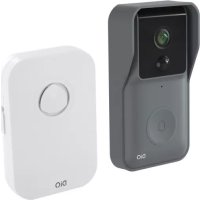
DIO DiOVDP-IP01 - Video intercom

DiOVDP-IP01 - Video intercom DIO - Free user manual and instructions

Find the device manual for free DiOVDP-IP01 DIO in PDF.

📄 37 pages English EN Download 💬 AI Question 7 questions
Notice DIO DiOVDP-IP01 - page 33
Pick your language and provide your email: we'll send you a specifically translated version.

User questions about DiOVDP-IP01 DIO

7 questions about this device. Answer the ones you know or ask your own.

Ask a new question about this device

The email remains private: it is only used to notify you if someone responds to your question.

Does the DIO DiOVDP-IP01 video intercom support an SD card for recording videos or photos?
Frequently Asked Questions - 01/05/2026
Response Notice-Facile

The DIO DiOVDP-IP01 video intercom does not support the use of an SD card for local recording of videos or photos. This wired intercom equipped with a 7-inch touchscreen and a 2MP camera (resolution 1920x1080 pixels) has no slot or port for a memory card, unlike some more advanced video intercom models.

All recordings and photo captures are managed through the Guarding Vision mobile application, available on Android and iOS. This application allows you to view live video calls from the outdoor unit, take screenshots, and save recordings directly to your smartphone or to the cloud, depending on the available options.

To access the recordings, you must first set up your DiOVDP-IP01 in the application. Scan the QR code displayed on the video intercom screen using the app, or manually register the device using the serial number. The saved videos and photos will then be stored on your smartphone or online, providing greater flexibility and security than local storage on an SD card.

If you need continuous recordings or extended video surveillance, it is recommended to choose a cloud option (if available in the app) or to use a secondary recording system connected to the device.

Respond (be the first)
What does the message "The subscriber you called is not assigned" mean on the DIO DiOVDP-IP01 intercom and how can it be resolved?
Frequently Asked Questions - 11/04/2026
Response Notice-Facile

The message "The subscriber you called is not assigned" on your DIO DiOVDP-IP01 intercom indicates that the indoor unit (the 7-inch screen) is unable to identify the recipient of your call. This issue usually occurs due to a misconfiguration of the local network between the outdoor unit and the indoor unit, or in an installation with multiple devices where the identification settings are not correctly filled in.

First, check the wired connection: Ensure that the cable connecting the screen to the outdoor unit is properly connected on both ends. Refer to step 5 of the initial setup in the manual: if you see an empty list of detected devices, this indicates a wiring problem between the monitor and the outdoor unit. Unplug and replug the cable, or check that no cable is damaged.

Correctly configure the network identification: During the first power-up, the setup wizard must be followed completely. In step 4, you can enter a floor number and a room number, which serve to identify the device in an installation with multiple intercoms. If you have multiple devices, these numbers must be different and correctly entered. Otherwise, the system will not be able to identify which one you are calling.

Reset the configuration: Turn off the device for 30 seconds (by unplugging the 24V power supply), then plug it back in. Upon restarting, the setup wizard will launch again. Follow each step carefully, especially the device detection (step 5) which should display your outdoor unit in the list. If this list remains empty, the problem is a wiring or connection fault.

Test the basic connection: Press the call button located on the outdoor unit of the intercom. If you hear the ringing on the indoor screen and the image appears, the system is functioning correctly. If you receive the error message at this point, it confirms a configuration issue with the detected devices.

Check the network settings: On the home screen, access the settings menu (gear icon) and check the network information. The screen should have a local IP address (for example, 192.168.1.X) assigned. It is recommended to keep the DHCP configuration disabled and to keep the default settings provided by the manufacturer.

If after these steps the message persists, contact Chacon's technical support (manufacturer of DIO) via www.chacon.com/support. This error message may also indicate a rare hardware malfunction of the device.

Respond (be the first)
How to reset the DIO DiOVDP-IP01 video intercom?
Frequently Asked Questions - 11/04/2026
Response Notice-Facile

To reset your DIO DiOVDP-IP01 video intercom and restore factory settings, follow the steps below:

Steps to reset the DIO DiOVDP-IP01 video intercom

  1. Locate the reset button: This button, often labeled "Reset", is usually found at the back or on the side of the device. It may be recessed to prevent accidental activation.
  2. Prepare a sharp object: Use a straightened paperclip, a pin, or a small similar tool to press this button.
  3. Press and hold: Push the reset button with the sharp object and hold it down for about 10 to 15 seconds.
  4. Release and wait: After releasing the button, the video intercom will automatically restart. This process may take a few moments.
  5. Reconfiguration: Once the reset is complete, all previous configurations will be erased. You will need to reconfigure network settings, users, and other custom settings.

Important: Before proceeding with the reset, make sure to back up all important information, as this operation deletes all stored data and settings.

Respond (be the first)
How to check the connection of the main door station of the DIO DiOVDP-IP01 intercom?
Frequently Asked Questions - 11/04/2026
Response Notice-Facile

To check the connection of the main door station of your DIO DiOVDP-IP01 intercom, follow these steps:

1. Check the indicator lights

  • Ensure that the door station is powered: a power LED should be lit.
  • Check for an indicator light showing network connection (often labeled "LAN" or "Ethernet"). This light should be on or blinking to confirm an active connection.

2. Test the network connection

  • If the door station uses a wired connection, ensure that the Ethernet cable is properly connected and in good condition.
  • For a wireless connection, make sure the station is within range of the Wi-Fi router and that the signal is stable.

3. Access the management interface

  • Log in to the intercom management interface via the app or browser, depending on your setup.
  • Check the status of the door station, including the assigned IP address and network connection status.

4. Check the network connection via a computer

  • From a computer connected to the same network, open the command prompt (cmd on Windows, Terminal on macOS/Linux).
  • Use the ping command followed by the door station's IP address to test its responsiveness (example: ping 192.168.1.10).
  • If the ping responds, the network connection is active.

5. Check the router settings

  • Log in to your router's interface.
  • Look for the presence of the door station in the list of connected devices.

6. Restart the equipment

  • If the connection seems faulty, restart the door station and the router to reset the network connections.

By following these steps, you will be able to diagnose and check the connection of your main door station. If the problem persists, it may be helpful to check the cables, network configuration, or contact a professional.

Respond (be the first)
How to configure the network settings of the DIO DiOVDP-IP01 intercom?
Frequently Asked Questions - 11/04/2026
Response Notice-Facile

To configure the network settings of your DIO DiOVDP-IP01 intercom, follow these steps:

1. Access the configuration menu

Turn on your intercom and access the main interface. Look for an option named Settings or Configuration.

2. Navigate to network settings

In the settings menu, find the section Network settings or Network.

3. Choose the configuration mode

  • DHCP (automatic configuration): the intercom automatically obtains an IP address from the router.
  • Static IP (manual configuration): you need to manually enter the following information:
  • IP Address: the IP address you want to assign to the intercom.
  • Subnet Mask: usually 255.255.255.0.
  • Gateway: the IP address of your router.
  • DNS Server: the address of a DNS server, for example 8.8.8.8 (Google DNS).

4. Save and apply changes

After configuring the settings, save or apply the changes in the menu.

5. Restart the intercom

To ensure the changes take effect, it is advisable to restart the intercom.

This procedure will allow you to correctly connect your DIO DiOVDP-IP01 intercom to your local network.

Respond (be the first)
How to configure the SIP server on the DIO DiOVDP-IP01 video intercom?
Frequently Asked Questions - 11/04/2026
Response Notice-Facile

The DIO DiOVDP-IP01 video intercom does not use the SIP (Session Initiation Protocol). It is a WiFi-based IP video intercom that operates via the Guarding Vision app for calls and remote control. The supported protocols are TCP/IP, RTSP, and WiFi, not SIP.

To configure your video intercom and enable remote communications, first follow the initial setup procedure. Upon first powering on, an assistant will guide you on-screen to:

  • Create an administrator password to access the settings
  • Select your language
  • Configure the local network between the indoor and outdoor units (it is recommended to disable DHCP to maintain the default configuration)
  • Check that the outdoor unit appears in the list of detected devices

Next, connect your device to the WiFi network. On the home screen of the video intercom, select the Settings menu, then the WiFi icon in the left menu. Choose your WiFi network from the dropdown list. This WiFi connection is only necessary for adding the video intercom to the Guarding Vision app and for remote control.

Download the Guarding Vision app on your smartphone (available on Android Play Store or Apple Store) and create a user account by following the on-screen instructions. You can then register your video intercom either by scanning the QR code displayed on the device's screen or manually by entering the serial number. The default credentials are: password 123456 and verification code ABCDEF.

The video intercom communicates via WiFi and the internet rather than traditional SIP. It is the Guarding Vision app that manages the establishment of audio and video connections between your phone and the intercom. This approach offers simpler setup and better multi-device compatibility.

Respond (be the first)
Why doesn't my DIO DiOVDP-IP01 intercom ring and ask me to leave a message?
Frequently Asked Questions - 24/02/2026
Response Notice-Facile

If your DIO DiOVDP-IP01 intercom does not ring when the call button is pressed but displays a message inviting you to leave a message, this may be related to several causes linked to the settings or the operation of the device.

Check the operating mode

Make sure that your intercom is not in silent mode or in "Do Not Disturb" mode. These modes disable the ringing to avoid interruptions but may display a message to leave a voice message.

Check the volume and ringing settings

  • Access the audio settings of the indoor unit and ensure that the ringer volume is turned on and sufficiently high.
  • Also check that the ringer is not disabled in the options.

Test the call button and connections

  • Check that the call button of the outdoor unit is working properly by pressing it several times.
  • Ensure that the electrical connections and wiring between the indoor and outdoor units are in place and undamaged.

Restart the intercom

A simple restart can resolve some temporary malfunctions. Unplug the device, wait about ten seconds, and then plug it back in.

If after these checks the problem persists, it may be a hardware malfunction or a more complex setting to adjust. In this case, contacting customer service or a specialized technician is recommended.

Respond (be the first)

Download the instructions for your Video intercom in PDF format for free! Find your manual DiOVDP-IP01 - DIO and take your electronic device back in hand. On this page are published all the documents necessary for the use of your device. DiOVDP-IP01 by DIO.

USER MANUAL DiOVDP-IP01 DIO

Courant alternative (CA)

DIO DiOVDP-IP01 - 1

1. Register a guarantia

1. Registering your warranty

To register your warranty, fill in the online form at www.chacon.com/warranty

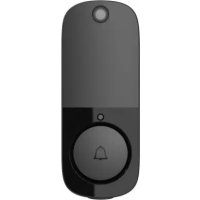
2. Description of the product

2.1 Exterior unit
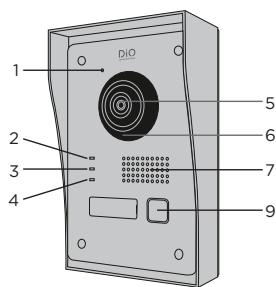
DIO DiOVDP-IP01 - Exterior unit - 1

DIO DiOVDP-IP01 - Exterior unit - 2

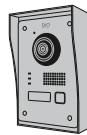
1 Microphone
2 Call indicator
3 Call in progress
4 Door open indicator
5 Camera
6 Infrared
7 Speaker
8 Anti-theft
9 Call button

2.2 Connectors
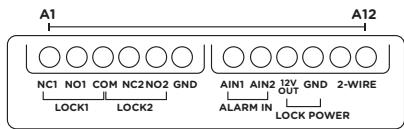
DIO DiOVDP-IP01 - Connectors - 1

A1NC1Normally Closed
A2NO1Normally Open
A3COMCommon
A4NC2Normally Closed
A5NO2Normally Open
A6GNDNeutral
A7AIN1Entrance alarm 1
A8AIN2Entrance alarm 2
A912V OUT12 V outlet for electric bolt
A10GNDNeutral
A112-WIREPower supply + (red)
A122-WIREPower supply - (black)

DIO DiOVDP-IP01 - Connectors - 2

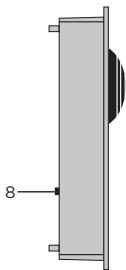
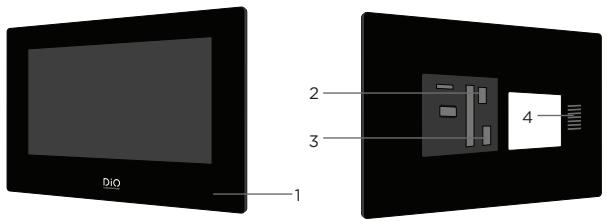
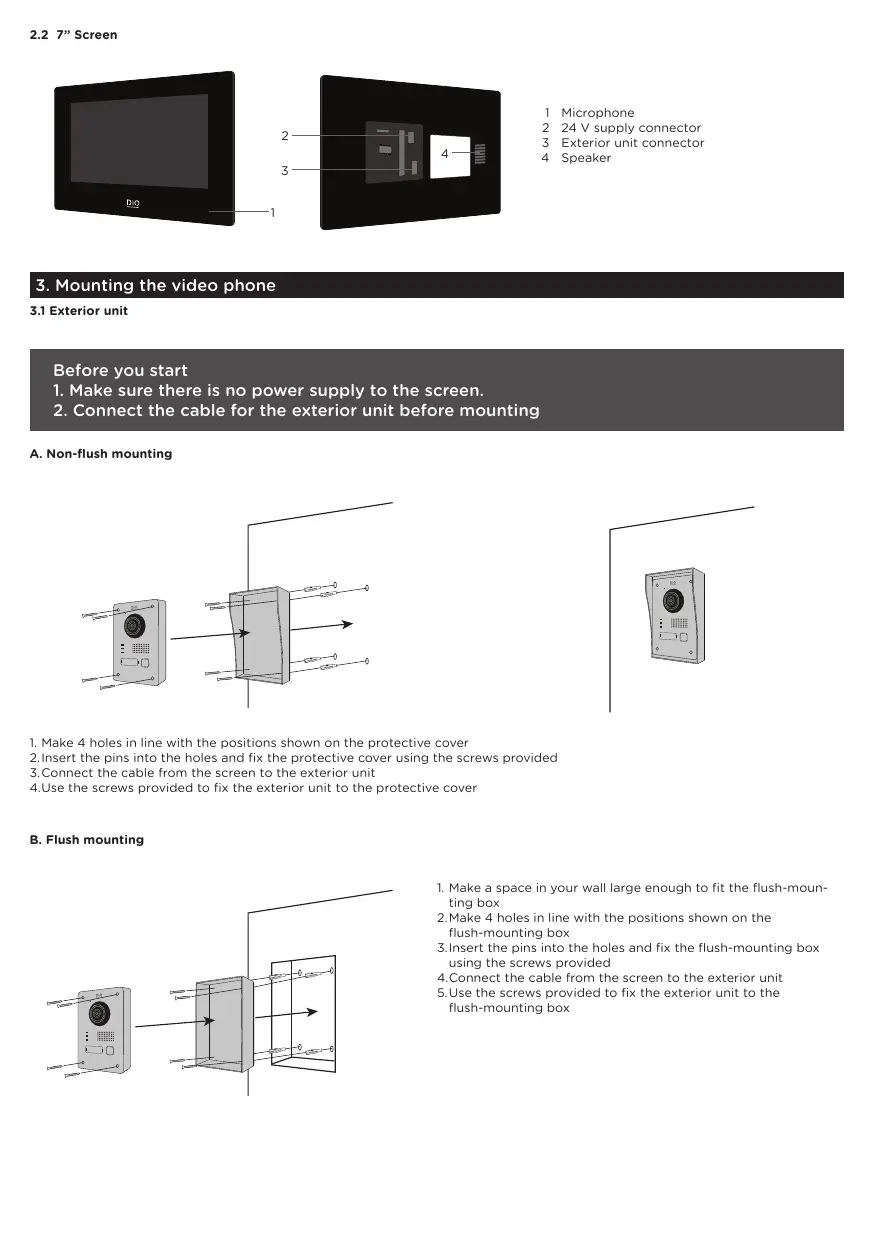
1 Microphone
2 24 V supply connector
3 Exterior unit connector
4 Speaker

3. Mounting the video phone

3.1 Exterior unit

Before you start

  1. Make sure there is no power supply to the screen.
  2. Connect the cable for the exterior unit before mounting

A. Non-flush mounting
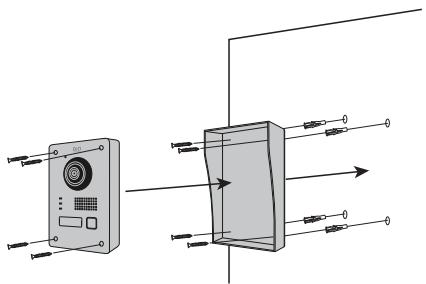
DIO DiOVDP-IP01 - Non-flush mounting - 1

DIO DiOVDP-IP01 - Non-flush mounting - 2

  1. Make 4 holes in line with the positions shown on the protective cover
    2.Insert the pins into the holes and fix the protective cover using the screws provided
  2. Connect the cable from the screen to the exterior unit
    4.Use the screws provided to fix the exterior unit to the protective cover

B. Flush mounting
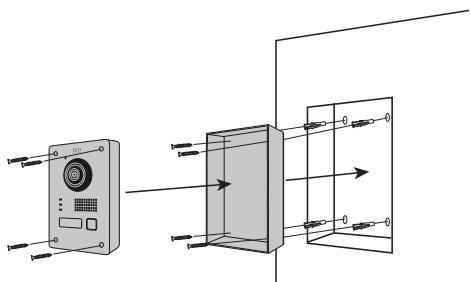
DIO DiOVDP-IP01 - Flush mounting - 1

  1. Make a space in your wall large enough to fit the flush-mounting box
    2.Make 4 holes in line with the positions shown on the flush-mounting box
  2. Insert the pins into the holes and fix the flush-mounting box using the screws provided
  3. Connect the cable from the screen to the exterior unit
    5.Use the screws provided to fix the exterior unit to the flush-mounting box
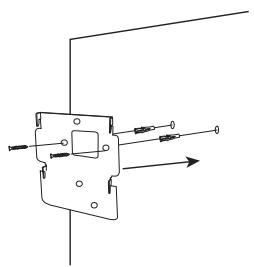
DIO DiOVDP-IP01 - Flush mounting - 2

DIO DiOVDP-IP01 - Flush mounting - 3

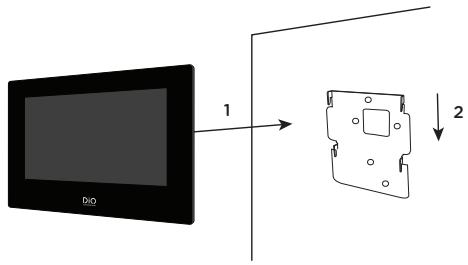
  1. Make 4 holes in line with the positions shown on the wall bracket
    2.Insert the pins into the holes and fix the wall bracket using the screws provided
  2. Connect the power supply connectors and the connector for the exterior unit
    4.Fix the screen to the wall bracket as shown in Figure 3.

4. Initial configuration

4.1 Configuration wizard

When you power the device up for the first time, an on-screen wizard will help you configure the important parameters for your video phone.

Please follow these steps before using the device.
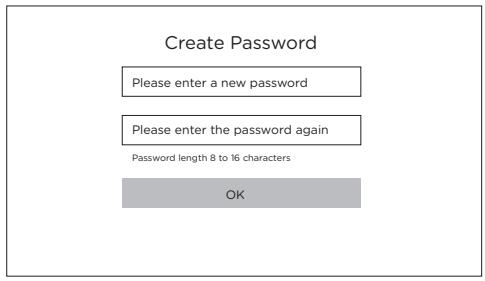
DIO DiOVDP-IP01 - Configuration wizard - 1

DIO DiOVDP-IP01 - Configuration wizard - 2

Step 1

Choose an administrator password in order to access the settings menu another time.

Step 2

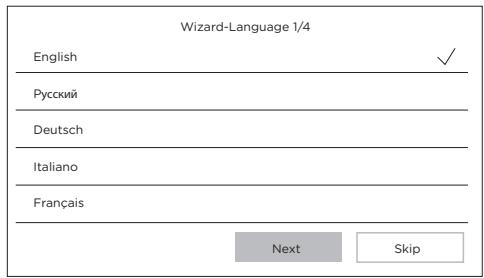
Select your language
DIO DiOVDP-IP01 - Step 2 - 1

DIO DiOVDP-IP01 - Step 2 - 2

Step 3

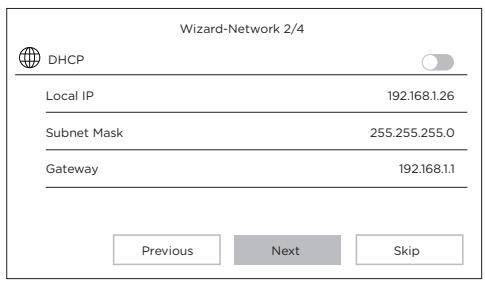
Configure a local network between the interior and exterior units.

We advise that you do not select the DHCP option and you stick to the default settings.

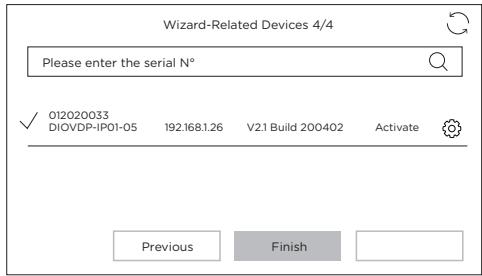
Step 4

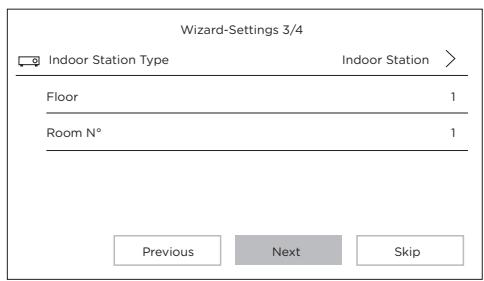
You can find out the stage number and the unit number if you are installing multiple devices within a network.

This is optional.
DIO DiOVDP-IP01 - Step 4 - 1

4.2 Connection to the wireless network

You do not have to connect your unit to the wireless network. It is only used to add it into the smartphone app for remote control purposes.

Select the settings menu from the home screen

DIO DiOVDP-IP01 - Connection to the wireless network - 1

Then select the Wi-Fi icon from the left-hand menu

DIO DiOVDP-IP01 - Connection to the wireless network - 2

Select your network from the drop-down list

5. Installing the app

The application is available for Android and iOS.

Search for and install the "Guarding Vision" app on Android Play Store or Apple Store, depending on the model of your smartphone.

Open the application and create a user account by following the on-screen instructions.

5.1 Set-up via QR code

Select the settings menu from the home screen on your video phone monitor

DIO DiOVDP-IP01 - Set-up via QR code - 1

Then select the configuration icon

DIO DiOVDP-IP01 - Set-up via QR code - 2

Go to "Guarding Vision service parameters" to record the unit's QR code.

In the "Guarding Vision" app on your smartphone, select the "+" icon in the top right corner.

Select "Analyse code" from the drop-down menu.

Use your camera to scan the QR code on the video-phone screen.

5.2 Manual set-up

Select the settings menu from the home screen on your video phone monitor

DIO DiOVDP-IP01 - Manual set-up - 1

Then select the configuration icon

DIO DiOVDP-IP01 - Manual set-up - 2

Go to "Information on the device" to record the serial number of the device.

In the "Guarding Vision" app on your smartphone, select the "+" icon in the top right corner.

Select "Add manually" from the drop-down menu.

Enter the serial number shown on the screen of your video phone.

Note:

The default password for your device is 123456

The default verification code for your device is ABCDEF.

General
Intercom type2 wires - hands-free
Operating temperatures-40 ~ +55 °C
Storage temperature-40 ~ +55 °C
Cable length and cross-sectionfrom 0 to 100 m / section : 1.5 mm2
Protection type (exterior unit)IP65
Specifications
Trade mark AdapterHOIOTO
Model identifier AdapterADS-40FSI-19 24036EPG
Input voltage100-240V
Input AC frequency50-60Hz
Output voltage24,0V DC
Output current1,5A
Output power36W
Average active efficiency80%
Efficiency at low load (10 %)76%
No-load power consumption4W
ConsumptionExterior unit <10W; Interior unit <8W
No. of rings3
Speaking timeFrom 90s to 120s
Audio frequency500. - 8k. Hz
Screen type7" TFT LCD touchscreen
Screen resolution1024 X 600 Pixels
Camera type2MP Colour CMOS
Camera resolution1920 X 1080 Pixels
Door opening12V - 1A max (1-5 seconds)
Gate openingDry contact NO/NC (1 second)
WiFi encryptionWPA-PSK/WPA2-PSK
SecurityAES128
ProtocolsTCP/IP ,RTSP, WIFI
InfraredHigh power LED con ICR
Infrared distance3 Meters
Exterior unit1044g
Interior unit624g

DIO DiOVDP-IP01 - Note: - 1

Direct current(DC)

DIO DiOVDP-IP01 - Note: - 2

Alternating current (AC)

DIO DiOVDP-IP01 - Note: - 3

Indoor use equipment

DIO DiOVDP-IP01 - Note: - 4

Class II equipment To identify equipment meeting the safety requirement specified for Class II equipment according to IEC 61140

DIO DiOVDP-IP01 - Note: - 5

Hereby, Chacon, declares that the radio equipment type 'DiOvDP-IPO1' is in compliance with the Directive 2014/53/EU.

The full test of the EU declaration of conformity is available at the following Internet address: http://chacon.com/conformity

7. Support

www.chacon.com/support
Manual assistant
Powered by Anthropic
Waiting for your message
Product information

Brand : DIO

Model : DiOVDP-IP01

Category : Video intercom