USER MANUAL NC NAVMAN
© 2006 Brunswick New Technologies Asia Pte Limited. Navman is a registered trademark of Brunswick New Technologies Asia Pte Limited and is used under licence by Navman New Zealand. Navman is part of the Brunswick Corporation, headquarters Chicago, IL. All rights reserved.
The software contains proprietary information of Navman; it is provided under a licence agreement containing restrictions on use and disclosure and is also protected by copyright law. Reverse engineering of the software is prohibited.
No part of this publication may be reproduced, stored in a retrieval system, or transmitted in any form or by any means, electronic, mechanical, photocopying, recording or otherwise, without the prior written permission of Navman.
Back-On-Track, Drive-Away, SmartST and Turn-by-Turn are either registered trademarks or trademarks of Brunswick New Technologies Asia Pte Limited and are used under licence by Navman New Zealand. All rights reserved.
Microsoft Windows 2000 SP4 and XP SP2, Microsoft Internet Explorer and ActiveSync are either registered trademarks or trademarks of Microsoft Corporation in the United States and/or other countries. All rights reserved.
Adobe and Acrobat Reader are either registered trademarks or trademarks of Adobe Systems Incorporated in the United States and/or other countries. All rights reserved.
Location Identifiers © 2005 International Air Transport Association.
All other trademarks and registrations are the property of their respective owners.
Published in New Zealand.
Disclaimer
Due to continued product development this information may change without notice. Navman does not warrant that this document is error-free.
The screenshots and other presentations shown in this manual may differ from the actual screens and presentations generated by the actual product. All such differences are minor and the actual product will deliver the described functionality as presented in this User Manual in all material respects.
Compliance
This device complies with part 15 of the FCC Rules. Operation is subject to the following two conditions: (1) This device may not cause harmful interference, and (2) this device must accept any interference received, including interference that may cause undesired operation.
The software is based in part on the work of the Independent JPEG Group.
PLEASE READ CAREFULLY BEFORE INSTALLING PRODUCT IN VEHICLE
| ! | This is the safety alert symbol. It is used to alert you to potential personal injury hazards. Obey all safety messages that follow this symbol to avoid possible injury or death. |
| ▲WARNING | WARNING indicates a potentially hazardous situation which, if not avoided, could result in death or serious injury. |
| ▲CAUTION | CAUTION indicates a potentially hazardous situation which, if not avoided, may result in minor or moderate injury. |
| CAUTION | CAUTION used without the safety alert symbol indicates a potentially hazardous situation which, if not avoided, may result in property damage. |
Removing original equipment, adding accessories or modifying your vehicle could affect the vehicle's safety or make it illegal to operate in some jurisdictions.
Follow all product instructions and all instructions in your vehicle owner's manual regarding accessories or modifications.
Consult your country's and/or state's laws regarding operation of a vehicle with any accessories or modifications.

It is your sole responsibility to place, secure and use the iCN in a manner that will not cause accidents, personal injury or property damage. Always observe safe driving practices.
Mount the iCN in a position that is secure and does not obstruct the driver's view.
Do not mount the iCN in a way that may interfere with the safe operation of the vehicle, the deployment of air bags or other safety equipment.
Do not operate the iCN while driving.
Before you use your iCN for the first time, familiarize yourself with your device and its operation.
On main roads, the distance to an exit calculated by the iCN may be further than the distance shown on road signs. Road signs show the distance to the start of an exit while your iCN shows the distance to the next intersection, i.e., the end of the exit ramp or road. To prepare to exit a road, always follow distance information on road signs.
The use of information regarding safety or speed camera locations may be subject to local laws in the country of use. You are responsible for checking that you can legally use the information in your country or in the country where the information will be used.
CAUTION
Do not handle the iCN while it is hot. Let the product cool, out of direct sunlight.
CAUTION
Do not expose the iCN to direct sunlight in an unattended vehicle for prolonged periods. Overheating may damage the unit.
To discourage theft, do not leave the iCN, mounting bracket or any cables in plain view in an unattended vehicle.
Failure to adhere to these warnings and cautions may lead to death, serious injury or property damage. Navman disclaims all liability for installation or use of the iCN that causes or contributes to death, injury or property damage or that violates any law.
Welcome
Thank you for purchasing new Navman maps. This Map Installation Guide has been designed to help you install these maps to your iCN.
To install the maps, first install SmartST™ Desktop software on your computer, then use it to install the required maps from the map CDs to your iCN internal memory or memory card.

If you already have SmartST Desktop installed on your computer, you need to reinstall the software from the enclosed Application Installer CD as it may contain an updated version.
Box Contents
| Item | | Item | |
| CDs containing:
• SmartST 2006
software, including
SmartST Desktop
• SmartST 2006 SE
map data
• Acrobat® Reader® 5.1 | | Documentation including:
• Map Installation
Guide
• Global Support
Information
• Software Product
Licence | |
| The number of discs
included depends on
the country of
purchase. |
What is SmartST Desktop?
SmartST Desktop is software for your computer and is used to install maps to your iCN.
You can also use it to:
remove maps from your iCN
- obtain software updates
manage Custom Points of Interest.
Can I use SmartST Desktop with my computer?
Ensure your computer has the following minimum system requirements before installing SmartST Desktop:
IBM compatible PC
Microsoft Windows 2000 SP4 or XP SP2 (NT not supported)
Internet Explorer 6 or higher
CD drive
USB port
Internet connection for registration.

You must install SmartST Desktop from the Application Installer CD onto your computer hard drive; you cannot run SmartST Desktop from the CD.
What is Microsoft ActiveSync?
Microsoft ActiveSync is used to establish a connection between your iCN and your computer. ActiveSync 3.8 will be installed on your computer (if a later version of ActiveSync is not already installed) as part of the installation of SmartST Desktop.
After it is installed, ActiveSync will run in the Windows System Tray/Notification Area when you start Windows. ActiveSync will activate when your iCN is connected to your computer.
For more information on ActiveSync, search for "ActiveSync" at www.microsoft.com.
How do I install SmartST Desktop onto my computer?

Before you begin:
Ensure that your computer meets the minimum system requirements for SmartST Desktop, especially:
i. Ensure that Internet Explorer 6 or higher is installed on your computer before you install SmartST Desktop, even if it is not your default browser.
ii. Windows XP users, ensure that Windows XP Service Pack 2 or higher has been applied before you install SmartST Desktop.
- Close all open programs on your computer.
- Insert the SmartST Application Installer CD into your computer CD drive. The SmartST Desktop installer will start.
If your computer does not automatically launch the CD, start the installation manually:
Start > Run.
Type D:\Install.exe where "D" is the letter assigned to your CD drive, then click OK.
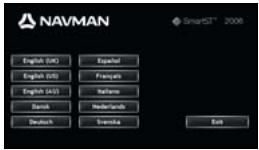
- Select your preferred language for SmartST Desktop.
- Click Install SmartST Desktop.
-
Follow the screen prompts to install SmartST Desktop:
-
Review and accept the Licence Agreement for SmartST Desktop and Microsoft ActiveSync (if not already installed on your computer) when prompted.
- Select a destination folder for SmartST Desktop when prompted.
-
When the installation has finished, click Finish. SmartST Desktop will open.
-
If prompted to connect your iCN to your computer, complete the following:
-
Plug the large end of the USB cable directly into a USB port on your computer (not a USB hub) and plug the small end into the USB Socket (**) on the side of your iCN.

Where possible, plug the USB cable into a USB port at the back of your computer.
- Plug the small end of the AC Power Pack cable into the 心 socket on the side of your iCN; plug the other end into the mains.
Press
Your iCN will turn on.
- When the following screen displays on your iCN, click Next:
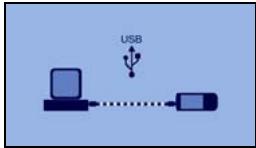
Microsoft ActiveSync will synchronize with your iCN.
- If prompted to update your iCN software, follow the on-screen prompts.
You are now ready to use SmartST Desktop to install maps to your iCN.
How do I keep SmartST up-to-date?
We recommend that you regularly use SmartST Desktop to check the Navman server for SmartST software updates.

Updating vs. Upgrading
Updating software is different from upgrading software:
When you update SmartST, the latest service packs and bug fixes are downloaded from the Navman server and applied to your iCN.
To upgrade SmartST, you must first purchase a new version of SmartST from a retailer, then install it on your iCN.
- If you connect to the Internet via a dial-up connection, connect to the Internet now.
- Open SmartST Desktop, follow the prompts, and then click Check for updates. Your computer will connect to the Navman server to check for software updates.
- If a software update is available, complete the following:
a) Click Update available.
The Navman website will open.
b) Select the update for your region and download it to your computer.
c) On the Setup menu, point to Update software, and then click Update software on iCN.
Follow the prompts to update your iCN software.
How do I remove old maps from my iCN?

You cannot use a 2006 map and a 2006 SE map of the same area at the same time.
Complete the following steps for each map you are upgrading:
- Open SmartST Desktop, if it is not already open: Start > All Programs > Navman > SmartST Desktop 2006
- Click the View/Remove Maps tab. The View/Remove tab will open, displaying a list of installed maps.
- Select the name of the map you want to remove from the list, then click Remove.
- Confirm that you want to remove the selected map when prompted. The map is removed from your iCN.
How do I install new maps onto my iCN?

You cannot navigate a route between different version maps, for example a 2006 map and a 2006 SE map.
You can install maps from the enclosed CDs to a memory card (not included) or your iCN internal memory.
Map Product Key
You will be prompted to enter the key during the activation of the new maps.
Your Map Product Key can be found on the back cover of this Map Installation Guide. Additional Map Product Keys may be purchased from the Navman Online Store.
Installing new maps
To install new maps onto your iCN, complete the following steps:
-
Open SmartST Desktop, if it is not already open: Start > All Programs > Navman > SmartST Desktop 2006
-
Insert a SmartST Map CD into your computer CD drive.
-
The preactivated maps that are ready to be installed to your iCN are light green.
- The maps on the CD that require activation before being installed to your iCN are light blue.

If your computer opens Windows Explorer when the CD is inserted, close the Windows Explorer window.

3. Complete the following:
| If the map to be installed is ... | Then ... |
| light green | go to step 6. |
| light blue | the map needs to be activated via the Internet before it can be installed; continue to step 4. |
- If you connect to the Internet via a dial-up connection, connect to the Internet now.
-
Follow the prompts to activate your Map Product Key, including:
-
Enter the Map Product Key when prompted.
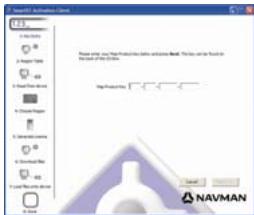
- Your computer will connect to the Internet and activate your Map Product Key.
- When activation has completed, the map will change colour to light green; continue to step 6.
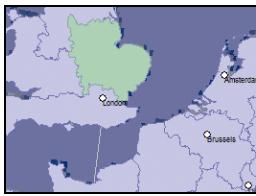
- Click the map you want to install to your iCN.
The map will change colour to dark green to indicate it has been selected. The map is now listed in the Review Selected Maps section of the Add Maps tab.
To deselect a map, click the map again.

You may need to install multiple maps to cover the desired geographical area.
- Complete the following:
| If you want to ... | Then ... |
| select a light green map | go back to step 6. |
| select a light blue map | the map needs to be activated via the Internet before it can be installed; go back to step 4. |
| select a Major Road Network. | select the check box in the Step 1: Select Maps section. |
| install the selected maps to your iCN | continue to step 8. |
- In the Step 3: Install Maps section, select the destination media for the selected maps, for example, memory card or iCN internal memory.
- Click Install Maps.
When they have been installed, the map or maps will change colour to yellow.
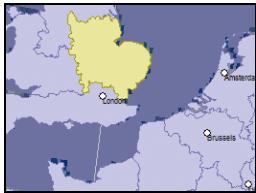
- To use your iCN, disconnect the USB cable.

WARNING Do not disconnect the USB cable from the iCN USB Socket until the Globe has refreshed, and the installed map or maps have changed colour to yellow.
For information on how to use SmartST 2006, see the iCN 700 Series User Manual.
iCN 700 Series User Manual
The iCN 700 Series User Manual can be accessed from either:
the Docs folder on the Application Installer CD, or
SmartST Desktop - Help > Read User Manual

Acrobat Reader is required to view the iCN 700 Series User Manual.
© 2006 Brunswick New Technologies Asia Pte Limited. Navman er et registraret varemærke tilhorende Brunswick New Technologies Asia Pte Limited og anwendes under licens af Navman New Zealand. Alle rettigheder forbehides.
Location Identifiers © 2005 International Air Transport Association.
Location Identifiers © 2005 International Air Transport Association.
Location Identifiers © 2005 International Air Transport Association.
Location Identifiers © 2005 International Air Transport Association.
Location Identifiers © 2005 International Air Transport Association.
Location Identifiers © 2005 International Air Transport Association.
4. Fare cli scu Installa SmartST Desktop.
Start > Tutti i programmi > Navman > SmartST Desktop 2006
Location Identifiers © 2005 International Air Transport Association.
Wat is SmartST Desktop?
Wat is Microsoft ActiveSync?
Updaten vs. Upgraden
Software Updaten is iets anders dan software upgraden :
Wanneru u SmartST update, worden de laiste service-pieces en foutrapatarities van Navman gedownload an teogepast op uw ICN.
Location Identifiers © 2005 International Air Transport Association.