USER MANUAL QuickCam Pro 5000 LOGITECH
FCC Compliance and Advisory Statement. This hardware device complies with Part 15 of the FCC Rules. Operation is subject to the following two conditions: 1) this device may not cause harmful interference, and 2) this device must accept any interference received, including interference that may cause undesired operation. This equipment has been tested and found to comply with the limits for a Class B digital device, pursuant to Part 15 of the FCC Rules. These limits are designed to provide reasonable protection against harmful interference in a residential installation. This equipment generates, uses, and can radiate radio frequency energy and, if not installed or used in accordance with the instructions, may cause harmful interference to radio communications. However, there is no guarantee that interference will not occur in a particular installation. If this equipment does cause harmful interference to radio or television reception, which can be determined by turning the equipment off and on, the user is encouraged to try to correct the interference by one or more of the following measures: 1) reorient or relocate the receiving antenna; 2) increase the separation between the equipment and the receiver; 3) connect the equipment to an outlet on a circuit different from that to which the receiver is connected; 4) consult the dealer or an experienced radio/TV technician for help. Any changes or modifications not expressly approved by the party responsible for compliance could void the user's authority to operate the equipment. Where shielded interface cables have been provided with the product or specified additional components or accessories elsewhere defined to be used with the installation of the product, they must be used in order to ensure compliance with FCC regulations.
Canadian DOC Statement. This digital device does not exceed the Class B limits for radio noise emissions from digital apparatus specified in the interference-causing equipment standard entitled "Digital Apparatus," ICES-003 of the Department of Communications.
This device complies with RSS-210 of Industry and Science Canada. Operation is subject to the following two conditions: 1) this device may not cause interference, and 2) this device must accept any interference, including interference that may cause undesired operation of the device.
Thank you for purchasing your new Logitech QuickCam, the world's most popular web cameras.
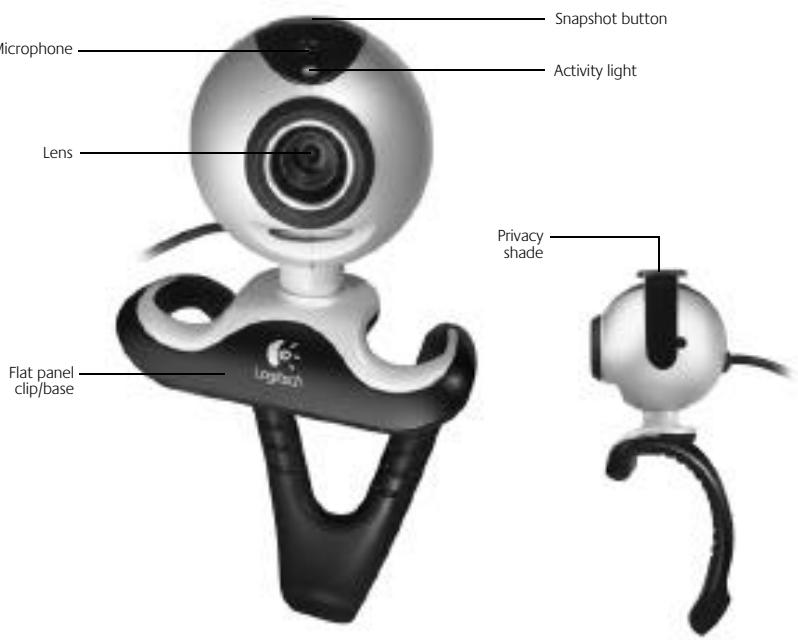
Camera Features

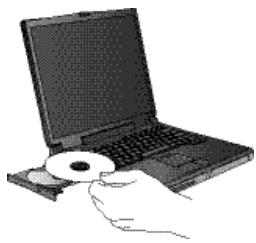
Install the Software
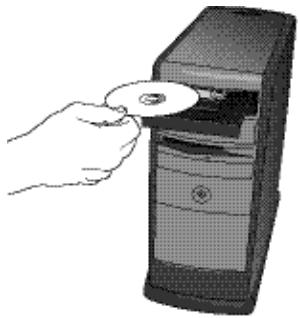
- Install the software FIRST and follow the on-screen instructions.
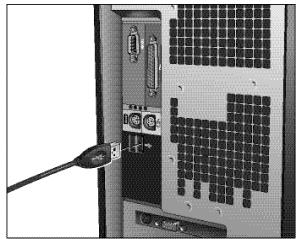
- During software installation, you are prompted to connect the camera USB cable to the USB port:
- Wait until you receive the software prompt before inserting the cable into the computer's USB port.
- Complete software and hardware installation by following the on-screen instructions. These instructions include an audio tuning wizard, which will ensure optimum audio performance. See the Audio Setup Guide for more information.

Launch the Software
- To launch the software, double-click the Logitech QuickCam shortcut on the desktop, or click Start on the Windows Taskbar, and then select Programs\Logitech\Logitech QuickCam.
- Choose your favorite video instant messaging application, or choose one of the other available software activities.

Position the Camera and Your Speakers
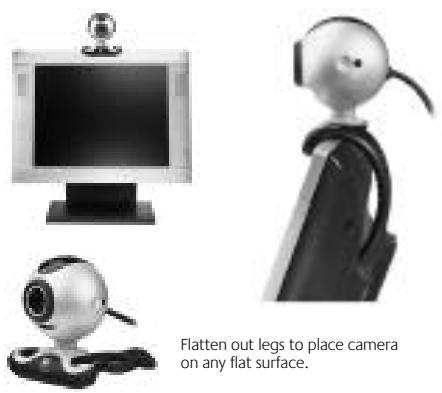
- Place the camera in the middle of your computer monitor for optimal eye contact.
- The camera can be placed on a tabletop or held in your hand to snap a picture or video.
- Pivot the camera up or down for the best position.
- If you are using the camera with desktop speakers (not included), angle the speakers slightly away from the computer monitor to ensure optimum audio performance during video calls.

Audio Setup
If you plan to use the camera's integrated microphone or a headset, you must configure it to perform properly. Follow the instructions in the Audio Setup Guide to complete this task.
Tips
Lighting. The Logitech RightLight™ Technology will automatically provide the best image in a variety of lighting conditions. However, for best results shoot videos with bright light sources behind the camera and out of the picture area whenever possible. Click on the QuickCam icon in the Windows® system tray and select Camera Settings for additional video controls, such as Low Light Filter and Color Boost.
Digital Pan, Tilt, and Zoom. Use the Quick Assistant, which is displayed automatically when your camera is in use, to access the Digital Pan, Tilt, and Zoom features. Use your mouse and keyboard to pan left and right, tilt up and down, or Zoom in or out while doing video instant messaging or recording videos. (Refer to the software help system for more information.)
Face Tracking. Activate face-tracking from within "Camera Controls" so that the camera can follow your movements.
Echo Cancellation. Run the Audio Tuning wizard from the Logitech QuickCam software to ensure optimum audio performance. Please see the Audio Setup Guide for more information.
Taking Still Pictures. Use the QuickCapture™ feature from the QuickCam software to take still pictures with your camera.
Software Updates. To check for new software updates, click on the QuickCam icon in the Windows system tray and select Check for Updates, or go to http://www.logitech.com/support.

Learning More About the Camera
To learn more about your camera and its software, access the Logitech QuickCam® software (Programs\Logitech\Logitech QuickCam), and then click the Help button. For additional support information about Logitech QuickCam web cameras, as well as other Logitech® products, please visit www.logitech.com.
Limited Warranty. Logitech warrants that any hardware product accompanying this documentation shall be free from significant defects in material and workmanship for a period of two (2) years from the date of purchase. Logitech's limited warranty is nontransferable and is limited to the original purchaser. This warranty gives you specific legal rights, and you may also have other rights which vary under local laws.
Remedies. Logitech's entire liability and your exclusive remedy for any breach of warranty shall be, at Logitech's option, to: (a) repair or replace the hardware, or (b) refund the price paid, provided that the hardware is returned to the point of purchase or such other place as Logitech may direct, with a copy of the sales receipt. Any replacement hardware will be warranted for the remainder of the original warranty period or thirty (30) days, whichever is longer. These remedies are void if failure of the hardware has resulted from accident, abuse, misapplication, or any unauthorized repair, modification or disassembly. Further, for cordless devices, these remedies are void if you use battery types other than those recommended by Logitech. Upon request from Logitech, you must prove the date of the original purchase of the hardware by a dated bill of sale or dated itemized receipt.
DISCLAIMER OF WARRANTY. THE WARRANTIES EXPRESSLY SET FORTH IN THIS AGREEMENT REPLACE ALL OTHER WARRANTIES. LOGITECH AND ITS SUPPLIERS EXPRESSLY DISCLAIM ALL OTHER WARRANTIES, INCLUDING, BUT NOT LIMITED TO, THE IMPLIED WARRANTIES OF MERCHANTABILITY AND FITNESS FOR A PARTICULAR PURPOSE AND NONINFRINGEMENT OF THIRD-PARTY RIGHTS WITH RESPECT TO THE HARDWARE, SOFTWARE, DOCUMENTATION AND ANY OTHER MATERIALS PROVIDED BY LOGITECH AND/OR ITS SUPPLIERS, AND ANY WARRANTIES OF NON-INTERFERENCE OR ACCURACY OF INFORMATIONAL CONTENT. NO LOGITECH DEALER, AGENT, OR EMPLOYEE IS AUTHORIZED TO MAKE ANY MODIFICATION, EXTENSION, OR ADDITION TO THIS WARRANTY. Some jurisdictions do not allow limitations on how long an implied warranty lasts, so the above limitation may not apply to you.
LIMITATION OF LIABILITY. IN NO EVENT WILL LOGITECH OR ITS SUPPLIERS BE LIABLE FOR ANY COSTS OF PROCUREMENT OF SUBSTITUTE PRODUCTS OR SERVICES, LOSS OF INFORMATION OR DATA, OR ANY OTHER SPECIAL, INDIRECT, CONSEQUENTIAL, OR INCIDENTAL DAMAGES ARISING IN ANY WAY OUT OF THE SALE OF, USE OF, OR INABILITY TO USE ANY LOGITECH PRODUCT OR SERVICE, EVEN IF LOGITECH HAS BEEN ADVISED OF THE POSSIBILITY OF SUCH DAMAGES. IN NO CASE SHALL LOGITECH'S AND ITS SUPPLIERS' TOTAL LIABILITY EXCEED THE ACTUAL MONEY PAID FOR THE LOGITECH PRODUCT OR SERVICE GIVING RISE TO THE LIABILITY. Some jurisdictions do not allow the exclusion or limitation of incidental or consequential damages, so the above limitation or exclusion may not apply to you. The above limitations will not apply in case of personal injury where and to the extent that applicable law requires such liability.
Logitech camera products are intended to be used in a lawful manner. Certain uses of digital PC camera products may be prohibited by local laws in some countries or states, such as the surreptitious recording of audio and/or video communications for certain purposes. If you have any question about whether a proposed use of your product is lawful, you should consult a local legal authority before proceeding.
UL Testing. Your product is UL tested and should only be used with other UL listed devices.
2005 Logitech. All rights reserved. Logitech, the Logitech logo, and other Logitech marks are owned by Logitech and may be registered. All other trademarks are the property of their respective owners. Logitech assumes no responsibility for any errors that may appear in this manual. Information contained herein is subject to change without notice.