
I100 - Camera SAMSUNG - Free user manual and instructions
Find the device manual for free I100 SAMSUNG in PDF.



| Product type | Compact digital camera |
| Dimensions (L x H x P) | 94.5 x 59.6 x 21.3 mm (excluding projections) |
| Weight | 116 g (without battery or memory card) |
| Power supply | Rechargeable lithium-ion battery SLB-1137D (3.7 V, 1100 mAh); mains adapter SAC-47 (4.2 V, 400 mA) |
| Image sensor | CCD 1/2.33", 10.2 effective megapixels |
| Lens | Samsung f=6.7~20.1 mm (equiv. 38~114 mm in 35 mm), F3.5 (W) ~ F4.0 (T); 3x optical zoom |
| LCD screen | 3.0 inch color TFT, 230,000 pixels |
| Storage | Internal memory 256 MB (190 MB user available); SD/SDHC/MMC Plus card (up to 4 GB) |
| File formats | Image: JPEG (DCF, EXIF 2.2, DPOF 1.1, PictBridge 1.0); Video: AVI (MPEG-4); Audio: WAV |
| Main functions | Auto, Program, Dual IS, Scene (Night, Portrait, Children, Landscape, etc.), Fun, Photo Help, Video, Multimedia (MP3, PMP, Text viewer, Tourist guide) |
| Shutter speed | 1 ~ 1/1,500 s (Night mode: 16 ~ 1/1,500 s) |
| ISO range | Auto, 80, 100, 200, 400, 800, 1600, 3200 (selectable at 3M or lower) |
| Built-in flash | Range: 3.5 m (wide angle), 3.0 m (telephoto) (ISO auto); modes: Auto, Red-eye reduction, Slow sync, etc. |
| Video recording | Up to 800 x 592 at 20 fps, 640 x 480 at 30 fps, 320 x 240 at 30/20/15 fps |
| Multimedia | MP3 player, PMP (video), text viewer, world tourist guide |
| Interfaces | USB 2.0 high speed, NTSC/PAL video output, 20-pin connector for DC adapter |
| Included software | Samsung Master, Samsung Converter, Adobe Reader |
| Maintenance and cleaning | Clean the lens with a soft, dry cloth; avoid humidity and extreme temperatures. |
| Safety | Follow the instructions: do not open the camera, avoid flash near eyes, do not expose to heat, use recommended batteries. |
| Spare parts and repairability | Battery and adapter available from Samsung. For any repairs, contact a Samsung authorized service center. |
Frequently Asked Questions - I100 SAMSUNG
User questions about I100 SAMSUNG
0 question about this device. Answer the ones you know or ask your own.
Ask a new question about this device
Download the instructions for your Camera in PDF format for free! Find your manual I100 - SAMSUNG and take your electronic device back in hand. On this page are published all the documents necessary for the use of your device. I100 by SAMSUNG.
USER MANUAL I100 SAMSUNG
Getting to know your camera
- Microsoft, Windows and Windows logo are registered trademarks of Microsoft Corporation incorporated in the United States and/or other countries
- All brand and product names appearing in this manual are registered trademarks of their respective companies.
- The contents and illustrations of this manual are subject to change without prior notice for upgrading the camera functions.
Refer to the user manual included on the Software CD for more information. - PDF documents of user manual are included in the Software CD-ROM supplied with this camera. Search the PDF files with Windows explorer. Before opening the PDF files, you must install the Adobe Reader included in the Software CD-ROM.
SRS(0) is a trademark of SRS Labs, Inc.
WOW HD technology is incorporated under license from SRS Labs, Inc.
Contents
Getting to know your camera 1
Identification of features / Contents of camera 4
Battery life & Number of shot (Recording time) 5
When Using the Camera for the First Time 6
LCD monitor indicator 7
Mode Button 8
Taking a picture 9
Playingback, Deleting and Protecting Images 10
MULTIMEDIA mode 11
Downloading images 14
Specifications 15
FCC notice
NOTE:
This equipment has been tested and found to comply with the limits for a Class B digital device, pursuant to part 15 of the FCC Rules. These limits are designed to provide reasonable protection against harmful interference in a residential installation. This equipment generates, uses and can radiate radio frequency energy and, if not installed and used in accordance with the instructions, may cause harmful interference to radio communications. However, there is no guarantee that interference will not occur in a particular installation. If this equipment does cause harmful interference to radio or television reception, which can be determined by turning the equipment off and on, the user is encouraged to try to correct the interference by one or more of the following measures:
Reorient or relocate the receiving antenna.
- Increase the distance between the equipment and receiver.
- Connect the equipment into an outlet on a circuit different from that to which the receiver is connected.
- Consult the dealer or an experienced radio / TV technician for help.
CAUTION:
Changes or modifications not expressly approved by the manufacturer responsible for compliance could void the user's authority to operate the equipment.
Declaration of Conformity
Trade Name: SAMSUNG TECHWIN
Model No.: Samsung i100
Responsible Party: SAMSUNG ELECTRONICS AMERICA INC.
Address: 105 Challenger Road Ridgefield Park NJ
Telephone No.: 1-800-SAMSUNG(726-7864)
This device complies with Part 15 of the FCC Rules. Operation is subject to the following two conditions: (1) This device may not cause harmful interference, and (2) this device must accept any interference received, including interference that may cause undesired operation.

Getting to know your camera
DANGER
DANGER indicates an imminently hazardous situation which, if not avoided, will result in death or serious injury.

Do not attempt to modify this camera in any way. To do so may result in fire, injury, electric shock or severe damage to you or your camera. Internal inspection, maintenance and repairs should only be carried out by your dealer or Samsung Camera Service centre.

Should any form of liquid or a foreign object enter the camera, do not use it. Switch off the camera, and then disconnect the power source. You must contact your dealer or Samsung Camera Service centre. Do not continue to use the camera as this may cause a fire or electric shock.

Please do not use this product in close proximity to flammable or explosive gases, as this could increase the risk of explosion.

Do not insert or drop metallic or inflammable foreign objects into the camera through access points e.g. the memory card slot and battery chamber. This may cause a fire or electric shock.

Do not operate this camera with wet hands. This could pose a risk of electric shock.
WARNING
WARNING indicates a potentially hazardous situation which, if not avoided, could result in death or serious injury.

Do not use the flash in close proximity to people or animals. Positioning the flash too close to your subject's eyes may cause eyesight damage.

For safety reasons keep this product and accessories out of reach of children or animals to prevent accidents e.g.:
- Swallowing battery or small camera accessories. If an accident should occur, please consult a doctor immediately.
- There is the possibility of injury from the camera's moving parts.

Battery and camera may become hot during prolonged use and it may result in camera malfunction. Should this be the case, allow the camera to sit idle for a few minutes to allow it time to cool.

Do not leave this camera in places subject to extremely high temperatures, such as a sealed vehicle, direct sunlight or other places of extreme variances in temperature. Exposure to extreme temperatures may adversely affect the camera's internal components and could cause a fire.

When in use, do not cover the camera or Charger. This may cause heat to build up and distort the camera body or cause a fire. Always use the camera and its accessories in a well-ventilated area.
EN-2
Getting to know your camera
CAUTION
CAUTION indicates a potentially hazardous situation which, if not avoided, may result in a minor or moderate injury.

Remove the battery when not planning to use the camera for a long period of time.
Otherwise the battery may leak corrosive electrolyte and permanently damage the camera's components.

Leaking, overheating, or damaged battery could result in fire or injury.
- Use battery with the correct specification for the camera.
- Do not short circuit, heat or dispose of battery in fire.
- Do not insert the battery with the polarities reversed.

Be sure to format the memory card if you are using a newly purchased memory for the first time, if it contains data that the camera cannot recognise, or if it contains images captured with a different camera.

Do not fire the flash while it is in contact with hands or objects. Do not touch the flash after using it continuously. It may cause burns.

Credit cards may be demagnetized if left near a camera case. Avoid leaving magnetic strip cards near the case.

Do not move the camera while it is switched on when you are using the AC Charger. After use, always switch off the camera before unplugging the cable from the wall socket. Then make sure that any connector cords or cables to other devices are disconnected before moving the camera. Failure to do so may damage the cords or cables and cause a fire or electric shock.

Take care not to touch the lens or lens cover to avoid taking an unclear image and possibly causing camera malfunction.

Avoid obstructing the lens or the flash when you capture an image.

Before inserting any cables or AC adapter, check the directions and do not insert by force. It may cause breakage of cable or camera.
It is highly likely to result in computer malfunctions when the 20 pin connector is connected to the USB port of a PC. Never connect the 20 pin connector to USB port of a PC.

Do not insert the memory card the wrong way round.
Doing so may cause damage to the camera.

Before an important event or going on a trip, you should check the camera condition. Samsung cannot be held responsible for camera malfunctions.
Identification of features / Contents of camera
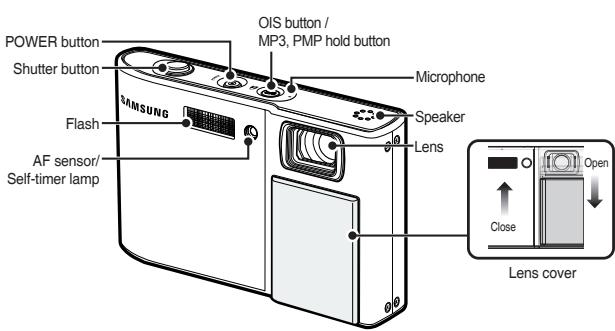
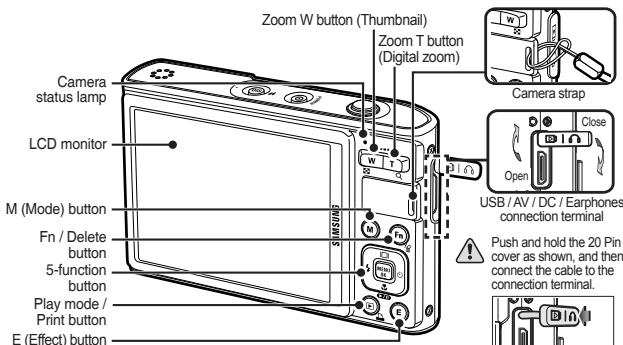
Contents Package
Please check that you have the correct contents before using this product. The contents can vary depending on the sales region. To buy the optional equipment, contact your nearest Samsung dealer or Samsung service centre.

Camera

User manual, Product warranty

Camera strap

AV cable

Rechargeable battery (SLB-1137D)

AC adapter (SAC-47)/USB cable (SUC-C5)

Software CD

Earphones
EN-4
Sold Separately

SD/SDHC memory card/MMC

Camera case
Battery life & Number of shot (Recording time)
Number of images and battery life: Using the SLB-1137D
| Battery life /Number of images | Conditions | ||
| Still image | Approx. 115 MIN/ Approx. 230 shots | Using the fully charged battery, Auto mode, 10M image size, Fine image quality, Shot to shot interval : 30Sec. Changing the zoom position between the Wide and the Tele after every shot. Using the flash on every second shot. Using the camera for 5 minutes and then Powering it off for 1 minute. | |
| Movie | Approx. 115 MIN | Using the fully charged battery 640x480 image size 30fps frame rate | |
| Multimedia | MP3 | Approx. 320 MIN | Using the fully charged battery LCD Off. |
| PMP | Approx. 200 MIN | Using the fully charged battery | |
-
These figures are measured under Samsung's standard conditions and shooting conditions and may vary depending on the user's methods.
-
When using a 256MB MMC memory, the specified shooting capacity will be as follows. These figures are approximate as image capacities can be affected by variables such as subject matter and memory card type. Affected by variables such as subject matter and memory card type.
| Recorded image size | Super Fine | Fine | Normal | 30FPS | 20FPS | 15FPS | |
| Still image | 10M | 47 | 90 | 104 | - | - | - |
| 9M | 52 | 98 | 140 | - | - | - | |
| 7M | 62 | 118 | 161 | - | - | - | |
| 7M | 66 | 122 | 173 | - | - | - | |
| 5M | 86 | 161 | 220 | - | - | - | |
| 3M | 134 | 226 | 306 | - | - | - | |
| 1M | 433 | 520 | 600 | - | - | - | |
| * Movie clip | 800 | - | - | - | - | About 8'31" | - |
| 640 | - | - | - | About 8'58" | - | About 16'59" | |
| 320 | - | - | - | About 28'56" | - | About 53'31" | |
- The recording times can be changed by the zoom operation. The zoom button doesn't function during the movie recording.
When Using the Camera for the First Time
- Charge the rechargeable battery fully before using the camera for the first time.
- When the camera is turned on for the first time, a menu will be displayed to set date/time, language and battery type in the LCD monitor. This menu will not be displayed after setting up. Set up the date/time, language and battery type before using this camera.
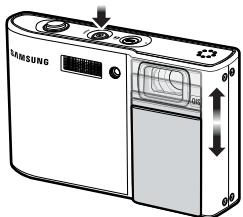
- Turning on the camera
To turn on the camera, press the POWER button or open the camera as shown.
Setting up the language
- Select the [Language] menu by pressing the Up/Down button and press the Right button.
-
Select the desired sub menu by pressing the Up/Down button and press the OK button.
-
You can select one of 22 languages.
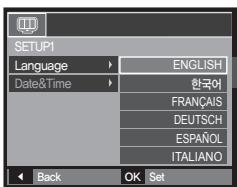
These are listed below: English, Korean, French, German, Spanish, Italian, S.Chinese, T.Chinese, Japanese, Russian, Portuguese, Dutch, Danish, Swedish, Finnish, Thai, Bahasa (Malay / Indonesian), Arabic, Czech, Polish, Hungarian and Turkish.
EN-6
Setting up the date, time and date type
- Select the [Date&Time] menu by pressing the Up/Down button and press the Right button.
- Select the desired sub menu by pressing the Up/Down/Left/Right button and press the OK button.
Right button: Selects world time/year/ month/ day/hour/minute/date type
Left button: Moves the cursor to the [Date&Time] main menu if the cursor is at the first item of the date and time setup. In all other instances, the cursor will be shifted to the left of its current position.
Up/Down button: Changes the value of each item.
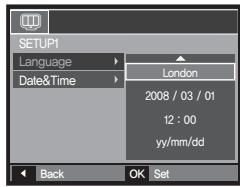
× For more information on setting World Time, please refer to the documentation included with the software CD.
LCD monitor indicator
The LCD monitor displays information about the shooting functions and selections. Refer to the user manual included on the Software CD for more information.
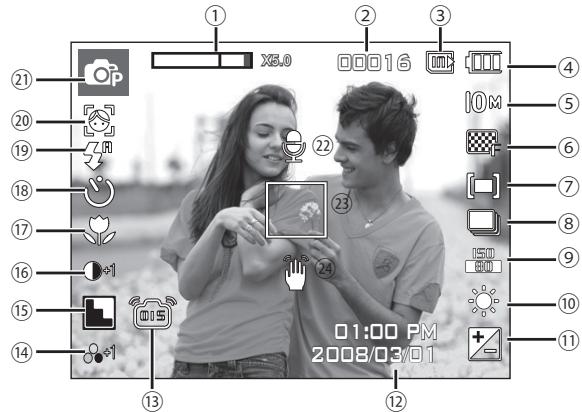
| No. | Description | Icons |
| 1 | Optical/Digital Zoom bar/ Digital Zoom rate | ☐ ☐ x 5.0 |
| 2 | Number of available shots remaining/Remaining time | 00016/00:00:00 |
| 3 | Memory card icon/ Internal memory icon indicator | ☐ / ☑ |
| 4 | Battery | ☐ ☐ ☐ ☐ |
| No. | Description | Icons |
| 5 | Image Size | 10M 7M 7M 5M 3M 1M 800 640 320 |
| 6 | Image Quality/Frame Rate | SF 30 25 |
| 7 | Metering/Stabiliser | [=][·][ε]/ ∞ |
| 8 | Drive mode | |
| 9 | ISO | ISO 150 150 150 150 150 150 150 150 150 150 150 150 150 150 150 150 150 150 150 150 150 150 150 150 150 15 |
| 10 | White Balance | |
| 11 | Exposure compensation /LongTime Shutter | 2/ LT |
| 12 | Date/Time | 2008/03/01 01:00 PM |
| 13 | OIS | |
| 14 | Saturation | -2 -1 +1 +2 |
| 15 | Sharpness/Mic. off | |
| 16 | Contrast | -2 -1 -1 +1 +2 |
| 17 | Macro | |
| 18 | Self-timer | |
| 19 | Flash | |
| 20 | Face Detection · Self Portrait/ Photo Style Selector/Colour | |
| 21 | Recording mode | |
| 22 | Voice Memo | |
| 23 | Auto Focus Frame | |
| 24 | Camera shake Warning |
Mode Button
- You can select a desired camera mode by using the M (Mode) button on the back of the camera.

Auto
Selects this mode for quick and easy picture taking with minimal user interaction.
In this mode, you can select the basic menus.
To select an advanced menu, select the other camera mode.

Movie
For taking a movie

FUN
In this mode, you can take pictures with various effects easily and simply.

Program
Selecting the automatic mode will configure the camera with optimal settings. You can still manually configure all functions except the aperture value and shutter speed.

Photo Help Guide
Helps the user learn the correct picture taking method and includes solutions for potential problems that may occur. This also enables the user to practice the best way to take the pictures.

DUAL IS
This mode will reduce the effect of camera shake and help you get a well-exposed image in dim conditions.
MULTIMEDIA


This camera has an embedded MP3, TEXT VIEWER & Portable Media Player program. You can take a picture, listen to the MP3 files and watch the movie clip (Movie and Video clip) whenever you want. You can listen to the MP3 music with reading the text on the LCD monitor or taking a picture.
SCENE
02 T
Use the menu to easily configure optimal settings for a variety of shooting situations.

Travel Guide
You can get the useful travel information around the world.
EN-8
Taking a picture
How to take a picture
- Turn on the camera and select a camera mode by using the M (Mode) button.
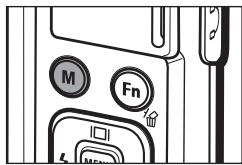
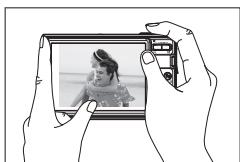
- Hold the camera as shown.
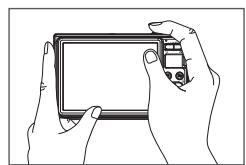
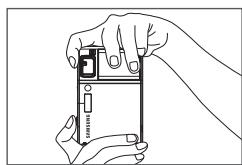
- Confirm the composition.
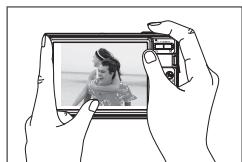
- Take a picture
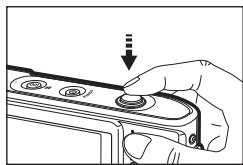
Pressing halfway down Focus and Flash status are checked.
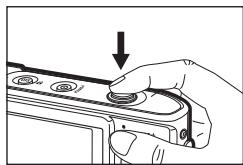
Pressing fully Image is taken.
How to record a movie.
Select the Scene mode by pressing the M (Mode) button
- Confirm the composition.
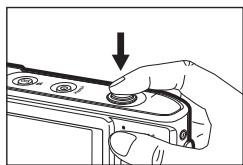
- Start the recording. Press the Shutter button and the recording starts and press the Shutter button again to stop the recording
EN-9
Playingback, Deleting and Protecting Images
Playingback the images
The last image stored on the memory is displayed.
Press the Play mode (▶) button.
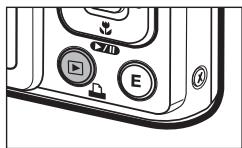
Select an image that you want to play back by pressing the Left/Right button
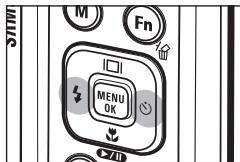
Delete button
This deletes images stored on the memory card.
- Select an image that you want to delete by pressing the Left/Right button and press the Delete ( 合 ) button.
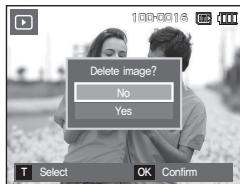
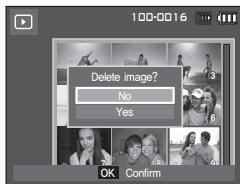
-
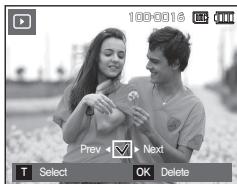
To add images to delete, press the T button.
-
Left/Right button: Selects images
- T button: Checks for deletion
- OK button: Deletes the selection
-
Select the submenu values by pressing the Up/Down button and then press the OK button.
-
If [No] is selected: Cancels "Delete Image".
- If [Yes] is selected: Deletes the selected images.
Protecting images
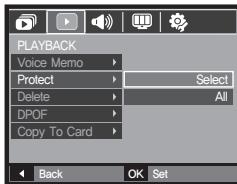
This is used to protect specific shots from being accidentally erased.
[Select]: Selected images are protected or unprotected.
[All]: All stored images are protected or unprotected.
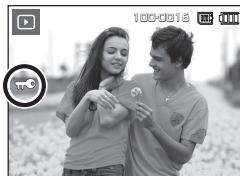
× If you protect an image, the protect icon will be displayed on the LCD monitor.
An image in LOCK mode will be protected from the delete function, but will NOT be protected from the [Format] function.
MULTIMEDIA mode
- This camera has an embedded MP3, TEXT VIEWER & Portable Media Player program. You can take a picture, listen to the MP3 files and watch the movie clip (Movie and Video clip) whenever you want. To use the PMP mode, you must convert the multimedia file with the Samsung Converter. In the TEXT VIEWER mode you can see the text on the LCD monitor with listening MP3 music.
- If the file or folder name is over 120 (Including 1 Byte/2 Byte language, Korean, Chinese, etc.) characters, the file or folder name doesn't appear on the play list.
Downloading files
To use MP3, PMP and TEXT VIEWER functions, MP3, PMP (multimedia files) and TEXT files must be saved in the internal memory or memory card of this camera.
- Save the desired files on your PC.
- Connect the camera to your PC with the USB cable and turn on the camera.
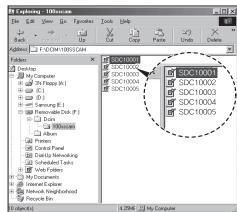
- Open Window's EXPLORER and search for Removable Disk.
- Make a folder under the Removable Disk.
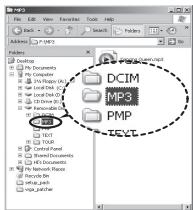
MP3 Mode : [MP3]
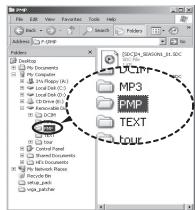
PMP Mode : [PMP]
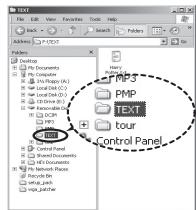
TEXT VIEWER mode: [TEXT]
- Select files that you want to save and copy them to the desired folder.

- Take care of the illegal duplication of MP3 & multimedia files. It violates various copyright laws.
- Without permission of Samsung, you cannot copy, modify and/or distribute any part or all of MP3, PMP file provided in the internal memory.
- This camera can only play back MP3 files in the MP3 mode and SDC files (modified XviD MPEG4 video / MPEG Layer2 audio type) in the PMP mode.
- If a file can not be played back on this camera, convert it into the supported file format by using the Samsung Converter.
- Up to 200 files and 100 sub folders can be saved in a folder. It is limited to save the files and sub folders up to 200 in total at the same time.
- New folders can be created within the MP3, PMP and TEXT folders. Otherwise any files in other folders that you create cannot be played back.
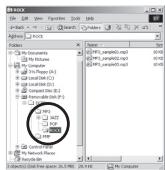
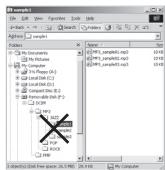
MULTIMEDIA mode
Insert the memory card that holds MP3, PMP and TEXT files. As this camera has a 190MB internal memory, you can save the files on the internal memory too.
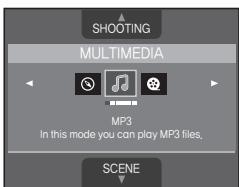
- Select a desired Multi media mode.
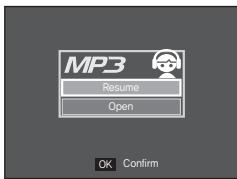
- A menu will display as shown.
[Resume]: Memorizes the latest stopped frame.
MP3 mode: Plays back from the beginning of the file.
PMP mode: Plays back from the latest stopped frame.
TEXT VIEWER mode: Plays back from the latest stopped frame.
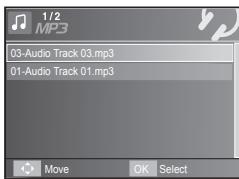
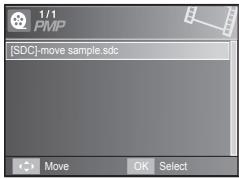
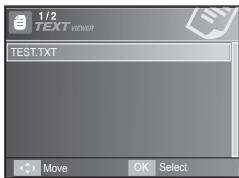
[Open]: The browsing menu will be displayed to select a desired file.
- Select a desired file and press the OK button. And then the file will play back.
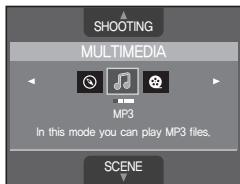
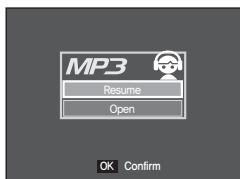
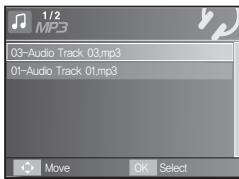

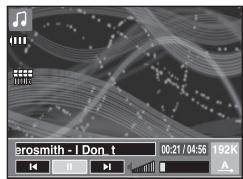
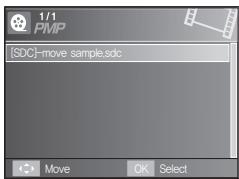

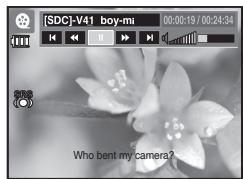
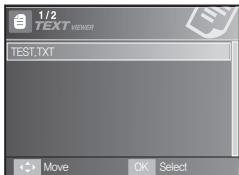

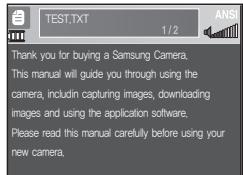
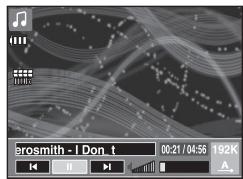
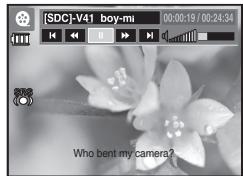
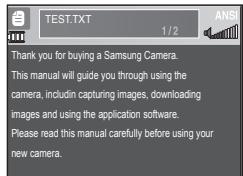
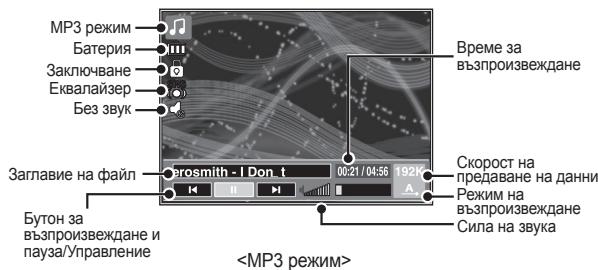
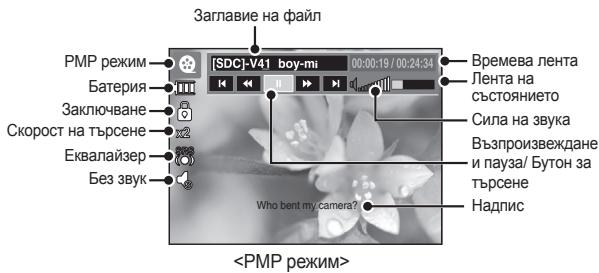
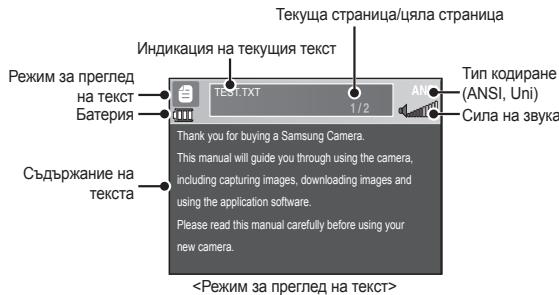
The LCD monitor displays information about the MP3, multimedia and Text file.
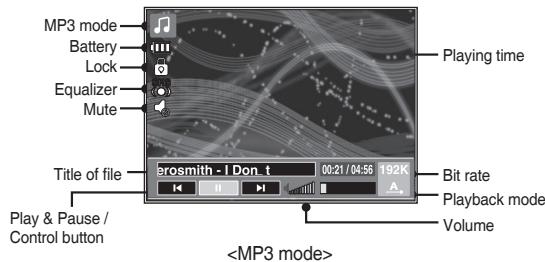
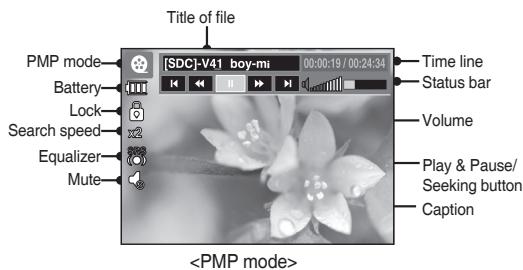
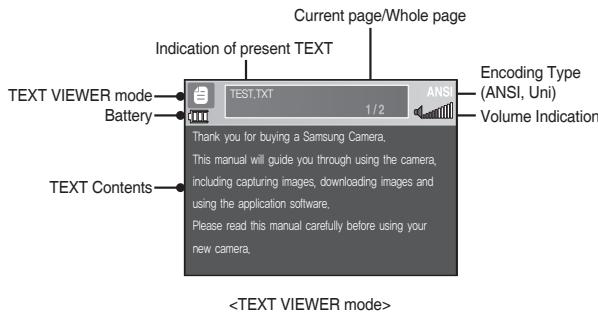
× Encoding Type: ANSI (American National Standards Institute) Type, Uni (Unicode) Type
- When the ANSI encoding type is displayed:
- You should set the Language of the TEXT VIEWER menu to view the text. Set the Language menu as one that is the same as the Operating System language that the text was created.
- When the UNI encoding type is displayed: The text file will be displayed with any language menu.
If the text file size is over 10MB, it may take a long time or even be impossible to view the text file. In this case, please divide the text file.
Downloading images
System Requirements
| For Windows | For Macintosh |
| PC with processor better than Pentium 450MHz(Pentium 800MHz recommended) | Power Mac G3 or later, or Intel Processor |
| * Samsung ConverterPC with processor better than Pentium III 500MHz (Pentium IV recommended) | |
| Windows 98SE / 2000 / ME / XP/Vista | Mac OS 10.1 ~ 10.4 |
| * Samsung ConverterWindows 2000 or later recommended | |
| Minimum 128MB RAM(Over 512MB recommended) | Minimum 256MB RAM110MB of available hard-disk space |
| USB port | USB port |
| CD-ROM drive | CD-ROM drive |
| 1024×768 pixels, 16-bit colordisplay compatible monitor(24-bit color display recommended)Microsoft DirectX 9.0 or later | MPlayer (For movie clip) |
PC connection mode
- Install the supplied Software.
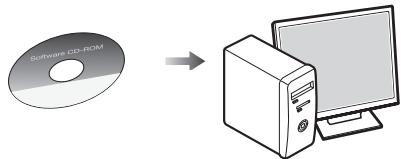
- Download the images
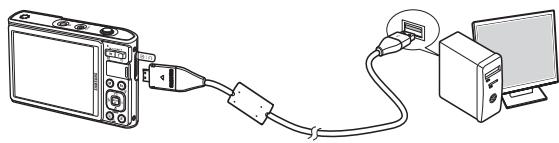
- Connect the camera and Computer with supplied USB cable and download the image on your computer to save them.
Specifications
| Image Sensor | - Type: 1/2.33" CCD - Effective Pixel: Approx. 10.2 Mega-pixel - Total Pixel: Approx.10.4 Mega-pixel | |||
| Lens | - Focal Length: Samsung Lens f = 6.7 - 20.1 mm (35mm film equivalent: 38 - 114 mm) - F No.: F3.5(W) - F4.0(T) - Digital Zoom: Still Image mode: 1.0X - 5.0X Play mode: 1.0X - 12.0X (depends on image size) | |||
| LCD Monitor | - 3.0" colour TFT LCD (230,000 pixel) | |||
| Focusing | - Type: TTL auto focus, Multi AF, Center AF, Face Detection AF - Range | |||
| Normal | Macro | Super Macro | Auto Macro | |
| Wide | 80cm - Infinity | 5cm - 80cm | 1cm - 5cm | 5cm - Infinity |
| Tele | 50cm - 80cm | - | 50cm - Infinity | |
| Shutter | - Speed 1 - 1/1,500 sec. (Night: 16 - 1/1,500 sec.) | |||
| Exposure | - Control: Program AE - Metering: Multi, Spot, Center Weighted, Face Detection - Compensation: ±2EV (1/3EV steps) - ISO: Auto, 80, 100, 200, 400, 800, 1600, 3200 (Selectable 3M or under) | |||
| Flash | - Modes: Auto, Auto & Red-eye reduction, Fill-in flash, Slow sync, Flash off, Red-eye Fix - Range: Wide: 3.5m, Tele: 3.0m (ISO Auto) - Recharging Time: Approx. under 4 seconds (new battery) |
| Sharpness | - Soft+, Soft, Normal, Vivid, Vivid+ |
| White Balance | - Auto, Daylight, Cloudy, Fluorescent_H, Fluorescent_L, Tungsten, Custom |
| Voice Recording | - Voice Recording (max 10 hours) - Voice Memo in Still Image (max. 10 sec.) |
| Date Imprinting | - Date, Date & Time, Off (user selectable) |
| Shooting | - Still Image |
- Modes: Auto, Program, DUAL IS, Fun, Photo Heip Guide, Movie, Multimedia (MP3, PMP, TextViewer, Travel Guide)
× Scene: Night, Portrait, Children, Landscape, Text, Close-up, Sunset, Dawn, Backlight, Fireworks, Beach & Snow, Cafe, Food, Self Shot - Shooting: Single, Continuous, AEB, Motion Capture
- Self-timer: 2 sec., 10 sec., Double(10 sec, 2 sec), Motion Timer
Specifications
MovieClip
- With Audio or without Audio (user selectable, recording time : memory capacity dependent, max 2hours)
Size: 800x592, 640x480, 320x240
Optical Zoom with sound recording
Frame rate: 30 fps, 20 fps, 15 fps (20 fps for 800x592)
Optical Zoom up to 3.0X - Movie stabilizer(User selectable)
- Movie Editing (Embedded): Pause during recording, Still Image Capture Time Trimming
Storage
Media
- Internal memory: 256MB (User Memory: 190MB)
- External Memory (Optional)
MMC Plus (Up to 2GB guaranteed)
SD/SDHC Card (up to 4GB guaranteed) - Internal memory capacity is subject to change without prior notice.
- File Format
-
Still Image: JPEG (DCF), EXIF 2.2, DPOF 1.1, PictBridge 1.0
Movie Clip:AVI (MPEG-4)
Audio:WAV -
Image Size and Capacity (256 MB Size)
| 10M | 9M | 7M | 7M | 5M | 3M | 1M | |
| 3648x | 3648x | 3648x | 3072x | 2592x | 2048x | 1024x | |
| 2736 | 2432 | 2052 | 2304 | 1944 | 1536 | 768 | |
| Super Fine | 47 | 52 | 62 | 66 | 86 | 134 | 433 |
| Fine | 90 | 98 | 118 | 122 | 161 | 226 | 520 |
| Normal | 104 | 140 | 161 | 173 | 220 | 306 | 600 |
These figures are measured under Samsung standard conditions and may vary depending on shooting conditions and camera settings.
Special "E" Button - Recording Effect:
Photo Style Selector: Normal, Vivid, Soft, Forest, Retro, Cool, Calm, Classic
Color Effect: Normal, B&W, Sepia, Red, Blue, Green, Negative, Custom Color
Image Adjust: Saturation, Contrast, Sharpness
Fun: Cartoon, Photo Frame, High Light, Composite, Color Mask
-Playback Effect:
Image Edit: Resize, Rotate
Color: Normal, B&W, Sepia, Red, Blue, Green, Negative, Custom Color
Image Adjust: ACB, Red Eye Fix, Brightness, Contrast, Saturation, Add Noise
Fun: Cartoon, Photo Frame, High Light, Composite, Sticker, Color Filter, Color Mask
Image Play - Single image, Thumbsils, Slide show
Specifications
| Multi function | - MP3, PMP, World Tour Guide, Text Viewer, Portable Memory, Voice Recorder |
| Interface | - Digital output connector: USB 2.0 High Speed - Audio: Mono - Video output: NTSC, PAL (user selectable) - DC Adapter: 4.2V, 20 pin connector |
| Power Source | - Rechargeable battery: SLB-1137D, 3.7V (1100mAh) - Adaptor: SAC-47(DC 4.2V, 400mA) × Included battery may vary depending on sales region. |
| Dimensions (WxHxD) | - 94.5 x 59.6 x 21.3mm (excluding protrusions) |
| Weight | - 116g (without batteries and card) |
| Operating Temperature | - 0 - 40°C |
| Operating Humidity | - 5 - 85% |
| Software | - Application: Samsung Master, Samsung Converter, Adobe Reader |
| × MP3 Specification | |
| Audio | - Frequency: 20Hz - 20KHz - Earphone Port: 20Pin Port (Stereo Type) - Output: Maximum Volume Left 40mW + Right 40mW (16Ω) - Noise Ratio: 88 dB with 20 KHz LPF |
| File | - File Format: MP3 (MPEG-1/2/2.5 Layer 3) - Bit Rate: 48 - 320kbps (Including VBR) |
| Sound Effect | - SRS, Normal, Classic, Dance, Jazz, Live, Rock |
| Play Mode | - All, Repeat One, Repeat All, Shuffle - Skipping in Play, Auto Skipping - Slide Show On/Off (User Selectable) - MP3&Capturing (Capturing Mode is Auto Default, 3M) - Auto reload function (Remember both the last played file and frame) - Background skin of MP3 playback using user images |
| × PMP Specification | |
| PMP Decoder | - Movie: Modified Xvid MPEG4 (Other video files have to use Samsung Converter S/W) - Audio: MPEG Layer 2 (Samsung Convert S/W) |
| Play Mode | - Fast Forward/Rewind(Max 32x) - Seeking in Play, Skipping in Play (Normal, 30sec, 1min, 3min, 5min, 10min) - Auto skipping after one file played - Auto reload function (Remember last played frame) - Support Full Screen in Converting S/W |
| Subtitle | - Support SMI file (Using Samsung Converter S/W) |
Specifications
× Text Specification
| File | - TXT extension name, up to 99999 pages |
| File format | - Window: ANSI (Windows 98 or later), Unicode / Unicode (Big-Endian) / UTF-8 (Windows 2000/XP) - Mac: ANSI, Unicode (UTF-16) |
| Function | - Auto Scroll (0.8 sec - 2:3 sec) - Skipping by 1 page / 10 pages - Auto reload function (Remember last page) - Support MP3 BGM during displaying text file |
| Language | - English, Korean, French, German, Spanish, Italian, Chinese, Taiwanese, Japanese, Russian, Portuguese, Dutch, Danish, Swedish, Finnish, Bahasa, Polish, Hungarian, Czech, Turkish. * Supportable language is subject to change without prior notice. |
× Specifications are subject to change without prior notice.
× All trademarks are the property of their respective owners.
EN-18

Correct Disposal of This Product

Correct Disposal of This Product (Waste Electrical & Electronic Equipment)
(Applicable in the European Union and other European countries with separate collection systems) This marking shown on the product or its literature, indicates that it should not be disposed of with other household wastes at the end of its working life.
To prevent possible harm to the environment or human health from uncontrolled waste disposal, please separate this from other types of wastes and recycle it responsibly to promote the sustainable reuse of material resources. Household users should contact either the retailer where they purchased this product, or their local government office, for details of where and how they can take this item for environmentally safe recycling. Business users should contact their supplier and check the terms and conditions of the purchase contract. This product should not be mixed with other commercial wastes for disposal.

Samsung Techwin cares for the environment at all product manufacturing stages to preserve the environment, and is taking a number of steps to provide customers with more environment-friendly products. The Eco mark represents Samsung Techwin's will to create environment-friendly products, and indicates that the product satisfies the EU RoHS Directive.

Correct disposal of batteries in this product

(Applicable in the European Union and other European countries with separate battery return systems.)
This marking on the battery, manual or packaging indicates that the batteries in this product should not be disposed of with other household waste at the end of their working life. Where marked, the chemical symbols Hg, Cd or Pb indicate that the battery contains mercury, cadmium or lead above the reference levels in EC Directive 2006/66. If batteries are not properly disposed of, these substances can cause harm to human health or the environment.
To protect natural resources and to promote material reuse, please separate batteries from other types of waste and recycle them through your local, free battery return system.
The rechargeable battery incorporated in this product is not user replaceable. For information on its replacement, please contact your service provider.
MEMO
EN-20


Batterie rechargeable (SLB-1137D)
Vendu séparation

Carte mémoire SD/SDHC/MMC

Étui
These figures are measured under Samsung standard conditions and may vary depending on shooting conditions and camera settings.
Spezialne tlaicido E
- Efekt nahravania:
Photo Style Selector (Vyber styli fotografie): Normal (Normalne), Vivid (Intenzivne), Soft (Makké), Forest (Les), Retro (Retro styli), Cool, Calm (Pokoj), Classic (Klasika)
Color (Farba): Normal (Normale), B&W (Cienbobile), Sepia (Sépia), Red (Cervéné), Blue (Modre), Green (Zelené), Negative (Negativ), Custom Color (Vlastnefarby)
Image Adjust(Uprava obru:): Saturation (Sytost), Contrast (Kontrast)
Fun (Zabava): Cartoon (Kreslené obrázký), Photo Frame (Foto rámček), High Light (Presvetlené), Composite (Kompozǐně), Color Mask (Farebǎna maska)
- Efekt prehrávania:
INHdIkaTop 3a LCD MoHITopa 7
KpbblnTb3ra3apekima 8
3acHEMAHa CHIMKa 9
Bb3npoN3BExkDahe, n3TpBaHe n 3aunTa Ha CHIMK10
PekimHa MyTTMeIa 11
I3TeTnHe Ha CHNIMK1 14
CneuDnkaun 15
CHIMKAIITbJIHOcbCTOHHe
Program (ПОТРAMИPAHE)
I36bopT ha aBTOMaTHHnpeKIM 1e KOHcHypnpa foTOanapata C ONTMaJIHnTE HaCTPOkN. MoKeTe pTuHO da KOHcHypnpate BCNUH KfYHKUm C N3KJIIOHeHne Ha anepTyHATA cToHOC T nCKOPoCTTA Ha 3aTbopa.

DUAL IS
To3n pexkHm HamaJbA efeKTA oT TpTeHe Ha foTOanapata N nomara npN nOlyuabaHeto Ha no-rcHN CHMMK IN HeBnaIopnraTHN ycNoBria.
SCENE (CLJEHA)
#
I3no3BaIte MeHIOTo 3a NecHO KOHpIpypaHe NaOTIMaJIHnTe HaCTPOIKn Pn3 3aChemaHe Ha pa3JIuHn CITyaUN.

Movie (ФИЛМ)
3a 3acHeMaHe Na BnDeo

FUN
BTO3npeXMMMOXeTe da npabNTe npocTo n necho CHIMKNCpaTNUHNEpEKN.

[Resume] (Bb306HOBraBaHe):
3aametrahe Ha nocneHOn cnpenra KaDbp.
MP3 pexnM: Bb3pnon3Bexdane ot hauanTo Ha faaIna.
PMP pexim: Bb3npo3Bexdane ot nocleidno cnpeHnKaIbpb.
Pekim 3a npereHa TeKCT: Bb3npo3Bexdahe ot nocneHnra cnprn KaDbT.
[Open] (OTbaprHe): Ie ce otBorpo MeHIO 3a npereIed, 3a da n3bepeTe JeHaHnI paHn.
3.ИЗБЕРЕЖЕLAHAЯПиHaTиСHETe 6уToHa OK.CnED KoETOаЛьТ ue CE BB3POnI3BVeDE.



Pexim Ha Myltmiednay
LCD MOHITOPbT NOKa3Ba INHOpMaZna 3a CbOTBeHTnTe MP3, MYTTIMMeDIne H TeKCTOBN paIIOBE.
Hactoika ha 3io6paxekhenro: Saturation, Contrast, Sharpness (Hacnlahe, Kontract, rpokct)
Fun (PazaneeHnne): Cartoon, Photo Frame, High Light, Composite, Color Mask (Anhmaaia, FOToTOpAMKa CMIOHO C0BETBAHc, CbCTABNHO K3O6paKeHne, CEtOBaMAka)
- £EpxtPrn B1zPn3BexAahe:
PediaktrpHe Hna 062paKEmBe: Resize, Rotate (TpeOp3AmepRbe, 3ab7pTa)
LjB:Normal,B&W,Sepia,Red,Blue,Green,Negative,Cuticular Color(Hopmaen,Vephobac,ben,cenhi,cephab,Cin,Heta,betahur,Tbcbapn or nortpmbentan bant)
Hactroika ha kioobapkehetao: ABC, Red Eye Fix. Brightness, Contrast, Saturation, Add Noise (ABC, Koejezua ha nepbem Ovn, Apkocst, KOthpact, Hacssane, doBaBnne hsiMoWpEeKt)
Fun (PazaneuHne) Cartoon, Photo Frame, High Light, Composite, Sticker, Color Filter, Color Mask (Anmaauna, fotopamka cnHIOOcEBTBAHNE, cBCTABHO KIObapaeHne, CTNKeR, LBETOBI FmNTbP, LBETOBA MaKa)
Bb3npo3B6KdAnHe Hs CHIMK
EHa CHMMKa, MMHnTIOPi, CnaiDiooy