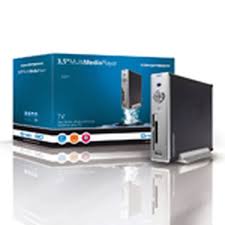
CSM3PL - Media player CONCEPTRONIC - Free user manual and instructions
Find the device manual for free CSM3PL CONCEPTRONIC in PDF.



| Product type | Media player with card reader |
| Brand | Conceptronic |
| Model | CSM3PL |
| Dimensions (L × D × H) | 163 × 177 × 44 mm |
| Power supply | 100-240 V AC, 50/60 Hz, 12 V DC 2.5 A (adapter included) |
| Power consumption | 11 W (typical) |
| Color system | PAL / NTSC (selectable) |
| Compatible video formats | AVI (MPEG4), MPG (MPEG1/2), DAT (VCD), VOB (DVD) |
| Compatible audio formats | WAV, MP3, WMA |
| Compatible image formats | JPG |
| Subtitles | .SMI, .SRT, .SUB, .SSA for MPEG4 |
| File system | FAT32 (not compatible with NTFS) |
| Video output interfaces | Composite, Component, S-Video, VGA |
| Audio output interfaces | Stereo RCA, Optical SPDIF |
| USB interfaces | 1x USB HOST (peripherals), 1x USB (to PC) |
| Card reader | MS, SD, MMC, SM, CF |
| Main functions | Play movies, music, photos; music slideshow; zoom, rotation functions; A-B repeat; screen saver |
| Operating modes | PC mode (USB storage) and Player mode (multimedia) automatic |
| OSD languages | French, English, Dutch, Spanish, Italian, German, Portuguese |
| Remote control | Supplied with battery, range 5 meters, angle ±30° |
| Maintenance and cleaning | Disconnect before cleaning; use a soft, dry cloth; do not expose to moisture |
| Safety | Do not disassemble the adapter; avoid shocks; do not cover the device |
| Spare parts and repairability | Contact Conceptronic support (support@conceptronic.net); no spare parts supplied |
Frequently Asked Questions - CSM3PL CONCEPTRONIC
User questions about CSM3PL CONCEPTRONIC
0 question about this device. Answer the ones you know or ask your own.
Ask a new question about this device
Download the instructions for your Media player in PDF format for free! Find your manual CSM3PL - CONCEPTRONIC and take your electronic device back in hand. On this page are published all the documents necessary for the use of your device. CSM3PL by CONCEPTRONIC.
USER MANUAL CSM3PL CONCEPTRONIC
Conceptronic CSM3PL Snelstart handleiding
7.2 Dia show (Slideshow setup)
Memorystick (MS), Secure Digital (SD), Multimedia Card (MMC), Smart Media Card (SM), Compact Flash (CF), Microdrive (MD).
Congratulations on the purchase of your Conceptronic CSM3PL.
The enclosed Hardware Installation Guide gives you a step-by-step explanation of how to use the Conceptronic Grab'n'GO 3,5" Media Player with Cardreader.
When problems occur, we advise you to go to our support-site (go to www.conceptronic.net and click 'Support'. Here you will find the Frequently Asked Questions Database.
When you have other questions about your product and you cannot find it at our website, then contact us by e-mail: support@conceptronic.net.
For more information about Conceptronic products, please visit the Conceptronic Web Site: www.conceptronic.net.
1. Introduction
Before operating the unit, please read this manual thoroughly and retain it for future reference.
1.1 Contents of the package
Before connecting the device to your TV or computer/monitor please check if the contents of the package are:
- 1x Conceptronic Grab 'n' GO 3,5" Media Player with Cardreader
1x Remote Control with battery
1x Power adapter (12V DC, 2.5A) - 1x Audio/Video Cable (Composite)
1x Audio/Video (Composite) to SCART Cable - 1x S-Video Cable
- 1x SPDIF Optical Cable
- 1x USB Cable
- 1x Multi language printed quick installation guide
1x Stand for CSM3PL
1.2 Features
- Auto switch between PC and Player Mode:
- When connected to the PC, the device acts as an USB Storage Device.
- When not connected to the PC, the device acts as a Media Player.
In PC mode:
Supports Plug-n-Play.
- Compliant with High Speed USB 2.0/1.1, 480Mb/s maximum data transfer rate.
In Player mode:
- Support for Internal HDD, USB Devices and memory cards.
- Multiple languages support: English, Dutch, Spanish, French, Italian, German, Portuguese
Supports multiple HDD partitions.
Media files previewing.
Supports text subtitle (.SMI/.SRT/.SUB/.SSA) for MPEG4 (AVI), D1 resolution.
Supports AVI (MPEG4), MPG (MPEG1, MPEG2), DAT (VCD), VOB (DVD), WAV, WMA, MP3, JPG. - Various Codec's supported. Check our website for a full list of supported Codec.
- Outputs: Composite video/Component video/RCA audio/Optical audio/VGA/S-video.
- Compliant with PAL/NTSC.
- Various repeat modes.
- File operations (DELETE/RENAME/NEW FOLDER/PROPERTIES).
-
Screen Saver.
Viewing photos in various ways -
Slide show (slide photo play back) with background music.
14 transition modes; display interval changeable. -
Zoom, rotation, move functions.
-
Files can be sorted by name/size/time/type.
1.3 Cautions
- Do not attempt to disassemble the included power adapter. This may cause high-voltage injuries. If the adapter needs to be fixed, please contact your dealer or the helpdesk of Conceptronic.
- Keep the device away from excessive moisture.
- Do not immerse or expose the device to liquids.
- Disconnect the power adapter if you do not intend to use the device for an extended period of time.
- Avoid using the device in a location near combustibles.
- Change the batteries of the remote control with the same kind when they are weak or dead. Dispos of the old batteries safely. Recycle them where possible. To avoid corrosion, remove the batteries if the remote is not to be used for a long time.
- Keep the remote away from excessive moisture; do not drop it.
- Do not operate the remote under intense sunlight.
- NEVER drop, shake or bump the device.
- To prevent overheating, do not cover the device.
- The CSM3PL only supports the FAT / FAT32 File system (NTFS is not supported).
Note: When you format the Harddisk to NTFS, it only functions as removable Harddisk for your computer. Reformat the Harddisk to FAT32 to activate the Media Player functionality.
- The data on the internal Harddisk and/or the connected device(s) can be fragmented. This affects movies play back. It is recommended that you defragment the Harddisk and/or the connected device(s) on your computer once in a while.
2. Functionalities of the Grab'n'GO 3,5" Media Player with Cardreader
2.1 Identify the parts of the CSM3PL
- Front View
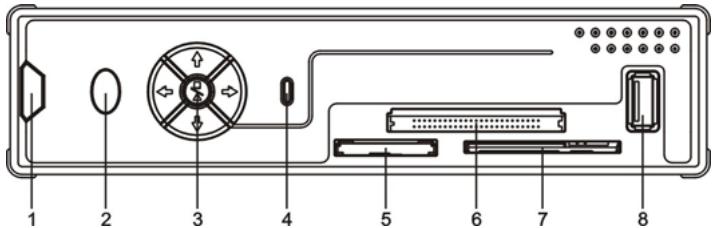
- Remote Control Receiver
- Power LED
-
Button Control
-
HDD LED
- MMC/MS/SD Card Slot
-
CF Card Slot
-
SM Card Slot
- USB HOST Jack
- Button Control
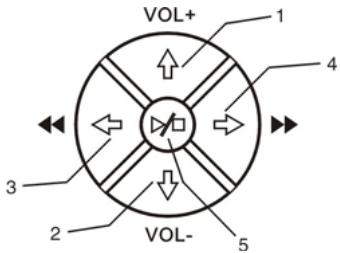
| No. | Short Press | Long Press | |
| Stop State | Play State | ||
| 1 | ↑ (▲) | ↑ (VOL+) | ↑ (P/N) |
| 2 | ↓ (▼) | ↓ (VOL-) | ↓ (VGA) |
| 3 | ↔ (▲) | ↔ (▲) | ↔ (▲) |
| 4 | → (▲) | → (▲) | → (▲) |
| 5 | ▷ (←) | ▷ (■) | ▷ (●) |
Note: The Button control functions are the same as the Remote Control Functions. Detailed information about each button can be found in chapter 4.
Rear view
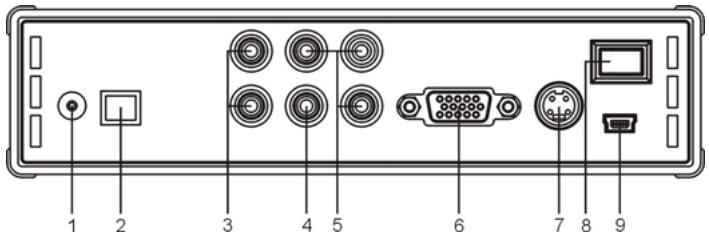
- DC In
- Optical Out
-
Audio Out
-
Video Out
- Component Video Out
-
VGA Out
-
S-VIDEO Out
- On-Off Switch
- USB Jack (For PC Connection)
3. How to connect the Grab'n'GO 3,5" Media Player with Cardreader
3.1 Connecting to your Computer
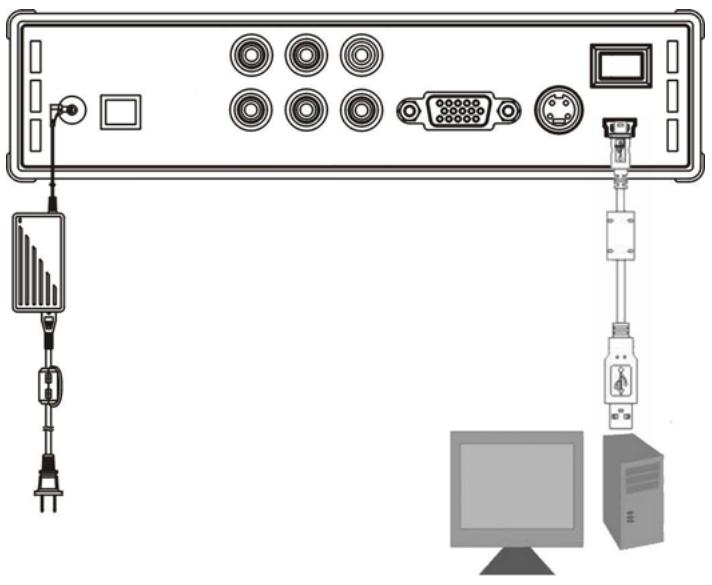
- Turn on your computer.
- Connect the powersupply to the CSM3PL and to the power outlet.
- Connect the USB Cable to the CSM3PL and your computer.
The computer will automatically detect and configure the device, assign new drive letter(s), and then use it as a mass storage device. (Your drive is pre-formatted in FAT32 file system).
You can now add movies,music,photo's,etc.to the CSM3PL.
Disconnect the CSM3PL from your computer
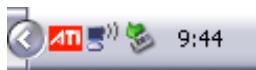
- Single-click the "Safe Removal" icon on the system tray.
- Select "Stop USB Mass Storage Device" when prompted.
- Wait for the message "Safe to remove Hardware".
- Disconnect the USB cable.
1

3.2 Connection to your Television
Connecting the device with a TV (illustrated as follows)
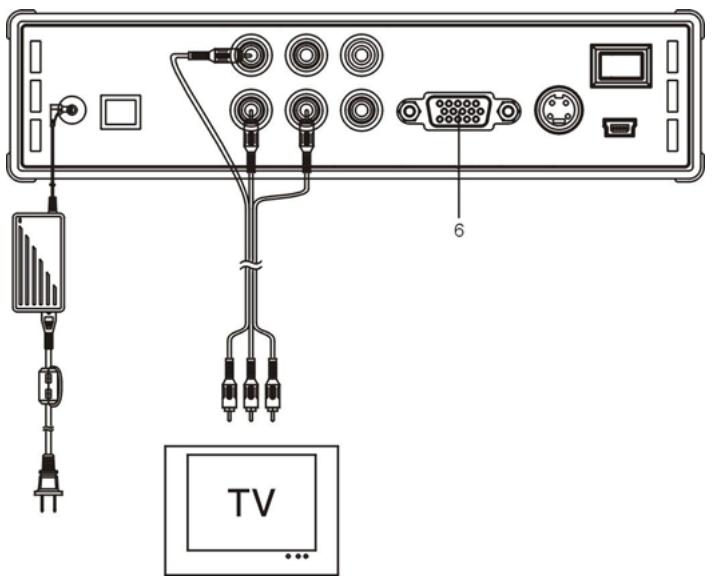
The three RCA connectors (yellow, red, white color) of the AV cable should match with the corresponding input jacks on your TV. If your TV has no Composite input available, use the included SCART to Composite/Audio cable.
You can also use the Component Output of the Media Player to connect to your LCD/Plasma TV (No Cable included). For sound, you can also use the SPDIF Output of the Media player to connect to your Amplifier / Speakerset (Cable included).
NOTE:
The Conceptronic CSM3PL can be used with a television or with a monitor.
When using a TV you can use the S-VIDEO, Composite, Composite to SCART or Component output of the CSM3PL. Please check the manual of your TV to select to correct input channel to display the video output of the CSM3PL. If you have used the CSM3PL in VGA mode, please press the OUTPUT button on your remote control to change the VIDEO output again to your TV.
When using a monitor you have to use a monitor VGA cable and connect it to the VGA OUT (6) connector. Press the OUTPUT button on the remote control (a number of times) until the monitor is switched on automatically (out of Stand-By mode).
To switch between the various modes available (VGA, TV, S-VIDEO,etc.) you need to press the OUTPUT button on the remote control.
4. The Remote Control
The remote control is used to control the unit. On the inside cover of this manual you will find a picture of the remote control. The numbers of the buttons correspond with the table below, to explain each function of the remote control.
| Nr | Button | Description |
| 1 | POWER (◇) | Enter or exit Standby mode. (ON/OFF) |
| 2 | R/L | Select the audio output: right, left and stereo. |
| 3 | SLIDE | Enter Music-slide-show mode or step-play. |
| 4 | SLOW | Play back slowly. |
| 5 | REPEAT | Select a repeat mode. |
| 6 | DELAY | Select slide show (include music-slide-show) interval time. |
| 7 | TRANS | Select a mode of transition or a type of music equalizer. |
| 8 | ▲, ▲, △, ▼ | Move cursor. |
| 9 | AUDIO | Select / Change audio stream (DVD Playback). |
| 10 | MENU | how DEVICE LIST or FILE LIBRARY (if there is only 1 device connected).Return to the DVD Menu (DVD Playback). |
| 11 | PLAY/PAUSE | Start the playback of a file or DVD-Folder, pause a playback. |
| 12 | VOL + / - | Increase / decrease volume level. |
| 13 | PREVIOUS (◇) | Switch to previous file / chapter or page up. |
| 24 | REWIND (◇) | Fast Rewind. |
| 15 | FILE | Show the Directory Structure of the device. |
| 16 | MUSIC | Direct Access button to music. |
| 17 | 0-9 | Music can be played without a display device (TV, monitor) by pre-setting the music folders (explained further in the manual). |
| 18 | OUTPUT | Select the Video Output Signal. |
| 19 | SETUP | Function setup. |
| 20 | PHOTO | Direct Access button to photos. |
| 21 | VIDEO | Direct Access button to videos. |
| 22 | FAST FORWARD (◇) | Fast forward. |
| 23 | NEXT (◇) | Switch to next file / chapter or page down. |
| 24 | STOP (■) | Stop playing. |
| 25 | FUNC | Show file operations menu. |
| 26 | SUB-T | Select / Change movie Subtitle (MPEG4 & DVD Playback). |
| 27 | ENTER (◇) | Confirm selection. |
| 28 | ZOOM | Zoom in / out (Photos & DVD Playback). |
| 29 | ROTATE | Rotate photos. |
| 30 | DISPLAY | Show file information during playback. |
| 31 | A-B | Play a selected interval repeatedly. Press the button once to select the beginning <A> Point; Press the button again to select the ending <B> Point; A-B interval will be repeated; Press the button again to cancel.Only valid for video mode not music mode. |
| 32 | TOP | Go to the top of directory. |
| 33 | P/N | Select video system. (PAL / NTSC) |
| 34 | MUTE | Mute or cancel mute. |
5. Important remarks
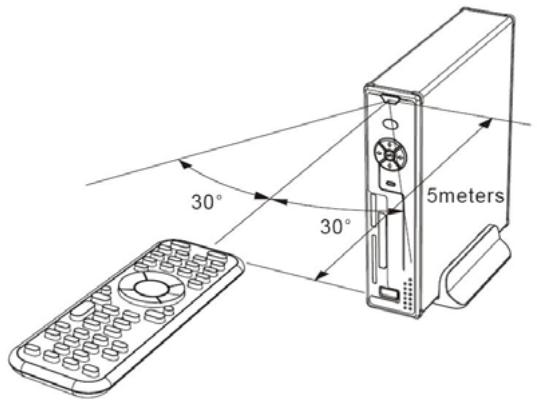
The maximum operational range of the remote control is about 5 meters.
- Point the remote to the receiver on the front panel of the device.
The receiving angle is about ± 30 degrees in the range of 5 meters.
- Change the batteries when they are weak or empty.
5.1 Basic Operation
- Plug the power adapter into a working electrical outlet and connect the other end of the adapter to the device.
- Switch the device on with the power switch on the back of the device. The Power LED will become solid blue. The device is now operational.
When there is no other device connected to the CSM3PL, it will show the FILE LIBRARY with the contents of your Harddisk (If only 1 partition is present).
When an USB Device (like a Harddisk or USB Flashdrive) or Memory Card is connected to the CSM3PL, the screen will show the DEVICE LIST with all found devices. If the connected device contains a large quantity of files, it can take a little while before the device is detected.
Please wait for the DEVICE LIST / FILE LIBRARY screen.
Notices
- Usually, it is not necessary to change your video system (PAL/NTSC), but if the TV only supports NTSC or PAL, you should use the P/N button to select a color system to match your TV system.
- If "AUTO START" is ON (press the SETUP button->SETUP MENU->PREFERENCES->AUTO START->ON), all files on the connected devices will be played automatically; Pressing the / STOP button can stop auto-playing and display a full file list of the selected partition.
- Press one of the / / buttons to move the cursor, and use the / ENTER button to confirm selection (enters media library, enters file folder, or starts playing files).
- Press the / STOP button button to stop playing and go back to FILE LIBRARY.
- Press the MENU button to show the DEVICE LIST or FILE LIBRARY.
- Press the / POWER button to enter/exit standby mode.
- We advise you to disconnect the device from power if the device will not to be used for a long time.
5.2 Detailed Operations
File Library
If there is no external device connected to the CSM3PL (only internal HDD present), the FILE LIBRARY will appear on the TV screen when you press / POWER button to enter working state (illustrated as follows).
If there are multiple devices connected (USB Stick, Memorycard), the DEVICE LIST will appear on the TV screen first when you press / POWER button to enter working mode. Use button to move the cursor, and pressing the / ENTER button will go to the FILE LIBRARY.
NOTICE:
It is possible that it will take a while until you can browse through the menu. Before the menu is displayed your connected device(s) will be indexed. On screen you will see: SEARCHING. This means that all suitable files will be indexed and displayed in your menu.
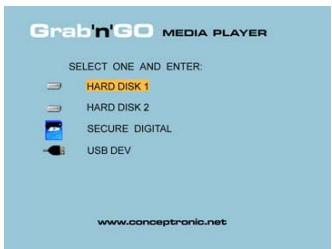
PARTITION LIST
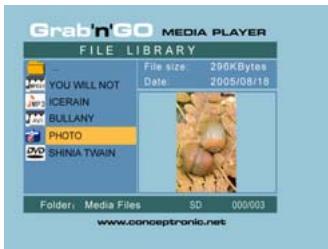
FILE LIBRARY
To change the connected device:
If there are more devices connected to the CSM3PL, you can press the MENU button to go to the DEVICE LIST and select a device by pressing / button and the / ENTER button.
6. Movies, Music and Photo Set-up
There are 3 main functions for the Conceptronic CSM3PL
- Play & watch movies
- Play & listen to Music
Play & watch Photos
6.1 Options how to play & watch a movie
Playing movies
The CSM3PL is supporting various video formats: MPEG2/1, MPEG 4 including (XVID, VOB format) including support for playing MP3, AC3, AAC and MPG1/2 audio tracks within video).
Extra options for playing video
Support for playing MPEG4 video with text subtitles
The Conceptronic CSM3PL can support .SMI, .SRT, .SUB or .SSA subtitle files.
If the subtitle file has the same name as the selected video file (only extension is different) the subtitle file will be loaded automatically when the MPEG4 file is played.
ENGLISH
When the subtitle file has a different name than you need to select the subtitle file, press the SUB-T button on the remote control and then select the MOVIE file to be played. (The two files are associated). Press the / ENTER button to play the movie.
Repeat interval
To play a selected video interval repeatedly, press A/B.
Sound Channels
Press the R/L button on the remote control to play Mono Left, Mono Right or Stereo Sound.
Some MPEG2/VOB files contains two or more audio streams in it, press AUDIO button to cycle through 1-1/8~1-8/8, 2-1/8~2-8/8, 3-1/8~3-8/8 (total 24 audio streams). If a video has no sound when playing, press AUDIO button to locate the proper audio stream.
If you switch MPEG2/VOB file, you can loose the audio if it is on another stream. To prevent this, press the SETUP button during playback to "Lock" the current audio stream. This option will keep the selected audio stream for all files.
Playing back videos
When playing back videos, press the SLIDE button to perform video step-play.
In this mode the Photos will be played continuously. When playing back videos, the / button to play forward fast/ reverse fast, and press ENTER/ button to return to normal speed.
Direct access button to your video folder
You can create 1 video folder, which can be directly accessed by pressing the Video button on the remote control. Create a folder called "VIDEO ***" (Where *** can be changed to whatever you want) on the root of the hard disk and place video files in this folder. When the media player is started and you press the Video button, the media player will automatically open the folder.
NOTE:
If you create more than 1 folder beginning with "VIDEO ***", the device will only open the first folder.
NOTE:
Most Video Codec's are supported on the CSM3PL (Like XviD, AVI, MPEG2, etc.) but it is possible that you have files that require a Codec, which is not included with the CSM3PL.
If you try to playback a file with a not supported Codec, you will see the message "CODEC NOT SUPPORTED".
DVD Playback
The CSM3PL plays DVD's from the hard disk as if they are a normal DVD. You can navigate through the DVD Menu, choose subtitles, change audio languages, etc.
Folder Setup
To play DVD's from your Harddisk, you need to setup the DVD folders on the CSM3PL correctly.
Create a folder on the CSM3PL Harddisk with the name of the DVD (i.e. "My Movie")
Copy the Video_TS Folder from your DVD to the created DVD folder on the CSM3PL Harddisk. After copy is finished, it should look like below:
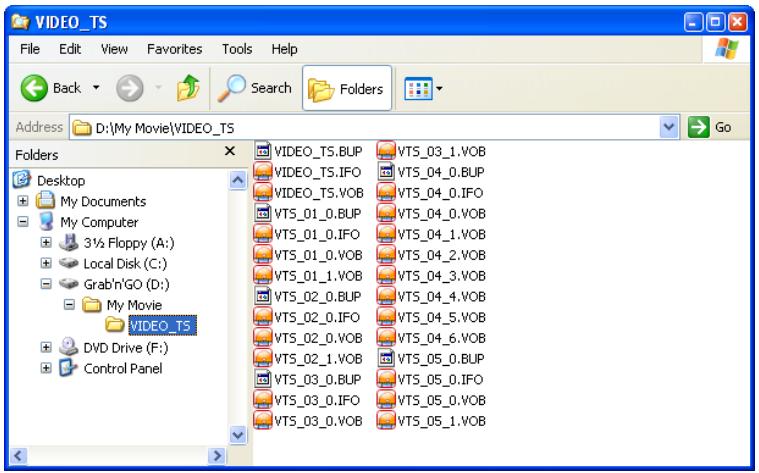
Disconnect the CSM3PL from your computer and connect it to your TV. Turn on the CSM3PL.
Play the DVD
Use the navigation keys on the remote control to select the folder of your DVD in the menu (In the example: My Movie).
Press the PLAY/PAUSE button on the remote control to start the playback of the DVD.
Note: Don't use the / ENTER button in the CSM3PL Menu. This will only show the files/sub folders and does not start DVD Playback.
Use the / / navigation buttons and the / ENTER button to navigate in the DVD Menu. Use the / STOP button to end DVD Playback.
6.2 Options how to play & listen to the music
Playing Music
The Conceptronic CSM3PL has various modes in which you can play music (WAV, MP3 and WMA is supported)
To Play Music files:
Press Menu and select the correct folder to play music files from. The song is displayed and you can select an equalizer setting (by pressing the TRAN S button of your remote control)
If you want to repeat a song you can select:
Random: Play the selected folder in random order
Shuffle: Play the selected folder in shuffled order
Single: Play only this song one time
Folder: Play only the selected folder
REP-one: Repeat the selected song until you stop
Folder repeat: Repeat the selected folder until you stop
ENGLISH
When playing back Music files, press button to adjust the play speed and press the PLAY/PAUSE button to return to normal speed.
Music playback with sub folders
You can play music files including sub folders with the MUSIC button on the remote control. Use the navigation keys on the remote control to select the folder which contains the music you want to play. Press the MUSIC button on the remote control to make a list of all music files in the selected folder and sub folders.
Note: If you press the / ENTER button instead of the MUSIC button, the folder will be opened instead of played including sub folders.
Setting up the folder "MUSICDIR" for quick access
To prepare your CSM3PL to play music automatically you have to create a special folder when you have connected your CSM3PL to your computer.
1) Create the folder "MUSICDIR" on the root of the first partition.
2) Create subFolders named by three digital numbers, for example, "001", "002", "003", etc. (You can create folders upto "999").
3) Copy music files into these folders
To use the predefined musicfolder with a screen connected, follow the next steps when the device is in use:
1) Press the first digit of the folder and wait for the following message in your screen: "AUTO PLAY: MP3 ->
2) Press the other 2 digits of the subfolder you want to play.
It is also possible to play the music from the predefined folders if you screen is off. We advise to use only the folders 000 - 009 for this feature. To play the music from these folders, press the digit of the folder (0 - 9) and press the PLAY/PAUSE button.
The music will start playing automatically.
Note:
The time between entering the first digit and the message on your screen will increase when you have more data on your harddisk.
6.3 Options how to play & watch photos
While playing back photos, you can use the ROTATE button to turn around photos. By default the rotation message of the photos is kept until you turn off the device or switch to standby mode. If you do not want to keep the rotation message, you can disable this function via SETUP MENU ->GENERAL SETUP->ORIENTATION->OFF.
While playing back photos, you can use the TRANS button to change the transition between photos. Default transition mode can be set via SETUP MENU->SLIDESHOW SETUP->TRANSITION.
MODE 01: FULL SCREEN
MODE 02: RANDOM
MODE 03: ROLL: TOP TO BOTTOM
MODE 04: ROLL: BOTTOM TO TOP
MODE 05: ROLL: TOP/Bottom TO CENTER
MODE 06: ROLL: CENTER TO TOP/Bottom
MODE 07: BLIND: TOP TO BOTTOM
MODE 08: ROLL: LEFT TO RIGHT
MODE 09: ROLL: RIGHT TO LEFT
MODE 10: ROLL: LEFT/RIGHT TO CENTER
MODE 11: ROLL: CENTER TO LEFT/RIGHT
MODE 12: ROLL: IMPLODE
MODE 13: BLIND: LEFT TO RIGHT
MODE 14: CROSS FADE
Photo zoom
Press the ZOOM button to enter or exit ZOOM mode or change zoom ratio. When a photo is enlarged, you can use the / buttons to move it.
Music-slide-show (viewing photos with background music)
Select a photo and press SLIDE to start.
When you do not press 'SLIDE' the music is not played and the images will be displayed in a nonmusic slideshow. When there is no music in the folder available the SLIDE functionality does not work. You need to press the / ENTER button to have a slideshow of images without sound.
In SLIDE mode, only photo and music files in the same folder will be played back.
NOTE: In this mode, ROTATE/ZOOM are not accessible.
You can stop viewing the photo by press PLAY/PAUSE button once (music is still playing). Press PLAY/PAUSE again, the music will stop. Press the PLAY/PAUSE button to resume playing.
You can set the interval display time between two photos by pressing the DELAY button. Default interval time is set via SETUP MENU->PREFERENCES->DELAY. Press the TRAN S button to change a transition. Press the REPEAT button to play back photos repeatedly.
Direct access button to your photo folder
You can create 1 Photo folder, which can be directly accessed by pressing the PHOTO-button on the remote control. Create a folder called "PHOTO ***" (Where *** can be changed to whatever you want) on the root of the hard disk and place photo's in this folder.
When the media player is started and you press the PHOTO-button, the media player will automatically open the folder.
NOTE:
If you create more than 1 folder beginning with "PHOTO ***", the device will only open the first folder.
6.4 Operations in file library
- Use button to select a file or folder; / (PREV/NEXT) button to page up/page down. If a photo or a video is selected, its preview and information will be shown on the right hand side of the TV screen. If a music file is selected, music will start playing while showing its information on the right of the screen.
- You can press TOP button to move cursor straight to the top of file list and change to another folder easily.
- Press the / ENTER button to enter full screen mode (if playing music files, MUSIC EQUALIZER screen will appear). Press the / STOP button to escape full screen mode.
- Press REPEAT button to select a repeat mode: RANDOM/SHUFFLE/SINGLE/FOLDER/REPONE/FOLDER REPEAT.
- In STOP state, press the FUNC button to show or close a floating menu of the file operation.
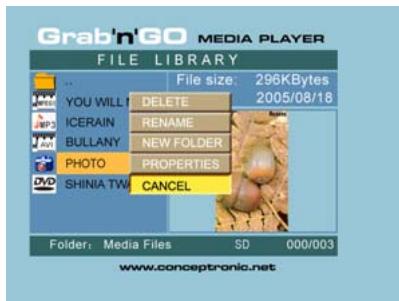
DELETE: directly delete a selected file or folder.
RENAME: rename a selected file or folder.
NEW FOLDER: create a new folder.
PROPERTIES: show/close file information such as size, date, and format.
7. Setup Menu
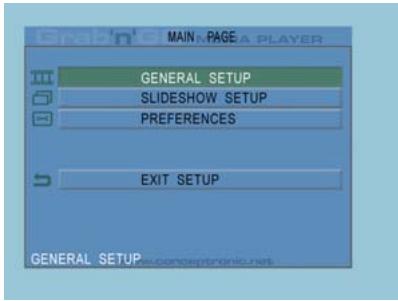
In stop state, press SETUP button to enter SETUP MENU.
Press / button to move cursor, and press the ENTER button to confirm selection, press SETUP button when finished.
7.1 General setup
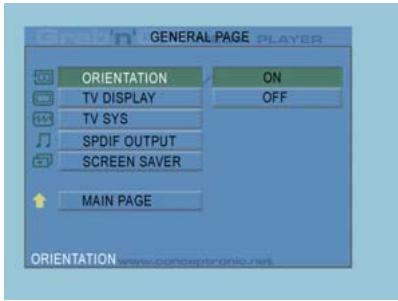
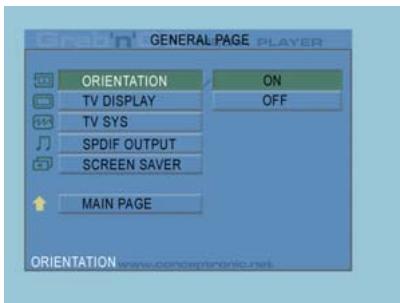
- ORIENTATION: keep rotation information.
Options: ON, OFF
Default: ON
- TV DISPLAY
Options: NORMAL/PS, NORMAL/LB, WIDE
Default: NORMAL/PS
- TV SYS: Select a video system.
Options: MULTI. SYSTEM, NTSC, PAL
Default: MULTI. SYSTEM
- SPDIF OUTPUT
Options: OFF, SPDIF/RAW, SPDIF/PCM
Default: OFF
- SCREEN Saver: start the screen saver;
the screen saver image appears when the unit stops or the image is frozen for a few minutes.
This saver can keep the screen from being damaged.
Options: ON, OFF
Default: ON
7.2 Slideshow setup
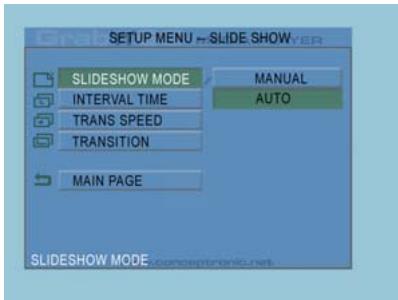
- SLIDESHOW MODE
Options: MANUAL; AUTO
Default: AUTO
- INTERVAL TIME: select the
interval time between two photos.
Options: ONE SECOND, THREE
SECONDS, FIVE SECONDS,
TEN SECONDS
Default: THREE SECONDS
- TRANS SPEED
Options: FAST, SLOW
Default: FAST
TRANSITION
Options: FULL SCREEN, RANDOM, TOP->BOTTOM, BOTTOM->TOP, T/B->CENTER, CENTER->T/B, BLIND: T->B, LEFT->RIGHT, RIGHT->LEFT, L/R->CENTER, CENTER->L/R, IMPLODE, BLIND: L->R, CROSS FADE
Default: RANDOM
7.3 Preferences
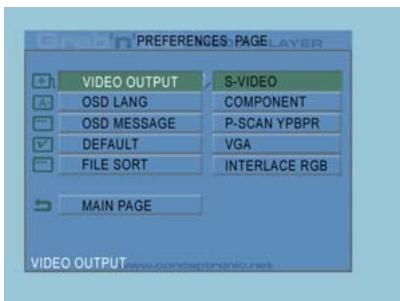
VIDEO OUTPUT: Set video output. Options: S-VIDEO, COMPONENT,P-SCAN YPBPR, VGA and INTERLACE RGB. Default: S-VIDEO.
- OSD LANG: select OSD languages. Options: ENGLISH, FRENCH, GERMAN, ITALIAN, PORTUGESE, SPANISH, DUTCH Default: ENGLISH
- OSDMESSAGE: select OSD message during playing back a file. Options: ON, OFF Default: ON
- DEFAULT: use the manufacturer's default settings.
- AUTO START: Play all media files on all connected devices automatically.
Options: ON; OFF
Default: OFF
- FILE SORT: select file sorts at the current connected device(s).
Options: BY NAME; BY SIZE; BY TIME; BY TYPE
Default: BY NAME
8. Specifications
| Power | : | 100~240VAC, 50/60HZ |
| Power Consumption | : | 11W (typical) |
| Dimensions | : | 177×163×44 (T×B×H mm) |
| Color System | : | PAL/NTSC |
| Frequency Response | : | ±3dB(20HZ~20KHZ) |
| Signal/Noise Ratio | : | ≥80dB |
| Audio Cross talk | : | ≥70dB |
| Audio Output | : | 2,0±0,2V(rms) |
| Video Output | : | 1,0±0,2Vp-p, 75Ω |
| USB Data Transfer Rate | : | USB 2.0, Max. 480Mb/s |
| File Format Supported | : | AVI/MPG/DAT/VOB/WAV/MP3/WMA/JPG |
| Supported File System(s) | : | FAT32. |
Subject to change without prior notice.
9. Tips & Troubleshooting
Use the tips below for troubleshooting when your CSM3PL is not working properly:
The Power LED doesn't light up
- The power supply is not connected to the CSM3PL. Reconnect the power supply to the CSM3PL.
There is no activity on the display.
- The CSM3PL is in standby state. Press the button on the remote control to activate it.
- The Wrong input source on your TV is selected. Change the input source.
- The Wrong video system selected. Press the OUTPUT button on your remote control to switch video system.
- The Video cable is not connected properly. Check if the Video Cable is connected correctly.
There is no sound
- The Audio cable is not connected properly. Make sure the cable is connected correctly to your TV or amplifier.
- The CSM3PL is connected with an amplifier, but the amplifier is turned off. Turn on the amplifier.
- The audio stream of the MPEG2 or VOB file is invalid. Press the AUDIO button on the remote control to adjust to the proper audio stream.
- The Mute function is on. Press the MUTE button on the remote control again to cancel mute.
- The CSM3PL is functioning in FF/FR mode. Press the PLAY/PAUSE button on the remote control to return to normal playback.
The display is distorted
- The CSM3PL is functioning in FF/FR mode. Press the PLAY/PAUSE button on the remote control to return to normal playback.
- A PAL movie is played at NTSC mode or vice versa. Press the P/N button on the remote to change the display settings.
When pressing the SLIDE button, the system freezes.
- There are too many photos or music in the current folder. It will take a long time to start Music-Slide-Show. Please wait for playback.
The Remote control doesn't work
- Point the remote control to the CSM3PL receiver in about ± 30 degrees and directly.
- Use the remote control in the range of 5 meters.
- The remote control battery should be replaced.
The subtitles of the played movie are not displayed
- An AVI file is played, but the subtitle file contains a different filename. See chapter 6.1 how to display the subtitles.
When trying to play video, the message "CODEC NOT SUPPORTED" is displayed.
- The movie file is created with a not-supported codec for the CSM3PL.
Refer to the website, www.conceptronic.net for a list of supported codecs for the CSM3PL.
The CSM3PL does not display all HDD partitions / content.
- The partition on the HDD is not primary. Re-partition the HDD again and make sure all partitions are set to primary.
- The partition is not FAT32 formatted. Re-format the partition with FAT32 Filesystem.
- There are no mediafiles on the selected partition.
Which Memory Cards are supported by the CSM3PL?
- The CSM3PL reads all major Memory Card families, like:
Memorystick (MS), Secure Digital (SD), Multimedia Card (MMC), Smart Media Card (SM), Compact Flash (CF), Microdrive (MD).
Refer to the website, www.conceptronic.net for a list of supported Memory Cards for the CSM3PL.
The DVD playback does not start when the Play/Pause button is pressed.
- Make sure you use the correct folder structure. The folder structure is described in chapter 6.1.
- The DVD Files are incomplete, corrupt or damaged. When this happens, the CSM3PL does not start DVD playback.
During the intro-movies of the DVD, the screen goes blank.
- The current chapter ends with a blank screen or is too short to playback. Press / NEXT to switch to the next chapter.
My TV shows a black/white picture instead of colour.
- Your TV cannot handle the "Multi" TV-System of the CSM3PL. Use the Setup menu to change the TV System to PAL. (See chapter 7.1).
After changing the TV System, turn off and on the CSM3PL.
CSM3PL de Conceptronic
Guía de instalación
Memorystick (MS), Secure Digital (SD), Multimedia Card (MMC), Smart Media Card (SM), Compact Flash (CF), Microdrive (MD).
2. Functionalities of the Grab'n'GO 3,5" Media Player with Cardreader
7.1 Configuration générale (General setup)
- ORIENTATION: content l'information de rotation.
Options:ON,OFF
Options : NORMAL/PS, NORMAL/LB, LARGE
Options: OFF, SPDIF/RAW, SPDIF/PCM
Par défaut : OFF
- TV DISPLAY (ECRA DE TV)
Opçoes: NORMAL/PS, NORMAL/LB, WIDE (ALARGADO)
Opçoes: MULTI. SYSTEM, NTSC, PAL
Predefinicao: MULTI. SYSTEM
SAIDA SPDIF
Opçoes: OFF, SPDIF/RAW, SPDIF/PCM
Predefinição: OFF
- SLIDESHOW MODE (DIAVETITÉSES MÔD)
Seçenekler: NORMAL/PS, NORMAL/LB, WIDE (GENİŞ)
Varsaylan: NORMAL/PS
- TV SYS: Video sistemi secer.
Seçenekler: MULTI. SYSTEM, NTSC, PAL
Varsaylan: MULTI. SYSTEM
- SPDIF OUTPUT (SPDIF CIKISI)
Secenekler: OFF, SPDIF/RAW, SPDIF/PCM
Varsaylan: OFF (KAPALI)
- SCREEN Saver: Ekran koruyucuyu baslatir;
Varsaynlan: ON (AÇİK)
Memorystick (MS), Secure Digital (SD), Multimedia Card (MMC), Smart Media Card (SM), Compact Flash (CF), Microdrive (MD).