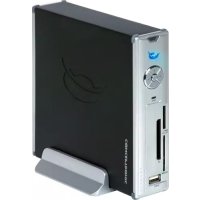
CM3PVRL - Media player CONCEPTRONIC - Free user manual and instructions
Find the device manual for free CM3PVRL CONCEPTRONIC in PDF.


| Brand | Conceptronic |
| Model | CM3PVRL |
| Product Type | Media Player |
| Dimensions (W x D x H) | approx. 120 x 100 x 30 mm |
| Weight | approx. 200 g |
| Power Supply | 5V DC via USB or external adapter |
| Power Consumption | approx. 5 W |
| Storage | Internal flash memory; expandable via USB or SD card |
| Supported Video Formats | MPEG-1/2/4, DivX, Xvid, H.264, AVI, MKV |
| Supported Audio Formats | MP3, WMA, WAV, AAC, OGG |
| Supported Image Formats | JPEG, BMP, PNG, GIF |
| Connectivity | USB 2.0 Host, SD card slot, HDMI output, AV output, Ethernet, Wi-Fi (optional) |
| Output Resolution | up to 1080p |
| File System Support | FAT32, NTFS |
| Remote Control | IR remote included |
| Languages Supported | English, French, German, Spanish, etc. |
| Firmware Update | Via USB or network |
| Accessories Included | Remote control, power adapter, HDMI cable, user manual |
| Cleaning & Maintenance | Wipe with a soft dry cloth; do not use liquids |
| Safety Warnings | Keep away from liquids and heat sources; do not disassemble |
| Spare Parts & Repairability | Remote control and power adapter available as spares; not user-serviceable |
Frequently Asked Questions - CM3PVRL CONCEPTRONIC
User questions about CM3PVRL CONCEPTRONIC
0 question about this device. Answer the ones you know or ask your own.
Ask a new question about this device
Download the instructions for your Media player in PDF format for free! Find your manual CM3PVRL - CONCEPTRONIC and take your electronic device back in hand. On this page are published all the documents necessary for the use of your device. CM3PVRL by CONCEPTRONIC.
USER MANUAL CM3PVRL CONCEPTRONIC
Conceptronic CM3PVRL
Benutzerhandbuch
natural_image
Diagram showing a multi-pin cable connector connected to a TV screen (no text or symbols on components)natural_image
Diagram showing a cable connector with three red and yellow connectors connected to a black rectangular block, alongside a TV screen (no text or symbols on components)natural_image
Diagram showing a cable connector connected to a TV screen, with no visible text or symbols on the components.natural_image
Diagram showing connections between a device with three red and yellow connectors, connected to TV (no text or symbols present)natural_image
Diagram showing a connector with four pins and a group of stylized human figures below (no text or symbols)natural_image
Diagram showing connections between a CD, an audio jack, and three connected audio/video cables (no text or labels)natural_image
Pure electrical circuit lines without any symbols“MMDDhhmm.AVI” (MM = Monat, DD = Tag, hh = Stunde, mm = Minuten)
text_image
My Computer File Edit View Favorites Tools Help Back Search Folders Address My Computer System Tasks View system information Add or remove programs Change a setting Other Places My Network Places My Documents Shared Documents Control Panel Details My Computer System Folder Files Stored on This Computer Shared Documents Hard Disk Drives Windows XP (C:) CMSPVR_HDD (D:) Devices with Removable Storage 3½ Floppy (A:) DVD-RAM Drive (F:)Conceptronic CM3PVRL
User Manual
Congratulations on the purchase of your Conceptronic Media Recorder & Player.
This User Manual gives you a step-by-step explanation how to install and use the Conceptronic Media Recorder & Player.
When problems occur, we advise you to go to our support-site (go to www.conceptronic.net and click 'Support'. Here you will find the Frequently Asked Questions Database.
When you have other questions about your product and you cannot find it at our website, contact us by e-mail: support@concepttronic.net
For more information about Conceptronic products, please visit the Conceptronic Web Site: www.conceptronic.net
Tip : The Conceptronic CM3PVRL is firmware upgradable. To upgrade your unit with the latest firmware version, you can visit the Conceptronic Web Site.
Tip : Please check www.conceptronic.net for the latest codec list of supported files.
1. Package Contents
The following items should be present in the package of the Conceptronic Media Recorder & Player:
- Conceptronic CM3PVRL Media Recorder & Player (described as 'unit' in the manual).
• Product Stand for CM3PVRL.
• Power Supply (12v, 2.5A) with power cord. - Remote Control.
• 2 AAA batteries for remote control. - Composite Video Cable (Red, White, Yellow RCA Jacks).
- S-Video Cable.
- Component Video Cable (Red, Green, Blue RCA Jacks).
• Coaxial Digital Audio Cable (Black RCA Jacks). - SCART Adapter for Composite Video Cable / S-Video Cable.
- USB Cable.
- This User Manual.
2. Product Features
- AV signal recording from e.g. a VCR, DVD or Video Camera.
- Internal Cardreader with SD (HC), MMC and MS support.
- Record to internal HDD, Memory Card or USB Device.
- DVD quality of recorded files in MPEG4 (AVI) format (can be played on PC or other media player).
- Record Options: One-key instant record, Timer record, Time-shift.
■ Playback of MPEG1/2/4, MP3, WMA, JPG files stored in internal HDD, Memory Card or USB Device. - Files copy from Memory Card or USB Device to internal HDD.
■ Auto switch between PC and Player Mode: - When connected to the PC, the unit acts as an USB Storage Device or Cardreader.
- When not connected to the PC, the unit acts as a Media Recorder & Player.
3. Notes & Cautions
- Do not attempt to disassemble the included power adapter. This may cause high-voltage injuries. If the adapter needs to be fixed, please contact your dealer or the helpdesk of Conceptronic.
- Keep the unit away from excessive moisture.
- Do not immerse or expose the unit to liquids.
- Disconnect the power adapter if you do not intend to use the unit for an extended period of time.
- Avoid using the unit in a location near combustibles.
- Change the battery of the remote control with the same kind when it is weak or dead. Recycle old batteries where possible. To avoid corrosion, remove the battery when the remote will not be used for a long time.
- Keep the remote away from excessive moisture; do not drop it.
- Do not operate the remote under intense sunlight.
- NEVER drop, shake or bump the unit.
- To prevent overheating, do not cover the unit.
• The unit only supports the FAT / FAT32 File system (NTFS is not supported).
IMPORTANT: When you format the Hard disk to NTFS, it only functions as removable Harddisk for your computer. Reformat the Harddisk to FAT32 through the menu of the unit to re-activate the Media Recorder & Player functionalities.
Note: The data on the internal Harddisk and/or the connected device(s) can be fragmented. This can affect the playback of movies. It is recommended that you defragment the Harddisk and/or the connected device(s) on your computer once in a while.
4. Product Overview
Front View
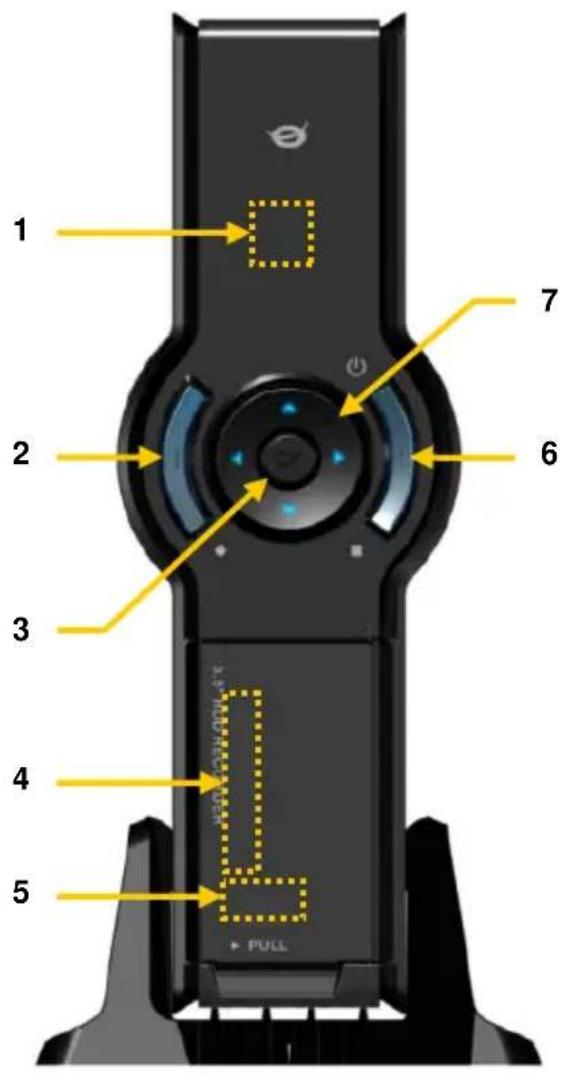
text_image
1 2 3 4 5 7 6 PULLRear view
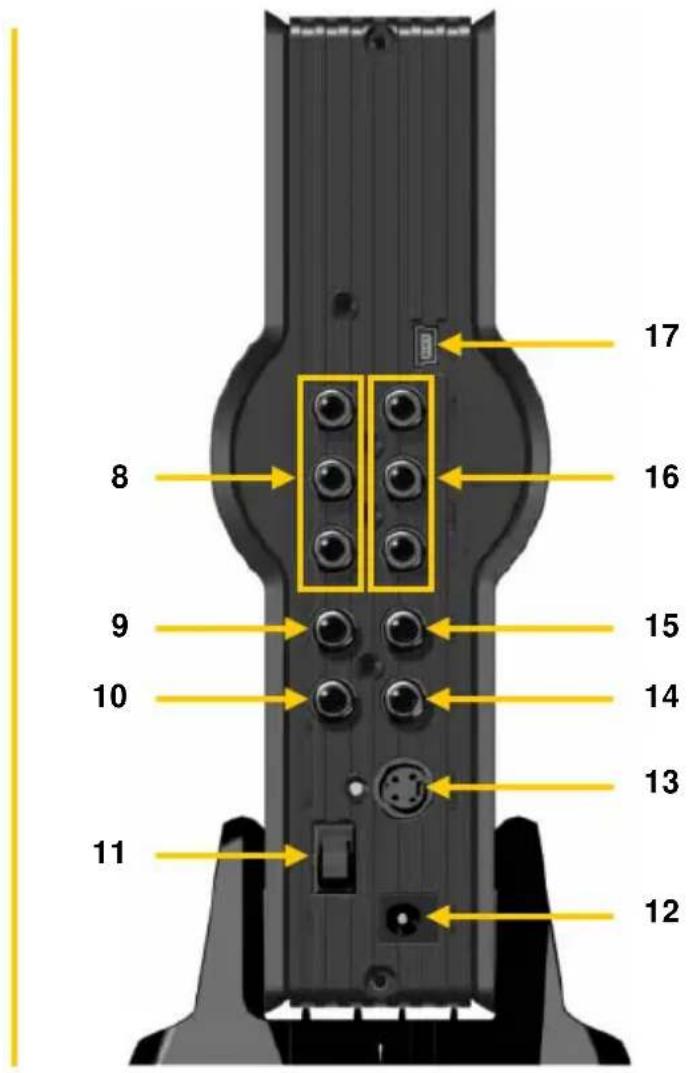
text_image
17 16 8 9 15 10 14 13 11 12Description of the numbers:
- Infrared Receiver
- Record Button
- OK / Enter Button
- MMC/MS/SD Card Slot
- USB Host Port
- Power (3sec) / Stop Button
- Navigation Buttons
- A/V Input (Composite Video/Audio)
-
Component (Y) Output
-
Component (Pb) Output
- Main Power Switch
- DC Input (12V, 2.5A)
- S-Video Output
- Component (Pr) Output
- Digital Coaxial Output
- A/V Output (Composite Video/Audio)
- Mini-USB Jack (To PC)
Note: The buttons have the same functions as the basic remote control functions.
5. Remote Control Explanation
The remote control is used to control the unit. On the inside cover of this manual you will find a picture of the remote control. The numbers of the buttons correspond with the table below, to explain each function of the remote control.
| Nr | Button | Description |
| 1. | POWER | ( ) Turn the unit on or to standby mode |
| 2. | INFO | |
| 3. | SOURCE | Switch between AV & Playback |
| 4. | AUDIO | Change the DVD Audio track |
| 5. | TITLE | Return to the DVD Title screen |
| 6. | 0-9 | |
| 7. | +10 | + 10 Channels |
| 8. | EPG < No Function > | |
| 9. | FAVORITE < No Function > | |
| 10. | COPY | Display the Copy Menu |
| 11. | REPEAT | Change the Playback Repeat Mode |
| 12. | VOLUME ▲ | Volume Up |
| 13. | VOLUME ▼ | Volume Down |
| 14. | RETURN | |
| 15. | ◀, ▶, ▲, ▼ | |
| 16. | REC | |
| 17. | PLAY / PAUSE | |
| 18. | REWIND ( ◀) | |
| 19. | PREVIOUS ( ◀◀) | |
| 20. | OUTPUT | |
| 21. | SETUP | |
| 22. | NEXT ( ▶◀) | |
| 23. | FAST FORWARD ( ▶◀) | |
| 24. | STOP | |
| 25. | TIMER | |
| 26. | ENTER | |
| 27. | STORAGE | |
| 28. | CHANNEL ▼ | |
| 29. | CHANNEL ▲ | |
| 30. | MUTE | |
| 31. | QUALITY | |
| 32. | CLEAR | |
| 33. | SELECT | |
| 34. | EDIT | File Edit Menu |
| 35. | 100 | |
| 36. | ANGLE | |
| 37. | SUB-T | |
| 38. | DTV - INFO | |
| 39. | DTV - T / R | |
| 40. | MENU | |
| 41. | LED | |
6. Connecting your CM3PVRL
Connecting the Video Cable(s)
You can connect the unit in 4 different ways to your TV:
- Composite
- SCART (by using the Composite cable & Scart Adapter)
- S-Video **
- Component **
** When using S-Video or Component, only the video signal is send to your TV.
For the audio signal, use the Audio RCA Jacks on the Composite cable (Red, White), or the Coaxial SPDIF cable.
Composite:
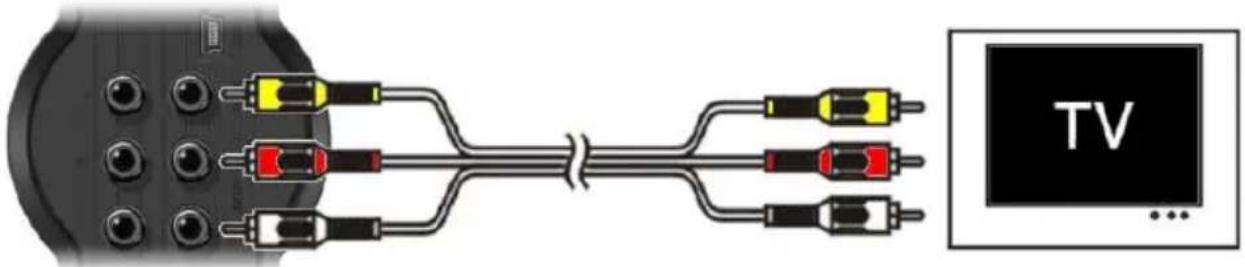
text_image
TV ...- Connect the Composite cable (Yellow, Red, and White) to the corresponding AV Output jacks on the unit.
- Connect the other side of the Composite cable (Yellow, Red, and White) to your TV.
SCART:
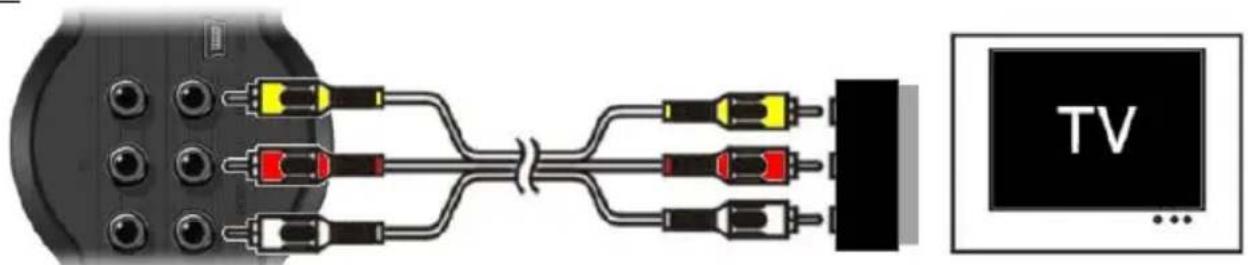
text_image
TV- Connect the Composite cable (Yellow, Red, and White) to the corresponding AV output jacks on the unit.
- Connect the other side of the Composite cable (Yellow, Red, and White) to the jacks on the SCART Adapter.
- Set the switch of the SCART Adapter to "Input".
- Connect the SCART Adapter to the SCART Input of your TV.
ENGLISH
S-Video:

natural_image
Diagram showing a cable connector connected to a TV screen, with no visible text or symbols on the components.- Connect the S-Video cable to the S-Video jack of the unit.
- Connect the other end of the S-Video cable to the S-Video Input on your TV.
Component:

text_image
TV ...- Connect the Component Cable (Red, Green, and Blue) to the Component Jacks on the unit.
- Connect the other end of the Component cable to the Component Jacks on your TV.
Connecting the Audio Cable(s)
You can connect the unit to your TV and/or your home cinema system in 2 different ways:
- Analog, through the RCA Audio Jacks of the A/V Output
- Digital, Through the Coaxial Digital SPDIF Output
Analog:
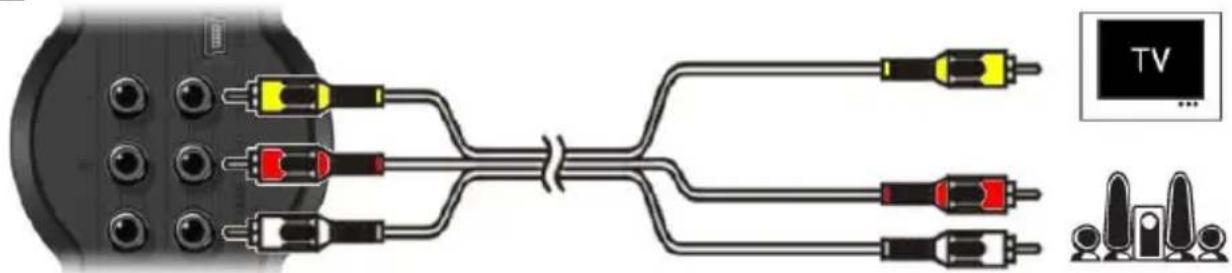
natural_image
Diagram showing connections between a black cable and three red audio/video cables, with an inset screen labeled 'TV' (no text or symbols on the cables themselves)- Connect the Audio Jacks (Red, White) of the Composite cable to the RCA Audio Jacks of the A/V Output.
- Connect the other end of the Composite cable to the RCA Audio Jacks of your TV or Receiver.
ENGLISH
Digital:

natural_image
Diagram showing a connector with four pins connected to a multi-pin device, accompanied by a group of stylized human figures (no text or symbols present)- Connect the Digital Coaxial cable to the Digital Coaxial Output of the unit.
- Connect the other end of the Digital Coaxial cable to the Digital Coaxial Input of your Receiver.
Connecting other Audio/Video Equipment
You can connect an Audio/Video source, like a VCR, DVD Player or Set-Top Box to the unit so you can record from the Audio/Video source.

natural_image
Diagram showing connections between a CD and a connector with three resistors (no text or symbols present)- Connect the Audio/Video cable delivered with your Audio/Video device to the corresponding AV Output jacks on the Audio/Video device.
- Connect the other side of the Composite cable (Yellow, Red, and White) to the AV Input jacks of the unit.
Connecting the Power Cable
When the unit is connected to your Audio/Video equipment, you can connect the power supply to the unit.

natural_image
Pure electrical circuit lines without any symbols- Connect the included power supply to the unit and to a free wall socket.
- Set the main power switch on the back of the unit to 'I' to power the unit.
The unit will now turn on.
When the unit is powered and operational, the Navigation Buttons (7), The Record Button (2) and the Power Button (6) will burn Blue.
When the unit is powered and in standby, the Navigation Buttons (7) will burn Red. The Record Button (2) and Power Button (6) will not burn.
ENGLISH
Preparing the Remote Control
- Remove the battery cap from the back of the remote control
- Insert the included AAA batteries in the remote control.
- Replace the battery cap on the back of the remote control.
Notes:
- The best operational range of the remote control is about 5 meters.
- Point the remote control to the IR receiver which is embedded in the front panel of the unit.
- The receiving angle of the IR receiver is ±30 degrees.
- Change the batteries when they are weak or empty.
7. First-Time Configuration
The unit needs to be configured when you turn it on the first time.
- Select the correct input channel on your TV where the unit is connected to. (Composite, SCART, S-Video or Component).
Note: From this point, the manual is based on the fact that your TV is set to the input channel of the unit. All steps described are related to the operation of the unit.
- Check if the main power switch on the back of the unit is set to 'I'.
- Turn on the unit with the power button on the front of the unit, or with the 'Power' button (1) on the remote control.
The unit will turn on and display the menu on your screen.
Note: The unit needs to initialize the Harddisk when it is turned on. This can take a little while. During initializing, the message "Please Wait..." is shown on your screen.
Note: The default output signal is Composite. If you are using another output for the unit, it is possible that your screen does not show the menu. Press the 'Output' button (20) on the remote control to switch the output signal of the unit.
Note: When using the unit for the first time, the internal Harddisk must be formatted. Select 'Yes' to format the internal Harddisk. After the format is complete, the unit can be configured and used. When formatting the internal Harddisk, all data on the Harddisk will be erased!

The following options are available in the Main Menu:
[1] - Filme (Movies) Playback of stored records and movies.
[2] - Musik (Music) Playback of stored music.
[3] - Fotos (Photos) Playback of stored photos.
[4] - AV Eingang (AV Input) View the Audio/Video Channel.
[5] - Aufnahme (Rec Schedule) Configure scheduled records.
[6] - Einstellungen (Setup) Configure the unit.
ENGLISH
Select the 'Setup' [6] option in the main menu, or press the 'Setup' button (21) to begin the configuration of the unit. When the Setup menu appears on your screen, you can select the following options:
- System *
(Basic Configuration) - A/V Set *
(Basic Configuration) - Tools
- Adv. A/V
Note: The Setup items marked with a * must be configured before the unit can be used properly.
Basic Configuration
These steps help you to configure the basic settings which are needed for a correct working unit.
- Select the option 'System' in the Setup Menu.
- Set the 'TV System' to the TV System used by your TV. You can choose between PAL and NTSC.
- Set the ‘Sys Language’ to the language of your choice. You can choose between ENGLISH, DUTCH, SPANISH, ITALIAN, FRENCH, PORTUGUES and GERMAN.
-
Set the 'Time Format' to the time format of your choice. You can choose between D_M_Y_12 (12hour notation with AM/PM) and D_M_Y_24 (24hour notation).
-
Set the Date to the current date.
-
Set the Time to the current time.
-
Select the option 'A/V Set' in the Setup Menu.
- Set the ‘Video Output’ to the output which is used to connect the unit to the TV.
- Set the ‘TV Type’ to the correct aspect ratio of your TV. You can choose between ‘4:3 PS’ (Pan & Scan), ‘4:3 LB’ (Letterbox) or ’16:9’ (Widescreen).
8. Watching Live-A/V
AV Input (Audio/Video Input)
The unit has a Composite Audio/Video-Input on the backside. This Composite Audio/Video Input can be used to connect your VCR, Set-Top Box, Video Camera or other video equipment to the unit.
You can see the Live Audio/Video Input signal by selecting the option 'A/V Input' in the Main Menu.
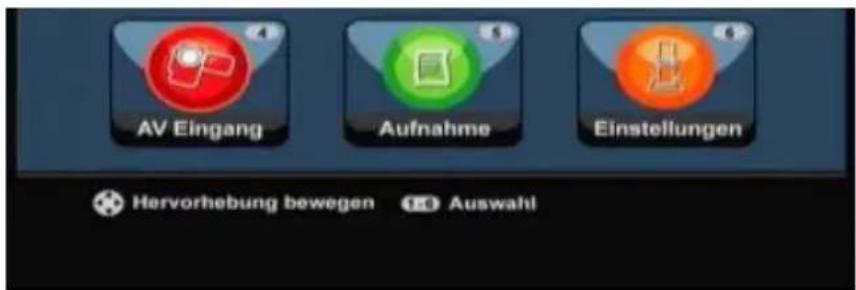
The unit supports Timeshifting. The Timeshift feature ‘pauses’ Live Audio/Video by recording the current channel/input when Timeshift is activated.
When the Timeshift feature is initialized, the unit will create a buffer of maximum 55 minutes for the Timeshift feature.
Note: You need at least 2,5GB of free space on the HDD to use the Timeshift feature.
Press the 'Play/Pause' button (17) on the remote control to initialize the Timeshift feature.
When the Timeshift feature is initialized, the Live A/V will be ‘paused’ and the unit will record the channel on the background.
During Timeshift, the screen will display the Timeshift information bar on your screen. You can hide this bar by pressing the 'Info' button (2) on the remote control.

text_image
13:05:45 13:05:45 14:01:59Press the 'Play/Pause' button (17) on the remote control again to resume playback from the point where Timeshift was activated.
Press the 'Fast Forward' (23) or 'Rewind' (18) buttons on the remote control to play through the Timeshift buffer in higher speeds.
Note: During pause, fast forward or rewind, the Timeshift feature is still active and continues to record.
Press the 'Stop' button (24) on the remote control to deactivate the Timeshift feature and resume normal Live Playback. The Timeshift record will be stopped and the Timeshift buffer will be cleared.
Note: It is not possible to save the Timeshift buffer for later usage.
9. Recording
Before Recording
Before you start recording with your unit, you can set the record quality. The unit has 3 preset quality settings, which can be selected with the 'Quality' button (31) on the remote control.
Note: The unit detects copy protection on the connected source, for example MacroVision protection on DVD discs. When a connected source is copy-protected, the unit will prevent recording and shows a warning message when the record button is pressed.
One-Touch-Recording
While watching Live A/V through the unit, you can start a record of the current channel by pressing the 'Rec' button (16) on the remote control. The unit starts recording, until you press the 'Stop' button (24) on the remote control, or until the maximum record time of 6 hours is reached.

text_image
OTRWhen you press the ‘Rec’ button (16) during a record, the record time will be set to 30 minutes, starting at the time you pressed the ‘Rec’ Button.
The message ‘OTR+30’ will be shown on your screen.

text_image
QTR+30Press the 'Rec' button (16) again to increase the time with another 30 minutes, up to a maximum of 360 minutes.
The unit keeps recording until the record time is elapsed, or until you press the 'Stop' button (24) on the remote control.
The recording is stored with a name based upon the record date and time, with the following name:
“MMDDhhmm.AVI” (MM = Month, DD = Day, hh = Hour, mm = Minutes)
ENGLISH
Scheduled Recording
You can program the unit to record channels on specific times. You can program up to 8 scheduled recordings in the unit.
- Select the option 'Rec Schedule' in the Main Menu, or press the 'Timer' button (25) on the remote control.
The Scheduled Recording screen will be shown on your TV.

By default, the first schedule is selected, and the 'Source' is highlighted.
- Select the schedule number you want to program and press the 'Enter' button (26) on the remote control to start programming the selected schedule.
- Select the Source of your scheduled recording. Press the 'Enter' button (26) on the remote control to continue.
- Select the record mode: Once, Daily or Weekly. If you have selected 'Once', press the 'Right' Navigation Button (15) to select the Month and Day for the record. If you have selected 'Weekly', press the 'Right' Navigation button (15) to select the Day for the record. Press the 'Enter' button (26) on the remote control to continue.
- Set the start time for the recording. Press the 'Enter' button (26) on the remote control to continue.
- Set the end time for the recording.
- Set the Target for the recording: 'HDD', 'USB' or 'Card'. Press the 'Enter' button (26) on the remote control to continue.
ENGLISH
Note: When recording to USB or Memory Card, make sure you have a High-speed device attached. (An USB2.0 Device or High-Speed Memory Card)
- Set the quality for the recording: 'HQ', 'SP' or 'LP'. Press the 'Enter' button (26) on the remote control to continue.
Note: Recording in ‘HQ’, ‘SP’ or ‘LP’ influences the quality of your record and the amount of space needed for the record.
For example, if you unit is equipped with a 500GB HDD, the record time will be:
HQ: 228 hours and 35 minutes. (app. 2190MB for 1 hour)
SP: 437 hours and 46 minutes. (app. 1140MB for 1 hour)
LP: 656 hours and 45 minutes. (app. 760MB for 1 hour)
The recording is now programmed as a scheduled recording and the unit will start recording on the programmed time and channel.
When the unit is programmed with scheduled recordings, you can put the unit into Standby. The internal clock will turn on the unit 3 minutes before the scheduled recording starts and selects the correct channel 1 minute before the recording starts.
The recording is stored with a name based upon the record date and time, with the following name:
“MMDDhhmm.AVI” (MM = Month, DD = Day, hh = Hour, mm = Minutes)
When the recording is completed, the unit will if standby must be activated. When there is no action taken, the unit will automatically return to standby mode after 15 seconds.
10. Playback
Select your preferred playback mode from the Main Menu.
You can select the following options:
[1] - Movies Play your records and other movies stored on the unit or USB Drive / Media Card.
[2] - Music Play music files stored on the unit or USB Drive / Media Card.
[3] - Photos Display photos stored on the unit or USB Drive / Media Card.

text_image
Menu Film Musik Fotos Grab'n'GO®When one of the above options is selected, the file browser will be shown on your screen. The file browser will only show the files corresponding with the selected option on your screen.
For example: If you select 'Movies' [1], only movie files will be shown on your screen.
Tip : When you are in ‘Movies’ [1], ‘Music’ [2] or ‘Photos’ [3] mode, you can easily switch between these options through the upper bar in the media browser.
Use the navigation keys (15 __) to go to the upper bar and change the mode.

text_image
Filme Musik FotosIn the file browser menu, you can use the following browser options on the remote control:
- Storage (27) Change between HDD Mode, USB Mode and Card Mode.
- Navigation keys (15) Navigate through the files and folders.
- Enter (26) Play the selected file or open the selected folder.
- Edit (34) Edit files. (Play Mode, Rename, Delete, Copy).
- Copy (10) Copy the selected file to another location.
- Play/Pause (17) Play the selected file.
- Next (22) Go to the next page with files.
- Previous (19) Go to the previous page with files.
You can return from the file browser menu to the Main Menu by pressing the 'Menu' button (40) on the remote control.
ENGLISH
Playback of your recordings & other movies
You can play the recorded programs and other movies, stored on the HDD of the unit, on your TV through the ‘Movies’ option of the unit.
- Press the 'Menu' button (40) on the remote control to return to the Main Menu.
- Select the ‘Movies’ [1] icon in the Main Menu with the ‘Navigation’ buttons (15) on the remote control, and press the ‘Enter’ button (26) on the remote control to open the ‘Movies’ Mode.
The file browser of the unit will be shown on your screen, with the 'Records' folder on the HDD selected by default.

text_image
Filme Musik Fotos C:/ RECORDS/ C:/ 001 01161412.AVI 01/16 14:12 002 01161617.AVI 01/16 16:17 003 01171314.AVI 01/17 13:14 004 01240850.AVI 01/24 08:50 005 01240947.AVI 01/24 09:47 006 01241044.AVI 01/24 10:44 007 01241140.AVI 01/24 11:40The unit will only show the movie files which are available on your unit. Other files will not be shown.
Tip : When you are in ‘Movies’ [1], ‘Music’ [2] or ‘Photos’ [3] mode, you can easily switch between these options through the upper bar in the media browser.
Use the navigation keys (15 __) to go to the upper bar and change the mode.
- Select the file you would like to play with the navigation buttons on the remote control.
- Press the 'Enter' button (26) or the 'Play/Pause' button (17) on the remote control to start the playback of the selected file.
During playback, you can use the following playback options on the remote control:
- Play/Pause (17) Play the selected file or pause the playback.
- Stop (24) Stop the playback.
- Rewind (18) Rewind the playback.
- Fast Forward (23) Fast Forward the playback.
- Previous (19) Play the previous file in the current folder.
- Next (22) Play the next file in the current folder.
- Repeat (11) Change the Repeat option of the current file/folder.
- Info (2) Display the playback details.
You can return from the file browser menu to the Main Menu by pressing the 'Menu' button (40) on the remote control.
ENGLISH
Playback of subtitles
The CM3PVRL can play subtitle files when playing AVI videofiles.
To play AVI files with subtitles, you need to assign the same name to the subtitle file as the AVI file, for example:
Movie name: My_Movie_With_Sub.AVI
Subtitle name: My_Movie_With_Sub.SRT
- Press the 'Menu' button (40) on the remote control to return to the Main Menu.
- Select the ‘Movies’ [1] icon in the Main Menu with the ‘Navigation’ buttons (15) on the remote control, and press the ‘Enter’ button (26) on the remote control to open the ‘Movies’ Mode.
- Select the file you would like to play with the navigation buttons on the remote control.
- Press the 'Enter' button (26) or the 'Play/Pause' button (17) on the remote control to start the playback of the selected file.
The AVI file will start playing with the corresponding subtitle file loaded.
To disable/enable subtitles during playback, press the 'Sub-t' button (37) on the remote control.
Tip: The subtitle files are also listed in the browser menu when 'Movies' is selected from the main menu, so you can also copy subtitles to other locations.
DVD Playback functionality
The CM3PVRL plays DVD's from the hard disk as if they are a normal DVD. You can navigate through the DVD Menu, choose subtitles or change audio languages.
Note: The CM3PVRL only supports the playback of unprotected DVD copies. CSS protection is not supported by the CM3PVRL.
Note: The CM3PVRL only supports Region 2 or Regionfree DVD copies.
- Connect the CM3PVRL to your computer. See the chapter "Computer connectivity".
- Create a folder on the CM3PVRL hard disk in the 'VIDEO' folder with the name of your DVD movie (for example: 'Movie1').
- Copy the 'AUDIO_TS' and 'VIDEO_TS' (including content) from your DVD to the created folder (for example: 'Movie1') on the CM3PVRL.
After copying, the structure should be:
- VIDEO
| -> Movie1
| -> AUDIO_TS (optional, not available for every DVD)
| -> VIDEO_TS (with all the DVD files inside)
- Disconnect the CM3PVRL from your computer and connect it to your TV. Turn on the CM3PVRL.
ENGLISH
- Select the ‘Movies’ [1] icon in the Main Menu with the ‘Navigation’ buttons (15) on the remote control, and press the ‘Enter’ button (26) on the remote control to open the ‘Movies’ Mode.
- Use the ‘Navigation’ buttons (15) and the ‘Enter’ button (26) on the remote control to navigate to the ‘VIDEO’ folder on the internal hard disk.
The DVD folder(in the example: 'Movie1') will be shown in the file browser, indicated with a DVD Disc icon.
- Select the DVD you want to play with the 'Navigation' buttons (15) on the remote control.
- Press the 'Play/Pause' button (17) on the remote control to start the playback of the selected DVD.
Note: Do not use the 'Enter' button (26) to start. is will only show the files/subfolders and does not start DVD Playback.
During DVD playback, you can use the following playback options on the remote control:
- Play/Pause (17) Play the selected DVD folder or pause the playback.
- Stop (24) Stop the playback of the DVD and return to the Movie browser.
- Navigation keys (15) Navigate through the DVD Menu.
- Enter (26) Confirm DVD Menu selection(s).
- Rewind (18) Fast Rewind.
- Fast Forward (23) Fast Forward.
- Previous (19) Previous Chapter.
- Next (22) Next Chapter.
- Sub-t (37) Change or turn off the subtitle of the DVD.
- Audio (4) Change the audio track of the DVD (when the DVD contains multiple audio tracks).
- Menu (40) Return to the DVD Menu.
- Title (5) Return to the DVD Menu.
ENGLISH
Playback of your Music
You can play music files, which can be stored on the HDD of the unit, on your TV through the 'Music' option of the unit.
- Press the 'Menu' button (40) on the remote control to return to the Main Menu.
- Select the 'Music' [2] icon in the Main Menu with the 'Navigation' buttons (15) on the remote control, and press the 'Enter' button (26) on the remote control to open the 'Music' Mode.
The file browser of the unit will be shown on your screen, with the 'Music' folder on the HDD selected by default.
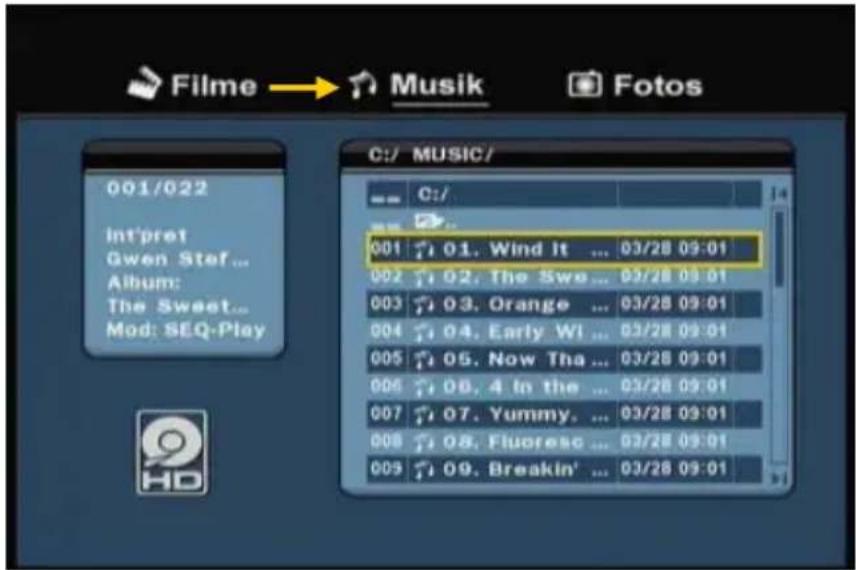
text_image
Filme → Musik Fotos 001/022 int'pret Gwen Stef... Album: The Sweet... Mod: SEQ-Play C:/ MUSIC/ C:/ 001 01. Wind It ... 03/28 09:01 002 02. The Swe ... 03/28 09:01 003 03. Orange ... 03/28 09:01 004 04. Early WI ... 03/28 09:01 005 05. Now Tha ... 03/28 09:01 006 06. 4 in the ... 03/28 09:01 007 07. Yummy... 03/28 09:01 008 08. Fluoresc ... 03/28 09:01 009 09. Breakin' ... 03/28 09:01The unit will only show the music files which are available on your unit. Other files will not be shown.
Tip : When you are in ‘Movies’ [1], ‘Music’ [2] or ‘Photos’ [3] mode, you can easily switch between these options through the upper bar in the media browser.
Use the navigation keys (15 __) to go to the upper bar and change the mode.
- Select the file you would like to play with the navigation buttons on the remote control.
- Press the 'Enter' button (26) or the 'Play/Pause' button (17) on the remote control to start the playback of the selected file.
During playback, you can use the following playback options on the remote control:
- Play/Pause (17) Play the selected file or pause the playback.
- Stop (24) Stop the playback.
- Rewind (18) Rewind the playback.
- Fast Forward (23) Fast Forward the playback.
- Previous (19) Play the previous file in the current folder.
- Next (22) Play the next file in the current folder.
- Repeat (11) Change the Repeat option of the current file/folder.
You can return from the file browser menu to the Main Menu by pressing the 'Menu' button (40) on the remote control.
ENGLISH
Playback of your Photos & Pictures
You can view your photos and pictures, which can be stored on the HDD of the unit, on your TV through the 'Photos' option of the unit.
- Press the 'Menu' button (40) on the remote control to return to the Main Menu.
- Select the ‘Photos’ [3] icon in the Main Menu with the ‘Navigation’ buttons (15) on the remote control, and press the ‘Enter’ button (26) on the remote control to open the ‘Photos’ Mode.
The file browser of the unit will be shown on your screen, with the 'Pictures' folder on the HDD selected by default.

text_image
Filme Musik → Fotos 001/002 W:2816 H:2112 C:/...ALEO/ C:/ 001 FOTO.JPG 01/23 13:39 002 Foto 1.JPG 01/23 13:39The unit will only show the photo and picture files which are available on your unit. Other files will not be shown.
Tip : When you are in ‘Movies’ [1], ‘Music’ [2] or ‘Photos’ [3] mode, you can easily switch between these options through the upper bar in the media browser.
Use the navigation keys (15 __) to go to the upper bar and change the mode.
- Select the file you would like to play with the navigation buttons on the remote control.
- Press the 'Enter' button (26) or the 'Play/Pause' button (17) on the remote control to start the playback of the selected file.
During playback, you can use the following playback options on the remote control:
| - Play/Pause | (17) | Start a slideshow starting with the selected file, or pause the slideshow. |
| - Stop | (24) | Stop the slideshow. |
| - Navigation keys | (15) | Rotate the shown photo. |
| - Previous | (19) | Play the previous file in the current folder. |
| - Next | (22) | Play the next file in the current folder. |
| - Repeat | (11) | Change the Repeat option of the current file/folder. |
| - Info | (2) | Display the slideshow details. |
You can return from the file browser menu to the Main Menu by pressing the 'Menu' button (40) on the remote control.
11. Computer Connectivity
The unit can be connected to your computer to copy data (movies, music, pictures, records, etc.) from and to the internal HDD.
Note: In our example below, we are using a computer running Windows XP, but the unit can be used on all computers with USB support and the capability of reading & writing FAT32 file systems.
Connect the unit to your computer
- Connect the delivered USB to Mini-USB cable to the backside of the unit and to a free USB port on your computer.
- Turn the unit on with the main power switch on the backside of the unit. The unit will be recognized and installed automatically and will be shown as an extra drive on your computer.
By default, the internal HDD of the unit will be initialized as an USB storage device.

text_image
My Computer File Edit View Favorites Tools Help Back Search Folders Address My Computer System Tasks View system information Add or remove programs Change a setting Other Places My Network Places My Documents Shared Documents Control Panel Details My Computer System Folder Files Stored on This Computer Shared Documents Hard Disk Drives Windows XP (C:) CMGPUR_HDD (D:) Devices with Removable Storage 316 Floppy (A:) DVD-RAM Drive (F:)Switch between HDD Mode and Cardreader Mode
You can use the Cardreader of the unit as a Cardreader on your computer. When you enable the Cardreader mode, the HDD is not accessible on your computer.
- Press and hold the 'Arrow Down' button on the front of the unit for 2 seconds while it is connected to the computer.
ENGLISH
The HDD will disappear from the ‘My Computer’ window, and a removable drive will be shown. The Cardreader is now active.
- To switch back to the HDD Mode, press and hold the ‘Arrow Down’ button on the front of the unit for 2 seconds.
Playback on your computer
You can play the recorded programs on your computer, when the unit is connected to the computer. Before you can play the recorded programs, you need to install a XviD codec on your computer.
The XviD codec is added to the FFDShow MPEG4 Codec Pack, which you can download on the following website:
http://www.free-codecs.com/download/FFDShow.htm
After the installation of the FFDShow MPEG4 Codec Pack and a reboot of your computer, you can play the recorded programs on your computer.
Disconnect the unit from your computer
- Single-click the "Safe Removal" icon on the system tray.
- Select "Stop USB Mass Storage Device" when prompted.
- Wait for the message "Safe to remove Hardware".
- Disconnect the USB cable.
text_image
ATM 9:4412. System Configuration
When you select the 'Setup' [6] option in the Main Menu, or press the 'Setup' button (21) on the remote control, the Setup Menu will be shown on your screen. The explanation below shows all available settings with the including description.

TV System Select the TV System which corresponds with your TV. You can select between PAL and NTSC. (Default = PAL)
Screensaver Set the screensaver of the unit on or off. (Default ____ = On)
Sys Language Select the system language for the unit. (Default ____ = English)
Time Format Set the time format of your choice. (Default = D_M_Y_24)
Set Date Set the current date.
Set Time Set the current Time.
Reset Setting Reset the unit to the factory default settings.
(Only the configuration will be restored. The data on your Harddisk will not be erased).
A/V Set:
Video Output Select the Video Output signal which corresponds with the used output ports on the unit.
TV Type Set the 'TV Type' to the correct aspect ratio of your TV. ('4:3 PS' (Pan & Scan), '4:3 LB' (Letterbox) or '16:9' (Widescreen)).
Tools:
Format Use the 'Format' option to format your Internal HDD, your USB Device or your Memory Card for optimal use with the unit.
File Sorted By Change the way the files are sorted when you are browsing your media files.
Slideshow Time Change the time a photo is shown on your screen when you are using the slideshow feature.
Adv. A/V:
Contrast Change the Contrast of the A/V Input Signal.
Hue Change the Hue of the A/V Input Signal.
Saturation Change the Saturation of the A/V Input Signal.
Brightness Change the Brightness of the A/V Input Signal.
Product Specifications
Specifications
- Dimensions: H = 19.3cm, B = 6.9cm, L = 21.8cm
- Power: 100-240VAC, 50/60HZ
- Power Consumption: Standby: ± 0,8W Normal Operation: ± 17,5W (with HDD) During Recording: ± 18,5W (with HDD)
- Operation Temperature: 5°C to 40°C
- Video System: PAL/NTSC
- Video Output: 1.0 ± 0.2 Vp-p, 75
- Frequency Response: ±3dB(20HZ\~20KHZ)
- Signal to Noise Ratio: ≥70dB
- Crosstalk: ≥70dB
Hardware
- Video Input: Composite Video (CVBS)
- Audio Input: Analog Stereo signal
- Video Output: Composite Video (CVBS), S-video, Component Video (YPbPr)
- Audio Output: Analog Stereo signal, Digital Coaxial (SPDIF)
- USB Port: USB Device, USB Host
Storage Device
- Internal 3.5 " SATA HDD, FAT32 single partition
- SD/MMC/MS card
- External USB Device
Video Record Format
- MPEG4 (*.AVI) codec: XviD
- 720×480@30fps(NTSC), 720×576@25fps(PAL)
- Quality adjustable in 3 levels (HQ/SP/LP)
Video Record Size (example with 500GB HDD)
| - | HQ: | 228 hours and 35 minutes. (app. 2190MB for 1 hour) |
| - | SP: | 437 hours and 46 minutes. (app. 1140MB for 1 hour) |
| - | LP: | 656 hours and 45 minutes. (app. 760MB for 1 hour) |
PRODUCT SPECIFICATIONS
Audio Record Format
- MPEG1 Layer 2 Mp2
Video Playback Format
- MPEG1/2 (*.MPG or *.VOB) up to 720×480@30fps, 720×576@25fps
- DivX/Xvid, up to 720×480@30fps, ADPCM or MPEG1/2 Layer II/III
- MPEG4 (*.AVI) MPEG4 Simple Profile 720×480@30fps, 2-channels MPEG1/2 Layer3 (*.MP3)
- Subtitle files: SRT, SUB, SSA, SMI.
Audio Playback Format
- MP3 (*.MP3) Bit rate: 24-320Kbps, CBR & VBR, Stereo
- MPEG1/2 Layer I/II Bit rate: 24-320Kbps, CBR & VBR, Stereo
- WMA (*.WMA) Bit rate: 16-384Kbps, CBR, stereo
Photo Playback Format
- JPEG
- BMP
Language
- English
- Dutch
- German
- Spanish
- French
- Italian
Firmware
Firmware is upgradable through HDD, USB or Card.
To check the Firmware Version:
Press 'RECORD' - '0' - '0' - '0' (zero) on the remote control when the CM3PVRL is in the Main Menu.