EasyManual
FM2-A85XA-G65 - Motherboard MSI - Free user manual and instructions
Find the device manual for free FM2-A85XA-G65 MSI in PDF.


User questions about FM2-A85XA-G65 MSI
0 question about this device. Answer the ones you know or ask your own.
Ask a new question about this device
Download the instructions for your Motherboard in PDF format for free! Find your manual FM2-A85XA-G65 - MSI and take your electronic device back in hand. On this page are published all the documents necessary for the use of your device. FM2-A85XA-G65 by MSI.
USER MANUAL FM2-A85XA-G65 MSI
The material in this document is the intellectual property of MICRO-STAR INTERNATIONAL. We take every care in the preparation of this document, but no guarantee is given as to the correctness of its contents. Our products are under continual improvement and we reserve the right to make changes without notice.
TRADEMARKS
All trademarks in this manual are properties of their respective owners.
MSI is registered trademark of Micro-Star Int'l Co., Ltd.
NVIDIA® is registered trademark of NVIDIA Corporation.
ATI® is registered trademark of ATI Technologies, Inc.
AMD® is registered trademarks of AMD Corporation.
Intel is registered trademarks of Intel Corporation.
Windows® is registered trademarks of Microsoft Corporation.
■ AMI® is registered trademark of American Megatrends, Inc.
Award is a registered trademark of Phoenix Technologies Ltd.
Sound Blaster® is registered trademark of Creative Technology Ltd.
Realtek® is registered trademark of Realtek Semiconductor Corporation.
■ JMicron® is registered trademark of JMicron Technology Corporation.
Netware® is a registered trademark of Novell, Inc.
Lucid® is trademarks of LucidLogix Technologies, Ltd.
VIA is registered trademark of VIA Technologies, Inc.
■ ASMedia® is registered trademark of ASMedia Technology Inc.
- iPad, iPhone, and iPod are trademarks of Apple Inc.
REVISION HISTORY
| Revision | Revision History | Date |
| V2.0 | First release for PCB 2.X | 2012/ 08 |
SAFETY INSTRUCTIONS
Always read the safety instructions carefully.
- Keep this User Manual for future reference.
- Keep this equipment away from humidity.
Lay this equipment on a reliable flat surface before setting it up.
- The openings on the enclosure are for air convection hence protects the equipment from overheating. Do not cover the openings.
- Make sure the voltage of the power source is at 110/220V before connecting.
- Place the power cord such a way that people can not step on it. Do not place anything over the power cord.
Always Unplug the Power Cord before inserting any add-on card or module.
All cautions and warnings on the equipment should be noted.
- Never pour any liquid into the opening that can cause damage or cause electrical shock.
If any of the following situations arises, get the equipment checked by service personnel:
The power cord or plug is damaged.
Liquid has penetrated into the equipment.
The equipment has been exposed to moisture.
- The equipment does not work well or you can not get it work according to User Manual.
The equipment has been dropped and damaged.
The equipment has obvious sign of breakage.
DO NOT LEAVE THIS EQUIPMENT IN AN ENVIRONMENT UNCONDITIONED, STORAGE TEMPERATURE ABOVE 60^ (140^) , IT MAY DAMAGE THE EQUIPMENT.
TECHNICAL SUPPORT
If a problem arises with your system and no solution can be obtained from the user's manual, please contact your place of purchase or local distributor. Alternatively, please try the following help resources for further guidance.

Visit the MSI website for technical guide, BIOS updates, driver updates, and other information: http://www.msi.com/service/download

Contact our technical staff at: http://support.msi.com
FCC-B RADIO FREQUENCY INTERFERENCE STATEMENT
This equipment has been tested and found to comply with the limits for a class B digital device, pursuant to part 15 of the FCC rules. These limits are designed to provide reasonable protection against harmful interference in a residential installation. This equipment generates, uses and can radiate radio frequency energy and, if not installed and used in accordance with the instruction manual, may cause harmful interference to radio communications. However, there is no guarantee that interference will occur in a particular installation. If this equipment does cause harmful interference to radio or television reception, which can be determined by turning the equipment off and on, the user is encouraged to try to correct the interference by one or more of the measures listed below.
Reorient or relocate the receiving antenna.
Increase the separation between the equipment and receiver.
Connect the equipment into an outlet on a circuit different from that to which the receiver is connected.
Consult the dealer or an experienced radio/ television technician for help.
Notice 1
The changes or modifications not expressly approved by the party responsible for compliance could void the user's authority to operate the equipment.
Notice 2
Shielded interface cables and A.C. power cord, if any, must be used in order to comply with the emission limits.
VOIR LA NOTICE D'INSTALLATION AVANT DE RACCORDER AU RESEAU.

This device complies with Part 15 of the FCC Rules. Operation is subject to the following two conditions:
(1) this device may not cause harmful interference, and
(2) this device must accept any interference received, including interference that may cause undesired operation.
CE CONFORMITY
Hereby, Micro-Star International CO., LTD declares that this device is in compliance with the essential safety requirements and other relevant provisions set out in the European Directive.

RADIATION EXPOSURE STATEMENT
This equipment complies with FCC radiation exposure limits set forth for an uncontrolled environment. This equipment and its antenna should be installed and operated with minimum distance 20~cm between the radiator and your body. This equipment and its antenna must not be co-located or operating in conjunction with any other antenna or transmitter.
EUROPEAN COMMUNITY COMPLIANCE STATEMENT
The equipment complies with the RF Exposure Requirement 1999/519/EC, Council Recommendation of 12 July 1999 on the limitation of exposure of the general public to electromagnetic fields (0-300GHz). This wireless device complies with the R&TTE Directive.
TAIWAN WIRELESS STATEMENTS
無線設備警告聲明
Batteries, battery packs, and accumulators should not be disposed of as unsorted household waste. Please use the public collection system to return, recycle, or treat them in compliance with the local regulations.
Taiwan:

廢電池請回收
For better environmental protection, waste batteries should be collected separately for recycling or special disposal.
California, USA:

The button cell battery may contain perchlorate material and requires special handling when recycled or disposed of in California. For further information please visit: http://www.dtsc.ca.gov/hazardouswaste/perchlorate/
CAUTION
Danger of explosion if battery is incorrectly replaced.
Replace only with the same or equivalent type recommended by the manufacturer.
CHEMICAL SUBSTANCES INFORMATION
In compliance with chemical substances regulations, such as the EU REACH Regulation (Regulation EC No. 1907/2006 of the European Parliament and the Council), MSI provides the information of chemical substances in products at:
http://www.msi.com/html/popup/csr/evmptrtt_pcm.html
产品中有毒有害物质或元素名称及含量
To protect the global environment and as an environmentalist, MSI must remind you that...
Under the European Union ("EU") Directive on Waste Electrical and Electronic Equipment, Directive 2002/96/EC, which takes effect on August 13, 2005, products of "electrical and electronic equipment"

cannot be discarded as municipal wastes anymore, and manufacturers of covered electronic equipment will be obligated to take back such products at the end of their useful life. MSI will comply with the product take back requirements at the end of life of MSI-branded products that are sold into the EU. You can return these products to local collection points.
DEUTSCH
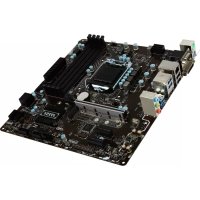
Thank you for choosing the FM2-A55M-E33/ FM2-A55M-E23 series (MS-7721 v2.x) Micro-ATX mainboard. The FM2-A55M-E33/ FM2-A55M-E23 series is design based on AMD® A55 chipset for optimal system efficiency. Designed to fit the advanced AMD® FM2 processor, the FM2-A55M-E33/ FM2-A55M-E23 series deliver a high performance and professional desktop platform solution.
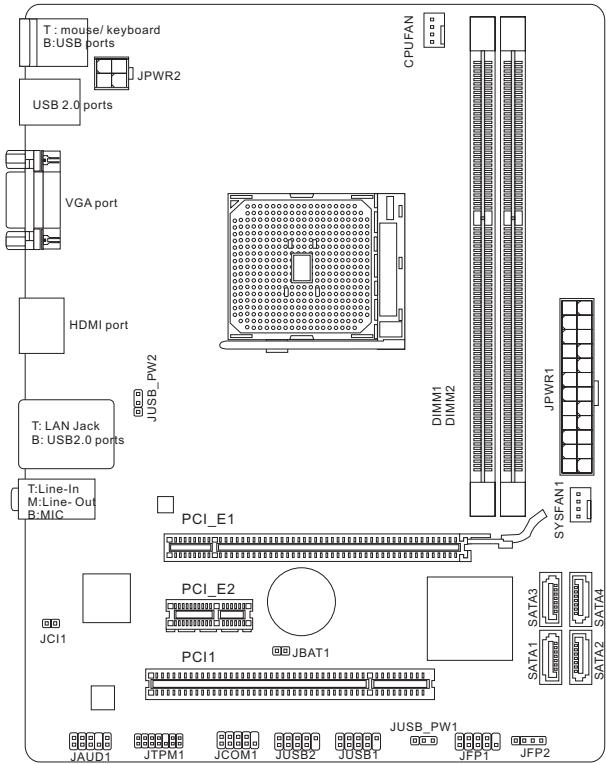
Layout
SPECIFICATIONS
Processor Support
AMD® A10/A8/A6/A4-series processors for the FM2 package
Chipset
AMD® A55 chipset
Memory Support
2x DDR3 DIMMs support DDR3 1866/ 1600/ 1333/ 1066 DRAM (16GB Max)
Supports Dual-Channel mode
LAN
Supports LAN 10/100/1000 Fast Ethernet by Realtek® RTL8111E
Audio
Integrated HD audio codec by Realtek ALC887
8-channel audio with jack sensing
SATA
4x SATA 3Gb/s ports by AMD® A55
RAID
SATA1~4 support RAID 0/1/10/JBOD by AMD® A55
Connectors & Buttons
Back panel
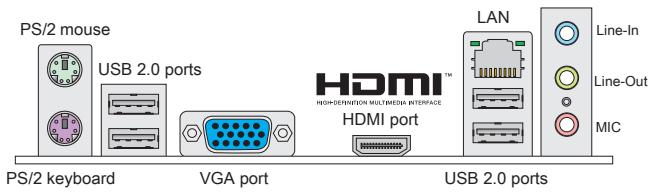
- 1x PS/2 keyboard port
- 1x PS/2 mouse port
- 4x USB 2.0 ports
- 1x LAN port
- 1x VGA port
- 1x HDMI port
- 3x audio ports
On-Board
- 2x USB 2.0 connectors
- 1x Front Panel Audio connector
- 1x TPM Module connector
- 1x Serial connector
- 1x Chassis Intrusion connector
Slots
1x PCIe 2.0 x16 slot
1x PCIe 2.0 x1 slot
1xPCI slot
Form Factor
Micro-ATX (22.6 cm X 17.3 cm)
Mounting Screw Holes
6x mounting holes
Dual-Graphics
Supports AMD® Dual Graphics Technology
- Please visit the AMD official website to find the supported Dual Graphics combinations of APU and discrete GPU for achieving this technology.

For the latest information about CPU, please visit
http://www.msi.com/service/cpu-support

For more information on compatible components, please visit
http://www.msi.com/service/test-report
If you need to purchase accessories and request the part numbers, you could search the product web page and find details on our web address below http://www.msi.com/index.php
The rear panel provides the following connectors:

IMPORTANT
- To reach the 8-channel sound effect, the 7th and 8th channels must be output from front panel.
- The VGA & HDMI ports only work with Integrated Graphics Processor.
HARDWARE SETUP
APU & cooler Installation for FM2
When you are installing the APU, make sure the APU has a cooler attached on the top to prevent overheating. Meanwhile, do not forget to apply some thermal paste on APU before installing the heat sink/cooler fan for better heat dispersion.
Introduction to the FM2 APU
The surface of the FM2 APU has a gold triangle to assist in correctly lining up the CPU for mainboard placement. The gold triangle is the Pin 1 indicator.
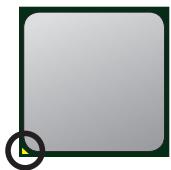
Gold triangle
Follow the steps below to install the APU & cooler correctly. Wrong installation will cause the damage of your APU & mainboard.
- Pull the lever sideways away from the socket. Make sure to raise the lever up to a 90-degree angle.
- Look for the gold triangle of the APU. The gold triangle should point as shown in the picture. The APU can only fit in the correct orientation.
- If the APU is correctly installed, the pins should be completely embedded into the socket and can not be seen. Please note that any violation of the correct installation procedures may cause permanent damages to your mainboard.
- Press the APU down firmly into the socket and close the lever. As the APU is likely to move while the lever is being closed, always close the lever with your fingers pressing tightly on top of the APU to make sure the APU is properly and completely embedded into the socket.
- Position the cooling set onto the retention mechanism. Hook one end of the clip to hook first.
- Then press down the other end of the clip to fasten the cooling set on the top of the retention mechanism. Locate the Fix Lever and lift up it.
- Fasten down the lever.
- Attach the APU Fan cable to the APU fan connector on the mainboard.
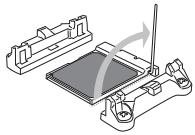
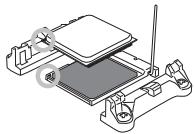
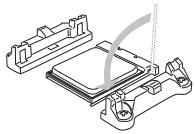
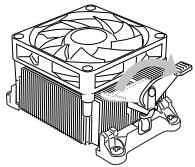

IMPORTANT
- While disconnecting the Safety Hook from the fixed bolt, it is necessary to keep an eye on your fingers, because once the Safety Hook is disconnected from the fixed bolt, the fixed lever will spring back instantly.
- Confirm that the APU cooler has formed a tight seal with the APU before booting your system.
- Please refer to the documentation in the APU cooler package for more details about APU cooler installation.
Mounting Screw Holes
When installing the mainboard, first install the necessary mounting stands required for a mainboard on the mounting plate in your computer case. If there is an I/O back plate that came with the computer case, please replace it with the I/O backplate that came with the mainboard package. The I/O backplate should snap easily into the computer case without the need for any screws. Align the mounting plate's mounting stands with the screw holes on the mainboard and secure the mainboard with the screws provided with your computer case. The locations of the screw holes on the mainboard are shown below. For more information, please refer to the manual that came with the computer case.
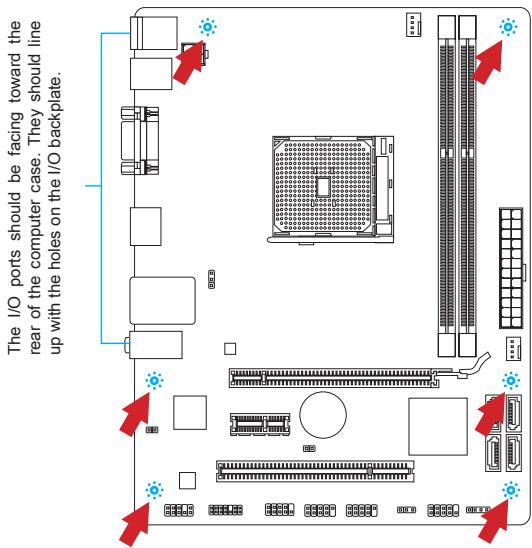

IMPORTANT
- Install the mainboard on a flat surface free from unnecessary debris.
- To prevent damage to the mainboard, any contact between the mainboard circuitry and the computer case, except for the mounting stands, is prohibited.
- Please make sure there are no loose metal components on the mainboard or within the computer case that may cause a short circuit of the mainboard.
Installing Memory Modules
- Unlock the DIMM slot by pushing the mounting clips to the side. Vertically insert the memory module into the DIMM slot. The memory module has an off-center notch on the bottom that will only allow it to fit one way into the DIMM slot.
- Push the memory module deep into the DIMM slot. The plastic clips at each side of the DIMM slot will automatically close when the memory module is properly seat and an audible click should be heard.
- Manually check if the memory module has been locked in place by the DIMM slot's side clips.
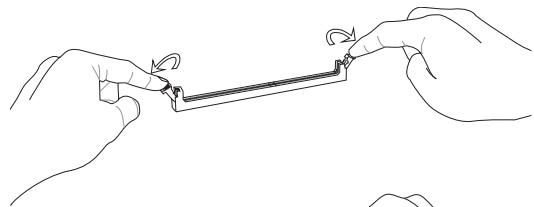
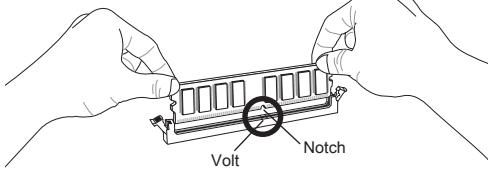
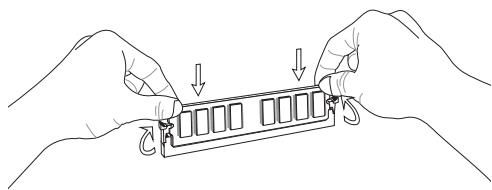

IMPORTANT
- To ensure system stability, memory modules must be of the same type and density in Dual-Channel mode.
- Due to the hardware limitation, you should follow the installing procedures: first memory modules, then graphics card. While uninstalling, remove graphics card first if necessary.
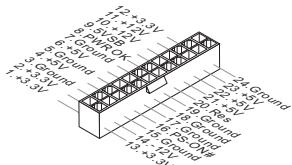
JPWR1:ATX24-Pin Power Connector
This connector allows you to connect an ATX 24-pin power supply. To connect the ATX 24-pin power supply, align the power supply cable with the connector and firmly press the cable into the connector. If done correctly, the clip on the power cable should be hooked on the mainboard's power connector.
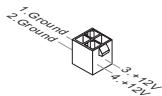
JPWR2:ATX4-Pin Power Connector
This connector provides 12V power to the CPU.

IMPORTANT
Make sure that all the power cables are securely connected to a proper ATX power supply to ensure stable operation of the mainboard.
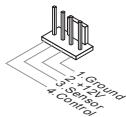
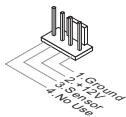
CPUFAN1, SYSFAN1: Fan Power Connectors
The fan power connectors support system cooling fans with +12V. If the mainboard has a System Hardware Monitor chipset on-board, you must use a specially designed fan with a speed sensor to take advantage of the CPU fan control. Remember to connect all system fans. Some system fans may not connect to the mainboard and will instead connect to the power supply directly. A system fan can be plugged into any available system fan connector.
CPUFAN1
SYSFAN1
SATA1~4: SATA Connector
This connector is a high-speed Serial ATA interface port. Each connector can connect to one Serial ATA device. Serial ATA devices include disk drives (HD), solid state drives (SSD), and optical drives (CD/DVD/Blu-Ray).


IMPORTANT
- Please do not fold the SATA cable at a 90-degree angle. Data loss may result during transmission otherwise.
- SATA cables have identical plugs on either sides of the cable. However, it is recommended that the flat connector be connected to the mainboard for space saving purposes.
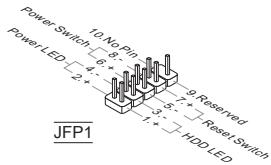
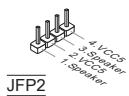
JFP1, JFP2: Front Panel Connectors
These connectors are for electrical connection to the front panel switches and LEDs. The JFP1 is compliant with Intel® Front Panel I/O Connectivity Design Guide.
JCOM1: Serial Port Connector
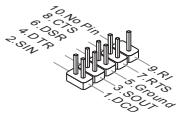
This connector is a 16550A high speed communication port that sends/receives 16 bytes FIFOs. You can attach a serial device.
JUSB1, JUSB2: USB 2.0 Expansion Connectors
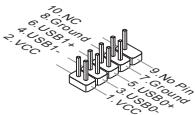
This connector is designed for connecting high-speed USB peripherals such as USB HD s, digital cameras, MP3 players, printers, modems, and many others.
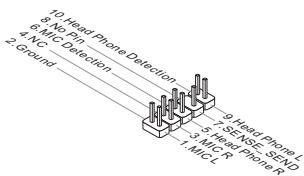
JAUD1 : Front Panel Audio Connector
This connector allows you to connect the front audio panel located on your computer case. This connector is compliant with the Intel® Front Panel I/O Connectivity Design Guide.
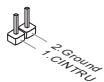
JCI1: Chassis Intrusion Connector
This connector connects to the chassis intrusion switch cable. If the computer case is opened, the chassis intrusion mechanism will be activated. The system will record this intrusion and a warning message will flash on screen. To clear the warning, you must enter the BIOS utility and clear the record.
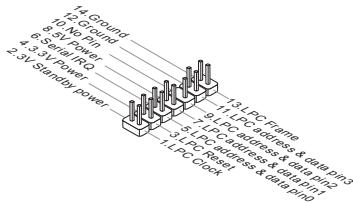
JTPM1: TPM Module Connector
This connector connects to a optional TPM (Trusted Platform Module). Please refer to the TPM security platform manual for more details and usages.
JBAT1: Clear CMOS Jumper
There is CMOS RAM onboard that is external powered from a battery located on the mainboard to save system configuration data. With the CMOS RAM, the system can automatically boot into the operating system (OS) every time it is turned on. If you want to clear the system configuration, set the jumper to clear the CMOS RAM.

Keep Data

Clear Data

IMPORTANT
You can clear the CMOS RAM by shorting this jumper while the system is off. Afterwards, open the jumper. Do not clear the CMOS RAM while the system is on because it will damage the mainboard.
JUSB_PWM1, JUSB_PWM2: USB power Jumper
The USB ports on the rear IO panel are controlled by JUSB_PWM2. The JUSB1 and JUSB2 are controlled by JUSB_PWM1. These jumpers allow you to enable/ disable the "wakeup from S3/S4/S5 by USB and PS/2 device" function
JUSB_PWM1
(for on-board USB connectors)


Disabled

Enabled
JUSB_PWM2
(for rear USB
2.0 ports)


Disabled

Enabled

IMPORTANT
If you set the jumper to Enabled, the power supply must be able to provide +5VSB and at least 2A currents.
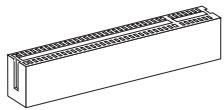
PCIe Slot
The PCIe slot supports the PCIe interface expansion card.
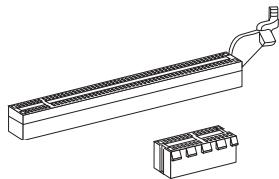
The PCIe 2.0 x16 slot
The PCIe 2.0 x1 slot
PCI Slot
The PCI slot supports LAN card, SCSI card, USB card, and other add-on cards that comply with PCI specifications.

IMPORTANT
Make sure that you unplug the power supply first. Meanwhile, read the documentation for the expansion card to configure any necessary hardware or software settings for the expansion card, such as jumpers, switches or BIOS configuration.
PCI Interrupt Request Routing
When adding or removing expansion cards, make the IRQ, acronym of interrupt request line and pronounced I-R-Q, are hardware lines over which devices can send interrupt signals to the microprocessor. The PCI IRQ pins are typically connected to the PCI bus pins as follows:
| Order Slot | 1 | 2 | 3 | 4 |
| PCI 1 | INT A# | INT B# | INT C# | INT D# |
Entering
Power on the computer and the system will start the Power On Self Test (POST) process. When the message below appears on the screen, please key to enter CLICK BIOS II:
Press DEL key to enter Setup Menu, F11 to enter Boot Menu
If the message disappears before you respond and you still need to enter CLICK BIOS II, restart the system by turning the computer OFF then back ON or pressing the RESET button. You may also restart the system by simultaneously pressing

IMPORTANT
The items under each BIOS category described in this chapter are under continuous update for better system performance. Therefore, the description may be slightly different from the latest BIOS and should be held for reference only.
Overview
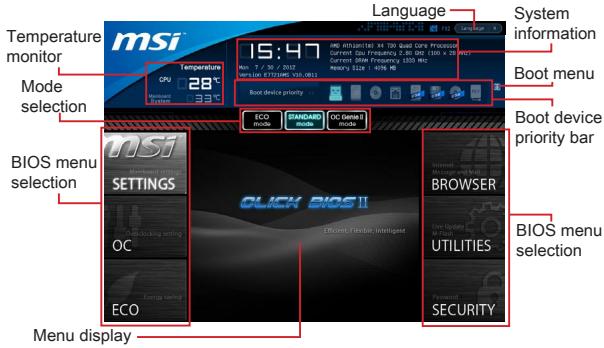
After entering Click BIOS II, the following screen is displayed.

IMPORTANT
The pictures in this guide are for reference only and may vary from the product you purchased. Please refer to the actual screens of your system for detailed information.
Temperature monitor
This block shows the temperature of the processor and the mainboard.
System information
This block shows the time, date, CPU name, CPU frequency, DRAM frequency, DRAM capacity and the BIOS version.
BIOS menu selection
The following options are available:
SETTINGS - Use this menu to specify your settings for chipset features and boot devices.
OC - This menu contains items of the frequency and voltage adjustments. Increasing the frequency can get better performance, however high frequency and heat can cause instability, we do not recommend general users to overclock.
ECO - This menu is related to energy-saving settings.
BROWSER - This feature is used to enter the MSI Winki web browser.
UTILITIES - This menu contains utilities for backup and update.
SECURITY- The security menu is used to keep unauthorized people from making any changes to the settings. You can use these security features to protect your system.
Boot device priority bar
You can move the device icons to change the boot priority.
Boot menu
This button is used to open a boot menu. Click the item to boot the system from the device instantly.
Mode selection
This feature allows you to load presets of energy saving or overclocking.
Menu display
This area provides BIOS settings and information to be configured.
Language
This allows you to select the language of the BIOS setting.
Boot device priority bar
This bar shows the priority of the boot devices. The lighted icons indicate that the devices are available.

Click and draw the icon to left or right to specify the boot priority.
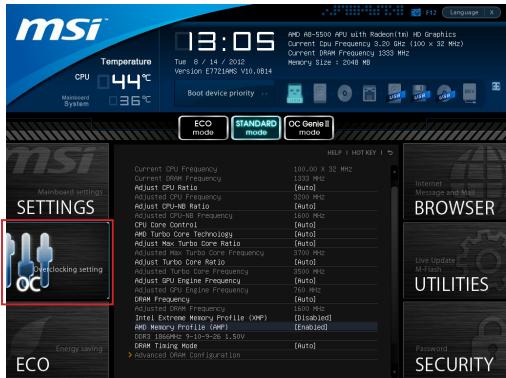
OC

IMPORTANT
- Overclocking your PC manually is only recommended for advanced users.
- Overclocking is not guaranteed, and if done improperly, can void your warranty or severely damage your hardware.
- If you are unfamiliar with overclocking, we advise you to use OC Genie for easy overclocking.
Current CPU / DRAM Frequency
These items show the current clocks of CPU and Memory speed. Read-only.
Adjust CPU Ratio
Controls the multiplier that is used to determine internal clock speed of the processor. This feature can only be changed if the processor supports this function.
Adjusted CPU Frequency
It shows the adjusted CPU frequency. Read-only.
Adjust CPU-NB Ratio
This item is used to adjust CPU-NB clock ratio.
Adjusted CPU-NB Frequency
It shows the adjusted CPU-NB frequency. Read-only.
CPU Core Control
This item is used to control number of CPU cores. When set to [Auto], the CPU will operate under the default number of cores. When set to [Manual], you will be able to enable/disable the specific CPU core.
AMD Turbo Core Technology
This technology automatically increases the frequency of active CPU cores to improve performance.
Adjust Max Turbo Core Ratio
This item is used to adjust Max Turbo Core ratio
Adjusted Max Turbo Core Frequency
It shows the adjusted Max Turbo Core frequency. Read-only.
Adjust Turbo Core Ratio
This item is used to adjust Turbo Core ratio.
Adjusted Turbo Core Frequency
It shows the adjusted Turbo Core frequency. Read-only.
Adjust GPU Engine Frequency
This item is used to adjust the GPU engine frequency.
Adjusted GPU Engine Frequency
It shows the adjusted GPU engine frequency. Read-only.
DRAM Frequency
This item allows you to adjust the DRAM frequency. Please note the overclocking behavior is not guaranteed.
Adjusted DRAM Frequency
It shows the adjusted DRAM frequency. Read-only.
Intel Extreme Memory Profile (XMP)
Choose to apply an Intel Extreme Memory Profile (XMP) to increase system performance. When the Intel Extreme Memory Profile (XMP) is enabled, the AMD Memory Profile (AMP) will be forced to be disabled.
AMD Memory Profile (AMP)
Choose to apply an AMD Memory Profile (AMP) to increase system performance. When AMD Memory Profile (AMP) is enabled, the Intel Extreme Memory Profile (XMP) will be forced to be disabled.
DRAM Timing Mode
Select whether DRAM timing is controlled by the SPD (Serial Presence Detect) EEPROM on the DRAM module. Setting to [Auto] enables DRAM timings and the following "Advanced DRAM Configuration" sub-menu to be determined by BIOS based on the configurations on the SPD. Selecting [Link] or [Unlink] allows users to configure the DRAM timings for each channel and the following related "Advanced DRAM Configuration" sub-menu manually.
Advanced DRAM Configuration
Press
Command Rate
This setting controls the DRAM command rate.
tCL
Controls CAS latency which determines the timing delay (in clock cycles) of starting a read command after receiving data.
tRCD
Determines the timing of the transition from RAS (row address strobe) to CAS (column address strobe). The less clock cycles, the faster the DRAM performance.
tRP
Controls number of cycles for RAS (row address strobe) to be allowed to precharge. If insufficient time is allowed for RAS to accumulate before DRAM refresh, the DRAM may fail to retain data. This item applies only when synchronous DRAM is installed in the system.
tRAS
Determines the time RAS (row address strobe) takes to read from and write to memory cell.
tRFC
This setting determines the time RFC takes to read from and write to a memory cell.
tWR
Determines minimum time interval between end of write data burst and the start of a pre-charge command. Allows sense amplifiers to restore data to cell.
fWTR
Determines minimum time interval between the end of write data burst and the start of a column-read command; allows I/O gating to overdrive sense amplifies before read command starts.
tRRD
Specifies the active-to-active delay of different banks.
tRTP
Time interval between a read and a precharge command.
tFAW
This item is used to set the tFAW (four activate window delay) timing.
IWCL
This item is used to set the tWCL (Write CAS Latency) timing.
tCKE
This item is used to set the Pulse Width for DRAM module.
tRTL
This item is used to set Round Trip Latency settings.
Advanced Channel 1/2 Timing Configuration
Press
DRAM Voltage
This item is used to adjust the voltage of Memory.
Spread Spectrum
This function reduces the EMI (Electromagnetic Interference) generated by modulating clock generator pulses.

IMPORTANT
- If you do not have any EMI problem, leave the setting at [Disabled] for optimal system stability and performance. But if you are plagued by EMI, select the value of Spread Spectrum for EMI reduction.
- The greater the Spread Spectrum value is, the greater the EMI is reduced, and the system will become less stable. For the most suitable Spread Spectrum value, please consult your local EMI regulation.
- Remember to disable Spread Spectrum if you are overclocking because even a slight jitter can introduce a temporary boost in clock speed which may just cause your overclocked processor to lock up.
Overclocking Profiles
Press
Overclocking Profile 1/2/3/4/5/6
Press
Set Name for Overclocking Profile 1/2/3/4/5/6
Give a name by typing in this item.
Save Overclocking Profile 1/2/3/4/5/6
Save the current overclocking settings to ROM for selected profile.
Load/ Clear Overclocking Profile 1/2/3/4/5/6
Load/ Clear the stored profile settings from ROM.
OC Profile Save to USB
Save the current overclocking settings to USB drive.
OC Profile Load from USB
Load the stored settings from USB drive.
CPU Specifications
Press
CPU Technology Support
Press
MEMORY-Z
Press
DIMM1~2 Memory SPD
Press
CPU Features
Press
AMD Cool'n'Quiet
The Cool'n'Quiet technology can effectively and dynamically lower CPU speed and power consumption.

IMPORTANT
- To ensure that Cool'n'Quiet function is activated and will be working properly, it is required to double confirm that:
- Run BIOS Setup, select OC Menu and find CPU Feature > AMD Cool'n'Quiet, and set this item to 'Enabled'.
- Enter Windows, and select [Start]->[Settings]->[Control Panel]->[Power Options]. Enter Power Options Properties tag, and select Minimal Power Management under Power schemes.
SVM Mode
This item allows you to enable/disable the AMD SVM (Secure Virtual Machine) Mode.
Core C6 State
This item allows you to enable/ disiable C6 state support. When the CPU enters C6 state, all cores will save architectural state and reduce core voltages to zero volts. Wake up the CPU from C6 state will take a lot longer.
Save & Exit
Go to SETTINGS and click Save & Exit item.
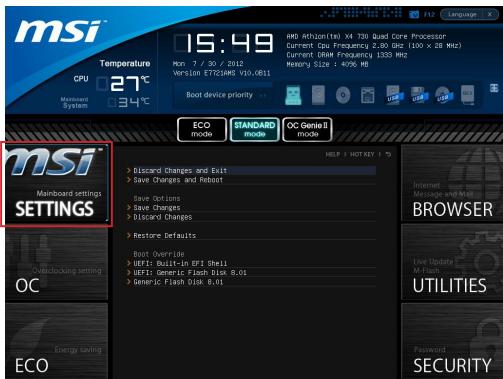
Discard Changes and Exit
Use this item to abandon all changes and exit setup.
Save Changes and Reboot
Use this item to save changes and reset the system.
Save Changes
Use this item to save changes.
Discard Changes
Use this item to abandon all changes.
Restore Defaults
Use this item to load the optimized default values set by the BIOS vendor.
= = Boot Override = =
The installed storage devices will appear on this menu, you can select one of them be a boot device.
Built-in EFI Shell
Use this item to enter the EFI Shell.
This section describes how to install Windows XP with IDE or AHCI mode.
Installing Windows XP with IDE Mode
You will fail and encounter a blue screen while installing Windows XP, because it is not natively supported to be installed in the storage device with AHCI mode. If you still prefer to install Windows XP as the operating system, please change the BIOS item as below.
- Refer to BIOS SETUP chapter to access BIOS.
- Go to SETTINGS Integrated Peripherals SATA Mode.
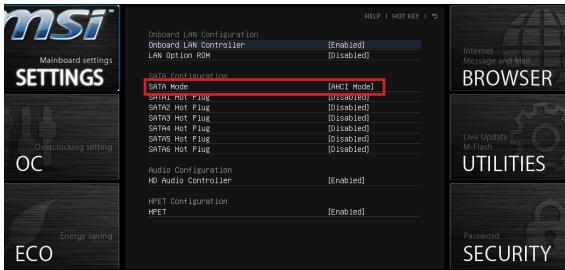
- Set the SATA Mode to IDE mode.
- Go to SETTINGS Save & Exit Save changes and reboot.
- Install the Windows XP operating system.
Installing Windows XP with AHCI Mode
If you prefer to install Windows XP as the operating system with AHCI mode, please prepare AHCI drivers for Windows XP in advanced.
Creating an AHCI Driver Disc
Please follow the instruction below to make an "AHCI Driver" for yourself.
- Insert the MSI DVD into the DVD-ROM drive.
- Click the "Browse CD" on the Setup screen.
- Copy the contents from ChipSetAMDIPackages\Drivers\SBDrv_for_Hudson\SB9xx\AHCIXP to a formatted floppy diskette.
- The driver diskette is done.
Installing the Windows XP Operating System:
Please follow the below steps:
- Access BIOS, set SATA Mode to AHCI mode, save, exit and reboot.
- Ensure the USB Floppy Disk Drive is connected to the computer.
- Install Windows XP. When Windows Setup screen appears a message "Press F6 if you need to install a third party SCSI or RAID driver....", press "F6" key.
- Insert the floppy disk containing the AHCI drivers into the floppy disk drive.
- When the next screen appears, press the "S" key to specify an additional device.
- From the provided list, select the AMD AHCI Compatible Controller.
- Follow the on-screen instructions to complete the installation.
#
#
HD OukiO KoIeRt Realtek ALC887 NcHg
- 8 7
SATA
AMD® A550 SATA 3Gb/s 4元
RAID
http://www.msi.com/service/cpu-support我

赫希卡能的部中
http://www.msi.com/service/test-report書注:
卑歴音是用如:i.
Current CPU / DRAM Frequency
Adjusted CPU Frequency
調整たCPU周波数表示し。
Adjust CPU-NB Ratio
CPU-NBクロク倍率を調整しります。
Adjusted CPU-NB Frequency
Adjusted Max Turbo Core Frequency
Adjusted Turbo Core Frequency
調整た一求二周波数表示。
Adjust GPU Engine Frequency
GPU工甸子周波数を調整いたします。
Adjusted GPU Engine Frequency
Adjusted DRAM Frequency
AMD Memory Profile (AMP)
Advanced Channel 1/2 Timing Configuration
Set Name for Overclocking Profile 1/2/3/4/5/6
它的項目內入力到名前付達。
Save Overclocking Profile 1/2/3/4/5/6
OC Profile Save to USB
OC Profile Load from USB
USB下拉伊夫保存的设定口一卡。
CPU Specifications
CPU Technology Support
Discard Changes and Exit
变更了設定值を保存せら终了しま。
Save Changes and Reboot
变更了設定值来保存,Sntu再起動。
Save Changes
变更了设定值来保存。
Discard Changes
变更了設定值を保存しません。
Restore Defaults
工場出荷时期的設定を嘆む出しいます。