
B450M ProM2 Max - Motherboard MSI - Free user manual and instructions
Find the device manual for free B450M ProM2 Max MSI in PDF.
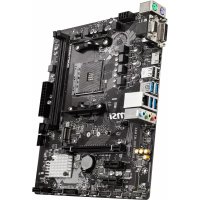



| Product Type | Motherboard |
| Brand | MSI |
| Model | B450M ProM2 Max |
| Form Factor | Micro-ATX (m-ATX) |
| Processor Socket | AM4 |
| Chipset | AMD B450 |
| Memory Type | DDR4 |
| Number of Memory Slots | 2 (Dual Channel) |
| Maximum Memory Capacity | 32 GB |
| Supported Memory Frequencies | 1866/2133/2400/2667 MHz (JEDEC) and up to 3466 MHz (OC) |
| Expansion Slots | 1 x PCIe 3.0 x16, 2 x PCIe 2.0 x1 |
| Storage | 4 x SATA 6 Gb/s, 1 x M.2 (PCIe 3.0 x4 / SATA) |
| Audio | Realtek ALC887/897, 7.1-Channel HD Audio |
| Network | Realtek 8111H Gigabit LAN |
| Rear USB Ports | 4 x USB 3.2 Gen1 Type-A, 2 x USB 2.0 Type-A |
| Video Outputs | 1 x VGA, 1 x DVI-D, 1 x HDMI 1.4 |
| Power Connectors | 1 x 24-pin ATX, 1 x 8-pin CPU |
| Cooling | 1 x 4-pin CPU Connector, 1 x 4-pin System Connector |
| Dimensions | 24.4 cm x 20.6 cm (9.6" x 8.1") |
| BIOS | UEFI AMI BIOS, 256 Mb Flash, Click BIOS 5 |
| Special Features | Audio Boost, Turbo M.2, Mystic Light, EZ Debug LED, Steel Slot PCI-E, DDR4 Boost, Core Boost |
| Security | TPM Connector (Header), Chassis Intrusion Detection |
| Processor Compatibility | AMD Ryzen 1st/2nd/3rd Generation, Ryzen with Radeon Vega Graphics, Athlon with Radeon Vega Graphics |
Frequently Asked Questions - B450M ProM2 Max MSI
User questions about B450M ProM2 Max MSI
0 question about this device. Answer the ones you know or ask your own.
Ask a new question about this device
Download the instructions for your Motherboard in PDF format for free! Find your manual B450M ProM2 Max - MSI and take your electronic device back in hand. On this page are published all the documents necessary for the use of your device. B450M ProM2 Max by MSI.
USER MANUAL B450M ProM2 Max MSI
Thank you for purchasing the MSI® B450M PRO-M2 MAX motherboard. This User Guide gives information about board layout, component overview, BIOS setup and software installation.
Contents
Safety Information....2
Specifications....3
Package contents....6
Rear I/O Panel....7
LAN Port LED Status Table....7
Overview of Components 8
CPU Socket 9
DIMM Slots....10
PCI_E1~3: PCIe Expansion Slots 10
JFP1, JFP2: Front Panel Connectors 11
SATA1~4: SATA 6Gb/s Connectors....11
ATX_PWR1, CPU_PWR1: Power Connectors.....12
M2_1: M.2 Slot (Key M) 12
JUSB1~2: USB 2.0 Connectors....13
JUSB3: USB 3.2 Gen1 Connector ....13
CPU_FAN1, SYS_FAN1: Fan Connectors....14
JTPM1: TPM Module Connector....15
JCI1: Chassis Intrusion Connector....15
JAUD1: Front Audio Connector....16
JCOM1: Serial Port Connector 16
JLED1: LED strip connector ....16
JBAT1: Clear CMOS (Reset BIOS) Jumper 17
EZ Debug LED: Debug LED indicators....17
BIOS Setup 18
Entering BIOS Setup....18
Resetting BIOS....19
Updating BIOS....19
Software Description....20
Installing Windows® 10....20
Installing Drivers....20
Installing Utilities....20
Safety Information
- The components included in this package are prone to damage from electrostatic discharge (ESD). Please adhere to the following instructions to ensure successful computer assembly.
- Ensure that all components are securely connected. Loose connections may cause the computer to not recognize a component or fail to start.
- Hold the motherboard by the edges to avoid touching sensitive components.
- It is recommended to wear an electrostatic discharge (ESD) wrist strap when handling the motherboard to prevent electrostatic damage. If an ESD wrist strap is not available, discharge yourself of static electricity by touching another metal object before handling the motherboard.
- Store the motherboard in an electrostatic shielding container or on an anti-static pad whenever the motherboard is not installed.
- Before turning on the computer, ensure that there are no loose screws or metal components on the motherboard or anywhere within the computer case.
- Do not boot the computer before installation is completed. This could cause permanent damage to the components as well as injury to the user.
- If you need help during any installation step, please consult a certified computer technician.
- Always turn off the power supply and unplug the power cord from the power outlet before installing or removing any computer component.
- Keep this user guide for future reference.
- Keep this motherboard away from humidity.
- Make sure that your electrical outlet provides the same voltage as is indicated on the PSU, before connecting the PSU to the electrical outlet.
- Place the power cord such a way that people can not step on it. Do not place anything over the power cord.
- All cautions and warnings on the motherboard should be noted.
- If any of the following situations arises, get the motherboard checked by service personnel:
- Liquid has penetrated into the computer.
■ The motherboard has been exposed to moisture.
- The motherboard does not work well or you can not get it work according to user guide.
■ The motherboard has been dropped and damaged.
■ The motherboard has obvious sign of breakage.
- Do not leave this motherboard in an environment above 60°C (140°F), it may damage the motherboard.
Specifications
| CPU | Supports 1st, 2nd and 3rd Gen AMD RyzenTM/ RyzenTM with RadeonTM Vega Graphics and 2nd Gen AMD RyzenTM with RadeonTM Graphics/ AthlonTM with RadeonTM Vega Graphics Desktop Processors for Socket AM4 |
| Chipset AMD | ® B450 chipset |
| Memory | 2x DDR4 memory slots, support up to 32GBSupports DDR4 1866/ 2133/ 2400/ 2667 MHz by JEDEC, and 2667/ 2800/ 2933/ 3000/ 3066/ 3200/ 3466 MHz by A-XMP OC mode*Dual channel memory architectureSupports ECC UDIMM memory (non-ECC mode)Support non-ECC UDIMM memory* Please refer www.msi.com for more information on compatible memory. |
| Expansion Slots | 1 x PCIe 3.0 x16 slot (PCI_E1)Supports x16 speed with 1st, 2nd and 3rd Gen AMD RyzenTM processorsSupports x8 speed with RyzenTM with RadeonTM Vega Graphics and 2nd Gen AMD RyzenTM with RadeonTM Graphics processorsSupports x4 speed with AMDAthlonTM with RadeonTM Vega Graphics Processors2x PCIe 2.0 x1 slots |
| Onboard Graphics | 1 x VGA port, supports a maximum resolution of 2048x1280@60Hz, 1920x1200@60Hz*1 x DVI-D port, supports a maximum resolution of 1920x1200@60Hz*1 x HDMITM 1.4 port, supports a maximum resolution of 4096x2160@30Hz** Only support when using AMD® RyzenTM with RadeonTM Vega Graphics and 2nd Gen AMD RyzenTM with RadeonTM Graphics/AthlonTM with RadeonTM Vega Graphics Processors* Maximum shared memory of 2048 MB |
| Storage | AMD® B450 Chipset4x SATA 6Gb/s ports*Supports RAID 0, RAID1 and RAID 101x M.2 slot (Key M)Supports PCIe 3.0 x4 (12nd and 3rd Gen AMD RyzenTM/ RyzenTM with RadeonTM Vega Graphics and 2nd Gen AMD RyzenTM with RadeonTM Graphics) or PCIe 3.0 x2 (AMD® AthlonTM with RadeonTM Vega Graphics)and SATA 6Gb/s 2242/ 2260 /2280 storage devices |
Continued from previous page
| Audio | RealteALC887/ ALC897 Codec7.1-Channel High Definition Audio |
| LAN 1x Realtek | ® 8111H Gigabit LAN controller |
| USB | AMD® B450 Chipset2x USB 3.2 Gen1 (SuperSpeed USB) ports through the internal USB 3.2 Gen1 connector6x USB 2.0 (High-speed USB) ports (2 ports on the back panel, 4 ports available through the internal USB connectors) AMD® processor4x USB 3.2 Gen1 (SuperSpeed USB) Type-A ports on the back panel |
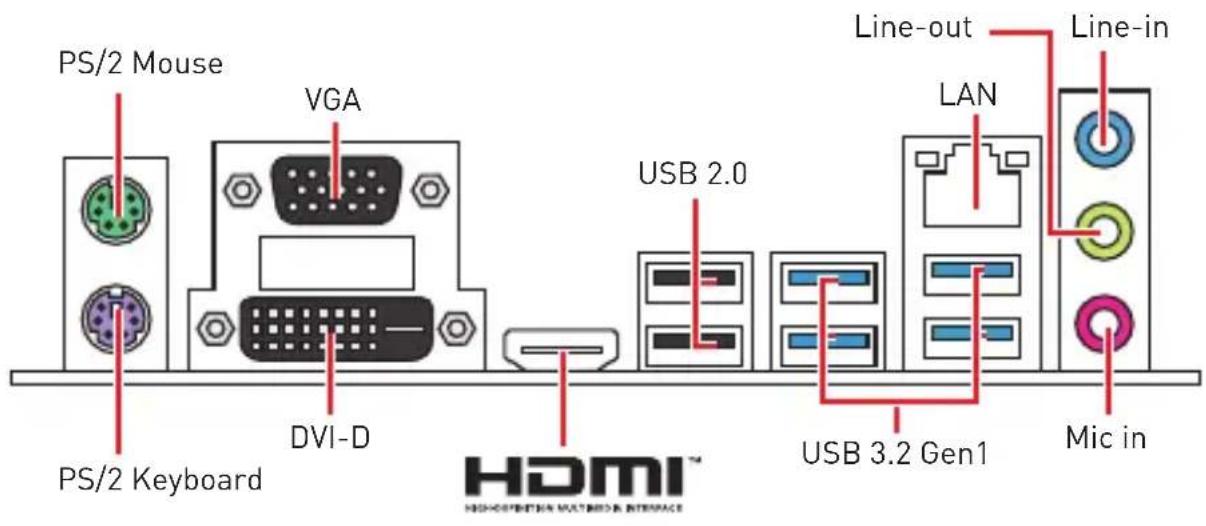
| Back Panel Connectors | 1x PS/2 keyboard port1x PS/2 mouse port2x USB 2.0 Type-A ports1x VGA port1x DVI-D port1x HDMITM port4x USB 3.2 Gen1 Type-A ports1x LAN (RJ45) port3x audio jacks |
| Internal Connectors | 1x 24-pin ATX main power connector1x 8-pin ATX 12V power connector4x SATA 6Gb/s connectors2x USB 2.0 connectors (supports additional 4 USB 2.0 ports1x USB 3.2 Gen1 connector (supports additional 2 USB 3.2 Gen1 ports)1x 4-pin CPU fan connector1x 4-pin system fan connector1x Front panel audio connector2x Front panel connectors1x TPM module connector1x Chassis Intrusion connector1x Serial port connector1x LED strip connector1x Clear CMOS jumper |
Continued on next page
Continued from previous page
| I/O Controller NUVOTON 5567 Controller Chip | |
| Hardware Monitor | CPU/System temperature detectionCPU/System fan speed detectionCPU/System fan speed control |
| Form Factor | m-ATX Form Factor9.6 in. x 8.1 in. (24.4 cm x 20.6 cm) |
| BIOS Features | 1x 256 Mb flashUEFI AMI BIOSACPI 5.0, SM BIOS 2.8Multi-language |
| Software | DriversAPP MANAGERSUPER CHARGERCOMMAND CENTERLIVE UPDATE 6MYSTIC LIGHTMSI SMART TOOLX-BOOSTRAMDISKNorto SecurityGoogle Chrom Google Toolbar, Google DriveCPU-Z MSI GAMING |
Continued on next page
Continued from previous page
Special Features
- Audio ■ Audio Boost
- Storage Turbo M.2 ■ StoreMI
- Fan - Smart Fan Control
- LED - Mystic light SYNC - EZ DEBUG LED
- Protection - PCI-E Steel Slot
- Performance
- DDR4 Boost - Core Boost - OC Genie
- VR - VR Ready
- BIOS - Click BIOS 5 - AMD FreeSync™ Ready - AMD Precision Boost OverDrive™
Package contents
Please check the contents of your motherboard package. It should contain:
- Motherboard
- Driver DVD
- Quick Installation Guide
- I/O Shielding
- SATA 6G Cable x2
- Case Badge • Product Registration Card M.2 Screw x1
Important
If any of the above items are damaged or missing, please contact your retailer.
Rear I/O Panel
LAN Port LED Status Table
![graph LR A["Link/ Activity LED\nStatus Description"] --> B["Speed LED\nStatus Description"] A --> C["Off No link"] A --> D["Yellow Linked"] A --> E["Blinking Data activity"] B --> F["Off 10 Mbps connection"] B --> G["Green 100 Mbps connection"] B --> H["Orange 1 Gbps connection"]](/content/2026/03/534375/images/f848df8d1d26ccca9d9cd659023e743b0ed74de6086b425467c9c1c27aec3801.jpg)
Audio 7.1-channel Configuration
To configure 7.1-channel audio, you have to connect front audio I/O module to JAUD1 connector and follow the below steps.
- Click on the Realtek Audio Console > Advanced Settings to open the dialog below.
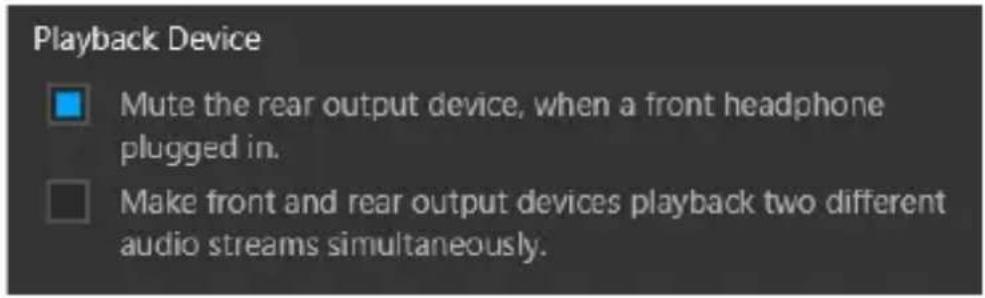
- Select Mute the rear output device, when a front headphone plugged in.
- Plug your speakers to audio jacks on rear and front I/O panel. When you plug into a device at an audio jack, a dialogue window will pop up asking you which device is current connected.
Overview of Components
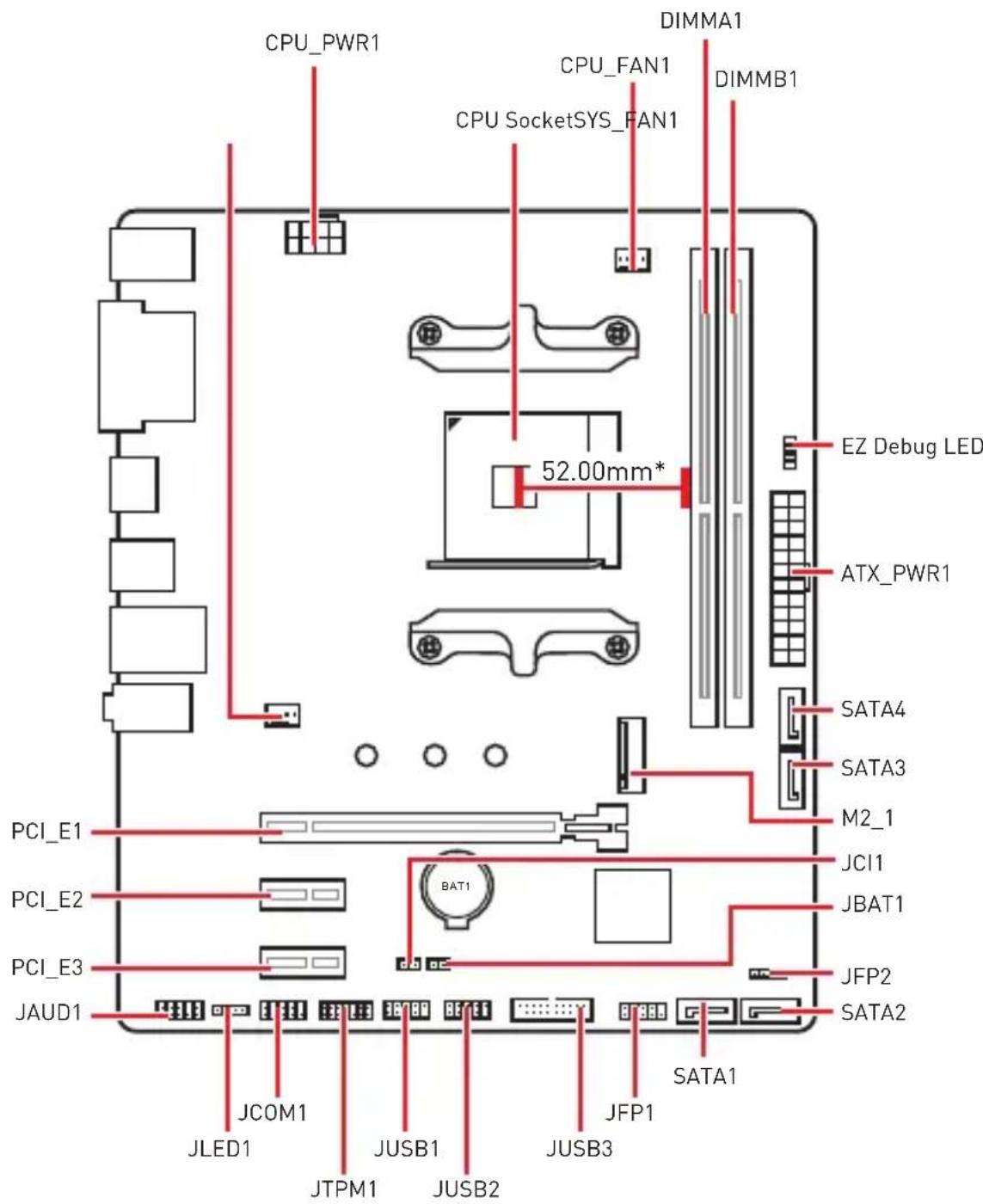
* Distance from the center of the CPU to the nearest DIMM slot.
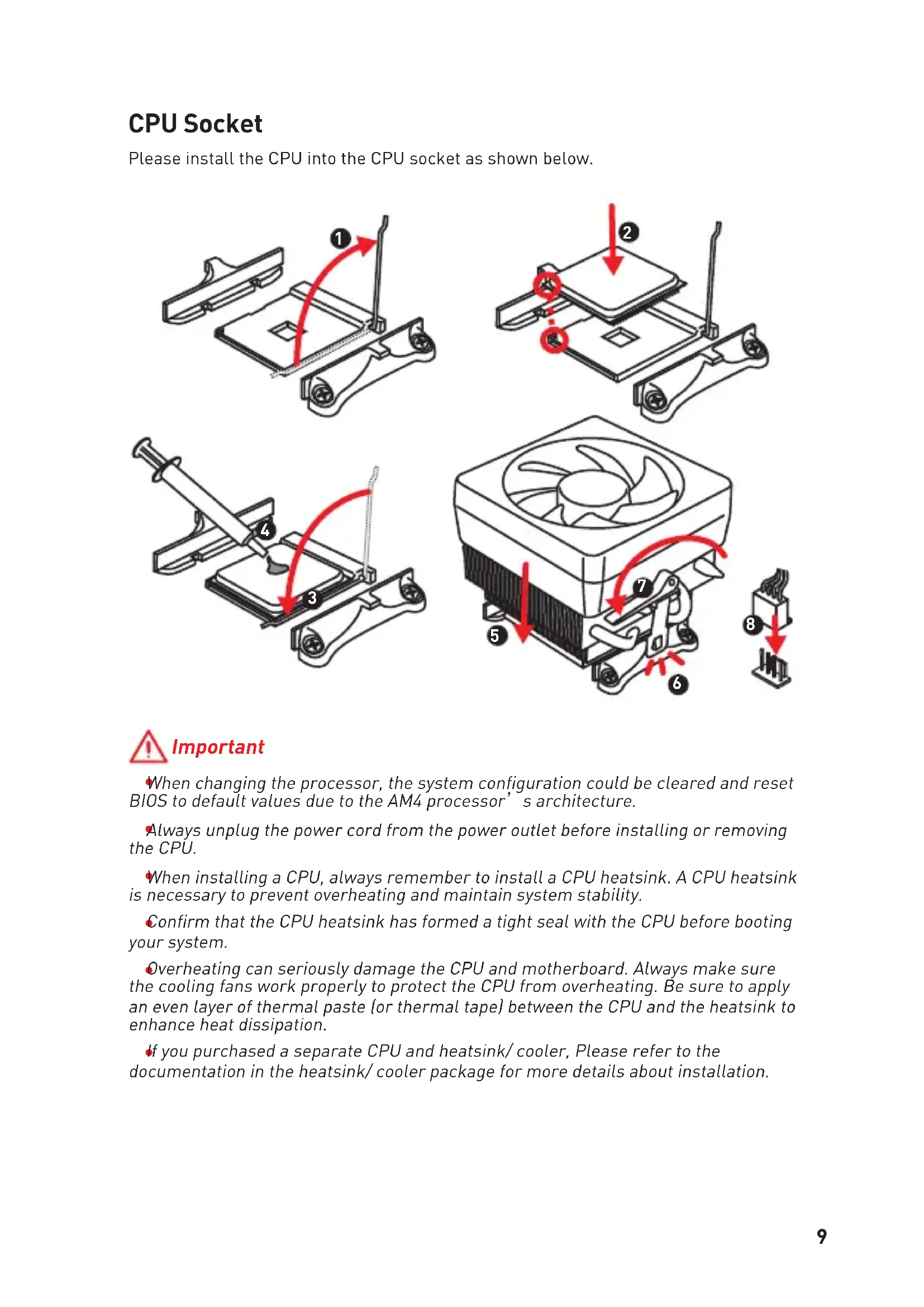
CPU Socket
Please install the CPU into the CPU socket as shown below.
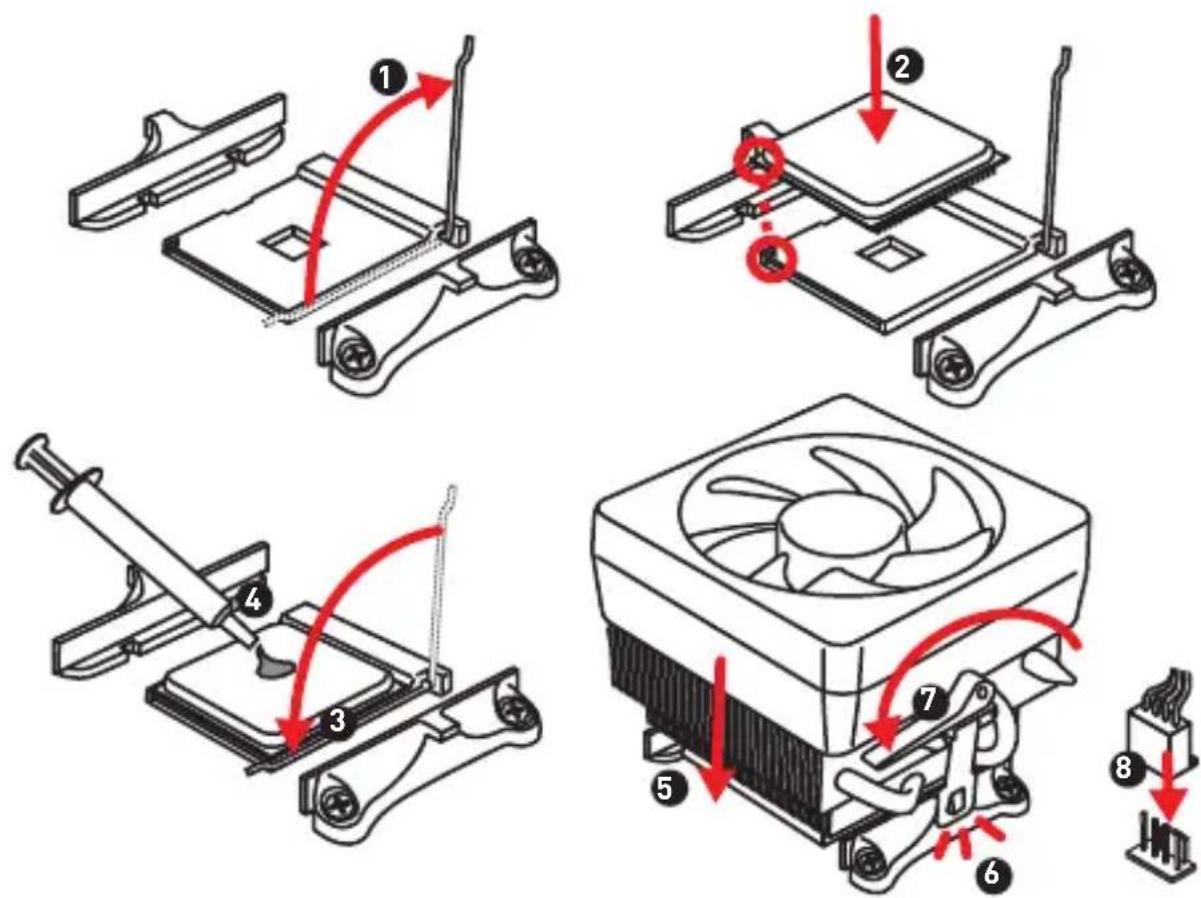

Important
When changing the processor, the system configuration could be cleared and reset BIOS to default values due to the AM4 processor's architecture.
Always unplug the power cord from the power outlet before installing or removing the CPU.
When installing a CPU, always remember to install a CPU heatsink. A CPU heatsink is necessary to prevent overheating and maintain system stability.
Confirm that the CPU heatsink has formed a tight seal with the CPU before booting your system.
Overheating can seriously damage the CPU and motherboard. Always make sure the cooling fans work properly to protect the CPU from overheating. Be sure to apply an even layer of thermal paste (or thermal tape) between the CPU and the heatsink to enhance heat dissipation.
If you purchased a separate CPU and heatsink/cooler, please refer to the documentation in the heatsink/cooler package for more details about installation.
DIMM Slots
Please install the memory module into the DIMM slot as shown below.
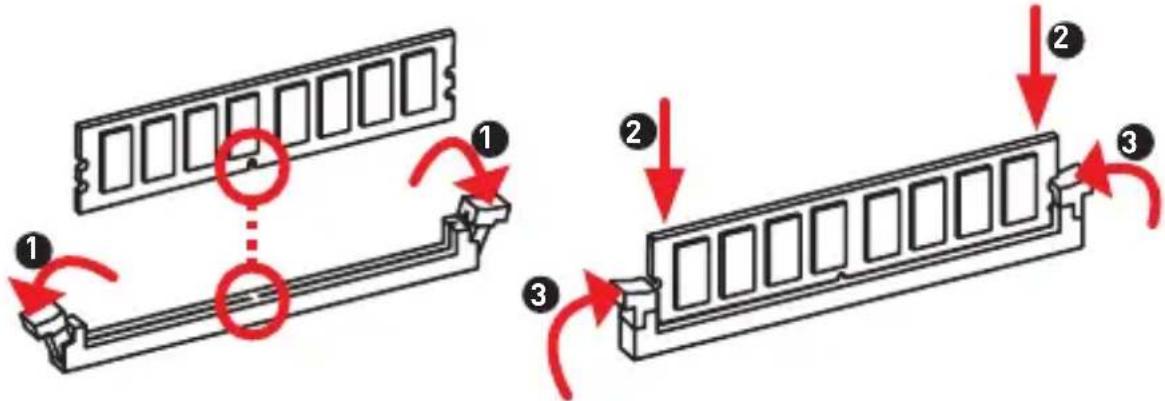

Important
Due to chipset resource usage, the available capacity of memory will be a little less than the amount of installed.
Based on processor specification, the Memory DIMM voltage below 1.35V is suggested to protect the processor.
Due to AM4 CPU/memory controller official specification limitation, the frequency of memory modules may operate lower than the marked value under the default state. Please refer www.msi.com for more information on compatible memory.
PCI_E1~3: PCIe Expansion Slots
| ProcessorsSlots | RYZEN Series | RyzenTM with RadeonTM Vega Graphics and 2nd Gen AMD RyzenTM with RadeonTM Graphics | AthlonTM with RadeonTM Vega Graphics |
| PCI_E1 PCIe 3.0 | x16 PCIe 3.0 x8 PCIe 3.0 x4 | ||
| PCI_E2 PCIe 2.0 | x1 PCIe 2.0 x1 PCIe 2.0 x1 | ||
| PCI_E3 PCIe 2.0 | x1 PCIe 2.0 x1 PCIe 2.0 x1 |

Important
When adding or removing expansion cards, always turn off the power supply and unplug the power supply power cable from the power outlet. Read the expansion card's documentation to check for any necessary additional hardware or software changes.
If you install a large and heavy graphics card, you need to use a tool such as MSI Gaming Series Graphics Card Bolster to support its weight to prevent deformation of the slot.
JFP1, JFP2: Front Panel Connectors
These connectors connect to the switches and LEDs on the front panel.
| Power LEDPower SwitchJFP1 2 1 + + + 9Reserved HDD LED Reset Switch | 1 HDD LED + 2 Power LED + |
| 3 HDD LED - 4 Power LED - | |
| 5 Reset Switch 6 Power Switch | |
| 7 Reset Switch 8 Power Switch | |
| 9 Reserved 10 No Pin |
| JFP2 | 1 + 1 Buzzer | 1 | Speaker - | 2 | Buzzer + |
| 3 | Buzzer - | 4 | Speaker + |
SATA1~4: SATA 6Gb/s Connectors
These connectors are SATA 6Gb/s interface ports. Each connector can connect to one SATA device.
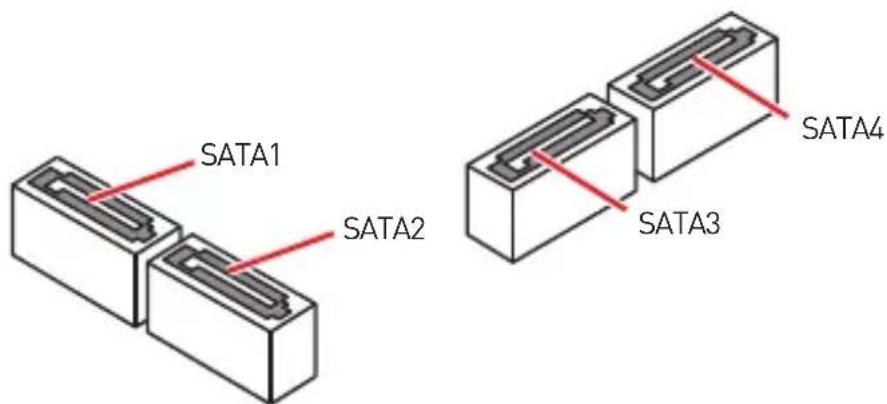

Important
Please do not fold the SATA cable at a 90-degree angle. Data loss may result during transmission otherwise.
SATA cables have identical plugs on either sides of the cable. However, it is recommended that the flat connector be connected to the motherboard for space saving purposes.
ATX_PWR1, CPU_PWR1: Power Connectors
These connectors allow you to connect an ATX power supply.
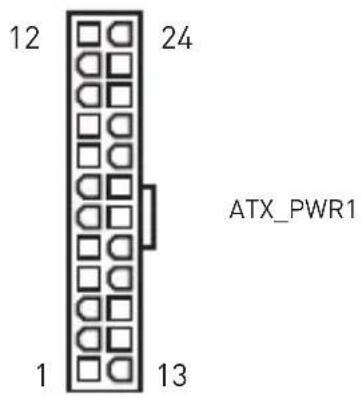 | 1 +3.3V 13 +3.3V | ||
| 2 +3.3V 14 -12V | |||
| 3 Ground 15 Ground | |||
| 4 +5V 16 PS-ON# | |||
| 5 Ground 17 Ground | |||
| 6 +5V 18 Ground | |||
| 7 Ground 19 Ground | |||
| 8 PWR OK 20 Res | |||
| 9 5 VSB 21 +5V | |||
| 10 +12V 22 +5V | |||
| 11 +12V 23 +5V | |||
| 12 +3.3V 24 Ground | |||
8 5 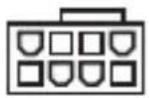 CPU_PWR1 4 1 CPU_PWR1 4 1 | 1 Ground 5 +12V | ||
| 2 Ground 6 +12V | |||
| 3 Ground 7 +12V | |||
| 4 Ground 8 +12V |

Important
Make sure that all the power cables are securely connected to a proper ATX power supply to ensure stable operation of the motherboard.
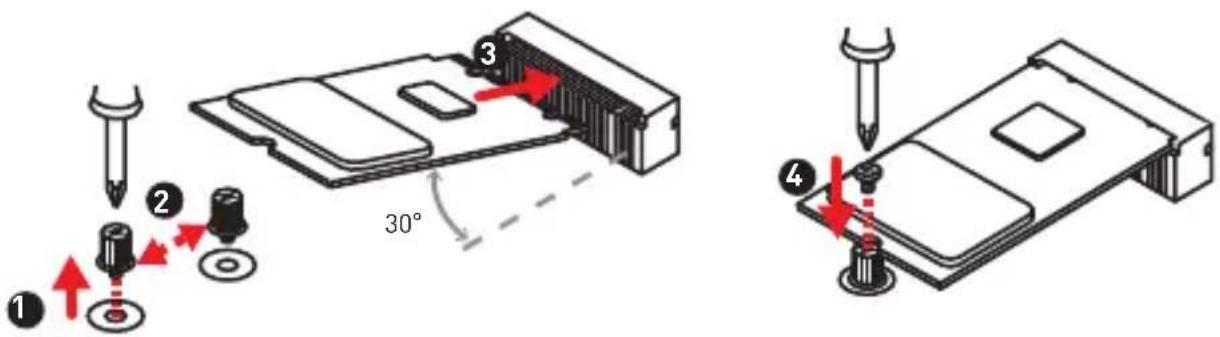
M2_1: M.2 Slot (Key M)
Please install the M.2 solid-state drive (SSD) into the M.2 slot as shown below.
JUSB1~2: USB 2.0 Connectors
These connectors allow you to connect USB 2.0 ports on the front panel.
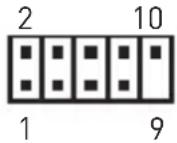 | 1 | VCC | 2 | VCC |
| 3 USB0-4 USB1- | ||||
| 5 | USB0+ | 6 | USB1+ | |
| 7 Ground 8 Ground | ||||
| 9 | No Pin 10 | NC | ||

Important
- Note that the VCC and Ground pins must be connected correctly to avoid possible damage.
- In order to recharge your iPad, iPhone and iPod through USB ports, please install MSI® SUPER CHARGER utility.
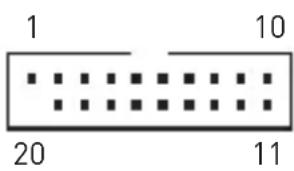
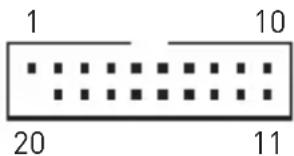
JUSB3: USB 3.2 Gen1 Connector
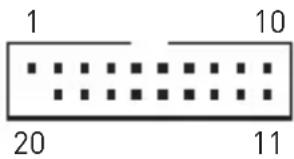
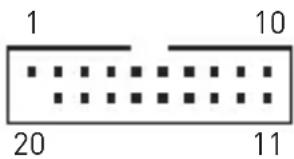
This connector allows you to connect USB 3.2 Gen1 ports on the front panel.
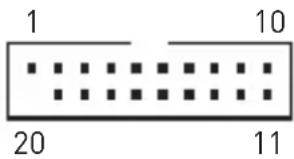 | 1 Power 11 USB2.0+ | ||
| 2 USB3_RX_DN 12 USB2.0- | |||
| 3 USB3_RX_DP 13 Ground | |||
| 4 Ground 14 USB3_TX_C_DP | |||
| 5 USB3_TX_C_DN | 15 | USB3_TX_C_DN | |
| 6 USB3_TX_C_DP | 16 Ground | ||
| 7 Ground 17 USB3_RX_DP | |||
| 8 USB2.0- 18 | USB3_RX_DN | ||
| 9 USB2.0+ 19 | Power | ||
| 10 NC | 20 | No Pin |

Important
Note that the Power and Ground pins must be connected correctly to avoid possible damage.
CPU_FAN1, SYS_FAN1: Fan Connectors
Fan connectors can be classified as PWM (Pulse Width Modulation) Mode or DC Mode. PWM Mode fan connectors provide constant 12V output and adjust fan speed with speed control signal. DC Mode fan connectors control fan speed by changing voltage. When you plug a 3-pin (Non-PWM) fan to a fan connector in PWM mode, the fan speed will always maintain at 100%, which might create a lot of noise. You can follow the instruction below to adjust the fan connector to PWM or DC Mode.
You can switch between PWM mode and DC mode and adjust fan speed in BIOS > HARDWARE MONITOR.
Select PWM mode or DC mode
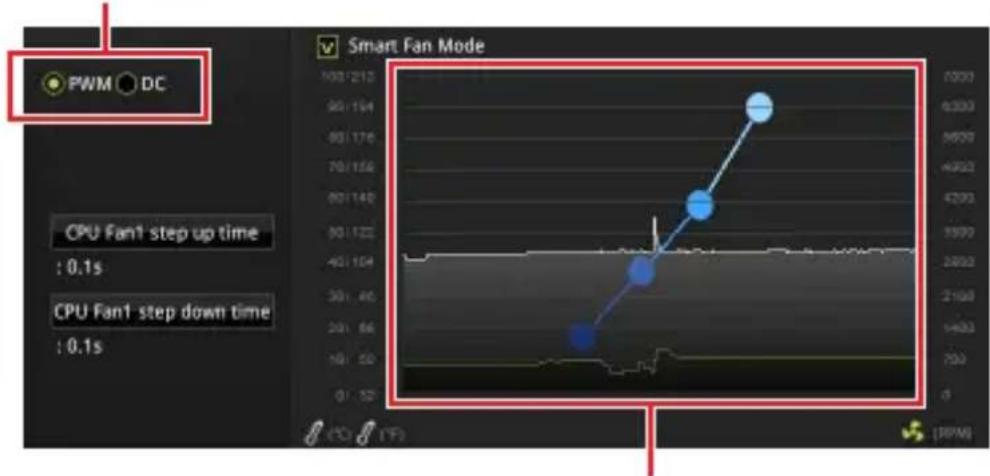
There are gradient points of the fan speed that allow you to adjust fan speed in relation to CPU temperature.

Important
Make sure fans are working properly after switching the PWM/ DC mode.
Pin definition of fan connectors
| PWM Mode pin definition | |||
| 1 | Ground 2 +1 | 2V | |
| 3 | Sense 4 Speed | ed C | Control Signal |
| DC Mode pin definition | |||
| 1 G | Ground 2 Voltage | Voltage | Control |
| 3 S | Sense 4 NC | ||
JTPM1: TPM Module Connector
This connector is for TPM (Trusted Platform Module). Please refer to the TPM security platform manual for more details and usages.
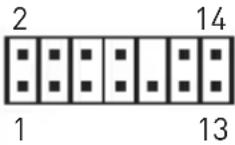 | 1 LPC Clock 2 3V Standby power | ||
| 3 LPC Reset 4 3.3V Power | |||
| 5 LPC address & data pin0 6 Serial IRQ | |||
| 7 LPC address & data pin1 8 5V Power | |||
| 9 LPC address & data pin2 10 No Pin | |||
| 11 LPC address & data pin3 12 | Ground | ||
| 13 LPC Frame 14 | Ground | ||
JCI1: Chassis Intrusion Connector
This connector allows you to connect the chassis intrusion switch cable.

Normal (default

Trigger the chassis intrusion event
Using chassis intrusion detector
- Connect the JCI1 connector to the chassis intrusion switch/ sensor on the chassis.
- Close the chassis cover.
- Go to BIOS > SETTINGS > Security > Chassis Intrusion Configuration.
- Set Chassis Intrusion to Enabled.
- Press F10 to save and exit and then press the Enter key to select Yes.
- Once the chassis cover is opened again, a warning message will be displayed on screen when the computer is turned on.
Resetting the chassis intrusion warning
- Go to BIOS > SETTINGS > Security > Chassis Intrusion Configuration.
- Set Chassis Intrusion to Reset.
- Press F10 to save and exit and then press the Enter key to select Yes.
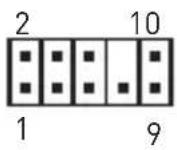
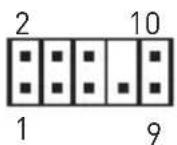
JAUD1: Front Audio Connector
This connector allows you to connect audio jacks on the front panel.
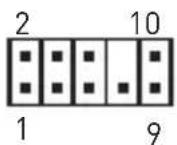 | 1 MIC L 2 Ground | ||
| 3 MIC R 4 NC | |||
| 5 Head Phone R 6 MIC Detection | |||
| 7 SENSE_SEND 8 No Pin | |||
| 9 Head Phone L 10 Head Phone Detection |
JCOM1: Serial Port Connector
These connectors allow you to connect the optional serial port with bracket.
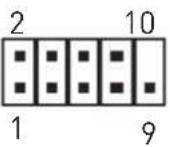 | 1 DCD 2 SIN | |||
| 3 SOUT 4 DTR | ||||
| 5 | Ground | 6 DSR | ||
| 7 | RTS | 8 CTS | ||
| 9 RI | 10 No Pin | |||
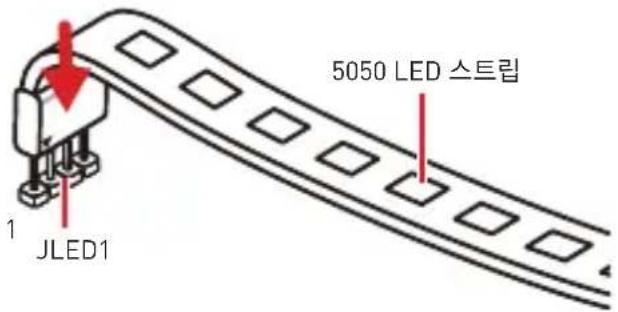
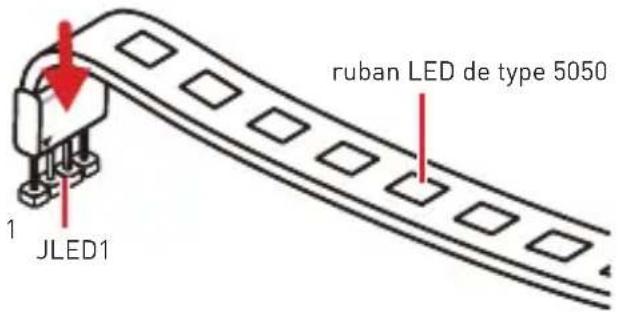
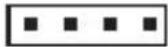
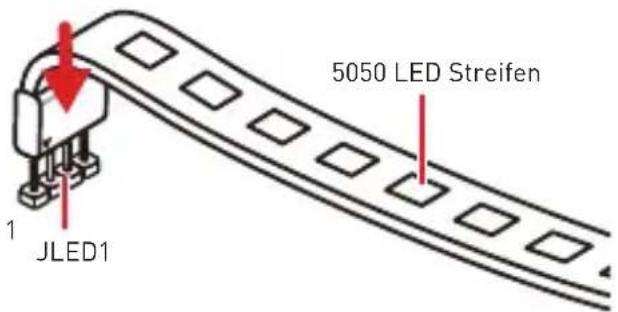
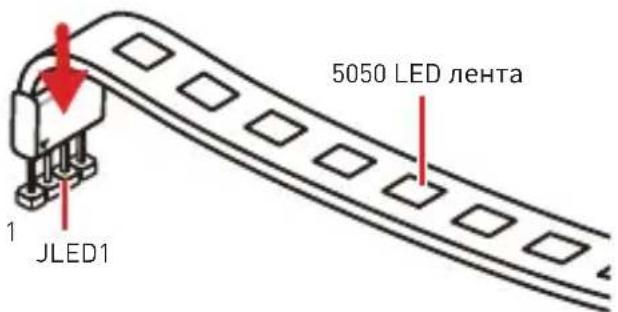
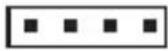
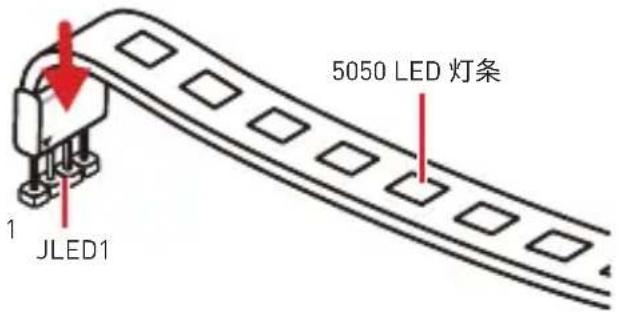
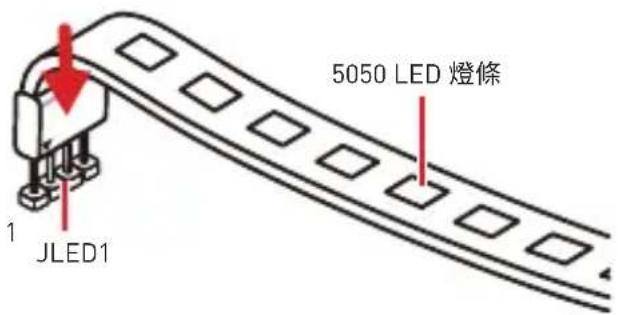
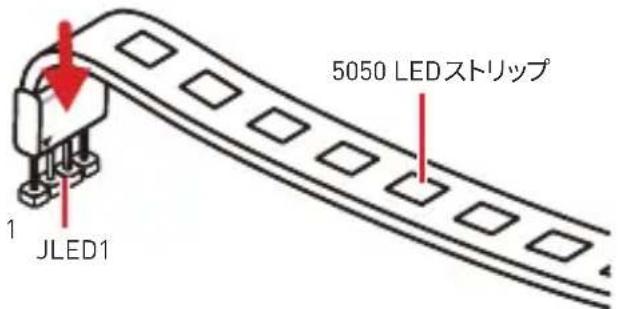
JLED1: LED strip connector
This connector allows you to connect the single color LED strip.
| 1 | |||
| 1 | +12V | 2 | NC |
| 3 | Signal | 4 | NC |


Important
- This connector supports 5050 single-color LED strips with a maximum power rating of 3A (12V). Keep the LED strip shorter than 2 meters to prevent dimming.
- Always turn off the power supply and unplug the power cord from the power outlet before installing or removing the LED strip.
- Use MYSTIC LIGHT to control the extended LED strip.
JBAT1: Clear CMOS (Reset BIOS) Jumper
There is CMOS memory onboard that is externally powered by a battery located on the motherboard to save system configuration data. If you want to clear the system configuration, set the jumper to clear the CMOS memory.
Keep Data (default)
Clear CMOS/Reset BIOS
Resetting BIOS to default values
- Power off the computer and unplug the power cord.
- Use a jumper cap to short JBAT1 for about 5-10 seconds.
- Remove the jumper cap from JBAT1.
- Plug the power cord and power on the computer.
EZ Debug LED: Debug LED indicators
These LEDs indicate the status of the motherboard.
CPU - indicates CPU is not detected or fail. DRAM - indicates DRAM is not detected or fail. VGA - indicates GPU is not detected or fail. BOOT - indicates booting device is not detected or fail.
BIOS Setup
The default settings offer the optimal performance for system stability in normal conditions. You should always keep the default settings to avoid possible system damage or failure booting unless you are familiar with BIOS.

Important
BIOS items are continuously updated for better system performance. Therefore, the description may be slightly different from the latest BIOS and should be held for reference only. You could also refer to the HELP information panel for BIOS item description.
The pictures in this chapter are for reference only and may vary from the product you purchased.
The BIOS items will vary with the processor.
Entering BIOS Setup
Press Delete key, when the Press DEL key to enter Setup Menu, F11 to enter Boot Menu message appears on the screen during the boot process.
Function key
F1: General Help F2: Add/ Remove a favorite item F3: Enter Favorites menu F4: Enter CPU Specifications menu F5: Enter Memory-Z menu F6: Load optimized defaults F7: Switch between Advanced mode and EZ mode F8: Load Overclocking Profile F9: Save Overclocking Profile F10: Save Change and Reset*
F12: Take a screenshot and save it to USB flash drive (FAT/ FAT32 format only).
* When you press F10, a confirmation window appears and it provides the modification information. Select between Yes or No to confirm your choice.
Resetting BIOS
You might need to restore the default BIOS setting to solve certain problems. There are several ways to reset BIOS:
- Go to BIOS and press F6 to load optimized defaults.
- Short the Clear CMOS jumper on the motherboard.

Important
Please refer to the Clear CMOS jumper section for resetting BIOS.
Updating BIOS
Updating BIOS with M-FLASH
Before updating:
Please download the latest BIOS file that matches your motherboard model from MSI website. And then save the BIOS file into the USB flash drive.
Updating BIOS:
- Press Del key to enter the BIOS Setup during POST.
- Insert the USB flash drive that contains the update file into the computer.
- Select the M-FLASH tab and click on Yes to reboot the system and enter the flash mode.
- Select a BIOS file to perform the BIOS update process.
- After the flashing process is 100% completed, the system will reboot automatically.
Updating the BIOS with Live Update 6
Before updating:
Make sure the LAN driver is already installed and the Internet connection is set properly.
Updating BIOS:
- Install and launch MSI LIVE UPDATE 6.
- Select BIOS Update.
- Click on Scan button.
- Click on Download icon to download and install the latest BIOS file.
- Click Next and choose In Windows mode. And then click Next and Start to start updating BIOS.
- After the flashing process is 100% completed, the system will restart automatically.
Software Description
Please download and update the latest utilities and drivers at www.msi.com
Installing Windows® 10
- Power on the computer.
- Insert the Windows® 10 installation disc/USB into your computer.
- Press the Restart button on the computer case.
- Press F11 key during the computer POST (Power-On Self Test) to get into Boot Menu.
- Select the Windows 10 installation disc/USB from the Boot Menu.
- Press any key when the screen shows the "Press any key to boot from CD or DVD..." message.
- Follow the on-screen instructions to install Windows 10.
Installing Drivers
- Start up your computer in Windows 10.
- Insert the MSI Driver Disc into your optical drive.
- Click the "Select to choose what happens with this disc" pop-up notification, then select "Run DVDSetup.exe" to open the installer. If you have turned off the AutoPlay feature in the Windows Control Panel, you can still manually execute DVDSetup.exe from the root path of the MSI Driver Disc.
- The installer will find and list all necessary drivers in the "Drivers/Software" tab.
- Click the "Install" button in the lower-right corner of the window.
- The driver installation will then be in progress; after it has finished, it will prompt you to restart.
- Click "OK" to finish.
- Restart your computer.
Installing Utilities
Before you install utilities, you must complete the driver installation.
- Open the installer as described above.
- Click the Utilities tab.
- Select the utilities you want to install.
- Click the Install button in the lower-right corner of the window.
- The utilities installation will then be in progress, after it has finished it will prompt you to restart.
- Click OK button to finish.
- Restart your computer.

Important

Important
| 1 Power 11 USB2.0+ | ||
| 2 USB3_RX_DN 12 USB2.0- | |||
| 3 USB3_RX_DP 13 Ground | |||
| 4 Ground 14 USB3_TX_C_DP | |||
| 5 USB3_TX_C_DN 15 | USB3_TX_C_DN | ||
| 6 USB3_TX_C_DP | 16 Ground | ||
| 7 Ground 17 USB3_RX_DP | |||
| 8 USB2.0- 18 | USB3_RX_DN | ||
| 9 USB2.0+ 19 | Power | ||
| 10 NC | 20 | No Pin | |

Important
 | 1 MIC L 2 Ground | ||
| 3 MIC R 4 NC | |||
| 5 Head Phone R 6 MIC Detection | |||
| 7 SENSE_SEND 8 No Pin | |||
| 9 Head Phone L 10 Head Phone Detection |
JCOM1: Serial port connector
| 1 | |||
| 1 | +12V | 2 | NC |
| 3 | Signal | 4 | NC |

Important

Important
| Power LEDPower SwitchJFP1 2 1 + + + 9Reserved HDD LED Reset Switch | 1 HDD LED + 2 Power LED + | ||
| 3 HDD LED - 4 Power LED - | |||
| 5 Reset Switch 6 Power Switch | |||
| 7 Reset Switch 8 Power Switch | |||
| 9 | Reserved | 10 No Pin | |
| JFP2 | 1 + 1 Buzzer | 1 | Speaker - | 2 | Buzzer + |
| 3 | Buzzer - | 4 | Speaker + |
| 1 Power 11 USB2.0+ | ||
| 2 USB3_RX_DN 12 USB2.0- | |||
| 3 USB3_RX_DP 13 Ground | |||
| 4 Ground 14 | USB3_TX_C_DP | ||
| 5 USB3_TX_C_DN | 15 | USB3_TX_C_DN | |
| 6 USB3_TX_C_DP | 16 Ground | ||
| 7 Ground 17 | USB3_RX_DP | ||
| 8 USB2.0- | 18 | USB3_RX_DN | |
| 9 USB2.0+ | 19 | Power | |
| 10 NC | 20 | No Pin |

Important
| 1 MIC L 2 Ground | ||
| 3 MIC R 4 NC | |||
| 5 Head Phone R 6 MIC Detection | |||
| 7 SENSE_SEND 8 No Pin | |||
| 9 Head Phone L 10 Head Phone Detection |
| 1 | |||
| 1 | +12V | 2 | NC |
| 3 | Signal | 4 | NC |

Important
JFP1, JFP2: Front panel connectors....12
SATA1~4: SATA 6Gb/s connectors ....12
ATX_PWR1, CPU_PWR1: Power connectors 13
JUSB1~2: USB 2.0 connectors....14
JUSB3: USB 3.2 Gen1 connector....14
Installation of utilities....21
Safety information

Important

Important
JFP1, JFP2: Front panel connectors
| Power LEDPower SwitchJFP1 2 1 + + + 9Reserved HDD LED Reset Switch | 1 HDD LED + 2 Power LED + |
| 3 HDD LED - 4 Power LED - | |
| 5 Reset Switch 6 Power Switch | |
| 7 Reset Switch 8 Power Switch | |
| 9 Reserved 10 No Pin |
| JFP2 | 1 + 1 Buzzer | 1 | Speaker - | 2 | Buzzer + |
| 3 | Buzzer - | 4 Speaker + | |||
SATA1~4: SATA 6Gb/s connectors
ATX_PWR1, CPU_PWR1: Power connectors
JUSB1~2: USB 2.0 connectors
 | 1 Power 11 USB2.0+ | ||
| 2 USB3_RX_DN 12 USB2.0- | |||
| 3 USB3_RX_DP 13 Ground | |||
| 4 Ground 14 USB3_TX_C_DP | |||
| 5 USB3_TX_C_DN 15 | USB3_TX_C_DN | ||
| 6 USB3_TX_C_DP | 16 Ground | ||
| 7 Ground 17 USB3_RX_DP | |||
| 8 USB2.0- 18 | USB3_RX_DN | ||
| 9 USB2.0+ 19 | Power | ||
| 10 NC | 20 | No Pin | |

Important
 | 1 MIC L 2 Ground | ||
| 3 MIC R 4 NC | |||
| 5 Head Phone R 6 MIC Detection | |||
| 7 SENSE_SEND 8 No Pin | |||
| 9 Head Phone L 10 Head Phone Detection |
 1 1 | |||
| 1 | +12V | 2 | NC |
| 3 | Signal | 4 | NC |

Important
msi
Mute the rear output device when a front headphone is plugged in.

Make front and rear output devices play two different audio streams simultaneously.

Warning!

Warning!
| Power LEDPower SwitchJFP1 2 1 + 1 + 1 10ReservedHDD LED Reset Switch | 1 HDD LED + 2 Power LED + |
| 3 HDD LED - 4 Power LED - | |
| 5 Reset Switch 6 Power Switch | |
| 7 Reset Switch 8 Power Switch | |
| 9 Reserved 10 No Pin |
| JFP2 | 1 + 1 Buzzer | 1 Speaker - 2 Buzzer + | ||
| 3 | Buzzer - | 4 Speaker + | ||
 | 1 Power 11 USB2.0+ | ||
| 2 USB3_RX_DN 12 USB2.0- | |||
| 3 USB3_RX_DP 13 Ground | |||
| 4 Ground 14 USB3_TX_C_DP | |||
| 5 USB3_TX_C_DN 15 | USB3_TX_C_DN | ||
| 6 USB3_TX_C_DP | 16 Ground | ||
| 7 Ground 17 USB3_RX_DP | |||
| 8 USB2.0- 18 | USB3_RX_DN | ||
| 9 USB2.0+ 19 | Power | ||
| 10 NC | 20 | No Pin | |

Warning!
 | 1 MIC L 2 Ground | ||
| 3 MIC R 4 NC | |||
| 5 Head Phone R 6 MIC Detection | |||
| 7 SENSE_SEND 8 No Pin | |||
| 9 Head Phone L 10 Head Phone Detection |
 1 1 | |||
| 1 | +12V | 2 | NC |
| 3 | Signal | 4 | NC |

Warning!
CPU_FAN1, SYS_FAN1: Fan connectors.....14
Note

Note
| JFP2 | 1 + : Buzzer | 1 | Speaker - | 2 | Buzzer + |
| 3 | Buzzer - | 4 | Speaker + |
SATA1~4: SATA 6Gb/s connectors
 | 1 Power 11 USB2.0+ | ||
| 2 USB3_RX_DN 12 USB2.0- | |||
| 3 USB3_RX_DP 13 Ground | |||
| 4 Ground 14 USB3_TX_C_DP | |||
| 5 USB3_TX_C_DN 15 | USB3_TX_C_DN | ||
| 6 USB3_TX_C_DP | 16 Ground | ||
| 7 Ground 17 USB3_RX_DP | |||
| 8 USB2.0- 18 | USB3_RX_DN | ||
| 9 USB2.0+ 19 | Power | ||
| 10 NC | 20 | No Pin | |

Note
| 1 MIC L 2 Ground | ||
| 3 MIC R 4 NC | |||
| 5 Head Phone R 6 MIC Detection | |||
| 7 SENSE_SEND 8 No Pin | |||
| 9 Head Phone L 10 Head Phone Detection |
JCOM1: Serial port header
 1 1 | |||
| 1 | +12V | 2 | NC |
| 3 | Signal | 4 | NC |

Note
Important

Important
| JFP2 | 1 + 1 Buzzer | 1 | Speaker - | 2 | Buzzer + |
| 3 | Buzzer - | 4 | Speaker + |
SATA1~4: SATA 6Gb/s connectors
| 1 Power 11 USB2.0+ | ||
| 2 USB3_RX_DN 12 USB2.0- | |||
| 3 USB3_RX_DP 13 Ground | |||
| 4 Ground 14 USB3_TX_C_DP | |||
| 5 USB3_TX_C_DN | 15 | USB3_TX_C_DN | |
| 6 USB3_TX_C_DP | 16 Ground | ||
| 7 Ground 17 USB3_RX_DP | |||
| 8 USB2.0- 18 | USB3_RX_DN | ||
| 9 USB2.0+ 19 | Power | ||
| 10 NC | 20 | No Pin |

Important
| 1 MIC L 2 Ground | ||
| 3 MIC R 4 NC | |||
| 5 Head Phone R 6 MIC Detection | |||
| 7 SENSE_SEND 8 No Pin | |||
| 9 Head Phone L 10 Head Phone Detection |
JCOM1: Serial port header
This header is used to connect an optional serial port bracket.
| 1 DCD 2 SIN | |||
| 3 SOUT 4 | DTR | |||
| 5 | Ground | 6 | DSR | |
| 7 | RTS | 8 | CTS | |
| 9 RI | 10 No Pin | |||
JLED1: LED strip header
You can connect a single-color LED strip through this header.
| 1 | |||
| 1 | +12V | 2 | NC |
| 3 | Signal | 4 | NC |

Important
Note

Note
| Power LEDPower SwitchJFP1 2 1 + + + 9Reserved HDD LED Reset Switch | 1 HDD LED + 2 | Power LED + |
| 3 HDD LED - | 4 Power LED - | |
| 5 Reset Switch | 6 Power Switch | |
| 7 Reset Switch | 8 Power Switch | |
| 9 Reserved | 10 No Pin |
| JFP2 | 1 + BuzzerSpeaker | 1 | Speaker - | 2 | Buzzer + |
| 3 | Buzzer - | 4 | Speaker + |
 | 1 Power 11 USB2.0+ | |||
| 2 USB3_RX_DN 12 USB2.0- | ||||
| 3 USB3_RX_DP 13 | Ground | |||
| 4 Ground 14 | USB3_TX_C_DP | |||
| 5 | USB3_TX_C_DN | 15 | USB3_TX_C_DN | |
| 6 | USB3_TX_C_DP | 16 | Ground | |
| 7 Ground 17 | USB3_RX_DP | |||
| 8 | USB2.0- | 18 | USB3_RX_DN | |
| 9 | USB2.0+ | 19 | Power | |
| 10 | NC | 20 | No Pin | |

Note
| 1 MIC L 2 Ground | ||
| 3 MIC R 4 NC | |||
| 5 Head Phone R 6 MIC Detection | |||
| 7 SENSE_SEND 8 No Pin | |||
| 9 Head Phone L 10 Head Phone Detection |
JCOM1: Serial port connector
| 1 | |||
| 1 | +12V | 2 | NC |
| 3 | Signal | 4 | NC |
FCC Compliance Statement
Note: This equipment has been tested and found to comply with the limits for a Class B digital device, pursuant to part 15 of the FCC Rules. These limits are designed to provide reasonable protection against harmful interference in a residential installation. This equipment generates, uses and can radiate radio frequency energy and, if not installed and used in accordance with the instructions, may cause harmful interference to radio communications. However, there is no guarantee that interference will not occur in a particular installation. If this equipment does cause harmful interference to radio or television reception, which can be determined by turning the equipment off and on, the user is encouraged to try to correct the interference by one or more of the following measures:
• Reorient or relocate the receiving antenna. - Increase the separation between the equipment and receiver. - Connect the equipment into an outlet on a circuit different from that to which the receiver is connected. - Consult the dealer or an experienced radio/TV technician for help.
Caution: Changes or modifications not expressly approved by the party responsible for compliance could void the user's authority to operate the equipment.

Tested to comply with FCC standards FOR HOME OR OFFICE USE
This device complies with part 15 of the FCC Rules. Operation is subject to the following two conditions:
[1] This device may not cause harmful interference, and [2] this device must accept any interference received, including interference that may cause undesired operation.
CE Conformity

Products bearing the CE marking comply with one or more of the following EU Directives as may be applicable:
RED 2014/53/EU; Low Voltage Directive 2014/35/EU; EMC Directive 2014/30/EU; RoHS Directive 2011/65/EU. Compliance with these directives is assessed using applicable European Harmonized Standards. The point of contact for regulatory matters is MSI, MSI-NL Eindhoven 5706 5692 ER Son.
C-Tick Compliance

N1996
Class B equipment (home broadcasting and communication equipment)

Batteries, battery packs, and accumulators should not be disposed of as unsorted household waste. Please use the public collection system to return, recycle, or treat them in compliance with the
local regulations.
Taiwan:

Recycle waste batteries
For better environmental protection, waste batteries should be collected separately for recycling or special disposal.
California, USA:

The button cell battery may contain perchlorate material and requires special handling when recycled or disposed of in California. For further information please visit:
http://www.dtsc.ca.gov/hazardouswaste/perchlorate/
CAUTION: There is a risk of explosion if the battery is incorrectly replaced.
Replace only with the same or equivalent type recommended by the manufacturer.
WEEE (Waste Electrical and Electronic Equipment) Statement
ENGLISH
To protect the global environment and as an environmentalist, MSI must remind you that... Under the European Union ("EU") Directive on Waste Electrical and Electronic Equipment, Directive 2002/96/EC, which takes effect on August 13, 2005, products of "electrical and electronic equipment" cannot be discarded as municipal wastes anymore, and manufacturers of covered electronic equipment will be obligated to take back such products at the end of their useful life. MSI will comply with the product take back requirements at the end of life of MSI-branded products that are sold into the EU. You can return these products to local collection points.
DEUTSCH
This product complies with the "India E-waste (Management and Handling) Rule 2011" and prohibits use of lead, mercury, hexavalent chromium, polybrominated biphenyls or polybrominated diphenyl ethers in concentrations exceeding 0.1 weight % and 0.01 weight % for cadmium, except for the exemptions set in Schedule 2 of the Rule.
Environmental Policy
- The product has been designed to enable proper reuse of parts and recycling and should not be thrown away at its end of life.
- Users should contact the local authorized point of collection for recycling and disposing of their end products.
- Visit the MSI website and locate a nearby distributor for further recycling information.

Users may also reach us at gpcontdev@msi.com for information regarding proper Disposal, Take-back, Recycling, and Disassembly of MSI products.
Chemical Substances Information
In compliance with chemical substances regulations, such as the EU REACH Regulation (Regulation EC No. 1907/2006 of the European Parliament and the Council), MSI provides the information of chemical substances in products at:
http://www.msi.com/html/popup/csr/evmtprtt_pcm.html
Names and contents of hazardous substances in the product
If a problem arises with your system and no solution can be obtained from the user guide, please contact your place of purchase or local distributor. Alternatively, please try the following help resources for further guidance.
- Visit the MSI website for technical guide, BIOS updates, driver updates, and other information: http://www.msi.com
- Register your product at: http://register.msi.com
Copyright
msi Micro-Star Int'l Co., Ltd. Copyright © 2020 All rights reserved.
The MSI logo used is a registered trademark of Micro-Star Int'l Co., Ltd. All other marks and names mentioned may be trademarks of their respective owners. No warranty as to accuracy or completeness is expressed or implied. MSI reserves the right to make changes to this document without prior notice.
Revision History
Version 2.0, 2018/11, First release.
Version 2.1, 2019/07, For MAX
Version 2.2, 2020/10, Update audio spec.
- CONTENTS
- SAFETY INFORMATION
- SPECIFICATIONS
- PACKAGE CONTENTS
- REAR I/O PANEL
- OVERVIEW OF COMPONENTS
- BIOS SETUP
- SOFTWARE DESCRIPTION
- CONTINUED FROM PREVIOUS PAGE
- SPECIAL FEATURES
- IMPORTANT
- LAN PORT LED STATUS TABLE
- AUDIO 7.1-CHANNEL CONFIGURATION
- CPU SOCKET
- DIMM SLOTS
- PCI_E1~3: PCIE EXPANSION SLOTS
- JFP1, JFP2: FRONT PANEL CONNECTORS
- SATA1~4: SATA 6GB/S CONNECTORS
- ATX_PWR1, CPU_PWR1: POWER CONNECTORS
- M2_1: M.2 SLOT (KEY M)
- JUSB1~2: USB 2.0 CONNECTORS
- JUSB3: USB 3.2 GEN1 CONNECTOR
- CPU_FAN1, SYS_FAN1: FAN CONNECTORS
- JTPM1: TPM MODULE CONNECTOR
- JCI1: CHASSIS INTRUSION CONNECTOR
- USING CHASSIS INTRUSION DETECTOR
- RESETTING THE CHASSIS INTRUSION WARNING
- JAUD1: FRONT AUDIO CONNECTOR
- JCOM1: SERIAL PORT CONNECTOR
- JLED1: LED STRIP CONNECTOR
- JBAT1: CLEAR CMOS (RESET BIOS) JUMPER
- RESETTING BIOS TO DEFAULT VALUES
- EZ DEBUG LED: DEBUG LED INDICATORS
- ENTERING BIOS SETUP
- FUNCTION KEY
- RESETTING BIOS
- UPDATING BIOS
- UPDATING BIOS WITH M-FLASH
- UPDATING THE BIOS WITH LIVE UPDATE
- INSTALLING WINDOWS®
- INSTALLING DRIVERS
- INSTALLING UTILITIES
- WARNING
- NOTE
- JCOM1: SERIAL PORT HEADER
- JLED1: LED STRIP HEADER
- FCC COMPLIANCE STATEMENT
- CE CONFORMITY
- C-TICK COMPLIANCE
- CLASS B EQUIPMENT (HOME BROADCASTING AND COMMUNICATION EQUIPMENT)
- RECYCLE WASTE BATTERIES
- WEEE (WASTE ELECTRICAL AND ELECTRONIC EQUIPMENT) STATEMENT
- ENGLISH
- DEUTSCH
- ENVIRONMENTAL POLICY
- CHEMICAL SUBSTANCES INFORMATION
- COPYRIGHT
- REVISION HISTORY
Brand : MSI
Model : B450M ProM2 Max
Category : Motherboard