
NAVIGATOR 905BT - Portable GPS GENUIS - Free user manual and instructions
Find the device manual for free NAVIGATOR 905BT GENUIS in PDF.


User questions about NAVIGATOR 905BT GENUIS
0 question about this device. Answer the ones you know or ask your own.
Ask a new question about this device
Download the instructions for your Portable GPS in PDF format for free! Find your manual NAVIGATOR 905BT - GENUIS and take your electronic device back in hand. On this page are published all the documents necessary for the use of your device. NAVIGATOR 905BT by GENUIS.
USER MANUAL NAVIGATOR 905BT GENUIS
Navigator 905BT is designed for a PC or notebook enabled with a Bluetooth device. It provides a convenient feature to attach your mouse when taking your notebook to office meetings. It also includes 60 day free trial software from Norton Symantec for the best virus security.
Hardware Installation
- Install two AA batteries in the mouse.
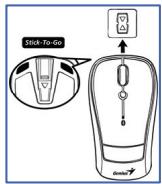
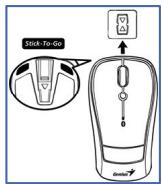
- Stick-N-Go: attach the 'Click Mount' on your notebook in a convenient position first, then you can attach the mouse on your notebook as shown to avoid dropping your mouse.
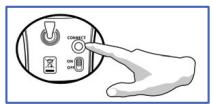
- Make sure that you have switched on the power switch underneath the mouse.
Software Installation
- Make sure the mouse is connected to the computer.
- Put the CD driver into the CD drive.
- Choose and double click 'Mouse Driver' and follow the instructions to complete the 4D/8D installation.
Factory Settings
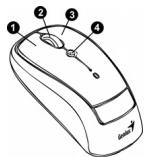
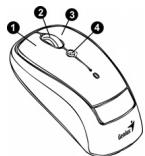
- Left Button: Provides traditional mouse functions like click, double click and drag.
- Magic-Roller: Press the "Magic-Roller" to surf the Internet and Windows documents.
- Right Button: Provides traditional mouse click functions.
- Flying Scroll: Press and hold on to the button and move the mouse for multi-direction browsing; provide more fun and convenience to office users in scrolling up, down, left. Right or diagonals.
Pairing Process in Vista and Windows XP SP2
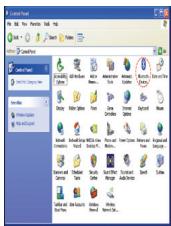
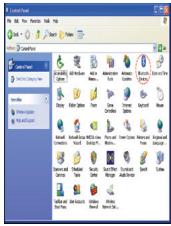
- Open the Windows control panel, then select "Bluetooth devices".
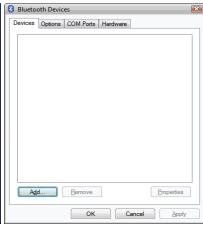
- Click "Add...."
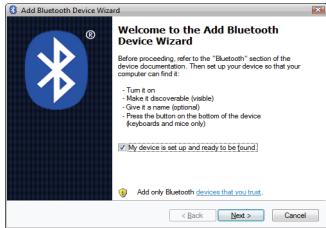
- Select "My device is setup and ready to be found", then click "Next".
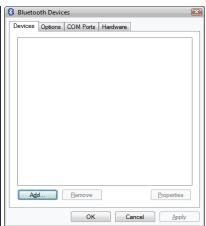
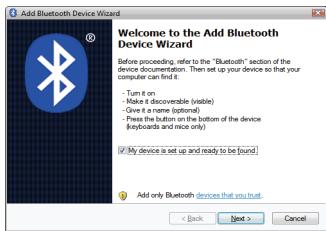
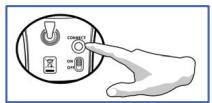
- Press and hold the "CONNECT" button under the mouse.
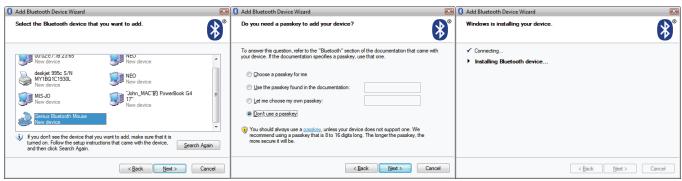
- In "Peripherals (Keyboards, mice, joysticks)", select Genius Bluetooth Mouse and click "Next".
- Select "Don't use a passkey" and click "Next".
- Windows will start to connect the Genius Bluetooth Mouse automatically. Press the finish button after the connection process is completed.
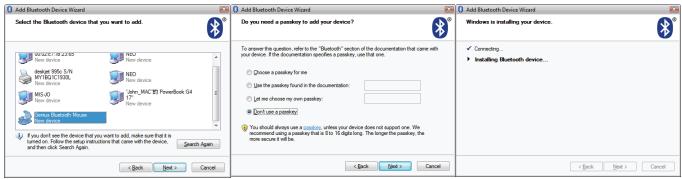
Once the connection between the Genius Bluetooth Mouse and your computer is established, the connection will be kept permanently. That means the connection will re-establish automatically each time you run Windows.
Pairing Process in Mac OS X 10.2.8 or later
- Press and hold the "CONNECT" button under the mouse.
- Click the Bluetooth icon on the task bar and select "Setup Bluetooth device".
- Click "Continue" when the "Bluetooth Setup Assistant" appears.
- Choose "Mouse" and press "Continue" to the next step.
- When Bluetooth finds the "Genius Bluetooth Mouse", please press "Continue" to the next step.
- Click "Continue" when the "Passkey exchange with your mouse" appears.
- The connection is now successful and you can use your Genius Bluetooth Mouse.
Now you can use the Genius Bluetooth Mouse wirelessly with a Bluetooth enabled Apple computer. Afterwards, the connection of the Genius Bluetooth mouse will re-establish automatically each time Mac OS X runs.
BveJeHne
YcTpoIcTBo Navigator 905BT IpeIHa3NaYeHO JIJI KOMIIbIOTePOB IN HOyTOyKOB C IIOJIePJKKO Blueteoth. OHO IO3BOJIaET YIO6HO IIOJIKIOUaTHMbIb K HOyTOyKY Ha pa3JIHnIbIX COBeIIaHHx. KpOme TOrO, B KOMIIJIeKT IocTaBKN BXoIIT 6ecIIaTHa TcTeTOBa BEpcH aHTHBnPcHoH IpOprpAMMbI Norton Symantec cPoKOM Ha 60 dHei.
YctaHOBka yCTpoiIcTbA
- HαKMnTe Ha KHOIIKy, OTKpoIte BεpxHIOU KpbIIky uYcTaHOBnTe B MbIIb IBe 6aTapeiKn TNIOpa3Mepa AA.
- IpiocToTa H yIO6cTBO: IIpHKpeIInTe 3aUeJIky Ha HoYTOyK B JIO6OM yIO6HOM MeCTe H 3aKpeIIJrIte c ee IIMOuBIO MbIiB IIpH TpaHcIopTHPOBKe.
- BkIIOUHTe IITaHHe Ha IHHIIe MbIHH.
HactpoiKa IIporpamMnHO o6ecneueHHa
1.Поверът,ПОДКЛЮЧЕнЛМБИШККOMПьИТуру.
2. BcTaBbTe KOMIIaKT-DHcK B INCKOBoI KOMIIaKT-DHcKOB.
3.ДЯ ПОДКЛIOUeHЯФуHKIINI PpOKpyTKN B 4И8 HAnPpaBJIeHNAДBaJxIbI IeJIKHNTe «Mouse Driver》 (ДраиВерMbIIN)ИСLEdYIte INHcTpyKIIHЯM.
3aBoDcKHe NaCTpoKn
- JIeBaJ KhoIIka: TpaIHHOHHbIe yHKIIH MblIIH (IIeJIYKH, IBOHbIe IIeJIYKH, IIpeTackHBaHHe).
- PoJIHK «Magic-Roller»: IIJIЯ ПОИСКА В ИNTePHeTe I B ДOKуMeHTax Windows.
- IIpaBaa KhoIIa: TpaIINIOOHbIe yHKIIH IIpaBOI KHOIIK MblIIH.
- Flying Scroll: IIpn HauKaTTH Ha 3Ty KHOIIKY MOKHO yIO6HO BbIIOJIHrTb IIpOKpyTKy B JIO6OM HApBaJIeHHN.
YcTaHOBKa coeINHHnB B cHCTeMe Vista & Windows XP SP2
- ŘtKpoIte IaHJIb yIpaBJIeHnIe Windows n BbI6epHTe pa3IeJI «YcTpoIcTbA Bluetooth».
- HαKMnTe Ha KHOIIKy «ДобaBHTb...»
- BbIbepHTe Ja, ycTpoiCTBO yKe IIOIcoeINHeHO» H NaKMHTe Ha KHOIIky JaJIee
Pycckn
- HαKMnTe n yIeprKnBaIte KHOIIky “CONNECT”, oHa HaxoJNTcra CHN3y MbIIN.
- B pa3JIeJIe «IpeHΦeepHnHbIe ycTpoiCTBa (KJIaBHaTpbl, MblHIN,ДЖоIcTHKN)» Bbl6epeHTeMbIIbBluetooth Genius I NaKMHTe Ha KHOIIKy «JaJIee»
- BbIbepHTe He HcIOJIb3OBAtB KJIIOU JIOCTyIIa> N HaJKMHTe Ha KHOIIKy JaJIeE>.
7.СнстemaWindowsabTOMaTHUeCKHnHaHHeT yctaHABJIbBaTb coeINHeHne cMbIbIbOBluetoothGenius. IIO 3aBepIIeHHN 3TOrO IIpoIeccaHaJKMHTe Ha KHOIIKy «ΓOTOBO»
IocJIe yctAHOBKn coeINHeHne Mbln Bluetooth Genius c KOMIIbIOTepom 6yJeT IOJIePKeHBaTbcr IocToHHo.3To O3Haayet, YTO IIpe3aIpycke cnCTembl Windows coeINHeHne 6yJeT aBTOMaTHueckn yctAHaBJIbHAVbTaC8 3aHOBO.
Pycckn
YcTaHOBka coeINHeHHa B cHCTeMe Mac OS X 10.2.8 H bIiIe
- Haxmte H ydepkHbaiTe KhoIky “CONNECT”, oHa HaxoHTcra CHN3y MblIIH.
- ΠΙΕιΚΗΝΤΕ ΠΟ 3ΗαύΚγν Bluetooth ἀ παήειπη 3αδαίν ὅν Βυβερητε Setup Bluetooth device («ΥστΑHOBΗΤβ yστροίκτθο Bluetooth»).
- KOrIa IIOBHTcMaTep yCTaHOBKn Bluetooth Setup Assistant, HauKMHTe Ha KHOIIKy Continue («ПроДОЛЖИТь»).
- Bb6epHe Mouse (MbHb)Ha KaKMHTe Ha KHOIIky Continue IJIpepxoJa K cJeIyIOIeMy IIaIgY.
- Korda byet obnapykeHa mbiHb Genius Bluetooth Mouse, haxMHTe Ha KhoIky Continue IJIa IepexOJa K cIeIyIOIeMy IIaIy.
- Korda IIIOBHTc8 Kpahn (Passkey exchange with your mouse) ((O6MeH KOaAMN CMbIIbIbO)), HaKMHTe Ha KhoIky Continue.
- CoeINHeHHe yctaHoBJIeHO.
TeIepb MoKHO IprHCTUpaTb K pa6Ote cMbIIbIO Bluetooth Genius Ha KOMIbIOTepe Apple c PoIdIepKkoB Bluetooth. CoEINHeHHe C MbIIbIO 6yJeT aBTOMaTHuecKn BOCCTaHaBIAHBaTbc IIpH Ipe3aIpycke Mac OS X.