
KANGAROO - Bags and cases DICOTA - Free user manual and instructions
Find the device manual for free KANGAROO DICOTA in PDF.



| Product type | Rechargeable wireless optical mouse |
| Brand | DICOTA |
| Model | KANGAROO |
| Technology | Optical and RFID |
| Buttons | 3 buttons (left click, right click, scroll wheel) |
| Resolution | 800 dpi |
| Power supply | 2 NiMH AAA batteries (rechargeable included) |
| Charging | Via USB cable, 4 hours charging time |
| Range | 1 meter (optimal) |
| Connectivity | USB Plug & Play receiver (storage in mouse) |
| Auto power off | Yes, when the receiver is stored |
| Compatible surfaces | Most surfaces, avoid glass, mirror, glossy |
| Maintenance | Clean with a dry cloth, do not use any liquid |
| Safety | Do not open, do not expose to heat, do not use on airplanes |
| Warranty | 2 years |
| Box contents | 1 mouse, 1 receiver, 1 USB cable, 2 NiMH AAA batteries, 1 manual |
Frequently Asked Questions - KANGAROO DICOTA
User questions about KANGAROO DICOTA
0 question about this device. Answer the ones you know or ask your own.
Ask a new question about this device
Download the instructions for your Bags and cases in PDF format for free! Find your manual KANGAROO - DICOTA and take your electronic device back in hand. On this page are published all the documents necessary for the use of your device. KANGAROO by DICOTA.
USER MANUAL KANGAROO DICOTA
Wireless Rechargeable Optical Mouse With Restorable Receiver
deutsch
Bedienungsanleitung
Federal communications
This device complies with Part 15 of the FCC Rules. Operation is subject to the following two conditions: (1) this device may not cause harmful interference, and (2) this device must accept any interference received, including interference that may cause undesired operation.
Note!
This equipment has been tested and found to comply with the limits for a Class B digital device, pursuant to Part 15 of the FCC Rules. These limits are designed to provide reasonable protection. This equipment generates, uses and can radiated radio frequency energy and, if not installed and used in accordance with the instructions, may cause harmful interference to radio communications. However, there is no guarantee that interference will not occur in particular installation if this equipment does not cause harmful interference to radio or television, which can be determined by turning the equipment off and on, the user is encouraged to try to correct the interference by one or more of the following measures:
- Reorient or relocate the receiving antenna.
- Increase the separation between the equipment and receiver.
- Connect the equipment into an outlet on a circuit different from that to which the receiver is connected.
- Consult the dealer or an experienced radio/TV technician of help.
Shielded interface cables must be used in order to comply with emission limits.
Changes or modifications not expressly approved by the party responsible for compliance could void the user's authority to operate the equipment.
Compatible Equipment
Compatible with all IBM-compatible Notebooks with USB interface.
Compatible with Windows Operating Systems:
Windows XP, 2000, ME, 98, SE.
If the Kangaroo 2.0 is not functional for USB compatibility problem, please upgrade your operation system.
Package content:
1 Receiver
1 Wireless mouse
- 1 USB cable
- 1 AAA size Ni-MH battery
- 1 User manual
Please read the instruction for installing, operating, and using Kangaroo 2.0!
Features:
- Compact and ergonomic design
- USB receiver, Plug & Play
- 3-button optical mouse perfectly for Notebook users
800 dpi high-resolution optical mouse
Application of radio frequency technology and optical sensor technology - Cut off power when receiver is stored
- Driver free
- Rechargeable and low power consumption.
Introduction:
Thank you for purchasing Kangaroo 2.0. This product is a perfect combination of optical sensor technology and radio frequency technology.
- Please make sure that you have read and completely understand this user manual before using it.
Be aware of the following tips during operation
- Please do not use or operate any wireless radio frequency products on the aircraft. Due to that it may have negative effect on navigation equip
ments, it is not that allowed to use any wireless radio frequency products on the airplane! So, please do not use Kangaroo 2.0 on an aircraft. And please take the batteries out when you are boarding.
- Please do not open the enclosures of this product, or disassemble it.
- It is easy to cause damage or get an electric shock.
- Please do not put metal or pour liquid into this product.
- It is easy to cause damage, fire, or get an electric shock.
- Please do not place or store this product in high moisture, dusty, high vapor; high temperature like automobiles and houses with heater, or under direct sun light.
-
This product is not responsible for computer crash or data loss during your operation.
-
It is a good solution to have a periodical data backup.
-
Please do not use this product with medical equipments, atomic facilities, aircrafts and spacecrafts, transportation facilities, or life-related machines. If any misuse causes life accidents or social damages, the manufacturer will not take any responsibility.
-
Tips for Battery
-
It is suggested to use AAA Alkaline batteries or AAA Ni-MH batteries for this product.
- Please do not use different types of battery at the same time.
- Please follow the instructions of battery manufacturers to handle the exhausted batteries.
-
If a consumer uses batteries improperly, it is likely to cause battery broken or liquid leaked, and will result in a burn or injury. Therefore, please do not disassemble, throw into fire, or put in 100^ place or boiling water. Furthermore, please also avoid misplacing battery positive and negative into compartment or put the Alkaline batteries in a battery charger. If batteries touch rings, brackets, or keys, it is likely to cause a short to enable batteries heated. Sometimes it will cause battery broken or liquid leaked.
-
We suggest that you take out of batteries to store in a dry and ordinary temperature place if it is not for long time use.
Quick installation guide:
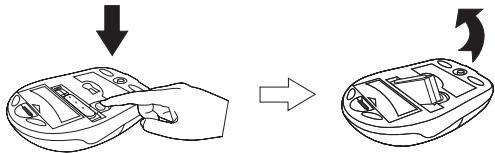
Take the receiver out of mouse
Press the eject button on the bottom of the mouse. Take the receiver out of the compartment.
- Restore the receiver into mouse
- Place the receiver 90^ to the compartment.
- Press the receiver into the compartment.
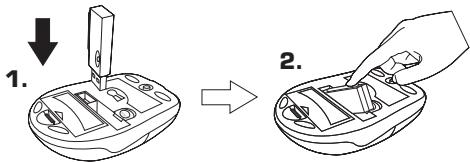
When the receiver is in the compartment of the mouse, power supply is automatically off to stop power consumption!
- Battery replacement
- Open the battery cover of the mouse.
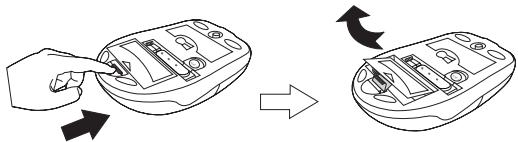
- Take out the exhausted batteries and replace with new ones.
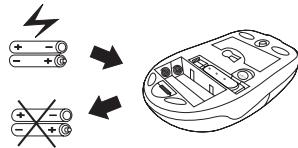
After replacing new batteries, please reconnect your mouse and the receiver!
- How to install Kangaroo 2.0 to your Computer
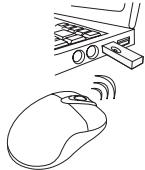
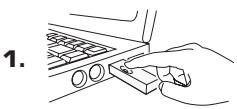
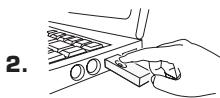
- Take out the receiver from the mouse compartment. Plug it into USB port of your Desktop/Notebook.
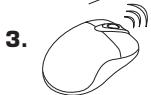
- Move the mouse and enjoy the freedom.
1.
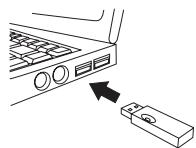
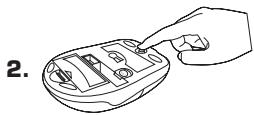
2.
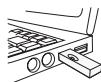
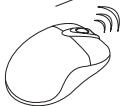
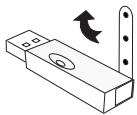
If your Kangaroo 2.0 doesn't work smoothly, please adjust the angle of the antenna stick on the side of the receiver to improve it!
How to link your optical mouse and receiver
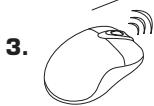
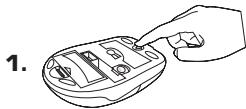
The receiver and the mouse will be automatically connected when the receiver is plugged into the USB port of the Desktop/Notebook. If it fails to connect, please follow the instruction below.
- Press the connection button on the upper side of the receiver.
- Press RESET button on the back side of the mouse.
- Move it and enjoy the freedom.
- Switch security ID of Kangaroo 2.0 to avoid interference under multi-users environment
- Press and hold the RESET button for 5 seconds.
- Press the connection button on the upper side of the receiver.
- Move it and enjoy the freedom.

How to charge the mouse
- Make sure that the Ni-MH batteries are installed in the mouse.

- Plug the USB connector of the cable into the USB port of the Desktop/Notebook, and the other end into the port in the front of the mouse.
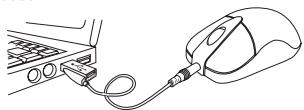
- Keep charging for 4 hours.
How to use Kangaroo 2.0 comfortably
The Kangaaroo 2.0 implements a non-mechanical tracking engine, based on optical navigation technology, which measures changes in position by optically acquiring sequential surface images (frames) and mathematically determining the direction and magnitude of movement. As a consequence, you can use it on most kinds of tabletops, paper, and even on your pants leg.
However, please do not use this product on the following surfaces which may cause detecting failure of the optical sensor:
Glass or mirror surfaces.
- Shiny or polished surfaces.
- Surfaces with dark-colored stripe next to light-colored stripe.
- Surfaces with pixels printed or too many repeated patterns.
The optical sensor defects mouse movement by optically acquiring sequential surface, so no mouse pad is needed to use together. However, to prevent the mouse scratched by rugged surfaces, it is suggested to use a mouse pad.
Certain kinds of mouse pads may let the mouse fail to enter power saving modes. This will cause more power consumption to shorten the battery life.
Please do not use this product on the kinds of hardly-reflection black or refractable mouse pads.
Maintaining your hardware and resolving basic problems
If the mouse doesn't work properly, please follow the instructions:
-
Please do not use this mouse on the surfaces of transparent and iron-made tabletops, for example, glass, mirrors, or iron tables. If you have no choice but use this product on such tabletops, please use a mouse pad. Please keep iron-made office partitions, computer chassis, monitors, zip-drives, speakers, and switching power supply at least 20cm from the mouse and receiver.
-
If your cursor is controlled by another mouse in a multi-user environment, please proceed Switch security ID of Kangaroo 2.0 procedure on the page 7.
- Please check the USB receiver is properly installed into the USB port of your Notebook.
- If your mouse does not work smoothly when the receiver is installed in USB HUB, please install the receiver in the USB port of your Notebook.
- If the above points can not improve your problems, please move the mouse closer to the receiver to avoid any identified interferences.
- Effective operation range about 1 meter.
Customer Service:
If you encounter any problem with your Kangaroo 2.0, please contact our local subsidiary, partner or dealer, or send us your inquiry to info@dicota.com.
2 years warranty. Please find the complete text in our guarantee on the internet: www.dicota.com.
All the products and software mentioned above are registered trademarks of their respective owners. Errors excepted.


deutsch