
FREELANCE PRO - Laptop bag DICOTA - Free user manual and instructions
Find the device manual for free FREELANCE PRO DICOTA in PDF.



User questions about FREELANCE PRO DICOTA
0 question about this device. Answer the ones you know or ask your own.
Ask a new question about this device
Download the instructions for your Laptop bag in PDF format for free! Find your manual FREELANCE PRO - DICOTA and take your electronic device back in hand. On this page are published all the documents necessary for the use of your device. FREELANCE PRO by DICOTA.
USER MANUAL FREELANCE PRO DICOTA
Wireless Optical Mouse and Numeric Keypad/Calculator Combo System requirements
- Microsoft® Windows® 98/ME/2000/XP or MAC OS X compatible.
One USB v. 1.1 or 2.0 Compliant Port.
deutsch
Bedienungsanleitung
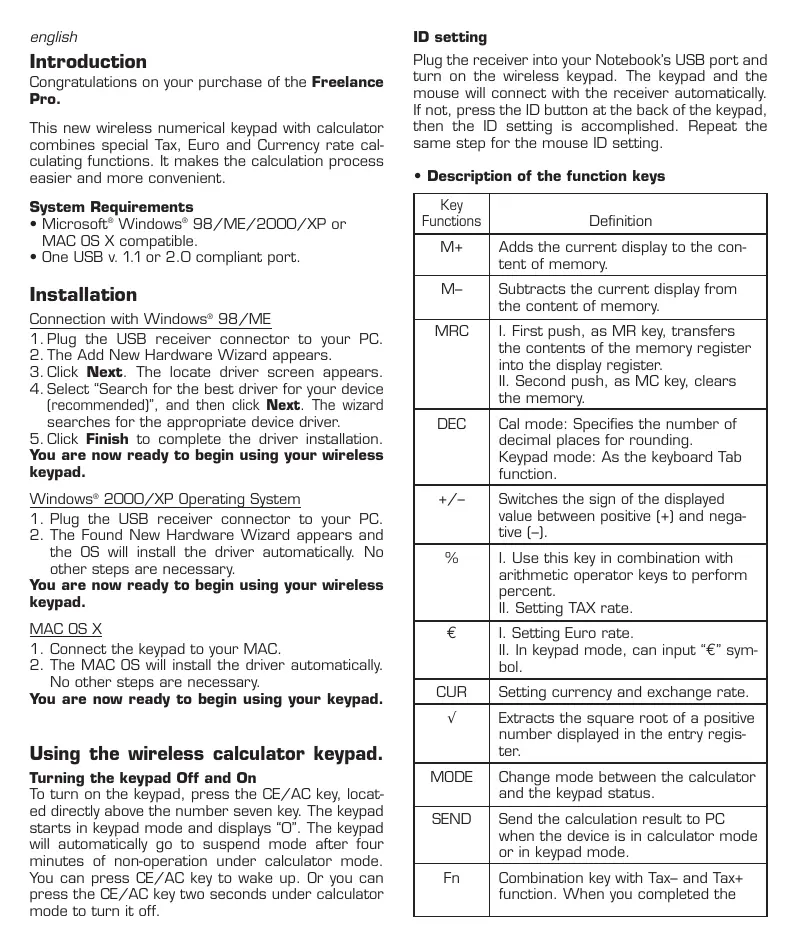
Congratulations on your purchase of the Freelance Pro.
This new wireless numerical keypad with calculator combines special Tax, Euro and Currency rate calculating functions. It makes the calculation process easier and more convenient.
System Requirements
- Microsoft® Windows® 98/ME/2000/XP or MAC OS X compatible.
One USB v. 1.1 or 2.0 compliant port.
Installation
Connection with Windows® 98/ME
- Plug the USB receiver connector to your PC.
- The Add New Hardware Wizard appears.
- Click Next. The locate driver screen appears.
- Select "Search for the best driver for your device [recommended]", and then click Next. The wizard searches for the appropriate device driver.
- Click Finish to complete the driver installation.
You are now ready to begin using your wireless keypad.
Windows® 2000/XP Operating System
- Plug the USB receiver connector to your PC.
- The Found New Hardware Wizard appears and the OS will install the driver automatically. No other steps are necessary.
You are now ready to begin using your wireless keypad.
MAC OS X
- Connect the keypad to your MAC.
- The MAC OS will install the driver automatically. No other steps are necessary.
You are now ready to begin using your keypad.
Using the wireless calculator keypad.
Turning the keypad Off and On
To turn on the keypad, press the CE/AC key, located directly above the number seven key. The keypad starts in keypad mode and displays "O". The keypad will automatically go to suspend mode after four minutes of non-operation under calculator mode. You can press CE/AC key to wake up. Or you can press the CE/AC key two seconds under calculator mode to turn it off.
ID setting
Plug the receiver into your Notebook's USB port and turn on the wireless keypad. The keypad and the mouse will connect with the receiver automatically. If not, press the ID button at the back of the keypad, then the ID setting is accomplished. Repeat the same step for the mouse ID setting.
Description of the function keys
| Key Functions | Definition |
| M+ | Adds the current display to the content of memory. |
| M- | Subtracts the current display from the content of memory. |
| MRC | I. First push, as MR key, transfers the contents of the memory register into the display register. II. Second push, as MC key, clears the memory. |
| DEC | Cal mode: Specifies the number of decimal places for rounding. Keypad mode: As the keyboard Tab function. |
| +/− | Switches the sign of the displayed value between positive (+) and negative (−). |
| % | I. Use this key in combination with arithmetic operator keys to perform percent. II. Setting TAX rate. |
| € | I. Setting Euro rate. II. In keypad mode, can input “€” symbol. |
| CUR | Setting currency and exchange rate. |
| √ | Extracts the square root of a positive number displayed in the entry register. |
| MODE | Change mode between the calculator and the keypad status. |
| SEND | Send the calculation result to PC when the device is in calculator mode or in keypad mode. |
| Fn | Combination key with Tax- and Tax+ function. When you completed the |
| setting of Tax rate, press the Fn key with Tax- or Tax+ key; the calculation result will be changed. | |
| Tax - | Price-less-tax calculation. |
| Tax + | Price-plus-tax calculation. When Num Off, the input symbol will be “=”. |
Special Function:
Normally, when users input numbers from a USB keypad, the Notebook's Num Lock function will be enabled as well. Users have to disable Num Lock function before inputting characters from a Notebook. The enable and disable process will always showing every time when users input numbers from a keypad and it is cumbersome for all the users. If users want to solve this problem, they need to install a driver. But our new keypad has no synchronized problem; users can use the keypad and inputting characters from a Notebook at the same time. Especially, it doesn't need any drivers and support Plug & Play. Users just need to plug it into the USB port, and then users can use it smoothly. This new wireless keypad also can use under PC or MAC without any driver. It can detect the PC mode or MAC mode automatically, no other steps are needed.
About the Display
The display shows the number you input, calculation results, and various indicators showing the status of the calculator.
| - MINUS | Negative value indicator |
| MEMORY | Independent memory indicator |
| ERROR | Error indicator |
| ' | 3-digit separator [apostrophe] |
| CALC | Indicate you are in calculator status |
| KEYPAD | Indicate you are in keypad status |
| GT | Grant total |
| CUR | Price-multiply-CUR calculation |
| EURO | Price-multiply -EURO calculation |
Rounding Selector & Decimal Place Selector Use DEC key to rounding Selector Specified the rounding system.
| F | Floating decimal point system, which displays the value without rounding. |
| 0,2,4 | Number of decimal places for the 5/4 setting of the Rounding Selector. |
| A | The “Add Mode” automatically adds a decimal point and two decimal places to all values, even if you don’t input a decimal point. This mode is very useful when performing calculations in dollars or other monetary systems that require two decimal places. Two decimal places are not added in this mode if you press the DEL key while inputting a value, or for any operation other than addition and subtraction. |
Setting EURO and CUR Function:
CUR and €: Press CUR or € key for 1~1.5 sec, the "CUR" or "Euro" indicator on the LCD will start flashing. Input your desire parameter then press CUR or € key again. The "CUR" or "Euro" indicator will disappear; it means the setting is accomplished. When LCD displays "0", you can press the "CUR" and "Euro" to enable or disable the indicator on the LCD. When the numbers display on the LCD, press the "CUR" or "Euro" button, and then it will exchange to the currency or tax rate.
For example: Supposing the CUR parameter is 34 and the Euro parameter is 105; the calculation result is 180.
The "CUR" or "Euro" indicator display on the LCD: Press CUR key, then the calculation result will be 6120 (18034). Press Euro key, then the calculation result will be 18900 (180105).
The "CUR" or "Euro" indicator didn't display on the LCD: Press CUR key, then the calculation result will be 5.29 (180/34). Press Euro key, then the calculation result will be 1.71 (180/105).
Setting Tax Function:
Press % key for 1 1.5 sec, the "TAX" indicator on the LCD will start flashing. Input your desire parameter then press % key again. The "TAX" indicator will disappear; it means the setting is accomplished.
For example: Supposing the Tax parameter is 10 and the calculation result is 180.
Press Fn & Tax+ key, then the calculation result will be 198 [180*[1+0.1]].
Press Fn & Tax- key, then the calculation result will be 163.64 (180/(1+0.1]).
USB Extendable cable.
Plug the connector to your Notebook and receiver.
Keypad:
Operation Force: 60 ± 15 ~g
Weight: 130 g
Total Travel: 2.2 mm
Operation
Frequency: 27 MHz/1 communication channel/1M distance
Battery type: 1*AAA Alkaline battery
Dimension
{LxWxH}
Receiver
Connector: USB
TX Working mode: 10 mA max Suspend mode: <100 uA
Power
consumption: RX Working mode: 16 mA max Suspend mode: <500 uA
Switch Life: 3 million cycles
Keycaps type: Low profile
Agency Approvals: FCC, CE
Wireless Mouse:
There is a power switch at back of the mouse. To save the power, you can turn it off when you don't need to use it.
Weight: 120 g
Operation
Frequency: 27 MHz/1 communication channel/1M distance
Battery type: 2* AA battery
Dimension
[LxWxH]:
Receiver
Connector: USB
Power
consumption: TX Working mode: 40 mA max Suspend mode: <800 uA
Resolution: 800 dpi
Agency Approvals: FCC, CE
Troubleshooting
When you turn on the keypad, if the keypad's LCD shows abnormal or nothing, check your battery first. If the battery is working fine, try to find an acicular metal and plug into the reset hole [in the back of the keypad]. Then the keypad will work normally.
Battery Caution:
- Risk of explosion if battery is replaced by incorrect type. You must need to use the alkaline battery.
2 The battery may fail or explode when shorted or charged with incorrect polarity. - Do not dispose of in fire and prevent explosion.
Customer Service:
If you encounter any problems with your Freelance Pro, please contact our local subsidiary, partner or dealer, or send us your inquiry to info@dicota.com.
2 years warranty. Please find the complete text in our guarantee on the Internet: www. dicota.com.
Federal Communications Commission Statement
Notice 1
You are cautioned that changes or modifications not expressly approved by the part responsible for compliance could void the user's authority to operate the equipment.
Notice 2
This equipment has been tested and found to comply with the limits for a Class B digital device, pursuant to part 15 of the FCC rules. These limits are designed to provide reasonable protection against harmful interference in a residential installation. This equipment generates uses and can radiate radio frequency energy and, if not installed and used in accordance with the instructions, may cause harmful interference to radio communications.
All the products and software mentioned above are registered trademarks of their respective owners. Errors excepted.
deutsch