DATADESK 100 - Laptop stand DICOTA - Free user manual and instructions
Find the device manual for free DATADESK 100 DICOTA in PDF.



| Product Type | Transport and protection case for laptop and printer |
| Brand | DICOTA |
| Model | DATADESK 100 |
| Laptop compatibility | Universal (attachment with Velcro straps and plastic wedges) |
| Compatible printer | Canon iP100 (and similar models) |
| Power supply | 220V mains via integrated power supply (Euro 8 socket) |
| Included connectivity | 1 angled USB cable for printer, 1 220V plug |
| Security | Adjustable combination lock (3 digits) + 2 keys |
| Compartments | Paper/documents, accessories (with lock), phones, connectors, printed paper |
| Laptop fixation | 4 plastic wedges + 8 self-adhesive Velcro straps |
| Use | On a stable, non-slip surface; avoid dust and humidity |
| Operating temperature | According to the recommendations of the computer and printer |
| Included accessories | 8 3M Velcro straps, 4 plastic wedges, 1 USB cable, 1 220V plug, 2 keys |
| Maintenance | Clean with a soft, dry cloth; avoid abrasive products |
| Dimensions | Suitable for laptops up to 15-17 inches |
| Weight | Approximately 4-5 kg |
Frequently Asked Questions - DATADESK 100 DICOTA
User questions about DATADESK 100 DICOTA
0 question about this device. Answer the ones you know or ask your own.
Ask a new question about this device
Download the instructions for your Laptop stand in PDF format for free! Find your manual DATADESK 100 - DICOTA and take your electronic device back in hand. On this page are published all the documents necessary for the use of your device. DATADESK 100 by DICOTA.
USER MANUAL DATADESK 100 DICOTA
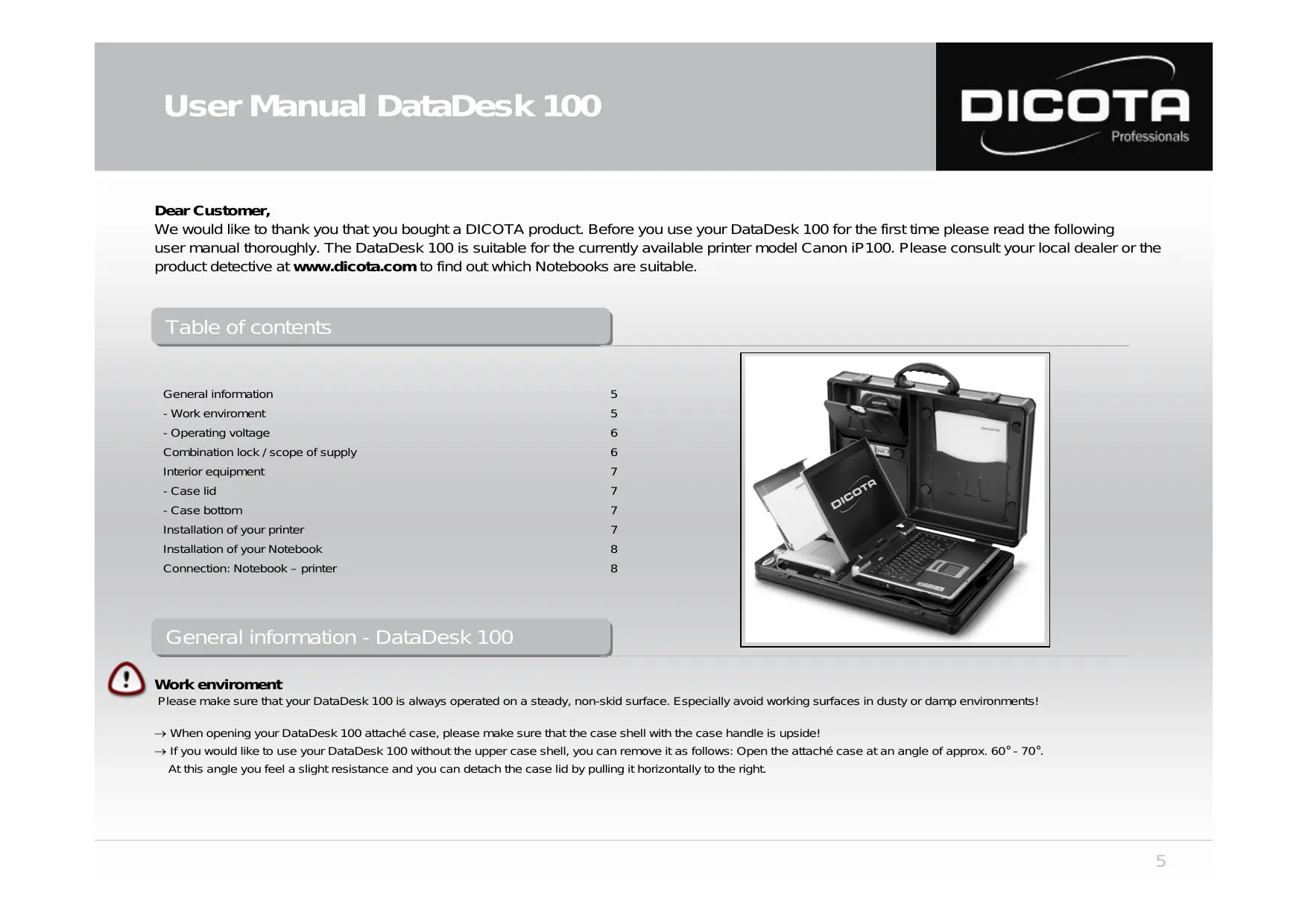
We would like to thank you that you bought a DICOTA product. Before you use your DataDesk 100 for the first time please read the following user manual thoroughly. The DataDesk 100 is suitable for the currently available printer model Canon iP100. Please consult your local dealer or the product detective at www.dicota.com to find out which Notebooks are suitable.
Table of contents
General information 5
- Work environment 5
-Operating voltage 6
Combination lock / scope of supply 6
Interior equipment 7
-Case lid 7
- Case bottom 7
Installation of your printer 7
Installation of your Notebook 8
Connection: Notebook - printer 8
General information - DataDesk 100
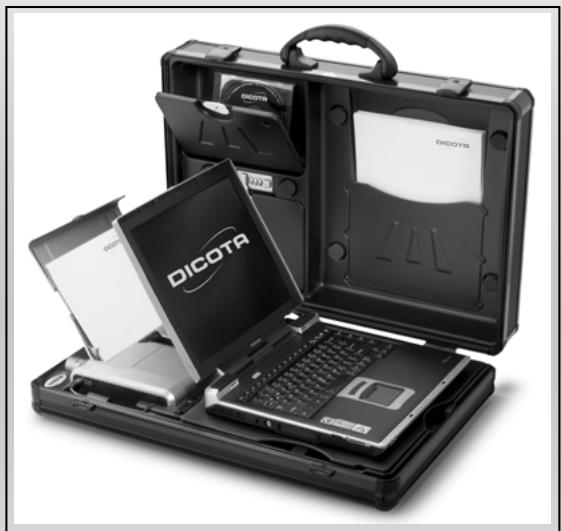

Work enviroment
Please make sure that your DataDesk 100 is always operated on a steady, non-skid surface. Especially avoid working surfaces in dusty or damp environments!
→ When opening your DataDesk 100 attaché case, please make sure that the case shell with the case handle is upside!
→ If you would like to use your DataDesk 100 without the upper case shell, you can remove it as follows: Open the attaché case at an angle of approx. 60^ - 70^ .
At this angle you feel a slight resistance and you can detach the case lid by pulling it horizontally to the right.
Avoid the use of your DataDesk 100 near extreme heat sources (e.g. heaters). Protect your DataDesk 100 from direct sun irradiation!
→ For exact information regarding the temperature of the work environment, please refer to the user's guide of your Notebook or printer manufacturer.
The equipment should only be operated when the case is opened.
→ The case should not be immediately closed after the equipment has been used for a long period of time, so as to ensure a cooling-off period!

Operating voltage / recharging procedure
Please keep in mind that the line cord is to be attached to the case first, and then connected to the power source, when connecting with the power supply system!
→ The DataDesk 100 should always be opened during the recharging procedure of the equipment!
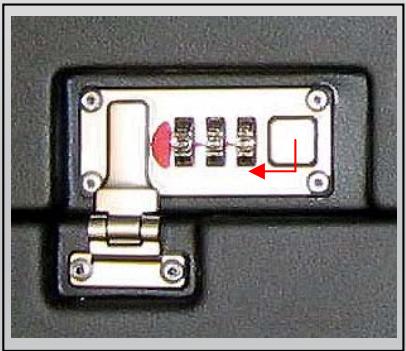
Operating instructions: Combination lock
The locks are set at the factory to open at 0-0-0.
To set your own combination remove the red arrow before setting the lock.
1) Choose 3 digits which you can recall easily - address, phone, birthday etc.
2) Press the button a direction toward the dial with your thumb and hold. With your other hand (use point of a ball pen) rotate the dials to the desired setting. Then, release the button.
3) Your lock is now set to open on the three digits engaged at the time you release the button.
ATTENTION!

(4) Accordingly- NEVER rotate the dials with the button held open UNLESS you make careful note of the dial setting upon release of the button.
(5) The manufacturer is not responsible from misuse, abusive handling or failure to follow instructions.
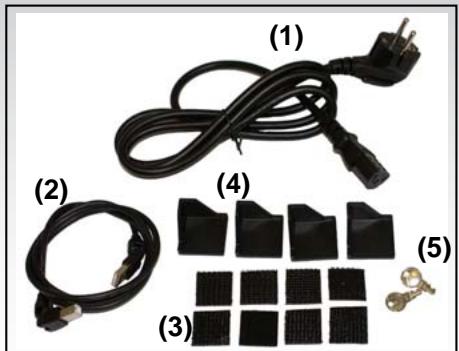
Scope of supply - DataDesk 100
(1) 1 × 220 ~V - IEC plug
(2) 1 × USB printer cable (360° pivotable)
(3) 8 × 3M Velcro - pads (self-adhesive)
(4) 4 × Synthetic corners for Notebook fastening
(5) Lockable box, 2 x keys
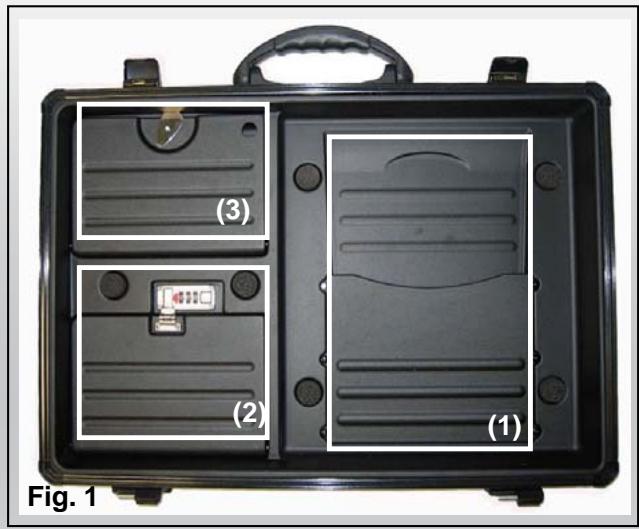
Interior equipment - DataDesk 100
Case lid (Fig. 1)
(1) Document / printer paper compartment
(2) Accessory compartment with combination lock
(3) Accessory compartment
Installation of your mobile printer
Open your DataDesk 100.
1) Remove the flap lid from the bottom part of the case, which functions as your Notebook workspace.
2) Place the printer power supply in the front pocket of the bottom part of the case (pocket No. 6).
3) Now connect the Euro 8 plug with the 220V socket of the power supply (in pocket No. 6).
Secure the printer power supply with the two Velcro straps!
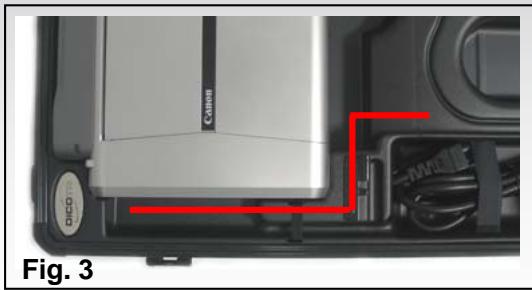
4) Route the printer power cable through the designated groove (under the flap lid) and sideways past the printer (Fig. 3).
Pay attention to a clean cable routing to prevent damaging the printer cable (e.g. by pinching it off)!
5) The power supply outlet plug is now connected to the printer.
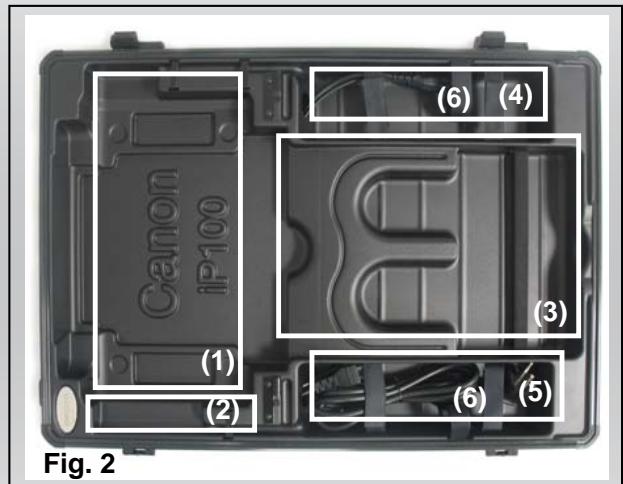
Case lid (Fig. 2)
(1) Fit for your printer (Canon iP100)
(2) Cable routing help
(3) Stow-away pocket for printed paper
(4) Stow-away pocket for Notebook power supply with plug for a Euro 8-socket (with / without ground wire)
(5) Stow-away pocket for printer power supply with plug for a Euro 8-socket (with / without ground wire)
(6) Notebook strap
Installation of your Notebook
1) Place the Notebook power supply in the rear pocket of the bottom part of the case.
2) Now connect the 220V plug with the Notebook's power supply.
3) Route the low voltage power supply outlet cable beneath the flap lid through the designated groove, so that the cable can not be damaged when the lid is closed!
4) The power supply outlet plug is now connected with the Notebook.
Now you have two options of fastening your Notebook:
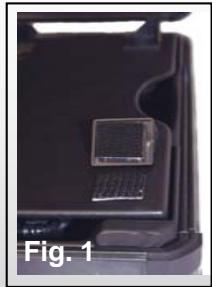
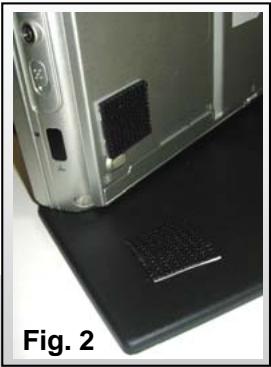
1) Either you use the four synthetic corners which are provided within the scope of supply and fasten them by using the eight self-adhesive 3M Velcro pads (Fig. 1) or
2) You use the self-adhesive 3M Velcro pads and adhere these in pairs directly onto the case lid and the bottom side of your Notebook.

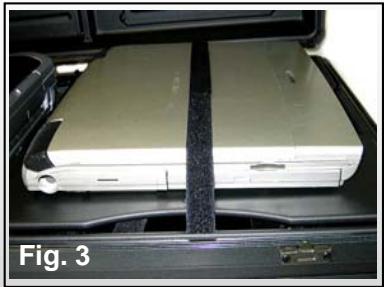
During transport always fasten your Notebook with the Velcro strap (transport protection) on the upper side of the flap lid (Fig. 3)
Connection: Notebook - printer
Two options of connecting Notebook and printer:
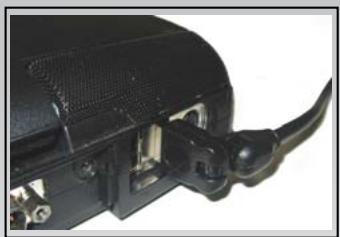
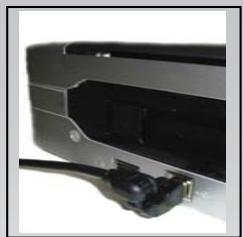
1) Connect your Canon iP100 and your Notebook by using the USB cable which is provided in the scope of supply.
Ensure a clean cable routing here as well! Either route the USB printer cable around or underneath the printer.
Furthermore, make sure that the USB printer cable does not interfere with the printer paper output, thus preventing paper jams!
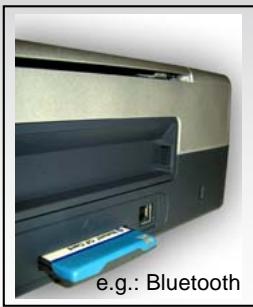
2) Data transfer between printer and Notebook via Bluetooth: Bluetooth is a new radio standard for cableless data transfer. The Notebook establishes the data connection via Bluetooth through an internal interface or a PC card module. The printer can be connected with a compact flash module, for example.

CAUTION!
Make sure that no cables are pinched when closing the case!