
ABACUS PRO - Laptop bag DICOTA - Free user manual and instructions
Find the device manual for free ABACUS PRO DICOTA in PDF.



| Product Type | Keyboard with integrated calculator and USB hub |
| Brand | DICOTA |
| Model | ABACUS PRO |
| Dimensions (L x W x H) | 135 x 74 x 19.6 mm |
| Weight | 100 g |
| Cable length | 750 ± 20 mm |
| Connection | USB (mini-USB to USB-A) |
| Power supply | 5 V DC ± 0.25 V, < 160 mA (via USB) + 1 LR44 or V13GA button cell battery |
| Key pressure | 55 ± 20 g |
| Key travel | 3.5 ± 0.5 mm |
| Key lifespan | 8 million keystrokes |
| Main functions | Calculator with VAT, currency conversion, memory, square root, percentage; keyboard and calculator modes; 2-port USB hub |
| Supported operating systems | Windows 98/ME/2000/XP |
| Operating temperature | -10 to 60 °C |
| Storage temperature | -20 to 60 °C |
| Certifications | FCC, CE |
| Warranty | 2 years |
| Maintenance and cleaning | Clean with a soft, dry cloth. Do not use abrasive products or solvents. |
| Repairability | Spare parts not specified; contact after-sales service via www.dicota.com. |
| Safety | Do not expose to humidity, extreme temperatures, or shocks. |
Frequently Asked Questions - ABACUS PRO DICOTA
User questions about ABACUS PRO DICOTA
0 question about this device. Answer the ones you know or ask your own.
Ask a new question about this device
Download the instructions for your Laptop bag in PDF format for free! Find your manual ABACUS PRO - DICOTA and take your electronic device back in hand. On this page are published all the documents necessary for the use of your device. ABACUS PRO by DICOTA.
USER MANUAL ABACUS PRO DICOTA
Input keypad with a calculator and 2-port USB HUB
User's Manual - Version: 1.0 04/2004
Introduction
Congratulations on your purchase of the Abacus Pro. This new keypad combines special Tax and Currency rate calculating functions. It makes the calculation process more easily and more convenient.
System Requirements
- WIN 98/ME/2000/XP compatible
One USB v. 1.1 or 2.0 Compliant Port
Installation
Connection with WIN 98/ME
- Plug the USB connector into your Notebook.
- The Add New Hardware Wizard appears.
-
Click Next. The locate driver screen appears.
-
Select "Search for the best driver for your device. (Recommended)," and then click Next. The wizard searches for the appropriate device driver.
- Click Finish to complete the driver installation.
You are now ready to begin using your keypad.
WIN 2000/XP Operating System
- Plug the USB connector to your Notebook.
- "Found New Hardware" Wizard appears and the OS will install the driver automatically. No other steps are necessary.
You are now ready to begin using your keypad
Using the Calculator/Keypad
Turning the keypad Off and On
To turn on the keypad, press the CE/AC key. The keypad starts in calculator mode and displays "O".
The keypad will automatically turn off itself after four minutes of non-operation under calculator mode. Or you
- Description of the function keys
| Key Functions | Definition |
| M+ | Adds the current display from the content of memory. |
| M- | Subtracts the current display from the content of memory. |
| MRC | I. First push, as MR key, transfers the contents of the memory register into the display register.II. Second push, as MC key, clears the memory. |
| TAB | Calculator mode: Specifies the number of decimal places for rounding.Keypad mode: As the Tab function. |
| +/- | Switches the sign of the displayed value between positive (+) and negative (-). |
| % | I. Use this key in combination with arithmetic operator keys to perform percent.II. Setting TAX rate. (See page 7) |
| CUR | I. Setting currency and exchange rate. II. Input the symbol under keypad mode |
| √ | Extracts the square root of a positive number displayed in the entry register. |
| GT | Grand total memory |
| MODE | Change mode between the calculator and the keypad status. |
| SEND | Send the calculation result to Notebook when the device is in calculator mode or in keypad mode. |
| Fn | Combination key with Tax- and Tax+ function. When you completed the setting of Tax rate, press the Fn key with Tax- or Tax+ key; the calculation result will be changed. |
| Tax - | Price-less-tax calculation. |
| Tax + | Price-plus-tax calculation. When Num Off, the input symbol will be “=” |
Special Function:
This new keypad has no synchronized problem; users can use the keypad and inputting characters from a Notebook
at the same time. Especially, it doesn't need any drivers and it fully supports Plug & Play.
No matter the Host's Num Lock function status, users can choose the Num Key or direction key on the keypad.
When users press the keypad's Num Lock key once, it can change the keypad's Num Lock status. If you press the Num Lock key for 0.8 sec, then the Host's Num Lock status will be changed. This function is designed for some special software, like Excel. Users can know the Num Lock status on the screen and don't need to care the keypad's Num Lock status. It makes the method of operation easily.
About the Display
The display shows the number you input, calculation results, and various indicators showing the status of the calculator.
| -MINUS | Negative value indicator |
| MEMORY | Independent memory indicator |
| ERROR | Error indicator |
| * | 3-digit separator (apostrophe) |
| CALC | Indicate you are in calculator status |
| KEYPAD | Indicate you are in keypad status |
| GT | Grant total |
| CUR | Price-multiply-EURO calculation |
| TAX | Price-multiply-TAX calculation |
Rounding Selector & Decimal Place Selector
Rounding Selector
Specified the rounding system
| F | Floating decimal point system, which displays the value without rounding. |
| 0,2,4 | Number of decimal places for the 5/4 setting of the Rounding Selector. |
| A | The “Add Mode” automatically adds a decimal point and two decimal places to all values, even if you don’t input a decimal point. This mode is very useful when performing calculations in dollars or other monetary systems that require two decimal places. Two decimal places are not added in this mode if you press the DEL key while inputting a value, or for any operation other than addition and subtraction. |
CUR Press CUR key for 1~1.5 sec, the “EURO” indicator on the LCD will start flashing. Input your desire parameter then press CUR key again. The “EURO” indicator will disappear; it means the setting is accomplished.
When LCD displays "O", you can press the "CUR" to enable or disable the indicator on the LCD. When the numerals display on the LCD. Press the "CUR" button, and then it will exchange to the currency or tax rate.
For example Supposing the CUR parameter is 34 and the calculation result is 180.
The "EURO" indicator display on the LCD: Press CUR key, then the calculate result will be 6120. The formula is (180^*34) .
The "EURO" indicator didn't display on the LCD: Press CUR key, then the calculate result will be 5.29. The formula is [180/34].
Setting Tax Function:
Press “%” key for 1~1.5 sec, the “TAX” indicator on the LCD will start flashing. Input your desire parameter then press “%” key again. The “TAX” indicator will disappear; it means the setting is accomplished.
For example Supposing the Tax parameter is 10 and the calculation result is 180.
Press Fn & Tax+ key, then the calculate result will be 198. The formula is (180^*(1 + 0.1)) .
Press Fn & Tax- key, then the calculate result will be 163.63. The formula is (180 / (1 + 0.1))
Suppose the Tax parameter is 5
Press Fn & Tax+ key, then the calculate result will be 189. The formula is (180^*(1 + 0.05)) .
Press Fn & Tax- key, then the calculate result will be 171.43. The formula is (180/(1+0.05))
Extendable cable
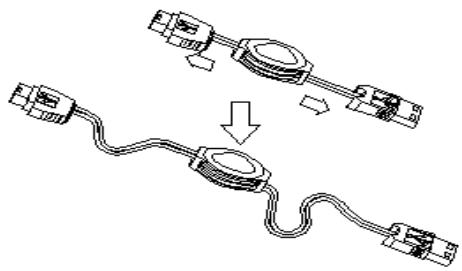
- Pull out the mini USB connector and the USB connector into two different directions as the graphic shows. And extend the cable to the desired length.
- Plug the mini USB connector into the keypad and plug the USB connector into your Notebook.
Specification of Calculator Mobile Mini Keypad
| USB hub | 2 USB downstream ports; Bus power (CKP-115H) |
| Operation Force | 55±20gm |
| Weight | 100 g |
| Total Travel | 31.5±0.5gm |
| Cable Length | 750 ± 20(Black) mm |
| Key Switches | Membrane switch with tactile feedback |
| Dimension: L×W×H | 135 × 74 × 19.6 mm |
| Connector | USB |
| Power consumption | DC 5 V ± 0.25, under 160mA |
| Switch Life | 8 million cycles |
| Operating Temperature | -10 ~ 60 °c |
| Storage Temperature | -20 ~ 60°C |
| Keycaps type | Low profile |
Troubleshooting
When you turn on the keypad, if the keypad's LCD shows abnormal or nothing, check your battery first. If the battery is working fine, try to find an sharp object and plug it into the reset hole (in the back of the keypad). Then the keypad will work normally. If the problem persists, please contact us under www.dicota.com.
Warranty
2 Years Warranty. Please find the complete text on our our guarantee on our website: www.dicota.com.
Abacus Pro