
56K INTERNAL VOICE FAXMODEM - Modem US ROBOTICS - Free user manual and instructions
Find the device manual for free 56K INTERNAL VOICE FAXMODEM US ROBOTICS in PDF.



User questions about 56K INTERNAL VOICE FAXMODEM US ROBOTICS
0 question about this device. Answer the ones you know or ask your own.
Ask a new question about this device
Download the instructions for your Modem in PDF format for free! Find your manual 56K INTERNAL VOICE FAXMODEM - US ROBOTICS and take your electronic device back in hand. On this page are published all the documents necessary for the use of your device. 56K INTERNAL VOICE FAXMODEM by US ROBOTICS.
USER MANUAL 56K INTERNAL VOICE FAXMODEM US ROBOTICS
U.S. Robotics 56K Internal Voice Faxmodem
Quick Installation Guide for Microsoft Windows® 95, 98, 2000, Me, XP Operating Systems
English
Français
Italiano
Deutsch

Hnctpykunno yctaHOBKe cm. B pykoBOcTBe noIb3ObaTeHa yCTaHOBOuHOM KOMnakT-DnCKe.
Kurulum talimatlari增長 Kurulum CD-ROM'unda bulunan Kullanim Kilavuzu'na basvurun.
Table of Contents
English 1
Francais 15
Italiano 29
Deutsch 43
a 59
U.S. Robotics Corporation
935 National Parkway
Schaumburg, Illinois
60173-5157
USA
No part of this documentation may be reproduced in any form or by any means or used to make any derivative work (such as a translation, transformation, or adaptation) without written permission from U.S. Robotics Corporation. U.S. Robotics Corporation reserves the right to revise this documentation and to make changes in the products and/or content of this document from time to time without obligation to provide notification of such revision or change. U.S. Robotics Corporation provides this documentation without warranty of any kind, either implied or expressed, including, but not limited to, implied warranties of merchantability and fitness for a particular purpose. If there is any software on removable media described in this documentation, it is furnished under a license agreement included with the product as a separate document, in the hard copy documentation, or on the removable media in a directory file named LICENSE.TXT or !LICENSE.TXT. If you are unable to locate a copy, please contact U.S. Robotics and a copy will be provided to you.
UNITED STATES GOVERNMENT LEGEND If you are a United States government agency, then this documentation and the software described herein are provided to you subject to the following:
All technical data and computer software are commercial in nature and developed solely at private expense. Software is delivered as "Commercial Computer Software" as defined in DFARS 252.227-7014 (June 1995) or as a "commercial item" as defined in FAR 2.101(a) and as such is provided with only such rights as are provided in U.S. Robotics standard commercial license for the Software. Technical data is provided with limited rights only as provided in DFAR 252.227-7015 (Nov 1995) or FAR 52.227-14 (June 1987) whichever is applicable. You agree not to remove or deface any portion of any legend provided on any licensed program or documentation contained in, or delivered to you in conjunction with, this Quick Installation Guide.
Copyright © 2006 U.S. Robotics Corporation. All rights reserved. U.S. Robotics and the U.S. Robotics logo are registered trademarks of U.S. Robotics Corporation. Other product names are for identification purposes only and may be trademarks of their respective companies. Product specifications subject to change without notice.
English
Installation for All Operating Systems:
Before You Begin: Prepare for installation.

NOTE: Before you begin, we recommend you uninstall any other modems you have in your system and unplug all telephone cords connected to these modems. Refer to your previous modem's documentation for instructions.
Write down your new USRobotics modem's serial number, which is located on the white bar code sticker on the modem and on the modem's box, in the space below. If you ever need to call our Technical Support department, you will need this number plus your model number, which is 2884C , to receive assistance. If you need to get assistance or download drivers from the Web site, you will need your product ID number.
Product ID Number
Serial Number
| 2884C |
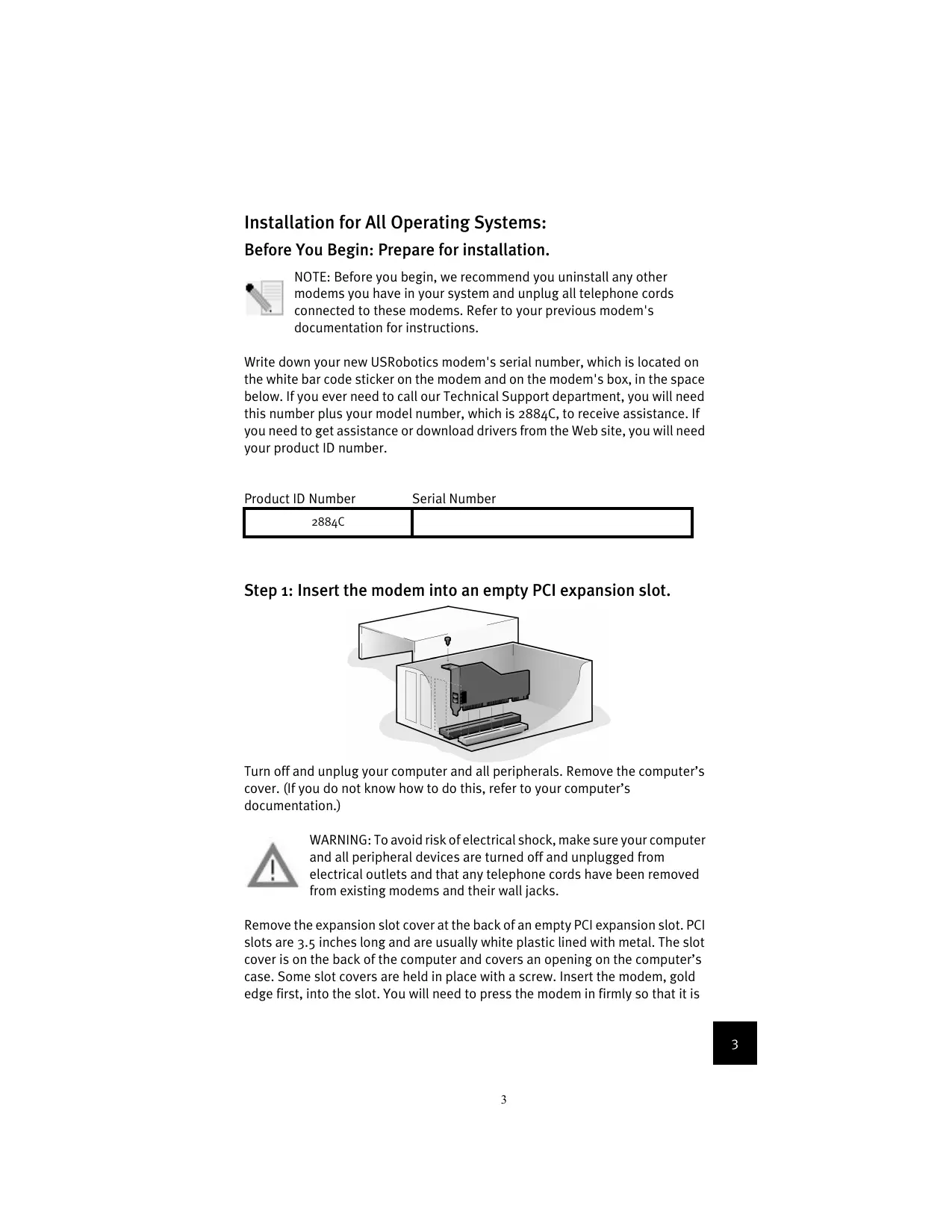
Step 1: Insert the modem into an empty PCI expansion slot.

Turn off and unplug your computer and all peripherals. Remove the computer's cover. (If you do not know how to do this, refer to your computer's documentation.)

WARNING: To avoid risk of electrical shock, make sure your computer and all peripheral devices are turned off and unplugged from electrical outlets and that any telephone cords have been removed from existing modems and their wall jacks.
Remove the expansion slot cover at the back of an empty PCI expansion slot. PCI slots are 3.5 inches long and are usually white plastic lined with metal. The slot cover is on the back of the computer and covers an opening on the computer's case. Some slot covers are held in place with a screw. Insert the modem, gold edge first, into the slot. You will need to press the modem in firmly so that it is
seated properly in its slot. When the modem is installed correctly, you will no longer see any part of the gold edge. Be careful to place the modem in the slot properly, with the end bracket of the modem lined up properly in your computer. The modem's metal bracket will cover the opening on the back of the computer. If you removed a screw from the slot cover, secure the modem with the screw. Replace the computer's cover.
Plug one end of the phone cord into the jack on the modem labelled and plug the other end into an analogue phone wall jack. If there is an adapter included with your modem, attach that to the phone cord before inserting it into the wall jack.

NOTE: You can also attach a microphone to the jack and a set of speakers into the (()~ jack to use your modem with the optional voice software. Alternately, you can attach a headset to these jacks.
Step 2: Install the modem drivers.

NOTE: If at any time during the installation you are prompted to select the location of your installation drivers, the following is the correct location on the Installation CD-ROM (assuming D: is your CD-ROM drive).
Windows Me/98/95 drivers -- D:\
Windows XP/2000 drivers -- D:\Win2K_XP

NOTE: Windows XP/2000 users must be logged in using an account with administrative privileges before attempting to install the modem drivers. Windows XP home users have administrative privileges by default.
Windows XP Users: Control Panel: Category View
Turn on your computer. Insert your Installation CD-ROM into your drive before you log in or Windows opens. Windows will install the hardware with in-built drivers. After it has finished, click Windows Start, Control Panel, Network and Internet Connections. Click Phone and Modem Options. Enter the requested dialing information; click OK. Select the Modems tab. Click Properties. Select the Driver tab. Click Update Driver. Select Install from a list or specific location (Advanced) and click Next. Select Don't search. I will choose the driver to install and click Next. Select Have Disk. Click Browse and select your CD-ROM drive. Select Win2K_XP and select the driver most appropriate to your modem. Click Next. A Digital Signature Not Found message may appear*. Click Continue Anyway. Click Finish to complete the installation.
Windows XP Users: Control Panel: Classic View
Turn on your computer. Insert your Installation CD-ROM into your drive before you log in or Windows opens. Windows will install the hardware with in-built drivers. After it has finished, click Windows Start, Control Panel. Double-click Phone and Modem Options. Enter the requested dialing information; click OK. Select the Modems tab. Click Properties. Select the Driver tab. Click Update Driver. Select Install from a list or specific location (Advanced) and click Next. Select Don't search. I will choose the driver to install and click Next. Select Have Disk. Click Browse and select your CD-ROM drive. Select Win2K_XP and select the driver most appropriate to your modem. Click Next. A Digital Signature Not Found message may appear*. Click Continue Anyway. Click Finish to complete the installation.
Windows 2000 Users
Turn on your computer. Insert your Installation CD-ROM into your drive before you log in. When the Found New Hardware screen appears, click Next. Select Search for a suitable driver for my device (recommended). Click Next. Select CD-ROM drives. Click Next. A Digital Signature Not Found message may appear*. Click Yes. Click Finish to complete the installation.
- USRobotics has thoroughly tested this driver in conjunction with the supported hardware and has verified compatibility with Windows XP/2000.
Windows Me Users
Turn on your computer. Insert your Installation CD-ROM into your drive before Windows opens. When the Add New Hardware Wizard appears, select Automatic search for a better driver (Recommended), and click Next. Click Finish to complete the installation.
Windows 98 Users
Turn on your computer. Insert your Installation CD-ROM into your drive before Windows opens. When the Add New Hardware Wizard appears, click Next. Select Search for the best driver for your device (Recommended), and click Next. Select Specify a location and click Browse. Select your CD-ROM drive; click OK. Click Next. When the driver is found, click Next. Click Finish. When the Add New Hardware Wizard appears, click Next. Select Search for the best driver for your device (Recommended), and click Next. Select Specify a location and click Browse. Select your CD-ROM drive; click OK. Click Next. When the driver is found, click Next. Click Finish to complete the installation.
Windows 95 Users
Turn on your computer. Insert your Installation CD-ROM into your drive before Windows opens. When the Update Device Driver Wizard appears, click Next. If the Wizard is unable to locate the driver, click Other Locations. Click Browse and select your CD-ROM drive. Click OK. Click Finish. At this point you may get an Insert Disk notice. Click OK. The Copying Files screen will open. Click Browse and select your CD-ROM drive. Click OK. The Copying Files screen will appear again.
When the Update Device Driver Wizard appears, click Next. If the Wizard is unable to locate the driver, click Other Locations. Click Browse and select your CD-ROM drive. Click OK. Click Finish to complete the installation.
Step 3: Verify that the modem is properly installed.
Windows XP
Click Windows Start, and click Control Panel. Click Network and Internet Connections, Phone and Modem Options, and then click the Modems tab. You should see a description of your modem, USRobotics V.92 Voice Win Int, and a COM port setting. If you do not see a description of your modem, see the Note after this section. If you do see the description, click Modem, highlight the description of your new modem, and click Properties. Click the Diagnostics tab. Click the Query Modem button. You should see a series of commands and responses from the modem. This means that the installation was a success. If you do not see commands and responses, see the Note after this section.
Windows 2000
Click Windows Start, Settings, and then Control Panel. Double-click the Phone and Modem Options icon. Click the Modems tab. Make sure that the correct modem is highlighted, USRobotics V.92 Voice Win Int. If you do not see a description of your modem, see the Note after this section. If you do see the description, click the Properties button. Click the Diagnostics tab. Click the Query Modem button. You should see a series of commands and responses from the modem. This means that the installation was a success. If you do not see commands and responses, see the Note after this section.
Windows Me/98/95
Click Windows Start, Settings, and then Control Panel. Double-click the Modem icon. In the Modem Properties screen, you should see a description for your modem, USRobotics V.92 Voice Win Int. If you do not see a description of your modem, see the Note after this section. If you do see the description, click the Diagnostics tab. Make sure that the correct COM Port (modem) is highlighted. Click the More Info button. You should see a series of commands and responses from the modem. This means that the installation was a success. If you do not see commands and responses, see the Note after this section.

NOTE: If your modem is not listed and/or you do not see a series of commands and responses, make sure that your internal modem is physically installed correctly in your computer. With the power off,
press the modem in firmly so that it is seated properly in its slot. When the modem is installed correctly, you will no longer see any part of the gold edge. If your modem still does not work, you may need to remove it and reinstall it in another available slot. Shut down and restart your PC. Check your modem again using Control Panel as described previously.
Step 4: Install software and register your modem.
Eject and re-insert the Installation CD-ROM. The installation utility should start automatically. The Setup Wizard on the CD-ROM guides you through installing the program group (including Internet Call Notification, ControlCenter, and optional voice faxmodem software) and registering your modem.

NOTE: If the Installation CD-ROM interface does not run automatically, click Windows Start and then click Run. In the “Run” dialogue box, type D:\setup.exe. If your CD-ROM drive uses a different letter, type that letter in place of “D.”

NOTE: If you would like to use the voice functionality of this modem, you must install the voice software. This software can be found on the Installation CD-ROM in the Software section.

Register your modem.
- At the Installation CD-ROM interface, click the Support link.
- Follow the on-screen instructions to register your modem and to view the warranty information. If the Installation CD-ROM interface does not run automatically, click Windows Start and then click Run. In the "Run" dialog box, type D:\setup.exe. If your CD-ROM drive uses a different letter, type that letter in place of "D."
- You can also register your modem online by visiting http://www.usr.com/productreg
Troubleshooting
Having trouble with your modem? Try these basic troubleshooting steps first.
1) Is your phone cord properly connected? The phone cord should be plugged into the jack on the modem and into the wall phone jack. Use the phone cord included in your modem's box. If there was an adapter included with your modem, attach that to the phone cord before inserting it into the wall jack.
2) Is your modem properly installed in your computer? Refer to the "Verify that the modem is properly installed" section of this guide for possible solutions based on your particular operating system.
My computer isn't recognizing my modem.
If Plug and Play fails to find the modem as new hardware, you need to check the following:
- Confirm that the modem is firmly seated in the PCI slot. The modem should sit evenly in the slot with no part of the gold edge showing.
Try installing the modem in another PCI slot. - Check your computer manual to make sure that the PCI slot is configured properly.
My modem appeared to install correctly but seems to be performing erratically.
Possible solution: Although PCI devices can share IRQs, there are devices on the market that do not share IRQs properly. If the modem has been assigned to an IRQ which shares with one of these devices, the modem may perform erratically.
Windows Me/98/95: Right-click the My Computer icon on your desktop. Click Properties, and then the Device Manager tab. Double-click the Computer icon at the top of the device list. You will see a listing of your system's IRQs and the devices to which they are assigned. Locate your modem and the IRQ which it is assigned. If this IRQ is being used by any other devices, it may be causing the modem to work improperly. Either your modem or the device which shares an IRQ with your modem will have to be reassigned to another IRQ in order to resolve your conflict. You may want to try installing the modem in another PCI slot, or refer to the sharing device's documentation for more information about removing, disabling, or relocating it.
My software isn't recognizing my modem.
Possible solution: Your communications software may not function properly if you have more than one version of the software installed, you are using an older version, or you have more than one communications application installed on your system. We highly recommend using the communications software provided with your modem on the Installation CD-ROM.
Possible solution: Your software's COM port settings may be incorrect. There should be a place in the Setup section of your software that addresses port settings. Make sure the software's port settings match those for your modem. To check which COM port your modem is using, click Windows Start, Settings, and Control Panel. Double-click Modems, select your modem, and select Properties. Check your communication software's documentation for instructions about adjusting the port settings in your software.
Possible solution: You may not have the correct modem type selected in your software or in Windows. Click Windows Start, Settings, and Control Panel. When Control Panel opens, click Modems. You will see a list of installed modems. You can also add, remove, or view the properties of modems from this window. The USRobotics modem you have installed should be present in the list of installed modems. If none of the modem descriptions in the list matches your USRobotics modem or no modems are listed, your modem is not installed properly. Try reinstalling your modem.
Possible solution: If you are using software that uses a Windows modem description and you had a previous modem installed, you may need to update your software's setting to reflect the use of the USRobotics V.92 Voice Win Int.
My modem won't dial out or doesn't answer incoming calls.
FOR BOTH DIALING AND ANSWERING PROBLEMS:
Possible solution: You may have a bad phone cord connection to your modem. The phone cord should be plugged into the jack on the modem and into the wall phone jack. Use the phone cord in your modem's box if possible. If there was an adapter included with your modem, attach that to the phone cord before inserting it into the wall jack.
Possible solution: You may have devices between the modem and the phone jack. There should be no line splitters, fax machines, or other devices between the modem and the wall jack.
OFFICE USERS:
Possible solution: You may have plugged your modem's phone cord into a digital line. Contact the department responsible for your phone system if you are unsure whether or not your phone line is digital.
If your phone system requires dialing "9" to access an outside line, be sure to add "9" before the number you are dialing.
VOICE MAIL USERS:
Possible solution: If you have voice mail provided by your local phone company, your dial tone may be altered when messages are waiting. Retrieve your voice mail to restore your normal dial tone.
My modem sounds like it's trying to connect to another modem but fails.
Possible solution: You may have a poor connection. All calls are routed differently, so try placing the call again.
I'm having problems with my fax or voice software.
Possible solution: See the electronic help files, which are found within the fax or voice software itself.
My modem isn't achieving a 56K Internet connection.
The V.92 and V.90 protocols allow for download speeds of up to 56K and the V.92 protocol adds upload speeds of up to 48K, but line conditions may affect the actual speeds during a given connection. Due to unusual telephone line configurations, some users will not be able to take full advantage of V.92 or V.90 technology at this time. In order to achieve a V.92 or V.90 connection:
-
The server you're dialing in to must support and provide a digital V.92 or V.90 signal. Your ISP can provide you with a list of dial-up connections and information on what those connections currently support.
-
The telephone line between your ISP and your modem must be capable of supporting a 56K connection and contain only one digital-to-analogue conversion. The 56K signal from your ISP begins as a digital signal. Somewhere between the ISP and your modem, there will be a digital-to-analogue signal conversion so that your modem can receive the data. There must be no more than one digital-to-analogue signal conversion in the path from your ISP to your modem. If more than one analogue-to-digital conversion occurs, your connect speed will default to V.34 (33.6 Kbps). There may also be impairments on the local lines between your ISP and your modem. These impairments can prevent or limit V.92 or V.90 connection speeds. All telephone calls are routed differently, so you should try making your connection several times. One way to test this is to dial into a long distance location. Long distance lines are often much clearer than local lines. It is important to note that telephone companies are constantly upgrading their systems. Lines that do not support 56K today may support 56K in the near future.
-
Your modem must be connecting to a V.92 or V.90 server. A pair of 56K modems will not connect to each other at 56K speeds.
Support Resources
If you have not fixed your problem after trying the suggestions in the "Troubleshooting" section, you can receive additional help via one of these convenient resources:
1. Visit the USRobotics Web site
Many of the most common difficulties users experience have been addressed in the FAQ and Troubleshooting Web pages for your specific product. Your product ID is 2884C. You may need to know this to obtain
information on the USRobotics Web site. Go to: http://www.usr.com/support
- Contact the USRobotics Technical Support Department Technical questions about USRobotics modems can also be answered by technical support specialists.
| Country | Telephone | Online |
| UK | 0870 844 4546 | www.usr.com/emailsupport/uk |
| France | 0825 070 693 | www.usr.com/emailsupport/fr |
| Germany | 0180 567 1548 | www.usr.com/emailsupport/de |
| Italy | 800 979 266 | www.usr.com/emailsupport/it |
| Russia | 8 800 200 20 01 | www.usr.com/emailsupport/ru |
| Middle East | 870 844 4546 | www.usr.com/emailsupport/me |
Regulatory Information
CE Compliance
We, U.S. Robotics Corporation of 935 National Parkway, Schaumburg, Illinois, 60173-5157 USA, declare under our sole responsibility that the product, U.S. Robotics 56K Internal Voice Faxmodem, Model 2884C, to which this declaration relates, is in conformity with the following standards and/or other normative documents.
EN60950
EN55022
EN55024
We hereby declare that the above named product is in compliance with the essential requirements and other relevant provisions of Directive 1999/5/EC.
The conformity assessment procedure referred to in Article 10(3) and detailed in Annex II of Directive 1999/5/EC has been followed.
An electronic copy of the original CE Declaration of Conformity is available at the U.S. Robotics website: www.usr.com
Network Compatibility Declaration
This equipment is designed to work satisfactorily on all European Union PSTNs (Public Switched Telephone Networks).
This equipment is supplied with a suitable PSTN connector for the country in which it was supplied. If it is required to use this equipment on a different network to the one for which it was supplied, the user is advised to contact the vendor for guidance regarding connection.
U.S. Robotics Corporation Limited Warranty
1.0 GENERAL TERMS:
This Limited Warranty is extended only to the original end-user purchaser (CUSTOMER) and is not transferable.
No agent, reseller, or business partner of U.S. Robotics Corporation (U.S. ROBOTICS) is authorised to modify the terms of this Limited Warranty on behalf of U.S. ROBOTICS.
This Limited Warranty expressly excludes any product that has not been purchased as new from U.S. ROBOTICS or its authorised reseller.
This Limited Warranty is only applicable in the country or territory where the product is intended for use (As indicated by the Product Model Number and any local telecommunication approval stickers affixed to the product).
U.S. ROBOTICS warrants to the CUSTOMER that this product will be free from defects in workmanship and materials, under normal use and service, for TWO (2) YEARS from the date of purchase from U.S. ROBOTICS or its authorised reseller.
U.S. ROBOTICS sole obligation under this warranty shall be, at U.S. ROBOTICS sole discretion, to repair the defective product or part with new or reconditioned parts; or to exchange the defective product or part with a new or reconditioned product or part that is the same or similar; or if neither of the two foregoing options is reasonably available, U.S. ROBOTICS may, at its sole discretion, provide a refund to the CUSTOMER not to exceed the latest published U.S. ROBOTICS recommended retail purchase price of the product, less any applicable service fees. All products or parts that are exchanged for replacement will become the property of U.S. ROBOTICS.
U.S. ROBOTICS warrants any replacement product or part for NINETY (90) DAYS from the date the product or part is shipped to Customer.
U.S. ROBOTICS makes no warranty or representation that this product will meet CUS-TOMER requirements or work in combination with any hardware or software products provided by third parties.
U.S. ROBOTICS makes no warranty or representation that the operation of the software products provided with this product will be uninterrupted or error free, or that all defects in software products will be corrected.
U.S. ROBOTICS shall not be responsible for any software or other CUSTOMER data or information contained in or stored on this product.
CUSTOMER OBLIGATIONS
CUSTOMER assumes full responsibility that this product meets CUSTOMER specifications and requirements.
CUSTOMER is specifically advised to make a backup copy of all software provided with this product.
CUSTOMER assumes full responsibility to properly install and configure this product and to ensure proper installation, configuration, operation and compatibility with the operating environment in which this product is to function.
CUSTOMER must furnish U.S. ROBOTICS a dated Proof of Purchase (copy of original purchase receipt from U.S. ROBOTICS or its authorised reseller) for any warranty claims to be authorised.
OBTAINING WARRANTY SERVICE:
CUSTOMER must contact U.S. ROBOTICS Technical Support or an authorised U.S. ROBOTICS Service Centre within the applicable warranty period to obtain warranty service authorisation.
Customer must provide Product Model Number, Product Serial Number and dated Proof of Purchase (copy of original purchase receipt from U.S. ROBOTICS or its authorised reseller) to obtain warranty service authorisation.
For information on how to contact U.S. ROBOTICS Technical Support or an authorised U.S. ROBOTICS Service Centre, please see the U.S ROBOTICS corporate Web site at: www.usr.com
CUSTOMER should have the following information / items readily available when contacting U.S. ROBOTICS Technical Support:
-Product Model Number
-Product Serial Number
-Dated Proof of Purchase
-CUSTOMER contact name & telephone number
-CUSTOMER Computer Operating System version
U.S. ROBOTICS Installation CD-ROM
U.S. ROBOTICS Installation Guide
WARRANTY REPLACEMENT:
4.0
In the event U.S. ROBOTICS Technical Support or its authorised U.S. ROBOTICS Service Centre determines the product or part has a malfunction or failure attributable directly to faulty workmanship and/or materials; and the product is within the TWO (2) YEAR WARRANTY term; and the CUSTOMER will include a copy of the dated Proof of Purchase (original purchase receipt from U.S. ROBOTICS or its authorised reseller) with the product or part with the returned product or part, then U.S. ROBOTICS will issue CUSTOMER a Return Material Authorisation (RMA) and instructions for the return of the product to the authorised U.S. ROBOTICS Drop Zone.
4.1
Any product or part returned to U.S. ROBOTICS without an RMA issued by U.S. ROBOTICS or its authorised U.S. ROBOTICS Service Centre will be returned.
4.2
CUSTOMER agrees to pay shipping charges to return the product or part to the authorised U.S. ROBOTICS Return Centre; to insure the product or assume the risk of loss or damage which may occur in transit; and to use a shipping container equivalent to the original packaging.
4.4
Responsibility for loss or damage does not transfer to U.S. ROBOTICS until the returned product or part is received as an authorised return at an authorised U.S. ROBOTICS Return Centre.
4.4
4.5
Authorised CUSTOMER returns will be unpacked, visually inspected, and matched to the Product Model Number and Product Serial Number for which the RMA was authorised. The enclosed Proof of Purchase will be inspected for date of purchase and place of purchase. U.S. ROBOTICS may deny warranty service if visual inspection of the returned product or part does not match the CUSTOMER supplied information for which the RMA was issued.
4.6
Once a CUSTOMER return has been unpacked, visually inspected, and tested U.S. ROBOTICS will, at its sole discretion, repair or replace, using new or reconditioned product or parts, to whatever extent it deems necessary to restore the product or part to operating condition.
4.7
U.S. ROBOTICS will make reasonable effort to ship repaired or replaced product or part to CUSTOMER, at U.S. ROBOTICS expense, not later than TWENTY ONE (21) DAYS after U.S. ROBOTICS receives the authorised CUSTOMER return at an authorised U.S. ROBOTICS Return Centre.
4.8
U.S. ROBOTICS shall not be liable for any damages caused by delay in delivering or furnishing repaired or replaced product or part.
5.0
LIMITATIONS
5.1
THIRD-PARTY SOFTWARE: This U.S. ROBOTICS product may include or be bundled with third-party software, the use of which is governed by separate end-user license agreements provided by third-party software vendors. This U.S. ROBOTICS Limited Warranty does not apply to such third-party software. For the applicable warranty refer to the end-user license agreement governing the use of such software.
5.2
DAMAGE DUE TO MISUSE, NEGLECT, NON-COMPLIANCE, IMPROPER INSTALLATION, AND/ OR ENVIRONMENTAL FACTORS: To the extent permitted by applicable law, this U.S.
ROBOTICS Limited Warranty does not apply to normal wear and tear; damage or loss of data due to interoperability with current and/or future versions of operating system or other current and/or future software and hardware; alterations (by persons other than U.S. ROBOTICS or authorised U.S. ROBOTICS Service Centres); damage caused by operator error or non-compliance with instructions as set out in the user documentation or other accompanying documentation; damage caused by acts of nature such as lightning, storms, floods, fires, and earthquakes, etc. Products evidencing the product serial number has been tampered with or removed; misuse, neglect, and improper handling; damage caused by undue physical, temperature, or electrical stress; counterfeit products; damage or loss of data caused by a computer virus, worm, Trojan horse, or memory content corruption; failures of the product which result from accident, abuse, misuse (including but
not limited to improper installation, connection to incorrect voltages, and power points); failures caused by products not supplied by U.S. ROBOTICS; damage cause by moisture, corrosive environments, high voltage surges, shipping, abnormal working conditions; or the use of the product outside the borders of the country or territory intended for use (As indicated by the Product Model Number and any local telecommunication approval stickers affixed to the product).
5.3
TO THE FULL EXTENT ALLOWED BY LAW, THE FOREIGNING WARRANTYES AND REMEDIES ARE EXCLUSIVE AND ARE IN LIEU OF ALL OTHER WARRANTYES, TERMS, OR CONDITIONS, EXPRESS OR IMPLIED, Either IN FACT OR BY OPERATION OF LAW, STATUTORY OR OTHERWISE, INCLUDING WARRANTYES, TERMS, OR CONDITIONS OF MERCHANTABILITY, FITNESS FOR A PARTICULAR PURPOSE, SATISFACTORY QUALITY, CORRESPONDENCE WITH DESCRIPTION, AND NON-INFRINGEMENT, ALL OF WHICH ARE EXPRESSLY DISCLAIMED. U.S. ROBOTICS NEITHER ASSUMES NOR AUTHORISES ANY OTHER PERSON TO ASSUME FOR IT ANY OTHER LIABILITY IN CONNECTION WITH THE SALE, INSTALLATION, MAINTENANCE, WARRANTY, OR USE OF ITS PRODUCTS.
5.4
LIMITATION OF LIABILITY. TO THE FULL EXTENT ALLOWED BY LAW, U.S. ROBOTICS ALSO EXCLUDING FOR ITSELF AND ITS SUPPLIERS ANY LIABILITY, WHETHER BASED IN CONTRACT OR TORT (INCLUDING NEGLIGENCE), FOR INCIDENTAL, CONSEQUENTIAL, INDIRECT, SPECIAL, OR PUNITIVE DAMAGES OF ANY KIND, OR FOR LOSS OF REVENUE OR PROFITS, LOSS OF BUSINESS, LOSS OF INFORMATION OR DATA, OR OTHER FINANCIAL LOSS ASING OUT OF OR IN CONNECTION WITH THE SALE, INSTALLATION, MAINTENANCE, USE, PERFORMANCE, FAILURE, OR INTERRUPTION OF ITS PRODUCTS, EVEN IF U.S. ROBOTICS OR ITS AUTHORISED RESELLER HAS BEEN ADVISED OF THE POSSIBILITY OF SUCH DAMAGES, AND LIMITS ITS LIABILITY TO REPAIR, REPLACEMENT, OR REFUND OF THE PURCHASE PRICE PAID, AT U.S. ROBOTICS OPTION. THIS DISCLAIMER OF LIABILITY FOR DAMAGES WILL NOT BE AFFECTED IF ANY REMEDY PROVIDED HEREIN SHALL FAIL OF ITS ESSENTIAL PURPOSE.
6.0
DISCLAIMER: Some countries, states, territories or provinces do not allow the exclusion or limitation of implied warranties or the limitation of incidental or consequential damages for certain products supplied to consumers, or the limitation of liability for personal injury, so the above limitations and exclusions may be limited in their application to CUSTOMER. When the implied warranties are not allowed by law to be excluded in their entirety, they will be limited to the TWO (2) YEAR duration of this written warranty. This warranty gives CUSTOMER specific legal rights, which may vary depending on local law.
7.0
GOVERNING LAW: This Limited Warranty shall be governed by the laws of the State of Illinois, U.S.A. excluding its conflicts of laws principles and excluding the United Nations Convention on Contracts for the International Sale of Goods.
U.S. Robotics Corporation
935 National Parkway
Schaumburg, IL, 60173
U.S.A
U.S. Robotics Corporation
935 National Parkway
Schaumburg, Illinois
60173-5157
Etats-Unis
OBLIGATIONS DU CLIENT
4.0 REMPLACEMENT SOUS GARANTIE :
U.S. Robotics Corporation
935 National Parkway
Schaumburg, Illinois
60173-5157
USA
U.S. Robotics Corporation 935 National Parkway Schaumburg, IL, 60173 U.S.A
U.S. Robotics Corporation
935 National Parkway
Schaumburg, Illinois
60173-5157
USA
U.S. Robotics Corporation 935 National Parkway Schaumburg, IL, 60173 USA
U.S. Robotics Corporation
935 National Parkway
Schaumburg, Illinois
60173-5157
USA
U.S.Robotics 1sJbU.S.Robotics Corporation 2sJnJg U.S. Robotics Corporation (ss) 1/000000000000000000000000000000000000000000000000000000000000000000000000000000000000000000000
1 1
y
J 101(a) 1990 227-7014 U.S. Robotics 1990 DFAR 252.227-7015 1990 227-7015
U.S. Robotics U.S. Robotics Corporation 2018 2019 2020 2021 2022 2023 2024 2025 2026 2027 2028 2029 2030 2031 2032 2033 2034 2035 2036 2037 2038 2039 2040 2041 2042 2043 2044 2045 2046 2047 2048 2049 2050 2051 2052 2053 2054 2055 2056 2057 2058 2059 210
a
1
1
1 1 1 1 1 1 1 1 1 1 1 1 1 1 1 1 1 1 1 1 1 1 1 1 1 1 1 1

· = | | · | |
aall llll llll llll USRobotics pal llll plll plll plll plll plll plll plll plll plll plll plll plll plll plll plll plll plll plll plll plll plll plll plll plll plll plll plll plll plll plll plll plll plll pill l l l l l l l l l l l l l l l l l l l l l l l l l l l l l l l l l l l l l l l l l l l l l l l l l l l l l l l l l l l l l l l l l l l l l
Ciiill 100
Julal
Ciiill
2884C
. r P C I 1

1 1 1 1 1 1 1 1 1 1 1 1 1 1 1 1 1 1 1 1
Jlalal! jn Jt. aiaaie k aaoaayaae yaaee aaiyaae 1jlaa: jy jy JI LIO n nn JSL Jssgagag g aae aeall aae aae aee g Jk g JSSSALI
JLALALALLGdgsaegajn no aa aai dlll! I! aaiy

3.5PCI 10101010101010101010101010101010101010101010101010101010101010101010101010101010101010101010101010101
-
-
-
-
-
-
-
-
-
-
-
-
-
-
-
-
-
-
-
-
-
-
-
-
- 11.
-
-
-
-
-
-
-
-
-
-
-
-
-
-
-
-
-
-
-
-
-
-
-
J 1 J 1 J 1 J 1 J 1 J 1 J 1 J 1 J 1 J 1 J 1 J 1 J 1 J 1 J 1 J 1 J 1 J 1 J 1 J 1 J 1 J 1 J 1 J 1 J 1 J 1 J 1 J 1 J 1 J 1 J 1
()

Jusillgolgog 1yLac 1sI g y dllbpo l:la Llo
tllgolal gllc 1g 1aall gall j. 1aLac g aaslll (abglal 1g 1g :D 1yall

D:-Windows Me/98/95
D:Win2K_XP-WindowsXP/2000
- US Robotics V.92 Voice Win Int: 1. US Robotics V.92 Voice Win Int: 1. US Robotics V.92 Voice Win Int: 1. US Robotics V.92 Voice Win Int: 1. US Robotics V.92 Voice Win Int: 1. US Robotics V.92 Voice Win Int: 1. US Robotics V.92 Voice Win Int: 1. US Robotics V.92 Voice Win Int: 1. US Robotics V.92 Voicn Win Int: 1. US Robotics V.92 Voice Win Int: 1. US Robotics V.92 Voice Win Int: 1. US Robotics V.92 Voice Win Int: 1. US Robotics V.92 Voice Win Int: 1. US Robotics V.92 Voice Win Int: 1. US Robotics V.92 Voice Win Int: 1. US Robotics V.92 Voice Win Int: 1. US Robotics
J 10000000000000000000000000000000000000000000000000000000000000000000
pIgall Jzwiig zoi Ii Ii Ii
Cusuususususususususususususususususususususususususususususususususususususususususususususususususususususususususususususususususususususus


(Support)
Jn Jn Jn Jn Jn Jn Jn Jn Jn Jn Jn Jn Jn Jn Jn Jn Jn Jn Jn Jn Jn Jn Jn Jn Jn Jn Jn Jn Jn Jn Jn Jn Jn Jn Jn Jn Jn Jn Jn Jn Jn Jn Jn Jn Jn Jn Jn Jn Jn Jn Jn
.
.
l( 2) l( 3) = 12 · l( 4) · l( 5)
L 1
g jyj yj yj yj yj yj yj yj yj yj yj yj yj yj yj yj yj yj yj yj yj yj yj yj yj yj yj yj yj yj yj yj yj yj yj yj yj yj yj yj yj yj yj yj
J 11111111111111111111111
a 1
i 1
aillal Lalal gall jswg.PCi aie gall sJpLl
1111 1
PCI 1
.
aibb bssg Jaa aie 100000000000000000000000000000000000000000
iJ i J. IRQ U I I PCI 8 8 8 8 8 8 8 8 8 8 8 8 8 8 8 8 8 8 8 8 8 8
IRQ llb gle lgs ygoln j 13. IRQ aIb dlr
JrjRgDgall Jd jdd 0d dco j
JcIe 《Sll jLg》jRjQ Jlq Jn lalWindows Me/98/95
Jzai.(JgJy)" 1000000000000000000000000000000000000000000000000000000000000000
1RQ 1RQ 1RQ 1RQ 1RQ 1RQ 1RQ 1RQ 1RQ 1RQ 1RQ 1RQ 1RQ 1RQ 1RQ 1RQ 1RQ 1RQ 1RQ 1RQ 1RQ 1RQ 1RQ 1RQ 1RQ 1RQ
J 1
g aagaaagaaagaaagaaagaaagaaagaaagaaagaaagaaagaaagaaagaaagaaagaaagaaagaaagaaagaaagaaagaaagaaagaaagaaagaaagaaagaaagaaagaaagaaagaaagaaagaaagaaagaaagaa
aill b
j j j j j j j j j j j j j j j j j j j j j j j j j j j j j j j j j j j j j j j j j j j j j j j j j j j j j j j j j j
J 1 1 1 1 1 1 1 1 1 1 1 1 1 1 1 1 1 1 1 1 1 1 1 1 1 1 1 1 1 1 1 1 1 1 1 1 1 1 1 1 1 1 1
Jg Jg Jg Jg Jg Jg Jg Jg Jg Jg Jg Jg
J 155 J 155 J 155 J 155 J 155 J 155 J 155 J 155 J 155 J 155 J 155 J 155 J 155 J 155 J 155 J 155 J 155 J 155 J 155 J 155 J 155
aLallalolalolalolalolalolalolalolalolalolalolalol
.
JgSg SgBbIaIyIaIyIaIyIaIyV.90V.92
aalee aee eae ee ae eae ae ae ae ae ae ae ae ae ae ae ae ae ae ae ae ae ae ae ae ae ae ae ae ae ae ae ae ae ae ae ae ae ae ae ae ae ae ae ae ae ae ae ae ae ae ae ae ae ae ae ae ae ae ae ae ae ae ae ae ae ae ae ae ae ae ae ae ae ae ae ae ae ae ae ae ae ae ae ae ae ae ae ae ae ae ae ae aaee
JUaIg aizil gV.92 1V.90 aiai i o loI Ieai
:V.92 1 V.90
V.92 V.90 1 J L 1 1 1 1 1 1 1 1 1 1 1 1 1 1 1 1 1 1 1 1 1 1 1 1 1 1 1 1 1 1 1 1 1
LILAL
g (ISP) 1
lllll llllll llllll 10
J (ISP) 2000000000000000000000000000000000000000000
gss,aaa aaaa aaaa aaaa aaaa aaaa aaaa aaaa (ISP)
15 15
i 1
.V.92 V.90 JUJSSAe aee eae ee ae eae ee eae ee eae ee (ISP)
aIglal 1d, aIeIzIzIzIzIzIzIzIzIzIzIzIzIzIzIzIzIzIzIzIzIzIzIzIzIzIzIzIzIzI
jLJUJIJI JIJIJIJIJIJIJIJIJIJIJIJIJIJIJIJIJIJIJIJIJIJIJIJIJIJIJIJIJIJIJIJIJIJIJIJIJIJIJIJIJIJIJIJIJIJIJIJIJIJIJIJIJIJIJIJIJIJIJIJIJIJIJIJIJIJIJIJIJIJIJIJIJIJIJIJIJIJIJIJIJIJIJIJIJIJIJIJIJIJIJIJIJIJIJIJIJIJIJIJIJIJ
j j 10000000000000000000000000000000000000000000000
y jll sbgbal. gikaii i yjgiie jgl jaoi jilal l k jn j a b
J 10 10
J 1 J 2 J 3 V.92 j V.90 d J
S ACD = S COD + S BDO - S DCA
pcjuljuao
uull alilal pss sdsalal aalal aalal aalal
aalall juaall oia no doj g yj bjc faiu! aiee uaiy
USRobotics
iill iio joo ooll aol gill zai lll ykail all pao s! gill p
LgXu!g UxuYl LxuG (FAQ) auiuill uuiuui
2884C y, (Troubleshooting)
jooayall Jaa
http://www.usr.com/support:JJI JJI JJI JJI USRobotics
psll gssssssus USRobotics 5spsssssss
.UsRobotics
| عربية الحرفicit | الإستعمال | الترجمة |
| http://www.usr.com/emailsupport/uk | •ΛV•Λεε εοεγ | الإستعمال |
| http://www.usr.com/emailsupport/fr | •ΛY0•V•99 | الإستعمال |
| http://www.usr.com/emailsupport/de | •ΛV•θV θελ | الإستعمال |
| http://www.usr.com/emailsupport/it | ΛεΛΛ•99•γ | الإستعمال |
| http://www.usr.com/emailsupport/me | + Εε ΛV• Λεε εοεγ | الإستعمال |
aodbioll
CE
935 National Parkway, Schaumburg, Illinois, U.S. Robotics Corporation
U.S.Robotics 56K Internal Voice Faxmodem g j 60173-5157 USA
aaii aai iiaai 1 j/ajaiyaiyaiyaiyaiyaiyaiyaiyaiyaiyaiyaiyaiyaiyaiyaiyaiyaiyaiyaiyaiyaiyaiyaiyaiyaiyaiyaiyaiyaiyaiyaiyaiyaiyaiyaiyaiyaiyaiyaiyaiyaiyaiyaiyaiyaiyaiyaiyaiyaiyai
EN60950
EN55022
EN55024
jlll lal lal lal lal lal lal lal lal lal lal
. Directive 1999/5/EC
jlll jll lall (g) 1111111111111111111111111
. Directive 1999/5/EC
U.S. Robotics CE
http://www.usr.com/
U.S. Robotics Corporation
1.2018 U.S. Robotics Corporation (U.S. ROBOTICS) 2018 U.S. ROBOTICS 2018 U.S. ROBOTICS 2018 U.S. ROBOTICS 2018 U.S. ROBOTICS 2018 U.S. ROBOTICS 2018 U.S. ROBOTICS 2018 U.S. ROBOTICS 2018 U.S. ROBOTICS 2018 U.S. ROBOTICS 2018 U.S. ROBOTICS
Juslll lal U.S. ROBOTICS 45
U.S. ROBOTICS 123
(RMA)U.S.ROBOTICS
Jaaal all let wolld aldoaall 5s y as
Jaaeall caijai jy g jajg jzjjiaaia aiaai jaii iiaiaiege
Jn Jn Jn Jn Jn Jn Jn Jn Jn Jn Jn Jn Jn Jn Jn Jn Jn Jn Jn Jn Jn Jn Jn Jn Jn Jn Jn Jn Jn Jn Jn Jn Jn Jn Jn Jn Jn Jn Jn Jn Jn Jn Jn Jn Jn Jn Jn Jn Jn Jn Jn
AilSg e jll g jll jll g jll jll jll jll
J 1000000000000000000000000000000000000000000000000000000000000
a a a a a a a a a a a a a a a a a a a a a
U.S. ROBOTICS
a a a a a a a a a a a a a a a a a a a a a a a a a a
a
(1) all 142000000000000000000000000000000000000000000000000000000000000000
Lg (1) 0000000000000000000000000000000000000000000
U.S. ROBOTICS 5
a jlll l l l l l l l U.S. ROBOTICS 5
Aduuui j all uui j duuui
2.110
U.S. ROBOTICS
y 1
U.S. ROBOTICS
aannnnnne aen nnnnne ean nee ane ene ane ae ane ane ane ane
a1 = 2,an + 1 = 2 - a_nn + 1
1 1 1 1 1 1 1 1 1 1 1 1 1 1 1 1 1 1 1 1 1 1 1 1 1 1 1 1 1 1 1 1 1 1 1 1 1 1 1 1 1 1 1 1 1 1 1 1 1 1 1
Lgaiia piai iaii aal gaii 0
aaii aaii aaii aaii aaii aaii aaii aaii aaii aaii aaii aaii aaii aaii aaii aaii aaii aaii aaii aaii aaii aaii aaii aaii aaii aaii aaii aaii aaii aaii aaii aaii aaii aaii aal iaae iaae iaae iaae iaae iaae iaae iaae iaae iaae iaae iaae iaae iaae iaae iaae iaae iaae iaae iaae iaae iaae iaae iaae iaae iaae iaae iaae iaae iaae iaae iaae iaae iaae
jglgall 1
uaglll cllg gll gl qianll lclalll g ll aaiy bllal all g ll y all g ll gall yall
Cleilill y jay yale e liy, gssall ne gylgailall y d yall ay gaiy cialla yie.
Jalal ge oke i y sial
.(Y) Jalee g y giall glaalld sde le la wad p it kls qiaanll clalll al uaiy glauw p a hla y
galln n glall wtt t gill and aia gialla lglas lalll gla
ailllll lllllllllllllllllllllllllllll
U.S. Robotics Corporation
935 National Parkway
Schaumburg, IL, 60173
U.S.A
Printed inXXXXXXXXXXXXXX