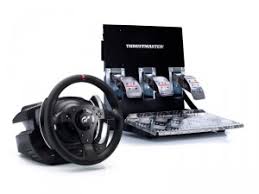
T500RS - Racing wheel TRUSTMASTER - Free user manual and instructions
Find the device manual for free T500RS TRUSTMASTER in PDF.



| Brand | TRUSTMASTER |
| Model | T500RS |
| Product type | Racing wheel |
| Category | Force feedback racing wheel |
| Base dimensions (L x W x H) | 340 x 280 x 280 mm |
| Total weight | 7 kg |
| Power supply | AC adapter 110-240V AC, 50/60 Hz |
| Connectivity | USB, compatible with PlayStation 3 and PC (Windows XP/Vista/7) |
| Main features | Belt-driven force feedback, T3PA pedal set included, paddle shifters, compatibility with Thrustmaster accessories |
| Rotation angle | 270° to 1080° (adjustable) |
| Motor | Brushless |
| Materials | Steering wheel in leather and metal, reinforced plastic base |
| Maintenance and cleaning | Clean with a slightly damp soft cloth. Do not use solvents. |
| Safety | Do not disconnect power during updates. Use on a stable surface. |
| Spare parts and repairability | Parts available through Thrustmaster customer service. Repairs by an authorized technician. |
| General information | Certified for PlayStation 3 and PC. 2-year warranty. |
Frequently Asked Questions - T500RS TRUSTMASTER
User questions about T500RS TRUSTMASTER
0 question about this device. Answer the ones you know or ask your own.
Ask a new question about this device
Download the instructions for your Racing wheel in PDF format for free! Find your manual T500RS - TRUSTMASTER and take your electronic device back in hand. On this page are published all the documents necessary for the use of your device. T500RS by TRUSTMASTER.
USER MANUAL T500RS TRUSTMASTER
ENGLISH: Bootloader method: how to wake your racing wheel if it is no longer recognized on PlayStation®3 or PC (i.e. in the event of firmware loss)
DEUTSCH: Bootloader method: how to wake your racing wheel if it is no longer recognized on PlayStation®3 or PC (i.e. in the event of firmware loss)
Bootloader method: how to wake your racing wheel if it is no longer recognized on PlayStation®3 or PC (i.e. in the event of firmware loss)
Required system: PC running Windows® XP, Vista or 7.
1) If you haven't already done so, install the DRIVERS FORCE FEEDBACK (Package 2011_TTRS_5) + Firmware V37 package on your PC. You can download it here: http://ts.thrustmaster.com/eng/index.php?pg=view_files&gid=1&fid=2&pid=316&cid=15
During the installation:
- DO NOT CONNECT the racing wheel to the PC before being requested to do so.
- Connect the racing wheel directly to the PC's USB port. We advise against using a USB hub during this procedure.
- DO NOT CLICK on any windows that may appear during the update.
2) Restart the computer.
3) After restarting the computer:
- Remove the USB plug from the computer.
- Simultaneously press buttons L3 and R3 (located on the racing wheel's base), then connect (without releasing L3 and R3) the USB plug to the PC.
-
After connecting the USB plug to the PC, release buttons L3 and R3.
-
The following message appears in the lower right-hand corner of your screen (do not do anything or click on any window during the automatic installation procedure).
Installing device driver software
Click here for status.
- After the installation, a second message appears:

Thrustmaster TRS Racing wheel Bulk Driver
Device driver software installed successfully.
In Windows® XP, if the following window appears, click Continue Anyway to force the installation to run (but do not click on any other windows that may appear).
Hardware Installation

The software you are installing for this hardware:
Thrustmaster TRS Racing wheel Bulk Driver
has not passed Windows Logo testing to verify its compatibility with Windows XP. (Tell me why this testing is important.)
Continuing your installation of this software may impair or destabilize the correct operation of your system either immediately or in the future. Microsoft strongly recommends that you stop this installation now and contact the hardware vendor for software that has passed Windows Logo testing.
Continue Anyway
STOP Installation
Your racing wheel's bulk drivers are now installed.
Notes:
- During the installation, the racing wheel does not run the auto-calibration procedure (i.e. the racing wheel does not automatically move to the left and right) when connected to the PC: this is normal.
- The racing wheel's MODE LED is off: this is normal.
- The racing wheel is not detected in the Control Panel: this is normal.

Game Controllers

These settings help you configure the game controllers installed on your computer.
Installed game controllers
Controller
Status
Advanced...
Properties
OK
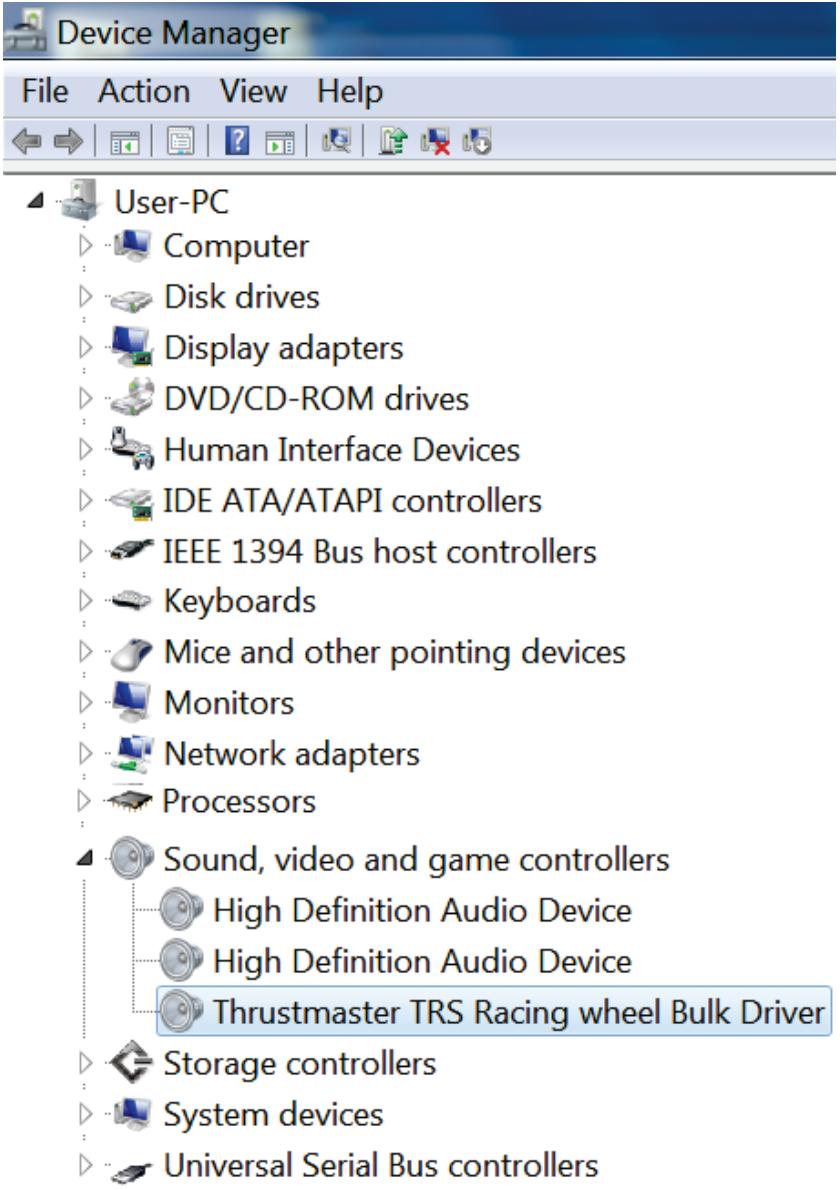
- The racing wheel is detected in the Device Manager, in the Sound, video and game controllers section, under the name Thrustmaster TRS Racing Wheel Bulk Driver: this is normal.
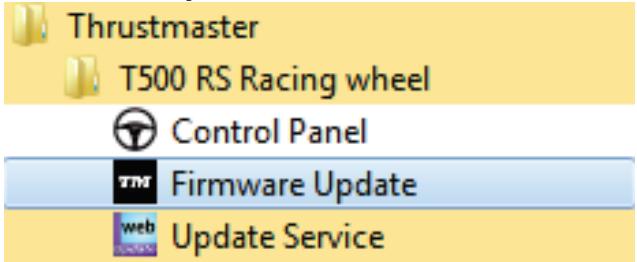
4) Select Start > All Programs > Thrustmaster > T500 RS Racing Wheel, then click Firmware Update.
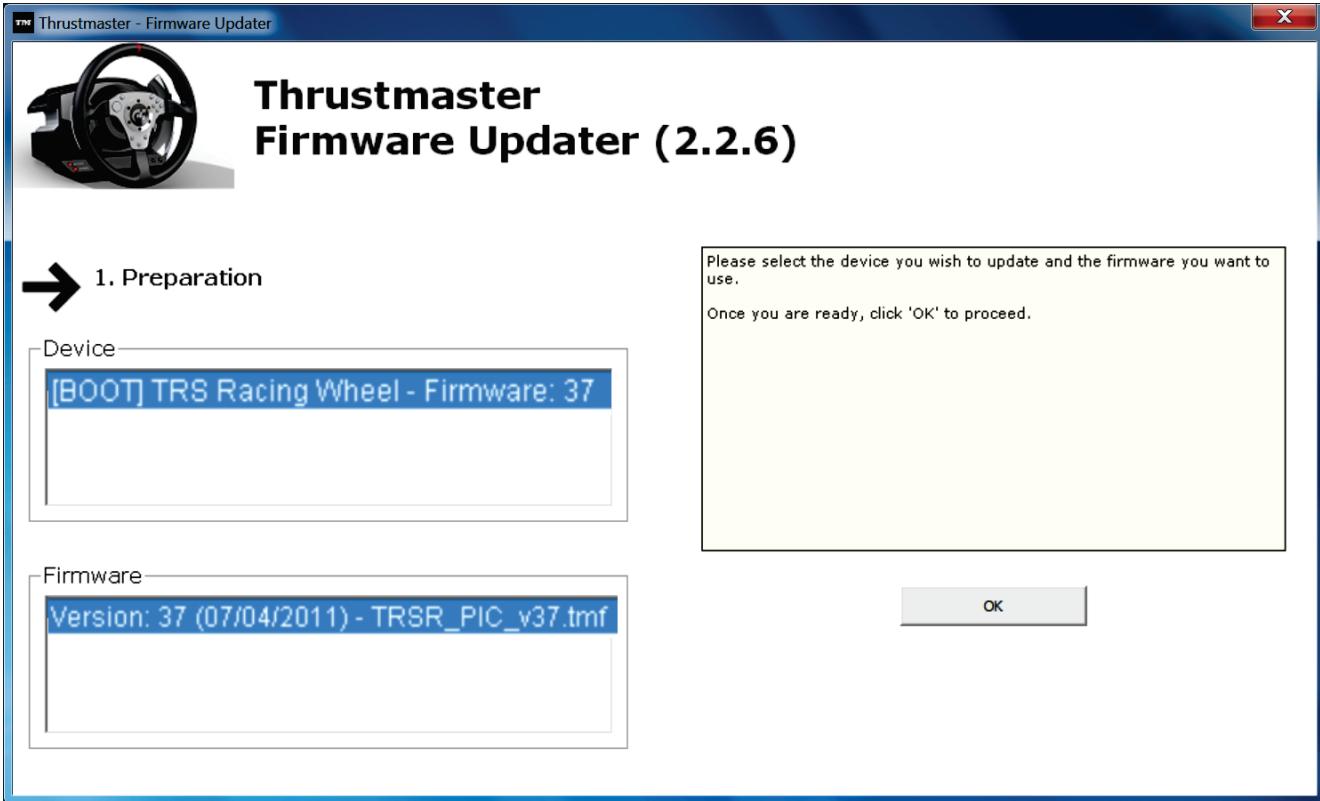
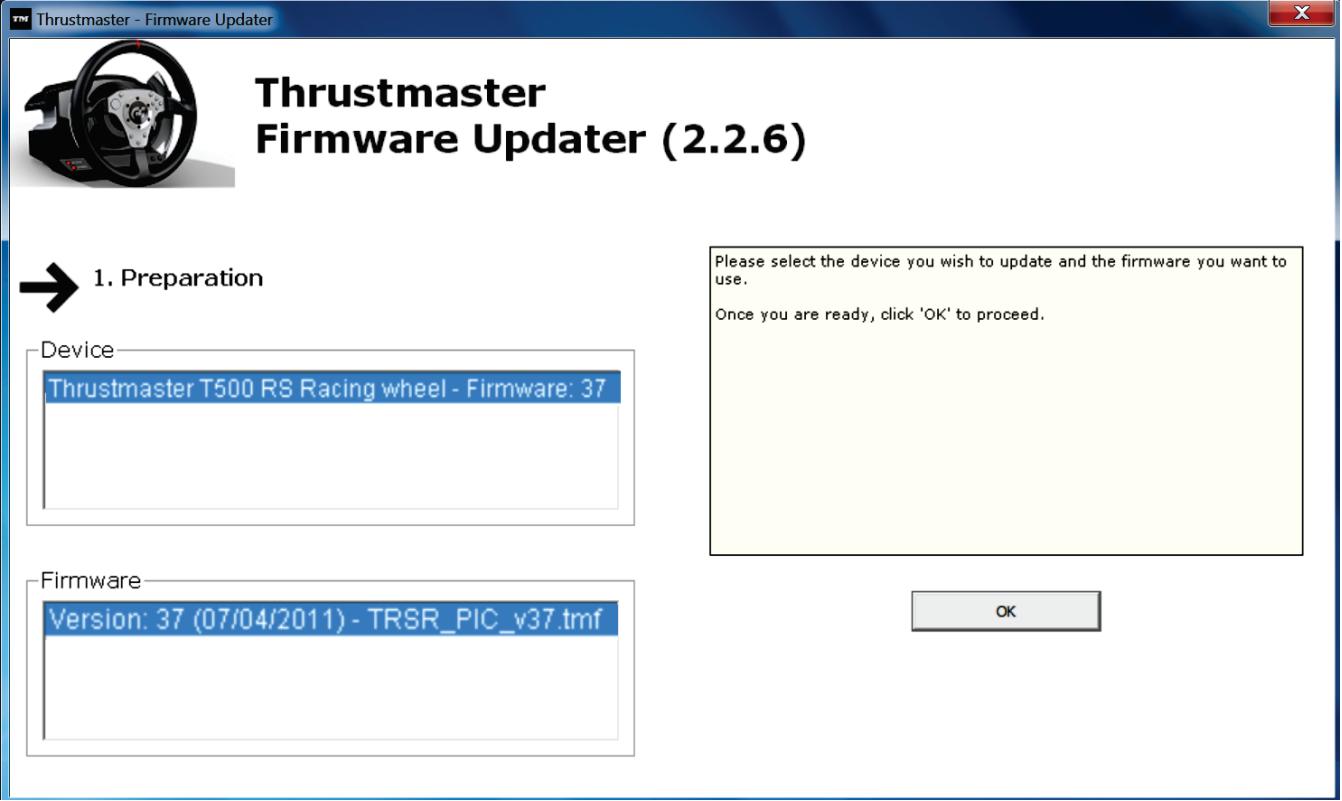
5) The Thrustmaster - Firmware Updater window appears onscreen.
- The Device field shows [BOOT] TRS Racing Wheel - Firmware:....
- The Firmware field displays the firmware version that will be applied to the device.
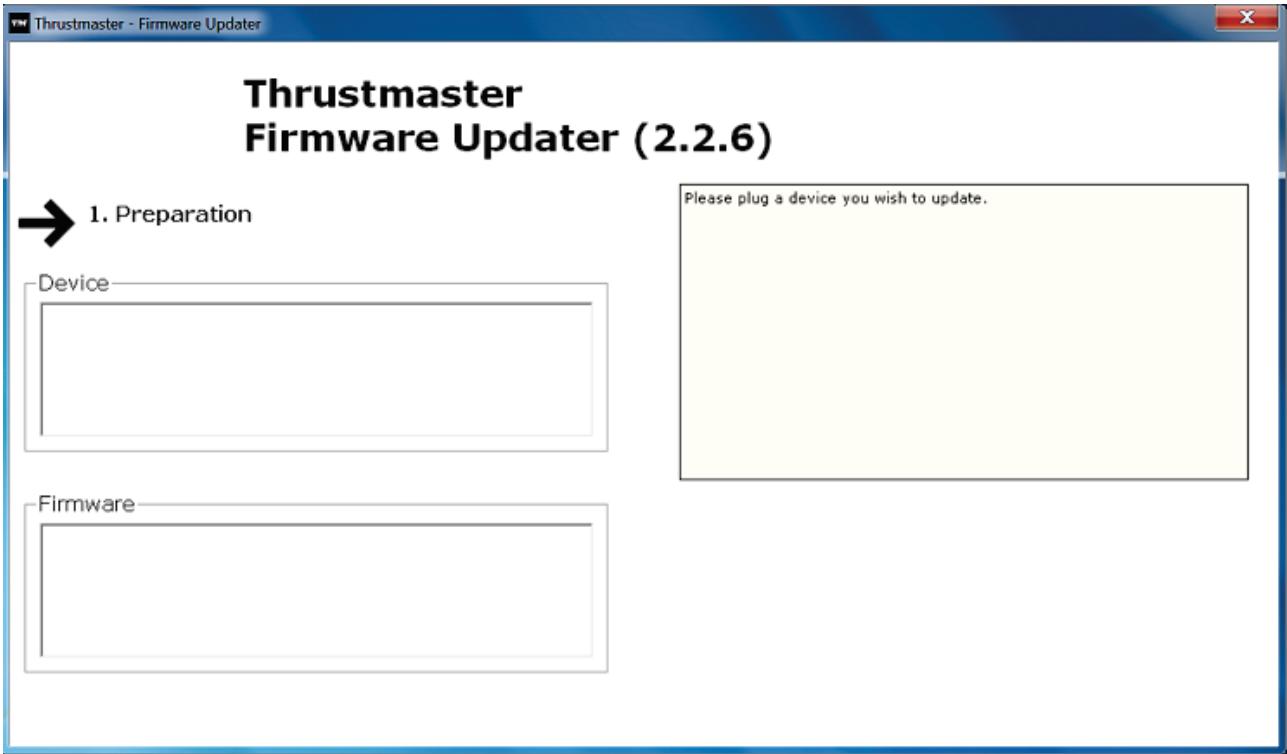
Note: If nothing appears in the Device or Firmware fields, please repeat the installation procedure from the beginning, connecting the racing wheel's USB plug to another USB port on the PC (or try running the procedure on another PC).
6) Click OK to update the firmware.
IMPORTANT: DO NOT DISCONNECT the racing wheel from the USB port! DO NOT DISCONNECT the racing wheel's power adapter during the firmware update!
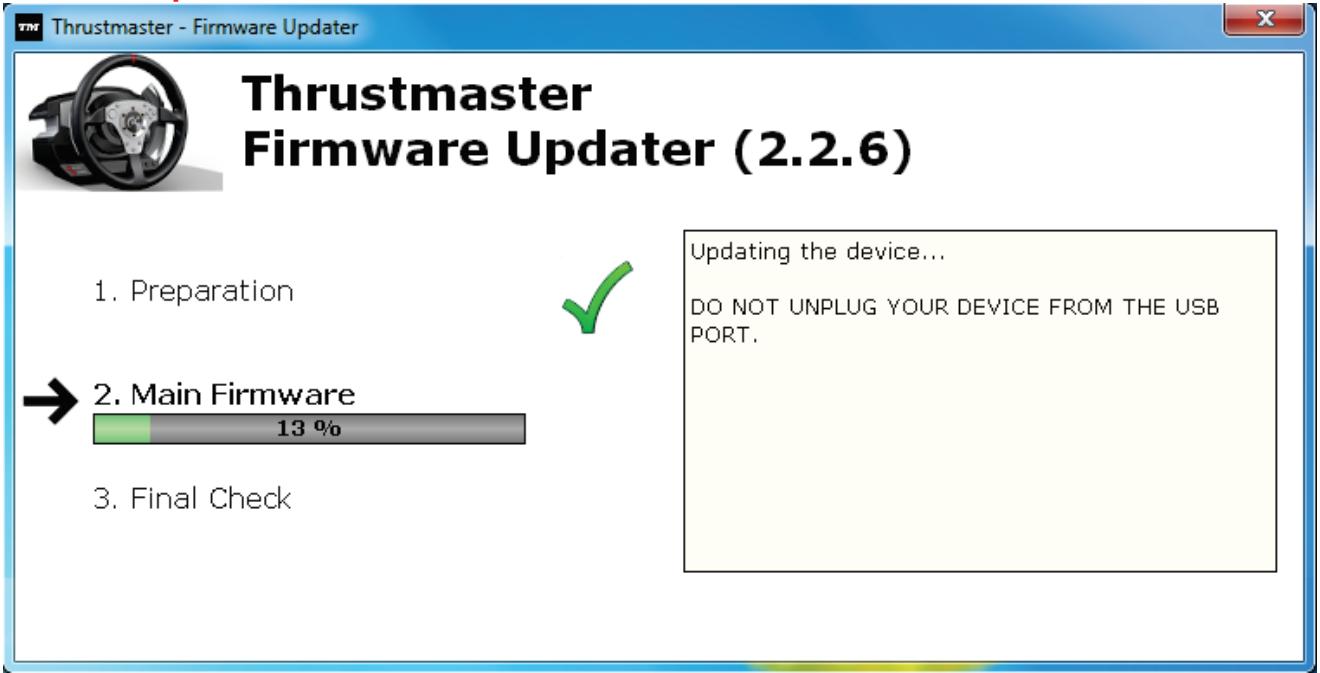
The firmware updater will inform you if the update procedure ran successfully.
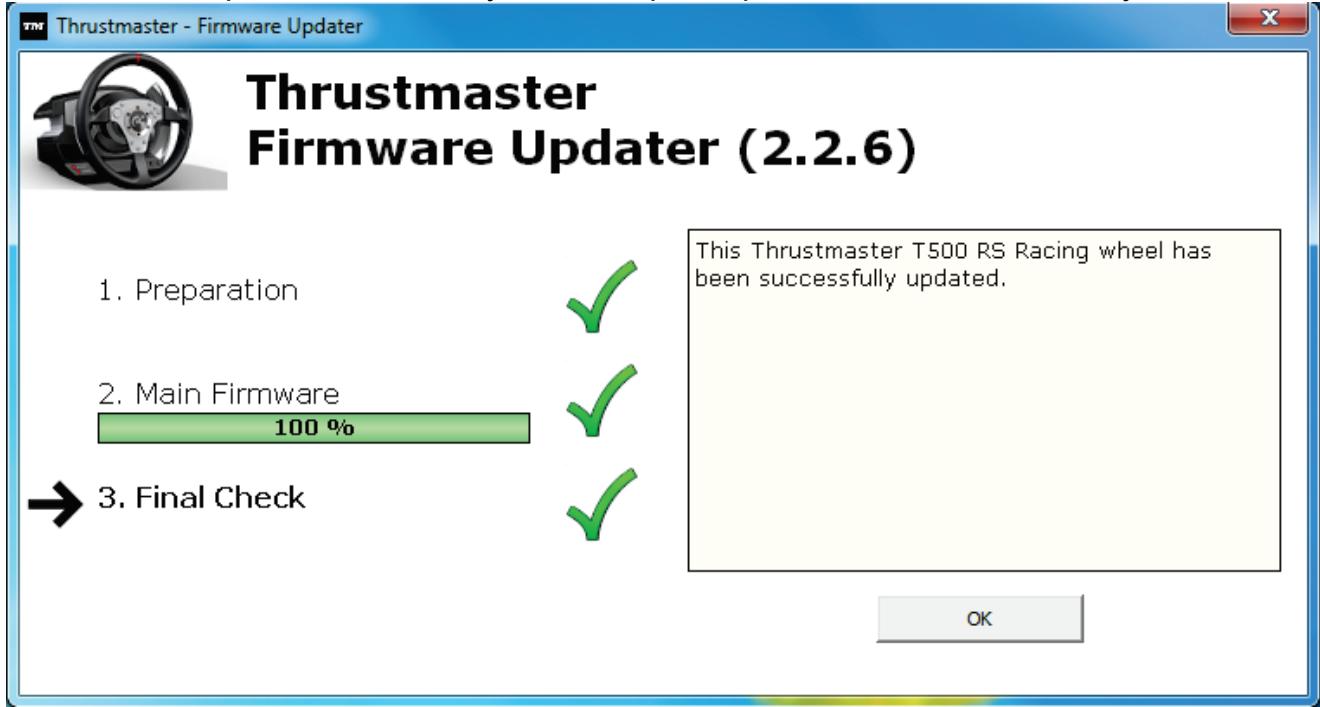
The racing wheel then runs the auto-calibration procedure (i.e. the racing wheel automatically moves to the left and right), then the MODE LED lights up again.
7) Click OK to return to the firmware updater main window, then click to exit the program.
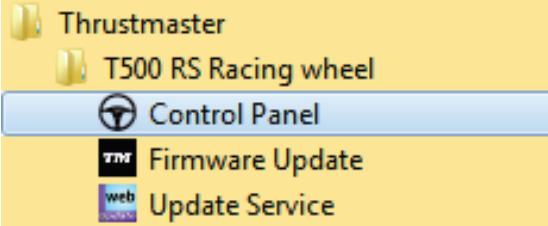
8) Once the firmware has been updated, check that the racing wheel is running correctly in the Control Panel (Start > All Programs > Thrustmaster > T500 RS Racing Wheel > Control Panel).
- The racing wheel appears under the name Thrustmaster T500 RS Racing wheel.
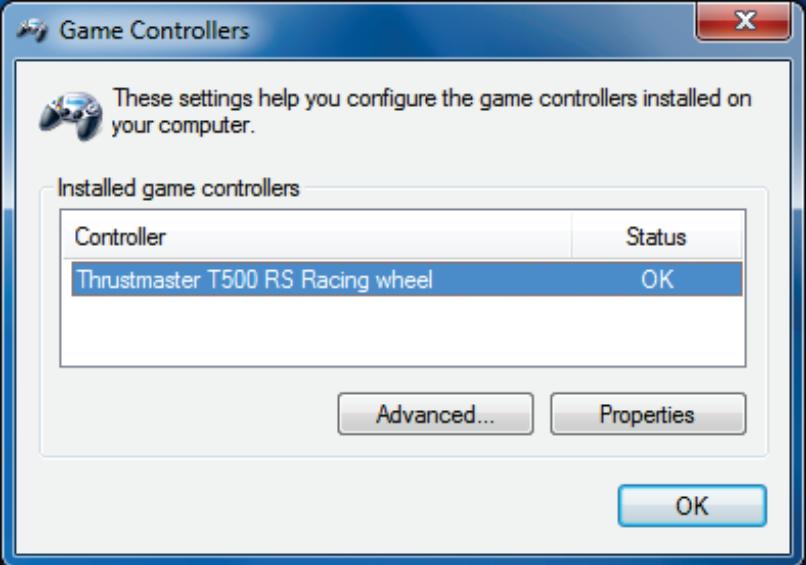
- Click Properties to test the racing wheel.
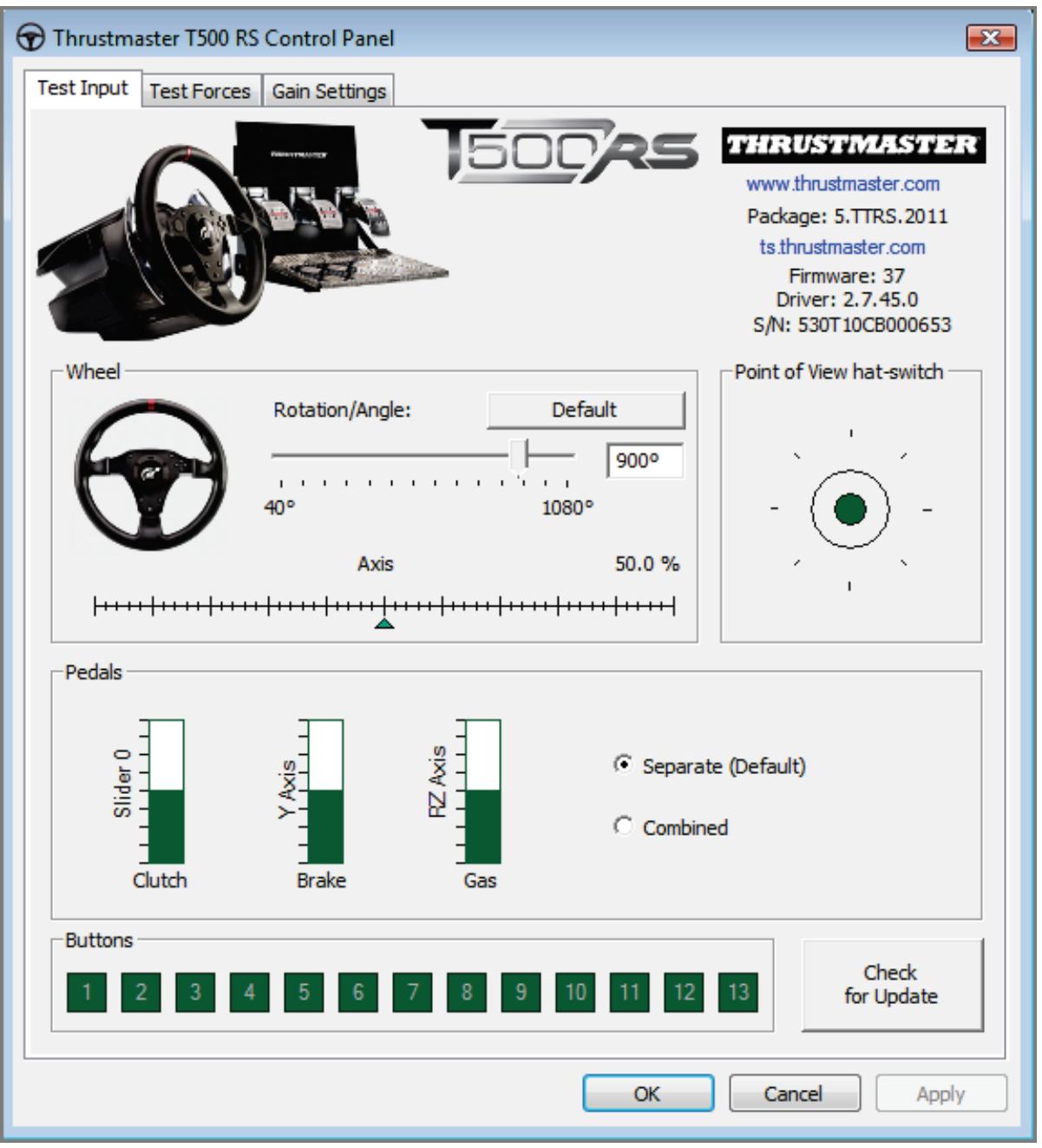
You are now ready to race!
Note: If the procedure fails, please repeat the installation procedure from the beginning, connecting the racing wheel's USB plug to another USB port on the PC (or try running the procedure on another PC).
If the problem remains, please contact Technical Support, who will then provide other solutions.
FRANÇAIS :
Installing device driver software
Click here for status.
Thrustmaster TRS Racing wheel Bulk Driver
Device driver software installed successfully.

Hardware Installation

The software you are installing for this hardware:
Thrustmaster TRS Racing wheel Bulk Driver
has not passed Windows Logo testing to verify its compatibility with Windows XP. [Tell me why this testing is important.]
Continuing your installation of this software may impair or destabilize the correct operation of your system either immediately or in the future. Microsoft strongly recommends that you stop this installation now and contact the hardware vendor for software that has passed Windows Logo testing.
Continue Anyway
STOP Installation
These settings help you configure the game controllers installed on your computer.
Installed game controllers
Controller
Advanced...
Status
OK
Installing device driver software
Click here for status.
Hardware Installation

The software you are installing for this hardware:
Thrustmaster TRS Racing wheel Bulk Driver
has not passed Windows Logo testing to verify its compatibility with Windows XP. (Tell me why this testing is important.)
Continuing your installation of this software may impair or destabilize the correct operation of your system either immediately or in the future. Microsoft strongly recommends that you stop this installation now and contact the hardware vendor for software that has passed Windows Logo testing.
Continue Anyway
STOP Installation
Installing device driver software
Click here for status.
Thrustmaster TRS Racing wheel Bulk Driver
Device driver software installed successfully.

Hardware Installation

The software you are installing for this hardware:
Thrustmaster TRS Racing wheel Bulk Driver
has not passed Windows Logo testing to verify its compatibility with Windows XP. [Tell me why this testing is important.]
Continuing your installation of this software may impair or destabilize the correct operation of your system either immediately or in the future. Microsoft strongly recommends that you stop this installation now and contact the hardware vendor for software that has passed Windows Logo testing.
Continue Anyway
STOP Installation
T500 RS Racing wheel

Control Panel

Firmware Update

Update Service
Installing device driver software
Click here for status.
Thrustmaster TRS Racing wheel Bulk Driver
Device driver software installed successfully.

Hardware Installation

The software you are installing for this hardware:
Thrustmaster TRS Racing wheel Bulk Driver
has not passed Windows Logo testing to verify its compatibility with Windows XP. (Tell me why this testing is important.)
Continuing your installation of this software may impair or destabilize the correct operation of your system either immediately or in the future. Microsoft strongly recommends that you stop this installation now and contact the hardware vendor for software that has passed Windows Logo testing.
Continue Anyway
STOP Installation
Installing device driver software
Click here for status.
Thrustmaster TRS Racing wheel Bulk Driver
Device driver software installed successfully.

Installing device driver software
Click here for status.
Thrustmaster TRS Racing wheel Bulk Driver
Device driver software installed successfully.


Installing device driver software
Click here for status.
Thrustmaster TRS Racing wheel Bulk Driver


Device driver software installed successfully.
Installing device driver software
Click here for status.


Thrustmaster TRS Racing wheel Bulk Driver
Device driver software installed successfully.
Installing device driver software
Click here for status.
- 入斯卜一ル後、次のル表示さしま。

Thrustmaster TRS Racing wheel Bulk Driver
Device driver software installed successfully.

Hardware Installation

The software you are installing for this hardware:
Thrustmaster TRS Racing wheel Bulk Driver
has not passed Windows Logo testing to verify its compatibility with Windows XP. [Tell me why this testing is important.]
Continuing your installation of this software may impair or destabilize the correct operation of your system either immediately or in the future. Microsoft strongly recommends that you stop this installation now and contact the hardware vendor for software that has passed Windows Logo testing.
Continue Anyway
STOP Installation

- Bootloader method: how to wake your racing wheel if it is no longer recognized on PlayStation®3 or PC (i.e. in the event of firmware loss)
- Hardware Installation
- Your racing wheel's bulk drivers are now installed.
- Notes:
- Game Controllers
- FRANÇAIS :
- Thrustmaster TRS Racing wheel Bulk Driver
- Installing device driver software
- Click here for status.
- Device driver software installed successfully.
Brand : TRUSTMASTER
Model : T500RS
Category : Racing wheel