
BIGKNOB - Audio Monitoring Controller MACKIE - Free user manual and instructions
Find the device manual for free BIGKNOB MACKIE in PDF.


User questions about BIGKNOB MACKIE
0 question about this device. Answer the ones you know or ask your own.
Ask a new question about this device
Download the instructions for your Audio Monitoring Controller in PDF format for free! Find your manual BIGKNOB - MACKIE and take your electronic device back in hand. On this page are published all the documents necessary for the use of your device. BIGKNOB by MACKIE.
USER MANUAL BIGKNOB MACKIE
Important Safety Instructions
- Read these instructions.
- Keep these instructions.
- Heed all warnings.
- Follow all instructions.
- Do not use this apparatus near water.
- Clean only with dry cloth.
- Do not block any ventilation openings. Install in accordance with the manufacturer's instructions.
- Do not install near any heat sources such as radiators, heat registers, stoves, or other apparatus (including amplifiers) that produce heat.
- Do not defeat the safety purpose of the polarized or grounding-type plug. A polarized plug has two blades with one wider than the other. A grounding-type plug has two blades and a third grounding prong. The wide blade or the third prong are provided for your safety. If the provided plug does not fit into your outlet, consult an electrician for replacement of the obsolete outlet.
- Protect the power cord from being walked on or pinched particularly at plugs, convenience receptacles, and the point where they exit from the apparatus.
- Only use attachments/accessories specified by the manufacturer.
- Use only with a cart, stand, tripod, bracket, or table specified by the manufacturer, or sold with the apparatus. When a cart is used, use caution when moving the cart/apparatus combination to avoid injury from tip-over.
PORTABLE CART WARNING

Carts and stands - The Component should be used only with a cart or stand that is recommended by the manufacturer. A Component and cart combination should be moved with care. Quick stops, excessive force, and uneven surfaces may cause the Component and cart combination to overturn.
The lightning flash with arrowhead symbol within an equilateral triangle is intended to alert the user to the presence of uninsulated "dangerous voltage" within the product's enclosure, that may be of sufficient magnitude to constitute a risk of electric shock to persons. The le symbole clair avec point de fi che l'irrêt d'un triangle qu'il est utilis pour alerter l'utiliser de la pr sence l'irrêt du coiffret de "voltage dangereux" non isol d'ampleur suffisante pour constituter un risque d' Icroucation.

- Unplug this apparatus during lightning storms or when unused for long periods of time.
- Refer all servicing to qualified service personnel. Servicing is required when the apparatus has been damaged in any way, such as power-supply cord or plug is damaged, liquid has been spilled or objects have fallen into the apparatus, the apparatus has been exposed to rain or moisture, does not operate normally, or has been dropped.
- This apparatus has been equipped with a rocker-style AC mains power switch. This switch is located on the rear panel and should remain readily accessible to the user.
- This apparatus does not exceed the Class A/Class B (whichever is applicable) limits for radio noise emissions from digital apparatus as set out in the radio interference regulations of the Canadian Department of Communications.
- Exposure to extremely high noise levels may cause permanent hearing loss. Individuals vary considerably in susceptibility to noise-induced hearing loss, but nearly everyone will lose some hearing if exposed to sufficiently intense noise for a period of time. The U.S. Government's Occupational Safety and Health Administration (OSHA) has specified the permissible noise level exposures shown in the following chart.
According to OSHA, any exposure in excess of these permissible limits could result in some hearing loss. To ensure against potentially dangerous exposure to high sound pressure levels, it is recommended that all persons exposed to equipment capable of producing high sound pressure levels use hearing protectors while the equipment is in operation. Ear plugs or protectors in the ear canals or over the ears must be worn when operating the equipment in order to prevent permanent hearing loss if exposure is in excess of the limits set forth here.
| Duration Per Day In Hours | Sound Level dBA, Slow Response | Typical Example |
| 8 | 90 | Duo in small club |
| 6 | 92 | |
| 4 | 95 | Subway Train |
| 3 | 97 | |
| 2 | 100 | Very loud classical music |
| 1.5 | 102 | |
| 1 | 105 | Tami screaming at Adrian about deadlines |
| 0.5 | 110 | |
| 0.25 or less | 115 | Loudest parts at a rock concert |
WARNING — To reduce the risk of fire or electric shock, do not expose this apparatus to rain or moisture.
Table of Contents
Introduction 4
Getting Started 4
Zero the Controls 4
Connections 4
Set the Levels 5
Hookup 6
Big Knob Features 7
Front Panel 7
Rear Panel 9
Appendix A: Service Information 13
Warranty Service 13
Troubleshooting 13
Repair 14
Appendix B: Connections 15
XLR Connectors 15
1/4" TRS Phone Plugs and Jacks 15
1/4" TS Phone Plugs and Jacks 15
RCA Plugs and Jacks 15
Footswitch Plug and Jack 15
Appendix C: Technical Info 16
Big Knob Specifications 16
Big Knob Block Diagram 18
Big Knob Limited Warranty 19
Please write your serial number here for future reference (i.e., insurance claims, tech support, return authorization, etc.)
Purchased at:
Date of purchase:
Don't forget to visit our website at www.mackie.com for more information about this and other Mackie products.

Introduction
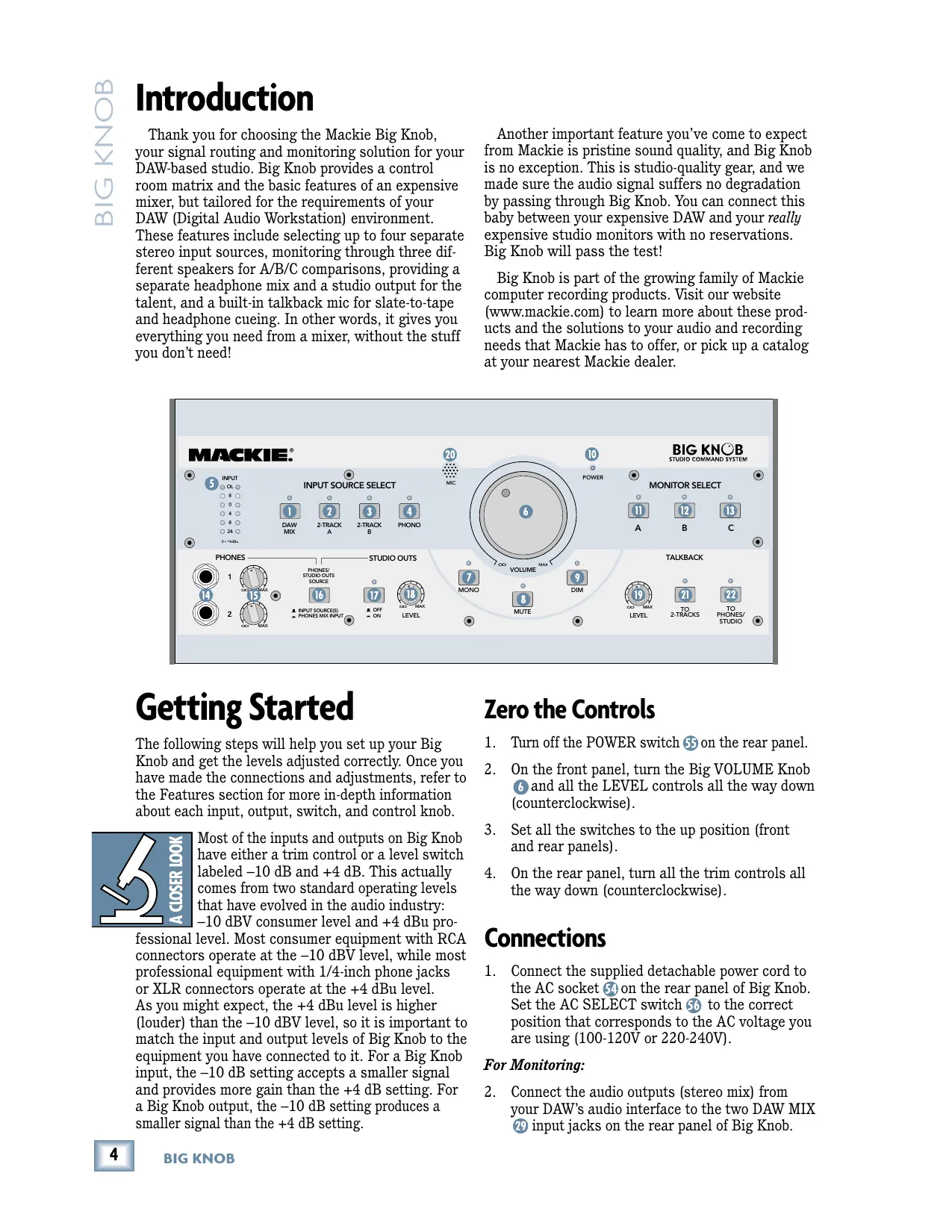
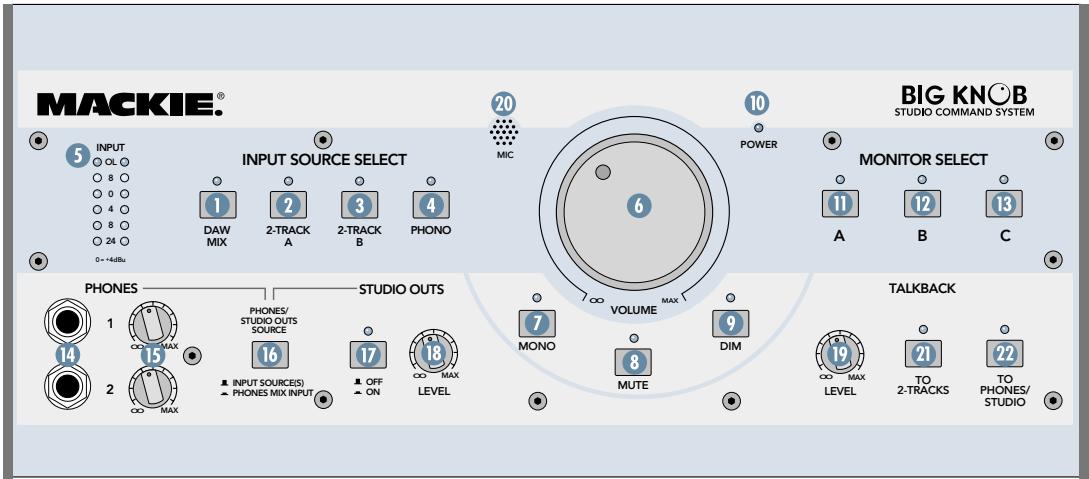
Thank you for choosing the Mackie Big Knob, your signal routing and monitoring solution for your DAW-based studio. Big Knob provides a control room matrix and the basic features of an expensive mixer, but tailored for the requirements of your DAW (Digital Audio Workstation) environment. These features include selecting up to four separate stereo input sources, monitoring through three different speakers for A/B/C comparisons, providing a separate headphone mix and a studio output for the talent, and a built-in talkback mic for slate-to-tape and headphone cueing. In other words, it gives you everything you need from a mixer, without the stuff you don't need!
Another important feature you've come to expect from Mackie is pristine sound quality, and Big Knob is no exception. This is studio-quality gear, and we made sure the audio signal suffers no degradation by passing through Big Knob. You can connect this baby between your expensive DAW and your really expensive studio monitors with no reservations. Big Knob will pass the test!
Big Knob is part of the growing family of Mackie computer recording products. Visit our website (www.mackie.com) to learn more about these products and the solutions to your audio and recording needs that Mackie has to offer, or pick up a catalog at your nearest Mackie dealer.
Getting Started
The following steps will help you set up your Big Knob and get the levels adjusted correctly. Once you have made the connections and adjustments, refer to the Features section for more in-depth information about each input, output, switch, and control knob.

Most of the inputs and outputs on Big Knob have either a trim control or a level switch labeled -10 dB and +4 dB. This actually comes from two standard operating levels that have evolved in the audio industry: -10 dBV consumer level and +4 dBu professional level. Most consumer equipment with RCA connectors operate at the -10 dBV level, while most professional equipment with 1/4-inch phone jacks or XLR connectors operate at the +4 dBu level. As you might expect, the +4 dBu level is higher (louder) than the -10 dBV level, so it is important to match the input and output levels of Big Knob to the equipment you have connected to it. For a Big Knob input, the -10 dB setting accepts a smaller signal and provides more gain than the +4 dB setting. For a Big Knob output, the -10 dB setting produces a smaller signal than the +4 dB setting.
Zero the Controls
- Turn off the POWER switch ⑤ on the rear panel.
- On the front panel, turn the Big VOLUME Knob 6 and all the LEVEL controls all the way down (counterclockwise).
- Set all the switches to the up position (front and rear panels).
- On the rear panel, turn all the trim controls all the way down (counterclockwise).
Connections
- Connect the supplied detachable power cord to the AC socket 54 on the rear panel of Big Knob. Set the AC SELECT switch 56 to the correct position that corresponds to the AC voltage you are using (100-120V or 220-240V).
For Monitoring:
-
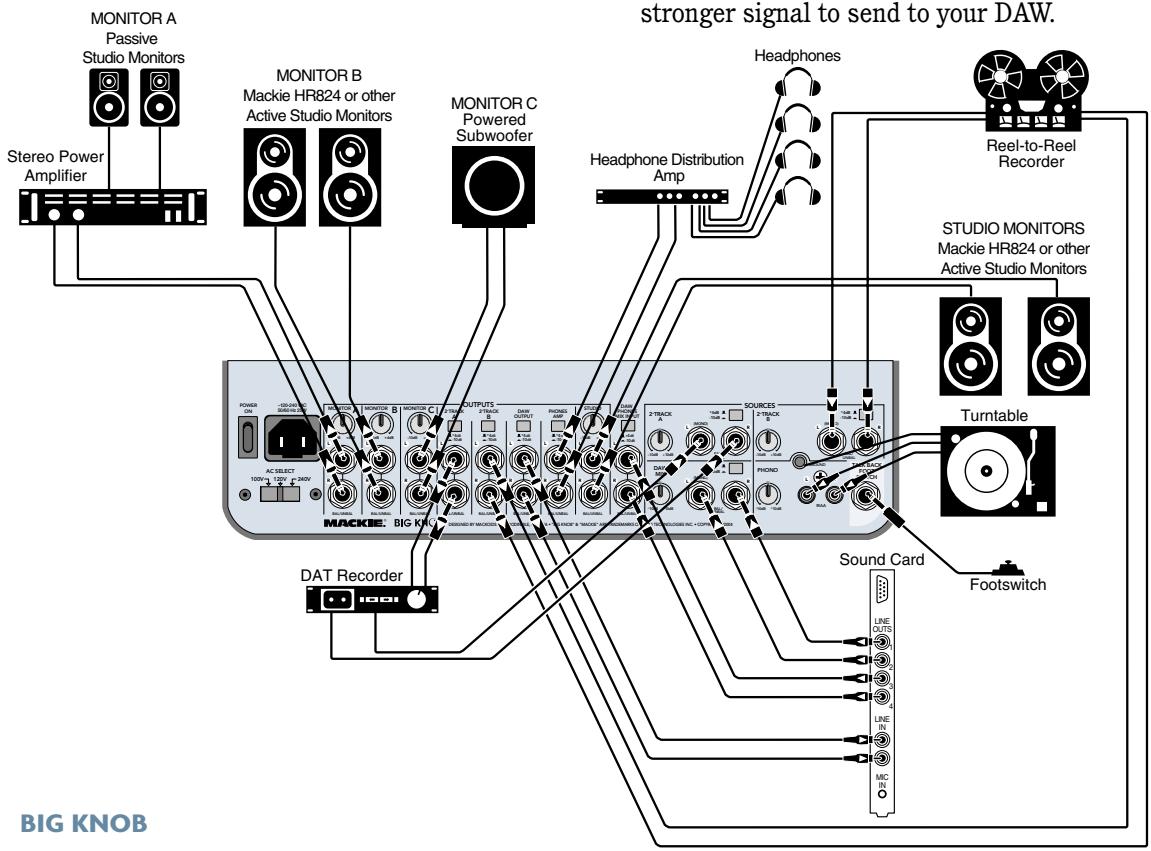
Connect the audio outputs (stereo mix) from your DAW's audio interface to the two DAW MIX 29 input jacks on the rear panel of Big Knob.
-
Connect the MONITOR A output jacks 38 on the rear panel of Big Knob to a pair of active studio monitors (or the inputs of an amplifier that is powering a pair of passive studio monitors). These will be located at your mixing position. If you know whether the inputs to the active studio monitors (or amplifier) accept a -10 dBV (consumer) or +4 dBu input level, set the trim control 39 above the MONITOR A output jacks to the appropriate position. Otherwise, leave it at the -10 dBV position for now. You can connect additional speakers to the MONITOR B 40 and MONITOR C 42 output jacks so you can hear your mix through different types of speakers.
- If you have a separate studio for recording, connect the STUDIO OUTS to a pair of active studio monitors (or the inputs of an amplifier that is powering a pair of passive studio monitors). These will be located in studio for the talent. Set the trim control above the STUDIO OUTS output jacks to the appropriate position, or leave it at the -10 dBV position if you're not sure.
- If you have a headphone distribution amplifier for monitoring while recording, connect the PHONES AMP ⑤ output jacks to the inputs of the headphone amp. Set the +4 / - 10 level switch ① above the PHONES AMP output jacks to the appropriate position, or leave it at the -10 position (pushed in) if you're not sure.
For Recording
- Connect the 2-TRACK A 44 outputs to the line- level inputs of any recording device, like a DAT or cassette recorder. This allows you to record from your DAW to the recorder. Set the +4/-10 level switch ⑤ above the 2- TRACK A output jacks to the appropriate position, or leave it at the -10 position (pushed in) if you're not sure.
- Connect the line-level outputs from the DAT or cassette recorder to the 2-TRACK A 23 inputs.
- Connect the DAW ④ output jacks on the rear panel of Big Knob to the stereo inputs of your DAW's audio interface. This allows you to record from the 2- TRACK recorder back to your DAW. Set the +4/-10 level switch ⑨ above the DAW output jacks to the appropriate position, or leave it at the -10 position (pushed in) if you're not sure.
Set the Levels
- With everything off, turn on Big Knob's POWER switch first.
- Turn on all other external power amplifiers, active speakers, and headphone amplifiers.
- Start playback on your DAW and play something you've already recorded (or a demo track). You want to be able to listen to it over the monitor speakers connected to Big Knob.
- Press the DAW MIX ① button in the INPUT SOURCE SELECT section on the front panel. The LED above the DAW MIX button should light.
- Press the MONITOR A button in the MONITOR SELECT section on the front panel. The LED above the MONITOR A button should light.
- If you know whether your DAW's audio interface output is at a -10 dBV level (consumer) or a +4 dBU level (pro), set the +4 / - 10 level switch for the DAW MIX29 inputs to the appropriate position. If you don't know, leave it out (in the +4 dBU position). We can change it later if we need to.
- Slowly turn up the trim control 31 for the DAW MIX input until you see the meters 5 on the front panel lighting and dancing happily. Adjust the control until the meters are lighting the "0" LED regularly. You want the "+" LED to light only occasionally, and the "OL" LED to not light at all.
- If you can't adjust the trim control far enough to get the signal level up to the 0 and +5 LEDs on the meter, turn the trim control all the way down, push in the +4/-10 level switch for the DAW MIX input, and slowly turn up the trim control again. Now the signal should be strong enough to get the 0 and +5 LEDs to light.
- Slowly turn up the Big Knob VOLUME ⑥ control. You should begin to hear playback from your DAW through your studio monitor speakers. Adjust the VOLUME control to a comfortable listening level. If it seems like you have to turn up the VOLUME control all the way to hear the monitor speakers, turn down the VOLUME control and check to see if the trim control 3 9
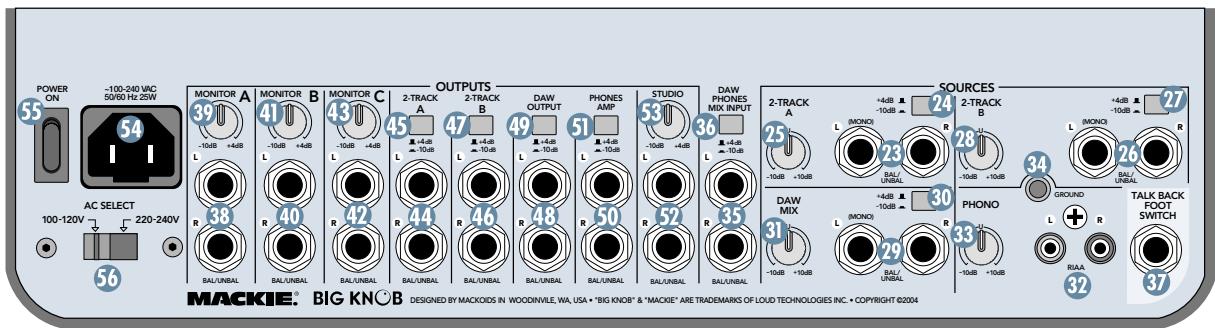
above the MONITOR A 38 output jacks is in the -10 dB position (counterclockwise). If it is, turn the control up to the +4 dB position and then turn up the Big Knob VOLUME control. Now it should get louder, faster.
- If you have monitors connected to the STUDIO OUTS 52, make sure the PHONES/STUDIO OUTS SOURCE 16 button on the front panel is out, and the STUDIO OUTS ON/OFF 17 button is ON (LED above the button is lit).
- Slowly turn up the STUDIO OUTS LEVEL ⑧ control on the front panel. You should begin to hear playback from your DAW through your studio monitor speakers. Adjust the STUDIO OUTS LEVEL control to a comfortable listening level. If it seems like you have to turn up the LEVEL control all the way to hear the studio monitor speakers, turn down the LEVEL control and check to see if the trim control 53 above the STUDIO OUTS 52 jacks is in the -10 dB position (counterclockwise). If it is, turn the control up to the +4 dB position and then turn up the LEVEL control. Now it should get louder, faster.
- If you have a headphone distribution amplifier connected to the PHONES AMP 50 outputs, you should be able to turn up the volume for each headphone connected to the headphone amplifier and hear playback from the DAW. If it seems like you're not getting enough volume from the headphone amplifier, turn down all the headphones volume controls on the headphone amplifiers.
Hookup
fier and check to see if the +4 / - 10 level switch ① above the PHONES AMP ⑤ output jacks is in the -10 dB position (pushed in). If it is, switch it to the +4 position and then turn up the headphone volume control on the headphone amplifier. Now it should get louder, faster.
- You can connect a pair of headphones to one of the two PHONES 14 jacks on the front panel of Big Knob. Slowly turn up its associated LEVEL 15 control to a comfortable listening level.
- If you want to record from the DAT or cassette player to your DAW, start playback on the DAT or cassette connected to Big Knob.
CAUTION: See "A Cautionary Note" on the next page to avoid creating a feedback loop through the 2-TRACK inputs and outputs.
- Push in the 2-TRACK A ② button in the INPUT SOURCE SELECT section on the front panel and turn off the DAW MIX button. Slowly turn up the trim control ⑤ for the 2-TRACK A input until you see the meters ⑤ on the front panel light. Adjust the control until the meters are lighting the “0” LED regularly. You want the “+8” LED to light only occasionally, and the “OL” LED to not light at all.
- Make sure the inputs to the DAW are selected for recording. Start recording and the playback from the 2-TRACK A input to Big Knob should be recording in the DAW application. If it seems like you're not getting enough volume from the 2-TRACK playback, check to see if the +4 / - 10 level switch ④ above the DAW ④ output jacks is in the -10 dB position (pushed in). If it is, switch it to the +4 position. This will provide a stronger signal to send to your DAW.
Big Knob Features
Front Panel
INPUT SOURCE SELECT Section
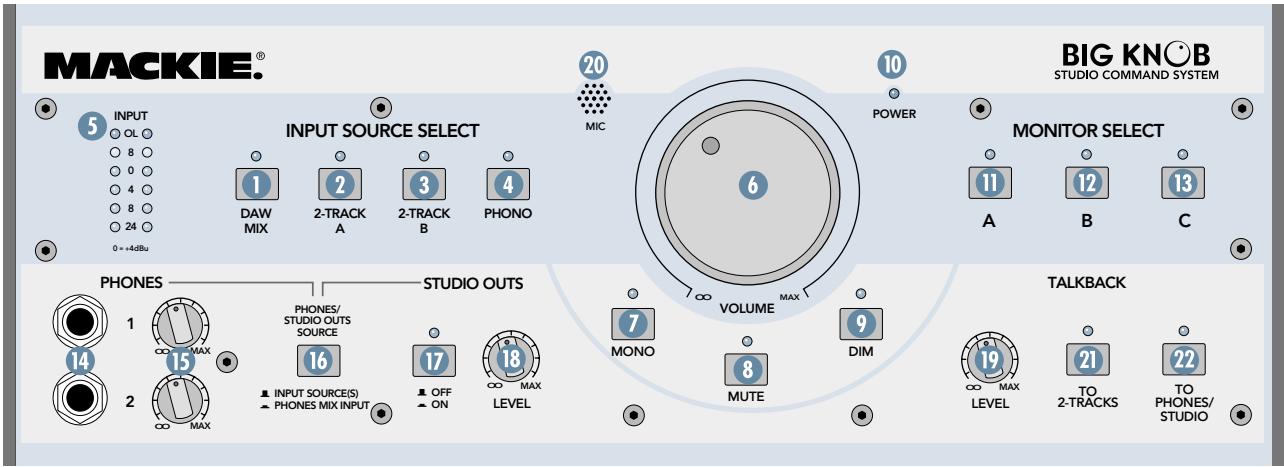
These buttons turn on or off the four input signals connected to Big Knob. Any combination of the four inputs can be turned on at the same time, as indicated by the red LEDs above the buttons.
When selected, these input sources are routed to the MONITOR A, B, and C stereo outputs, the 2-TRACK A and 2-TRACK B stereo outputs, the DAW stereo outputs and, when the PHONES/STUDIO OUTS SOURCE button is out (INPUT SOURCES), to the PHONES AMP and STUDIO OUTS stereo outputs, and to the PHONES 1 and 2 outputs on the front panel.

A Cautionary Note: When you have a 2-track recording device connected to both the inputs and the outputs on Big Knob, you run the risk of creating a feedback
loop. If the recording device is in record, record pause, or input monitor mode, the signal can go from the 2-TRACK outputs through the recording device and back into the 2-TRACK inputs, creating a circular loop that results in a terrible howl. You must remember to turn off the 2-TRACK INPUT SOURCE SELECT button when recording to your 2-track recorder!
1 DAW MIX
Turns on the signals connected to the DAW MIX stereo inputs.
2-TRACK A
Turns on the signals connected to the 2-TRACK A stereo inputs.
3 2-TRACK B
Turns on the signals connected to the 2-TRACK B stereo inputs.
4 PHONO
Turns on the signals connected to the PHONO stereo inputs.
5 INPUT METERS
These six segment meters show the signal level of the currently selected stereo source(es). The scale of the six segments of the meter is:
-24, -8, -4, 0, +8, and OL (Overload), where “0” is referenced to +4 dBu.
6 VOLUME
This Big Knob adjusts the volume of the selected input source going to the selected speaker outputs (MONITOR A, B, and C). The VOLUME knob ONLY affects the volume level of the monitor outputs (A, B, and C). It does not affect the volume of the signal going to other outputs, such as the headphone outputs, 2-TRACK outputs, or DAW outputs.
The VOLUME knob ranges from OFF () to +10 dB of gain (MAX).
1 MONO
Pressing this button combines the stereo signal into a monophonic signal at the MONITOR A, B, and C outputs. The left and right input signals are summed and the mono signal is output at both the left and right outputs. This lets you check for phase problems in the stereo signal when played over a monophonic system.
MUTE
Press this button to mute the signal going to the MONITOR A, B, and C outputs.
DIM
Pressing this button turns down the signal going to the MONITOR A, B, and C outputs by 20 dB. This lets you turn down the speakers to converse without affecting the speaker level you have set.
Note: Like the Big Knob VOLUME control, the MONO, MUTE, and DIM buttons ONLY affect the MONITOR A, B, and C outputs. These buttons have no effect on the currently selected source(s) as they are routed to the other various outputs.
10 POWER LED
This cool blue LED lights when the POWER switch is turned on and Big Knob is receiving AC power. It lets you know that Big Knob is turned on, even if no other buttons are pressed that would light up their associated red LED.
MONITOR SELECT
A
Press this button to route the currently selected input source(s) to the MONITOR A 38 output jacks.
12 B
Press this button to route the currently selected input source(s) to the MONITOR B ④ output jacks.
13 C
Press this button to route the currently selected input source(s) to the MONITOR C 42 output jacks.
Application Note: You can have one, two, or all three MONITOR outputs turned on at the same time. You could connect MONITOR B to a pair of full-range speakers and MONITOR C to a subwoofer. Use the MONITOR C button as a "subwoofer
IN/OUT" switch to compare the sound with and without the subwoofer.
14 PHONES 1 and 2
These 1/4-inch TRS connectors output an amplified stereo signal of either the DAW PHONES MIX INPUT or the INPUT SOURCES 23 26 29 32, depending on the position of the PHONES/STUDIO OUT SOURCE switch described below.
15 PHONES 1 and 2 Level Control
These rotary knobs control the volume of the stereo signal at the PHONES 1 and 2 headphone connectors. The same signal appears at both headphone outputs, but the volumes are adjusted independently with these level controls.

Note: Turn down the PHONES LEVEL controls before plugging in your headphones. The PHONES outputs are designed to drive headphones to a very loud level,
so it is best to start with the LEVEL controls turned all the way down and then turn them up SLOWLY to a comfortable listening level. In fact, starting right now, get in the habit of turning down the PHONES LEVEL controls when you are done using your headphones so you don't plug them in later and accidentally blow out your ears!
16 PHONES/STUDIO OUT SOURCE Button
This button affects the stereo signal going to:
- Both headphone outputs (PHONES 1 and 2) ① on the front panel
- The PHONES AMP 50 output on the rear panel
- The STUDIO OUTS on the rear panel
When INPUT SOURCE(S) is selected (up), the above outputs are fed the signal from the INPUT SOURCE SELECT buttons. This is the same signal that goes to the MONITOR A, B, and C outputs. In this position, the recording engineer and the talent can listen to the same mix (the MONITOR outs and STUDIO/PHONES outs have the same signal).
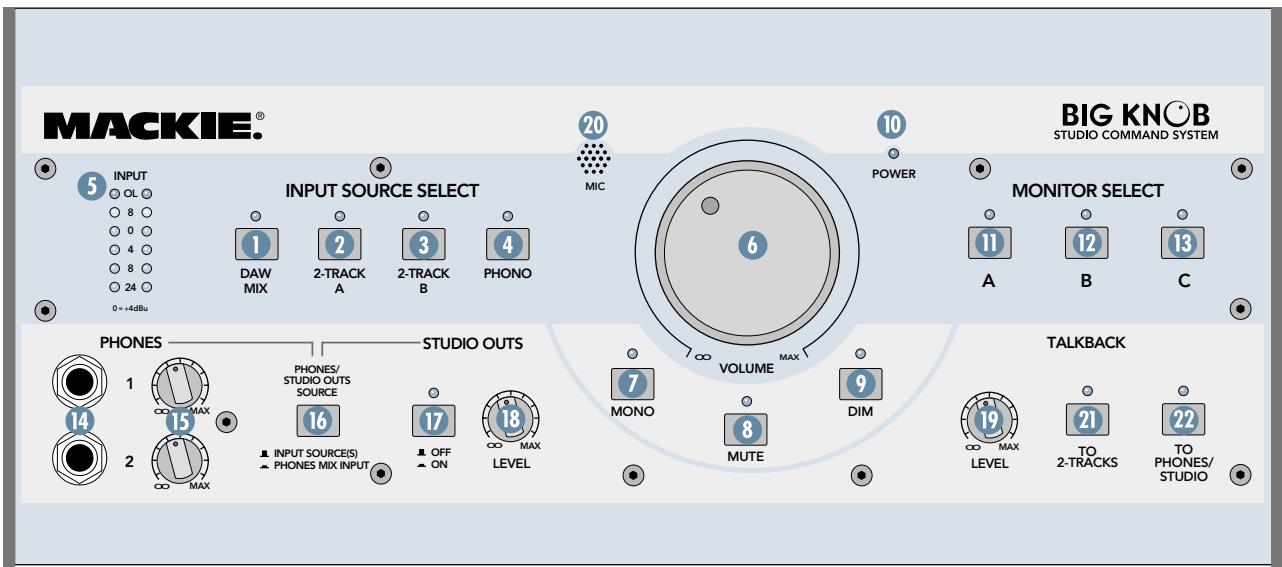
When the button is down (PHONES MIX INPUT), the STUDIO/PHONES outputs are fed the signal from the DAW PHONES MIX INPUT ⑤ jacks on the rear panel. In this position, the recording engineer listens to the "real" mix coming from the DAW (DAW MIX INPUT), but the talent can listen to an alternate and specialized mix coming from the DAW (DAW PHONES MIX INPUT).

Many DAW applications provide at least four outputs through their associated I/O hardware. Two outputs can provide the main mix, which is connected to the DAW MIX INPUTs on Big Knob and selected for moni
toring with the DAW MIX INPUT SOURCE SELECT button. The engineer can create a separate headphone mix for the talent in the DAW application by using a stereo aux send routed to another pair of outputs, which is connected to the DAW PHONES MIX INPUT on Big Knob and routed to the STUDIO/PHONES outputs with the PHONES/STUDIO OUT SOURCE button.
This button turns the signal path on and off going to the STUDIO OUTS ⑤ jacks on the rear panel. When the button is pushed in (ON), the red LED above the button lights and the signal appears at the STUDIO OUTS.
18 STUDIO OUTS LEVEL Control
This controls the level at the STUDIO OUTS 52 on the rear panel.
19 TALKBACK LEVEL
This knob controls the level of the preamp for the internal omni-directional talkback mic, as it is routed either to the DAW 43 and 2-TRACK A 44 and B 46 outputs (when the TO 2-TRACKS 21 button is pressed) or to the PHONES/STUDIO bus (when the TO PHONES/STUDIO 22 button is pressed). The gain of the TALKBACK LEVEL control ranges from Off () to +10 dB when turned all the way up.
20 Internal Talkback MIC
This omni-directional microphone is located right in Big Knob's front panel, just to the left of the Big VOLUME 6 Knob. The microphone is activated when one of the two TALKBACK assign buttons is pressed.
2 TO 2-TRACKS
Pressing this momentary button illuminates the red LED above it, activates the internal talkback MIC, and sends its signal to the:
- 2-TRACK A 44 output connectors
- 2-TRACK B ④ output connectors
- DAW48 output connectors
TO PHONES/STUDIO
Pressing this momentary button illuminates the red LED above the button, activates the internal talkback MIC, and sends its signal to the:
- PHONES 1 and 2 ① headache outputs on the front panel
PHONES AMP outputs on the rear panel
STUDIO OUTS on the rear panel
The TALKBACK TO PHONES/STUDIO button routes the talkback signal to all of these outputs no matter how the PHONES/STUDIO OUTS SOURCE 16 selector button is set. This means that all the headphones and studio outputs will hear the talkback signal whether they are getting program material from the INPUT SOURCE(S) or the PHONES MIX INPUT 35.
Unlike all of the other buttons, the TALKBACK TO PHONES/STUDIO and TALKBACK TO 2-TRACKS buttons are momentary, and only activate the talkback mic as long as they are physically pressed.
Note: Both talkback buttons can be pressed at the same time to route the talkback mic to the 2-TRACK outputs and the PHONES/STUDIO outputs.
If the TALKBACK FOOTSWITCH 37 jack on the rear panel is activated by an external footswitch, it is the equivalent of pressing both talkback buttons at once.
Rear Panel
SOURCES
The following section describes the connectors that are used for various sources feeding into Big Knob.
2-TRACK A Inputs
These stereo 1/4-inch balanced/unbalanced inputs are fed by the outputs of the first external 2-track recorder. If a mono signal is plugged into the LEFT input only, it is automatically routed to both LEFT and RIGHT inputs.
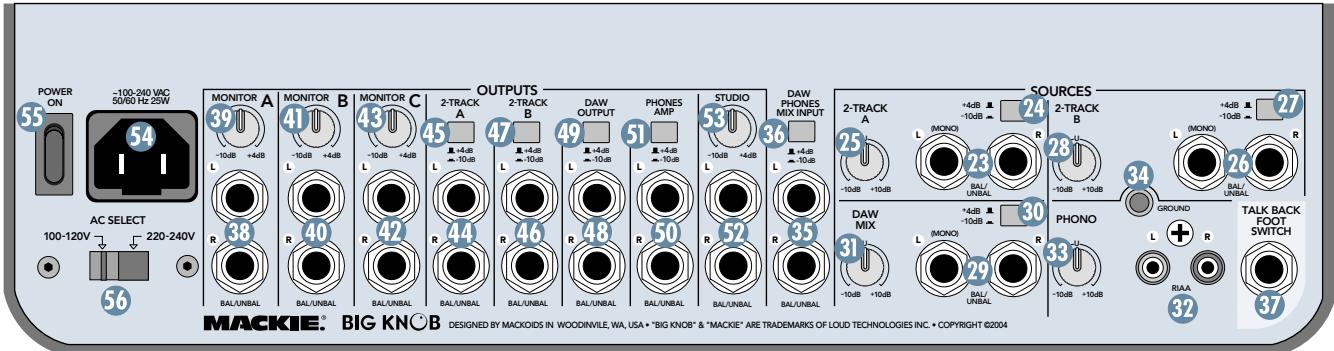
24 2-TRACK A Level Switch
This two-position switch sets the input level of the 2-TRACK A inputs to either +4 dB (balanced input) or -10 dB (unbalanced input). Use the +4 dB setting for professional equipment operating at the +4 dB standard, and use the -10 dB setting for consumer equipment operating at the -10 dBV standard.
25 2-TRACK A Trim Control
This control adjusts the input sensitivity of the incoming 2-TRACK A signal by ± 10 dB (unity at center detent). This allows for precise level matching between the various incoming 2-track sources, which often do not have output level controls of their own.
2-TRACK B Inputs
These stereo 1/4-inch balanced/unbalanced inputs are fed by the outputs of the second external 2-track recorder. If a mono signal is plugged into the LEFT input only, it is automatically routed to both LEFT and RIGHT inputs.
27 2-TRACK B Level Switch
This two-position switch sets the input level of the 2-TRACK B inputs to either +4 dB (balanced input) or -10 dB (unbalanced input). Use the +4 dB setting for professional equipment operating at the +4 dB standard, and use the -10 dB setting for consumer equipment operating at the -10 dBV standard.
28 2-TRACK B Trim Control
This control adjusts the input sensitivity of the incoming 2-TRACK B signal by ± 10 dB (unity at center detent). This allows for precise level matching between the various incoming 2-track sources, which often do not have output level controls of their own.
DAWMIX
These stereo 1/4-inch balanced/unbalanced inputs are fed by the master mix output of the DAW, usually the DAW outputs 1-2. If a mono signal is plugged into the LEFT input only, it is automatically routed to both LEFT and RIGHT inputs.
30 DAW MIX Level Switch
This two-position switch sets the input level of the DAW MIX inputs to either +4 dB (balanced input) or -10 dB (unbalanced input). Use the +4 dB setting
for professional equipment operating at the +4 dBu standard, and use the -10 dB setting for consumer equipment operating at the -10 dBV standard.
31 DAW MIX Trim Control
This control adjusts the input sensitivity of the incoming DAW MIX signal by ± 10 dB (unity at center detent). This allows you to precisely fine tune the incoming level of the DAW MIX input so it matches the signal level of other incoming 2-track sources.
32 PHONO
These stereo RCA unbalanced inputs are fed by the outputs of a turntable with a moving-magnet cartridge (MM). These inputs have a built-in precision RIAA preamplifier that provides the equalization and gain required for a phono-level signal to return it to a proper line-level signal.
This allows you to playback vinyl records and dub them to a 2-track recorder, as well as send the phono signal to the input of the DAW for archiving/restoration/CD burning.
Note: Two RCA shorting plugs are provided, which should be plugged into the PHONO inputs when they are not being used. This terminates the inputs and reduces the noise floor should you accidentally push in the PHONO INPUT SOURCE SELECT button.
33 PHONO Trim Control
This trim control adjusts the input sensitivity of the incoming PHONO signal by ± 10 dB. This allows you to precisely fine tune the incoming level of the PHONO input so it matches the signal level of other incoming 2-track sources.
The PHONO input does not need a +4 / - 10 level switch since a phonograph is always at a consumer signal level, unlike tape decks and soundcards, which could be -10 or +4 , depending on the model.
34 PHONO Grounding Lug (GND)
This small grounding lug allows you to connect the grounding wire from an attached turntable. This prevents ground loops and hum from showing up in the phono source's audio signal.
These stereo 1/4-inch balanced/unbalanced inputs allow connection of a second stereo mix from the DAW for a custom headphone mix.
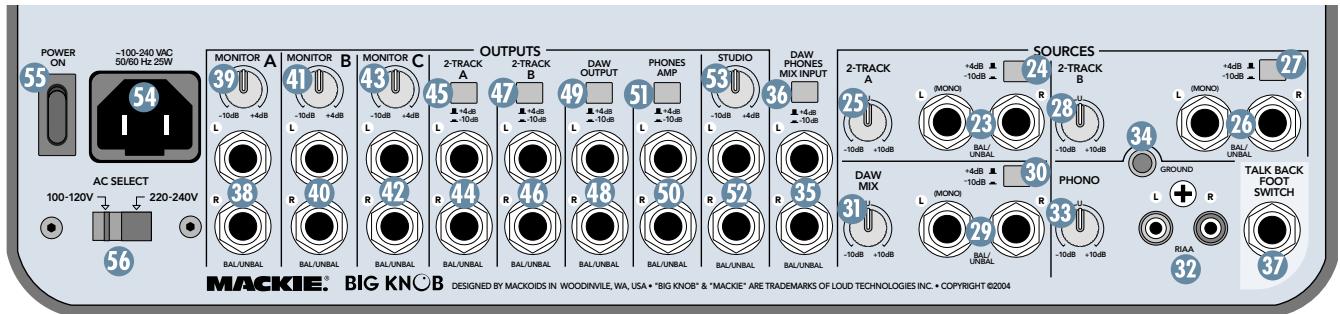
For example, the DAW's 1-2 outputs can send the main mix to the DAW MIX 29 inputs on Big Knob, and the DAW's 3-4 outputs can send a custom headphone mix to the DAW PHONES MIX INPUT. You can then use the PHONES/STUDIO OUTS SOURCE 16 button to select the mix for the PHONES 14 50 and STUDIO OUTS 52.
36 DAW PHONES MIX Level Switch
This two-position switch sets the input level of the DAW PHONES MIX inputs to either +4 dB (balanced input) or -10 dB (unbalanced input). Use the +4 dB setting for professional equipment or soundcards operating at the +4 dBu standard, and use the -10 dB setting for consumer equipment or soundcards operating at the -10 dBV standard.
3 TALKBACK FOOTSWITCH
This 1/4-inch TS connector accepts a standard momentary footswitch (normally open), or a momentary handheld switch such as the Switchcraft ED900. This allows a producer standing at a remote location to activate the talkback circuit and communicate with recording talent.
When an external switch is connected and goes from its "normally open" position to its "momentary closed" position, the front panel TALKBACK TO 2-TRACKS 21 and TO PHONES/STUDIO 22 buttons both activate, their LEDs illuminate, and the talkback circuit is activated just as if someone had physically pressed these two buttons. See "Appendix B: Connections" for a wiring diagram of the footswitch connection.
OUTPUTS
The following outputs are fed by the "control room bus." This is the signal path fed from the inputs currently selected with the INPUT SOURCE SELECT buttons and routed through the Big VOLUME Knob.
38 MONITOR A OUTPUTS
These stereo 1/4-inch balanced/unbalanced outputs connect to the first set of external speakers. You can connect these outputs to self-powered speakers, or to a power amplifier driving passive speakers.
39 MONITOR A Trim Control
This trim control adjusts the sensitivity of the MONITOR A output signal. Use the +4 dB setting when connecting to balanced inputs on professional equipment operating at the +4 dBu standard, and use the -10 dB setting when connecting to unbalanced inputs on consumer equipment operating at the -10 dBV standard. The trim control can be adjusted to any setting between the +4 and -10 positions if necessary to precisely match the levels among the MONITOR A, B, and C outputs.
40 MONITOR B OUTPUTS
Works as described above for the Monitor A path.
4 MONITOR B Trim Control
Works as described above for the Monitor A path.
42 MONITOR C OUTPUTS
Works as described above for the Monitor A path.
43 MONITOR C Trim Control
Works as described above for the Monitor A path.
Note: The overall level of the MONITOR A, B, and C OUTPUTS is controlled by the Big VOLUME ⑥ Knob on the front panel.
44 2-TRACK A OUTPUTS
These stereo 1/4-inch balanced/unbalanced outputs connect to the inputs of the first external 2-track recorder. This could be a DAT deck, cassette deck, reel-to-reel recorder, etc. The signal at these outputs is whatever source is selected with the INPUT SOURCE SELECT buttons on the front panel.
2-TRACK A Level Switch
This two-position switch sets the level of the 2-TRACK A outputs to either +4 dB (out) or -10 dB (pushed in). Use the +4 dB setting when connecting to balanced inputs on professional equipment operating at the +4 dBu standard, and use the -10 dB setting when connecting to unbalanced inputs on consumer equipment operating at the -10 dBV standard.
46 2-TRACK B OUTPUTS
Works as described above for the 2-TRACK A OUTPUTS.
2-TRACK B Level Switch
Works as described above for the 2-TRACK A level switch.
48 DAW OUTPUTS
These stereo 1/4-inch balanced/unbalanced outputs connect to a pair of inputs on the DAW audio interface.
49 DAW Level Switch
This two-position switch sets the level of the DAW outputs to either +4 dB (out) or -10 dB (pushed in). Use the +4 dB setting when connecting to balanced inputs on professional equipment or soundcards operating at the +4 dB standard, and use the -10 dB setting when connecting to unbalanced inputs on consumer equipment or soundcards operating at the -10 dB standard.
By allowing balanced or unbalanced operation, as well as -10 or +4 operation, on an individual basis, you can connect any combination of professional or consumer 2-track recorders and DAW soundcards that you have available in your arsenal of audio recording equipment.

Note: All three of the above outputs (2-TRACK A, 2-TRACK B, and DAW) produce the signal selected by the INPUT SOURCE SELECT buttons on the front panel. These
outputs require no variable level output controls (aside from the +4 / - 10 switches), since the connected 2-track recorders and DAW inputs typically have their own variable input level controls.
PHONES AMP and STUDIO OUT
The PHONES AMP and STUDIO OUTS have the option of being fed signal by the currently selected INPUT SOURCE SELECT buttons (thus mirroring the mix being heard by the engineer) or the signal connected to the DAW PHONES MIX INPUT connectors (thus providing a separate unique monitoring mix for the talent).
This allows the engineer to listen to his or her own master mix in the control room, while allowing the talent to listen to a customized headphone mix at the same time through the PHONES 1 or 2 outputs on the front panel or through an external headphone amp connected to the PHONES AMP OUTPUT on the rear panel, as well as the studio monitor outs (STUDIO OUTS). The choice of which stereo signal (current source or headphone mix input) is heard is determined by the PHONES/STUDIO OUTS SOURCE 16 select button on the front panel.
50 PHONES AMP OUTPUTS
Connect these stereo 1/4-inch balanced/unbalanced connectors to an external multi-headphone amplifier. This allows you to connect multiple sets of headphones for the talent. The PHONES AMP OUTPUT level is not affected by the Big VOLUME Knob or the headphone level controls on the front panel. The headphone amplifier should have its own individual volume controls for the headphones.
5 PHONES AMP Level Switch
This two-position switch sets the level of the PHONES AMP outputs to either +4 dB (out) or -10 dB (pushed in). Use the +4 dB setting when connecting to balanced inputs on professional equipment operating at the +4 dB standard, and use the -10 dB setting when connecting to unbalanced inputs on consumer equipment operating at the -10 dB standard.
STUDIO OUTS
Connect these stereo 1/4-inch balanced/unbalanced connectors to a pair of active monitors (or to an amplifier and passive monitors) in the studio performance space. This allows the performers to hear playback without having to use headphones, and allows the control room engineer to communicate to the performers through the talkback system. The STUDIO OUTS level is controlled by the STUDIO OUTS LEVEL control on the front panel.
STUDIO OUTS Trim Control
This trim control adjusts the sensitivity of the STUDIO OUTS signal. Use the +4 dB setting when connecting to balanced inputs on professional equipment operating at the +4 dBu standard, and use the -10 dB setting when connecting to unbalanced inputs on consumer equipment operating at the -10 dBV standard. Although the trim control is typically set to one side or the other, it can be adjusted to any setting between the +4 and -10 positions if necessary.
AC Socket
Connect the included detachable power cord to this AC socket (2-prong IEC connector) on the rear panel. Make sure the AC SELECT switch is set to the correct AC voltage (see 56 AC SELECT Switch below).
5 POWER Switch
This rocker style switch turns power on and off for Big Knob.
56 AC SELECT Switch
Set this switch to the 100-120V position for 100 VAC and 120 VAC power, and to the 220-240V position for 220 VAC and 240 VAC power.
Appendix A: Service Information
Warranty Service
Details concerning Warranty Service are spelled out in the Warranty section on page 19.
If you think your Big Knob has a problem, please do everything you can to confirm it before calling for service. Doing so might save you from the deprivation of your Big Knob and the associated suffering.
These may sound obvious to you, but here are some things you can check. Read on.
Troubleshooting
No Power
Our favorite question: Is it plugged in?
- Make sure the power cord is securely seated in the IEC socket 54 and plugged all the way into the AC outlet.
- Make sure the AC outlet is live (check with a tester or lamp).
- Is the POWER switch on? Make sure the POWER switch on the rear panel is in the ON position (up).
- Is the POWER LED 10 on the front panel illuminated? If not, make sure the AC outlet is live. If so, refer to "No Sound" below.
- Are all the lights out in your building? If so, contact your local power company to get power restored.
- If the POWER LED is not illuminated, and you are certain that the AC outlet is live, it will be necessary to have Big Knob serviced. There are no user serviceable parts inside. Refer to "Repair" at the end of this section to find out how to proceed.
No Sound
- Is the POWER LED 10 on the front panel illuminated? If not, refer to "No Power" above.
- Is the correct INPUT SOURCE SELECT button selected? Make sure the LED above the INPUT SOURCE SELECT button is lit.
- Is the signal source turned up? Make sure the signal level from the selected input source is high enough to light up some of the INPUT meter LEDs on Big Knob's front panel.
-
Make sure the trim control and level switch for the selected input are set correctly.
-
If there is no sound in the PHONES 14 50 or STUDIO 52 outputs:
-
Make sure the PHONES/STUDIO OUTS SOURCE 16 button on the front panel is up (INPUT SOURCES selected).
- Make sure the PHONES 15 or STUDIO 18 Level control is turned up.
-
Make sure the STUDIO OUTS ON/OFF button is ON.
-
If there is no sound in the MONITOR OUTPUTS 38 40 42:
-
Make sure the correct MONITOR SELECT button is pushed in and the trim control for the MONITOR OUTPUT is set correctly.
- Make sure the cable connecting the MONITOR OUTPUT to the active speaker or power amplifier isn't defective and the amplifier/speaker combination is working correctly.
Bad Sound
- Is the input connector plugged completely into the jack?
- Is it loud and distorted? Make sure the trim control and level switch for the selected input is set correctly. Reduce the signal level on the input source if possible.
- If possible, listen to the signal with headphones plugged into the input source device. If it sounds bad there, it's not Big Knob causing the problem.
- Make sure the trim control for the MONITOR OUTPUT is set correctly and not overdriving the input stage of the active speaker or amplifier to which it is connected.
Noise/Hum
- If a turntable is connected to the PHONO ③ 2 inputs on Big Knob, make sure the ground wire from the turntable is connected to the GND 34 terminal on Big Knob.
- If a turntable is not connected to the PHONO inputs, make sure the PHONO INPUT SOURCE SELECT button is not pushed in. Also make sure the RCA shorting plugs are connected to the PHONO inputs when not being used.
- Check the signal cables between the input sources and Big Knob. Disconnect them one by one. When the noise goes away, you'll know which input source is causing the problem.
- Sometimes it helps to plug all the audio equipment into the same AC circuit so they share a common ground.
Repair
Service for Mackie products is available at our factory, located in sunny Woodinville, Washington. Service for Mackie products living outside the United States can be obtained through local dealers or distributors.
If your Big Knob needs service, follow these instructions:
- Review the preceding troubleshooting suggestions. Please.
- Call Tech Support at 1-800-898-3211, 7 am to 5 pm PST, to explain the problem and request an RA (Return Authorization) number. Have your Big Knob's serial number ready. You must have an RA number before you can obtain service at the factory.
- Keep this owner's manual and the detachable linecord. We don't need them to repair Big Knob.
-
Pack Big Knob in its original package, including encaps and box. This is very important. When you call for the RA number, please let Tech Support know if you need new packaging. Mackie is not responsible for any damage that occurs due to non-factory packaging.
-
Include a legible note stating your name, shipping address (no P.O. boxes), daytime phone number, RA number, and a detailed description of the problem, including how we can duplicate it.
- Write the RA number in BIG PRINT on top of the box. Units sent to us without the RA number will be refused.
- Ship the Big Knob to us. We suggest insurance for all forms of cartage. Ship to this address:
MACKIE SERVICE DEPARTMENT 16220 Wood-Red Road NE Woodinville, WA 98072
- We'll try to fix the Big Knob within three to five business days. Ask Tech Support for the latest turn-around times when you call for your RA number. Big Knob must be packaged in its original packing box, and must have the RA number on the box. Once it's repaired, we'll ship it back the same way in which it was received. This paragraph does not necessarily apply to non-warranty repair.
Need Help?
You can reach a technical support representative Monday through Friday from 7 am to 5 pm PST at:
1-800-898-3211
After hours, visit www.mackie.com and click Support, or email us at: techmail@mackie.com
Appendix B: Connections
1/4" TRS Phone Plugs and Jacks
"TRS" stands for Tip-Ring-Sleeve, the three connection points available on a stereo 1/4 or balanced phone jack or plug. TRS jacks and plugs are used for balanced signals and stereo headphones:
Balanced Mono
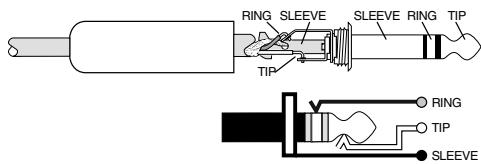
1/4" TRS Balanced Mono Wiring:
Sleeve = Shield
Tip = Hot (+)
Ring = Cold (-)
Stereo Headphones
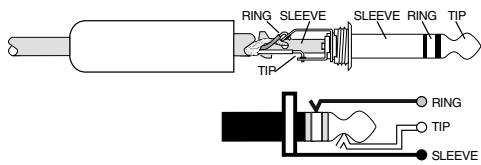
1/4" TRS Stereo Unbalanced Wiring:
Sleeve = Shield
Tip = Left
Ring = Right
1/4" TS Phone Plugs and Jacks
"TS" stands for Tip-Sleeve, the two connection points available on a mono 1/4" phone jack or plug. They are used for unbalanced signals.
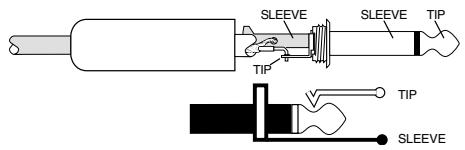
1/4" TS Unbalanced Wiring:
Sleeve = Shield
Tip = Hot (+)
RCA Plugs and Jacks
RCA-type plugs (also known as phono plugs) and jacks are often used in home stereo and video equipment and in many other applications. They are unbalanced and electrically equivalent to a 1/4'' TS phone plug.
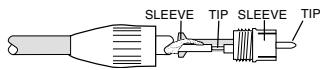
RCA Unbalanced Wiring:
Sleeve = Shield
Tip = Hot (+)
Footswitch Plug and Jack
The TALKBACK FOOTSWITCH jack accepts a 1/4" TS plug. Shorting the tip and sleeve together activates the talkback circuit. This is equivalent to pressing the TO 2-TRACKS and TO PHONES/STUDIO buttons in the TALKBACK section.
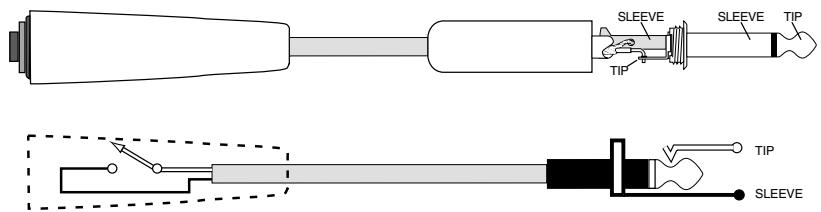
Handheld Switch
Appendix C: Technical Info
Big Knob Specifications
Frequency Response
Line-level Inputs and Outputs
+0, -1 dB, 10 Hz to 50 kHz
+0, -3 dB, 5 Hz to 100 kHz
RIAA Equalization Deviation (Phono Input)
± 0.5 dB from 20Hz to 20kHz
Distortion (THD & IMD)
Line-level Inputs to Line-level Outputs (unity gain)
0.015%,20Hz to 20kHz @ +4 dBu
RIAA Input, Nominal Gain
0.015%, 20 Hz to 20 kHz @ +4 dBu
Noise Floor
(20 kHz Bandwidth, +4 dB level setting, 150Ω source)
Unity Gain, with DAW, 2-Track A, and 2-Track B Assigned
-86 dBu maximum (all outputs)
Monitor A, B, and C Outputs, Studio Output, DAW, 2-Track A,
and 2-Track B Outputs
-90 dBu typical
Phono Input (nominal 41.8 dB gain @ 1 kHz, inputs shorted)
-71 dBu maximum (all outputs)
Equivalent Input Noise (E.I.N.)
0.89 V / -119 dBu maximum
Dynamic Range
Line Inputs
112 dB minimum
Phono Input
93 dB minimum
Common Mode Rejection Ratio
(20 Hz to 20 kHz @ +4 dB level setting)
34 dB minimum
40 dB typical
Crosstalk
Adjacent Inputs
90 dB @ 1 kHz
Left to Right/Right to Left
70 dB @ 1 kHz
Muted/Level Off
90 dB @ 1 kHz
Trim Control Range
Input Trim Controls (Center Detented)
± 10 dB
Output Trim Controls
-14 dB to 0 dB
Dim Switch
0 dB/ -20 dB
Rated Input Voltage
Line Inputs (+4dB Level Setting)
+4 dBu/+28 dBu (nominal/maximum)
Line Inputs (-10 dB Level Setting)
-10 dBu/+14 dBu (nominal/maximum)
RIAA Input (@ 1 kHz, nominal gain)
5mV / 79mV nominal/maximum
Rated Output Voltage
All Line-level Outputs (+4dB Level Setting)
+4 dBu/+22 dBu (nominal/maximum)
All Line-level Outputs (-10 dB Level Setting)
-10 dBu/+8 dBu (nominal/maximum)
Maximum Voltage Gain
DAW, 2-Track A, and 2-Track B Input to:
Monitor A, B, and C Outputs
34 dB
DAW, 2-Track A, 2-Track B, and Phones Amp Outputs
24 dB
Studio Output
34 dB
Phones 1 and 2 Outputs
34 dB (output loaded @ 100 kΩ)
DAW Phone Mix Input to:
Phones Amp Outputs
14 dB
Studio Output
24 dB
Phones 1 and 2 Outputs
24 dB (output loaded @ 100 kΩ)
Phono Input @ 1 kHz to:
Monitor A, B, and C Outputs
67.8 dB
DAW, 2-Track A, 2-Track B, and Phones Amp Outputs
57.8 dB
Studio Output
67.8 dB
Phones 1 and 2 Outputs
67.8 dB (output loaded @ 100 kΩ)
Input Impedance
Line Input
24 kΩ balanced
12 kΩ unbalanced
Phono Input
47 kΩ | 220 pF
Output Impedance
Line Output
300Ω balanced
150Ω unbalanced
Headphone Output
150Ω
Input VU Meters
6 Segment (OL, +8 dB, 0 dB, -4 dB, -8 dB, -24 dB)
Talkback Section
Automatic Gain Control (AGC) Range
±15 dB
Nominal Output Level
+4 dBu (+4 dB output level setting)
Output Level Range
Off to +10 dB
Nominal Microphone Input Sensitivity
80 dB SPL
AC Power Requirement
U.S. 120 VAC, 60 Hz
Europe 240 VAC, 50Hz
Japan 100 VAC, 50 / 60Hz
Korea 220 VAC, 60 Hz
Power Consumption
25 watts
Physical Dimensions
Height 3.2 in/81 mm (3.5 in/89 mm with Knob)
Width 13.5 in/343 mm
Depth 5.9 in/150 mm
Net Weight 3.5 lb/1.6 kg
LOUD Technologies Inc. is always striving to improve our products by incorporating new and improved materials, components, and manufacturing methods. Therefore, we reserve the right to change these specifications at any time without notice.
"Mackie.", "Big Knob," and the "Running Man" are registered trademarks of LOUD Technologies Inc. All other brand names mentioned are trademarks or registered trademarks of their respective holders, and are hereby acknowledged.
©2004 LOUD Technologies Inc. All Rights Reserved.
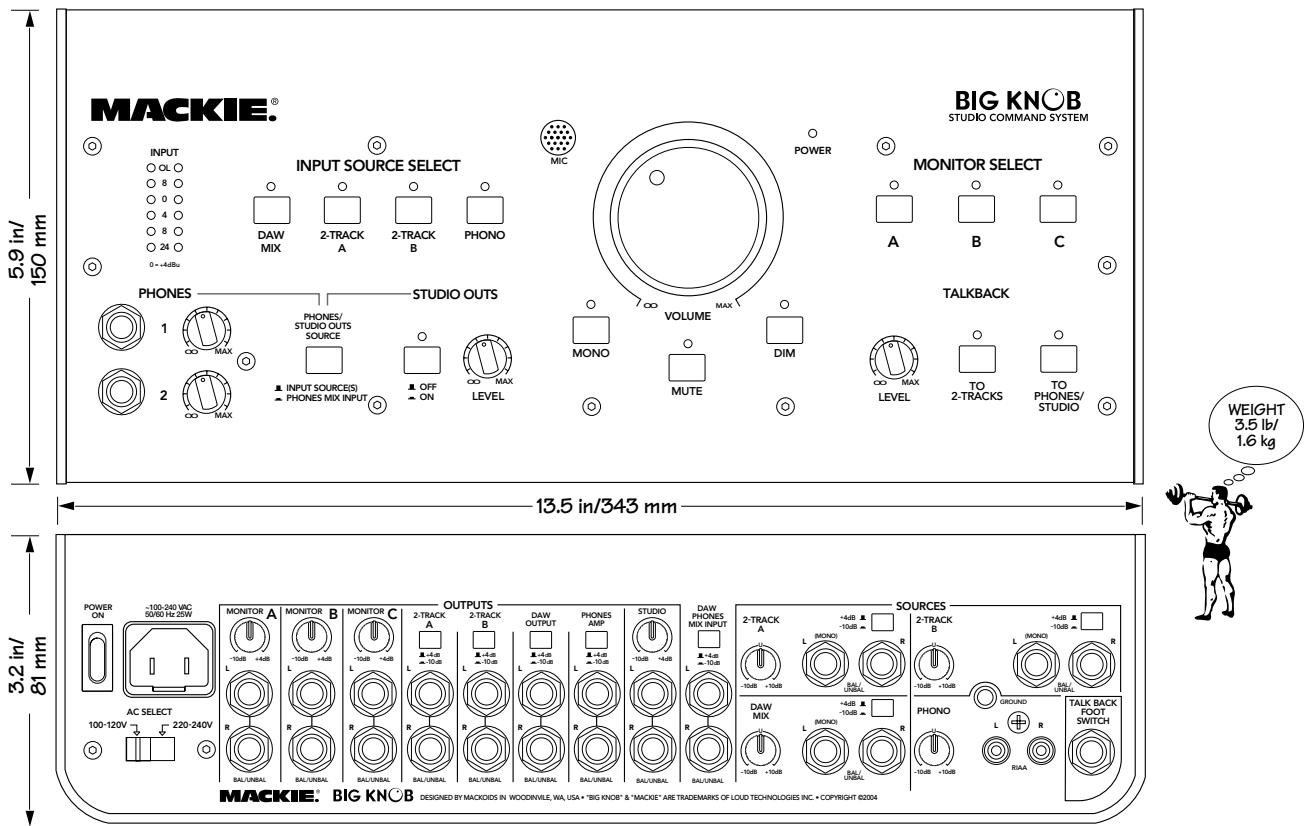
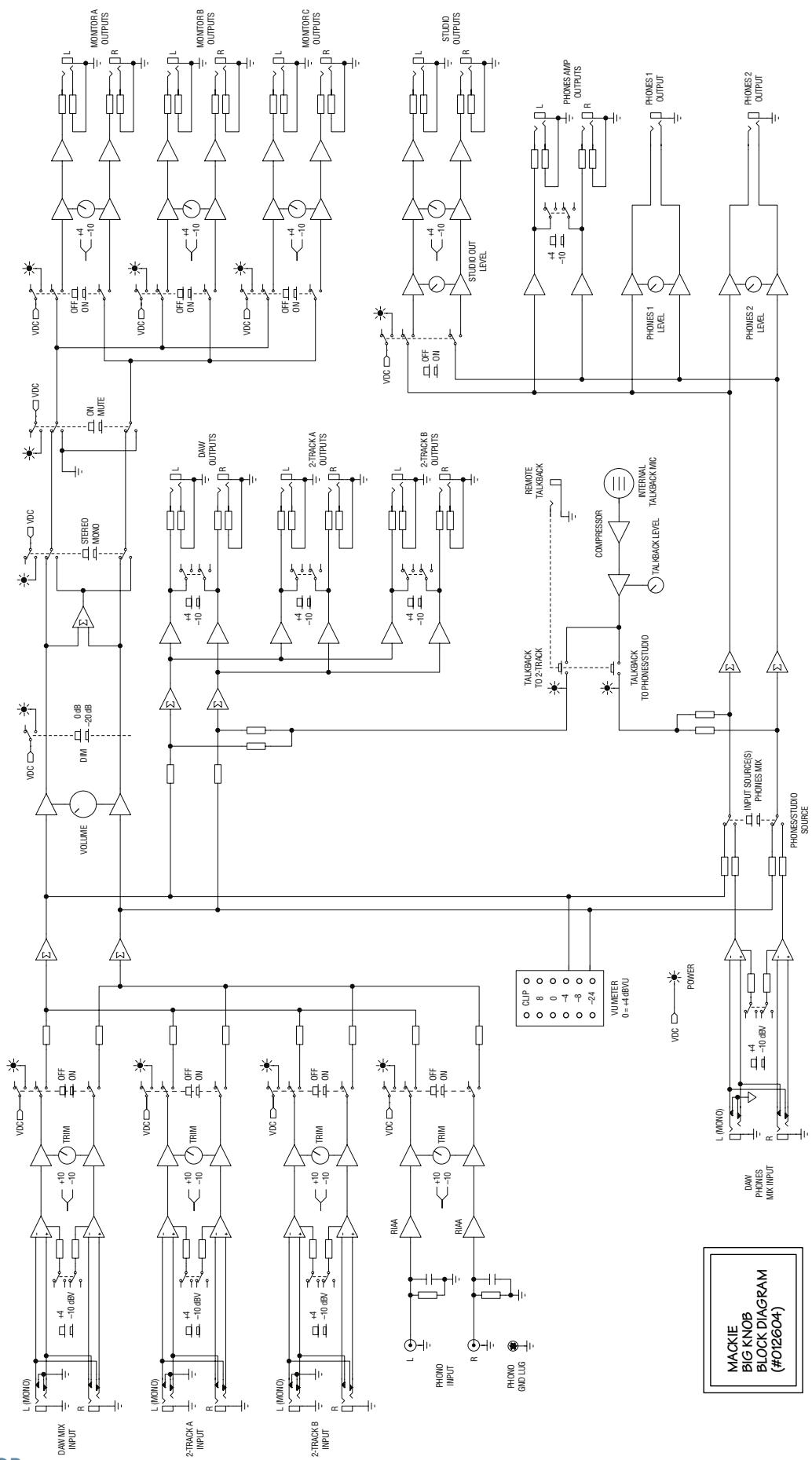
Big Knob Block Diagram
Big Knob Limited Warranty
Please keep your sales receipt in a safe place.
A. LOUD Technologies Inc. warrants all materials, workmanship and proper operation of this product for a period of three years from the original date of purchase. If any defects are found in the materials or workmanship or if the product fails to function properly during the applicable warranty period, LOUD Technologies, at its option, will repair or replace the product. This warranty applies only to equipment sold and delivered within the U.S. by LOUD Technologies Inc. or its authorized dealers.
B. Failure to register online or return the product registration card will not void the three-year warranty.
C. Service and repairs of Mackie products are to be performed only at the factory (see D below) OR at an Authorized Mackie Service Center (see E below). Unauthorized service, repairs, or modification will void this warranty.
D. To obtain factory service:
- Call Mackie Service at 800/898-3211, 7 AM to 5 PM Monday through Friday (Pacific Time) to get a Return Authorization (RA). Products returned without an RA number will be refused.
- Pack the product in its original shipping carton. If you do not have the carton, just ask for one when you get your RA number, and we'll send a shipping carton out promptly. More information on packing can be found in the Service section of this manual. Please seal the Mackie product in a plastic bag.
- Also include a note explaining exactly how to duplicate the problem, a copy of the sales receipt with price and date showing, and your return street address (no P.O. boxes or route numbers, please!). If we cannot duplicate the problem or establish the starting date of your Limited Warranty, we may, at our option, charge for service time.
- Ship the product in its original shipping carton, freight prepaid to:
MACKIE SERVICE DEPARTMENT
16220 Wood-Red Road NE
Woodinville, WA, 98072, USA
IMPORTANT: Make sure that the RA number is plainly written on the shipping carton.
E. To obtain service from an Authorized Mackie Service Center:
- Call Mackie Service at 800/898-3211, 7 AM to 5 PM Monday through Friday (Pacific Time) to get: 1) The name and address of your nearest Authorized Mackie Service Center and 2) A return authorization (RA). You must have an RA number before taking your unit to a service center.
- Make sure that you have a copy of your sales receipt from the store where you bought the product. It is necessary to establish purchase date and thus determine whether or not your Mackie product is still under warranty. If you can't find it, the Authorized Service Center may charge you for repairs even if your Mackie product is still covered by the Three-Year Limited Warranty.
-
Make sure that the problem can be duplicated. If you bring your Mackie product to an Authorized Service Center and they can't find anything wrong with it, you may be charged a service fee.
-
If the Authorized Mackie Service Center is located in another city, pack the loudspeaker in its original shipping carton. More information on packing can be found in the Service section of this manual.
- Contact the Authorized Mackie Service Center to arrange service or bring the Mackie product to them.
F. LOUD Technologies and Authorized Mackie Service Centers reserve the right to inspect any products that may be the subject of any warranty claims before repair or replacement is carried out. LOUD Technologies and Authorized Mackie Service Centers may, at their option, require proof of the original date of purchase in the form of a dated copy of the original dealer's invoice or sales receipt. Final determination of warranty coverage lies solely with LOUD Technologies or its Authorized Service Centers.
G. Mackie products returned to LOUD Technologies and deemed eligible for repair or replacement under the terms of this warranty will be repaired or replaced within thirty days of receipt by LOUD Technologies. LOUD Technologies may use refurbished parts for repair or replacement of any product. Products returned to LOUD Technologies that do not meet the terms of this Warranty will not be repaired and returned until payment is received for labor, materials, return freight, and insurance. Products repaired under warranty at the factory will be returned freight prepaid by LOUD Technologies to any location within the boundaries of the USA.
H. LOUD Technologies warrants all repairs performed for 90 days or for the remainder of the warranty period. This warranty does not extend to damage resulting from improper installation, misuse, neglect or abuse, or to exterior appearance. This warranty is recognized only if the inspection seals and serial number on the unit have not been defaced or removed.
I. LOUD Technologies assumes no responsibility for the quality or timeliness of repairs performed by Authorized Mackie Service Centers.
J. This warranty is extended to the original purchaser and to anyone who may subsequently purchase this product within the applicable warranty period.
K. This is your sole warranty. LOUD Technologies does not authorize any third party, including any dealer or sales representative, to assume any liability on behalf of LOUD Technologies or to make any warranty for LOUD Technologies Inc.
L. THE WARRANTY GIVEN ON THIS PAGE IS THE SOLE WARRANTY GIVEN BY LOUD TECHNOLOGIES INC. AND IS IN LIEU OF ALL OTHER WARRANTYES, EXPRESS AND IMPLIED, INCLUDING THE WARRANTYES OF MERCHANTABILITY AND FITNESS FOR A PARTICULAR PURPOSE. THE WARRANTY GIVEN ON THIS PAGE SHALL BE STRICTLY LIMITED IN DURATION TO THREE YEARS FROM THE DATE OF ORIGINAL PURCHASE FROM AN AUTHORIZED MACKIE DEALER. UPON EXPIRATION OF THE APPLICABLE WARRANTY PERIOD, LOUD TECHNOLOGIES INC. SHALL HAVE NO FURTHER WARRANTY OBLIGATION OF ANY KIND. LOUD TECHNOLOGIES INC. SHALL NOT BE LIABLE FOR ANY INCIDENTAL, SPECIAL, OR CONSEQUENTIAL DAMAGES THAT MAY RESULT FROM ANY DEFECT IN THE MACKIE PRODUCT OR ANY WARRANTY CLAIM. Some states do not allow exclusion or limitation of incidental, special, or consequential damages or a limitation on how long warranties last, so some of the above limitations and exclusions may not apply to you. This warranty provides specific legal rights and you may have other rights which vary from state to state.

MACKIE®
LOUD Technologies Inc.
16220 Wood-Red Road NE·Woodinville, WA 98072·USA
US and Canada: 800.258.6883
Europe, Asia, Central and South America: 425.487.4333
Middle East and Africa: 31.20.654.4000
Fax: 425.487.4337 • www.mackie.com
E-mail: sales@mackie.com