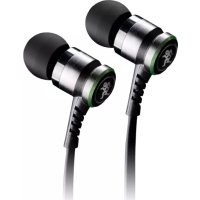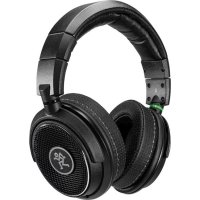
MC450 - Earphones MACKIE - Free user manual and instructions
Find the device manual for free MC450 MACKIE in PDF.



| Product Type | USB Condenser Microphone |
| Brand | Mackie |
| Model | MC450 |
| Dimensions (H × W) | 180 × 46 mm |
| Weight | 0.9 kg |
| Power Supply | USB-C (bus power) |
| Polar Pattern | Cardioid |
| Frequency Response | 20 - 18,000 Hz |
| Dynamic Range | 89 dB (ADC) / 93 dB (DAC) |
| Signal-to-Noise Ratio | 89 dB (ADC) / 96 dB (DAC) |
| Connectivity | USB-C, 3.5mm headphone jack output |
| Main Functions | Gain control, mute function, independent headphone volume |
| Included Accessories | Tripod, clip, USB-C cable |
| Care and Cleaning | Clean the exterior with a dry cloth |
| Safety | Do not expose to moisture, do not disassemble, respect listening levels |
| Compliance | FCC, ICES-003, WEEE directive |
| Warranty | Limited warranty - see www.mackie.com |
Frequently Asked Questions - MC450 MACKIE
User questions about MC450 MACKIE
0 question about this device. Answer the ones you know or ask your own.
Ask a new question about this device
Download the instructions for your Earphones in PDF format for free! Find your manual MC450 - MACKIE and take your electronic device back in hand. On this page are published all the documents necessary for the use of your device. MC450 by MACKIE.
USER MANUAL MC450 MACKIE
natural_image
Circular icon with a stylized running figure, no text or symbols present.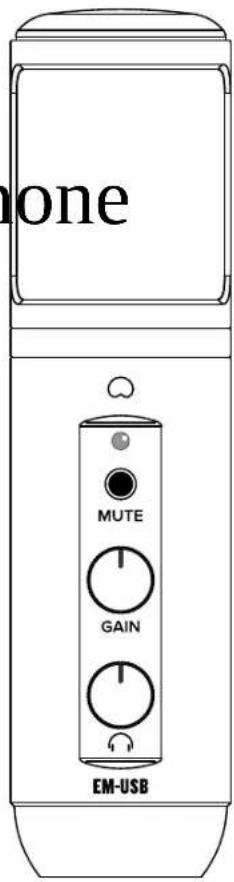
OWNER'S MANUA

natural_image
Symbolic icon of a running person inside a circle, no text or numbers presentIMPORTANT SAFETY INSTRUCTIONS
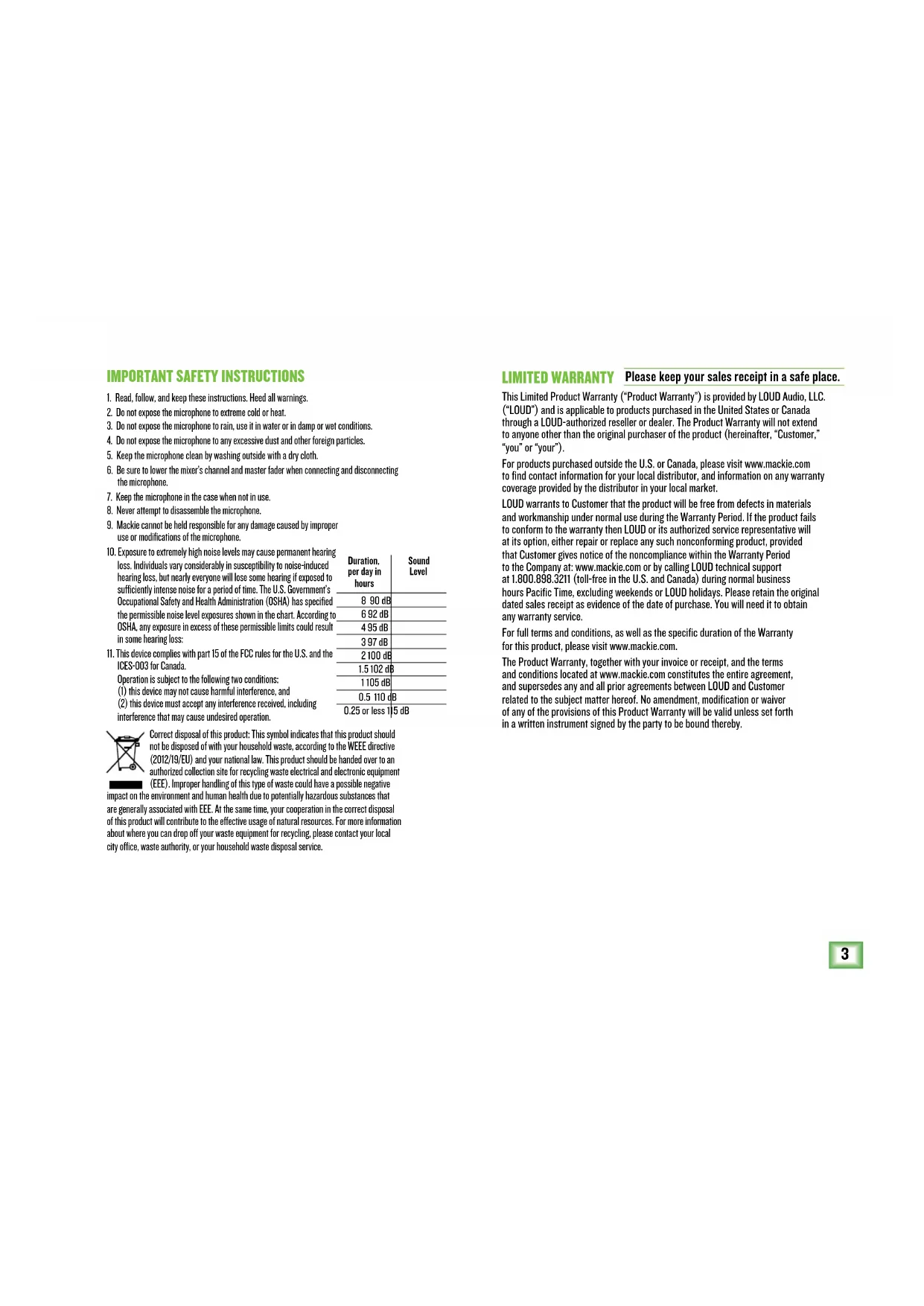
- Read, follow, and keep these instructions. Heed all warnings.
- Do not expose the microphone to extreme cold or heat.
- Do not expose the microphone to rain, use it in water or in damp or wet conditions.
- Do not expose the microphone to any excessive dust and other foreign particles.
- Keep the microphone clean by washing outside with a dry cloth.
- Be sure to lower the mixer's channel and master fader when connecting and disconnecting the microphone.
- Keep the microphone in the case when not in use.
- Never attempt to disassemble the microphone.
- Mackie cannot be held responsible for any damage caused by improper use or modifications of the microphone.
| Duration,per day inhours | SoundLevel | |
| 10. Exposure to extremely high noise levels may cause permanent hearing loss. Individuals vary considerably in susceptibility to noise-induced hearing loss, but nearly everyone will lose some hearing if exposed to sufficiently intense noise for a period of time. The U.S. Government's Occupational Safety and Health Administration (OSHA) has specified the permissible noise level exposures shown in the chart. According to OSHA, any exposure in excess of these permissible limits could result in some hearing loss: | 8 90 dB | |
| 6 92 dB | ||
| 4 95 dB | ||
| 3 97 dB | ||
| 11. This device complies with part 15 of the FCC rules for the U.S. and the ICES-003 for Canada. | 2 100 dB | |
| 1.5 102 dB | ||
| Operation is subject to the following two conditions:(1) this device may not cause harmful interference, and(2) this device must accept any interference received, including interference that may cause undesired operation. | 1 105 dB | |
| 0.5 110 dB | ||
| 0.25 or less 115 dB |
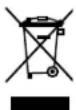
Correct disposal of this product: This symbol indicates that this product should not be disposed of with your household waste, according to the WEEE directive (2012/19/EU) and your national law. This product should be handed over to an authorized collection site for recycling waste electrical and electronic equipment (EEE). Improper handling of this type of waste could have a possible negative
impact on the environment and human health due to potentially hazardous substances that are generally associated with EEE. At the same time, your cooperation in the correct disposal of this product will contribute to the effective usage of natural resources. For more information about where you can drop off your waste equipment for recycling, please contact your local city office, waste authority, or your household waste disposal service.
LIMITED WARRANTY Please keep your sales receipt in a safe place.
This Limited Product Warranty ("Product Warranty") is provided by LOUD Audio, LLC. ("LOUD") and is applicable to products purchased in the United States or Canada through a LOUD-authorized reseller or dealer. The Product Warranty will not extend to anyone other than the original purchaser of the product (hereinafter, "Customer," "you" or "your").
For products purchased outside the U.S. or Canada, please visit www.mackie.com to find contact information for your local distributor, and information on any warranty coverage provided by the distributor in your local market.
LOUD warrants to Customer that the product will be free from defects in materials and workmanship under normal use during the Warranty Period. If the product fails to conform to the warranty then LOUD or its authorized service representative will at its option, either repair or replace any such nonconforming product, provided that Customer gives notice of the noncompliance within the Warranty Period to the Company at: www.mackie.com or by calling LOUD technical support at 1.800.898.3211 (toll-free in the U.S. and Canada) during normal business hours Pacific Time, excluding weekends or LOUD holidays. Please retain the original dated sales receipt as evidence of the date of purchase. You will need it to obtain any warranty service.
For full terms and conditions, as well as the specific duration of the Warranty for this product, please visit www.mackie.com.
The Product Warranty, together with your invoice or receipt, and the terms and conditions located at www.mackie.com constitutes the entire agreement, and supersedes any and all prior agreements between LOUD and Customer related to the subject matter hereof. No amendment, modification or waiver of any of the provisions of this Product Warranty will be valid unless set forth in a written instrument signed by the party to be bound thereby.
FEATURES
PROFESSIONAL QUALITY
• Voiced for the studio, built for the road, priced for your wallet
USB-C CONNECTIVITY
- Onboard USB interface plugs directly into your computer for fast, easy recording
ONBOARD HEADPHONE MONITORING
• Headphone output with independent volume control offers a convenient monitoring solution
ONBOARD GAIN CONTROL AND MUTE
- Optimize the microphone's output to your computer and/or DAW
- Mute button allows you to switch off the mic while still hearing your computer's output
RUGGED CONSTRUCTION
- Built-like-a-tank™ reliability ensure consistent performance for years to come
YOUR NEW CONTENT CREATION GO-TO
• Engineered for recording music, podcasts, live streams, and online content creation
CARDIOID POLAR PATTERN
- Rejects peripheral noise to keep your performance crystal clear
INCLUDED ACCESSORIES
- Tripod stand
- Mic clip
- USB-C cable
INTRODUCTION
The Element Series EM-USB
USB Condenser sets the standard in professional, affordable microphones for home recording enthusiasts, live streaming, podcasts, and online content creation.
Its audio reproduction rivals mics many times more expensive. Onboard controls for gain, mute, and headphone monitoring volume make it extremely versatile.
Also, the included tripod mount makes it easy to capture great recordings anywhere.
| Technical Specifications | EM-USB |
| Element | gh-quality condenser capsule |
| Polar Pattern | rectional |
| Frequency Response | Hz - 18 kHz |
| Sensitivity | (0 dB = 1 V/Pa @ 1 kHz) |
| Max Input SPL | 3 (@ 1 kHz 1% THD) |
| Dynamic Range | 89 dB (ADC)93 dB (DAC) |
| Signal-to-Noise Ratio | 89 dB (ADC)96 dB (DAC) |
| Stereo Output Power | 0 mW |
| Size (H × W) | 7.1" × 1.8"180 × 46 mm |
| Weight | 0.39 kg |
| All specifications subject to change |
FREQUENCY RESPONSE GRAPH
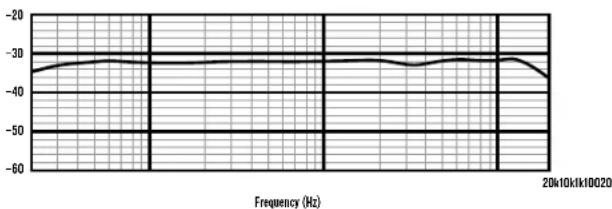
line
| Frequency (Hz) | Value | | -------------- | ----- | | 0 | -35 | | 10 | -34 | | 20 | -33 | | 30 | -32 | | 40 | -31 | | 50 | -30 | | 60 | -29 | | 70 | -28 | | 80 | -27 | | 90 | -26 | | 100 | -25 | | 110 | -24 | | 120 | -23 | | 130 | -22 | | 140 | -21 | | 150 | -20 | | 160 | -19 | | 170 | -18 | | 180 | -17 | | 190 | -16 | | 200 | -15 | | 210 | -14 | | 220 | -13 | | 230 | -12 | | 240 | -11 | | 250 | -10 | | 260 | -9 | | 270 | -8 | | 280 | -7 | | 290 | -6 | | 300 | -5 | | 310 | -4 | | 320 | -3 | | 330 | -2 | | 340 | -1 | | 350 | 0 | | 360 | 1 | | 370 | 2 | | 380 | 3 | | 390 | 4 | | 400 | 5 | | 410 | 6 | | 420 | 7 | | 430 | 8 | | 440 | 9 | | 450 | 10 | | 460 | 11 | | 470 | 12 | | 480 | 13 | | 490 | 14 | | 500 | 15 | | 510 | 16 | | 520 | 17 | | 530 | 18 | | 540 | 19 | | 550 | 20 | | 560 | 21 | | 570 | 22 | | 580 | 23 | | 590 | 24 | | 600 | 25 | | 610 | 26 | | 620 | 27 | | 630 | 28 | | 640 | 29 | | 650 | 30 | | 660 | 31 | | 670 | 32 | | 680 | 33 | | 690 | 34 | | 700 | 35 | | 710 | 36 | | 720 | 37 | | 730 | 38 | | 740 | 39 | | 750 | 40 | | 760 | 41 | | 770 | 42 | | 780 | 43 | | 790 | 44 | | 800 | 45 | | 810 | 46 | | 820 | 47 | | 830 | 48 | | 840 | 49 | | 850 | 50 | | 860 | 51 | | 870 | 52 | | 880 | 53 | | 890 | 54 | | 900 | 55 | | 910 | 56 | | 920 | 57 | | 930 | 58 | | 940 | 59 | | 950 | 60 | | 960 | 61 | | 970 | 62 | | 980 | 63 | | 990 | 64 | | 1000 | 65 |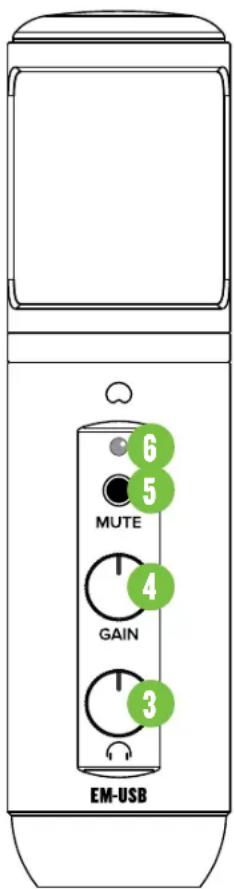
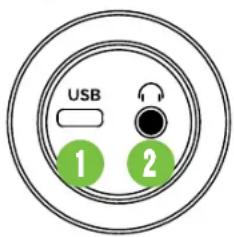
FRONT AND BOTTOM PANELS
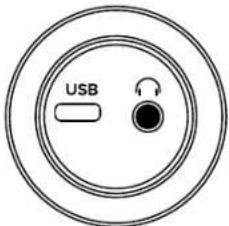
- USB-C Port Connect the USB-C side of the included USB cable to the microphone and the USB-A side to the computer's USB port.
2. Phones Jack
Connect stereo headphones using an 1/8" connector.
3. Phones Knob
Controls the headphones level.
4. Gain Knob
Gain ajusts the mic input sensitivity.
5. Mute Switch
Mutes the mic signal.
6. Power and Mute LED
This LED illuminates green when connected to a powered computer and red when the mute switch is engaged.
GETTING STARTED
- Read and understand the Important Safety Instructions on page 3.
- Turn down all knobs.
- Disengage all switches.
- Connect the USB-C side of the included USB cable to the microphone and the USB-A side to the computer's USB port.
NOTE: Do not use a USB hub, keyboard's USB port, etc. Plug directly into an open USB port on the computer.
The LED located above the mute switch will illuminate green, confirming success!
-
Connect headphones to the headphone jack on the bottom of the EM-USB.
-
Computer setup instructions [plug-and-play, no drivers required!]:
Mac: System Preferences > Sound > Input (and Output) > EM-USB Microphone
PC: Control Panel > Hardware & Sound > Manage Audio Devices > Playback (and Recording) > EM-USB Microphone (make default).
Make sure the input and output levels of the computer are un-muted and up.
- While playing music from your computer, slowly rotate the phones knob clockwise. This will confirm that playback goes through the EM-USB microphone's headphone jack.
NOTE: Your ears are important to us! Be careful of permanent hearing damage. Lower the volume on your device. Even intermediate levels may be painfully loud. Always turn the volume all the way down before connecting the headphones or doing anything new that may affect the headphone volume. Then turn it up slowly as you listen carefully.
-
Open up your favorite DAW and start a new session.
-
While speaking into the mic, disengage the mute switch and slowly rotate the gain knob clockwise until the input level meters on the DAW bounce between green and yellow.
NOTE: The mute switch mutes only the mic input. Any signal coming IN from the computer will still be heard through the headphones regardless of the state of the mute switch.
- While most DAWs work (relatively) the same, the path to recording may be different. As such, refer to your DAW's manual on how to open new sessions, create tracks, select the EM-USB, arm tracks and the best part... recording! Have fun!
NEED HELP WITH THE MICROPHONE?
- Visit www.mackie.com and click Support to find: FAQs, manuals, and addendums.
- Telephone 1-800-898-3211 to speak with one of our splendid technical support chaps (Monday through Friday, normal business hours, Pacific Time).
radar
| Angle | Value | |---|---| | 0° | 0.8 | | 90° | 0.9 | | 180° | 0.7 | | 270° | 0.6 | | 360° | 0.8 | | 450° | 0.7 | | 530° | 0.6 | | 610° | 0.5 | | 690° | 0.4 | | 770° | 0.3 | | 850° | 0.2 | | 930° | 0.1 | | 1010° | 0.2 | | 1090° | 0.3 | | 1170° | 0.4 | | 1250° | 0.5 | | 1330° | 0.6 | | 1410° | 0.7 | | 1490° | 0.8 | | 1570° | 0.9 | | 1650° | 1.0 | | 1730° | 0.9 | | 1810° | 0.8 | | 1890° | 0.7 | | 1970° | 0.6 | | 2050° | 0.5 | | 2130° | 0.4 | | 2210° | 0.3 | | 2290° | 0.2 | | 2370° | 0.1 | | 2450° | 0.2 | | 2530° | 0.3 | | 2610° | 0.4 | | 2690° | 0.5 | | 2770° | 0.6 | | 2850° | 0.7 | | 2930° | 0.8 | | 3010° | 0.9 | | 3090° | 1.0 | | 3170° | 0.9 | | 3250° | 0.8 | | 3330° | 0.7 | | 3410° | 0.6 | | 3490° | 0.5 | | 3570° | 0.4 | | 3650° | 0.3 | | 3730° | 0.2 | | 3810° | 0.1 | | 3890° | 0.2 | | 3970° | 0.3 | | 4050° | 0.4 | | 4130° | 0.5 | | 4210° | 0.6 | | 4290° | 0.7 | | 4370° | 0.8 | | 4450° | 0.9 | | 4530° | 1.0 | | Note: The 'Value' in the 'Value' column is estimated based on the 'Angle' label in the data provided in the code, so it's not explicitly labeled in the original image as it's part of the chart.CONFIGURATION NÉCESSAIRE
PC
WINDOWS 7, 8.1, 10
USB 2.0 / 3.0
MAC
MACOS (10.10 OU SUPÉRIEUR)
USB 2.0 / 3.0
natural_image
Symbolic icon of a running person inside a circle, no text or numbers present
MACKIE.
19820 North Creek Parkway #201 • Bothell, WA 98011 • USA
Phone: 425.487.4333 • Toll-free: 800.898.3211
Fax: 425.487.4337 • www.mackie.com
Part No. 2052297 Rev. C 12/19 ©2019 LOUD Audio, LLC. All Rights Reserved.