
SR-270X - Watch CITIZEN - Free user manual and instructions
Find the device manual for free SR-270X CITIZEN in PDF.



| Product type | Scientific calculator |
| Brand | CITIZEN |
| Model | SR-270X |
| Power source | Dual power: button cell (G13/L1154) + solar cell |
| Display | Input line (up to 99 digits) and result line (up to 10 digits + exponent) |
| Calculation modes | COMP (basic/scientific), STAT (statistics), TABLE (function table) |
| Mathematical functions | Trigonometric, logarithmic, exponential, fractions, angle conversions, coordinate transformation, probabilities (nPr, nCr, factorial), random generator |
| Memory | 7 variables (A, B, C, D, M, X, Y) + independent memory (M+) |
| Precision | 16 internal digits, 10 display digits, exponent up to ±99 |
| Automatic power-off | After approximately 3 to 9 minutes of inactivity |
| Adjustable contrast | Yes, via the SET UP menu |
| Input/output format | Math (natural) or linear, selectable |
| Display notations | Fix (fixed decimals), Sci (scientific), Norm (normal), Engineering (ENG) |
| Maintenance | Clean with a soft dry cloth; do not use solvents |
| Reset | Via the reset hole on the back or by key combination |
| Approximate dimensions | Approximately 160 × 80 × 15 mm (estimate for a pocket calculator) |
| Approximate weight | Approximately 150 g (with battery) |
Frequently Asked Questions - SR-270X CITIZEN
User questions about SR-270X CITIZEN
0 question about this device. Answer the ones you know or ask your own.
Ask a new question about this device
Download the instructions for your Watch in PDF format for free! Find your manual SR-270X - CITIZEN and take your electronic device back in hand. On this page are published all the documents necessary for the use of your device. SR-270X by CITIZEN.
USER MANUAL SR-270X CITIZEN
Scientific Calculator
SR-270X
Instruction Manual Manual de Instrucciones Livro de Especificacoes Anweisungshandbuch Manuel d'instructions Istruzioni all'Uso Gebruiksaanwijzing
General Guide .... 3
Turning on or off....3
Battery replacement ....3
Auto power-off function ....3
Reset operation 3
Contrast adjustment....3
Display readout ....4
Before Starting Calculation ....4
Using "MODE" keys......4
Using "SET UP" keys....5
Using Math Mode......5
Using "2nd" "ALPHA" Keys....6
Making corrections during Input......6
Error Position Display Function......6
Replay function 6
Memory calculation ......7
Order of operations ......7
Accuracy and Capacity......8
Error conditions ......9
Basic Calculations....10
Arithmetic calculation ...... 10
Parentheses calculations....10
Percentage calculation.... 11
Display notations....11
Answer Function ...... 11
Scientific Function Calculations ...... 11
Logarithmic and Exponential functions......12
Fraction calculation....12
Angle unit conversions 12
Sexagesimal Decimal transformation.....13
Trigonometric / Inverse-Tri. functions......13
Hyperbolic / Inverse-Hyp. functions......13
Coordinates transformation....13
Probability 13
Other functions ( , [3] , ^ , x^-1 , x^2
x^3,x^y,Abs,RND) 14
Multi-statement Function ...... 14
Statistical Calculations ......14
To Enter data for statistical analysis......15
To analyze data you have entered....15
To view or change data 17
Function Table......17
General Guide
■ Turning on or off
To turn the calculator on, press [ON]; To turn the calculator off, press [2nd] [OFF].
■ Battery replacement
SR-270X is a dual power system which is powered by one button-type battery (G13 or L1154) and a solar cell. If the display becomes dim and difficult to read, the batteries should be replaced as soon as possible.
To replace batteries:
1) Remove the screw and the battery compartment cover.
2) Remove the old battery and insert a new one with polarity in correct directions, then replace the cover.
3) After changing battery, please use a pointed object to press the reset hole in the rating label area located at the rear of this unit.
■ Auto power-off function
This calculator automatically turns off when not operated for approximately 3\~9 minutes. It can be reactivated by pressing [ON] key and the memory, settings are retained.
■ Reset operation
If the calculator is on but you get unexpected results, press [2nd] [CLR] in sequence. A message appears on the display to confirm whether you want to reset the calculator and clear memory contents after selecting [3].

flowchart
graph LR
    A["Clear? 1: Setup 2: Memory 3: All"] -->|[3]| B["Reset All? [="] : Yes["AC"] : Cancel]
To clear all variables, pending operations, statistical data, answers, all previous entries, and memory, please press [ = ]; To cancel the reset operation without clearing the calculator, please press [ AC ].
If the calculator is lock and further key operations becomes impossible, please use a pointed object to press the reset hole at the same time to release the condition. It will return all settings to default settings.
■ Contrast adjustment
Pressing the [◀] or [▶] following [2nd] [SET UP] [▼] [5] (◀CONT▶) keys in sequence can make the contrast of the screen lighter or darker. Holding either key down will make the display become respectively lighter or darker. After finishing your setting, press [AC] to exit.
■ Display readout
The display comprises the entry line, the result line, and indicators.
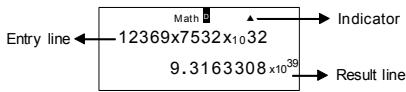
Entry line
SR-270X displays an entry of up to 99 digits. Entries begin on the left; those with more than 15 digits scroll to the left. Press [▶] and [◀] to move the cursor through an entry. However, whenever you input the 89th digit of any calculation, the cursor changes from "■" to "■" to let you know memory is running low. If you still need to input more, you should divide your calculation into two or more parts.
Result line
It displays a result of up to 10 digits, as well as a decimal, a negative sign, a "x10" indicator, and a 2-digit positive or negative exponent.
Indicators
The following indicators may appear on the display to indicate the current status of the calculator.
Indicator
Meaning
2nd 2nd set of function keys are active
A Alphabetic keys are active
M There is a number in the memory
STO Storing variable mode is active
RCL Recalling variable mode is active
STAT Statistics mode is active
Math Math style is selected as the Input/output format
DRG Angle mode: Degrees, Radians, or Gradians
FIX A fixed number of decimal places is in effect
SCI A fixed number of Scientific notation is in effect
▼▲ There are earlier or later results that can be displayed
Disp Displayed value is intermediate result when performing multi-statement function
Before Starting Calculation
■ Using "MODE" keys
Press [ MODE ] to display mode menus when specifying an operating mode (" 1: COMP ", " 2: STAT ", " 3: TABLE " ).
COMP : Use this mode for basic calculations, including scientific calculations. (the default)
STAT : Use this mode to perform single-variable and paired-variable statistical calculations and regression calculations.
TABLE : Use this mode to display a defined function in a tabular form.
Give " 2: STAT " as an example:
Method : Press [MODE] and then key in directly the number of the mode, [2], to enter the desired mode immediately.
■ Using "SET UP" keys
[2nd] [SET UP] display the setup menu that enables you to specify the input /output format, the angle mode, the numeric notation, the statistical setting or the contrast adjustment. The setup menu consist of two screens which you can jump between by using [▼] and [▲].
| 1: MthIO 2: LineIO3: Deg 4: Rad5: Gra 6: Fix7: Sci 8: Norm | ▼ | ▲ |
| ▼→←▲ | 1: ab/c 2: d/c3: STAT 4: Disp5: ◀ CONT ▶ |
MthIO : Math mode displays inputs and outputs in textbook format. (the default)
LineIO : Linear mode displays inputs and outputs in a single line.
Deg : Deg mode sets the angle unit to degrees (the default)
Rad : Rad mode sets the angle unit to radians
Gra : Gra mode sets the angle unit to gradians.
Fix : Fix decimal setting (0 through 9)
Sci : Scientific notation (0 through 9)
Norm : Norm specifies the range (Norm1, Norm2) in which the results are to be displayed in exponential format or in non-exponential format (Norm1 is the default)
ab/c : ab/c displays the fraction in mixed number format
d/c : d/c displays the fraction in improper format (the default)
STAT : STAT sets the Statistical Data Editor Screen to show or hide the FREQ column
Disp : Disp sets the decimal point to Dot ( . ) or Comma ( , ) (Dot is the default)
◄CONT► : Contrast Adjustment
■ Using Math Mode
Press [2nd] [SET UP] [1] to enter Math mode. While in math mode, the values for functions such as , A , a b , Abs, 10^x , e^x , , [3]x^2 , x^3 , x^-1 , x^y , ...can be entered and displayed in a mathematically written way. By default, SR-270X is in Math mode. See Example 1\~2.
■ Using "2nd" "ALPHA" Keys
When you press [2nd], the "2nd" indicator shown on the display indicates that you will be selecting the second function of the next key you press. If you press [2nd] by mistake, simply press [2nd] again to remove the "2nd" indicator.
When you press [ ALPHA ], the "A" indicator shown on the display indicates that you will be selecting the alphabetic function of the next key you press. If you press [ ALPHA ] by mistake, simply press [ ALPHA ] again to remove the "A" indicator.
■ Making corrections during Input
The vertical blinking cursor "■" means the calculator is in insert mode. The horizontal blinking cursor "■" means the calculator is in overwrite mode.
By default, the calculator is in insert mode. In linear format, you can press [2nd] [INS] to switch between the two modes, whereas in Math format, you can use only the insert mode.
In insert mode, the character in front of the cursor "■" will be deleted or inserted after you press [DEL] or enter a new character
In overwrite mode, the character at the cursor "■" will be deleted by [DEL] key or replaced by any new character you enter.
To clear all characters, simply press [AC] in either mode.
■ Error Position Display Function
When a mathematically illegal calculation performed causes an error and an error message ( See < Error conditions > ) appears, press [◀] [▶ ] and then the error position display function will tell you with the cursor where the error is. In that case, please make necessary corrections before executing the calculation again. See Example 3.
■ Replay function
This function stores operations that just have been executed in COMP mode. After execution is completed, pressing [▼] or [▲] key will display the operation executed.
You can continue moving the cursor by [◀] or [▶] to display previous input steps and editing values or commands for subsequent execution.
The operation records in Memory are cleared each time when you turn off the calculator, press [ON] key, perform a "reset", change display format or calculation mode.
When the memory is full, the oldest calculation records are deleted automatically to make room for the new ones. See Example 4.
■ Memory calculation
Memory variable
The calculator has seven memory variables for repeated use -- A, B, C, D, M, X, Y. You can store a real number in any of the seven memory variables. See Example 5.
- [2nd] [STO] + [A] \~ [D], [M], [X] \~ [Y] lets you store values to variables.
- [RCL] + [A] \~ [D], [M], [X] \~ [Y] recalls the value of the variable.
- [0] [2nd] [STO] + [A] \~ [D], [M], [X] \~ [Y] clears the content to a specified memory variable.
- [ALPHA] + "memory variable" lets you insert the applicable variables in a calculation.
• [2nd] [CLR] [2] [=] clears all variables.
Running memory
You should keep the following rules in mind when using running memory. See Example 6.
- Press [M+] to add a result to running memory and the "M" indicator appears when a number is stored in the memory. Press [RCL][M] to recall the content of running memory.
- Recalling from running memory by pressing [RCL] [M] key does not affect its contents.
- Running memory is not available when you are in statistics mode.
- The memory variable M and running memory utilize the same memory area.
- In order to replace the content of the memory with the displayed number, please press [2nd] [STO] [M] key.
- To clear the content of running memory, you can press [0] [2nd] [STO] [M] in sequence.
(Note) : Besides pressing [2nd] [STO] [M] key to store a value, you can also assign values to memory variable M by [M+]. However, when [2nd] [STO] [M] is used, previous memory contents stored in variable M are cleared and replaced with the newly assigned value. When [M+] is used, values is added to present sum in memory.
■ Order of operations
Each calculation is performed from left to right and in the following order of precedence:
1) Expression inside parentheses.
2) Functions with parentheses:
P R, R P , , , ^-1, ^-1, ^-1, , , , ^-1, ^-1, ^-1,
log, In, , [3]10^× , e ^× , Abs, RND
$$ E - 7 $$
3) Functions preceded by values, powers, power roots, for example, x^2 , x^3 , x^-1 , x! , DMS, °, r, g, x^y , , %
4) Fractions
5) Negations (−)
6) Statistical estimated value calculation: , , 1 , 2
7) nPr, nCr
8) x,÷
Multiplication sign omitted immediately before , e, variable, and function with parentheses: for example, 3 , 5B, Asin(30)
9) +,-
■ Accuracy and Capacity
Output digits : Up to 10 digits.
Calculating digits : Up to 16 digits
In general, every reasonable calculation is displayed up to 10 digits mantissa, or 10-digit mantissa plus 2-digit exponent up to 10^±99 .
Numbers used as input must be within the range of the given function as follows:
| Functions | Input range |
| sin x x | Deg: 0 ≤ |x| < 9 × 10^9 Rad: 0 ≤ |x| < 157079632.7 Grad: 0 ≤ |x| < 1 × 10^10 |
| tan x | Same as sin x, except when Deg: |x| = 90 (2n-1) Rad: |x| = 2 (2n-1) Grad: |x| = 100 (2n-1) |
| ^-1x, ^-1x | 0 ≤ |x| ≤ 1 |
| ^-1x | 0 ≤ |x| < 1 × 10^100 |
| sinh x, x | 0 ≤ |x| ≤ 230.2585092 |
| tanh x | 0 ≤ |x| < 1 × 10^100 |
| sinh^-1x | 0 ≤ |x| < 5 × 10^99 |
| cosh^-1x | 1 ≤ x < 5 × 10^99 |
| tanh^-1x | 0 ≤ |x| < 1 |
| log x, ln x | 0 < x < 1 × 10^100 |
| 10^x | -1 × 10^100 < x < 100 |
| e^x | -1 × 10^100 < x ≤ 230.2585092 |
| 0 ≤ x < 1 × 10^100 | |
| x^2 | |x| < 1 × 10^50 |
| x^3 | |x| ≤q 2.15443469003 × 10^33 |
| x^-1 | |x| < 1 × 10^100, x 0 |
| [3]x | |x| < 1 × 10^100 |
| X! | 0 ≤q x ≤q 69 (x is an integer) |
| nPr | 0 ≤q r ≤q n, 0 ≤q n < 1 × 10^10 (n,r are integers) 1 ≤ !/(n-r)! < 1 × 10^100 |
| nCr | 0 ≤q r ≤q n, 0 ≤q n < 1 × 10^10 (n,r are integers) 1 ≤q n!/r! < 1 × 10^100 or 1 ≤q !/(n-r)! < 1 × 10^100 |
| R→P | |x|, |y| < 1 × 10^100 ^2 + y^2 < 1 × 10^100 |
| P→R | 0 ≤q r < 1 × 10^100 : same as sin x |
| DMS | |D|, M, S < 1 × 10^100, 0 ≤q M, S |
| ◀DMS | |x| < 1 × 10^100 Decimal ⇔ Sexagesimal Conversions 0^ 0^ 0^11 ≤q |x| ≤q 9999999^ 59^ 59^11 |
| x^y | x > 0 : -1 × 10^100 < y x < 100 x = 0 : y > 0 x < 0 : y = n, m/(2n+1) (m, n are integers) but -1 × 10^100 < y |x| < 100 |
| [x]y | y > 0 : x 0, -1 × 10^100 < 1x y < 100 y = 0 : x > 0 y < 0 : x = 2n+1, (2n+1)/m (m 0, m, n are integers) but -1 × 10^100 < 1x |y| < 100 |
| A^b/c | Total of integer, numerator and denominator must be within 10 digits (includes division marks) |
| STAT | 1–VAR:a. n ≤q 80 lines (when FREQ column is OFF) b. n ≤q 40 lines (when FREQ column is ON) 2–VAR:a. n ≤q 40 lines (when FREQ column is OFF) b. n ≤q 26 lines (when FREQ column is ON) |
■ Error conditions
Error message will appear on the display and further calculation becomes impossible when any of the following conditions occur.
Indicator
Math ERROR
Meanings
(1) You attempted to divide by 0
(2) When allowable input range of function calculations exceeds the range specified
Syntax ERROR
(3) When result of function calculations exceeds the range specified
(4) When specifying an argument to a function outside the valid range
(1) Input errors are made, ex. improper syntax
(2) When improper arguments are used in commands or functions
Stack ERROR
When a calculation expression exceeds the capacity of the numeric stack or command stack, ex.
When the [ ( ] key is used more than 25 levels in a single expression in linear mode
Insufficient MEM Error
When there is insufficient memory to store data or perform your calculation
To release the above errors, please press [◀] [▶] to correct your error, or press [AC] key to cancel your calculation, or simply press [ON] key to reinitialize the calculator.
Basic Calculations
Use COMP ([MODE] 1 (COMP)) mode for basic calculations.
■ Arithmetic calculation
Arithmetic operations are performed by pressing the keys in the same sequence as in the expression. See Example 7.
For negative values, press [(-)] before entering the value.; You can enter a number in mantissa and exponent form by [x10^x] key. See Example 8.
Results equal to or greater than 10^10 or results less than 10^-9 are displayed in exponential form. See Example 9.
■ Parentheses calculations
Operations inside parentheses are always executed first. SR-270X Math mode can use up to 24 levels and Linear mode can use up to 25 levels of consecutive parentheses in a single calculation.
Closed parentheses occurring immediately after operation of the [ ) ] key may be omitted, no matter how many are required. See Example 10.
(Note): A multiplication sign "x" occurring immediately before an open parenthesis can be omitted.
The correct result cannot be derived by entering [ ( ] 2 [ + ] 3 [ ) ] [ x10 ^x ] 2. Be sure to enter [ x ] between the [ ) ] and [ x10 ^x ] in Example 11.
■ Percentage calculation
[2nd] [ % ] divides the number in the display by 100. You can use this key sequence to calculate percentages, add-ons, discounts, and percentage ratios. See Example 12\~13.
■ Display notations
The calculator has the following display notations for the display value. See Example 14.
Fixed Decimal Point Notation
To specify the number of decimal places, press [2nd] [SET UP] [6] and then a value indicating the number of places (0\~9). Values are displayed rounded off to the place specified.
Scientific Notation
Scientific notation expresses numbers with one digit to the left of the decimal and the appropriate power of 10.
To select scientific notation, press [2nd] [SET UP] [7], and then a value (0\~9) to specify the number of decimal digits. Values are displayed rounded off to the place specified.
Norm Notation
Press [2nd] [SET UP] [8] and then select Norm1 (the default) or Norm2 to determine the range to display the result in non-exponential format (within the range) or in exponential format (out of the range).
Norm1: |x| < 10^-2, |x|≥ 10^10
Norm2: |x| < 10^-9, |x| ≥ 10^10
Engineering Notation
Pressing [ENG] or [2nd] [◀ENG] will cause the exponent display for the number being displayed to change in multiples of 3.
■ Answer Function
Answer function stores the most recently calculated result. It is retained even after the power is turned off. Once a numeric value or numeric expression is entered and [M+] , [2nd] [M-] , [RCL] , [2nd] [STO] or [=] is pressed, the result is stored by this function. See Example 15.
(Note): Even if execution of a calculation results in an error, however, Answer memory retains its current value.
Scientific Function Calculations
Use COMP ([MODE] 1 (COMP)) mode for scientific function calculations.
■ Logarithmic and Exponential functions
The calculator can calculate common and natural logarithms, and exponentiation using [log], [ln], [log a b], [2nd] [10 ^x ], and [2nd] [e ^x ]. See Example 16\~17.
■ Fraction calculation
Fraction value display is as follows:
| Improper Fraction | Mixed Fraction | |
| Math format: | 125 | 56512 |
| Linear format: | 12 5 | 56 5 12 |
(Note): Values are automatically displayed in decimal format whenever the total number of digits of a fractional value (integer + numerator + denominator + separator marks) exceeds 10.
In Linear mode, to enter a mixed number, enter the integer part, press [d/e] , enter the numerator, press [d/e] , and enter the denominator; To enter an improper fraction, enter the numerator, press [d/e] , and enter the denominator. See Example 18.
During a fraction calculation, if the figure is reducible, a figure is reduced to the lowest terms after pressing the [ = ] key. The initial default for a fraction result is improper fraction. By pressing [ 2nd ] [ A b/c ◆d/e ], the displayed value will be converted to the mixed fraction and vice versa. To convert between a decimal and fractional result, press [ F ◆D ]. See Example 19.
Calculations containing both fractions and decimals are calculated in decimal format. See Example 20.
■ Angle unit conversions
The angle unit (Deg, Rad, Grad) is set by pressing [2nd] [SET UP] from Setup screen and results are displayed according to your setting.
The relation among the three angle units is:
$$ 1 8 0 ^ {\circ} = \pi \text { rad } = 2 0 0 \text { grad } $$
Angle unit conversions (See Example 21.):
1) Change the default setting (Deg) to the unit you want to convert to.
2) Enter the value of the unit to convert.
3) Press [2nd] [DRG▶] to display the menu. The units you can select are ° (degrees), r (radians), g (gradians).
4) Select the unit you are converting from, and press [ = ].
■ Sexagesimal ↔ Decimal transformation
You can use sexagesimal figure (degree, minute and second) to perform calculations and convert values between sexagesimal and decimal notation by using [DMS] or [2nd] [◀DMS] keys. See Example 22\~23.
Sexagesimal figure value display is as follows:
$$ 1 2 5 ^ {\square} 4 5 ^ {\prime} 3 0 ^ {\prime \prime} $$
Represent 125 degrees (D), 45 minutes(M), 30 seconds(S)
■ Trigonometric / Inverse-Tri. functions
SR-270X provides standard trigonometric functions and inverse trigonometric functions: sin, cos, tan, ^-1 , ^-1 and ^-1 . See Example 24\~26.
(Note): When using those keys, make sure the calculator is set for the angle unit you want.
■ Hyperbolic / Inverse-Hyp. functions
SR-270X uses [HYP] to calculate the hyperbolic functions and inverse-hyperbolic functions: sinh, cosh, tanh, ^-1 , ^-1 and ^-1 . Press [HYP] to display the menu and then select the corresponding number to perform the function item. See Example 27\~28.
(Note): When using those keys, make sure the calculator is set for the angle unit you want.
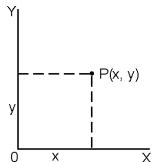
■ Coordinates transformation
Rectangular Coordinates
Polar Coordinates
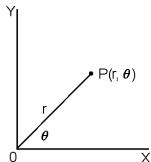
$$ x + y i = r (\cos \theta + i \sin \theta) $$
(Note): When using those keys, make sure the calculator is set for the angle unit you want.
The calculator can perform the conversion between rectangular coordinates and polar coordinates by [2nd] [P→R] and [2nd] [R→P]. See Example 29\~30.
Probability
This calculator provides the following probability functions (See Example 31\~34.):
[nPr] Calculates the number of possible permutations of n item taken r at a time.
[nCr] Calculates the number of possible combinations of n items taken r at a time.
[x!] Calculates the factorial of a specified integer n, where n ≤ 69.
[RANDM] Generates a random real number between 0.000 and 0.999.
■ Other functions ( , [3]~ , [3]~ , x^-1 , x^2 , x^3 , x^y , Abs, RND )
The calculator also provides reciprocal ( [x^-1] ), square root ( [] ), cubic root ( [2nd][] ), universal root ( [2nd][] ), square ( [x^2] ), cubic ( [x^3] ), and exponentiation ( [x^y] ) functions. See Example 35\~39.
Abs Generates the absolute value of a real number
RND Generates the rounding value of a given number
■ Multi-statement Function
A Multi-statement is a number of individual statements grouped together by display result commands ( : ) for sequential execution. When execution reaches the end of a statement followed by ( : ), execution stops and an intermediate result with a " Disp " icon appears on the display. You can resume execution by pressing [ = ]. " Disp " icon disappears when the last statement is being executed. See Example 40.
Statistical Calculations
Use STAT ([MODE] 2 (STAT)) mode for statistical calculations.
When you enter STAT mode, you are taken to the STAT menu with a choice of eight calculation types as follows:
Single-variable statistics
1: 1-VAR Single-variable statistics
Paired-variable / Regression statistics
2: A+BX Linear Regression Y = A + BX
3: _+CX ^2 Quadratic Regression Y = A + BX + CX ^2
4: In X Logarithmic Regression Y = A + B InX
5: e^ e Exponential Regression Y = A · e^BX
6: A•B^X ab Exponential Regression Y = A • B^X
7: A•X^B Power Regression Y = A • X B
8: 1/X Inverse Regression Y = A + B / X
■ To Enter data for statistical analysis
Before entering data, press [2nd] [SET UP] [▼] [3] in sequence to set Frequency column as On or Off. FREQ column enables you to enter the number of repeats for each of the same value occurred. See Example 41.
- From the STAT menu, choose a calculation type. There will be two Data Editor formats (1-VAR or 2-VAR / regression Data) depending on the type you select.
- Enter an x - value and press [ = ].
- Enter the frequency (FREQ) of the x-value (in 1-VAR mode) or the corresponding y-value (in 2-VAR mode) and press [ = ].
- To enter more data, repeat from step 3.
- To exit Data Editor mode to Result displaying mode, press [AC] and then [2nd] [STATVAR] to display STATVAR menu. (See table below)
■ To analyze data you have entered
Once you have entered your data, you can use the functions in STATVAR menu by pressing [2nd] [STATVAR]:
| STATVAR Menu | Meaning |
| 1: Type | Statistical calculation type menu, see the 8 types as previously mentioned in STAT menu |
| 2: Data | The data editor screen |
| 3: Edit | The editing commands sub-menu: [Ins], [Del-A] |
| 4: Sum | The summation sub-menu |
| 5: Var | The statistical variable sub-menu |
| 6: MinMax | The maximum/minimum sub-menu |
| 7: Reg (2-VAR) | The regression sub-menu |
Use options 1\~3 to view or change data. Use options 4\~7 to select the desired variable to analyze your data.
The values of the statistical variables depend on the data you input. You can recall them by the key operations shown in the below table.
Single-variable statistics calculations
| Variables | Keys | Meaning |
| x^2 | [4: Sum] [1] | Sum of all x^2 values |
| x | [4: Sum] [2] | Sum of all x values |
| n | [5: Var] [1] | Number of the x values entered |
| [5: Var] [2] | Mean of the x values | |
| x n | [5: Var] [3] | Population standard deviation of x values |
| x σ n-1 | [5: Var] [ 4 ] | Sample standard deviation of x values |
| minX | [6: MinMax] [ 1 ] | Minimum of x-value |
| maxX | [6: MinMax] [ 2 ] | Maximum of x-value |
Paired-variable statistics / Regression calculations
| Variables | Keys | Meaning |
| x y | [4: Sum] [2] [4: Sum] [4] | Sum of all x values or y values |
| x^2 y^2 | [4: Sum] [1] [4: Sum] [3] | Sum of all x^2 values or y^2 values |
| x^3 x^4 | [4: Sum] [6] [4: Sum] [8] | Sum of all x^3 values or x^4 values |
| x y | [4: Sum] [5] | Sum of (x·y) for all x-y pairs |
| x^2 y | [4: Sum] [7] | Sum of (x ^2 ·y) for all x-y pairs |
| n | [5: Var] [1] | Number of x-y pairs entered |
| [5: Var] [2] [5: Var] [5] | Mean of the x values or y values | |
| x n-1 | [5: Var] [4] | Sample standard deviation of x values or y values |
| y n-1 | [5: Var] [7] | |
| x n | [5: Var] [3] | Population standard deviation of x values or y values |
| y n | [5: Var] [6] | |
| minX | [6: MinMax] [1] | Minimum of x-value |
| maxX | [6: MinMax] [2] | Maximum of x-value |
| minY | [6: MinMax] [3] | Minimum of y-value |
| maxY | [6: MinMax] [4] | Maximum of y-value |
| A | [7: Reg] [1] | Regression coefficient constant term A |
| B | [7: Reg] [2] | Regression coefficient B |
For non-Quadratic Regression :
| r | [7: Reg] [3] | Correlation coefficient r |
| [7: Reg] [4] | Estimated value of x | |
| [7: Reg] [5] | Estimated value of y |
For Quadratic Regression ( _+ CX ^2 ) only :
| C | [7: Reg] [3] | Quadratic coefficient C of the regression coefficients |
| _1 | [7: Reg] [4] | Estimated value of x1 |
| _2 | [7: Reg] [5] | Estimated value of x2 |
| [7: Reg] [6] | Estimated value of y |
You also can add a new data anytime. The unit automatically recalculates statistics each time you press [ = ] and enter a new data value.
■ To view or change data
- Press [2nd] [STATVAR] [2] to enter Editor Screen.
- Press [▼] or [▲] to scroll through the data you have entered.
- To change an entry, display it and enter the new data. The new data you enter overwrites the old entry. Press [ = ] to save the change.
- To delete an entry, position the cursor on the line you want to delete, press [DEL].
- To insert an entry, position the cursor on the line above where you want to insert, press [2nd] [STATVAR] [3] and then select [1] (Ins) to create a new blank entry, fill the new data in the blank and press [=].
- To delete all entries, press [2nd] [STATVAR] [3] and then select [2] (Del-A) to clear all data on the Editor Screen.
(Note): Statistical data and results are retained when the calculator is turned off, but are cleared when you change calculation types, FREQ setting or clear data by selecting Del-A command from STATVAR menu.
Function Table
Use TABLE ([MODE] 3 (TABLE)) mode for generation of a function table.
TABLE mode lets you define a function and express it in a tabular form. To set up a function table, you need to: (See Example 42.)
- Press [MODE] [3] (TABLE)
- Enter a function, and press [ = ]
- Input the Start, End, and Step value of X, and press [ = ]
- After Step 3, a table of values that consists of each input, X, and its corresponding output, f(X), is generated.
(Note): 1. Only the variable X is available to be used in a function.
2. The Start, End, and Step value you specify should produce a table not exceed a maximum of 30 X-values.
Guía General 3
| 1: MthIO 2: LineIO3: Deg 4: Rad5: Gra 6: Fix7: Sci 8: Norm | ▼ | ▲ |
| 1: ab/c 2: d/c3: STAT 4: Disp5: ◀ CONT ▶ |
Usando as teclas " SET UP "......5
Usando as teclas " SET UP "
| 1: MthIO 2: LineIO | ▼ | 1: ab/c 2: d/c |
| 3: Deg 4: Rad | → | 3: STAT 4: Disp |
| 5: Gra 6: Fix | ← | 5: ◀ CONT ▶ |
| 7: Sci 8: Norm | ▲ |
flowchart
graph LR
    A["Clear? 1: Setup 2: Memory 3: All"] -->|[3]| B["Reset All? [ = "] : Yes["AC"] : Cancel]
| 1: MthIO 2: LineIO3: Deg 4: Rad5: Gra 6: Fix7: Sci 8: Norm | ▼ | ▲ |
| ▼ | 1: ab/c 2: d/c3: STAT 4: Disp5: ◀ CONT ▶ | |
| ← | ||
| ▲ |
■ Verwendung der Tasten " 2nd " " ALPHA "
Utilisation des touches " 2nd " " ALPHA "......6
| 1: MthIO 2: LineIO3: Deg 4: Rad5: Gra 6: Fix7: Sci 8: Norm | ▼ | 1: ab/c 2: d/c3: STAT 4: Disp5: ◀ CONT ▶ |
| ▼→←▲ |
■ Utilisation des touches " 2nd " " ALPHA "
| 1: MthIO 2: LineIO3: Deg 4: Rad5: Gra 6: Fix7: Sci 8: Norm | ▼ | 1: ab/c 2: d/c3: STAT 4: Disp5: ◀ CONT ▶ |
Insufficient MEM Error
(Auto Power-Off)....3
De " 2nd " " ALPHA " toetsen gebruiken......6
(Multi-statement)......15
Statistische bewerkingen....15
To turn the calculator on, press [ON]; To turn the calculator off, press [2nd] [OFF].
■ De batterijen vervangen
| 1: MthIO 2: LineIO3: Deg 4: Rad5: Gra 6: Fix7: Sci 8: Norm | ▼ | 1: ab/c 2: d/c3: STAT 4: Disp5: ◀ CONT ▶ |
| → | ||
| ← | ||
| ▲ |
If you want to dispose this product, do not mix with general household waste. There is a separate collection systems for used electronics products in accordance with legislation under the WEEE Directive (Directive 2002/96/EC) and is effective only within European Union.
Ge
Design and specifications are subject to change without notice.
- Scientific Calculator
- General Guide .... 3
- Before Starting Calculation ....4
- Basic Calculations....10
- Scientific Function Calculations ...... 11
- Statistical Calculations ......14
- Function Table......17
- General Guide
- ■ Turning on or off
- ■ Battery replacement
- ■ Auto power-off function
- ■ Reset operation
- ■ Contrast adjustment
- ■ Display readout
- Entry line
- Result line
- Indicators
- Indicator
- Meaning
- Before Starting Calculation
- ■ Using "MODE" keys
- ■ Using "SET UP" keys
- ■ Using Math Mode
- ■ Using "2nd" "ALPHA" Keys
- ■ Making corrections during Input
- ■ Error Position Display Function
- ■ Replay function
- ■ Memory calculation
- Memory variable
- Running memory
- ■ Order of operations
- ■ Accuracy and Capacity
- ■ Error conditions
- Math ERROR
- Meanings
- Syntax ERROR
- Stack ERROR
- Insufficient MEM Error
- Basic Calculations
- ■ Arithmetic calculation
- ■ Parentheses calculations
- ■ Percentage calculation
- ■ Display notations
- Fixed Decimal Point Notation
- Scientific Notation
- Norm Notation
- Engineering Notation
- ■ Answer Function
- Scientific Function Calculations
- ■ Logarithmic and Exponential functions
- ■ Fraction calculation
- ■ Angle unit conversions
- ■ Sexagesimal ↔ Decimal transformation
- ■ Trigonometric / Inverse-Tri. functions
- ■ Hyperbolic / Inverse-Hyp. functions
- ■ Coordinates transformation
- Probability
- ■ Other functions ( , [3]~ , [3]~ , x-1 , x2 , x3 , xy , Abs, RND )
- ■ Multi-statement Function
- Statistical Calculations
- Single-variable statistics
- Paired-variable / Regression statistics
- ■ To Enter data for statistical analysis
- ■ To analyze data you have entered
- ■ To view or change data
- Function Table
- Use TABLE ([MODE] 3 (TABLE)) mode for generation of a function table.
- Guía General 3
- Usando as teclas " SET UP "
- ■ Verwendung der Tasten " 2nd " " ALPHA "
- ■ Utilisation des touches " 2nd " " ALPHA "
- Statistische bewerkingen....15
- ■ De batterijen vervangen
- Ge
Brand : CITIZEN
Model : SR-270X
Category : Watch