
ES-1124 - Network switch ZYXEL - Free user manual and instructions
Find the device manual for free ES-1124 ZYXEL in PDF.


| Product type | Unmanaged network switch 24 ports 10/100 + 4 Gigabit ports (2 copper, 2 mini-GBIC) |
| Brand | ZYXEL |
| Model | ES-1124 |
| Dimensions (W x D x H) | 440 x 161 x 44 mm |
| Weight | 2 kg |
| Power supply | 100-240 VAC, 50/60 Hz, 19.8 W max |
| Number of Ethernet ports | 24 RJ-45 10/100 Mbps auto-negotiation ports |
| Gigabit ports | 2 copper 1000Base-T ports + 2 mini-GBIC slots (shared) |
| Network standards | IEEE 802.3 10Base-T, 802.3u 100Base-TX, 802.3ab 1000Base-T, 802.3z Gigabit Fiber |
| MDI/MDIX | Auto-crossover on all RJ-45 ports |
| Switching method | Store-and-forward |
| MAC address table | 8,000 entries |
| Buffer memory | 2.5 Mbits |
| Switching fabric rate | 8.8 Gbps |
| Quality of Service (QoS) | IEEE 802.1p (2 priority queues) |
| Flow control | Back-pressure (half-duplex), Pause-frame (full-duplex) |
| LED indicators | PWR, LNK/ACT, FDX/COL (per 10/100 port); 1000, 100, LNK/ACT, FDX/COL (Gigabit ports) |
| Mounting | Desktop or 19-inch rack mount (kit included) |
| Operating temperature | 0 °C to 45 °C |
| Operating humidity | 10% to 90% (non-condensing) |
| Maintenance and cleaning | Clean with a soft dry cloth. Do not use chemicals. Ensure adequate ventilation. |
| Safety | Use only the supplied power cord. Do not block ventilation openings. Do not expose to moisture. |
| Spare parts / accessories | Power cord, rack mounting brackets, rubber feet. Mini-GBIC modules optional. |
| Repairability | No user-serviceable parts. Contact ZyXEL support for any repairs. |
Frequently Asked Questions - ES-1124 ZYXEL
User questions about ES-1124 ZYXEL
0 question about this device. Answer the ones you know or ask your own.
Ask a new question about this device
Download the instructions for your Network switch in PDF format for free! Find your manual ES-1124 - ZYXEL and take your electronic device back in hand. On this page are published all the documents necessary for the use of your device. ES-1124 by ZYXEL.
USER MANUAL ES-1124 ZYXEL
Unmanaged 24-port Ethernet Switch with 4 Gigabit Ports
User's Guide
April 2004
Version 1.00
ZyXEL Unleash Network
Unleash Networking Power
Copyright
Copyright © 2004 by ZyXEL Communications Corporation
The contents of this publication may not be reproduced in any part or as a whole, transcribed, stored in a retrieval system, translated into any language, or transmitted in any form or by any means, electronic, mechanical, magnetic, optical, chemical, photocopying, manual, or otherwise, without the prior written permission of ZyXEL Communications Corporation.
Published by ZyXEL Communications Corporation. All rights reserved.
Disclaimer
ZyXEL does not assume any liability arising out of the application or use of any products, or software described herein. Neither does it convey any license under its patent rights nor the patents rights of others. ZyXEL further reserves the right to make changes in any products described herein without notice. This publication is subject to change without notice.
Trademarks
Trademarks mentioned in this publication are used for identification purposes only and may be properties of their respective owners.
ZyXEL Limited Warranty
ZyXEL warrants to the original end user (purchaser) that this product is free from any defects in materials or workmanship for a period of up to two (2) years from the date of purchase. During the warranty period and upon proof of purchase, should the product have indications of failure due to faulty workmanship and/or materials, ZyXEL will, at its discretion, repair or replace the defective products or components without charge for either parts or labor and to whatever extent it shall deem necessary to restore the product or components to proper operating condition. Any replacement will consist of a new or re-manufactured functionally equivalent product of equal value, and will be solely at the discretion of ZyXEL. This warranty shall not apply if the product is modified, misused, tampered with, damaged by an act of God, or subjected to abnormal working conditions.
Note
Repair or replacement, as provided under this warranty, is the exclusive remedy of the purchaser. This warranty is in lieu of all other warranties, express or implied, including any implied warranty of merchantability or fitness for a particular use or purpose.
ZyXEL shall in no event be held liable for indirect or consequential damages of any kind of character to the purchaser.
To obtain the services of this warranty, contact ZyXEL's Service Center for your Return Material Authorization number (RMA). Products must be returned Postage Prepaid. It is recommended that the unit be insured when shipped. Any returned products without proof of purchase or those with an out-dated warranty will be repaired or replaced (at the discretion of ZyXEL) and the customer will be billed for parts and labor. All repaired or replaced products will be shipped by ZyXEL to the corresponding return address,
Postage Paid. This warranty gives you specific legal rights, and you may also have other rights that vary from country to country.
Interference Statements andWarnings
FCC Interference Statement
This device complies with Part 15 of the FCC rules. Operation is subject to the following two conditions:
(1) This device may not cause harmful interference.
(2) This device must accept any interference received, including interference that may cause undesired operations.
FCC Warning
This equipment has been tested and found to comply with the limits for a Class A digital device, pursuant to Part 15 of the FCC Rules. These limits are designed to provide reasonable protection against harmful interference in a commercial environment. This equipment generates, uses, and can radiate radio frequency energy and, if not installed and used in accordance with the instruction manual, may cause harmful interference to radio communications. Operation of this equipment in a residential area is likely to cause harmful interference in which case the user will be required to correct the interference at his own expense.
CE Mark Warning
This is a class A product. In a domestic environment this product may cause radio interference in which case the user may be required to take adequate measures.
Taiwanese DSMF (Bureau of Standards, Metrology and Inspection) A Warning:
警告使用者
這是甲類的資訊產品,在居住的環境使用時
可能造成射频干擾,在這種情況下,
使用者會被要求採取某些適當的對策
Certifications
Register your product online for free future product updates and information at
www.zyxel.com for global
products, or at www.us.zyxel.com for North American products.
(1) Go to www.zyxel.com
(2) Select your product from the drop-down list box on the ZyXEL home page to go to that product's page.
(3) Select the certification you wish to view from this page.
Customer Support
If you have questions about your ZyXEL product or desire assistance, contact ZyXEL Communications Corporation offices worldwide, in one of the following ways:
Contacting Customer Support
When you contact your customer support representative, have the following information ready:
Product model and serial number.
Warranty information.
- Date you received your product.
- Brief description of the problem and the steps you took to solve it.
| Method Location | Support e-mail Sales e-mail | Telephone¹ Fax¹ | Web Site FTP Site | Regular Mail |
| Worldwide | support@zyxel.com.tw | +886-3-578-3942 | www.zyxel.com | ZyXEL Communications Corp. |
| www.europe.zyxel.com | ||||
| ftp.zyxel.com | 6 Innovation Road II Science Park | |||
| sales@zyxel.com.tw | +886-3-578-2439 | ftp.europe.zyxel.com | Hsinchu 300 Taiwan | |
| North America | support@zyxel.com | +1-800-255-4101 | www.us.zyxel.com | ZyXEL Communications Inc. |
| +1-714-632-0882 | 1130 N. Miller St. Anaheim CA 92806-2001 U.S.A. | |||
| sales@zyxel.com | +1-714-632-0858 | ftp.us.zyxel.com | ||
| Germany | support@zyxel.de | +49-2405-6909-0 | www.zyxel.de | ZyXEL Deutschland GmbH. Adenauerstr. 20/A2 D-52146 Wuerselen Germany |
| sales@zyxel.de | +49-2405-6909-99 | |||
| Method Location | Support e-mail Sales e-mail | Telephone1 Fax1 | Web Site FTP Site | Regular Mail |
| France | info@zyxel.fr | +33 (0)4 72 52 97 97 | www.zyxel.fr | ZyXEL France 1 rue des Vergers Bat. 1 / C 69760 Limonest France |
| +33 (0)4 72 52 19 20 | ||||
| SPAIN | support@zyxel.es | +34 902 195 420 | www.zyxel.es | ZyXEL Communications Alejandro Villegas 33 1°, 28043 Madrid Spain |
| sales@zyxel.es | +34 913 005 345 | |||
| Denmark | support@zyxel.dk | +45 39 55 07 00 | www.zyxel.dk | ZyXEL Communications A/S Columbusvej 5 2860 Soeborg Denmark |
| sales@zyxel.dk | +45 39 55 07 07 | |||
| Norway | support@zyxel.no | +47 22 80 61 80 | www.zyxel.no | ZyXEL Communications A/S Nils Hansens vei 13 0667 Oslo Norway |
| sales@zyxel.no | +47 22 80 61 81 | |||
| Sweden | support@zyxel.se | +46 31 744 7700 | www.zyxel.se | ZyXEL Communications A/S Sjöporten 4, 41764 Göteborg Sweden |
| sales@zyxel.se | +46 31 744 7701 | |||
| Finland | support@zyxel.fi | +358-9-4780-8411 | www.zyxel.fi | ZyXEL Communications Oy Malminkaari 10 00700 Helsinki Finland |
Table of Contents
Copyright .ii
ZyXEL Limited Warranty. iii
Interference Statements andWarnings. iii
Customer Support .V
List of Figures ix
List of Tables ix
Preface
Chapter 1 Getting to Know Your Switch 1-1
1.1 Introduction 1-1
1.2 Features 1-2
1.3 Package Contents 1-2
1.4 Ethernet Switching Technology 1-2
1.5 Applications 1-3
1.5.1 Standalone Workgroup 1-3
1.5.2 Bridging 1-4
Chapter 2 Hardware Description and Installation 2-1
2.1 Desktop Installation 2-1
2.2 Rack-Mount Installation 2-2
2.3 Rear Panel 2-3
2.4 Rear Panel Power Connection 2-3
2.5 Front Panel 2-3
2.5.1 10Base-T/100Base-TX RJ-45 auto-negotiating ports 2-4
2.5.2 Auto-crossover MDI/MDIX ports 2-4
2.5.3 Gigabit uplink ports 2-4
2.5.4 Front Panel Connections 2-5
2.5.5 Front Panel LEDs 2-5
Chapter 3 Troubleshooting 3-1
3.1 Introduction 3-1
3.1.1 PWR LED 3-1
3.1.2 FDX LED 3-1
3.1.3 LNK/ACT LED 3-1
3.1.4 FDX/COL LED 3-2
3.2 Improper Network Cabling and Topology 3-2
Product Specifications A
Index C
List of Figures
Figure 1-1 The ES-1124. 1-1
Figure 1-2 Standalone ES-1124 Workgroup Example 1-4
Figure 1-3 Bridging Example 1-5
Figure 2-1 Attaching Rubber Feet 2-1
Figure 2-2 Attaching Mounting Brackets and Screws. 2-2
Figure 2-3 Mounting the ES to an EIA standard 19-inch rack. 2-3
Figure 2-4 Rear Panel of the ES-1124 2-3
Figure 2-5 The Front Panel of the ES-1124 2-4
Figure 2-6 The Front Panel LEDs of the ES-1124 2-5
List of Tables
Table 2-1 Network Cable Types. 2-5
Table 2-2 The Front Panel LED Descriptions 2-5
Table 3-1 Troubleshooting Power LED 3-1
Table 3-2 Troubleshooting FDX LED. 3-1
Table 3-3 Troubleshooting LNK/ACT LED 3-1
Table 3-4 Troubleshooting FDX/COL LED. 3-2
Table 3-5 Troubleshooting Improper Network Cabling and Topology 3-2
Preface
Congratulations on your purchase of the Dimension ES-1124 Ethernet Switch.
About the Dimension ES-1124 Ethernet Switch
The Dimension ES-1124 switch is a cost effective Fast Ethernet multi-port switch ideal for setting up high performance switched workgroup networks.
The ES-1124 comes with 24TX ports and four Gigabit ports: two Gigabit copper and two mini GBIC.
General Syntax Conventions
For brevity's sake, we will use "e.g." as shorthand for "for instance", and "i.e." as shorthand for "that is" or "in other words" throughout this manual.
The Dimension ES-1124 Ethernet Switch will be referred to as ES-1124 or the switch in this manual.
Unless specified, images of the ES-1124 are used throughout this document.
Related Documentation
ZyXEL Web Site
The ZyXEL download library at www.zyxel.com contains additional support documentation as well as an online glossary of networking terms.
User Guide Feedback
Help us help you! E-mail all User Guide-related comments, questions or suggestions for improvement to techwriters@zyxel.com.tw or send regular mail to The Technical Writing Team, ZyXEL Communications Corp., 6 Innovation Road II, Science-Based Industrial Park, Hsinchu, 300, Taiwan. Thank you!
Chapter 1
Getting to Know Your Switch
This chapter describes the key features, benefits and applications of your switch.
1.1 Introduction
The ES-1124 is a multi-port switch that can be used to build high-performance switched workgroup networks. This switch is a store-and-forward device that offers low latency for high-speed networking. The switch is targeted at workgroup, department or backbone computing environments for SME (small, medium enterprise) businesses.
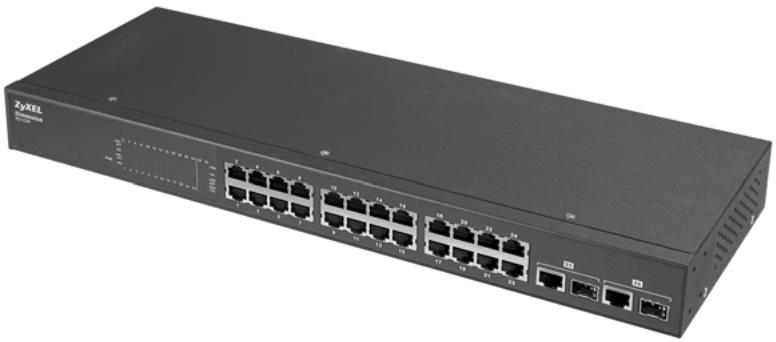
Figure 1-1 The ES-1124
The ES-1124 features a "store-and-forward" switching scheme. This allows the switch to auto-learn and store source address in an 8K-entry MAC address table.
All ports are auto-crossover, that is auto-MDIX ports (Media Dependent Interface Crossover), so you may use either a straight through Ethernet cable or crossover Ethernet cable for all Ethernet port connections. Auto-crossover ports automatically sense whether they need to function as crossover or straight ports, so crossover cables can connect both computers and switches/hubs.
The ES-1124 has 24 auto-crossover 10/100Base-TX RJ-45 ports and 2 auto-detect gigabit ports for higher connection speed.
1.2 Features
- Conforms to IEEE802.3 10Base-T, IEEE802.3u 100Base-TX, IEEE802.3ab 1000Base-T, IEEE802.3z Gigabit fiber standards.
- Auto-negotiating 10/100Mbps Ethernet RJ-45 ports.
Automatic MDI/MDIX supported.
High switch fabric up to 8.8Gbps.
N-way Auto-negotiation supported. - Store-and-forwarding switching architecture for abnormal packet filtering.
Embedded 8K MAC address table providing 8000 MAC addresses entries.
2.5Mbits memory buffer.
3.3V MINI GBIC port for Gigabit fiber transceiver.
Two Gigabit copper ports. - IEEE 802.1p supports two priority queues for outgoing traffic. Improves network efficiency and performance.
- Back-Pressure-Base flow control on Half-duplex ports.
- Pause-Frame-Base flow control on Full-duplex ports.
Supports automatic address learning. - No-Blocking full wire speed architecture
Fan free design
Power, LNK/ACT and FDX/COL LEDs.
Standard 19-inch rack-mount design.
1.3 Package Contents
Compare the contents of your ES-1124 Ethernet Switch package with the checklist below. If any item is missing or damaged, please contact your local dealer.
ES-1124 Ethernet switch
Power cord
Quickstart Guide
This User's Guide in CD-ROM format.
Four rubber feet
Rack mount brackets
1.4 Ethernet Switching Technology
Ethernet Switching Technology has dramatically boosted the total bandwidth of a network, eliminated congestion problems inherent with CSMA/CD (Carrier Sense multiple access with Collision Detection) protocol, and greatly reduced unnecessary transmissions.
This revolutionized networking in a number of ways:
- By allowing two-way, simultaneous transmissions over the same port (Full-duplex), which essentially doubled the bandwidth.
- Reducing the collision domain to a single switch-port, which eliminated the need for carrier sensing.
- Using the store-and-forward technology's approach of inspecting each packet to intercept corrupt or redundant data, switching eliminated unnecessary transmission that slowed the network.
- By employing address learning, which replaced the inefficient receiving port.
Auto-negotiation regulates the speed and duplex of each port, based on the capability of both devices. Flow-control allows transmission from a 100Mbps node to a 10Mbps node without loss of data. Auto-negotiation and flow-control may require disablement for some networking operations involves legacy equipment. Disabling the auto-negotiation is accomplished by fixing the speed or duplex of a port.
Ethernet Switching Technology supplied higher performance at costs lower than other solutions. Wider bandwidth, no congestion, and the reduction in traffic is why switching is replacing expensive routers and inefficient hubs as the ultimate networking solution.
1.5 Applications
This section provides two network topology examples in which the switch is used. By using the uplink port, the switch can connect with another switch or hub to interconnect other workgroups to form a larger switched network. The distance between two switches via fiber cable can be up to 550 meters (multi-mode fiber) or 10 kilometers (single-mode fiber).
1.5.1 Standalone Workgroup
The switch can be used as a standalone switch to which, computers, servers and printer server are directly connected to form a small workgroup.
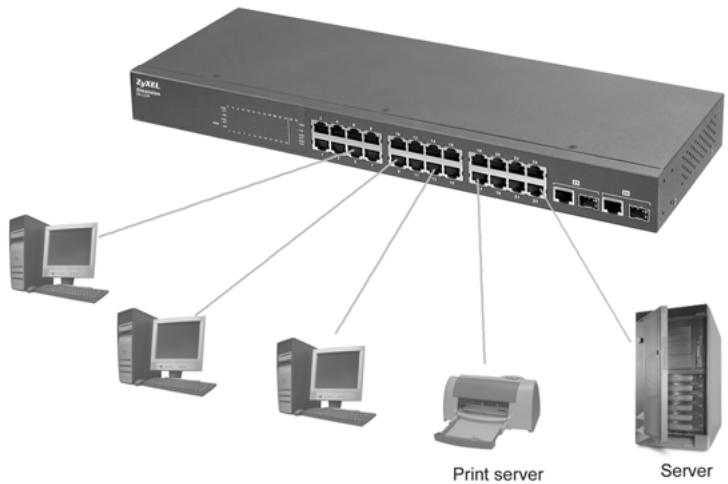
Figure 1-2 Standalone ES-1124 Workgroup Example
1.5.2 Bridging
With its large address table (8000 MAC address entries) and high performance, the switch is an ideal solution for department networks to connect to the corporate backbone or for connecting network segments.
The following figure depicts a typical segment bridge application of the switch in an enterprise environment. The two workgroups, the standalone server and the two servers can all communicate with each other and share all network resources.
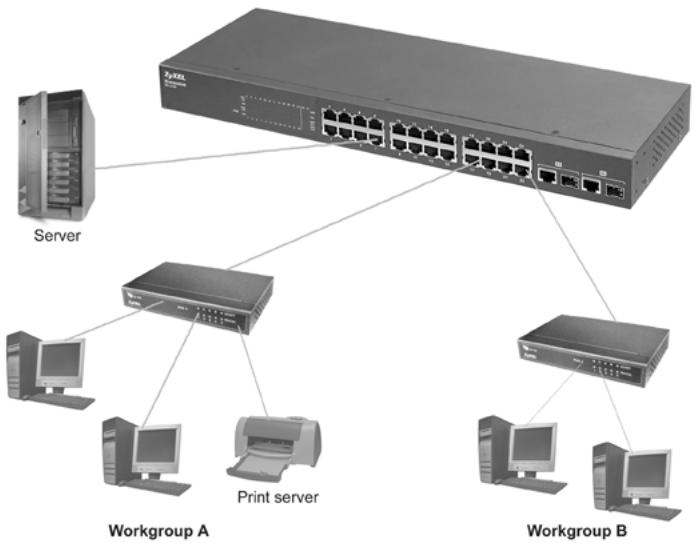
Figure 1-3 Bridging Example
Chapter 2
Hardware Description and Installation
This section shows two switch installations, describes the hardware of the switch and gives a functional overview of the switch.
The switch is suitable for an office environment where it can be rack mounted on standard EIA racks or as a standalone.
For proper ventilation, allow at least 4 inches (10 cm) of clearance at the front and 3.4 inches (8 cm) at the back of the switch. This is especially important for enclosed rack installations.
2.1 Desktop Installation
Step 1. Make sure the switch is clean and dry.
Step 2. Set the switch on a smooth, leveled and sturdy flat space strong enough to support the weight of the switch and the connected cables. Make sure there is a power outlet nearby.
Step 3. Make sure there is enough clearance around the switch to allow air circulation and the attachment of cables and the power cord.
Step 4. Remove the adhesive backing from the supplied rubber feet.
Step 5. Attach the rubber feet to each corner on the bottom of the switch. These rubber feet help protect the switch from shock or vibration and ensure space between devices when stacking.
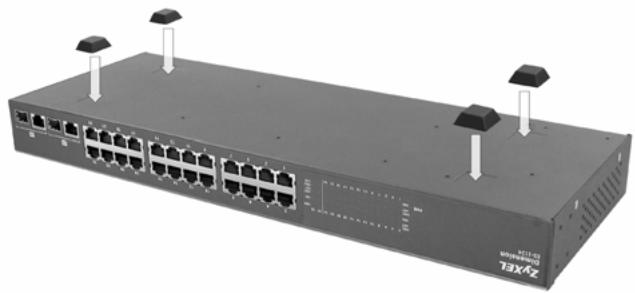
Figure 2-1 Attaching Rubber Feet
Do not block the ventilation holes. Leave space between switches when stacking.
2.2 Rack-Mount Installation
The switch can be mounted on an EIA standard size, 19-inch rack or in a wiring closet with other equipment. Follow the steps below to mount your switch on a standard EIA rack using the included rack-mounting kit.
Step 1. Align one bracket with the holes on one side of the switch and secure it with the bracket screws that are smaller than the rack-mounting screws. Similarly, attach the other brackets.
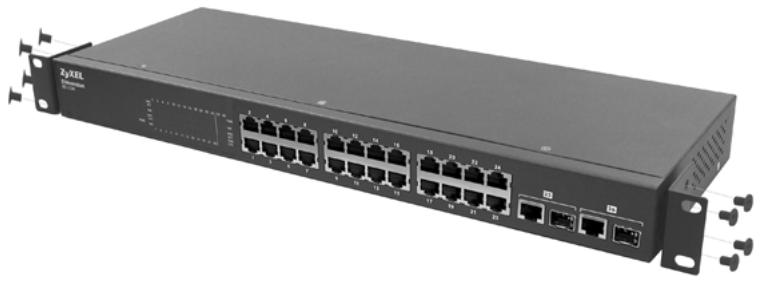
Figure 2-2 Attaching Mounting Brackets and Screws
Step 2. After attaching both mounting brackets, position the switch in the rack by lining up the holes in the brackets with the appropriate holes on the rack. Secure the switch to the rack with the rack-mounting screws.
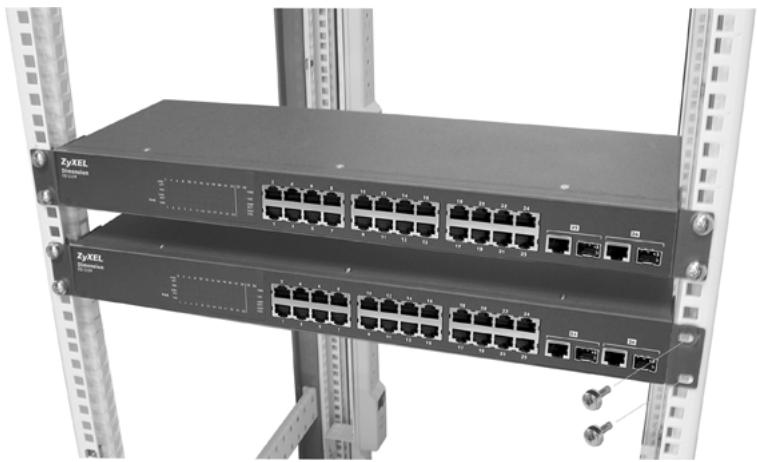
Figure 2-3 Mounting the ES to an EIA standard 19-inch rack
2.3 Rear Panel
The three-pronged power receptacle is located on the rear panel of the switch. Refer to the Product Specifications for power specification.

Figure 2-4 Rear Panel of the ES-1124
2.4 Rear Panel Power Connection
Connect one end of the supplied power cord to the power receptacle on the back of the switch and the other end to the appropriate power source.
2.5 Front Panel
The front panel of the ES-1124 consists of 24 auto-crossover 10/100Base-TX RJ-45 ports and two auto-detecting Gigabit uplink ports, which may be a Copper Gigabit port or a Mini Gigabit Fiber module (optional). The LEDs are also located on the front panel of the switch.

Figure 2-5 The Front Panel of the ES-1124
2.5.1 10Base-T/100Base-TX RJ-45 auto-negotiating ports
Your switch comes with 24 crossover 10Base-T/100Base-TX RJ-45 ports. The auto-negotiation feature allows the switch to detect the speed of incoming transmission and adjust appropriately without manual intervention. It allows data transfers of either 10 Mbps or 100 Mbps in full-duplex mode.
2.5.2 Auto-crossover MDI/MDIX ports
RJ-45 Ports (Auto MDI/MDIX): 24 auto-crossover 10/100 10Base-T or 100Base-TX connections.
All ports are auto-crossover, that is, auto-MDIX ports (Media Dependent Interface Crossover), so you may use either a straight through Ethernet cable or crossover Ethernet cable for all Ethernet port connections. Auto-crossover ports automatically sense whether they need to function as crossover or straight ports, so crossover cables can connect both computers and switches/hubs.
2.5.3 Gigabit uplink ports
Two Gigabit uplink ports: two auto detecting Giga uplink ports — UTP (unshielded twisted pair) or Gigabit fiber.
Note that when you connect the Mini GBIC to the switch, you must disconnect the Giga copper connection if you have connected it to the device. Otherwise, the switch will not detect the Mini GBIC. While you using Giga copper port or Mini GBIC port, only one of them will work, for example, when a Giga copper port is connected, the Mini GBIC will be disabled.
2.5.4 Front Panel Connections
You can use unshielded twisted pair (UTP) or shielded twisted-pair (STP) Ethernet cables for RJ-45 ports. The following table describes the types of network cable used for the different connection speeds.
Make sure the cable length between connections does not exceed 100 meters (328 feet).
Table 2-1 Network Cable Types
| SPEED | NETWORK CABLE TYPE |
| 10 Base-T | 100Ω 2-pair UTP/STP Category 3, 4 or 5 |
| 100 Base-TX | 100Ω 2-pair UTP/STP Category 5 |
| 1000 BASE-T | 100Ω UTP/STP Category 5 |
2.5.5 Front Panel LEDs
The LED Indicators give real-time information about the status of the switch. The following table provides descriptions of the LEDs.
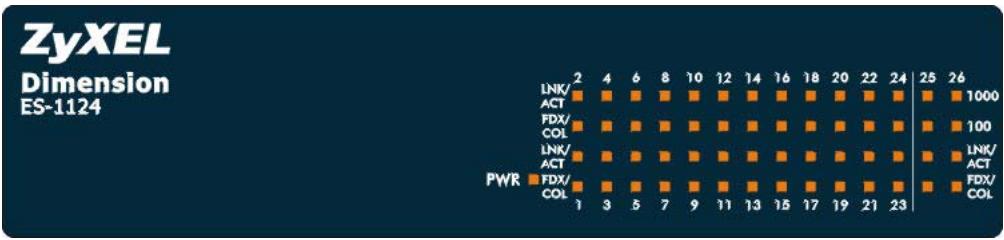
Figure 2-6 The Front Panel LEDs of the ES-1124
The following table describes the LEDs on the ES-1124 front panel.
Table 2-2 The Front Panel LED Descriptions
| SYSTEM LED | |||
| LED | COLOR | STATUS | DESCRIPTION |
| PWR | Green | On | The switch is on and receiving power. |
| Off | The switch is not receiving power. | ||
| RJ-45 Ports 1 ~ 24 | |||
| LED | COLOR | STATUS | DESCRIPTION |
| LNK/ACT | Green | On | The port is connected to an Ethernet network. |
| Off | The port is not connected to an Ethernet network. | ||
| Blinking | The port is receiving or transmitting data. | ||
| FDX/COL | Orange | On | The port is operating in full-duplex mode. |
| Off | The port is operating in half-duplex mode. | ||
| Gigabit Uplink Ports 25 ~ 26 | |||
| LED | COLOR | STATUS | DESCRIPTION |
| 1000 | Green | On | Connection speed is 1000Mbps The link to a 1000Mbps Ethernet network is up. |
| 100 | Orange | On | Connection speed is 100Mbps The link to a 100Mbps Ethernet network is up. |
| LNK/ACT | Green | On | The port is connected to an Ethernet network. |
| Off | The port is not connected to an Ethernet network. | ||
| Blinking | The port is receiving or transmitting data. | ||
| FDX/COL | Orange | On | The port is operating in full-duplex mode. |
| Blinking | Packet collision occurred on this port. | ||
| Off | The port is operating in half-duplex mode. | ||
Chapter 3
Troubleshooting
This section describes common problems you may encounter with the switch
and possible solutions.
3.1 Introduction
Troubleshoot the switch using the LEDs to detect problems.
3.1.1 PWR LED
The PWR LED on the front panel does not light up.
Table 3-1 Troubleshooting Power LED
| STEP | CORRECTIVE ACTION |
| 1 | Check the connections from your switch to the power source. Make sure you are using the supplied power cord and that you are using an appropriate power source. Refer to the Product Specifications appendix. |
| 2 | Make sure the power source is turned on and that the switch is receiving sufficient power. |
| 3 | If these steps fail to correct the problem, contact your local distributor for assistance. |
3.1.2 FDX LED
The FDX LED on the front panel does not light up.
Table 3-2 Troubleshooting FDX LED
| STEP | CORRECTIVE ACTION |
| 1 | The port is operating in half-duplex mode and not full-duplex mode. |
| 2 | Make sure the power source is turned on and that the switch is receiving sufficient power. |
| 3 | If these steps fail to correct the problem, contact your local distributor for assistance. |
3.1.3 LNK/ACT LED
The LNK/ACT LED does not light up when a device is connected.
Table 3-3 Troubleshooting LNK/ACT LED
| STEP | CORRECTIVE ACTION |
| 1 | Verify that the attached device(s) is turned on and properly connected to your switch. |
| 2 | Make sure the Network Interface Cards (NICs) are working on the attached devices. |
| 3 | Verify that proper network cable type is used and its length does not exceed 100 meters. For more information on network cable types, see the Front Panel Connections section. |
3.1.4 FDX/COL LED
The FDX/COL LED blinks.
Table 3-4 Troubleshooting FDX/COL LED
| STEP | CORRECTIVE ACTION |
| 1 | Some collisions in the network are normal. If the FDX/COL (Giga) LED blinks continuously, proceed to the steps below. |
| 2 | Verify that proper network cable type is used and its length does not exceed 100 meters. For more information on network cable types, see the Front Panel Connections section. |
| 3 | Your network is busy. Try sending large files later, reduce the number of users or segment your network. |
3.2 Improper Network Cabling and Topology
Improper network cabling or topology setup is a common cause of poor network performance or network failure.
Table 3-5 Troubleshooting Improper Network Cabling and Topology
| DESCRIPTION | PROBLEMS AND CORRECTIVE ACTION |
| Faulty cables | Using faulty network cables may affect data rates and have an impact on your network performance. Replace with new standard network cables. |
| Non-standard network cables | Non-standard cables may increase the number of network collisions and cause other network problems that affect your network performance. Refer to the Front Panel Connections section for more information on network cable types. |
| Cabling Length | If you use longer cables than are needed, transmission quality may be affected. The network cables should not be longer than the limit of 100 meters. |
| Too many hubs between the computers in the network | Too many hubs (or repeaters) between the connected computers in the network may increase the number of network collision or other network problems. Remove unnecessary hubs from the network. |
Table 3-5 Troubleshooting Improper Network Cabling and Topology
| DESCRIPTION | PROBLEMS AND CORRECTIVE ACTION |
| A loop in the data path | A data path loop forms when there is more than one path or route between two networked computers. This results in broadcast storms that will severely affect your network performance. Make sure there are no loops in your network topology. |
Product Specifications
This section provides the specifications of the switch.
| PRODUCT SPECIFICATIONS | |
| General | |
| Standards | IEEE802.3 10BASE-T Ethernet (twisted-pair copper) IEEE802.3u 100BASE-TX Fast Ethernet (twisted-pair copper) IEEE802.3ab 1000BASE-T IEEE802.3z Gigabit fiber ANSI/IEEE802.3 Auto-negotiation IEEE802.3x Flow Control |
| Uplink Interface | 2 1000Base-T RJ-45 connectors 2 mini-GBIC ports (shared with 1000Base-T) |
| Interface | 24 10/100M Ethernet Ports Auto-crossover Compliant with IEEE 802.3/3u Back pressure flow control for half duplex Flow control for full duplex (IEEE 802.3x) Connector: RJ-45 |
| Data Transfer Rate | Ethernet: 10Mbps(half duplex) 20Mbps (full duplex) Fast Ethernet: 100Mbps (half duplex) 200Mbps(full duplex) |
| Network Cables | 10BASE-T: UTP Cat.3, 4, 5 (100 m) EIA/TIA-586 100-ohm STP (100 m) 100BASE-TX: UTP Cat.5 (100 m max.) EIA/TIA-568 100-ohm STP (100 m max.) 1000BASE-TX: UTP Cat.5 (100 m max.) EIA/TIA-568 100-ohm STP (100 m max.) |
| Full/Half Duplex | Full/Half duplex for 10/100Mbps speeds |
| Media Interface Exchange | All ports support auto-crossover |
| Performance and Management | |
| Back plane | Non-Blocking full wire speed forwarding rate 8.8Gbps |
| Packet Forwarding Rate | 14880PPS for 10BASE-T 148800PPS for 100BASE-TX |
| Switching Method | Store-and-forward |
| MAC Address Table | 8K Mac with Auto Learning |
| Data Buffer | 2.5Mbits |
| Physical and Environmental | |
| Weight | 2Kg |
| LED and Switch Per unit: Per 10/100 Mbps Ethernet Port: Per GBIC Port: Per 1000Base-T Ethernet Port: | PWR (green): Light on or off: Power on or off LNK/ACT, FDX/COL LNK/ACT, FDX/COL LNK/ACT, FDX/COL |
| Layer 2 features | Bridging: 8K MAC addresses Switching: Switching fabric: 8.8Gbps IEEE 802.1p Frame size: 1522 bytes Broadcast storm control |
| Connector | 10/100TX: RJ-45 1000T: RJ-45 MINI GBIC Socket: support 3.3V DC power for MINI GBIC transceiver |
| Dimensions | 19" rack mountable enclosure 440(L) x 161(W) x 44(H) mm |
| Power Supply | 100 – 240VAC 50/60Hz internal universal power supply |
| Power Consumption | 19.8W max. |
| Operating Temperature | 0℃ ~ 45℃ (32°F to 113°F) |
| Operational Humidity | 10% to 90% (Non-condensing) |
| EMI | FCC Class A, CE |
| Safety | UL, cUL |
Index
1
10 Mbps Ethernet 2-6
A
Applications 1-3
Segment Bridge 1-4
Auto-Negotiating 2-4
C
Cabling Length. 3-3
CE .iv
class A.......iv
Contacting Customer Support............v
Copyright
D
Data path loop 3-3
Desktop Installation 2-1
Disclaimer
F
Faulty cables 3-2
FCC. iv
FCC Rules. iii
Federal Communications Commission
(FCC) Interference Statement ...... iii
Front Panel 2-3
Front Panel Connections 2-5
Front Panel LED Descriptions 2-6
G
GBIC 2-4
1
Installation Desktop 2-1 Rack-Mount 2-2
L
LED Descriptions
FDX/COL 2-6
LNK/ACT 2-6
PWR 2-6
M
MDI/MDIX Auto-Crossover 2-4
N
Network Cable Length Limit. 2-5
Network Cable Types 2-5
100Mbps 2-5
10Mbps 2-5
Non-standard network cables 3-2
P
Package Contents. 1-2
Product Specifications General
Performance and Management.....A
Physical and Enciromental .B
R
Rack-Mount Installation 2-2
Rear Panel 2-3
Rear Panel Power Connection 2-3
Related Documentation .viii
repair. iii
Return Material Authorization number
RMA. iii
S
Service .iii
Standalone Workgroup 1-3
Syntax Conventions.viii
T
Trademarks .ii
Troubleshooting FDX/COL LED 3-2
Improper Network Cabling and
Topology 3-2
LNK/ACT LED 3-2
Power LED. 3-1
V
ventilation. 2-1
Z
ZyXEL Limited Warranty. iii
Note. iii
ZyXEL Web Site. VIII
- Unmanaged 24-port Ethernet Switch with 4 Gigabit Ports
- User's Guide
- Copyright
- Copyright © 2004 by ZyXEL Communications Corporation
- Disclaimer
- Trademarks
- ZyXEL Limited Warranty
- Note
- Interference Statements andWarnings
- FCC Interference Statement
- FCC Warning
- CE Mark Warning
- Certifications
- Customer Support
- Contacting Customer Support
- Table of Contents
- List of Figures
- List of Tables
- Preface
- About the Dimension ES-1124 Ethernet Switch
- General Syntax Conventions
- Related Documentation
- User Guide Feedback
- Chapter 1
- Getting to Know Your Switch
- Introduction
- Features
- Package Contents
- Ethernet Switching Technology
- Applications
- Standalone Workgroup
- Bridging
- Chapter 2
- Hardware Description and Installation
- Desktop Installation
- Do not block the ventilation holes. Leave space between switches when stacking.
- Rack-Mount Installation
- Rear Panel
- Rear Panel Power Connection
- Front Panel
- 10Base-T/100Base-TX RJ-45 auto-negotiating ports
- Auto-crossover MDI/MDIX ports
- Gigabit uplink ports
- Front Panel Connections
- Make sure the cable length between connections does not exceed 100 meters (328 feet).
- Front Panel LEDs
- Chapter 3
- Troubleshooting
- Introduction
- PWR LED
- FDX LED
- LNK/ACT LED
- FDX/COL LED
- Improper Network Cabling and Topology
- Product Specifications
- Index
Brand : ZYXEL
Model : ES-1124
Category : Network switch