
AG-220 - Wireless Access Point ZYXEL - Free user manual and instructions
Find the device manual for free AG-220 ZYXEL in PDF.


| Product Type | Wireless USB Network Adapter |
| Brand | ZYXEL |
| Model | AG-220 |
| Category | Wireless Access Point |
| Interface | USB 1.1/2.0 Compatible |
| Wireless Standards | IEEE 802.11b/g |
| Maximum Data Rate | 54 Mbps (802.11g) / 11 Mbps (802.11b with USB 1.1) |
| Frequency Band | 2.4 GHz |
| Wireless Security | WEP, WPA, WPA2 |
| Supported Operating Systems | Windows 98 SE, ME, 2000, XP |
| Minimum System Requirements | Pentium II 300 MHz, 32 MB RAM, 20 MB Hard Disk, CD-ROM Drive |
| Power Supply | Via USB port (5 V) |
| LED Indicator | LED LINK (green) for connection |
| Antenna | Internal |
| Dimensions | Approximately 80 x 25 x 10 mm |
| Weight | Approximately 30 g |
| Operating Temperature | 0°C to 40°C |
| Operating Humidity | 10% to 90% (non-condensing) |
| Maintenance and Cleaning | Wipe with a dry cloth. Do not use solvents. |
| Spare Parts and Repairability | Not user-serviceable. Contact ZYXEL customer support. |
| General Information | Supplied with USB extension cable and installation CD. |
Frequently Asked Questions - AG-220 ZYXEL
User questions about AG-220 ZYXEL
0 question about this device. Answer the ones you know or ask your own.
Ask a new question about this device
Download the instructions for your Wireless Access Point in PDF format for free! Find your manual AG-220 - ZYXEL and take your electronic device back in hand. On this page are published all the documents necessary for the use of your device. AG-220 by ZYXEL.
USER MANUAL AG-220 ZYXEL
802.11a/b/g Wireless USB Adapter
Quick Start Guide
Version 1.00
Edition 1
6/2006
Table of Contents
ENGLISH 1
DEUTSCH 11
ESPANOL 23
FRANÇAIS 33
ITALIANO 43
PYCCKNI 53
SVENSKA 63
繁體中文 73
About Your AG-220
The AG-220 is a wireless network adapter for your desktop or notebook computer. It plugs into your computer's USB port and allows you to access available wireless networks.
Installation Requirements
Before installation, make sure you have a computer with the following:
- Pentium II 300 MHz or above
- A USB port (with USB 1.0/1.1 the AG-220 can transmit at up to only 11 Mbps)
- A minimum of 20 MB available hard disk space
A minimum of 32 MB RAM - A CD-ROM drive
- Windows 98 Second Edition (SE), Windows ME, Windows 2000 or Windows XP
- Windows 98 SE users may need the Windows 98 SE CD.
If you have already installed Funk Odyssey Client software on the computer, uninstall (remove) it.
ZyXEL Utility Installation
The installation procedures are similar for all supported Windows versions.
Install the ZyXEL utility before you insert the AG-220.
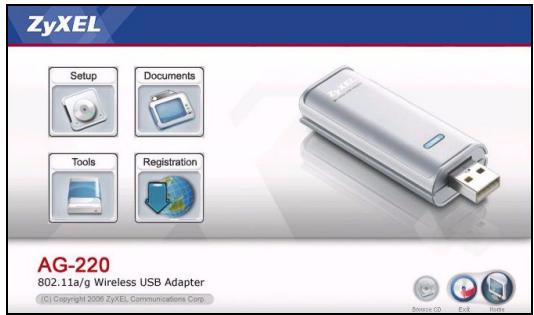
1 Insert the included CD into the CD-ROM drive on your computer. When the following screen displays, click Setup. If the screen does not display, locate and double-click autorun.exe.
2 Select your language and click OK.
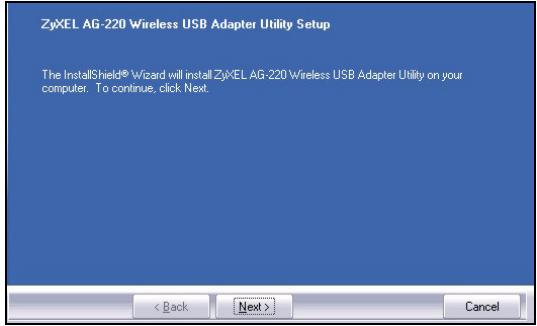
3 The following screen displays. Click Next.
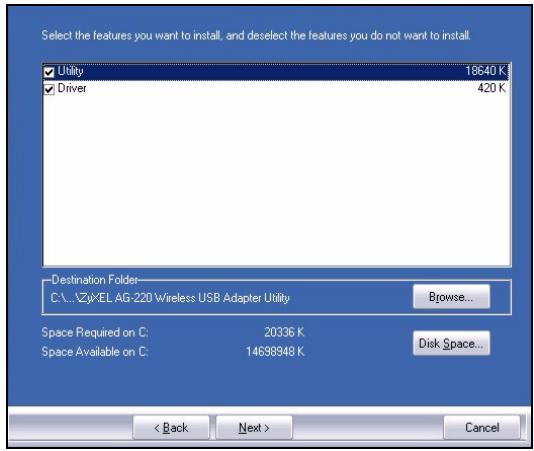
4 Select Driver and Utility to install both ZyXEL utility and driver on your computer. If you want to install the driver only and use Wireless Zero Configuration (WZC) with Windows XP, select Driver only (see Note for Windows XP
Users). Click Next to accept the default file location or click Browse to select an alternate folder.
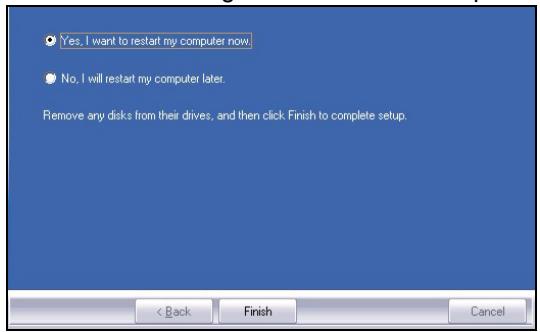
5 You must restart your computer before using the ZyXEL utility. Save your work and close any open programs before restarting. Click Finish to complete the installation.
Hardware Connections
1 Locate an available USB port on the computer.
2 Remove the protective cap to expose the USB connector. Insert the AG-220 into an available USB port on the computer. The AG-220's LINK light turns on if it is properly inserted.
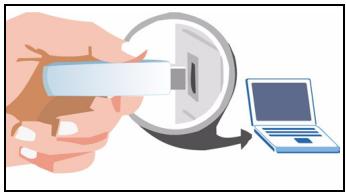
Never bend, twist or force the AG-220 into the port. If there is not enough space to attach the AG-220, use the included USB cable.
ZyXEL Utility Icons
After you install the ZyXEL utility and insert the AG-220, an icon appears in the system tray (typically at the bottom of the desktop). The AG-220 automatically searches for any available network(s) and connects to a wireless network without security enabled.
If the Z icon color is green and/or you see the following icon on your desktop, you are already connected to a wireless network.
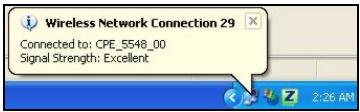
To access the Internet, open your Internet browser and enter the URL of a web site in the address bar.
Address http://www.zyoxel.com
If the icon color is red, you are not connected to a wireless network. See the next section for details on how to manually connect to a network.

Manual Network Connection
If your AG-220 does not automatically connect to a wireless network, you can use the ZyXEL utility to connect manually.
1 Double-click the icon to display the ZyXEL utility Link Info screen.
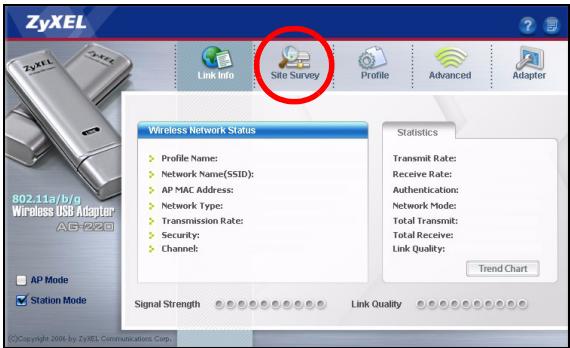
3 The available wireless network(s) displays in the Available Network List. You can click Scan to have the AG-220 search again.
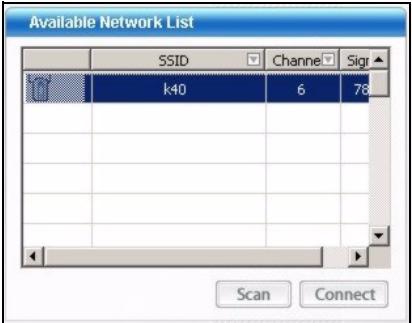
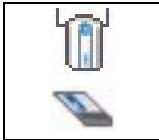
If a wireless network without security is available, one of the following icons appears next to an entry in the list.
If a wireless network with security is available, one of the following icons appears next to an entry in the list.
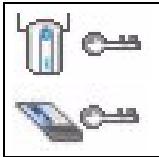
4 To connect to an available network, double-click an entry. If the network has security enabled, you need to know its
settings. Refer to the User's Guide for how to configure security settings.
If no entries appear in the list, there are no available wireless networks within range. See Troubleshooting or the User's Guide for more information.
Note for Windows XP Users
If you want to use WZC, either disable the ZyXEL utility (if you already installed it) or just install the driver.
- To disable the ZyXEL utility, right-click the icon and select Use Windows Zero Configuration. To activate the ZyXEL utility again, double-click the icon and click OK.
- To install the driver only, select Driver only.
Troubleshooting
- If the LINK light on the AG-220 is not on after you have installed the utility and the AG-220, make sure the AG-220 is properly inserted.
- If the icon does not display, uninstall and re-install the utility. See the User's Guide for how to uninstall the utility.
- If your AG-220 does not connect to a wireless network, make sure there is an available wireless network within range (see your User's Guide for more details about the site survey feature). If wireless security is enabled for that network, you need to configure the security settings of your AG-220 (see the User's Guide).
Important Information
Federal Communications Commission (FCC) Interference Statement
The 802.11g Wireless LAN Adapter has been tested to the FCC exposure requirements (Specific Absorption Rate).
The equipment complies with FCC RF radiation exposure limits set forth for an uncontrolled environment, under 47 CFR 2.1093 paragraph (d) (2).
This Transmitter must not be co-located or operating in conjunction with any other antenna or transmitter.
Refer to the User's Guide for general FCC statements.
Procedure to View a Product's Certification(s)
1 Go to www.zyxel.com
2 Select your product from the drop-down list box on the ZyXEL home page to go to that product's page.
3 Select the certification you wish to view from this page.
Uber Ihr AG-220
BkIIOUeHa, Bam Notpe6yETc3HaHHe ee HAcTpoE. IJIa KOHΦnIpynpOBaHnHaCTpoE CNTEmbI 3aIITbI O6paauTeCb K PykoBoDcTBy IJIa NOnIb3ObaTeJIa.
EcnB Cnncke He NOBJIIOCTC BXOdbI, 3TO O3Hauaet, YTO B dnaana3OHe HET DOCTynbIX 6ecnpoBOhIx ceTei. BoJe e npo6hna INΦOpMaunr npuBeDeHa B pa3dene "HeNCpabNocTn" nJIn B PyKOBOcTBe DnI nonb3OBaTeJn.
YcTpaHHe HEnCnPaBHOCTeI
- Ecni nHdiKaTOp LINK (CB3b) Ha aanTepe AG-220 He BkIouaetcnoe Toro, KaBb iHcTaJIInpObaJIn yTnInTu n
aДanTep AG-220, yбeДиTecь в праВиЛьноCTи уСТаНовКИ aДanTepa AG-220.
- Ecπn 3naHcK He oToobpaKaetcT, To DeuHCTaJIpyuTe, a 3aTeM 3aHOBO yCTaHOBnte yTuNtU. CMOTpNTe PykoBoIcTBo NOnb3ObaTeJrIe ONCaHa IpoUeDypa DeuHCTaJIpyuNi yTuNlNTbl.
- Ecni BaW AG-220 He nodkJIOHaeTcK 6ecnpoBOHOcTeN, To y6eIntecb, YTO B npeJeIax paDnUyCa deICTBnA cyueCTByET DOCTUHNa 6ecnpoBOHOHcTeB (CM. DonONHInTeJIbHyIO INΦopMaIIO NO ONPOcy MecTONOLOXeHnB BY PyKOBOCTBe NOnb3OBaTeJIa).EcNI dJIa 3ToI cTeN aKTHINPOBAHa CNTeMa 6ecnpoBOHOH 6e3ONaCHOCTN, TO Bbl DoJIKNbI yCTaHOBtB COOTBeTCTByUOuHe NaCTpOoiKn Ha AG-220 (CM.PyKOBOCTBO NOnb3OBaTeJIa).
- 802.11a/b/g Wireless USB Adapter
- Quick Start Guide
- About Your AG-220
- Installation Requirements
- ZyXEL Utility Installation
- The following screen displays. Click Next.
- Hardware Connections
- ZyXEL Utility Icons
- Manual Network Connection
- Note for Windows XP Users
- Troubleshooting
- Important Information
- Federal Communications Commission (FCC) Interference Statement
- Procedure to View a Product's Certification(s)
- Uber Ihr AG-220
- YcTpaHHe HEnCnPaBHOCTeI
Brand : ZYXEL
Model : AG-220
Category : Wireless Access Point