OKI ML 420 - Dot Matrix Printer

ML 420 - Dot Matrix Printer OKI - Free user manual and instructions

Find the device manual for free ML 420 OKI in PDF.

📄 28 pages English EN Download 💬 AI Question 10 questions ⚙️ Specs
Notice OKI ML 420 - page 3
View the manual : Français FR English EN Español ES Português PT
Pick your language and provide your email: we'll send you a specifically translated version.
Product type Dot matrix printer
Brand OKI
Model ML 420
Print technology Impact dot matrix (needles)
Print resolution Up to 360 x 360 dpi
Print speed Approximately 600 cps (characters per second) in draft mode
Paper format Continuous paper (tractor) and single sheets
Interface Parallel (Centronics), serial (RS-232C), optional OkiLAN 6130 network
Dimensions (W x D x H) Approximately 480 x 370 x 250 mm
Weight Approximately 11 kg
Power supply 220-240 V, 50/60 Hz
Power consumption Approximately 80 W printing, 15 W standby
Main functions Printing forms, labels, slips, reports
Maintenance and cleaning Clean the print head regularly, replace the ink ribbon
Safety Unplug before any intervention, avoid humidity
Spare parts and repairability Print head, ink ribbon, ribbon cartridge, mechanical parts available
General information User manual available in multiple languages, online support

Frequently Asked Questions - ML 420 OKI

How to install the OkiLAN 6130 network card on my OKI ML 420 printer?
Turn off the printer, unplug the power cord and interface cable. Remove the knockout panel near the interface connector. Slide the OkiLAN 6130 card onto the rails until it is fully inserted. Connect the UTP cable, then reconnect the power and turn on the printer.
How to configure the IP address of the OKI ML 420 printer via the ExtendView utility?
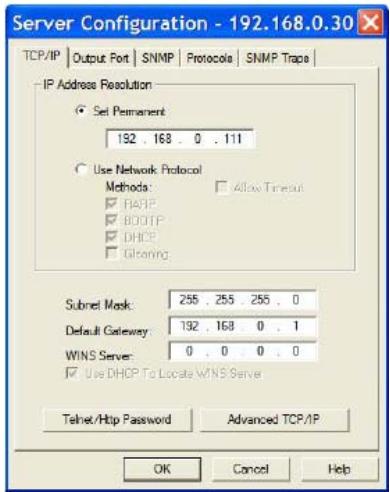
Download and install the ExtendView utility from the OKI website. Launch the application, select the device in the list, then choose 'Configuration'. In the TCP/IP tab, choose 'Set Permanent' and enter the IP address, subnet mask, and gateway. Click OK to save.
How to print a configuration sheet of the printer?
Press the 'Test' button located on the front panel of the OkiLAN 6130 print server. A configuration sheet prints automatically with network settings and system information.
How to reset the OKI ML 420 printer to factory settings?
Turn off the printer, then turn it back on. Wait about 30 seconds for the server to start. Press and hold the 'Test' button for 20 seconds until the LEDs blink, then release. The network card restarts with default settings.
What type of ink ribbon is compatible with the OKI ML 420?
Use an OKI 43000022 ink ribbon or equivalent. It comes as a cartridge that is easy to replace.
How to clean the print head of the OKI ML 420?
Turn off the printer and unplug it. Wait for it to cool down. Gently clean the print head with a lint-free cloth slightly dampened with isopropyl alcohol. Avoid touching the needles directly.
The printer does not print: what to check?
Check that the printer is powered on, the interface cable is properly connected, and the paper is correctly loaded. Also ensure there is no paper jam and that the ink ribbon is not worn out.
How to install the print driver for the OKI ML 420?
Download the driver from the OKI Data website (www.okidata.com) or use the provided CD. Start the installation. When prompted for the printer's IP address, select 'IP Address' and enter the configured address, then follow the instructions.
The printer prints strange or illegible characters, what to do?
Check that the print driver matches the model and connection (parallel, serial, or network). Ensure the emulation settings are correct (e.g., Epson FX, IBM Proprinter). Restart the printer and PC.
How to configure the IP address via the server's built-in web page?
Open a web browser and enter the current IP address of the print server (obtained by holding the Test button for 5 seconds). Log in with username 'admin' and password 'OkiLAN'. Go to TCP/IP, choose 'Set Permanent', modify addresses if necessary, then click 'Submit Changes'.

User questions about ML 420 OKI

0 question about this device. Answer the ones you know or ask your own.

Ask a new question about this device

The email remains private: it is only used to notify you if someone responds to your question.

No questions yet. Be the first to ask one.

Download the instructions for your Dot Matrix Printer in PDF format for free! Find your manual ML 420 - OKI and take your electronic device back in hand. On this page are published all the documents necessary for the use of your device. ML 420 by OKI.

USER MANUAL ML 420 OKI

OkiLAN 6130 Network Card Installation .... 3

OkiLAN 6130 Network Card Installation

The OkiLAN 6130 Print Server enables Ethernet network users to connect to a network-configured printer. It supports 10/100-megabit networks, TCP/IP Direct Printing and Server-Based Printing.

Note: The OkiLan 6130 can only be used because it is not a parallel cable being connected.

Installing the OkiLAN 6130 Network Card

  1. Turn off printer power.
  2. Unplug the power cord.
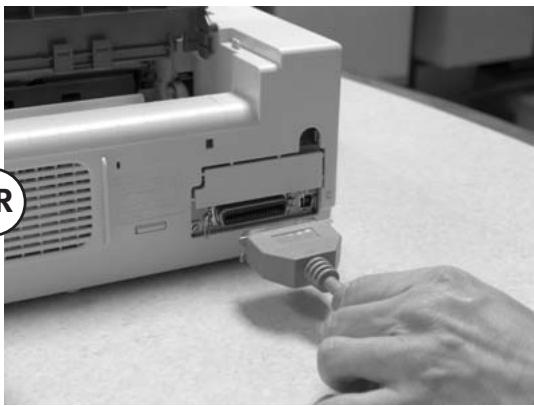
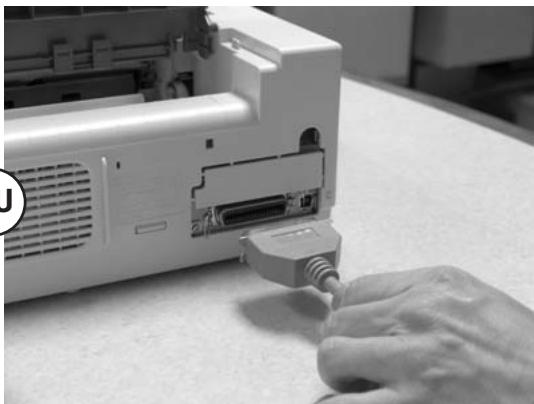
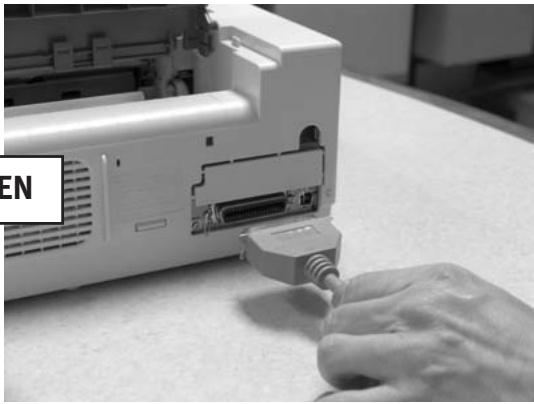
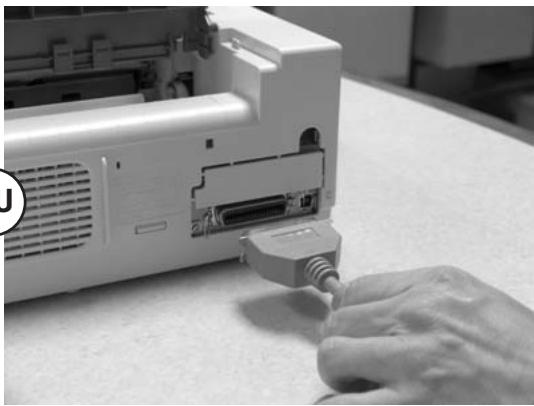
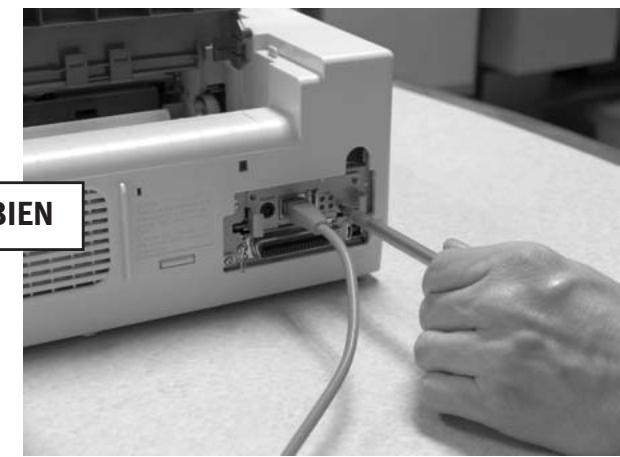
  3. Detach the interface cable from the rear of the printer.
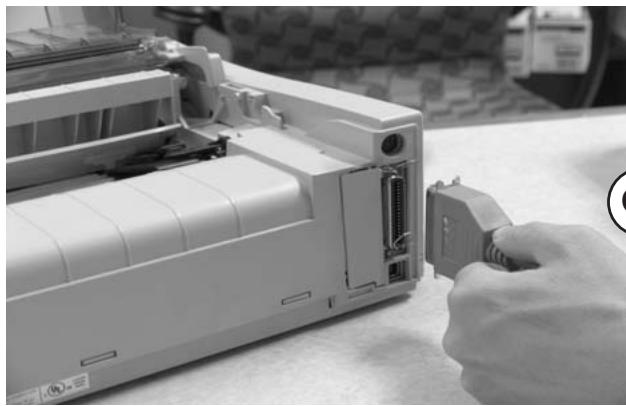
OKI ML 420 - Installing the OkiLAN 6130 Network Card - 1

natural_image Close-up of a hand inserting a plastic component into a white industrial machine casing (no visible text or symbols)

OR
OKI ML 420 - Installing the OkiLAN 6130 Network Card - 2

natural_image Close-up of a hand inserting a USB into a computer monitor (no visible text or symbols)
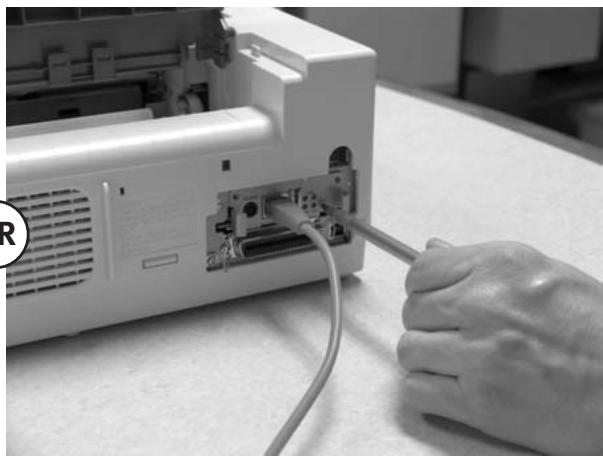
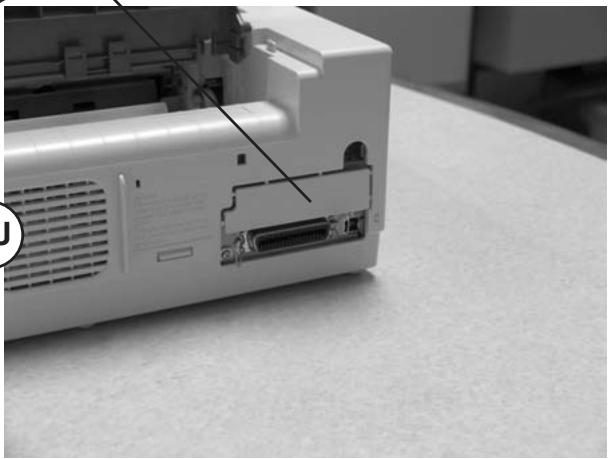
  1. Pry off the breakaway panel next to the interface connector with a screwdriver
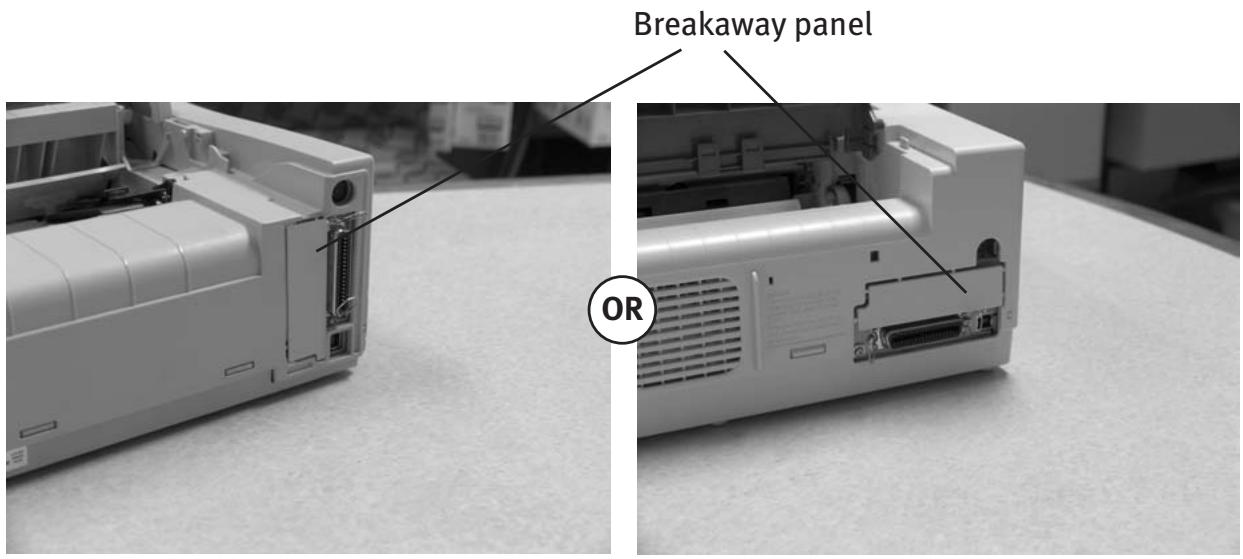
Breakaway panel OR

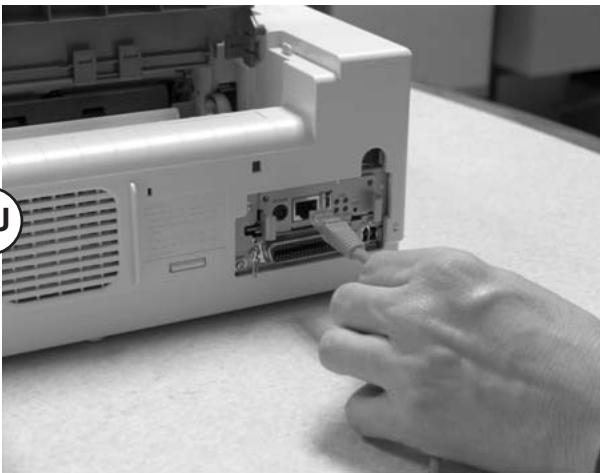
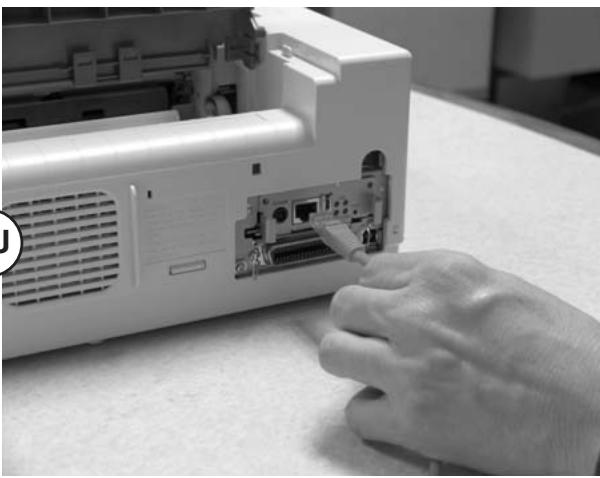
  1. Insert the OkiLAN 6130 by sliding it along the rails in the recess of the printer, until it is plugged into the socket in the rear of the recess.
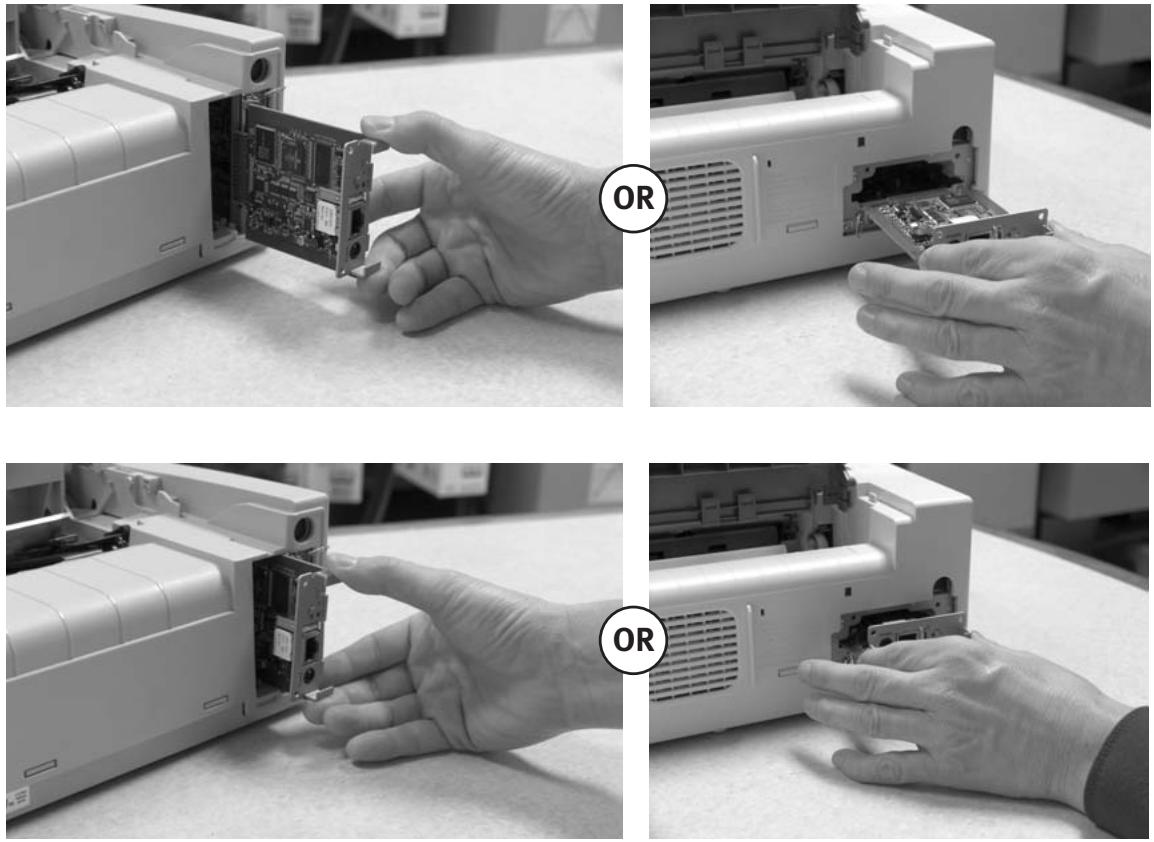
OKI ML 420 - Installing the OkiLAN 6130 Network Card - 4

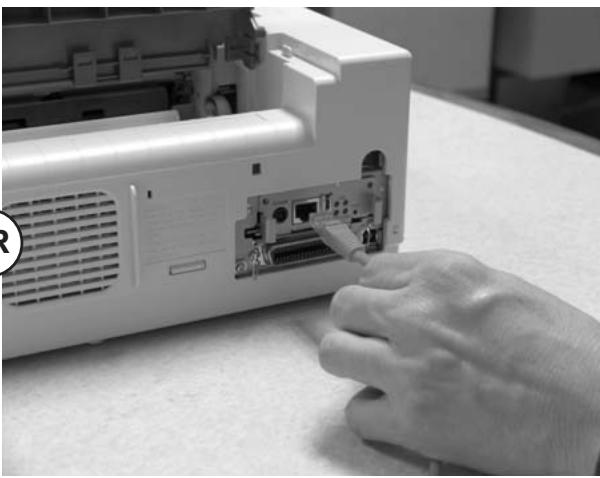
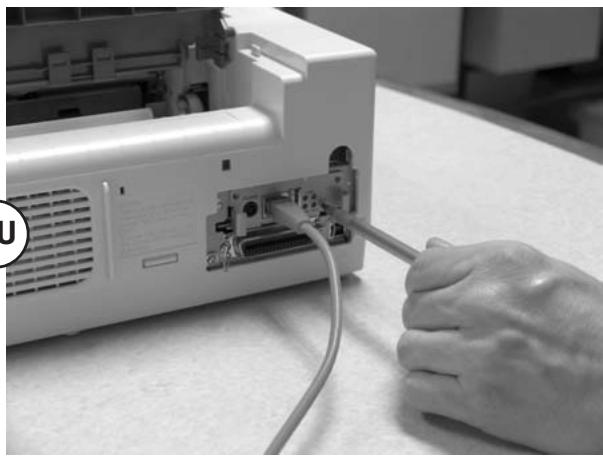
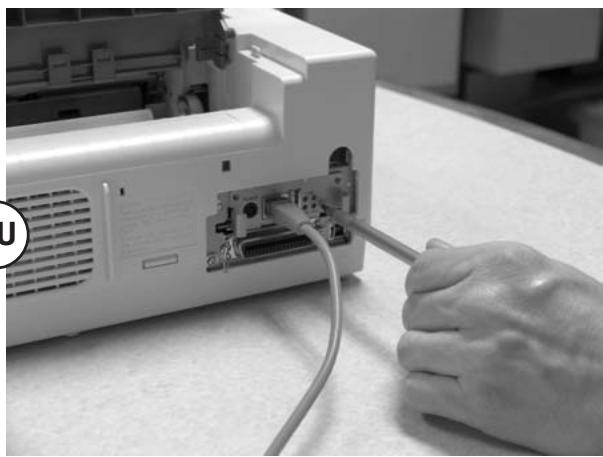
  1. Attach the 10/100Base-T UTP cable to the receptacle on the back of the OkiLAN 6130. Attach the other end of the cable to the Network.
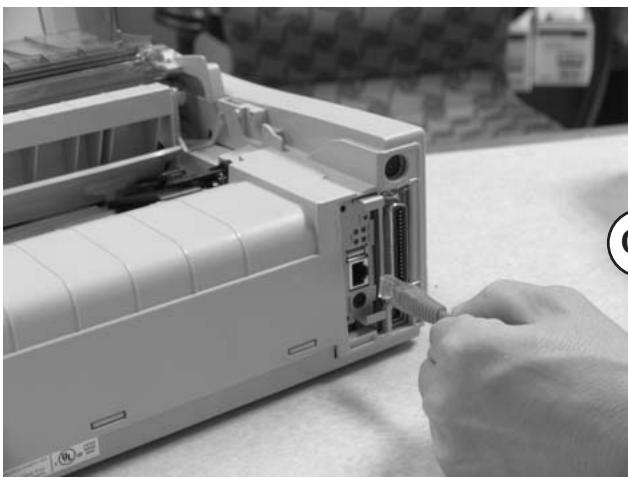
OKI ML 420 - Installing the OkiLAN 6130 Network Card - 5

natural_image Close-up of a hand inserting a cable into a white portable printer casing (no visible text or symbols)

OR
OKI ML 420 - Installing the OkiLAN 6130 Network Card - 6

natural_image Close-up of a hand inserting a CD into a portable electronic device (no visible text or symbols)
  1. Plug the power cord into the power outlet (if provided).

Powering On the OkiLAN 6130

Turn printer power on. The red and green indicators on the OkiLAN 6130 blink during self-test. When self-test completes successfully, the red indicator goes off and the green indicator stays on.
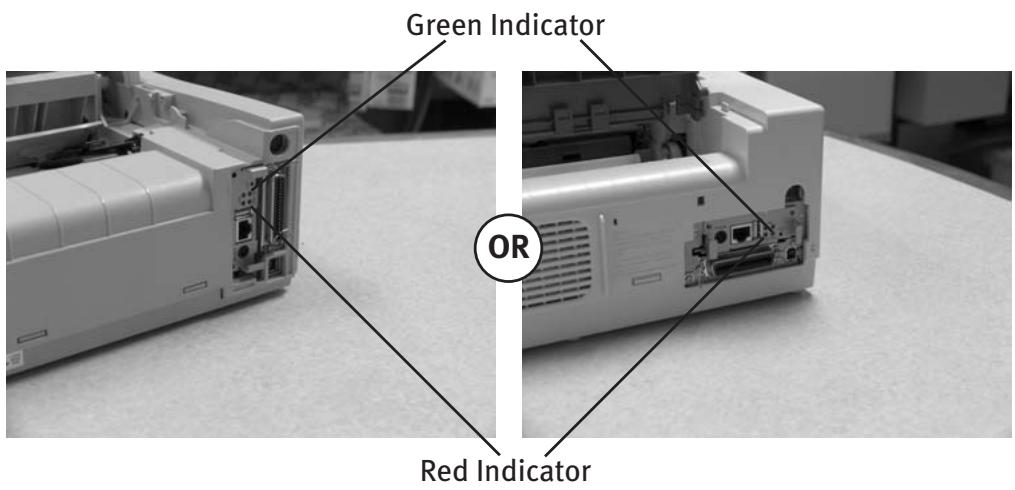
Green Indicator OR Red Indicator

Printing a Configuration Sheet

To print configuration information, press and hold the Test button on the front of the OkiLAN 6130 for five seconds.
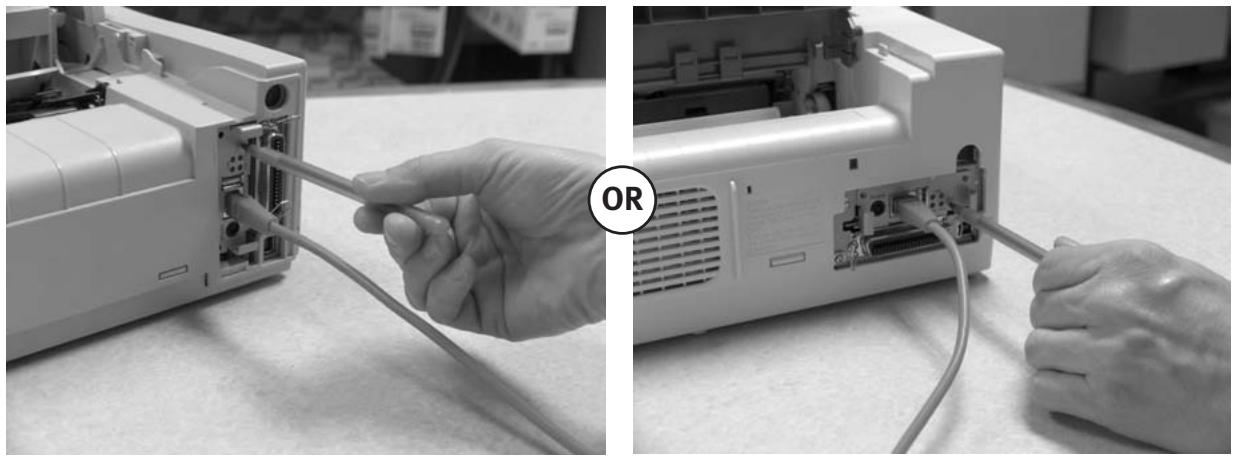
OKI ML 420 - Printing a Configuration Sheet - 1

natural_image Two-panel black-and-white photo showing hands connecting cables to a device (no visible text or symbols)

Note: By default, the configuration sheet prints in ASCII text.
The content of the configuration sheet depends on your printer and system setup.

Configuring Your Print Server

Using OKI's ExtendView Utility to Configure Your IP Address

First, download the ExtendView utility from OKI Data's website at http://www.okidata.com – navigate to the page for your specific product, then click on Drivers, then Utilities, to locate the software.

Next, install the ExtendView utility and launch the application.

  1. In the ExtendView utility, highlight the device you are going to configure.
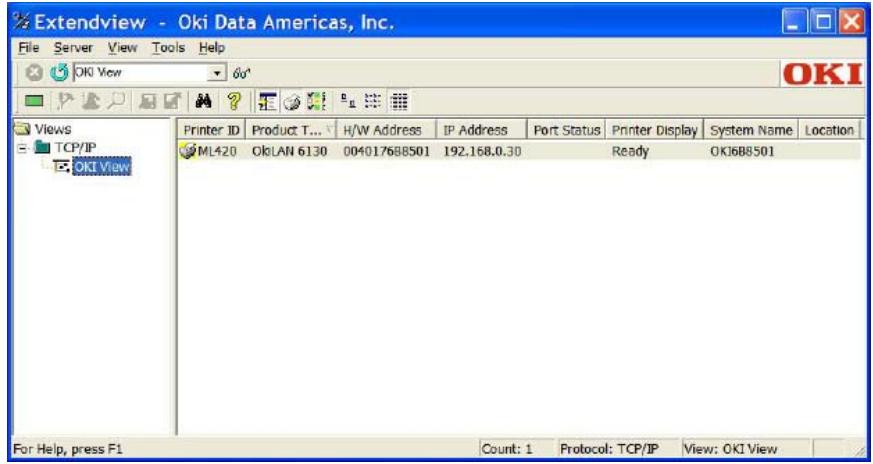
Extendview - Oki Data Americas, Inc. File Server View Tools Help OKI View 60° OKI Views TCP/IP OKI View Printer ID Product T... H/W Address IP Address Port Status Printer Display System Name Location ML420 OkLAN 6130 004017688501 192.168.0.30 Ready OKJ6B8501 For Help, press F1 Count: 1 Protocol: TCP/IP View: OKI View

  1. Choose the configuration option from the dropdown menu.
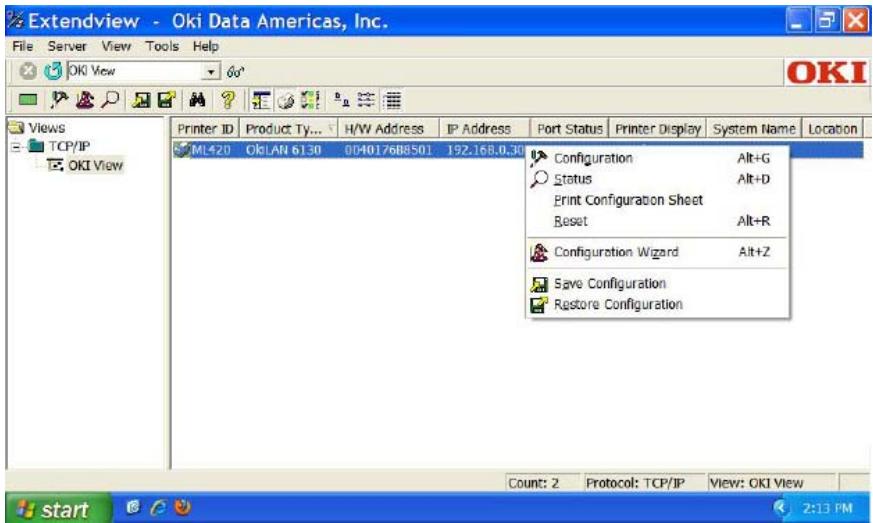
Extendview - Oki Data Americas, Inc. File Server View Tools Help OKI View 60° OKI Views TCP/IP OKI View Printer ID Product Ty... H/W Address IP Address Port Status Printer Display System Name Location ML420 OkLAN 6130 004017689501 192.168.0.30 Configuration Alt+G Status Alt+D Print Configuration Sheet Reset Alt+R Configuration Wizard Alt+Z Save Configuration Restore Configuration Count: 2 Protocol: TCP/IP View: OKI View start 2:13 PM

Server Configuration - 192.168.0.30 TCP/IP | Output Port | SNMP | Protocola | SNMP Traps | IP Address Resolution ● Set Permanent 192 . 168 . 0 . 111 ○ Use Network Protocol Methods: ✓ BAPP ✓ BOOTP ✓ DHCP □ Glazing Subnet Mask: 255 . 255 . 255 . 0 Default Gateway: 192 . 168 . 0 . 1 WINS Server: 0 . 0 . 0 . 0 ✓ Use DHCP To Locate WINS Server Telnet/Http Password Advanced TCP/IP OK Cancel Help

  1. From the Server Configuration box, click Set Permanent. Then, if you wish to change the IP address, Subnet Mask and Default Gateway, you may do so.

When the desired options have been set, click OK. The Print Server will automatically be reset at this point, and your options will have been saved.

(If you have network configuration questions, please contact your network administrator.)

Proceed to the instructions for Installing Your Driver.

Using Your Print Server's Built-In Web Page to Configure Your IP Address (Alternate Method)

First, open your browser. Then, type the IP address of your Print Server into the browser's address bar. (If the IP address is unknown, you can obtain it by pressing and holding the Test Button on the front of the OkiLAN 6130 for five seconds)
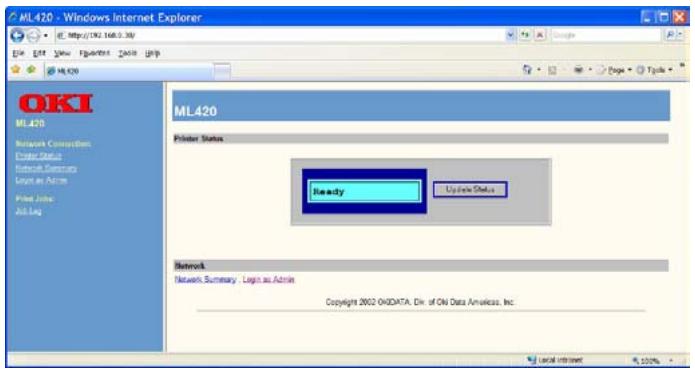
ML420 - Windows Internet Explorer File Edit View Printout Tools Help OKI ML420 Network Connection Chapter Status Network Summary Logis as Admin Print Jobs Add Log ML420 Printer Status Ready Update Status Network Network Summary: Logs as Admin Copyright 2002 OKDATA, Div. of On Data Analytics, Inc. Local Invert 100%

1. Log into the Print Server as Admin. (Username: admin Password: OkiLAN)
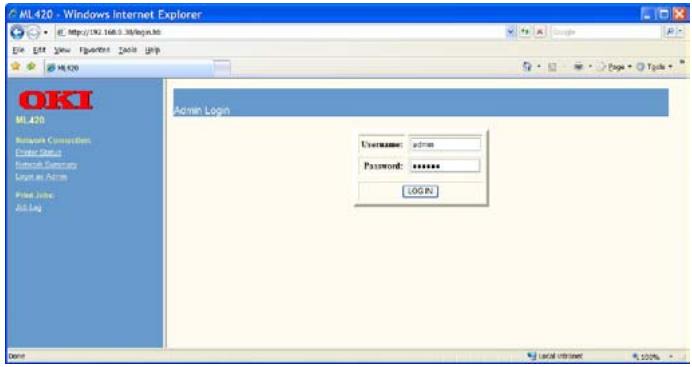
ML420 - Windows Internet Explorer OKI ML420 Login Username: admin Password: ******** LOGIN Name: local internet 100%

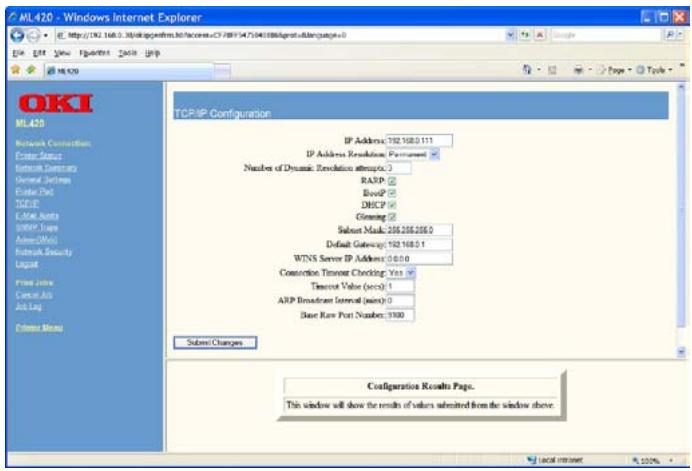
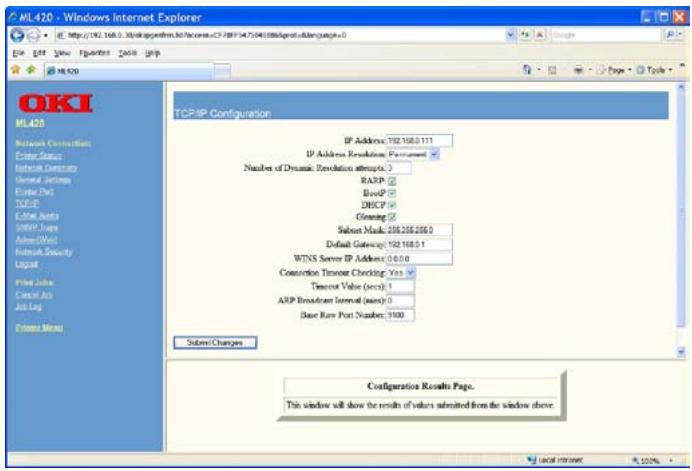
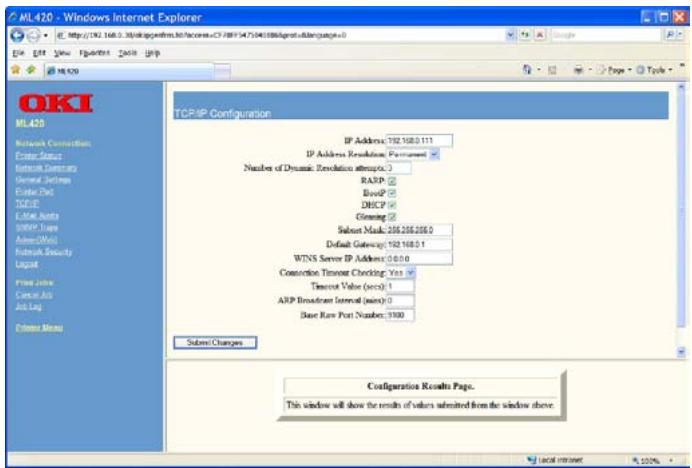
2. Select the TCP/IP option from the Network Connection menu to launch the TCP/IP Configuration menu.
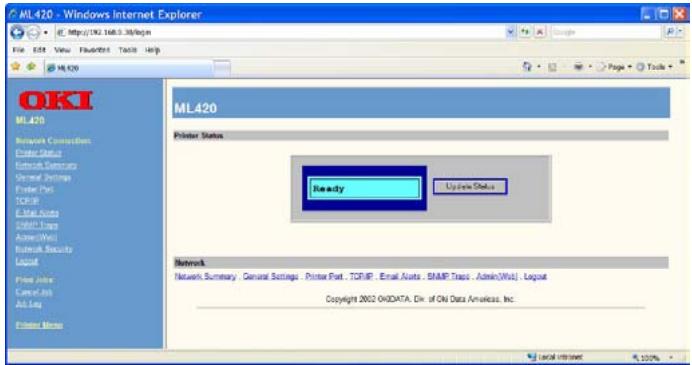
ML420 - Windows Internet Explorer File Edit View Refresh Tools Help OKI ML420 Network Connection Printer Status Network Summary General Settings Printer Part TCP/IP E-mail Address ADMIN Traps Admin(WS) Logout Printer John General Job Adj Leg Printer Manager ML420 Printer Status Ready Update Status Network Network Summary General Settings Printer Part TCP/IP Email Assets SNMP Traps Admin(WS) Logout Copyright 2002 OKDATA, Div. of Oni Data Analytics, Inc. Local Intranet 100%

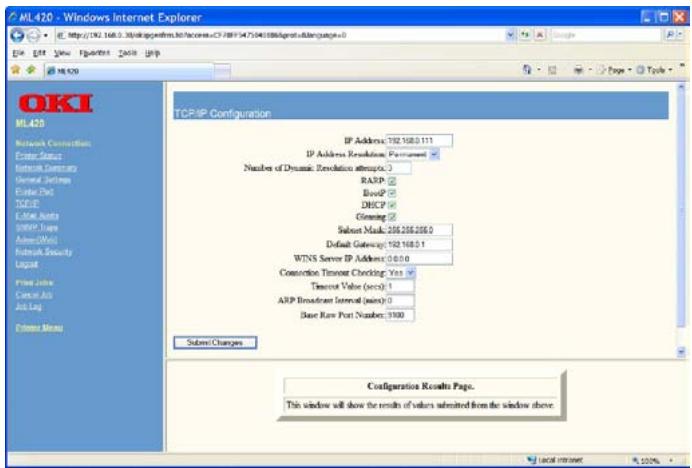
ML420 - Windows Internet Explorer http://192.168.3.Wallogepimer.hk/acces.c3/19815475041086logreats.dsnvtpaange=0 File Edit View Help Book Help OKI ML420 Network Connection Center Data Network Connections General Bus Enter Port TCP/IP E-View Audio 2000P Apps Audio/Well Network Security Logat Print Job Current Job Job Log Chrome Menu TCP/IP Configuration IP Address: 192.168.0.111 IP Address Resolution: 100mm Number of Dynamic Devolution attempts: RARP BoolP DWCP Glening Subnet Mask: 206.206.206.0 Default Gateway: 192.168.0.1 WINS Server IP Address: 0.0.0.0 Connection Timeout Checking: Yes Timeout Value (secs): 1 ARP Broadset Interval (mins): 0 Base Raw Port Number: 3100 Subnet Changes Configuration Results Page. This window will show the results of values submitted from the window above. Local Review 100%

  1. From the TCP/IP Configuration Menu, click Set Permanent under the IP Address Resolution option. Then, if you wish to change the IP address, Subnet Mask and Default Gateway, you may do so.

When the desired options have been set, click Submit Changes. The Print Server will automatically be reset at this point, and your options will have been saved.

(If you have network configuration questions, please contact your network administrator.)

Proceed to the instructions for Installing Your Driver.

Installing Your Driver

From the CD or OKI Data website - follow the installation instructions.

Entering the Printer IP Address

While installing the printer driver for TCP/IP using the CD supplied with your printer.

When you come to the screen requesting the IP Address for the printer, you must select “IP Address” (instead of the default “Search address”) and type in the printer’s IP Address before clicking Next. If you need help, please contact your Network Administrator for the IP Address to use.
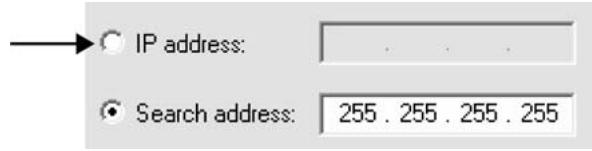
IP address: Search address: 255.255.255.255

LPR

Make sure there are no error conditions in the printer (e.g., paper jam) before you use LPR to discover the printer. The product driver utility is available from OKI Data's website at http://www.okidata.com

Resetting to Factory Defaults

  1. Turn off the printer.
  2. Turn on the printer and wait for the print server to boot up (about 30 seconds).
  3. Press and hold the Test button on the front of the OkiLAN 6130 for 20 seconds. The lights will flash briefly after releasing the button, then the card will reset.

Note: Your printer may look like either example below.
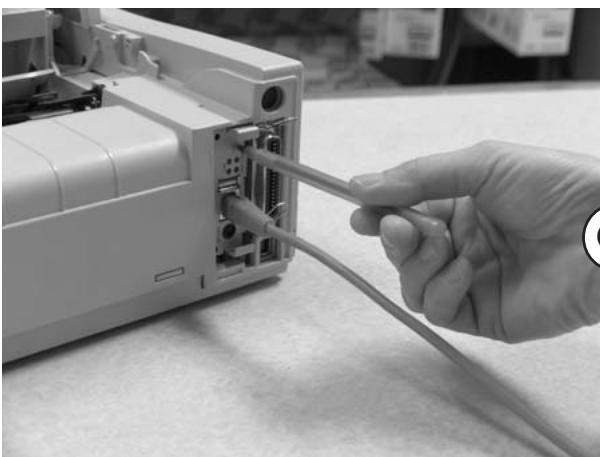
OKI ML 420 - Resetting to Factory Defaults - 1

natural_image Hand inserting cables into a device casing (no visible text or symbols)

OR
OKI ML 420 - Resetting to Factory Defaults - 2

natural_image Close-up of hands inserting cables into a portable electronic device (no visible text or symbols)
  1. Release the TEST button.

The print server resets to the factory default settings and reboots.

natural_image Close-up of a hand inserting a plastic component into a white industrial machine (no visible text or symbols)

OU
OKI ML 420 - Resetting to Factory Defaults - 3

natural_image Close-up of a hand inserting a USB into a computer monitor (no visible text or symbols)
natural_image Close-up of a white electronic device casing with internal components and a cable inserted, showing no visible text or symbols.

OU

OKI ML 420 - Resetting to Factory Defaults - 4

natural_image Close-up of a white electronic device with an attached port and cable, showing internal components and a DNA tag (no visible text or symbols)
natural_image Close-up of a hand inserting a cable into a white portable printer casing (no visible text or symbols)

OU
OKI ML 420 - Resetting to Factory Defaults - 5

natural_image Hand inserting a CD into an open computer monitor (no visible text or labels)
natural_image Two-panel black-and-white photo showing hands connecting cables to an open electronic device (no visible text or symbols)
ML420 - Windows Internet Explorer http://192.168.3.35/sksp.com.cn/027-08F54750401886@msu.edu/pcnpage=0 File Edit View Format Help Tools Help OKI ML420 Network Connection Center Status Network Connections General Connection Enter Port TCP/IP E:\New Anti SNRIP, Maps AmeriMail Ratiosch Security Logit Free Jobw Catal Aio Job Log Chrome Menu TCP/IP Configuration IP Address: 192.168.0.111 IP Address Resolution: Postressed Number of Dynamic Deviation attempts: BARP BNDP DNSP Glening Subset Mask: 205.205.205.0 Default Gateway: 192.168.0.1 WINS Server IP Address: 0.0.0.0 Connection Timeout Checking: Yes Timeout Value (secs): 1 ARP Broadnet Interval (mins): 0 Base Raw Port Number: 1900 Subset Changes Configuration Results Page. This window will show the results of values submitted from the window above. Local Review: 100%

LPR

natural_image Hand inserting cables into a device casing (no visible text or symbols)

OU
OKI ML 420 - LPR - 1

natural_image Close-up of hands inserting cables into a portable electronic device (no visible text or symbols)
natural_image Close-up of a hand inserting a component into a white industrial machine casing (no visible text or symbols)

O BIEN
OKI ML 420 - LPR - 2

natural_image Close-up of a hand inserting a USB into a computer monitor (no visible text or symbols)
ML420 - Windows Internet Explorer http://192.168.3.38/sklogepimer.hk/acces.c/CF/RF/S475041086/greats&dlartag page=0 OKI ML420 Network Connection Enter States Network Connections General Connection Enter Plus TCP/IP E-View Active SOPR, Maps Ameri/Wis Network Security Logat Free Jobw Consult Adv Add Log Complete Menu TCP/IP Configuration IP Address: 192.168.0.111 IP Address Resolution: Partialated Number of Dynamic Deviation attempts: BASP BusP DNSP Glening Subset Mask: 205.205.205.0 Default Gateway: 192.168.0.1 WINS Server IP Address: 0.0.0.0 Connection Timeout Checking: Yes Timeout Value (secs): 1 ARP Broadset Interval (mins): 0 Base Raw Port Number: 3100 Subsea Changes Configuration Results Page. This window will show the results of values submitted from the window above. Local browser: 100%

LPR

natural_image Hand inserting cables into a device casing (no visible text or symbols)
OKI ML 420 - LPR - 1

natural_image Close-up of hands inserting a cable into a computer monitor (no visible text or symbols)
natural_image Close-up of a hand inserting a plastic component into an open air conditioner unit (no visible text or symbols)

OU
OKI ML 420 - LPR - 2

natural_image Close-up of a hand inserting a USB into a computer monitor (no visible text or symbols)
natural_image Close-up of a hand inserting a cable into a white industrial machine component (no visible text or symbols)

OU
OKI ML 420 - LPR - 3

natural_image Close-up of a hand inserting a CD into a computer monitor (no visible text or labels)
natural_image Two-panel black-and-white photo showing hands connecting cables to an open electronic device (no visible text or symbols)
ML420 - Windows Internet Explorer OKI ML420 Network Connection Power Supply Network Security General Settings Edit Date TCP/IP E-mail Auto WINP, Data Admin/Admin Network Security Logat Print Job Control Bus Auto Log Chrome Menu TCP/IP Configuration IP Address: 192.168.0.111 IP Address Resolution: Partial Number of Dynamic Resolution attempts: 3 RARP Board? DRCP Gaining Subset Mask: 205.205.205.0 Default Gateway: 192.168.0.1 WINS Server IP Address: 0.0.0.0 Construction Timeout Checking: Yes Timeout Value (secs): 1 ARP Broadset Interval (mins): 0 Base Raw Port Number: 3100 Subsea Changes Configuration Results Page. This window will show the results of values submitted from the window above.

LPR

natural_image Hand inserting cables into a device casing (no visible text or symbols)

OU
OKI ML 420 - LPR - 1

natural_image Close-up of hands inserting a cable into a computer monitor (no visible text or symbols)
  1. Solte o botão TEST.
Manual assistant
Powered by Anthropic
Waiting for your message
Product information

Brand : OKI

Model : ML 420

Category : Dot Matrix Printer