
EA2700 - Wireless Router LINKSYS - Free user manual and instructions
Find the device manual for free EA2700 LINKSYS in PDF.



| Product type | Wireless router |
| Brand | LINKSYS |
| Model | EA2700 |
| Wireless standards | 802.11n, 802.11a, 802.11g, 802.11b |
| Frequency bands | Dual band 2.4 GHz and 5 GHz |
| Maximum speed | N600 (up to 600 Mbps) |
| Ports | 4 Gigabit Ethernet ports (10/100/1000) + 1 Internet port |
| Antennas | 4 internal antennas (2 per band) |
| Power | 12 V, 1 A (power adapter included) |
| Dimensions (W x D x H) | 174 x 190 x 28 mm |
| Weight | 297.7 g |
| Wireless security | WEP, WPA, WPA2 (encryption up to 128 bits) |
| Buttons | Reset, Wi-Fi Protected Setup (WPS) |
| LEDs | Power |
| Management software | Cisco Connect (included), web utility (192.168.1.1) |
| Operating temperature | 0°C to 40°C |
| Operating humidity | 10 to 80% (non-condensing) |
| Maintenance and cleaning | Unplug the router before cleaning. Use a soft, dry cloth for the exterior. Do not use chemical products. |
| Spare parts and repairability | No user-serviceable parts. In case of failure, contact technical support or a professional. |
Frequently Asked Questions - EA2700 LINKSYS
User questions about EA2700 LINKSYS
0 question about this device. Answer the ones you know or ask your own.
Ask a new question about this device
Download the instructions for your Wireless Router in PDF format for free! Find your manual EA2700 - LINKSYS and take your electronic device back in hand. On this page are published all the documents necessary for the use of your device. EA2700 by LINKSYS.
USER MANUAL EA2700 LINKSYS
11 (Windows XP Service Pack 3) Get Windows XP Service Pack 3
12 (Joo) Your Internet cable is not plugged in
13
14 (jLJ/ j, eJ/ a, J) Device not found
#
16 Linksys EA2700
17 Linksys EA3500
18 Linksys EA4500
Jg
1 EA2700/EA3500
1
1
2 EA4500
2
2
EA-Series
3
3
3 Cisco Connect
3 Cisco Connect
3
P
4
5 (wLx)Basic Setup <(x) Setup
5 (A) Language
5 (Internet Setup
6
Jl Jll Jll Jll Jll Jll Jll Jll Jll Jll Jll Jll Jll Jll Jll Jll Jll Jll Jll Jll Jll Jll Jll Jll Jll Jll Jll Jll Jll Jll Jll Jll Jll Jll Jll Jll Jll Jll Jll Jll Jll Jll Jll Jll Jll Jll Jll Jll Jll Jll Jll Jell
aaii iig jnnaaia Jll Jll aib Jgno Jusogiy a-aaLJI
.
4.11
aagai gai jai jai jai X! pss
JJJ (JJJ) | Jc Jc-2aJbJ j
aIwIgJ1
Laliso 10
15 5 dJ Lc JyBj- (nll ) Reset j
42345678901234567890123456789012345678901234567890123456789012345678901234567890123456789012345678901234567890
.
iiie 1c aolc oj
EA2700/EA3500
a1sJ1 aGJ1 2c
Laliso: jolssllgogjglg 2
JcI JI JI JI JI JI JI JI JI JI JI JI JI JI JI JI JI JI JI JI JI JI JI JI JI JI JI JI JI JI JI JI JI JI JI JI JI JI JI JI JI JI JI JI JI JI JI JI JI JI JI
Lle (Lai aS,111) Ethernet 5.5 Lg -Ethernet Lio .
iJL jS Eternet 1s Jsuio - (j) Internet .
Lc alg y LwUJn LgS:J JI 1c Jbi-1-Wi-Fi aiaa aal aai j
LcLogLJI no Jy Li JGuau. Wi-Fi aiaaa yaoaall Lg-fn Saaill ayj
8 aaasll g" LwUJn LoJ"
a1s11 a8-11 2c
LLei (L) Eneret -Ethernet Lio .A.11111111111111111111111111111111111111111111
1g (L) Cjgl aS Jl S Gwse) Ethernet Js S Lggi - (Cjll) Internet jia 1
Ic alg y LwUJ Loj j Jl Ic bai-Wi-Fi aiaa y all dC 1
Lc LogLeJI no Jy Li JGwU. Wi-Fi aiaa y all dC 1 Lg 8 axuJy"SLwUJLoj
IgA<1IgCnJnJnJnJnJnJnJnJnJnJnJnJnJnJnJnJnJnJnJnJnJnJnJnJnJnJnJnJnJnJnJnJnJnJnJnJnJnJnJnJnJnJnJnJnJnJnJnJnJnJn
15 5 5 5 5 5 5 5 5 5 5 5 5 5 5 5 5 5 5 5 5 5 5 5 5 5 5 5 5 5 5 5 5 5 5 5 5 5 5 5 5 5 5 5 5 5 5 5 5 5 5
4 - 2r9 = 3
aJgJgJgJgJgJgJgJgJgJgJgJgJgJgJgJgJgJgJgJgJgJgJgJgJgJgJgJgJgJgJgJgJgJgJgJgJgJgJgJgJgJgJgJgJgJgJgJgJgJgJ
A-gJJJ()|LcI-2JIJJ
EA4500
aegell aee
(Lynsys Set up your Linksys Router 2
:1
Jggs Jggs Jggs Jggs Jggs Jggs Jggs Jggs Jggs Jggs Jggs Jggs Jggs Jggs Jggs Jggs Jggs Jggs Jggs Jggs Jggs Jggs Jggs Jggs Jggs Jggs Jggs Jggs Jggs Jggs Jggs Jggs Jggs Jggs J
.(1) Setup j0g abgs.
C haw lgc gaoaall yaoai jaojgao Iogoo Jia jaiil .Mac Jia wll pkaill aill
(1) Setup jgjg
aagaiI 1JLo5X aLulUlc yjy jUcLeij .3
Cisco Connect
Ciscocnccs ciscocncc
jio aJgGwA
Ggll 3x Cisco Connect lclc Ldae Jy jj0000
.
+ = 2
JoljL JJJ 1000000000000000000000000000000000000000000
Linksys.com/support
Paaal jgSll
a128 a1wJJI a0laJI ci 1. (gfo) OK gfo jai Jao Jyogol JaoLg poJwOJI qoi JooJI .2
L
aLg pssuill Gsul .Cisco Connect plasilw nns 4gJl sblc 13j .admin gJyJyJn JsuLJn JyJyJy
alSg pssimall aag clls G Cisco Connect Cdoosimil
Router settings g Cisco Connect Lg Cg yg s yg
(Net) Internet Setup
e 15 Jg aJn Jcog. lcl ci jll Jlaia Iaag gagg (ci jil) /acj) Internet Setup, oai o
(1)Internet Connection Type
JLJI
(DHCP - L) Automatic Configuration - DHCP
(IP)Static IP
PPPoE
PPTP
L2TP
Bridge Mode
(DHCP - L) Automatic Configuration - DHCP
Jg (DHCP - g) Automatic Configuration - DHCP g g JLaJg aee Joltei jy dnnn n 1s 1s 1s 1s 1s 1s 1s 1s 1s 1s 1s 1s 1s 1s 1s 1s 1s 1s 1s 1s 1s 1s 1s 1s 1s 1s 1s 1s 1s 1s 1s 1s 1s 1s
(IP)Static IP
IP) Static IP
PPPoE
JgSgjRpsuus Ls1Lao gas .DSL JLaJ Ls1. PPPoE . (PPPoE) Ethernet
(Lw)Basic Setup<(A) Setup
Jolal 11 J 11 11 11 11 11 11 11 11 11 11 11 11 11 11 11 11 11 11 11 11 11 11 11 11 11 11 1
(1) Wireless Settings < (2) Wireless
( _1w( Lw) ^2 + _2w( Lw) ^2)
aLulolgcl aieo a.sLwUaS.1uLWU
ab = 16
LwUulolc!
a<1w>1
Lolaoieewj 4sLswJLeJ (as) Network Mode
2.4) N- 品 _ 一 ^ LwUaS aS aS aS aS aS 13 (bLio) Mixed . (Jia) Mixed .
aLJJJL aL JJJJJJJJJJJJJJJJJJJJJJJJJJJJJJJJJJJJJJJJJJJJJJJJJJJJJJJJJJJJJJJJJJJJJJJJJJJJJJJJJJJJJJJJJJJJJJJJJJJJJJJJJJJJJJJJJJJJJJJJJJJJJJJJJJJJJJJJJJJJJJJJJJJJJJJJJJJJJJJJJJJJJJJJJJJJJJJJJJJJJJJJJJJJJJJJJJJJJJJJJjj
Wireless-B/G Only 12 2.4 ssj) G- ·· U·· U (B/G- ·· U·· U
B- ≤ LwLJ aS. wJ pacj o j 1Lai c s l; (Bae B-aaLwLJ aS. WJI) Wireless-B Only .(Bae B-aaLwLJ aS. WJI) Wireless-B Only
G-4<1wUJ 4<1wU J a j gj Lai c s l; (Ja G-4<1wUJ 4<1wJ) Wireless-G Only . (Ja G-4<1wUJ 4<1wJ) Wireless-G Only
N-aa<1wUJ a<,JJ a<,JJ a<,JJ 1; (JaN-aa<1wUJ a<,JJ) Wireless-N Only .(JaN-aa<1wUJ a<,JJ) Wireless-N Only. Jaee (jzL2.4
G- 一 _ 一 ^ ≤ L w L U I A B- 一 _ 一 ^ ≤ L w L U I A a一^ aJi Jn Jn Jn Jn Jn Jn Jn (Jeo)Disabled . (Jeo)Disabled 1L<,w y (jzL2.42jN- 一 _ 一 ^ LwUJA<,uJg
+ = 2
Wireless-A Only g (1b:0) Mixed 154 155 156 157 158 159 160 161 162 163 164 165 166 167 168 169 170 171 172 173 174 175 176 177 178 179 180 181 182 183 184 185 186 187 188 189 190
jL5 jUuU (Jbeo) abled
Mixed.
. ( k + 1,0)
PPTP
a a 1g g f g (PPTP) abai abaa n no aia JLaJg Sg
Obtain an IP Address Automatically IP npnq p PTP Jauan L
Specify . IP npnq np (IP npnq np) an IP Address
L2TP
a a 1 2Lai 1 Lc g (L2TP) 2 a a b Jc g a a Jlaa JgSg
(Obu) Lc (Lg) Keep Alive g! (BbJ) (JL) Connect on Demand Lo Jz1 (Ib) (Lc) (Lg) Keep Aliveg (BbJ) (JL) Connect on Demand 12 Ld Ld Ld Ld Ld Ld Ld Ld Ld Ld Ld Ld Ld Ld Ld Ld Ld Ld Ld Ld Ld Ld Ld Ld Ld Ld Ld Ld Ld Ld Ld Ld Ld Ld Ld Ld Ld Ld Ld Ld Ld Ld Ld Ld Ld Ld Ld Ld Ld Ld Lda00000000000000000000000000000000000000000000000000000
32 1g j g j g j g j g j g j g j g j g j g j g j g j g j g j g j g j g j g j g j g j g j g j g j g j g j g j g j g j g j g j g j g j g j g j g j g j g j g j g j g j g j g j g j g j g j g j g j g j g j g j g j
ab = 30
j c hll) aagall aeinall asy ylll aal lal ylll 10000000000000000000000000000000000000000000000000000000000000000000000000000000000000000
a5u a 20 MHz or) Auto . (jzg 2.4 2j) N- · g G- · LwUJ 4Lg B- · LwUJ
12:12 20 20 20 20 20 20 20 20 20 20 20 20 20 20 20 20 20 20 20 20 20 20 20 20 20 20 20 20 20 20
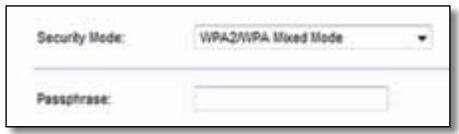
g) Security Mode S (JwPA2/WPA w) WPA2/WPA Mixed Mode 3j
jgJwWPA2/WPA a≤LwUJI 1s: jlg>J5 pssu
= 2 2
j (J) Security Mode S (WPA2) WPA2 Personal 13 jLw PwA2) WPA2 Personal a LwU Jg Jg
Lgui jyj
j (JLo2) Security Mode WPA) WPA Personal 13
jGJIaLg (Jw WPA) WPA Personal aSLUUI Jg jLs
= 2 2
a a a a a a a a a a a a a a a a a a a a a a a a a a a a a a a a a a a a a a a a a a a a a a a a a a a a a a a a a a a a a a a a a a a a a a a a aa
LwUJnLoX
L) Wireless Security < (L) Wireless
( x,y) = ( ab,52xy)
aIg aIg aIg aIg aIg aIg aIg aIg aIg aIg aIg aIg aIg aIg aIg aIg aIg aIg aIg aIg aIg aIg aIg aIg aIg aIg aIg aIg aIg aIg aIg aIg aIg aIg a
WPA2 Personal9 (JL10 WPA2/WPA g) WPA2/WPA Mixed Mode: LwU J LQY WPA2/ g) WPA2/WPA Enterprise Mixed Mode9 (g WPA) WPA Personal9 (g WPA2)
j0g WEPg (aS WPA) WPA Enterpriseg (aWPA2) WPA2 Enterpriseg (JbL WPA
aieLl l aagaaJI WEP JuaiaJyog.Wi-Fi aaiiaJgaoJI JgaoJI WPA JuaiaZI
( 1,L) = 8| L0| .a1 < L u_1 < L
a
WPA2. (Jolio WPA2/WPA g) WPA2/WPA Enterprise Mixed Mode
(45 WPA) WPA Enterprise .(45 WPA2) Enterprise
005 Lioic 1aiai aiaiaiaiaiaiaiaiaiaiaiaiaiaiaiaiaiaiaiaiaiaiaiaiaiaiaiaiaiaiaiaiaiaiaiaiaiaiaiaiaiaiaiaiaiaiaiaiaiaiaiaiaiaiaiaiaiaiaiaiaiaia
(ADJL)RADIUSpLs
ACD = ACD = 35
S (JLSS WPA2/WPA g) WPA2/WPA Enterprise Mixed Mode 1j WPA2/ aSLwUJI Lg jLg (JLSS Security Mode
JJIJI WPA2/WPA)WPA Enterprise
LwUJU LooJIy bIe:LiJI J
Security Mode:
Disabled
L_g > L_ l_g( L_h + L_h)
Cisco Connect
Jllllllllllllllllllllllllllllllllllllllllllllllllllllllllllllllllllllllllllllllllllllll
aJgaww aI Jy Cisco Connect pssw ciLs oLsic.
:Windows pLbBjJcCsc Ccisco Connect
Cisco Connect 1

Cisco Connect
Cisco Connect a 1
:Mac OS X pLbi jjgoc5 Lc Cisco Connect
JgJ (CJIaJI) Applications 1

Applications
.Cisco Connect jgj Jz
Connect
Cisco Connect a 1
JL 1 JLL 1 JLL 1 JLL 1 JLL 1 JLL 1 JLL 1 JLL 1 JLL 1 JLL 1 JLL 1 JLL 1 JLL 1 JLL 1 JLL 1 JLL 1 JLL 1 JLL 1 JLL 1 JLL 1 JLL 1 JLL 1 JLL 1 JLL 1 JLL 1 JLL 1 J.
gagglgcjglglc jllgLiJglllglalccn no oolaleill no ooloe
linksys.com/support
aJolal Jolal jolal jolal) cfo Jcfoj jorooS Jy Jolal Jy Jolal jolal jolal
. Jolal Jolal Jolal Jolal Jolal Jolal Jolal Jolal Jolal Jolal Jolal Jolal Jolal Jolal Jolal Jolal Jolal Jolal Jolal Jolal Jolal Jolal Jolal Jolal Jolal Jolal Jolal Jolal Jolal Jolal Jolal Jolal Jolal Jolal
Get Windows XP Service Pack 3 (Windows XP Service Pack 3
S Service Pack 3 g Cisco Connect ,Windows XP pLbni jaiy jaiy jaiy jaiy jaiy jaiy jaiy jaiy jaiy jaiy jaiy jaiy jaiy jaiy jaiy jaiy jaiy jaiy jaiy jaiy jaiy jaiy jaiy jaiy jaiy jaiy jaiy jaiy jaiy jaiy jaiy jaiy jaiy jaiy
Lig Service Pack 3 JjJ .3 j00
J 155 p 155 155 155 155 155 155 155 155 155 155 155 155 155 155 155 155 155 155 155 155 155 155 155 155 155 15
:Service Pack 3
Cisco Connect y
Microsoft (update.microsoft.com/windowsupdate) .2
Setup 3 Jz.
Jg
C
:La Jc Ciscocn Jc 13
aJg a g J G a J G a J G a J G a J G a J G a J G a J G a J G a J G a J G a J G a J G a J G a J G a J G a J G a J G a J G a J G a J G a J G a J G a J G a J G a J G a J G a J G a J G a J G a J G a J G a J G a J G a

Lalissol
JSLJ0gJdAaLJIaJgJU
DSLgJ aLJI gJJ
aiee no sliie aellbl lio 4 y 15 i8. Jie wll g aellbl Jnno oosJ 2
Jusio JSLg (J5CABLE jiaol j 5j g jLj
L 1
gJdDSL jaiuDSL dLjL dL dL g
.USBJLSSUBJSLaBwglgjLgJLlJL1
JLgI JI L (JLJI Next gJgJg Cisco Connect JI
JgJL JgJQJgJQJgJQJgJQJgJQJgJQJgJQJgJQJgJQJgJQJg
J.S) Your Internet cable is not plugged in
Joo
JdA JgLoaic (Joo yj 1) Your Internet cable is not plugged in JwJl
oLgLgIgIgIgIgIgIgIgIg
a + b = 3
aiaipaljia (agall go nnaaall jolg) Cnirjll JSL g Ethernet JL S no sL
.ogaoall jc wlaill iaiaag aiaiaaiaaiaaiaaiaaiaaiaaiaiaiaiaiaiaiaiaiaiaiaiaiaiaiaiaiaiaiaiaiaiaiaiaiaiaiaiaiaiaiaiaiaiaiaiaiaiaiaiaiaiaiaiaiaiaiaiaiaiaiaiaiaiaiaiaiaiaiaiaiaiaiaiaiaiaiaiaiaiaiaiaiaiaiaiaiaiaiaiaiaiaiaiaiaiaiaia
.WAN
aagol aalall agol j
Jg.11 J.3
Jg.11 J.3
Jg.11 J.3
Jg.11 J.3
Jg.11 J.3
Jg.11 J.3
Jg.11 J.3
Jg.11 J.3
Jg.11 J.3
Jg.11 J.3
Jg.11 J.3
Jg.11 J.3
(JolJI 1 JI JI 4
JgJgJgJgJgJgJgJgJgJgJgJgJgJgJgJgJgJgJgJgJgJgJgJgJgJgJgJgJgJgJgJgJgJgJgJgJgJgJgJgJgJgJg
J J J J J J J J J J J J J J J J J J J J J J J J J J J J J J J J J J J J J J J J J J J J J J J J J J J J J J J J J J J J J
( 1 - a) + b + 1 = 1 + b + 1
View Available Wireless Networks
Change Windows Firewall settings
Open Network Connections
(1) Device not found
jio) a< jgJLwJlajgLoa c (jGJJ Jc gJl) "Device not found" JJw,
LgSgSgSgSgSgSgSgSgSgSgSgSgSgSgSgSgSgSgSgSgSgSgSgSgSgSgSgSgSgSgSgSgSgSgSgSgSgSgSgSgSgSgSgSg
J 1 J 1 J 1 J 1 J 1 J 1 J 1 J 1 J 1 J 1 J 1 J 1 J 1 J 1 J 1 J 1 J 1 J 1 J 1 J 1 J 1 J 1

a1 = a0 + bb^2
.Cisco Connect 1.1
:Mac pLbi jai jil jigssllj gajlc lsc
pLwUu L. AiaJ AirPort jRg JrA. 1
LcS LwJ LLaCisco Connect
.JimsRouter
Joo Joo Joo BroneEagle gog. Linksys E-Series aL
BroneEagle) Linksys E-Series 4
J
gjg jzai jgjgl aol Jx g(jLo21 Cio) aS LwUa S. 11 jg0 aol s 3
Cisco Connect 150
Android
iPhone
gJLJI. JIJIJI .Cisco Connect (JLOJI (JLJI) 1JLJI .7 B6eM9UkCjz
21 × 3
a aal l llll 111111111111111111111111
Cisco Connect 日 _ 1 ^ 日 LgJUwJ J.2LjA.LwUJ A<,JU LwUJ JLWJJL WJ .8 (Lq)Finish g
Computers and 1! b. (gj) jg jg jg jg jg jg jg jg jg jg
(s, s) ; s , s , s ) other devices
(1) Other Wireless devices 3
aLwUJ aLjWpU Jc wJ 4
ab = 30
.WPA/WPA2 1
.(Jolclao)gajol aol Jsagogal aswoswss
(JIJ)Next .Cisco Connect 6
Date
WPA2 WPA 9 WEP
128 J
UPnP
Lol21 1
Lolci
aill lheol
174x190x28
(4 - 6.85 × 7.48 × 1.10)
(10.5) 297.7
- 12
FCC, IC, CE, Wi-Fi A/B/G/N
Lgjg32)40 10
()104J
Lg-4) 60J-20
()140J
a 80% 10
15 19
15 90% 5
aJg jg
aolb
Lg
J 1
jJJIaJz
Jal Jol Jol Jol Jol Jol Jol Jol Jol Jol Jol Jol Jol Jol Jol Jol Jol Jol Jol Jol Jol Jol Jol Jol Jol Jol Jol Jol Jol Jol Jol Jol Jol Jol Jol Jol Jol Jol Jol Jol Jol Jol Jol Jol Jol Jol Jol Jol Jol Jol Jol Jok
Jeei joo o o ooi 0000
Lai ylll sl21 lal b0g. IEEE 802.11 yleo cag aol gao yilu gao gao gao gao gao gao gao gao gao gao gao gao gao gao gao gao gao gao gao gao gao gao gao gao gao gao gao gao gao gao gao gao gao gao gao gao gao gao gao gao gao gao gao gao gao gao gao gao gao gao gAOgAOgAOgAOgAOgAOgAOgAOgAOgAOgAOgAOgAOgAOgAOgAOgAOgAOgAOgAOgAOgAOgAOgAOgAOgAOgAOgAOgAOgAOgAOgAOgAOgAOgAOgAOgAOgAOgAOgAOgAOgAOgAOgAOgAOgAOgAOgAOgAOgAOgAO
Linksys EA2700
Linksys EA2700
Dual-Band N600 Router with Gigabit
EA2700
,802.3 ,802.11b ,802.11g ,802.11a ,802.11n
802.3ab .802.3u
jIbJ1
jIJI
L
1
4
jL5g jL2.4JwJb
(Computer Ethernet) 10/100/1000
BPSK ,QPSK ,CCK :802.11b
OFDM :802.11g
OFDM :802.11a
.16-QAM .QPSK .BPSK :802.11n
64-QAM
()Jaaill Jie
Jdall aill acw
J
j2.4
a11@Jb0/Jo-90:802.11b
LJL L54 @ Jlgl/lls-75:802.11g
MCS15 @ 10910/12345678902.11n 20
MCS15 @ 109 JLo/JL8-70:238 L82.11n40
jL 5
LiJ54@JgJLo/J-72:802.11a
MCS15 @ 109 Lio/123-70:22:28 Li 802.11n 20
MCS15 @ 109 JLo/1J-67:238 L802.11n40
2.4
aIJI aW
(y)-
Jy
gjgjgl a
_w = _i = 1^n1i! ≤ 3.45:1
Jg
≤ 2.46:2
y
j#35
4.4.1:1
J
≤5.15:2
yjg jy
WPA2 WPA g WEP
L081 12
128
HFS_g NTFSF FAT
Jolli Cio
jsslllo pLpa
aill lheol
L
190x25x170
(7.48×0.98×6.69)
(aug 11.5) 326
2.12
Windows 7. Wi-Fi A/B/G/N. CE. IC. FCC
Dual-Band N750 Router with Gigabit and USB
EA3500
,802.3,802.11b ,802.11g ,802.11a ,802.11n
802.3ab .802.3u
a13 J6 6
jL5g jL2.4 LwJJJJI J
X
(€iEhernet) 10/100/1000
LJg USBg (1-4) Ethernet. (n) Internet
Wi-Fi a. 品 品 1.(y)L!Reset
(1-4) Ethernetg LJI. (Cnnj) Internet
BPSK ,QPSK ,CCK :802.11b
OFDM :802.11g
OFDM :802.11a
64-QAM,16-QAM,QPSK,BPSK:802.11n
j2.4
aJ11@Jg/Jb-87:802.11b
(g)
54 @ 10g/12s-77:802.11g
(≤)
MCS15 @ 1234567890123456789012345678901234567890123456789012345678901234567890123456789012345678901234567890123456789
()
MCS15 @ 10J&L/69:(zj40)802.11n
(y≥.)
jL5
54 @ 10 g L o/123456789011a
(g)
MCS23 @ 101gJ L/10-67:22 Li 20 802.11n
()
MCS23 @ Jol g JLo/Js-64:Jz 40 802.11n
(g>0)
()aaii jgjgjj 2.4
yJgJ 2.7≥1g
yjgjglg3.7≥2glg
1gjgJgA 4.95≥3g
()
14.6≥1
JgJgJgJgJgJgJgJgJgJgJgJgJgJgJgJgJgJgJgJgJgJgJgJgJgJgJgJgJgJgJgJgJgJgJgJgJgJgJgJgJgJgJgJgJgJgJgJgJgJgJ
yjgjg 3.88≥3
Date
jblww
jI
L
1 1
(2) (a)
Jaiil aicw
1j
1g
J
aillw
UPnP a:aa
(a.15 PIFA jgj3)jL 5
()Jg
Jal Jol Jol Jol Jol Jol Jol Jol Jol Jol Jol Jol Jol Jol Jol Jol Jol Jol Jol Jol Jol Jol Jol Jol Jol Jol Jol Jol Jol Jol Jol Jol Jol Jol Jol Jol Jol Jol Jol Jol Jol Jol Jol Jol Jol Jol Jol Jol Jol Jol Jol Joll
Jle 10000000000000000000000000000000000000
LgIeJlgl21 11111111111111111111111111111111111111111111
Linksys EA4500
Linksys EA4500
Dual-Band N900 Router with Gigabit and USB
EA4500
802.11n, 802.11a, 802.11g, 802.11b, 802.3
802.3u, 802.3ab
j2△Lc5g2.4
(€iEhernet) 10/100/1000
(1-4) Ethernet9 (Cjzj) Internet g USB g
Wi-Fi aai ai gai slcL (yai jll L) Reset
aIJI:aIgloJI aIgUJI
Ethernet(1-4)g.(c)Internet:adLdA
4.153 10
jL5g jL2.4 LwJJJJI J
X
BPSK.QPSK.CCK:802.11b
OFDM :802.11g
OFDM :802.11a
QAM-64,16-QAM,QPSK,BPSK:802.11n
j2.4
aJ11@Jg/Jo-87:802.11b
(y≥.)
LiJi 54@JbIg/10-77:802.11g
(y>·<≤)
MCS15 @ 上山与JL/下-70:20:802.11n
()
MCS15@Lg/0-66:24 40:802.11n
(y≥.)
jL 5
LiJ54@Jg/Jo-74:802.11a
()
MCS23 @ Lg/100/100-67:20:802.11n
()
MCS23 @ Lg JL/1-64:80.11n
(y>0
(a.11. PIFA 3) j.24
(j+)gjgjgJgJgJgJgJgJgJgJgJgJgJgJgJgJgJgJgJgJgJgJgJgJgJgJgJgJgJgJgJgJgJgJgJgJgJgJgJgJgJgJgJgJgJgJg
(JLJI)gjgjgJgJgJgJgJgJgJgJgJgJgJgJgJgJgJgJgJgJgJgJgJgJgJgJgJgJgJgJgJgJgJgJgJgJgJgJgJgJgJgJgJgJgJgJgJgJgJgJgJgJg
(ρLo) 1.96 ≥ PIFA 3
jblww
jIJI
L
Jiaol aai ac
:
1j
1g
jglgai jgai
(j)J#
aJdW
J 1
yjgjgJyJd
HactpoBbHe Ha pyTepa EA-Series
Kbde da haMepe Te oue nomou 3
Kak da hactponte pytepa 3
Kak da cnapate Cisco Connect 3
I3noI3BaHe Ha Cisco Connect 3a ynpaBHeHne Ha pyTepa 3
Kak da hactpoTe pbyHo pyTepa 3
Pa3шрета конфигуразnia
Kak da OTBOPnTe nOmoUHaTa nporpaMa-6pay3bp. 4
Setup > Basic Setup (HactpoKa > OchOBn HactpoKn) . . . . . 5
Language (E3uk) 5
Cbo6eHne Your Internet cable is not plugged in (Bawuum unmephem Ka6en He e BkIouen) 12
Cbo6eHneCannotaccess your router (HaMa docmbndo pymepa). 13
Cbo6eHne Device not found (He e HamepeHo ycmpoucMBO). . . . .14
TexHnueckn daHHN
Linksys EA2700. 16
Linksys EA3500. 17
Linksys EA4500. 18
Osshпразгелд на пpoукта
EA2700/EA3500
IzhneD ot3aD
BbHnHnT BnHa BaunpyTeP MoKe da Bapnpa
USB nopT (camo 3a EA3500) - 3a da cnojeIte Iecho nAmet Ha Dncka C npyri noTppe6nteIOn OT Ba7aTa Mpeka NIn B INHTepHET, CBpbXeTe USB yCTpOJCTBO KbM To3N IpOT.
- Ethernet noptoBe - CbþkæTe Ethernet Ka6eɪn (HapuñaHn Oüe MpexOBn Ka6eɪn) KbM Te3n nopToBe Gigabit (10/100/1000), cþc CnHbO CuBtOBO KoɪnpaHe, N KbM dþrŋ Ka6eɪn Hēthernet MpexOBn yctpɔiCTBa B MpexKaTa.
- INTepHET nopT - CbpxkTe Ethernet Ka6eI (Hapuah Ose mpeXOB Ka6eI nn INTepHET Ka6eI) KbM TO3n npT, c KblTO cBeTOBO KoDnpaHe, n KbM Ba7nra MoDEM.
ByToH Wi-Fi Protected SetupTM - HaTnCSHeTe To3n 6yToH 3a JeChO KOHΦnrgpnpaHe Ha 3aunTata Ha 6e3xNUnHa MpeXa Ha MpeXOBnTe yCTpoiCTBa, Ha KOnTO pa6oTu Wi-Fi Protected Setup. 3a nobEue nHΦopMaζn BnXte,3aunTa Ha 6e3xNUnHa T a MpeXa" Ha cTp.8.
- Инданкатор на зaxphaнвано - Свети посторно, дokaTo зхphaнвано с CBьрзано и сед успшно CBьрзва с Wi-Fi Protected Setup. Мira 6abHo no Врeme на стартупану, насторва с ha Фьрмеру и по Врeme на CBьрзва с Wi-Fi Protected Setup. Мira 6ьрз0, koratoima rpeшka в Wi-Fi Protected Setup.
3axpaHbaHe - CBbpxeTE BkIIOueHnB KOMPJIeKTA aIaITep 3a npOMEHnB TOK KbM TO3n IOpT.
BHIMAHNE
I3noJI3BaIte caMo aIaITepe,IOCTaBeH cpyTepe.
Bytoh 3a 3axpaHbAhe -HaTncHe | (BKn.) 3a BkIIOUbaHe ha pyTepa.
IzhneoiOToDony
BbHnHnT BnHa BaunpyTeP MoKe Da Bapupa
Byton 3a Hynipahe - HaTnchete n 3aDpBxte TOn 6yToH 3a OKoI0 5-15 cekyHn (doKaTO CBeTnHnTe 3aNoUHaT da MInrTa eNHOpeMeHHO), 3a da HynipaTe pyTepa Do foabPnuHnTe My HacTroKn. MoKeTe cbIo da Bb3CTaHOBnTE NaCTPOknte No NOpda36npaHe, KaTo N3PON3BaTe NOMOuHaTa nporpama-6pay3bp.
EA4500
Izhnei otrope
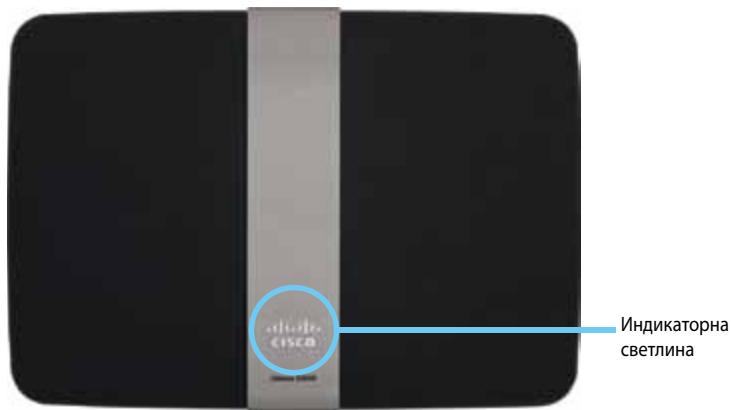
- Инданаторна CBETЛИнна - Сбети посторно, дOKATO 3axpaHbAHeTo e CBbp3aHo и сдд успшно CBbp3BaHe c Wi-Fi Protected Setup. Пунсupa 6abHо по Врeme на стартуране, надстpoиВанe Ha Фьрмуера и по Врeme на CBbp3BaHe c Wi-Fi Protected Setup. МURA 6bp30, korato Ima rpeшka в Wi-Fi Protected Setup.
Izhneoi3aI
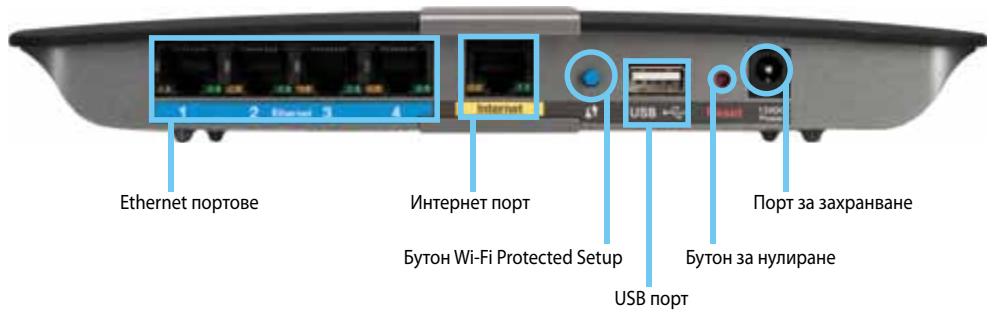
- Ethernet noptoBe - Cbpxte Ethernet ka6eHn (HapuHaH oSe mpeXOBn Ka6eHn) KbM Te3n nopToBe Gigabit (10/100/1000), cbc cnHbO zuBetoBO KoDIPAHe, n KbM dpyrN Ka6eHn Ethernet mpeXOBuycTpoiCTBa B MpeXaTa.
- INThepHnet nopT - CbBypKTe Ethernet Ka6eJ (Hapnuch OSe mpeXOB Ka6eJ nn INThepHnet Ka6eJ) KbM To3n NopT, c XbJITo UcBeTOBO KoDnpaHe, n KbM Ba7nra MoDEM.
- BytOH Wi-Fi Protected SetupTM - HaTINCHETO3N 6yTOH 3a JIeCHO KOHΦIgUpyipaHe Ha 3aUnTata Ha 6e3KmHa MpeKa Ha MPeKOBITe yCTPoiCTBa, Ha KOnTO pa6oTu NiWi-Fi Protected Setup. 3a NOBue HnΦopMaunu BnKTe, 3aUnTa Ha 6e3KmHaT a MpeKa" Ha cTp.8.
USB nopT - 3a Да сюдение лесно памет на диска с дугни потулелуот ваша тмрека пли в Intерпсет, CBpbхete USB устороств Кьт мози пот.
Byton 3a HynipaHe - HaTncHe Te 3aDpBkTe To3n 6yToH 3a OKoNo 5-15 cekyHdn (doKaTO CBeTlnHInTe 3anOuHaT Da MmTaT eHNOBpeMeHHo), 3a da HyinpaTe pyTepa Do foabPnuHIne My HacTroKn. MoKeTe cbIo da Bb3CTaHOBIne HAcTroKnTe No NOpda3bnpaHe, KaTo n3IOn3BaTe NOMOuHaTa nporpama-6pay3bp.
3axpaHbHe - CbpeBkIIOeHnB KOMPJIeKta aIaITep 3a npOMEHnIB TOK KbM TO3N IOpT.
BHUMAHNE
I3non3BaIte cAmO aIaNTepa,IOCTaBENc pyTepa.
- Bytoh 3a 3axpaHbAhe - HaTncHe | (BKN.) 3a BkIIOUbaHe ha pyTepa.
Hac tropoBaHe Ha pyTepa EA-Series
Kbde da hamepnte ose nomoos
BdoJIbHeHne KbM TOBa pbKOBoIDCTBO 3a IOTpe6HTeMa MoKeTe Da HamePnte NOMOu Ha CNeIdHnTE MeCTa:
- Linksys.com/support (ДOKум entaци, ИЗтеленя, чсTo 3адын Bbnpocn, Тхнчecka подрьжka, за на жИВО, Форум)
Cisco Connect nomou (n3nbHete Cisco Connect, cnei Koeto upaKHeBbpxy "HayuTe noBeue", ako iMa taKoBa)
KoHTeKCTHO-3aBnCIMHa NOMOu Ha NOMOuHaTa npOrpMa-6pay3bp (OTbOpTe npOrpMaTa, CneI KOEt UpaKaHETe BbPxu NOMOu B DaChata KOnoHa.)
Kakда настponTe pyTepa
Ha-Niechnay 6bp3 NaHn 3a HacToPbBaHe Ha Baun pyTe e da n3nblHnte coΦTyepa 3a HacToPka Cisco Connect.
Kakдастартуратe Cisco Connect
Korato cnapate nHCTaIauNHOHn KOMNaKTdIscK, Cisco Connect (coΦTyep 3a NaHacTpoiKa Ha pyTepa) ce nHCTaInpa aBtOMaTnUHo Ha KOMnIObpa Bn. CneI TOBa Mochete da n3nOJIbATE Cisco Connect, 3a da ynpabJIbATE leCho pyTepa.
3A6EJIEXKA:
Ако зубитейнстаяцно"Hья KMпаКТДИСК, може за ИЗтглNTe coФтуера оТ Linksys.com/support.
3a da cnapate Cisco Connect 3a npbB nbyr:
- Пocтавete КOMпаКТДИСКАВ CD ИИN DVD устpoиCTBOTO.
- Ιцракнete Вьрху Setup your Linksys Router (Hac troйвае на рутера Linksys). Ако не виждате това:
3a Windows, upaKHeTe Bbpxy Ctap, KomnIObP, cIeT OBa upaKHeTe DByKpaTHO Bbpxy CD yCTPOJcTBOTU IN KOHaTa HAcTpoJa.
3a Mac, upaKHeTe DByKpaTHo Bbpxu NkOHaTa CD Ha pa6OTnI pIoT, cIeI TOBa UpaKHeTe DByKpaTHo Bbpxu NkOHaTa Setup (HacToPoiKa).
- CneIbaiTe INCTpyKcunTe Ha ekpaHa, 3a Da 3aBbpUnTe NaCTpOJaTa Ha pyTepa.
Automatic Configuration - DHCP (AbTomatnHa KaonHpyaun - DHCP)
Static IP (Ctatauueh IP)
PPPoE
PPTP
L2TP
Bridge Mode
Automatic Configuration - DHCP (АВТOMATИЧА konфигуразnia - DHCP)
TinbI INTEPHeT Bp3ka no noDpa36nPaHe e Automatic Configuration - DHCP (ABTomatuHa KOHnrgypaunia - DHCP) (IpotoKoJ 3a DnHaMnUHO KOHnrgypnAne Ha XocToBe).3ana3e HacTpOiKaTa No noDpa36nPaHe cAmO aKO BaUnrT DoCTaBUnk Ha INTEPHe YcLyrNo nOdlbPxa DHCP iNn aKO ce CbBp3BaTe Upe3 DnHaMnueH IP aAdpec. (Ta3n onZna O6nKnOBeHo Ce npilara 3a Ka6eHNn Bpv3kn.)
Static IP (CTaTnueH IP)
Ako Tp86BaJa n3nOJI3BaTe ΦIκCupaH IP aIpec 3a CBbp3BaHe c IHTepHeT, n36epeTe Static IP (CtAtuyeH IP).
PPPoE
Ako ImaTe DSL Bpb3ka, npOBepe TaJIN Baunr TocTaNK Ha INtePHT yCnyn n3NoJ3Ba npOTOKoJa "Ot ToKa do ToKa"B Ethernet (PPPoE). Ako e Taka, n36epete PPPoE.
PPTP
TyneHnIpyoTOkOJOToUkaDToUcKa(PPTP)eucnyra,KoYTO6NKnHOBeHo ce npInarag3aBp3knEBpOna.AkoBaWata PPTP Bp3kaNoDbpxaDHCP nINHaMnuehIP aDpe,iz6epeteObtain an IP Address Automatically (ABTomatuHNO pOnyuaBaHe Ha IP aDpe).Ako Tp86BaJa u3nOJ3BaTeΦHKCuPAH IP aDpe 3a CBp3BaHe C INTEpHET,iz6epeTe Specify an IP Address (Yka3BaHe Ha IP aDpe)иKOHfngypaaiTe onuNTe no-dony.
L2TP
TyneJen npotoKoJ 3a cnoi 2 (L2TP) e ycnyra, KoTo o6nKHOBeHo ce npinara 3a Bpb3Kn BVn3paen.
OTbaprCe rIaBHOTo MeHIO Ha Cisco Connect.
3aДастарate Cisco Connect Ha KomnIOrIbpc Mac OS X:
- OTBopTe Finder n ⅢpaKHeTc Bbpxy PpInloXeHn B IeBn paHeI.

OTbaprCe rIaBHOTo MeHIO Ha Cisco Connect.
- CtraptnpaaiTe Cisco Connect.
- Μιρακητε Bbpxy Computers and devices (KOMπIoTpμ n yctpoiCTBa). Πολβγα Ce ekpaHbT Computers and other devices (KOMπIoTpμ n ἀργn yctpoiCTBa).
- ΜρακHeTe Bbpxy Other Wireless devices (Дугн 6eЗични устюства).
- Pa3peweTe Wi-Fi Bp3kata Ha BaWeTo MpeXOBO yCTpoiCTBO, cIeT TOBa npoBeTe TbpcHe Ha IMeTo Ha BaWata 6e3KnHa MPexa. BxKTe B DOKyMeHTaunTa Ha yCTpoiCTBOTO 3a NOMOu.
3ABEJIEXKA
BaeweTo 6e3xuNo yctpoiCTBO Tp86Ba da noDlbpxka WPA/WPA2.
- Ha yctpoiCTBOTO B 6e3xuHata Mpeka n36epeTe mMeTo Ha Mpekata Ha BaIpyTeP IN BBBeTe NapoJa (KJIouHa Mpekata).
- B Cisco Connect upaKaHete Bbpxy Next (HaPeI).
Ppimep:Ha Baushn CmapfoH nn npyro 6e3xuH OcTpoiCTBO HamepeTe Wi-Fi MeHIOTo n npoBeTe TbpcHe Ha doctbnH 6e3xuHmpeKn. B To3n npimep, KaTO n3noJI3BaTe mHopMaunra 3a MPexKaTa, PpeOCTaBeHa ot Cisco Connect n noka3Ana B npednHn eKpaH, HATNCHe BronzeEagle.
Android
iPhone
- BbBeTe napoJaTa (KIIou Ha MpeXaTa), npedocTaBHeN ot Cisco Connect. B To3n npimep KJIouyT ha MpeXaTa a e B6eM9UkCjz.
3ABEJIEXKA
B napona tce npabn pa3nka mejdy malkn ngabn 6ykbn. Ybepete ce, ye BbBeKdaTe npabnH0 6ykbnte.
- Korato BaaweTo 6e3xNHy OyCTpoiCTBO e ycneuHO Cbbp3aHo C BaWata 6e3xNHa MpeKa, BByBeTe NMe 3a yCTpoiCTBoto B Cisco Connect, a cIed TOBa upaKHe T Bpxy Finish (ToTOBO).
TexHnueckn daHnn
Linksys EA2700
| Име на м odeла | Linksys EA2700 |
| Описанце | Dual-Band N600 Router with Gigabit |
| Homeр на м odeла | EA2700 |
| Стандарту | 802.11n, 802.11a, 802.11g, 802.11b, 802.3, 802.3u, 802.3ab |
| Брочанeni | 4 obsso, 2 въtrightechи снынни за的老уот |
| разночесOTНITE диапазони | 2,4 GHz и 5 GHz |
| С отделяне (да/нe) | He |
| Скорост на komутугемия пост | 10/100/1000 Mbps (Gigabit Ethernet) |
| Моюлачия | 802.11b: CCK, QPSK, BPSK 802.11g: OFDM 802.11a: OFDM 802.11n: BPSK, QPSK, 16-QAM, 64-QAM |
| Чubст BVТелност на приемаhead (тППУНо) | 2.4 GHz 802.11b: -90 dBm @ 11 Mbps 802.11g: -75 dBm @ 54 Mbps 802.11n 20 MHz: -73 dBm @ MCS15 802.11n 40 MHz: -70 dBm @ MCS15 5 GHz 802.11a: -72 dBm @ 54 Mbps 802.11n 20 MHz: -70 dBm @ MCS15 802.11n 40 MHz: -67 dBm @ MCS15 |
| Усilване на сныната в дBi | 2,4 GHz: Аntehа 1: ≤ 3,45 DBI aNTeha 2: ≤2,46 dBi 5 GHz AHTeha 1: ≤4.41 dBi AHTeha 2: ≤5,15 dBi |
| UPnP | побъpropriа ce |
| Фунkedи за зашита | WEP, WPA, WPA2 |
| Клоча за зашита - сиюве | do 128-битовошифраванe |
Pa60Tha cpea
| Габашни размeperи | 174 x 190 x 28 MM (6,85" x 7,48" x 1,10") |
| Терло на устroduствOTO | 297,7 r (10,5 унции) |
| Зхраимbaне | 12 V, 1 A |
| Сертофikати | FCC, IC, CE, Wi-Fi A/B/G/N |
| РавOTна темпepатура | ot 0 до 40°C (ot 32 до 104°F) |
| Temпepатура за сбхсане | ot -20 до 60°C (ot -4 до 140°F) |
| РавOTна влажноct | ot 10 до 80% относяп на влажноct, 6e3 конденираhe |
| Влажноct за сбхсане | ot 5 до 90% 6e3 конденираhe |
BENEXKNI
3a INΦopMaζη 3a HOpMaTnBHaTa ypeδa, rapaHζηra η 6e3oNaCHOCTTa BnKTe KOMnAKTДИСka, IOCTaBeH C BaIηra pyTeρ, nIи OTnIeTe Ha Linksys.com/support.
CneuΦkaunTe npLexKaT Ha npomEn 6e3 npedn3BeCTne.
*MaKcImaHnHTe pa6oTHn poka3aTeJn ca n3BLeueHn OT cneuФnKaUNTe Ha CtAndapT 802.11 Ha IEEE. DeIcTBnTEHnTe pa6oTHn poka3aTeJn MOKe da ca pa3JInuChN, BkJIouHTeJInHO PO-HNCbK KaNaHTet 3a pa6oTa B 6e3JnUHa mpeJa, npOnyckaTeJHa CNOC6HOCT 3a DaHHN, DnAna3OH N POKPITNe. KaueCTBOTO Ha pa6oTa 3aBnCn OT MHOro foAKTopn, ycIOBnI I npaMeTpN, BkJIouHTeJIn HO pa3CTOraHHeTO OT TOcKaTa 3a DOCTbN, O6ema Ha TpaΦuKa B mpeKaTa, CTpOnTeJnHTe MaTePnaI IN KOHcTpyKzIyTa Ha CrpaDAta, n3NoJ3BaHaTa ONepaCIOHHa CSCTeMa, KOMbHaZIyTA OT n3NoJ3BaHN yCTpoiCTBa 3a 6e3JNuHa mpeJa, cmUeHnI dpyrH He6laorponrTHn ycIOBnI.
Linksys EA3500
ImeHaMoDena LinksysEA3500
Описане Dual-Band N750 Router with Gigabit and USB
HomepHaMoDena EA3500
Ctanhaptn 802.11n,802.11a,802.11g,802.11b,802.3, 802.3u,802.3ab
bpoaHTeHn 6 oBIO,3 BvTpeHH aHTeHN 3a BCEKN OT paIIOueCTOTHInTe dnaPAnOHN 2,4 GHz u5 GHz
COTdJIaHe (da/He) He
Скорост на Комутугемя пот 10/100/1000 Mbps (Gigabit Ethernet)
ПортоBE ИntepHET, Ethernet (1-4), 3axpaHbaHe
Бутони Нулрази, Wi-Fi Protected Setup
CBeToIIOIo 3axpaHbAHe, INHTepHeT, Ethernet (1-4)
Módyana 802.11b: CCK, QPSK, BPSK
802.11g: OFDM
802.11a: OFDM
802.11n: BPSK, QPSK, 16-QAM, 64-QAM
UyBCTBnTeJIHOCT Ha npneMaHe 2.4 GHz
802.11b: -87 dBm @ 11 Mbps (Тишино)
802.11g: -77 dBm @ 54 Mbps (Тишично)
802.11n (20 MHz): -72 dBm @ MCS15 (тишино)
802.11n (40 MHz): -69 dBm @ MCS15 (тунчно)
5 GHz
802.11a: -74 dBm @ 54 Mbps (т��пуно)
802.11n 20 MHz: -67 dBm @ MCS23 (TinuquHo)
802.11n 40 MHz: -64 dBm @ MCS23 (тинично)
YcuiBaHe Ha aHTeHaTa 2.4 GHz (DINIOJHn aHTeHn)
AHTeHa 1 ≤ 2,70 dBi
AHTeHa 2 ≤ 3,70 dBi
AHTeHa 3 ≤ 4,95 dBi
5 GHz (Диюлни сanteи)
ANTeha 1≤4,46 dBi
AHTeHa 2≤ 3,23 dBi
AHTeHa 3 ≤ 3,88 dBi
UPnP noIbpxka ce
Функцииза зацида WEP, WPA, WPA2
Klou 3a 3auNTa -6ntOBe Do 128-6ntOBo uΦpObaHe
IopdpbXkaHaaaiIOBaTa
CnCTema 3a CbXpaHene FAT u NTFS u HFS+
Pa60Tha cpea
Tg6apntn pa3mepn 170x25x190MM
(6,69^ × 0,98^ × 7,48^ )
TeTnHa yCTpoiCtBOTO 326r(11,5yHcnn)
3axpaHbaHe 12V,2A
CeptnuФикати FCC, IC, CE, Wi-Fi A/B/G/N, Windows 7
Pa6oTHa TeMnepaTypa ot 0do 40^ (ot 32 do 104^
Tempepatya 3a cbxpanenoe ot-20 do 60^ (ot-4do 140^
Pa6OTHa BnaJXHOCT 10 do 80% OTHOCIJIHa BnaJXHOCT, 6e3 KOHDeH3npaHe
BlaЖHOC3a cxbpaHeHne ot 5do 90% 6e3 KOHdEHNpaHc
BENEXKNI
3a INΦopMaζη 3a HOpMaTnBHaTa ypeД6a, rapaHζηra η 6e3oNaChOCTTa BnXTe KOMnaKTДИСka, ДОctaBeH C BaIηra pyTeρ, илу OTnIeTe Ha Linksys.com/support.
CpeunfoikauinTe npLexkat Ha npomehn 6e3 npedn3BecTne.
*MaKcImaHnHTe pa6OTHN pOKa3aTeJN ca n3BVeueHOn OT cneUΦnKauNTHe Ha CtAndapT 802.11 Ha IEEE. DeIcTBnHTeJHnTE pa6OTHN pOKa3aTeJN MoKeJa ca pa3JInuHn, BkJIIOuHTeJHNO PO-HNCbK KaNaCHTet 3a pa6Ota B 6e3JnUHa MPexa, npOpYcKaTeJHa cNoOC6HOCT 3a DaHHn, DnApa3OHn I NOKpRITne. KaueCTBOTO Ha pa6Ota 3aBnCSOn MTHO fakTopn, YcLOBnI I npaMeTpN, BkJIIOuHTeJHn Pa3CToRHeTO OT ToUkaTa 3a DoCTbN, O6eMa Ha TpaΦnKa B MPexaTa, CTpONTeJHnTe MaTePnaI IN KOHCTpyKzIyTa Ha CrpaJdaTaN3PON3BaHaTa ONepaCIOHn CaCTeMa, KOMbHaZIyTA OT n3PON3BaHn UcToPcTBA 3a 6e3JNuHa MPexa, CmUeHnI dpyrN He6laonprrTHn YcLOBnI.
Linksys EA4500
WPA2/WPA Mixed Mode, WPA2 Personal, WPA Personal
POZNÁMKY
WPA2/WPA Enterprise Mixed Mode, WPA2 Enterprise, WPA Enterprise
- Spustte software Cisco Connect.
Sadan startes Cisco Connect 3
Bruge Cisco Connect til at administrire routeren 3
Your Internet cable is not plugged in
(Internetkablet er/DD)-meddeelse. 12
Cannot access your router
(KanCREASEgangtilruteren)-meddeelse 13
Sādan startes Cisco Connect
WPA2/WPA Mixed Mode, WPA2 Personal, WPA Personal
NOTER
WPA2/WPA Enterprise Mixed Mode, WPA2 Enterprise, WPA Enterprise
Meldung Your Internet cable is not plugged in
Beschreibung Dual-Band N900 Router with Gigabit and USB
Modellnummer EA4500
Standards 802.11n, 802.11a, 802.11g, 802.11b, 802.3, 802.3u, 802.3ab
PuOiOeic EpiIooyov 8
Mývúma Your Internet cable is not plugged in
(To kaIwδio IiaδikTóuδεv εival ouvδεδεμévo) 12
Mývúma Cannot access your router
WPA2/WPA Enterprise Mixed Mode (Mikntn etioupyia Etaipiko WPA2/WPA), WPA2 Enterprise (Etaipiko WPA2), WPA Enterprise (Etaipiko WPA)
Oi eioyec auetc xpoiopoiouovtae ouvduoouo deiaokoiotn RADIUS. (Oa npenei va xpoiopoiouovtai mvo otav o dpoooyntc evai ouvdeevoc oiaokoiotn RADIUS.)
ZHMEIΩΣEIZ
Av WPA2/WPA Enterprise Mixed Mode (Miknt i Etaipiko WPA2/WPA) c Security Mode (Aeitoupyia aopáλεiac), kαθεσωκευή στο αούρμato δικτuo ΠPEΠΕν υρηομοποιει WPA2/WPA Enterprise (Etaipiko WPA2/WPA) και το ἰδι κονόχροτο κλειδί.
Av WPA2 Enterprise (Etaipiko WPA2) Security Mode (Aetoupyia aopalaeiac), kOe ouokeu n oTo aupuatodeltaio IPEPII va xpnoiopoioi WPA2 Enterprise (Etaipiko WPA2) ka to i8o KoivoxpoTo Kk1di.
Av WPA Enterprise (Etaipiko WPA) Security Mode (Aeitoupyia aopalaeiac), kaoe ouokevn oto aoupmuodeltaio IPEPII va xpnoiopoioi WPA Enterprise (Etaipiko WPA) kai to idio KoivoxpoTo Kk18i.
Tva yekataohtnoe to Service Pack 3:
Setting Up Your EA-Series Router
Where to find more help. 3
How to set up your router 3
How to start Cisco Connect 3
Use Cisco Connect to manage your router 3
How to manually set up your router. 3
Advanced Configuration
How to open the browser-based utility 4
Setup > Basic Setup. 5
Language 5
Internet Setup 5
Wireless > Wireless Settings. 6
Wireless Settings 6
Wireless Security
Wireless > Wireless Security. 7
Personal options 7
Office options 7
Option settings 7
Troubleshooting
How to run Cisco Connect after setup 10
Your router was not successfully set up 11
Get Windows XP Service Pack 3 message 11
Your Internet cable is not plugged in message 12
Cannot access your router message 13
Device not found message 14
Specifications
Linksys EA2700. 16
Linksys EA3500. 17
Linksys EA4500. 18
Product overview
EA2700/EA3500
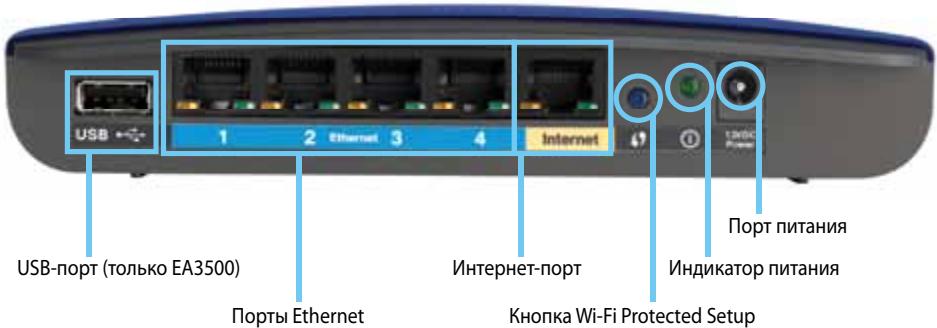
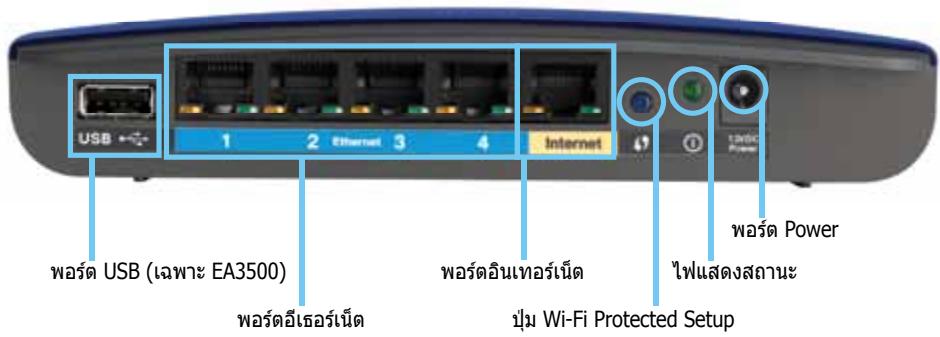
Back view
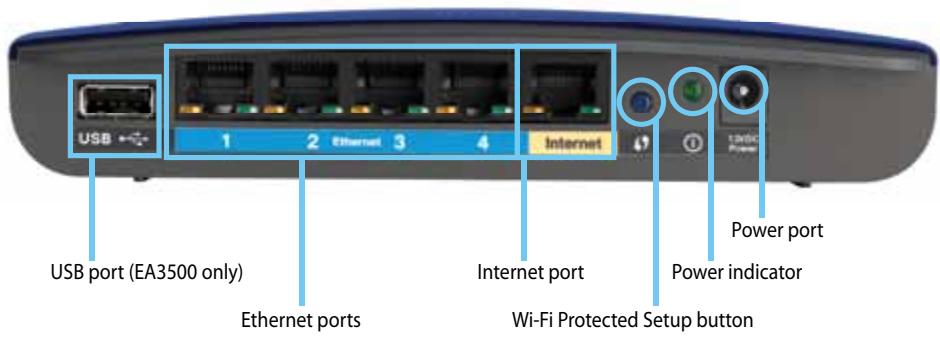
Your router's appearance may vary
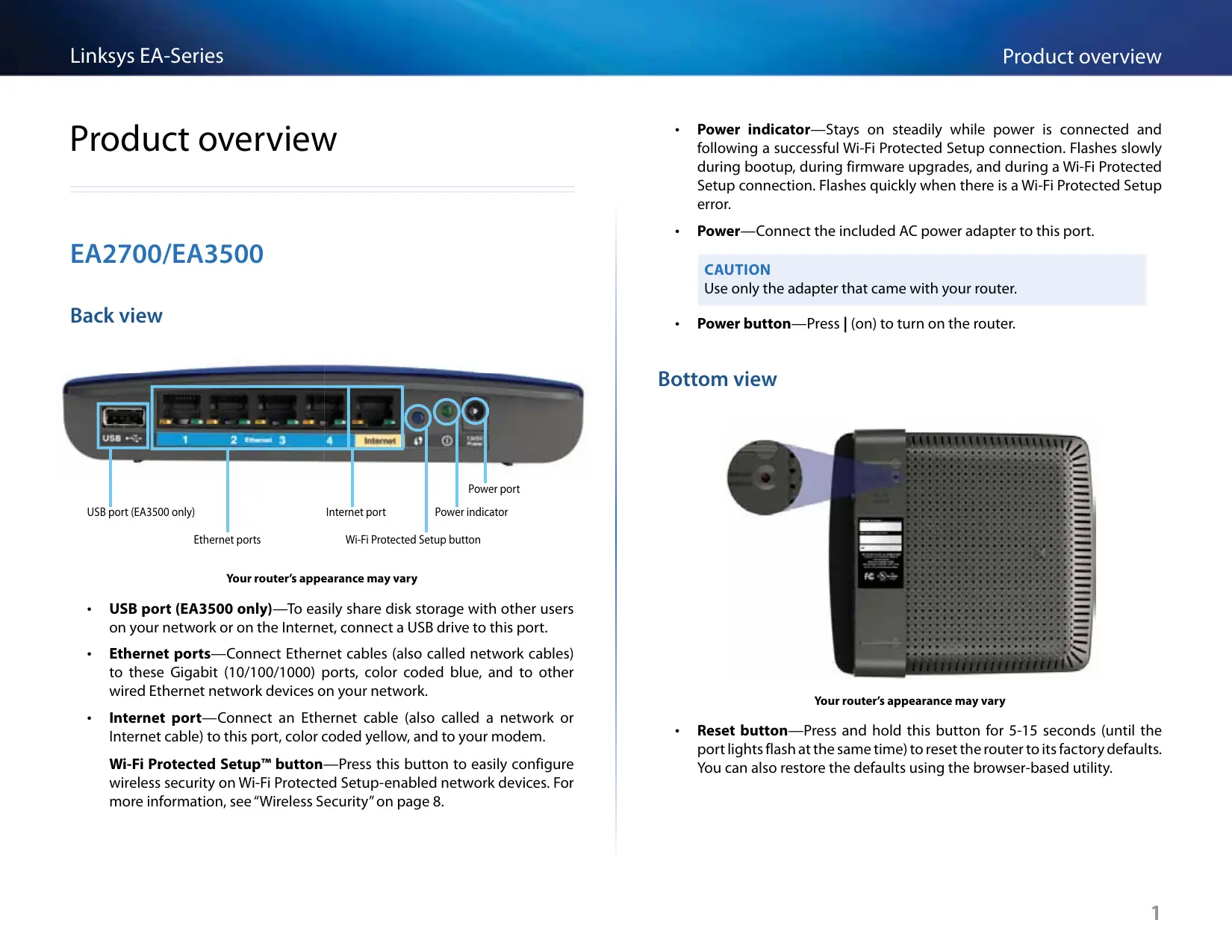
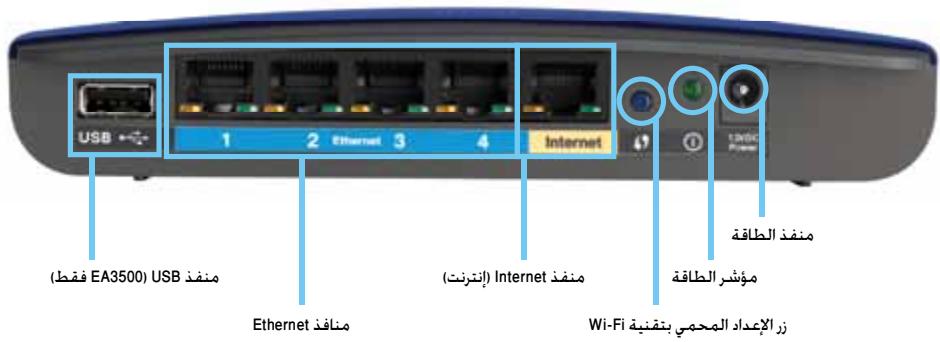
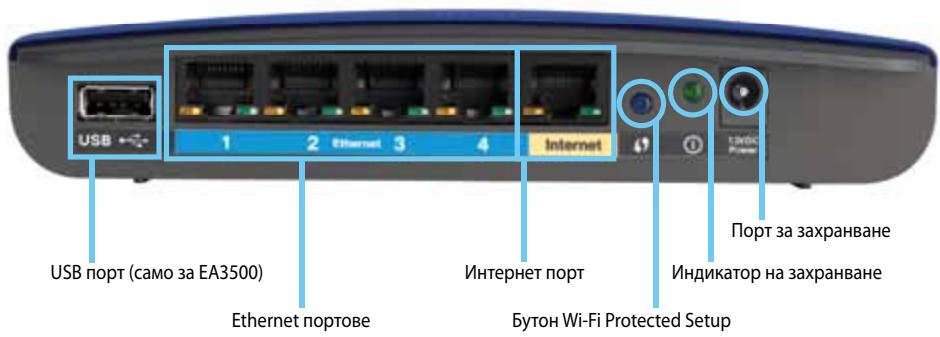
- USB port (EA3500 only)—To easily share disk storage with other users on your network or on the Internet, connect a USB drive to this port.
- Ethernet ports—Connect Ethernet cables (also called network cables) to these Gigabit (10/100/1000) ports, color coded blue, and to other wired Ethernet network devices on your network.
- Internet port—Connect an Ethernet cable (also called a network or Internet cable) to this port, color coded yellow, and to your modem.
Wi-Fi Protected Setup™ button—Press this button to easily configure wireless security on Wi-Fi Protected Setup-enabled network devices. For more information, see "Wireless Security" on page 8.
- Power indicator—Stays on steadily while power is connected and following a successful Wi-Fi Protected Setup connection. Flashes slowly during bootup, during firmware upgrades, and during a Wi-Fi Protected Setup connection. Flashes quickly when there is a Wi-Fi Protected Setup error.
- Power—Connect the included AC power adapter to this port.
CAUTION
Use only the adapter that came with your router.
- Power button—Press | (on) to turn on the router.
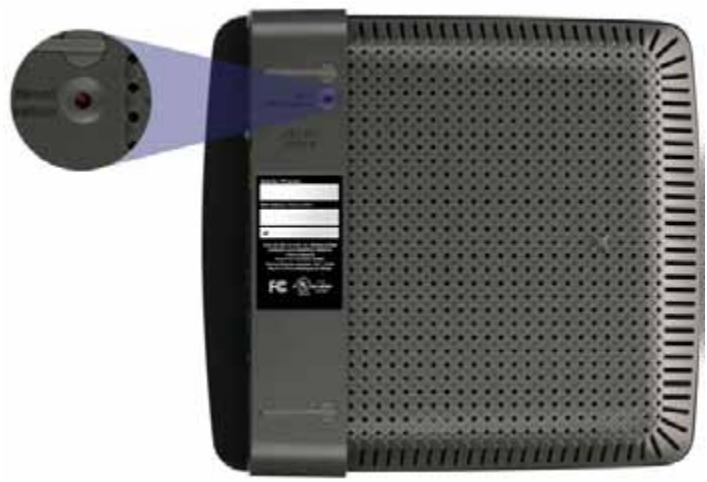
Bottom view
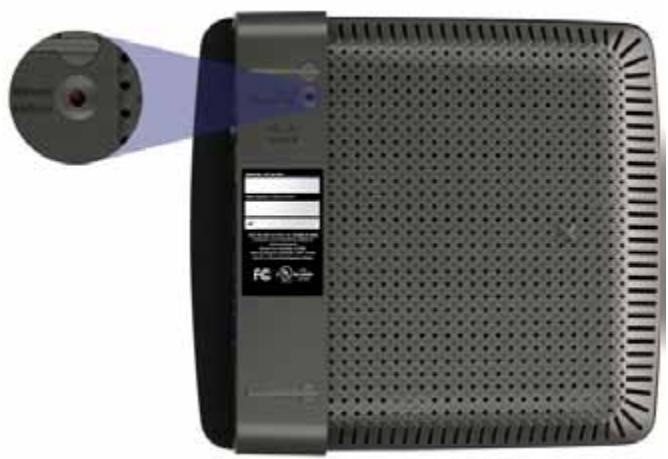
Your router's appearance may vary
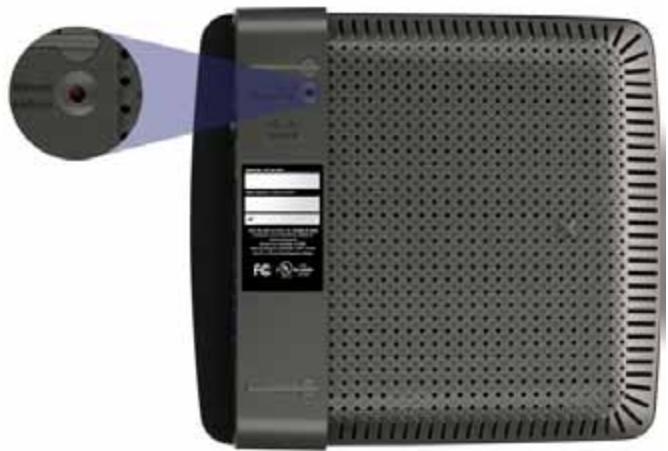
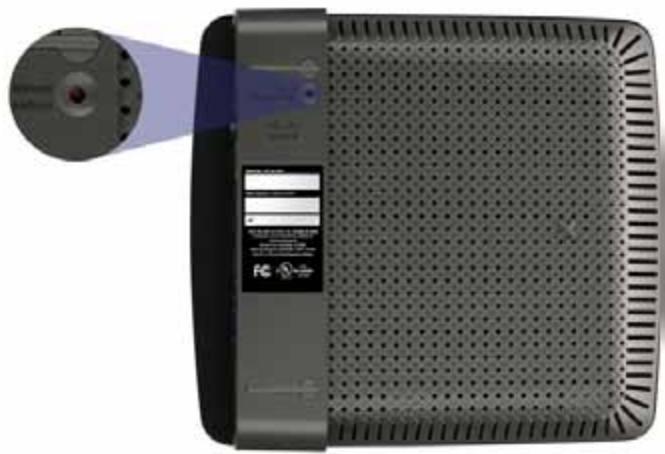
- Reset button—Press and hold this button for 5-15 seconds (until the port lights flash at the same time) to reset the router to its factory defaults. You can also restore the defaults using the browser-based utility.
EA4500
Top view
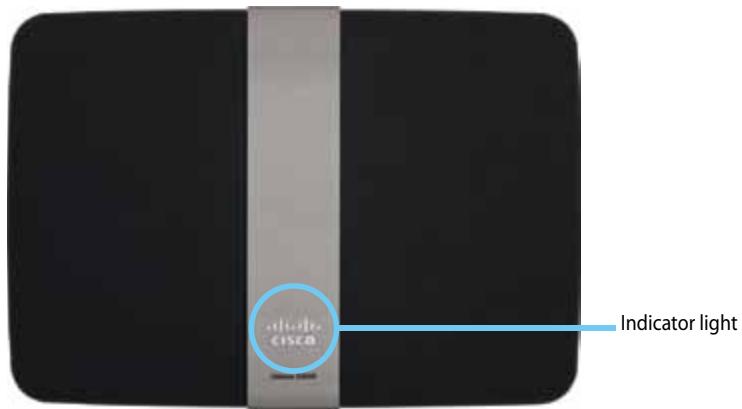
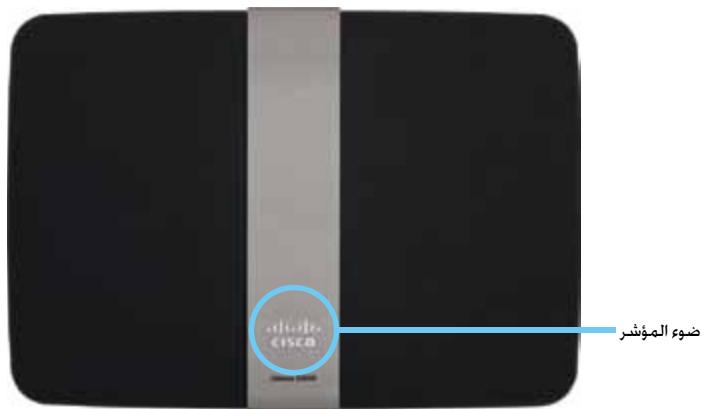
- Indicator light—Stays on steadily while power is connected and following a successful Wi-Fi Protected Setup connection. Pulses slowly during bootup, during firmware upgrades, and during a Wi-Fi Protected Setup connection. Flashes quickly when there is a Wi-Fi Protected Setup error.
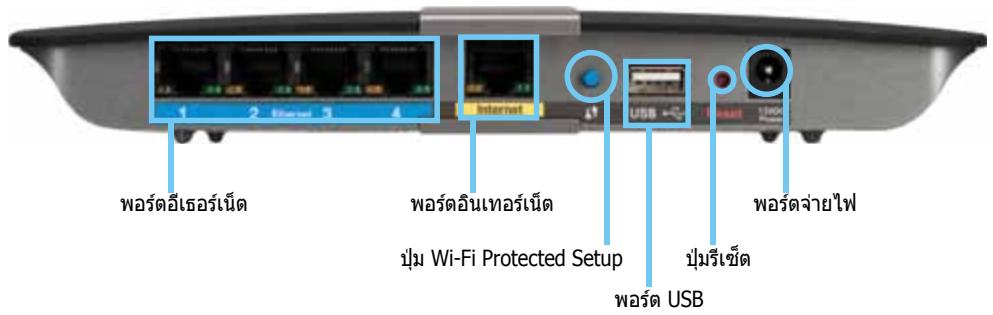
Back view
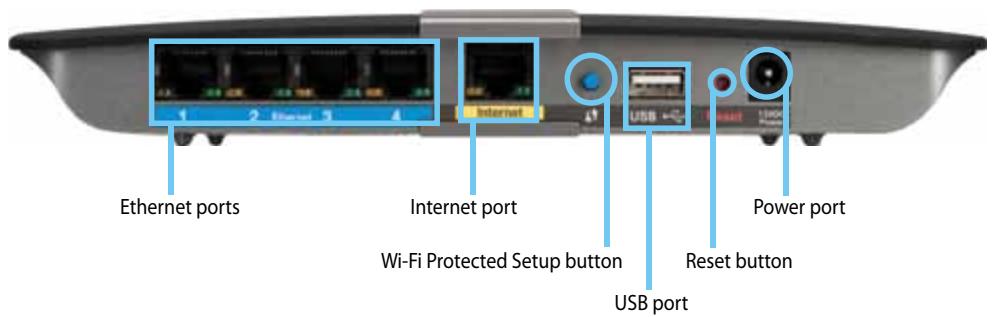
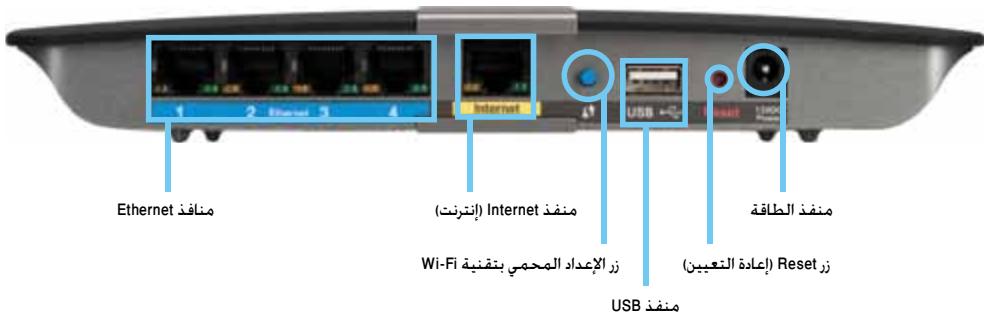
- Ethernet ports—Connect Ethernet cables (also called network cables) to these Gigabit (10/100/1000) ports, color coded blue, and to other wired Ethernet network devices on your network.
- Internet port—Connect an Ethernet cable (also called a network or Internet cable) to this port, color coded yellow, and to your modem.
- Wi-Fi Protected Setup™ button—Press this button to easily configure wireless security on Wi-Fi Protected Setup-enabled network devices. For more information, see "Wireless Security" on page 8.
- USB port—To easily share disk storage with other users on your network or on the Internet, connect a USB drive to this port.
- Reset button—Press and hold this button for 5-15 seconds (until the port lights flash at the same time) to reset the router to its factory defaults. You can also restore the defaults using the browser-based utility.
- Power—Connect the included AC power adapter to this port.
CAUTION
Use only the adapter that came with your router.
- Power button—Press | (on) to turn on the router.
Setting Up Your EA-Series Router
Where to find more help
In addition to this User Guide, you can find help at these locations:
- Linksys.com/support (documentation, downloads, FAQs, technical support, live chat, forums)
- Cisco Connect help (run Cisco Connect, then click Learn More where available)
- Browser-based utility context-sensitive help (open the utility, then click Help in the right-side column.)
How to set up your router
The easiest and fastest way to set up your router is to run the Cisco Connect setup software.
How to start Cisco Connect
When you run the setup CD, Cisco Connect (your router's setup software) is automatically installed onto your computer. You can then use Cisco Connect to easily manage your router.
NOTE:
If you lose your setup CD, you can download the software from Linksys.com/support.
To start Cisco Connect for the first time:
- Insert the CD into your CD or DVD drive.
- Click Set up your Linksys Router.
If you do not see this:
- For Windows, click Start, Computer, then double-click the CD drive and the Setup icon.
-
For Mac, double-click the CD icon on your desktop, then double-click the Setup icon.
-
Follow the on-screen instructions to complete your router setup.
Use Cisco Connect to manage your router
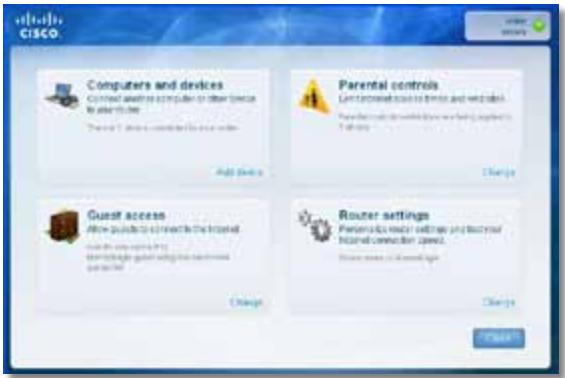
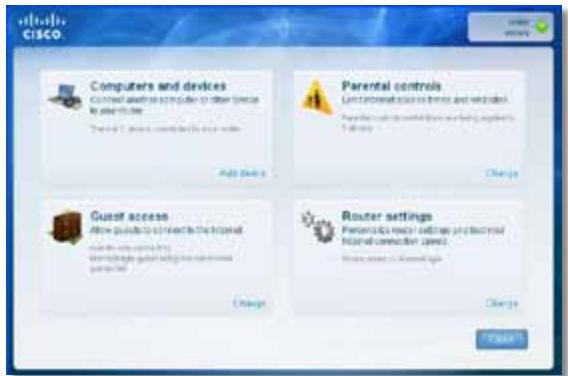
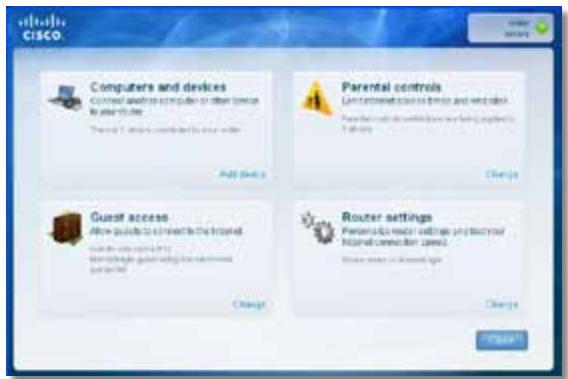
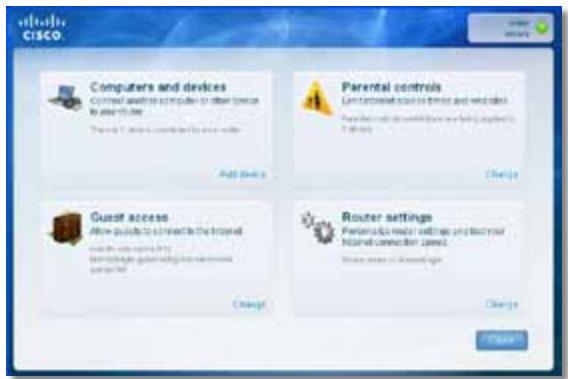
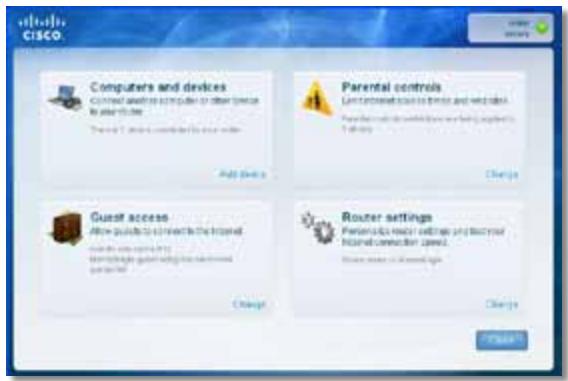
After your router has been set up and Cisco Connect has been installed, you can use Cisco Connect to easily manage many of your router's settings such as:
- Connect devices to your network
Test your Internet connection speed - Configure parental controls
- Set up guest access
- Change your router's name and password
How to manually set up your router
After setting up the router with the setup software (located on the CD), the router will be ready for use. If you would like to change its advanced settings, or if the software does not run, use the router's browser-based utility. You can access the utility with a web browser on a computer connected to the router. For more information on using the utility, see "How to open the browser-based utility" on page 3.
Advanced Configuration
How to open the browser-based utility
To access some advanced settings, you need to open the browser-based utility.
To open the browser-based utility:
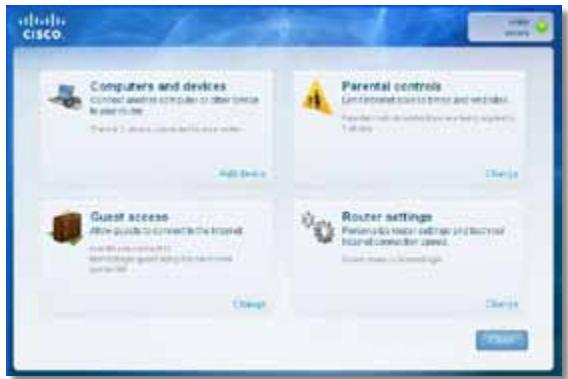
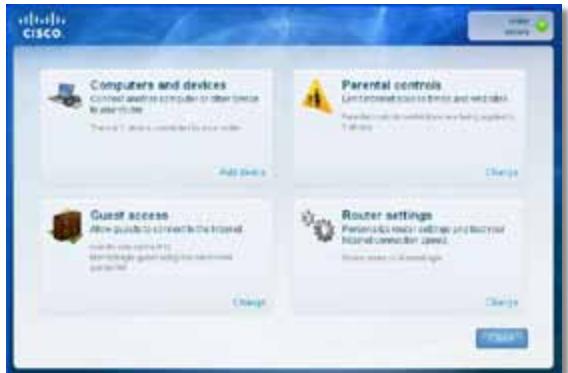
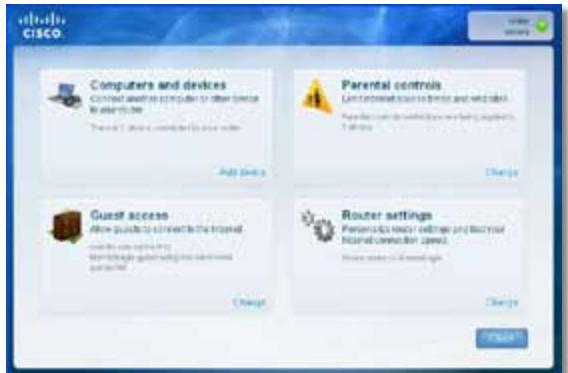
- Run Cisco Connect, click Change under Router settings, click Advanced settings, then click OK.
-or-
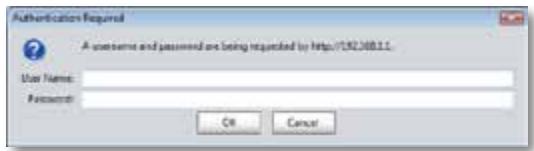
Open a web browser on a computer connected to your network, then go to 192.168.1.1.
The router prompts you for a user name and password.
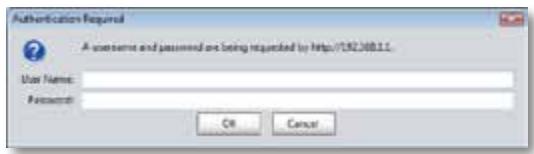
- Enter the user name and password, then click OK. The utility's main menu opens.
TIPS
If you set up your router without using Cisco Connect, your router's default username and password is admin.
If you used Cisco Connect to set up your router, you can see your router's user name and password by running Cisco Connect, then clicking Router settings.
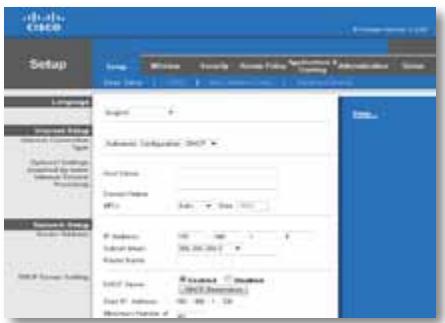
Setup > Basic Setup
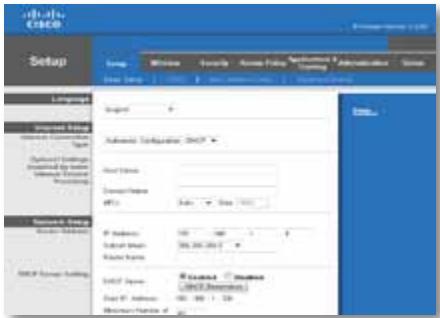
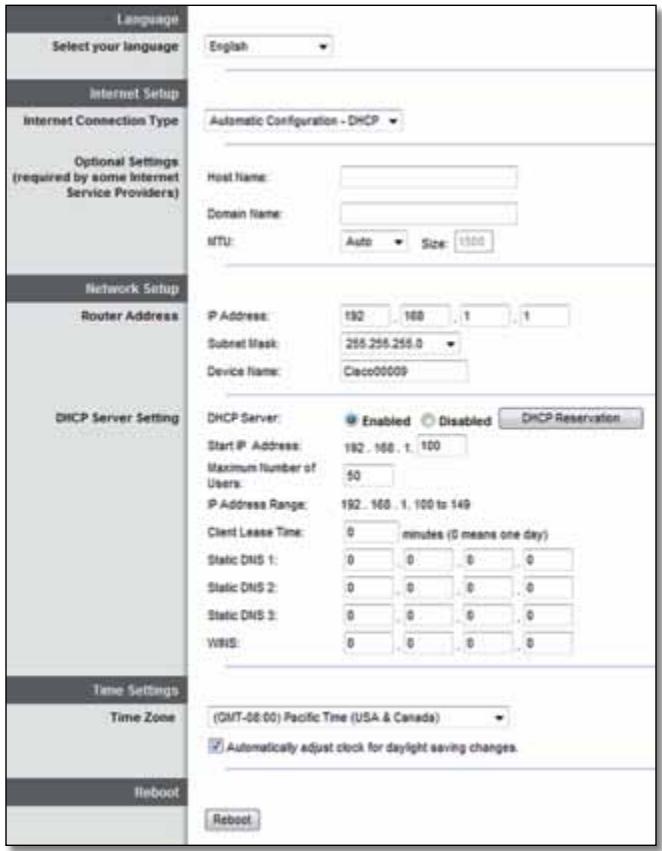
The first screen that appears is the Basic Setup screen. This allows you to change the router's general settings.
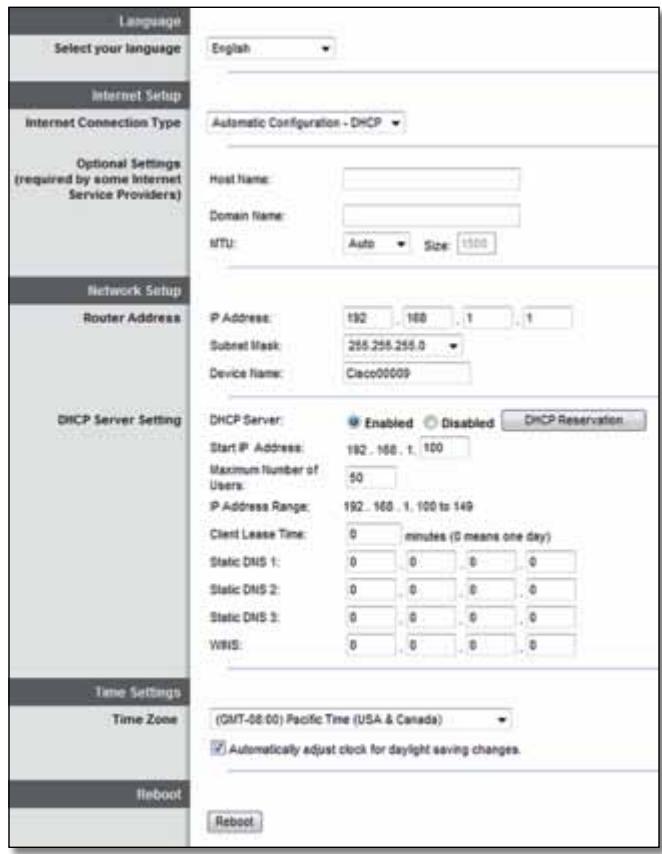
Language
Select your language To use a different language, select one from the dropdown menu. The language of the browser-based utility will change five seconds after you select another language.
Internet Setup
The Internet Setup section configures the router to your Internet connection. Most of this information can be obtained through your Internet Service Provider (ISP).
Internet Connection Type
Select the type of Internet connection your ISP provides from the drop-down menu. The available types are:
Automatic Configuration - DHCP
Static IP
- PPPoE
PPTP
L2TP
Bridge Mode
Automatic Configuration - DHCP
The default Internet Connection Type is Automatic Configuration - DHCP (Dynamic Host Configuration Protocol). Keep the default only if your ISP supports DHCP or if you connect using a dynamic IP address. (This option usually applies to cable connections.)
Static IP
If you are required to use a fixed IP address to connect to the Internet, select Static IP.
PPPoE
If you have a DSL connection, check whether your ISP uses Point-to-Point Protocol over Ethernet (PPPoE). If so, select PPPoE.
PPTP
Point-to-Point Tunneling Protocol (PPTP) is a service that generally applies to connections in Europe. If your PPTP connection supports DHCP or a dynamic IP address, then select Obtain an IP Address Automatically. If you are required to use a fixed IP address to connect to the Internet, then select Specify an IP Address and configure the options below.
L2TP
Layer 2 Tunneling Protocol (L2TP) is a service that generally applies to connections in Israel.
Connect on Demand or Keep Alive
The Connect on Demand and Keep Alive options let you choose whether the router connects to the Internet only as needed (useful if your ISP charges for connect time), or if the router should always be connected. Select the appropriate option.
Wireless > Wireless Settings
The settings for wireless networking are set on this screen.
NOTE
After you set up the wireless network(s), set up the wireless security settings.
Wireless Settings
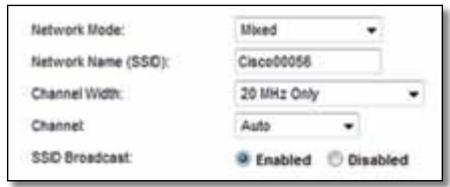
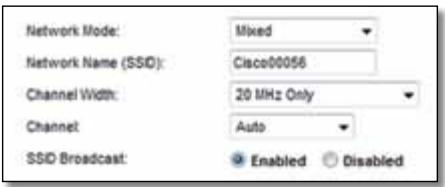
Network Mode Select the wireless standards your network will support.
- Mixed If you have Wireless-N (2.4 GHz), Wireless-G, and Wireless-B devices in your network, keep the default, Mixed.
- Wireless-B/G Only If you have both Wireless-B and Wireless-G (2.4 GHz) devices in your network, select Wireless-B/G Only.
- Wireless-B Only If you have only Wireless-B devices, select Wireless-B Only.
-
Wireless-G Only If you have only Wireless-G devices, select Wireless-G Only.
-
Wireless-N Only If you have only Wireless-N (2.4 GHz) devices, select Wireless-N Only.
- Disabled If you have no Wireless-B, Wireless-G, and Wireless-N (2.4 GHz) devices in your network, select Disabled.
NOTE
If you have a dual-band router, you can select Mixed, Wireless-A Only, Wireless-N Only, or Disabled for the 5 GHz band.
If you are not sure which mode to use, keep the default, Mixed.
Network Name (SSID) The Service Set Identifier (SSID) is the network name shared by all devices in a wireless network. It is case-sensitive and must not exceed 32 keyboard characters. The default is Cisco followed by the last 5 digits of the router's serial number, which is found on the bottom of the router. If you used the setup software for installation, then the default Network Name is changed to an easy-to-remember name.
NOTE
If you restore the router's factory default settings (by pressing the Reset button or using the Administration > Factory Defaults screen), the Network Name will return to its default value. Change the Network Name back to its original name, or you will have to reconnect all devices on your wireless network to the new network name.
Channel Width For best performance in a network using Wireless-B, Wireless-G and Wireless-N (2.4 GHz) devices, select Auto (20 MHz or 40 MHz). For a channel width of 20 MHz, select 20 MHz only.
Channel Select the channel from the drop-down list for Wireless-B, Wireless-G, and Wireless-N (2.4 GHz) networking. If you are not sure which channel to select, then keep the default, Auto.
SSID Broadcast When wireless clients survey the local area for wireless networks to associate with, they will detect the SSID broadcast by the router. To broadcast the router's SSID, keep the default, Enabled. If you do not want to broadcast the router's SSID, then select Disabled.
Wireless Security
Wireless > Wireless Security
The wireless security settings configure the security of your wireless network(s). The router supports the following wireless security options: WPA2/WPA Mixed Mode, WPA2 Personal, WPA Personal, WPA2/WPA Enterprise Mixed Mode, WPA2 Enterprise, WPA Enterprise, WEP, and RADIUS. (WPA stands for Wi-Fi Protected Access. WEP stands for Wireless Equivalent Privacy. RADIUS stands for Remote Authentication Dial-In User Service.)
Personal options
| Security Option | Strength |
| WPA2 Personal | Strongest |
| WPA2/WPA Mixed Mode | WPA2: Strongest WPA: Strong |
| WPA Personal | Strong |
| WEP | Basic |
Office options
The office options are available for networks that use a RADIUS server for authentication. The office options are stronger than the personal options because WPA2 or WPA provides encryption while RADIUS provides authentication.
| Security Option | Strength |
| WPA2 Enterprise | Strongest |
| WPA2/WPA Enterprise Mixed Mode | WPA2: Strongest WPA: Strong |
| WPA Enterprise | Strong |
| RADIUS | Basic |
Option settings
WPA2/WPA Mixed Mode, WPA2 Personal, WPA Personal
NOTES
If you select WPA2/WPA Mixed Mode as your Security Mode, each device in your wireless network MUST use WPA2/WPA and the same passphrase.
If you select WPA2 Personal as your Security Mode, each device in your wireless network MUST use WPA2 Personal and the same passphrase.
If you select WPA Personal as your Security Mode, each device in your wireless network MUST use WPA Personal and the same passphrase.
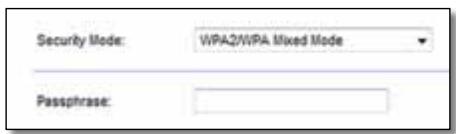
Passphrase Enter a passphrase of 8-63 characters. The default is password. If you used the setup software for installation, then the default is changed to a unique passphrase, which you can find by running Cisco Connect, then clicking Router settings.
WPA2/WPA Enterprise Mixed Mode, WPA2 Enterprise, WPA Enterprise
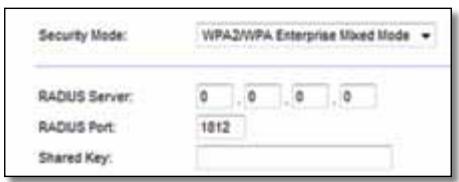
These option is used in coordination with a RADIUS server. (These should only be used when a RADIUS server is connected to the router.)
NOTES
If you select WPA2/WPA Enterprise Mixed Mode as your Security Mode, each device in your wireless network MUST use WPA2/WPA Enterprise and the same shared key.
If you select WPA2 Enterprise as your Security Mode, each device in your wireless network MUST use WPA2 Enterprise and the same shared key.
If you select WPA Enterprise as your Security Mode, each device in your wireless network MUST use WPA Enterprise and the same shared key.
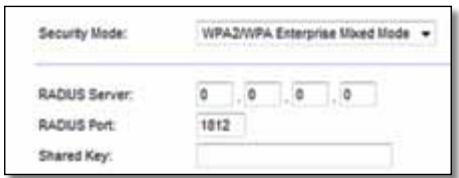
RADIUS Server Enter the IP address of the RADIUS server.
RADIUS Port Enter the port number of the RADIUS server. The default is 1812.
Shared Key Enter the key shared between the router and the server.
WEP
WEP is a basic encryption method, which is not as secure as WPA.
NOTE:
If you select WEP as your Security Mode, each device in your wireless network MUST use WEP and the same encryption and shared key.
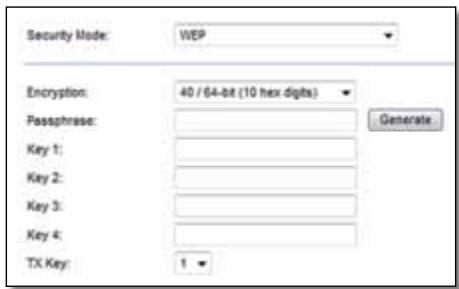
Encryption Select a level of WEP encryption, (40/64-bit 10 hex digits) or 104/128-bit (26 hex digits). The default is 40/64-bit (10 hex digits).
Passphrase Enter a passphrase to automatically generate WEP keys. Then click Generate.
Key 1-4 If you did not enter a passphrase, enter the WEP key(s) manually.
TX Key Select a default TX (Transmit) Key to use. The default is 1.
RADIUS
This option features WEP used in coordination with a RADIUS server. (This should only be used when a RADIUS server is connected to the router.)
NOTE:
If you select RADIUS as your Security Mode, each device in your wireless network MUST use RADIUS and the same encryption and shared key.
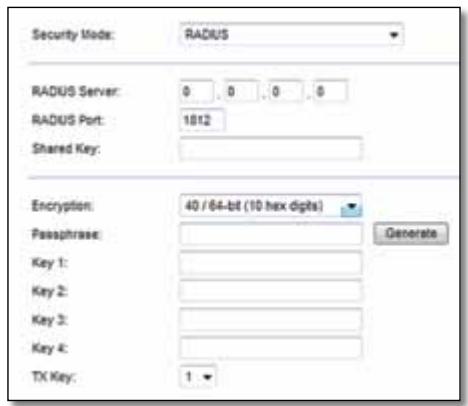
RADIUS Server Enter the IP address of the RADIUS server.
RADIUS Port Enter the port number of the RADIUS server. The default is 1812.
Shared Secret Enter the key shared between the router and the server.
Encryption Select a level of WEP encryption, (40/64-bit 10 hex digits) or 104/128-bit (26 hex digits). The default is 40/64-bit (10 hex digits).
Passphrase Enter a passphrase to automatically generate WEP keys. Then click Generate.
Key 1-4 If you did not enter a passphrase, enter the WEP key(s) manually.
TX Key Select a default TX (Transmit) Key to use. The default is 1.
Disabled
If you choose to disable wireless security, you will be informed that wireless security is disabled when you first attempt to access the Internet. You will given the option to enable wireless security, or confirm that you understand the risks but still wish to proceed without wireless security.

Troubleshooting
This chapter can help you solve common setup issues and connect to the Internet. Your router's CD includes Cisco Connect, the router setup software that makes it easy to connect network devices, change router settings, control guest access, enable parental controls, and connect to the Internet. Cisco Connect is also installed onto your computer during setup. If Cisco Connect is prevented from completing the setup, this chapter will guide you through finding solutions.
You can find more help from our award-winning customer support at linksys.com/support.
How to run Cisco Connect after setup
When you run the setup CD, Cisco Connect is automatically installed onto your computer. You can then use Cisco Connect to easily manage your network.
To start Cisco Connect on a Windows computer:
- Click Start, All Programs, then click Cisco Connect.

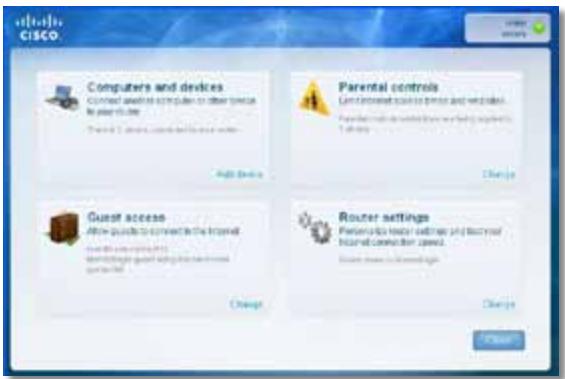
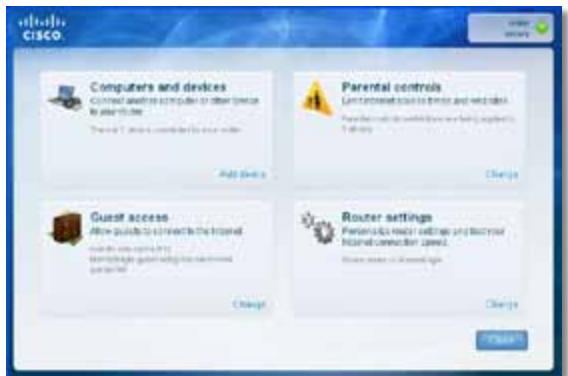
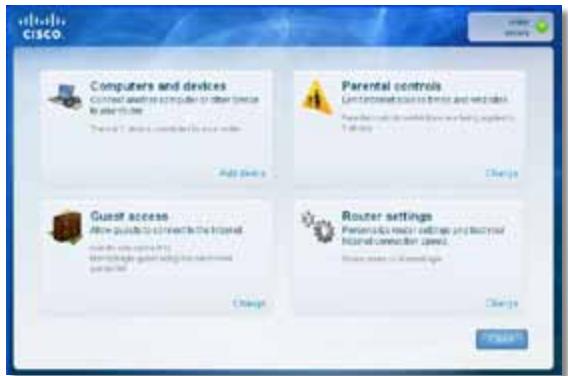
The Cisco Connect main menu opens.
To start Cisco Connect on a Mac OS X computer:
- Open Finder and click Applications in the left panel.

- Double-click the Cisco Connect icon.
The Cisco Connect main menu opens.
Your router was not successfully set up
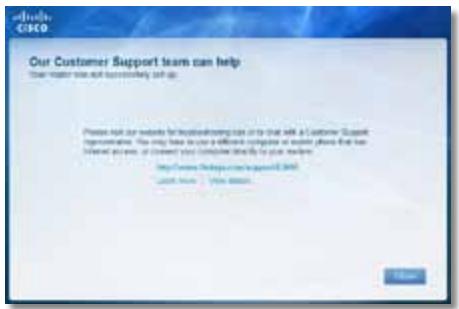
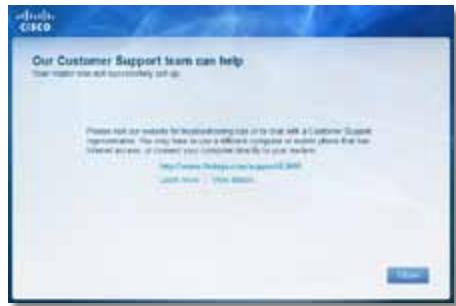
If Cisco Connect did not complete the setup, you can try the following:
- Press and hold the Reset button on your router with a paperclip or pin for 5-15 seconds, then run the Setup program again on the router's CD.
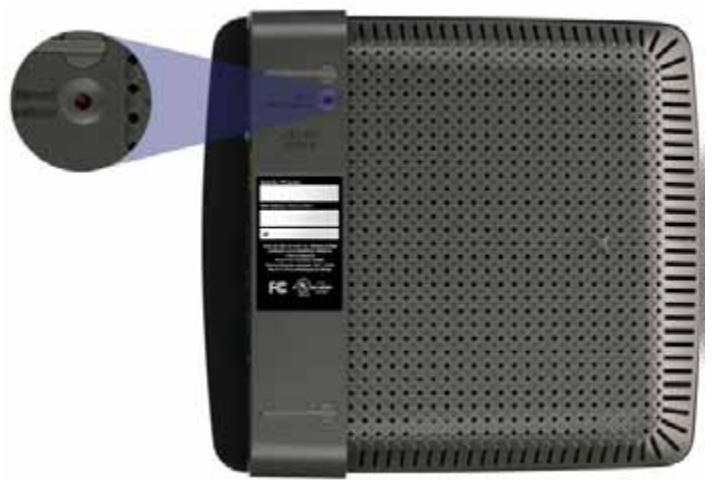

Your router's appearance may vary
- Temporarily disable your computer's firewall (see the security software's instructions for help), then run the Setup program again on the router's CD.
- If you have another computer, use that computer to run the Setup program again on the router's CD.
Get Windows XP Service Pack 3 message
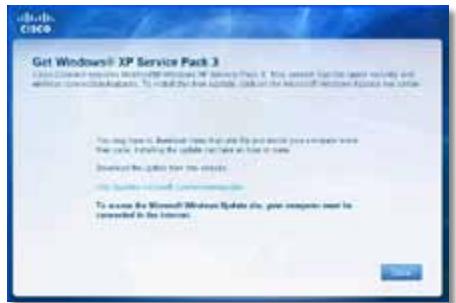
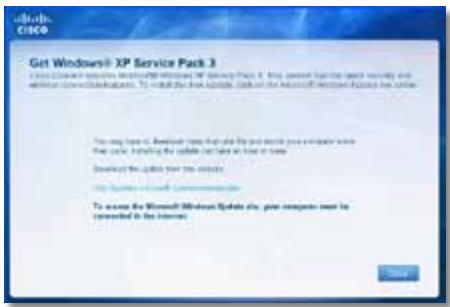
On Windows XP computers, Cisco Connect requires Service Pack 3 in order to work. If you receive a "Get Windows Service Pack 3" message when setting up your router for the first time, follow these troubleshooting steps.
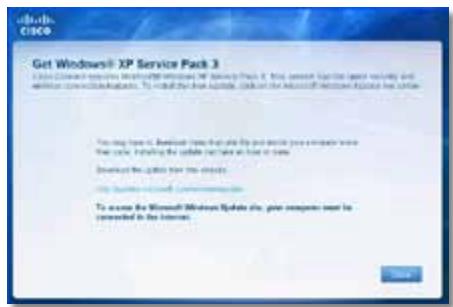
If the currently installed Service Pack is older than version 3, you need to download and install Service Pack 3.
TIP
To temporarily connect to the Internet and download the required Service Pack, you can use the included Ethernet cable to connect your computer directly to your modem.
To install Service Pack 3:
- Click the link in the Cisco Connect error message or connect to the Microsoft Update website (update.microsoft.com/windowsupdate).
- Follow the instructions on the website or contact Microsoft if you need further help.
- After downloading and installing Service Pack 3, run the Setup program on your router's CD.
Your Internet cable is not plugged in
message
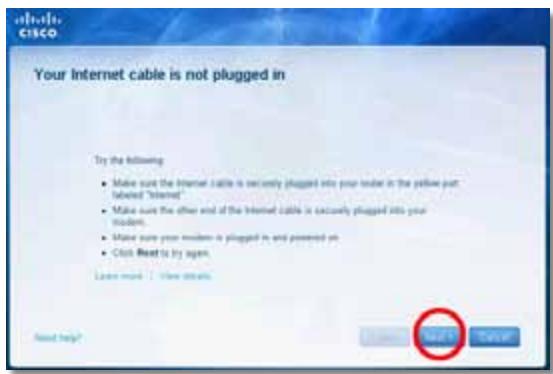
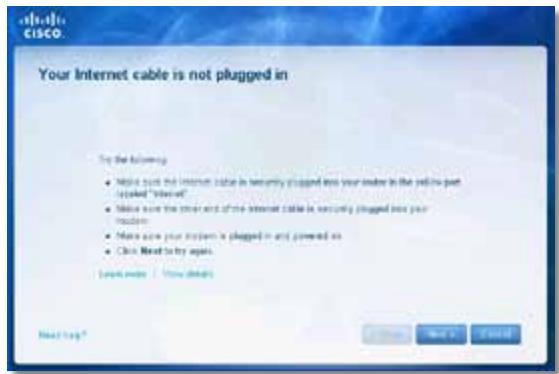
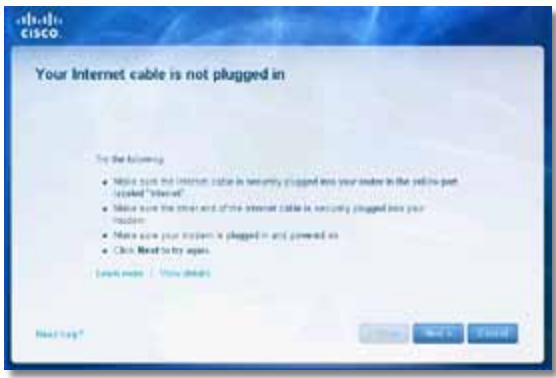
If you get a "Your Internet cable is not plugged in" message when trying to set up your router, follow these troubleshooting steps.
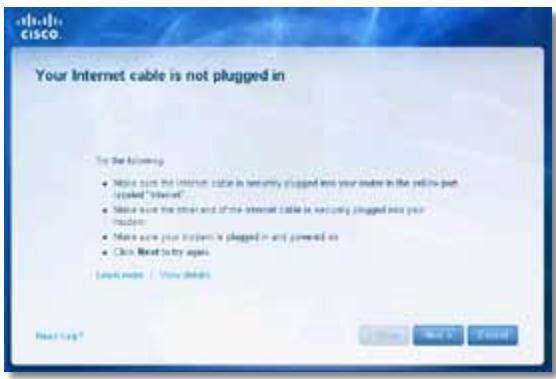
To fix the problem:
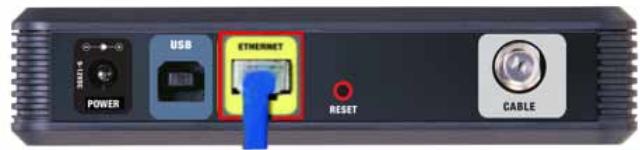
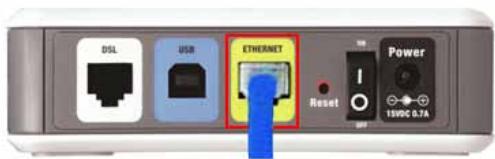
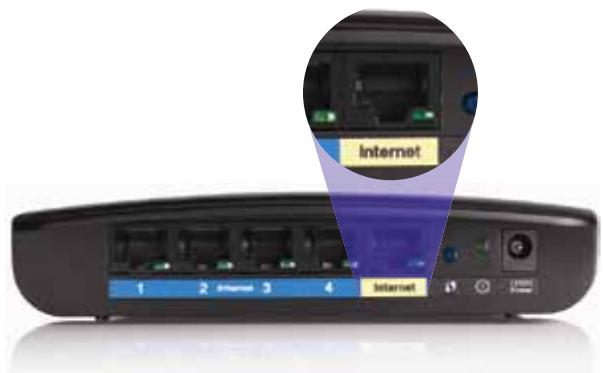
- Make sure that an Ethernet or Internet cable (or a cable like the one supplied with your router) is securely connected to the yellow Internet port on the back of the router and to the appropriate port on your modem. This port on the modem is usually labeled Ethernet, but may be named Internet or WAN.
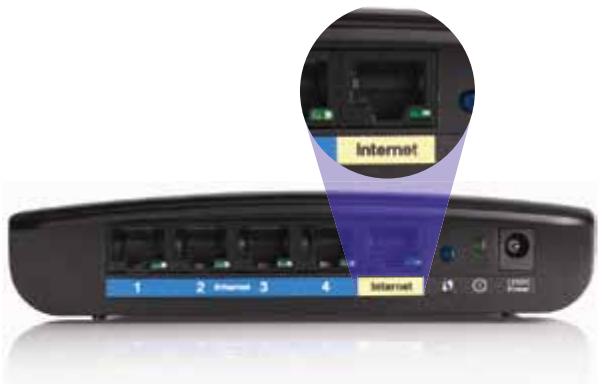
Back view of router
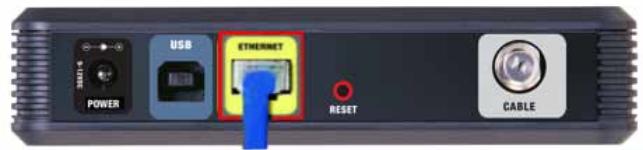
Back view of cable modem
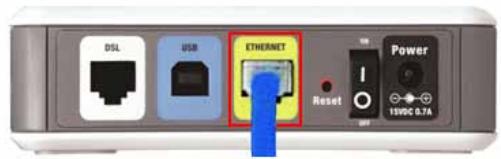
Back view of DSL modem
- Make sure that your modem is connected to power and is turned on. If it has a power switch, make sure that it is set to the ON or I position.
- If your Internet service is cable, verify that the cable modem's CABLE port is connected to the coaxial cable provided by your ISP.
Or, if your Internet service is DSL, make sure that the DSL phone line is connected to the modem's DSL port.
- If your computer was previously connected to your modem with a USB cable, disconnect the USB cable.
- Return to the Cisco Connect window and click Next to try again. If the window has already been closed, run the Setup program again on the router's CD.
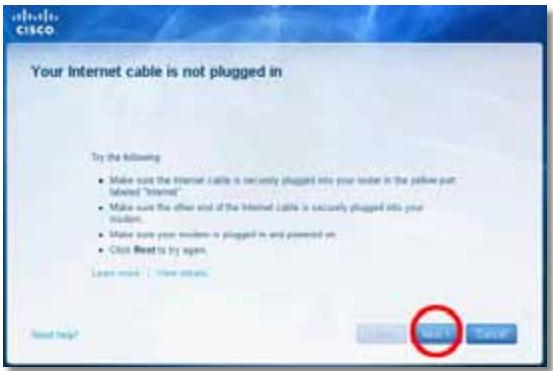
Cannot access your router message
If you cannot access your router because your computer is not connected to your network, follow these troubleshooting steps.
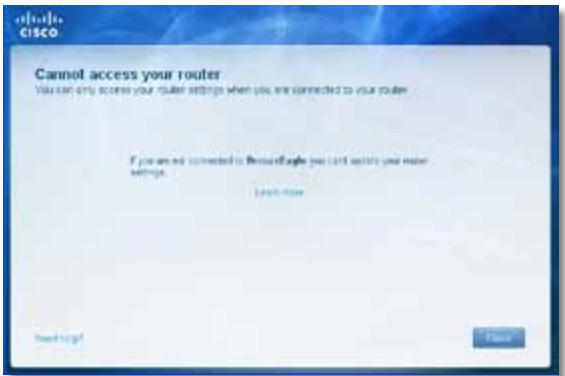
To access your router, you must be connected to your own network. If you currently have wireless Internet access, the problem may be that you have accidentally connected to a different wireless network.
To fix the problem on Windows computers:
- On your Windows desktop, right-click the wireless icon in the system tray.
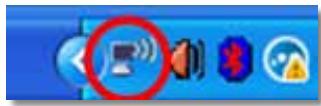
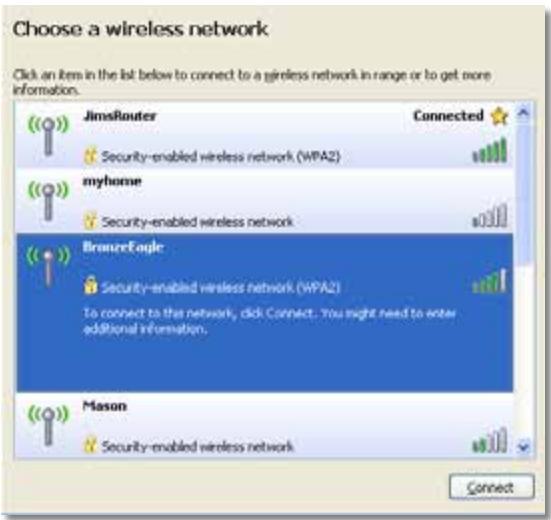
- Click View Available Wireless Networks. A list of available networks appears.
| Disable Status Repair |
| View Available Wireless Networks |
| Change Windows Firewall settings |
| Open Network Connections |
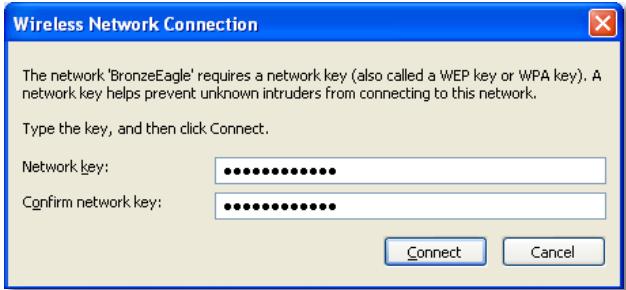
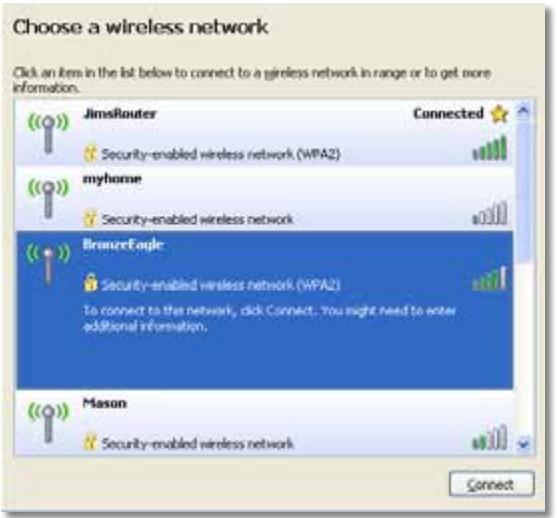
- Click your own network name, then click Connect. In the example below, the computer was connected to another wireless network named JimsRouter. The name of the Linksys E-Series network, BronzeEagle in this example, is shown selected.
- If you are prompted to enter a network key, type your password (Security Key) into the Network key and Confirm network key fields, then click Connect.
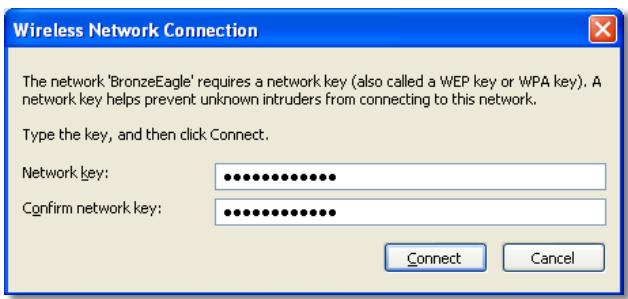
Your computer connects to the network, and you should now be able to access the router.
To fix the problem on Mac computers:
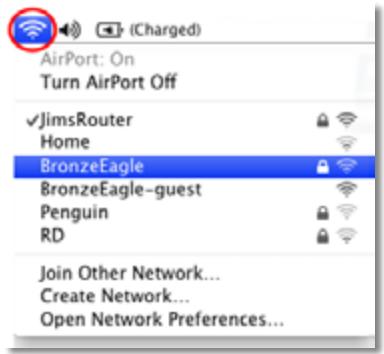
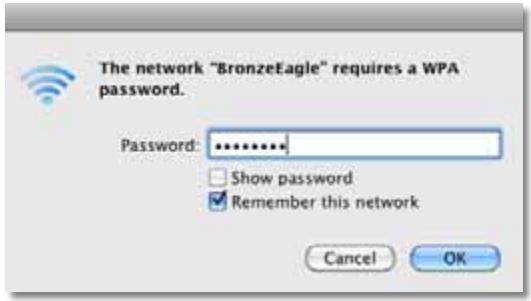
- In the menu bar across the top of the screen, click the Airport icon. A list of wireless networks appears. Cisco Connect has automatically assigned your network a name.
In the example below, the computer was connected to another wireless network named JimsRouter. The name of the Linksys E-Series network, BronzeEagle in this example, is shown selected.
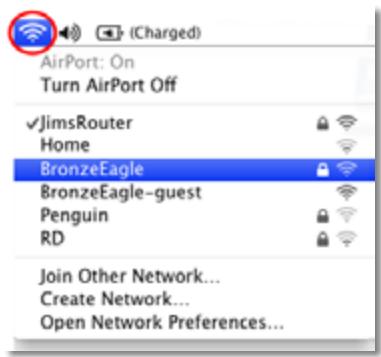
- Click the wireless network name of your Linksys E-Series router (BronzeEagle in the example).
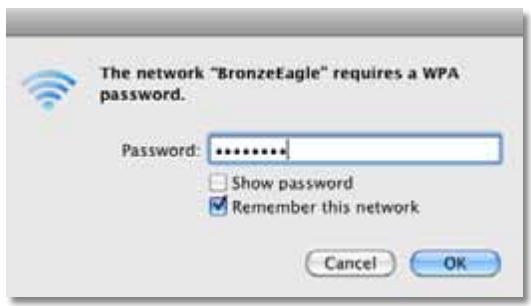
- Type your wireless network password (Security Key) into the Password field, then click OK.
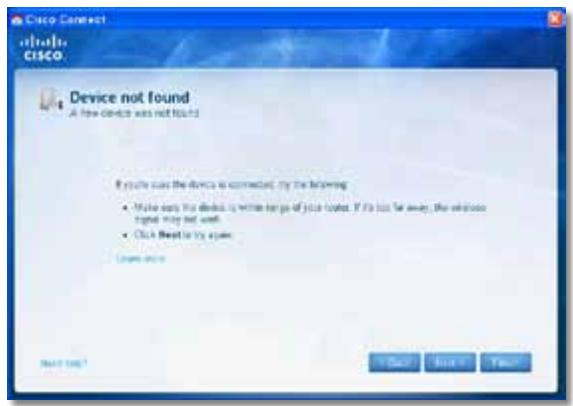
Device not found message
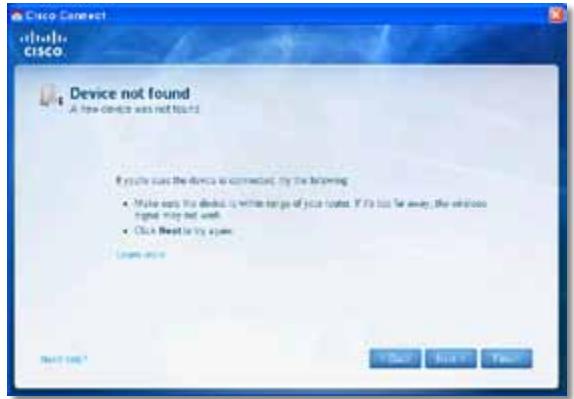
If you get a "Device not found" message when trying to connect a network device (such as an iPhone, iPod, or smartphone), follow these troubleshooting steps.
TIP
For a stronger signal during initial setup, move your wireless devices near your router. Long distances make it harder for the router to detect the devices.
To fix the problem:
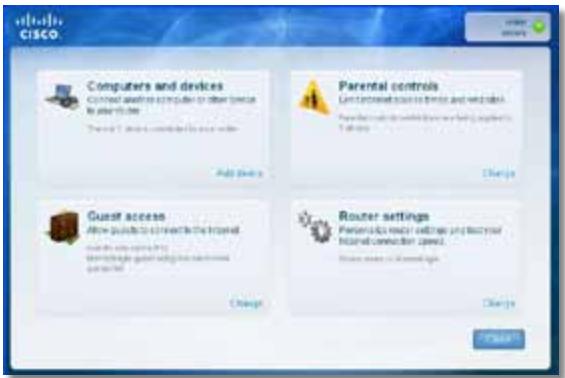
- Run Cisco Connect.
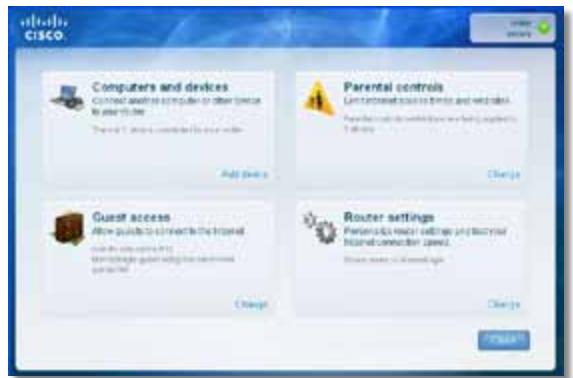
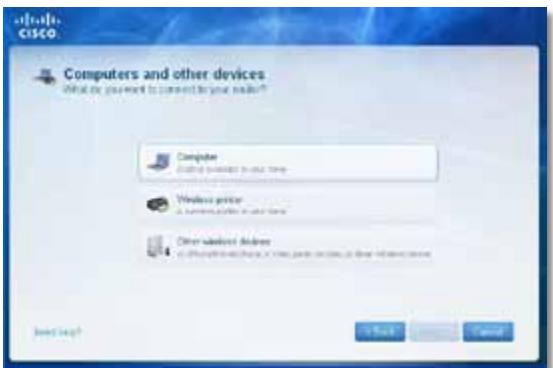
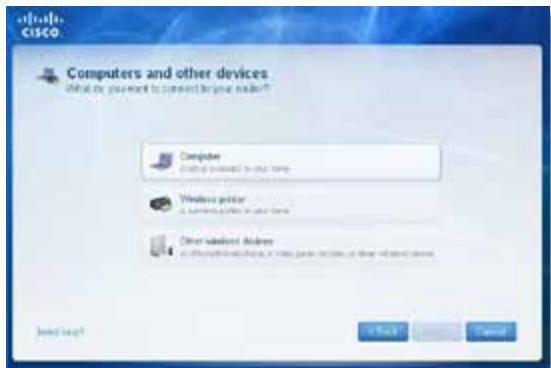
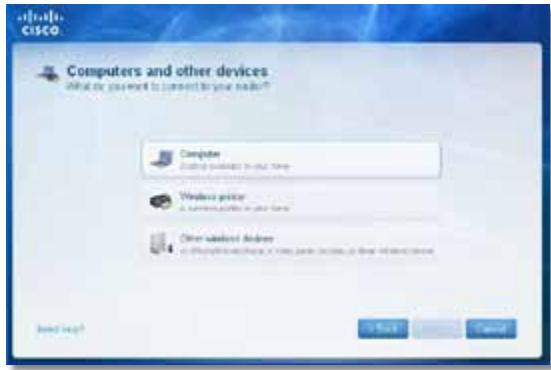
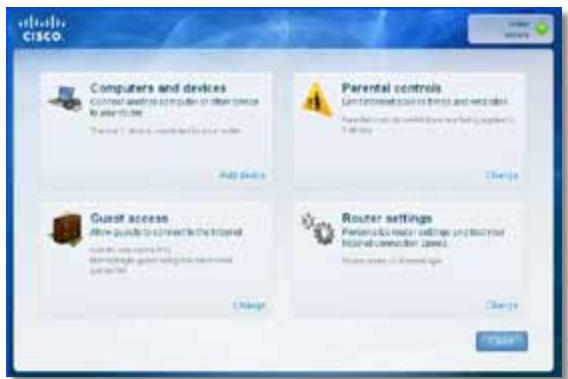
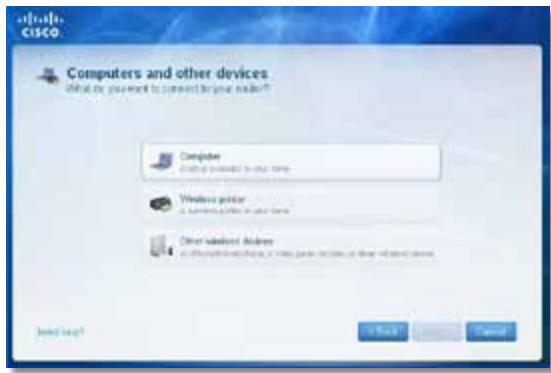
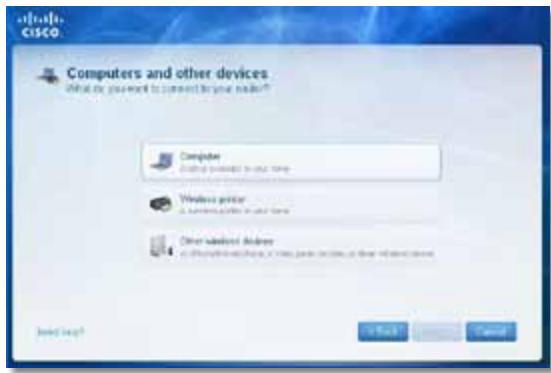
- Click Computers and devices. The Computers and other devices window appears.
- Click Other Wireless devices.
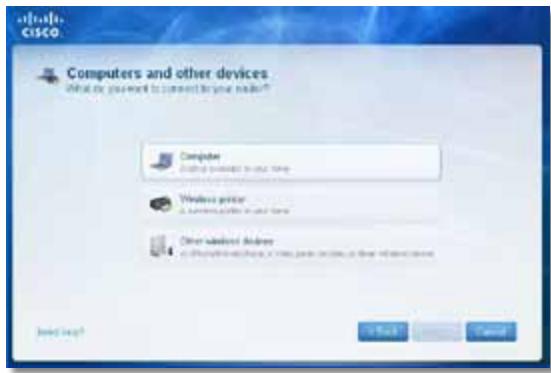
- Enable your wireless network device's Wi-Fi connection, then search for your wireless network name. See your device documentation for help.
NOTE
Your wireless device must support WPA/WPA2.
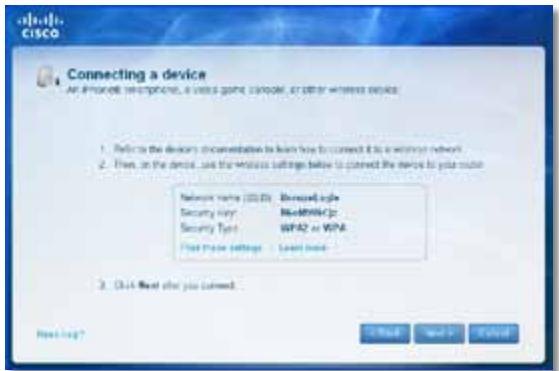
- On the wireless network device, select the network name of your router and enter the password (Security Key).
- In Cisco Connect, click Next.
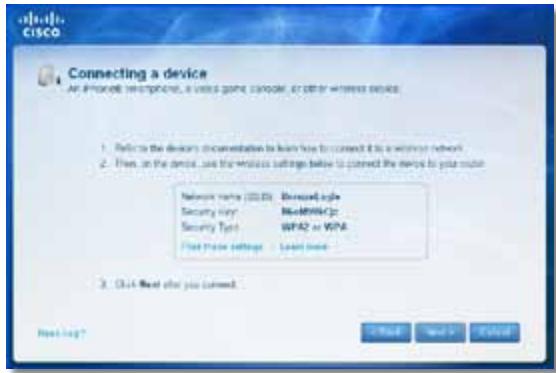
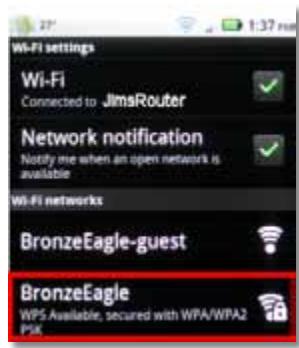
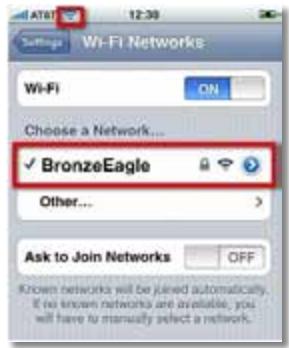
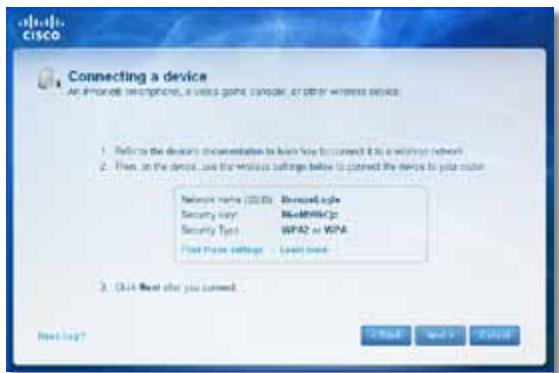
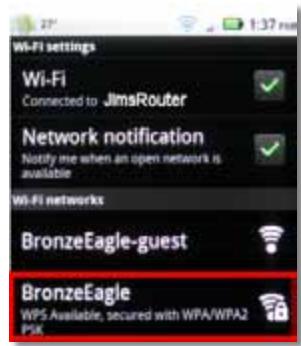
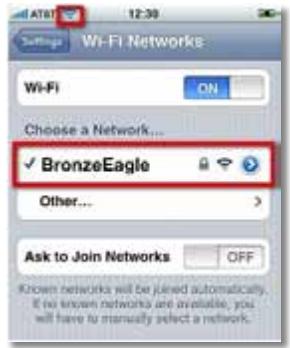
Example: On your Smartphone or other wireless device, locate the WiFi menu and search for available wireless networks. In this example, using the network information provided by Cisco Connect shown in the previous screen, click BronzeEagle.
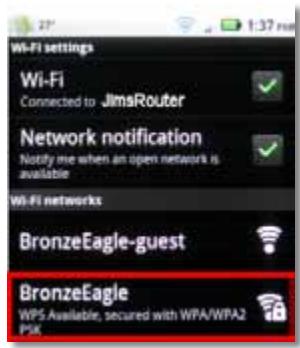
Android
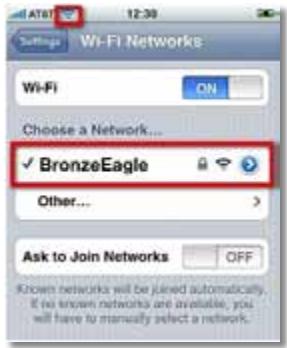
iPhone
- Enter the password (Security Key) provided by Cisco Connect. In this example, the security key is B6eM9UkCjz.
NOTE
The password is case sensitive. Make sure that you enter letters in the correct case.
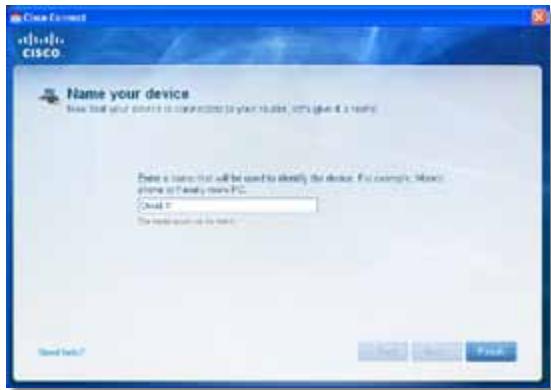
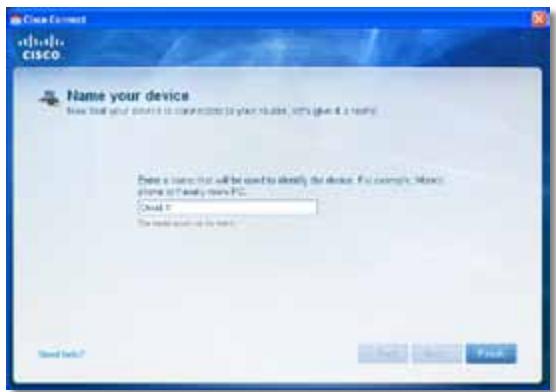
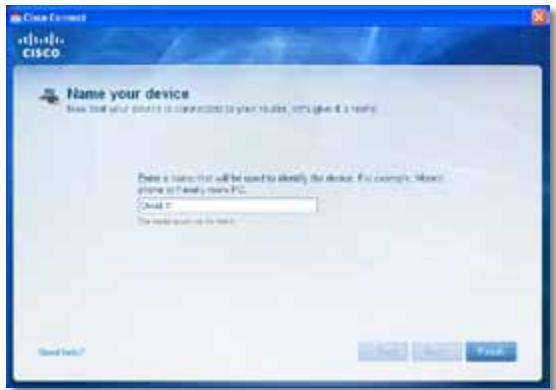
- When your wireless device is successfully connected to your wireless network, enter a name for the device in Cisco Connect, then click Finish.
Specifications
Linksys EA2700
| Model Name | Linksys EA2700 |
| Description | Dual-Band N600 Router with Gigabit |
| Model Number | EA2700 |
| Standards | 802.11n, 802.11a, 802.11g, 802.11b, 802.3, 802.3u, 802.3ab |
| # of Antennas | 4 total, 2 internal antennas per each 2.4 GHz & 5 GHz radio band |
| Detachable (y/n) | No |
| Switch Port Speed | 10/100/1000 Mbps (Gigabit Ethernet) |
| Modulation | 802.11b: CCK, QPSK, BPSK 802.11g: OFDM 802.11a: OFDM 802.11n: BPSK, QPSK, 16-QAM, 64-QAM |
| Receive Sensitivity (Typical) | 2.4 GHz 802.11b: -90 dBm @ 11 Mbps 802.11g: -75 dBm @ 54 Mbps 802.11n 20 MHz: -73 dBm @ MCS15 802.11n 40 MHz: -70 dBm @ MCS15 5 GHz 802.11a: -72 dBm @ 54 Mbps 802.11n 20 MHz: -70 dBm @ MCS15 802.11n 40 MHz: -67 dBm @ MCS15 |
| Antenna Gain | 2.4 GHz Antenna 1 ≤ 3.45 dBi Antenna 2 ≤ 2.46 dBi 5 GHz Antenna 1 ≤ 4.41 dBi Antenna 2 ≤ 5.15 dBi |
| UPnP | Supported |
| Security features | WEP, WPA, WPA2 |
| Security key bits | Up to 128-bit encryption |
Environmental
| Dimensions | 174 x 190 x 28 mm (6.85" x 7.48" x 1.10") |
| Unit Weight | 297.7 g (10.5 oz) |
| Power | 12V, 1A |
| Certifications | FCC, IC, CE, Wi-Fi A/B/G/N |
| Operating Temp. | 0 to 40°C (32 to 104°F) |
| Storage Temp. | -20 to 60°C (-4 to 140°F) |
| Operating Humidity | 10 to 80%, relative humidity, non-condensing |
| Storage Humidity | 5 to 90% non-condensing |
NOTES
For regulatory, warranty, and safety information, see the CD that came with your router or go to Linksys.com/support.
Specifications are subject to change without notice.
Maximum performance derived from IEEE Standard 802.11 specifications. Actual performance can vary, including lower wireless network capacity, data throughput rate, range and coverage. Performance depends on many factors, conditions and variables, including distance from the access point, volume of network traffic, building materials and construction, operating system used, mix of wireless products used, interference and other adverse conditions.
Linksys EA3500
| Model Name | Linksys EA3500 |
| Description | Dual-Band N750 Router with Gigabit and USB |
| Model Number | EA3500 |
| # of Antennas | 6 total, 3 internal antennas per each 2.4 GHz & 5 GHz radio band |
| Detachable (y/n) | No |
| Switch Port Speed | 10/100/1000 Mbps (Gigabit Ethernet) |
| Ports | Internet, Ethernet (1-4), USB, Power |
| Buttons | Reset, Wi-Fi Protected Setup |
| LEDs | Power, Internet, Ethernet (1-4) |
| Modulation | 802.11b: CCK, QPSK, BPSK 802.11g: OFDM 802.11a: OFDM 802.11n: BPSK, QPSK, 16-QAM, 64-QAM |
| Receive Sensitivity | 2.4 GHz 802.11b: -87 dBm @ 11 Mbps (Typical) 802.11g: -77 dBm @ 54 Mbps (Typical) 802.11n (20 MHz): -72 dBm @ MCS15 (Typical) 802.11n (40 MHz): -69 dBm @ MCS15 (Typical) 5 GHz 802.11a: -74 dBm @ 54 Mbps (Typical) 802.11n 20 MHz: -67 dBm @ MCS23 (Typical) 802.11n 40 MHz: -64 dBm @ MCS23 (Typical) |
| Antenna Gain | 2.4 GHz (Dipole Antennas) Antenna 1 ≤ 2.70 dBi Antenna 2 ≤ 3.70 dBi Antenna 3 ≤ 4.95 dBi 5 GHz (Dipole Antennas) Antenna 1 ≤ 4.46 dBi Antenna 2 ≤ 3.23 dBi Antenna 3 ≤ 3.88 dBi |
| UPnP | Supported |
| Security features | WEP, WPA, WPA2 |
| Security key bits | Up to 128-bit encryption |
| Storage File System Support | FAT, and NTFS, and HFS+ |
Environmental
| Dimensions | 6.69" x 0.98" x 7.48" (170 x 25 x 190 mm) |
| Unit Weight | 11.5 oz (326 g) |
| Power | 12V, 2A |
| Certifications | FCC, IC, CE, Wi-Fi A/B/G/N, Windows 7 |
| Operating Temp. | 32 to 95°F (0 to 35°C) |
| Storage Temp. | -4 to 140°F (-20 to 60°C) |
| Operating Humidity | 10 to 80% relative humidity, non-condensing |
| Storage Humidity | 5 to 90% non-condensing |
NOTES
For regulatory, warranty, and safety information, see the CD that came with your router or go to Linksys.com/support.
Specifications are subject to change without notice.
Maximum performance derived from IEEE Standard 802.11 specifications. Actual performance can vary, including lower wireless network capacity, data throughput rate, range and coverage. Performance depends on many factors, conditions and variables, including distance from the access point, volume of network traffic, building materials and construction, operating system used, mix of wireless products used, interference and other adverse conditions.
Linksys EA4500
| Model Name | Linksys EA4500 |
| Description | Dual-Band N900 Router with Gigabit and USB |
| Model Number | EA4500 |
| Standards | 802.11n, 802.11a, 802.11g, 802.11b, 802.3, 802.3u, 802.3ab |
| Radio Frequency | 2.4 and 5 GHz |
| Switch Port Speed | 10/100/1000 Mbps (Gigabit Ethernet) |
| Ports | Power, USB, Internet, Ethernet (1-4) |
| Buttons | Reset, Wi-Fi Protected Setup |
| LEDs | Top panel: Power Back panel: Internet, Ethernet (1-4) |
| Number of Antennas | 6 total, 3 internal antennas per each 2.4 GHz and 5 GHz radio band |
| Detachable (y/n) | No |
| Modulations | 802.11b: CCK, QPSK, BPSK 802.11g: OFDM 802.11a: OFDM 802.11n: BPSK, QPSK, 16-QAM, 64-QAM |
| Receive Sensitivity | 2.4 GHz 802.11b: -87 dBm @ 11 Mbps (Typical) 802.11g: -77 dBm @ 54 Mbps (Typical) 802.11n: 20 MHz: -70 dBm @ MCS23 (Typical) 802.11n: 40 MHz: -66 dBm @ MCS23 (Typical) 5 GHz 802.11a: -74 dBm @ 54 Mbps (Typical) 802.11n: 20 MHz: -67 dBm @ MCS23 (Typical) 802.11n: 40 MHz: -64 dBm @ MCS23 (Typical) |
| Antenna Gain in dBi | 2.4 GHz (3 internal PIFA antennas) PIFA 1 ≤ 3.31 dBi (Right) PIFA 2 ≤ 3.45 dBi (Front) PIFA 3 ≤ 1.96 dBi (Left) 5 GHz (3 internal PIFA antennas) PIFA 1 ≤ 3.71 dBi (Right) PIFA 2 ≤ 3.60 dBi (Front) PIFA 3 ≤ 4.27 dBi (Left) |
| Supported File Systems | |
| for Storage Device | FAT32, NTFS, and HFS+ |
| UPnP | Supported |
| Security Features | WEP, WPA, WPA2 |
| Security Key Bits | Up to 128-bit encryption |
| Environmental | |
| Dimensions | 8.86" x 0.98" x 6.30" (225 x 25 x 160 mm) |
| Unit Weight | 12.7 oz (360 g) |
| Power | 12V, 2A |
| Certifications | FCC, IC, CE, Wi-Fi a/b/g/n, Windows 7, DLNA |
| Operating Temp. | 32 to 104°F (0 to 40°C) |
| Storage Temp. | -4 to 140°F (-20 to 60°C) |
| Operating Humidity | 10 to 80% relative humid non-condensing |
| Storage Humidity | 5 to 90% non-condensing |
NOTES
For regulatory, warranty, and safety information, see the CD that came with your router or go to Linksys.com/support.
Specifications are subject to change without notice.
Maximum performance derived from IEEE Standard 802.11 specifications. Actual performance can vary, including lower wireless network capacity, data throughput rate, range and coverage. Performance depends on many factors, conditions and variables, including distance from the access point, volume of network traffic, building materials and construction, operating system used, mix of wireless products used, interference and other adverse conditions.
Visit linksys.com/support for award-winning technical support

Cisco, the Cisco logo, and Linksys are trademarks or registered trademarks of Cisco and/or its affiliates in the United States and other countries. A listing of Cisco's trademarks can be found at www.cisco.com/go/trademarks. All other trademarks mentioned in this document are the property of their respective owners.
Guía del usuario
Contedio
WPA2/WPA Mixed Mode (Modo WPA2/WPA mixto), WPA2 Personal y WPA Personal
NOTAS
- Execute Cisco Connect.
- Sezione Computers and devices (Computadoras y dispositivos). Aparece la pantalla Computers and other devices (Computadoras yotiros dispositivos).
- Haga Cli en Other Wireless devices (Otros dispositivos inalábricos).
- Execute Cisco Connect.
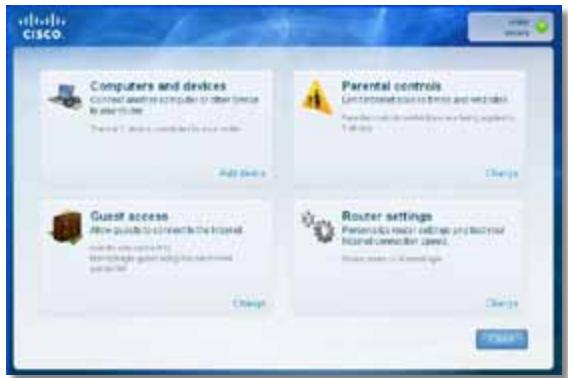
Your Internet cable is not plugged in
WPA2/WPA Mixed Mode, WPA2 Personal, WPA Personal
HUOMAUTUKSA
WPA2/WPA Enterprise Mixed Mode, WPA2 Enterprise, WPA Enterprise
- Kännista Cisco Connect.
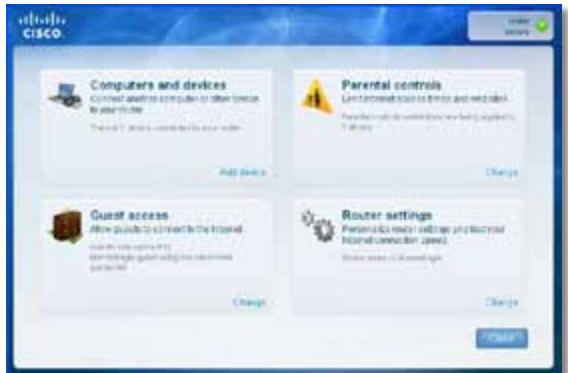
Message Your Internet cable is not plugged in
(VotrecableInternetn'estpasbranche) 12
Message Cannot access your router
WPA2/WPA mode mixte, WPA2 personnel, WPA personnel
REMARQUES
- Executez Cisco Connect.
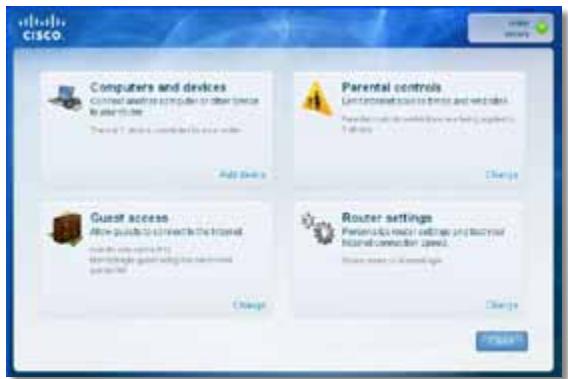
- Double-cliquez sur I'icone Cisco Connect.
- Executez Cisco Connect.
A Cisco Connect elinditasa 3
Your Internet cable is not plugged in
WPA2/WPA Mixed Mode, WPA2 Personal, WPA Personal
MEGJEGYZESEK
WPA2/WPA Enterprise Mixed Mode, WPA2 Enterprise, WPA Enterprise
Pesan Your Internet cable is not plugged in
(Kabel Internet Anda tidak terhubung). 12
Pesan Cannot access your router
Static IP (IP Statics)
WPA2/WPA Mixed Mode (WPA2/WPA Mode Campuran), WPA2 Personal (WPA2 Pribadi), WPA Personal (WPA Pribadi)
CATATAN
WPA2/WPA Enterprise Mixed Mode (WPA2/WPA Enterprise Mode Campuran), WPA2 Enterprise, WPA Enterprise
- Klik ganda ikon Cisco Connect.
Jika Anda mendapatkan pesan "Your Internet cable is not plugged in" (Kabel Internet Anda tidak terhubung)—that's what I want to say. It's what I want to do, and it's what I want to do.
- Jalankan Cisco Connect.
Messaggio Your Internet cable is not plugged in
Messaggio Cannot access your router
(Impossible accedere al router) 13
Internet Connection Type (Tipodi connectione Internet)
Static IP (IP statico)
Wireless > Wireless Settings (Impostazioni wireless)
Wireless > Wireless Security (Protezione wireless)
WPA2/WPA Mixed Mode (Modalità mista WPA2/WPA), WPA2 Personal, WPA Personal
NOTE
WPA2/WPA Enterprise Mixed Mode (Modalità mista WPA2/WPA Enterprise), WPA2 Enterprise, WPA Enterprise
Per installment Service Pack 3:
Supporto file system
Your Internet cable is not plugged in
Cisco Connect starten
- Start Cisco Connect.
Internet Connection Type (Type Internett-tilkobling)
WPA2/WPA Mixed Mode, WPA2 Personal, WPA Personal
MERKNADER
WPA2/WPA Enterprise Mixed Mode, WPA2 Enterprise, WPA Enterprise
- Uruchom program Cisco Connect.
Opis Dual-Band N750 Router with Gigabit and USB
Numer modelu EA3500
Standardy 802.11n, 802.11a, 802.11g, 802.11b, 802.3, 802.3u, 802.3ab
Opis Dual-Band N900 Router with Gigabit and USB
Numer modelu EA4500
Standardy 802.11n, 802.11a, 802.11g, 802.11b, 802.3, 802.3u, 802.3ab
Mensagem Your Internet cable is not plugged in
Modo misto WPA2/WPA Enterprise, WPA2 Enterprise, WPA Enterprise
- Execute o Cisco Connect.
FCC, IC, CE, Wi-Fi a/b/q/n,
Windows 7, DLNA
Temp. de funciona
0 a 40^ (32 a 104^ )
Temp. de armazenamento
-20 a 60^ (-4 a 140^ )
WPA2/WPA Mixed Mode (Modo misto WPA2/WPA), WPA2 Personal (WPA2 personal), WPA Personal (WPA personal)
OBSERVACOES
WPA2/WPA Enterprise Mixed Mode, WPA2 Enterprise, WPA Enterprise
Para instalar Service Pack 3:
- Execute o Cisco Connect.
Mesajul Your Internet cable is not plugged in
(Cablul dvs. de Internet nu este conectat) 12
Mesajul Cannot access your router
- Executați Cisco Connect, faceti clipe Change (Modificare) la Router settings (Setar router), faceti clipe Advanced settings (Setari avansate), apoi faceti clipe OK.
-sau-
Deschideti un browser Web pe un computer connectat la retea, apoi accesa 192.168.1.1.
Routerul va solicita un nume de utiliser 山 o parola.
Static IP (IP static)
WPA2/WPA Mixed Mode (Mod mixt WPA2/WPA), WPA2 Personal, WPA Personal
NOTE
WPA2/WPA Enterprise Mixed Mode (Mod mixt WPA2/WPA Enterprise), WPA2 Enterprise, WPA Enterprise
- Faceti clipe Start, Toate programele, apoi faceti clipe Cisco Connect.

Se deschide meniul principal Cisco Connect.
Se deschide meniul principal Cisco Connect.
- Executati Cisco Connect.
- Faceti clipe Computers and devices (Computere 山 dispositive). Apare fereastra Computers and other devices (Computere 山 alte dispositive).
- Faceti clic pe Other Wireless devices (Alte dispositive färä fir).
YcTaHOBka BaUeRo MapuTyN3aTopa He BbIOnHeHa. 11
Co06eHne Get Windows XP Service Pack 3
(Пolyumь nakem обноюз 3 за Windows XP) . . . . . . . . . . . . . . . . . . . . . . . . . . .
Coo6üenhe Your Internet cable is not plugged in
(Ka6eIb IhmepeHa He nodkKIOueH). 12
Coobüenne Cannot access your router
(Mapupymuzamop HeodocmyneH) 13
Coobue He Device not found (YcmpoUcmbHe HaudeHo) .14
TexHnueckne xapaKTepeNCTnKN
Linksys EA2700. 16
Linksys EA3500. 17
Linksys EA4500. 18
O63opПробodyкта
EA2700/EA3500
Bvndc3aui
BheuHn Bm BaWero MappyTu3aTopa MoKeT OTNuHaTbCt OT NOKa3aHHoro Ha pucyHke
- Iopr USB (ToIbKO EA3500)—PoiKJIouHTe K ΘTomy nopTy USB-HaKOpNIteIb ДЯ COBMeCTHOICNoJIb3OBAHnIДИCKOBOrO xpaHIIInIa CДугIMN ПОЛьЗOBATEJIAMN B BaSeI CEt ИПВ B cEt NHTepHET.
- Topb Ethernet—ПодключITE ka6eIb Ethernet (taKxe Ha3bBaemble ceTeBbIMn Ka6eIaMn) K 3TtM nopTaM Gigabit (10/100/1000), ImeIoUIM CInHIOU ζBeTOBByO KoInpOBky, I K dpyrIM npOBODbIM yCTpOiCTBaM B BaSeI cTeN Ethernet.
- IopT INThepHET—IopKJIouHtTe Ka6eB Ethernet (TaKxHe Ha3bIBaEmbl CeTeBbIM NJIu INThepHET-Ka6eMe) K 3TOMy IopTy JeJrTO rBeTa, n K BaWeMy MoDemy.
Khonka "Wi-Fi Protected Setup"-HaXMMTe 3Ty KHONKy, YTO6bI cJIerKocTbIO HAcTPOINb CnCTeMy 6e3OpaCHOCrN 6ecnpoBOHOcTi Wi-Fi Protected Setup-dJa IOnkJIuOeHHbIX yCTpoiCTB cETn.ДЯ NOLyueHn IOnpO6HO nHΦopMaun ΜeJKNHTe 3deCb: «Be3OpaCHOCt b 6ecnpoBOHOcTn» Ha cTp.8.
YcTaHOBka MapшpyTu3aTopa EA-Series
Setup (Hactpoia) > Basic Setup (OchOBhIe NaCTpOiKN)
Internet Connection Type (Tin coeHHeNc INTEpHeTOM)
BbI6epnte B BBInadaiooem MeHIO TnT coeINHeHc c INHTepHeTOM, npeIOCTaBnaEMoro BaAMm INHTepHeT-tpoBaIdepom. PpeJaarOTca CneNyIOUne BapnaHTbl:
Automatic Configuration - DHCP (ABTomatueckaj konhnygupaia - DHCP)
Static IP (Ctatauueckn IP-aipec)
- PPPoE
PPTP
L2TP
Bridge Mode
Automatic Configuration - DHCP (AbTomatnuecka konΦuŋpaúna - DHCP)
Tin coeHHeHn c INHTepHcTOM nO yMOJuaHnO - Automatic Configuration - DHCP (ABTomatuecka KOHfNpyaun - DHCP) (PpOTOKoI dInHaMnueckoKOHfNpyaun xOCTa). IcnoJIb3yIte erO ToJIbKO B TOM cIyae, ecNI noCTabUHK INHTepHcT-YcIyR oEcsneuHbaeT pOdEprkKy npOTOKoI DHCP nIIeCNI coeDInHeHne yCTaHaBnIBaEeTc r C pONou DInHaMnueckoro IP-aDpeca. (B TAKOM BapNaHTe POnKJIIOUeHn ObBuHNo pPImeHJeOTcKa6eNbHbIe coeDInHeHn.)
Static IP (Ctatauueckn IP-aDpec)
Channel (KaHaI) B packpbivbAoUeMcCnncke Bbl6epnte KaHaI dIa CeTei Wireless-B, Wireless-G n Wireless-N (2,4 T). Ecnn Bbl He yBepEnb, KaKo KaHaI CneDyET NcNoJIb3OBAtB, OCTaBbTe BapnaHT, NcNoJIb3yEmbI NO yMOJIuaHInIO - Auto (ABTO)
WPA2/WPA Mixed Mode, WPA2 Personal, WPA Personal
ПОНМЕЧАЙ
WPA2/WPA Enterprise Mixed Mode, WPA2 Enterprise, WPA Enterprise
3Ta onu nCnoB3yeTcBO B3aHMoJeCTBnC RADIUS-cepBepom. (3ToT cNoCo6 moKHO npImeHrTb TOnbKO B cLyuae NOpKnIoueHnRADIUS-cepBepa K MapspTytn3aTopy.)
ПРМЕЧАЙ
BheuHn Bm BaWero MapwpyTu3aTopa MoKeT OTnUaTbCra OT nOKa3aHHoro Ha pncyHke
BpemeHHo OTKIIouHTe 6paHmay3p KOMNbIoTepa (dIa CnpaBKn cM. HNCTpykCnIO IJRA OBeCneueHn 6e3OanachocT), a 3aTeM 3aNyctnte nporpaMMy Setup (YcTaHOBKa) Ha KOMNaKT-DnCKe MapuTyn3aTopa.
- Ecn y Bac ecb dpyroKOMnbIoTe,To 3anyctnTe Ha HEM nporpaMMy YcTaHOBka Ha KOMNaKT-DINCKe MapuPyTu3aTopa.
CoobüeHne Get Windows XP Service Pack 3 (Получumb naKem обновели徳 3 за Windows XP)
Ha KOMnbIOpExpax C Windows XPДЯ ПО Cisco Connect Tpe6yeTcnaKet 0bHOBLeHn3. Ecn npn HacToPoe MapspTyIn3aTopa B nepBbI pa3 Bbl nOlyuHn coo6eHne «Get Windows Service Pack 3», BbINOJIHnTe cJeDyUoiNe DeiCTBnI NO yCTpaHEnIO HeNoJaOK.
Ecn y Bac Ha KOMnbItepe Ceuac UcTaHOBLeH 6OJIe paHHa BepCna NaKeTa O6HOBHeH, Yem BepCna 3, To Heo6XoJIMo 3aRpy3nTb N UcTaHOBnTb NaKeT O6HOBHeH 3.
COBET
Длв Временloro NOdkлioчени K INHTepHeTu 3aRpy3kn Tpe6yemoro NaKeta O6HOBNeHn MOxHNOICNoB3OBaTb BXOJaI B KOMPJIeKT NocTabKn Ka6elenb Ethernet Длг NOdklIOUeHn KOMNbIOTepa HeNOCpeDCTBeHHO KMoDEMу.
CoobseHne Device not found (YcmpoUcMbO He hauDeHo)
Ecn npn nonbItke noknueHna cTeBbX yctpoiCTB (taKnx ka iPhone, IPod nn cMaprfoH) Bbl noluynn coo6eHne «YcTPOIcTBO He haJeHO», BblONHHTe CnejUoJne DeiCTBn PO yCTpaHeHIO HENoJaOK.
COBET
yctpoiCTBa FAT32,NTFSnHFS+
Подержka UPnP Да
Бeэпасноctь WEP, WPA, WPA2
Pa3paHoctb KJIIOUa
6e30nacnoCTn Do 1286ntOB
Sporocilo »Your Internet cable is not plugged in
(Internetkabel ni priklopljen)« 12
Sporocilo »Cannot access your router
- ZaZenite Cisco Connect.
- Kliknite Computers and devices (Računalniki in naprave). Prikaže sezaslon Computers and other devices (Računalniki in druge naprave).
- Kliknite Other Wireless devices (Druge brezije naprave).
- Omogocite povezavo Wi-Fi omreznepnaprave, nato pa poiscite ime breznicega omreza. Pomooc poiscite v dokumentaciji naprave.
OPOMBA
Brežićna naprava mora podpirati način WPA/WPA2.
Starta Cisco Connect 3
Anvanda Cisco Connect till att hantera routern 3
Meddelandet Your Internet cable is not plugged in
Starta Cisco Connect
Your Internet cable is not plugged in
(1)
Cannot access your router
(13
Device not found (WJn) 15
N
Linksys EA2700 17
Linksys EA3500 18
Linksys EA4500 19
N
EA2700/EA3500
y
- WSA USB (EA3500) — UNTUZIINNINININININININININININININININININININININININININININININININININININININININININININININININININININININININININININININININININININININININININININININININININININININININININ
Waaasaaa-aaananaananaananaananaananaananaananaananaananaananaananaananaananaananaananaananaananaananaananaananaananaananaananaananaananaananaananaananaananaananaananaananaananaananaananaananaananaananaananaananaananaananaananaananaananaananaananaananaananaananaanaraannnna - Wsraaunasnae-nananaananaananaananaananaananaananaananaananaananaananaananaananaananaananaananaananaananaananaananaananaananaananaananaananaananaananaananaananaananaananaananaananaananaananaananaananaananaananaananaananaananaananaananaananaananaananaananaananaananaanara
Wi-Fi Protected SetupTM-nuunuueauannuuunuunnunnnnun nuiu uuuu"
Wuaanana-wwwauananaaunwauanana wuauanana nwnnna Wi-Fi Protected Setup uanwnanuunwauanana uanwnanana uanwnanana uanwnanana Wi-Fi Protected Setup Wauanwnanana uanwnanana uanwnanana uanwnanana
Power—LauanaaunueAC
2017年/5月1日
Wuaanana-wwaaananaaannananaananaananaananaananaananaananaananaananaananaananaananaananaananaananaananaananaananaananaananaananaananaananaananaananaananaananaananaananaananaananaananaananaananaananaananaananaananaananaananaananaananaananaananaananaananaananaananaananaananaanara an
#
Waaasaaaiaaieaaeaaeeaaeaaeaaeaaeaaeaaeaaeaaeaaeaaeaaeaaeaaeaaeaaeaaeaaeaaeaaeaaeaaeaaeaaeaaeaaeaaeaaeaaeaaeaaeaaeaaeaaeaaeaaeaaeaaeaaeaaeaaeaaeaaeaaeaaeaaeaaeaaeaaeaaeaaeaa
Waaananaa 1-aaananaa aanana (waaananaa ananaa
Wi-Fi Protected SetupTM—nuiuuiuuiuuiuuiuuiuuiuuiuuiuuiuuiuuiuuiuuiuuiuuiuuiuuiuuiuuiuuiuuiuuiuuiuuiuuiuuiuuiuuiuuiuuiuuiuuiuuiuuiuuiuuiuuiuuiuuiuuiuuiuuiuuiuuiuuiuuiuuiuuiuuiuui uuuuuuuuuuuuuuuuuuuuuuuuuuuuuuuuuuuuuuuuuuuuuuuuuuuuuuuuuuuuuuuuuuuuuuuuuuuuuuuuuuuuuuuuuuuuuuuuuuuuuuuuuuuuuuuuuuuuuuuuuuuuuuuuuuuuuuuuuuuuuuuuuuuuuuuuuuuuuuuuuuuuuuuuu uu
wau USB- uunuuaa aunuuaa unuuaa uuuuauuauuauu
- 5-15 n(aunwawwawu)
-
20
山luln-()()
nA-Series
W
anunnnaananaananaananaananaananaananaananaanana
Linksys.com/support (lanan, nunnna, FAQ, nunnuu uunu, live chat, wu)
Cisco Connect (Cisco Connect Learn More
- 1
1
CISCO Connect
Cisco Connect
CISCO Connect (wWuWuWuWuWuWuWuWuWuWuWuWuWuWuWuWuWuWuWuWuWuWuWuWuWuWuWuWuWuWuWuWuWuWuWuWuWuWuWuWuWuWuWuWuWuWuWuWuWuWuWU WU WU WU WU WU WU WU WU WU WU WU WU WU WU WU WU WU WU WU WU WU WU WU WU WU WU WU WU WU WU WU WU WU WU WU WU WU WU WU WU WU WU WU WU WU WU WU WU WU WU
nannnnnnnnnnnnnnnnnnnnnnnnnnnnnnnnnnnnnnnnnnnnnnnnnnnnnnnnnnnnnnnnnnnnnnnnnnnnnnnnnnnnnnnnnnnnnnnnnnnnnnnnnnnn
Linksys.com/support
Cisco Connect
- lduuuiyauuulw
- Set up your Linksys Router (wntwnlntn] Linksys wann)
nnaunuaunuunan:
Windows 1998 Start (1998), Computer (1998)
uauuuaaauauauauauauauauauauauauauauuuuuuuuuuuuuuuuuuuuuuuuuuuuuuuuuuuuuuuuuuuuuuuuuuuuuuuuuuuuuuuuuuuuuuuuuuuuuuuuuuuuuuuuuuuuuuuuuuuuuuuuuuuuuuuuuuuuuuuuuuuuuuuuuuuuuuuuuuuuuuuuuuuuuuuuuuuuuuuuuuuuuuuuuuuuuuuuuuuuuuuuuuuuuuuuuuuuuuuuuUU
- Ma Mac uuaau CD uuaaunuuaauuuauauauauauauauauauauauau
3. 1
Cisco Connect
Nvnnnne nnnnne nnne nnnnne nnnnne nnnnne nnnnne nnnnne nnnnne nnnnne nnnnne nnnnne nnnnne nnnnne nnnnne nnnnne nnnnne nnnnne nnnnne nnnnne nnnnne nnnnne nnnnne nnnnne nnnnne nnnnne nnnnne nnnnne nnnnee
- 7
·
Guest
山
1
wuuu uunu uunu uunu uunu uunu uunu uunu uunu uunu uunu uunu uunu uunu uunu uunu uunu uunu uunu uunu uunu uunu uunu uunu uunu uunu uunu uunu uunu uunu uunu uunu uunu uunu uun
75
1
uauuaaunuauuuuauuuuauuauuauuuuauuuuuuuuuuuuuuuuuuuuuuuuuuuuuuuuuuuuuuuuuuuuuuuuuuuuuuuuuuuuuuuuuuuuuuuuuuuuuuuuuuuuuuuuuuuuuuuuuuuuuuuuuuuuuuuuuuuuuuuuuuuuuuuuuuuuuuuuuuuuuuuuuuuuuuuuuuuuuuuuuuuuuuuuuuuuuuuuuuuuuuuuuuuuuuuuuuuuuuuuuUU
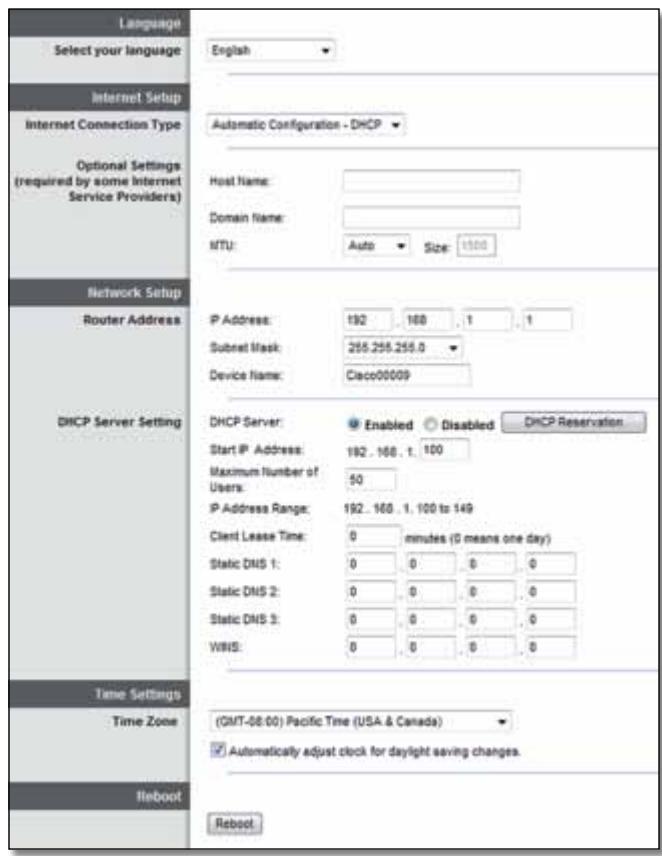
Language (n)
Internet Connection Type (15)
Ie an Jusnnnnae aen nne nne ISP 7aennnnae nnnae ne
Automatic Configuration - DHCP (n7569) - DHCP
IPuuaaun
- PPPoE
PPTP
L2TP
Bridge Mode
Automatic Configuration - DHCP (ngvovnvoaunnuD)DHCP)
Jusnuuunuaaunauunununununununun Unnunnnnaa Automatic Configuration - DHCP (Dynamic Host Configuration Protocol) (nurnuunununun) - DHCP) nnuuununun unnuuunnuu ISP wauuuuuuuuDHCP uuuuuuuuuuuuuuuuuuuuuuuuuuuuuuuuuuuuuuuuuuuuuuuuuuuuuuuuuuuuuuuuuuuuuuuuuuuuuuuuuuuuuuuuuuuuuuuuuuuuuuuuuuuuuuuuuuuuuuuuuuuuuuuuuuuuuuuuuuuuuuuuuuuuuuuuuuuuuuuuuuuuuuuuuuuuuuuuuuuuuuuuuuuuuuuuuuuuuuuUU
Static IP (IP地址)
wnnnn nn nip IP uanrnnnnaaennnnae aannnnae ennnnnae ennnnnae Static IP (IP nnnaa)
PPPoE
wnnnnnaa aDSL nnaa anISP naan Point-to-Point Protocol over Ethernet (PPPoE) nn nn nn nn PPoE
PPTP
Point-to-Point Tunneling Protocol (PPTP) 1uunununununununununun un uun PPTP ununununununu DHCP n a IP unununun un uan Obtain an IP Address Automatically (uIP unununun u) ununununununu uip ununununu unu wauuunu u uunuunu u uuuu uuuu uuuuuuuuuuuuuuuuuuuuuuuuuuuuuuuuuuuuuuuuuuuuuuuuuuuuuuuuuuuuuuuuuuuuuuuuuuuuuuuuuuuuuuuuuuuuuuuuuuuuuuuuuuuuuuuuuuuuuuuuuuuuuuuuuuuuuuuuuuuuuuuuuuuuuuuuuuuuuuuuuuu uu
L2TP
Layer 2 Tunneling Protocol (L2TP) iuunnnnnaaiaua
An Connect on Demand (uaaiaaaan) uae Kep Alive (nnaa) nanaananaananaananaananaananaananaananaananaananaananaananaananaananaananaananaananaananaananaananaananaananaananaananaananaananaananaananaananaananaananaananaananaananaananaananaananaananaananaananaananaananaananaananaananaananaananaananaananaananaanana an
>
nnae nwnnnnne nnnnne nnnnne nnnnne nnnnne nnnnne
y
n75v7u7u7u
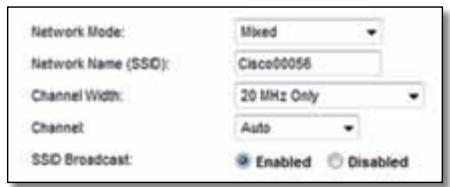
| "WPA2 Personal | watnam |
| WPA2/WPA Mixed Mode | WPA2:watnam WPA:watn |
| WPA Personal | watn |
| WEP | watnam |
#
rnnnnae nnnnne nnnnne nnnnne nnnnne nnnnne nnnnne nnnnne nnnnne nnnnne nnnnne nnnnne nnnnne nnnnne nnnnne nnnnne nnnnne nnnnne nnnnne nnnnne nnnnne nnnnne nnnnne nnnnne nnnnne nnnnne nnnnnee nnnnne nnnnne nnnnne nnnnne nnnnne nnnnne nnnnne nnnnne nnnnne nnnnne nnnnne nnnnne nnnnne nnnnne nnnnne nnnnne nnnnne nnnnne nnnnne nnnnne nnnnne nnnnne nnnnne nnnnne nnnnae
| "WPA2 Enterprise" | "WPA2" |
| WPA2/WPA Enterprise Mixed Mode | WPA2:"WPA2"WPA:"WPA2" |
| WPA Enterprise | "WPA2" |
| RADIUS | "WADIUS" |
n
WPA2/WPA Mixed Mode, WPA2 Personal, WPA Personal
#
WPA2/WPA Enterprise Mixed Mode, WPA2 Enterprise, WPA Enterprise
的圆半圆半圆半圆半圆半圆半圆半圆半圆半圆半圆半圆半圆半圆半圆半圆半圆半圆半圆半圆半圆半圆半圆半圆半圆半圆半圆半圆半圆半圆半圆半圆半圆半圆半圆半圆半圆半圆半圆半圆半圆半圆半圆半圆半圆半圆半圆半圆半圆半圆半圆
#
wnnnnnaan WPA2/WPA Enterprise Mixed Mode nnnnnnnnnnnnnnnnnnnnnnnnnnnnnnnnnnnnnnnnnnnnnnnnnnnnnnnnnnnnnnnnnnnnnnnnnnnnnnnnnnnnnnnnnnnnnnnnnnnnnnnnnnnnnnnnnnnnnnnnnnnnnnnnnnnnnnnnnnnnnnnnnnnnnnnnnnnnn
wnnnaan WPA2 Enterprise 1nnnnnnnnnnnnnnnnnnnnnnnnnnnnnnnnnnnnnnnnnnnnnnnnnnnnnnnnnnnnnnnnnnnnnnnnnnnnnnnnnnnnnnnnnnnnnnnnnnnnnnnnnnnnnnnnnnnnnnnnnnnnnnnnnnnnnnnnnnnnnnnnnnnnnnnnnnnnnn
WPA Enterprise WPA Enterprise
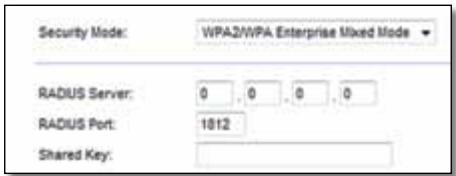
RADIUS Server (RADIUS) IP Address: 10.169.255.10 RADIUS
RADIUS Port (wa) RADIUS) 1aunwnuuaawwraanr wraa RADIUS
Shared Key (xiv)
Disabled (fliu)
nunnnnnnnnnnnnnnnnnnnnnnnnnnnnnnnnnnnnnnnnnnnnnnnnnnnnnnnnnnnnnnnnnnnnnnnnnnnnnnnnnnnnnnnnnnnnnnnnnnnnnnnnnnnnnnnnnnnnnnnnnnnnnnnnnnnnnnnnnnnnnnnnnnnnnnnnnn nn nannn nannn nannn nannn nannn nannn nannn nannn nannn nannn nannn nannn nannn nannn nannn nannn nannn nannn nannn nannn nannn nannn nannn nannn nannn nannn nannn nannn nannn nannn nannn nannn nannn nannn nn annn nn annn nn annn nn annn nn annn nn annn nn annn nn annn nn annn nn annn nn annn nn annn nn annn nn annn nn annn nn annn nn annn nn annn nn annn nn annn nn annn nn annn nn annn nn annn nn annn nn annn nn annn nn annn nn annn nn annn nn annn nn annn nn annn nn ann

n756n 1y
- 5-15 5-15 Setup (5-15)
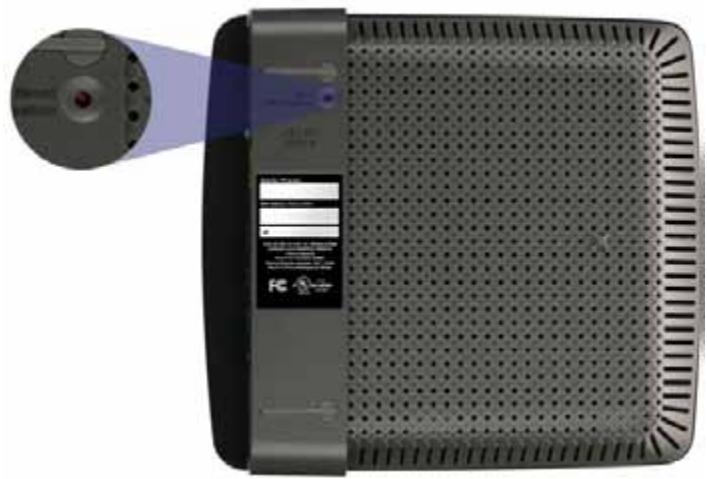

y
- 1
- wunnnaaunwauuauauu uunuaunwauauauauuu Setup (nu)
Get Windows XP Service Pack 3
Windows XP Service Pack 3
wnnnnnaeWindowsXPawnnncr Cisco Connect nnuuau Service Pack 3 wannnnnnaeunnue nnnnneau "Get Windows Service Pack 3" uannnneauonnneauauauauauauau
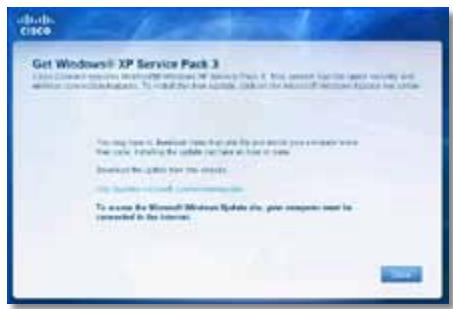
nu Service Pack 3 3nu Service Pack 3
山
nnuuunnnnnaaannnnnnaeauan Service Pack
Service Pack 3:
- 1.1.1.1.1.1.1.1.1.1.1.1.1.1.1.1.1.1.1.1.1.1.1.1.1.1.1.1.1.1.1.1.1.1.1.1.1.1.1.1.1.1.1.1.1.1.1.1.1.1.1 500000000000000000000000000000000000000000000000000000000000000000000000000000000000000000000
-
wntwunwnuunwunwunwunwunwunwunwunwunwunwunwunwunwunwunwunwunwunwunwunwunwunwunwunwunwunwunwunwunwunwunwunwunw
-
nnuuunnuuunnuuauauauauauau Service Pack 3 uuuuuuuuuuuuuuuuuuuuuuuuuuuuuuuuuuuuuuuuuuuuuuuuuuuuuuuuuuuuuuuuuuuuuuuuuuuuuuuuuuuuuuuuuuuuuuuuuuuuuuuuuuuuuuuuuuuuuuuuuuuuuuuuuuuuuuuuuuuuuuuuuuuuuuuuuuuuuuuuuuuuuuuuuuuuuuuuuuuuuuuuuuuuuuuuuuuUU
Your Internet cable is not plugged in (
"Your Internet cable is not plugged in" (You'll see a red box on your computer).
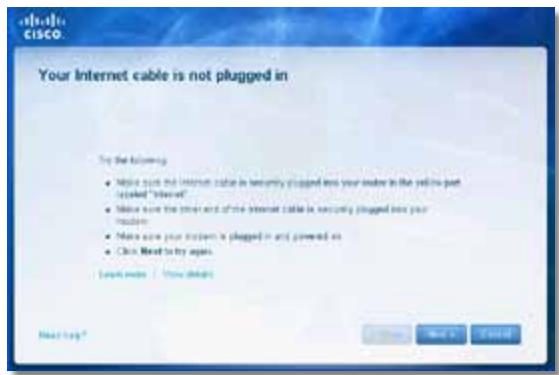
ununulzaynuu:
- 电
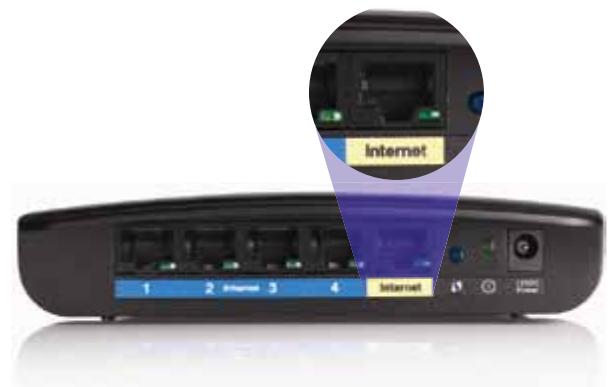
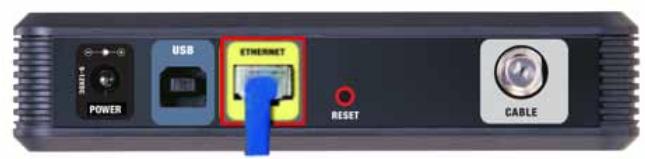
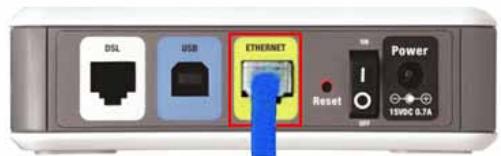
DSL
- wannanwWnnaaavnnaaennnnnneu USB aenauwnu nnaeau USB uuaan
- nauuunnuu Cisco Connect uanuaan Next (nul) waaanauauauu nnuunuuuauuauuuuuuuuuuuuuuuuuuuuuuuuuuuuuuuuuuuuuuuuuuuuuuuuuuuuuuuuuuuuuuuuuuuuuuuuuuuuuuuuuuuuuuuuuuuuuuuuuuuuuuuuuuuuuuuuuuuuuuuuuuuuuuuuuuuuuuuuuuuuuuuuuuuuuuuuuuuuuuuuuuuuuuuuuuuuuuuuuuuuuuuuuuuuuuuuuuuuuuuuuUU
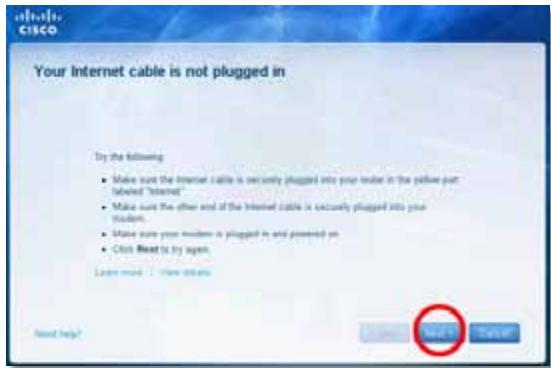
Cannot access your router
()
yannnnnnae nnnnne nee eae nee nee nee nee nee nee nee nee nee nee nee nee nee nee nee nee nee nee nee nee nee nee nee nee nee nee nee nee nee nee nee nee nee nee nee nee nee nee nee nee nee nee nee nee nee nee nee nee nee nee neee
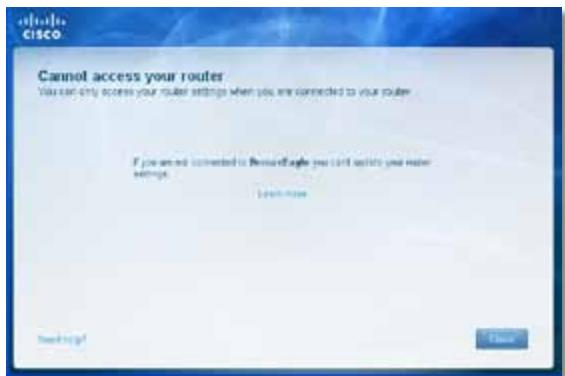
- Network key (B) Confirm network key Connect (u)
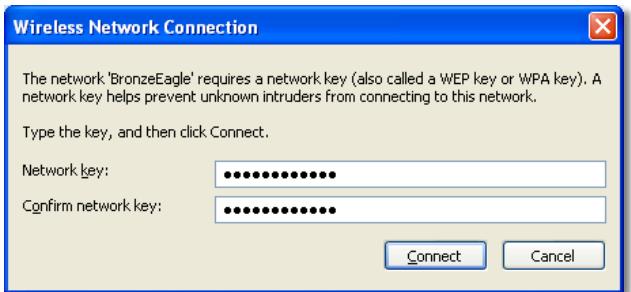
y
Device not found (Jwun)
nuuunnuuunnu "Device not found" (nuuunnuu) uuuuwwu uuuuauu uuuuuuuuuuuuuuuuuuuuuuuuuuuuuuuuuuuuuuuuuuuuuuuuuuuuuuuuuuuuuuuuuuuuuuuuuuuuuuuuuuuuuuuuuuuuuuuuuuuuuuuuuuuuuuuuuuuuuuuuuuuuuuuuuuuuuuuuuuuuuuuuuuuuuuuuuuuuuuuuuuuuuuuuuuuuuuuuuuuuuuuuuuuuuuuuuuuuuuuuuUU
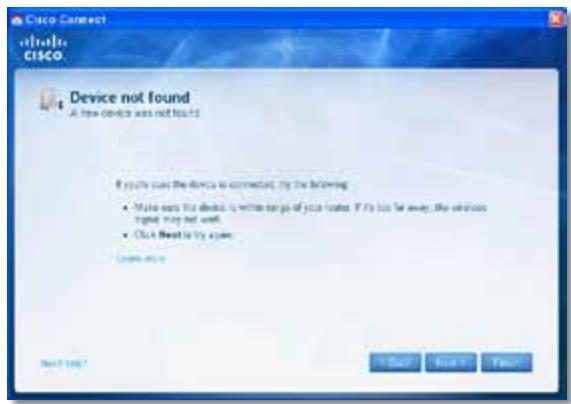
山
: 1: 1: 1: 1: 1: 1: 1: 1: 1: 1: 1: 1: 1: 1: 1: 1: 1: 1: 1: 1: 1: 1: 1: 1: 1: 1: 1: 1: 1: 1: 1: 1: 1: 1
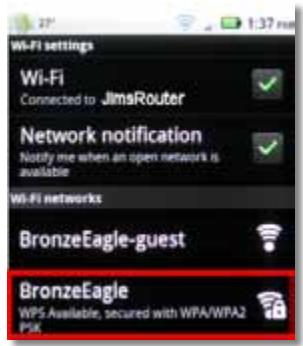
Android
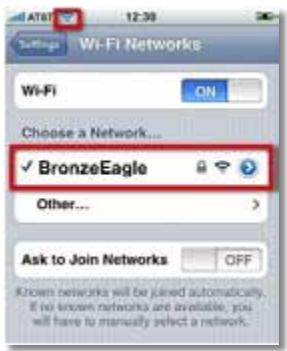
iPhone
- iauwawu (nunwnu wnuu u) nncisco Connect uauu u u u u u u u u u u u u u u u u u u u u u u u u u u u u u u u u u u u u u u uuuuuuuuuuuuuuuuuuuuuuuuuuuuuuuuuuuuuuuuuuuuuuuuuuuuuuuuuuuuuuuuuuuuuuuuuuuuuuuuuuuuuuuuuuuuuuuuuuuuuuuuuuuuuuuuuuuuuuuuuuuuuuuuuuuuuuuuuuuuuuuuuuuuuuuuuuuuuuuuuuuuuuuuuuuuuuuuuuuuuuuuuuuuuuuuuuuuuUU
H
- 1auauauauuauuauauauauuuuuuuuuuuuuuuuuuuuuuuuuuuuuuuuuuuuuuuuuuuuuuuuuuuuuuuuuuuuuuuuuuuuuuuuuuuuuuuuuuuuuuuuuuuuuuuuuuuuuuuuuuuuuuuuuuuuuuuuuuuuuuuuuuuuuuuuuuuuuuuuuuuuuuuuuuuuuuuuuuuuuuuuuuuuuuuuuuuuuuuuuuuuuuuuuuuuuuuUU
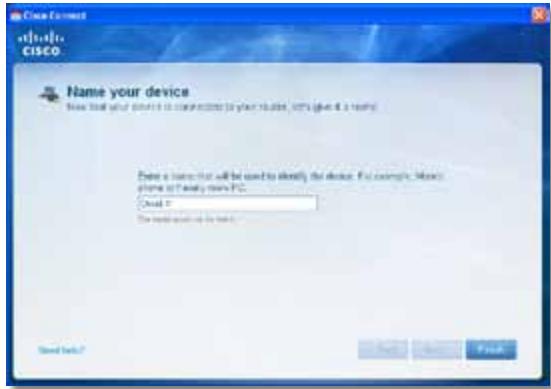
N
Linksys EA2700
| ### | Linksys EA2700 |
| ### | Dual-Band N600 Router with Gigabit |
| ### | EA2700 |
| ### | 802.11n, 802.11a, 802.11g, 802.11b, 802.3, 802.3u, 802.3ab |
| ### | ### 6 dBm, ### 2 dBm, ### 2.4 GHz uav 5 GHz |
| ### | ### 10/100/1000 Mbps (Gigabit Ethernet) |
| ### | 802.11b: CCK, QPSK, BPSK |
| 802.11g: OFDM | |
| 802.11a: OFDM | |
| 802.11n: BPSK, QPSK, 16-QAM, 64-QAM | |
| ### | 2.4 GHz |
| ### | 802.11b: -90 dBm @ 11 Mbps |
| 802.11g: -75 dBm @ 54 Mbps | |
| 802.11n 20 MHz: -73 dBm @ MCS15 | |
| 802.11n 40 MHz: -70 dBm @ MCS15 | |
| 5 GHz | |
| 802.11a: -72 dBm @ 54 Mbps | |
| 802.11n 20 MHz: -70 dBm @ MCS15 | |
| 802.11n 40 MHz: -67 dBm @ MCS15 | |
| ### | 2.4 GHz: |
| ### 1: ≤3.45 dBi | |
| ### 2: ≤2.46 dBi | |
| 5 GHz: | |
| ### 1: ≤4.41 dBi | |
| ### 2: ≤5.15 dBi | |
| UPnP | ### |
| watwunlalauu | WEP, WPA, WPA2 |
| watwunlalauu | |
| watwunlalauu | 128 ① |
| watwunlalauu | |
| watwunlalauu | 174 x 190 x 28 mm. (6.85" x 7.48" x 1.10") |
| watwunlalauu | 297.7 n. (10.5 aauw) |
| watwunlalauu | 12V, 1A |
| watwunlalauu | FCC, IC, CE, Wi-Fi A/B/G/N |
| watwunlalauu | 0 ① 40°C (32 ① 104°F) |
| watwunlalauu | -20 ① 60°C (-4 ① 140°F) |
| watwunlalauu | 10 ① 80%, ① 80% w/mh, ① 80% w/mh w/mh |
| watwunlalauu | 5 ① 90% w/mh w/mh w/mh |
vua
n nn nnnn nnnn nnnn nnnn nnnn nnnn nnnn nnnn nnnn nnnn nnnn nnnn nnnn nnnn nnnn nnnn nnnn nnnn nnnn nnnn nnnn nnnn nnnn nnnn nnnn nnnn nnnn nnnn nnnn nnnn nnnn nnnn nnnn nnnn nnne
Linksys EA3500
| ### | Linksys EA3500 |
| ### | Dual-Band N750 Router with Gigabit and USB |
| ### | EA3500 |
| ### | 802.11n, 802.11a, 802.11g, 802.11b, 802.3, 802.3u, 802.3ab |
| ### | ### 6 dBm, ### 7 dBm, ### 8 dBm, ### 9 dBm, 3 dBm |
| ### | ### 2.4 GHz ### 5 GHz |
| ### | ### |
| ### | 10/100/1000 Mbps (Gigabit Ethernet) |
| ### | ### (1-4), USB, Power |
| ### | ###, Wi-Fi Protected Setup |
| ### | Power, ### ### (1-4) |
| ### | 802.11b: CCK, QPSK, BPSK |
| ### | 802.11g: OFDM |
| ### | 802.11a: OFDM |
| ### | 802.11n: BPSK, QPSK, 16-QAM, 64-QAM |
| ### | 2.4 GHz |
| ### | 802.11b: -87 dBm @ 11 Mbps (###) |
| ### | 802.11g: -77 dBm @ 54 Mbps (###) |
| ### | 802.11n (20 MHz): -72 dBm @ MCS15 (###) |
| ### | 802.11n (40 MHz): -69 dBm @ MCS15 (###) |
| ### | 5 GHz |
| ### | 802.11a: -74 dBm @ 54 Mbps (###) |
| ### | 802.11n 20 MHz: -67 dBm @ MCS23 (###) |
| ### | 802.11n 40 MHz: -64 dBm @ MCS23 (###) |
| ### | 2.4 GHz (### Dipole) |
| ### | ### 1 ≤ 2.70 dBi |
| ### | ### 2 ≤ 3.70 dBi |
| ### | ### 3 ≤ 4.95 dBi |
| ### | 5 GHz (### Dipole) |
| ### | ### 1 ≤ 4.46 dBi |
| ### | ### 2 ≤ 3.23 dBi |
| ### | ### 3 ≤ 3.88 dBi |
| UPnP | ### |
| watwalaanwah | WEP, WPA, WPA2 |
| watwalaanwahwah | 128 ① |
| watwalaanwahwahwah | FAT, NTFS u& HFS+ |
| watwalaanwahwah | 170 x 25 x 190 mm. (6.69" x 0.98" x 7.48") |
| watwalaanwahwah | 326 n. (11.5 a a w) |
| watwalaanwahwah | 12V, 2A |
| watwalaanwahwah | FCC, IC, CE, Wi-Fi A/B/G/N, Windows 7 |
| watwalaanwahwah | 0 ① 40°C (32 ① 104°F) |
| watwalaanwahwah | -20 ① 60°C (-4 ① 140°F) |
| watwalaanwahwah | 10 ① 80%, ① 80% ① 80% ① 80% ① 80% |
| watwalaanwahwah | 5 ① 90% ① 90% ① 90% ① 90% |
yinjue
nwnnnnnaa nnnnnnna uannnnnnaa aannnnnnae lnns
nnae nnnnnaaee nnnnne nnnnne nnnnne nnnnne nnnnne nnnnne nnnnne nnnnne nnnnne nnnnne nnnnne nnnnne nnnnne nnnnne nnnnne nnnnne nnnnne nnnnne nnnnne nnnnne nnnnne nnnnne nnnnne nnnnne nnnnne nnnnnee nnnnne nnnnne nnnnne nnnnne nnnnne nnnnne nnnnne nnnnne nnnnne nnnnne nnnnne nnnnne nnnnne nnnnne nnnnne nnnnne nnnnne nnnnne nnnnne nnnnne nnnnne nnnnne nnnnne nnnnne nnnnae
Linksys EA4500
| ### | Linksys EA4500 |
| ### | Dual-Band N900 Router with Gigabit and USB |
| ### | EA4500 |
| ### | 802.11n, 802.11a, 802.11g, 802.11b, 802.3, 802.3u, 802.3ab |
| ### | 2.4 μs/s 5 GHz |
| ### | 10/100/1000 Mbps (Gigabit Ethernet) |
| ### | Power, USB, ### ### ###, ### ### ### (1-4) |
| ### | ###, Wi-Fi Protected Setup |
| ### LED | ###: Power |
| ###: ###: ###: ###: ###: (1-4) | |
| ### | ###: 6 dB, ### ### ### ###: 3 dB |
| ###: 2.4 GHz ### 5 GHz | |
| ### | ### |
| ### | 802.11b: CCK, QPSK, BPSK |
| 802.11g: OFDM | |
| 802.11a: OFDM | |
| 802.11n: BPSK, QPSK, 16-QAM, 64-QAM | |
| ### | 2.4 GHz |
| 802.11b: -87 dBm @ 11 Mbps (###) | |
| 802.11g: -77 dBm @ 54 Mbps (###) | |
| 802.11n: 20 MHz: -70 dBm @ MCS15 (###) | |
| 802.11n: 40 MHz: -66 dBm @ MCS15 (###) | |
| 5 GHz | |
| 802.11a: -74 dBm @ 54 Mbps (###) | |
| 802.11n: 20 MHz: -67 dBm @ MCS23 (###) | |
| 802.11n: 40 MHz: -64 dBm @ MCS15 (###) | |
| ### | 2.4 GHz (###) PIFA ### ### ### 3 ###) |
| PIFA 1 ≤ 3.31 dBi (###) | |
| PIFA 2 ≤ 3.45 dBi (###) | |
| PIFA 3 ≤ 1.96 dBi (###) | |
| 5 GHz (###) PIFA ### ### ### 3 ###) | |
| PIFA 1 ≤ 3.71 dBi (###) | |
| PIFA 2 ≤ 3.60 dBi (###) | |
| PIFA 3 ≤ 4.27 dBi (###) |
| watwawwawwawwawwawwawwawwawwawwawwawwawwawwawwawwawwawwawwawwawwawwawwawwawwawwawwawwawwawwawwawwawwawwawwawwawwawwawwawwawwawwawwawwawwawwawwawwawwawwawwrawwawwawwawwawwawwawwawwawwawwawwawwawwawwawwawwawwawwawwawwawwawwawwawwawwawwawwawwawwawwawwawwawwawwawwawwawwawwawwawwawwawwawwawwawwawwawwawwawwawwlaw |
| FAT32, NTFS, uas HFS+ |
| ### |
| WEP, WPA, WPA2 |
| ### 128 # |
| 225 x 25 x 160 ### (8.86" x 0.98" x 6.30") |
| 360 n. (12.7 a###) |
| 12V, 2A |
| FCC, IC, CE, Wi-Fi a/b/g/n, Windows 7, DLNA |
| 0 # 40°C (32 # 104°F) |
| -20 # 60°C (-4 # 140°F) |
| 10 # 80%, ### uas w###, ### uas w### |
| 5 # 90% ### uas w### |
vuiu
nnnnnnnnnnnnnnnnnnnnnnnnnnnnnnnnnnnnnnnnnnnnnnnnnnnnnnnnnnnnnnnnnnnnnnnnnnnnnnnnnnnnnnnnnnnnnnnnnnnnnnnnnnnnnnnnnnnnnnnnnnnnnnnnnnnnnnnnnnnnnnnnnnnnnnnnnnnnnnnnnnnnnnnnnnnnnnnnnnnnnnnn nn nannn nn nannn nn nannn nn nannn nn nannn nn nannn nn nannn nn nannn nn nannn nn nannn nn nannn nn nannn nn nannn nn nannn nn nannn nn nannn nn nannn nn nannn nn nannn nn nannn nn nannn nn nannn nn nannn nn nannn nn nannn nn nennn nn nannn nn nannn nn nannn nn nannn nn nannn nn nannn nn nannn nn nannn nn nannn nn nannn nn nannn nn nannn nn nannn nn nannn nn nannn nn nannn nn nannn nn nannn nn nannn nn nannn nn nannn nn nannn nn nannn nn nannn nn n ann
Cisco, Iaivnvo Cisco uae Linksys 1uovnnunrnuuauoavvocnunnuuauoovvocnvo Cisco uav/vuauvnuuauuauuauuauuauuauuauuauuauuauuauuauuauuauuauuuauuauuuuuuuuuuuuuuuuuuuuuuuuuuuuuuuuuuuuuuuuuuuuuuuuuuuuuuuuuuuuuuuuuuuuuuuuuuuuuuuuuuuuuuuuuuuuuuuuuuuuuuuuuuuuuuuuuuuuuuuuuuuuuuuuuuuuuuuuuuuuuuuuuuuuuuuuuuuuuuuuuuuuuuuuuuuuuuuuuuuuuuuuuuuuuuuuuuuUU
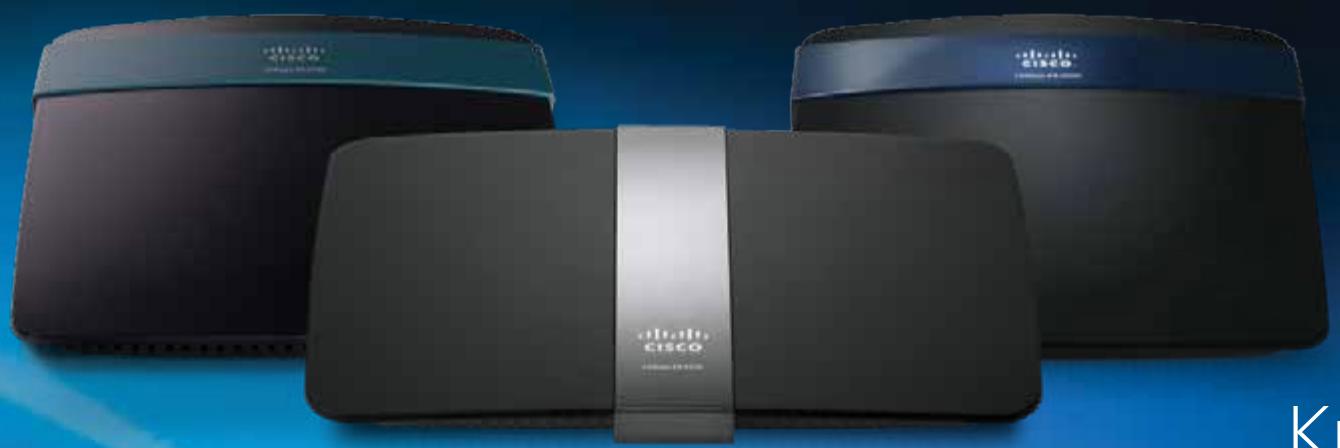
Kullanıci Kilavuzu
Içindekiler
Ürüne Genel Bakış
EA2700/EA3500 1
Arkadan görünüm 1
Alt tan gorunum 1
EA4500. 2
Ustten görünüm 2
Arkadan görünüm 2
EA-Series Router'inizi Kurma
Your Internet cable is not plugged in
(Internet kablonuz takili degil) mesaji 12
Static IP (Statik IP)
WPA2/WPA Mixed Mode (WPA2/WPA Karma Modu), WPA2 Personal (WPA2 Kişisel), WPA Personal (WPA Kişisel)
NOTLAR
WPA2/WPA Enterprise Mixed Mode (WPA2/WPA Şirket Karma Modu), WPA2 Enterprise (WPA2 Şirket), WPA Enterprise (WPA Şirket)
Aşaqidaki örnekte, bilgisayar JimsRouter adlı baska bir kablosuz ağa®,®,®,®,®,®,®,®,®,®,®,®,®,®,®,®,®,®,®,®,®,®,®,®,®,®,®,®,®,®,®,®,®,®,®,®,®,®,®,®,®,®,®,®,®,®,®,®,®,®,®,®,®,®,®,®,®,®,®,®,®,®,®,®,®,®,®,®,®,®,®,®,®,®,®,®,®,®,®,®,®,®,®,®,®,®,®,®,®,®,®,®,®,®,®,®,®,®,®,®,®. Bü örnekte, Linksys E-Series ağl olan BronzeEagle seçili gÖsterilmektedir.
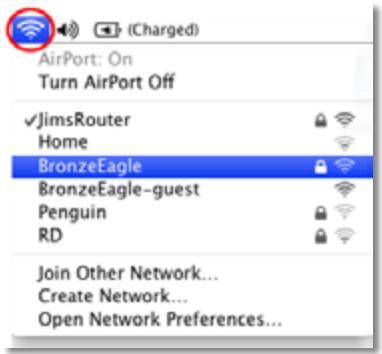
| Boyutlar | 174 x 190 x 28 mm (6,85 inç x 7,48 inç x 1,10 inç) |
| Birim A®,rl®, | 297,7 g (10,5 oz) |
| Güç | 12V, 1A |
| Sertifikalar | FCC, IC, CE, Wi-Fi A/B/G/N |
| Çalışa Sıçak®, | 0 - 40 °C (32 - 104 °F) |
| Depolama Sıçak®, | -20 - 60 °C (-4 - 140 °F) |
| Çalışa Nem Orani | %10 - 85 arasi,®,®,®,®,®,®,®,®,®,®,®,®,®,®,®,®,®,®,®,®,®,®,®,®,®,®,®,®,®,®,®,®,®,®,®,®,®,®,®,®,®,®,®,®,®,®,®,®,®,®,®,®,®,®,®,®,®,®,®,®,®,®,®,®,®,®,®,®,®,®,®,®,®,®,®,®,®,®,®,®,®,®,®,®,®,®,®,®,®,®,®,®,®,®,®,®,®,®,®,®,® |
| Depolama Nem Orani | %5 - 85 arasi,®,®,®,®,®,®,®,®,®,®,®,®,®,®,®,®,®,®,®,®,®,®,®,®,®,®,®,®,®,®,®,®,®,®,®,®,®,®,®,®,®,®,®,®,®,®,®,®,®,®,®,®,®,®,®,®,®,®,®,®,®,®,®,®,®,®,®,®,®,®,®,®,®,®,®,®,®,®,®,®,®,®,®,®,®,®,®,®,®,®,®,®,® |
NOTLAR
JaHCTaJIIOBaTnMapuPyTu3aTOp 3
JaK 3aynctntn Cisco Connect 3
KepyIte cBoiM MapuTy3aTopoM 3a DOnomoroCisco Connect 3
JaHaAsTByBaTnMapwpyTu3aTopBpyHy. 3
Додасткови налaweтувашия
Yk BiikpnTu cnjx6oBy nporpamy, 0n pauioe y 6pay3epi . . . .4
Setup > Basic Setup (HanaTbVAHHa > Ba3OBe HanaTbVAHHa).5
Language (MoBa) 5
Internet Setup (HanaHTyBaHHa IInTepeHTy) 5
UcynenHHeCnPaBHOCTeI
Jk 3anyctntn Cisco Connect nicna iHctalayii. . . . . . . . . . . . . . . . . . . . . . . . . . . . . . . . . . . . . . . . . . . . . . . . . . . . . .
MapuTn3aTOp He BdaIOcra ycpiHoi iHCTaIIOBAtn 11
Повidiомлени Your Internet cable is not plugged in
(IHTepHeT-Ka6eIb He PiKluOyeHo) 12
Повимлени Cannot access your router
(HemoxjNBO OTRmuTn DoCTyn Do MapuTy3aTopa). 13
ПсIELI INCTaJIaIi MapuTyn3aTopa Ta BCTaHOBLeHnIy Cisco Connect 3a DonomorOIO Cisco Connect MoXHa Ierko KepyBaTn 6araTbMa npaMeTpamN MapuTyn3aTopo, TAKIMN JK:
Пдклоченя пистpoь Д do сбоі мерекi
Bunpo6yBaHHa WbNdkocti IInTePheT-3'EnHaHHa
HanaaTyBaHHa 6aTbKIBcBKO KOHTpOJIIO
HanauTyBaHHaDcTpydIra roctei
3mHeHHHa3BnMapwpyTu3aTopa Ta napolio
YcyHeHHa HeCpPaBHOCTeH
Ihopmaiz y zbomy po3diJI MOxE dONOMOTn po3'B'3aTn po3NOBcIOJxHei np6lEMNI, 0o BHNkaIOb ti nd icHCTaJIe, ta NiKIOUHTncsdo IntepHeTy. Ha KOMNaKT-DnCKy do Mapwpytn3aTopa e iHCTaJIuHa nporpama Cisco Connect, 1OzD3BOJAE IerKO NiKIIouATm MepexeBi npicTpoi, 3miHIOBAtn HanaWtBuHHa Mapwpytn3aTopa, KOHTPOIIOBAtn DocTy n JIra RoCTeB, BMKAtN 6aTBkICbkN KoHTPOlb Ta NiKIIouATncsdo IntepHeTy. Cisco Connect niD ac HCTaJIeTI takoX BCTAHIOEbCn Ha Baaw Komn'IoTeP. JaKIO nporpami Cisco Connect He BdaETbcra BIKOHAtn IHCTaJIeIO, y cboMy po3diJI moxHa 3HaNTn notpi6Hi piWeHHA.
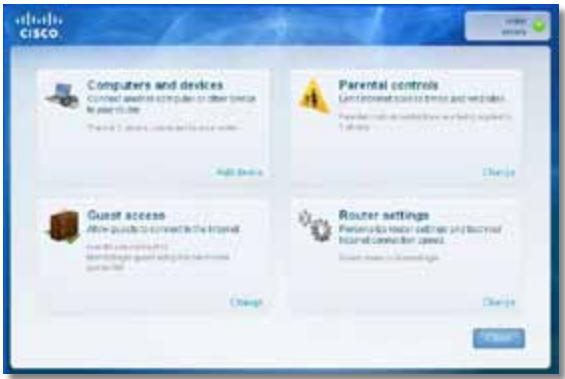
- Hatachitb Ncck, Yci nporpaMn, nOtim Bn6epiB Cisco Connect.

BikpneTbcra TOnOBHe MeHIO Cisco Connect.
Uo6 3anyctntu Cisco Connect Ha KOMn'ioTepi i3 cnCTeMoIO Mac OS X:
- BiKpnTe Finder i Bn6epiTb Pporpamn Ha naHeni Iibopyu.

Bikpntbca rOIOBHe MeHIO Cisco Connect.
Uo6 BCTaHOBTu Service Pack 3:
- Knaichi Nobinahn B nobiOmJeHni Cisco Connect npo nomuKy a60 niiklouitbcra do Be6-caity Microsoft Update (update.microsoft.com/ windowsupdate).
- Дотримутесь сгтукци Ha Be6-caTi a60 3BepHITbC8 B KOMпанIO Microsoft,якso Bamnotpi6Ha ДогаTKOBa ДОПOMORA.
- Пись заразхения Татов的服务 Pack 3 заунустіп рорpaу Setup (Востаюнения) на komпакт-ДиСКУ до марштузаТopa.
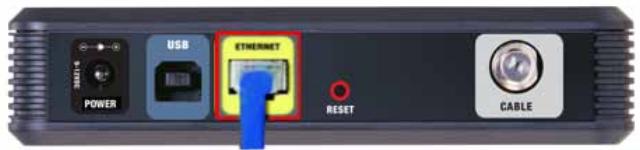
BuznKa6eBbNoo Modemy 33aoy
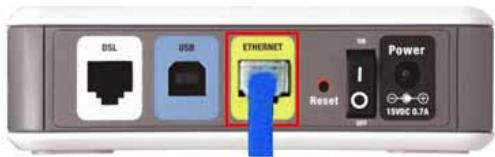
BuznyoMoemyDSL33aoy
- NepekoHaITeC8, 10 MoDEm PiKluOeHo Do eJekTpOmepeKi Ta BBIMKHeHO. KaHbOMy E nepemKau XnBLeHH, nepekoHaITeC8. 10 No rO BCTaHOBJIeHO B noloxeHH ON (YBMK.) a6o I.
3.ЯкwoiHTepHeT-nocnynHaadaIObCBAm 3aДOnOMoroIO Ka6eJIIO,pepeBipTe, 1o6do npOpy CABLE (KA6EJIb) Ha moJemi 6yNo NidkIIOyeHO KoAKciaIbHn Ka6eJIb,HaadHn npObaIdepom HTepHeTy.
A6o J, yKIO IHTepHET HaJaEtbcra 3a DOnOMOrOIO a6OHeHTcbKOI liHiDsl, IpekeHaTecra, 10 TeJefoH DSL nIKnIoUeHO do nopTy DSL Ha MoJemI.
4.Якwo kOMn'IOTe paHIe 6yNo NiKJIuOeHo Do MoEmy 3a DoIOnOMoroUo USBKa6eJIIO, BiD'EnHaIte USB-Ka6eIb.
5. ПовернiTься до ВікHA Cisco Connect Ta HaTucHiTB Next (Дani), сio6 NOBTOpItn CnpO6y.Якso BIKHO 6уNo 3aKpITo, 3aNyCtIb npOrpaMy Setup (ВСТаHOBJIeHHЯ)Ha KOMNaKT-DИСКУdo МapшPyTu3aTopa.
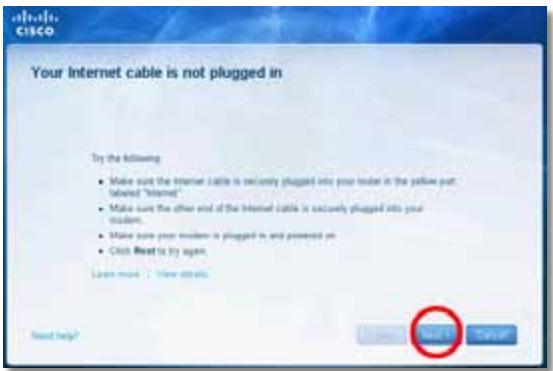
Повidiомлени Cannot access your router (Hemожимьо отpresmaТи достун до марштунзаTopа)
Cach khoi dong Cisco Connect 3
Su dung Cisco Connect de quan ly bo dinh tuyen 3
Cach cai dāt bó dinh tuyén theo cach thu cóng . . . . . . . . . . . . . .
Cái hìn nang cao
Wireless > Wireless Settings
(Khongday>Cai dát khongday) 6
Càidat khongday 6
BáoMZt khOngday
Wireless > Wireless Security (KhôngDay > Bǎo mat khôngDay) .8
Tuy chon cānhàn 8
Tuy chon vãn phong 8
Cai dát tuy chon 8
Khacphuc su co
Cach chay Cisco Connect sau khi cai dát. 10
Bó dinh tuyén cúa ban chua duoc cai dāt thanh cóng . . . . . . 11
Thòng bóa Get Windows XP Service Pack 3
(Tai Windows XP Service Pack 3) 11
Thòng bó Your Internet cable is not plugged in
(Chua cãm cap Internet) 12
Thòng bó cannot access your router
(Khong the truy cap bo dinh tuyén). 13
Thong bao Device not found (Khong tim thay thiêt bj). 15
Đếctinh ký thuat
Linksys EA2700. 17
Linksys EA3500. 18
Linksys EA4500. 19
Tóng quan sàn phám
EA2700/EA3500
Matsau
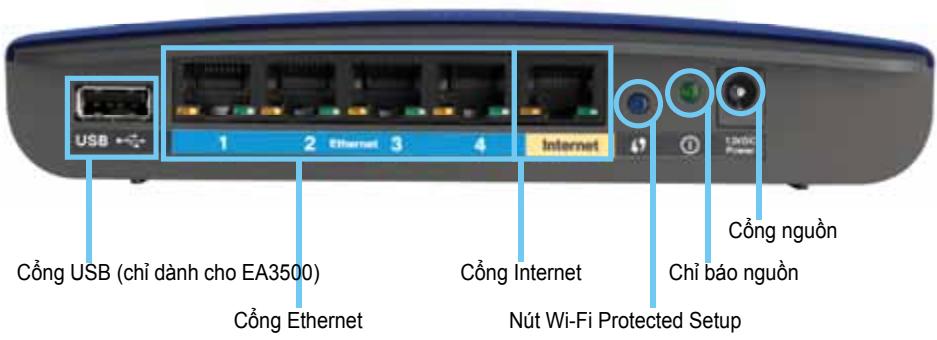
Hinh dang bó dinh tuyén có they thay doci
- Cóng USB (chi dānh cho EA3500)—Dé chia sé dung luǒng ò dia vói cac nguòi dung khac trong máng cua ban hoac tren InternetMZt cach dé dang, két não ò USB vói cóng nay.
- Cong Ethernet—Két não cap Ethernet (con duoc goi lá cap mang) vói cac cóng Gigabit (10/100/1000), co mau xanh, vá vói cac thiet bi mang Ethernet có DAY khac tiên mangça ban.
- Cóng Internet—Két niño cap Ethernet (conduoc goi là cap mang hoac Internet) vói cóng nay, có mau vang, vá vói modemswith ban.
Nut Wi-Fi Protected SetupTM—Nhân nukt nay dé cau hinh bao mát khongDay trèn cac thiet bi mang kich hoat Cai dāt bao vê Wi-Fi môt cach dé dang. Dé biét them thong tin, hyx xem "Bao mát khong day" trèn tranq 8.
Chi bónguàn dièn—Luón sáng khi có nguò dièn vā két néi Cai dàt bó vē Wi-Fi thànchóng. Náp nhay chām khi khài dong, náng cap chuǒng trinh co sò vāstrong két néi Cai dàt bó vē Wi-Fi. Náp nhay nhanh khi có lòi Cai dàt bó vē Wi-Fi.
- Nguôn dièn—Két néi bó bién dòi nguòn AC di kèm vòi cóng này.
THANTRONG
Chi su dung bo thich ung di cung bo dinh tuyen cua ban.
Nut nguôn—Nhán | (bát) dé bát bó dinh tuyén.
Māt dáy
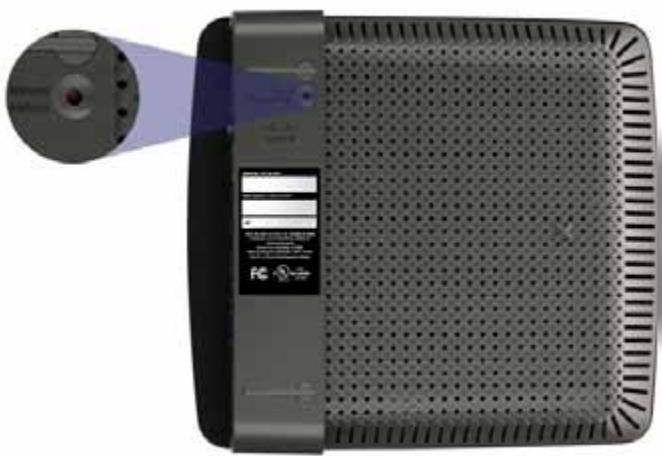
Cach khói dong Cisco Connect
Khi ban chay CD cai dát, Cisco Connect (phân mém cai dát cua bó dinh tuyén) duoc tu dong cai dát trén may tính cua ban. Sau do, ban co the su dung Cisco Connect de quan ly bó dinh tuyénMZt cach dé dang.
LUU Y:
Wireless > Wireless Settings
Sau khi ban cai dāt mang khong day, thiét lap cai dāt bao māt khong day.
Cái dǎt khòngday
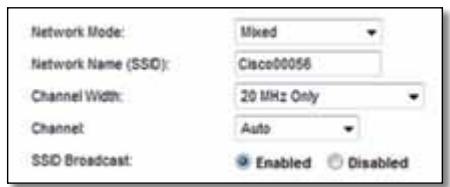
Network Mode (Ché do mang) Chon chuàn khòngday mā mang cúa ban hǎ troy.
- Mixed (Két hop) Néu ban có thiet bi Wireless-N (2,4 GHz), Wireless-G và Wireless-B trong mang, giµ cai dát mac dinh, Mixed (Két hop).
- Wireless-B/G Only (Chi Wireless-B/G) Néu bàn có cà thiet bi Wireless-B va Wireless-G (2,4 GHz) trong máng, chon Wireless-B/G Only (Chi Wireless-B/G).
- Wireless-B Only (Chi Wireless-B) Néu ban chǐ có thiet bi Wireless-B, chon Wireless-B Only (Chi Wireless-B).
- Wireless-G Only (Chi Wireless-G) Néu bàn chǐ có thiet bì Wireless-G, chòn Wireless-G Only (Chi Wireless-G).
- Wireless-N Only (Chì Wireless-N) Néu bàn chì có thiet bi Wireless-N (2,4GHz), chôn Wireless-N Only (Chì Wireless-N).
- Disabled (Tát) Néu bàn khòng có thiet bì Wireless-B, Wireless-G và Wireless-N (2,4 GHz) trong máng cuà minh, chon Disabled (Tát).
LUU Y
Néu bàn có bó dinh tvén bang tan kép, bàn có the chon Két hop, Chi Wireless-A, Chi Wireless-N hoac Tát cho bang tan 5 GHz.
Néu ban khong chac chan nèn su dungché do nao, hay giu cai dát mac dinh, Mixed (Két hop).
Thòng bóa Your Internet cable is not plugged in (Chūa*cám cap Internet)
Néu bàn nhān duoc thong bó “Your Internet cable is not plugged in” (Chua cām cap Internet) khi có cai dαt bó dinh tuyén, hāy lam theo cac buóc khác phuc su co sau.
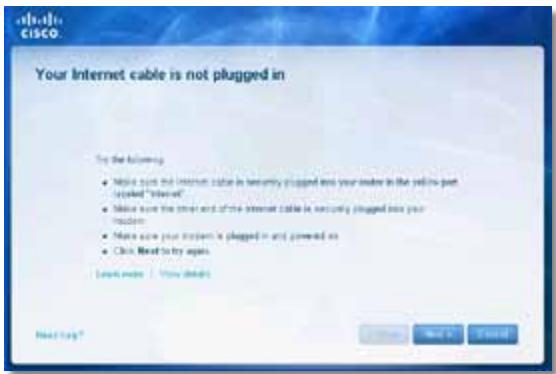
Dé khac phuc su co:
- Dân bǎo rāng cap Ethernet hoàc Internet (hoàc cap giong vói cap duoc cung cap cung bó dinh tuyén) dā duoc cam chac chan vao cóng Internet mau vang o'phía sau bó dinh tuyén vài cóng tuonguced trèn modem cúa bàn. Cóng nay trèn modem thúòng có nhān Ethernet, ngung có the co tèn Internet hoàc WAN.
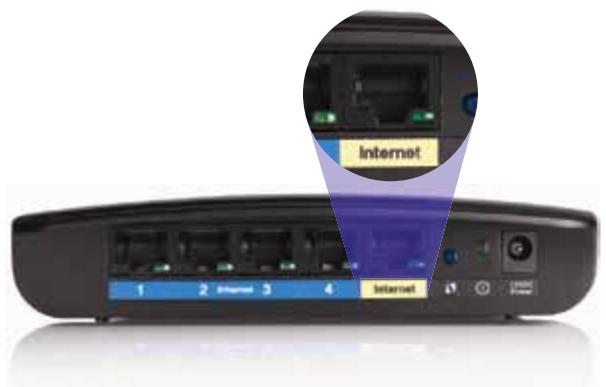
Māt sau bó dinh tuyén
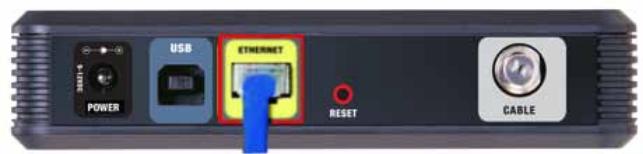
Matsau modem cap
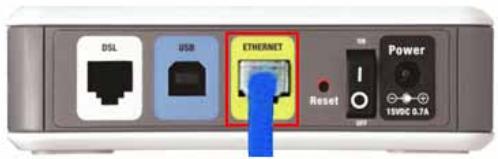
Măt sau modem DSL
-
Dàm bao rang modem cua ban dā cam vào nguò và dā bát. Néu có thiet bi chuyen mach nguò, dàm bao rang thiet bi nay dā duoc BAT hoac ò vi tri I.
-
Néu dìch vú Internet cuà bàn là cap, xác nhàn ràng cóng CABLE (CÁP) cuà modem cap dā két néi vòi cap dòng truc duòc cung cap bóì ISP cuà bàn.
Hoac, néu dìch vú Internet cuà ban là DSL, dàm bǎo ràng duòng day dién thoaí DSL dā két néi vovi cóng DSL cuà modem.
- Nou may tinh cua ban dã két não vói modem bang cap USB trucôday, hay rut cap USB.
- Quay tro lái cúa so Cisco Connect và bám Next (Tiép theo) dé thú lái. néu cúa so dā dong, chay lái chuong trinh Setup (Cài dát) tren CD cuá bó dinh tuyén.
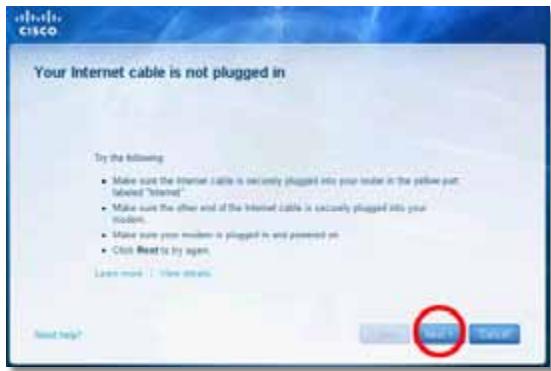
FAT32, NTFS, and HFS+
UPnP
Có hótro
Tinh nang bao mát
WEP, WPA, WPA2
Bit mā khoá bao māt
Ma hóa tí da 128-bit
Mói truong