
WRT160NL - Wireless Router LINKSYS - Free user manual and instructions
Find the device manual for free WRT160NL LINKSYS in PDF.

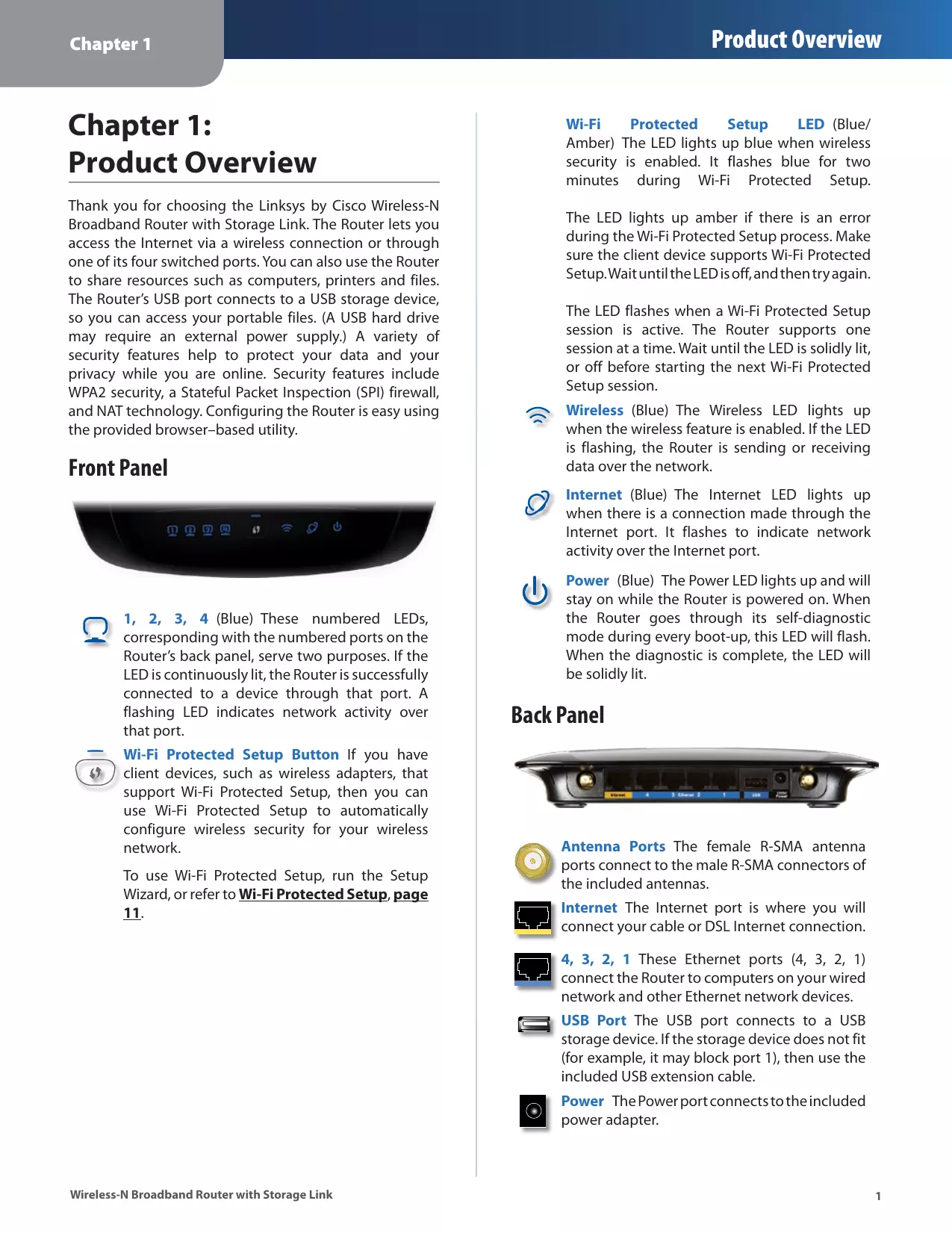

| Product Type | Wireless Router |
| Brand | LINKSYS |
| Model | WRT160NL |
| Wi-Fi Standard | IEEE 802.11b/g/n |
| Frequency Bands | 2.4 GHz |
| Maximum Wireless Speed | Up to 300 Mbps (n) |
| LAN Ports | 4 Ethernet 10/100/1000 Mbps ports |
| WAN Port | 1 Ethernet 10/100/1000 Mbps port |
| USB Port | 1 USB 2.0 port for storage or printer |
| Antennas | 2 external removable antennas |
| Wireless Security | WEP, WPA, WPA2, MAC filtering |
| Firewall | Built-in (SPI, NAT) |
| VPN | Pass-through (IPSec, PPTP, L2TP) |
| Management Protocols | Web (HTTP/HTTPS), DHCP, DDNS |
| Dimensions (L x W x H) | approximately 200 x 150 x 30 mm |
| Weight | approximately 300 g |
| Power Supply | 12 V DC, 1 A via power adapter |
| Power Consumption | ~10 W max |
| Operating Temperature | 0°C to 40°C |
| Operating Humidity | 10% to 85% (non-condensing) |
| Certifications | CE, FCC, IC |
| Box Contents | Router, power adapter, Ethernet cable, antennas, quick installation guide, CD |
Frequently Asked Questions - WRT160NL LINKSYS
User questions about WRT160NL LINKSYS
0 question about this device. Answer the ones you know or ask your own.
Ask a new question about this device
Download the instructions for your Wireless Router in PDF format for free! Find your manual WRT160NL - LINKSYS and take your electronic device back in hand. On this page are published all the documents necessary for the use of your device. WRT160NL by LINKSYS.
USER MANUAL WRT160NL LINKSYS
Wireless-N Broadband Router with Storage Link
Model: WRT160NL
About This Guide
Icon Descriptions
While reading through the User Guide you may see various icons that call attention to specific items. Below is a description of these icons:

NOTE: This tick indicates that there is a note of interest and is something that you should pay special attention to while using the product.

WARNING: This exclamation mark indicates that there is a caution or warning and it is something that could damage your property or product.

WEB: This globe icon indicates a noteworthy website address or email address.
Online Resources
Website addresses in this document are listed without http:// in front of the address because most current web browsers do not require it. If you use an older web browser, you may have to add http:// in front of the web address.
| Resource | Website |
| Linksys | www.linksysbycisco.com |
| Linksys International | www.linksysbycisco.com/international |
| Glossary | www.linksysbycisco.com/glossary |
| Network Security | www.linksysbycisco.com/security |
Copyright and Trademarks
cisco
Linksys, Cisco and the Cisco Logo are registered trademarks or trademarks of Cisco Systems, Inc. and/or its affiliates in the U.S. and certain other countries. Copyright © 2009 Cisco Systems, Inc. All rights reserved. Other brands and product names are trademarks or registered trademarks of their respective holders.
Chapter 1: Product Overview 1
Front Panel. 1
Back Panel 1
Bottom Panel 2
Chapter 2: Wireless Security Checklist 3
General Network Security Guidelines 3
Additional Security Tips 3
Chapter 3: Advanced Configuration 4
Setup > Basic Setup 4
Setup>DDNS. 8
Setup > MAC Address Clone. 9
Setup > Advanced Routing 9
Wireless > Basic Wireless Settings 10
Wireless > Wireless Security 12
Wireless > Wireless MAC Filter. 14
Wireless > Advanced Wireless Settings 15
Security > Firewall 16
Security >VPN Passthrough. 17
Storage > Disk 17
Storage > Administration 20
Access Restrictions > Internet Access 21
Applications and Gaming > Single Port Forwarding. 22
Applications and Gaming > Port Range Forwarding 23
Applications & Gaming > Port Range Triggering 23
Applications and Gaming > DMZ 24
Applications and Gaming > QoS 24
Administration > Management. 26
Administration > Log 27
Administration > Diagnostics 28
Administration > Factory Defaults. 28
Administration > Firmware Upgrade 29
Status >Router. 29
Status > Local Network 30
Status > Wireless Network 30
Appendix A: Troubleshooting 31
Appendix B: How to Install and Access USB Storage 33
Overview. 33
Install the USB Storage Device 33
Access the USB Storage Device. 33
Create a Shortcut to a Shared Folder 34
Advanced Configuration (Advanced Users Only). 36
Appendix C: Specifications 39
Appendix D: Warranty Information 40
Limited Warranty. 40
Exclusions and Limitations 40
Obtaining Warranty Service 40
Technical Support 41
Appendix E: Regulatory Information 42
FCC Statement 42
Safety Notices. 42
Industry Canada Statement 43
Wireless Disclaimer 43
Avis de non-responsabilité concernant les apparèils sans fil 43
Declaration of Conformity with Regard to EU Directive 1999/5/EC (R&TTE Directive). .44
Wireless Equipment (Wireless-N/G/A/B Products) 45
CE Marking 45
National Restrictions 45
Product Usage Restrictions 46
Technical Documents on www.linksysbycisco.com/international 46
User Information for Consumer Products Covered by EU Directive 2002/96/EC on Waste Electric and Electronic Equipment (WEEE) .47
Appendix F: Software End User Licence Agreement 51
Cisco Products 51
Software Licences . 51
Chapter 1: Product Overview
Thank you for choosing the Linksys by Cisco Wireless-N Broadband Router with Storage Link. The Router lets you access the Internet via a wireless connection or through one of its four switched ports. You can also use the Router to share resources such as computers, printers and files. The Router's USB port connects to a USB storage device, so you can access your portable files. (A USB hard drive may require an external power supply.) A variety of security features help to protect your data and your privacy while you are online. Security features include WPA2 security, a Stateful Packet Inspection (SPI) firewall, and NAT technology. Configuring the Router is easy using the provided browser-based utility.
Front Panel


1, 2, 3, 4 (Blue) These numbered LEDs, corresponding with the numbered ports on the Router's back panel, serve two purposes. If the LED is continuously lit, the Router is successfully connected to a device through that port. A flashing LED indicates network activity over that port.

Wi-Fi Protected Setup Button If you have client devices, such as wireless adapters, that support Wi-Fi Protected Setup, then you can use Wi-Fi Protected Setup to automatically configure wireless security for your wireless network.
To use Wi-Fi Protected Setup, run the Setup Wizard, or refer to Wi-Fi Protected Setup, page 11.
Wi-Fi Protected Setup LED (Blue/ Amber) The LED lights up blue when wireless security is enabled. It flashes blue for two minutes during Wi-Fi Protected Setup.
The LED lights up amber if there is an error during the Wi-Fi Protected Setup process. Make sure the client device supports Wi-Fi Protected Setup. Wait until the LED is off, and then try again.
The LED flashes when a Wi-Fi Protected Setup session is active. The Router supports one session at a time. Wait until the LED is solidly lit, or off before starting the next Wi-Fi Protected Setup session.

Wireless (Blue) The Wireless LED lights up when the wireless feature is enabled. If the LED is flashing, the Router is sending or receiving data over the network.

Internet (Blue) The Internet LED lights up when there is a connection made through the Internet port. It flashes to indicate network activity over the Internet port.

Power (Blue) The Power LED lights up and will stay on while the Router is powered on. When the Router goes through its self-diagnostic mode during every boot-up, this LED will flash. When the diagnostic is complete, the LED will be solidly lit.
Back Panel


Antenna Ports The female R-SMA antenna ports connect to the male R-SMA connectors of the included antennas.

Internet The Internet port is where you will connect your cable or DSL Internet connection.

4, 3, 2, 1 These Ethernet ports (4, 3, 2, 1) connect the Router to computers on your wired network and other Ethernet network devices.

USB Port The USB port connects to a USB storage device. If the storage device does not fit (for example, it may block port 1), then use the included USB extension cable.

Power The Power port connects to the included power adapter.
Bottom Panel
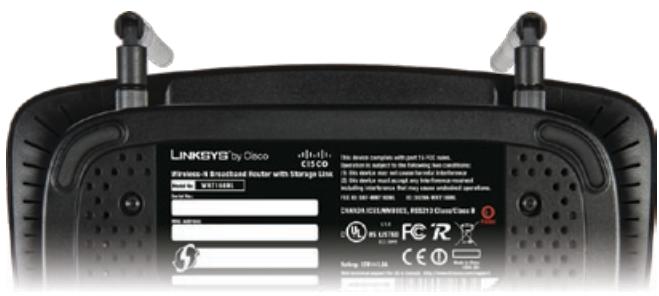

Reset The Reset button is located on the right side of the product label. There are two ways to reset the Router to its factory defaults. Either press and hold the Reset button for approximately five seconds, or restore the defaults from the Administration > Factory Defaults screen of the Router's web-based utility.
Horizontal Placement
The Router has four rubber feet on its bottom panel. Place the Router on a level surface near an electrical socket.
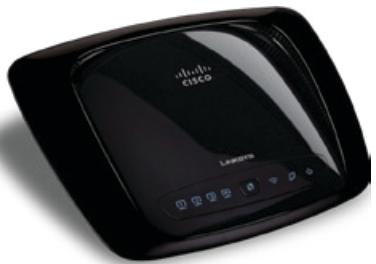
Wall-Mounting Placement
The Router has two wall-mount slots on its bottom panel. The distance between the slots is 152 mm (6 inches).
Two screws are needed to mount the Router.
Suggested Mounting Hardware

4-5 mm

1-1.5 mm
0mm
25
+Note: Mounting hardware illustrations are not true to scale.

NOTE: Linksys is not responsible for damages incurred by insecure wall-mounting hardware.
Follow these instructions:
- Determine where you want to mount the Router. Make sure that the wall you use is smooth, flat, dry and sturdy. Also make sure the location is within reach of an electrical socket.
- Drill two holes into the wall. Make sure the holes are 152mm (6 inches) apart.
- Insert a screw into each hole and leave 3 mm (0.12 inches) of its head exposed.
- Manoeuvre the Router so the wall-mount slots line up with the two screws.
- Place the wall-mount slots over the screws and slide the Router down until the screws fit snugly into the wall-mount slots.
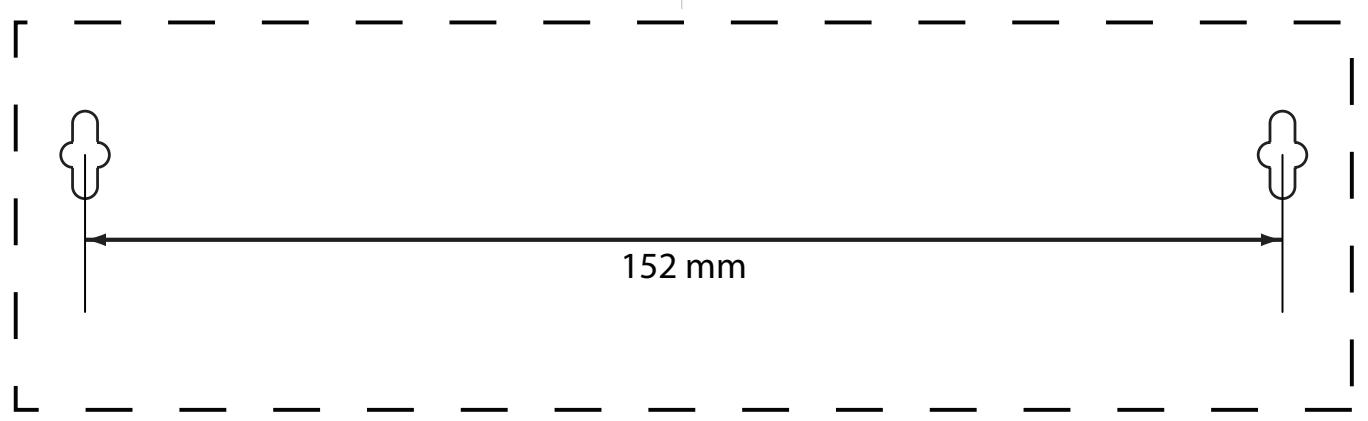

Print this page at 100% size.
Cut along the dotted line, and place on the wall to drill precise spacing.
Wall-Mounting Template
Chapter 2: Wireless Security Checklist
Wireless networks are convenient and easy to install, so homes with high-speed Internet access are adopting them at a rapid pace. Because wireless networking operates by sending information over radio waves, it can be more vulnerable to intruders than a traditional wired network. Like signals from your mobile or cordless phones, signals from your wireless network can also be intercepted. Since you cannot physically prevent someone from connecting to your wireless network, you need to take some additional steps to keep your network secure.

1. Change the default wireless network name or SSID
Wireless devices have a default wireless network name or Service Set Identifier (SSID) set by the factory. This is the name of your wireless network and can be up to 32 characters in length. Linksys wireless products use linksys as the default wireless network name. You should change the wireless network name to something unique to distinguish your wireless network from other wireless networks that may exist around you, but do not use personal information (such as your National Insurance number) because this information may be available for anyone to see when browsing for wireless networks.

2. Change the default password
For wireless products such as access points and routers, you will be asked for a password when you want to change their settings. These devices have a default password set by the factory. The Linksys default password is admin. Hackers know these defaults and may try to use them to access your wireless device and change your network settings. To thwart any unauthorised changes, customise the device's password so it will be hard to guess.

3. Enable MAC address filtering
Linksys routers give you the ability to enable Media Access Control (MAC) address filtering. The MAC address is a unique series of numbers and letters assigned to every networking device. With MAC address filtering enabled, wireless network access is provided solely for wireless devices with specific MAC addresses. For example, you can specify the MAC address of each computer in your home so that only those computers can access your wireless network.

4. Enable encryption
Encryption protects data transmitted over a wireless network. Wi-Fi Protected Access (WPA/WPA2) and Wired Equivalent Privacy (WEP) offer different levels of security for wireless communication.
A network encrypted with WPA/WPA2 is more secure than a network encrypted with WEP, because WPA/WPA2 uses dynamic key encryption. To protect the information as it passes over the airwaves, you should enable the highest level of encryption supported by your network equipment.
WEP is an older encryption standard and may be the only option available on some older devices that do not support WPA.
General Network Security Guidelines
Wireless network security is useless if the underlying network is not secure.
- Password protect all computers on the network and individually password protect sensitive files.
- Change passwords on a regular basis.
- Install anti-virus software and personal firewall software.
- Disable file sharing (peer-to-peer). Some applications may open file sharing without your consent and/or knowledge.
Additional Security Tips
- Keep wireless routers, access points or gateways away from exterior walls and windows.
- Turn wireless routers, access points or gateways off when they are not being used (at night, during holidays).
- Use strong passphrases that are at least eight characters in length. Combine letters and numbers to avoid using standard words that can be found in the dictionary.

WEB: For more information on wireless security, visit www.linksysbycisco.com/security
Chapter 3: Advanced Configuration
After setting up the Router with the Setup Wizard (located on the CD-ROM), the Router will be ready for use. However, if you want to change its advanced settings, use the Router's web-based utility. This chapter describes each web page of the utility and each page's key functions. You can access the utility via a web browser on a computer connected to the Router.
The web-based utility has these main tabs: Setup, Wireless, Security, Storage, Access Restrictions, Applications & Gaming, Administration and Status. Additional tabs will be available after you click one of the main tabs.

NOTE: When first installing the Router, you should use the Setup Wizard on the Setup CD-ROM. If you want to configure advanced settings, use this chapter to learn about the web-based utility.
Access the Web-Based Utility
To access the web-based utility, launch the web browser on your computer and enter the Router's default IP address, 192.168.1.1, in the Address field. Then press Enter.
A login screen will appear. (Non-Windows XP users will see a similar screen). Leave theUsername field blank. The first time you open the Web-based utility, use the default password admin. (You can set a new password from the Administration > Management screen.) Click OK to continue.
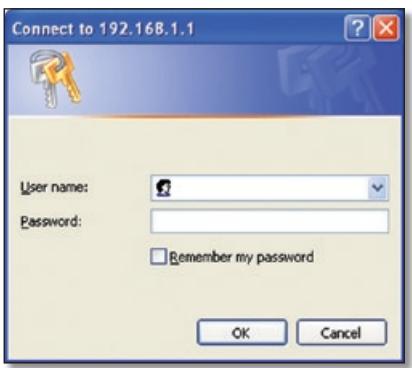
Login Screen
Setup > Basic Setup
The first screen that appears is the Basic Setup screen. This allows you to change the Router's general settings.
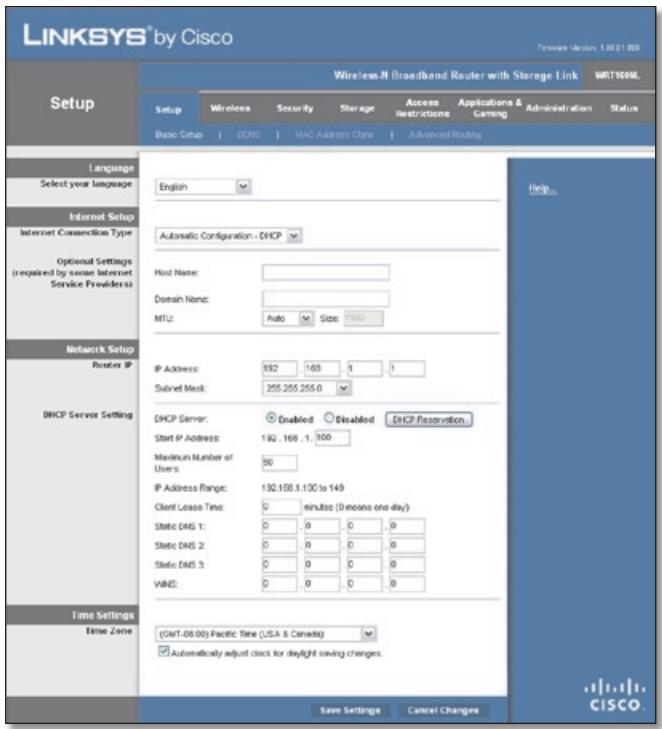
Setup > Basic Setup
Language
Select your language To use a different language, select one from the drop-down menu. The language of the web-based utility will change five seconds after you select another language.
Click Save Settings to apply your changes or click Cancel Changes to cancel your changes.
Internet Setup
The Internet Setup section configures the Router to your Internet connection. Most of this information can be obtained through your Internet Service Provider (ISP).
Internet Connection Type
Select the type of Internet connection your ISP provides from the drop-down menu. These are the available types:
Automatic Configuration - DHCP
Static IP
- PPPoE
PPTP
L2TP
- Telstra Cable
Automatic Configuration - DHCP
By default, the Router's Internet Connection Type is set to Automatic Configuration - DHCP, which should be kept only if your ISP supports DHCP or you are connecting through a dynamic IP address. (This option usually applies to cable connections).

Internet Connection Type > Automatic Configuration - DHCP
Static IP
If you are required to use a permanent IP address to connect to the Internet, select Static IP.
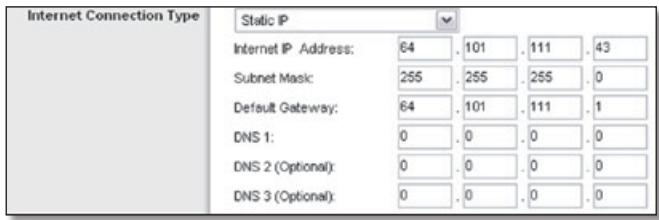
Internet Connection Type > Static IP
Internet IP Address This is the Router's IP address, as seen from the Internet. Your ISP will provide you with the IP Address you need to specify here.
Subnet Mask This is the Router's Subnet Mask, as seen by users on the Internet (including your ISP). Your ISP will provide you with the Subnet Mask.
Default Gateway Your ISP will provide you with the IP address of the ISP server.
DNS 1-3 Your ISP will provide you with at least one DNS (Domain Name System) server IP address.
PPPoE
Some DSL-based ISPs use PPPoE (Point-to-Point Protocol over Ethernet) to establish Internet connections. If you are connected to the Internet through a DSL line, check with your ISP to see if they use PPPoE. If they do, you will have to enable PPPoE.
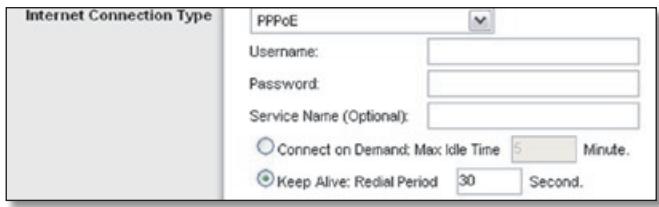
Internet Connection Type > PPPoE
Username and Password Enter theUsername and Password provided by your ISP.
Service Name If provided by your ISP, enter the Service Name.
Connect on Demand: Max Idle Time You can configure the Router to cut the Internet connection after it has been inactive for a specified period of time (Max Idle Time). If your Internet connection has been terminated due to inactivity, Connect on Demand enables the Router to automatically re-establish your connection as soon as you attempt to access the Internet again. To use this option, select Connect on Demand. In the Max Idle Time field, enter the number of minutes you want to elapse before your Internet connection terminates. The default Max Idle Time is 15 minutes.
Keep Alive: Redial Period If you select this option, the Router will periodically check your Internet connection. If you are disconnected, then the Router will automatically re-establish your connection. To use this option, select Keep Alive. In the Redial Period field, you specify how often you want the Router to check the Internet connection. The default Redial Period is 30 seconds.
PPTP
Point-to-Point Tunneling Protocol (PPTP) is a service that applies to connections in Europe only.
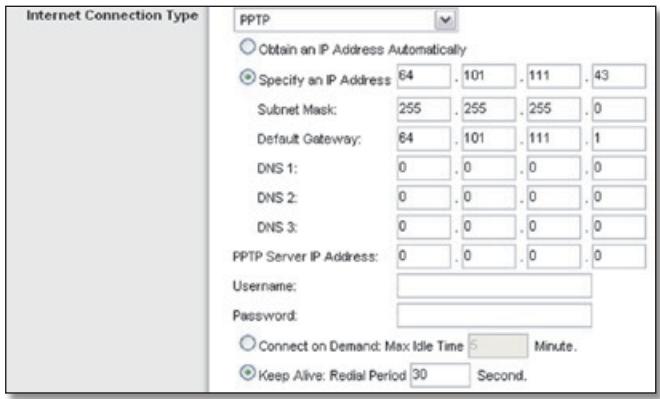
Internet Connection Type > PPTP
If your ISP supports DHCP or you are connecting through a dynamic IP address, then select Obtain an IP Address Automatically. If you are required to use a permanent IP address to connect to the Internet, then select Specify an IP Address. Then configure the following:
- Specify an IP Address This is the Router's IP address, as seen from the Internet. Your ISP will provide you with the IP Address you need to specify here.
- Subnet Mask This is the Router's Subnet Mask, as seen by users on the Internet (including your ISP). Your ISP will provide you with the Subnet Mask.
- Default Gateway Your ISP will provide you with the IP address of the ISP server.
DNS 1-3 Your ISP will provide you with at least one DNS (Domain Name System) server IP address.
PPTP Server IP Address Your ISP will provide you with the IP address of the PPTP server.
Username and Password Enter theUsername and Password provided by your ISP.
Connect on Demand: Max Idle Time You can configure the Router to cut the Internet connection after it has been inactive for a specified period of time (Max Idle Time). If your Internet connection has been terminated due to inactivity, Connect on Demand enables the Router to automatically re-establish your connection as soon as you attempt to access the Internet again. To use this option, select Connect on Demand. In the Max Idle Time field, enter the number of minutes you want to elapse before your Internet connection terminates. The default Max Idle Time is 15 minutes.
Keep Alive: Redial Period If you select this option, the Router will periodically check your Internet connection. If you are disconnected, then the Router will automatically re-establish your connection. To use this option, select Keep Alive. In the Redial Period field, you specify how often you want the Router to check the Internet connection. The default value is 30 seconds.
L2TP
L2TP is a service that applies to connections in Israel only.
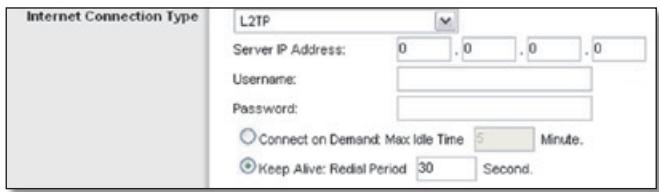
Internet Connection Type > L2TP
Server IP Address This is the IP address of the L2TP Server. Your ISP will provide you with the IP Address you need to specify here.
Username and Password Enter theUsername and Password provided by your ISP.
Connect on Demand: Max Idle Time You can configure the Router to cut the Internet connection after it has been inactive for a specified period of time (Max Idle Time). If your Internet connection has been terminated due to inactivity, Connect on Demand enables the Router to automatically re-establish your connection as soon as you attempt to access the Internet again. To use this option, select Connect on Demand. In the Max Idle Time field, enter the number of minutes you want to elapse before your Internet connection terminates. The default Max Idle Time is 15 minutes.
Keep Alive: Redial Period If you select this option, the Router will periodically check your Internet connection. If you are disconnected, then the Router will automatically re-establish your connection. To use
this option, select Keep Alive. In the Redial Period field, you specify how often you want the Router to check the Internet connection. The default Redial Period is 30 seconds.
Telstra Cable
Telstra Cable is a service that applies to connections in Australia only.
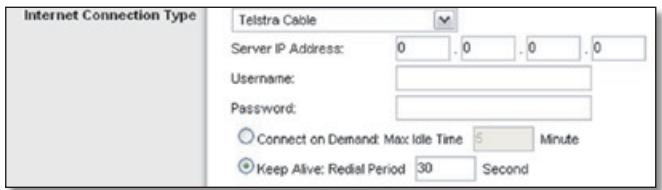
Internet Connection Type > Telstra Cable
Server IP Address This is the IP address of the Heartbeat Server. Your ISP will provide you with the IP Address you need to specify here.
Username and Password Enter theUsername and Password provided by your ISP.
Connect on Demand: Max Idle Time You can configure the Router to cut the Internet connection after it has been inactive for a specified period of time (Max Idle Time). If your Internet connection has been terminated due to inactivity, Connect on Demand enables the Router to automatically re-establish your connection as soon as you attempt to access the Internet again. To use this option, select Connect on Demand. In the Max Idle Time field, enter the number of minutes you want to elapse before your Internet connection terminates. The default Max Idle Time is 15 minutes.
Keep Alive: Redial Period If you select this option, the Router will periodically check your Internet connection. If you are disconnected, then the Router will automatically re-establish your connection. To use this option, select Keep Alive. In the Redial Period field, you specify how often you want the Router to check the Internet connection. The default Redial Period is 30 seconds.
Optional Settings
Some of these settings may be required by your ISP. Verify with your ISP before making any changes.

Optional Settings
Host Name and Domain Name These fields allow you to supply a host and domain name for the Router. Some ISPs, usually cable ISPs, require these names as identification. You may have to check with your ISP to see if your
broadband Internet service has been configured with a host and domain name. In most cases, leaving these fields blank will work.
MTU MTU is the Maximum Transmission Unit. It specifies the largest packet size permitted for Internet transmission. Select Manual if you want to manually enter the largest packet size that is transmitted. To have the Router select the best MTU for your Internet connection, keep the default setting of Auto.
Size When Manual is selected in the MTU field, this option is enabled. Leave this value in the 1200 to 1500 range. The default size depends on the Internet Connection Type:
DHCP, Static IP or Telstra: 1500
- PPPoE: 1492
- PPTP or L2TP: 1460
Network Setup
The Network Setup section changes the settings of the local network. Wireless setup is performed through the Wireless tab.
Router IP
This presents both the Router's IP Address and Subnet Mask as seen by your network.
Router IP
| Router IP | IP Address: | 192.168.1.1 |
| Subnet Mask: | 255.255.255.0 |
DHCP Server Setting
The settings allow you to configure the Router's Dynamic Host Configuration Protocol (DHCP) server function. The Router can be used as a DHCP server for your network. A DHCP server automatically assigns an IP address to each computer on your network. If you choose to enable theRouter's DHCP server option, make sure there is no other DHCP server on your network.
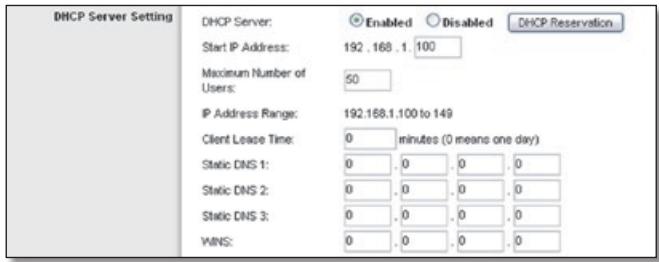
DHCP Server Setting
DHCP Server DHCP is enabled by factory default. If you already have a DHCP server on your network or you do not want a DHCP server, then select Disabled (no other DHCP features will be available).
DHCP Reservation Click this button if you want to assign a fixed local IP address to a MAC address.
DHCP Reservation
You will see a list of DHCP clients with the following information: Client Name, Interface, IP Address and MAC Address.
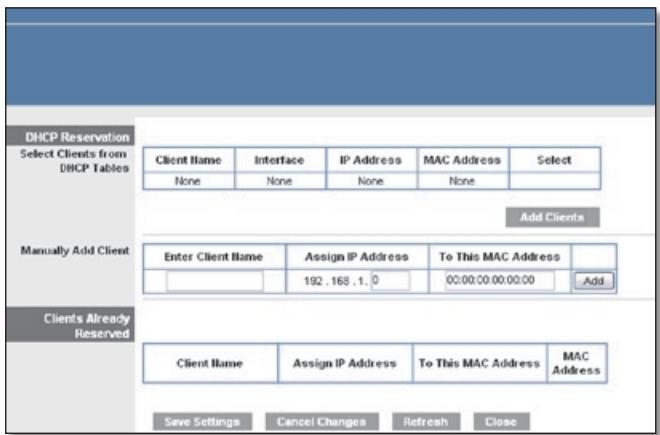
DHCP Reservation
- Select Clients from DHCP Table Click the Select tick box to reserve a client's IP address. Then click Add Clients.
- Manually Adding Client To manually assign an IP address, enter the client's name in the Enter Client Name field. Enter the IP address you want it to have in the Assign IP Address field. Enter its MAC address in the To This MAC Address field. Then click Add.
Clients Already Reserved
A list of DHCP clients and their fixed local IP addresses will be displayed at the bottom of the screen. If you want to remove a client from this list, click Remove.
Click Save Settings to apply your changes or click Cancel Changes to cancel your changes. To update the on-screen information, click Refresh. To exit this screen, click Close.
Start IP Address Enter a value for the DHCP server to start with when issuing IP addresses. Because the Router's default IP address is 192.168.1.1, the Start IP Address must be 192.168.1.2 or greater, but smaller than 192.168.1.253. The default setting is 192.168.1.100.
Maximum Number of Users Enter the maximum number of PCs that you want the DHCP server to assign IP addresses to. This number cannot be greater than 253. The default value is 50.
IP Address Range Displayed here is the range of available IP addresses.
Client Lease Time The Client Lease Time is the amount of time a network user will be allowed connection to the Router with their current dynamic IP address. Enter the
amount of time, in minutes, that the user will be "leased" this dynamic IP address. After the time has elapsed, the user will be automatically assigned a new dynamic IP address. The default setting is 0 minutes, which means one day.
Static DNS 1-3 The Domain Name System (DNS) is how the Internet translates domain or website names into Internet addresses or URLs. Your ISP will provide you with at least one DNS Server IP Address. If you wish to use another, enter that IP Address in one of these fields. You can enter up to three DNS Server IP Addresses here. The Router will use these for quicker access to functioning DNS servers.
WINS The Windows Internet Naming Service (WINS) manages each PC's interaction with the Internet. If you use a WINS server, enter that server's IP Address here. Otherwise, leave this blank.
Time Settings
Time Zone Select the time zone in which your network functions from this drop-down menu. (You can even automatically adjust for daylight saving time).

Time Settings
Click Save Settings to apply your changes or click Cancel Changes to cancel your changes.
Setup > DDNS
The Router offers a Dynamic Domain Name System (DDNS) feature. DDNS lets you assign a fixed host and domain name to a dynamic Internet IP address. It is useful when you are hosting your own website, FTP server or other server behind the Router.
Before you can use this feature, you have to sign up for DDNS service with a DDNS service provider, www.dyndns.org or www.TZO.com. If you do not want to use this feature, keep the default setting of Disabled.
DDNS
DDNS Service
If your DDNS service is provided by DynDNS.org, then select DynDNS.org from the drop-down menu. If your DDNS service is provided by TZO, then select TZO.com. The features available on the DDNS screen will vary, depending on which DDNS service provider you use.
DynDNS.org
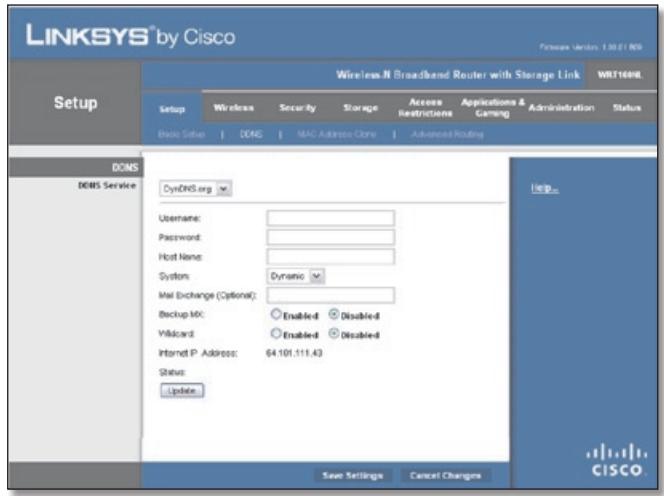
Setup > DDNS > DynDNS
Username Enter theUsername for your DDNS account.
Password Enter the Password for your DDNS account.
Host Name The is the DDNS URL assigned by the DDNS service.
System Select the DynDNS service you use: Dynamic, Static or Custom. The default selection is Dynamic.
Mail Exchange (Optional) Enter the address of your mail exchange server, so emails to your DynDNS address go to your mail server.
Backup MX This feature allows the mail exchange server to be a backup. To disable this feature, keep the default setting of Disabled. To enable the feature, select Enabled. If you are not sure which setting to select, keep the default setting of Disabled.
Wildcard This setting enables or disables wildcards for your host. For example, if your DDNS address is myplace. dyndns.org and you enable wildcards, then x.myplace. dyndns.org will work as well (x is the wildcard). To disable wildcards, keep the default setting of Disabled. To enable wildcards, select Enabled. If you are not sure which setting to select, keep the default setting of Disabled.
Internet IP Address The Router's Internet IP address is displayed here. Because it is dynamic, it will change.
Status The status of the DDNS service connection is displayed here.
Update To manually trigger an update, click this button. Click Save Settings to apply your changes or click Cancel Changes to cancel your changes.
TZ0.com
E-mail Address, TZO Key and Domain Name Enter the settings of the account you set up with TZO.
Internet IP Address The Router's Internet IP address is displayed here. Because it is dynamic, it will change.
Status The status of the DDNS service connection is displayed here.
Update To manually trigger an update, click this button.
Click Save Settings to apply your changes or click Cancel Changes to cancel your changes.
Setup > MAC Address Clone
A MAC address is a 12-digit code assigned to a unique piece of hardware for identification. Some ISPs will require you to register a MAC address in order to access the Internet. If you do not wish to re-register the MAC address with your ISP, you may assign the MAC address you have currently registered with your ISP to the Router with the MAC Address Clone feature.
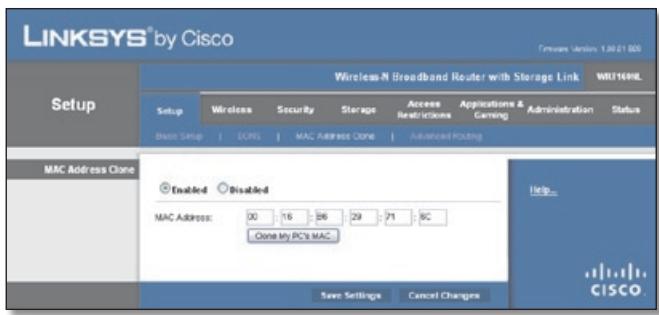
Setup > MAC Address Clone
MAC Address Clone
Enabled/Disabled To have the MAC Address cloned, select Enabled.
MAC Address Enter the MAC Address registered with your ISP here.
Clone My PC's MAC Click this button to clone the MAC address of the computer you are using.
Click Save Settings to apply your changes or click Cancel Changes to cancel your changes.
Setup > Advanced Routing
This screen is used to set up the Router's advanced functions. Operating Mode allows you to select the type(s) of advanced functions you use. Dynamic Routing automatically adjusts how packets travel on your network. Static Routing sets up a fixed route to another network destination.
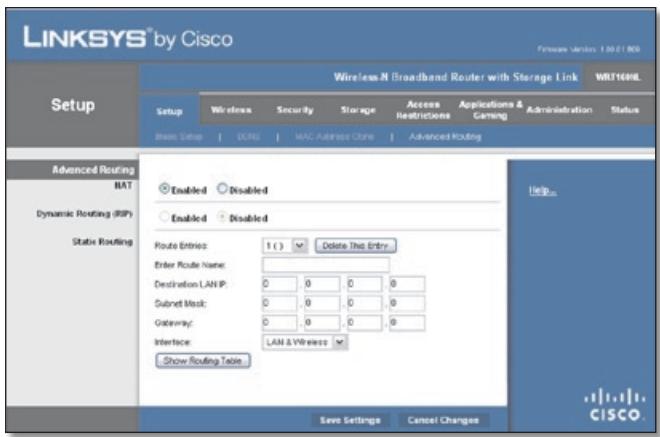
Setup > Advanced Routing
Advanced Routing
NAT
Enabled/Disabled If this Router is hosting your network's connection to the Internet, keep the default setting of Enabled. If another router exists on your network, select Disabled. When the NAT setting is disabled, dynamic routing will be enabled.
Dynamic Routing (RIP)
Enabled/Disabled This feature enables the Router to automatically adjust to physical changes in the network's layout and exchange routing tables with the other router(s). The Router determines the network packets' route based on the fewest number of hops between the source and the destination. When the NAT setting is enabled, the Dynamic Routing feature is automatically disabled. When the NAT setting is disabled, this feature is available. Select Enabled to use the Dynamic Routing feature.
Static Routing
A static route is a pre-determined pathway that network information must travel to reach a specific host or network. Enter the information described below to set up a new static route.
Route Entries To set up a static route between the Router and another network, select a number from the dropdown list. Click Delete This Entry to delete a static route.
Enter Route Name Enter a name for the Route here, using a maximum of 25 alphanumeric characters.
Destination LAN IP The Destination LAN IP is the address of the remote network or host to which you want to assign a static route.
SubnetMask The SubnetMask determines which portion of a Destination LAN IP address is the network portion and which portion is the host portion.
Gateway This is the IP address of the gateway device that allows for contact between the Router and the remote network or host.
Interface This interface tells you whether the Destination IP Address is on the LAN & Wireless (Ethernet and wireless networks) or the WAN (Internet).
Click Show Routing Table to view the static routes you have already set up.
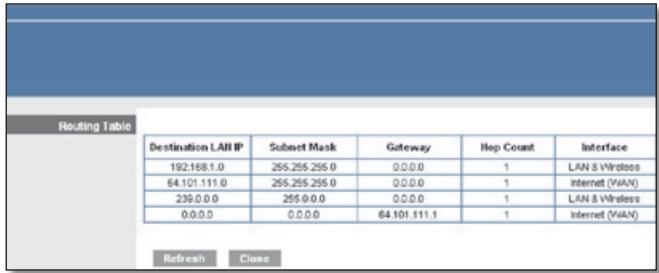
Advanced Routing > Routing Table
Routing Table
For each route, the Destination LAN IP address, Subnet Mask, Gateway and Interface are displayed. Click Refresh to update the information. Click Close to exit this screen.
Click Save Settings to apply your changes or click Cancel Changes to cancel your changes.
Wireless > Basic Wireless Settings
The basic settings for wireless networking are set on this screen.
There are two ways to configure the Router's wireless network(s), manual and Wi-Fi Protected Setup.
Wi-Fi Protected Setup is a feature that makes it easy to setup your wireless network. If you have client devices, such as wireless adapters, that support Wi-Fi Protected Setup, then you can use Wi-Fi Protected Setup.
Wireless Configuration To manually configure your wireless network, select Manual. Proceed to Basic Wireless Settings, page 10. To use Wi-Fi Protected Setup,
select Wi-Fi Protected Setup. Proceed to Wi-Fi Protected Setup, page 11.
Basic Wireless Settings
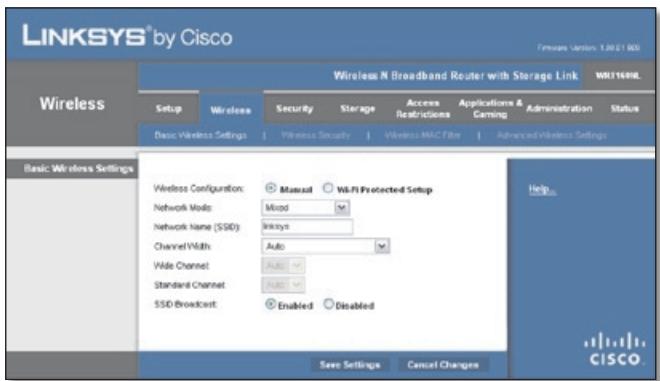
Wireless > Basic Wireless Settings (Manual Setup)
Network Mode From this drop-down menu, you can select the wireless standards running on your network. If you have Wireless-N, Wireless-G and Wireless-B devices in your network, keep the default setting of Mixed. If you have only Wireless-G and Wireless-B devices in your network, select BG-Mixed. If you have only Wireless-N devices, select Wireless-N Only. If you have only Wireless-G devices, select Wireless-G Only. If you have only Wireless-B devices, select Wireless-B Only. If you do not have any wireless devices in your network, select Disabled.
Network Name (SSID) TheSSID is the network name shared among all points in a wireless network. TheSSID must be identical for all devices in the wireless network. It is case-sensitive and must not exceed 32 characters (use any of the characters on the keyboard). Make sure this setting is the same for all points in your wireless network. For added security, you should change the defaultSSID (linksys) to a unique name.
Channel Width For best performance in a network using Wireless-N, Wireless-G and Wireless-B devices, select Wide - 40MHz Channel. For Wireless-G and Wireless-B networking only, keep the default setting of Standard - 20MHz Channel. If you are not sure which option to use, select Auto.

NOTE: If you select Wide - 40MHz Channel for the Channel Width setting, then Wireless-N can use two channels: a primary one (Wide Channel) and a secondary one (Standard Channel). This will enhance Wireless-N performance.
Wide Channel If Wide - 40MHz Channel is the Channel Width setting, then this setting will be available for your primary Wireless-N channel. Select any channel from the drop-down menu. If you are not sure which channel to select, keep the default setting of Auto.
Standard Channel If Standard - 20 MHz Channel is the Channel Width setting, then this setting will be available. Select the appropriate channel for your wireless network. If you are not sure which channel to select, keep the default setting of Auto.
If Wide - 40MHz Channel is the Channel Width setting, then the Standard Channel will be a secondary channel for Wireless-N (2.4 GHz).
If you selected a specific channel for the Wide Channel setting, then the Standard Channel options will vary. Select the appropriate channel for your wireless network.
SSID Broadcast When wireless clients survey the local area for wireless networks to associate with, they will detect the SSID broadcast by the Router. To broadcast the Router's SSID, keep the default setting of Enabled. If you do not want to broadcast the Router's SSID, then select Disabled.
Click Save Settings to apply your changes or click Cancel Changes to cancel your changes.
Wi-Fi Protected Setup
There are three methods available. Use the method that applies to the client device you are configuring.
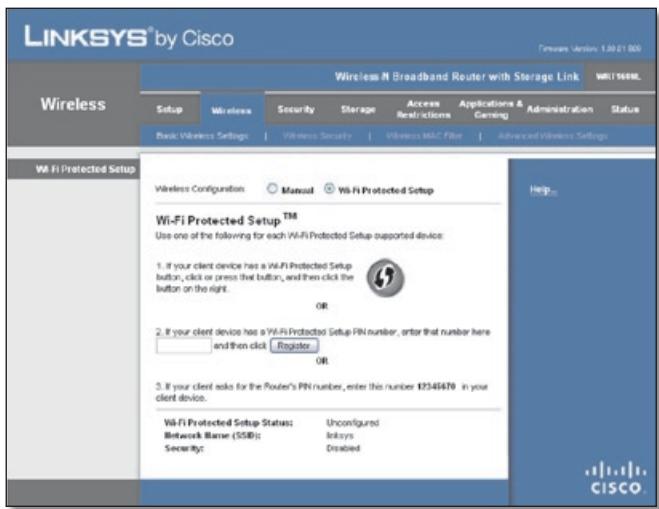
Wireless > Basic Wireless Settings (Wi-Fi Protected Setup)
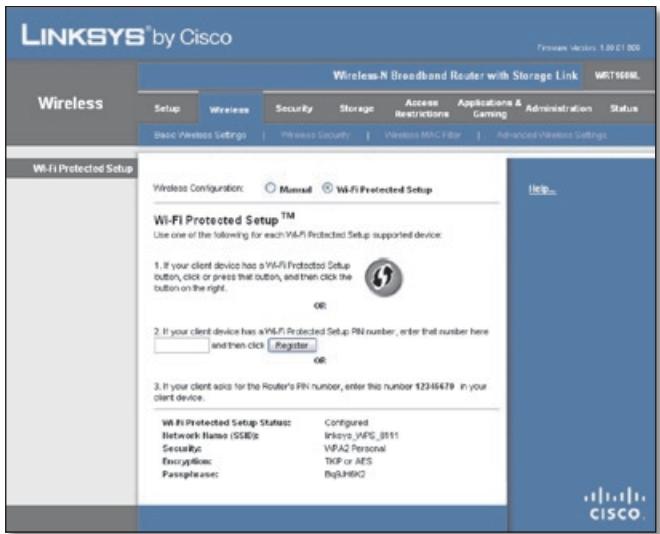
Wi-Fi Protected Setup Configured

NOTE: Wi-Fi Protected Setup configures one client device at a time. Repeat the instructions for each client device that supports Wi-Fi Protected Setup.
Method #1
Use this method if your client device has a Wi-Fi Protected Setup button.
- Click or press the Wi-Fi Protected Setup button on the client device.
- Click the Wi-Fi Protected Setup button on this screen.
- After the client device has been configured, click OK. Then refer back to your client device or its documentation for further instructions.
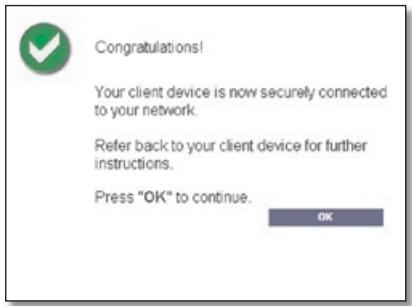
Wi-Fi Protected Setup > Congratulations
Method #2
Use this method if your client device has a Wi-Fi Protected Setup PIN number.
- Enter the PIN number in the field on this screen.
-
Click Register.
-
After the client device has been configured, click OK. Then refer back to your client device or its documentation for further instructions.
Method #3
Use this method if your client device asks for the Router's PIN number.
- Enter the PIN number listed on this screen. (It is also listed on the label on the bottom of the Router).
- After the client device has been configured, click OK. Then refer back to your client device or its documentation for further instructions.
The Wi-Fi Protected Setup Status, Network Name (SSID), Security, Encryption and Passphrase are displayed at the bottom of the screen.

NOTE: If you have client devices that do not support Wi-Fi Protected Setup, note the wireless settings and then manually configure those client devices.
Wireless > Wireless Security
The Wireless Security screen configures the security of your wireless network. There are six wireless security mode options supported by the Router: WPA Personal, WPA Enterprise, WPA2 Personal, WPA2 Enterprise, RADIUS and WEP. (WPA stands for Wi-Fi Protected Access, which is a security standard stronger than WEP encryption. WEP stands for Wired Equivalent Privacy, while RADIUS stands for Remote Authentication Dial-In User Service). These six are briefly discussed here. For detailed instructions on configuring wireless security for the Router, refer to Chapter 2: Wireless Security Checklist, page 3.
Wireless Security
Security Mode
Select the security method for your wireless network. If you do not want to use wireless security, keep the default setting of Disabled.
WPA Personal

NOTE: If you are using WPA, then each device in your wireless network MUST use the same WPA method and shared key, or else the network will not function properly.
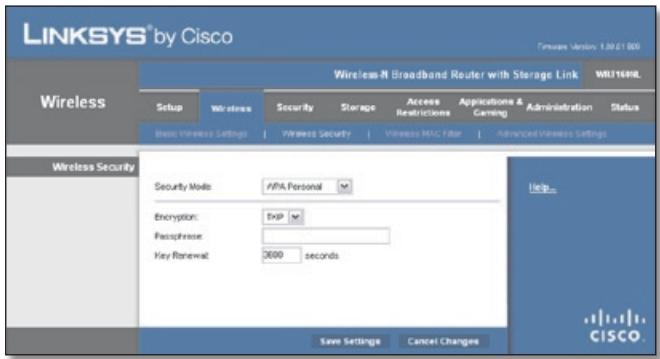
Security Mode > WPA Personal
Encryption WPA supports two encryption methods, TKIP and AES, with dynamic encryption keys. Select the type of algorithm, TKIP or AES. The default setting is TKIP.
Passphrase Enter a Passphrase of 8-63 characters.
Key Renewal Enter a Key Renewal period, which instructs the Router how often it should change the encryption keys. The default value is 3600 seconds.
WPA2 Personal
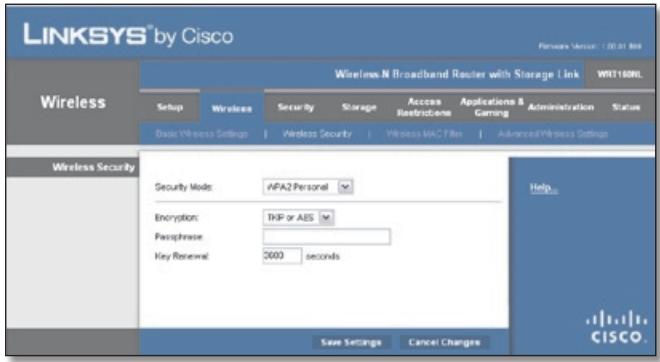
Security Mode > WPA2 Personal
Encryption WPA2 supports two encryption methods, TKIP and AES, with dynamic encryption keys. Select the type of algorithm, AES or TKIP or AES. The default setting is TKIP or AES.
Passphrase Enter a Passphrase of 8-63 characters.
Key Renewal Enter a Key Renewal period, which instructs the Router how often it should change the encryption keys. The default value is 3600 seconds.
WPA Enterprise
This option features WPA used with a RADIUS server. (This should only be used when a RADIUS server is connected to the Router).
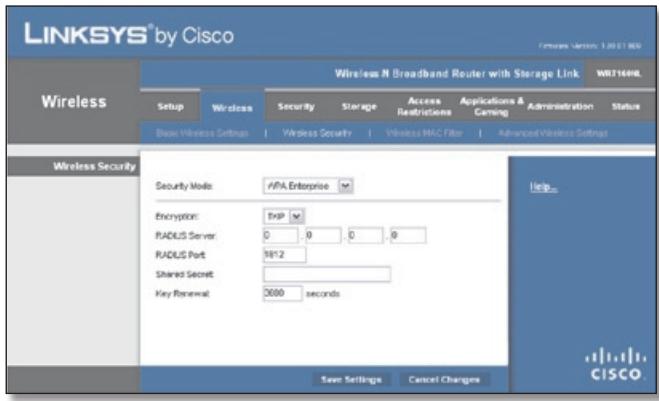
Security Mode > WPA Enterprise
Encryption WPA supports two encryption methods, TKIP and AES, with dynamic encryption keys. Select the type of algorithm, TKIP or AES. The default setting is TKIP.
RADIUS Server Enter the IP address of the server.
RADIUS Port Enter the port number of the server. The default value is 1812.
Shared Secret Enter the key shared between the Router and the server.
Key Renewal Enter a Key Renewal period, which instructs the Router how often it should change the encryption keys. The default value is 3600 seconds.
WPA2 Enterprise
This option features WPA2 used with a RADIUS server. (This should only be used when a RADIUS server is connected to the Router).
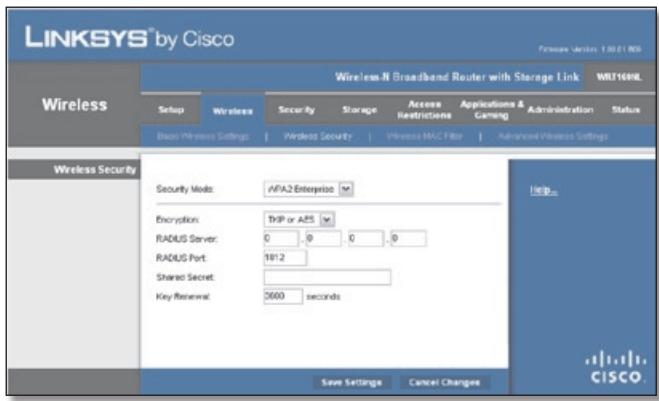
Security Mode > WPA2 Enterprise
Encryption WPA2 supports two encryption methods, TKIP and AES, with dynamic encryption keys. Select the type of algorithm, AES or TKIP or AES. The default setting is TKIP or AES.
RADIUS Server Enter the IP address of the server.
RADIUS Port Enter the port number of the server. The default value is 1812.
Shared Secret Enter the key shared between the Router and the server.
Key Renewal Enter a Key Renewal period, which instructs the Router how often it should change the encryption keys. The default value is 3600 seconds.
RADIUS
This option features WEP used with a RADIUS server. (This should only be used when a RADIUS server is connected to the Router).

IMPORTANT: If you are using WEP, then each device in your wireless network MUST use the same WEP encryption method and key, or else the network will not function properly.
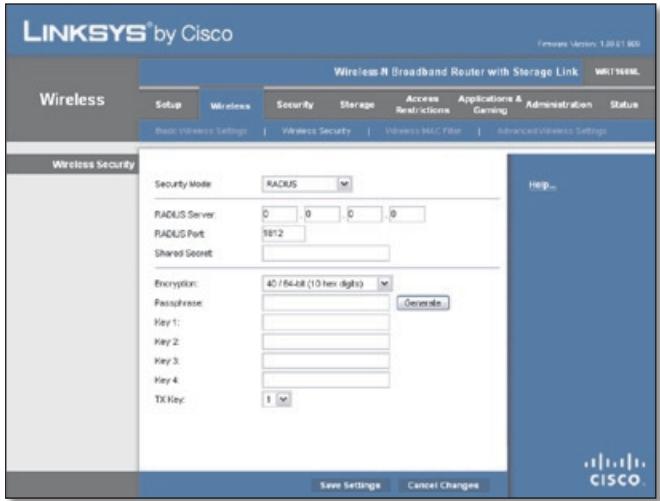
Security Mode > RADIUS
RADIUS Server Enter the IP address of the server.
RADIUS Port Enter the port number of the server. The default value is 1812.
Shared Secret Enter the key shared between the Router and the server.
Encryption Select a level of WEP encryption, 40/64 bits (10 hex digits) or 104/128 bits (26 hex digits). The default setting is 40/64 bits (10 hex digits).
Passphrase Enter a Passphrase to automatically generate WEP keys. Then click Generate.
Key 1-4 If you did not enter a Passphrase, enter the WEP key(s) manually.
TX Key Select which TX (Transmit) Key to use. The default value is 1.
WEP
WEP is a basic encryption method, which is not as secure as WPA.

IMPORTANT: If you are using WEP encryption, then each device in your wireless network MUST use the same WEP encryption method and key, or else the network will not function properly.
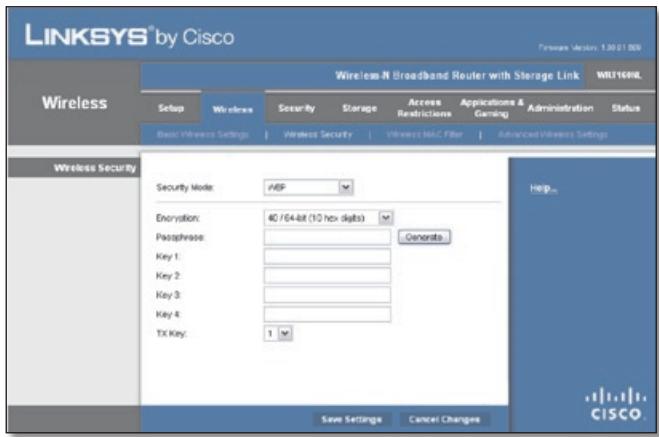
Security Mode > WEP
Encryption Select a level of WEP encryption, 40/64 bits (10 hex digits) or 104/128 bits (26 hex digits). The default setting is 40/64 bits (10 hex digits).
Passphrase Enter a Passphrase to automatically generate WEP keys. Then click Generate.
Key 1-4 If you did not enter a Passphrase, enter the WEP key(s) manually.
TX Key Select which TX (Transmit) Key to use. The default value is 1.
Click Save Settings to apply your changes or click Cancel Changes to cancel your changes.
Wireless > Wireless MAC Filter
Wireless access can be filtered by using the MAC addresses of the wireless devices transmitting within your network's radius.
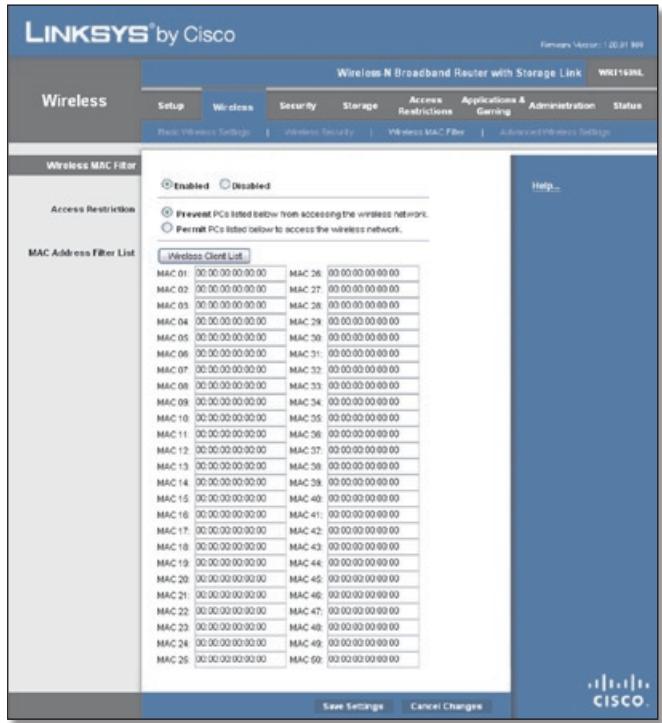
Wireless > Wireless MAC Filter
Wireless MAC Filter
Enabled/Disabled To filter wireless users by MAC Address, either permitting or blocking access, select Enabled. If you do not wish to filter users by MAC Address, keep the default setting of Disabled.
Access Restriction
Prevent Select this option to block wireless access by MAC Address. This button is selected by default.
Permit Select this option to allow wireless access by MAC Address. This button is not selected by default.
MAC Address Filter List
Wireless Client List Click this to open the Wireless Client List screen.
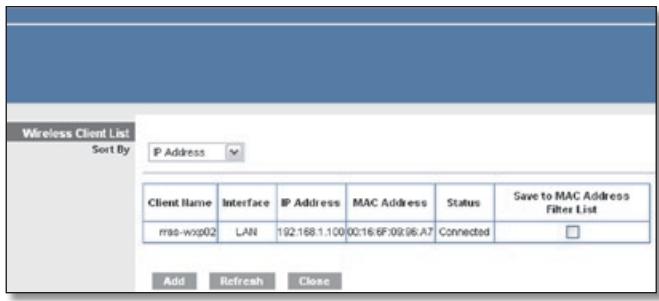
Wireless Client List
Wireless Client List
This screen shows computers and other devices on the wireless network. The list can be sorted by Client Name, Interface, IP Address, MAC Address and Status.
Select Save to MAC Address Filter List for any device you want to add to the MAC Address Filter List. Then click Add.
To update the on-screen information, click Refresh. To exit this screen and return to the Wireless MAC Filter screen, click Close.
MAC 01-50 Enter the MAC addresses of the devices whose wireless access you want to block or allow.
Click Save Settings to apply your changes or click Cancel Changes to cancel your changes.
Wireless > Advanced Wireless Settings
This Advanced Wireless Settings screen is used to set up the Router's advanced wireless functions. These settings should only be adjusted by an expert administrator as incorrect settings can reduce wireless performance.
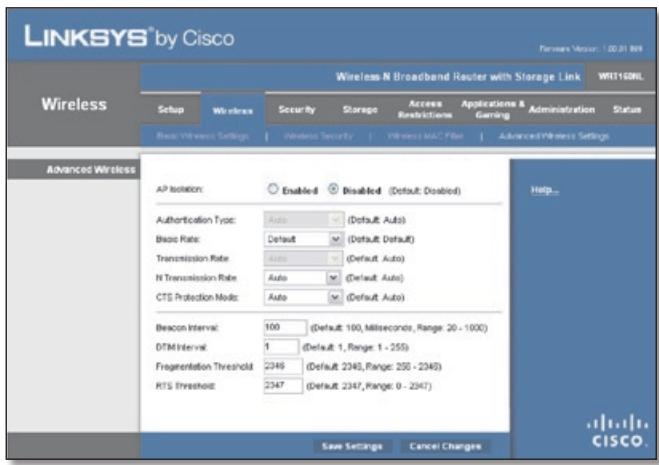
Wireless > Advanced Wireless Settings
Advanced Wireless
AP Isolation This isolates all wireless clients and wireless devices on your network from each other. Wireless devices will be able to communicate with the Router but not
with each other. To use this function, select Enabled. AP Isolation is disabled by default.
Authentication Type The Authentication Type setting is available if the Security Mode is RADIUS or WEP. The default is set to Auto, which allows either Open System or Shared Key authentication to be used. With Open System authentication, the sender and the recipient do NOT use a WEP key for authentication. With Shared Key authentication, the sender and recipient use a WEP key for authentication. Select Shared Key to only use Shared Key authentication.
Basic Rate The Basic Rate setting is not actually one rate of transmission but a series of rates at which the Router can transmit. (The Basic Rate is not the actual rate of data transmission. If you want to specify the Router's rate of data transmission, configure the Transmission Rate setting.) The Router will advertise its Basic Rate to the other wireless devices in your network, so they know which rates will be used. The Router will also advertise that it will automatically select the best rate for transmission. The default setting is Default, when the Router can transmit at all standard wireless rates (1-2 Mbps, 5.5 Mbps, 11 Mbps, 18 Mbps and 24Mbps). Select 1-2Mbps for use with older wireless technology. Select All, when theRouter can transmit at all wireless rates.
Transmission Rate The Transmission setting is available if the Network Mode is BG-Mixed, Wireless-G Only or Wireless-B Only. The rate of data transmission should be set depending on the speed of your wireless network. Select from a range of transmission speeds, or keep the default setting of Auto to have the Router automatically use the fastest possible data rate and enable the Auto-Fallback feature. Auto-Fallback will negotiate the best possible connection speed between the Router and a wireless client.
N Transmission Rate The N Transmission setting is available if the Network Mode is Mixed or Wireless-N Only. The rate of data transmission should be set depending on the speed of your Wireless-N networking. Select from a range of transmission speeds, or keep the default setting of Auto to have the Router automatically use the fastest possible data rate and enable the Auto-Fallback feature. Auto-Fallback will negotiate the best possible connection speed between the Router and a wireless client.
CTS Protection Mode The Router automatically uses CTS (Clear-To-Send) Protection Mode when your Wireless-N and Wireless-G devices are experiencing severe problems and are not able to transmit to the Router in an environment with heavy 802.11b traffic. This option boosts the Router's ability to catch all Wireless-N and Wireless-G transmissions but severely decreases performance. To use this option, keep the default setting of Auto. To disable this option, select Disabled.
Beacon Interval Enter a value between 1 and 65,535 milliseconds. The Beacon Interval value indicates the frequency interval of the beacon. A beacon is a packet broadcast by the Router to synchronise the wireless network. The default value is 100 milliseconds.
DTIM Interval This value, between 1 and 255, indicates the interval of the Delivery Traffic Indication Message (DTIM). A DTIM field is a countdown field informing clients of the next window for listening to broadcast and multicast messages. When the Router has buffered broadcast or multicast messages for associated clients, it sends the next DTIM with a DTIM Interval value. Its clients hear the beacons and awaken to receive the broadcast and multicast messages. The default value is 1.
Fragmentation Threshold This value specifies the maximum size for a packet before data is fragmented into multiple packets. If you experience a high packet error rate, you may slightly increase the Fragmentation Threshold. Setting the Fragmentation Threshold too low may result in poor network performance. Only minor reduction of the default value is recommended. In most cases, it should remain at its default value of 2346.
RTS Threshold Should you encounter inconsistent data flow, only a minor reduction of the default value, 2347, is recommended. If a network packet is smaller than the preset RTS threshold size, the RTS/CTS mechanism will not be enabled. The Router sends Request to Send (RTS) frames to a particular receiving station and negotiates the sending of a data frame. After receiving an RTS, the wireless station responds with a Clear to Send (CTS) frame to acknowledge the right to begin transmission. The RTS Threshold value should remain at its default value of 2347.
Click Save Settings to apply your changes or click Cancel Changes to cancel your changes.
Security > Firewall
The Firewall screen is used to configure a firewall that can filter out various types of unwanted traffic on the Router's local network.
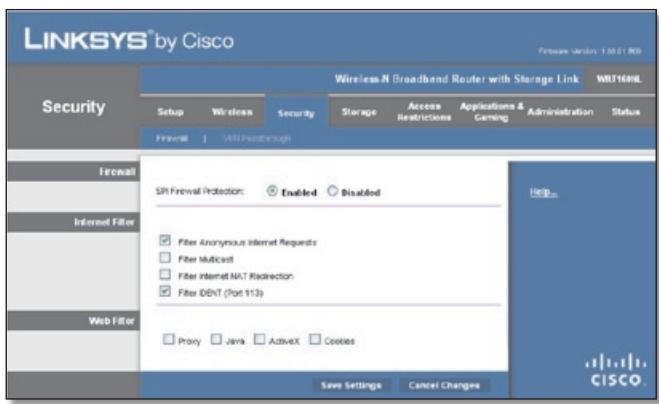
Security > Firewall
Firewall
SPI Firewall Protection To use firewall protection,keep the default selection of Enabled. To turn off firewall protection,select Disabled.
Internet Filter
Filter Anonymous Internet Requests This feature makes it more difficult for outside users to work their way into your network. This feature is selected by default. Deselect the feature to allow anonymous Internet requests.
Filter Multicast Multicasting allows for multiple transmissions to specific recipients at the same time. If multicast is permitted, then the Router will allow IP multicast packets to be forwarded to the appropriate computers. Select this option to filter multicasting. This feature is not selected by default.
Filter Internet NAT Redirect This feature uses port forwarding to block access to local servers from local networked computers. Select this option to filter Internet NAT redirection. It is not selected by default.
Filter IDENT (Port 113) This feature keeps port 113 from being scanned by devices outside of your local network. This feature is selected by default. Deselect this option to disable it.
Web Filter
Proxy Use of WAN proxy servers may compromise the Gateway's security. Denying Proxy will disable access to any WAN proxy servers. Select this option to enable proxy filtering. Deselect the feature to allow proxy access.
Java Java is a programming language for websites. If you deny Java, you run the risk of not having access to Internet sites created using this programming language. Select this option to enable Java filtering. Deselect the feature to allow Java usage.
ActiveX ActiveX is a programming language for websites. If you deny ActiveX, you run the risk of not having access to Internet sites created using this programming language. Select this option to enable ActiveX filtering. Deselect the feature to allow ActiveX usage.
Cookies A cookie is data stored on your computer and used by Internet sites when you interact with them. Select this option to filter cookies. Deselect the feature to allow cookie usage.
Click Save Settings to apply your changes or click Cancel Changes to cancel your changes.
Security > VPN Passthrough
The VPN Passthrough screen allows you to enable VPN tunnels using IPSec, PPTP or L2TP protocols to pass through the Router's firewall.
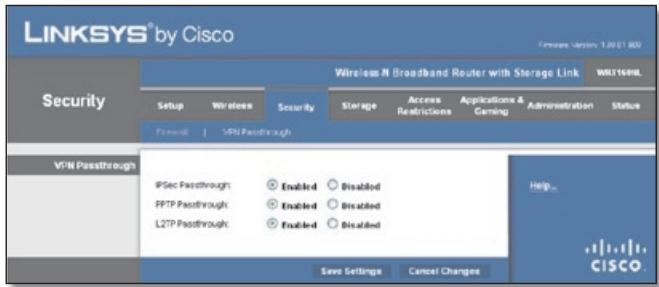
Security >VPN Passthrough
VPN Passthrough
IPSec Passthrough Internet Protocol Security (IPSec) is a suite of protocols used to implement secure exchange of packets at the IP layer. To allow IPSec tunnels to pass through the Router, keep the default setting of Enabled.
PPTP Passthrough Point-to-Point Tunneling Protocol (PPTP) allows the Point-to-Point Protocol (PPP) to be tunneled through an IP network. To allow PPTP tunnels to pass through the Router, keep the default setting of Enabled.
L2TP Passthrough Layer 2 Tunneling Protocol is the method used to enable Point-to-Point sessions via the Internet on the Layer 2 level. To allow L2TP tunnels to pass through the Router, keep the default setting of Enabled.
Click Save Settings to apply your changes or click Cancel Changes to cancel your changes.
Storage > Disk
The storage options are available when a USB storage device is connected to the USB port of the Router. If the storage device does not fit (for example, it may block port 1), then use the included USB extension cable.
The Disk screen describes the disk currently attached to the Router. Use this screen to create shared folders, safely remove a disk, or format a disk (any data on the disk will be deleted during formatting).
Shared folders are folders you create to manage access to the folders on the disk. By default the Router creates a shared folder called Public, which includes all of the folders on the disk. For the Public folder, the admin group has read-and-write access rights and the guest group has read-only access rights. (By default the Router creates two user groups, admin and guest.)
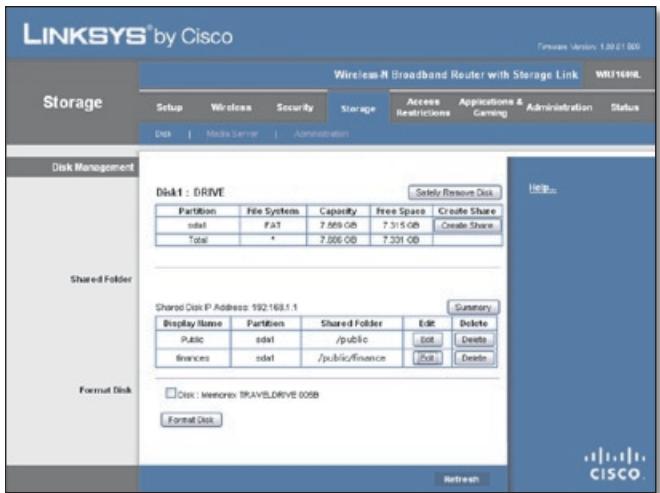
Storage > Disk
Disk Management
If a formatted disk is connected to the Router, then its name is displayed. For each partition of the disk, the Partition, File System, Capacity and Free Space information are displayed.
Safely Remove Disk Before physically disconnecting a disk from the Router, click Safely Remove Disk first. This prevents the possible loss of data, which may occur if you remove the disk while it is transferring data.
Create Share To create a shared folder, click this option for the appropriate partition and the Shared Folder screen appears. Proceed to Create or Edit a Shared Folder, page 18.
Shared Folder
Shared Disk IP Address The IP address of the disk is displayed.
Summary To view a list of shared folders, click this option. Proceed to Shared Folders Summary, page 18.
For each shared folder, the Display Name, Partition and Shared Folder location are displayed.
Edit To change the access settings of a shared folder, click this option and the Shared Folder screen appears. Proceed to Create or Edit a Shared Folder, page 18.
Delete To delete a shared folder, click this option.
Shared Folders Summary
The Shared Folders Summary screen displays the following information: Display Name, Partition, Shared Folder and Groups with Access.
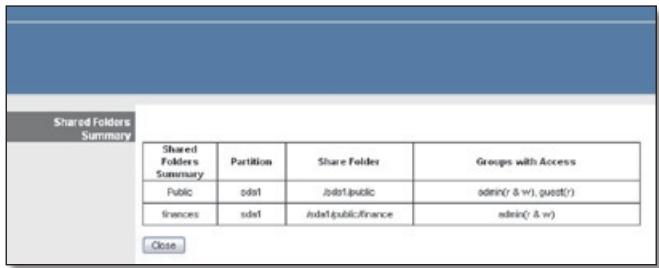
Summary
To exit the SharedFolders Summary screen and return to the Disk Management screen, click Close.
Format Disk
Disk To format a disk and create a new partition, select the disk you want to format and then click Format Disk. (If your disk was formatted with multiple partitions, then the formatting will delete them and create a single partition.) The Claim Disk screen appears.
Claim Disk
Enter a partition's name Create a name for the partition.
To format the disk as FAT32, click Format and follow the on-screen instructions. To cancel the formatting, click Cancel. To update the on-screen information, click Refresh.
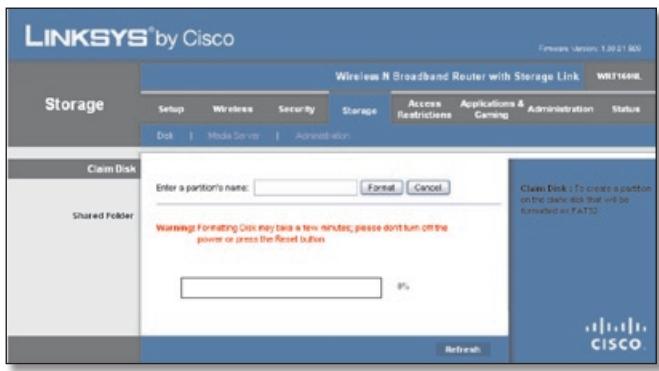
Claim Disk
On the Disk Management screen, click Refresh to update the on-screen information.
Create or Edit a Shared Folder
Use this screen to add a shared folder.
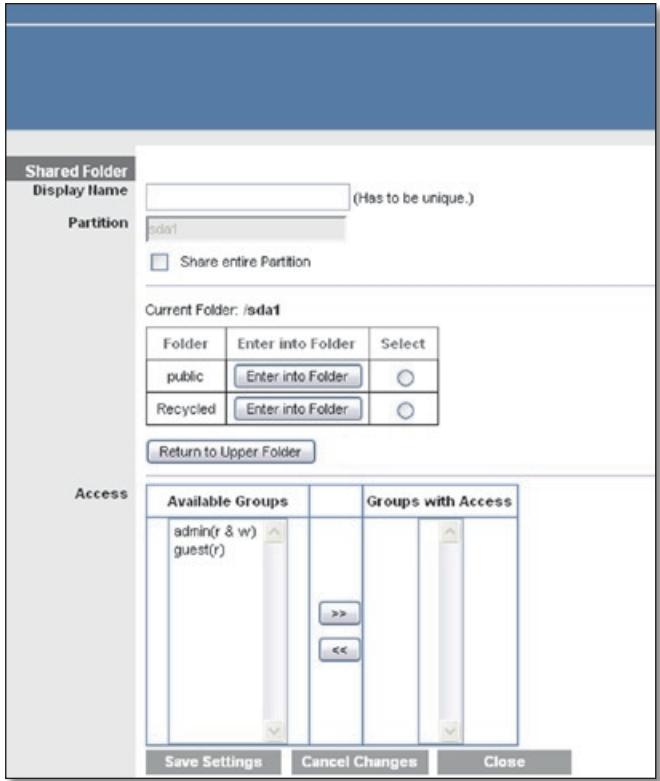
Shared Folder
Display Name
Create a name for the shared folder.
Partition
The name of the partition is displayed.
Share entire Partition Select this option if the shared folder should include the entire partition.
If you do not want to share the entire partition, then select the folder you do want to share.
Current Folder The current folder is displayed.
Folder The available folders are listed by Folder name.
Enter into Folder To display subFolders, click this button.
Select Select a folder.
Return to Upper Folder To return to the previous folder, click this button.
Access
Specify which user groups have read-and-write or read-only access to the shared folders. (To create user groups, refer to Create or Edit a Group Account, page 20.)
Available Groups To allow a group access to the shared folder, select it and then click the >> button.
Groups with Access To block a group from accessing the shared folder, select it and then click the << button.
Click Save Settings to apply your changes or click Cancel Changes to cancel your changes. Click Close to exit the screen.
Storage > Media Server
The storage options are available when a USB storage device is connected to the USB port of the Router. If the storage device does not fit (for example, it may block port 1), then use the included USB extension cable.
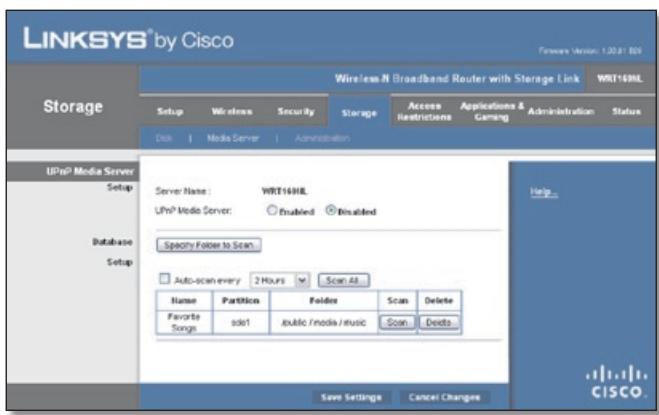
Storage > Media Server
UPnP Media Server
If you have UPnP AV-enabled (or DLNA-certified) devices in your home, then you can use the Router as a media server. Examples of UPnP AV-enabled devices include a digital media adapter, a gaming console with a built-in media player, or a digital picture frame.
For example, if you have a digital media adapter that sends content to your entertainment system, then the digital media adapter can locate the Router using the UPnP AV standard. The folders you specify can then be accessed and played by the digital media adapter.
Setup
Server Name The default server name of the Router is WRT160NL. You can change this name on the Storage > Administration screen. Please refer to Storage > Administration, page 20.
UPnP Media Server To use the Router's media server function, select Enabled. Otherwise, select Disabled.
Database Setup
Specify Folder to Scan To add a media folder to the database of the Router'smedia server,click this button. The Media Folder screen appears. Proceed to Create a Media Folder, page 19.
Auto-scan every __ To automatically scan the media folders, select this option. Then select the appropriate interval: 2 Hours (default), 6 Hours, 12 Hours, 24 Hours, or 48 Hours.
Scan All To scan all media files, click this button.
The database table lists the media folders with the following information: Name, Partition and Folder.
Scan To scan a folder, click Scan.
Delete To delete a folder, click Delete.
Create a Media Folder
Use this screen to add a media folder.
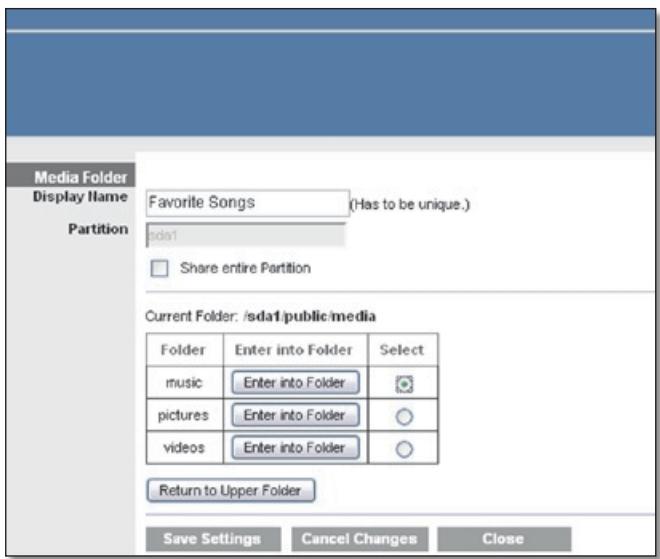
Media Folder
Display Name
Create a name for the media folder.
Partition
The name of the partition is displayed.
Share entire Partition Select this option if the media folder should include the entire partition.
If you do not want to share the entire partition, then select the folder you do want to share.
Current Folder The current folder is displayed.
Folder The available folders are listed by Folder name.
Enter into Folder To display subFolders, click this button.
Select Select a folder.
Return to Upper Folder To return to the previous folder, click this button.
Click Save Settings to apply your changes or click Cancel Changes to cancel your changes. Click Close to exit the screen.
On the Media Server screen, click Save Settings to apply your changes, or click Cancel Changes to clear your changes.
Storage > Administration
The Administration screen allows you to manage the user groups and individual users who can access the shared folders.
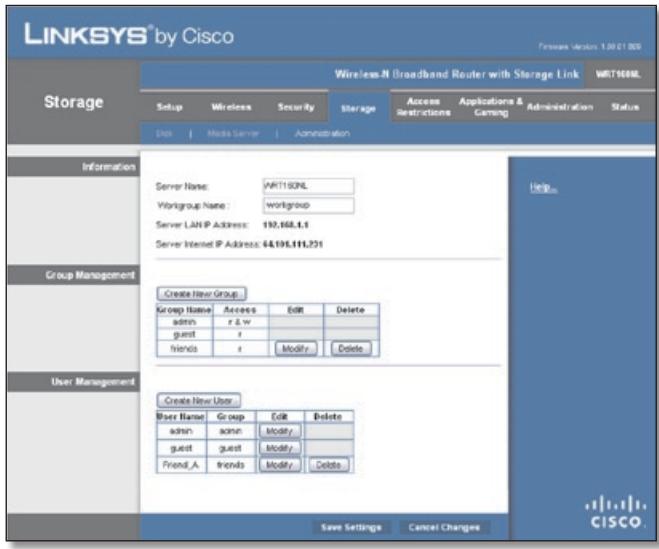
Storage > Administration
Information
Server Name Enter the server name for the Router; it will be used for the disk and media server features. Use only alphanumeric characters (letters A to Z and numbers 0 to 9) in the server name. The default setting is WRT160NL.
Workgroup Name Enter the workgroup name for the Router; it should match the workgroup name of the computers on your local network. The Router's default is workgroup.
Server LAN IP Address The local IP address of the Router is displayed.
Server Internet IP Address The Internet IP address of the Router is displayed.
Group Management
By default the Router creates two user groups,admin and guest.
The groups are listed by Group Name and Access level. There are two levels of access, r & w (read-and-write) and r (read-only).
Create New Group To create a new group of users, click this button. The Group Account screen appears. Proceed to Create or Edit a Group Account, page 20.
Edit To change the description or access rights of a group, click Modify and the Group Account screen appears. Proceed to Create or Edit a Group Account, page 20.
Delete To delete a group, click this button.
User Management
By default the Router creates two users,admin and guest.
The users are listed byUsername and Group.
Create New User To create a new user, click this button. The User Account screen appears. Proceed to Create or Edit a User Account, page 21.
Edit To change the settings of a user account, click Modify and the User Account screen appears. Proceed to Create or Edit a User Account, page 21.
Delete To delete a user, click this button.
Click Save Settings to apply your changes or click Cancel Changes to cancel your changes.
Create or Edit a Group Account
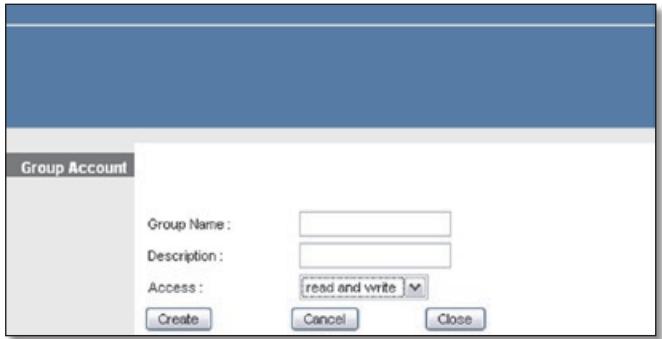
Group Account
Group Account
Group Name Create a name for the group.
Description Enter keywords to describe the group.
Access Select the appropriate level of access, read and write or read only.
Click Create or Modify to apply your changes, or click Cancel to clear your changes. Click Close to exit the screen.
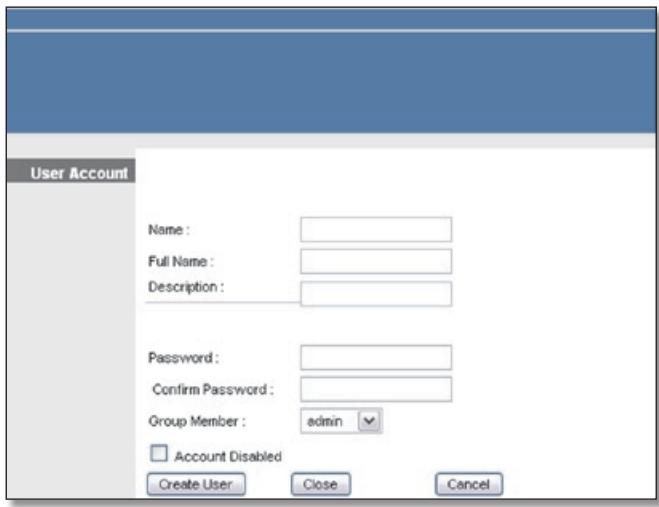
Create or Edit a User Account
User Account
User Account
Name Create a name for the user.
Full Name Enter the actual name of the user.
Description Enter keywords to describe the user.
Password Enter the password that the user will use for login
Confirm Password Enter the password again to confirm.
Group Member Select the appropriate user group.
Account disabled To temporarily disable an account, select this option.
Click Create User or Modify User to apply your changes, or click Cancel to clear your changes. Click Close to exit the screen.
On the Media Server screen, click Save Settings to apply your changes, or click Cancel Changes to clear your changes.
Access Restrictions > Internet Access
The Internet Access screen allows you to block or allow specific kinds of Internet usage and traffic, such as Internet access, designated services and websites during specific days and times.
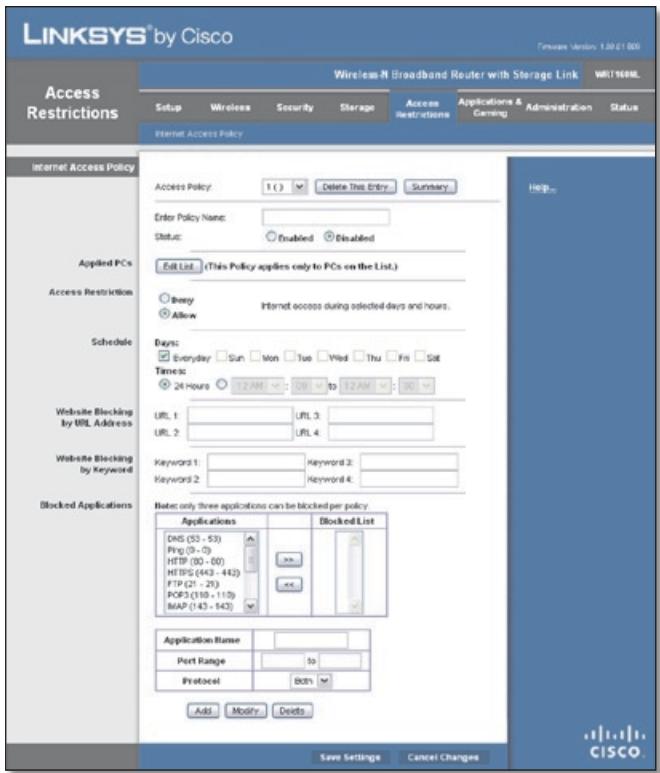
Access Restrictions > Internet Access
Internet Access Policy
Access Policy Access can be managed by a policy. Use the settings on this screen to establish an access policy (after Save Settings is clicked). Selecting a policy from the dropdown menu will display that policy's settings. To delete a policy, select that policy's number and click Delete This Policy. To view all the policies, click Summary.
Summary
The policies are listed with the following information: No., Policy Name, Access, Days, Time and status (Enabled). To enable a policy, select Enabled. To delete a policy, click Delete. Click Save Settings to save your changes or click Cancel Changes to cancel your changes. To return to the Internet Access Policy screen, click Close.
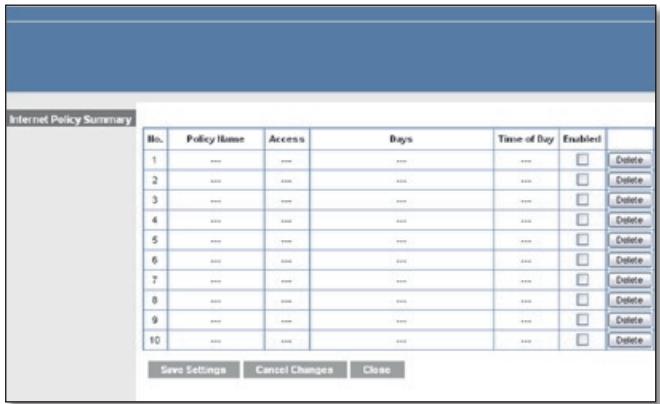
Summary
Status Policies are disabled by default. To enable a policy, select the policy number from the drop-down menu and select Enabled.
To create a policy, follow steps 1-11. Repeat these steps to create additional policies, one at a time.
- Select a number from the Access Policy drop-down menu.
- Enter a Policy Name in the field provided.
- To enable this policy, select Enabled.
- Click Edit List to select which PCs will be affected by the policy. The List of PCs screen appears. You can select a PC by MAC address or IP address. You can also enter a range of IP addresses if you want this policy to affect a group of PCs. After making your changes, click Save Settings to apply your changes or click Cancel Changes to clear your changes. Then click Close.
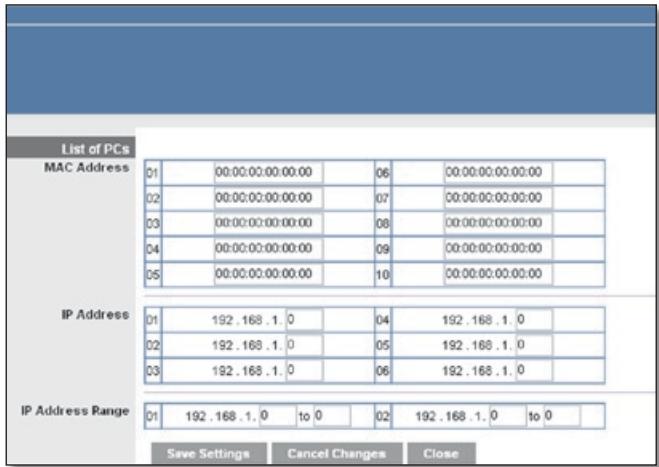
List of PCs
- Select the appropriate option, Deny or Allow, depending on whether you want to block or allow Internet access for the PCs you listed on the List of PCs screen.
- Decide which days and what times you want this policy to be enforced. Select the individual days during which the policy will be in effect or select Everyday. Then enter a range of hours and minutes during which the policy will be in effect or select 24 Hours.
- You can block websites with specific URL addresses. Enter each URL in a separate Website Blocking by URL Address field.
- You can also block websites using specific keywords. Enter each keyword in a separate Website Blocking by Keyword field.
- You can filter access to various services accessed over the Internet, such as FTP or telnet. (You can block up to three applications per policy.)
From the Applications list, select the application you want to block. Then click the >> button to move it to
theBlockedList.To remove an application from theBlockedList,select it and click the<<button.
- If the application you want to block is not listed or you want to edit a service's settings, enter the application's name in the Application Name field. Enter its range in the Port Range fields. Select its protocol from the Protocol drop-down menu. Then click Add.
To modify a service, select it from the Application list. Change its name, port range and/or protocol setting. Then click Modify.
To delete a service, select it from the Application list. Then click Delete.
- Click Save Settings to save the policy's settings or click Cancel Changes to clear the changes.
Applications and Gaming > Single Port Forwarding
The Single Port Forwarding screen allows you to customise port services for common applications on this screen.
When users send these types of requests to your network via the Internet, the Router will forward those requests to the appropriate servers (computers). Before using forwarding, you should assign static IP addresses to the designated servers (use the DHCP Reservation feature on the Basic Setup screen; refer to DHCP Reservation, page 7).
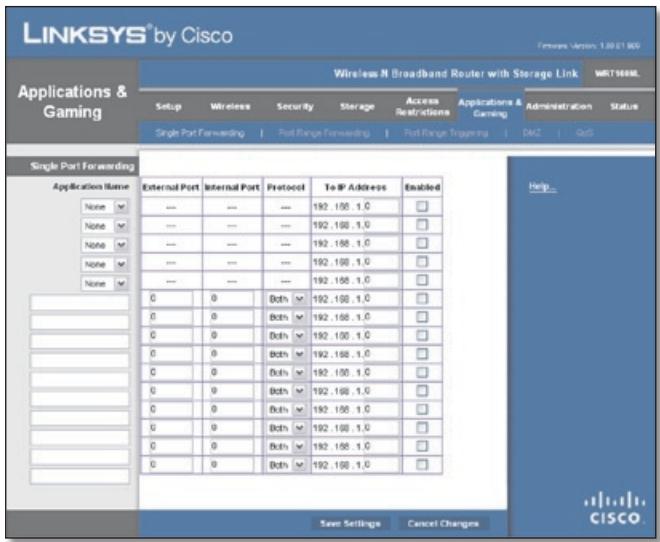
Applications and Gaming > Single Port Forwarding
Single Port Forwarding
Common applications are available for the first five entries. Select the appropriate application. Then enter the IP address of the server that should receive these requests. Select Enabled to activate this entry.
For additional applications, complete the following fields:
Application Name Enter the name you wish to give the application. Each name can be up to 12 characters.
External Port Enter the external port number used by the server or Internet application. Check with the Internet application documentation for more information.
Internal Port Enter the internal port number used by the server or Internet application. Check with the Internet application documentation for more information.
Protocol Select the protocol(s) used for this application, TCP, UDP or Both.
To IP Address For each application, enter the IP address of the PC that should receive the requests. If you assigned a static IP address to the PC, then you can click DHCP Reservation on the Basic Setup screen to look up its static IP address.
Enabled For each application, select Enabled to enable port forwarding.
Click Save Settings to apply your changes or click Cancel Changes to cancel your changes.
Applications and Gaming > Port Range Forwarding
The Port Range Forwarding screen allows you to set up public services on your network, such as web servers, ftp servers, email servers or other specialised Internet applications. (Specialised Internet applications are any applications that use Internet access to perform functions such as videoconferencing or online gaming. Some Internet applications may not require any forwarding).
When users send these types of requests to your network via the Internet, the Router will forward those requests to the appropriate servers (computers). Before using forwarding, you should assign static IP addresses to the designated servers (use the DHCP Reservation feature on the Basic Setup screen; refer to DHCP Reservation, page 7).
If you need to forward all ports to one computer, click the DMZ tab.
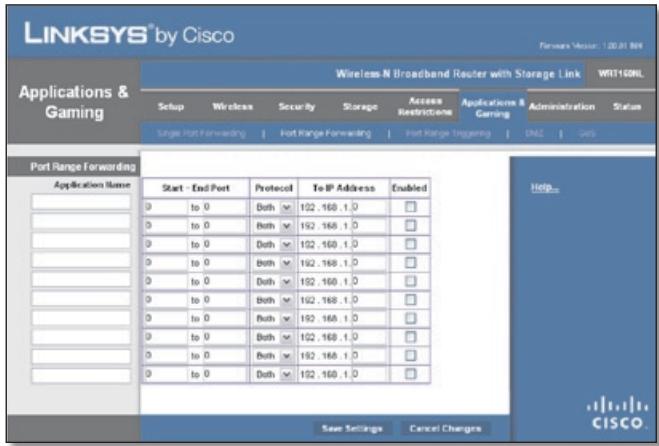
Applications and Gaming > Port Range Forwarding
Port Range Forwarding
To forward a port, enter the information on each line for the criteria required.
Application Name In this field, enter the name you wish to give the application. Each name can be up to 12 characters.
Start-End Port Enter the number or range of port(s) used by the server or Internet applications. Check with the Internet application documentation for more information.
Protocol Select the protocol(s) used for this application, TCP, UDP or Both.
To IP Address For each application, enter the IP address of the PC running the specific application. If you assigned a static IP address to the PC, then you can click DHCP Reservation on the Basic Setup screen to look up its static IP address.
Enabled Select Enabled to enable port forwarding for the applications you have defined.
Click Save Settings to apply your changes or click Cancel Changes to cancel your changes.
Applications & Gaming > Port Range Triggering
The Port Range Triggering screen allows the Router to watch outgoing data for specific port numbers. The IP address of the computer that sends the matching data is remembered by the Router, so that when the requested data returns through the Router, the data is pulled back to the proper computer by way of IP address and port mapping rules.
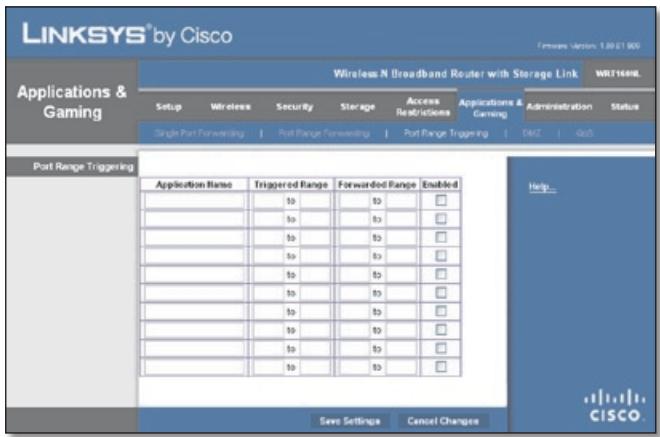
Applications and Gaming > Port Range Triggering
Port Range Triggering
Application Name Enter the application name of the trigger.
Triggered Range For each application, enter the starting and ending port numbers of the triggered port number range. Check with the Internet application documentation for the port number(s) needed.
ForwardedRange For each application, enter the starting and ending port numbers of the forwarded port number range. Check with the Internet application documentation for the port number(s) needed.
Enabled Select Enabled to enable port triggering for the applications you have defined.
Click Save Settings to apply your changes or click Cancel Changes to cancel your changes.
Applications and Gaming > DMZ
The DMZ feature allows one network computer to be exposed to the Internet for use of a special-purpose service such as Internet gaming or videoconferencing. DMZ hosting forwards all the ports at the same time to one PC. The Port Range Forwarding feature is more secure because it only opens the ports you want to have opened, while DMZ hosting opens all the ports of one computer, exposing the computer to the Internet.
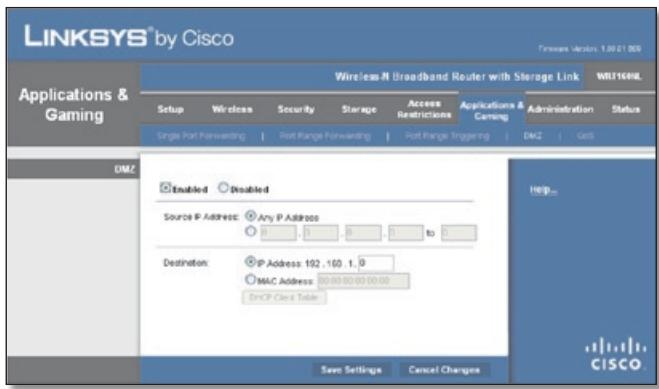
Applications and Gaming > DMZ
DMZ
Any PC whose port is being forwarded must have its DHCP client function disabled and should have a new static IP address assigned to it because its IP address may change when using the DHCP function.
Enabled/Disabled To disable DMZ hosting, select Disabled. To expose one PC, select Enabled. Then configure the following settings:
Source IP Address If you want any IP address to be the source, select Any IP Address. If you want to specify an IP address or range of IP addresses as the designated source, select and complete the IP address range fields.
Destination If you want to specify the DMZ host by IP address, select IP Address and enter the IP address in the field provided. If you want to specify the DMZ host by MAC address, select MAC Address and enter the MAC
address in the field provided. To retrieve this information, click DHCP Client Table.
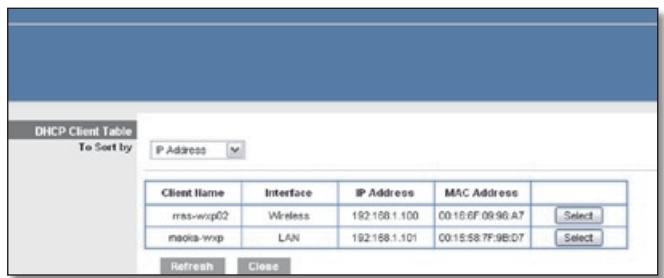
DMZ > DHCP Client Table
DHCP Client Table
The DHCP Client Table lists computers and other devices that have been assigned IP addresses by the Router. The list can be sorted by Client Name, Interface, IP Address, MAC Address and Expired Time (how much time is left for the current IP address). To select a DHCP client, click Select. To update the on-screen information, click Refresh. To exit this screen and return to the DMZ screen, click Close.
Click Save Settings to apply your changes or click Cancel Changes to cancel your changes.
Applications and Gaming > QoS
Quality of Service (QoS) ensures better service to high-priority types of network traffic, which may involve demanding, real-time applications such as videoconferencing.
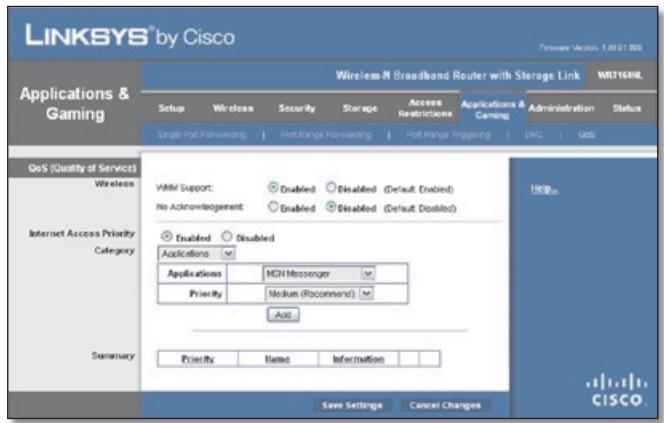
Applications and Gaming > QoS
QoS (Quality of Service)
Wireless
You can configure the support and No Acknowledgement settings in this section.
WMM Support If you have other devices that support Wi-Fi Multimedia (WMM) on your network, keep the default setting of Enabled. Otherwise, select Disabled.
No Acknowledgement If you want to disable the Router's Acknowledgement feature, so the Router will not re-send data if an error occurs, then select Enabled. Otherwise, keep the default setting of Disabled.
Internet Access Priority
In this section, you can set the bandwidth priority for a variety of applications and devices. There are four levels of priority: High, Medium, Normal or Low. When you set the priority, do not set all applications to High, because this will defeat the purpose of allocating the available bandwidth. If you want to select below normal bandwidth, select Low. Depending on the application, a few attempts may be needed to set the appropriate bandwidth priority.
Enabled/Disabled To use the QoS policies you have set, keep the default setting of Enabled. Otherwise, select Disabled.
Category
There are four categories available. Select one of the following: Applications, Online Games, MAC Address, Ethernet Port or Voice Device. Proceed to the instructions for your selection.
Summary
This lists the QoS entries you have created for your applications and devices. Refer to Summary, page 26 for more information.
Applications
Applications Select the appropriate application. If you select Add a New Application, follow the Add a New Application instructions.
Priority Select the appropriate priority: High, Medium, Normal or Low.
- Click Add to save your changes. Your new entry will appear in the Summary list.
Add a New Application
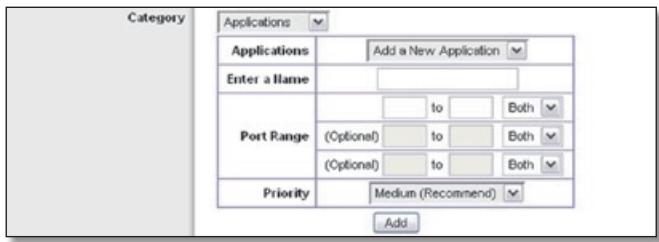
QoS > Add a New Application
Enter a Name Enter any name to indicate the name of the entry.
Port Range Enter the port range that the application will be using. For example, if you want to allocate bandwidth for FTP, you can enter 21-21. If you need services for an
application that uses from 1000 to 1250, you enter 1000-1250 as your settings. You can have up to three ranges to define for this bandwidth allocation. Port numbers can range from 1 to 65535. Check your application's documentation for details on the service ports used.
Select the protocol TCP or UDP or select Both.
Priority Select the appropriate priority: High, Medium (Recommend), Normal or Low.
Click Add to save your changes. Your new entry will appear in the Summary list.
Online Games

QoS > Online Games
Games Select the appropriate game. If you select Add a New Game, follow the Add a New Game instructions.
Priority Select the appropriate priority: High, Medium (Recommend), Normal or Low.
Click Add to save your changes. Your new entry will appear in the Summary list.
Add a New Game
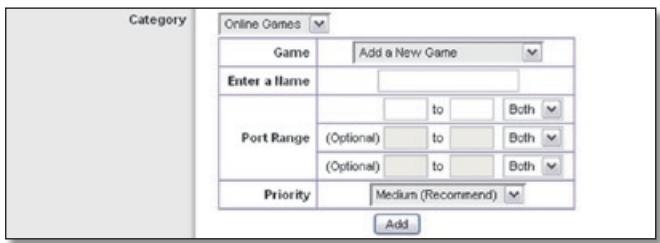
QoS > Add a New Game
Enter a Name Enter any name to indicate the name of the entry.
Port Range Enter the port range that the game will be using. You can have up to three ranges to define for this bandwidth allocation. Port numbers can range from 1 to 65535. Check your application's documentation for details on the service ports used.
Select the protocol TCP or UDP or select Both.
Priority Select the appropriate priority: High, Medium (Recommend), Normal or Low.
Click Add to save your changes. Your new entry will appear in the Summary list.
MAC Address
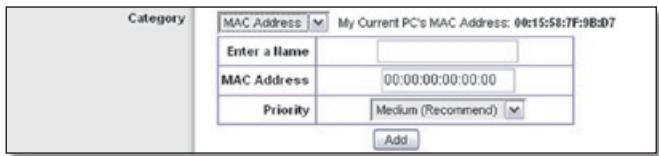
QoS > MAC Address
Enter a Name Enter a name for your device.
MAC Address Enter the MAC address of your device.
Priority Select the appropriate priority: High, Medium (Recommend), Normal or Low.
Click Add to save your changes. Your new entry will appear in the Summary list.
Ethernet Port

QoS > Ethernet Port
Ethernet Select the appropriate Ethernet port.
Priority Select the appropriate priority: High, Medium (Recommend), Normal or Low.
Click Add to save your changes. Your new entry will appear in the Summary list.
Voice Device
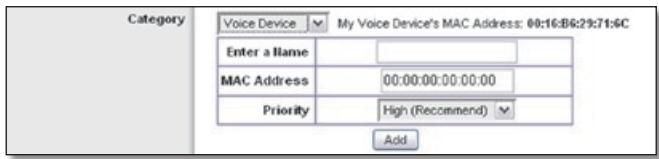
QoS > Voice Device
Enter a Name Enter a name for your voice device.
MAC Address Enter the MAC address of your voice device.
Priority Select the appropriate priority: High (Recommend), Medium, Normal or Low.
Click Add to save your changes. Your new entry will appear in the Summary list.
Summary
This lists the QoS entries you have created for your applications and devices.
Priority This column displays the bandwidth priority of High, Medium, Normal or Low.
Name This column displays the application, device or port name.
Information This column displays the port range or MAC address entered for your entry. If a pre-configured application or game was selected, there will be no valid entry shown in this section.
Remove Click this button to remove an entry.
Edit Click this button to make changes.
Click Save Settings to apply your changes or click Cancel Changes to cancel your changes.
Administration > Management
The Administration > Management screen allows the network's administrator to manage specific Router functions for access and security.
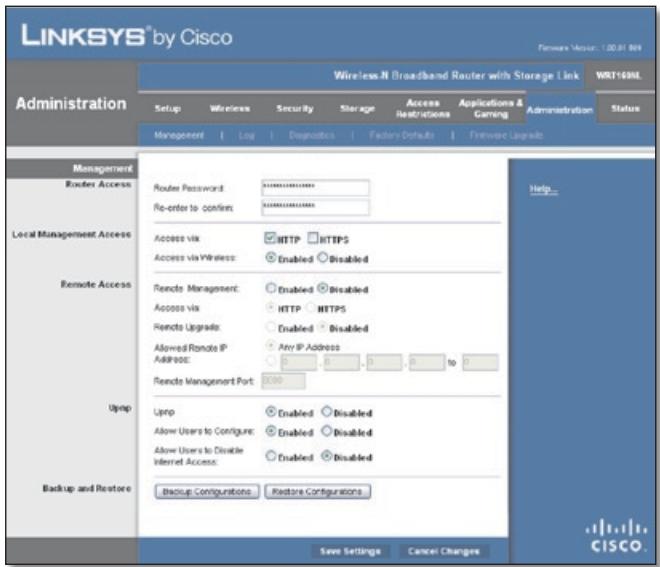
Administration > Management
Management
Router Access
To ensure the Router's security, you will be asked for your password when you access theRouter's web-based utility. The default setting is admin.
Router Password Enter a new password for the Router.
Re-enter to confirm Enter the password again to confirm.
Local Management Access
Access via HTTP (HyperText Transport Protocol) is the communications protocol used to connect to servers on the World Wide Web. HTTPS uses SSL (Secured Socket Layer) to encrypt data transmitted for higher security. Select HTTP or HTTPS. HTTP is the default setting.
Access via Wireless If you are using the Router in a public domain where you are giving wireless access to your guests, you can disable wireless access to the Router's web-based utility. You will only be able to access the utility via a wired connection if you disable the setting. Keep the default setting of Enabled, to allow wireless access to the utility or select Disabled to block wireless access to the utility.
Remote Access
Remote Management To permit remote access of the Router, from outside the local network, select Enabled. Otherwise, keep the default setting of Disabled.
Access via HTTP (HyperText Transport Protocol) is the communications protocol used to connect to servers on the World Wide Web. HTTPS uses SSL (Secured Socket Layer) to encrypt data transmitted for higher security. Select HTTP or HTTPS. HTTP is the default setting.
Remote Upgrade If you want to be able to upgrade the Router remotely, from outside the local network, select Enabled. (You must have the Remote Management feature enabled as well). Otherwise, keep the default setting of Disabled.
Allowed Remote IP Address If you want to be able to access the Router from any external IP address, select Any IP Address. If you want to specify an external IP address or range of IP addresses, then select the second option and complete the fields provided.
Remote Management Port Enter the port number that will be open to outside access.

NOTE: When you are in a remote location and wish to manage the Router, enter http://xxx.xxx.xxx.xxx:yyyy or https://xxx.xxx.xxx.xxx:yyyy, depending on whether you use HTTP or HTTPS. Enter the Router's specific Internet IP address in place of xxx.xxx.xxx and enter the Remote Management Port number in place of yyyy.
UPnP
Universal Plug and Play (UPnP) allows the appropriate Windows operating system to automatically configure the Router for various Internet applications, such as gaming and videoconferencing.
UPnP If you want to use UPnP, keep the default setting of Enabled. Otherwise, select Disabled.
Allow Users to Configure Keep the default setting of Enabled, if you want to be able to make manual changes to the Router while using the UPnP feature. Otherwise, select Disabled.
Allow Users to Disable Internet Access Select Enabled, if you want to be able to prohibit any and all Internet connections. Otherwise, keep the default setting of Disabled.
Backup and Restore
Backup Configurations To back up the Router's configuration settings, click this button and follow the on-screen instructions.
Restore Configurations To restore the Router's configuration settings, click this button and follow the on-screen instructions. (You must have previously backed up theRouter's configuration settings).
Click Save Settings to apply your changes or click Cancel Changes to cancel your changes.
Administration > Log
The Router can keep logs of all traffic for your Internet connection.
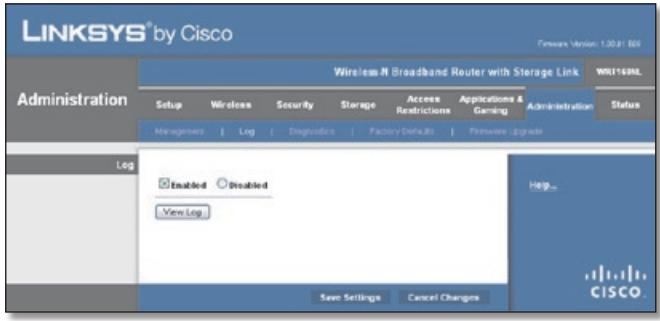
Administration > Log
Log
Log To disable the Log function, select Disabled. To monitor traffic between the network and the Internet, keep the default setting of Enabled. With logging enabled, you can choose to view temporary logs.
View Log To view the logs, click View Log.
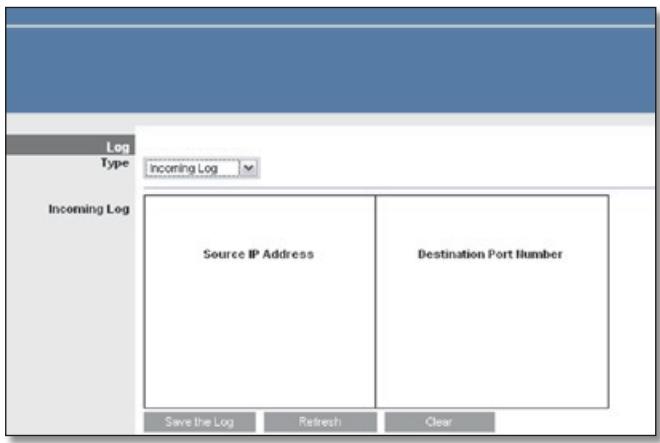
Log > View Log
Log
- Type Select Incoming Log, Outgoing Log, Security Log or DHCP Client Log.
Log The Incoming Log displays a temporary log of the source IP addresses and destination port numbers for the incoming Internet traffic. The Outgoing Log displays a temporary log of the local IP addresses, destination URLs/IP addresses and service/ port numbers for the outgoing Internet traffic. The Security log displays the login information for the web-based utility. The DHCP Client Log displays the LAN DHCP server status information.
Click Save the Log to save this information to a file on your PC's hard drive. Click Refresh to update the log. Click Clear to clear all the information that is displayed.
Click Save Settings to apply your changes or click Cancel Changes to cancel your changes.
Administration > Diagnostics
The diagnostic tests (Ping and Traceroute) allow you to check the connections of your network devices, including connection to the Internet.
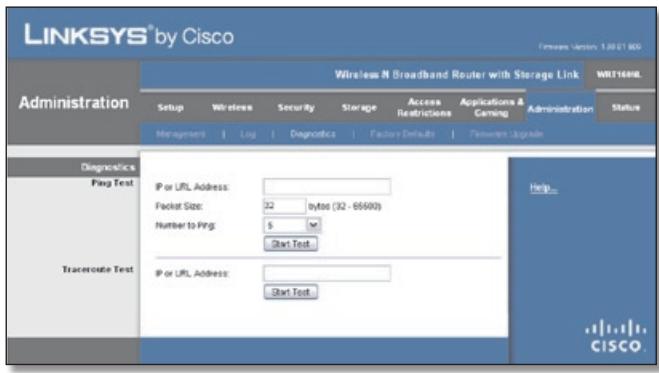
Administration > Diagnostics
Diagnostics
Ping Test
Ping checks the status of a connection.
IP or URL Address Enter the address of the PC whose connection you wish to test.
Packet Size Enter the packet size you want to use. The default value is 32 bytes.
Number to Ping Enter the number of times you wish to test the connection. The default value is 5.
Start Test To run the test, click this button. The Ping screen shows if the test is successful. Click Close to return to the Diagnostics screen. Click Stop to stop the test.
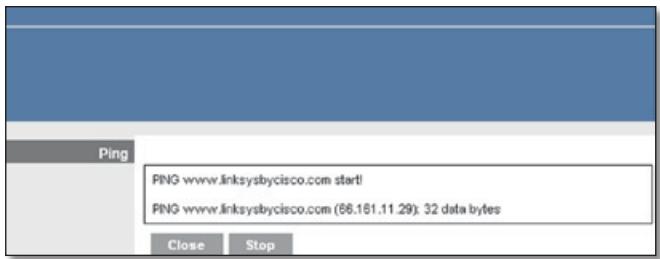
Diagnostics > Ping
Traceroute Test
Traceroute checks the performance of a connection.
IP or URL Address Enter the address of the PC whose connection you wish to test.
Start Test To run the test, click this button. The Traceroute screen shows if the test is successful. Click Close to return to the Diagnostics screen. Click Stop to stop the test.
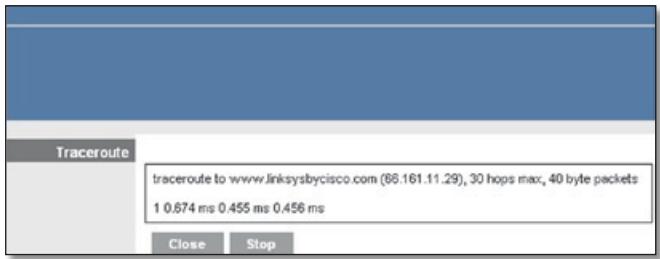
Diagnostics > Traceroute
Administration > Factory Defaults
Restore the Router to its factory default settings.
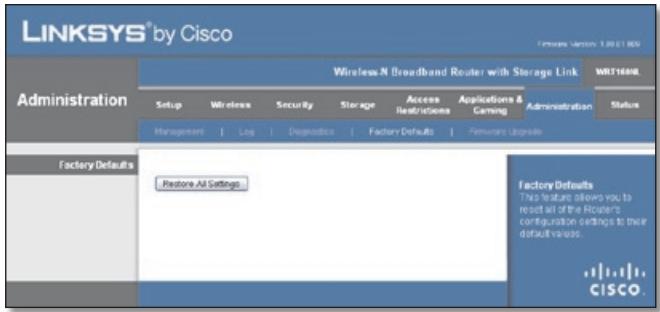
Administration >Factory Defaults

NOTE: Do not restore the factory defaults unless you are having difficulties with the Router and have exhausted all other troubleshooting measures. Once the Router is reset, you will have to re-enter all of your configuration settings.
Factory Defaults
Restore All Settings To reset the Router's settings to the defaults, click this button and then follow the on-screen instructions. Any settings you have saved will be lost when the default settings are restored.
Administration > Firmware Upgrade
The Firmware Upgrade screen allows you to upgrade the Router's firmware. Do not upgrade the firmware unless you are experiencing problems with the Router or the new firmware has a feature you want to use.
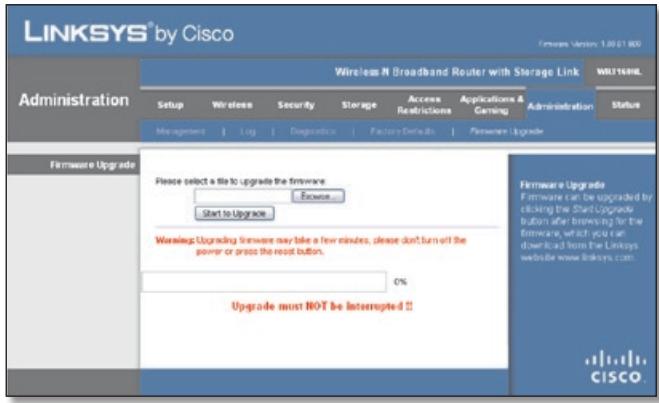
Administration > Firmware Upgrade

NOTE: The Router may lose the settings you have customised. Before you upgrade its firmware, write down all of your custom settings. After you upgrade its firmware, you will have to re-enter all of your configuration settings.
Firmware Upgrade
Before upgrading the firmware, download the Router's firmware upgrade file from the Linksys website, www.linksysbycisco.com.
Please select a file to upgrade the firmware Click Browse and select the firmware upgrade file.
Start to Upgrade After you have selected the appropriate file, click this button and follow the on-screen instructions.
Status > Router
The Router screen displays information about the Router and its current settings.
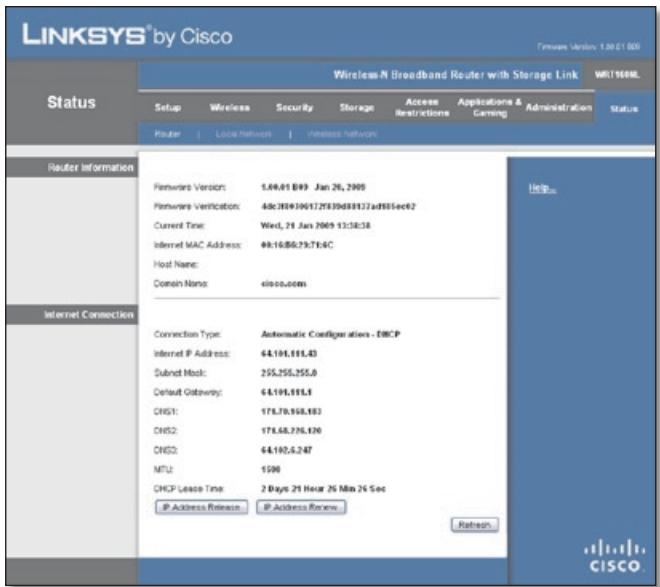
Status >Router
Router Information
Firmware Version The version number of the Router's current firmware is displayed.
Firmware Verification The unique identifier that verifies that you have valid firmware is displayed.
Current Time The time set on the Router is displayed.
Internet MAC Address The Router's MAC Address, as seen by your ISP, is displayed.
Host Name The Host Name of the Router is displayed (if it was entered on the Setup > Basic Setup screen).
Domain Name The Domain Name of the Router is displayed (if it was entered on the Setup > Basic Setup screen).
Internet Connection
This section shows the current network information stored in the Router. The information varies depending on the Internet connection type selected on the Setup > Basic Setup screen.
Select Release IP Address or Renew IP Address as appropriate to release or renew a DHCP lease.
Click Refresh to update the on-screen information.
Status > Local Network
The Local Network screen displays information about the local, wired network.
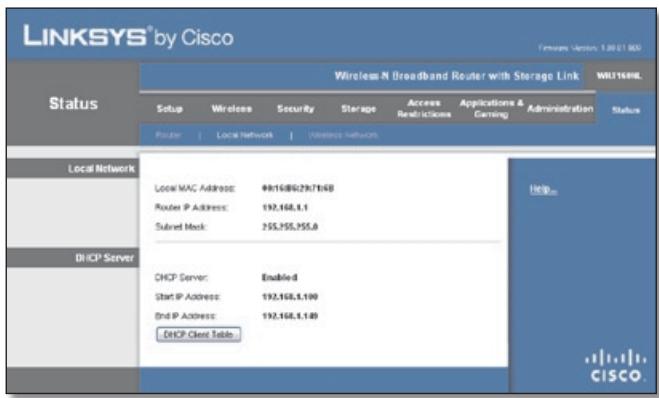
Status > Local Network
Local Network
Local MAC Address The MAC address of the Router's local, wired interface is displayed.
Router IP Address The Router's IP address, as it appears on your local network, is displayed.
Subnet Mask The Subnet Mask of the Router is displayed.
DHCP Server
DHCP Server The status of the Router's DHCP server function is displayed.
Start IP Address For the range of IP addresses used by devices on your local network, the starting IP address is displayed.
End IP Address For the range of IP addresses used by devices on your local network, the ending IP address is displayed.
DHCP Clients Table Click this button to view a list of computers or other devices that are using the Router as a DHCP server.
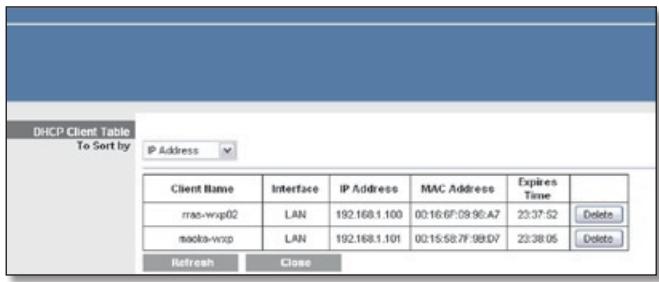
DHCP Clients Table
DHCP Client Table
The DHCP ClientTable lists computers and other devices that have been assigned IP addresses by the Router. The list can be sorted by IP Address, MAC Address, Interface and Client Name. To remove a DHCP client, click Delete. To update the on-screen information, click Refresh. To exit this screen and return to the Local Network screen, click Close.
Status > Wireless Network
The Wireless Network screen displays information about your wireless network.
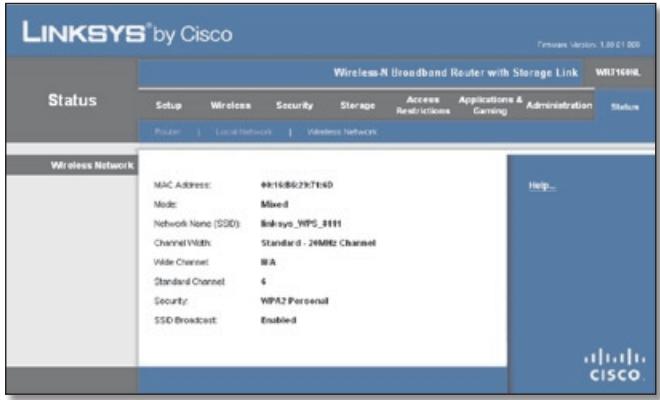
Status > Wireless
Wireless Network
MAC Address The MAC address of the Router's local, wireless interface is displayed.
Mode The wireless mode used by the network is displayed.
Network Name (SSID) The name of the wireless network, which is also called theSSID, is displayed.
Channel Width The Channel Width setting (selected on the Wireless > Basic Wireless Settings screen) is displayed.
Wide Channel The Wide Channel setting (selected on the Wireless > Basic Wireless Settings screen) is displayed.
Standard Channel The Standard Channel setting (selected on the Wireless > Basic Wireless Settings screen) is displayed.
Security The wireless security method used by the Router is displayed.
SSID Broadcast The status of the SSID Broadcast feature is displayed.
Appendix A: Troubleshooting
Your computer cannot connect to the Internet.
Follow these instructions until your computer can connect to the Internet:
- Make sure that the Router is switched on. The Power LED should be green and not flashing.
-
If the Power LED is flashing, then switch off the power to all of your network devices, including the modem, Router and computers. Then switch the power back on to each device in the following order:
-
Cable or DSL modem
- Router
-
Computer
-
Check the cable connections. The computer should be connected to one of the ports numbered 1-4 on the Router, and the modem must be connected to the Internet port on the Router.
The modem does not have an Ethernet port.
The modem is a dial-up modem for traditional dial-up service. To use the Router, you need a cable/DSL modem and high-speed Internet connection.
You cannot use the DSL service to connect manually to the Internet.
After you have installed the Router, it will automatically connect to your Internet Service Provider (ISP), so you no longer need to connect manually.
The DSL telephone line does not fit into the Router's Internet port.
The Router does not replace your modem. You still need your DSL modem in order to use the Router. Connect the telephone line to the DSL modem, and then insert the setup CD into your computer. Click Setup and follow the on-screen instructions.
When you double-click the web browser, you are prompted for a username and password. If you want to get rid of the prompt, follow these instructions.
Launch the web browser and perform the following steps (these steps are specific to Internet Explorer but are similar for other browsers):
- Select Tools > Internet Options.
- Click the Connections tab.
- Select Never dial a connection.
4. Click OK.
The Router does not have a coaxial port for the cable connection.
The Router does not replace your modem. You still need your cable modem in order to use the Router. Connect your cable connection to the cable modem, and then insert the setup CD into your computer. Click Setup and follow the on-screen instructions.
The computer cannot connect wirelessly to the network.
Make sure the wireless network name or SSID is the same on both the computer and the Router. If you have enabled wireless security, then make sure the same security method and key are used by both the computer and the Router.
You need to modify the settings on the Router.
Open the web browser (for example, Internet Explorer or Firefox), and enter the Router's IP address in the address field (the default IP address is 192.168.1.1). When prompted, enter the password to the Router (the default is admin). Click the appropriate tab to change the settings.
The Router does not recognise your USB storage device.
Make sure the USB storage device uses the NTFS or FAT format. To check its format, follow these instructions:
- Connect the USB storage device directly to your computer.
- On your desktop, double-click Computer or My Computer icon.
- Right-click the USB storage device, and click Properties.
- The format is listed in the File system description. If the format is not NTFS or FAT, then back up the data on the USB storage device.
After you have backed up the data on the USB storage drive, you can format it. Right-click the USB storage device, and click Format. Follow the on-screen instructions. For more information, refer to Windows Help.
If the Router still does not recognise the USB storage device, then remove the power adapter from the Router's Power port. Wait five seconds, and then re-connect the power adapter to the Router's Power port.
In Windows Vista, you do not see the USB storage device in the Network screen.
Make sure the Router and your computer use the same workgroup name. (The default workgroup name of the Router is workgroup. In Windows Vista, right-click the Computer icon and select Properties. Click Advanced
system settings. Click the Computer Name tab. The workgroup name is displayed.) If they differ, then change the workgroup name of the Router. Follow these instructions:
- Access the web-based utility of the Router. (Refer to Chapter 3: Advanced Configuration, page 4.)
- Click the Storage tab.
- Click the Administration tab.
- In the Workgroup field, enter the workgroup name of your computer.
- Click Save Settings.
In Windows XP, you do not see the Router in the My Network Places screen.
In the Network Tasks section, click Show icons for networked UPnP devices. If the Router does not appear, follow these instructions:
- Go to Start > Control Panel > Firewall.
- Click the Exceptions tab.
- Select UPnP Framework.
- Click OK.
In Windows XP, you do not see your USB storage device in the View group computers screen.
Make sure the Router and your computer use the same workgroup name. (The default workgroup name of theRouter is workgroup. In Windows XP, go to Start > Control Panel > System. Click the Computer Name tab. The workgroup name is displayed.) If they differ, then change the workgroup name of theRouter. Follow these instructions:
- Access the web-based utility of the Router. (Refer to Chapter 3: Advanced Configuration, page 4.)
- Click the Storage tab.
- Click the Administration tab.
- In the Workgroup field, enter the workgroup name of your computer.
- Click Save Settings.

WEB: If your questions are not addressed here, refer to the Linksys website, www.linksysbycisco.com
Appendix B: How to Install and Access USB Storage
Overview
This appendix explains how to do the following:
- connect and access a USB storage device
- map a shortcut to a USB storage device
- create a shared folder on a USB storage device (advanced users)
- manage access to shared folders using group and user accounts (advanced users)
Install the USB Storage Device
- Make sure your computer has a wired or wireless connection to the Router.
- Connect an external USB hard disk drive or USB flash disk to the USB port of the Router.
Access the USB Storage Device
Follow the instructions for your Windows operating system, Vista or XP.
Windows Vista
- On your desktop, double-click the Computer icon.
Computer Icon

NOTE: If the Computer icon is not displayed, then go to Start > All Programs > Accessories > Windows Explorer.
- In the Address field, enter the server name of the Router:
\server_name_of_Router>

Enter Server Name of Router
The default server name of the Router is WRT160NL. You can change this name on the Storage > Administration screen; refer to Storage > Administration, page 20.

NOTE: Another option is to use the IP address of the Router. In the Address field, enter the local IP address of the Router:
**************
The default setting is 192.168.1.1. You can change this IP address on the Setup > Basic Setup screen; refer to Setup > Basic Setup, page 4.
- On the login screen, enter your account username and password. (For the admin account, admin is both the default username and password.)
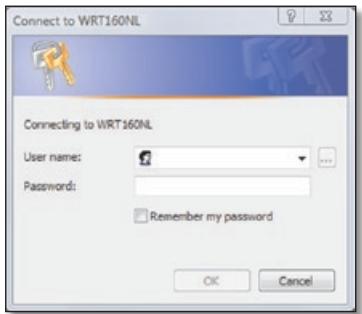
Enter Account username and Password
User accounts are set up on the Storage > Administration screen; for more information, refer to Create a User Account, page 38.
Windows XP
- On your desktop, double-click the My Computer icon.
My Computer Icon

NOTE: If the My Computer icon is not displayed, then go to Start > All Programs > Accessories > Windows Explorer.
- In the Address field, enter the server name of the Router:
\server_name_of_Router>

Enter Server Name of Router
The default server name of the Router is WRT160NL. You can change this name on the Storage > Administration screen; refer to Storage > Administration, page 20.

NOTE: Another option is to use the IP address of the Router. In the Address field, enter the local IP address of the Router:
**************
The default setting is 192.168.1.1. You can change this IP address on the Setup > Basic Setup screen; refer to Setup > Basic Setup, page 4.
- Enter your account username and password. (For the admin account, admin is both the default username and password.)
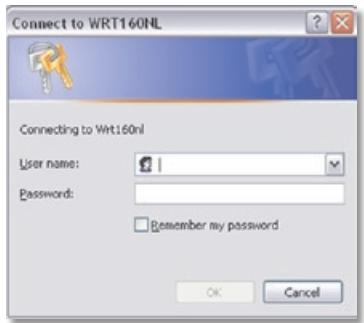
Enter Account username and Password
User accounts are set up on the Storage > Administration screen; for more information, refer to Create a User Account, page 38.
Create a Shortcut to a Shared Folder
You can map any folder of the USB storage device as a separate drive. Follow the instructions for your Windows operating system, Vista or XP.
Windows Vista
Map a Drive
- On your desktop, double-click the Network icon.
Network Icon

NOTE: If the My Computer icon is not displayed, then go to Start > All Programs > Accessories > Windows Explorer.
- In the Address field, enter the server name of the Router:
\server_name_of_Router>

Enter Server Name of Router
The default server name of the Router is WRT160NL. You can change this name on the Storage > Administration screen; refer to Storage > Administration, page 20.

NOTE: Another option is to use the IP address of the Router. In the Address field, enter the local IP address of the Router:
**************
The default setting is 192.168.1.1. You can change this IP address on the Setup > Basic Setup screen; refer to Setup > Basic Setup, page 4.
- Right-click the folder you want to share and click Map Network Drive. (The default shared folder is named Public.)
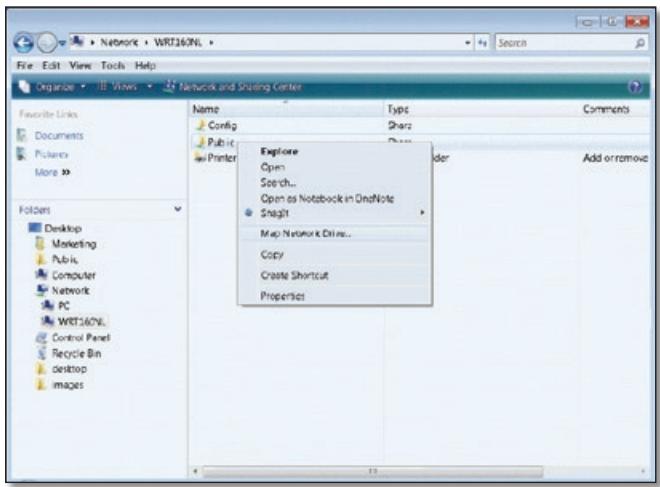
Map Network Drive
- From the Drive drop-down menu, select an available drive letter.
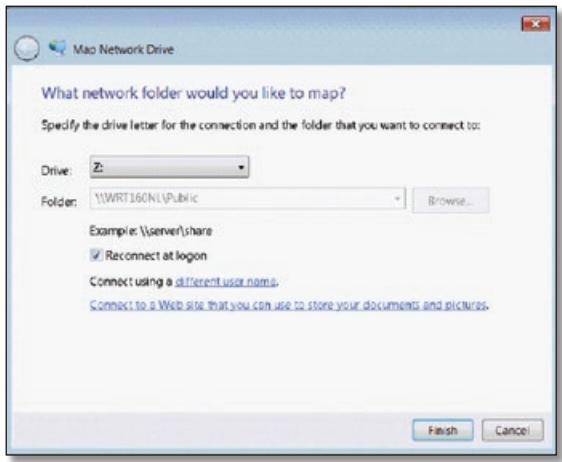
Select Drive Letter
5. Click Finish.
Access Mapped Drive
- On your desktop, double-click the Computer icon.
Computer Icon

NOTE: If the Computer icon is not displayed, then go to Start > All Programs > Accessories > Windows Explorer.
- Double-click the mapped drive to access it.
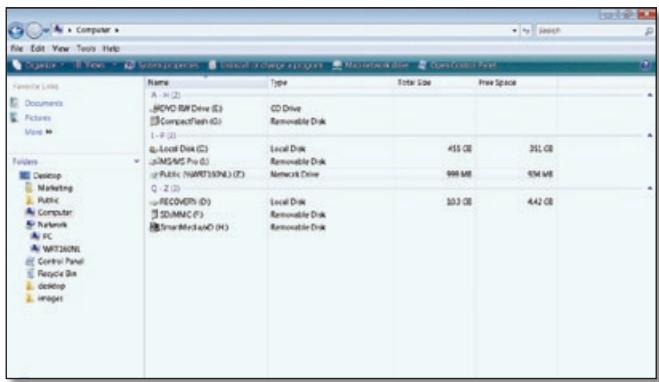
Double-Click Mapped Drive
Windows XP
Map a Drive
- On your desktop, double-click the My Computer icon.
My Computer Icon

NOTE: If the My Computer icon is not displayed, then go to Start > All Programs > Accessories > Windows Explorer.
- In the Address field, enter the server name of the Router:
\server_name_of_Router>

Enter Server Name of Router
The default server name of the Router is WRT160NL. You can change this name on the Storage > Administration screen; refer to Storage > Administration, page 20.

NOTE: Another option is to use the IP address of the Router. In the Address field, enter the local IP address of the Router:
**************
The default setting is 192.168.1.1. You can change this IP address on the Setup > Basic Setup screen; refer to Setup > Basic Setup, page 4.
- A login screen may appear. If prompted, enter your account username and password. (For the admin account, admin is both the default username and password.)
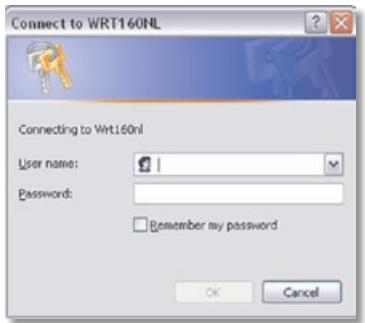
Enter Account username and Password
User accounts are set up on the Storage > Administration screen; for more information, refer to Create a User Account, page 38.
- Right-click the folder you want to share and click Map Network Drive. (The default shared folder is named Public.)
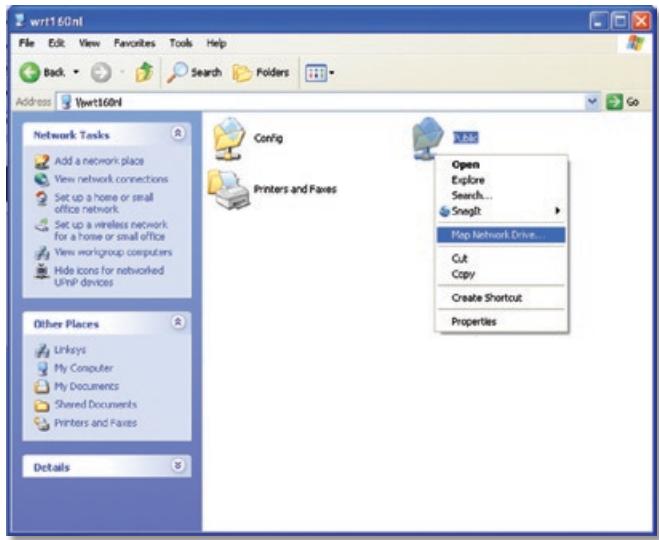
Map Network Drive
- From the Drive drop-down menu, select an available drive letter.
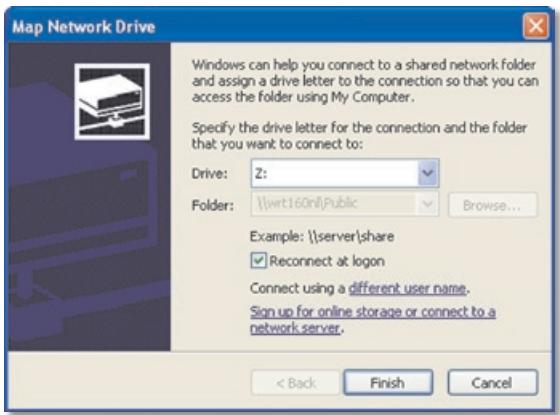
Select Drive Letter
- Click Finish.
Access Mapped Drive
- On your desktop, double-click the My Computer icon.
My Computer Icon

NOTE: If the My Computer icon is not displayed, then go to Start > All Programs > Accessories > Windows Explorer.
- In the Network Drives section, double-click the mapped drive to access it.
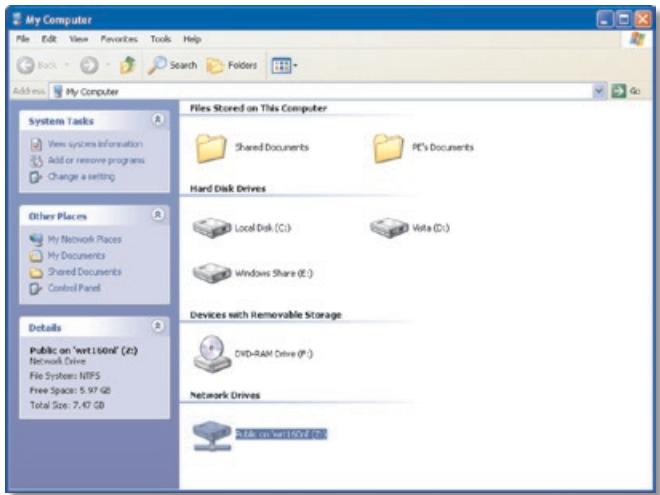
Double-Click Mapped Drive
Advanced Configuration (Advanced Users Only)
To manage access to the USB storage device, you can create shared folders, user groups and user accounts.
Access the Web-Based Utility
To access the web-based utility, launch the web browser on your computer and enter the Router's default IP address, 192.168.1.1, in the Address field. Then press Enter.
A login screen will appear. (Non-Windows XP users will see a similar screen). Leave theUsername field blank. The first time you open the Web-based utility, use the default password admin. (You can set a new password from the Administration > Management screen.) Click OK to continue.
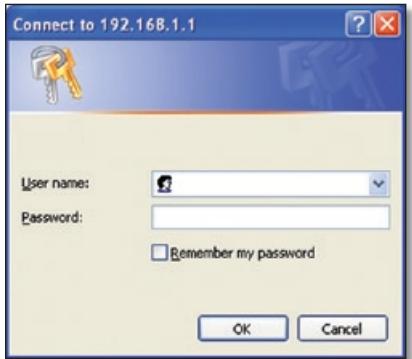
Login Screen
Create a Shared Folder
- Click the Storage tab.
- Click the Disk tab.
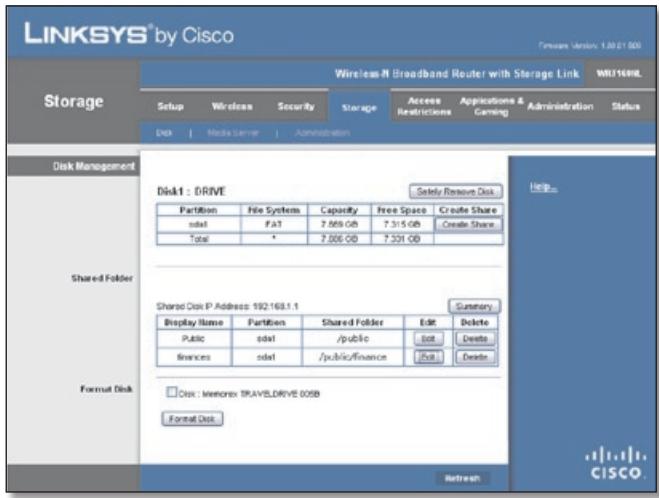
Storage > Disk
- To create a shared folder, click Create Share.
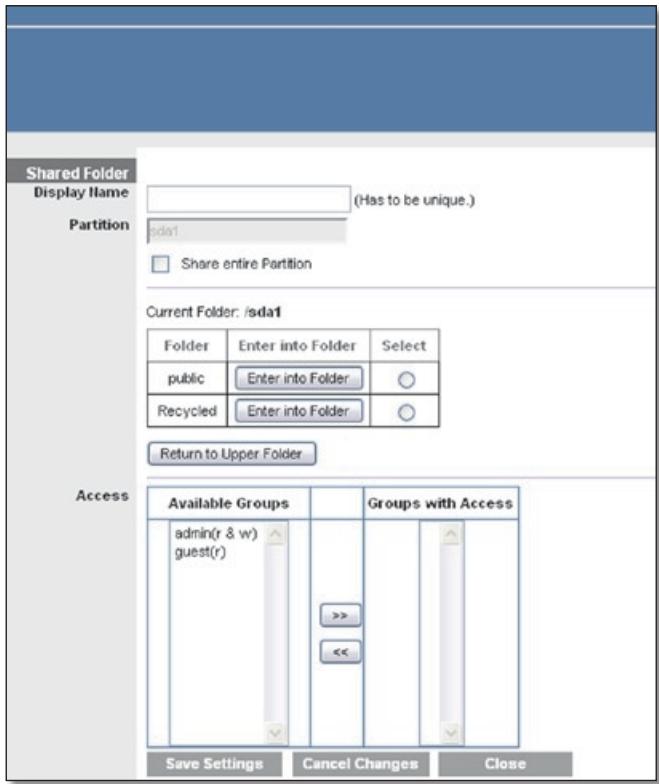
Shared Folder
- In the Display Name field, create a name for the shared folder.
- If the shared folder should include the entire partition, select Share entire Partition and proceed to step 7.
If you do not want to share the entire partition, then specify the folder you do want to share.
- Select the appropriate folder. To display sub-folders, click Enter into Folder. To return to the previous folder, click Return to Upper Folder.
- To allow a group access to the shared folder, select it from the Available Groups column and then click the >> button.

NOTE: Specify which user groups have read- and-write or read-only access to the shared folders.
- To block a group from accessing the shared folder, select it from the Groups with Access column and then click the << button.
- Click Save Settings to apply your changes or click Cancel Changes to clear your changes. Click Close to exit the screen and return to the Disk screen.
Create a User Group Account
- Click the Storage tab.
- Click the Administration tab.
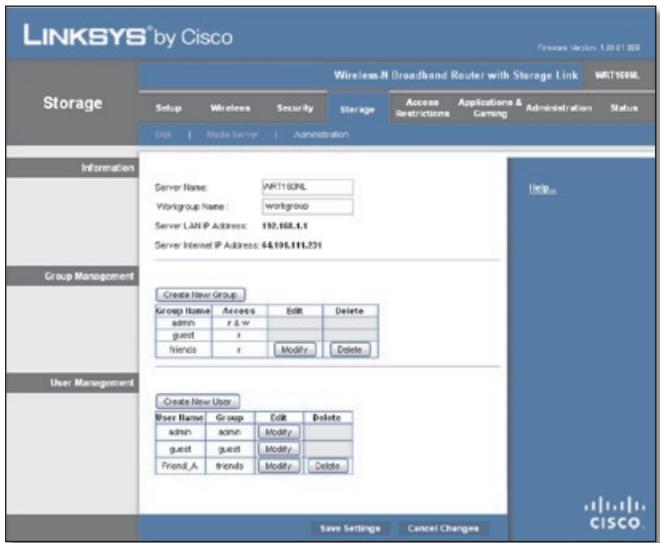
Storage > Administration
- In the Group Management section, click Create New Group.
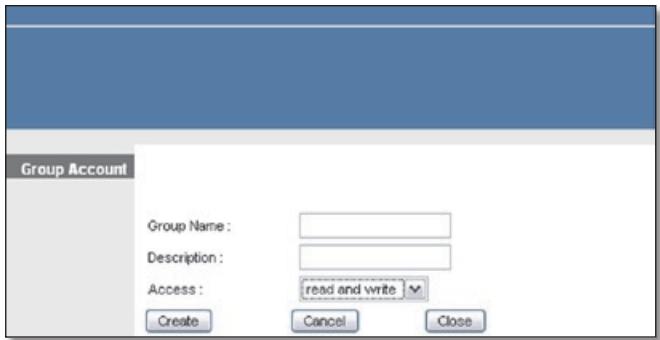
Group Account
- In the Group Name field, create a name for the group.
- In the Description field, enter keywords to describe the group.
- From the Access drop-down menu, select the appropriate level of access: read and write or read only.
- Click Create to apply your changes, or click Cancel to clear your changes. Click Close to exit the screen and return to the Administration screen.
Create a User Account
- Click the Storage tab.
- Click the Administration tab.
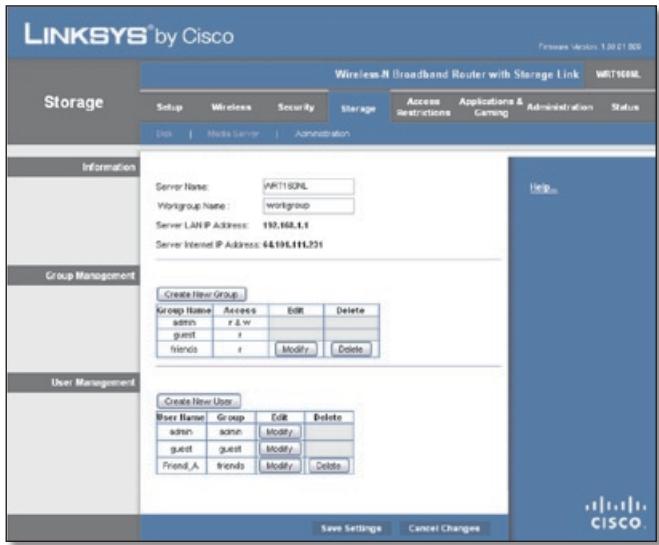
Storage > Administration
- In the User Management section, click Create New User.
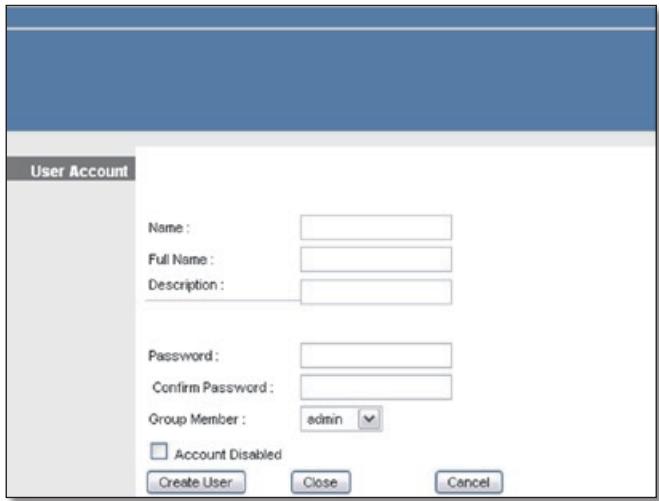
User Account
- In the Name field, create a name for the user.
-
In the Full Name field, enter the actual name of the user.
-
In the Description field, enter keywords to describe the user.
- In the Password and Confirm Password fields, enter the password that the user will use to login.
- From the Group Member drop-down menu, select the appropriate user group.

NOTE: To temporarily disable an account, select Account Disabled.
- Click Create User to apply your changes, or click Cancel to clear your changes. Click Close to exit the screen and return to the Administration screen.
Appendix C: Specifications
| Model | WRT160NL |
| Standards | 802.3, 802.3u, 802.11b, 802.11g, Draft 802.11n |
| Ports | Internet, Ethernet [1-4], USB, Power |
| Buttons | Wi-Fi Protected Setup, Reset |
| LEDs | LAN [1-4], Wi-Fi Protected Setup™, Wireless, Internet, Power |
| Cabling Type | CAT 5e |
| # of Antennas | 2 |
| Connector Type | R-SMA |
| Detachable (y/n) | Yes |
| RF Pwr (EIRP) in dBm | Draft 11n: Typ. 13.5 +/-1.5 dBm @ Normal Temp Range 802.11g: Typ. 13.5 +/- 1.5 dBm @ Normal Temp Range 802.11b: Typ: 16 +/- 1.5 dBm @ Normal Temp Range |
| Receive Sensitivity | 802.11n HT40/MCS15 270 Mbps: -67 dBm 10% PER 802.11n HT40/MCS0 13.5 Mbps: -75 dBm 10% PER 802.11n HT20/MCS15 130 Mbps: -69 dBm 10% PER 802.11n HT20/MCS0 6.5 Mbps: -79 dBm 10% PER 802.11g 54 Mbps: -74 dBm 10% PER 802.11g 6 Mbps: -84 dBm 10% PER 802.11b 11 Mbps: -86 dBm 10% PER 802.11b 1 Mbps: -92 dBm 10% PER |
| Antenna Gain in dBi | 802.11g: 2.4 GHz <= 1.8dBi Draft 11n: 2.4 GHz <= 1.8 dBi |
| UPnP able/cert | Able |
| .Net support | No |
| Security Features | WEP, WPA, WPA2, RADIUS, SPI Firewall |
| Security Key Bits | Up to 128-Bit Encryption |
| Supported File Systems for Storage Device | FAT16, FAT32, NTFS |
| Environmental | |
| Dimensions | 7.98" x 6.27" x 1.30" (202.79 x 159.2 x 33.14 mm) |
| Unit Weight | 9.98 oz (283 g) |
| Power | 12V / 1.5A (switching) |
| Certifications | FCC, UL, cUL, IC, RSS210, CE |
Operating Temp. 0 to 40^ (32 to 104^ )
Storage Temp. -20 to 60^ (-4 to 140^ )
Operating Humidity 10 to 80% , Relative Humidity, Non-condensing
Storage Humidity 5 to 90% Non-condensing
Specifications are subject to change without notice.
Appendix D: Warranty Information
Limited Warranty
Linksys warrants that this Linksys hardware product will be substantially free of defects in materials and workmanship arising under normal use during the Warranty Period, which begins on the date of purchase by the original end-user purchaser and lasts for the period specified below:
- Two (2) years for new product
- Ninety (90) days for refurbished product
This limited warranty is non-transferable and extends only to the original end-user purchaser. Your exclusive remedy and Linksys' entire liability under this limited warranty will be for Linksys, at its option, to (a) repair the product with new or refurbished parts, (b) replace the product with a reasonably available equivalent new or refurbished Linksys product or (c) refund the purchase price of the product less any rebates. Any repaired or replacement products will be warranted for the remainder of the original Warranty Period or thirty (30) days, whichever is longer. All products and/or parts that are replaced become the property of Linksys.
This limited warranty shall apply in addition to any statutory or other rights which you may have under a contract of sale.
Exclusions and Limitations
This limited warranty does not apply if: (a) the product assembly seal has been removed or damaged, (b) the product has been altered or modified, except by Linksys, (c) the product damage was caused by use with non-Linksys products, (d) the product has not been installed, operated, repaired or maintained in accordance with instructions supplied by Linksys, (e) the product has been subjected to abnormal physical or electrical stress, misuse, negligence or accident, (f) the serial number on the Product has been altered, defaced or removed or (g) the product is supplied or licensed for beta, evaluation, testing or demonstration purposes for which Linksys does not charge a purchase price or licence fee.
ALL SOFTWARE PROVIDED BY LINKSYSWITH THE PRODUCT, WHETHER FACTORY LOADED ON THE PRODUCT OR CONTAINED ON MEDIA ACCOMPANYING THE PRODUCT, IS PROVIDED "AS IS" WITHOUT ANY WARRANTY OF ANY KIND. Without limiting the foregoing, Linksys does not warrant that the operation of the product or software will be uninterrupted or error-free. Also, due to the continual development of new techniques for intruding upon and attacking networks, Linksys does not warrant that the product, service, software or any equipment, system or
network on which the product or software is used will be free of vulnerability to intrusion or attack. The product may include or be bundled with third party software or service offerings. This limited warranty shall not apply to such third party software or service offerings. This limited warranty does not guarantee any continued availability of a third party's service for which this product's use or operation may require.
TO THE EXTENT NOT PROHIBITED BY LAW, ALL IMPLIED WARRANTY AND CONDITIONS OF MERCHANTABILITY, SATISFACTORY QUALITY OR FITNESS FOR A PARTICULAR PURPOSE ARE LIMITED TO THE DURATION OF THE WARRANTY PERIOD. ALL OTHER EXPRESS OR IMPLIED CONDITIONS, REPRESENTATIONS AND WARRANTYES, INCLUDING, BUT NOT LIMITED TO, ANY IMPLIED WARRANTY OF NON-INFRINGEMENT, ARE DISCLAIMED. Some jurisdictions do not allow limitations on how long an implied warranty lasts, so the above limitation may not apply to you. This limited warranty gives you specific legal rights and you may also have other rights which vary by jurisdiction.
TO THE EXTENT NOT PROHIBITED BY LAW, IN NO EVENT WILL LINKSYS BE LIABLE FOR ANY LOST DATA, TURNOVER OR PROFIT OR FOR SPECIAL, INDIRECT, CONSEQUENTIAL, INCIDENTAL OR PUNITIVE DAMAGES, REGARDLESS OF THE THEORY OF LIABILITY (INCLUDING NEGLIGENCE), ARISING OUT OF OR RELATED TO THE USE OF OR INABILITY TO USE THE PRODUCT (INCLUDING ANY SOFTWARE), EVEN IF LINKSYS HAS BEEN ADVISED OF THE POSSIBILITY OF SUCH DAMAGES. IN NO EVENT WILL LINKSYS' LIABILITY EXCEED THE AMOUNT PAID BY YOU FOR THE PRODUCT. The foregoing limitations will apply even if any warranty or remedy provided under this limited warranty fails of its essential purpose. Some jurisdictions do not allow the exclusion or limitation of incidental or consequential damages, so the above limitation or exclusion may not apply to you.
Obtaining Warranty Service
If you have a question about your product or experience a problem with it, please go to www.linksysbycisco.com/support where you will find a variety of online support tools and information to assist you with your product. If the product proves defective during the Warranty Period, contact Linksys Technical Support for instructions on how to obtain warranty service. The telephone number for Linksys Technical Support in your area can be found in the product User Guide and at www.linksysbycisco.com. Have your product serial number and proof of purchase on hand when calling. A DATED PROOF OF ORIGINAL PURCHASE IS REQUIRED TO PROCESS WARRANTY CLAIMS. If you are requested to return your product, you will be given a Return Materials Authorization (RMA) number. You are responsible for properly packaging and shipping your product to Linksys
at your cost and risk. You must include the RMA number and a copy of your dated proof of original purchase when returning your product. Products received without a RMA number and dated proof of original purchase will be rejected. Do not include any other items with the product you are returning to Linksys. Defective product covered by this limited warranty will be repaired or replaced and returned to you without charge. Customers outside of the United States of America and Canada are responsible for all shipping and handling charges, custom duties, VAT and other associated taxes and charges. Repairs or replacements not covered under this limited warranty will be subject to charge at Linksys' then-current rates.
Technical Support
This limited warranty is neither a service nor a support contract. Information about Linksys' current technical support offerings and policies (including any fees for support services) can be found at www.linksysbycisco.com/support
General
This limited warranty is governed by the laws of the jurisdiction in which the Product was purchased by you.
If any portion of this limited warranty is found to be void or unenforceable, its remaining provisions shall remain in full force and effect.
Please direct all inquiries to: Linksys, P.O. Box 18558, Irvine, CA 92623.
For more information, please contact us
www.linksysbycisco.com
Select your country and then select SUPPORT/TECHNICAL
For product returns:
Select your Country and then select CUSTOMER SUPPORT
Appendix E: Regulatory Information
FCC Statement
This device complies with Part 15 of the FCC Rules. Operation is subject to the following two conditions: (1) This device may not cause harmful interference, and (2) this device must accept any interference received, including interference that may cause undesired operation.
This product has been tested and complies with the specifications for a Class B digital device, pursuant to Part 15 of the FCC Rules. These limits are designed to provide reasonable protection against harmful interference in a residential installation. This equipment generates, uses, and can radiate radio frequency energy and, if not installed and used according to the instructions, may cause harmful interference to radio communications. However, there is no guarantee that interference will not occur in a particular installation. If this equipment does cause harmful interference to radio or television reception, which is found by turning the equipment off and on, the user is encouraged to try to correct the interference by one or more of the following measures:
Reorient or relocate the receiving antenna
- Increase the separation between the equipment or devices
- Connect the equipment to an outlet other than the receiver's
- Consult a dealer or an experienced radio/TV technician for assistance
FCC Caution: Any changes or modifications not expressly approved by the party responsible for compliance could void the user's authority to operate this equipment.
FCC Radiation Exposure Statement
This equipment complies with FCC radiation exposure limits set forth for an uncontrolled environment. This equipment should be installed and operated with minimum distance 20cm between the radiator and your body.
Safety Notices

WARNING: Do not use this product near water, for example, in a wet basement or near a swimming pool.

WARNING: Avoid using this product during an electrical storm. There may be a remote risk of electric shock from lightning.
Industry Canada Statement
This Class B digital apparatus complies with Canadian ICES-003 and RSS210.
Operation is subject to the following two conditions:
- This device may not cause interference and
- This device must accept any interference, including interference that may cause undesired operation of the device.
Industry Canada Radiation Exposure Statement
This equipment complies with IC radiation exposure limits set forth for an uncontrolled environment. This equipment should be installed and operated with minimum distance 20cm between the radiator & your body.
This transmitter must not be co-located or operating in conjunction with any other antenna or transmitter.
The maximum performance for wireless is derived from IEEE Standard 802.11 specifications. Actual performance can vary, including lower wireless network capacity, data throughput rate, range and coverage. Performance depends on many factors, conditions and variables, including distance from the access point, volume of network traffic, building materials and construction, operating system used, mix of wireless products used, interference and other adverse conditions.
Declaration of Conformity with Regard to EU Directive 1999/5/EC (R&TTE Directive)
Compliance Information for 2.4-GHz and 5-GHz Wireless Products Relevant to the EU and Other Countries Following the EU Directive 1999/5/EC (R&TTE Directive)
| Бълга рски [Bulgarian] | Това оборudвае отоваря на сб自由贸易 и пленожима Калузни на Директува 1999/5/EC. |
| Česky [Czech]: | Toto zařízení je v souladu se základnímì požadavky a ostatními odpovídajćími ustanoveními Směrnice 1999/5/EC. |
| Dansk [Danish]: | Dette udstyr er i overensstemmelse med de væsentlige krav og andere relevante bestemmelsei Direktiv 1999/5/EF. |
| Deutsch [German]: | Dieses Gerät entspricht den grundlegenden Anforderungen und den weiteren entsprechenden Vorgaben der Richtlinie 1999/5/EU. |
| Eesti [Estonian]: | See seade vastab direktiivi 1999/5/EÜ olulistele nõuetele ja teistele asjakohastele sätetele. |
| English: | This equipment is in compliance with the essential requirements and other relevant provisions of Directive 1999/5/EC. |
| Espanol [Spanish]: | Este equipo cumple con los requisitos esencias asi como conoras disposiciones de la Directiva 1999/5/CE. |
| Еληνική [Greek]: | Aútóc o εξοπλιομός είναι σε ουμύρωση μέ τις Μουσιώδεις απατήσεις και áλλες σχέτικές διατάξεις τηςΟδηγίας 1999/5/EC. |
| François [French]: | Cet apparéil est conforme aux exigences essentielles et aux autres dispositions pertinentes de la Directive 1999/5/EC. |
| ʃlenska [Icelandic]: | Petta tæki er samkvæmt grunnkröfum og öðrum viðeigandi ákvæðum Tilskipunar 1999/5/EC. |
| Italiano [Italian]: | Questo apparato é conforme ai requisiti essenziali edagli altri principi sanciti alla Direttiva 1999/5/CE. |
| Latviski [Latvian]: | Šī iekārta atbilst Direktīvas 1999/5/EK butiskajām prasibām un citiem ar to saistītajiem noteikumiem. |
| Lietuviç [Lithuanian]: | Šis jrenginys tenkina 1999/5/EB Direktyvos esminius reikalavimus irKitas šios direktyvos nuostatas. |
| Nederlands [Dutch]: | Dit apparaat voldoet aan de essentiele eisen en andere van toepassing+zijnde bepalingen van de Richtlijn 1999/5/EC. |
| Malti [Maltese]: | Dan l-apparat huwa konformi mal-htigiet essenzjali u l-provedimenti l-ohra rilevanti tad-Direttiva 1999/5/EC. |
| Magyar [Hungarian]: | Ez a keszülék teljesítii az alapvető követelményeket és más 1999/5/EK irányelven meghatározott vonatkoź rendelkezéket. |
| Norsk [Norwegian]: | Dette utstyret er i samsvar med de grunnleggende krav og andere relevante bestemmelsei EU-direktiv 1999/5/EF. |
| Polski [Polish]: | Uržadzenie jest zgodne z ogólnymi wymaganiami oraz szczególnymi warunkami okreslonymi Dyrektywą UE: 1999/5/EC. |
| Portuguès [Portuguese]: | Este equipamento está em conformidade com os requisitos essenciais e outras provisões relevantes da Direcita 1999/5/EC. |
| Română [Romanian] | Acest echipament este in conformitate cu cerintele esentiale si cu alte predereri relevante ale Directei 1999/5/EC. |
| Slovensko [Slovenian]: | Ta naprava je skladna z bistvenimi zahtevami in ostalimi relevantnimi pogoji Direktive 1999/5/EC. |
| Slovensky [Slovak]: | Toto zariadenie je v zhode so základnými požiadavkamiainýmiprislužnýminariadieniamidi direktív: 1999/5/EC. |
| Suomi [Finnish]: | Tämä laite tāyttää direktiivin 1999/5/EY olennaiset vaatimukset ja on siinä asetettujen muiden laitetta koskevien määäräysten mukainen. |
| Svenska [Swedish]: | Denna utrustning är i overensstammelse med de väsentiga kraven och andra relevanta bestämelsei i Direktiv 1999/5/EC. |
For all products, the Declaration of Conformity (DofC) is available through one or more of these options:
- A pdf file is included on the product's CD.
- A print copy is included with the product.
- A pdf file is available on the product's webpage. Visit www.linksysbycisco.com/international and select your country or region. Then select your product.
If you need any other technical documentation, see the "Technical Documents on www.linksysbycisco.com/ international" section, as shown later in this appendix.
Wireless Equipment (Wireless-N/G/A/B Products)
The following standards were applied during the assessment of the product against the requirements of the Directive 1999/5/EC:
- Radio: EN 300 328 and/or EN 301 893 as applicable
EMC: EN 301 489-1, EN 301 489-17 - Safety: EN 60950 and either EN 50385 or EN 50371
Dynamic Frequency Selection (DFS) and Transmit Power Control (TPC) are required for operation in the 5 GHz band.
DFS: The equipment meets the DFS requirements as defined in ETSI EN 301 893. This feature is required by the regulations to avoid interference with Radio Location Services (radars).
TPC: For operation in the 5 GHz band, the maximum power level is 3 dB or more below the applicable limit. As such, TPC is not required.
CE Marking
For the Linksys Wireless-N, -G, -B and/or -A products, the following CE mark, notified body number (where applicable) and class 2 identifier are added to the equipment.
C∈XXXX ①
or C E O
Check the CE label on the product to find out which notified body was involved during the assessment.
National Restrictions
This product may be used in all EU countries (and other countries following the EU directive 1999/5/EC) without any limitation except for the countries mentioned below:
In the majority of the EU and other European countries, the 2.4- and 5-GHz bands have been made available for the use of wireless local area networks (LANs). The table labelled "Overview of Regulatory Requirements for Wireless LANs" provides an overview of the regulatory requirements applicable for the 2.4- and 5-GHz bands.
Later in this document you will find an overview of countries in which additional restrictions or requirements or both are applicable.
The requirements for any country may evolve. Linksys recommends that you check with the local authorities for the latest status of their national regulations for both the 2.4- and 5-GHz wireless LANs.
Overview of Regulatory Requirements for Wireless LANs
| Frequency Band (MHz) | Max Power Level (EIRP) (mW) | Indoor ONLY | Indoor & Outdoor |
| 2400-2483,5 | 100 | X | |
| 5150-5250 | 200 | X | |
| 5250-5350† | 200 | X | |
| 5470-5725† | 1000 | X |
+Dynamic Frequency Selection and Transmit Power Control are required in the frequency ranges of 5250-5350 MHz and 5470-5725 MHz.
The following countries have restrictions and/or requirements in addition to those given in the table labelled "Overview of Regulatory Requirements for Wireless LANs":
Croatia
License is required in the band 5150-5350 MHz.
Za pojas od 5150-5350 MHz potrebna je licenza.
Denmark
In Denmark, the band 5150 - 5350 MHz is also allowed for outdoor usage.
For 2,4 GHz, the product is allowed to be used outdoors in the band 2454 - 2483,5 MHz with the condition of eirp limited to 10mW (10 dBm). When operating in the band 2400-2454 MHz, it is restricted for indoor and outdoor use with eirp limited to 100mW (20 dBm). Check http://www.arcep.fr/ for more details.
Applicable Power Levels in France
| Frequency Band (MHz) | Power Level (EIRP), (mW) | Indoor | Outdoor |
| 2400-2454 | 100 (20 dBm) | X | X |
| 2454-2483,5 | 100 (20 dBm) | X | |
| 2454-2483,5 | 10 (10 dBm) | X |
Italy
This product meets the National Radio Interface and the requirements specified in the National Frequency Allocation Table for Italy. Unless this 2,4-GHz wireless LAN product is operating within the boundaries of the owner's property, its use requires a "general authorization". Bands 5150-5350 MHz and 5470-5725 MHz require general authorization if used outdoors. Please check http://www.comunicazioni.it/it/ for more details.
The outdoor usage of the 2,4 GHz band requires an authorization from the Electronic Communications Office. Please check http://www.esd.lv for more details.
2,4 GHz frekveču joslas izmantošanai Črpus telpām nepieciesama atlauja no Elektronisko sakaru direkcijas. Vairak informacijas: http://www.esd.lv.
Notes:
- Although Norway, Switzerland and Liechtenstein are not EU member states, the EU Directive 1999/5/EC has also been implemented in those countries.
- The regulatory limits for maximum output power are specified in EIRP. The EIRP level of a device can be calculated by adding the gain of the antenna used (specified in dBi) to the output power available at the connector (specified in dBm).
Product Usage Restrictions
This product is designed for indoor usage only. Outdoor usage is not recommended, unless otherwise noted.
2.4 GHz Restrictions
This product is designed for use with the standard, integral or dedicated (external) antenna(s) that is/are shipped together with the equipment. However, some applications may require the antenna(s), if removable, to be separated from the product and installed remotely from the device by using extension cables. For these applications, Linksys offers an R-SMA extension cable (AC9SMA) and an R-TNC extension cable (AC9TNC). Both of these cables are 9 metres long and have a cable loss (attenuation) of 5 dB. To compensate for the attenuation, Linksys also offers higher gain antennas, the HGA7S (with R-SMA connector) and HGA7T (with R-TNC connector). These antennas have a gain of 7 dBi and may only be used with either the R-SMA or R-TNC extension cable.
Combinations of extension cables and antennas resulting in a radiated power level exceeding 100mW EIRP are illegal.
Third-Party Software or Firmware
The use of software or firmware not supported/provided by Linksys may result in the equipment no longer being compliant with the regulatory requirements.
Technical Documents on www.linksysbycisco.com/international
Follow these steps to access technical documents:
- Enter http://www.linksysbycisco.com/international in your web browser.
- Select the country or region in which you live.
- Click the Products tab.
- Select the appropriate product category.
- Select the product sub-category, if necessary.
- Select the product.
- Select the type of documentation you want from the More Information section. The document will open in PDF format if you have Adobe Acrobat installed on your computer.

NOTE: If you have questions regarding the compliance of this product or you cannot find the information you need, please contact your local sales office or visit www.linksysbycisco.com/international
User Information for Consumer Products Covered by EU Directive 2002/96/EC on Waste Electric and Electronic Equipment (WEEE)
This document contains important information for users with regards to the proper disposal and recycling of Linksys products. Consumers are required to comply with this notice for all electronic products bearing the following symbol:

English - Environmental Information for Customers in the European Union
European Directive 2002/96/EC requires that the equipment bearing this symbol on the product and/or its packaging must not be disposed of with unsorted municipal waste. The symbol indicates that this product should be disposed of separately from regular household waste streams. It is your responsibility to dispose of this and other electric and electronic equipment via designated collection facilities appointed by the government or local authorities. Correct disposal and recycling will help prevent potential negative consequences to the environment and human health. For more detailed information about the disposal of your old equipment, please contact your local authorities, waste disposal service, or the shop where you purchased the product.
Блгарский (Bulgarian) - Информacea OTHOCHO ona3BaHTo Ha OkolHaTa cpea 3a Notpe6nteN B Ebponecknca b103
Ebronecka dinpektbva 2002/96/EC n3nckbva ypeinte, Hocesi TOni CmBON Bbpxu n3denneto n/nnn onakobkata My, da He ce nXbBpIa T C HecoptnapHn 6ntOBn OTnadtu. CmBolbt O6o3naHaa, ye n3denneto Tp86Ba da ce n3xBbprr OTeJnHOOTcMeTOcb6npaHTo HA o6nKHOBeHnTe 6ntOBn OTnadTu. Ba7a e OTROBOPHOCTTa To3n I npyrte enektpnueckn n eektponHH ypeNi Da Ce n3XBbPnT B npedBapNTeHNO ONpeJeHn OT dbbxabHnTe NnN O6unHcKn OprAHn CneuaJIIN3npaHn NyKTOBE 3a cb6npaHe. PpaBnHTo n3XbBpIaHne n peuKInpHahe igeCNOMOrHat Da ce npedotBpAtrT eBEHTyALHn BpeHn 3a OKoHNATA CpeDa n 3dpabeto Ha HaceleHneto nocledCTBna. 3a No-nOpO6Ha INΦOpMaZrO THOCHO n3XBbpIaHEo Ha BaWnte CTapu ypeDi ce 6bPHeTe KbM MeCTHnTE Blaactn, cnyKbnte 3a CMeTOcb6npaHe nn Mara3Ha, ot KOITo CTe 3aKynlnu ypeDa.
WEB: For additional information, please visit www.linksysbycisco.com
Appendix F: Software End User Licence Agreement
Cisco Products
This product from Cisco Systems, Inc. or its subsidiary licensing the Software instead of Cisco Systems, Inc. ("Cisco") contains software (including firmware) originating from Cisco and its suppliers and may also contain software from the open source community.
Any software originating from Cisco and its suppliers is licensed under the Cisco Software Licence Agreement contained in Schedule 1 below. You may also be prompted to review and accept the Cisco Software Licence Agreement upon installation of the software. Separate terms and features of Network Magic, a Cisco Software product, are set forth in Schedule 2 below.
Any software from the open source community is licensed under the specific licence terms applicable to that software made available by Cisco at www.linksysbycisco.com/gpl orasprovidedforinSchedule3below.ByusingtheSoftware, you acknowledge that you have reviewed such licence terms and that you agree to be bound by the terms of such licences. Where such specific licence terms entitle you to the source code of such software, that source code is available upon request at cost from Cisco for at least three years from the purchase date of this product and may also be available for download from www.linksysbycisco.com/gpl. For detailed licence terms and additional information on open source software in Cisco products please look at the Cisco public web site at: www.linksysbycisco.com/gpl/ or Schedule 3 below as applicable. If you would like a copy of the GPL or certain other open source code in this Software on a CD, Cisco will mail to you a CD with such code for $9.99 plus the cost of shipping, upon request.
THIS SOFTWARE END USER LICENCE AGREEMENT IS A LEGAL AGREEMENT BETWEEN YOU AND CISCO. READ IT CAREFULLY BEFORE INSTALLING AND USING THE SOFTWARE. IT PROVIDES A LICENCE TO USE THE SOFTWARE AND CONTAINS WARRANTY INFORMATION AND LIABILITY DISCLAIMERS. BY CHECKING THE "I ACCEPT"BOX, DOWNLOADING, INSTALLING OR USING THE SOFTWARE, OR USING THE PRODUCT CONTAINING THE SOFTWARE, YOU ARE CONFIRMING YOUR ACCEPTANCE OF THE SOFTWARE AND CONSENTING TO BE BOUND BY THIS AGREEMENT. IF YOU DO NOT AGREE TO ALL OF THESE TERMS, THEN DO NOT CLICK ON THE "I ACCEPT" BUTTON AND DO NOT DOWNLOAD, INSTALL OR USE THE SOFTWARE. YOU MAY RETURN UNUSED SOFTWARE (OR, IF THE SOFTWARE IS SUPPLIED AS PART OF ANOTHER PRODUCT, THE UNUSED PRODUCT) FOR A FULL REFUND UP TO 30 DAYS AFTER ORIGINAL PURCHASE, SUBJECT TO
THE RETURN PROCESS AND POLICIES OF THE PARTY FROM WHICH YOU PURCHASED SUCH PRODUCT OR SOFTWARE.
IN THE EVENT THAT YOU HAVE ELECTED TO OBTAIN A SUBSCRIPTION LICENCE, AS INDICATED IN YOUR ORDER, YOU ADDitionally AGREE TO BE BOUND BY THE "TERMS OF SERVICE" SET FORTH IN SCHEDULE 2 IF APPLICABLE.
Software Licences
The software licences applicable to software from Cisco are made available at the Cisco public web site at: www.linksysbycisco.com and www.linksysbycisco.com/gpl/ respectively. For your convenience of reference, a copy of the Cisco Software Licence Agreement and the main open source code licences used by Cisco in its products are contained in the Schedules below.
Schedule 1
Cisco Software Licence Agreement
Licence. Subject to the terms and conditions of this Agreement, Cisco grants the original end user purchaser of the Software a nonexclusive licence to (i) use the Software solely as embedded in, as a stand-alone application or (where authorised in the applicable documentation) for communication with such product, each solely at Cisco's discretion; (ii) if the Software is purchased separately from any Cisco Product, install the Software on personal computers within a single household or business location according to the maximum number of licences you have purchased; and (iii) make one copy of the Software in machine-readable form and one copy of the Documentation, solely for backup purposes. This licence may not be sublicensed and is not transferable except to a person or entity to which you transfer ownership of the complete Cisco product containing the Software or complete Software product, provided you permanently transfer all rights under this Agreement and do not retain any full or partial copies of the Software and the recipient agrees to the terms of this Agreement.
"Software" includes, and this Agreement will apply to (a) the software of Cisco or its suppliers purchased separately or provided in or with the applicable Cisco product, and (b) any upgrades, updates, bug fixes or modified versions ("Upgrades") or backup copies of the Software supplied to you by Cisco or an authorised reseller (whether or not for a fee), provided you already hold a valid licence to the original software and have paid any applicable fee for the Upgrade.
"Documentation" means all documentation and other related materials supplied by Cisco to you pursuant to this Agreement.
Licence Restrictions. Other than as set forth in this Agreement, you may not (i) make or distribute copies
of the Software or its related Documentation, or electronically transfer the Software or Documentation from one computer to another or over a network; (ii) alter, merge, modify, adapt, decrypt or translate the Software or related Documentation, or decompile, reverse engineer, disassemble, or otherwise reduce the Software to a human-perceivable form (except to the extent expressly permitted by law notwithstanding this provision); (iii) share, sell, rent, lease, or sublicense the Software or related Documentation; (iv) modify the Software or create derivative works based upon the Software; (v) if you make a backup copy of the Software and Documentation, you must reproduce all copyright notices and any other proprietary legends found on the original Software and Documentation; (vi) use the Software for management of a business network with more than 8 computers; (vii) use the Software under any circumstances for competitive evaluation, including developing competing software; (ix) to the extent permitted under applicable law, assign, sublicense or otherwise transfer the Software unless the prospective assignee, sublicensee or transferee expressly agrees to all the terms and conditions under this Agreement.
The Software and Documentation contain trade secrets and/or copyrighted materials of Cisco or its suppliers. You will not disclose or make available such trade secrets or copyrighted material in any form to any third party.
In the event that you fail to comply with this Agreement, the licence granted to you will automatically terminate, at which time you must immediately (i) stop using the Cisco Product in which the Software is embedded, or (ii) uninstall the Software and destroy all copies of the Software and Documentation where the Software is purchased separately. All other rights of both parties and all other provisions of this Agreement will survive this termination.
Ownership. The Software and Documentation are licensed and not sold to you by Cisco and the relevant third parties set forth in Schedule 3. Cisco and its licensors retain all right, title and interest, including all copyright and intellectual property rights, in and to, the Software and Documentation and all copies and portions thereof. All rights not specifically granted to you in this Agreement are reserved by Cisco and its licensors. Your use of any software product from an entity other than Cisco that may have been recommended by Cisco is governed by such software product's end user licence agreement.
Links and Advertising. Cisco may provide from within the Software links to websites or third party software products that are beyond our control. Cisco makes no representations as to the quality, suitability, functionality, or legality of any sites or products to which links may be provided and you hereby waive any claim you might have against Cisco with respect to such sites or third party software products. Your correspondence or business dealings with, or participation in promotions of advertisers
found through the Software and any other terms, conditions, warranties, or representations associated with such dealings, are solely between you and such advertiser. You agree that Cisco is not responsible or liable for any loss or damage of any sort incurred as the result of any such dealings or as the result of the presence of such advertisers in the Cisco Software.
Collection and Processing of Information. You agree that Cisco and/or its affiliates may, from time to time, collect and process information about your Cisco product and/or the Software and/or your use of either in order (i) to enable Cisco to offer you Upgrades; (ii) to provide support and assistance with your product and/or the Software; (iii) to ensure that your Cisco product and/or the Software is being used in accordance with the terms of this Agreement; (iv) to provide improvements to the way Cisco delivers technology to you and to other Cisco customers; (v) to provide reports regarding the status and health of the network, including network traffic and application usage; (vi) to enable Cisco to comply with the terms of any agreements it has with any third parties regarding your Cisco product and/or Software; and/or (vii) to enable Cisco to comply with all applicable laws and/or regulations, or the requirements of any regulatory authority or government agency. Cisco and/or its affiliates may collect and process this information provided that it does not identify you personally.
The reports feature of certain Software allows you to monitor the activity of computers running the Software in your home or small office. You must activate this feature in order to receive reports. If you activate the reports feature, you agree to the following: (a) the Software tracks and monitors the following components and activities in your home or office: network traffic (e.g. megabytes per hour), application usage (the foreground window is tracked and the time each application is in the foreground during active usage of the computer) and internet history. (b) For all computers on which the reports feature is enabled, the above information is transmitted to servers at Cisco and/or a third party at periodic intervals while the computer is online. This information is associated and stored with the email address supplied by you when you activated the reports feature. This information is summarised into a formal report and is emailed to the identified email address. (c) Any computer on the network running the Software can enable any other computer (on the same primary network) to generate reports. When a computer is enabled, that computer shows a notification that it is being monitored. As long as that computer is enabled, each time the Software is started the user of that particular computer will see a notification that it is being monitored by the reports feature. Any computer on the network with the Software installed can enable or disable any other computer from the reports feature.
In addition, Cisco may collect and store detailed information regarding your network configuration and usage for the purpose of providing you technical networking support. The information is associated with you only when you provide a unique ID number to the support representative while you are receiving help. The unique ID is generated randomly on your computer upon installation and is completely under your control.
Your use of your Cisco product and/or the Software constitutes consent by you to Cisco's and/or its affiliates' collection and use of such information and, for European Economic Area (EEA) customers, to the transfer of such information to a location outside the EEA. Any information collected by your Cisco product and/or the Software is done and utilised in accordance with our Privacy Policy available at Privacy Statement. Your election to use the Cisco product and/or Software indicates your acceptance of the terms of the Cisco Privacy Policy, so please review the policy carefully and check the Web site above to review updates to it.
Software Upgrades etc. If the Software enables you to receive Upgrades, you may elect at any time to receive these Upgrades either automatically or manually. If you elect to receive Upgrades manually or you otherwise elect not to receive or be notified of any Upgrades, you may expose your Cisco product and/or the Software to serious security threats and/or some features within your Cisco product and/or Software may become inaccessible. There may be circumstances where we apply an Upgrade automatically in order to comply with changes in legislation, legal, security or regulatory requirements or as a result of requirements to comply with the terms of any agreements Cisco has with any third parties regarding your Cisco product and/or the Software. You will always be notified of any Upgrades being delivered to you. The terms of this licence will apply to any such Upgrade unless the Upgrade in question is accompanied by a separate licence, in which event the terms of that licence will apply.
Term and Termination. You may terminate this Licence at any time by destroying all copies of the Software and documentation. Your rights under this Licence will terminate immediately without notice from Cisco if you fail to comply with any provision of this Agreement.
Limited Warranty. Cisco additionally warrants that any media on which the Software may be provided will be free from defects in materials and workmanship under normal use for a period of ninety (90) days from the date of original purchase. Your exclusive remedy and Cisco's entire liability under this limited warranty will be for Cisco, at its option, to (a) replace the Software media, or (b) refund the purchase price of the Software media.
EXCEPT FOR THE LIMITED WARRANTY ON MEDIA SET FORTH ABOVE AND TO THE MAXIMUM EXTENT PERMITTED BY APPLICABLE LAW, ALL SOFTWARE PROVIDED BY CISCO
IS PROVIDED "AS IS" WITH ALL FAULTS AND WITHOUT WARRANTY OF ANY KIND. Without limiting the foregoing, Cisco does not warrant that the operation of the product or software will be uninterrupted or error free. Also, due to the continual development of new techniques for intruding upon and attacking networks, Cisco does not warrant that the product, software or any equipment, system or network on which the product or software is used will be free of vulnerability to intrusion or attack. The product may include or be bundled with third party software or service offerings. This limited warranty shall not apply to such third party software or service offerings. This limited warranty does not guarantee any continued availability of a third party's service which this product's use or operation may require.
TO THE EXTENT NOT PROHIBITED BY APPLICABLE LAW, ALL IMPLIED WARRANTY AND CONDITIONS OF MERCHANTABILITY, SATISFACTORY QUALITY OR FITNESS FOR A PARTICULAR PURPOSE ARE LIMITED TO THE DURATION OF THE WARRANTY PERIOD. ALL OTHER EXPRESS OR IMPLIED CONDITIONS, REPRESENTATIONS AND WARRANTY ARE DISCLAIMED. Some jurisdictions do not allow limitations on how long an implied warranty lasts, so the above limitation may not apply to you. This limited warranty gives you specific legal rights and you may also have other rights which vary by jurisdiction.
Disclaimer of Liabilities. TO THE EXTENT NOT PROHIBITED BY APPLICABLE LAW, IN NO EVENT WILL CISCO BE LIABLE FOR ANY LOST DATA, REVENUE OR PROFIT, OR FOR SPECIAL, INDIRECT, CONSEQUENTIAL, INCIDENTAL OR PUNITIVE DAMAGES, REGARDLESS OF THE THEORY OF LIABILITY (INCLUDING NEGLIGENCE), ASING OUT OF OR RELATED TO THE USE OF OR INABILITY TO USE THE PRODUCT, SOFTWARE OR ANY SERVICES PROVIDED IN RESPECT OF SUCH PRODUCT OR SOFTWARE, EVEN IF CISCO HAS BEEN ADVISED OF THE POSSIBILITY OF SUCH DAMAGES. TO THE EXTENT NOT PROHIBITED BY APPLICABLE LAW, IN NO EVENT WILL CISCO'S LIABILITY EXCEED THE AMOUNT PAID BY YOU FOR THE PRODUCT. The foregoing limitations will apply even if any warranty or remedy provided under this limited warranty fails of its essential purpose.
Technical Support. This limited warranty is neither a service nor a support contract. Information about Cisco's current technical support offerings and policies (including any fees for support services) can be found at www.linksysbycisco.com/support.
Export. Software, including technical data, may be subject to U.S. export control laws and regulations and/or export or import regulations in other countries. You agree to comply strictly with all such laws and regulations.
U.S. Government Users. The Software and Documentation qualify as "commercial items" as defined at 48 C.F.R. 2.101 and 48 C.F.R. 12.212. All Government users acquire the Software and Documentation with only those rights herein that apply to non-governmental customers. Use of
either the Software or Documentation or both constitutes agreement by the Government that the Software and Documentation are "commercial computer software" and "commercial computer software documentation," and constitutes acceptance of the rights and restrictions herein.
General Terms. This Agreement will be governed by and construed in accordance with the laws of the State of California, without reference to conflict of laws principles. The United Nations Convention on Contracts for the International Sale of Goods will not apply. If any portion of this Agreement is found to be void or unenforceable, the remaining provisions will remain in full force and effect. This Agreement constitutes the entire agreement between the parties with respect to the Software and supersedes any conflicting or additional terms contained in any purchase order or elsewhere.
Linksys, Cisco and the Cisco Logo and other trademarks contained in the Software and Documentation are trademarks or registered trademarks of Linksys, Cisco, its licensors and third parties, as the case may be. You may not remove or alter any trademark, trade names, product names, logo, copyright or other proprietary notices, legends, symbols or labels in the Software and Documentation. This Agreement does not authorise you to use Cisco's or its licensors' names or respective trademarks.
END OF SCHEDULE 1
Schedule 2 Network Magic Features
Network Magic Licence Restrictions. Other than as set forth in this Agreement, you may not install or execute the Network Magic Software on any non-personal computer product, including, but not limited to, a Web appliance, set top box, handheld device, phone, Web pad device, or any device running the Microsoft Windows CE operating system.
Terms of Service for Subscription Licences. These Terms of Service only apply if you have obtained a subscription licence to Network Magic as specified in your order.
-
Network Magic Cancellation. You may cancel the Services at any time. If you cancel the Services, Cisco will not be obligated to provide you any Network Magic product Upgrades. To the extent not prohibited by applicable law, you understand and agree that cancellation of your Services is your sole remedy with respect to any dispute with Cisco.
-
Modifications. Cisco may modify or cancel the terms of this Agreement, content, or nature of the Services (including discontinuing the Services program), upon notice to you. If Cisco modifies any of these terms, you may cancel the Service by providing written notice to Cisco via
www.networkmagic.com/support of such cancellation and uninstalling the Software and discontinuing your use of the Service. Cisco may provide notice by e-mail, via Network Magic, or by publishing the changes on its Web site.
-
Email Notification. Cisco may send you email from time to time to let you know about new products and services that are available to you. You will be able to opt out of receiving these emails using the link provided within the email. Cisco reserves the right, however, to send you Service related email messages as long as you area subscriber to the Service. If you wish to opt out of receiving Service related email messages, you may cancel the Service by providing written notice via www.networkmagic.com/support to Cisco of such cancellation and uninstalling the Software and discontinuing your use of the Service.
-
WARRANTY DISCLAIMER FOR SERVICES. TO THE EXTENT NOT PROHIBITED BY APPLICABLE LAW THE SERVICES ARE PROVIDED ON AN "AS-IS" BASIS AND CISCO AND ITS SUPPLIERS DISCLAIMER ALL WARRANTYES AND REPRESENTATIONS REGARDING THE SERVICES, WHETHER EXPRESS, IMPLIED, OR OTHERWISE, INCLUDING THE WARRANTYES OF MERCHANTABILITY, FITNESS FOR A PARTICULAR PURPOSE, NON-INFRINGEMENT, TITLE, QUIET ENJOYMENT, QUALITY AND ACCURACY. CISCO DOES NOT WARRANTY THAT THE SERVICE IS ERROR-FREE OR THAT THE SERVICE WILL OPERATE WITHOUT INTERruption
END OF SCHEDULE 2
Schedule 3 Open Source and Third Party Licences
Schedule 3-A
If this Cisco product contains open source software licensed under Version 2 of the "GNU General Public Licence" then the licence terms below in this Schedule 3-A will apply to that open source software. The licence terms below in this Schedule 3-A are from the public web site at http://www.gnu.org/copyleft/gpl.html
GNU GENERAL PUBLIC LICENCE
This is an unofficial translation of the GNU General Public Licence into [language]. It was not published by the Free Software Foundation and does not legally state the distribution terms for software that uses the GNU GPL—only the original English text of the GNU GPL does that. However, we hope that this translation will help [language] speakers understand the GNU GPL better.
Version 2, June 1991
Copyright © 1989, 1991 Free Software Foundation, Inc.
51 Franklin Street, Fifth Floor, Boston, MA 02110-1301, USA
Everyone is permitted to copy and distribute verbatim copies of this licence document, but changing it is not allowed.
Preamble
The licences for most software are designed to take away your freedom to share and change it. By contrast, the GNU General Public Licence is intended to guarantee your freedom to share and change free software--to make sure the software is free for all its users. This General Public Licence applies to most of the Free Software Foundation's software and to any other program whose authors commit to using it. (Some other Free Software Foundation software is covered by the GNU Lesser General Public Licence instead). You can apply it to your programs, too.
When we speak of free software, we are referring to freedom, not price. Our General Public Licences are designed to make sure that you have the freedom to distribute copies of free software (and charge for this service if you wish), that you receive source code or can get it if you want it, that you can change the software or use pieces of it in new free programs; and that you know you can do these things.
To protect your rights, we need to make restrictions that forbid anyone to deny you these rights or to ask you to surrender the rights. These restrictions translate to certain responsibilities for you if you distribute copies of the software or if you modify it.
For example, if you distribute copies of such a program, whether gratis or for a fee, you must give the recipients all the rights that you have. You must make sure that they, too, receive or can get the source code. And you must show them these terms so they know their rights.
We protect your rights with two steps: (1) copyright the software and (2) offer you this licence which gives you legal permission to copy, distribute and/or modify the software.
Also, for each author's protection and ours, we want to make certain that everyone understands that there is no warranty for this free software. If the software is modified by someone else and passed on, we want its recipients to know that what they have is not the original, so that any problems introduced by others will not reflect on the original authors' reputations.
Finally, any free program is threatened constantly by software patents. We wish to avoid the danger that redistributors of a free program will individually obtain patent licences, in effect making the program proprietary. To prevent this, we have made it clear that any patent must be licensed for everyone's free use or not licensed at all.
The precise terms and conditions for copying, distribution and modification follow.
TERMS AND CONDITIONS FOR COOPYING, DISTRIBUTION AND MODIFICATION
- This Licence applies to any program or other work which contains a notice placed by the copyright holder saying it may be distributed under the terms of this General Public Licence. The "Program", below, refers to any such program or work and a "work based on the Program" means either the Program or any derivative work under copyright law: that is to say, a work containing the Program or a portion of it, either verbatim or with modifications and/or translated into another language. (Hereinafter, translation is included without limitation in the term "modification"). Each licensee is addressed as "you".
Activities other than copying, distribution and modification are not covered by this Licence; they are outside its scope. The act of running the Program is not restricted and the output from the Program is covered only if its contents constitute a work based on the Program (independent of having been made by running the Program). Whether that is true depends on what the Program does.
- You may copy and distribute verbatim copies of the Program's source code as you receive it, in any medium, provided that you conspicuously and appropriately publish on each copy an appropriate copyright notice and disclaimer of warranty; keep intact all the notices that refer to this Licence and to the absence of any warranty; and give any other recipients of the Program a copy of this Licence along with the Program.
You may charge a fee for the physical act of transferring a copy and you may at your option offer warranty protection in exchange for a fee.
- You may modify your copy or copies of the Program or any portion of it, thus forming a work based on the Program and copy and distribute such modifications or work under the terms of Section 1 above, provided that you also meet all of these conditions:
a. You must cause the modified files to carry prominent notices stating that you changed the files and the date of any change.
b. You must cause any work that you distribute or publish, that in whole or in part contains or is derived from the Program or any part thereof, to be licensed as a whole at no charge to all third parties under the terms of this Licence.
c. If the modified program normally reads commands interactively when run, you must cause it, when it has started running for such interactive use in the most ordinary way, to print or display an announcement including an appropriate copyright notice and a notice that there is no warranty (or else, saying that you provide a warranty) and that users may redistribute the program under these conditions and telling the user how to view a copy of this Licence. (Exception: if the Program itself is interactive but does not normally print such an announcement, your work based on the Program is not required to print an announcement).
These requirements apply to the modified work as a whole. If identifiable sections of that work are not derived from the Program and can be reasonably considered independent and separate works in themselves, then this Licence and its terms, do not apply to those sections when you distribute them as separate works. But when you distribute the same sections as part of a whole which is a work based on the Program, the distribution of the whole must be on the terms of this Licence, whose permissions for other licensees extend to the entire whole and thus to each and every part regardless of who wrote it.
Thus, it is not the intent of this section to claim rights or contest your rights to work written entirely by you; rather, the intent is to exercise the right to control the distribution of derivative or collective works based on the Program.
In addition, mere aggregation of another work not based on the Program with the Program (or with a work based on the Program) on a volume of a storage or distribution medium does not bring the other work under the scope of this Licence.
- You may copy and distribute the Program (or a work based on it, under Section 2) in object code or executable form under the terms of Sections 1 and 2 above provided that you also do one of the following:
a. Accompany it with the complete corresponding machine-readable source code, which must be distributed under the terms of Sections 1 and 2 above on a medium customarily used for software interchange; or,
b. Accompany it with a written offer, valid for at least three years, to give any third party, for a charge no more than your cost of physically performing source distribution, a complete machine-readable copy of the corresponding source code, to be distributed under the terms of Sections 1 and 2 above on a medium customarily used for software interchange; or,
c. Accompany it with the information you received as to the offer to distribute corresponding source code. (This alternative is allowed only for non-commercial distribution and only if you received the program in object code or executable form with such an offer, in accord with Subsection b above).
The source code for a work means the preferred form of the work for making modifications to it. For an executable work, complete source code means all the source code for all modules it contains, plus any associated interface definition files, plus the scripts used to control compilation and installation of the executable. However, as a special exception, the source code distributed need not include anything that is normally distributed (in either source or binary form) with the major components (compiler, kernel and so on) of the operating system on which the executable runs, unless that component itself accompanies the executable.
If distribution of executable or object code is made by offering access to copy from a designated place, then offering equivalent access to copy the source code from the same place counts as distribution of the source code, even though third parties are not compelled to copy the source along with the object code.
- You may not copy, modify, sublicense or distribute the Program except as expressly provided under this Licence. Any attempt otherwise to copy, modify, sublicense or distribute the Program is void and will automatically terminate your rights under this Licence. However, parties who have received copies or rights, from you under this Licence will not have their licenses terminated so long as such parties remain in full compliance.
- You are not required to accept this Licence, since you have not signed it. However, nothing else grants you permission to modify or distribute the Program or its derivative works. These actions are prohibited by law if you do not accept this Licence. Therefore, by modifying or distributing the Program (or any work based on the Program), you indicate your acceptance of this Licence to do so and all its terms and conditions for copying, distributing or modifying the Program or works based on it.
-
Each time you redistribute the Program (or any work based on the Program), the recipient automatically receives a licence from the original licensor to copy, distribute or modify the Program subject to these terms and conditions. You may not impose any further restrictions on the recipients' exercise of the rights granted herein. You are not responsible for enforcing compliance by third parties to this Licence.
-
If, as a consequence of a court judgment or allegation of patent infringement or for any other reason (not limited to patent issues), conditions are imposed on you (whether by court order, agreement or otherwise) that contradict the conditions of this Licence, they do not excuse you from the conditions of this Licence. If you cannot distribute so as to satisfy simultaneously your obligations under this Licence and any other pertinent obligations, then as a consequence you may not distribute the Program at all. For example, if a patent licence would not permit royalty-free redistribution of the Program by all those who receive copies directly or indirectly through you, then the only way you could satisfy both it and this Licence would be to refrain entirely from distribution of the Program.
If any portion of this section is held invalid or unenforceable under any particular circumstance, the balance of the section is intended to apply and the section as a whole is intended to apply in other circumstances.
It is not the purpose of this section to induce you to infringe any patents or other property right claims or to contest validity of any such claims; this section has the sole purpose of protecting the integrity of the free software distribution system, which is implemented by public licence practices. Many people have made generous contributions to the wide range of software distributed through that system in reliance on consistent application of that system; it is up to the author/donor to decide if he or she is willing to distribute software through any other system and a licensee cannot impose that choice.
This section is intended to make thoroughly clear what is believed to be a consequence of the rest of this Licence.
-
If the distribution and/or use of the Program are restricted in certain countries either by patents or by copyrighted interfaces, the original copyright holder who places the Program under this Licence may add an explicit geographical distribution limitation excluding those countries, so that distribution is permitted only in or among countries not thus excluded. In such case, this Licence incorporates the limitation as if written in the body of this Licence.
-
The Free Software Foundation may publish revised and/or new versions of the General Public Licence from time to time. Such new versions will be similar in spirit to the present version, but may differ in detail to address new problems or concerns.
Each version is given a distinguishing version number. If the Program specifies a version number of this Licence which applies to it and "any later version", you have the option of following the terms and conditions either of that version or of any later version published by the Free Software Foundation. If the Program does
not specify a version number of this Licence, you may choose any version ever published by the Free Software Foundation.
- If you wish to incorporate parts of the Program into other free programs whose distribution conditions are different, write to the author to ask for permission. For software which is copyrighted by the Free Software Foundation, write to the Free Software Foundation; we sometimes make exceptions for this. Our decision will be guided by the two goals of preserving the free status of all derivatives of our free software and of promoting the sharing and reuse of software generally.
NO WARRANTY
-
BECAUSE THE PROGRAM IS LICENSED FREE OF CHARGE, THERE IS NO WARRANTY FOR THE PROGRAM, TO THE EXTENT PERMITTED BY APPLICABLE LAW. EXCEPT WHEN OTHERWISE STATED IN WRITING THE COPYRIGHT HOLDERS AND/OR OTHER PARTIES PROVIDE THE PROGRAM "AS IS" WITHOUT WARRANTY OF ANY KIND, EITHER EXPRESSED OR IMPLIED, INCLUDING, BUT NOT LIMITED TO, THE IMPLIED WARRANTYES OF MERCHANTABILITY AND FITNESS FOR A PARTICULAR PURPOSE. THE ENTIRE RISK AS TO THE QUALITY AND PERFORMANCE OF THE PROGRAM IS WITH YOU. SHOULD THE PROGRAM PROVE DEFECTIVE, YOU ASSUME THE COST OF ALL NECESSARY SERVICING, REPAIR OR CORRECTION.
-
INNOEVENT UNLESS REQUIRED BY APPLICABLE LAW OR AGREED TO IN WRITING WILL ANY COPYRIGHT HOLDER, OR ANY OTHER PARTY WHO MAY MODIFY AND/OR REDISTRIBUTE THE PROGRAM AS PERMITTED ABOVE, BE LIABLE TO YOU FOR DAMAGES, INCLUDING ANY GENERAL, SPECIAL, INCIDENTAL OR CONSEQUENTIAL DAMAGES ARISING OUT OF THE USE OR INABILITY TO USE THE PROGRAM (INCLUDING BUT NOT LIMITED TO LOSS OF DATA OR DATA BEING RENDERED IN ACCURATE OR LOSSES SUSTAINED BY YOU OR THIRD PARTIES OR A FAILURE OF THE PROGRAM TO OPERATE WITH ANY OTHER PROGRAMS), EVEN IF SUCH HOLDER OR OTHER PARTY HAS BEEN ADVISED OF THE POSSIBILITY OF SUCH DAMAGES.
END OF TERMS AND CONDITIONS
END OF SCHEDULE 3-A
Schedule 3-B
If this Cisco product contains open source software licensed under Version 2.1 of the "GNU Lesser General Public Licence" then the licence terms below in this Schedule 3-B will apply to that open source software. The licence terms below in this Schedule 3-B are from the public web site at http://www.gnu.org/licenses/old-licenses/lgpl-2.1.html
GNU LESSER GENERAL PUBLIC LICENCE
This is an unofficial translation of the GNU Lesser General Public Licence into [language]. It was not published by the Free Software Foundation and does not legally state the distribution terms for software that uses the GNU LGPL—only the original English text of the GNU LGPL does that. However, we hope that this translation will help [language] speakers understand the GNU LGPL better.
Version 2.1, February 1999
Copyright (C) 1991, 1999 Free Software Foundation, Inc.
51 Franklin Street, Fifth Floor, Boston, MA 02110-1301, USA
Everyone is permitted to copy and distribute verbatim copies of this licence document, but changing it is not allowed.
[This is the first released version of the Lesser GPL. It also counts as the successor of the GNU Library Public Licence, version 2, hence the version number 2.1.]
Preamble
The licences for most software are designed to take away your freedom to share and change it. By contrast, the GNU General Public Licences are intended to guarantee your freedom to share and change free software—to make sure the software is free for all its users.
This licence, the Lesser General Public Licence, applies to some specially designated software packages—typically libraries—of the Free Software Foundation and other authors who decide to use it. You can use it too, but we suggest you first think carefully about whether this licence or the ordinary General Public Licence is the better strategy to use in any particular case, based on the explanations below.
When we speak of free software, we are referring to freedom of use, not price. Our General Public Licences are designed to make sure that you have the freedom to distribute copies of free software (and charge for this service if you wish); that you receive source code or can get it if you want it; that you can change the software and use pieces of it in new free programs; and that you are informed that you can do these things.
To protect your rights, we need to make restrictions that forbid distributors to deny you these rights or to ask you to surrender these rights. These restrictions translate to certain responsibilities for you if you distribute copies of the library or if you modify it.
For example, if you distribute copies of the library, whether gratis or for a fee, you must give the recipients all the rights that we gave you. You must make sure that they, too, receive or can get the source code. If you link other code with the library, you must provide complete object files to the recipients, so that they can relink them
with the library after making changes to the library and recompiling it. And you must show them these terms so they know their rights.
We protect your rights with a two-step method: (1) we copyright the library and (2) we offer you this licence, which gives you legal permission to copy, distribute and/or modify the library.
To protect each distributor, we want to make it very clear that there is no warranty for the free library. Also, if the library is modified by someone else and passed on, the recipients should know that what they have is not the original version, so that the original author's reputation will not be affected by problems that might be introduced by others.
Finally, software patents pose a constant threat to the existence of any free program. We wish to make sure that a company cannot effectively restrict the users of a free program by obtaining a restrictive licence from a patent holder. Therefore, we insist that any patent licence obtained for a version of the library must be consistent with the full freedom of use specified in this licence.
Most GNU software, including some libraries, is covered by the ordinary GNU General Public Licence. This licence, the GNU Lesser General Public Licence, applies to certain designated libraries and is quite different from the ordinary General Public Licence. We use this licence for certain libraries in order to permit linking those libraries into non-free programs.
When a program is linked with a library, whether statically or using a shared library, the combination of the two is legally speaking a combined work, a derivative of the original library. The ordinary General Public Licence therefore permits such linking only if the entire combination fits its criteria of freedom. The Lesser General Public Licence permits more lax criteria for linking other code with the library.
We call this licence the "Lesser" General Public Licence because it does Less to protect the user's freedom than the ordinary General Public Licence. It also provides other free software developers Less of an advantage over competing non-free programs. These disadvantages are the reason we use the ordinary General Public Licence for many libraries. However, the Lesser licence provides advantages in certain special circumstances.
For example, on rare occasions, there may be a special need to encourage the widest possible use of a certain library, so that it becomes a de-facto standard. To achieve this, non-free programs must be allowed to use the library. A more frequent case is that a free library does the same job as widely used non-free libraries. In this case, there is little to gain by limiting the free library to free software only, so we use the Lesser General Public Licence.
In other cases, permission to use a particular library in non-free programs enables a greater number of people to use a large body of free software. For example, permission to use the GNU C Library in non-free programs enables many more people to use the whole GNU operating system, as well as its variant, the GNU/Linux operating system.
Although the Lesser General Public Licence is Less protective of the users' freedom, it does ensure that the user of a program that is linked with the Library has the freedom and the wherewithal to run that program using a modified version of the Library.
The precise terms and conditions for copying, distribution and modification follow. Pay close attention to the difference between a "work based on the library" and a "work that uses the library". The former contains code derived from the library, whereas the latter must be combined with the library in order to run.
GNU LESSER GENERAL PUBLIC LICENCE
TERMS AND CONDITIONS FOR COOPYING, DISTRIBUTION AND MODIFICATION
- This Licence Agreement applies to any software library or other program which contains a notice placed by the copyright holder or other authorised party saying it may be distributed under the terms of this Lesser General Public Licence (also called "this Licence"). Each licensee is addressed as "you".
A "library" means a collection of software functions and/or data prepared so as to be conveniently linked with application programs (which use some of those functions and data) to form executables.
The "Library", below, refers to any such software library or work which has been distributed under these terms. A "work based on the Library" means either the Library or any derivative work under copyright law: that is to say, a work containing the Library or a portion of it, either verbatim or with modifications and/or translated straightforwardly into another language. (Hereinafter, translation is included without limitation in the term "modification").
"Source code" for a work means the preferred form of the work for making modifications to it. For a library, complete source code means all the source code for all modules it contains, plus any associated interface definition files, plus the scripts used to control compilation and installation of the library.
Activities other than copying, distribution and modification are not covered by this Licence; they are outside its scope. The act of running a program using the Library is not restricted and output from such a program is covered only if its contents constitute a work based on the Library (independent of the use of the Library in a tool for writing it). Whether that is
true depends on what the Library does and what the program that uses the Library does.
- You may copy and distribute verbatim copies of the Library's complete source code as you receive it, in any medium, provided that you conspicuously and appropriately publish on each copy an appropriate copyright notice and disclaimer of warranty; keep intact all the notices that refer to this Licence and to the absence of any warranty; and distribute a copy of this Licence along with the Library.
You may charge a fee for the physical act of transferring a copy and you may at your option offer warranty protection in exchange for a fee.
- You may modify your copy or copies of the Library or any portion of it, thus forming a work based on the Library and copy and distribute such modifications or work under the terms of Section 1 above, provided that you also meet all of these conditions:
a) The modified work must itself be a software library.
b) You must cause the files modified to carry prominent notices stating that you changed the files and the date of any change.
c) You must cause the whole of the work to be licensed at no charge to all third parties under the terms of this Licence.
d) If a facility in the modified Library refers to a function or a table of data to be supplied by an application program that uses the facility, other than as an argument passed when the facility is invoked, then you must make a good faith effort to ensure that, in the event an application does not supply such function or table, the facility still operates and performs whatever part of its purpose remains meaningful.
(For example, a function in a library to compute square roots has a purpose that is entirely well-defined independent of the application. Therefore, Subsection 2d requires that any application-supplied function or table used by this function must be optional: if the application does not supply it, the square root function must still compute square roots).
These requirements apply to the modified work as a whole. If identifiable sections of that work are not derived from the Library and can be reasonably considered independent and separate works in themselves, then this Licence and its terms, do not apply to those sections when you distribute them as separate works. But when you distribute the same sections as part of a whole which is a work based on the Library, the distribution of the whole must be on the terms of this Licence, whose
permissions for other licensees extend to the entire whole and thus to each and every part regardless of who wrote it.
Thus, it is not the intent of this section to claim rights or contest your rights to work written entirely by you; rather, the intent is to exercise the right to control the distribution of derivative or collective works based on the Library.
In addition, mere aggregation of another work not based on the Library with the Library (or with a work based on the Library) on a volume of a storage or distribution medium does not bring the other work under the scope of this Licence.
- You may opt to apply the terms of the ordinary GNU General Public Licence instead of this Licence to a given copy of the Library. To do this, you must alter all the notices that refer to this Licence, so that they refer to the ordinary GNU General Public Licence, version 2, instead of to this Licence. (If a newer version than version 2 of the ordinary GNU General Public Licence has appeared, then you can specify that version instead if you wish). Do not make any other change in these notices.
Once this change is made in a given copy, it is irreversible for that copy, so the ordinary GNU General Public Licence applies to all subsequent copies and derivative works made from that copy.
This option is useful when you wish to copy part of the code of the Library into a program that is not a library.
- You may copy and distribute the Library (or a portion or derivative of it, under Section 2) in object code or executable form under the terms of Sections 1 and 2 above provided that you accompany it with the complete corresponding machine-readable source code, which must be distributed under the terms of Sections 1 and 2 above on a medium customarily used for software interchange.
If distribution of object code is made by offering access to copy from a designated place, then offering equivalent access to copy the source code from the same place satisfies the requirement to distribute the source code, even though third parties are not compelled to copy the source along with the object code.
- A program that contains no derivative of any portion of the Library, but is designed to work with the Library by being compiled or linked with it, is called a "work that uses the Library". Such a work, in isolation, is not a derivative work of the Library and therefore falls outside the scope of this Licence.
However, linking a "work that uses the Library" with the Library creates an executable that is a derivative of the Library (because it contains portions of the
Library), rather than a "work that uses the library". The executable is therefore covered by this Licence. Section 6 states terms for distribution of such executables.
When a "work that uses the Library" uses material from a header file that is part of the Library, the object code for the work may be a derivative work of the Library even though the source code is not. Whether this is true is especially significant if the work can be linked without the Library or if the work is itself a library. The threshold for this to be true is not precisely defined by law.
If such an object file uses only numerical parameters, data structure layouts and accessors and small macros and small inline functions (ten lines or less in length), then the use of the object file is unrestricted, regardless of whether it is legally a derivative work. (Executables containing this object code plus portions of the Library will still fall under Section 6).
Otherwise, if the work is a derivative of the Library, you may distribute the object code for the work under the terms of Section 6. Any executables containing that work also fall under Section 6, whether or not they are linked directly with the Library itself.
- As an exception to the Sections above, you may also combine or link a "work that uses the Library" with the Library to produce a work containing portions of the Library and distribute that work under terms of your choice, provided that the terms permit modification of the work for the customer's own use and reverse engineering for debugging such modifications.
You must give prominent notice with each copy of the work that the Library is used in it and that the Library and its use are covered by this Licence. You must supply a copy of this Licence. If the work during execution displays copyright notices, you must include the copyright notice for the Library among them, as well as a reference directing the user to the copy of this Licence. Also, you must do one of these things:
a) Accompany the work with the complete corresponding machine-readable source code for the Library including whatever changes were used in the work (which must be distributed under Sections 1 and 2 above); and, if the work is an executable linked with the Library, with the complete machine-readable "work that uses the Library", as object code and/or source code, so that the user can modify the Library and then relink to produce a modified executable containing the modified Library. (It is understood that the user who changes the contents of definitions files in the Library will not necessarily be able to recompile the application to use the modified definitions).
b) Use a suitable shared library mechanism for linking with the Library. A suitable mechanism is one that (1) uses at run time a copy of the library already present on the user's computer system, rather than copying library functions into the executable and (2) will operate properly with a modified version of the library, if the user installs one, as long as the modified version is interface-compatible with the version that the work was made with.
c) Accompany the work with a written offer, valid for at least three years, to give the same user the materials specified in Subsection 6a, above, for a charge no more than the cost of performing this distribution.
d) If distribution of the work is made by offering access to copy from a designated place, offer equivalent access to copy the above specified materials from the same place.
e) Verify that the user has already received a copy of these materials or that you have already sent this user a copy.
For an executable, the required form of the "work that uses the Library" must include any data and utility programs needed for reproducing the executable from it. However, as a special exception, the materials to be distributed need not include anything that is normally distributed (in either source or binary form) with the major components (compiler, kernel and so on) of the operating system on which the executable runs, unless that component itself accompanies the executable.
It may happen that this requirement contradicts the licence restrictions of other proprietary libraries that do not normally accompany the operating system. Such a contradiction means you cannot use both them and the Library together in an executable that you distribute.
- You may place library facilities that are a work based on the Library side-by-side in a single library together with other library facilities not covered by this Licence and distribute such a combined library, provided that the separate distribution of the work based on the Library and of the other library facilities is otherwise permitted and provided that you do these two things:
a) Accompany the combined library with a copy of the same work based on the Library, not combined with any other library facilities. This must be distributed under the terms of the Sections above.
b) Give prominent notice with the combined library of the fact that part of it is a work based on the Library and explaining where to find the accompanying not combined form of the same work.
- You may not copy, modify, sublicense, link with or distribute the Library except as expressly provided under this Licence. Any attempt otherwise to copy, modify, sublicense, link with or distribute the Library is void and will automatically terminate your rights under this Licence. However, parties who have received copies, or rights, from you under this Licence will not have their licences terminated so long as such parties remain in full compliance.
- You are not required to accept this Licence, since you have not signed it. However, nothing else grants you permission to modify or distribute the Library or its derivative works. These actions are prohibited by law if you do not accept this Licence. Therefore, by modifying or distributing the Library (or any work based on the Library), you indicate your acceptance of this Licence to do so and all its terms and conditions for copying, distributing or modifying the Library or works based on it.
- Each time you redistribute the Library (or any work based on the Library), the recipient automatically receives a licence from the original licensor to copy, distribute, link with or modify the Library subject to these terms and conditions. You may not impose any further restrictions on the recipients' exercise of the rights granted herein. You are not responsible for enforcing compliance by third parties with this Licence.
- If, as a consequence of a court judgment or allegation of patent infringement or for any other reason (not limited to patent issues), conditions are imposed on you (whether by court order, agreement or otherwise) that contradict the conditions of this Licence, they do not excuse you from the conditions of this Licence. If you cannot distribute so as to satisfy simultaneously your obligations under this Licence and any other pertinent obligations, then as a consequence you may not distribute the Library at all. For example, if a patent licence would not permit royalty-free redistribution of the Library by all those who receive copies directly or indirectly through you, then the only way you could satisfy both it and this Licence would be to refrain entirely from distribution of the Library.
If any portion of this section is held invalid or unenforceable under any particular circumstance, the balance of the section is intended to apply and the section as a whole is intended to apply in other circumstances.
It is not the purpose of this section to induce you to infringe any patents or other property right claims or to contest validity of any such claims; this section has the sole purpose of protecting the integrity of the free software distribution system which is implemented by public licence practices. Many people have made generous contributions to the wide range of
software distributed through that system in reliance on consistent application of that system; it is up to the author/donor to decide if he or she is willing to distribute software through any other system and a licensee cannot impose that choice.
This section is intended to make thoroughly clear what is believed to be a consequence of the rest of this Licence.
- If the distribution and/or use of the Library are restricted in certain countries either by patents or by copyrighted interfaces, the original copyright holder who places the Library under this Licence may add an explicit geographical distribution limitation excluding those countries, so that distribution is permitted only in or among countries not thus excluded. In such case, this Licence incorporates the limitation as if written in the body of this Licence.
- The Free Software Foundation may publish revised and/or new versions of the Lesser General Public Licence from time to time. Such new versions will be similar in spirit to the present version, but may differ in detail to address new problems or concerns.
Each version is given a distinguishing version number. If the Library specifies a version number of this Licence which applies to it and "any later version", you have the option of following the terms and conditions either of that version or of any later version published by the Free Software Foundation. If the Library does not specify a licence version number, you may choose any version ever published by the Free Software Foundation.
- If you wish to incorporate parts of the Library into other free programs whose distribution conditions are incompatible with these, write to the author to ask for permission. For software which is copyrighted by the Free Software Foundation, write to the Free Software Foundation; we sometimes make exceptions for this. Our decision will be guided by the two goals of preserving the free status of all derivatives of our free software and of promoting the sharing and reuse of software generally.
NO WARRANTY
- BECAUSE THE LIBRARY IS LICENSED FREE OF CHARGE, THERE IS NO WARRANTY FOR THE LIBRARY, TO THE EXTENT PERMITTED BY APPLICABLE LAW. EXCEPT WHEN OTHERWISE STATED IN WRITING THE COPYRIGHT HOLDERS AND/OR OTHER PARTIES PROVIDE THE LIBRARY "AS IS" WITHOUT WARRANTY OF ANY KIND, EITHER EXPRESSED OR IMPLIED, INCLUDING, BUT NOT LIMITED TO, THE IMPLIED WARRANTYES OF MERCHANTABILITY AND FITNESS FOR A PARTICULAR PURPOSE. THE ENTIRE RISK AS TO THE QUALITY AND PERFORMANCE OF THE LIBRARY IS WITH YOU. SHOULD THE LIBRARY PROVE DEFECTIVE, YOU ASSUME THE COST OF ALL NECESSARY SERVICING, REPAIR OR CORRECTION.
- IN NO EVENT UNLESS REQUIRED BY APPLICABLE LAW OR AGREED TO IN WRITING WILL ANY COPYRIGHT HOLDER, OR ANY OTHER PARTY WHO MAY MODIFY AND/OR REDISTRIBUTE THE LIBRARY AS PERMITTED ABOVE, BE LIABLE TO YOU FOR DAMAGES, INCLUDING ANY GENERAL, SPECIAL, INCIDENTAL OR CONSEQUENTIAL DAMAGES ARISING OUT OF THE USE OR INABILITY TO USE THE LIBRARY (INCLUDING BUT NOT LIMITED TO LOSS OF DATA OR DATA BEING RENDERED INACCURATE OR LOSSES SUSTAINED BY YOU OR THIRD PARTIES OR A FAILURE OF THE LIBRARY TO OPERATE WITH ANY OTHER SOFTWARE), EVEN IF SUCH HOLDER OR OTHER PARTY HAS BEEN ADVISED OF THE POSSIBILITY OF SUCH DAMAGES.
END OF TERMS AND CONDITIONS
END OF SCHEDULE 3-B
Schedule 3-C
OPENSSL LICENCE
If this Cisco product contains open source software licensed under the OpenSSL licence:
This product includes software developed by the OpenSSL Project for use in the OpenSSL Toolkit. (http://www.openss1.org/).
This product includes cryptographic software written by Eric Young (eay@cryptsoft.com).
This product includes software written by Tim Hudson (tjh@cryptsoft.com).
In addition, if this Cisco product contains open source software licensed under the OpenSSL licence then the licence terms below in this Schedule 3-C will apply to that open source software. The licence terms below in this Schedule 3-C are from the public web site at http://www.openss.org/source/licenses.html.
The OpenssL toolkit stays under a dual licence, i.e. both the conditions of the OpenssL Licence and the original SLeay licence apply to the toolkit. See below for the actual licence texts. Actually both licences are BSD-style Open Source licences. In case of any licence issues related to OpenssL please contact openssll-core@openssll.org.
OpenSSL Licence
Copyright © 1998-2007 The OpenSSL Project. All rights reserved.
Redistribution and use in source and binary forms, with or without modification, are permitted provided that the following conditions are met:
- Redistributions of source code must retain the above copyright notice, this list of conditions and the following disclaimer.
- Redistributions in binary form must reproduce the above copyright notice, this list of conditions and the following disclaimer in the documentation and/or other materials provided with the distribution.
- All advertising materials mentioning features or use of this software must display the following acknowledgment: "This product includes software developed by the OpenSSL Project for use in the OpenSSL Toolkit. (http://www.openss1.org/)
- The names "OpenSSL Toolkit" and "OpenSSL Project" must not be used to endorse or promote products derived from this software without prior written permission. For written permission, please contact openssl-core@openssl.org.
- Products derived from this software may not be called "OpenSSL" nor may "OpenSSL" appear in their names without prior written permission of the OpenSSL Project.
- Redistributions of any form whatsoever must retain the following acknowledgment: "This product includes software developed by the OpenSSL Project for use in the OpenSSL Toolkit (http://www.openss1.org/)".
THIS SOFTWARE IS PROVIDED BY THE OpenssL Project "AS IS" AND ANY EXPRESSED OR IMPLIED WARRANTY, INCLUDING, BUT NOT LIMITED TO, THE IMPLIED WARRANTY OF MERCHANTABILITY AND FITNESS FOR A PARTICULAR PURPOSE ARE DISCLAIMED. IN NO EVENT SHALL THE OpenssL PROJECT OR ITS CONTRIButors BE LIABLE FOR ANY DIRECT, INDIRECT, INCIDENTAL, SPECIAL, EXEMPLARY, OR CONSEQUENTIAL DAMAGES (INCLUDING, BUT NOT LIMITED TO, PROCEDURE OF SUBSTITUTE GOODS OR SERVICES; LOSS OF USE, DATA, OR PROFITS; OR BUSINESS INTERRUPTION) HOWEVER CAUSED AND ON ANY THEORY OF LIABILITY, WHETHER IN CONTRACT, STRICT LIABILITY OR TORT (INCLUDING NEGLIGENCE OR OTHERWISE) ARISING IN ANY WAY OUT OF THE USE OF THIS SOFTWARE, EVEN IF ADVISED OF THE POSSIBILITY OF SUCH DAMAGE.
This product includes cryptographic software written by Eric Young (eay@cryptsoft.com). This product includes software written by Tim Hudson (tjh@cryptsoft.com).
Original SSLay Licence
Copyright © 1995-1998 Eric Young (eay@cryptsoft.com) All rights reserved.
This package is an SSL implementation written by Eric Young (eay@cryptsoft.com).
The implementation was written so as to conform to Netscape's SSL.
This library is free for commercial and non-commercial use as long as the following conditions are adhered to. The following conditions apply to all code found in this distribution, be it the RC4, RSA, Ihash, DES, etc., code; not just the SSL code. The SSL documentation included with this distribution is covered by the same copyright terms except that the holder is Tim Hudson (tjh@cryptsoft.com).
Copyright remains Eric Young's and as such any Copyright notices in the code are not to be removed.
If this package is used in a product, Eric Young should be given attribution as the author of the parts of the library used. This can be in the form of a textual message at program startup or in documentation (online or textual) provided with the package.
Redistribution and use in source and binary forms, with or without modification, are permitted provided that the following conditions are met:
- Redistributions of source code must retain the copyright notice, this list of conditions and the following disclaimer.
- Redistributions in binary form must reproduce the above copyright notice, this list of conditions and the following disclaimer in the documentation and/or other materials provided with the distribution.
- All advertising materials mentioning features or use of this software must display the following acknowledgement:
"This product includes cryptographic software written by Eric Young (eay@cryptsoft.com)"
The word 'cryptographic' can be left out if the routines from the library being used are not cryptographic related.
- If you include any Windows specific code (or a derivative thereof) from the apps directory (application code) you must include an acknowledgement: "This product includes software written by Tim Hudson (@ cryptsoft.com)"
THIS SOFTWARE IS PROVIDED BY ERIC YOUNG "AS IS" AND ANY EXPRESS OR IMPLIED WARRANTY, INCLUDING,
BUT NOT LIMITED TO, THE IMPLIED WARRANTYES OF MERCHANTABILITY AND FITNESS FOR A PARTICULAR PURPOSE ARE DISCLAIMED. IN NO EVENT SHALL THE AUTHOR OR COLNTRIBUTORS BE LIABLE FOR ANY DIRECT, INDIRECT, INCIDENTAL, SPECIAL, EXEMPLARY OR CONSEQUENTIAL DAMAGES (INCLUDING, BUT NOT LIMITED TO, PROCEDURE OF SUBSTITUTE GOODS OR SERVICES; LOSS OF USE, DATA OR PROFITS, OR BUSINESS INTERRUPTION) HOWEVER CAUSED AND ON ANY THEORY OF LIABILITY, WHETHER IN CONTRACT, STRICT LIABILITY, OR TORT (INCLUDING NEGLIGENCE OR OTHERWISE) ARISING IN ANYWAY OUT OF THE USE OF THIS SOFTWARE, EVEN IF ADVISED OF THE POSSIBILITY OF SUCH DAMAGE.
The licence and distribution terms for any publicly available version or derivative of this code cannot be changed. i.e. this code cannot simply be copied and put under another distribution licence [including the GNU Public Licence.]
END OF SCHEDULE 3-C