
URC 7940 - Universal remote ONE FOR ALL - Free user manual and instructions
Find the device manual for free URC 7940 ONE FOR ALL in PDF.



| Product type | Universal remote control |
| Brand | ONE FOR ALL |
| Model | URC 7940 |
| Power supply | 2 AA/R6 alkaline batteries (not included) |
| Number of batteries | 2 |
| Battery type | Alkaline AA (LR6) |
| Infrared range | Approximately 10 meters (estimate) |
| Compatible devices | TV, VCR, SAT, DVD, VCR, satellite receiver, cable decoder, DVB-T, media center |
| Device modes | TV, VCR, SAT, DVD (reassignable) |
| Configuration methods | Direct codes (4 digits) and search method (code scan) |
| Macro function | Yes, up to 15 actions per macro, programmable on any key except device, Magic and numeric keys |
| Key Magic function | Yes, allows assigning missing functions to a key (requires code from customer service) |
| Transport keys | Play, pause, stop, fast forward, rewind, record (two presses) |
| Teletext support | Yes, with specific keys (TEXT ON, SIZE, HOLD, MIX, 16:9) |
| Color keys (Fastext) | Red, green, yellow, blue |
| Volume control | Volume accessible from any mode (programmable) |
| Dimensions (L x W x H) | Approximately 21 x 5 x 2.5 cm (estimate) |
| Weight (with batteries) | Approximately 150 g (estimate) |
| Material | ABS plastic (estimate) |
| Color | Black (estimate) |
| Care | Clean with a soft, dry cloth. Do not use abrasive products. |
| Safety | Do not expose to moisture or liquids. Remove batteries during prolonged storage. |
| Spare parts | Standard AA alkaline batteries |
| Repairability | Not user-repairable (except battery replacement) |
Frequently Asked Questions - URC 7940 ONE FOR ALL
User questions about URC 7940 ONE FOR ALL
0 question about this device. Answer the ones you know or ask your own.
Ask a new question about this device
Download the instructions for your Universal remote in PDF format for free! Find your manual URC 7940 - ONE FOR ALL and take your electronic device back in hand. On this page are published all the documents necessary for the use of your device. URC 7940 by ONE FOR ALL.
USER MANUAL URC 7940 ONE FOR ALL
(To find out which code is currently programmed) 7
QUICK CODE REFERENCE 7
EXTRA FEATURES
Mode re-assignment (Changing a device mode) 8
Volume Punch-Through 9
- Macros (Sequence of co\rmmands) 10
Key Magic (How to program missing functions) 12
TROUBLE-SHOOTING 13
CUSTOMER SERVICE 13
Installing the Batteries
Your ONE FOR ALL 4 needs 2 new "AA/LR6" alkaline batteries.
1 Remove the battery cover from the back of your ONE FOR ALL 4.
2 Match the batteries to the + and - marks inside the battery case, then insert the batteries.
3 Press the battery cover back into place.
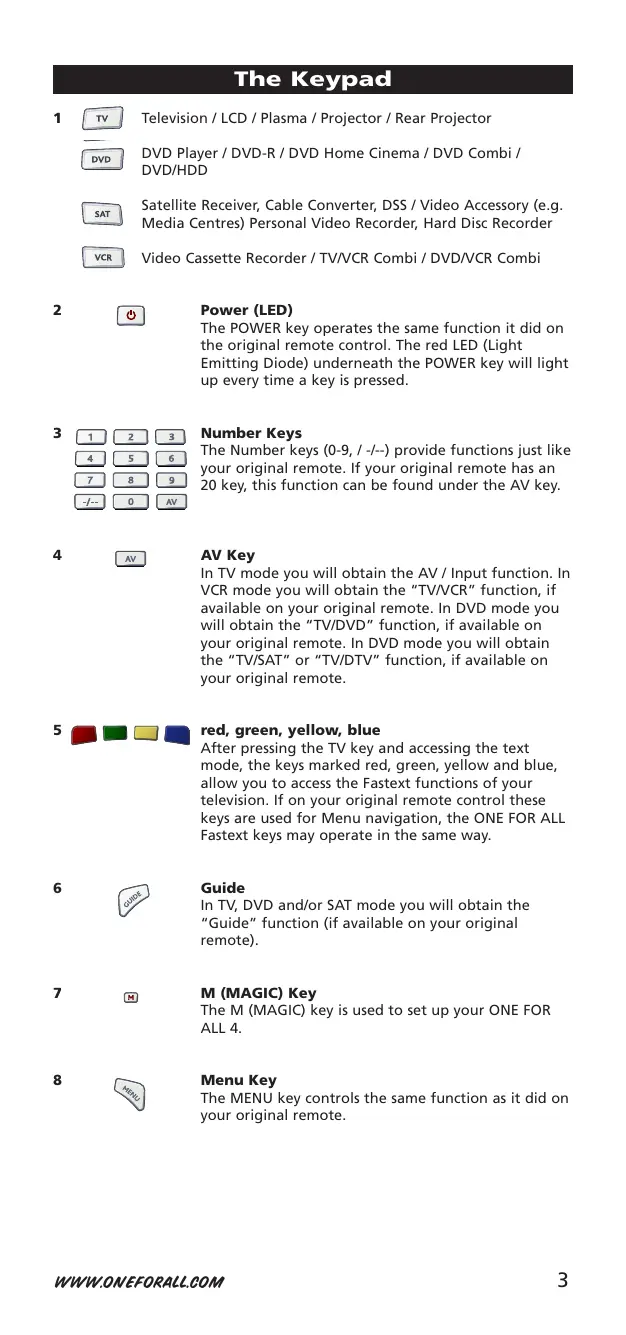
The Keypad
1 Television / LCD / Plasma / Projector / Rear Projector
DVD Player / DVD-R / DVD Home Cinema / DVD Combi / DVD/HDD
Satellite Receiver, Cable Converter, DSS / Video Accessory (e.g. Media Centres) Personal Video Recorder, Hard Disc Recorder
VCR Video Cassette Recorder / TV/VCR Combi / DVD/VCR Combi
2 Power (LED)
The POWER key operates the same function it did on the original remote control. The red LED (Light Emitting Diode) underneath the POWER key will light up every time a key is pressed.
3 1 2 3 Number Keys
The Number keys (0-9, /--) provide functions just like your original remote. If your original remote has an 20 key, this function can be found under the AV key.
4 AV AV Key

AV Key
In TV mode you will obtain the AV / Input function. In VCR mode you will obtain the "TV/VCR" function, if available on your original remote. In DVD mode you will obtain the "TV/DVD" function, if available on your original remote. In DVD mode you will obtain the "TV/SAT" or "TV/DTV" function, if available on your original remote.
5 red,green,yellow,blue
After pressing the TV key and accessing the text mode, the keys marked red, green, yellow and blue, allow you to access the Fastext functions of your television. If on your original remote control these keys are used for Menu navigation, the ONE FOR ALL Fastext keys may operate in the same way.
6 Guide

Guide
In TV, DVD and/or SAT mode you will obtain the "Guide" function (if available on your original remote).
7 M M (MAGIC) Key
The M (MAGIC) key is used to set up your ONE FOR ALL 4.
8 Menu Key

The MENU key controls the same function as it did on your original remote.
9

Directional Keys
If available on your original remote, these keys will allow you to navigate through the menu mode of your device.
10

OK
The OK key will confirm your choice in menu operation.
11

Volume +/- Keys
These keys operate in the same way as the keys on your original remote. In TV mode you may obtain Colour + / - when you press and release the M (MAGIC) key and then press Volume + / -
12

Channel +/- Keys
These keys operate in the same way as the keys on your original remote. In TV mode you may obtain Brightness + / - when you press and release the M (MAGIC) key and then press Channel + / -
13
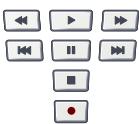
Transport Keys (VCR / DVD)
These keys operate the transport functions (PLAY, FF, REW etc.) of your device. To prevent accidental recording, the RECORD key must be pressed twice to start recording.
14 Teletext Keys
After pressing the TV key, the transport keys (REW, PLAY, PAUSE, FF) are used to operate the main Teletext functions. The symbols below the keys are for Teletext. The text keys are used to access the Teletext functions of your television. Of course, your television must have Teletext capability.
TEXT ON: Puts the television in the Teletext mode.
EXPAND: Shows the top half of the Teletext page in larger letters. By pressing again, you can see the bottom half of the Teletext page enlarged. To return to regular Teletext viewing, press the EXPAND key again, or press the TEXT ON key, depending on your television.
- TEXT OFF: Switches the television back to regular viewing mode. On some televisions, this may be done by pressing the TEXT ON key several times.
HOLD/STOP: Stops changing pages.
- MIX: Shows teletext and regular television simultaneously. You may also use this key for subtitling. On some televisions this function is accessed by pressing the text key twice.
16:9 16:9: This key provides you the (16:9) wide screen view function, if available on your original remote).
Important note:
For a more detailed explanation of Teletext and Fastext, please refer to the manual of your television. Remember, different televisions control Teletext and Fastext features in different ways. Not all of the Teletext functions may be available for your particular model.
Setting up the ONE FOR ALL 4
Before you start, please read these instructions carefully
Direct code set up
Example: To set up the ONE FOR ALL 4 for your television:
1 ONE 143).Codes are listed by device type and brand name. The most popular code is listed first.Make sure your device is switched on (not on standby).
2 Press the TV key on the ONE FOR ALL 4 for the device you wish to Set-Up.
3 Press and hold down the M (MAGIC) key until the red LED underneath the POWER key blinks twice (the red LED will blink once then twice).
4 Enter your (four-digit device code) using the number keys. The red LED will blink twice.
Now, aim the ONE FOR ALL 4 at your device and press POWER If your device switches off, the ONE FOR ALL 4 is ready to operate your device.
6 Turn your device back on and try all the remote's functions to ensure they are working properly. If the functions do not work properly, repeat steps 1-5 using another code listed under your brand.
7 If your device does not respond, follow steps 1 to 5 with each code listed for your brand. If none of the codes listed for your brand operate your device, or if your brand is not listed at all, try the search method described on page 6.
Important notes:
- Most TV's do not switch on pressing the POWER key. Please try pressing a "number" key or the "TV-text off" key to switch your TV back on.
- Some codes are quite similar. If your device does not respond or is not functioning properly with one of the codes, try another code listed under your brand.
- If your device's original remote control does not have a POWER key, press PLAY instead of POWER when setting up your device.
- Remember to press the correct device key before operating your device. Only one device can be assigned to a device key. If your original remote operates more than one device, you need to set up each device separately.
The Search Method
If your device does not respond to the ONE FOR ALL 4 after you have tried all the codes listed for your brand, try searching for your code. The Search Method allows you to find the code for your device by scanning through all the codes contained in the memory of the ONE FOR ALL 4. The Search Method may also work if your brand is not listed at all.
Example: To search for your TV code:
1 Switch your television on (not on standby) and aim your ONE FOR ALL at your TV.
2 Press the TV key on your ONE FOR ALL 4.
3 Press and hold down the M (MAGIC) key until the red LED underneath the POWER key blinks twice (the red LED will blink once then twice).
4 9 9 1 Press 9 9 1. The red LED will blink twice.
5 Next, press POWER.
6 Aim the ONE FOR ALL 4 at your Television. Now press CH+ over and over, until your Television turns off (everytime you press the CH+ key the ONE FOR ALL 4 will send out a POWER signal from the next code contained in the memory). You may have to press this key many times (up to 150 times) so please be patient. If you skip past a code, you can go to the previous code(s) by pressing the CH- key. Remember to keep pointing the ONE FOR ALL 4 at your Television while pressing this key.
7 M As soon as your television turns off, press the M (MAGIC) key to store the code.
Important notes:
- Most TV's do not switch on pressing the POWER key. Please try pressing a "number" key or the "TV-text off" key to switch your TV back on.
- To search for the code for another device follow the instructions above only press the appropriate device key instead of TV during step 2.
- If your Video's original remote control does not have a POWER key, press PLAY instead of POWER during step 5.
Code Blink out
(To find out which code is currently programmed)
Once you have Set-Up your ONE FOR ALL 4, you can blink back your SET-UP CODE for future reference.
Example: To blink out your Television code:
1 TV Press TV once.
2 Press and hold down the M (MAGIC) key until the red LED underneath the POWER key blinks twice (the red LED will blink once then twice).

3 9 9 0 Press 9 9 0. The red LED underneath the POWER key will blink twice.
4 For the first digit of your four-digit code, press 1 and count all the red blinks. If there are no blinks, the digit is "0".
5 For the second digit, press 2 and count all the red blinks. If there are no blinks, the digit is "0".
6 3 For the third digit, press 3 and count all the red blinks. If there are no blinks, the digit is "0".
7 4 For the fourth digit, press 4 and count all the red blinks. If there are no blinks, the digit is "0". Now you have your four-digit code.
Quick Code Reference
(Changing a device mode)
It is possible to change the mode of any device key. This is useful if you want to set up two of the same devices on the ONE FOR ALL 4. The code can be set up using "Direct code set up" (pag. 5) or "Search method" (pag. 6). To change a device key, see the three examples below.
Example 1) if you want to program a second TV on the VCR key.
Example 2) if you want to program a second TV on the DVD key.
Example 1:
To program a second Television on the VCR key (for example), you need to change the VCR key into a TV key, so press:
M () 9 9 2 TTV VCR ( )
The VCR key has now become a second TV key.
Now enter the Set-Up code for your second TV by pressing:
To program a second Television on the DVD key (for example), you need to change the DVD key into a TV key, so press:
M () 9 9 2 TV DVD ( )
The DVD key has now become a second TV key.
Now enter the Set-Up code for your second TV by pressing:
Resetting a Device key
Example: To reset the VCR key to its original mode, press:
(^*) 9 9 2 VCR VCR
Example: To reset the DVD key to its original mode, press:
() 9 9 2 → DVD → DVD ( )
(*) Press and hold down the M (MAGIC) key until the red LED underneath the POWER key blinks twice.
(**) The red LED underneath the POWER key will blink once then twice.
Volume Punch Through
You may be able to use some functions of your Television, Video recorder, DVD player, Satellite receiver or Cable converter at the same time. For example: if you are watching a program on your video recorder, you can adjust the volume (a TV function) without pressing the TV mode key on your ONE FOR ALL 4. The table below lists some of the possibilities.

To punch through to TV volume while in the VCR, DVD or SAT mode:
1.
Press and hold down the M (MAGIC) key until the red LED underneath the POWER key blinks twice (the red LED will blink once then twice).
- 9 9 3 Press 9 93.
- Then press the TV key and the red light will blink twice.

To cancel the "Volume Punch Through" per mode:
(Example: to cancel the "Volume Punch Through" for the VCR mode)
- Press VCR once.
Press and hold down the M (MAGIC) key until the red LED underneath the POWER key blinks twice (the red LED will blink once then twice). - 9 9 3 Press 9 93.
- Then press the Volume (-) key and the red light will blink four times.
Result: being in VCR mode, you will be able to control VOL+/- or MUTE functions of your VCR (provided it has volume control).

To cancel the „Volume Punch Through“:
1 M
Press and hold down the M (MAGIC) key until the red LED underneath the POWER key blinks twice (the red LED will blink once then twice).
- 9 9 3 Press 9 93.
- Press the Volume (+) key and the red light will blink four times.
Macros (Sequence of commands)
Macros (Direct)
You can program your ONE FOR ALL 4 to issue a sequence of commands at the press of one button. Any sequence of commands you regularly use can be reduced to one key stroke for your convenience. For example, you may want to turn off your TV, VCR and DVD Player at the same time.
Example: To set up the Macro mentioned above on the "Red" key on your ONE FOR ALL 4:
1 Press and hold down the M (MAGIC) key until the red LED underneath the POWER key blinks twice (the red LED will blink once then twice).
2 Press 9 95.
3 Then press the Red key to which the Macro will be assigned.
4 Next press TV, POWER, VCR, POWER, DVD, POWER.
5 To store the Macro, Press and hold down the M (MAGIC) key until the red LED underneath the POWER key blinks twice (the red LED will blink once then twice).
6 Whenever you press the "Red" key, the ONE FOR ALL 4 will turn off your TV, VCR and DVD player.
To erase the Macro from the Red key, press:
M* 9 95 Red key M*
- Here you must hold down THE M (MAGIC) KEY until the red LED underneath the POWER key blinks twice (the red LED will blink once then twice).
Shifted Macros
You can install a Shifted Macro on any key, except for the device keys (TV, VCR, SAT and DVD), the M (MAGIC) key, and the NUMBER keys.
If for example, you want to program a shifted Macro on the POWER key, simply press M (MAGIC) once then the POWER key during step 3.
Now every time you press M (MAGIC), then the POWER key, the ONE FOR ALL will turn off your TV, VCR and DVD Player.
To erase the Shifted Macro from the POWER key press:
M* 9 95 M POWER key M*
-
Here you must press and hold down the M (MAGIC) key until the red LED underneath the POWER key blinks twice (the red LED will blink once then twice).
-
Each MACRO can consist of a maximum of 15 key strokes.
- Make sure that you program a Macro on a spare key that you don't use in any mode.
- Once you program a Macro on a specific key, the sequence will work regardless of the mode (TV, VCR, SAT and DVD) you are using.
- To avoid accidental recordings with the ONE FOR ALL 4, you must press the Record key twice to begin recording. Because of this, you cannot assign a Macro or Shifted Macro to the Record key.
- If you had to hold down a key for a few seconds on the original remote control to get a function, this function may not work in a macro on your ONE FOR ALL remote.
- If you program a Macro on a key, the original function will become shifted (excluding CH+/- and VOL+/- keys). Press M (MAGIC) key then the key to access it. If you place a Macro shifted on a digit key, access the original function by pressing the M (MAGIC) key twice and then the digit key.
Extra Features
Key Magic
how to program missing functions
Key Magic is an exclusive ONE FOR ALL feature. The design of the ONE FOR ALL ensures that many functions of your original remote control can be operated - even those that do not have their own key on the ONE FOR ALL keypad. Frequently used functions can be assigned to a key of your choice using the Key Magic feature of your ONE FOR ALL.
In order to program a certain function with Key Magic you need to know the corresponding function code. As these function codes vary with different types of devices, they cannot be found in the manual. You can request your function codes calling our consumer service or by sending us a fax or e-mail.
Please mention:
- The 4-digit set-up code your device is working with.
- How the function was labelled on your original remote control.
Once you obtain(ed) your function code(s) from customer service, programming the code is easy:
1 Press the device key (TV, VCR, SAT and DVD).
2 Press and hold down the M (MAGIC) key until the red LED underneath the POWER key blinks twice (the red LED will blink once then twice).
3 Press 9 9 4. The red LED underneath the POWER key will blink twice.
4 Press the M (MAGIC) key once.
5 Enter the 5-digit function code (provided by customer service).
6 Press the key to which the function will be assigned. The device key will blink twice.
EXTENDED FUNCTION REFERENCE (first entry is an example):
DEVICE TV
SET-UP CODE 0556
FUNCTION 16/9 format
FUNCTION CODE 00234
- To access the function you have programmed, press the corresponding device key first.
- Key Magic can be assigned to any key EXCEPT the Device keys and the M (MAGIC) key.
- Please note all the extended function codes you obtain from customer service for easy future reference.
Problem & Solution
Solution:
Problem:
| Your brand is not listed in the code section? | Try the search method on page 6. |
| The ONE FOR ALL does not operate your device(s)? | A) Try all the codes listed for your brand. B) Try the search method on page 6. |
| The ONE FOR ALL is not performing commands properly? | You may be using the wrong code. Try repeating the Direct Set-Up using another code listed under your brand or start the search method over again to locate the proper code. |
| Problems changing channels? | Enter the programme number exactly as you would on your original remote. |
| Video not recording? | As a safety feature on your ONE FOR ALL, you must press the Record key twice. |
| The ONE FOR ALL does not respond after pressing a key? | Make sure you are using new batteries and are aiming the one for all at your device. |
| The red LED does not blink when you press a key? | Replace batteries with 2 fresh, new “AA” alkaline batteries. |
Customer Service
In the UK
E-mail: ofahelp@uebv.com ( )
Fax : +31 53 432 9816
Tel. : 0901-5510010 (£ 0,50 per minute)
In Ireland
E-mail: ofahelp@uebv.com (^**)
Fax : +31 53 432 9816
Tel. : 016015986
In South Africa
E-mail: support@oneforall.co.za
Fax :0112982302
Tel. : 0860 100551
Tel. : 011 298 2300
In Australia
E-mail: ofahelp@uebv.com ( )
Fax : 03 9672 2479
Tel. : 1300888298
In New Zealand
E-mail: ofahelp@uebv.com ( )
Fax : (06) 878 2760
Tel. : 0508 ONE 4 ALL (663 4 255)
( ) Just send a blank message, you'll get auto-reply.
DAS TASTENFELD
EINSTELLUNGEN
Press and hold down the M (MAGIC) key until the red LED underneath the POWER key blinks twice (the red LED will blink once then twice).
3.

Press 9 93.
4.

Then press the Volume (-) key and the red light will blink four times.
Result: being in VCR mode, you will be able to control VOL+/- or MUTE functions of your VCR (provided it has volume control).
To cancel the „Volume Punch Through“:
1
Press and hold down the M (MAGIC) key until the red LED underneath the POWER key blinks twice (the red LED will blink once then twice).
2. 9 9 3 Press 9 9 3.
3. Press the Volume (+) key and the red light will blink four times.