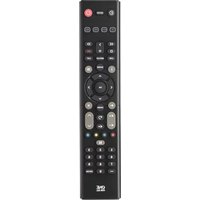
SV 1718 - Remote control ONE FOR ALL - Free user manual and instructions
Find the device manual for free SV 1718 ONE FOR ALL in PDF.


| Product type | Universal remote control |
| Brand | ONE FOR ALL |
| Model | SV 1718 |
| Controllable devices | TV, VCR, DVD player, satellite receiver / cable decoder |
| Power supply | 2 AA/LR6 alkaline batteries (not included) |
| Battery life | Several months under normal use |
| Infrared range | Up to 10 meters |
| Dimensions (approx.) | 20 x 5 x 2 cm |
| Weight (with batteries) | Approximately 150 g |
| Code memory | Up to 4 devices |
| Installation methods | Direct code entry or automatic search method |
| Main functions | Power, volume, channels, mute, numeric keys, menu, navigation, teletext, VCR/DVD functions (play, stop, record, etc.) |
| Special functions | Device key reassignment mode, direct volume access, color/brightness adjustment |
| Teletext compatibility | Yes (play, pause, enlarge, stop, color fastext) |
| Indicator light | Red LED flashes during transmission |
| Care and cleaning | Clean with a soft, dry cloth. Do not use solvents. |
| Safety | Do not use rechargeable batteries. Replace batteries within 5 minutes to retain programming. |
| Repairability | Not user-serviceable. Contact customer service. |
| Warranty | 1 year against manufacturing defects |
Frequently Asked Questions - SV 1718 ONE FOR ALL
User questions about SV 1718 ONE FOR ALL
0 question about this device. Answer the ones you know or ask your own.
Ask a new question about this device
Download the instructions for your Remote control in PDF format for free! Find your manual SV 1718 - ONE FOR ALL and take your electronic device back in hand. On this page are published all the documents necessary for the use of your device. SV 1718 by ONE FOR ALL.
USER MANUAL SV 1718 ONE FOR ALL
(How to set up the ONE FOR ALL 4 to control your devices)
- Direct code set up 6
Search Method 7
SET UP CODES
Televisions 73
Video Recorders 78
Satellite Receivers 80
Cable Converters 83
DVD Players 83
CODE BLINK OUT 8
(To find out which code is currently programmed)
QUICK CODE REFERENCE 8
EXTRA FEATURES
Mode re-assignment (Changing a device mode) 9
Colour and Brightness 10
Volume Punch Through 10
TROUBLE-SHOOTHING
Problem & Solution 11
Customer Service 12
About Your ONE FOR ALL 4
Congratulations on your purchase of the ONE FOR ALL 4 Universal Remote Control. By choosing the ONE FOR ALL 4 remote you have opted for the User Friendly remote control solution. Made according to the highest quality, the ONE FOR ALL 4 will provide you with long-term satisfaction. Please read these enclosed instructions carefully before putting your ONE FOR ALL 4 to use.
Your ONE FOR ALL 4 Remote Package contains:
- Your ONE FOR ALL 4 Remote
- Your ONE FOR ALL 4 Manual
Your Manual is divided into two parts: the set-up instructions and the device codes.
PLEASE DO NOT DISCARD THIS MANUAL AS YOU MAY NEED IT AGAIN IN THE FUTURE!
Your ONE FOR ALL 4 can operate four devices: a Television, a Video Recorder, a DVD Player and a Satellite Receiver or Cable Converter.
Batteries
Your ONE FOR ALL 4 Remote needs 2 new "AA/LR6" Alkaline batteries.
1 Push the battery door upwards and lift it up to remove it.
2. Match the batteries to the (+) and (-) marks inside the battery case, then insert the batteries.
3. Replace the battery cover by pushing upwards and allowing it to click back into position.
- In order to avoid having to re-program your ONE FOR ALL 4 after you remove the batteries, you will need to insert new batteries within 5 minutes. Also it is recommended that you do not use rechargeable batteries.
- On the inside of the battery compartment door you will find a label on which to write your Set-Up Codes for future reference. This you will do after setting up your ONE FOR ALL 4 remote for your devices.
The Keypad
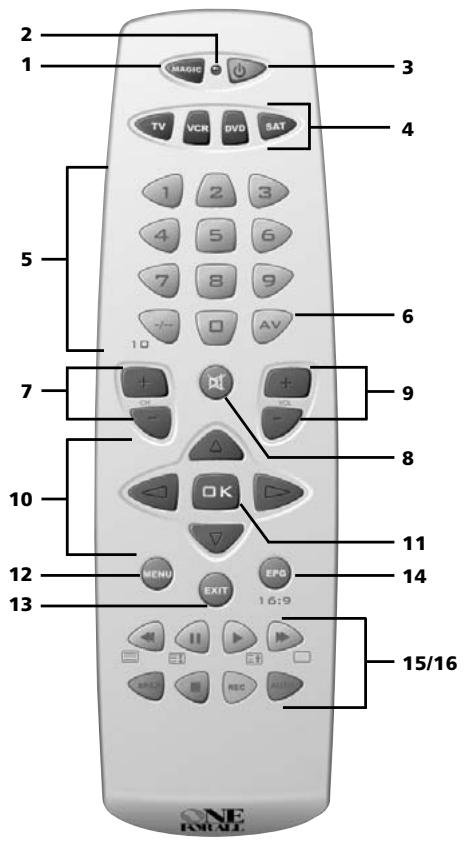
Please refer to the picture of the ONE FOR ALL 4 Remote Control on Page 3.
1 Magic Key:
The Magic key is used to set-up your ONE FOR ALL 4 Remote Control and to access special functions.
2 LED:
During the use of your ONE FOR ALL 4, the LED will light up red.
3 Power Key:
The Power key controls the same function as it did on your original remote.
4 Device Keys:
The TV, VCR, DVD & SAT keys select the home entertainment device you wish to control. For example, pressing the TV key allows the remote to control the functions of your television, etc.
5 Number Keys:
The Number keys (0-9, --(10)) provide the functions just like your original remote, such as the direct access to program/channel selection. If your original remote uses a 10 key, this function can be found by pressing the -- key.
6 AV
The AV key operates the same function it did on your original remote control.
7 Channel Up / Down Control:
These keys control the same functions as your original remote control. In DVD mode the Channel Up key operates the "Next Track" function, and the Channel down key operates the "Previous Track" function.
8 Mute Key:
The Mute key operates the same function it did on your original remote.
9 Volume Up / Down Control:
These keys operate just as those on your original remote.
10 Directional Keys
If available on your original remote, these keys will allow you to navigate through the menu of your device.
The Keypad
11 OK key
If your original remote control required that you press an "OK" or "ENTER" key during Menu operation, this key can be used for this function.
12 Menu Key:
Controls the same function as it did on your original remote control.
13 Exit Key:
The Exit key will exit the Menu.
14 EPG key
If available on your original remote, this key will provide the "Electronic Program Guide" (EPG) function. In TV mode this key allows you to access the wide screen (16:9) view option of your television (if available on your original remote). In VCR mode it obtains the TV/VCR function.
15 VCR / DVD keys (PLAY, STOP, REW etc.)
After pressing the VCR mode key, the Playback keys operate the same functions of your Video Recorder Keys. To prevent accidental recording, the RECORD key must be pressed twice. After pressing the DVD mode key, the Playback keys will operate the same functions of your DVD Players.
In VCR mode the SP/LP key controls the tape speed function, the AUTO key controls the auto tracking function, just like on your original remote.
16 Teletext Functions:
After pressing the TV key, the transport keys (REW, PLAY, FF, PAUSE) are used to operate the main Teletext functions. The symbols below the keys are for Teletext. The text keys are used to access the Teletext functions of your television. Of course, your television must have Teletext capability.

TEXT ON:
Puts your television in the teletext mode.

HOLD/STOP:
Stops the television changing text pages.

EXPAND:
Shows the top half of the teletext page in larger letters. By pressing again, you can see the bottom half of the teletext page enlarged. To return to the regular teletext viewing, press the Expand key again, or press the Text key, depending on your television.

TEXT OFF:
Switches the television back to regular viewing mode. On some televisions, this may be done by pressing the TEXT key several times.
After pressing the TV key and accessing the text mode, the bottom row of the Video Recorder keys marked red, green, yellow and blue, allow you to access the Fastext functions of your television. If on your original remote control these keys are used for Menu navigation, the ONE FOR ALL Fastext keys may operate in the same way.
- For a more detailed explanation of the Teletext and Fastext functions, please refer to the manual of your television. Remember, different televisions control Teletext and Fasttext in different ways. Not all Teletext functions may be available for your particular model.
Direct code set-up
Example: To set up the ONE FOR ALL 4 for your television:
- Make sure your device (television) you wish to operate is switched on (not in standby).
- ONE PCF Find the code for your device in the Code List (page 73 - 85). The device codes are listed per device type and brand name. Also the most popular code for each brand is listed first. If your brand is not listed at all, try the Search Method on page 7.
- Press the device mode key (TV) on the ONE FOR ALL 4 remote for the device you wish to set up.
- Press and hold down MAGIC until the red light blinks twice (the red light will blink once then twice).
- Enter your four-digit device code using the number keys. The red light will blink twice.
-
Now aim the ONE FOR ALL 4 remote at your device (television) and press POWER. If your device switched off, the ONE FOR ALL 4 is ready to operate your device.
-
Most TV's do not switch back on pressing the POWER key, please try pressing a "number" key or the "TV-text off" key to switch your TV back on.
- If your device does not respond, follow steps 1 through 6 with each code listed for your brand. If none of the codes listed for your brand operate your device, then try the Search Method described on page 7, even if your brand is not listed at all.
- Some codes are quite similar. If your device does not respond or is not functioning properly with one of the codes, try another code listed under your brand.
- If the original remote control from your Video Recorder / DVD player did not have a POWER key, press PLAY instead of POWER during step 6.
- To set up your other devices, follow the same instructions above, only press the appropriate device key during step 3.
- Remember to press the correct device key before operating your device. Only one device can be assigned to a device key.
- Write your device code in the applicable four digit boxes provided in the battery compartment and on page 8 for future reference.
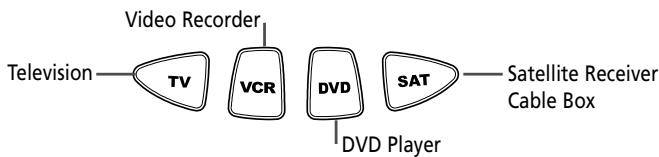
Devices can be found under the following keys:
To set up for a second TV, VCR, DVD or SAT (See mode re-assignment, Page 9).
Search method
If your device does not respond to the ONE FOR ALL 4 after you have tried all the codes listed for your brand.
If your brand is not listed at all.
The Search Method allows you to scan through all the codes contained in the memory of the ONE FOR ALL 4.
Example: To search for your television code:
- Switch your television on (not in standby).
- Press the TV key on the ONE FOR ALL 4.
- Press and hold down MAGIC until the ONE FOR ALL 4 red light blinks twice (the red light will blink once then twice).
- 9 9 1 Press 9 9 1. The red light will blink twice.
- Next, press POWER.
-
- CH Aim the ONE FOR ALL 4 at your Television. Now press CH+ over and over, until your Television turns off (every time you press the CH+ key the ONE FOR ALL 4 will send out a POWER signal from the next code contained in the memory). You may have to press this key many times (up to 150 times) so please be patient.
If you skip past a code, you can go to the previous code(s) by pressing the CH- key. Remember to keep pointing the ONE FOR ALL 4 at your Television while pressing this key.
-
MAGIC As soon as your television turns off, press MAGIC to store the code.
-
Most TV's do not switch on pressing the POWER key. Please try pressing a "number" key or the "TV-text off" key to switch your TV back on.
- If you cannot control your Television properly, please continue the Search Method, you may be using the wrong Code.
- To search for the code for another device follow the instructions above only press the appropriate device key instead of TV during step 2.
- If the original remote control of your Video recorder or DVD player does not have a POWER key, press PLAY instead of POWER during step 5.
Code blink out
(To find out which code is currently programmed)
Once you have Set-Up your ONE FOR ALL 4, you can blink back your Set-up Code for future reference.
Example: to blink out your television code:
1.

Press the TV key once.
2.

Press and hold down MAGIC until the ONE FOR ALL 4 red light blinks twice (the red light will blink once then twice).
3.


Press 9 9 0. The red light will blink twice.
4.

For the first digit of your four-digit code, press 1 and count all the red blinks. If there are no blinks, the digit is "0".
5.

For the second digit of your four-digit code, press 2 and count all the red blinks. If there are no blinks, the digit is "0".
6.

For the third digit of your four-digit code, press 3 and count all the red blinks. If there are no blinks, the digit is "0".
7.

For the fourth digit of your four-digit code, press 4 and count all the red blinks. If there are no blinks, the digit is "0". Now you have your four-digit code.
- To blink back the code for your other devices, press the appropriate device key during step 1.
Quick Code Reference
Make sure you write down the codes for your devices in the boxes below and in the battery compartment for future easy reference.
Device Type
1


2


3


4


Mode re-assignment
(Changing a device mode)
It is possible to change the mode of any device key. This is useful if you want to set up two of the same devices on the ONE FOR ALL 4. The code can be set up using "Direct code set up" (p. 6) or "Search method" (p. 7). To change a device key, see the three examples below.
Example 1 if you like to program a second TV on the DVD key.
Example 2 if you like to program a second TV on the SAT key.
Example 3 if you like to program a second VCR on the SAT key.
Example 1:
To program a second Television on the DVD key (for example), you need to change the DVD key into a TV key, so press:

The DVD key has now become a second TV key.
Now enter the Set-Up code for your second TV by pressing:

Example 2:
To program a second Television on the SAT key (for example), you need to change the SAT key into a TV key, so press:

The SAT key has now become a second TV key.
Now enter the Set-Up code for your second TV by pressing:

Example 3:
To program a second Video Recorder on the SAT key (for example), you need to change the SAT key into a VCR key, so press:

The SAT key has now become a second VCR key.
Now enter the Set-Up code for your second VCR by pressing:

Resetting a Device key
Example: To reset the DVD key to its original mode, press:

Example: To reset the SAT key to its original mode, press:

() Press and hold down the MAGIC key until the red light (LED) blinks twice.
(^*) The red light (LED) will blink once then twice.
Extra Features
Colour and Brightness
Depending on the functions of your original remote control, the ONE FOR ALL 4 may operate the colour and brightness settings of your television.
Colour (+) = Press and release MAGIC then hold Volume (+) Colour (-) = Press and release MAGIC then hold Volume (-)
Brightness (+) = Press and release MAGIC then hold Channel (+) Brightness (-) = Press and release MAGIC then hold Channel (-)
Volume Punch Through
You may be able to use some functions of your Television, Video recorder, DVD player, Satellite receiver or Cable converter at the same time. For example: if you are watching a program on your video recorder, you can adjust the volume (a TV function) without pressing the TV mode key on your ONE FOR ALL 4. The table below lists some of the possibilities.
Last Device Mode Key Pressed:
VCR
SAT
DVD
You Can Control:
TV volume up and down, mute
TV volume up and down, mute
TV volume up and down, mute
To punch through to TV volume while in the VCR, DVD or SAT mode:
- MAGIC
Press and hold MAGIC until the red light blinks twice.
- 9 9 3
Press 9 93.
3.
Then press the TV key and the red light will blink twice.
To cancel the "Volume Punch Through" per mode:
(Example: to cancel the "Volume Punch Through" for the VCR mode)
- VCR
Press VCR once.
-
PRESS and hold down the MAGIC key until the red light blinks twice.
-
9 9 3
Press 9 93.
- VOL
Then press the Volume (-) key and the red light will blink four times.
Example: being in VCR mode, you will be able to control VOL+/- or MUTE functions of your VCR (provided it has volume control).
To cancel the „Volume Punch Through“:
- Press and hold MAGIC until the red light blinks twice.
- 9 9 3 Press 9 9 3.
-
- Press the Volume (+) key and the red light will blink four times.
Problem & Solution
Problem:
Solution:
| Your brand is not listed in the code section? | Try the search method on page 7. |
| The ONE FOR ALL 4 does not operate your device(s)? | A) Try all the codes listed for your brand. B) Try the search method on page 7. |
| The ONE FOR ALL 4 is not performing commands properly? | You may be using the wrong code. Try repeating the Direct Set-Up using another code listed under your brand or start the search method over again to locate the proper code. |
| Problems changing channels? | Enter the program number exactly as you would on your original remote. |
| Video not recording? | As a safety feature on your ONE FOR ALL 4, you must press the Record key twice. |
| The ONE FOR ALL 4 does not respond after pressing a key? | Make sure you are using new batteries and are aiming the ONE FOR ALL 4 at your device. |
| The red light (LED) does not blink when you press a key? | Replace batteries with 2 fresh, new “AA/LR6” alkaline batteries. |
Trouble Shooting
Customer Service
If you still have questions about the operation of your ONE FOR ALL ONE FOR ALL 4 universal remote and could not find the answer(s) in the TroubleShooting section, you may want to contact the customer service department for assistance.
You may care to visit our Internet-site: www.oneforall.com
Our internet-site has many advantages:
- 24 hours access
- no waiting time
- page for Frequently Asked Questions
- info about the ONE FOR ALL product range
Before contacting us, by Fax, E-mail or Phone, make sure you have the required information available by filling in the table below.
What do we need to know before you contact us:
1 That you have the ONE FOR ALL 4 URC-7740 () universal remote.
2 The date of purchase (............/..........).
3 A list of your equipment/models: (see example below).
| Device | Brand | Device model nr. | Remote model nr. | SET-UP code |
| TV | Sony | KV-25C5D | RM-883 | 1505 (example) |
Type/model numbers can often be found in your equipment owner's manual or on the factory plate behind the device.
- Then Fax, E-mail or Dial us:
In the UK
E-mail: ofahelp@uebv.com ( )
Fax :+31534329816
Tel. : 0901-5510010 (£ 0,50 per minute)
In Ireland
E-mail: ofahelp@uebv.com ( )
Fax :+31534329816
Tel. : 016015986
In South Africa
E-mail: support@oneforall.co.za
Fax : 011 298 2302
Tel. : 0860 100551
Tel. : 011 298 2300
In Australia
E-mail: ofahelp@uebv.com ( )
Fax :+61299751368
Tel. : 1300888298
In New Zealand
E-mail: ofahelp@uebv.com ( )
Fax : (06) 878 2760
Tel. : 0508 ONE 4 ALL (663 4 255)
( ) Just send a blank message, you'll get auto-reply.
15 VCR / DVD Tasten (PLAY, STOP, REW etc.)
Punch-Through do Volume
Volume direct-bediening 70
EVENTUELE PROBLEMEN
Problem & oplossing 71
Klantenservice 72
Over uw ONE FOR ALL 4
Volume Punch Through
UNIVERSAL ELECTRONICS INC./ONE FOR ALL Warrants to the original purchaser that this product will be free from defects in materials and workmanship under normal and correct use for a period of one (1) year from the date of original purchase. This product will be replaced free of charge if it has been proven to be defective within the one (1) year warranty period. This warranty does not cover cartons, carrying cases, batteries, broken or marred cabinets or any other item used in connection with the product. Any further obligation than listed above is excluded. To obtain warranty service during the warranty period, please call us at the number mentioned on the Customer Service page. Please notice that we need your purchase receipt so that we may establish your eligibility for service.
If you have bought this product for purposes which are not related to your trade, business or profession, please remind that you may have legal rights under your national legislation governing the sale of consumer goods. This guarantee does not affect those rights.
Deutsch
Universal Electronics BV
Europe & International
P.O.Box 3332
7500 DH, Enschede
The Netherlands