
SKYPEPHONE #F1PP000GNFR - Mobile Phone BELKIN - Free user manual and instructions
Find the device manual for free SKYPEPHONE #F1PP000GNFR BELKIN in PDF.


| Product Type | WiFi Mobile Phone for Skype |
| Brand | BELKIN |
| Model | SKYPEPHONE #F1PP000GNFR |
| Category | Mobile Phone |
| Dimensions | 115 × 49 × 18 mm |
| Battery | Lithium-ion 3.7 V, 1100 mAh |
| Standby Time | 50 hours |
| Talk Time | 3 hours |
| Power Supply | Mains charger 100-240 V, 50/60 Hz |
| Connection | WiFi 802.11b/g |
| Ports | Mini-USB (charging and data), headphone jack |
| Main Functions | Skype calls, SkypeOut, SkypeIn, voicemail, directory, history, call forwarding |
| Display | LCD screen with indicators (signal, battery, alerts) |
| Package Contents | Phone, lithium-ion battery, mains charger, quick start guide, CD-ROM |
| Care and Cleaning | Clean with a dry, soft cloth. Avoid moisture and abrasive products. |
| Safety | Use only the supplied battery. Do not expose to extreme temperatures. Do not open the phone. |
| Operating Temperature | Storage: -20 to 70 °C |
| Standards | FCC Class B, CE, VCCI, EN 60950-1, EN 300 328 |
| Warranty | Free technical support (excluding communication costs) - see Belkin website |
Frequently Asked Questions - SKYPEPHONE #F1PP000GNFR BELKIN
User questions about SKYPEPHONE #F1PP000GNFR BELKIN
0 question about this device. Answer the ones you know or ask your own.
Ask a new question about this device
Download the instructions for your Mobile Phone in PDF format for free! Find your manual SKYPEPHONE #F1PP000GNFR - BELKIN and take your electronic device back in hand. On this page are published all the documents necessary for the use of your device. SKYPEPHONE #F1PP000GNFR by BELKIN.
USER MANUAL SKYPEPHONE #F1PP000GNFR BELKIN
- Introduction 1
Package Checklist 1
Hardware Description 1
AC Power Charger 2 - Installing the Battery 3
- Charging the Battery 4
- Powering On the Phone 5
- Getting Started 6
- Contacts 15
- Make and Receive Calls 20
- Connect to Networks 28
- Personal Settings 33
- General Settings 38
- Appendix A: Specifications 43
- Compliances 45
The Wi-Fi Phone for Skype (the phone) enables you to use your normal Skype account to make Skype calls without using a computer. This affords you complete mobility, allowing you to talk from any location from which you have an Internet connection through an access point.
Package Checklist
The phone package includes these items:
- One Wi-Fi Phone for Skype (F1PP000GN-SK)
- One Lithium-Ion Battery
- One AC Power Charger
- Quick Start Guide
- User Guide CD
Hardware Description
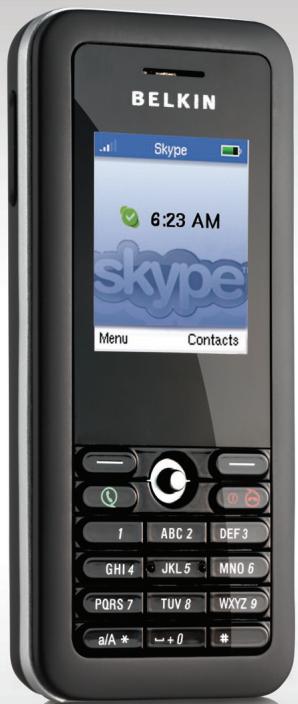
Before preparing the phone for use, first become familiar with its main keys, buttons, and other hardware features.
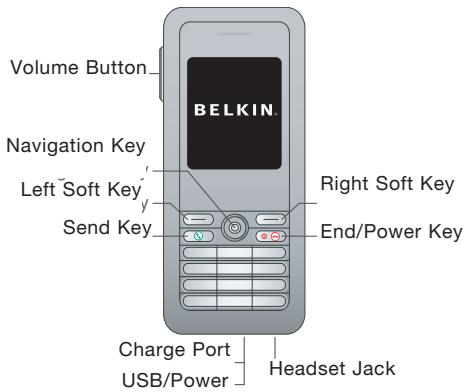
- Navigation Key—Four-direction user-interface navigation key.
- Right Soft Key—Selects the option at the bottom right corner of the screen.
-
End/Power Key-Ends an active call.
-
In OFF mode, turns the power on when held more than 2 seconds.
- In ON mode, turns the phone off when held for more than 4 seconds.
-
In ON, press for two seconds to access the power-key menu.
-
Headset Jack-Jack for a headset connection.
- USB/Power Charge Port—Power-charger connection for charging the battery.
-
Alphanumeric Keypad—Includes 0–9, A-Z, *, and # keys.
-
The [a/A *] key selects upper- or lowercase characters, numbers, or hexadecimal characters.
- The [1] key selects common punctuation marks during text input.
-
The [ # ] key selects special characters and symbols during text input.
-
Send Key-Calls a selected contact.
- Left Soft Key-Selects the option at the bottom left corner of the screen.
- Volume Button-Adjusts volume of the speaker.
- Keypad Lock—The phone keypad can be locked by pressing the left soft key together with the [a / A^*] key. Pressing the two keys again unlocks the keypad.
AC Power Charger
The phone charges its installed battery when connected to the AC power charger, when the charger is connected to a power source such as a wall outlet. The power charger automatically adjusts to any voltage between 100-240 volts at 50 or 60 hertz. No voltage-range settings are required.
After unpacking the phone, install and charge the battery pack before turning on the phone.
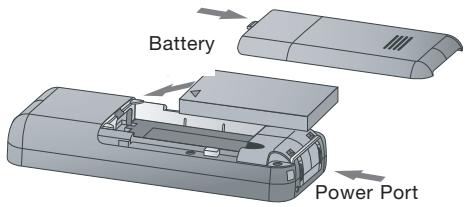
- Remove Battery-Compartment Cover—Place the phone face down. Push and slide down the battery-compartment cover until it becomes free.
- Install Battery—Place the battery into the compartment. Be sure the text label on the battery is facing out and the battery's three metal contacts point to the top of the phone.
Cover
- Replace Battery-Compartment Cover—Slide the battery-compartment cover back onto the phone until it clicks firmly into place.
Notes:
- Use only the lithium-ion battery pack supplied with the phone.
- Do not try to install any other battery.
-
To obtain replacement batteries, please purchase replacement lithium-ion battery model: NP-60, used for digital cameras/camcorders made by Fujifilm®, Pentax®, and Panasonic®.
-
Connect the AC Power Charger—Lift up the rubber cover on the mini-USB charger port and connect the power charger to the port. Then, plug the charger into an AC electrical outlet.
- Fully Charge Battery—For first-time use, allow three hours to fully charge the battery before turning on the phone.
- Disconnect the Power Charger—When the battery is fully charged, remove the power charger from the phone and push down the charger port's rubber cover.
Notes:
- The power charger automatically adjusts to any voltage between 100-240 volts at 50 or 60 hertz.
- When you next have to charge the phone's battery, you do not have to power off the phone. Just connect the charger as described above and wait until the LCD display indicates the battery is fully charged.
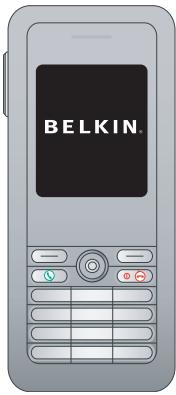
Push and hold "End/Power" for more than two seconds to power on the phone. The LCD display turns on showing the Belkin logo. Allow 30 seconds for the phone to start up. Go to the "Getting Started" section to learn how to set up a Wi-Fi-network connection and start using the phone.
1. Getting Started
The phone requires a wireless connection to a Wi-Fi access point in order to make Skype calls.
You can configure the phone to connect to specific wireless networks or search for "open" networks. Wireless-network information is stored in the phone's memory as "Preferred Networks". These are searched for each time the phone is powered on.
When powering on the phone for the first time, there are no Preferred Networks in the phone's memory. You need to select a wireless network and sign in to your Skype account before you can start making calls.
1.1 First-Time Startup
You must complete the following steps the first time you use your phone.
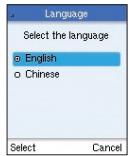
- Select a language.
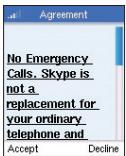
- Read and accept the Skype Agreement. Be sure to scroll down and read the entire agreement before accepting.
1.2 Connect to a Network
After you have selected a language and accepted the Skype agreement, your phone searches for available networks. This also occurs whenever you power on the phone.
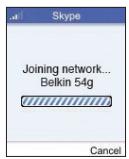
- The Phone scans for available wireless networks.
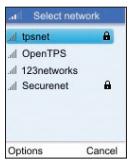
- Select a network.
Notes:
- If a network requires a security key, the phone prompts you for the key.
- Use the *a/A button to change to lowercase, uppercase, or numeric entry when entering a network key.
- The access-key information is stored in the phone's memory as a "Preferred Network" and will be used the next time the phone is powered on.
- Normally, you need to be within 300 feet (90m) of the wireless access point to connect successfully.
1.3 Create a New Skype Account
After you have successfully accessed a wireless network, you can sign in to Skype. If you do not have an existing Skype account, then:
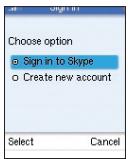
- Create a Skype name.
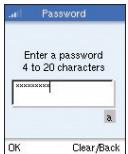
- Create a password.
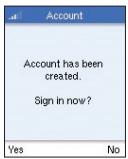
- Sign in.
Notes:
- Use the *a/A button to change to lowercase, uppercase, or numeric entry when entering your Skype name and password.
-
Skype names can be 6-30 characters. You can use any mix of upper- and lowercase characters, numbers, and punctuation marks. You cannot use spaces or start your name with a number or punctuation mark. If the name is already in use, you will be prompted to try another name.
-
Passwords can be 4-20 characters. You can use any mix of upper-and lowercase characters, numbers, and punctuation marks. You cannot use spaces, start your name with a number or punctuation mark, or use your Skype name as a password.
1.4 Sign In to Skype
When you have a Skype account, you can sign in to Skype.
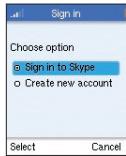
- Sign in to Skype.
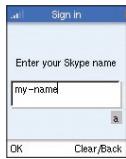
- Enter your Skype name.
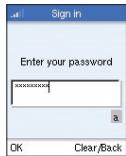
- Enter your password.
Notes:
- Use the *a/A button to change to lowercase, uppercase, or numeric entry when entering your password.
- You can choose to automatically sign in with your Skype name and password on subsequent sign-ins.
- On initial startup, it may take a few minutes to upload a large Contact list.
1.5 Skype Features
After you have created your Skype account, you can call other people with Skype accounts for free. Skype also offers additional features, including:
| SkypeOut™ | SkypeOut allows you to place calls to traditional landline and mobile phones. |
| Skypeln™ | Skypeln is a subscription feature that provides you with a traditional phone number for receiving Skype calls on your phone from traditional landlines and mobile phones. |
| Skype Voicemail™ | Skype Voicemail™ allows you to send and receive voicemail messages and record a greeting. |
All of these features are available at www.skype.com.
1.6 LCD Display
The phone's LCD display provides various status indicators and access to the menu-based interface. The illustration below shows the main screen and its elements.
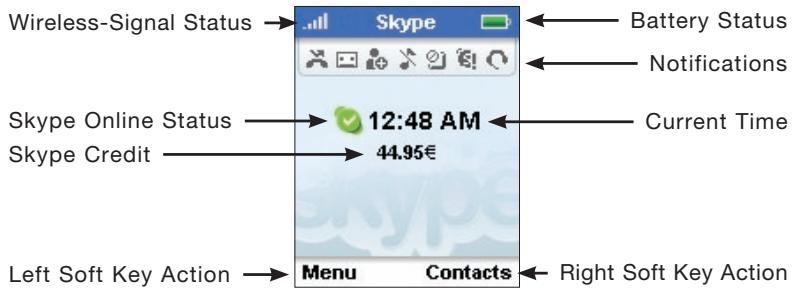
| Wireless-Signal Status | Indicates the strength of the wireless-network signal. X No detectable signal Weak wireless signal Good wireless signal Strong wireless signal |
| Battery Status | Indicates the status of the battery. Low level Partially charged Fully charged Charging |
| Notifications | Displays notification icons. Missed call New voicemail Authorization request Silent mode is active Keypad locked €! Skype credit is close to expiry Headset attached |
| Skype Online Status | Indicates your current Skype online status. Online Offline (not signed in) Do not Disturb. Indicates you are busy. Skype Me. Available for calls from anyone. Invisible. Still online, but unseen by others. |
| Current Time | The currently set time. |
| Skype Credit | Your current Skype-credit balance. |
| Left Soft Key Action | The action that happens when you press the left soft key. Typically, the left soft key selects the current menu item or confirms a setting. From the main screen, it provides access to the user menu. |
| Right Soft Key Action | The action that happens when you press the right soft key. Typically, the right soft key cancels the last action or returns to the previous screen. From the main screen, it provides access to your list of contacts once signed in. |
1.7 Main Menu
The main menu provides easy access to all of your Skype and phone settings. The menus are easy to navigate using the 4-way navigation key. Just move the navigation key up or down to highlight a menu item, then push down on the key to select the item.
The following table outlines the main-menu items.
| Connect (Shown when not connected to a network) | Allows you to connect to a network. |
| Sign In (Shown when not connected to a network) | Allows you to sign in to Skype. |
| Contacts | Lists your contacts and their current Skype status once you are signed in. |
| History | Lists your missed calls, incoming and outgoing calls, voicemail, and authorizations. |
| Status | Displays your Skype connection status. |
| Add contact | Adds a Skype or SkypeOut number to your Contact list. |
| Services | Sets up Skype credit, SkypeIn, and voicemail. |
| Settings | Provides access to Skype, wireless network, and phone settings that can be viewed or changed. |
1.8 Power-Key Menu
Access the power-key menu by pressing "End/Power" for more than two seconds and then releasing it. Be sure not to press the key for more than four seconds—this immediately switches the phone OFF.
The items listed in the power-key menu depend on your current network connection and Skype sign-in status. If you are not connected to a network and not signed in to Skype, only a few menu items are displayed. If you are connected and signed in, all of the items are displayed.
The following table outlines the main-menu items.
| Connect and Sign In (Shown when not connected to a network) | Allows you to connect to a network and sign in to Skype. |
| Switch off | Powers off the phone. |
| Silent | Sets the ringtone volume to off. |
| My Profile | Allows you to change your Skype-profile information. |
| Sign In/Out | Signs in or out of Skype. |
| Network Details | Displays wireless-network-connection information. |
| Find/View Networks | Displays a list of detected wireless networks. |
2. Contacts
Your Contact list displays all of the names to which you can make calls. If you have an existing Skype account, your Contact list is automatically downloaded when you sign in. If you are new to Skype and have just created an account, your Contact list will be empty. You will need to add contacts to your list.
Skype protects the privacy of users by requiring authorization on names that you wish to add to your Contact list. When you add a name to your list, an authorization request is sent to the user. The user can accept or deny the request. When a request is accepted, you can see when the contact is online and make calls to him or her. You can also view his or her personal-profile details.
2.1 Add a Skype Contact
To add a Skype contact, select "Menu", then:
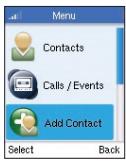
- Select "Add Contact".
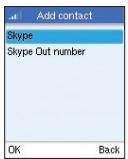
- Select "Skype".
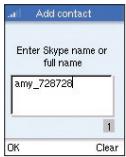
- Enter the Skype name or full name.
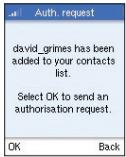
- Select "OK".
Note:
- After you select "OK" in step 4, an authorization request is sent to the contact. When it has been sent, a confirmation message is displayed. The name is added to your Contact list, but is grayed out, pending authorization by the contact.
2.2 Add a SkypeOut Contact
To add a SkypeOut contact, select "Menu", then:
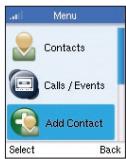
- Select "Add Contact".
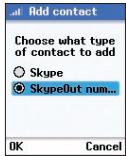
- Select "SkypeOut number".
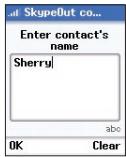
- Enter contact's name.
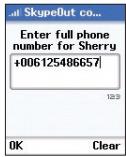
- Enter full phone number.
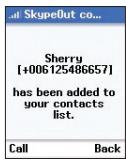
- The number is added to your contact list.
Notes:
- SkypeOut allows you to make calls to traditional landline and mobile phones. Go to www.skype.com to learn more about SkypeOut.
- SkypeOut numbers (even local numbers) must be entered in the following format: "00" + "country code" + "area code" + "number". You can also use "+" or "011" before the country code. For example: "+" 555 555 1234".
- Use the *a/A button to change to lowercase, uppercase, or numeric entry when entering a contact name and phone number.
2.3 Search for Contacts
To search for contacts, select "Menu", then:
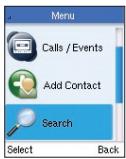
- Select "Search".
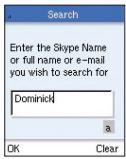
- Enter the Skype name or full name.
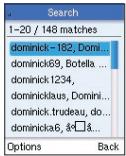
-
Select a name.
-
Select "Options" then select "Add to Contacts".
Notes:
- Other options available during a search include:
More results—Displays the next 20 names in the list.
Search again—Repeats the search.
Call-Calls the selected name.
View profile—Displays the selected name's profile.
- You can stop a search at any time by pressing "Stop".
2.4 Advanced Options
Advanced options allow you to perform actions related to your contacts. To use advanced options while in your Contact list, select "Options", then:
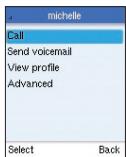
- Select "Advanced".
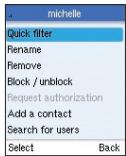
- Select an option.
Options:
- Rename - Changes the name of the contact in your Contact list.
- Remove - Removes the contact from your Contact list.
- Block/Unblock - Blocks or unblocks the contact. When a contact is blocked, you will always appear offline to him or her and he or she will not be able to contact you.
- Request Authorization - Sends a new authorization request to the contact if a previous request was not accepted.
- Add a Contact - Adds a new contact to your Contact list.
- Search for Users—Performs a search for new contacts.
3. Make and Receive Calls
This chapter tells you how to make and receive calls on your phone. It also provides information on using voicemail and call history.
The procedures for making and receiving calls apply to any type of call—Skype-to-Skype calls, directly dialed calls, SkypeOut calls you receive or send, and SkypeIn calls you receive.
3.1 Make a Call to a Contact
To make a Skype or SkypeOut call to a contact, select "Contacts", then:
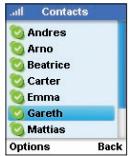
- Select a contact and then press
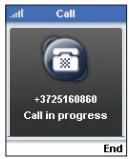
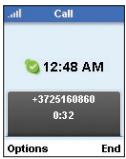
- Wait for the call to connect, ring, and be answered.
- Press to end.
Options (during a call):
- Hold - Places the call on hold.
- Mute/Unmute - Turns the sound off and on.
- Hang Up - Ends the call.
3.2 Dial a Direct Call
To call a number directly:
- Dial the number and then press
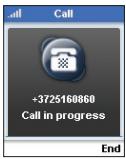
- Wait for the call to connect, ring, and be answered.
- Press to end.
Notes:
- SkypeOut allows you to make calls to traditional landline and mobile phones. Go to www.skype.com to learn more about SkypeOut.
- SkypeOut numbers (even local numbers) must be entered in the following format: “00” + “country code” + “area code” + “number”. You can also use “+” or “011” before the country code. For example: “+1 555 555 1234”.
- Use the *a/A button to change to lowercase, uppercase, or numeric entry when dialing a phone number.
Options (during a call):
- Hold - Places the call on hold.
- Mute/Unmute - Turns the sound off and on.
- Hang Up - Ends the call.
3.3 Receive a Call
When someone calls you, the ringtone sounds and the incoming-call message is displayed. To receive a Skype or SkypeIn call:
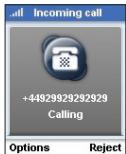
- Press

to receive the call.
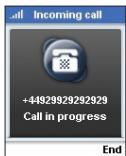
- Press

to end.
Options (during a call):
- Hold - Places the call on hold.
- Mute/Unmute - Turns the sound off and on.
- Hang Up - Ends the call.
3.4 Divert a Call
You can divert calls to another phone or to your voicemail. To divert calls, select "Menu", then:
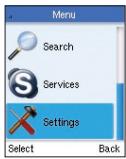
- Select "Settings".
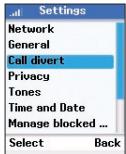
- Select "Call divert".
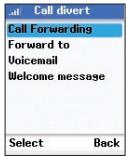
- Select "Call forwarding".
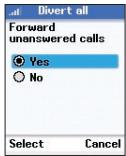
- Select "Yes".
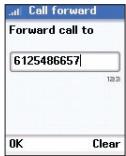
- Enter the number.
Notes:
- You can select the "Forward To" option to change or delete the number you specified in step 5.
- After you enter a number, the number is saved in the phone's memory until you change it. This means that you can turn off call forwarding, and when you turn it on again, the number is available to set for forwarding.
- You can choose to forward to a phone number, your voicemail, or both.
- SkypeOut numbers (even local numbers) must be entered in the following format: “00” + “country code” + “area code” + “number”. You can also use “+” or “011” before the country code. For example: “+1 555 555 1234”.
- Use the *a/A button to change to lowercase, uppercase, or numeric entry when dialing a phone number.
3.5 Send Voicemail
You can send voicemail to contacts who have Skype Voicemail™. To send a voicemail, select "Contacts", then:
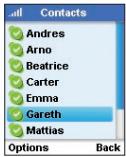
- Select a contact.
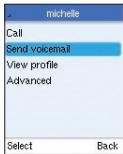
- Select "Options" and then select "Send voicemail".
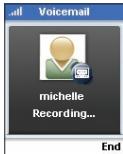
- Record your voicemail. Select "End" when you have finished.
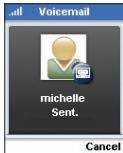
- After the voicemail is sent, a message is displayed.
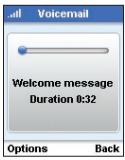
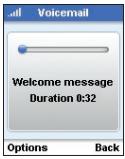
3.6 Listen to Voicemail
If you have subscribed to a Skype Voicemail™ account, to listen to your voicemail, select "Menu", then:
- Select "History".
- Select "Voicemail".
- Select an available voicemail to which to listen.
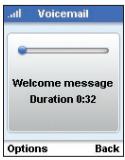
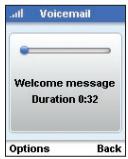
3.7 Record a Voicemail Greeting
To record a greeting for your Skype Voicemail™, select "Menu", then:
- Select "Services".
- Select "Skype Voicemail".
3.8 History
Your phone stores a history of missed, incoming, and outgoing calls, as well as voicemail and authentications. To view your history, select "Menu", then:
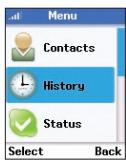
- Select "History".
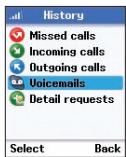
- Select the history you want to view.
Note:
- When you are viewing a history, such as missed calls, you can select "Options" to perform actions such as "Call", "Send voicemail", "Delete", and so on.
4. Connect to Networks
When you power on your phone, it searches for wireless networks in range. This chapter tells you how to manually configure the settings your phone uses to search and connect to wireless networks.
4.1 Wireless Networks
To search for wireless networks, select "Menu", then:
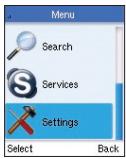
- Select "Settings".
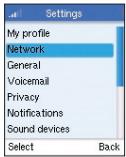
- Select "Network".
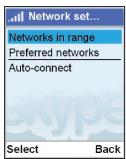
- Select "Networks in Range".
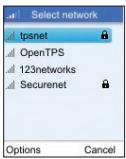
- Select a network.
Notes:
Networks that display the icon require a network-access key.
- If no networks are found, an error message is displayed. Try changing your location and then search again.
- You can also search for networks from the power-key menu.
"Un-broadcast" or "Hidden" networks can be manually entered through the "Hidden Network" option located at the bottom of the list.
4.2 Preferred Networks
To work with your preferred networks, select "Menu", then:
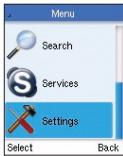
- Select "Settings".
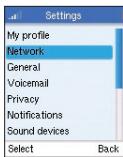
- Select "Network".
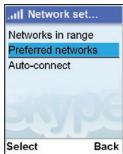
- Select "Preferred networks".
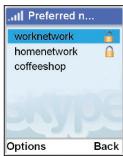
- Select a network and then select "Options".
Preferred-Network Options:
- Add current—Adds the network that is currently connected to your preferred list. This is a good way to add open networks you may frequent.
- Add network manually—Adds a new network to your preferred list. You must manually define the network name, security options, and other settings.
- Move up/to top/down—Moves the selected preferred network up or down in the list, or to the top of the list.
- Configure network—Lists settings for the selected network. You can view settings for the network, including the network name, connection type, network key, IP address, data rate, and other settings. Some settings may be changed.
- Remove network—Deletes the selected network from your preferred list.
- Remove all networks—Deletes all networks from your preferred list.
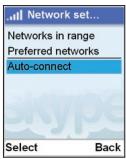
4.3 Auto-Connect to Open Networks
You can set the phone to automatically find and connect to open public networks (this is the default setting). Select "Menu", then:
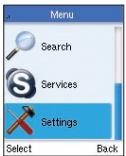
- Select "Settings".
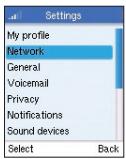
- Select "Network".
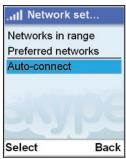
- Select "Auto-connect".
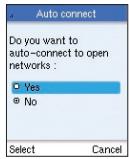
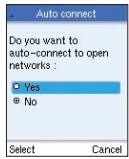
- Select "Yes" to auto-connect. Select "No" to turn off auto-connect.
4.4 Define a New Network
You can manually define a new wireless network to which to connect. Select "Menu", then:
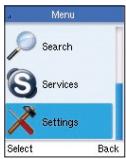
- Select "Settings".
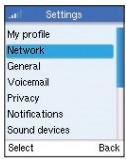
- Select "Network".
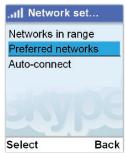
- Select "Preferred networks".
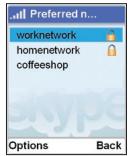
- Select "Options".
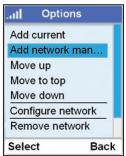
- Select "Add network manually".
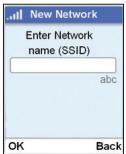
- Enter a network name and press "OK".
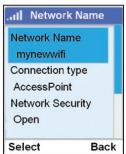
- Configure the settings of the new network.
5. Personal Settings
This chapter tells you how to define your personal settings, including your personal-profile details, password, privacy settings, and notification settings.
5.1 Profile
Your Skype profile displays details about you that other Skype users can see. While the details in your profile are optional, you may want to define (at least) your country and city details to help confirm your identity.
To set your profile details, select "Menu", then:
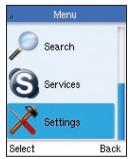
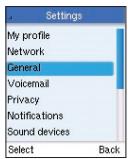
- Select "Settings".
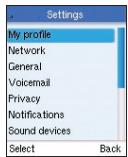
- Select "My profile".
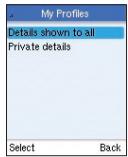
- Select "Details shown to all".
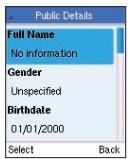
- Select the profile detail you want to change.
Notes:
- Select "Private details" in step 3 to change your email address.
- Use the *a/A button to change to lowercase, uppercase, or numeric entry when entering your profile details.
- Use the left soft key to edit details.
5.2 Password
To change your password, select "Menu", then:
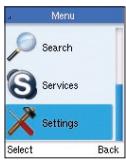
- Select "Settings".
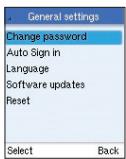
- Select "General".
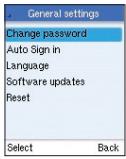
- Select "Change password".
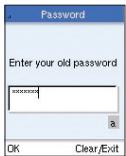
- Enter your old password.
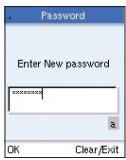
- Enter new password.
Notes:
- Use the *a/A button to change to lowercase, uppercase, or numeric entry when entering your Skype name and password.
- Passwords can be 4-20 characters. You can use any mix of upper- and lowercase characters, numbers, and punctuation marks. You cannot use spaces. Start your name with a number or punctuation mark, or use your Skype name as a password.
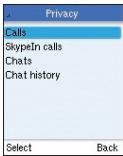
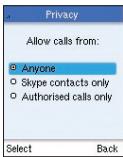
5.3 Privacy
Skype not only protects your privacy by showing your online presence only to your contacts, it offers additional privacy settings that allow you to restrict calls to only those that you want to receive.
To change your privacy settings, select "Menu", then:
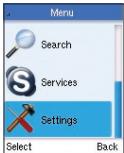
- Select "Settings".
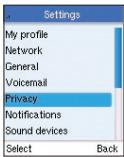
- Select "Privacy".
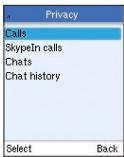
- Select "Calls".
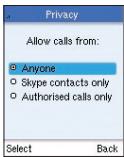
- Select a privacy setting.
Note:
- Select "Skypeln calls" in step 3 to change your privacy settings for Skypeln calls.
6. General Settings
This chapter tells you how to define general phone settings, such as the displayed language, display settings, time, and date. You can display the phone-settings information.
6.1 Language
To change your language settings, select "Menu", then:
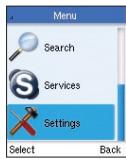
- Select "Settings".
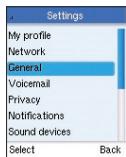
- Select "General".
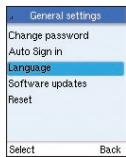
- Select "Language".
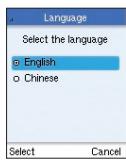
- Select a language.
6.2 Display
To change your display settings, select "Menu", then:
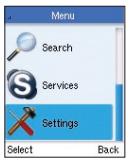
- Select "Settings".
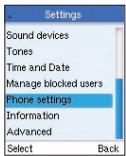
- Select "Phone settings".
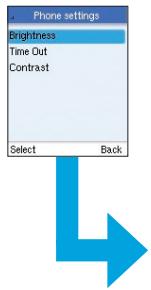
- Select the setting you want to change.
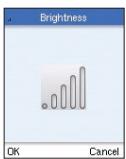
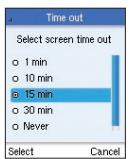
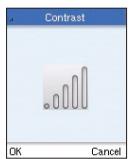
Note:
- Use the navigation key left or right to change the brightness and contrast, or up and down to change the time-out setting.
6.3 Tones
To change the tone settings, select "Menu", then:
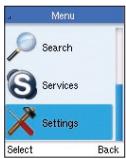
- Select "Settings".
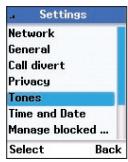
- Select "Tones".
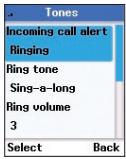
- Select a setting.
Tone Settings:
- Incoming call alert—Set this as "Ringing", "Ring once", "Beep once", or "Off".
- Ringing tone—Select the ringtone from the displayed list.
- Ringing volume—Set the volume level of the ringing tone. Use the navigation key left or right to change the volume.
- Vibrating alert—Select "Always", "When silent", or "Never".
- Notification tones—Set this as "Beep", "Vibrating", or "Silent".
- Keypad tones—Set this as either "On" or "Off".
6.4 Time and Date
To change the time and date settings, select "Menu", then:
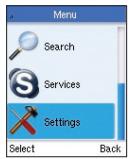
- Select "Settings".

- Select "Time and Date".
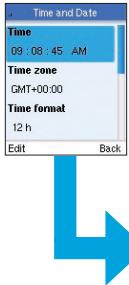
- Select the setting you want to change.
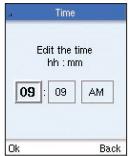
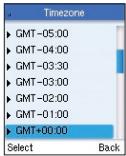
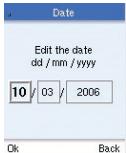
Note:
- Use the navigation key left and right or up and down to change the settings.
6.5 Phone Settings
To display the current phone settings, select "Menu", then:
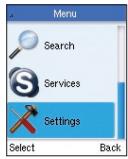
- Select "Settings".
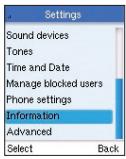
- Select "Information".
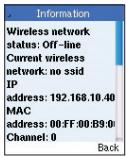
- Scroll to view information.
Note:
- You can reset all the phone's settings from the "Settings > General > reset" menu.
Battery Life
Use Time: 3 hours
Standby Time: 50 hours
Lilon 3.7V minimum 1100mAh
Physical Size
4.53 × 1.93 × 0.71 in. (115 x 49 x 18mm)
Temperature
Operating: 32^ to 104^ F (0^ to 40^ C
Storage: -4^ to 158^ F (-20^ to 70^ C)
Humidity
10% to 85% (non-condensing)
Maximum 802.11b/g Channels
FCC/IC:1-11
ETSI: 1-13
France: 10-13
MKK:1-14
Operating Frequency
2.4-2.4835GHz (US, Canada, ETSI)
2.4-2.497GHz (Japan)
Data Rate
802.11g: 6-, 9-, 11-, 12-, 18-, 24-, 36-, 48-, 54Mbps (automatic fallback)
802.11b: 1-, 2-, 5.5-, 11Mbps (automatic fallback)
Modulation Type
802.11g: CCK, BPSK, QPSK, OFDM
802.11b: CCK, BPSK, QPSK
RF Output Power
802.11b: 16 dBm
802.11g: 12 dBm
Antenna Gain
5.5 dBi
Emissions
FCC Part 15B Class B
VCCI Class B
EN61000-3-2
EN61000-3-3
Radio-Signal Certification
FCC Part 15C
EN 300-328
EN 301 489-1
EN 301 489-17
ARIB STD-T66
ARIB STD-33
DGT LP0002
Temperature
IEC 68-2-14
Vibration
IEC 68-2-36, IEC 68-2-6
Shock
IEC 68-2-29
Drop
IEC 68-2-32
Safety
UL/cUL (UL 60950-1)
IEC 60950-1 (CB)
Standards
IEEE 802.11b/g
Federal Communication Commission Interference Statement
This equipment has been tested and found to comply with the limits for a Class B digital device, pursuant to Part 15 of the FCC Rules. These limits are designed to provide reasonable protection against harmful interference in a residential installation. This equipment generates, uses, and can radiate radio frequency energy and, if not installed and used in accordance with the instructions, may cause harmful interference to radio communications. However, there is no guarantee that interference will not occur in a particular installation. If this equipment does cause harmful interference to radio or television reception, which can be determined by turning the equipment off and on, the user is encouraged to try to correct the interference by one of the following measures:
- Reorient or relocate the receiving antenna
- Increase the separation between the equipment and receiver
- Connect the equipment into an outlet on a circuit different from that to which the receiver is connected
- Consult the dealer or an experienced radio/TV technician for help
This device complies with Part 15 of the FCC Rules. Operation is subject to the following two conditions: (1) This device may not cause harmful interference, and (2) this device must accept any interference received, including interference that may cause undesired operation.
FCC Caution: Any changes or modifications not expressly approved by the party responsible for compliance could void the user's authority to operate this equipment.
IMPORTANT NOTE:
FCC Radiation Exposure Statement
This equipment complies with FCC radiation exposure limits set forth for an uncontrolled environment. End users must follow the specific operating instructions for satisfying RF exposure compliance. This transmitter must not be co-located or operating in conjunction with any other antenna or transmitter. IEEE 802.11b or 802.11g operation of this product in the USA is firmware-limited to channels 1 through 11.
Japan VCCI Class B
EC Conformance Declaration
Marking by the above symbol indicates compliance with the Essential Requirements of the R&TTE Directive of the European Union (1999/5/ EC). This equipment meets the following conformance standards:
- EN 60950-1 (IEC 60950-1) - Product Safety
- EN 300 328 - Technical requirements for 2.4GHz radio equipment
-
EN 301 489-1, EN 301 489-17 - EMC requirements for radio equipment This device is intended for use in the following European Community countries: Requirements for indoor vs. outdoor operation, license requirements, and allowed channels of operation apply in some countries as described below:
-
In Italy the end-user must apply for a license from the national spectrum authority to operate this device outdoors.
- In Belgium outdoor operation is only permitted using the 2.46-2.4835GHz band: Channel 13.
- In France outdoor operation is only permitted using the 2.4-2.454GHz band: Channels 1-7.
Austria • Belgium • Denmark
Finland France Germany - Italy - Luxembourg - Netherlands
- Norway • Spain • Sweden
- Switzerland • United Kingdom • Portugal
- Greece - Ireland - Iceland
Free Tech Support*
You can find additional support information on our website www.belkin.com through the tech-support area. If you want to contact technical support by phone, please call the number you need from the list below*.
*Local rates apply
| Country | Number | Internet adress |
| AUSTRIA | 0820 200766 | http://www.belkin.com/uk/networking/ |
| BELGIUM | 07 07 00 073 | http://www.belkin.com/nl/networking/ |
| CZECH REPUBLIC | 239 000 406 | http://www.belkin.com/uk/networking/ |
| DENMARK | 701 22 403 | http://www.belkin.com/uk/networking/ |
| FINLAND | 00800 - 22 35 54 60 | http://www.belkin.com/uk/networking/ |
| FRANCE | 08 - 25 54 00 26 | http://www.belkin.com/fr/networking/ |
| GERMANY | 0180 - 500 57 09 | http://www.belkin.com/de/networking/ |
| GREECE | 00800 - 44 14 23 90 | http://www.belkin.com/uk/networking/ |
| HUNGARY | 06 - 17 77 49 06 | http://www.belkin.com/uk/networking/ |
| ICELAND | 800 8534 | http://www.belkin.com/uk/networking/ |
| IRELAND | 0818 55 50 06 | http://www.belkin.com/uk/networking/ |
| ITALY | 02 - 69 43 02 51 | http://www.belkin.com/it/support/tech/issues_more.asp |
| LUXEMBOURG | 34 20 80 85 60 | http://www.belkin.com/uk/networking/ |
| NETHERLANDS | 0900 - 040 07 90 €0.10 per minute | http://www.belkin.com/nl/networking/ |
| NORWAY | 81 50 0287 | http://www.belkin.com/uk/networking/ |
| POLAND | 00800 - 441 17 37 | http://www.belkin.com/uk/networking/ |
| PORTUGAL | 707 200 676 | http://www.belkin.com/uk/networking/ |
| RUSSIA | 495 580 9541 | http://www.belkin.com/networking/ |
| SOUTH AFRICA | 0800 - 99 15 21 | http://www.belkin.com/uk/networking/ |
| SPAIN | 902 - 02 43 66 | http://www.belkin.com/es/support/tech/networkingsupport.asp |
| SWEDEN | 07 - 71 40 04 53 | http://www.belkin.com/se/support/tech/networkingsupport.asp |
| SWITZERLAND | 08 - 48 00 02 19 | http://www.belkin.com/uk/networking/ |
| UNITED KINGDOM | 0845 - 607 77 87 | http://www.belkin.com/uk/networking/ |
| OTHER COUNTRIES | +44 - 1933 35 20 00 |
BELKIN
www.belkin.com
Belkin Ltd.
Express Business Park
Shipton Way, Rushden
NN10 6GL, United Kingdom
+44 (0) 1933 35 2000
+44 (0) 1933 31 2000 fax
Belkin SAS
130 rue de Silly
92100 Boulogne-Billancourt
France
+33(0)141031440
+33 (0) 1 41 31 01 72 fax
Belkin B.V.
Boeing Avenue 333
1119 PH Schiphol-Rijk
Netherlands
+31 (0) 206547300
+31 (0) 20 654 73 49 fax
Belkin Iberia
Avda. Cerro del Aguila 3
28700 San Sebastián de los Reyes
Spain
+34 91 625 80 00
+34 902 02 00 34 fax
Belkin GmbH
Hanebergstrasse 2
80637 Munich
Germany
+49(0)891434050
+49 (0) 89 14 34 05 100 fax
Belkin Sweden
Knarramäsgatan 7
164 40 Kista
Sweden
+46 (0) 85229 1870
+46 (0) 85229 1874 fax
10% - 85% (sans condensation)
Canaux maximum 802.11b/g
FCC/IC:1-11
ETSI:1-13
France:10-13
MKK:1-14
Fréquence
2,4-2,4835 GHz (US, Canada, ETSI)
2,4-2,497 GHz (Japon)
Débit de données
802.11g:6,9,11,12,18,24,36,48,54Mbps(replia automatique)
IEC 68-2-36, IEC 68-2-6
Choc
IEC 68-2-29
Chute
IEC 68-2-32
Sécurité
UL/cUL (UL 60950-1)
IEC 60950-1 (CB)
Normes
IEEE 802.11b/g
Express Business Park
Shipton Way, Rushden
3.5 Voicemail senden
2,4-2,497 GHz (Japan)
Datumrate
802.11g: 6, 9, 11, 12, 18, 24, 36, 48, 54 Mbit/s (automatische
Reduzierung)
IEC 68-2-36, IEC 68-2-6
Stoß
IEC 68-2-29
Fall
IEC 68-2-32
Sicherheit
UL/cUL (UL 60950-1)
IEC 60950-1 (CB)
Standards
IEEE 802.11b/g
- Selecteer "Diensten".
- Selecteer "Skype Voicemail".
3.8 Geschiedenis
- Selecteer "Network".
- Selecteer "Automatisch verbinding make".
- Selecteer "Ja" om automatisch verbinding te make. Selecteer "Nee" om de optie "Automatisch verbinding make" te deactiveren.
4.4 Een新模式 networke
- Selecteer "Privacy".
- Selecteer "Opropen".
- Selecteer "Installingen".
2,4-2,4835 GHz (VS, Canada, ETSI)
2,4-2,497 GHz (Japan)
Datasnelheid
802.11g: 6, 9, 11, 12, 18, 24, 36, 48, 54 Mbps (automatische terugval)
802.11b: 1, 2, 5.5, 11 Mbps (automatische terugval)
Type modulatie
802.11g: CCK, BPSK, QPSK, OFDM
802.11b: CCK, BPSK, QPSK
RF-uitgangsvermogen
802.11b: 16 dBm
802.11g: 12 dBm
Antenneversterking
5,5 dBi
Emissies
IEC 68-2-36, IEC 68-2-6
Schokken
IEC 29.02.68
Vrije val
IEC 68-2-32
Veiligheid
UL/cUL (UL 60950-1)
IEC 60950-1 (CB)
Standaarden
IEEE 802.11b/g
Kennisgeving van de Federal Communication Commission betreffende interferentie
Express Business Park
Shipton Way, Rushden
IEC 68-2-36, IEC 68-2-6
Golpes
IEC 68-2-29
Cáida
IEC 68-2-32
Seguridad
UL/cUL (UL 60950-1)
IEC 60950-1 (CB)
Normativas
IEEE 802.11b/g
Express Business Park
Shipton Way, Rushden
IEC 68-2-36, IEC 68-2-6
Elettroshock
IEC 68-2-29
Caduta
IEC 68-2-32
Sicurezza
UL/cUL (UL 60950-1)
IEC 60950-1 (CB)
Standard
IEEE 802.11b/g
Express Business Park
Shipton Way, Rushden
3.6 Consultar o voicemail
CEI 68-2-36, CEI 68-2-6
Choque
CEI 68-2-29
Queda
CEI 68-2-32
Segança
UL/cUL (UL 60950-1)
CEI 60950-1 (CB)
Normas
IEEE 802.11b/g
- Valj "Tjanster".
- Valj "Skype Voicemail".
3.8 Tidigare
2,4-2,497 GHz (Japan)
Databastighet:
802.11g: 6-, 9-, 11-, 12-, 18-, 24-, 36-, 48-, 54 Mbps (automatisk fallback)
802.11b: 1-, 2-, 5,5-, 11 Mbps (automatisk fallback)
Modulationstyp
802.11g: CCK, BPSK, QPSK, OFDM
802.11b: CCK, BPSK, QPSK
RF-uteffekt
802.11b: 16 dBm
802.11g: 12 dBm
Antennförstärkning
5,5 dBi
Emission
FCC del 15B klass B
VCCI klass B
EN61000-3-2
EN61000-3-3
Radiosignalcertificering
FCC del 15C
EN 300-328
EN 301 489-1
EN 301 489-17
ARIB STD-T66
ARIB STD-33
DGT LP0002
Temperatur
IEC 68-2-14
Vibration
IEC 68-2-36, IEC 68-2-6
Stöt
IEC 68-2-29
Fall
IEC 68-2-32
Sakerhet
UL/cUL (UL 60950-1)
IEC 60950-1 (CB)
Standarder
IEEE 802.11b/g
Express Business Park
Shipton Way, Rushden
NN10 6GL, Storbritannien
+44 (0) 1933 35 2000
+44 (0) 1933 31 2000 fax
Belkin SAS
130 rue de Silly
92100 Bouogne-Billancourt
Frankrike
+33 (0) 1 41 03 14 40
+33 (0) 1 41 31 01 72 fax
Belkin B.V.
Boeing Avenue 333
1119 PH Schiphol-Rijk
Nederländerna
+31 (0) 206547300
+31 (0) 20 654 7349 fax
Belkin Iberia
Avda. Cerro del Aguila 3
- Vaelg "Services" (Tjenesteer).
- Vaelg "Skype Voicemail".
3.8 Oversigt
- Vaelg "Network" (Netvark).
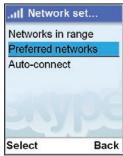
- Vaelg "Preferred networks" (Foretrukne netvark).
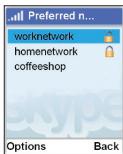
- Vaelg "Network" (Netvark).
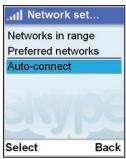
- Vaelg "Auto-connect" (Auto tilstnutting).
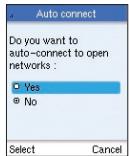
- Vælg “Yes” (Ja) til automatisk tilslutning. Vælg “No” (Nej) for at slå automatisk tilslutning fra.
Opbevaring: -20^ to 70^ C
Luftfugtighed
10%til 85% (ikke-kondenserende)
Maksimum 802.11 b/g kanaler
FCC/IC:1-11
ETSI: 1-13
Frankrig: 10-13
MKK:1-14
Driftsfrekvens
2,4-2,4835 GHz (USA, Canada, ETSI)
2,4-2,497 GHz (Japan)
Databastighed:
802.11g: 6-, 9-, 11-, 12-, 18-, 24-, 36-, 48-, 54 Mbps (automatisk reserve)
802.11b: 1-, 2-, 5.5-, 11 Mbps (automatisk reserve)
Modulationtype
802.11g: CCK, BPSK, QPSK, OFDM
802.11b: CCK, BPSK, QPSK
RF-udgangseffekt
802.11b: 16 dBm
802.11g: 12 dBm
Antenneforstærkning
5,5 dBi
Udstrålinger
Radiosignal-dertificering
FCC Part 15C
EN 300-328
EN 301 489-1
EN 301 489-17
ARIB STD-T66
ARIB STD-33
DGT LP0002
Temperatur
IEC 68-2-14
Vibration
IEC 68-2-36, IEC 68-2-6
Stod
IEC 68-2-29
Fald
IEC 68-2-32
Sikkerhed
UL/cUL (UL 60950-1)
IEC 60950-1 (CB)
Standarder
IEEE 802.11b/g
Erklæring om interferens fra Federal Communication Commission (FCC)
Express Business Park
Shipton Way, Rushden
NN10 6GL, Iso-Britannia
+44 (0) 1933 35 2000
+44 (0) 1933 31 2000 faksi
Belkin SAS
130 rue de Silly
92100 Boulogne-Billancourt
Ranska
+33 (0) 1 41 03 14 40
+33 (0) 1 41 31 01 72 faksi
Belkin B.V.
Boeing Avenue 333
1119 PH Schiphol-Rijk
Alankomaat
+31 (0) 206547300
+31 (0) 20 654 7349 faksi
Belkin Iberia
Avda. Cerro del Aguila 3
2,4-2,4835 GHz (USA, Canada, ETSI)
2,4-2,497 GHz (Japan)
Databastighet
802.11g: 6-, 9-, 11-, 12-, 18-, 24-, 36-, 48-, 54 Mbps (auto-reserve)
802.11b: 1-, 2-, 5.5-, 11 Mbps (auto-reserve)
Modulasjonstype
802.11g: CCK, BPSK, QPSK, OFDM
802.11b: CCK, BPSK, QPSK
RF-utgangseffekt
802.11b: 16 dBm
802.11g: 12 dBm
Antenneforsterkning
5,5 dBi
Stråling
FCC Part 15B Class B
VCCI Class B
EN61000-3-2
EN61000-3-3
Sertifisering for radiosignaler
FCC Part 15C
EN 300-328
EN 301 489-1
EN 301 489-17
ARIB STD-T66
ARIB STD-33
DGT LP0002
Temperatur
IEC 68-2-14
Vibrering
IEC 68-2-36, IEC 68-2-6
Stot
IEC 68-2-29
Fall
IEC 68-2-32
Sikkerhet
UL/cUL (UL 60950-1)
IEC 60950-1 (CB)
Standarder
IEEE 802.11b/g
FCC-erklæring om interferens
Express Business Park
Shipton Way, Rushden
NN10 6GL, England
+44 (0) 1933 35 2000
+44 (0) 1933 31 2000 fax
Belkin SAS
130 rue de Silly
92100 Bouogne-Billancourt
Frankrig
+33 (0) 1 41 03 14 40
+33 (0) 141 31 01 72 fax
Belkin B.V.
Boeing Avenue 333
1119 PH Schiphol-Rijk
Holland
+31 (0) 206547300
+31 (0) 20 654 7349 fax
Belkin Iberia
Avda. Cerro del Aguila 3
- Package Checklist
- Hardware Description
- AC Power Charger
- Notes:
- Getting Started
- First-Time Startup
- Connect to a Network
- Create a New Skype Account
- Sign In to Skype
- Skype Features
- LCD Display
- Main Menu
- Power-Key Menu
- Contacts
- Add a Skype Contact
- Note:
- Add a SkypeOut Contact
- Search for Contacts
- Advanced Options
- Options:
- Make and Receive Calls
- Make a Call to a Contact
- Options (during a call):
- Dial a Direct Call
- Receive a Call
- Divert a Call
- Send Voicemail
- Listen to Voicemail
- Record a Voicemail Greeting
- History
- Connect to Networks
- Wireless Networks
- Preferred Networks
- Preferred-Network Options:
- Auto-Connect to Open Networks
- Define a New Network
- Personal Settings
- Profile
- Password
- Privacy
- General Settings
- Language
- Display
- Tones
- Tone Settings:
- Time and Date
- Phone Settings
- Battery Life
- Physical Size
- Temperature
- Humidity
- Maximum 802.11b/g Channels
- Operating Frequency
- Data Rate
- Modulation Type
- RF Output Power
- Antenna Gain
- Emissions
- Radio-Signal Certification
- Vibration
- Shock
- Drop
- Safety
- Standards
- Federal Communication Commission Interference Statement
- IMPORTANT NOTE:
- FCC Radiation Exposure Statement
- Japan VCCI Class B
- EC Conformance Declaration
- Free Tech Support*
- BELKIN
- Belkin Ltd.
- Belkin SAS
- Belkin B.V.
- Belkin Iberia
- Belkin GmbH
- Belkin Sweden
- Canaux maximum 802.11b/g
- Fréquence
- Débit de données
- Choc
- Chute
- Sécurité
- Normes
- Voicemail senden
- Datumrate
- Stoß
- Fall
- Sicherheit
- Geschiedenis
- Een新模式 networke
- Datasnelheid
- Type modulatie
- RF-uitgangsvermogen
- Antenneversterking
- Emissies
- Schokken
- Vrije val
- Veiligheid
- Standaarden
- Kennisgeving van de Federal Communication Commission betreffende interferentie
- Golpes
- Cáida
- Seguridad
- Normativas
- Elettroshock
- Caduta
- Sicurezza
- Standard
- Consultar o voicemail
- Choque
- Queda
- Segança
- Normas
- Tidigare
- Databastighet:
- Modulationstyp
- RF-uteffekt
- Antennförstärkning
- Emission
- Radiosignalcertificering
- Temperatur
- Stöt
- Sakerhet
- Standarder
- Oversigt
- Luftfugtighed
- Maksimum 802.11 b/g kanaler
- Driftsfrekvens
- Databastighed:
- Modulationtype
- RF-udgangseffekt
- Antenneforstærkning
- Udstrålinger
- Radiosignal-dertificering
- Stod
- Fald
- Sikkerhed
- Erklæring om interferens fra Federal Communication Commission (FCC)
- Databastighet
- Modulasjonstype
- RF-utgangseffekt
- Antenneforsterkning
- Stråling
- Sertifisering for radiosignaler
- Vibrering
- Stot
- Sikkerhet
- FCC-erklæring om interferens
Brand : BELKIN
Model : SKYPEPHONE #F1PP000GNFR
Category : Mobile Phone