USER MANUAL AMILO LI 3710 FUJITSU
© Fujitsu Technology Solutions 2009
SAP: 10601087294
FSP:440N00786
Published by
Fujitsu Technology Solutions GmbH
http://ts.fujitsu.com/support
All rights reserved, including intellectual property rights.
Technical data subject to modifi cations and delivery subject to availability. Any liability that the data and illustrations are complete, actual or correct is excluded. Designations may be trademarks and/or copyrights of the respective manufacturer the use of which by third parties for their own purposes may infringe the rights of such owner. For further information see http://ts.fujitsu.com/terms_of_use.html

10601087294
English
Deutsch
François
Espanol
Italiano
Nederlandss
Portugues
1
2
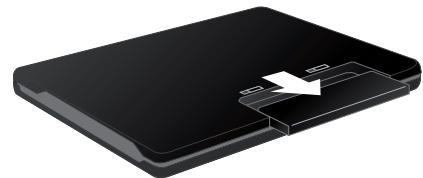
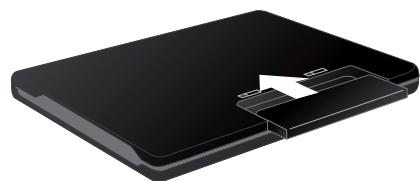
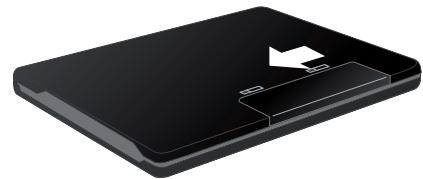
3
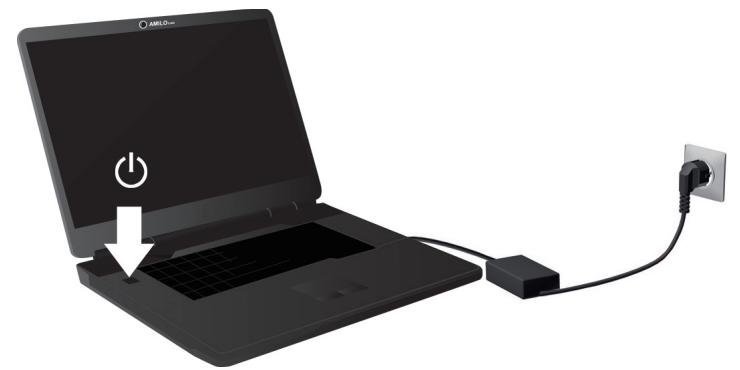
5
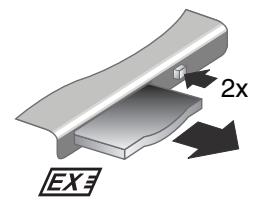
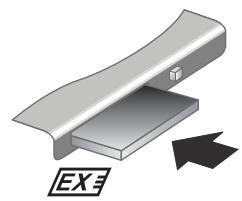
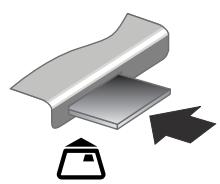
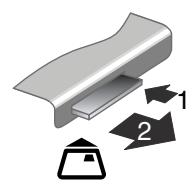
4
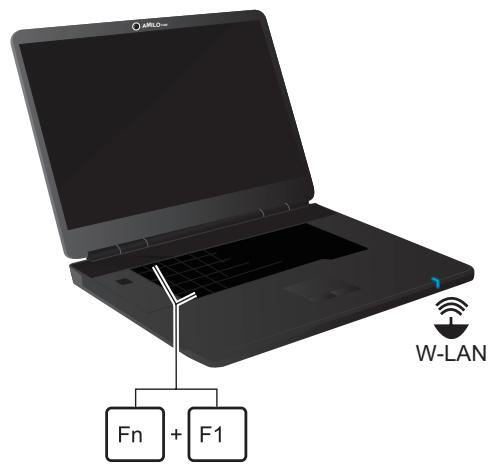
6 W-LAN on/off
AMILO Notebook
Li 3710 / Li 3910
English
Deutsch
François
Espanol
Italiano
Nederlandst
Português
Microsoft, MS Windows and Windows Vista are registered trademarks of the Microsoft Corporation.
Adobe Reader is a trademark of Adobe Systems Incorporated.
MultiMediaCard is a registered trademark of Infineon Technologies AG
Sony and Memory Stick are registered trademarks of Sony Electronics, Inc.
All other trademarks referenced are trademarks or registered trademarks of their respective owners, whose protected rights are acknowledged.
Copyright © Fujitsu Technology Solutions GmbH 2009
All rights reserved, including rights of translation, reproduction by printing, copying or similar methods, either in part or in whole.
Non-compliance is subject to compensation for damages.
All rights reserved, including rights created by patent grant or registration of a utility model or design.
Subject to availability and technical modifications.
Contents
Innovative technology 1
Notational conventions 2
Further information 3
"AMILO Notebook" Operating Manual 3
Ports and Operating Elements 4
AMILO Notebook Li 3710 4
AMILO Notebook Li 3910 5
Important notes 6
Help if problems occur 6
Preparing your notebook for use 7
Unpacking and checking your notebook 7
Selecting the location 8
Connecting the mains adapter 8
Switching the notebook on for the first time 9
Application buttons (only for AMILO Notebook Li 3910) 10
Allocating the application buttons 10
Technical specification 11
Notebook 11
Mains adapter 11
Innovative technology
... and ergonomic design make your AMILO Notebook Li 3710 / Li 3910 a user-friendly and reliable notebook.
If you have purchased a notebook with a Microsoft Windows operating system, this is already pre-installed and optimally configured for you. The notebook is immediately ready to use, as soon as you switch it on for the first time.
Your notebook features the very latest technology so that you get the best performance from your computing experience.
- a drive for reading and writing CDs/DVDs
- three USB ports, providing simple expansion options for game pads, printers and other equipment
LAN and Wireless LAN for Internet and network access
a VGA monitor port for an external monitor
- an integrated webcam and a microphone for the widest variety of multimedia applications
- a multi-format card reader for rapid transfer of digital photos, music and video clips onto your notebook
- an onboard sound card and stereo loudspeakers for your audio enjoyment
- in addition, input and output ports for high-quality audio accessories
- a keyboard with a separate numeric keypad (only AMILO Notebook Li 3910)
- an on-screen display for visually checking the most important settings of your notebook
With the user-friendly "BIOS Setup Utility" you can control your notebook's hardware and better protect your system against unauthorised access by using the powerful password properties.
This Operating Manual tells you how to get your AMILO notebook up and running and how to operate it in daily use.
Notational conventions
| ! | Pay particular attention to text marked with this symbol. Failure to observe this warning will endanger your life, will damage the device or lead to loss of data. The warranty will be invalidated if you cause defects in the device through failure to take notice of this warning |
| i | indicates important information that is required to use the device properly. |
| ▷ | indicates an activity that must be performed in the order shown |
| L | indicates a result |
| This style | flags data entered using the keyboard in a program dialog or command line, e.g. your password (Name123) or a command to launch a program (start.exe) |
| This style | refers to information displayed by a program on the screen, e.g.: Installation is completed |
| This style | is for
• terms and texts in a software user interface, e.g.: Click Save.
• names of programs or files, e.g. Windows or setup.exe. |
| "This style" | is for
• cross-references to another section, e.g. "Safety information"
• cross-references to an external source, e.g. a web address: For more information, go to "http://ts.fujitsu.com"
• indicates names of CDs and DVDs as well as names and titles of other materials, e.g.: "CD/DVD Drivers & Utilities" or "Safety" manual |
| Abc | refers to a key on the keyboard, e.g.: F10 |
| This style | flags concepts and text that are emphasised or highlighted, e.g.: Do not switch off device |

You will find general information on your AMILO Notebook in the "AMILO Notebook" operating manual.
You will find the Windows Vista drivers for your AMILO Notebook on our Internet website. When in the factory this device did not support any other operating system. Fujitsu Technology Solutions does not accept any liability whatsoever if any other operating system is used.
Software oriented components of these instructions refer to Microsoft products, if they come within the scope of the delivery of your AMILO Notebook.
If you install other software products, pay attention to the operating instructions of the producer.
"AMILO Notebook" Operating Manual
The operating instructions for the "AMILO Notebook" will be found in the Windows Start menu or on the Internet under "http://ts.fujitsu.com/support".
Ports and Operating Elements
This chapter presents the individual hardware components of your notebook. You can obtain an overview of the displays and connections of the notebook. Please familiarise yourself with these items before you start to work with your notebook.
AMILO Notebook Li 3710
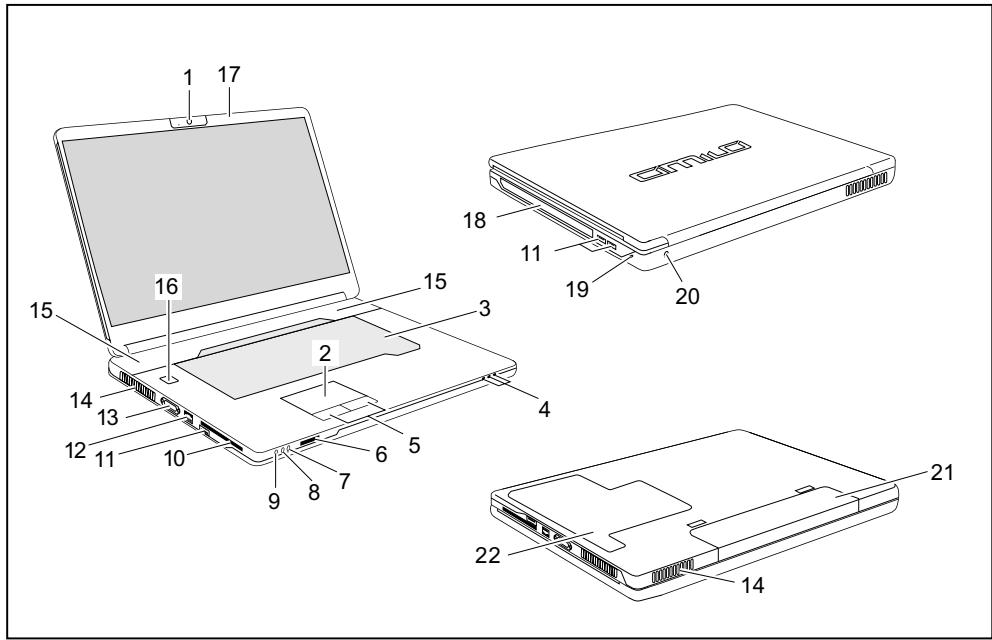
1 = Webcam
2 = Touchpad
3 = Keyboard
4 = Status indicators
5 = Touchpad buttons
6 = Multi-format card reader
7 = Line-in socket
8 = Microphone port
9 = Headphones / SPDIF / Line-out port
10 = ExpressCard slot
11 = USB port
12 = Network port
13 = Monitor port (VGA)
14 = Ventilation slots
15 = Loudspeakers
16 = ON/OFF switch
17 = Microphone
18 = CD/DVD drive
19 = Kensington Lock
20 = DC input connector (DC IN)
21 = Battery
22 = Service compartment, memory and hard disk
AMILO Notebook Li 3910
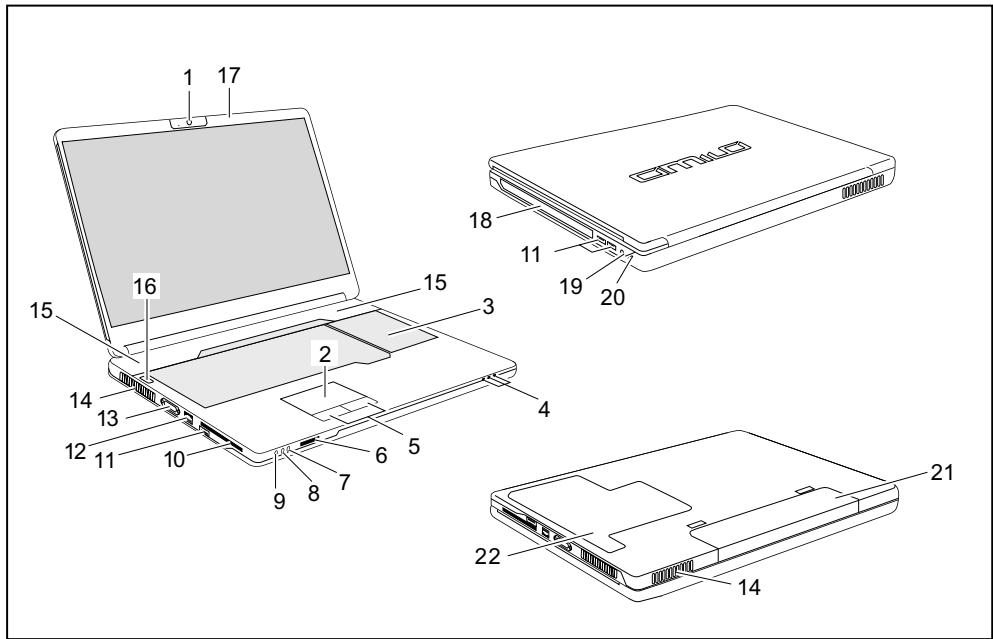
1 = Webcam
2 = Touchpad
3 = Keyboard with separate numeric keypad and application buttons
4 = Status indicators
5 = Touchpad buttons
6 = Multi-format card reader
7 = Line-in socket
8 = Microphone port
9 = Headphones / SPDIF / Line-out port
10 = ExpressCard slot
11 = USB port
12 = Network port
13 = Monitor port (VGA)
14 = Ventilation slots
15 = Loudspeakers
16 = ON/OFF switch
17 = Microphone
18 = CD/DVD drive
19 = DC input connector (DC IN)
20 = Kensington Lock
21 = Battery
22 = Memory service compartment
Important notes

Please read and observe the safety instructions in the "Safety" manual and in the "AMILO Notebook" operating manual.
Help if problems occur
Should you ever have a problem with your computer that you cannot solve yourself, in many cases you can solve it quickly using the System Diagnostics program pre-installed on your computer.
To start the SystemDiagnostics programme, click on Startsymbol - Program - Fujitsu Siemens Computers - SystemDiagnostics
or
To start the SystemDiagnostics programme, click on Startsymbol - Program - Fujitsu - SystemDiagnostics.
If a problem is detected during the test run, the SystemDiagnostics program outputs a code (e.g. DIFS code YXXX123456789123).
Take a note of this DIFS code and the ID number of your device. The ID number can be found on the type rating plate on the back of the casing.
For further clarification of the problem, contact the Help Desk for your country (see the Help Desk list or visit the Internet at "http://ts.fujitsu.com/support"). For this, please have ready the ID number & serial number of your system and the DIFS code.
Preparing your notebook for use

If your notebook comes with a Windows operating system then all of the necessary hardware drivers and the supplied software will already be pre-installed.
Depending on the hardware and software configuration, the first-time setup for the Microsoft Windows operating system can take up to 20 minutes.
When you switch on the notebook for the first time it will perform a system check. A number of different messages may be displayed. In the process, the display may flicker or darken temporarily.
Please follow the instructions on the screen.
It is very important that you do not switch the notebook off during this initial set-up process.
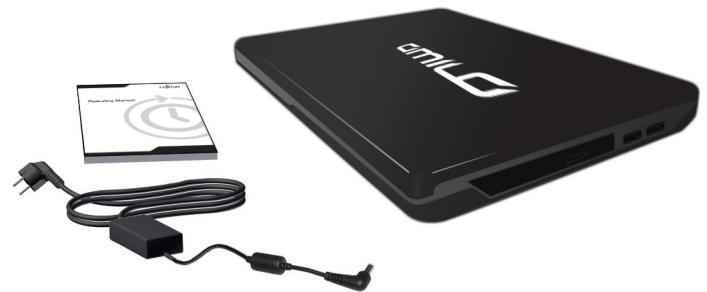
Before you can use your notebook for the first time you will need to charge the battery.
On delivery, the battery can be found in the battery compartment or in the accessories kit. The battery must be charged if you want to operate your notebook with the battery.
When not plugged into a mains socket, the notebook runs on its built-in battery. You can increase the battery's life by enabling the system's energy saving functions.
If you use the notebook in at home or in an office, we recommend you use the mains adapter instead of the battery.
Please refer to the "AMILO Notebook" operating manual for instructions on how to connect external devices (e.g. a mouse or a printer) to the notebook..
Unpacking and checking your notebook

Should you discover any damage incurred during transportation, notify your local sales outlet immediately!
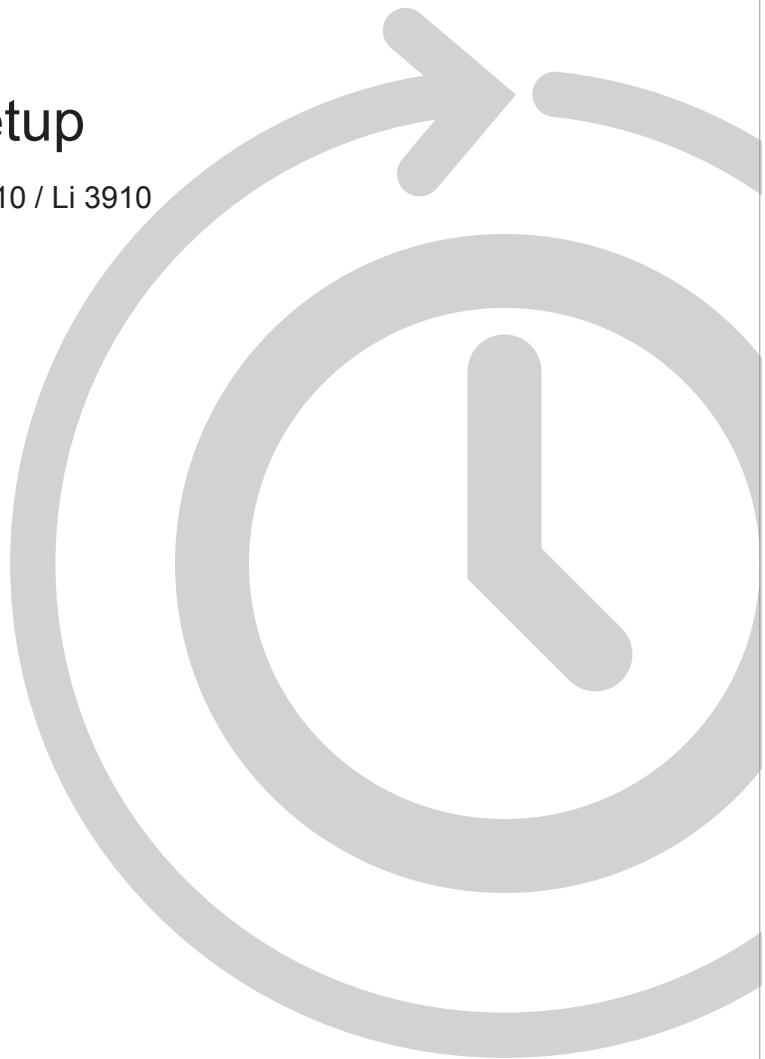
Unpack all the individual parts.
Check your notebook for damage incurred during transportation.

We recommend that you keep the original packaging material.
You may need the packaging in the future if you need to transport your device.
Selecting the location

Select a suitable location for the notebook before setting it up. Consider the following points when selecting a location:
- Never place the notebook and the mains adapter on a heat-sensitive surface. This could damage the surface.
- Never place the notebook on a soft surface (e.g. carpeting, upholstered furniture, bed). This can block the air vents and cause damage due to overheating.
- Do not place the notebook directly on your legs for extended periods. The underside of the notebook heats up during normal operation. Extended contact with the skin can become unpleasant or even result in burns.
- Place the notebook on a stable, flat, non-slip surface. Please note that the rubber feet may mark certain types of surfaces.
- Keep other objects 100mm away from the notebook and its mains adapter to ensure adequate ventilation.
- Never cover the ventilation slots on the notebook.
- Do not expose the notebook to extreme environmental conditions. Protect the notebook against dust, humidity and heat.
Connecting the mains adapter

Please observe the safety precautions in the enclosed "Safety" manual.
The supplied mains cable conforms to the requirements of the country in which you purchased your notebook. Make sure that the mains cable is approved for use in the country in which you intend to use it.
The mains cable of the mains adapter must only be connected to a mains socket if the notebook is connected to the mains adapter.
Make sure that the rated current of the mains adapter is not higher than that of the power system to which you connect the mains adapter (refer to the "Technical Data" section, "Mains adapter", Page 11).
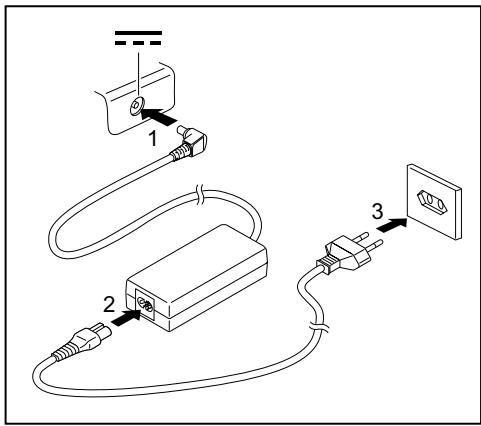
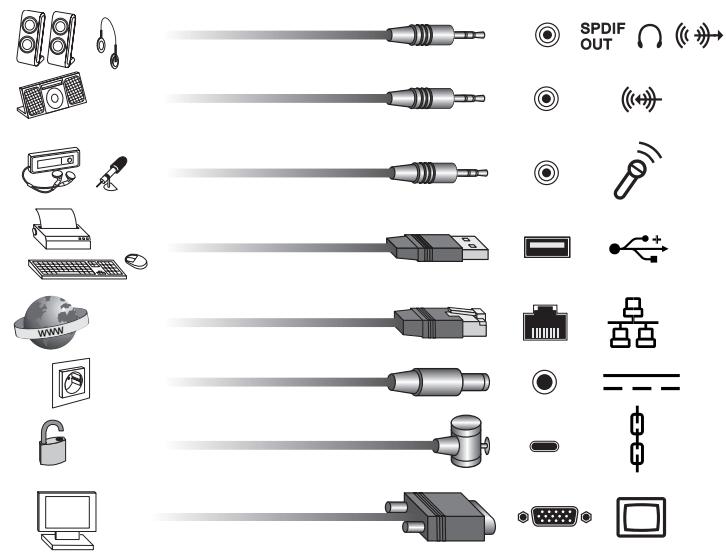
Connect the mains adapter cable (1) to the DC jack (DC IN) on the notebook.
Connect the mains cable (2) to the mains adapter.
Plug the mains cable (3) into a mains outlet.
Switching the notebook on for the first time

We recommend that the notebook is supplied with power through the mains adapter during this procedure.
When you switch your notebook on for the first time, the supplied software is installed and configured. Because this installation procedure must not be interrupted, you should set aside enough time for it to be fully completed and connect the notebook to the mains outlet using the mains adapter.
During installation, the notebook must only be rebooted when you are requested to do so!
You will be prompted to create a backup copy of the pre-installed operating system. This backup copy can be used later to restore your notebook to its delivery configuration.
We strongly recommend that, as soon as possible after purchasing your equipment, you create a backup copy on DVD of the pre-installed operating system in its delivery configuration.
If you have forgotten an operating system password which has been assigned, without previously having saved the operating system, recreation of the necessary data media and return to the factory default setup will no longer be possible.
You can find further information on how to restore the operating system, drivers, manuals and special software in the "Recovery Process" manual.
Your operating system is pre-installed on the hard disk to help you when you start using your notebook for the first time.
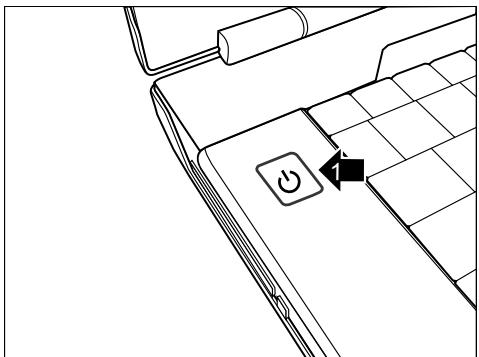
Switch the notebook on (1).
During installation, follow the on-screen instructions.
Consult the operating system manual if anything is unclear about the requested input data.

If a Windows operating system is installed on your notebook, you will find more information on the system and drivers, help programs, updates, manuals etc. on the notebook or on the Internet under "http://ts.fujitsu.com/support".
Your notebook is equipped with four application buttons. By pressing one of these buttons you can directly access a previously defined file on your computer, an Internet page or your email account.

The four application buttons are located on notebooks on a separate keyboard directly above the numeric keypad.

Each application button can have its own action allocated to it.
Start the program using Startsymbol - All Programs - Launch Manager.
- Use drag & drop to pull any program or file symbol into one of the four squares (A1 to A4).
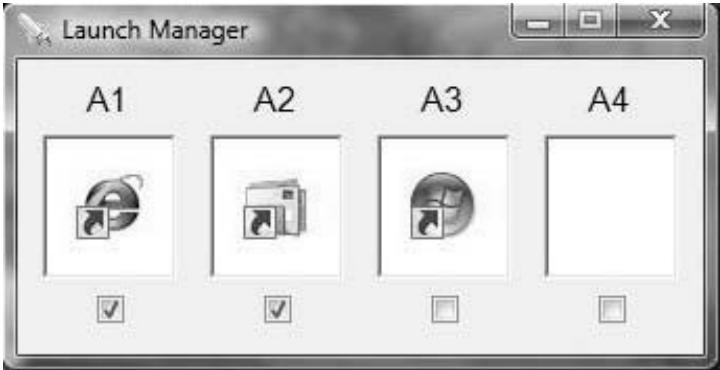
Set the checkmark in the field underneath to activate the application button.
or
Drag another program symbol into a square.
Close Launch Manager.
Press the application button that you have allocated.
The program which you have allocated is launched.
Technical specification
Notebook
| Environmental conditions |
| Operating temperature | 5 °C – 35 °C |
| Dimensions of the AMILO Notebook Li 3710 |
| Width x Depth x Height (front/back) | 380 mm x 245 mm x 40.4 - 41.4 mm |
| Weight (including 6-cell rechargeable battery) | approx. 2.7 kg |
| Dimensions of the AMILO Notebook Li 3910 |
| Width x depth x height | 438 mm x 285 mm x 42 mm |
| Weight (including 6-cell rechargeable battery) | approx. 3.3 kg |

The data sheet for your notebook contains further technical data. You will find the data sheet on your notebook or on the Internet under "http://ts.fujitsu.com/support".
Mains adapter
| Electrical data |
| Main | 65 W |
| Rated voltage | 100 V – 240 V (automatic) |
| Rated frequency | 50 Hz – 60 Hz (automatic) |
| Sub |
| Rated voltage | 20 V |
| Max. rated current | 3.25 A |
An additional mains adapter or power cable can be ordered at any time.
AMILO Notebook
Li 3710 / Li 3910
English
Deutsch
François
Espanol
Italiano
Nederlandst
Português
Copyright © Fujitsu Technology Solutions GmbH 2009
Copyright © Fujitsu Technology Solutions GmbH 2009
Copyright © Fujitsu Technology Solutions GmbH 2009
Copyright © Fujitsu Technology Solutions GmbH 2009
Copyright © Fujitsu Technology Solutions GmbH 2009
Copyright © Fujitsu Technology Solutions GmbH 2009