
FERRARI MOTORS GAMEPAD F430 CHALLENGE - Gamepad THRUSTMASTER - Free user manual and instructions
Find the device manual for free FERRARI MOTORS GAMEPAD F430 CHALLENGE THRUSTMASTER in PDF.



| Product type | Game controller (Gamepad) |
| Brand | THRUSTMASTER |
| Model | FERRARI MOTORS GAMEPAD F430 CHALLENGE |
| Compatibility | PlayStation 3 and PC (Windows) |
| Connectivity | Wired USB |
| Power supply | Via USB port (console or PC) |
| Dimensions (estimated) | Approximately 150 x 100 x 60 mm |
| Weight (estimated) | Approximately 300 g |
| Action buttons | Action buttons, digital cross pad, 2 analog sticks, progressive optical wheel, 2 progressive triggers |
| Function buttons | HOME/MODE, MAPPING, PRESET, SELECT, START buttons |
| Operating modes (PC) | 4 axes, 5 axes, 7 axes |
| Programming | Manual and automatic programming (PRESET) with EEPROM memory |
| Optical wheel | Progressive, 2 sensitivity modes (normal and high) |
| Triggers | Progressive, programmable |
| Force feedback | Vibration (Force Feedback) via drivers on CD-ROM |
| Profile backup | Internal EEPROM memory for 1 manual preset per platform |
| Maintenance | Clean with a dry, soft cloth. Do not use liquids. |
| Safety | In case of malfunction due to electrostatic discharge, unplug and replug. Avoid moving the sticks or triggers during connection. |
| Spare parts | Not available separately. No user-serviceable parts. |
| Warranty | 2 years (material and manufacturing defects) |
| Included accessories | Force Feedback drivers CD-ROM |
Frequently Asked Questions - FERRARI MOTORS GAMEPAD F430 CHALLENGE THRUSTMASTER
User questions about FERRARI MOTORS GAMEPAD F430 CHALLENGE THRUSTMASTER
0 question about this device. Answer the ones you know or ask your own.
Ask a new question about this device
Download the instructions for your Gamepad in PDF format for free! Find your manual FERRARI MOTORS GAMEPAD F430 CHALLENGE - THRUSTMASTER and take your electronic device back in hand. On this page are published all the documents necessary for the use of your device. FERRARI MOTORS GAMEPAD F430 CHALLENGE by THRUSTMASTER.
USER MANUAL FERRARI MOTORS GAMEPAD F430 CHALLENGE THRUSTMASTER
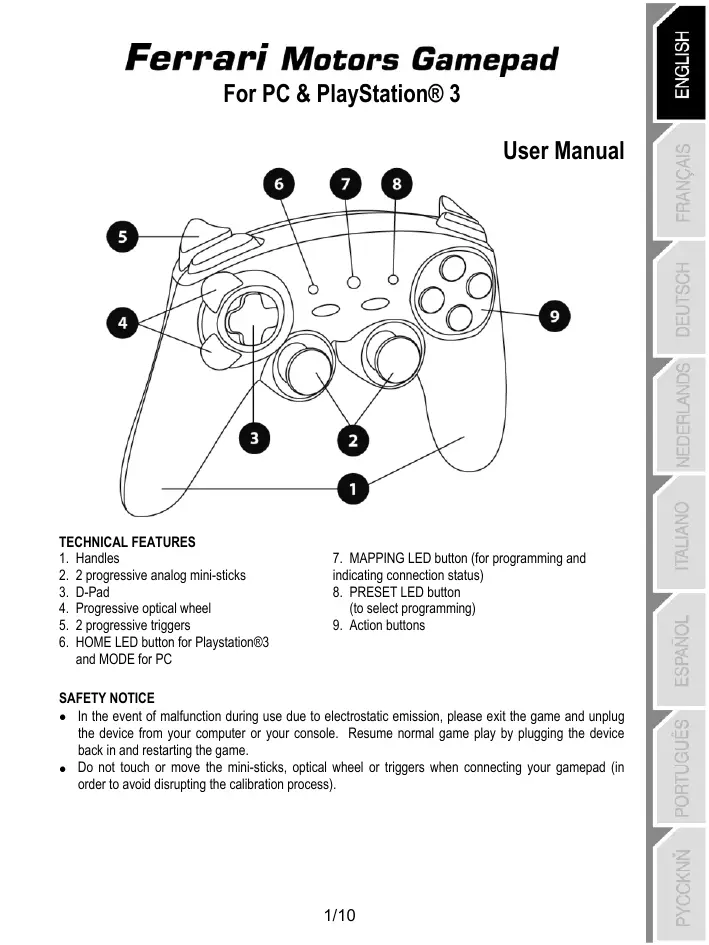
- Handles
- 2 progressive analog mini-sticks
- D-Pad
- Progressive optical wheel
- 2 progressive triggers
-
HOME LED button for Playstation®3 and MODE for PC
-
MAPPING LED button (for programming and indicating connection status)
- PRESET LED button (to select programming)
- Action buttons
SAFETY NOTICE
- In the event of malfunction during use due to electrostatic emission, please exit the game and unplug the device from your computer or your console. Resume normal game play by plugging the device back in and restarting the game.
- Do not touch or move the mini-sticks, optical wheel or triggers when connecting your gamepad (in order to avoid disrupting the calibration process).
TABLE OF SUPPORTED MODES
| System | MODE | Color of MODE button (8) |
| PLAYSTATION® 3 | "PS3" | OFF |
| PC | "4 AXES" | OFF |
| "5 AXES" | RED | |
| "7 AXES" | GREEN |
PLAYSTATION® 3
INSTALLATION ON PLAYSTATION® 3
- Connect the USB connector to a USB port on your console.
- Turn on your console.
- Switch your gamepad to "PS3" mode = the MODE button should be Off.
(to do so, if necessary, press the button until it switches off).
4. Launch the game.
You are now ready to play!
"PLAYSTATION® 3" MODE
"AUTOMATIC PRESET" CONFIGURATION - PLAYSTATION® 3
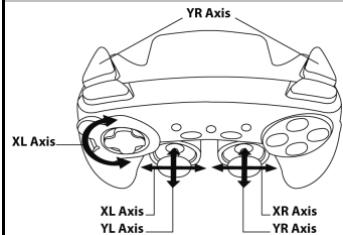
"PS3" mode
MODE button is OFF
Here:
- "Optical wheel" associated with "Left/Right" direction on left mini-stick
- "Right" trigger associated with "Up" direction on right mini-stick
- "Left" trigger associated with "Down" direction on right mini-stick
Important notes for "PlayStation® 3":
-
On "PlayStation® 3", the MODE button must absolutely be "OFF" (and not red or green). To do so, press the button if necessary.
-
The gamepad does not feature a "motion sensor" or "PS" button, as does the official gamepad included with your console.
-
In "1 Player" mode: if your official gamepad is powered on, you must switch it to "controller port 2" for your Ferrari gamepad to be functional.
- On "PlayStation® 3", the gameplay is only compatible with "PlayStation® 3" games (and will not function with "PlayStation® 2" games).
- To exit your "PlayStation® 3" games, use the "PS" button on your official gamepad.
PC
INSTALLATION ON PC
The CD-ROM included with this product allows you to install the Force Feedback drivers.
- Insert the installation CD-ROM into your CD-ROM drive. Follow the on-screen instructions to install the Force Feedback drivers. Once installation is complete, click Finish and restart your computer.
- Once your computer has restarted, connect the USB connector to one of your computer's USB ports. Windows® will automatically detect the new device.
- The drivers are installed automatically. Follow the on-screen instructions to complete the installation.
- Select Start/Settings/Control Panel and then double-click Game Controllers (or Gaming Options, depending on your operating system).
The Game Controllers dialog box displays the gamepad's name with OK status.
-
In the Control Panel, click Properties to configure your gamepad:
-
Test device: allows you to test and view the buttons, D-pad and axes for the 2 mini-sticks, for the optical wheel and for the 2 triggers.
- Test forces: allows you to test 8 vibration effects and configure vibration effect settings.
You are now ready to play!
SELECTING THE NUMBER OF AXES ON PC
- Selection of axes via "Software": On page 1 of the Control Panel, click the number of axes you wish to use and then click OK.
- Selection of axes via "Hardware": Press the MODE button (6) to select the number of active axes.
3 "AXES" MODES AVAILABLE ON PC
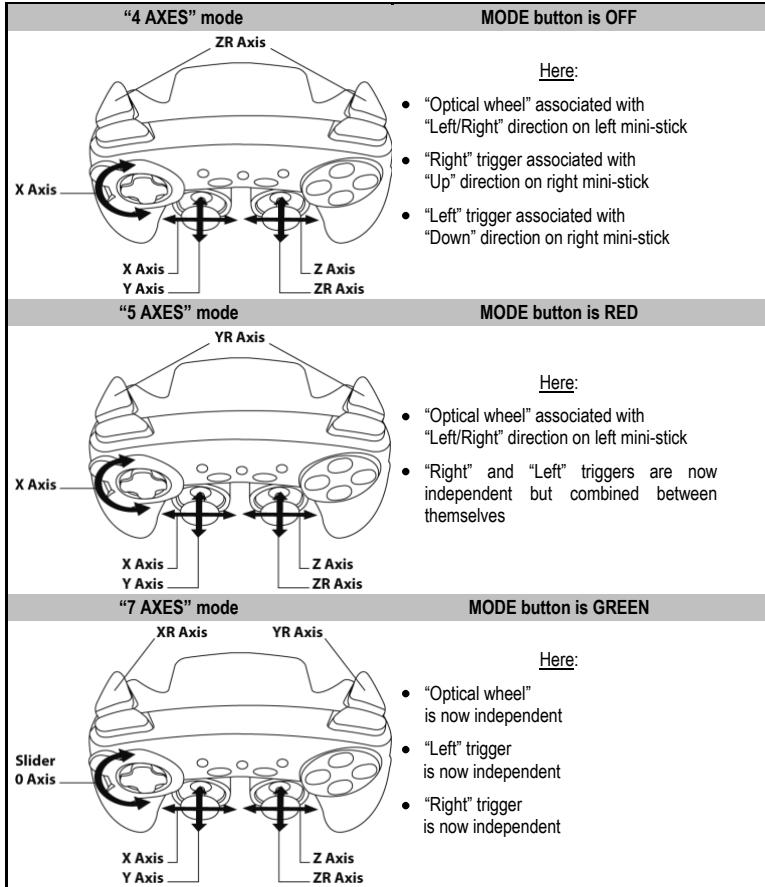
"AUTOMATIC PRESET" CONFIGURATION - PC
For a better idea of all the possibilities offered on PC, try them out in the Windows "Game Controllers" section
ADVANCED FUNCTIONS
ADJUSTING THE OPTICAL WHEEL'S SENSITIVITY
The optical wheel (4) has 2 sensitivity modes:
- Normal sensitivity (default mode)
-
High sensitivity (must be adjusted)
-
Adjustment for "High sensitivity" mode:
| Steps | Action | Color of MODE button |
| 1 | Raise and hold the “UP” direction on the optical wheel | Flashes Red 2 seconds |
| 2 | Press and release the MAPPING button (7) |
The optical wheel is now more sensitive (Repeat this procedure each time you restart your console or disconnect the gamepad)
- Adjustment to return to "Normal sensitivity" mode:
| Steps | Action | Color of MODE button |
| 1 | Lower and hold the “DOWN” direction on the optical wheel | Flashes Green 2 seconds |
| 2 | Press and release the MAPPING button (7) |
The optical wheel has now returned to normal sensitivity (the default mode)
2 PROGRAMMING MODES
The PRESET button and LED (8) allows you to view the type of programming selected:
AUTOMATIC (preprogrammed) or MANUAL (programmed by yourself). A single press of this button allows you (even during the course of a game) to switch from one programming mode to another.
- "AUTOMATIC PRESET" (PRESET button OFF)
This represents the default programming: The functions of the optical wheel and the triggers are preprogrammed, as are the positions of the buttons and the directions of the mini-sticks and of the D-Pad.
PLEASE REFER TO THE "AUTOMATIC PRESET" CONFIGURATION DIAGRAMS
- “MANUAL PRESET” (PRESET button GREEN)
This represents your own personal programming:
- The buttons, directions of the mini-sticks and of the D-Pad can either be:
- Programmed on the optical wheel and on the triggers; or
- Switched between themselves.
- You can modify the programming to your liking and whenever you wish.
- The programming is automatically saved inside your gamepad (even when disconnected).
- When your "MANUAL PRESET" is clear, it is identical to the "AUTOMATIC PRESET".
PROGRAMMING THE OPTICAL WHEEL AND TRIGGERS
The 2 directions of the optical wheel and the 2 progressive triggers can be programmed using the MAPPING button (7).
Examples of possible applications:
Programming a button, direction of a mini-stick or of the D-Pad:
- onto the "up" or "down" direction of the optical wheel
- onto the "right" trigger or "left" trigger
- Programming procedure on optical wheel and triggers:
| Steps | Action | Color of PRESET button |
| 1 | Enable “MANUAL PRESET” (8) by pressing the button | Lit up Green |
| 2 | Press and release the MAPPING button (7) | Lit up Red |
| 3 | Press and release the button or direction to program | Flashes Red |
| 4 | Raise or lower the direction on the optical wheel Or press the trigger onto which you wish to place your function | Lit up Green |
Your "MANUAL PRESET" is now enabled and up to date
(with your programming applied to the optical wheel or triggers)
SWITCHING BUTTONS/MINI-STICKS/D-PAD
All buttons, as well as directions of the mini-sticks and of the D-Pad can be switched using the MAPPING button (7).
Examples of possible applications:
- Switch buttons between themselves
- Switch the 2 mini-sticks
(in this case, you will to have to map the 4 directions of the first mini-stick to the 4 directions of the second mini-stick)
- Switch the D-Pad with a mini-stick
(in this case, you will have to map the 4 D-Pad directions to the 4 directions of the mini-stick in question).
- Procedure for switching buttons, mini-sticks and D-Pad
(does not work with the optical wheel and triggers, except for on PC in "7 axes" mode)
| Steps | Action | Color of PRESET button |
| 1 | Enable “MANUAL PRESET” (8) by pressing the button | Lit up Green |
| 2 | Press and release the MAPPING button (7) | Lit up Red |
| 3 | Press and release the button or direction to switch | Flashes Red |
| 4 | Press and release the button or direction onto which you wish to place your function | Lit up Green |
Your "MANUAL PRESET" is now enabled and up to date (with the 2 functions switched)
EEPROM MEMORY
- Your gameplay features an internal chip which serves to retain all of your "MANUAL PRESET" programming in memory (even when the gameplay is switched off or disconnected for a long period of time).
- You can save 1 different "MANUAL PRESET" for each system used (PS3, PC 4 Axes, PC 5 Axes or PC 7 Axes). The exception is for "PS3" and "PC 4 Axes", which use the same "MANUAL PRESET" (modifying or erasing one of these will have the same effect on the other).
TO ERASE A "MANUAL PRESET"
| Steps | Action | Color of PRESET button |
| 1 | Enable your "MANUAL PRESET" (8) | Lit up Green |
| 2 | Press and hold the MAPPING button (7) for 2 seconds | Flashes Green 2 seconds |
Your "MANUAL PRESET" has now been erased (and is identical to the "Automatic Preset")
TO RETURN TO "FACTORY SETTINGS"
You can erase all of your programming and settings with a single step:
| Steps | Action | Color of PRESET button |
| 1 | Press the MAPPING + SELECT + START buttons simultaneously | Flashes Green and Red 2 seconds |
All of your "MANUAL PRESETS" (= PC + PS3) or settings have now been erased
Note: On PC, we recommend that you do not carry out this step while in a game.
POSSIBLE USES IN GAMES
The optical wheel (thanks to its technology and degree of rotation greater than that of any mini-stick) offers unparalleled precision and stability in all types of games: racing (ultra-precise steering), flying (rudder), action and FPS (progressive zoom), sports (measured shot, strength of hit), etc.
The triggers (thanks to their progressive action and range of mechanical travel greater than that of any button) offer extremely precise control in all types of games: racing (progressive and independent acceleration and braking, handbrake), action and FPS (rate of fire, lateral movement), sports (measured pass or shot, strength of hit or jump, running speed), etc.
SOME EXAMPLES AND TIPS:
- There are numerous configuration possibilities, depending on the game you are playing.
- On PC, if a game does not accept your programming (undesired effects) in "5 or 7 axes" mode, switch your gameplay to "4 axes" mode (the standard mode).
- In certain (racing style) games, don't hesitate to test out the 2 sensitivity modes for the optical wheel (Normal or High) in order to optimize its precision and responsiveness.
DIFFERENT EXAMPLES ACCORDING TO TYPE OF GAME
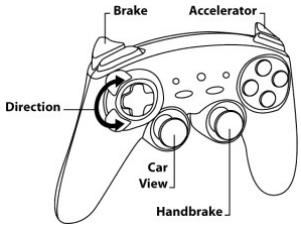
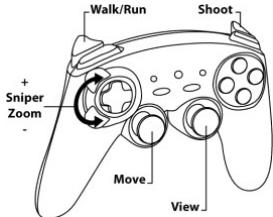
Action/Adventure ("Car" mode)
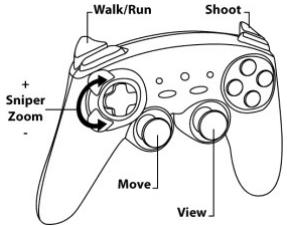
Action/Adventure ("On foot" mode)
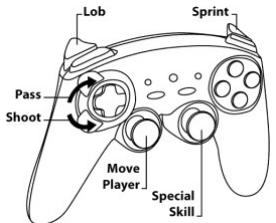
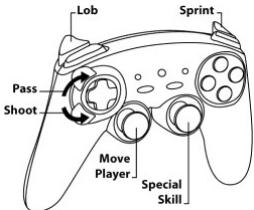
Sports ("Ball game" type)
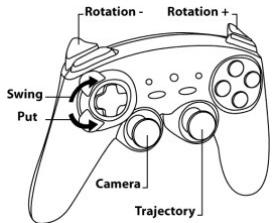
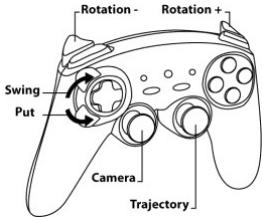
Sports ("Golf" type)
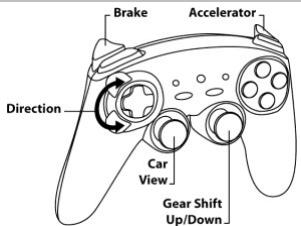
Car racing ("Simulation" type)
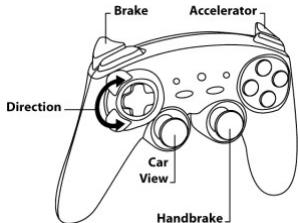
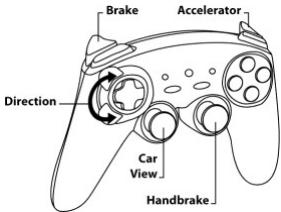
Car racing ("Arcade/Rally" type)
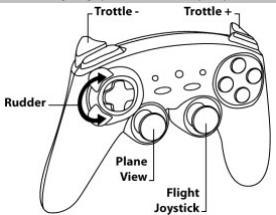
Flying ("Simulation" type)
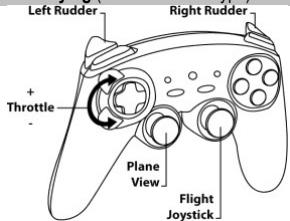
Flying ("Arcade/Action" type)
TECHNICAL SUPPORT
If you encounter a problem with your product, please go to http://ts.thrustmaster.com and click Technical Support. From there you will be able to access various utilities (Frequently Asked Questions (FAQ), the latest versions of drivers and software) that may help to resolve your problem. If the problem persists, you can contact the Thrustmaster products technical support service ("Technical Support"):
By email:
In order to take advantage of technical support by email, you must first register online. The information you provide will help the agents to resolve your problem more quickly. Click Registration on the left-hand side of the Technical Support page and follow the on-screen instructions. If you have already registered, fill in theUsername and Password fields and then click Login.
By telephone:
| United Kingdom | 08450800942Charges at local rate | Monday to Friday from Noon to 4pm and 5pm to 10pm Saturday from 9am to Noon and 1pm to 7pm Sunday from 9am to Noon and 1pm to 4pm |
| United States | 1-866-889-5036Free | Monday to Friday from 7am to 11am and from Noon to 5pm Saturday and Sunday from 7am to Noon (Eastern Standard Time) |
| Canada | 1-866-889-2181Free | Monday to Friday from 7am to 11am and from Noon to 5pm Saturday and Sunday from 7am to Noon (Eastern Standard Time) |
| Denmark | 80887690Free | Monday to Friday from 1pm to 5pm and 6pm to 11pm (English) Saturday from 9am to 1pm and 2pm to 8pm Sunday from 10am to 1pm and 2pm to 5pm |
| Sweden | 0200884567Free | Monday to Friday from 1pm to 5pm and 6pm to 11pm (English) Saturday from 9am to 1pm and 2pm to 8pm Sunday from 10am to 1pm and 2pm to 5pm |
| Finland | 0800 913060Free | Monday to Friday from 2pm to 6pm and 7pm to Midnight (English) Saturday from 10am to 2pm and 3pm to 9pm Sunday from 11am to 2pm and 3pm to 6pm |
WARRANTY INFORMATION
Worldwide, Guillemot Corporation S.A. ("Guillemot") warrants to the consumer that this Thrustmaster product will be free from material defects and manufacturing flaws for a period of two (2) years from the original date of purchase. Should the product appear to be defective during the warranty period, immediately contact Technical Support, who will indicate the procedure to follow. If the defect is confirmed, the product must be returned to its place of purchase (or any other location indicated by Technical Support).
Within the context of this warranty, the consumer's defective product will, at Technical Support's option, be either repaired or replaced. Where authorized by applicable law, the full liability of Guillemot and its subsidiaries (including for indirect damages) is limited to the repair or replacement of the Thrustmaster product. The consumer's legal rights with respect to legislation applicable to the sale of consumer goods are not affected by this warranty.
This warranty shall not apply: (1) if the product has been modified, opened, altered, or has suffered damage as a result of inappropriate or abusive use, negligence, an accident, normal wear, or any other cause not related to a material defect or manufacturing flaw; (2) in the event of failure to comply with the instructions provided by Technical Support; (3) to software not published by Guillemot, said software being subject to a specific warranty provided by its publisher.
Additional warranty provisions
In the United States of America and in Canada, this warranty is limited to the product's internal mechanism and external housing. Any applicable implied warranties, including warranties of merchantability and fitness for a particular purpose, are hereby limited to two (2) years from the date of purchase and are subject to the conditions set forth in this limited warranty. In no event shall Guillemot Corporation S.A. or its affiliates be liable for consequential or incidental damage resulting from the breach of any express or implied warranties. Some States/Provinces do not allow limitation on how long an implied warranty lasts or exclusion or limitation of incidental/consequential damages, so the above limitation may not apply to you. This warranty gives you specific legal rights, and you may also have other legal rights which vary from State to State or Province to Province.
FCC STATEMENT
- This device complies with Part 15 of the FCC Rules. Operation is subject to the following two conditions:
(1) This device may not cause harmful interference, and
(2) This device must accept any interference received, including interference that may cause undesired operation.
- Changes or modifications not expressly approved by the party responsible for compliance could void the user's authority to operate the equipment.
COPYRIGHT
© 2009 Guilemot Corporation S.A. All rights reserved. Thrustmaster® is a registered trademark of Guilemot Corporation S.A. Ferrari® is a registered trademark of Ferrari S.p.A. PlayStation® is a registered trademark of Sony Computer Entertainment, Inc. Windows® is a registered trademark of Microsoft Corporation in the United States and/or in other countries. Pentium® is a registered trademark of Intel Corporation. All other trademarks and brand names are hereby acknowledged and are the property of their respective owners. Illustrations not binding. Contents, designs and specifications are subject to change without notice and may vary from one country to another. Made in China.
ENVIRONMENTAL PROTECTION RECOMMENDATION

At the end of its working life, this product should not be disposed of with standard household waste, but rather dropped off at a collection point for the disposal of Waste Electrical and Electronic Equipment (WEEE) for recycling.
This is confirmed by the symbol found on the product, user manual or packaging.
Depending on their characteristics, the materials may be recycled. Through recycling and other forms of processing Waste Electrical and Electronic Equipment, you can make a significant contribution towards helping to protect the environment.
Please contact your local authorities for information on the collection point nearest you.
FAQs, tips and drivers available at www.thrustmaster.com
Ferrari Motors Gamepad
Pour PC & PlayStation® 3
INFORMATIONS RELATIVES À LA GARANTIE
INFORMATIE MET BETREKKING TOT DE GARANTIE
HACTPOIKA YUBCTBINTJIbHOCTN ONTNUCHEKOTO DATUKA
OnTnueckn daTnK (4) nMeet 2 pexkma ybcntbnoctn:
- HopMaJIbHa YUByCTBHTeJIbHOCTb (No yMOJUaHnIO)
- BbICOKa YyCBCTBnTeJIbHOCTb (HaCTpaINBaEeTcA)
- HactpoIka Ha pezIM «BbICOKa YUbCTBNTeJIbHocTb»:
Action/Adventure (peKIM "TpaHcnpT")
Action/Adventure (peKIM "Peeiin")
Cnopt(IrPbIC MryOH)
Cnopt(rOJIbΦ)
B 3aBcIMocTn OT CBOICTB, MATEpHnabl MOrT nepeDaBaTbC B NOBtOpyo nepepa60Ky.
BIOPTOPHAR NEPEPATOKOA TQOBOD 3NEKTPCKEORO 3NEKTPPOHORO 06OpYOBADAM MOKET BHECTN3HauHTeINbIy BNPAID ACOXHPAIE OEQPXAOUIER cpeDbI.
06patntteb MecthbIe opraHbI Bnactn 3a HnHΦopMaueH O bNIXKaHMeH pNYKHe pnpema TAKHX OTXoDok.