
ENZO 2-IN-1 RACING WHEEL - Racing wheel THRUSTMASTER - Free user manual and instructions
Find the device manual for free ENZO 2-IN-1 RACING WHEEL THRUSTMASTER in PDF.



| Brand | THRUSTMASTER |
| Model | ENZO 2-IN-1 RACING WHEEL |
| Product type | Racing wheel with pedal set |
| Compatibility | PlayStation 2, PC (Windows 98/Me/2000/XP) |
| Connectivity | PS2 console connector, USB connector, pedal set connectors |
| Operating modes | 3 axes (separate) and 2 axes (combined) - selectable via PC patch |
| Pedal set | Analog with progressive accelerator and brake |
| Gear shift levers | 2 digital levers (paddles on wheel) |
| Analog levers | 2 levers for acceleration and braking (usable without pedal set) |
| Action buttons | Action buttons, directional pad, Select and Start buttons |
| Vibration | Available on PS2, not available on PC |
| Wheel sensitivity | Adjustable (high or reduced) via Select+Start buttons |
| Mounting | Table mounting system with clamping screw |
| Power supply | Via console (PS2) or USB port (PC) |
| Cable length | Approximately 1.5 m (estimate) |
| Weight | Approximately 1.5 kg (estimate) |
| Maintenance and cleaning | Clean with a dry cloth, do not use solvents |
| Safety | Do not overtighten the clamping screw to avoid damaging the table |
| Warranty | 2 years against material and manufacturing defects |
| Technical support | Website ts.thrustmaster.com, email after registration, phone (France, Belgium, Switzerland, Canada) |
Frequently Asked Questions - ENZO 2-IN-1 RACING WHEEL THRUSTMASTER
User questions about ENZO 2-IN-1 RACING WHEEL THRUSTMASTER
0 question about this device. Answer the ones you know or ask your own.
Ask a new question about this device
Download the instructions for your Racing wheel in PDF format for free! Find your manual ENZO 2-IN-1 RACING WHEEL - THRUSTMASTER and take your electronic device back in hand. On this page are published all the documents necessary for the use of your device. ENZO 2-IN-1 RACING WHEEL by THRUSTMASTER.
USER MANUAL ENZO 2-IN-1 RACING WHEEL THRUSTMASTER
6 Start button
7 Mode selection button -PC:2/3Axis -PS2:On/Off
8 Mode LED
9 PC/PS2 selection switch
10 Analog pedal set
11 Pedal connector
12 Pedal receptor
13 Console connector
14 USB connector
15 Table clamp
16 Clamp screw
INSTALLING THE WHEEL
Fixing the wheel in place
- Place the wheel on a table or other flat surface.
- Place the clamp screw (16) in the table clamp (15) and then screw the clamping unit into the hole on the underside of the wheel until firmly fixed in place. Do not turn the screw too tightly, as you risk damaging the clamping unit and/or the table.
Connecting the pedal set
- Connect the pedal connector (11) to the pedal receptor (12).
Connecting the wheel
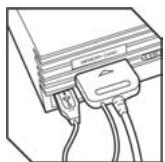
(a) For PS2
- Switch off your console before connecting the wheel.
- Connect the console connector (13) to port 1 of your console and connect the USB connector (14) to the upper USB port.
- Place the PC/PS2 selection switch (9) on PS2 (1 PS2)
- Switch your console back on.
- Once your racing game has loaded, turn your wheel on by pressing the PS2:On/Off button (7). The wheel's Mode LED (8) glows red. You are now ready to play!
(b) USB installation for PC
The USB connector allows you to hot-plug your wheel into your computer. First, place the PC/PS2 switch in the PC position (PC)
Start your computer up and plug the USB connector into one of the USB ports located at the back of your computer. Windows 98/Me/2000/XP will then automatically detect the new peripheral device.
Note: if you are connecting a USB peripheral device for the first time, Windows may ask you for the Windows CD-ROM during installation in order to install the required system files.
Note: if you are using a USB hub, your hub must use an independent power supply for your Enzo 2-in-1 wheel to operate properly.
- Under Windows 98: the Add New Hardware Wizard will find the appropriate drivers for you. Simply click on Next and then follow the on-screen instructions to complete the installation.
- Under Windows Me/2000/XP: installation of the drivers is carried out automatically.
Selecting "Separate" (3-axis) OR "Combined" (2-axis) acceleration/ braking mode (PC only)
By default, the Enzo 2-in-1 wheel's acceleration/braking controls operate in "combined" 2-axis mode (red diode), i.e. with brake and gas pedals operating on the same axis. An increasing number of new-generation racing games offer "separate" (3-axis) support, which can be activated in the game's controller options section. 3-axis support considerably improves driving precision in races.
To activate this mode on your Enzo 2-in-1 wheel, you must download the patch named Wheelpatch.exe from the www.thrustmaster.com website (select Support, then Download). After installing the patch on your PC, simply press the PC:2/3 Axis button (7) on your wheel. The Mode LED will turn to green.
When playing games that do not provide 3-axis mode support, you must revert to the standard 2-axis mode (otherwise, your wheel may not function correctly when playing).
Note: If you can't recall whether you have installed the patch on your computer or not, you can check this by verifying the name of your controller in the Windows Control Panel > Game Controllers section:
- If the patch hasn't been installed, your Enzo 2-in-1 wheel will appear as "Enzo PC-PS2 RW"
- If the patch has been installed, your Enzo 2-in-1 wheel will appear as "Thrustmaster Enzo PC-PS2 Racing Wheel".
Enabling/disabling vibration (PS2 only)
Access your racing game's controller options, and select "Vibration on" or "Vibration off".
Note: Vibration function is not available on PC!
Wheel sensitivity (PS2 only)
"High sensitivity" is the default setting for your wheel (i.e. no "dead zone" when the wheel is centered). To set your wheel to "low sensitivity" (i.e. with a "dead zone" located at the wheel's central position), press the Select (5) and Start (6) buttons simultaneously (the Mode LED glows green). To revert to the "high sensitivity" setting, repeat the operations above (the Mode LED glows red).
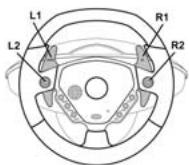
Mapping (PS2 only)
Disconnecting the pedals
The Enzo 2-in-1 wheel allows you to play without using the pedals - the two analog levers will then be allocated to accelerator and brake controls.
- PS2: Disconnect the pedals then simply press the PS2:On/Off button in order to reset the wheel.
- PC: First disconnect the pedals, then connect the wheel to your PC's USB connector.
PC TROUBLESHOOTING
My wheel is not detected by my computer
- Unplug the USB connector and then plug it back in again.
My wheel is detected by my computer but doesn't work in the game
- Access your game's options to configure your wheel. Please refer to your game's manual for further information.
My wheel doesn't work correctly or appears to be incorrectly calibrated:
- Exit the game, then disconnect your wheel for your PC's USB connector and plug it back in again. Note: Do not turn your wheel or press any of its buttons after reconnecting it to your PC!)
- Install the patch named Wheelpatch.exe on your PC and try to reconfigure your wheel in your game's Controller options (if your wheel's 3-axis mode seems incompatible, try activating the 2-axis mode).
TECHNICAL SUPPORT
If you encounter a problem with your product, please go to http://ts.thrustmaster.com and click Technical Support. From there you will be able to access various utilities (Frequently Asked Questions (FAQ), the latest versions of drivers and software) that may help to resolve your problem. If the problem persists, you can contact the Thrustmaster products technical support service ("Technical Support"):
By email:
In order to take advantage of technical support by email, you must first register online. The information you provide will help the agents to resolve your problem more quickly. Click Registration on the left-hand side of the Technical Support page and follow the on-screen instructions. If you have already registered, fill in theUsername and Password fields and then click Login.
By telephone:
| United Kingdom | 020 7216 0047 | price of a national phone call, Monday to Friday, from 12PM to 10PM |
| United States / Canada | 514-279-9911 | price of a long distance phone call, Monday to Friday, from 7AM to 5PM (Eastern time) |
| Australia | 1902 262 514 | $1.98/min, Monday to Friday from 9AM to 6PM |
| Denmark | 82 33 28 58 | price of a national phone call, Monday to Friday from 1PM to 10PM |
| Finland | 09 81 71 01 54 | price of a national phone call, Monday to Friday from 2PM to 11PM |
| Norway | 23 50 01 16 | price of a national phone call, Monday to Friday from 1PM to 10PM |
| Sweden | 08-51992032 | price of a national phone call, Monday to Friday from 1PM to 11PM |
WARRANTY INFORMATION
Worldwide, Guilemot Corporation S.A. ("Guilemot") warrants to the consumer that this Thrustmaster product will be free from material defects and manufacturing flaws for a period of two (2) years from the original date of purchase. Should the product appear to be defective during the warranty period, immediately contact Technical Support, who will indicate the procedure to follow. If the defect is confirmed, the product must be returned to its place of purchase (or any other location indicated by Technical Support).
Within the context of this warranty, the consumer's defective product will, at Technical Support's option, be either repaired or replaced. Where authorized by applicable law, the full liability of Guillemot and its subsidiaries (including for indirect damages) is limited to the repair or replacement of the Thrustmaster product. The consumer's legal rights with respect to legislation applicable to the sale of consumer goods are not affected by this warranty.
This warranty shall not apply: (1) if the product has been modified, opened, altered, or has suffered damage as a result of inappropriate or abusive use, negligence, an accident, normal wear, or any other cause not related to a material defect or manufacturing flaw; (2) in the event of failure to comply with the instructions provided by Technical Support; (3) to software not published by Guillemot, said software being subject to a specific warranty provided by its publisher.
Additional warranty provisions
In the United States of America and in Canada, this warranty is limited to the product's internal mechanism and external housing. Any applicable implied warranties, including warranties of merchantability and fitness for a particular purpose, are hereby limited to two (2) years from the date of purchase and are subject to the conditions set forth in this limited warranty. In no event shall Guillemot Corporation S.A. or its affiliates be liable for consequential or incidental damage resulting from the breach of any express or implied warranties. Some States/Provinces do not allow limitation on how long an implied warranty lasts or exclusion or limitation of incidental/consequential damages, so the above limitation may not apply to you. This warranty gives you specific legal rights, and you may also have other legal rights which vary from State to State or Province to Province.
COPYRIGHT
© 2004 Guilemot Corporation S.A. All rights reserved. Thrustmaster® is a registered trademark of Guilemot Corporation S.A. Ferrari® is a registered trademark of Ferrari Idea S.p.A. Microsoft® Windows® is a registered trademark of Microsoft Corporation in the United States and/or other countries. PlayStation® is a registered trademark of Sony Computer Entertainment Inc. All other trademarks and brand names are hereby acknowledged and are property of their respective owners. Illustrations not binding. Contents, designs and specifications are subject to change without notice and may vary from one country to another.
-PC:2/3Axis
- PS2: On/Off