DVD 534 HC - DVD player CLATRONIC - Free user manual and instructions
Find the device manual for free DVD 534 HC CLATRONIC in PDF.


User questions about DVD 534 HC CLATRONIC
0 question about this device. Answer the ones you know or ask your own.
Ask a new question about this device
Download the instructions for your DVD player in PDF format for free! Find your manual DVD 534 HC - CLATRONIC and take your electronic device back in hand. On this page are published all the documents necessary for the use of your device. DVD 534 HC by CLATRONIC.
USER MANUAL DVD 534 HC CLATRONIC
GB Instructions for use Page 29-50
The CD player works with invisible laser-light. Do not look into this beam and do not abandon yourself to radiation! Attention, laser-radiation also inside of the unit!
To avoid damages of radiation unit should be opened only by qualified service personnel.
Information label on th rear of the unit (see picture).
Figyelmeztétés
For your protection and for the safety of the device, we would like to remind you to observe the safety instructions highlighted in grey.
Setting up the individual devices Page 30-31
- Operating location of the DVD receiver
- Setting up the speakers
Note on disposal
Connections
Page 31-33
- Connections at the front of the device
- Connections on the rear of the unit
Speaker connection 55/51
Aerial connection - Connection to the television set
- Connecting additional units
- Headphone connection
- Mains connection 56
Operating elements
Page 33-34
- Front of the device
Remote control
Putting into operation
Page 35-37
- Menu functions
- Switching the device on and off
- Selecting the operating mode
- Setting the volume
Basic settings - Setting and storing radio stations
- Listening to radio
- Inserting and removing a CD
Configuring and operating
Page 38-39
- Dolby Digital and Dolby Surround
- Speaker system >>5.1 CH<<
- Configuring the speaker system
- Tuning of the speaker system
- Dolby Surround operation
Playing a DVD video CD
or a video CD
Page 40-42
- About DVD video CDs and video CDs
- Playing a CD
Content of DVD CDs (menus) - Playing a video CD with PBC
- Freeze frame and single frame
- Slow motion
Search - Frame zoom function
- Repeat functions
Language and subtitles
Selection of the camera angle - Other playback function
Playing a music CD
Page 43-44
- General information about audio CDs
- Playing a CD
- Title selection and search mode
- Other playback functions
- Repeat functions
Programme memory
Special functions
Page 44-47
Device configuration (set-up)
- Preferred settings (language)
Child lock
- Resetting to original factory settings
- Setting the automatic switch
Special sound functions
Page 47-48
- Setting the audio mode
Time delay for centre and surround speakers - Bass-mode setting
Dual-mono-sound
Sound dynamic range
Care and maintenance
Page 48
- Cleaning the components
- Notes about compact disc (DVD-Video-CD), video-CD, audio-CD, MP3-CD)
Notes about the CD Player - Maintenance
Before you call the service technician...Page 49
Technical specifications
Page 50
Setting up the individual devices
Operating location of the DVD receiver
Protect the device against moisture and rain. It must not be operated in damp rooms nor subjected to drips or splashes. Do not place any receptacles containing liquids e.g. flower vases, flowerpots on the device. Electrical current can deliver life-threatening shocks when in contact with water.
No objects should enter the device through the ventilation openings as these objects could then touch live parts.
Open sources of fire such as, e.g. burning candles must not be placed on top of the device.
Caution
If fluids or foreign object get inside the device then immediately pull the mains plug. Before re-starting the unit have it checked by an authorised dealer.
Condensed water can build up inside the device when moved form a cold location to a warm location. Leave the device switched off for several hours.
The device should be placed on a stable, horizontal surface to ensure that it sits securely and is not subject to vibrations.. Vibrations can damage the sensitive electronic components inside the device.
The heat generated when operating the device must be able to escape. A build-up of heat causes failure to electronic components.
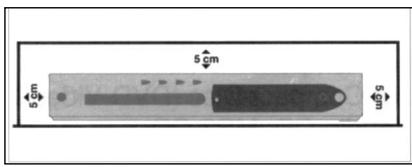
Do not place the device near other devices that generate strong magnetic fields (e.g. motors, speakers, transformers, etc.).
Caution:
To protect the user's eyes, a distance of at least 2 to 3m should be maintained when looking at the television (4x screen diagonal).
Setting up the speakers
All speakers should normally be located at the same distance to the listener (except for the subwoofer). However, this system also allows you to place the centre speaker and the surround speaker at a smaller distance to listener. The drawing provides you with a suggestion for how to set up the front, centre and surround speakers.
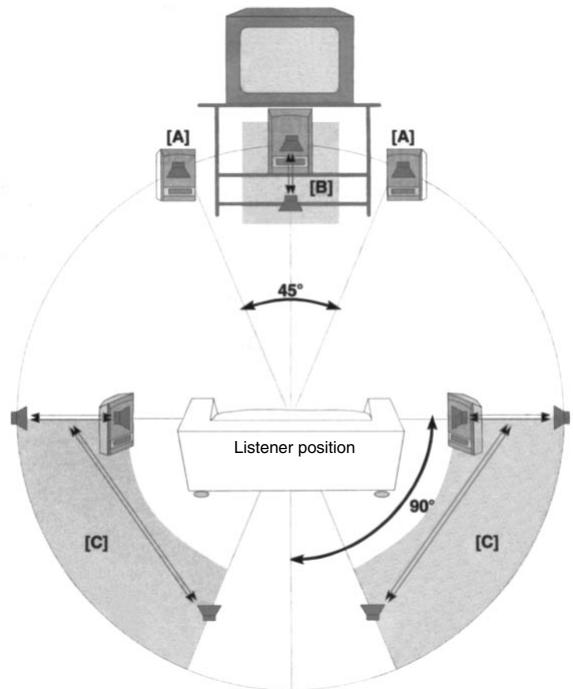
For the right and left channels, the front speakers (A) are set up (A) at the same distance to the listener. For optimal sound, these speakers should form an isosceles triangle to the listener. The tweeters should then be at the same level as the ears of the listener when seated.
For the middle channel, the centre speaker is placed central to the listening position (B) e.g. under the television. The main task of the middle channel is to play back events that come from the centre (e.g. speech) exactly from this location.
The surround speakers should be at a sufficient distance to the left and right of the listener or behind the listener in area (C). They must not be located below the ears of the listener when seated.
The Subwoofoers can be placed anywhere as the base frequencies can not be localised by the human ear. However, sufficient distance form the television must be observed as the magnetic speaker may otherwise cause disturbances to the picture.
Notes:
- The distance between the centre speaker and the surround speakers must not be greater than the distance between the front speakers and the listener.
- The subwoofer should be placed in a corner when possible in order to achieve maximal playback of back frequencies. The other speakers should not be placed in a corner.
- The main direction of the sound from the speakers should not be impinged by furniture, curtains, etc. The listener should be able to see the speakers.
Depending on whether you place the speakers on a flat surface or on the wall, you should stick the adhesive film supplied with the device on the base or the rear of the speakers.
Note on disposal
Make a contribution to the environment!
Packaging and packing aids are recyclable and should always be disposed of accordingly.
Caution!
Keep packing material such as, e.g. packing bags away from children (Danger of suffocation)!
Remove the batteries before disposing of the unit. Old batteries and rechargeable batteries do not belong in the normal household waste.
The device and the batteries must be handed in to a special station for special refuse or to your centre for special resources.
Specialist dealers, specialist markets or sales partners will also accept your dead batteries.
Connections
Open facing page 3. This allows you to find the parts more easily.
Warning!
Before connecting the individual components, all devices must be switched off and unplugged. Only suitable cable should be used. Only plug in the devices and switch them on when all connections have been correctly made.
Connections at the front of the device
11 PHONES
Headphones socket
Connections on the rear of the unit
Warning!
The connection contacts at the rear of the device must not be touched by metal objects or by fingers. This may cause short circuits.
46 SCART OUT
Scart connector(EURO-AV) for RGB-signal (picture and sound), for connecting a television.
47 S-VIDEO OUT
S-VHS output socket for video playback; Connection for a television with S-VHS input
48VIDEO OUT
Cinchoutput socket (video) for video playback; connection, e.g. to a television
49 AM ANTENNE
AM aerial connection socket (for the frame aerial supplied with the accessories).
50 FM ANTENNE
Aerial socket for a 75-Ohm coax plug
51 WOOFER LINE OUT
For connecting an active subwoofer
52 AUDIO OUT L/R
Cinch output socket (audio) for sound reproduction; connection to, e.g. a television or to another stereo receiver
53 AUDIO IN AUX 1/2 - L/R
Cinch input socket for connecting external playback appliances (reel-to-reel, video recorder, satellite receiver, etc.) or for sound reproduction from a television, etc. using the speakers.
54 OPTICAL OUT /COAX OUT
COAX Cinch digital output socket for audio
OPTICAL digital optical output
These sockets are used for connecting to a digital multi channel A/V receiver or to a 5.1 digital amplifier.
Warning: A digital audio signal is only available at these sockets when the CD being played contains the appropriate digital information.
55 SPEAKERS
Speaker terminals (impedance 4 Ohm)
FR Front speakers right
FL Front speakers left
C Centre box (speaker, middle)
SR Surround speaker right
SL Surround speaker left
56 Mains cable
To establish the connection required for 230V 50Hz
Speaker connection 55/51
When connecting the speakers, always observe the speaker connection plan on page 4.
First connect the speaker cable to the speakers. To do this, press the clamping lever on the speakers downwards and hold it down. Now, plug each of the black wires into a black socket and the coloured wires (red, blue, grey) into the corresponding coloured socket. Release the clamping lever after plugging in the wires.
When plugging in the speaker cable at the device (terminal 55) also only plug the black wire into the black socket and the coloured wires into the corresponding coloured socket. Make sure that when connecting the front and surround speakers (red and green), that for the right speaker you connect F/S R and for the left speaker you connect F/S L.
Using the supplied black cinch cable, connect the subwoofer to the »WOOFER LINE OUT« 51 terminal..
Warning!
Both rear speakers must always be connected. Confusing the connections can ruin the speakers.
Aerial connection
FM reception:
To connect to the house aerial or to a satellite system, plug this cable in as the connection to the aerial socket FM 50.
The aerial supplied can also produce good results. This aerial should be fixed in a high position as possible.
AM reception:
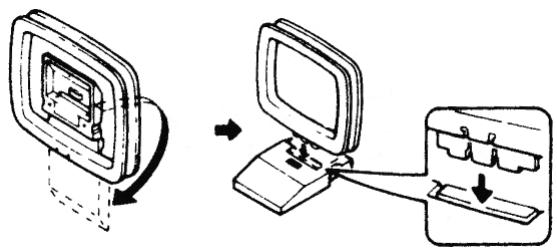
Connect the supplied frame aerial to the «AM« 49 socket. To plug in the cable, flip the claming lever to the side and re-close it. Then align the frame aerial to achieve the best reception.
Connection to the television set:
There are various connection possibilities depending on the connections available at the television and any additional devices. Additional instructions are contained in the respective manuals for the television and the additional devices.
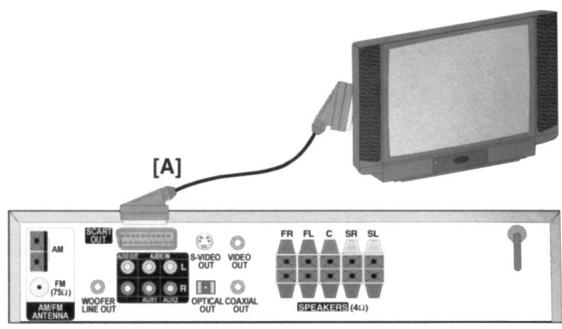
Connection to a television using SCART (A)
This connection possibility offers the best picture and sound quality. Connect the «SCART OUT« 46 scart socket at the rear of the device with the television' scart socket. The required scart cable is contained in the enclosed package.
Note:
Connect the DVD receiver directly to the television and not through the video recorder. The picture quality could be seriously degraded due to copy-protection systems.
Connecting to a television viaVIDEO-(B) or via the S-VIDEO SOCKET (C):
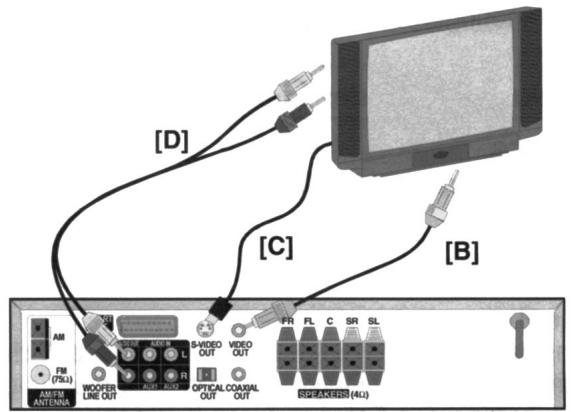
(B) Connect the «VIDEO OUT« 48 video socket with the yellow cinch cable to the correspondingVIDEO IN socket of the television.
(C) To do this, your television must be supplied with an S-VHS input. Connect the «S-VIDEO-OUT« 47 S-VHS video socket to the S-VHS-input at the television. You can purchase the cable required at your local store.
If you also want to hear the sound from the DVD receiver over the speakers on your television then an AUDIO connection (D) is also required when connecting the video sockets. To do this, connect the «AUDIO OUT« 52 sockets with the red/white cinch cable to the corresponding AUDIO IN sockets of your television. When doing so, make sure that you maintain the correct polarity (red = right R, white = left L).
Connecting additional units:
The DVD receiver is equipped with digital and analog outputs and inputs. This means that you have many possibilities for connecting external devices.
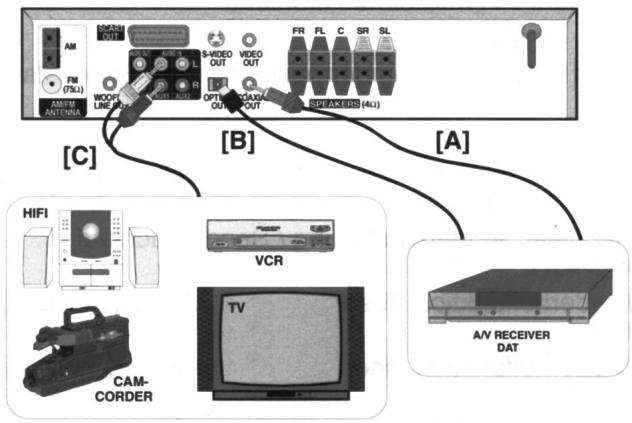
Connecting to the digital outputs:
Warning: A digital audio signal is only available at these sockets when the CD being played contains the appropriate digital information. The audio output (AUDIO OUT) has to be switched to SPDIF/RAW or SPDIF/PCM in the menu (see >basic settings « page 35-37).
Connecting to a digital multi channel A/V receiver or to a digital 5.1 amplifier:
This connection type offers the best sound quality. A digital multi-channel A/V receiver (e.g., MPEG 2 multi channel, Dolby Digital etc.) is required. To do this, connect the «COAXIAL OUT« 53 (A) digital output socket at the rear
of the device to the corresponding DIGITAL AUDIO IN digital input then connect this to the «OPTICAL OUT« 54 (B) socket. The required connection cable can be obtained from your local shop.
Connecting a Digital Audio Recorder (DAT):
Via the digital outputs 54, you can copy CDs to DAT cassettes or to a CD recorder without any loss of quality. To do this, connect the «COAXIAL OUT« 54 (A) digital audio socket to the DIGITAL IN input socket at the digital recorder. If the digital recorder has an optical input then connect this to the «OPTICAL OUT« 54 (B) socket. The required connection cable is available form your local store.
Connecting analog playback devices:
You can also listen to the sound from other playback appliances such as a stereo television, stereo video recorder, CD placer, DVD placer or satellite receiver over the speakers of the surround systems by connecting these to the «AUDIO IN« 53 sockets. To do this, connect the sound output sockets (AUDIO OUT) or SCART) of the appropriate device to the sound inputs AUDIO IN « AUX1 « or « AUX 2 « 53 (C) These inputs are identical and can be used as required. Their designations are only used in order for easier differentiation when switching on the sound source. The required connection cable and adapters are available from your local store.
Warning:
- Make sure that you maintain the correct polarity (red = right R, white = left L).
The audio output (AUDIO OUT) has to be switched to ANALOG in the menu (see page XX-XX) - To playback, the corresponding source «SOURCE« 13 or «AUX« 28 must be switched to the respective sound source using «AUX 1« or «AUX 2«.
Headphone connection:
The socket «PHONES« 11 is for all commercially available headphones equipped with a 6.3mm jack. For other jacks, use an adapter (available from specialised dealers).
Notes:
- The connected speakers are switched off when using the headphones.
- When plugging in the jack, the system automatically switches over to STEREO.
- The following message appears for a short time when plugging in the headphone jack:
E AR P H O N E
Caution!
High volumes especially of headphones, can damage your hearing.
Mains connection 56
Only connect the device to the mains after all other connections have been made. To connect to the mains, plug the mains plug into the socket. Also plug in the mains plug of the subwoofer.
Caution!
If the mains plug of the device is faulty or if the device is otherwise damaged then it must not be put into operation.
When removing the mains cable from the socket then always pull on the mains plug – not on the cable.
Warning:
To avoid damage from lightning pull the mains and aerial plug during thunderstorms.
Operating elements
Open facing page 3. This allows you to find the parts more easily.
Front of the device
1 PREV/NEXT
selection of title, section, music title / manual station tuning / station search
2 STOP
Cancels CD playback / deletes the CD program memory
3 II PLAY/PAUSE
Stars CD playback / interrupts CD playback for a short time, freeze-frame
4 REMOTE SENSOR
Remote control receiver
5 ADJ/VOL.+ / ADJ/VOL. - to set the desired volume
6 POWER
Mains switch for switching on or off the device
7 STANDBY/MUTE
Standby indicator / Mute indicator
8 CD-tray
9 OPEN / CLOSE
Opens and closes the CD tray
10 Display unit
11 PHONES
Headphone socket
12 SELECT
Selects the individual sound channels for setting the volume
13 SOURCE
Selects the sound source DVD, TUNER FM, TUNER AM, AUX 1, AUX 2
Remote control
14 STANDBY
Switches the device to standby and switches back on from standby.
15 SUBTITLE
Selects the subtitle language for DVDs (when available on the DVD
16 LANGUAGE
Selects the dubbing language for DVDs when these are available on the DVD
17 GOTO
Selects a starting time for playback
18 ZOOM
Enlarges the picture
19 Numeric buttons 1-0/>10
20 SETUP
Calls up the menu for the device settings
21<1/1/△/
Cursor control for the settings menu;
to the left , to the right , upward , downwards ENTER
To confirm input
22 STOP
Stops CD playback / deletes the CD program memory
23 1
Searches the CD forwards / backwards
STA-/STA+
Calls up the stored radio stations in steps
241
Selects the title, section, music title in steps
TUN-/TUN +
Manual station setting / station search
25 REPEAT
Repeat function for section, title, music title, CD
26 A-B
Repeat function for a freely selectable sequence
27 PROG
CD memory button
28 Operating mode selection button
Selection of the sound source DVD, TUNER, AUX
29 RETURN
Calls up the DVD menu, if it exists / jumps back to the
PBC menu for video CD
30 TITLE
Calls up the DVD menu, if it is available
31 ANGLE
Selects DVD camera angle, if it exists on the CD.
32 MENU/PBC
Switches on or off the PBC function of video CDs.
33 AUDIO
Selects the synchronous language of video CDs, if these are available on the VCD.
34 Display
Displays info on the playback / playback times
35 N/P
Switches between the TV standards NTSC, PAL, MULTI
36 SLEEP
For setting the automatic switch -off time
37 MUTE
Pauses the sound, for switching off the sound
38 OPEN/CLOSE
Opens and closes the CD tray
39 PLAY/PAUSE
Starts CD playback / pauses CD playback for a short period, freeze-frame
40 STEP
For single frame advance
ST/MO
Switches over between mono/stereo for FM stations
41 ADJ/VOL +/-
For setting the required volume
42 SLOW
Playback in slow motion
MEMO
Tuner memory button
43 SELECT
Selects the individual sound channels for setting the volume
44 LISTENING
Sets the LISTENING Mode such as Dolby Surround or Dolby 3 Stereo.
45 TESTTONE
Generates a test tone for setting the volume of the speakers.
Operating with the remote control:
Identicalabelling on the remote control transmitter and the dice means that these have the same function (e.g. button 12 on the device or button 43 on the remote control is described by »button 12/43«
When operating the device using the remote control, please observe the following:
- Aim the remote control. (transmitter) at the remote control receiver 3 on the device..
- You must have a clear view between the transmitter and the receiver..
- If the range of the remote control begins to be impaired, then you should replace the batteries.
Replacing the batteries:
Caution!
The batteries from the remote control should be kept away from children. Swallowing batteries can result in serious injuries to health.
Normal batteries must not be charged, heated up or thrown into open fires (danger of explosion)
When inserting the batteries, observe the correct polarity (+/-) .
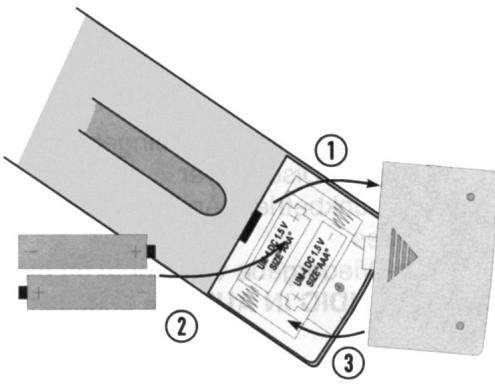
If the remote control is not used for a longer period of time then the batteries should be removed. The remote control could otherwise be damaged battery acid.
Putting into operation and basic functions
Menu functions
All operations of the DVD operating mode are shown on the screen in MENU-Form « for simpler operation. Various languages can be selected for the menu. To set the menu language, please refer to the Basic settings « section on page 35-37.
In all menus, the selections and the settings are made using the buttons / / / 21 . The setting is confirmed by pressing ENTER 21 .
The BASS-MODE option, for example, is explained as follows...
SETUP MENU SPEAKER SETUP BASS MODE
...then these operating Steps are to be carried out.
- Press the SETUP button 20, the main menu appears on the screen.
- Use the button 21 to select the line SPEAKER SETUP.
- Call up the SPEAKER SETUP PAGE by pressing the «ENTER« 21 button.
- Use the button 21 to select BASS-MODE
- Press the button, the marking now switches to the right side of the menu into the set-up mode.
- Highlight the required setting using the / buttons.
- Confirm the setting using the ENTER button 21.
- To leave the menu, press the SETUP< button 20.
If there is SETUP menu on the screen then the other device functions

I If a command can not be executed because, e.g. the CD does not contain a given piece of information, then this symbol appears on the top left corner of your screen.
Switching the device on and off
Switch on the television. If the DVD receiver is connected to the television by SCART then switch over to the respective Scart input if necessary.
If the DVD receiver is connected to the television via the VIDEO or S-VIDEO socket then the corresponding video input must be selected at the television.
Switch on the DVD receiver with the «POWER« button 6. Display 10 of the DVD receiver now lights up and you are prompted an the television screen to insert a CD. If a CD has already been inserted then the device automatically starts to play it back on switching on.
Switch the device to standby mode by pressing the
STANDBY button 14 LED 7 lights up now. Re-pressing
STANDBY button 14 or SOURCE button 13
switches the device back on from standby mode.
The device is switched off completely by pressing the POWER switch 6.
Note: Depending on the reception conditions of your television, it is possible that there is disturbance to the picture when watching normal television. In this case, switch off the DVD receiver using the »POWER« button 6.
Selecting the operating mode:
For playback of picture and sound, the corresponding operating mode must be selected. The respective operating modes can be selected directly using the buttons «DVD«, «TUNER« or «AUX« 28. The individual operating modes are run through by pressing the «SOURCE« button 13.
DVD Playing-back from the built-in DVD compact disc Player
TUNER Radio operation selecting the frequency band
AUX 1 Playback from a device connected to one of
AUX 2 the >AUDIO IN AUX 1/2 « sockets 53.
Display 10 is used for control purposes..
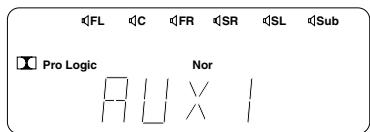
Setting the volume
By pressing the ADJ/VOL. +/-← buttons5/41, you can set the volume as desired.
To switch off the sound, press the MUTE button 37 on the remote control. The STANDBY/MUTE 7 display flashes..
On re-pressing this button or one of the «ADJ/VOL +/-« 5/41 the sound is switched back on.
Basic settings
The following settings only need to be carried out once before putting the system into operation for the first time. Before changing the basic settings (in the General Setup), check which corrections are required based on the following table.
| Menu display: | Factory setting: | |
| Menu language | OSD LANG | ENGLISH |
| TV standard | TV TYPE | MULTI |
| Audio output | AUDIO OUT | ANALOG |
| Video output | VIDEO OUT | CVBS |
Menu language (OSD LANG):
Select between GERMAN, ENGLISH, FRENCH, ITALIAN, and SPANISH
TV-Standard (TV TYPE):
The TV standard (colour system) is listed in the technical specifications of your television. Adjust the DVD receiver accordingly (MULTI, NTSC, PAL). The TV standard of the DVD receiver can also be switched over manually at any time (when there is no menu on the screen) using N / P button 35.
Audio output (AUDIO OUT):
Select....
ANALOG, when the speakers are connected directly to «SPEAKERS« 55 or the DVD sound is transmitted to another device via «AUDIO OUT« 52.
SPFIF/RAW, when a Dolby Digital receiver or DTS or MPEG decoder is connected to the «OPTICAL OUT« or «COAXIAL OUT« 54.
SPDIF/PCM, when a receiver that can process the PCM sound signal is connected to the «OPTICAL OUT« o «COAXIAL OUT« 54.
Note: If the audio output is selected incorrectly then the sound can not be heard or is heard poorly.
Video output (VIDEO OUT):
Select...
CVBS, when «VIDEO OUT« connector 48 is connected to the television.
RGB, when «SCART OUT« 46 is connected to the television.
YUV, when «S-VIDEO OUT« 47 is connected to the television.
Setting the menu language (OSD SPRACHE):
Switch on the device at the power switch « POWER« 6. If necessary, select the video input at the television. Switch to DVD operation by pressing the «DVD« button 28.
Press SETUP 20.The main menu appears on the screen. The GENERAL SETUP line is highlighted.
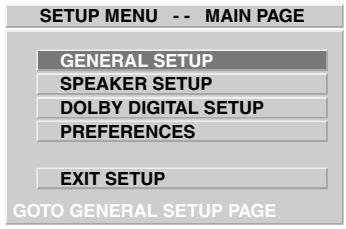
By pressing the «ENTER« button 21, GENERAL PAGE will appear.
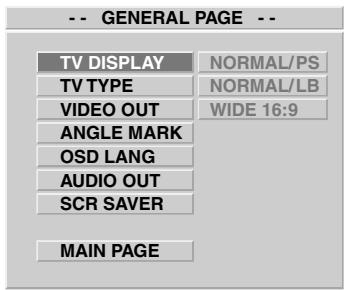
Using button select OSD-LANG to change the menu language.
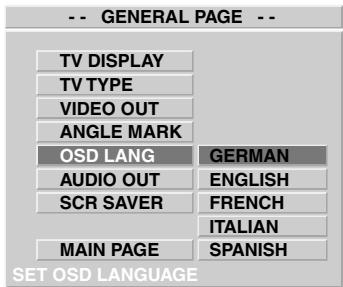
Press 21and highlight the desired language with / 21 . Confirm the setting with ENTER< button 21.
Press SETUP<20 to leave the menu.
Setting the TV standard (TV TYPE):
(Proceed the same as when setting the menu language; the device must be switched on and in DVD operating mode).
Press SETUP 20 ; the main menu appears. The GENERAL SETUP line is marked.
- Press «ENTER« 21; the GENERAL PAGE appears.
Using 21 the TV TYPE will be selected.
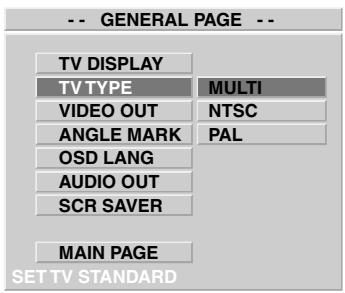
- Press button.
Using 21 ; to select the TV standard. - Press ENTER 21 to confirm your selection.
- Use SETUP« 20 to leave the menu.
Setting the audio output (AUDIO OUT):
(Same procedure as when setting the menu language; the device must be switched on in DVD operating mode).
- Press «SETUP« 20; the main menu appears and the GENERAL SETUP line is highlighted.
- Press ENTER 21; the GENERAL PAGE appears.
- Use 21 to select AUDIO OUT.
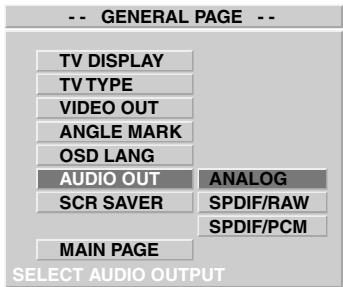
Press
- Use the / to select the audio output.
- Press ENTER 21 to confirm your selection.
- Use SETUP« 20 to leave the menu.
Setting the video output (VIDEO OUT)
(Proceed the same as when setting the menu language; the device must be switched on and in DVD operating mode).
Press SETUP< button 20; the main menu appears. The GENERAL SETUP line is highlighted.
- Press ENTER button 21; the GENERAL PAGE appears.
- Use button 21 to selectVIDEO OUT.
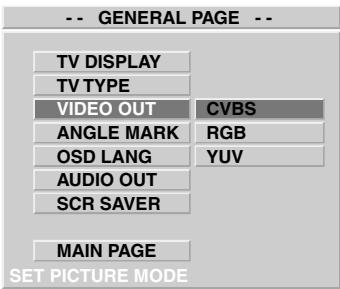
- Press «.
- Use the / to select the video output.
- Press ENTER button 21 to confirm your selection.
- Use SETUP button 20 to leave the menu.
Setting and storing the radio stations
Switch on the device at the power switch POWER 6. Use TUNER 28 or SOURCE button 13 to switch to tuner mode and select the desired frequency band (FM or AM).
FM 87,5 MHz - 108,00 MHz
AM 530KHz - 1710kHz
Keep one of the «TUN-/TUN +« buttons 24 pressed until the frequency in display unit 10 automatically changes.
When a station is sufficiently strong, the search is stopped and the station is simultaneously optimally set and displayed.
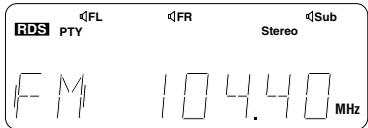
To store the station, press MEMO< button 42.
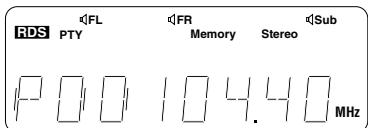
Set the desired channel position using the »STA/STA+« button 23 or the numeric keys 19.
Re-press MEMO\~ 42 to confirm your entry.
To store additional programs, repeat the above steps.
Note:
- If, after pressing the MEMO button, no button is pressed for 5 seconds then the device switches back to the normal frequency display.
- You can set stations with a weaker signal by repeatedly pressing the TUN-/TUN+ button 24.
Listening to radio:
Switch on the device at the power switch POWER 6. Use TUNER 28 or SOURCE 13 to switch to tuner mode and select the desired frequency band (FM of AM).
The previously stored channel positions can be selected using the numeric buttons 19 or the «SRA-/STA+« button 23. Set non-stored stations using the «TUN-/TUN+« buttons 24.
The device switches between stereo and mono reception when you repeatedly press ST/MO 40. In case of bad reception, we suggest that you switch to MONO.
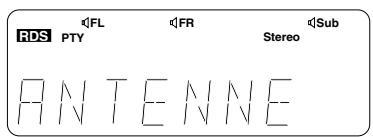
If an RDS station is switched on then RDS appears in display unit 10. By repeatedly pressing «DISPLAY« button 34, the device switches between station names, program type and transmission frequency.
Inserting and removing a CD:
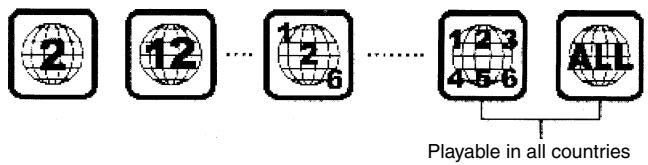
DVD Video CDs, Video-CDs, MP3-CDs and Audio-CDs can be played back on this device. The device automatically recognises the corresponding format after reading-in the CD. Playable CDs are marked with one or more of the following logos.



Switch on the DVD receiver and switch to DVD mode. Then press «OPEN/CLOSE« 9/38. The CD tray 8 is opened. Now insert the CD with the side to be played facing downwards. The side to be played is blank. If both sides are bland (e.g. in case of some DVD video CDs that are recorded on both sides), then first play back the side that is marked with A or a 1, depending on the CD. Single CDs (8cm) without adapter can also be inserted.
Now close the CD tray by re-pressing OPEN/CLOSE « 9/38. The device immediately begins with play back.
Depending on the CD that is inserted, the device switches to the highest pre-set AUDIO MODE. If no speakers are connected to the device then playback may be without sound, depending on the CD that has been inserted. To listen to the CD via the television speaker you must switch over to STEREO (in SPEAKER SETUP PAGE), line AUDIO MODE).
SETUP MENU SPEAKER SETUP AUDIO MODE
(See »Setting the audio mode« page 47)
Warning!
To avoid damage to the device, no foreign objects must enter the CD tray.
Note: This DVD receiver supports the copy-protection codes of most DVD video CDs and video CDs. This means that the contents of these CDs can not normally be copied by a video recorder onto tape during normal playback.
Configuring and operating the Surround System
Dolby Digital and Dolby Surround:
Dolby Digital and Dolby Surround are special sound recording procedures that were originally developed for film. To be able to also use these spatial sound effects at your home, video tapes, TV broadcasting, CDs and LDs have been manufactured with this technology. In contrast to Dolby Surround Pro Logic, stereo channels are also used for both surround speakers in Dolby Digital.
When buying DVD videos CDs, video cassettes, LDS and music CDs look out for the [X]DOLBY SURROUND PRO-LOGIC logo and the [X]DOLBY LOGIC logo. These logos mark all picture and sound media that contain recordings in Dolby-Pro-Logic Surround and Dolby Digital quality.
VHS video cassettes that are only marked by the DOLBY B NR logo do not contain the required information.

D I G

ITAL


PRO·LOGIC
Manufactured under license from Dolby Laboratories Licensing Corporation. DOLBY, the Double-D symbol and PRO LOGIC are registered trademarks of the Dolby Laboratories Licensing Corporation.
This system is for a 5.1 decoder with 5 different audible sound channels (right forward, left forward, middle, right rear left rear) plus 1 subwoofer.
Speaker system »5.1 CH«
Before being able to configure and tune your speaker system, the 5.1 CH setting must be made in AUDIO MODE (STEREO is set at the factory)
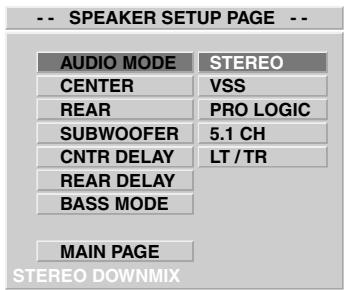
SETUP MENU SPEAKER SETUP AUDIO MODE
Select ▲/▼« 21 5.1 CH and confirm your selection with ENTER « 21. Press »SETUP « 20 to quit the menu.
Configuring the speaker system
Depending on whether all six speakers are connected at the «SPEAKER« 55 terminals or the «WOOFER LINE OUT« 51 connector, the corresponding channels must be switched on or off in the SPEAKER SETUP PAGE. Before changing the basic settings, check which corrections are required based on the following table.
| Menu display | Factory settings | |
| Centerbox | CENTER | ON |
| Surround speaker | REAR | ON |
| Subwoofer | SUBWOOFER | ON |
Note: When playing back sound on this system, the front speakers must always be connected.
Turning on or off individual sound channels:
Switch on the device at the power switch «POWER« 6. Switch to DVD mode by pressing the «DVD« 28 or «SOURCE« 13 in DVD mode..
Press SETUP 20. The main menu appears on the screen. Select SPEAKER SETUP using 21. Call up the SPEAKER SETUP PAGE by pressing
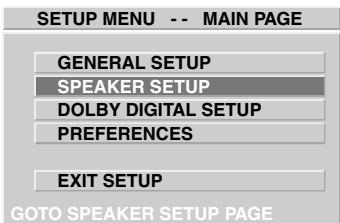
ENTER « 21. For AUDIO MODE 5.1 CH has to be set. Depending on which speaker channel you want to switch on or off, select with the » 5/6 « buttons 21 the sound
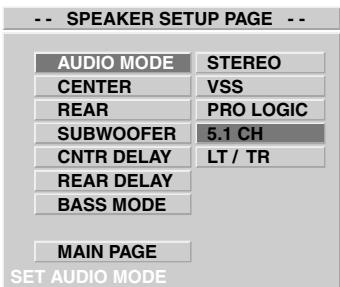
channel CENTER; REAR or SUBWOOFER. Press and highlight ON or OFF with / .Press ENTER21 to confirm the selection.
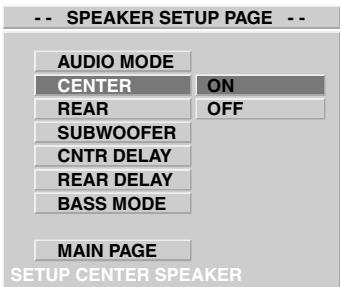
If you want to correct another sound channel then press «.Select the sound channel using »▲/▼«. Press »▶« and switch them on or off using »▲/▼«. Press »ENTER« 21 to confirm the selection..
To leave the menu, press SETUP
Note:
If, in menu item BASS MODE, the setting CONFIG 1 has been selected (see page 47) then the subwoofer can not be selected.
Tuning of the speaker system
In such multi channel systems, the system must be tuned to the listening position (e.g. sofa) after positioning the speakers. This is termed >noise focusing the system «. The basic setting, once found, must only be changed when the listening position or the position of the speakers has been changed.
Note:
To tune all channels, 5.1 CH has to be set in AUDIO MODE (see section: Speaker system 5.1 CH ).
Switch on the DVD receiver with POWER 6. Using ADJ/VOL +/- 5/41, set the volume to a middle value, about 10-15 dB, (see display unit 10). Take a seat on your sofa.
After pressing >TEST TONE « 45 the test signal generator transmits the noise. To the individual speakers in series for approx. 3-4 seconds per speaker. The procedure can be observed in display unit 10.
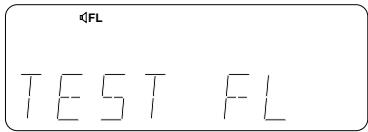
The following abbreviations are used for each of the sound channels (speakers).
FL Front speakers Left
C Centerbox (speaker middle)
FR Front speaker Rright
SR Surround speaker Rright
SL Surround speaker Left
The volume of the respective speaker is to be set with ADJ/VOL +/-41 in such a way that the noise level sounds the same from the position of the listener.
To stop tuning the speakers, re-press TEST TONE« 45.
Tuning the speakers individually:
The volume of the speakers can be manually set for each individual speaker connected to the system. In this procedure, the treble and bass of the front speakers can also be adjusted to your individual taste.
Which speakers can be selected depends on the set LISTENING mod (for TUNER and AUX) or from the contents of the CD. (see section «Dolby Surround operation« page 39).
Switch between the individual channels by pressing >SELECT< 12/43.
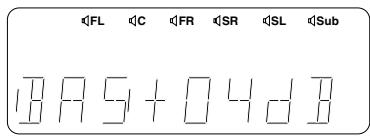
Treble of front speakers
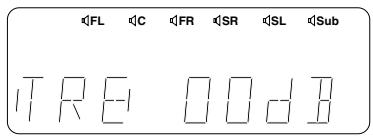
Bass of front speakers
Volume of the individual speakers
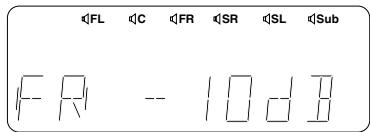
Adjust the values to your own liking by pressing ADJ/VOL+/-< 5/41.
About 2 to 3 seconds after the last entry, the display switches back. The changes are automatically stored.
Dolby-Surround-operation
By repeatedly pressing «LISTENING« 44 the device switches through the following functions (LISTENING MODE):
PRO LOGIC...: corresponds to Dolby Pro Logic reproduction. This only makes sense if all 5 speakers are connected..
...NORMAL: (Display:: ProLogic Nor) for unchanged Dolby-Pro-Logic Sorround reproduction.
...PHANROM: (Display: ProLogic Phan) dot distribute the middle signal to the left and righth channels. This mode is recommended for music and for films that are NOT RECORD IN Dolby Surround.
...WIDE: (Display: ProLogic Wide) corresponds to a wide acoustic dispersion. This gives the impression that the speakers have been moved further apart.
3-STEREO....: sound is reproduced over the front speakers and the centre box. Dolby-Surround reproduction is switched off.
...NORMAL (Display: 3 Stereo Nor) for unchanged 3-stereo reproduction..
... WIDE (Display: 3 Stereo Wide) corresponds to a wide acoustic dispersion. This gives the impression that the speakers have been moved further apart.
PRO LOGIC BYPASS: (no display) reproduction is over both front speakers and the subwoofer.
Note
- If only a MONO signal is available then you should always switch to PRO LOGIC BYPASS.
- In DVD mode, you can not switch over to LISTENING MODE. The LISTENING MODE is automatically selected, depending on the CD that has been inserted.
Playing a DVD Video CD or a Video CD
DVD video CDs can be recognized by the logo on the left and video CDs by the logo on the right.


DVD video CDs and video CDs can contain films, video clips, television series, and so on. Depending on their content, these CDs may have one or more titles. Every title on a DVD video CD can contain one or more sections (chapters). The titles of a video CD consists of one or more index items. Information on the content of a CD is also usually contained on the cover.
The region code of the DVD video CD sets the countries for which this DVD has been intended for use. The region code of this DVD receiver is 2 . DVDs that do not contain a 2 on the code label can not be played on this device.
Certain video CDs are equipped with a Play Back Control (PBC)
Playing a CD
Switch on the television. If the DVD receiver is connected to the television by SCART then switch over to the respective Scart input if necessary.
If the DVD receiver is connected to the television via the VIDEO or SVIDEO socket then the corresponding video input must be selected at the television.
Switch on the DVD receiver using POWER button 6. Press DVD 28 or SOURCE 13 to switch to DVD mode and insert a DVD video CD or a video CD.
The following mode indicators inform you of the current drive status.
| Function | On the screen | In the display |
| Wait | WAITING | |
| Scanning CD | DISC LOADING | LOADING |
| Open | OPEN | OPEN |
| Close | CLOSE | CLOSE |
| PLAYBACK | PLAY | PLAY |
| No CD | NO DISC | NO DISC |
| Defective CD | BAD DISC | BAD DISC |
| Medium | DVD/VCD/CD/MP3 | |
| Region code | WRONG REGION | Seite 40 |
| Childproof lock | PARENTAL VIOLATION | Seite 46 |
Due to the built-in auto-play function, the DVD automatically starts to play back when...
- A CD is already inserted when switching on the DVD receiver, or
- The CD tray is closed.
Note:
Depending on the CD that is inserted, the device switches to the highest preset AUDIO MODE. If no speakers are connected to the device then playback may be without sound, depending on the CD that has been inserted. To listen tothe CD via the television speaker you must switch over to STEREO (in SPEAKER SETUP PAGE, line AUDIO MODE).

(see setting the audio mode on page XX).
With some DVD video CDs and video CDs, the DVD menu or the title menu is displayed at the start of playback. If the device is in STOP mode then press II PLAY/PAUSE « 3/39 to start playback.
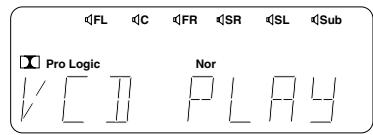
On pressing NEXT I 1/24 playback of the next title/chapter is continued. On pressing I PREV 1/24 the previous title/chapter begins to play.
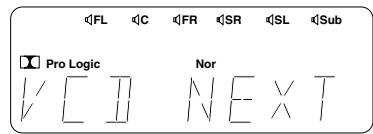
To Stop playback, press STOP 2 / 22
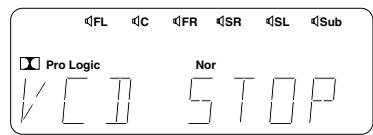
Note:
If the device is in PAUSE or STOP mode for more than a minute then the screen saver automatically appears. The screen saver disappears on pressing II PLAY/ PAUSE « 3/39. The screen saver function can always be switched on or off in the BASIC SETTING menu in the SCR SAVER line.
Contents of DVD CDs (menu)
Some DVD-CDs contain selection menus for title and sections or a root menu to call up additionally stored information. This menu can also contain selection possibilities for camera angle, dubbing languages, subtitle, etc.
Depending on the DVD inserted, this menu can be called up by pressing « TITLE« 30, or by pressing « RETURN« 29. The corresponding selection menu then appears on the screen if the DVD or the title currently being played contains a menu.
The menu items are selected with the / / ≥ / / 21 and confirmed by ENTER 21 . If the menu items are numbered then these can be directly selected using the digit buttons. 1 - 0 19 .
Playing a video CD with PCB
If the video CD inserted is equipped with «Play Back Control (PCB)« then the PCB menu appears on the screen at the start of playback.
The menu item s are selected with the / / / 21 and confirmed by ENTER 21. If the menu items are numbered then these can be directly selected using the digit buttons. 1-0 19. Follow the instructions on the screen.
Note:
- During playback of a CD with PBC, the buttons «GOTO« 17, «REPEAT« 25 and the numeric buttons «1-0« do not function.
- If the PBC function is active then you can switch back to the previous menu by pressing RETURN 29.
- To switch off the PBC function, press »MENU/PBX« 32 »PBC OFF«. Appears on the screen. In this case, playback of the video CD is stated using »▶II PLAY/ PAUSE« 3/39.
Freeze frame and single frames
To look at a frozen frame during playback, press▶PLAY/PAUSE« 3/39.
Screen: PAUSE
Playback is continued by re-pressing II PLAY/ PAUSE ^《 3/39.
Screen: DVD Play
The next single frame appears each time you re-press STEP 40.
Screen: STEP
Playback is continued by pressing II PLAY/PAUSE ^« 3/39.
Slow motion
To switch to slow motion during a freeze frame or playback, press SLOW 42. The speed of slow motion is selected by continually re-pressing this button. The direction is displayed in display unit 10 and on the screen.
Slow motion forwards:
Screen:
SF1
SF2
SF3
Slow motion backwards (only for DVD video CDs):
Screen:
SR 1
SR 2
SR 3
To continue playback, keep pressing SLOW button 42 until PLAY appears or press II PLAY/PAUSE button 3/39.
Search
To find particular location during playback, press one of the / buttons 23.
Search forwards:
Screen:
FF1
FF2
FF3
FF4
Search backwards::
Screen:
FR1
FR2
FR 3
FR4
To continue the playback, keep pressing the corresponding / button until "PLAY" appears of press II PLAY/PAUSE 3 / 39
Frame zoom function
During playback, freeze frame and search mode functions, you can enlarge (zoom) the picture
To do this, press ZOOM button 18.
Screen:
ZOOM 1
ZOOM 2
ZOOM AUS
Note:
- The zoomed picture can be shifted on the screen using the / / / 21 .
Depending on the DVD video or video CD inserted, not all zoom functions are always available. - Subtitles and screen overlays can not be zoomed.
Repeat functions
The following repeat functions (REPEAT) are available when playing back a CD:
- Continuous repetition of all sections of a title or of a CD
- Continuous repetition of all titles of a CD
- Continuous repetition of an individual section or title of a CD.
- Continuous repetition of a particular passage of a section or title of a CD
During playback, press REPEAT 25. once or repeatedly. You have the following possibilities:
Playback of a DVD video CD:
| Screen: | Display: | Function: |
| CHAPTER REPEAT ONE | RPT ONE | Repeats the current section |
| TITLE REPEAT ONE | RPT ALL | Repeats all of the current title |
| REPEAT OFF | RPT OFF | Repeat function is off |
Playback of a Video-CD:
| Screen: | Display: | Function: |
| REP-ON | RPT ONE | Repeats the current title |
| REP-ALL | RPT ALL | Repeats all titles on the CD |
| REPEAT OFF | RPT OFF | Repeat function is off |
To continuously repeat a particular passage of a section or title, proceed as follows. Press the A - B button 26 at the beginning of the desired passage. If the end of the passage is reached, then re-press A - B button 26. The following appears in display unit 10:
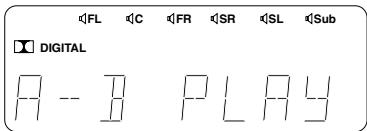
Playback will be continued as normal by re-pressing A-B button 26.
Note: Points A and B must be within a title.
Language and subtitles
Depending on the DVD inserted, there are often several languages recorded for the sound and the subtitles.
During playback...
- the playback language for the sound can be selected by repeated pressing of »LANGUAGE« Button 16.
- the language can be selected for the subtitles by repeatedly pressing «SUBTITLE« button 15.
If the various languages for the sound are not recorded in the same audio format then the audio format can be switched-over by pressing «LANGUAGE« button 16. You can then see this on the screen overlay.
Note:
Language selection using the »LANGUAGE« and »SUB-TITLE« buttons is only possible when using DVDs. If several languages are available for the sound on a video CD, then these can be selected by pressing »AUDIO« button 33
A preferred language for both sound and subtitles can be set in the PREFERENCES PAGE (see page 45).
Selection of the camera angle:
If the CD contains scenes that have been recorded at different camera angles then a symbol for this appears in the heading as well as details of the number of available angles. (As long as the overlaying of information has not been switched off in GENERAL PAGE in the ANGLE MARK line).
The various angles are moved through by repeatedly pressing ANGLE button 31
Example:




Other playback functions
Selecting a section within DVD video CDs:
Usually, the titles of a DVD video CD consist of several sections (CHAPTER). To select the next section during playback, briefly press NEXT I` button 1/24. To go back to the previous section, press I PREV` button 1/24.
You can see which section (CHAPTER) is selected on the screen.
Selecting a title for video CDs:
If the content of a video CD consists of titles, then the next and the previous title can be selected during playback. Select the next title by pressing NEXT I` button 1/24. To go back to the previous title, press I PREV` button 1/24 for a short time.
Starting playback at a particular location...
For this function, you must know the playback time of the scene you are looking for.
...when a DVD video CD is inserted:
TITLE and CHAPTER appear on pressing GOTO button 17. These can be selected with / button 21.
The title and the chapter are entered using the numeric keys 1 - 0 19
After pressing ENTER button 21, the DVD plays back from the beginning of the selected chapter. If, however, GOTO button 17 is re-pressed, then you are prompted for the time. The desired time can now be entered using the numeric keys 1-9 19.
Playback begins at the set playback time by pressing ENTER button 21.
...when a video CD is inserted:
The time prompt appears on pressing GOTO button 17. The desired time can now be entered using the numeric keys 1-0 19. Playback commences automatically at the set playback time.
Displaying the playback information:
Depending on which information is available on the respective CD, this information can be called up by repeatedly pressing >DISPLAY« button 34. On the screen, there now appears, e.g. the number of the current title and the current section, the total number of all titles and chapters/sections of the CD, as well as the various play times of titles, section or of the CD..
Example:
TITLE 01/03 CHAPTER 11 / 19
General information about audio CDs
Audio CDs are recognized by the following logo.

Audio CDs only contain music. This device can also play back MP3 CDs.
The device recognizes automatically whether a normal music CD or and MP3 CD is inserted.
Note:
- The device supports MP3 bit rates of 32-320 Kbit/s, variable bit rate and mono/stereo.
- CD-R CDs and CD-RW CDs can be played back.
- MP3 titles in CD Mode 1 (ISO 96609), Mode 2XA and Multi Session can be played back.
Playing a CD
Switch on the DVD receiver using POWER switch 6, press DVD button 28 and insert an audio CD.
Due to the built-in auto-play function, the DVD automatically, starts to play back when...
- a CD is already inserted when switching on the DVD receiver, or
- the CD tray is closed.
If the device is in STOP mode then press II PLAY/ PAUSE« button 3/39 to start playback. During playback, display 10 shows the title being played and the played time already elapsed. Playback automatically stops at the end of the CD.
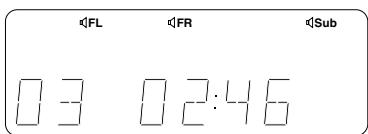
Note:
In case of MP3 CDs, the title is displayed in three digits.
To interrupt playback for a short time, press II PLAY/ PAUSE« button 3/39.
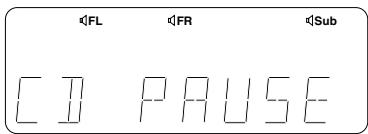
Playback is continued by pressing the II PLAY/ PAUSE ^® button.
To stop playback, press STOP button 2/22.
Title selection and search mode
Title selection:
To select the next title during playback, press NEXT button 1/24 for a short time. To go back to the beginning of the title currently being played, press PREV button 1/24 for a short time. The previous title is selected by re-pressing PREV .
To select a title directly during playback, enter the title using the numeric keys 1 - 0 19 when selecting a multi digit title using >10 button 19, first select the tens position and then enter the second position with 1 - 0 19
Search:
To find a particular location during playback, press one of the / buttons 23. Search mode starts. The search speed is set by repeatedly pressing the button. Search mode can be carried out in two speeds. The direction of the search is displayed in display unit 10.
Search forwards:
$$ D i s p l a y: \quad \begin{array}{c c c} F & F \ \hline \end{array} $$
Search backwards:
$$ D i s p l a y: \quad \begin{array}{c c c} F & \square & \ F & \backslash & \ \end{array} \quad \begin{array}{c c c} F & \square & \ F & \backslash & \ \end{array} $$
To continue with playback, press II PLAY/PAUSE« button 3/39.
Note:
The search mode function is not possible for MP3 CDs.
Other playback functions
Displaying information on the play time:
The play time of the CD or the title appears on the screen and in display 10.
By repeatedly pressing «DISPLAY« button 34 during playback, you can switch-over between the following display of:
- elapsed time of the title
remaining play time of the title
elapsed time of the CD
remaining play time of the CD
Repeat functions:
the following repeat functions (REPEAT) are available when playing back a CD:
- continuous repetition of all titles of a CD
- continuous repetition of the individual titles of a CD
- continuous repetition of a particular passage of a title on the CD.
During playback, press REPEAT button 25 once or repeatedly. You have the following possibilities:
| Display: | Function: |
| RPT - ONE | Repeats the current title |
| RPT - ALL | Repeats all titles on the CD |
| RPT - OFF | Repeat function is off |
To repeat a particular title continuously, proceed as follows: Press A-B< button 26 at the beginning of the desired passage. If the end of the passage is reached, then re-press A-B< button 26. The following appears in display unit 10:
Playback will be continued as normal by re-pressing
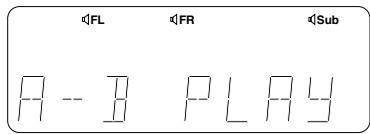
»A-B« button 26.
Note: Points A and B must be within a title.
Programme memory
You can store and play back up to 99 titles in any order. If you try to programme more than 99 titles then a FULL message is displayed in display 10.
Note:
Title programming is not possible for MP3 CDs.
- In stop mode, you can switch to programming mode by pressing PROG button 27.
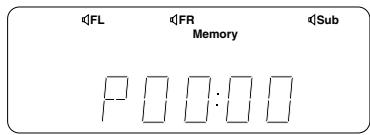
- Enter the required title using the numeric keys «1-0« 19. This title is then stored on the 1st programme position and the memory automatically switches to the 2nd programme position
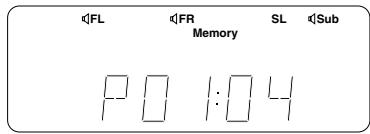
- Enter the remaining titles using the numeric keys 1 - 0 19
Note: When selecting a multi-digit title using 10 button 19, first select the tens position and then enter the second position with 1 - 0 19 .
When all titles have been stored, press II PLAY/PAUSE button 3/39 to play back. When the MEMORY display lights up, then the programmed sequence can be played back again at any time by pressing II PLAY/PAUSE button 3/39.
Clearing the programming:
If the CD player is in stop position, then the entire programming is cleared by pressing STOP button 2/22. The MEMORY message vanishes. The entire programming is also cleared by opening tray 8.
Special Functions
Device configuration (setup)
You can adapt the following options in the GENERAL PAGE to your individual requirements. To do this, the device must be switched on in DVD operating mode. You can check which changes are required using the following table.
| Menu display: | Factory settings: | |
| Picture format | TV DISPLAY | NORMAL / PS |
| Info camera angle | ANGLE MARK | ON |
| Screen saver | SCR Saver | OFF |
Selecting the picture format:

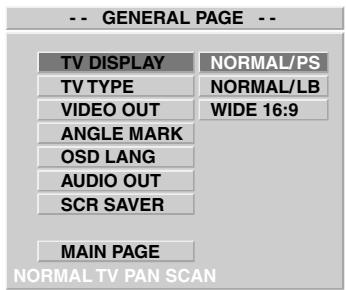
Select with the / buttons 21...
NORMAL / PS, when a 4:3 television is connected that is being operated in "ZOOM"-Mode. When playing back a broadcast in 16:9 format, the picture fills the entire screen; the picture information at the sides can no longer be seen.
NORMAL / LB, whena normal 4:3 television is connected. Black borders appear on the top and bottom of the screen when playing back a 16:9 format broadcast.
WIDE 16:9, when a 16:9 television is connected. On playing back 16:9 broadcasts, the picture fills up the entire screen.
Confirm the setting with «ENTER« 21. Press «SETUP« button 20 to quit the menu.
Note:
- The same picture format must be selected on the connected television.
- If the information for the selected picture format does not exist on the CDE, with some CDs, playback is then automatically carried out in the normal 4:3 format.
Otherwise, another picture format must be manually selected.
Switching the selected camera angle information on or off:
SETUP MENU GENERAL PAGE ANGLE MARK
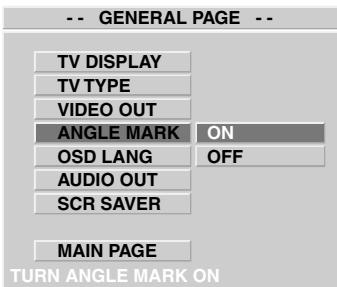
Select with the / 21 buttons...
ON, when information is to appear on the screen during playback for scenes with various camera angles.
OFF, if this information is not to be shown.
Confirm the setting with «ENTER« 21. Press «SETUP« button 20 to quit the menu.
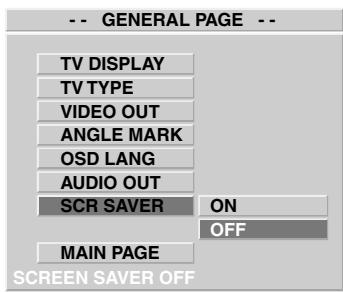
Switching on or off the screen saver:
SETUP MENU GENERAL PAGE SCR Saver
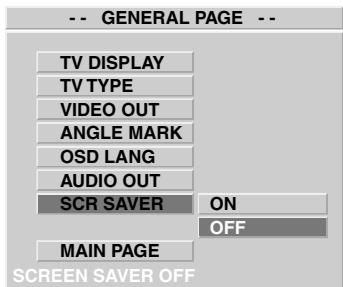
Select with the / 21 buttons... ON, to switch on the screen saver a OFF, to switch off the screen saver.
Note:
If the screen saver is switched on then this appears as soon as the CD drive has been in the PAUSE or the STOP position for a minute. Press any button to unlock the screen.
Preferred settings (language)
In the PREFERENCES PAGE, you can set your preferences for the language of the sound, the subtitles and the CD menu for playback of DVDs and video CDs.
| Language of the... | Menu display: | Factory settings: |
| Playback sounds | AUDIO | ENGLISH |
| Subtitles | SUBTITLE | OFF |
| CD menu | DISC MENU | ENGLISH |
Note:
- To access the PREFERENCESPAGE, the CD drive must be in the STOP position.
- If the information set here is not contained on the CD inserted, another language is automatically selected.
Preferred playback sound (AUDIO):
SETUP MENU PREFERENCESPAGE AUDIO
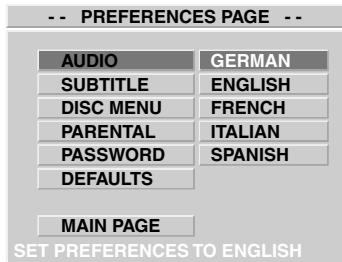
Select the preferred playback language using the / 21 buttons.
Confirm the setting with «ENTER« 21. Switch to the left side of the menu by pressing the « button in order to make further settings. Or fade out the menu by pressing «SETUP« button 20.
Note: During playback, you can also change the language of the playback sound by pressing LANGUAGE button 16.
Preferred language for subtitles (SUBTITLE):
SETUP MENU PREFERENCESPAGE SUBTITLE
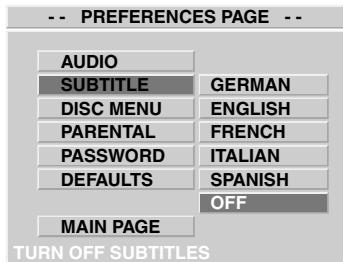
Select the desired language using the / 21 buttons or switch off the subtitles with OFF.
Confirm the setting with «ENTER« button 21. Switch to the left side of the menu by pressing the «按钮 in order to make further settings. Or fade out the many by pressing «SETUP« button 20.
Note: During playback, you can also switch-over the language of the subtitles by pressing «SUBTITLE« button 15.
Preferred language of the CD menu (DISC MENU):
SETUP MENU PREFERENCES PAGE DISC MENU
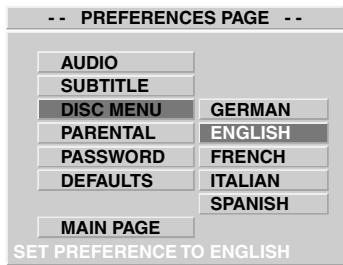
Select the desired language using the / 21 buttons. Confirm the setting with ENTER button 21 and fade out the menu by pressing SETUP button 20.
Childproof lock
How the childproof lock works:
To protect children from watching films that are not suitable for their age, some DVDs and video CDs contain a special coding.
Special >substitute Scenes « are even stored on some CDs. If an »age limitation « has been selected then these stored scenes are automatically played back. If the »age limitation « you have selected is so low that the contents of the CD is no longer meaningful then the CD can no longer be played back.
If the Childproof lock is not actively selected (NO PARENTAL) then all CDs inserted into the drive can be played back.
Note:
- Please note that not all dangerous films contain this coding. Check the safety function of the film to make sure.
- If a correspondingly coded DVD is played back when the childproof lock is activated then this is only possible after a 4-digit safety code has been entered.
Setting or changing the safety code:
To do this, the DVD receiver must be in STOP mode.
SETUP MENU PREFERENCESPAGE PASSWORD
Press ENTER button 21; the PASSWORD CHANGE PAGE appears on the screen.
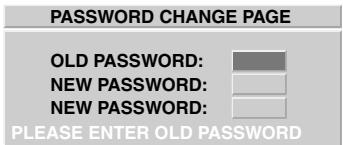
First enter your OLD PASSWORD (4-digit numeric code) using the numeric keys «1-0«. «3308« has been set at the factory. Now you just have to re-enter the NEW PASSWORD twice.
To store the password, press ENTER button 21. To be on the safe side, you should make a note of your safety code. Fade out the menu by pressing SETUP button 20.
Note:
If you forget your safety code ( PASSWORD) then you can reset the code to «3308«.
- Press ADJ/VOL + button 41 of the remote control and keep it pressed.
- Now press STEP button 40.
The following now appears on the screen: PARENTAL CODE CANCELLED.
Switching on or off the childproof lock:
To do this, the DVD receiver must be in STOP mode.
SETUP MENU PREFERENCESPAGE PARENTAL
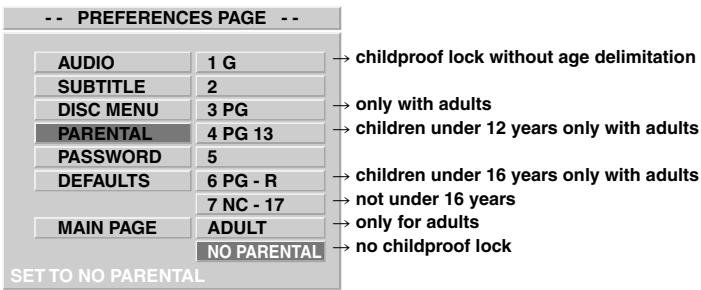
Select the required settings for the childproof lock using the 21 buttons. If the childproof lock is not to be activated, then select NO PARENTAL.
Confirm the setting using «ENTER« button 21 and enter the 4-digit safety code using the numeric keys «1-0«. Re-press «ENTER« button 21 and fade out the menu with «SETUP« 20.
Resetting to the original factory settings
On resetting the device, the following basic settings are reset to the original condition when leaving the factory.
| Menu display: | Factory sett.: | |
| Picture format | TV DISPLAY | NORMAL/PS |
| TV standard | TV TYPE | MULTI |
| Video Output | VIDEO OUT | CVBS |
| Info camera angle | ANGLE | ON |
| Menu language | OSD LANG | ENGLISH |
| Audio output | AUDIO OUT | ANALOG |
| Screen saver | SCR Saver | OFF |
| Audio mode | AUDIO MODE | STEREO |
| Dual tone | DUAL MONO | STEREO |
| Dynamic control | DYNAMIC | 8/8 |
| Sound language | AUDIO | ENGLISH |
| Language of subtitles | SUBTITLE | OFF |
| CD menu | DISC MENU | ENGLISH |
| Childproof lock | PARENTAL | ALL |
| Volume | VOLUME | 6 |
To do this, the DVD receiver must be in STOP mode.
SETUP MENU PREFERENCESPAGE DEFAULTS
Use button 21 to select RESET and ENTER button 21 to confirm. Now switch off the device and then back on using the POWER 6 switch. The device is now ready for delivery.
Note:
The safety code for the childproof lock is not reset by resetting the device.
Setting the automatic switch-off time
Here, with the device switched on, the time is set in 10-minute steps from 120 minutes to 10 minutes after which the device automatically switches to standby.
Press «SLEEP« button 36 on the remote control so often until the required duration appears on display unit 10 (120-10 minutes).
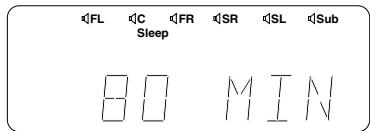
When the sleep timer is activated, SLEEP appears in the display. The device switches off automatically after the time set has expired.
To call up the remaining time press «SLEEP« button. This time can also be shortened at a later time or switched off entirely (00 min).
Special Sound Functions
Setting the audio mode
The setting of the AUDIO MODE must be made according to the CD inserted and to the speaker system in use. STEREO has been selected at the factory.
SETUP MENU SPEAKER SETUP AUDIO MODE
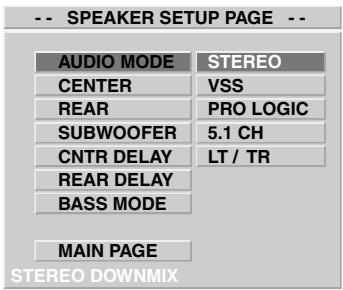
Select with the / 21 buttons...
STEREO, for playback of normal stereo sound via the front speakers and for headphone operation.
VSS, fir playback, if 2-channel virtual surround.
PRO LOGIC, for playback of Dolby Pro Logic Surround sound; i.e. the Dolby Pro Logic Decoder is activated.
5.1 CH, when the inserted CD has been recorded in Dolby Digital or DTS.
LT/RT, for playback of 2-channel sound (for later decoding by the Dolby Pro Logic Decoder).
Confirm the setting with «ENTER« 21. Press «SETUP« button 20 to quit the menu.
Note:
- If STEREO, VSS or LT/RT has been selected there is no playback of sound from the center speaker, the surround speakers and the subwoofer.
Depending on the CD inserted, it is possible that no sound can be heard in the STEREO and LT/RT setting; correct according to the settings. - Whether or not playback is possible in the audio mode selected always depends on the information available on the CD inserted; appropriate details are located on the cover of the CD.
Time delay for centre and surround speakers
Due to limitations imposed by the room, it may be possible that the centre speaker and/or the surround speakers cannot be optimally setup. To nevertheless receive an optimal sound experience, a time delay can be set for playback on each of these channels.
Centerbox:
SETUP MENU SPEAKER SETUP CNTR DELAY
If the centre speaker is nearer to the listening position then the front speakers then the front speakers then enter this difference in meters (m) into the menu using the / 21 buttons. Then select REAR DELAY or fade out the menu using SETUP button 20.
Surround speakers
SETUP MENU SPEAKER SETUP REAR DELAY
If the surround speakers are nearer to the listening position than the front speakers then you should also set this difference in meters (m) in the menu using / 21 buttons. Then fade out the menu using SETUP button 20.
Bass-mode setting
If you are using large front speakers (i.e. speakers with more power) then the bass-mode setting must be changed.
SETUP MENU SPEAKER SETUP BASS MODE
Select with / 21 buttons...
CONFIG 1, if you have connected the satellite speakers delivered with the device as front speakers or if the front speakers connected are similar to these.
CONFIG 2, when you are using larger front speakers.
Confirm the setting with «ENTER« button 21. Press «SETUP« button 20 to quit the menu.
Dual-mono-sound
In some recordings, the contents of the right and the left sound track are different. For example, the original sound track (possible English) may be on the right channel and the simulcast sound track (possibly German) may be on the left channel. In DUAL MONO, playback of these channels can be adjusted as required.
SETUP MENU DOLBY DIGITAL SETUP DUAL MONO
Select with the »▲/▼« 21 buttons...
STEREO, when both channels are played back separately ("stereo").
L MONO or R MONO, when playback of the left or of the right sound channel is to be made over both front speakers (e.g. with separate languages).
MIX MONO, in case of mixed playback of both channels.
Confirm the setting with «ENTER« 21. Press «SETUP« button 20 to quit the menu.
Note:
This setting is only possible when recordings are played back in Dolby Digital.
Sound dynamic range
In some situations it can be uncomfortable if the sound is very loud. To avoid this, the loudest positions must be compacted. In the same way, very quiet passages are almost inaudible and must therefore be made slightly louder.
Dolby Digital allows you to make these adjustments using the "Dynamic Range Control".
SETUP MENU → DOLBY DIGITAL SETUP → DYNAMIC
Select with the / 21 buttons...
8/8 to 1/8, if the dynamic ranges are to be entirely or partially compacted.
OFF, to switch off this automatic control.
Confirm the setting with «ENTER« 21. Press «SETUP« button 20 to quit the menu.
Note:
This setting is only possible when recordings are played back in Dolby Digital..
Care and Maintenance
Cleaning the components
Before cleaning, switch off the DVD receiver and unplug the subwoofer from the mains. Clean all components using a wet cloth or a little synthetic cleaner. Solvents, spirits, dilutents, etc. can damage the surface of the device.
Notes about compact disc (DVD video CD, video CD, audio CD, MP3 CD)
Always keep the CD in its cover and touch the edges only. The surface shimmering in rainbow colours must not be touched and should always be kept clean. Do not stick paper or adhesive tape onto the labelled side of the CDE. Keep the CD away from direct sunlight and heat sources such as heating.
A CD must also never be left in a car parked in direct sunlight as the temperature inside the car gets very high. Clean the CD with a cloth before playing it. Do not use any solvents such as petrol, dilutions or other detergents.
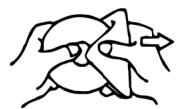
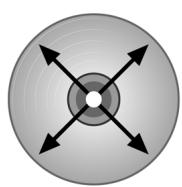
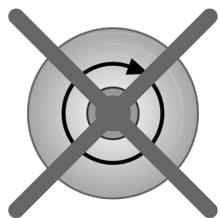
Clean the CD in a straight line from the centre outwards. Never clean the CD using circular cleaning movements.
Notes about the CD player
If the CD player is not being used, the CD tray should always remain closed to protect the mechanism against dust. However, it is still possible that the lens becomes dirty from dust or is covered by a thin, hardly visible, film. The CD system is then no longer able to scan the inserted CD. In this case you need to have the lens cleaned by a technician.
Maintenance
Electronic components are subject to a natural ageing process. The mechanical parts are subject to normal wear. Dust Particles inside the device may also cause faults to occur, e.g. due to dirtying of the laser lens. Consult your authorised dealer in the case of any faults. For transporting the set use the original packaging only.
Caution!
The device is powered by dangerous voltage. The set may therefore be opened by authorised specialists only. All maintenance and service work must be carried out by authorised companies only. Inexpert repair work may endanger the operator's life.
Any work on the set done by non-authorised persons on their own account causes the guarantee to expire.
Note:
To help identifying the device in case of after-sales service, always mention the number of the ID on the inscription plate on the rear of the device.
Before you call the service technician…
If the device fails to function normally, this does not necessarily mean it is defective. Please use the following list to check whether the malfunction has a simple cause. Never open the cabinet to look for a fault. This invalidates the guarantee resulting in the manufacturer accepting no liability.
| Fault | Possible cause | Troubleshooting |
| Blank display after switch-ing on | • Mains cable not plugged in correctly • No power at the socket • Device not switched on | → Check the mains cable. → Check the supply voltage. → Press »POWER« button 6 |
| No picture | • TV set switched off • Wrong channel on the TV set • DVD player is connected incorrectly or the connection cable is defective | → Switch on the television set. → Set the correct channel (AV). → Check the connection. See page 31-33 |
| Picture is distorted. | • CD dirty Note: Light distortion can sometimes arise when there is no mail function. | → Clean the CD. See page 48. Note: The DVD receiver should be connec-ted directly to the television; do not connect via the video recorder. |
| Distorted picture or no colour in the DVD menu | • Colour system has been set incorrectly | → Press »N/P« button 35 repeatedly |
| CD cannot be played. | • The CD was inserted with the wrong si-de up. • CD dirty • CD defective | → Check the inserted CD. The side to be play-ed must point down. → Clean the CD → Try another CD. |
| No sound | • Volume has been set too low or mute function is active. • Audio connections not made correctly. • Sound source has been incorrectly sel-ected or not switched on. • AUDIO MODE has been set incorrectly. • Speaker cable has not been connected correctly. | → Increase volume using the »ADJ/VOL. +/-« 5/41 buttons. → Check the connections (see page 31-33) → Check the sound source; try another play-b-ack source. → Switch-over the audio mode (see page 47) → Check the connections ( see page 31-33) |
| No screen menu when the CD is removed | • Internal safety Mechanism is active. | → Switch the device on and off with POWER button 6. |
| Device does not react to the remote control or re-acts incorrectly. | • Device is not receiving the signals • Batteries too weak • Faulty signal due to light sources such as fluorescent lights or energy-saving lights • Faulty signals due to other remote con-trol devices | → Move obstacles out of the way. → Check batteries and replace if necessary. → Check foreign light sources. → Remove the batteries from other remote control devices. |
| Distorted or black and white picture with DVD or video CD | • Incorrect CD format | → Check the format of the CD by looking at the cover. This device is only suitable for PAL and NTSC. |
| No sound from digital output | • Incorrect connection • Digital output (AUDIO OUT) set incorrectly • Incorrect audio format has been selec-ted. | → Check the connections. See page 31-33 → Call-up the set-up menu and switch-over to the digital output (AUDIO OUT), (see page 35-37). → Check whether the audio format of the sel-ected audio language corresponds to the possibilities of the receiving device. |
| Device does not react to pushbuttons | • Internal safety mechanism is active. | → Switch the device on and off with POWER button 6. |
Technical Specifications
| Scope of delivery: |
| DVD player |
| Remote Control 2 x R03P AAA |
| Subwoofer |
| 2 front speaker |
| 1 Centre box |
| 2 Surround speaker |
| SCART cable |
| Video with Cinch plug yellow |
| Audio cable with chinch plug red and white |
| 1 cable with black cinch plugs |
| 2 speaker cable red/black for front speaker |
| 2 speaker cable grey/black for Surround speaker |
| 1 speaker cable blue/black for centre box |
| Aerial cable |
| FM cast aerial |
| AM frame aerial |
| 20 rubber feet for the speakers |
| Operating instructions |
| General: | ||
| Mains Voltage | 230 V, 50 Hz | |
| Power consumption | 250 Watt | |
| Power consumption standby | < 5 Watt | |
| Laser type | Semi conductor AlGaAS | |
| Wave-length of laser | 650 nm | |
| TV-standard | PAL/NTSC | |
| Picture resolution | PAL | 576 lines |
| NTSC | 480 Lines | |
| Digital Compression | MPEG 2 | |
| Video- and Audio-Data | ||
| Video Output | 1 VSS on 75 Ohm | |
| S-Video | Y | 1 VSS at 75 Ohm |
| C PAL | 0,300 VSS at 75 Ohm | |
| C NTSC | 0,286 Vss at 75 Ohm | |
| Frequency response DVD | 2 Hz – 22 kHz | |
| Frequency response CD | 2 Hz – 20 kHz | |
| Distortion factor | 0,01 % | |
| Noise potential ratio: | 80 dB | |
| MP3-Data: | |
| Data rate (Bit rate) | 32 kbit/s – 320 kbit/s |
| Variable Bit-Rate | |
| Mono/stereo | |
| Compatible data carrier | CDR 650/CDR 70 |
| CD-RW | |
| Playback data | CD Mode1 (ISO 96) |
| CD Mode2XA | |
| Multi-session |
| Amplifier/Tuner | |
| Output performance (Stereo) | 2 x 25 Watt |
| Output performance (Surround) | 4 x 25 Watt |
| Performance active Subwoofer | 50 Watt |
| Speaker output | 4 Ohm |
| Headphones connection: | 30-600 Ohm |
| FM frequencies | 87,5-108 MHz |
| AM frequencies 522-1620 kHz | |
| Connections: | |
| SCART | Euro-connector |
| Output Video | Cinch |
| Output S-Video | Hosiden |
| Digital Output | IEC 958 für CDDA/LPCM |
| IEC 1937 für MPEG 1, | |
| MPEG 2 und AC-3 | |
| Output Audio R/L | Cinch 1x |
| Input Audio R/L | Cinch 2x |
| Antenne | FM 75 Ohm Coax |
| AM Loop-Anschluß | |
| Speakers | 5 terminals |
| Subwoofer | 1 Cinch |
| Headphones | 6,3 mm jack |
- Technical changes reserved
Tartalomjegyzék
Figyelem
Surround, ill. a Dolby 3 Stereo
45 TEST TONE
This device has been tested according to all relevant current CE guidelines, such as electromagnetic compatibility and low voltage directives, and has been constructed in accordance with the latest safety regulations.
Subject to technical changes without prior notice!
Guarantee
The device supplied by our Company is covered by a 24 month guarantee starting on the date of purchase (receipt).
During the life of the guarantee any fault of the device or its accessories *) ascribable to material or manufacturing defects will be eliminated free of charge by repairing or, at our discretion, by replacing it. The guarantee services do not entail an extension of the life of the guarantee nor do they give rise to any right to a new guarantee!
Proof of the guarantee is provided by the proof of purchase. Without proof of purchase no free replacement or repair will be carried out.
For repairs or replacement during the life of the guarantee return the device in its original packing together with the proof of purchase to your dealer.
*) Damage to accessories does not mean automatic free replacement of the whole machine. In such cases please contact our hotline. Broken glass or breakage of plastic parts are always subject to a charge.
Defects to consumables or parts subject to wearing (e.g. motor pistons, kneading blades, drive shafts, spare remote control, spare toothbrushes, saw blades, etc.) as well as cleaning, maintenance or the replacement of said parts are not covered by the guarantee and hence are to be paid!
The guarantee lapses in case of unauthorized tampering.
After the expiry of the guarantee
After the expiry of the guarantee repairs can be carried by the competent dealer or repair service against the payment of the ensuing costs.