DVD 613 - DVD player CLATRONIC - Free user manual and instructions
Find the device manual for free DVD 613 CLATRONIC in PDF.


| Product Type | DVD Player |
| Brand | CLATRONIC |
| Model | DVD 613 |
| Dimensions (W x H x D) | 430 x 48 x 252 mm |
| Weight | 4.1 kg |
| Power Supply | AC 230 V, 50 Hz |
| Power Consumption | 25 W (approx. 3 W in standby) |
| Signal Systems | PAL / MULTI / NTSC |
| Supported Disc Formats | DVD-Video, Video CD, CD, MP3, JPEG |
| Video Outputs | Composite (CVBS), S-Video, RGB (via SCART) |
| Audio Outputs | Analog stereo (RCA), optical digital, coaxial digital |
| Audio Converter | 96 kHz / 24 bit |
| Video Converter | 10 bit |
| Main Functions | Multi-audio (up to 8 languages), multi-subtitle (up to 32 languages), multi-angle, zoom, A-B repeat, playback programming |
| Parental Control | Yes (with password) |
| Remote Control | Yes (2 AAA batteries) |
| Headphone Jack | Yes (mini-jack) |
| Operating Temperature | +5 °C to +35 °C |
| Operating Humidity | 5 % to 90 % (non-condensing) |
| Warranty | 24 months |
| Maintenance and Cleaning | Clean with a soft, dry cloth. Do not use chemicals, alcohol, or solvents. For discs, wipe from the center to the edge with a damp cloth. |
| Safety | Class 1 laser product. Do not expose to rain or moisture. Do not open the casing. Refer servicing to qualified personnel. |
| Spare Parts and Repairability | Contact Clatronic hotline for spare parts. Repairs by an authorized service center. |
Frequently Asked Questions - DVD 613 CLATRONIC
User questions about DVD 613 CLATRONIC
0 question about this device. Answer the ones you know or ask your own.
Ask a new question about this device
Download the instructions for your DVD player in PDF format for free! Find your manual DVD 613 - CLATRONIC and take your electronic device back in hand. On this page are published all the documents necessary for the use of your device. DVD 613 by CLATRONIC.
USER MANUAL DVD 613 CLATRONIC
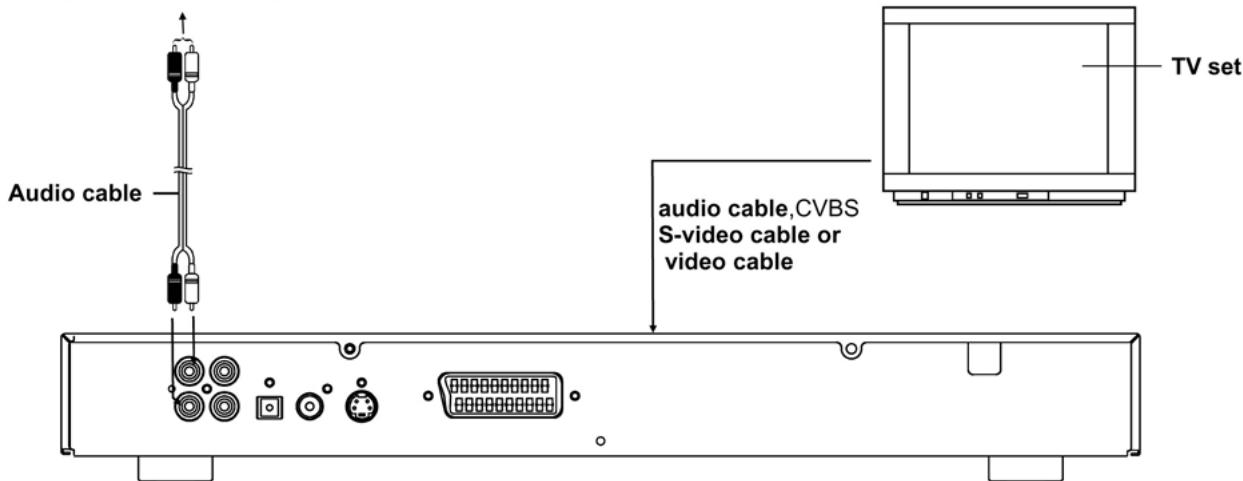
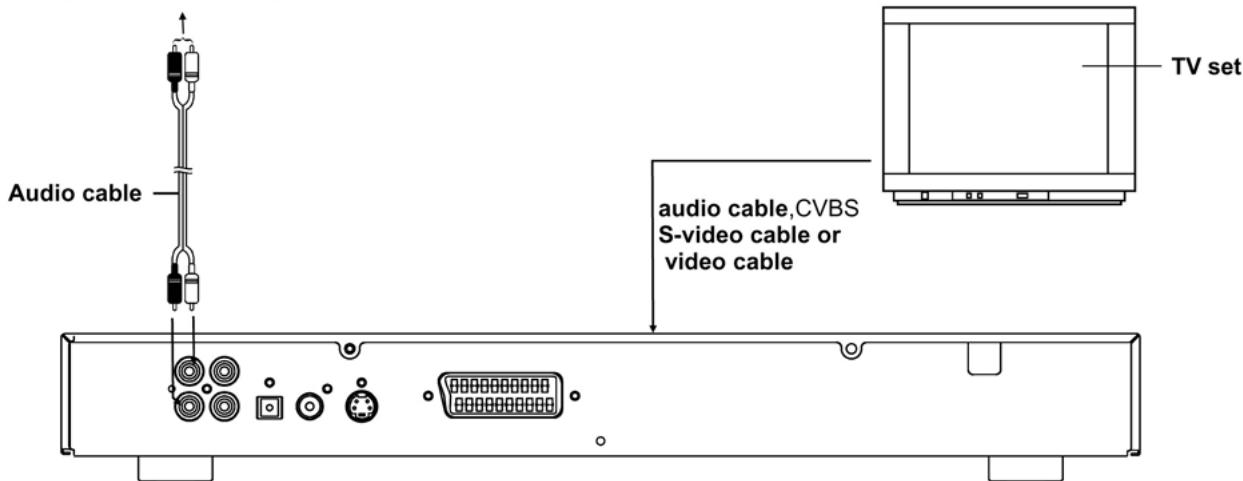
To audio input connectors (red, white)
1 WHAT WILL I DO
2 HEAR ME CRY
3 WITHOUT YOU
4 MOVE CLOSER
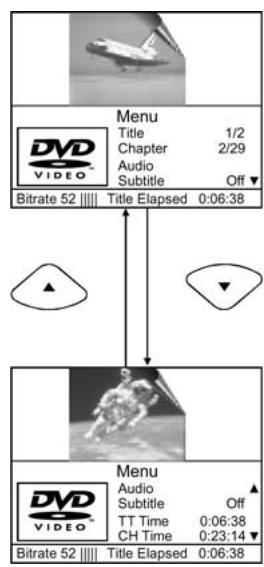
Select title or chapter number
Select title or chapter time
20 Hz-22 kHz
(48 kHz sampling)
20 Hz-22 KHz
(96 kHz sampling)
USE OF CONTROLS OR ADJUSTMENTS OR PERFORMANCE OF PROCEDURES OTHER THAN THOSE SPECIFIED HEREIN MAY RESULT IN HAZARDOUS RADIATION EXPOSURE.
DO NOT OPEN COVERS AND DO NOT REPAIR YOURSELF. REFER SERVICING TO QUALIFIED PERSONNEL.
WARNING: TO REDUCE THE RISK OF FIRE OR ELECTRIC SHOCK, DO NOT EXPOSE THIS EQUIPMENT TO RAIN OR MOISTURE.
TO REDUCE THE RISK OF FIRE OR ELECTRIC SHOCK, AND ANNOYING INTERFERENCE, USE THE RECOMMENDED ACCESSORIES ONLY.
THIS DEVICE IS INTENDED FOR CONTINUOUS OPERATION!
CAUTION RISK OF ELECTRIC SHOCK DO NOT OPEN

CAUTION: TO REDUCE THE RISK OF ELECTRIC SHOCK, DO NOT REMOVE COVER (OR BACK). NO USER -SERVICEABLE PARTS INSIDE. REFER SERVICING TO QUALIFIED SERVICE PERSONNEL.
(Back of player)
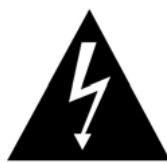
The lightning flash with arrowhead symbol, within an equilateral triangle, is intended to alert the user to the presence of uninsulated „dangerous voltage“ within the product's enclosure that may be of sufficient magnitude to constitute a risk of electric shock to persons.

The exclamation point within an equilateral triangle is intended to alert the user to the presence of important operating and maintenance (servicing) instructions in the literature accompanying the appliance.
CAUTION - LASER RADIATION WHEN OPEN. DO NOT STARE INTO BEAM.
VENTILATION WARNING: THE NORMAL VENTILATION OF THE PRODUCT SHALL NOT BE IMPEDED FOR INTENDED USE.
Table of contents
Getting Started:
Safety information 30
Features 32
Precautions 33
Control reference guide 34, 35
Basic connection 36, 37
Optional audio connections 38,39
Remote control unit preparation 40
Connecting headphone 40
Basic Operation:
Basic play 41
Preparations 41
Basic play 41
Stopping play 42
Skipping ahead or back 42
Rapid advance / (Rapid reverse) 42
Pause/step play 42
Slow-motion play [DVD/VCD] 43
Mp3 playback 43
Basic play 43
Play mode 43
Picture CD 44,45
Play mode 44
Skip to next/previous pictures 44
Rotating pictures 44
Flipping pictures 44
Picture shrink/zoom 44
Slide show effects 45
Enjoying Video CDs with playback control 45
ON Screen display information 46
Advanced Operation:
Program play 46
Repeat play 47
Repeat viewing(listening) 47
A-B repeat play 47
Changing subtitle language (DVD only) 48
Changing audio soundtrack language
(DVD/VCD disc) 48
Viewing from different angle 49
Search for preferred scene 49
Initial Settings:
General setup 50
Audio setup 51
Video setup 51
Preference setup 51
Pass word setup. 51
FOR REFERENCE:
Definition of terms 52
Specifications 53
Troubleshooting 54
Disc handling and maintenance. 55
Guarantee 56
Dear Customers
May we take this opportunity to thank you for purchasing this DVD/VCD/CD player.
We strongly recommend that you carefully study the Operating Instructions before attempting to operate the player and that you note the listed precaution.
Features
HIGH SOUND AND PICTURE QUALITY
96 kHz/24 bit audio D/A converter
This player enables 96 kHz/24 bit linear PCM signals, which constitute the highest specifications in the DVD standards, to be reproduced faithfully. To support 96 kHz sampling/24 bit sound, the shaping noise of this multi-level digital sigma type of D/A converter is kept flat up to 44 kHz, thus preventing the important audio signals from being affected in any way. In terms of the bottom line, the sound in all of its various modes is reproduced faithfully.
10 bit video D/A converter
With its 10 bit capability, this D/A converter reproduces images faithfully.
MULTI TV SYSTEM SUPPORTTED
The player can play back discs with signal system of PAL and NTSC.
GRAPHICAL USER INTERFACE SCREEN
Simply by pressing the DISPLAY button on the remote control unit, information on the player and disc can be displayed on the TV screen for easy identification, The player's operations and settings can easily be performed by operating the remote control while monitoring the TV screen.
MULTI-AUDIO FUNCTION
The audio soundtrack can be heard in up to 8 languages. (The number of audio sound languages depends on the software.)
MULTI-SUBTITLES FUNCTION
Subtitles may be displayed in one of a maximum of 32 languages depends on the software.
MULTI-ANGLE FUNCTION
This function allows you to choose the viewing angle of scenes which were shot from a number of different angles. (Limited to DVD recorded with multiple camera angles.)
PARENTALLOCKFUNCTION
This can prevent play of DVDunsuitable for children.
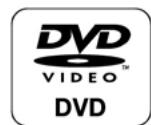
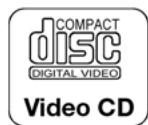
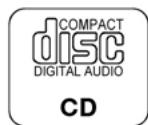
DISCFORMATSSUPPORTEDBYPLAYER
The player can play back discs bearing any of the following marks:
Safety Information
Please Note:
This device is designed only for use in a temperate climate. It must only be connected to an alternating current supply of 220-240V/50Hz. The device must not be used under any other circumstances.
Important:
- The DVD player is a class 1 laser product. The device uses an invisible laser beam which may produce hazardous rays. Please ensure that you use the device only for the purposes for which it is designed and in accordance with instructions.
- When the device is connected to a standard mains power socket do not put your eyes too close to the opening in the device and do not look inside the player.
- Any use of the operating controls, any settings or use of the device which deviate from those described in these instructions may result in your being exposed to the hazardous rays.
- Do not open any covers or repair the device yourself. Please contact qualified specialists if this device requires maintenance or repairs.
Warning:
- In order to avoid risks such as fire or electric shock, please do not expose the device to rain or moisture.
- In order to avoid risks such as fire, electric shock or interference, please use only the recommended accessories.
Precautions
Please read these precautions carefully before using the device
Protection of the Mains Lead
In order to prevent the device from malfunctioning and to protect against electric shocks, fire or injury, please note the following:
- Always remove the plug by pulling the plug itself and not the lead.
- Never touch the mains plug or lead with wet hands.
- Keep the mains lead away from heaters.
- Never put a heavy object on the electric lead.
- Never try to repair or replace the mains lead yourself. The mains lead may only be replaced by a qualified electrician!
Positioning
Please avoid setting up the device in the following surroundings:
- In direct sunshine, where there is exposure to heaters or in closed vehicles.
- In high temperatures (over 35^ ) or high humidity (over 90% ).
- In extremely dusty surroundings. Otherwise internal parts may be seriously damaged
When the device is not being used:
- Please turn the device off when it is not being used.
- Should you not use the device for a prolonged period, please remove the mains plug from the socket.
Do not insert your fingers or other objects into the device
- Touching internal parts of this device is dangerous and may result in serious damage to the device. Do not try to take the device apart.
- Do not insert any foreign bodies into the CD drawer.
Keep away from water, fire and magnets
- Keep the device away from vases, baths, wash basins etc. If liquid enters the device this may cause serious damage.
- Open sources of fire, such as burning candles, must not be placed on the device.
- Never place magnetic items, such as loudspeakers, in the vicinity of the device.
Ventilation
- Please maintain a free space of 5 ~cm around the device to ensure adequate ventilation.
- Do not cover any ventilation slits with objects such as magazines, tablecloths, curtains etc.
- Please position the device horizontally and do not place any heavy items on it.
- Do not place the device on amplifiers or other devices which may heat up.
Condensation
In the following situations moisture may develop on the lens:
- Immediately if a heater is switched on.
- In a steaming or very damp room.
- If the device is transferred from cold to warm surroundings. If moisture has formed inside the device, it is possible that the device will no longer function correctly. In this case please turn off the power and wait for approximately one hour until the moisture has evaporated.
What to do if there is television interference while you are watching a programme.
Depending on the reception conditions there may be interference to the television picture when you are watching a television programme and the device is switched on.
This is not a malfunction of the device or television. Switch the device off if you want to watch a television programme.
Main unit
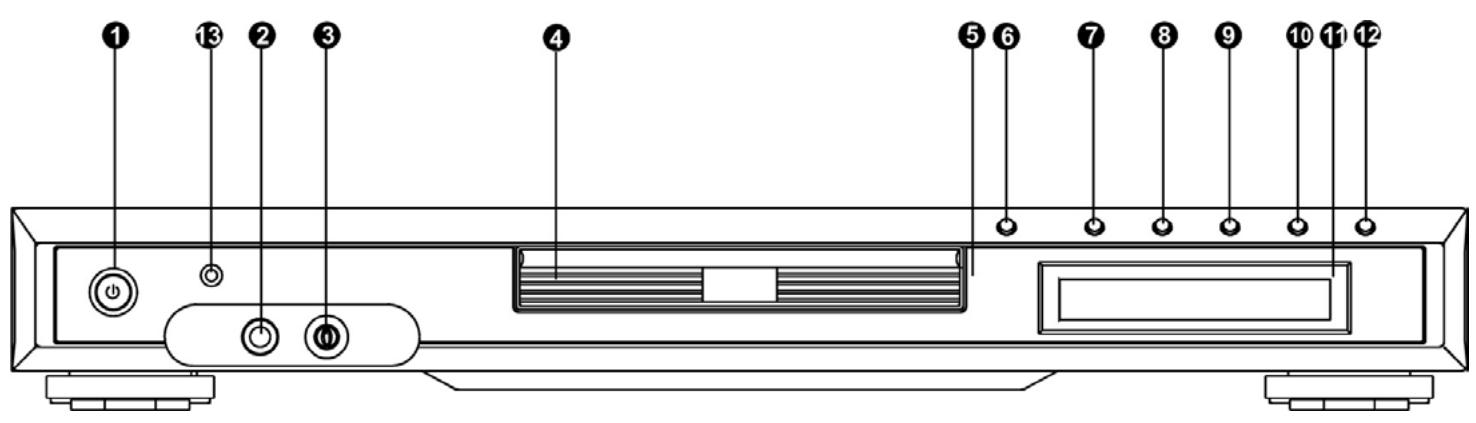
- POWER button - press this button to power the player On or Off state: This button must be on in order to be able to use the remote control.
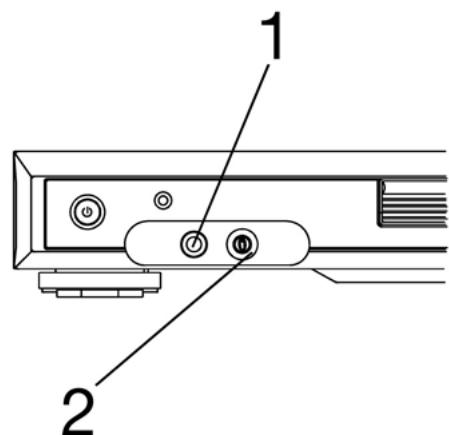
- PHONE jack- to connect the phone.
- PHONE VOLUME control - adjust the phone volume.
- Disc tray
- REMOTE SENSOR - receive the signal from the remote control.
- OPEN/CLOSE button - press this button, the tray will be in or out.
- SKIP PREVIOUS button - press this button to skip the PREVIOUS chapter or title or track.
- SKIP NEXT button - press this button to skip the next chapter or title or track.
-
PAUSE button - press this button to halt the playing disc during the player playback the disc
-
STOP button - press this button to stop playing disc during the player playback the disc
- DISPLAY WINDOWPLAY display all information about DVD work scene.
- PLAY button - press this button, the player will start to play the disc.
- STANDBY indicator - when the unit is power off state by remote control, the indicator will be on(standby), if you power on by remote control, the indicator will be off.
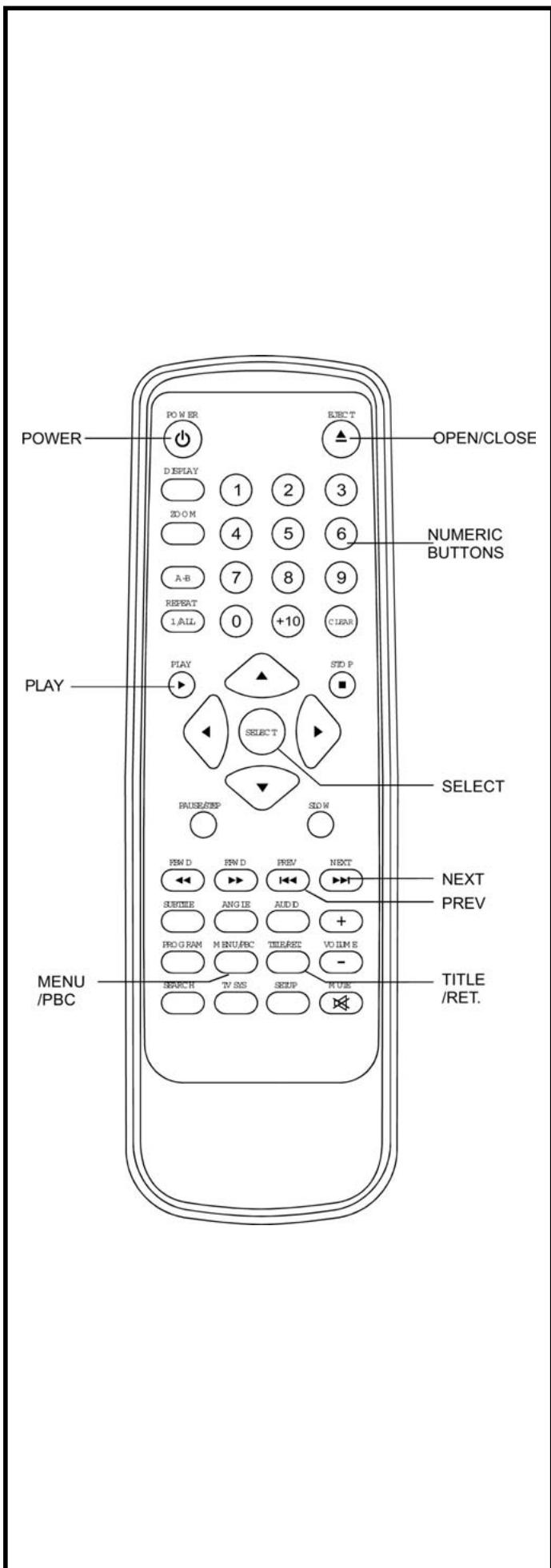
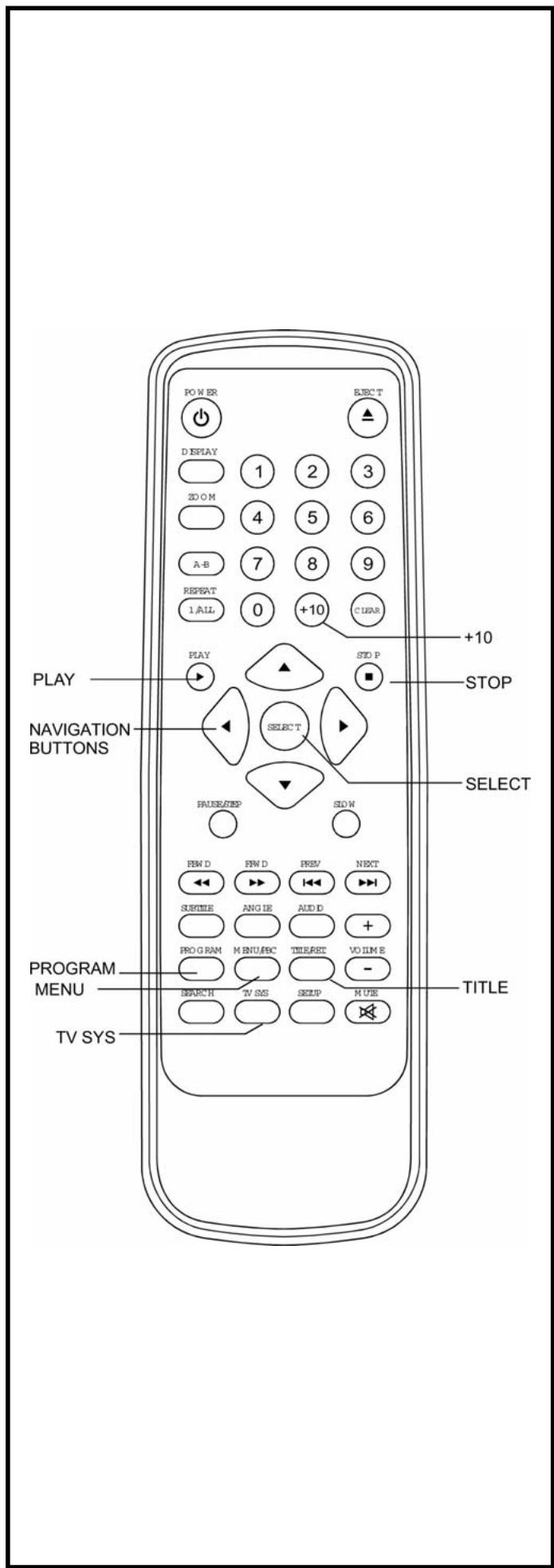
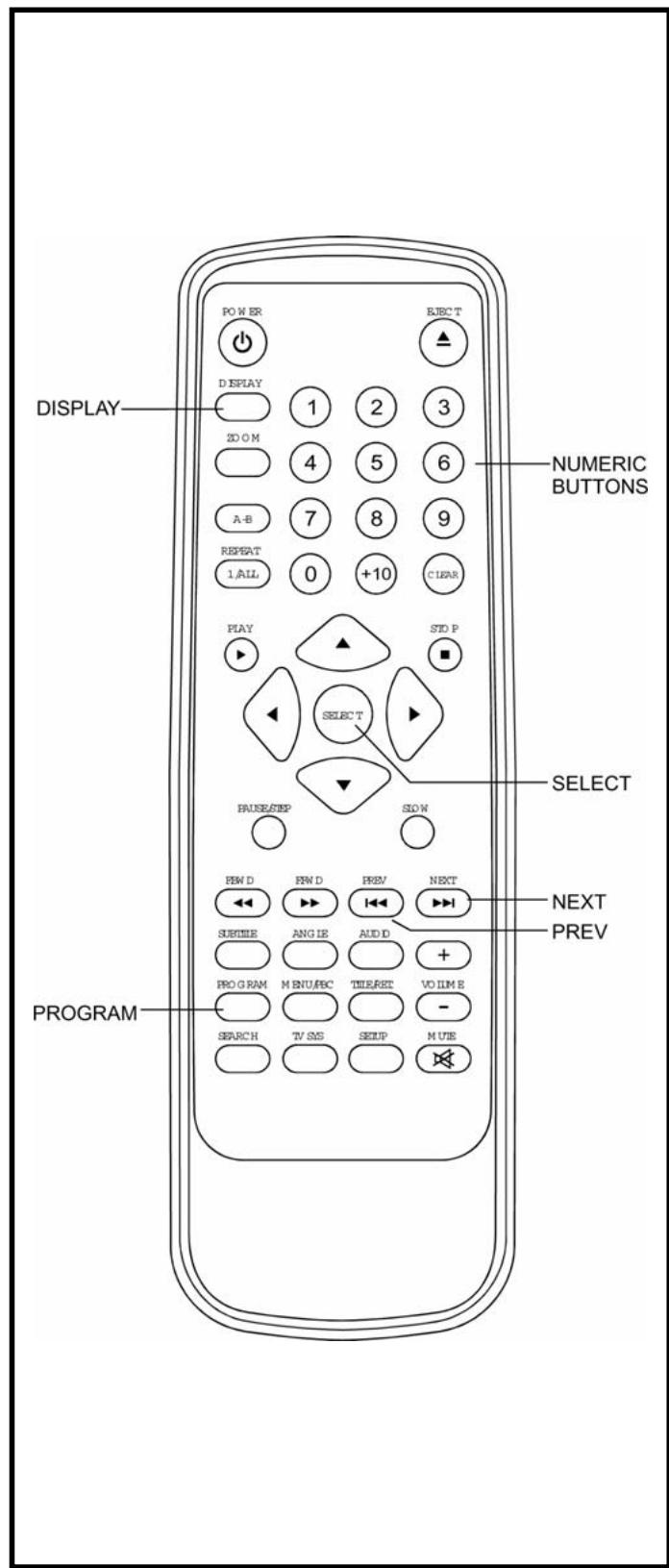
Remote control unit
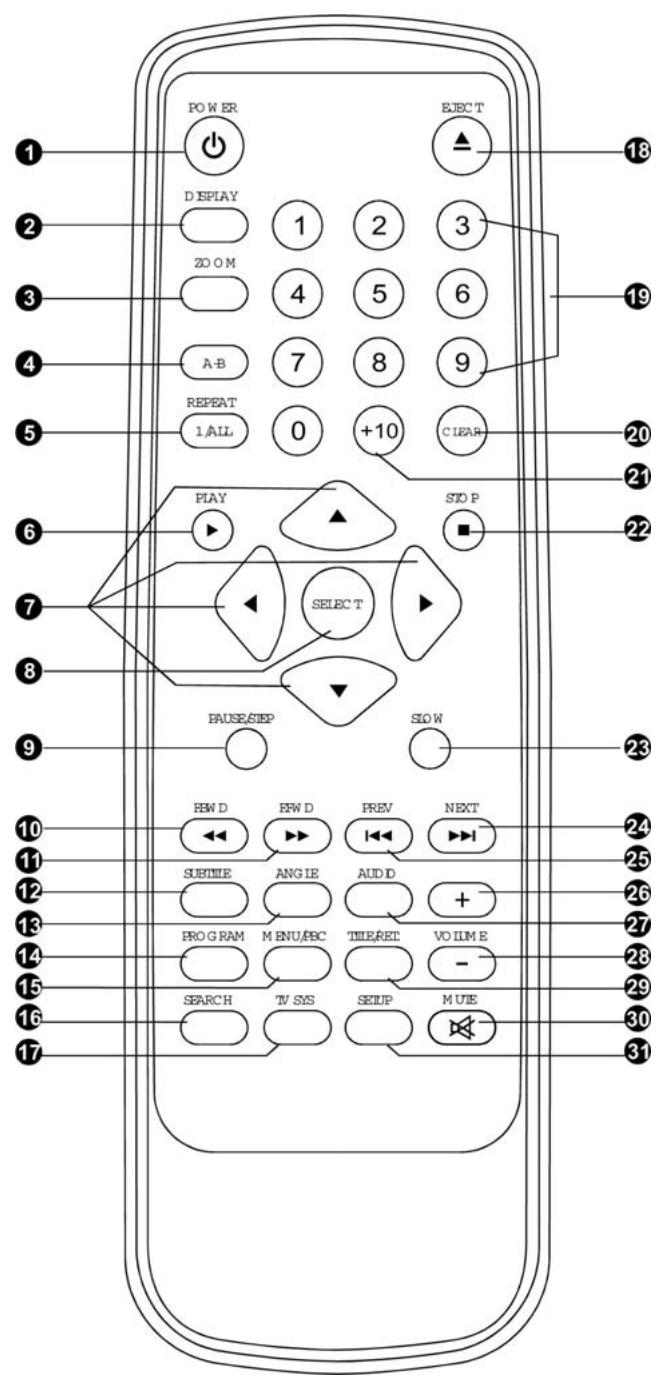
- POWER button - Press this button to set the player to standby on or off state (if the main power of the set is on)
- DISPLAY button - Press Display button continuously during the playback, the screen will display the elapsed time and remaining time.
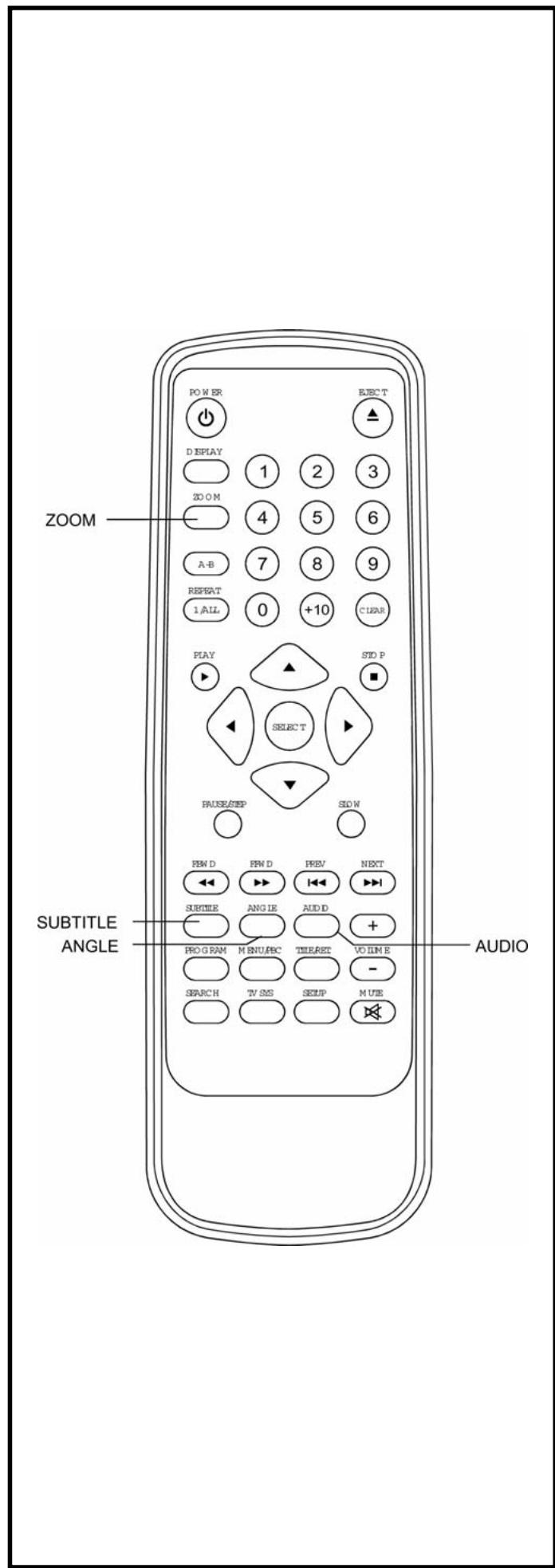
- ZOOM button - Press ZOOM button to enlarge picture size.
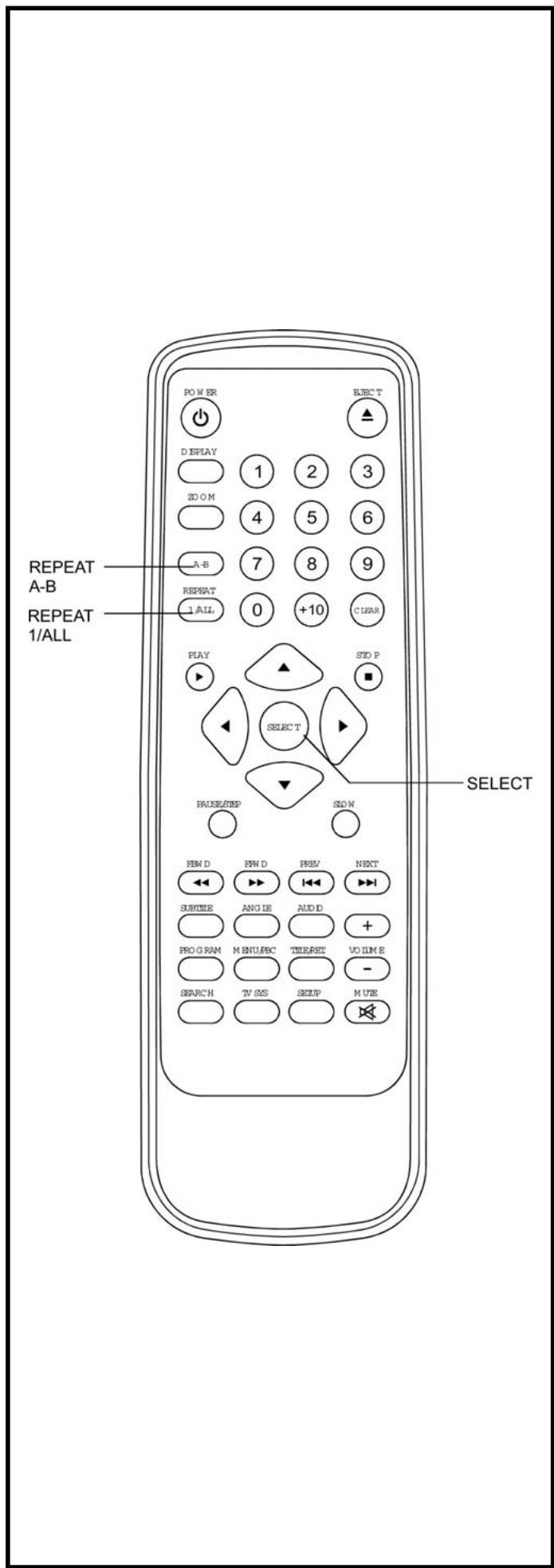
- REPEAT A-B button - Press this button, the player will repeat sections between two specific points (A-B).
- REPEAT 1/ALL button - Press this button, the player will repeat play one chapter or one title (for DVD), or repeat play the current track or the whole tracks (for VCD/CD).
- PLAY button - Press this button, the play will start to play the disc.
- NAVIGATION button - Left navigation button
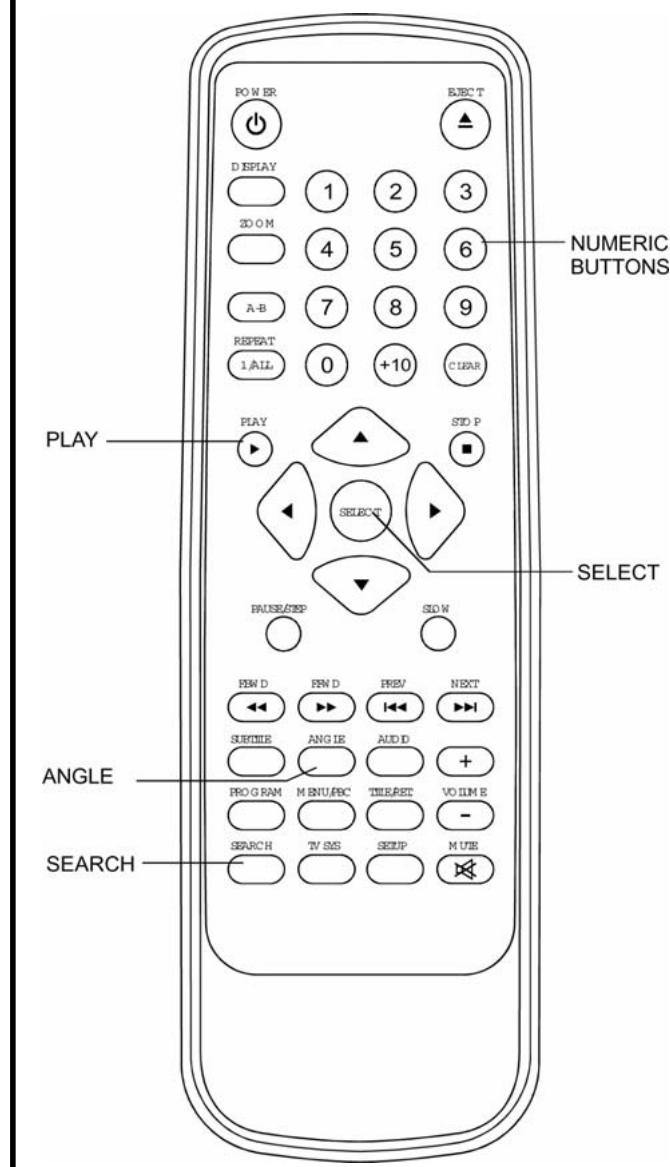
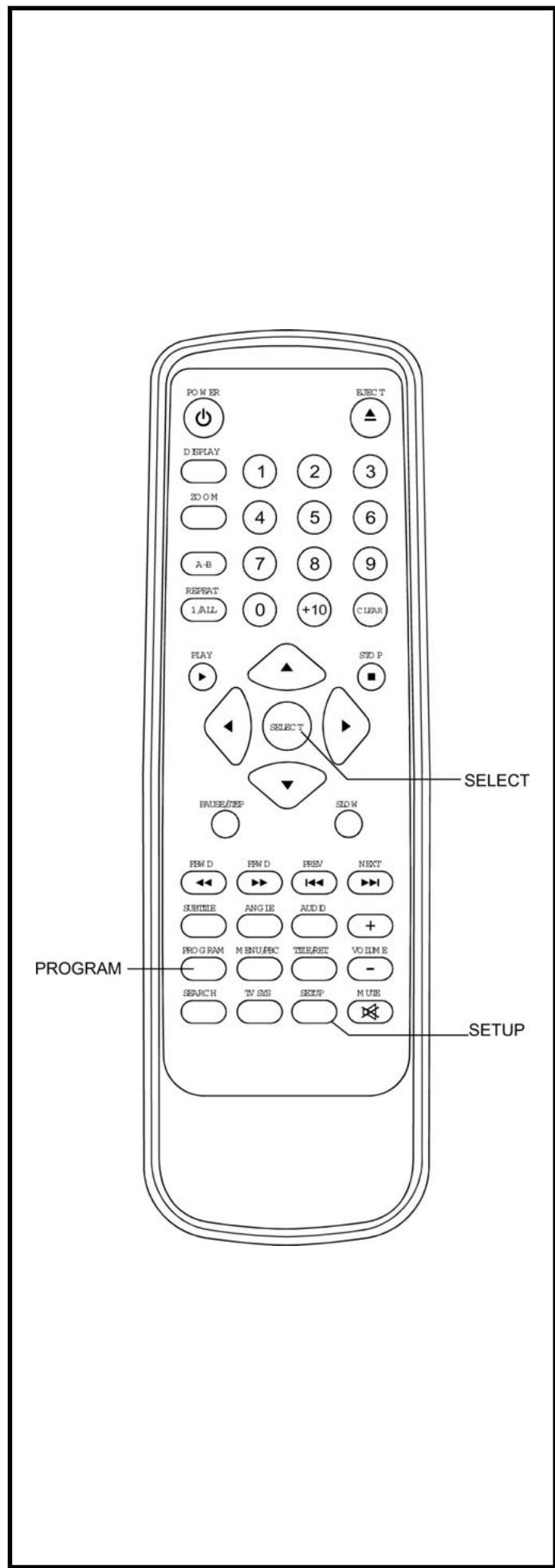
- SELECT button - Press this button to confirm what you select.
- PAUSE/STEP button - Press this button will halt or show the movie one picture each time.
- F.BWD button - Press this button to play the disc backward at speeds:x2,x4,x8,x16,x32.
- F.FWD button - Press this button to play the disc forward at speeds: x2,x4,x8,x16,x32.
- SUBTITLE button - this button will display the different language on the screen
- ANGLE button - Press this button will display the angle number and change to different angles.
- PROGRAM button - Press this button can setup the memory order of chapter or title (for DVD) or tracks (for CD).
- MENU/PBC button - Select Playback Control for VCD if PBC is on, when you press return button, the player will stat at the VCD root.
- SEARCH button - Press this button during play then press NUMERIC button to choose number corresponding to the desired point
- TV system button - Press this button to directly change the TV signal between RGB and S-video (CVBS)
- EJECT button - The tray in and tray out switch button
- NUMERIC button - Use these buttons to select the track.
- CLEAR button - Press this button, the information on the screen will all be cleared.
- +10 button - add ten tracks or chapters by pressing each time.
- STOP button - Press this button, the player will stop playing.
- SLOW button - Press this button during playback the play speed will be reduced
-
NEXT button - Press this button, the scene will skip to the next chapter or the next track
-
PREV button - Press this button, the scene will skip to the PREVIOUS chapter or the track
- VOLUME + button - Press this button, the volume will increase
- AUDIO button - Select the sound track
- VOLUME - button - Press this button, the volume will reduce
- TITLE button - Play the title (DVD) or return root ( VCD)
- MUTE button - the audio output of the main unit is to be shut off by pressing this button.
- SETUP button - press this button will enter initial settings menu
Basic connection
It is recommended to connect a multi-system TV.
- Ensure that this player and other equipment to be connected are set to the standby mode or off and disconnect the AC power cords before commencing connection.
- Do not block ventilation holes of any of the equipment and arrange them so that air can circulate freely.
- Read through the instructions before connecting other equipment.
- Ensure that you observe the color coding when connecting audio and video cables.
Note:
- During DVD play, the TV volume may be at a lower level than during TV broadcasts, etc. If this is the case, adjust the volume to the desired level.
- If the DVD/VCD/CD player is connected to the TV through a video cassette recorder, the picture may not be played back normally with some DVDs. If this is the case, do not connect the player via the VCR.
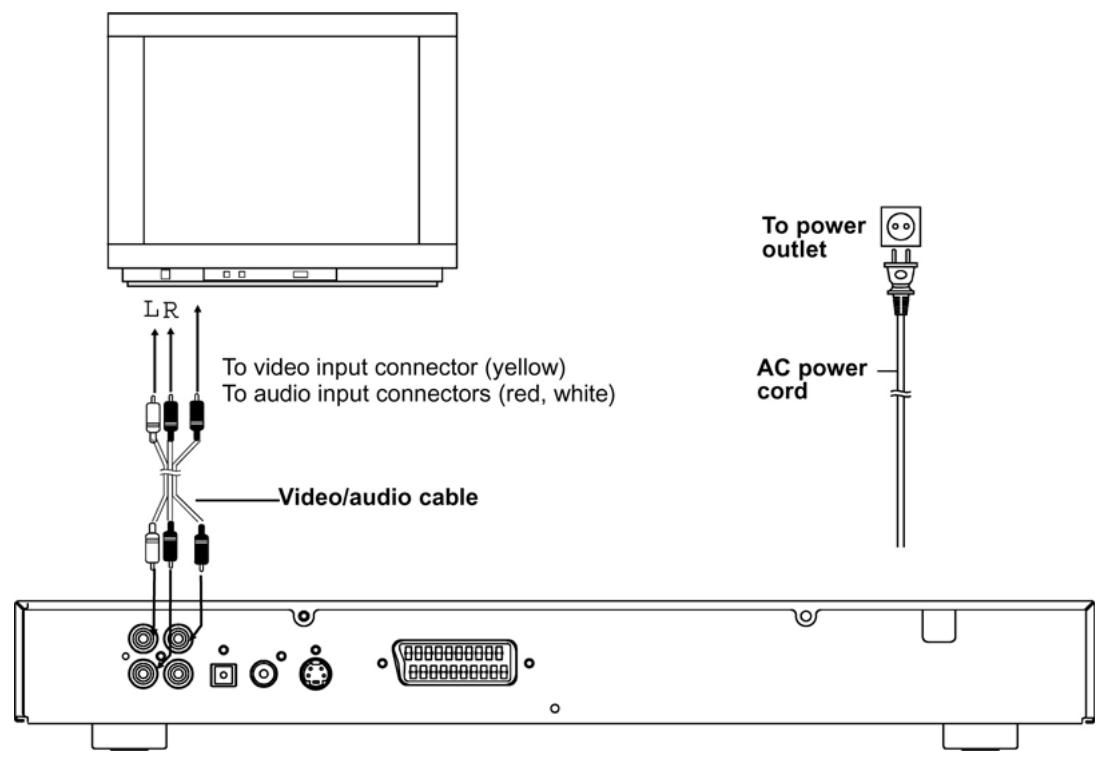
Connecting to a stereo TV set
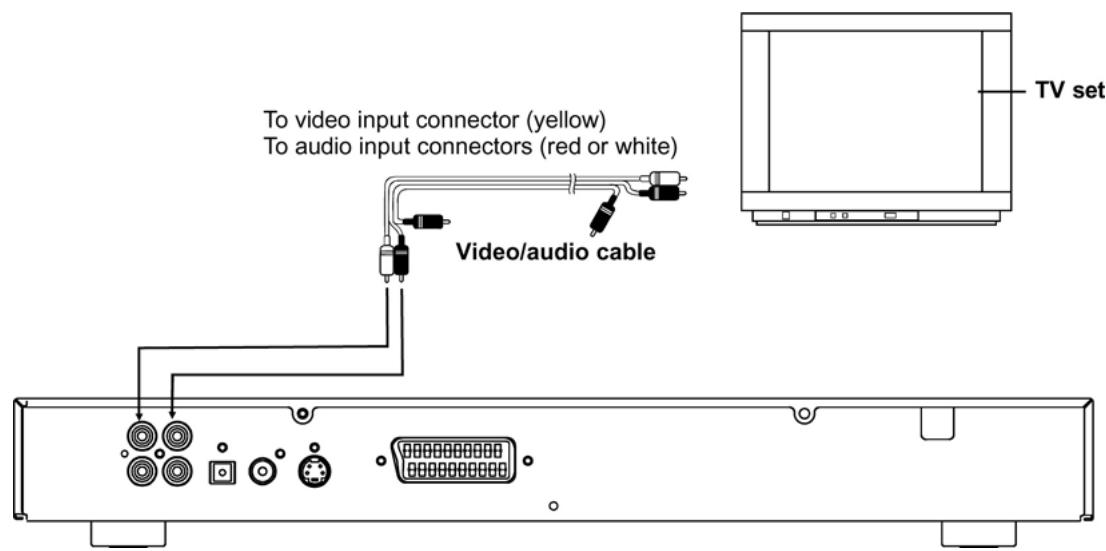
Connecting to a monaural TV set
(Continued on the next page)
Connecting to a TV set or monitor with Scart video output connectors
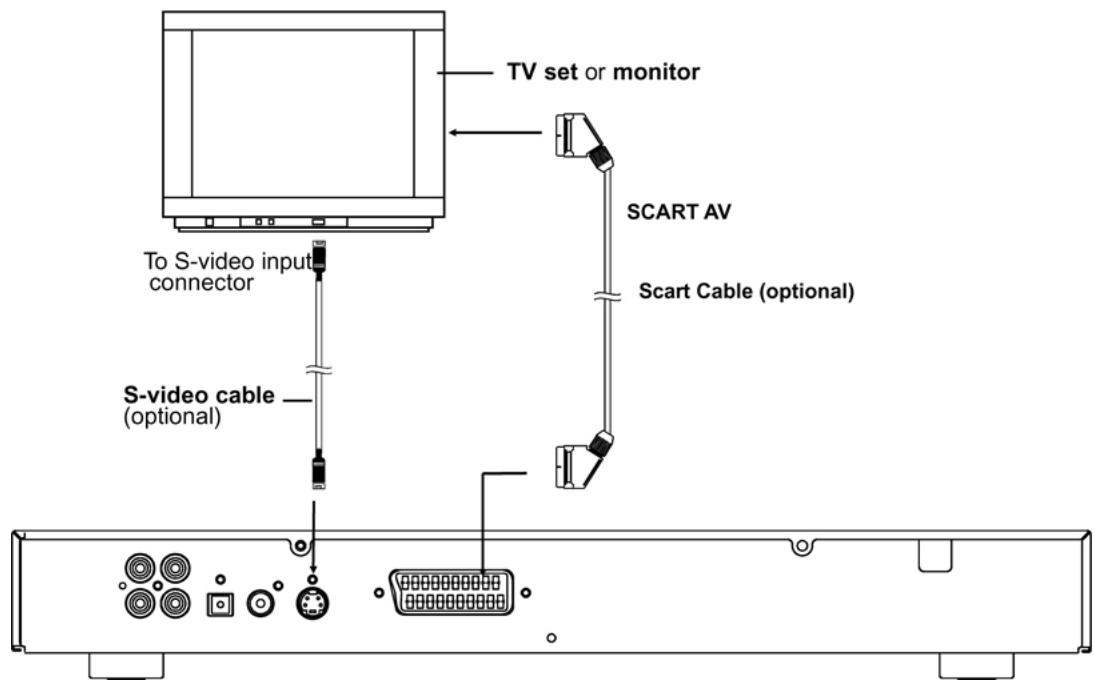
S-video output connectors
The S (separate) video output connector separates the color (C) and luminance (Y) signals before transmitting them to the TV set in order to achieve a sharper picture.
Use the S-video cable when connecting the player to a TV set equipped with an S-Video input connector for the best picture clarity possible.
The SCART connector outputs the color signals (red, green, blue) in order to achieve high fidelity in reproducing colors. The description of the component video input connectors may differ depending on the TV set or monitor. Refer to the instruction manual of your TV set for details.
Connecting to audio equipment
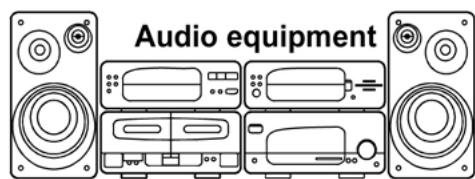
To audio input connectors (red, white)
Optional audio connections
Connecting to a decoder with Dolby Digital (AC-3/DTS) processing
When DVD recorded in Dolby Digital/DTS are played, Dolby digital/DTS bitstream is output from the player's OPTICAL digital audio output connector or COAXIAL digital audio output connector. When the player is connected to a Dolby Digital/DTS decoder, you can
enjoy theater-quality audio in your home. [An optical digital audio cable or coaxial audio cable (both optional) is required when an optional Dolby digital/ DTS decoder is used.]
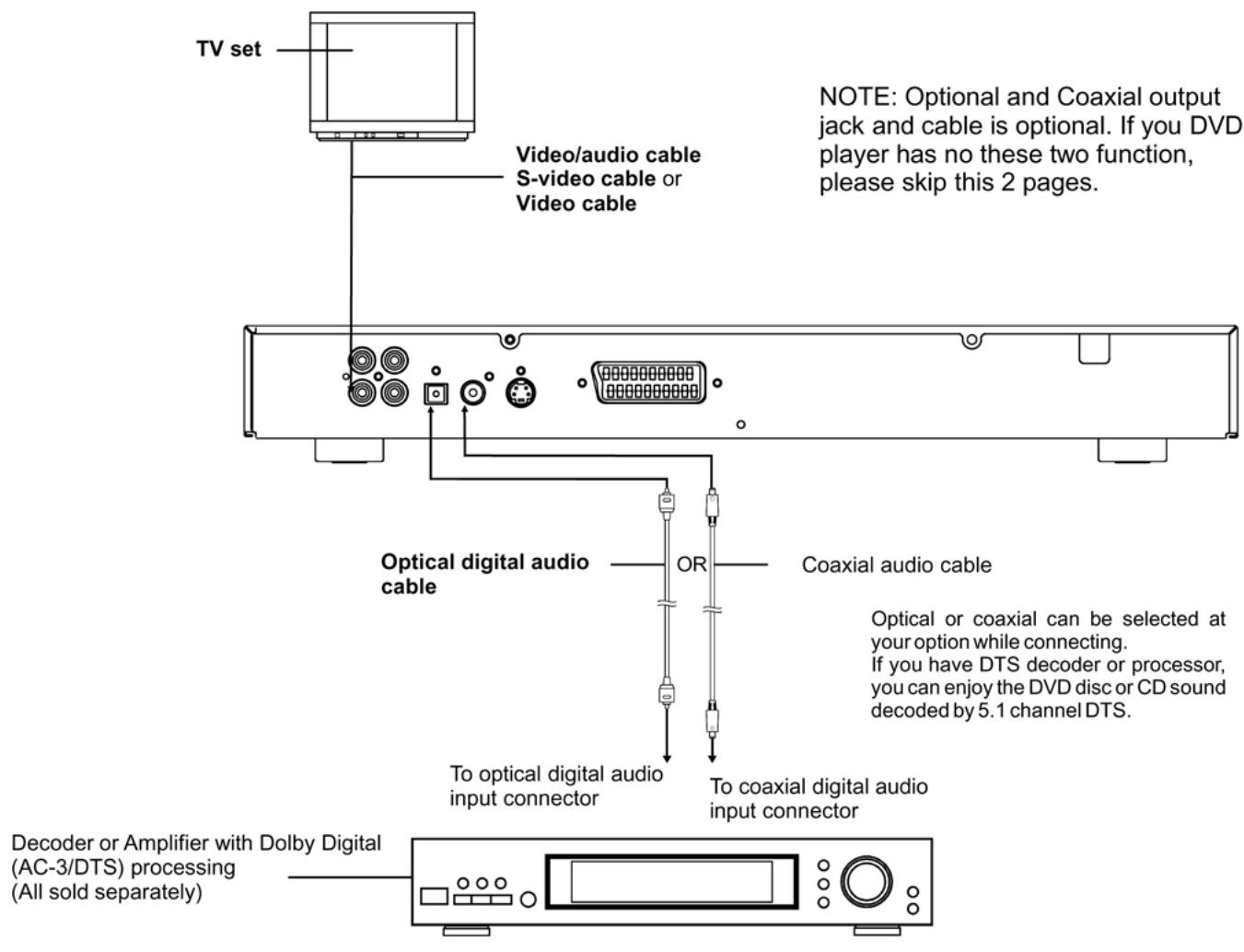
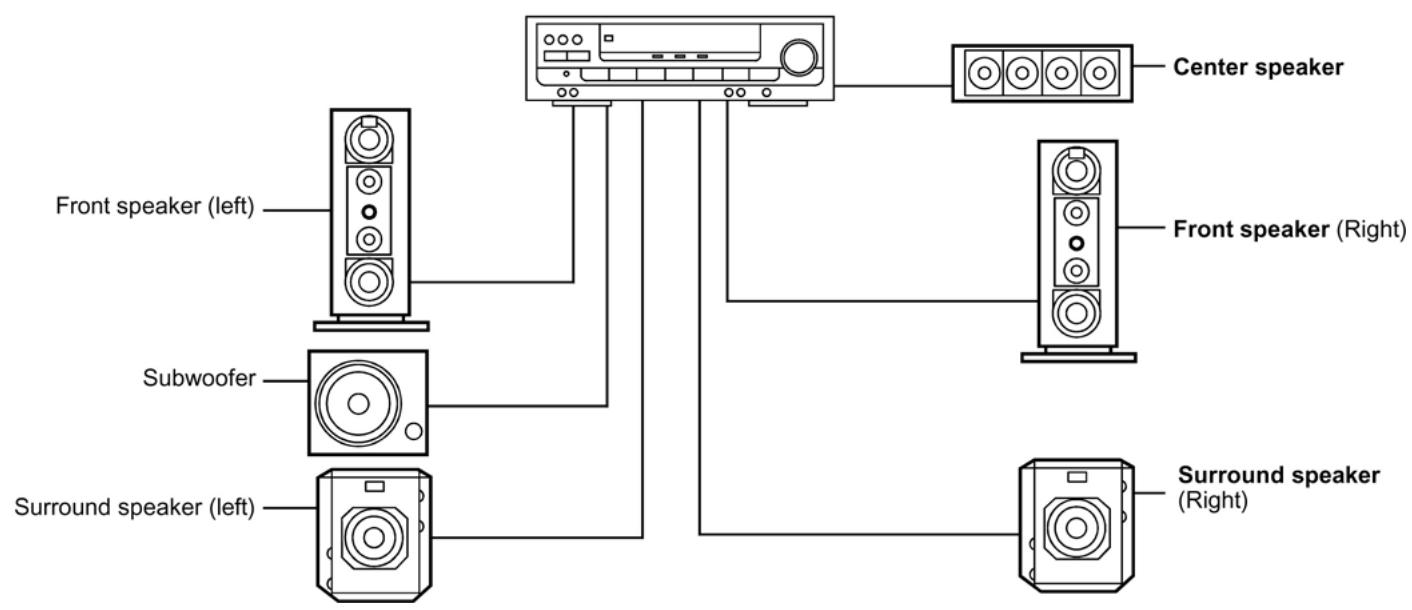
Optional audio connections
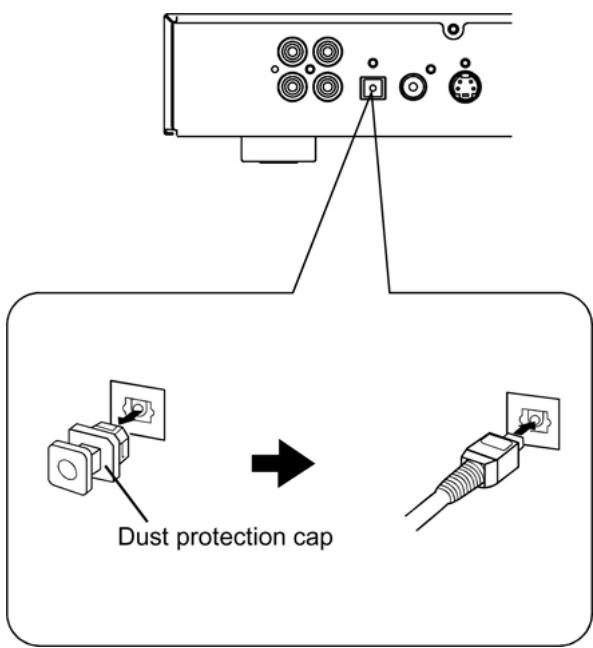
Notes when connecting the optical digital audio cable (optional)
- Remove the dust protection cap from the optical digital audio output and connect the cable firmly so that the configurations of both the cable and the connector match.
- Keep the dust protection cap and to protect against dust, always reattach the cap when not using the connector.
Concerning the audio output from the player's optical/coaxial digital audio output connector
| Disc | Sound recording format | Optical/coaxial digital audio output from connector |
| DVD | DolbyDigital (AC-3) | DolbyDigital bitstream (2-5.1ch) or PCM (2 ch) (48 kHz/16 bit)*1 |
| Linear PCM (48/96 kHz 16/20/24 bit) | Linear PCM (2ch) (48 KHz sampling/16 bit only)*2 or no output*1 | |
| Video CD | MPEG1 | PCM (44,1 kHz sampling) |
| CD | Linear PCM | Linear PCM (44,1 kHz sampling) |
1 The type of audio output from the connector can be selected by the initial settings.
2 Sound having 96 KHz sampling is converted into 48 Khz or 96KHz sampling when it is output from the player's optical/coaxial digital audio output connector.
For your reference:
- Dolby Digital (AC-3) is a digital sound compression technique developed by the Dolby Laboratories Licensing Corporation.
- Linear PCM is signal recording format used in a CD. While a CD is recorded in 44.1 KHz/16 bit, a DVD is recorded in 48 KHz/16 bit up to 96 KHz/24 bit.
- If you have a Dolby Pro Logic Surround decoder, you will obtain the full benefit of Pro Logic from the same DVD movies that provide full 5.1-channel Dolby Digital soundtracks, as well as from titles with the Dolby Surround mark.
Manufactured under license from Dolby Laboratories. „Dolby“ and the double-D symbol are trademarks of Dolby Laboratories. Confidential Unpublished Works. © 1992-1997 Dolby Laboratories, inc. All rights reserved.
Remote control unit preparation
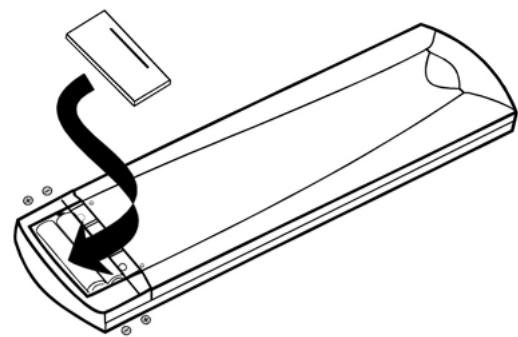
Battery installation A
Insert the batteries while observing the correct (+) and (-) polarities as illustrated at right.
Service life of batteries
- The batteries normally last for about one year although this depends on how often, and for what operations, the remote control unit is used.
- If the remote control unit fails to work even when it is operated near the player, replace the batteries.
Use 2 size AAA batteries.
Note:
- Do not use rechargeable (Ni-Cd) batteries.
- Do not attempt to recharge, short-circuit, disassemble, heat or throw te batteries into the fire.
- Do not drop, step on or otherwise impact the remote control unit. This may damage the parts or lead to malfunction.
- Do not mix old and new batteries.
- If the remote control unit is not going to be used for a long time, remove the batteries. Otherwise, electrolyte may leak which may lead not only to malfunctioning but also to burns if contact is made with the electrolyte.
- Wipe away any electrolyte leaking inside the remote control unit, and install new batteries.
- If any electrolyte should come into contact with parts of your body, wash it off thoroughly with water.
Please Note!
Old batteries should not be thrown into the domestic waste! Please return them to a place where they can be recycled or disposed of properly.
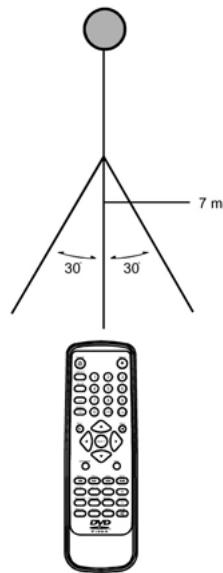
Remote control operation range B
Point the remote control unit from no more than about 7m from the remote control sensor and within about 60^ of the front of the player.
- The operating distance may vary according to the brightness of the room.
Note:
- Do not point bright lights at the remote control sensor.
- Do not place objects between the remote control unit and the remote control sensor.
- Do not use this remote control unit while simultaneously operating the remote control unit of any other equipment.
Connecting Headphones C
1 Connect the Headphones. Connect headphones to phone jack.
2 Adjust the phone Volume to Proper level that you want.
A
B
REMOTE SENSOR
C
Before enjoying DVD/Video CD/CD
The On-Screen menu language of your player has been factory pre-set to English. If you would like to change the menu language to other language, please refer to "Selecting language of On-Screen Display menu". In the explanation given below it is assumed that English has been selected as the menu language.
Basic Play
Preparations
Switch the TV ON and select „Video“ as the TV input. Switch on the stereo system's power if the player has been connected to a stereo system.
Basic play
- Press POWER to switch on the power.
- Press OPEN/CLOSE to open the disc
- Place a disc onto the disc tray. Hold the disc without touching either of its surfaces, position it with the printed title side facing up, align it with the guides, andplaceit inits proper position.
- Press OPEN/CLOSE The disc tray is automatically closed and play begins. When the disc tray is closed by pressing OPEN/CLOSE, the player will start to read the disc immediately.
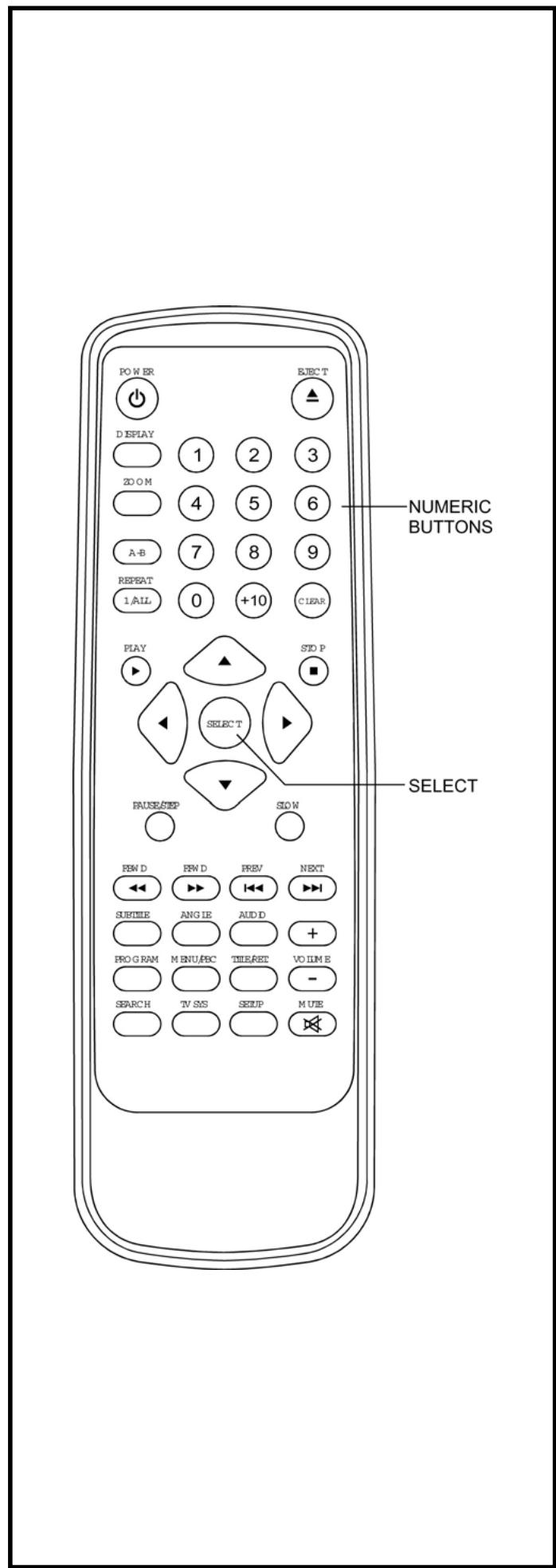
- When a menu screen appears on the TV, move the navigation buttons or press the numeric buttons to select preferred track number, then press SELECT button to confirm.
- When the menu continues onto another screen, press NEXT SKIP▶按钮 to view the next screen, or press PREV SKIP▶按钮 to skip to previous screen.
NOTE: Due to the different design of some software titles, NEXT button may not always work.
- To stop play and return to the menu screen, press TITLE button, or MENU button(which button is pressed differs depending on the disc used)DVD, press TITLE, MENU or RETURN. Video CD, press RETURN.
Stopping play
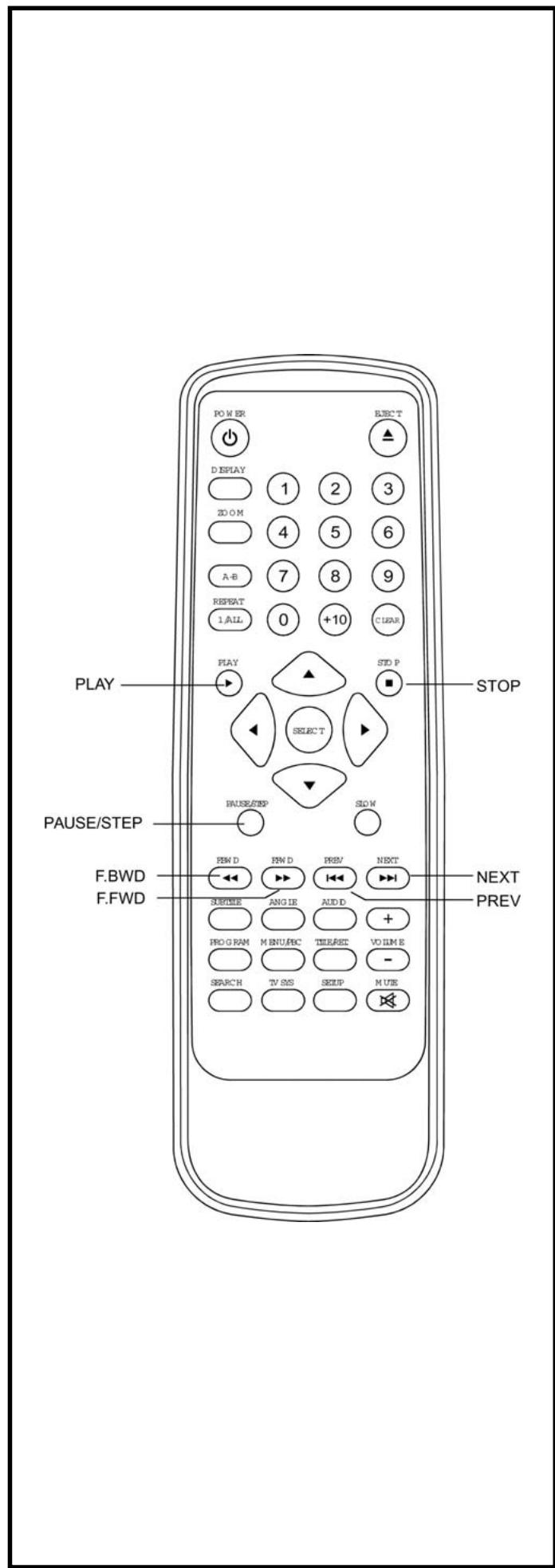
Press STOP
For your convenience:
When player is stopped, the player records the point where Stop was pressed(RESUME function).Press PLAY again.Playback will resume from this point. When the tray opened or STOP is pressed again, the RESUME will be cleared.
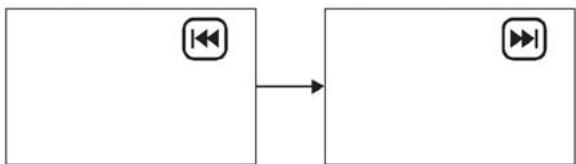
Skipping ahead or back
Skipping ahead
Press NEXT SKIP button during play.
A chapter (DVD) or a track (Video CD/CD) is skipped each time the button is pressed.
Skipping back
Press PREV SKIP 1 button on during play.
A chapter (DVD) or a track (Video CD/CD) is skipped each Time the button is pressed.
Rapid advance(Rapid reverse)
During playback, press F.FWD button or F. BWD button to fast forward/rewind.
Press PLAY button to resume normal play.


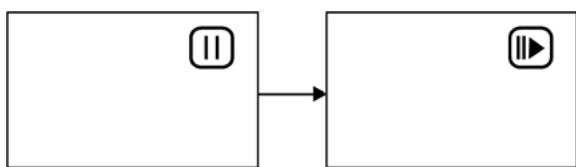
Pause or step play
During playback, press PAUSE/STEP button, the play will be paused, and in this mode, each time the PAUSE/STEP button is pressed, the player will only play one picture, to resume normal play, press PLAY button.
Slow-motion play (DVD/VCD)
On the remote control unit:
Press SLOW button during playback.
- Plays the disc at a 1/2 of normal speed at first. Each time the button is pressed play speed will be reduced(1/2,1/4,1/8,1/16).
- Press PLAY button, normal play will resume.
MP3 playback
Basic playback
- Insert the disc containing the files in MP3 format to be played and after a few seconds, the TV screen will show all folders on the disc.
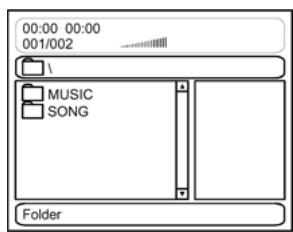
- Select the folder you want to play by the navigation buttons and press SELECT button to confirm.
- The files in this folder are displayed and select your favourable song by using the up/down navigation buttons and press SELECT button to start playback.
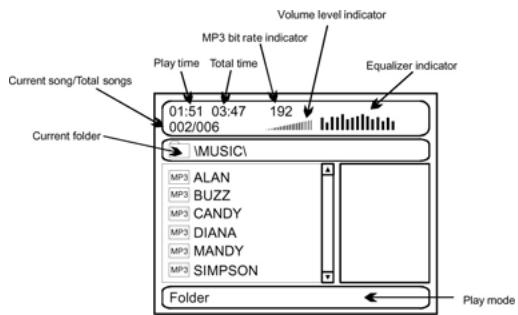
- Press NEXT button to see the next page or PREV button to see the previous page.
- Press REPEAT 1/all button change play mode.
Play mode:
- FOLDER - all the files in the folder will be played.
- SHUFFLE - All the files will be randomly sorted and play by the order.
- RANDOM-randomly select any file to play.
- SINGLE - play one file only.
- REPEAT ONE - repeat one file.
- REPEAT FOLDER - all the files in the folder will be played repeatedly.
Kodak Picture CD / JPEG CD
- If Kodak Picture CD is inserted, slide show is begins automatically.
- For JPEG picture CD, select the folder you want to play by the navigation buttons and press SELECT button to confirm.
- The files in this folder are displayed and select your favourable pictures by using the up/down navigation buttons and press SELECT button to start playback. Thumbnail of picture will be displayed while you scrolling across the file name.
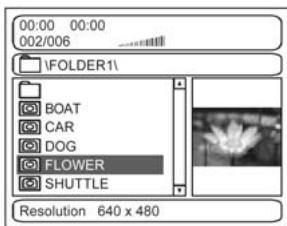
Play mode:
- SHUFFLE - All the files will be randomly sorted and play by the order.
- RANDOM - randomly select any file to play.
- SINGLE - play one file only.
- REPEAT ONE - repeat one file.
- REPEAT all - all the files in the folder will be played repeatedly.
Once a folder and file is selected, the picture is load onto the TV screen.
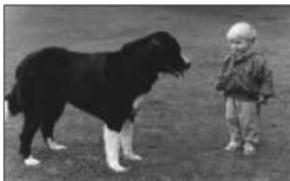
Note: The time to load and display picture depends on the file size of the pictures.
During playback, press MENU button to return to folder selection or STOP button to enter preview mode.
Skip to next/previous picture
Press NEXT button to skip to the next picture or PREV button to skip to the previous picture.
If no key is pressed for 5 seconds, it will skip to next picture automatically.
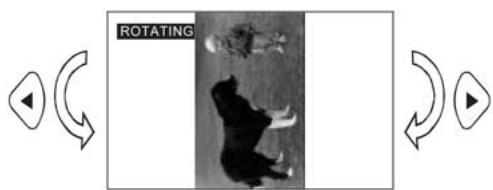
Rotating pictures
- Press RIGHT navigation button to rotate the picture clockwise.
- Press LEFT navi button to rotate the picture counter-clockwise.
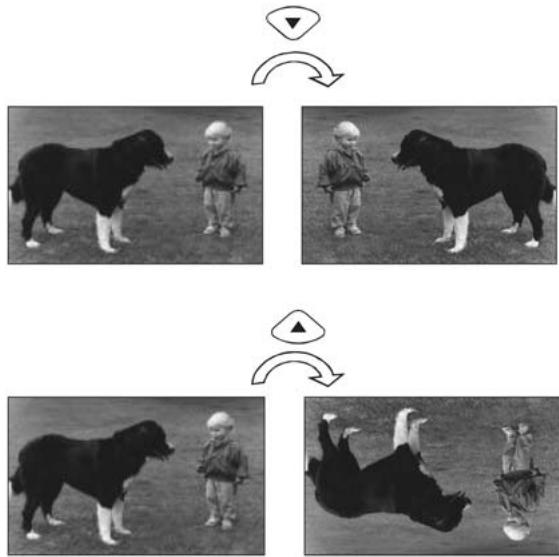
Flipping pictures
- Press UP navigation button to flip the picture vertically.
- Press DOWN navigation button to flip the picture horizontally.
Picture Shrink/Zoom
Press ZOOM button to enter the zoom mode.
Press F. FWD button to enlarge picture to 100% , 125% , 150% and 200% .
Press F. BWD button to shrink enlarge pictures to 50% , 75% , and 100% .
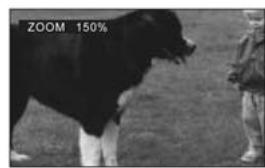
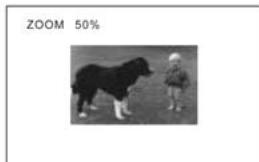
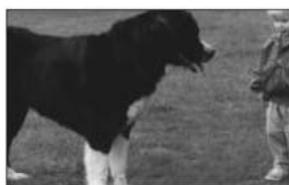
If the picture is enlarged, you may press navigation buttons to see other portions of the picture.
Slide show effects
Press PROGRAM button to select one of the effects when changing from one picture to another:
1 WIPE TOP
2 WIPE BOTTOM
3 WIPE LEFT
4 WIPE RIGHT
5 DIAGONAL WIPE LEFT TOP
6 DIAGONAL WIPE RIGHT TOP
7 DIAGONAL WIPE LEFT BOTTOM
8 DIAGONAL WIPE RIGHT BOTTOM
9 EXTEND FROM CENTRE H
10 EXTEND FROM CENTRE V
11 COMPRESS TO CENTER H
12 COMPRESS TO CENTER V
13 WINDOW H
14 WINDOW V
15 WIPE FROM EDGE TO CENTRE
16 RANDOM
17 NONE
Enjoying Video CDs with playback control
When playing VCD 2.0/3.0 with PBC, the player will show the VCD version and PBC status on the screen.
VCD2.0
PBC ON
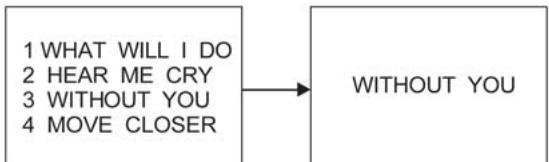
- After a few seconds, a menu wil appear on the screen.
1 WHAT WILL I DO
2 HEAR ME CRY
3 WITHOUT YOU
4 MOVE CLOSER
- Press numeric buttons to select corresponding track, if the track number is under 10, choose one of the numeric buttons 0 9 .
- If the track number is exceed 10, press +10 button firstly, then press numeric buttons 0 9 .
- During playback, press RETURN button to return to main menu.
- Press NEXT SKIP▶按钮 or PREV SKIP▶按钮, the player will play in the scheduled sequence on the disc.
ON Screen display information
When the player is under operation, press DISPLAY button continuously on the remote control, the screen will display sequentially parts of information, all information and clear information.
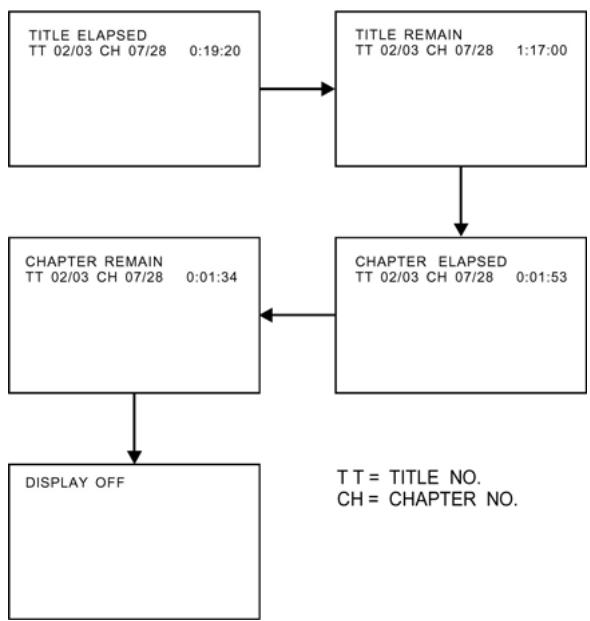
- Press „DISPLAY“ button again, the screen display will be cleared.
Program play
The player plays the tracks in the disc in an order you desired.
- Press PROGRAM button and the screen will display the program menu.
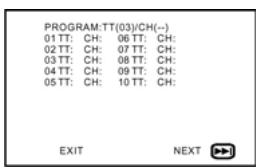
- Press navigation buttons to choose memory index and then press ENTER button to start input. Enter desired Titles/Chapters numbers by using the numeric buttons. The selected Titles/Chapters are stored into the memory. Select NEXT on the menu to see the next page. Up to 20 memories can be stored.
Note: Leading zero is not necessary. If the track number is more than 10, press the 10 key first and then the unit digit.
Example: Track 3, press ,3" Track 12, press ^ + 10^ and then ,2" Track 21, press ^ + 10^ twice and then ,1"
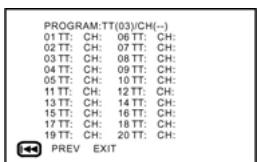
- To start program play, select START on the menu or select EXIT on the menu to exit without program play.
- To clear programmed items, scroll the navigation button to the item to be cleared and press CLEAR button on the remote control, the selected Item will be deleted.
Repeat play
Press REPEAT 1/ALL button during play, it will repeat play one chapter or one title (for DVD disc), or repeat play track (for VCD/CD).
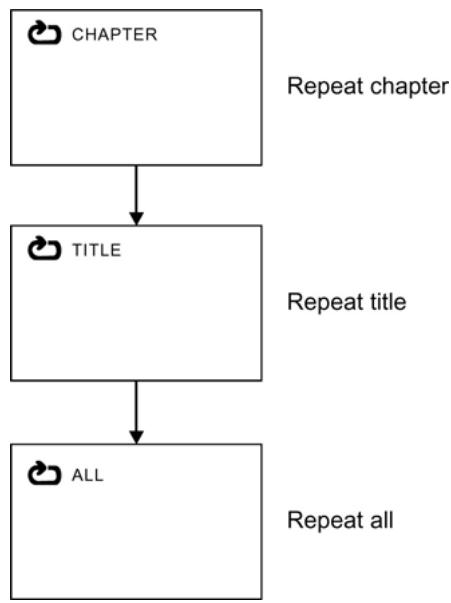
DVD DISC
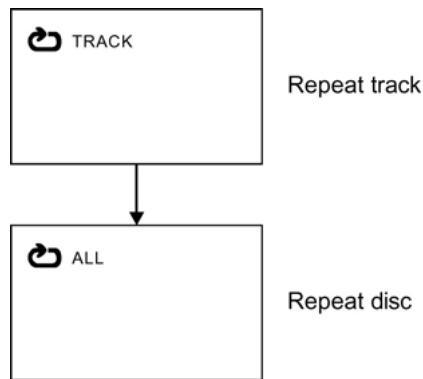
VCD/CD DISC (In the PBC OFF mode)
A-B repeat play
Repeating sections between twospecific points
(A-B repeat)
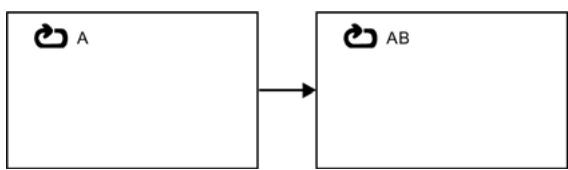
- Press A-B REPEATbutton during play at the point where repeat play is to start(A).
- Press A-B REPEATbutton at the point where repeat play is to beconcluded(B) repeat play of the selection between points A and B starts.
- Press A-B REPEAT button to return to normal play.
Changing subtitle language (DVD only)
It is possible to change the subtitle language to a different language from the one selected at the initial settings.( This operation works only with discs on which multiple subtitle languages are recorded)
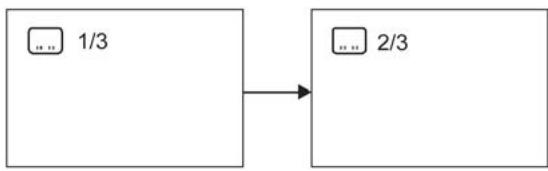
- Press SUBTITLE button during play, the screen will display the current language.
- Press SUBTITLE button again to change language or turn off.
NOTE: When no subtitles are recorded, press this button will not work.
ZOOM PLAY
This function allows you to enjoy a motion or motionless picture.
- Press ZOOM button when playing, the screen shows:
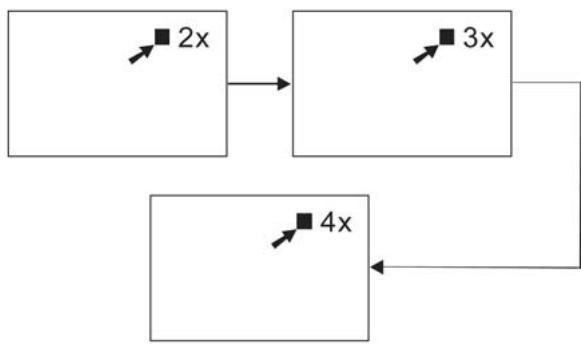
- Press NAVIGATION button to scroll across the enlarged picture.
Changing audio soundtrack language(DVD/VCD disc)
It is possible to change the audio soundtrack language to a different language from the one selected at the initial settings (This operation works only with discs on which multiple audio soundtrack languages are recorded).
- Press AUDIO button during playing DVD disc, the screen will display the number of current soundtrack language, press the button again will change the language.
- Pressing AUDIO button during playing VCD disc will change audio output mode: L audio soundtrack, R audio soundtrack and stereo (VCD disc only).
NOTE: When no soundtrack languages are recorded, press this button will not work.
NOTE: When the power is turned on or the disc is removed, the language heard is the one selected at the initial settings.
Viewing from different angle (DVD only)
Some DVDs may contain scenes which have been shot simultaneously from a number of different angles. For these discs, the same scene can be views from each of these different angles using the ANGLE button.
- Press ANGLE during play, number of angle being playback will be displayed in the screen,press the button will change to different angles.
Search for preferred scene
- Press SEARCH button during play, then press up or down navigation button to select Title, Chapter, Title time or Chapter time to play.
- Enter the Title, Chapter, Title time or Chapter time to play by using the numeric buttons.
- Press SELECT button to confirm selection.
- Press SEARCH button again to exit search mode.
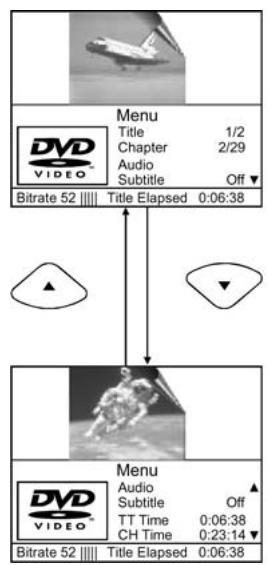
Select title or chapter number
Select title or chapter time
CH Time = Chapter time
Initial Settings
- Once the initial programming is entered it is retained in memory until changed, the player can always be operated under the same conditions.
- The settings will be retained in the memory until the settings are changed even after setting the player to the standby mode.
Common procedure for initial settings
- Press SETUPbutton.
- Use the navigation buttons to select preferred item, then press ENTER button, each screen for setting the value is displayed.
- Press SELECT button to close setup menu in any mode.
- Use left navigation button to switch to another main setup items
1. GENERAL SETUP
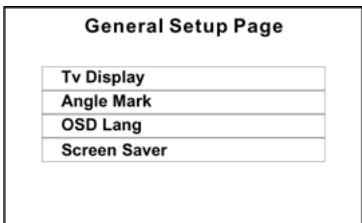
1.1 TV DISPLAY - it is used to select the TV output mode.
Options: Normal /PS: Pan & scan mode
Normal/ L/B: Letter box mode
Wide : 16:9 wide screen mode
1.2 ANGLE MARK - it is used to select whether or not The multi- angle icon is display on the screen when a Multi-angle DVD disc is playing.
Options: On: Icon will be displayed
Off: Icon will be turned off
1.3 OSD. LANG - it is used to select different On Screen Display language for different user.
1.4 SCREEN SAVER - when the player is not in used for 2 minutes, a running DVD logo will move across the TV screen to protect the TV CRT.
Options: On: Screen saver is enabled
Off: Screen saver is disabled
2. Audio setup
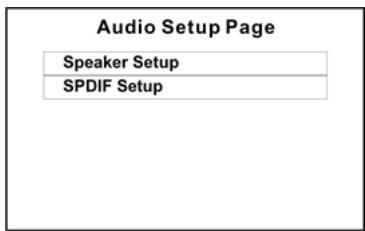
2.1 SPEAKER SETUP - it is used to set the speaker Outputs levels
DOWNMIX mode
Options: LT/RT-Left/Right mix mode STEREO - Select this option if you don't Have a 5.1 channels amplifier.
Front Speaker
Options: Large- select this option to increase the front speaker's volume. Small- select this option to decrease the front speaker's volume.
2.2 SPDIF SETUP
2.2.1 SPDIF OUTPUT - digital outputs code format
Options: OFF/RAW/PCM/MANUAL
If MANUAL is selected, the options for CD,DOLBY DIGITAL DTS, MPEG, PCM CHANNEL can be selected individually. Otherwise, they will output At the same format:RAW or PCM.
Recommended settings:
SPDIF OUTPUT: SPDIF OFF
(if you are not connecting to an amplifier via Digital output)
SPDIF OUTPUT: SPDIF/RAW
(Used in general home theater,select this can output 5.1 channel)
SPDIF OUTPUT: SPDIF/PCM
(select this it can only output 2 channel,but you will get high quality audio)
2.2.2 LPCM OUT - set bit-rate of coaxial and optical output Options: 96K/48K
(If you are connecting to an amplifier via digital output please reference your digital amplifier manual before you select this option)
3. Video setup
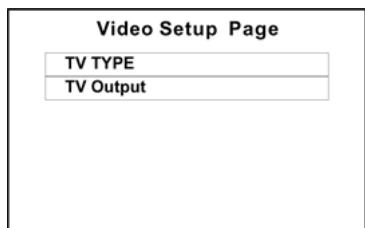
3.1 TV TYPE
Options: PAL/MULTI/NTSC
3.2 TV OUTPUT
Options: CVBS/RGB
CVBS = Composite output
RGB = RGB output
4. Preference setup
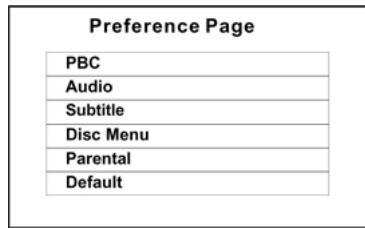
The first Power on this set by press power button on the front plane without placing any disc on this tray, press setup button, then you can enter the Preference Page by pressing navigate button.
4.1 PBC - select PlayBack Control for VCD Options: On/Off (Recommended setting: ON)
4.2 AUDIO - select preferred audio language. (DVD only - need disc software support)
4.3 SUBTITLE - select preferred subtitle language. (DVD only - need disc software support)
4.4 DISC MENU - select preferred disc menu language. (DVD only - need disc software support)
4.5 PARENTAL - select rating levels. You must set PASSWORD MODE OFF to enable this selection. (DVD only - need disc software support)
4.6 DEFAULT - Reset to factory settings
5. Password Setup
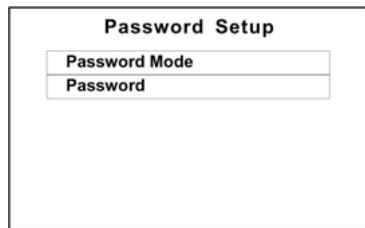
5.1 PASSWORD MODE
Options: ON/OFF
5.2 PASSWORD
Option: Change Select to change password
5.2.1 OLD PASSWORD
5.2.2 NEW PASSWORD
5.2.3 CONFIRMPWD
Procedure to change password:
1) Enter old password in the OLD PASSWORD row
2) Enter new password in the NEWpassword row
3) Enter the new password again in the CONFIRMPWD row
You may reset the password if you forget the old password by using the supervisor password: 1379
Definition of terms
Angle
Recorded onto some DVD discs are scenes which have been simultaneously shot from a number of different angles (the same scene is shot from the front, from the left side, from the right side, etc.). With such discs, the ANGLE button can be used to view the scene from different angles.
Chapter number
These numbers are recorded on DVD discs. A title is sub-divided into many sections, each of which is numbered, and specific parts of video presentations can be searched quickly using these numbers.
DVD
This refers to a high-density optical disc on which high quality pictures and sound have been obtained by means of digital signals. Incorporation a new video compression technology (MPEG II) and high-density recording technology, DVD enables esthetically pleasing full-motion video to be recorded over long periods of time (for instance, whole movie can be recorded). DVD has a structure consisting of two 0.6 mm thin discs which are adhered to each other. Since the thinner the disc, the higher the density at which the information can be recorded, a DVD disc has a greater capacity than a single 1.2 mm thick disc. Since the two thin discs are adhered to each other, there is the potential to achieve double-sided play sometime in the future for even longer duration play.
Playback control (PBC)
This is recorded on a Video CD (version 2.0). The scenes or information to be viewed (or listened to) can be selected interactively with the TV monitor by looking at the menu shown on the TV monitor.
Subtitles
This is the appearance of the dialogue at the bottom of the screen which are prerecorded on some DVD discs.
Time number
This indicates the play time which has elapsed from the start of a disc or a title. It can be used to find a specific scene quickly.(It may not work with some discs.)
Title number
These numbers are recorded on DVD discs. When a disc contains two or more movies, these movies are numbered as title 1, title 2, etc.
Track number
These numbers are assigned to the tracks which are recorded on Video CDs and CDs. They enable specific tracks to be located quickly.
Video CD
This contains recordings of pictures and sound whose quality is on a par with that of videotape. This player
also supports Video CDs with playback control (version 2.0).
Specifications
Power requirements AC 230V, 50Hz:
Power consumption 25W
(approx. 3.0W when set):
standby mode either by to the or the remote the power button control unit).
Signal system: PAL/MULTI/NTSC
Weight: 4.1Kg
Dimensions: 430 × 48(H)mm (L) × 252(W) (excluding protrusions)
Operating
temperature range: +5 to +35 C°
Operating
humidity range: 5 to 90% (no condensation)
Discs played:
(1) DVD-VIDEO disc
12 cm single-sided, single-layer
12 cm single-sided, dual-layer
12 cm double-sided, single-layer
8 cm single-sided, single-layer
8 cm single-sided, dual-layer
8 cm double-sided, single-layer
(2) Compact disc (VIDEO CD)
12 cm disc
8 cm disc
S-video output:
Y output level: 1 Vp-p (75)
C output level: 0.286 Vp-p (75)
Video output level:
1 Vp-p
Audio output level: 2 Vp-p (1 KHz, 0dB)
Audio signal output
characteristics:
DVD (linear audio):
(1) Frequency response: 20Hz-22KHz (48KHz sampling) 20Hz-22KHz (96KHz sampling)
(2) S/N ratio: 100dB
(3) Dynamic range: 90dB
(4)Wow and flutter: below measurable level
CD audio:
(1) Frequency response: 20Hz-22KHz
(2) S/N ratio: 100dB
(3) Dynamic range: 90dB
(4)Wow and flutter: below measurable level
Pickup:
Wave length: 655nm
Laser power:
CLASS 1
Specifications are subject to change without notice.
Weight and dimensions are approximate.
Troubleshooting
Before calling customer service if you have problems with this device, please search for the possible fault in the table below. With a few simple tests or minor adjustments you may be able to rectify the problem so that the device functions correctly again.
| Symptom (frequent) | Remedy |
| No power | Insert the mains plug into the socket. |
| • No playback even if PLAY is pressed. • Playback begins but stops again immediately. | • Condensation has formed: Wait approx. 1 to 2 hours until the device has dried out. • The device can only play back the following media: DVDs, video CDs, CDs, MP3s and JPEGs. • The disc may be dirty and require cleaning. • Ensure that the disc has been inserted with the label facing upwards. |
| No picture. | • Ensure that the device is properly connected. • Ensure that the television is turned to „video“. |
| • No sound. • Distorted sound. | • Ensure that the device is properly connected. • Ensure that the television and stereo system have been adjusted correctly. • Adjust the main volume via the remote control. |
| The picture is distorted during fast forward or fast rewind. | In this case the picture is sometimes a little distorted - this is normal. |
| No fast forward (or fast rewind) playback. | Some discs have sectors which do not allow fast forward (or reverse) playback. |
| No 4:3 (16:9) picture. | Select the correct setting corresponding to the characteristics of your television („TV Aspects“). |
| No Surround Sound. | Select the correct setting under „Audio Output“ corresponding to your stereo system. |
| No operation possible via the remote control. | • Check whether the batteries have been inserted with the correct polarity (+ and -). • The batteries are flat and must be replaced. • Point the remote control in the direction of the sensor on the device. • Do not use the remote control at a distance of more than 7 metres from the sensor |
| Buttons do not work (on the device and/or on the remote control). | • Remove any obstacles between the remote control and the sensor on the device. Switch the device off and then on again. Alternatively, switch the device off, remove the mains plug and re-insert it in the socket (it is possible that the device is not working due to external circumstances such as a thunderstorm or static electricity etc.). |
| Menu screen is not or only partially displayed on the television screen. | Select the corresponding type of screen according to the operating instructions of the television set. |
| No colour | Turn the TV type to the German colour norm PAL. Confirm the SETUP button to return to the menu. |
| Symptom (DVD) | Remedy |
| Audio soundtrack and/or subtitle language is not the one selected in the basic setup. | If the audio soundtrack and/or subtitle language is not on the disc, the language selected in the basic settings cannot be heard or seen. |
| The display appears in French (for example). | The setting in the menus under „Disc Languages“ is French. Select French. |
| No subtitles. | • Subtitles only appear on DVDs on which subtitles have been recorded. • Subtitles have been switched off from the television picture. Press the „SUBTITLE“ button. Try to select it from the DVD menu if there is one. |
| No alternative audio soundtrack (or subtitle) language is selected. | • No alternative language is selected on discs on which only one language has been recorded. • On some discs the alternative language cannot be selected with the AUDIO or SUBTITLE button. |
| Angles cannot be changed. | This function depends on the availability of the software. Even if a DVD has been recorded from different angles, these may only be available for certain scenes (when the ANGLE symbol lights up on the device). |
| Symptom (Video CD) | Remedy |
| There is no menu | This function is only possible with video CDs with Playback Control. |
| VCD/ SVCD does not play back. | With the disc inserted, switch over the PBC function using the menu button. |
| CD-RWs do not play back. | CD-RWs must not be written with hard disc simulation tools such as Packed CD, In CD or similar programmes. |
| CD-Rs and CD-RWs do not play back, or only play back with errors | The error rate of CD-R and CD-RW media depends on: • the media type • the writing program (possibly carry out an UPDATE) • the writer and its firmware (possibly carry out an UPDATE) • the writing speed (the lower the better) |
How to Handle and Care for your CDs
Handling Precautions
- Hold the CD by the edges so that the surface is not covered in fingerprints.
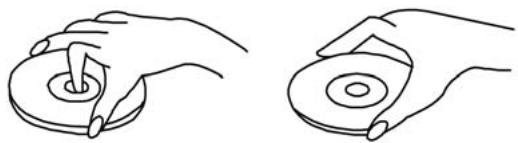
Fingerprints, dirt and scratches may cause the CD to jump and distort the sound.
- Do not write on the label side with a ballpoint pen or other writing utensil.
- Do not use any record cleaning spray, petrol, diluting agent, antistatic fluid or any other kind of solvent.
- Please ensure that you do not bend or drop the CD.
- Never insert more than one CD into the CD compartment.
- Do not try to close the door if the CD has not been correctly inserted into the CD compartment.
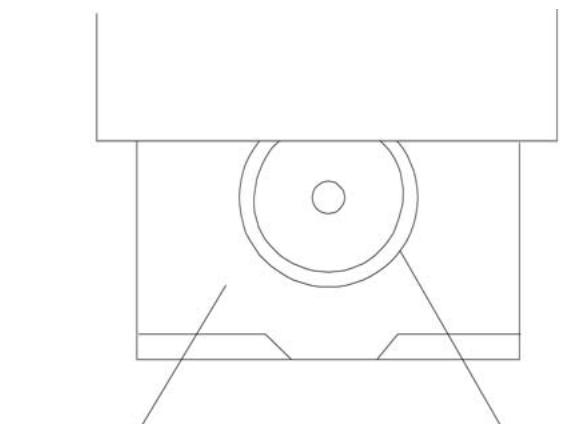

CD COMPARTMENT
CD
- Please make sure that you always store the CD in its original case when not being used.
If the Surface is Dirty
- Wipe the CD gently with a soft, moist (water only) cloth.
- When wiping CDs always move the cloth from the centre of the CD to the outer edge.
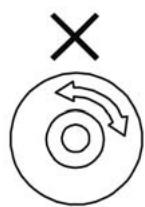
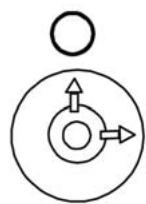
(If you wipe the CD in a circular manner you will cause circular scratches which will produce noises on the CD.)
- If a CD is moved from cold to warm surroundings it is possible that moisture will form on the CD. Wipe off the moisture with a soft, dry cloth that is free of fluff before inserting the CD.
Incorrect CD Storage
You may damage the CD if you store it in the following locations:
exposed to direct sunlight
- damp or dusty locations
- locations exposed to a direct source of heat or heating.
Maintenance
- Please ensure that before any maintenance is carried out the device is switched off and the plug removed from the power supply.
- Wipe the device with a dry, soft cloth. Should the surfaces become extremely dirty, please wipe them with a cloth that has been immersed in a weak soapy water solution and then wrung out before wiping off with a dry cloth.
- Never use alcohol, petrol, diluting agent, cleaning liquid or other chemicals. Do not use any compressed air to remove dust.
Guarantee
This device has been tested according to all relevant current CE guidelines, such as electromagnetic compatibility and low voltage directives, and has been constructed in accordance with the latest safety regulations.
Subject to technical changes without prior notice!
Guarantee
The device supplied by our Company is covered by a 24 month guarantee starting on the date of purchase (receipt).
During the life of the guarantee any fault of the device or its accessories *) ascribable to material or manufacturing defects will be eliminated free of charge by repairing or, at our discretion, by replacing it. The guarantee services do not entail an extension of the life of the guarantee nor do they give rise to any right to a new guarantee!
Proof of the guarantee is provided by the proof of purchase. Without proof of purchase no free replacement or repair will be carried out.
If you wish to make a claim under the guarantee please return the entire machine in the original packaging to your dealer together with the receipt.
*) Damage to accessories does not mean automatic free replacement of the whole machine. In such cases please contact our hotline. Broken glass or breakage of plastic parts are always subject to a charge.
Defects to consumables or parts subject to wearing (e.g. motor pistons, kneading blades, drive shafts, spare remote control, spare toothbrushes, saw blades, etc.) as well as cleaning, maintenance or the replacement of said parts are not covered by the guarantee and hence are to be paid!
The guarantee lapses in case of unauthorized tampering.
After the expiry of the guarantee
After the expiry of the guarantee repairs can be carried by the competent dealer or repair service against the payment of the ensuing costs.
CATHRONIC INTERNATIONAL GMBH
D-47906 Kempen/Germany · Industriering Ost 40 Internet: http://www.clatronic.de · email: info@clatronic.de