
SRP-280 - Thermal printer CITIZEN - Free user manual and instructions
Find the device manual for free SRP-280 CITIZEN in PDF.



| Product type | Scientific calculator |
| Brand | CITIZEN |
| Model | SRP-280 |
| Power supply | 2 GP76A alkaline batteries |
| Battery life | Automatic shutdown after 9 to 15 minutes of inactivity |
| Display | 2 lines: input line (up to 76 digits) and result line (10 digits + exponent) |
| Contrast | Adjustable via MODE then ▲/▼ keys |
| Mathematical functions | Trigonometric, logarithmic, exponential, fractions, conversions, statistics, probabilities, complex numbers, linear and quadratic equations |
| Calculation modes | Main (MAIN), Statistics (STAT), Base-N (binary, octal, hex), Complex (CPLX), Linear equations (VLE), Quadratic equations (QE) |
| Memory | 8 variables (A, B, C, X, Y, X1, X2, PROG) + independent memory |
| Repeat function | Stores the last 228 characters (SRP-280) |
| Internal precision | 24 digits |
| Angular units | Degrees, radians, grads |
| Conversions | Distance, area, temperature, volume, weight, energy, pressure units |
| Physical constants | 10 constants (speed of light, gravity, etc.) |
| Dimensions | Not specified in the manual (estimated: about 15 x 8 x 1.5 cm) |
| Weight | Not specified (estimated: about 100 g with batteries) |
| Maintenance | Clean with a dry cloth; replace batteries if display becomes dim |
| Reset | Press 2nd then RESET, or in case of lockup press 0 and DMS simultaneously |
| Recycling | Do not dispose of with household waste; follow the WEEE directive |
Frequently Asked Questions - SRP-280 CITIZEN
User questions about SRP-280 CITIZEN
0 question about this device. Answer the ones you know or ask your own.
Ask a new question about this device
Download the instructions for your Thermal printer in PDF format for free! Find your manual SRP-280 - CITIZEN and take your electronic device back in hand. On this page are published all the documents necessary for the use of your device. SRP-280 by CITIZEN.
USER MANUAL SRP-280 CITIZEN
Scientific Calculator
SRP-280/SRP-285
Instruction Manual
Manual de Instrucciones
Livro de Especificacoes
Anweisungshandbuch
Manuel d'instructions
Istruzioni all'Uso
Gebruiksaanwijzing
Manual
trpukzna no 3kspnyatcu
Instrnkcja Obslugi
CITIZEN is a registered trademark of CITIZEN Holdings CO.,LTD. Japan.
Design and specifications are subject to change without notice.
1-1 Powersupply E-2
1-2 Contrast adjustment E-2
1-3 Display readout E-3
1-4 Keymarkings E-3
1-5 Before starting calculations E-4
Selecting a mode E-4
Selecting an item from display menus E-4
Using “ 2nd ” keys E - 4
Cursor E-4
Making corrections during input E-4
Replay function E-5
Error position display function E-5
Memory function E-5
Order of operations E-6
Accuracy and Capacity E-6
Error conditions E-8
2. Mode 0 - MAIN E-9
2-1 Arithmetic calculation E-9
2-2 Display formats E-9
2-3 Parentheses calculations E-10
2-4 Percentage calculation E-10
2-5 Continuous calculation function E-10
2-6 Answer function E-11
2-7 Logarithms and Antilogarithms E-11
2-8 Fraction calculation E-11
2-9 Angle units conversion E-11
2-10 Trigonometric/Inverse-Tri-functions E-12
2-11 Hyperbolic / Inverse-Hyp. functions E-12
2-12 Coordinates transformation E-12
2-13 Probability E-13
2-14 Other functions E-13
2-15 Unit conversion E-13
2-16 Physics constants E-13
3.Mode1-STAT E-14
4. Mode 2 - Base-n E-15
4-1 Bases conversions E-15
4-2 Negative expressions E-16
4-3 Basic arithmetic operations for bases E-16
4-4 Logical operations E-16
5. Mode 3 - CPLX E-16
6.Mode 4-VLE E-16
7.Mode 5 - QE E-16
1 General Guide
1-1 Power supply
Turning on or off
To turn the calculator on, press [ON]; To turn the calculator off, press [2nd][OFF].
Battery replacement
SRP-280 is powered by two alkaline batteries (GP76A). SRP-285 is dual power system which is powered by one alkaline battery (GP76A) and a solar cell. If the display becomes dim and difficult to read (especially when lighting is dim for SRP-285), the batteries should be replaced as soon as possible.
1) Remove the screws and the back cover.
2) Replace the old batteries and install new ones with polarity in correct directions, then secure the screws in place and press [ON] to turn the power on.
Auto power-off function
This calculator automatically turns it off when not operated for approximately 9~15 minutes. It can be reactivated by pressing [ON] key and the display, memory, settings are retained.
Reset operation
If the calculator is on but you get unexpected results, press [2nd] [RESET] in sequence. A message appears on the display to confirm whether you want to reset the calculator and clear memory contents.
RESET:NY
Move the cursor to “Y” by [▶], then press [ENTER] to clear all variables, programs, pending operations, statistical data, answers, all previous entries, and memory; To abort the reset operation without clearing the calculator, please choose “N”.
If the calculator is lock and further key operations becomes impossible, please press [0] [DMS] at the same time to release the condition. It will return all settings to default settings.
1-2 Contrast adjustment
Pressing the [] or [] following [MODE] key can make the contrast of the screen lighter or darker. Holding either key down will make the display become respectively lighter or darker.
1-3 Display readout
The display comprises the entry line, the result line, and indicators.

Entry line
SRP-280 displays an entry of up to 76 digits. SRP-285 displays an entry of up to 80 digits. Entries begin on the left; those with more than 11 digits scroll to the left. Press [▶] or [←] to move the cursor through an entry. Press [2nd] [←] or [2nd] [▶] to move the cursor immediately to the beginning or end of the entry.
Result line
It displays a result of up to 10 digits, as well as a decimal, a negative sign, a “ x10 ” indicator, and a 2-digits positive or negative exponent. Results that exceed the digit limit are displayed in scientific notation.
Indicators
The following indicators appear on the display to indicate you the current status of the calculator.
| Indicator | Meaning |
| M | Independent memory |
| - | Result is negative, or the entry line is full |
| 2nd | 2nd set of function keys is active. |
| MODE | Mode selection is active |
| MAIN | Main mode is active |
| STAT | Statistics mode is active |
| Base-n | Base-n mode is active |
| VLE | Variable linear equation mode is active |
| QE | Quadratic equation mode is active |
| CPLX | Complex number mode is active |
| DEGRAD | Angle mode : DEGrees, GRADs, or RADs |
| ENGSCI | ENGINEERING or SClentific notation. |
| TAB | Number of decimal places displayed is fixed |
| HYP | Hyperbolic-trig function will be calculated |
| BUSY | While an operation is executing |
| ← → | There are digits to the left or right of the display |
| ↑ ↓ | There are earlier or later results that can be displayed |
1 - 4 Key markings
Many of the calculator's keys are used to perform more than one function. The functions marked on the keyboard are printed differently to help you find the one you need quickly and easily.
| Keyboard marking | Meaning |
| White | Direct input |
| Yellow | Press [2nd] and then key |
| Green | Press key in Base-n mode |
| E-3 |
1-5 Before starting calculation
Changing a mode
Pressing [MODE] can enter mode menus. You can choose one of six operating modes, including "0)MAIN", "1)STAT", "2)Base-n", "3)CPLX", "4)VLE", "5)QE".
Give “ 2)Base-n ” as an example :
Method 1: Scroll through the menus using [ · or [ ] until "2)Base-n" is shown, then enter the desired mode by pressing [ENTER].
Method 2: Key in directly the number of the mode, [2], to enter the mode immediately.
Selecting an item from display menus
Many functions and settings are available on menus. A menu is a list of options displayed across the entry line.
Give “ Pressing [ DRG ] key displays the menu for choosing the angle setting under MAIN mode ” as an example :
Method : Press [ DRG ] to display the menu, and then move the cursor [ · or [] to an item you want. Press [ ENTER ] while the item is underlined.
For menu items followed by an argument value, enter the argument value while the item is underlined. The item and the argument value are displayed in the previous screen.
Using “ 2nd ” keys
When you press [2nd], the “2nd” indicator shown in the display is to tell you that you will be selecting the second function of the next key you press. If you press [2nd] by mistake, simply press [2nd] again to remove the “2nd” indicator.
Cursor
Pressing [ ] or [ ] key can move the cursor to the left or the right. Hold down any of those keys to move the cursor at high speed.
Pressing [▲] or [▼] can scroll the display up or down while there are previous entries hidden the display. You can reuse or edit a previous entry when it is on the entry line.
Making corrections during input
To delete a character at the cursor, make the character underlined by using or [] to move the cursor, and then press [DEL] to delete the character. Besides, holding down [DEL] can deletes all characters to the right; then,
deletes 1 character to the left of the cursor each time you press [ DEL ].
To replace a character, make the character underlined by using [] or [] to move the cursor, and then enter a new entry to replace the character.
To insert a character, move the cursor to the position of the character where you want to insert, it will be inserted in the front of the character after pressing [2nd] [INS] and entering a new character.
(Note): The blinking cursor “ ” means the calculator is in insert mode. On the contrary, the blinking cursor is displayed as “_” and it means the calculator is in overwrite mode.
To clear all characters, clear all input character by [CL] key.
Replay function
- This function stores the latest operation executed. After execution is complete, pressing [▲] or [▼] key will display the operation from the beginning or the end. You can continue moving the cursor by [▶] or [▲] to edit it. To delete a digit, press [DEL]. (or, in overwrite mode, just type over the digit). See Example 1.
- The replay function can keep input digits up to 228 characters for SRP-280 or 320 characters for SRP-285. After execution is complete or during entering, you can press either [ ] [ ] to display previous input steps and edit values or commands for subsequent execution. See Example 2.
(Note): The replay function isn't cleared even when [ CL ] is pressed or power is turned off, so contents can be recalled even after [ CL ] is pressed. However, replay function is cleared when mode or operation is switched.
Error position display function
- When a mathematically illegal calculation is performed, error position display function will tell you with the cursor where the error is. Press [▶] or [▲] to move the cursor and then give it a correct entry. You can also clear an error by pressing [CL] and then re-entered the values and expression from the beginning. See Example 3.
Memory calculation
- Press [ M+ ] to add a result to running memory. Press [ M- ] to subtract the value from running memory. To recall the value in running memory, press [ MRC ]. To clear running memory, press [ MRC ] twice. See Example4.
-
The calculator has eight memory variables for repeated use: A, B, C, X, Y, X1, X2, PROG. You can store a real number in variables A, B, C, X, Y, X1, X2 and an expression in PROG. See Example 5.
-
[P/V RCL] recalls all variables.
-
[SAVE] lets you store values to variables.
- [2nd] [RECALL] recalls the value of variable.
- [2nd] [CL-VAR] clears all variables except PROG.
- [2nd] [CL-PROG] clears the contents of PROG.
Order of operations
Each calculation is performed in the following order of precedence :
1) Expression inside parentheses.
2) Coordinates transformation, and Type B functions which are required pressing the function key before entering, for example, sin, cos, tan, sin -1 , ^-1 , ^-1 , sinh, cosh, tanh, sinh -1 , ^-1 , ^-1 , log, In, 10^× , e ^x , , NEG, NOT, X'( ), Y'( ).
3) Type A functions which are required entering values before pressing the function key, for example, X^2 , “, !, X^-1 , %, r, g.
4) Exponentiation (), [x]x
5) Fractions
6) Abbreviated multiplication format in front of variables, , RAND.
7) (-)
8) Abbreviated multiplication format in front of Type B functions 2 3 , Alog2, etc.
9) nPr, nCr
10) x, ÷
11) +, -
12) AND, NAND
13) OR, XOR, XNOR
14) Conversion (A b/c d/e, F D, DMS)
- When functions with the same priority are used in series, execution is performed from right to left.
$$ e ^ {x} \ln 1 2 0 \rightarrow e ^ {x} \left{\ln (1 2 0) \right} $$
otherwise, execution is from left to right.
- Compound functions are executed from right to left.
- Anything contained within parentheses receives the highest priority.
Accuracy and Capacity
Output accuracy : ± 10th digit
Internal digits: SRP-280 → 24 digits
SRP-285 14 digits
In general, every reasonable calculation is displayed up to 10 digits mantissa, or 10-digits mantissa plus 2-digits exponent up to 10^± 99 .
Numbers used as input must be within the range of the given function as follow:
E-7
| Functions | Input range |
| sin x, cos x, tan x | Deg: |X| < 4.5 x 10¹⁰deg Rad: |X| < 2.5 x 10⁸π rad Grad: |X| < 5 x 10¹⁰grad however, fortan x Deg: |X| ≠ 90 (2n+1) Rad: |X| ≠ 2/2 (2n+1) Grad: |X| ≠ 100 (2n+1) (n is an integer) |
| sin-1x, cos-1x | |X| ≤ 1 |
| tan-1x | |X| < 1 x 10100 |
| sinh x, cosh x | |X| ≤ 230.2585092 |
| tanh x | |X| < 1 x 10100 |
| sinh-1x | |X| < 5 x 1099 |
| cosh-1x | 1≤X<5 x 1099 |
| tanh-1x | |x| < 1 |
| log x, ln x | 1 x 10-99≤X<1 x 10100 |
| 10x | -1 x 10100<X<100 |
| ex | -1 x 10100<X≤230.2585092 |
| √X | 0≤X<1 x 10100 |
| x2 | |X| < 1 x 1050 |
| 1/x | |X| < 1 x 10100, X≠0 |
| 3√x | |X| < 1 x 10100 |
| X! | 0≤X≤69, X is an integer. |
| P(x,y) | √X2+Y2<1 x 10100 |
| R(r,θ) | 0≤r<1 x 10100 Deg: |θ| < 4.5 x 10¹⁰deg Rad: |θ| < 2.5 x 10⁸π rad Grad: |θ| < 5 x 10¹⁰grad however, fortan x Deg: |θ| ≠ 90 (2n+1) Rad: |θ| ≠ 2/2 (2n+1) Grad: |θ| ≠ 100 (2n+1) (n is an integer) |
| DMS | |DD|, MM, SS.SS<1 x 10100, 0≤MM, SS.SS |x|<2.777777777 x 1096 |
| Xy | X>0: -1 x 10100<y log X<100 X=0:Y>0 |
| X < 0 : Y = n, 1/(2n+1), n is an integer. but -1 x 10^100 < Y log | X | <100 | |
| x√Y | y > 0 : x ≠ 0, -1 x 10^100 < 1/x log Y <100 y = 0 : x > 0 y < 0 : x = 2n+1, l/n, n is an integer.(n ≠ 0) but -1 x 10^100 < 1/x log | y | <100 |
| nPr, nCr | 0 ≤ r ≤ n, n < 10^100, n,r are integers. |
| STAT | | x | < 1x10^100 , | y | < 1x10^100 SRP-280 : 1 -VAR : n ≤ 40, 2 -VAR : n ≤ 40 SRP-285 : 1 -VAR : n ≤ 42, 2 -VAR : n ≤ 42 FREQ. = n, 0 ≤ n < 10^100 σx, σy, x, y, a, b, r : n ≠ 0 Sx, Sy :n ≠ 0,1 |
| Base-n | DEC : -2147483648 ≤ X ≤ 2147483647 BIN : 1000000000000000000000000000000000 ≤ X ≤ 111111111111111111111111111 (for negative) 0 ≤ X ≤ 01111111111111111111111111111 (for zero, positive) OCT : 20000000000 ≤ X ≤ 3777777777 (for negative) 0 ≤ X ≤ 17777777777 (for zero or positive) HEX : 80000000 ≤ X ≤ FFFFFFF( for negative) 0 ≤ X ≤ 7FFFFFFF ( for zero or positive) |
Error conditions
Error massage will appear on the display and further calculation becomes impossible when any of the following conditions occur.
| SRP-280 | SRP-285 | |
| DOMAIN Er | When specifying an argument to a function outside the valid range. | DOM Error |
| DOMAIN Er | FREQ value (in 1-VAR stats) < 0 or non-integer. | FREQ DOMA Error |
| DIVIDE BY O | You attempted to divide by 0. | DIVIDE BY O Error |
| OVERFLOW Er | When result of function calculations exceeds the range specified. | OVERFLOW Error |
STAT Er When not in STAT mode, pressing [DATA] or [STATVAR].
SYNTAX Er (1) Input errors are made. SYN (2) When improper arguments are used in commands or functions that require arguments. Error
NO SOL There is no solution or infinite to NO SOL MULTISOLS the simultaneous equation under MULTISOLS VLE mode.
NO REAL SOL There is no real solution to quadratic NO REAL SOL equation under QE mode.
LENGTH Er An entry for SRP-280 exceeds 84 digits IMP LENGTH (The limit for SRP-285 is 88 digits) after Error implied multiplication with auto-correction.
To release the above errors, please press [CL] key.
2 Mode 0 - MAIN
2-1 Arithmetic calculation
- Arithmetic operations are performed by pressing the keys in the same sequence as in the expression. See Example 6.
- For negative values, press [(-)] before entering the value. See Example 7.
- For mixed arithmetic operations, multiplication and division are given priority over addition and subtraction. See Example 8.
- Results greater than 10^10 or less than 10^-9 are displayed in exponential form. See Example 9.
2-2 Display formats
- Decimal places formats are selected by pressing [2nd] [TAB] to display the menu. To set decimal places to n (F0123456789), enter a n value directly or press [ENTER] key while the item is underlined. (The default setting is floating point notation F and the n value is ). See Example 10.
-
Even if the number of decimal places is specified, internal calculation for a mantissa is performed in 14 digits for SRP-285 and 24 digits for SRP-280, and the display value is stored in 10 digits. To round off those values to the specified number of decimal places, press [2nd] [RND]. See Example 11.
-
Number display formats are selected by pressing [2nd] [SCI/ENG] to display the menu. The items on the menu are FLO (for floating point), SCI (for scientific), and ENG (for engineering). Press [< ] or [▶] until the desired formats is underlined, and then press [ENTER]. See Example 12.
(Note): The engineering format is similar to the scientific format, except the mantissa can have up to three digits left of the decimal, instead of only one, and the exponent is always a multiple of three. It is useful for engineers to convert units based on multiples of 10^3 .
- You can enter a number in mantissa and exponent form by [EXP] key. See Example 13.
2-3 Parentheses calculations
- Operation inside parentheses are always executed first. SRP-280 can use up to 14 levels of consecutive parentheses in a single calculation. SRP-285 can use up to 22 consecutive levels of parentheses in a single calculation. See Example 14.
- Closed parentheses occurring immediately before operation of the [ENTER ] key may be omitted, no matter how many are required. See Example 15.
- A multiplication sign “x” occurring immediately before an open parenthesis can omitted. See Example 16.
(Note): The calculator can auto-correct abbreviated multiplication in front of all functions, except memory variables, left parenthesis, type B functions.
- Henceforth, abbreviated type will not be used in this manual. See Example 17.
- The correct result cannot be derived by entering [ ( ] 2 [ + ] 3 [ ) ] [EXP]2. Be sure to enter [x]1 between the [ ]) and [EXP] in the below example. See Example 18.
2-4 Percentage calculation
- [2nd] [%] divides the number in the display by 100. You can use this key sequence to calculate percentages, add-ons, discounts, and percentages ratios. See Example 19.
2-5 Continuous calculation function
- The calculator enables you to repeat the last operation executed by pressing [ = ] key for further calculation. See Example 20.
- Even if calculations are concluded with the [ = ] key, the result obtained can
be used for further calculation. See Example 21.
2-6 Answer function
- Answer function stores the most recently calculated result. It is retained even after the power is turned off. Once a numeric value or numeric expression is entered and [ENTER] is pressed, the result is stored by this function. See Example 22.
(Note): Even if execution of a calculation results in an error, however, Answer memory retains its current value.
2-7 Logarithms and Antilogarithms
- The calculator can calculate common and natural logarithms and anti-logarithms using [LOG], [LN], [2nd] [10^x] , and [2nd] [e^x] . See Example 23.
2 - 8 Fraction calculation
Fraction value display is as follow :
5 / 12
$$ \text {D i s p l a y o f} \quad \frac {5}{1 2} $$
56U5/12
$$ \text {D i s p l a y} 5 6 \frac {5}{1 2} $$
- To enter a mixed number, enter the integer part, press [A^b / c] , enter the numerator, press [A^b / c] , and enter the denominator; To enter an improper fraction, enter the numerator, press [A^b / c] , and enter the denominator. See Example 24.
- During a fraction calculation, if the figure is reducible, a figure is reduced to the lowest terms after pressing a function command key ([+] , [ - ] , [ x ] or [ ÷ ] ) or the [ = ] key. By pressing [2nd] [A^b / c]^1 d / e , the displayed value will be converted to the improper fraction and vice versa. See Example 25.
- To convert between a decimal and fractional result, press [2nd] [F D] and [ENTER]. See Example 26.
- Calculations containing both fractions and decimals are calculated in decimal format. See Example 27.
2-9 Angle units conversion
- The angle units (DEG, RAD, GRAD) is set by pressing [DRG] to display the angle menu. The relation among the three angle units is :
$$ 1 8 0 ^ {\circ} = \pi \mathrm {r a d} = 2 0 0 \mathrm {g r a d} $$
Angle conversations ( See Example 28.):
- Change the default angle settings to the units you want to convert to.
- Enter the value of the unit to convert.
- Press [DMS] to display the menu. The units you can select are ^ (degrees), ‘ (minutes), “ (seconds),” (radians), ^g (gradians) or DMS (Degree-Minutes-Seconds).
- Choose the units you are converting from.
- Press [ENTER] twice.
• To convert an angle to DMS notation, select “ DMS”, which converts an entry to DMS notations, i.e., where 1^ 30' 0'' represents 1 degrees, 30 minutes, 0 seconds. See Example 29.
- To convert a DMS notation to decimal, select ^ (degrees), “minutes), “(seconds). See Example 30.
2 - 10 Trigonometric / Inverse-Tri. functions
- SRP-280 / SRP-285 provides standard trigonometric functions and inverse trigonometric functions - sin, cos, tan, sin -1 , ^-1 and tan -1 . See Example 31.
(Note): When using those keys, make sure the calculator is set for the angle unit you want.
2 - 11 Hyperbolic / Inverse-Hyp. functions
- SRP-280 / SRP-285 uses [2nd] [HYP] to calculate the hyperbolic functions and inverse- hyperbolic functions - sinh, cosh, tanh, sinh -1 , ^-1 and ^-1 . See Example 32.
(Note): When using those keys, make sure the calculator is set for the angle unit you want.
2 - 12 Coordinates transformation
- Pressing [2nd] [R← P] displays a menu to convert rectangular coordinates to polar coordinates or vice versa. See Example 33.
Rectangular Coordinates
Polar Coordinates
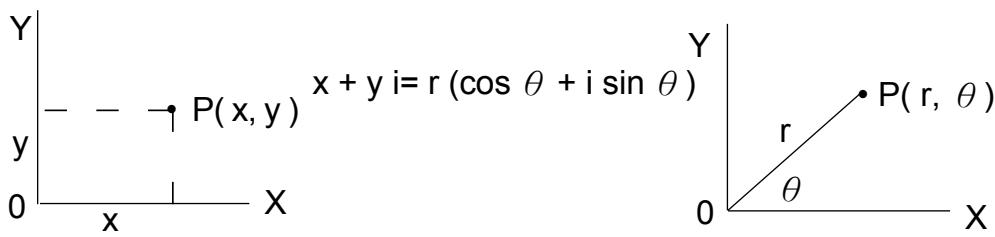
(Note): When using those key, make sure the calculator is set for the angle unit you want.
2 - 13 Probability
- Pressing [PRB] displays the probability menu. See Example 34. With the following functions:
nPr Calculates the number of possible permutations of n item taken r at a time.
nCr Calculate the number of possible combinations of n items taken r at a time.
Calculates the factorial of a specified positive integer n , where n ≤ 69 .
$$ < \text {S R P - 2 8 0} > $$
RANDM Generates a random number between 0 and 1.
$$ < \text {S R P - 2 8 5} > $$
RAND Generates a random number between 0 and 1.
2-14 Other functions (X^-1,,^×, X^2,)
- The calculator also provides reciprocal ([X^-1]) , square root ([]) , universal root [X^] , square ([X^2]) and exponentiation ([]) functions. See Example 35.
2 - 15 Unit Conversion
-
The calculators has a built-in unit conversion feature that enables you to convert numbers from metric to English units and vice versa. See Example 36.
-
Enter the number you want to convert.
- Press [2nd] [CONV] to display the menu. There are 7 menus, covering distance, area, temperature, capacity, weight, energy, and pressure.
- Use the [] [▲] to scroll through the list of units until a appropriate units menu is shown, then [ENTER].
- Pressing [] or [] can convert the number to another unit.
2 - 16 Physics constants
- You can use a number physics constants in your calculations. With the following constants :
| Symbol | Meaning | Value |
| c | Speed of light | 299792458 m/s |
| g | Acceleration of gravity | 9.80665 m.s-2 |
| G | Gravitational constant | 6.6725985 x 10⁻¹¹N.m2kg-2 |
| Vm | molar volume of ideal gas | 0.0224141 m3 mol-1 |
| NA | Avagadro's number | 6.022136736 x 10²³mol-1 |
| e | Elementary charge | 1.6021773349 x 10⁻¹⁹C |
me Electron mass 9.109389754 x 10^-31 kg
Proton mass 1.672623110 x 10 ^-27 kg
h Plank's constant 6.626075540 x 10⁻³⁴ J.s
k Boltzmann's constant 1.38065812 x 10⁻²³J.K-1
To insert a constant at the cursor position ( See Example 37.):
- Press [CONST] to display the physics constants menu.
- Press [▶] until the constant you want is underlined.
- Press [ENTER].
3 Mode 1 - STAT
There are three menu operations in statistics menu: 1-VAR ( for analyzing data in a single dataset), 2-VAR ( for analyzing paired data from two datasets ) and CLR-DATA ( for clearing all datasets). See Example 38.
To enter data for statistical analysis :
- From the statistics menu, choose 1 -VAR or 2 - VAR.
- Press [DATA].
- Enter an X - values and press [▼].
- Enter the frequency (FREQ for SRP-280 / F for SRP-285) of the X -value (in 1-VAR mode) or the corresponding Y -value (in 2-VAR mode) and press [▶].
- To enter more data, repeat from step 3.
To analyze data you have entered :
- Press [STATVAR]. A range of statistical variables (see table below) is displayed on the statistical result menus. The first variable ( n ) is underlined and its value is on the result line.
- Press [▶] to scroll through the statistical results menu. The value of each variable is displayed on the result line.
- To use a value in a calculation, press [ENTER] when the values is displayed. The values is copied to the entry line.
- To predict a value for x (or y ) given a value for y (or x ), select the x' (or y' ) variable, press [ENTER], enter the given value, and press [ENTER] again.
| Variable | Meaning |
| n | Number of x values or x-y pairs entered. |
| x or y | Mean of the x values or y values |
| Sx or Sy | Sample standard deviation of x values or y values. |
| σ x or σ y | Population standard deviation of x values or y values |
| Σ x or Σ y | Sum of all X values or y values |
| Σ x2 or Σ y2 | Sum of all x2values or y2values |
Sum of (x x y) for all x-y pairs
a Linear regression y-intercept
b Linear regression slope
Correlation coefficient
x' Predicted x values given a, b, and a y values
y' Predicted y value given a, b, and x value.
(Note): If an error message appears in the display under STATVAR menu, just pressing [▶] or [←] can continue viewing next statistical variable value.
To view or change data :
- Press [DATA].
- Press [▼] to scroll through the data you have entered.
- To change an entry, display it and enter the new data. The new data you enter overwrites the old entry. Press [▼] or [ENTER] to save the change.
(Note): Even you exit STAT mode, all data in 1-VAR and 2-VAR mode are still retained unless you clear all data by selecting CLR - DATA mode.
4 Mode 2 - Base-n
4-1 Bases conversions
- The number system (10, 16, 2, 8) is set by pressing [2nd] [dhbo] to display the menu, making one of the items underlined followed [ENTER]. A corresponding symbol - "d", "h", "b", "o" appears on the display. (The default setting is d : decimal base). See Example 39.
(Note): The total range of numbers handled in this mode is 0, 1, 2, 3, 4, 5, 6, 7, 8, 9, A, B, C, D, E, F. If values not valid for the particular number system are used, attach the corresponding designator (d, h, b, o), or an error message will appear.
Binary base (b):0,1
Octal base (o):0,1,2,3,4,5,6,7
Decimal base (d):0,1,2,3,4,5,6,7,8,9
Hexadecimal base ():0,1,2,3,4,5,6,7,8,9,A,B,C,D,E,F
- Pressing [ ] can use block function to display a result in octal or binary base which exceeds 8 digits. The system is designed to display up to 4 blocks. See Example 40.
4-2 Negative expressions
- In binary, octal, and hexadecimal bases, the calculator represents negative numbers using complement notation. The complement is the result of subtracting that number from 1000000000 in that number's base by pressing [NEG] key in non-decimal bases. See Example 41.
4-3 Basic arithmetic operations for bases
- The unit enables you to calculate in number base other than decimal. The calculator can add, subtract, multiply, and divide binary, octal, and hexadecimal numbers. See Example 42.
4-4 Logical operation
- Logical operations are performed through logical products (AND), negative logical (NAND), logical sums (OR), exclusive logical sums (XOR), negation (NOT), and negation of exclusive logical sums (XNOR). See Example43.
5 Mode 3 - CPLX
• Complex mode enables you to add, subtract, multiply, and divide complex numbers. See Example 44. The results of a complex operation are displayed as follow:
Re Realvalue
Im
Imaginary value
ab Absolutevalue
ar
Argument value
6 Mode 4 - VLE
Variable linear equations (VLE) mode can solve a set of simultaneous equations with two unknowns as follows :
$$ a x + b y = c $$
dx + ey = f , where x and y are unknown.
- In VLE mode, you just enter each coefficient (a, b, c, d, e, f) in the correct order, and the calculator automatically solves for x, y . See Example 45.
7 Mode 5 - QE
Quadratic equations (QE) mode can solve a equations as follows :
a x^2 + b x + c = 0 , where x is unknown.
- In QE mode, you just enter each coefficient (a, b, c) in the correct order, and the calculator automatically solves for all x values. See Example 46.
Índice de Matérias
1. Guía general S-2
Base decimal ():0,1,2,3,4,5,6,7,8,9
Hexadecimal base (h): 0, 1, 2, 3, 4, 5, 6, 7, 8, 9, A, B, C, D, E, F
2. Mode 0 - MAIN P-9
Base decimal (d):0,1,2,3,4,5,6,7,8,9
BaseHexadecimal ():0,1,2,3,4,5,6,7,8,9,A,B,C,D,E,F
2. Mode 0: MAIN G-10
To release the above errors, please press [CL] key.
2 Mode 0: MAIN
2-7 Logarithms and Antilogarithms
Hexadezimale Basis ():0,1,2,3,4,5,6,7,8,9,A,B,C,D,E,F
2. Mode 0 - MAIN F-9
Base octale (o):0,1,2,3,4,5,6,7
Base decimale (d):0,1,2,3,4,5,6,7,8,9
Base hexadécimale (h): 0, 1, 2, 3, 4, 5, 6, 7, 8, 9, A, B, C, D, E, F
2. Mode 0 - MAIN I - 9
Base octale (o):0,1,2,3,4,5,6,7
Base decimal (d):0,1,2,3,4,5,6,7,8,9
Base esadecimale ( h ) : 0 , 1 , 2 , 3 , 4 , 5 , 6 , 7 , 8 , 9 , A , B , C , D , E , F
$$ 1 8 0 ^ {\circ} = \pi \text {r a d} = 2 0 0 \text {g r a d} $$
Decimalegetalbasis ():0,1,2,3,4,5,6,7,8,9
Hexadecimate getalbasis (h):0,1,2,3,4,5,6,7,8,9,A,B,C,D, E,F
a y-intercept for linear regression
b Haeldningskoefficient for linear regression
r Korrelationskoefficient
Oktal base (o):0,1,2,3,4,5,6,7
Decimal base ():0,1,2,3,4,5,6,7,8,9
Hexadecimal base (h): 0, 1, 2, 3, 4, 5, 6, 7, 8, 9, A, B, C, D, E, F
Ved at trykke pa [ ] kan du bruge blodkfunktion til at vise et resultat i oktal ell binaer base, der er pa over 8 cife. Systemet er designnet til at vise opit 4 blokke. Se eksempel 40.
4-2 Negativeudtryk
1 OCHOBHOe pyKOBODCTBO
1-1 IcToHnKn PntaHna
HajkaTneM KnaBnI [CL] npOn3BOJNTc8 OuNcTKa 3KpaHa OT BCEX OTo6paKaembIXINBBODIMbIX3HaKOB.
Функция NOBTOpa
Bce BbIHCJIeHNA BbIOnJIHrOTcB CJIeDyIOUcEM NOpRdKeNocHTBy:
1) BbipaxKeHnB CkO6KaX.
2) Празьаня КООнаТ, Функи ТИпа -В, КOTOBIЕ Tpe6уOT NaKaTЯ ФункионаЛьных Клавиш РepeД ВБОДOM, НApRIMeP sin, cos, tan, sin -1 , cos -1 , tan -1 , sinh, cosh, tanh, sinh -1 , cosh -1 , tanh -1 , log, In, 10^x , e x , , NEG, NOT, X'(), Y'().
3) Φункции Tипа - A, КOTOBье ТребуOT ВВОдa ВЕЛЧИН Do НжКатя
ФункционаЛьньх Клавиш, Habример X², „,!, X⁻¹, %, r, g.
4) Ποκα3aTeJIи ( ^ ), x√
5)Дроби
6) CokpaueHbIe fOpMaTbI yMHOxEHNr IpeD IepEmHHbIMN, RAND.
7) (-)
8) CokpaueHHbIe fOpMaTbI yMHOxHnI nepeI cyHKcIyMN TnPa-B 2√3,Alog2, n T.d.
9) nPr, nCr
2-4 PacyetbI npoceHTOB
- HaxaTne KnaBnI [2nd] [%] DeIIT YncIIO Ha dIscIpee Ha 100. Bbl MOxTe IcNoJIb3OBArB 3Tu NocJeIOBaTeJIbHOCTb KnaBnI dJa BByIcSJIeHn IpoUeHTOB,doBaJIeHn,CKIOK IpoUeHTbIX DoJIeN. CMOtpr npimep 19.
2-5 Φункця HeпрьIBhblx BblcJIeHn
- KaIbKyIyIaTOp npeIOCTabJIeT BO3MOxHOCt b NOBTOpa NocJeIHeN OIepaIu, 3aBepseHHO HaxKaTHeM KNaBnIu [ = ], ДЯ DAJIbHeIshx BbIcIeHn. CmOTpIte npimep 20.
- Доже ecли BBiHcJIeHЯ 3aBepshaIOTcH haxaTneM KJIaBnIu [ = ], NOJyHeHbI pe3yIbTaT MOxET 6bITb IcNoJIb3OBAH ДЯДаJIbHeIshIX BbiHcJIeHЯ. CMOTpIte npIMep 21.
2-6 Φункция OTbete
- Φункця OTBete coхpaняET NOСледнй NOЛученьй pe3yЛьТАr. Beличиha coхpaняETсдже NOСLE OTКПЮЧЕпЯп.TANHЯ. Pe3yЛьТВI YUCNIOBbIX Beличин И NOCSIOBbIX BblpaxGEHn, NOCSLE BBeDEHnKOTOpbIX Haxkata KlaBnHa [ENTER], coxpaHЯOTcR 3ToI ΦункциeN. CmOTpNTePnMpE22.
(Приимechан): Дадж ecл nbылп HeHne BbIчис leHn 3akHnBaetc Oшибко,даньфункця coxpaHЯET Tekyше BEJIuHbl.
2-7 IorapnФMbI n AHTINlorapnФMbI
- KaIbKyJIaTOp MOXeT BbIuNcJIaTb O6bIuHbIe I HaTpaJIbHbIe IorapnФMbIn aHTnIuRapnФMbI, IcNoJIb3yIte KnaBnIu [LOG], [LN], [2nd] [10^x] , and [2nd] [e^x] . CmOTpNIte npIMep 23.
2-8 BbIuNCJIeHnC dpo6aMn
PoiarHbIe KoOpDInHaTbI

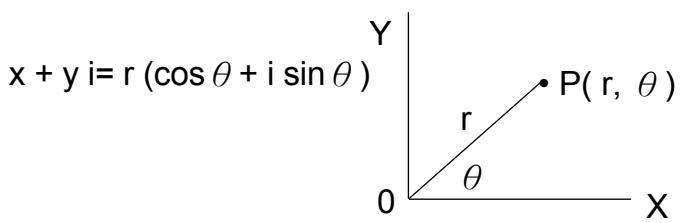
(Приимechанe):ЕсиИСПОЛБ3УTOСТИКЛавиши,убeДИТecь,чTo KaJIbKUЛТOP yCTaHOBЛeн ДЯ рабOTыc HжнblIMуГLOВblIM ВELNCHHaMn.
2-13 BepoTHocTb
- HaxaTneM KnaBnI [PRB]Ha dncIpei BbIBOHTcMeHIO pa60tbi C BepoTHOCTHbIMN FyHKUJAM. CMOTpTe npImep 34. ImeIoTcR cJeDyUOJIe FyHKUIN:
nPr BbIuNCJIeT YIcIIO BO3MOXHbIX IpeCeTaHOBOK n3 npEiMeTOB B3aTbIX r pa3.
nCr BbIuNCJIaTeT YIcJIO BO3MOXHbIX KOM6HauCNI I3 nppeDMeTOB B3rTbIX r pa3.
! BbIuNCJraET Ko3ΦΦnIeHT OnpedeJIeHNO IIOJoxITJIbHOrO UeIOrO YIcJa n, rJe n≤69.
KanbykynTOp < SRP-280>
RANDM Tenepepyet cnyaHoe Yncno ot 0 do 1.
KanlyknyaTop < SRP-285>
RAND Tenehpuyet cnyaHoe Yncno ot 0do1.
2-14Дугпe ФункциN (X-1,√,x√,X²,^)
- KaIbkyIyTop TaIOKe BblIOJHReT ΦyHKUIN O6paTHbIX BeJIuYH ([X-1]), N3BJIeUeHnKBAdpaTHOro KOpH ([√]) , N3BJIeUeHnYHNBepCaJIbHOro KOpH [X√], BO3BeDeHnB KBaIpaT ([X²])и BO3BeDeHnB CTepeHb ([^]). CMOTpIte npIMep 35.
2-15 IpebeoI eHnIc
-
KanbkyjTOp o6IaJaT TaKoI OCO6eHHOCTbI, KaK BO3MOXHOCTb IpeBODa eDINHc N3 MeTpUeCKx B aHrIiCKne i HaO6OpOT. CmOTpITe npIMep 36.
-
BVeIteUncIto, npEHa3NaueHHeIЯpeBoVa.
- Haxmte KnaBn [2nd] [CONV], yTo6bI OTo6pa3ntb Ha dinCpIee MeHIO. IMeetc7 BnO8 MeHIO - pacCTOaHne, PlouaDb, TempepaTypa, emKoCTb, BEc, 3Heprn, daBJeHne.
- История Клиарни [ ] [ ] , поедыгат ecь по пунков мени, поka He BbICBETITcH HxHbI ПУHKT, посе чero нахмITE Клиаршу [ENTER ].
- HaxkaTneM KJIaBnI [ ] [ ]MOxHO OcyIeCTBJIaTb IpeBOD YIcJaB DpyrIeEINHcIbIIN3MepeHnI.
2-16 ΦиЗическne NOCTОУньie
BbIMoKTe NcNoJIb3OBAbTB BeJIuHbI cN3UeCKNX NOCTOAHbIX BCBOx BbIuNCJIeHNJx. ImeIoTc CJeDyUOJIne NOCTOAHbIe:
| СиMbОЛ | Знayене | Белочина |
| c | Сkopocь CBeta | 299792458 m/s |
g TpaBntaUHOHoe yckopeHne 9.80665 m.s-2
G ΓρανιTaζηοHHa ПОСТОУНHA 6.6725985 x 10⁻¹¹ N.m² kg-2
Vm MoJrpHbI Objem ra3a B IeAJIbHOM COCTOHN 0.0224141 m ^3 mol-1
N A 6.022136736 x 10 ^23 mol-1
e 3JIeMeHTapHbI 3aPd 1.6021773349x10⁻¹⁹C
me Macca 3JIeKtpoHa 9.109389754 x 10^-31 kg
mP Macca npoToHa 1.672623110 x 10⁻²⁷ kg
h NocToHHaI PnAHaKa 6.626075540 x 10⁻³⁴ J.s
k ПocToHHaBoJIbUcMaHa 1.38065812x10⁻²³J.K-1
4-1 Ba3OBbIe npeo6pa3OBaHnIa
- Системы Incистен (10, 16, 2, 8) установinaьет ся нахатем Клавши Вьюда мени [2nd] [dhbo], a за tem нахатем Клавши [ENTER], пося вдideлени вьбданно рункta. Ндиспee NOЯВяЮТСА COOTВETCTBYЮше симвoly - "d", "h", "b", "o". (По умочаню d - Deсятuous систema).Сmotрпт ep npimep 39.
(Приимechа): Усpla, образаemьe вэтом ржime-0,1,2,3,4, 5,6,7,8,9,A,B,C,D,E,F.Eси Велочина He npirodHa Дя Испльзовань В ор dedeн Ho INCNoIb3yEmoN CSCTeMe IcHcIeHn, 3aДaIte BepHyIO BeIuHInHy (d,h,b,o),Инache ПОЯВITcA coObSeHne ob OShn6ke.
Двончhoe OCHOBAHne (b):0,1
BocbMepnueOCHOBaHne (o):0,1,2,3,4,5,6,7
Дecетиhoe ochobaine (d): 0, 1, 2, 3, 4, 5, 6, 7, 8, 9
IeCTHaIaTnIpyHoe OCHOBaHne (h):0,1,2,3,4,5,6,7,8,9,A,B, C,D,E,F
- HaxkaTneM KnaBnI [ ] MOxHOb NcNoJIb3OBAb T b cyHKcIIO 6NOKIpOBKn BbIBeDEHnpe3yJIbTaTa B BOCbMnPCHOM IIN DBOUHOM OCHOBaHn, KOtOpbI npeBbIaAet 8 pa3pIaOB. CnCTema pa3pa6oTaHa ДЯ OcyIeCTBJIeHnДо YeTbIpeX 6NOKIpOBOK BbIBeDEHn. CmOTpn npimep40.
4-2 OtrncaTeIbHbIe BbipaxKeHn
BДBOUHOM, BOCbMnPnHOM N IeCTHaIaTnpuHOM OCHOBaHJX KaJIbKUJIaTOp NOKa3bIbAeT OTPuCaTeJIbHOe YIcNIO, IcNoJIb3yJ IOJOnHeHne. JOnJOnHeHne - 3TO pe3yJIbTaT BbIHTaHnY TOrO YIcJa I3 10000000000 B erO OCHOBaHm HaxKaTneM KJIaBnIu [NEG] B HeJeCEsTtHOM OCHOBaHIn. CMOTpN pIpIMep 41.
4-3 Ba3OBbIe apnΦMeTnueckne Opepaunn IJRA OCHOBaHn
Uzywanie klawisza " 2nd "
$$ [ \text {E N T E R} ] $$
MAIN
$$ 4. 2. 4 $$
DEG
$$
$$
4.1/2
$$ [ 2 n d ] [ A ^ {b / c} \langle \rangle^ {d / e} ] $$
$$ [ \text {E N T E R} ] $$
MAIN
$$ \text {A n s} \rightarrow a ^ {b / c} \leftarrow d / e $$
9/2
$$ [ 2 n d ] \left[ A ^ {b / c} \leftrightarrow^ {d / e} \right] $$
$$ [ \text {E N T E R} ] $$
MAIN
$$ \text {A n s} \rightarrow a $$
DEG
$$ c \leftarrow \frac {d}{e} $$
4.1/2
Example 26
$$ 4 1 / _ {2} = 4. 5 $$
$$ 4 [ \mathrm {A b} / \mathrm {c} ] 1 [ \mathrm {A b} / \mathrm {c} ] 2 $$
$$ [ 2 \mathrm {n d} ] [ F \leftrightarrow D ] $$
$$ [ \text {E N T E R} ] $$
MAIN
$$ 4. 1. 2 F \leftrightarrow D $$
4.5
Example 27
$$ 8 ^ {4} / 5 + 3. 7 5 = 1 2. 5 5 $$
$$ 8 [ \mathrm {A} ^ {\mathrm {b} / \mathrm {c}} ] 4 [ \mathrm {A} ^ {\mathrm {b} / \mathrm {c}} ] 5 $$
$$ [ + ] 3. 7 5 [ E N T E R ] $$
MAIN
$$ 8 \text {、} 4 \text {、} 5 + 3. 7 5 $$
3.75
12.55
Example 28
$$ 2 \pi \text {r a d .} = 3 6 0 \text {d e g .} $$
$$ [ D R G ] $$
$$ [ \text {E N T E R} ] 2 [ \pi ] [ \text {D M S} ] $$
$$ [ \triangleright ] [ \triangleright ] [ \triangleright ] $$
$$ [ \text {E N T E R} ] [ \text {E N T E R} ] $$
MAIN
$$ \begin{array}{c} \text {D E G R A D G R D} \end{array} $$
MAIN
0
DEG
g
→
MAIN
2π
DEG
360.
Example 29
1.5 = 103010 (DMS)
| 1.5 [DMS] [←] | MAIN DEG ← DMS |
| [ENTER] [ENTER] | MAIN DEG 1.5→DMS ↑ 10^30 10^II |
Example 30
2045110.511 = 2.75291667
$$ a x ^ {2} + b x + c = 0 $$
[▼]1
QE DEG
$$ a = 1 \quad \uparrow $$
$$ [ \triangledown ] [ (-) ] 5 $$
QE DEG
$$ b = - 5 \quad \uparrow $$
$$ [ \triangledown ] 6 $$
QE DEG
$$ c = 6 \quad \uparrow $$
$$ [ \triangledown ] $$
QE DEG
$$ \begin{array}{c} \mathrm {X} _ {1} \mathrm {X} _ {2} \ 3. \end{array} $$
$$ [ \triangleright ] $$
QE DEG
$$ \begin{array}{c} \text {X} _ {1} \text {X} _ {2} \ 2. \end{array} $$
WEEE MARK
En
If you want to dispose this product, do not mix with general household waste. There is a separate collection systems for used electronics products in accordance with legislation under the WEEE Directive (Directive 2002/96/EC) and is effective only within European Union.
Ge
Information for Users on Collection and Disposal of used Batteries.
The symbol in this information sheet means that used batteries should not be mixed with general household waste.
For proper treatment, recovery and recycling of used batteries, please take them to applicable collection points.
For more information about collection and recycling of batteries, please contact your local municipality, your waste disposal service or the point of sale where you purchased the items.

Information on Disposal in other Countries outside the European Union.
This symbol is only valid in the European Union.
If you wish to discard used batteries, please contact your local authorities or dealer and ask for the correct method of disposal.
- Scientific Calculator
- SRP-280/SRP-285
- Mode 0 - MAIN E-9
- 3.Mode1-STAT E-14
- Mode 2 - Base-n E-15
- Mode 3 - CPLX E-16
- 6.Mode 4-VLE E-16
- 7.Mode 5 - QE E-16
- General Guide
- 1-1 Power supply
- Turning on or off
- Battery replacement
- Auto power-off function
- Reset operation
- RESET:NY
- 1-2 Contrast adjustment
- 1-3 Display readout
- Entry line
- Result line
- Indicators
- - 4 Key markings
- 1-5 Before starting calculation
- Changing a mode
- Selecting an item from display menus
- Using “ 2nd ” keys
- Cursor
- Making corrections during input
- Replay function
- Error position display function
- Memory calculation
- Order of operations
- Accuracy and Capacity
- Error conditions
- Mode 0 - MAIN
- 2-1 Arithmetic calculation
- 2-2 Display formats
- 2-3 Parentheses calculations
- 2-4 Percentage calculation
- 2-5 Continuous calculation function
- 2-6 Answer function
- 2-7 Logarithms and Antilogarithms
- - 8 Fraction calculation
- 2-9 Angle units conversion
- - 10 Trigonometric / Inverse-Tri. functions
- - 11 Hyperbolic / Inverse-Hyp. functions
- - 12 Coordinates transformation
- - 13 Probability
- 2-14 Other functions (X-1,,^×, X2,)
- - 15 Unit Conversion
- - 16 Physics constants
- Mode 1 - STAT
- To enter data for statistical analysis :
- To analyze data you have entered :
- To view or change data :
- Mode 2 - Base-n
- 4-1 Bases conversions
- 4-2 Negative expressions
- 4-3 Basic arithmetic operations for bases
- 4-4 Logical operation
- Mode 3 - CPLX
- Mode 4 - VLE
- Mode 5 - QE
- Índice de Matérias
- Guía general S-2
- Mode 0 - MAIN P-9
- Mode 0: MAIN G-10
- Mode 0: MAIN
- Mode 0 - MAIN F-9
- Mode 0 - MAIN I - 9
- 4-2 Negativeudtryk
- OCHOBHOe pyKOBODCTBO
- 1-1 IcToHnKn PntaHna
- Функция NOBTOpa
- 2-4 PacyetbI npoceHTOB
- 2-5 Φункця HeпрьIBhblx BblcJIeHn
- 2-6 Φункция OTbete
- 2-7 IorapnФMbI n AHTINlorapnФMbI
- 2-8 BbIuNCJIeHnC dpo6aMn
- 2-13 BepoTHocTb
- 2-14Дугпe ФункциN (X-1,√,x√,X²,^)
- 2-15 IpebeoI eHnIc
- 2-16 ΦиЗическne NOCTОУньie
- 4-1 Ba3OBbIe npeo6pa3OBaHnIa
- 4-2 OtrncaTeIbHbIe BbipaxKeHn
- 4-3 Ba3OBbIe apnΦMeTnueckne Opepaunn IJRA OCHOBaHn
- Uzywanie klawisza " 2nd "
- Example 26
- Example 27
- Example 28
- Example 29
- Example 30
- WEEE MARK
- En
- Ge
- Information for Users on Collection and Disposal of used Batteries.
- Information on Disposal in other Countries outside the European Union.
Brand : CITIZEN
Model : SRP-280
Category : Thermal printer