USER MANUAL SR-270N CITIZEN
CITIZEN is a registered trademark of CITIZEN Holdings CO.,LTD., Japan.
Design and specifications are subject to change without notice.
Battery replacement 2
Auto power-off function 2
Reset operation 2
Contrast adjustment 3
Display readout 3
Before starting calculation 4
Mode Selection 4
Using "2nd" keys 4
Cursor 4
Making corrections during input 4
Replay function 5
Error position display function 5
Memory calculation 5
Stack 6
Order of operations 6
Accuracy and Capacity 6
Error conditions 8
Basic Calculation. 8
Arithmetic calculation 8
Parentheses calculations 9
Percentage calculation 9
Display formats 9
Continuous calculation function 10
Answer function 10
Scientific Calculation 10
Logarithms and Antilogarithms 10
Fraction calculation 10
Angle units conversion 11
Trigonometric / Inverse-Tri. functions 11
Hyperbolic / Inverse-Hyp. functions 11
Sexagesimal Decimal transformation 12
Coordinates transformation 12
Probability 12
Other functions (x^-1,-,[3]-,[x]-,x^2,x^3,x^y) 12
Standard Deviation Calculation 13
Regression Calculation 13
General Guide
Turning on or off
To turn the calculator on, press [ON/AC] ; To turn the calculator off, press [OFF].
Battery replacement
The calculator is powered by two alkaline batteries (G13 or LR44). When the display dims, replace the batteries. Be careful not to be injured when you replace the battery.
- Unscrew the screws on the back of the calculator.
- Insert a flat bladed screwdriver into the slot between the upper and lower case then carefully twist it to separate the case.
- Remove both batteries and dispose of them properly. Never allow children to play with batteries.
- Wipe off the new batteries with a dry cloth to maintain good contact.
- Insert the two new batteries with their flat sides (plus terminals) up.
- Align the upper and lower cases then snap them to close together.
- Tighten the screws.
Auto power-off function
This calculator automatically turns it off when not operated for approximately 9~15 minutes. It can be reactivated by pressing [ON_AC] key and the display, memory, settings are retained.
Reset operation
If the calculator is on but you get unexpected results, press [ON/AC] and then [MODE] four times to display the below menu. A message appears on the display to confirm whether you want to reset the calculator and clear memory contents after pressing [2].
| ENG RESET
1 2 | [2] | RESET: N Y
1 2 |
To clear all variables, pending operations, statistical data, answers, all previous entries, and memory, please press [2]. To abort the reset operation without clearing the calculator, please press [1]. If the calculator is lock and further key operations becomes impossible, please use a pointed object to press the reset hole to release the condition. It will return all settings to default settings.
Contrast adjustment
Pressing the [] or [] following [MODE] key can make the contrast of the screen lighter or darker. Holding either key down will make the display become respectively lighter or darker.
Display readout
The display comprises the entry line, the result line, and indicators.
| Indicator | DEG |
| Entry line | 74-8/7 |
| 72.85714286 |
Entry line The calculator displays an entry of up to 79 digits. Entries begin on the left; those with more than 11 digits scroll to the left. Press [+] or [<] to move the cursor through an entry. However, whenever you input the 73rd digit of any calculation, the cursor changes from " _ " to "■" to let you know memory is running low. If you still need to input more, you should divide your calculation into two or more parts.
Result line It displays a result of up to 10 digits, as well as a decimal, a negative sign, a " x10 " indicator, and a 2-digits positive or negative exponent.
Indicators The following indicators appear on the display to indicate you the current status of the calculator.
Indicator Meaning
M Independent memory
Result is negative
2nd 2nd set of function keys is active.
A Alphabetic Keys ( ,, ) are active.
STORCL STO:Storing variable mode is active RCL:Recalling variable mode is active
SD Statistics mode is active
REG Regression mode is active
DEGRAD Angle mode: DEGrees, GRADs, or RADs
ENG Engineering notation
SCI Scientific notation
FIX Number of decimal places displayed is fixed
HYP Hyperbolic-trig function will be calculated
BUSY While an operation is executing
There are digits to the left or right of the display
There are earlier or later results that can be displayed
Before starting calculation
Mode Selection
Each time [MODE] is pressed, various functions menus and all argument values corresponding to the desired mode is shown on the screen. It includes three calculation modes (COMP, SD, REG), three angle units (DEG, RAD, GRAD), four display notations (FIX, SCI, NORM, ENG) and reset function (RESET).
Entering an argument value can set up this calculator to operate as you want it to. Give "SD" as an example:
- Press [MODE] once to display the calculation mode menu.
- Enter [2] to let this calculator being operated under stan
dard deviation mode.

Using "2nd" keys
When you press [2nd], the "2nd" indicator shown in the display is to tell you that you will be selecting the second function of the next key you press. If you press [2nd] by mistake, simply press [2nd] again to remove the "2nd" indicator.
Cursor
Pressing [ ] or [ ] key can move the cursor to the left or the right. Hold down any of those keys to move the cursor at high speed.
Pressing [2nd] [] or [2nd] [] can scroll the display up or down while there are previous entries hidden the display. You can reuse or edit a previous entry when it is on the entry line.
To delete a character at the cursor, make the character underlined by using [ ] or [· ] to move the cursor, and then press [DEL] to delete the character.
To replace a character, make the character underlined by using [] or [·] to move the cursor, and then enter a new entry to replace the character.
To insert a character, move the cursor to the position of the character where you want to insert, it will be inserted in the front of the character after pressing [2nd] [INS] and entering a new character.
(Note): The blinking cursor " " means the calculator is in insert mode. On the contrary, the blinking cursor is displayed as " _ " and it means the calculator is in overwrite mode.
To clear all characters, clear all input character by [ON_AC] key.
Replay function
- This function stores the latest operation executed. After execution is completed, pressing [2nd] [] or [2nd] [] key will display the operation from the beginning or the end. You can continue moving the cursor by [] or [] to edit it. To delete a digit, press [DEL]. (or, in overwrite mode, just type over the digit). See Example 1.
- The replay function can keep input digits up to 256 characters for The calculator. After execution is completed or during entering, you can press either [2nd] [←] or [2nd] [→] to display previous input steps and edit values or commands for subsequent execution. See Example 2.
(Note) : The replay function isn't cleared even when [ONAC] is pressed or power is turned off, so contents can be re called even after [ONAC] is pressed.
Error position display function
- When a mathematically illegal calculation is performed, error position display function will tell you with the cursor where the error is. Press [+] or [<] to move the cursor and then give it a correct entry. You can also clear an error by pressing [ON_AC] and then re-entered the values and expression from the beginning. See Example 3.
Memory calculation
Independent memory
- Press [M+] to add a result to running memory. Press [2nd] [M-] to subtract the value from running memory. To recall the value in running memory, press [2nd] [RCL] [M]. To clear running memory, press [0] [STO] [M]. See Example 4.
(Note): Besides pressing [STO] key to store a value, you can also assign values to memory variable M by [M+] or [M-] .
Memory variable
- The calculator has nine memory variables for repeated use: A, B, C, D, E, F, M, X, Y. You can store a real number in any of the nine
memory variables. See Example 5.
- [STO] + [A] ~ [F], [M], or [X] ~ [Y] lets you store values to variables.
- [2nd] [RCL] or [ALPHA] + ,, or [x] [y] recalls the value of variable.
- [0][STO] + [A]~[E], [M], or [X]~[Y] clears the content to a specified memory variable.
- [2nd] [Mcl] [= ] clears all variables.
Stack
This calculator uses memory areas, called "stacks", to temporarily store values (numeric stack) and commands (command stack) according to their precedence during calculations. The numeric stack has 10 levels and command stack has 24 levels. A stack error (Stk ERROR) occurs whenever you try to perform a calculation that is so complex that the capacity of a stack is exceeded.
Order of operations
Each calculation is performed in the following order of precedence :
1) Coordinates transformation.
2) Type A functions which are required entering values before pressing the function key, for example, x^2 , 0 1 , x! , x^-1 .
3)x.
4) Fractions.
5) Abbreviated multiplication format in front of variables,
6) Type B functions which are required pressing the function key before entering, for example, sin, cos, tan, sin ^-1 , ^-1 , tan ^-1 , sinh, cosh, tanh, sinh ^-1 , ^-1 , tanh ^-1 , log, In, 10^× , e ^X , , [3]- , (-).
7) Abbreviated multiplication format in front of Type B functions 23 , Alog2, etc.
8) nPr, nCr
9) x, ÷
10) +, -
-
When functions with the same priority are used in series, execution is performed from right to left. e^x 120 e^x (120) otherwise, execution is from left to right.
-
Compound functions are executed from right to left.
-
Anything contained within parentheses receives the highest priority.
Accuracy and Capacity
Output digits : Up to 10 digits.
Calculating digits : Up to 15 digits
In general, every reasonable calculation is displayed up to 10 digits mantissa, or 10-digits mantissa plus 2-digit exponents up to 10^99 . Numbers used as input must be within the range of the given function as follows:
| Functions | Input range |
| sin x, tan x | Deg: 0 ≤ |x| ≤ 4.499999999 x 10 10Rad: 0 ≤ |x| ≤ 785398163.3Grad: 0 ≤ |x| ≤ 4.499999999 x 10 10however, for tan xDeg: |x| ≠ 90 (2n-1)Rad: |x| ≠ π/2 (2n-1) Grad: |x| ≠ 100 (2n-1) (n is an integer) |
| cos x | Deg: 0 ≤ |x| ≤ 4.500000008 x 10 10Rad: 0 ≤ |x| ≤ 785398164.9Grad: 0 ≤ |x| ≤ 5.000000009 x 10 10 |
| sin-1x, cos-1x | 0 ≤ |x| ≤ 1 |
| sinh x, cosh x | 0 ≤ |x| ≤ 230.2585092 |
| tan-1x | 0 ≤ |x| ≤ 9.999999999 x 10 99 |
| tanh x, tanh-1x | 0 ≤ |x| ≤ 9.999999999 x 10 -1 |
| sinh-1x, cosh-1x | 0 ≤ |x| ≤ 4.499999999 x 10 99 |
| log x, in x | x > 0 |
| 10x | - 9.999999999 x 10 99 ≤ x ≤ 99.99999999 |
| ex | - 9.999999999 x 10 99 ≤ x ≤ 230.2585092 |
| √x | 0 ≤ x < 1 x 10 100 |
| x2 | |x| < 1 x 10 50 |
| x-1 | |x| < 1 x 10 100, x≠ 0 |
| √x | |x| < 1 x 10 100 |
| x! | 0 ≤ x ≤ 69 , x is an integer. |
| Pol (x, y) | |x|, |y| ≤ 9.999999999 x 10 49x2 + y2 ≤ 9.999999999 x 10 99 |
| Rec (r, θ) | 0 ≤ r ≤ 9.999999999 x 10 99Deg: 0 ≤ |x| ≤ 4.499999999 x 10 10Rad: 0 ≤ |x| ≤ 785398163.3Grad: 0 ≤ |x| ≤ 4.499999999 x 10 10however, for tan xDeg: |θ| ≠ 90 (2n-1)Rad: |θ| ≠ π/2 (2n-1) Grad: |θ| ≠ 100 (2n-1) (n is an integer) |
| Oxxx | |a| , b, c < 1 x 10 100 , 0 ≤ b, c |
| O333 | | x | < 1 x 10100
Sexagesimal ↔ Decimal transformation
0 □ 0 □ 0 □ ≤ | x | ≤ 999999 □ 59 □ |
| x y | x > 0: -1 x 10100 < y log x < 100
x = 0: y > 0
x < 0: y = n, 1/(2n+1), n is an integer.
but -1 x 10100 < y log | x | <100 |
| √y | y > 0: x ≠ 0, -1 x 10100 < 1/x log y <100
y = 0: x > 0
y < 0: x = 2n+1, l/n, n is an integer.(n ≠ 0)
but -1 x 10100 < 1/x log | y | <100 |
| nPr, nCr | 0 ≤ n ≤ 99, r ≤ n, n, r are integers. |
| SD
(REG) | | x | <1x1050, | y | <1x1050, | n | <1x10100
xσn, yσn, x, y, A, B, r: n ≠ 0
xσn-1, yσn-1: n ≠ 0,1 |
Error conditions
Error message will appear on the display and further calculation becomes impossible when any of the following conditions occur.
Ma ERROR (1) When result of function calculations exceeds the range specified.
(2) You attempted to divide by 0.
(3) When your input values exceeds the allowable input range of function calculations
Stk ERROR Capacity of the numeric stack or operator stack is exceeded.
Syn ERROR You attempted to perform an illegal mathematical operation.
To release the above errors, please press [ON_AC] key.
Basic Calculation
Use the COMP mode for basic calculations.
Arithmetic calculation
- For negative values, press [(-)] before entering the value; You can enter a number in mantissa and exponent form by [EXP] key. See Example 6.
- Arithmetic operations are performed by pressing the keys in the same sequence as in the expression. See Example 7.
Parentheses calculations
- Operation inside parentheses are always executed first. The calculator can use up to 15 levels of consecutive parentheses in a single calculation. See Example 8.
Percentage calculation
- [2nd] [%] divides the number in the display by 100. You can use this key sequence to calculate percentages, add-ons, discounts, and percentages ratios. See Example 9~10.
This calculator has the following four display notation mode for the display value.
Norm Notation
This calculator can display up to 10 digits. However, values that exceed this limit are automatically displayed in exponential format.
There are two types of exponential display formats :
Norm 1 mode: 10^-2 > |x|, |x| ≥ 10^10
Norm 2 mode: 10^-9 > |x|, |x| ≥ 10^10
(Note) :All of the examples in this manual show calculation results using the Norm 1 mode.
Engineering Notation : ( ENG )
Calculation result is displayed using engineering notation, where the mantissa of the value is displayed with the number of decimal places specified and the exponent is set to a multiple of 3 for display. Fixed Notation: (FIX)
Calculation result is displayed with the number of decimal places specified.
Scientific Notation: (SCI)
Calculation result is displayed using scientific notation, where the mantissa of the value is displayed with the number of decimal places specified.
- For FIX, SCI notation, the number of decimal places can be set to any value between 0~9. After specifying the number of decimal places, the display value will be rounded to the corresponding number of digits and displayed. When no specification has been made for the number of decimal places or significant digits, Norm 1 and Norm 2 mode can be carried. See Example 11.
-
Pressing [ENG] or [2nd][ENG] will cause the exponent display for the number being displayed to change in multiples of 3. See Example 12.
-
Even if the number of decimal places is specified, internal calculation for a mantissa is performed up to 15 digits for The calculator, and the display value is stored in 10 digits. To round off those values to the specified number of decimal places, press [2nd] [RND]. See Example 13.
Continuous calculation function
- The calculator enables you to repeat the last operation executed by pressing [ = ] key for further calculation. See Example 14.
- Even if calculations are concluded with the [ = ] key, the result obtained can be used for further calculation. See Example 15.
Answer function
- Answer function stores the most recently calculated result. It is retained even after the power is turned off. Once a numeric value or numeric expression is entered and [=] is pressed, the result is stored by this function. See Example 16.
(Note): Even if execution of a calculation results in an error, however, Answer memory retains its current value.
Scientific Calculation
Use the COMP mode for scientific calculations.
Logarithms and Antilogarithms
- The calculator can calculate common and natural logarithms and anti-logarithms using [log], [In], [2nd] [10^x] , and [2nd] [e^x] . See Example 17~19.
Fraction calculation
Fraction value display is as follow :
| 5 12 | Display of 5/12 |
| 56 5 12 | Display of 56/12 |
(Note):Values are automatically displayed in decimal forma whenever the total number of digits of a fractional values (integer + numerator + denominator + separator marks) exceeds 10.
- To enter a mixed number, enter the integer part, press [a^] , enter the numerator, press [a^] , and enter the denominator; To enter an improper fraction, enter the numerator, press [a^] , and enter the denominator. See Example 20.
- By pressing [2nd] [d / c] , the displayed value will be converted to the improper fraction and vice versa. To convert between a decimal and fractional result, press [a^b / c] . See Example 21.
- Calculations containing both fractions and decimals are calculated in decimal format. See Example 22.
Angle units conversion
The angle units (DEG, RAD, GRAD) is set by pressing [MODE] to display the angle menu. The relation among the three angle units
IS:
$$
1 8 0 ^ {\circ} = \pi \operatorname {r a d} = 2 0 0 \operatorname {g r a d}
$$
Angle conversions ( See Example 23.)
- Change the default angle settings to the units you want to convert to.
- Enter the value of the unit to convert.
- Press [DRG ] to display the menu.
$$
\begin{array}{c c c} \hline D & R & G \ 1 & 2 & 3 \ \hline \end{array}
$$
The units you can select are D (degrees),
R (radians), G (Gradians).
- Choose the units you are converting from.
- Press [=] .
Trigonometric / Inverse-Tri. functions
- The calculator provides standard trigonometric functions and inverse trigonometric functions - sin, cos, tan, ^-1 , ^-1 and ^-1 . See Example 24-26.
(Note) :When using those keys, make sure the calculator is set for the angle unit you want.
Hyperbolic / Inverse-Hyp. functions
- The calculator uses [2nd] [HYP] to calculate the hyperbolic functions and inverse-hyperbolic functions - sinh, cosh, tanh, sinh ^-1 , cosh ^-1 and tanh ^-1 . See Example 27-28.
(Note) :When using those keys, make sure the calculator is set for the angle unit you want.
Sexagesimal notation is as follow
12 59 45.6 Represent 12 Degree, 59 Minutes, 45.6 Seconds
- The calculator can preform the conversion between decimal and sexagesimal numbers by [0] and [2nd][0]. See Example 29-30.
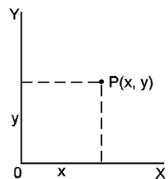
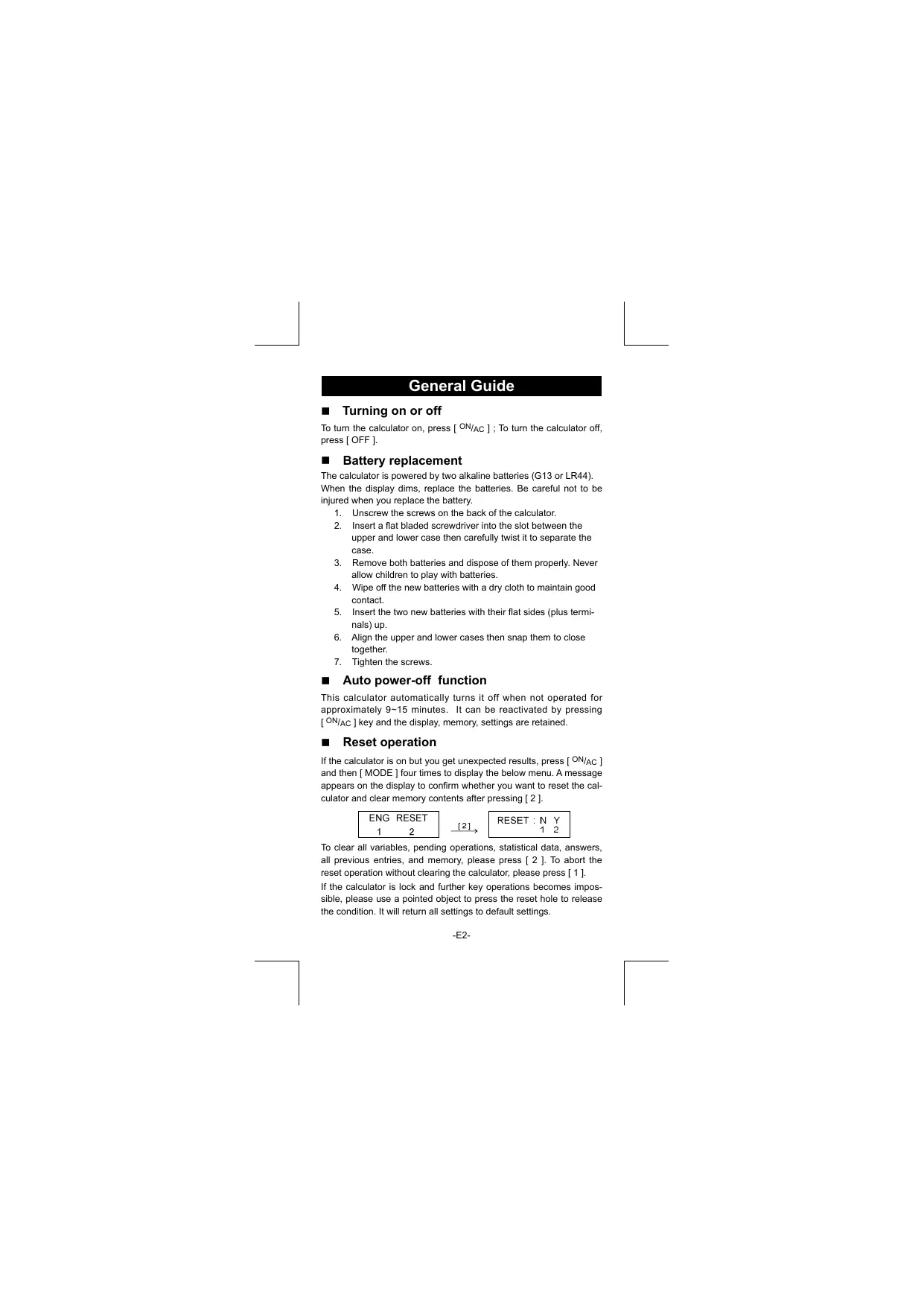
Rectangular Coordinates
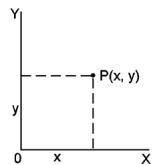
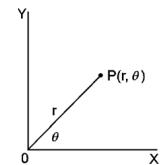
- The calculator can perform the conversion between rectangular coordinates and polar coordinates by [ALPHA] [Pol() and [ALPHA] [Rec(). Calculation results are automatically stored in memory variables E and F. See Example 31~32].
(Note) :When using those key, make sure the calculator is set for the angle unit you want.
Probability
This calculator provides the following probability functions : ( See Example 33~36.)
[nPr] Calculate the number of possible permutations of n item taken r at a time.
[nCr] Calculate the number of possible combinations of n items taken r at a time.
[x!] Calculate the factorial of a specified positive integer x, where x ≤ 69 .
[RANDOM] Generates a random number between 0.000 and 0.999
Other functions (x^-1,,,^2,x^3,x^y)
- The calculator also provides reciprocal ([x^-1]) , square root () , cubic root ([[3]-]) , universal root [[3]-] , square ([x^2]) , cubic ([x^3]) and exponentiation ([x^7]) functions. See Example 37~40.
Standard Deviation Calculation
Use the SD mode for standard deviation calculations.
- Always make sure you clear statistical memory by [2nd] [Scl] before preforming standard deviation calculation.
- Individual data can be input using [DT]; To delete data you just input, please press [2nd] [CL]. Multiple data of the same value can be input using [2nd][;]. For example, to input the data 15 seven times, press 15 [2nd][;]7[DT].
- The values of the statistical variables depend on the data you input. You can recall them by the key operations shown in the below table. See Example 41.
| Σx2 | [RCL]+[A] | x̄ | [2nd]+[x̄] |
| Σx | [RCL]+[B] | Xσn | [2nd]+[Xσn] |
| n | [RCL]+[C] | Xσn-1 | [2nd]+[Xσn-1] |
Regression Calculation
Use the REG mode for regression calculations.
Press [MODE] 3 to enter the REG menu and then choose one of the six regression types by pressing the corresponding argument value, as follow:

Lin Linear Regression
y=A+Bx
Log Logarithmic Regression y = A + B Inx
Exp Exponential Regression y = A· e^Bx
Pwr Power Regression y = A· x^B
Inv Inverse Regression y = A + B
Quadratic Regression y = A + B x + C x²
- Always make sure you clear statistical memory by [2nd] [Scl] before preforming regression calculation.
-
Individual data can be input using [DT] ; To delete data you just input, please press [2nd] [CL]. Multiple data of the same value can be input using [2nd] [;]. For example, to input the data 40 and 55 ten times, press 40 [;] 55 [2nd] [;] 10 [DT].
-
The values of the statistical variables depend on the data you input. You can recall them by the key operations shown in the below table. To predict a value for x (or y ) given a value for y (or x ), enter the given value, press [2nd] [y] (or [2nd] [x]), and press [=] again. See Example 42-43.
| Σx2 | [RCL] + [A] | Xσn | [2nd] + [Xσn] |
| Σx | [RCL] + [B] | Xσn-1 | [2nd] + [Xσn-1] |
| n | [RCL] + [C] | ŷ | [2nd] + [ŷ] |
| Σy2 | [RCL] + [D] | yσn | [2nd] + [yσn] |
| Σy | [RCL] + [E] | yσn-1 | [2nd] + [yσn-1] |
| Σxy | [RCL] + [F] | A | [2nd] + [A] |
| Σx3 | [RCL] + [M] | B | [2nd] + [B] |
| Σx2y | [RCL] + [X] | C | [2nd] + [C] |
| Σx4 | [RCL] + [Y] | r | [2nd] + [r] |
| ŷ | [2nd] + [Ŷ] | ŷ | [2nd] + [Ŷ] |
| | ŷ | [2nd] + [Ŷ] |
(Note): Variable x^4 , x^2y are only available in Quadratic regression.
CONTENIDOS
Guia General 2
Tip B,2√3 Alog2,etc.
8) nPr, nCr
9) x÷
10) +, -
Logarithms and Antilogarithms 11
| ENG RESET
1 2 | [2] | RESET: N Y
1 2 |
Logarithms and Antilogarithms
Lin Lineare Regression
Log Logarithmische Regression
y = A + Bx
y = A + B Inx
-G14-
Exp Exponentielle Regression
Utiliser les Touches " 2nd "
Capacity of the numeric stack or operator stack is exceeded.
Syn ERROR
Ipeed Haayalom BbyuHcJIeHn 4
BbIEOP PEXIMA PA5OTbI KJIbKJYrTOPA. 4
IcnoIb3OBAHne KnaBnW " 2nd BToporo pernctpa. 4
Kypcop. 5
Icnpablenn npB BBOe HOpmaun 5
Функця NOBtopa 5
Функця,уka3bIBAHQUaЯ NO3UHIO HnpaBnBHO BBeDEHHO
BJIuHbI 6
3anomnHaHne BbyncIeHni 6
OTCEK 6
Iopraok BbInOpHeHnO npaui 7
exHnueckne xapaKTepeNtIKN 7
IopBHeHne oun6ok 9
BA30BbIE BbIuNCJIeHnI 9
ApnФmetuueckne BbUncneneHna 9
BbucneneHn BCKo6kax. 10
Pauchetbl npoceHToB 10
ΦopMaTbI OTo6paKeHnI 10
IlorapnФMbI n AHTnIorapnФMbI 11
BbucneneHc npo6m1 12
ObpaueHne yIIOBbIX eINHnU 12
TpuroHometrpueeckne n O6paTHbIe TpuroHometrpueeckne
Функци.. 13
Tnep60nueckne n O6paTHbIe Tnep60nueckne yHKun 13
Дексдогбны ДecаTNHbIe npeo6baOBAHnA 13
I3meHeHne KoOpDnHaT 13
BepoTHocTb 14
Дугпфуншн (x^-1,-,[3]-,x^ - x^2,x^3x^y) 14
Ba30BbIe npoN3BOdHbIe onepaun 14
BbIHCJIeHnC yPABHEHnMn. 14
OCHOBHOe pyKOBODCTBO
BkJIIOUeHne N BbIKJIIOUeHne IITaHn
HaxMMte KJIaBnUy [ON/AC];ДЯВКЛHQUeHЯПИТАнЯ;HaxMMte KJIaBnUH [OFF]ДЯВБКЛHQUeHЯПИТАнЯ.
3aMeHa 6aTapei
Ipeed hauajom BbyuicJeHn
BbIOP PEXIMA PAEBtI KAJIbKUJrTOPA
KaKdIbI pa3 npi nKaTNI KJIaBvIIH [MODE],pa3NHyIe
- HaxmTe KJIaBnIy [MODE] IJIy BbIBOda MeHIO peKIma
pa60tby KynbkynraTopa.
- Haxmnte [2] nna nepeboda kynbkyjraTopa b pexim pa60tbl
COCTAHDArTHbIMNPOOM3BQDHBIM.

IcnoJb3ObaHne KJaBnW “ 2nd ” BToporo
pernctpa
Korda BbHaxmTe KnaBnSy [2nd] 2nd"noaBntcHa dncnnee,
coo7aay, yto 6ydt BbIpaHa fynKUINB TOporo pernctpa Haxatoi
KnaBnH. EcnB Bby no oun6ke haxanin KnaBnH [2nd], npocTo haxmTe eue pa3 KnaBnH [2nd] INdNkaTOp "2nd"NCe3HET.
Kypcop
HnAkhatem KnaBIM [ ] nINI [ ] kypocp nepedbMraTcEa BnEBO nINI BnPABO. HneppeBIOHoe HnAkatne IIO60N 3NTX KNaBIM yBENuHT CkOPoCTe nepedbIXeHnN Kypocpa.
HaxatneM KnaBn [2nd] [ ] nIn [2nd] [ ] MOxHO nepeDbiratb BvIMyO uactb 3kpaA BBEpX nIN BHN3, BvBOdra H dCnPnei HeBvDmIbe b HAcTOnuM MOpHT DaHbIe. Bbl MoKeTe BHOb bNcONb3ObaT nPeDAKtnPOBaT pNeBduYMe 3aINCS KOrda OHOTobpaeHb C TPOKe BVOda.
IcnpaBHeHn npn BBOe HOpMaun
YtObUy yIaNITb 3Hakn c NOnMOuBIO KypcOpA, nepeDBeINrAe KypccOp HauKATmEM KnaBIMu [ ] IIn [ ], BbIeJIte HyeKhIbe 3HaKn, a 3aTe HAKMITE KnaBIMU [DEL].
Tt6b3a3MeHnIb 3hAk, BblDenlnte DaHHb3 hAk nepeDbrrAra KypCop IncNoJIb3OBAHmE KJIaBnI [ ] nII [ ], 3aTeM OcyUcE TBHe THOBB BOoD JIIN4 3aMeHbI 3hAkA.
YTObI BCTaBtB 3nak,nepeBnBte KypcOp K MeCy, Ige Bbl XOTHe OCUyECTBnT BvOoD, 3nak 6yDat BCTaBNeH nepeB bIDeNEbHM 3nakOM HauKaTHem KnaBn [2nd] [INS] n, COOTBeTcBHeHo, BBeDEHem HOBO 3nHaK.
(PnmuueHne):Mraoum Kypoc 一 ^ 一 03haaet,YTOKanbkyIantop HaxoDITCB PexCopO XOJNDAmBbCTABKn 3HaKa. N,HaobopOT Mraoum Kypoc,OTb6paKaembKak 一 ^ 一 03haaet,YTO KaJIbKyIANTOP HaxoDITCB PexKMe 3aMeHb 3HaKa.
HaxaTneM KlaBnI [ON/AC] npOn3BODITcR OHCtKa 3KpaHa O T BEx cOToBpaxaEmbIX H BBOIMbIX 3NaKOB.
Функця NOBtopa
- 3ta Фуннцая сокрагет постдною Вьлоннени hyо орегаши. Псесло того, кась рогиониме орегаши Задоннения, Нжате Клавш [2nd] [★] Или [2nd] [★] Вьberдат на Зкразпогностыю Всю орегаши DTУЕТАДОКИСТЕ ПОДONЖNTB NepeДВИЖЕНDE KYPСОСТЕ КлавшAMN [★] Или [★], OCусяствая р dedakтировaning. Нжмite Клавшу удаеленia [DEL], YTOББУДАЛNTB 3AK (Или), ecn pa6Otaete B pexkime 3amehbshaka,НжмITE HxHxhbln3Ak.Cm.TpIMep1.
ΦyHKnIa NOBTopa MoKeTe COxPraHb Ido 256 BBeDeHHbIX 3AnkOB (IaN KaNbKyIaTOpA B KaNbKyIaTOpE).Piocne TOrO KAK BByIOnHeHene pacHToB 6ydet OKOHcHcN IIN BO BpEm BBOda, BbIOMeTe HAcbTa IIbOyHa NkAbuH [2nd] [▲] IIN [2nd] [▼] DnToro, YTObblBVeCTNa Ha 3KpaH npdeBdyUne Sua NR BBOda
I peaKaTHPOBaT bEMLHbI IIN KOMaHdbI dN T NOcNeDuOeBOBbIOJIHeH.N.Cm.PpIMep 2.
(Пгимechанe):Функшия NOВТОРа He удалЯТСЕИЗ namayтNi KaIbKyIpyTOPa dАже KOTDA haxATA KJIabNIIa [ON/AC] nii OTKNIOHcEO NITAHINE, NO3OTOMy COdeprJAHnE MOKeTбБЛьnpOCMOTpeHO dАжe NOcNE TOTO, KaK bIJa nA haxATA KJIabNIIa [ON/AC ] .OdнAKo, pri BvIbXOKe m3 pEKIMa, Функшия bIINONHeHnE OCHIuaTeC.
Функця,уka3bIbAHOZЯ NO3NIOHEnpaBnIbHO BBeDEHHO BEINCHbI
Kornda npedctabHeHbe paChetbI MaTeMaTHueckn He BO3MOXhbl K ByNoHNHeHIO, DAnHHa FyHnIu YCTAHOBIT KypCop B MecTo, Ie DeOnyuJeHa Oun6Ka. HaxaTne KnaBIn [ ] nII [ ] nepeDbHNBe T KypCop IN BBeDHTe NpABInbHoe 3NaueHne. Bb MoKeTe TaKke ydAnHb OUn6Ky HakatneM KnaBIn [ ONyAC], a 3aTeM BBeCTn npabInbHbHe BeINuHbI nII BbipakHeHn. CM.PnpMeP 3.
3anOMHaHHe BbIyNCJIeHN
HE3ABUCIMARIAMrB
Hakmte KlaBnuy [M+], YTo6bl NomeCTnb TeKyuIype3yIbTat B namr. Hakmte KnaBnuy [2nd] [M-], YTo6bl B3BATb BEInuHy 6bpAto hN nAmrtn. [2nd] [RCL] [M]. YTo6bl OuchTe KTuSyUHO nAmrTa HAKmte KlaBnui [0][STO][M]. CM.PpImep4. (Pnmuemuehne) : 3HaueHne nepeMeHHo coxpaHertc npn HaukatnHa KHonky [STO], KpOme toro, npinCBOHTb 3HaueHne nepeMeHHo M bbl MoKeTe HaukatnMa Ha KHONky [M+] nIn [M-].
IIEPEMEHHbIe IAMrTn
KanbkyIaTOp cOeepKHT 9 nepemehhIx namrtnn IaN NOBTOHOrIO NcNOB3OBAHnA B, C, D, E, F, M, Y. b MoKete icNoB3OBaTb INx for COUpaHEHNIcNIOBOrB IbapakHeH.N.CmIpMep5.
- [STO] + A~F, M, Или X~Y Позьогет COXpaHnTb BelenuHbI BперMuHbIx.
- [2nd][RCL]ии[ALPHA] + [A~F, M],ии [X~Y]Бьзьает велочипьп поевимьх.
0][STO] + ,,, OuHcayet paee 3aadaHbIe BeneHHbI nepeMeHHbx nAmTn.
- [2nd] [Mcl] [=] Ouchcetae BCE nepemehnble naamTn.
OTCEK
BkyIbkyIyTope IMeETcO6NaCTb NaMrtu Ha3bIbaeMaT OTEK.
Oha nnonb3yetcndBpemHHoro coxpanHeMBAJIuHIN
(UNФровOTCE)ИКOMанД(KOMAnHbIOTCE)ВCOOTBeTCTBmC nIX CTAPUINCTCBM B PPOUECE COBERPSEHnE ONEPAuN.IUNФровOTcEK pa3delen Ha 10 yOBoHn, KOMaHbIOTcEK Ha 24. CooBSeHnO OLUISKA B OTCEKE (Stk ERROR) noBnEETc npI COBERPseHnB bBuHnCJIeHn IpeBbUauOuXbObEM OTcKeA.
Iopraok BbInolHeHnonepaun
Bce BbIcNJIeHbIINJIHJOTcB CJIeDyIOSeM NOpAKe No CTapUINHCTBy:
1)Ppeo6pa3OBAHn KoOpDnHaT
2)Функци Tиа-А,КOTOBIte TpeB6YOT BBOda BENuHndo HakatmaФункIOHaJIbIbX KJIaBIM,HaPnIMeP x²,O'',x1,x1.
3)x.
4)Дроби
5) Cokpauehenhhe foPomatby ymHOKeHnne nped nepemehbHMyPi.
6) ΦyHKuIM Tnna - B, kOToBHe Tpe6yIOT hKaTnA
ФyHKUHOHaJIbHbIX KKnABII Wnepei BBODOM, HApPIMep, sin,
cos, tan, sin⁻¹, cos⁻¹,
tan⁻¹, sinh, cosh, tanh, sinh⁻¹, cosh⁻¹, tanh⁻¹, log, In, 10x,
e^x, √, 3√, (-).
7) CokapauhenHeBΦopmatbI yMHOKENHJInepeD ΦyHKINRMMTNa -B2√3, Alog2, n.T.D.
8) nPr, nCr
9) x, ÷
10)+,-
KordaФyHKIMU,OДИнAKOBbIe NO npHOPHTHOctN,INIOB3yIOTcB ODOMPry,BbINOJIHEnHe npoICXoIDNT cnPABA HaneBO.
e^x 120 e^x (120)
-Инанe, ВыллпениЕnpОиСхОДТСпЕВа HANpaBO.
BceC0d9eKJHMOE Kc0bOK BblONHReTcB NopJKe nePBooOepeHOnctu.
exHnueckne xapaKTePncTtKN
ToHocTb BbIBOa : Do 10 uΦp
BbHcJIaembIe UΦpbl: Do 15 uΦp
B cIeM0 BCE HeCNOXHbIe BByHCNEHINy BByOaTcRA H 3KpaH B oBeMe DO 10 3NaKOB MaHTNCCbYChcna, INI DecaTHaHnA MaHTNCCA pIIOC DByX3HaHbI NOKaTaTeNb CTeNeHn Do 10 ^± 99 .UcNa, IcNoPb3YeMbIe DnBBOda, DOnKhbI HaxoHtbcR B CneDyUoJnx npedanx :
| Функции | Граници значени |
| sin x, tan x | Deg: 0≤|x| ≤4.499999999 x 10⁻¹⁰Rad: 0≤|x| ≤785398163.3Grad: 0≤|x| ≤4.499999999 x 10⁻¹⁰Менич tam, ддя tan xDeg: |x| ≠90 (2n-1)Rad: |x| ≠π/2 (2n-1)Grad: |x| ≠100 (2n-1) (n-иntерpan) |
| cos x | Deg: 0≤|x| ≤4.500000008 x 10⁻¹⁰Rad: 0≤|x| ≤785398164.9Grad: 0≤|x| ≤5.000000009 x 10⁻¹⁰ |
| sin-1x, cos-1x | 0≤|x| ≤1 |
| sinh x, cosh x | 0≤|x| ≤230.2585092 |
| tan-1x | 0≤|x| ≤9.999999999 x 10-99 |
| tanh x, tanh-1x | 0≤|x| ≤9.999999999 x 10⁻¹ |
| sinh-1x, cosh-1x | 0≤|x| ≤4.499999999 x 10-99 |
| log x, ln x | x>0 |
| 10x | -9.999999999 x 10-99 ≤ x ≤ 99.99999999 |
| ex | -9.999999999 x 10-99 ≤ x ≤ 230.2585092 |
| √x | 0≤x<1 x 10-100 |
| x2 | |x|<1 x 10-50 |
| x-1 | |x|<1 x 10-100, x≠0 |
| 3√x | |x|<1 x 10-100 |
| x! | 0≤x≤69, x-иnterpan. |
| Pol (x, y) | |x|, |y| ≤9.999999999 x 10-49x2+y2≤9.999999999 x 10-99 |
| Rec (r, θ) | 0≤r≤9.999999999 x 10-99Deg: 0≤|x| ≤4.499999999 x 10⁻¹⁰Rad: 0≤|x| ≤785398163.3Grad: 0≤|x| ≤4.499999999 x 10⁻¹⁰Менич tam, ддя tan xDeg: |θ| ≠90 (2n-1)Rad: |θ| ≠π/2 (2n-1)Grad: |θ| ≠100 (2n-1) (n-иnterpan) |
| O,, | |a|, b, c < 1 x 10-100, 0≤b, c |
| O» | \( \begin{array}{ll} |x| < 1 & x\;{10}^{100}\\ \text{Дексodedблье}\leftrightarrow \text{Дecаимнье}\\ \text{празамоваян}\end{array} \) \( {0}^{ \circ }{0}^{ \circ }{0}^{ \circ } \leq \left| x\right| \leq {999999}{}^{ \circ }{59}^{ \circ } \) |
| \( {x}^{y} \) | \( x > 0 : - 1{x10}^{100} < y\log x < {100} \) \( x = 0 : y > 0 \) \( x < 0 : y = n,1/\left( {{2n} + 1}\right) ,n - \) INTерал. \( \mathrm{{No}} - 1 \times {10}^{100} < y\log \left| x\right| < {100} \) |
| \( \sqrt[x]{y} \) | \( y > 0 : x \neq 0, - 1 \times {10}^{100} < \frac{1}{x}\log y < {100} \) \( y = 0 : x > 0 \) \( y < 0 : x = {2n} + 1,l/n,n - \) INTерал.( \( n \neq 0 \) ) \( \mathrm{{No}} - 1 \times {10}^{100} < \frac{1}{x}\log \left| y\right| < {100} \) |
| nPr, nCr | \( 0 \leq n \leq {99},r \leq n,n,r - \) INTералы. |
| SD (REG) | \( \left| x\right| < {1x}{10}^{50},\left| y\right| < {1x}{10}^{50},\left| n\right| < {1x}{10}^{100} \) xσn, yσn, x, ŷ, A, B, r: n ≠ 0 xσn-1,yσn-1: n ≠ 0,1 |
IoBHeHne oUH6OK
TIOe TTO, KAK COoJIeHHe O6 OJIN6Ke IIOBITcH Na 3KpaHene, DaJIbHeIWe HByICNEHn CTAHOBJTC HeBO3MOXbHIM. PIn IO6OM nCneDyOuIX yCNOBIN:
Ma ERROR (1) KOrda pe3yntbTat hnaHaaEMORO BByuNCNEHn BbIXoJNT 3a donyuctMlbte paAMKn (2) BbI tonblTaNbCbaDAnETB ha 0. (3) KOrda donyuctMlbtn ppeDen BBOda Ipn FyHKUHOHaJIbXbIbYbUNCNEH npBeBVlaet 3aDa npdeIen.
Stk ERROR Korda npreebiiueh oBbem uHpOBO rO tCeKa nI KOMaHdHOro OTOceKa.
Syn ERROR KOrJa BBeDeHbI He BO3MOxHbIe K BbIyUcJIeHHo MATeMaTnueCKe OnepaUN.
YTO6bI N36abNTbC8 OT BblIeYka3aHHbIX OoH6OK HAKMITE KnaBmUy [ON/AC].
BA3OBBIE BbIyIcJIeHnIa
IcnoJb3yIepeXIMCOMPdJa6a3OBbIX BblNCJIeHn
ApnmeTneckne BbIHCJIeHnA
125945.6TOO3Haayet 12Praucob,59PaanH,45.6PraanH
KanbkyTOp MOxET OcUeCTBnTb KOHBeptaCno MEJyD 出dcoPobhMn IN DecaTHyMbN YNCnAmn HaxKaThm KnaBnW [O]n[2nd][O].PnpMeP 29-30.
I3mHeHne KoOpDnHaT
PpmoyroIbHbIe KoOpDHaTbI
Iopnhe KoOpDHaTbI
x+yi=r(cosθ+isinθ)
KyIbKyIpyTOmOKeT OcUeCTBJIaTb KOHBePtaUIO MeJky npRmyOyIbIbHMn I NOnpRbHbIMN KoOpDInHATAm HaxatneM KnaBnss [ALPHA] [Pol ()] n [ALPHA] [Rec (]. Pe3yIbTaBb BByCnEhNn ABOTAmTeCckn CoXpaHrOToC b NepEmEHbIX naMHTn E n F. Pnpimep 31~32.
| ENG RESET
1 2 | [2] | RESET: N Y
1 2 |
$$
1 8 0 ^ {\circ} = \pi r a d = 2 0 0 g r a d
$$
razy moza wropyadzic licze 15 icwisna klawisz [2nd] :7
1azy mzna wpwadzic k26 101wneqkawzsc [2n] [ ]7 [DT].
(2) Multiple 5 to variable A, then put the result into variable B
■ Multiplicar 5 a la variable A,其中之一 ponga el resulto en variable B
■ Multiplique 5 para variavel A, depuis ponha o resulto na variavel B
(3) Check the value of variable A
Revoca el valor de variable A
Revoca o valor da variavel A
Ruft den Wert der Variabe
■ Rappelle les valeur de la variable A
■ Verificare il valore della variabile A.
■ Controleer de Waarde van variabele A
■ Kontroller vardien for vari
Bn3nBaETBenmHbNpeMeHHbX A
Wywojue z odpwiedniego rejestru pamięci zapisanā tam licze A
| ③ [2nd] [RCL] [A] | DEG
A= ↑
30. |
| To clear the contents of all variables
ara cancelar loscontentsos de todas lasvariables
Para apagar os contentados de todas asvariável B
Löschen Sie den Inhalt allerVariablen
Pour clarifier le contenu de toutes lesvariables
Per sgombrare i contentuti di tutte levariabili
Wis de inhoud van alle variabelen
For at ryde indholdet i alle variabler
Для togo,Чтосы онисты сожиные всейсяпemени
Aby wyzerowar wysztkie rejestry pamięci |
| [2nd][Mcl][=] | DEG
Mcl ↑
0. |
Example 6
| (2+3)×10-2=0.05 |
| [()2[+]3[]) [x]1[EXP][(-)]2 [=] | DEG
(2+3)*1E-2↑
0.05 |
Example 7
| 2 + 3 x (5 + 4) = 29 |
| 2 [+] 3 [x] [() 5 [+] 4 [=] | DEG
2 + 3 * (5 + 4) ↑
29. |
Example 8
| 2 x {7 + 6 x (5 + 4)} = 122 |
| 2[x][][()7 [+]6[x][][()5 [+]4 [=] | DEG
2 * (7 + 6 ++ 4 ↑
122. |
Example 9
| 120 x 30 % = 36 |
| 120 [x] 30 [2nd] [% ] | 120 * 30 DEG ↑ 36. |
Example 10
Example 11
| 88÷55% = 160 |
| 88 [ ÷ ] 55 [ 2nd ] [ % ] | DEG |
| 88 / 55 ↑ |
| 160. |
-ex4-
6÷ 7 = 0.857142857
| 6 [÷] 7 [=] | DEG |
| 6 / 7 ↑0.857142857 |
| [MODE][MODE][MODE]1 | FIX 0~9? |
| 2 | DEG FIX6 / 7 ↑0.86 |
| [MODE][MODE][MODE]2 | SCI 0~9? |
| 4 | DEG SCI6 / 7 ↑8.571x10-01 |
| [MODE][MODE][MODE][MODE] | ENG RESET1 2 |
| 1 | DEG ENG6 / 7 ↑857.1428571x10-03 |
Example 12
| 150 m = 150000 cm = 0.15 km |
| 150 [=][ENG][ENG] | 150 DEG150000 X10-03 |
| [2nd][EN/G][2nd][EN/G] | 150 DEG0.15 X10-03 |
Example 13
| RND (1 ÷ 6) x 6 = 1.002 |
| 1 [÷] 6 [=] | DEG
1/6 ↑
0.166666666 |
| [MODE][MODE][MODE] 1 | FIX 0 ~ 9? |
| 3 | DEG FIX
6/7 ↑
0.167 |
| [2nd][RND] | DEG FIX
6/7 ↑
0.167 |
| [x]6 [=] | DEG FIX |
| Ans * 6 | ↑ |
| | 1.002 |
Example 14
Example 15
| 3 x 3 x 3 x 3 = 81 |
| 3[x]3 [=] | DEG
3 * 3 ↑
9. |
| [x]3 [=] | DEG
Ans * 3 ↑
27. |
| [=] | DEG
Ans * 3 ↑
81. |
To calculate ÷ 6 after 3× 4 = 12
Para calcular ÷ 6 afterwards 3× 4 = 12
Para calculer ÷ 6 depuis de 3× 4 = 12
Berechnen Sie ÷ 6 nach 3 × 4 = 12
Pour calculer ÷ 6 après 3× 4 = 12
Per calcolare ÷ 6 ippo 3× 4 = 12
Voer ÷ 6 UIT, na de bewerking 3 × 4 = 12
For at beregne ÷ 6 after 3× 4 = 12
TTo6bI BbIcNITb 6 nOcNe 3x4=12
Aby obilczyr ÷ 6 po 3 x 4 = 12
| 3[x]4 [=] | DEG |
| 3*4 ↑12. |
| [÷]6 [=] | DEG |
| Ans/6 ↑2. |
Example 16
| 123 + 456 = 579 → 789 - 579 = 210 |
| 123 [+] 456 [=] | DEG
123 + 456 ↑
579. |
| 789 [−] [Ans] [=] | DEG
789 - Ans ↑
210. |
Example 17
| In7 + log100 =3.945910149 |
| [ In ] 7 [ + ] [ log ] 100 [ = ] | DEG → In7 + log 100 ↑
3.945910149 |
-ex6-
| Example 18 |
| 102=100 |
| [2nd][10x]2[=] | DEG 102 ↑ 100. |
| Example 19 |
| e-6=0.006737947 |
| [2nd][ex](-)5[=] | DEG e-5 ↑ 6.737946999 x10-03 |
| Example 20 |
| 7 2/3+14 5/7=22 8/21 |
| 7 [ab/c]2 [ab/c]3 [+] 14 [ab/c]5 [ab/c]7[=] | DEG ↑ 7.2 3+14 5 7 ↑ 22.8 21 |
| Example 21 |
| 42/4=41/2=4.5=9/2 |
| 4 [a/b/c]2 [a/b/c]4[=] | DEG 4,2,4 ↑ 4,1,2 |
| [a/b/c] | DEG 4,2,4 ↑ 4.5 |
| [2nd][d/c] | DEG 4,2,4 ↑ 9,2 |
| [2nd][d/c] | DEG 4,2,4 ↑ 4,1,2 |
| Example 22 |
| 84/5+3.75=12.55 |
| 8 [a/b/c]4 [a/b/c]5[+] 3.75[=] | DEG 8,4,5+3.75 ↑ 12.55 |
| Example 23 |
2πrad. = 360 deg.
| [MODE][MODE] | DEG 1 2 3 |
| 1 | DEG - 0. |
| 2 [2nd][π] | DEG 2π 0. |
| [2nd][DRG] | D R G 1 2 3 |
| 2 [=] | DEG 2π r 360. |
Example 24
| sin30 Deg. = 0.5 |
| [ MODE ] [ MODE ] | DEG 1 RAD 2 GRAD 3 |
| 1 [ sin ] 30 [=] | DEG sin 30 0.5 |
Example 25
| [MODE][MODE] | DEG RAD GRAD
1 2 3 |
| 2 [cos] [( ] 2 [2nd] [π] [÷] 3 [=] | RAD
cos (2π/3) ↑
-0.5 |
Example 26
Example 27
| \( \sin^{-1}0.5=30\text{Deg} \) |
| [MODE][MODE] | DEG RAD GRAD 1 2 3 |
| 1 [2nd][ \( \sin^{-1} \)] 0.5 [=] | DEG sin-1 0.5 ↑ 30. |
1.5 + 2 = 4.352409615
| [2nd][HYP][cos] 1.5 [+] 2 [=] | DEG
cosh 1.5 + 2
4.352409615 |
Example 28
| sinh-17=2.644120761 |
| [2nd][HYP][2nd][sin-1]7 [=] | DEG |
| sinh-17↑ |
| 2.644120761 |
Example 29
| 12.755 = 12°45'18° |
| 12.755 [=] [2nd] [0,0] | DEG
12.755
12°45'18° |
Example 30
| 2°45'10.5° = 2.752916667 |
| 2[0°]45[0°]10.5[0°]]=[ ] | DEG
2°45°10.5° ↑
2°45°10.5° |
| [0°] | DEG
2°45°10.5° ↑
2.752916667 |
Example 31
Example 32
| [ALPHA][Pol()5[ ],30 [=] | DEG
Pol(5,30 ↑
30.41381265 |
| [2nd][RCL][F] | DEG
F= 80.53767779 |
If r = 25, = 56^ , what are x, y? Ans: x = 13.97982259 -ex9-
y=20.72593931
Sir = 25, = 56^ , lo que es x, y? Resp: x = 13.97982259
y = 20.72593931
Ser=25,θ=56°,Oque sāo x,y?Resp:x=13.97982259
y = 20.72593931
■ Falls r = 25 = 56^ was sind x, y? Antw: x = 13.97982259
y = 20.72593931
■ Si r = 25, θ = 56°, cobien vaut x, y? Rép: x = 13.97982259
y = 20.72593931
| [2nd][RANDOM][=] | Deg
Ran # 0.388 |
Example 37
| 1/1.25 = 0.8 |
| 1.25 [x-1][=] | DEG |
| 1.25-1 |
| 0.8 |
Example 38
| 53+22+√4+21+3125=139 |
| 5[2nd][x3][+]2[x2][+]√[ ]4[+]21[ ][+]2nd[√]125[=] | DEG 53+22+√(4+21↑139. |
Example 39
| 4√625=5 |
| 4 [2nd] [√] 625 [=] | DEG |
| 4 √ 625 |
| 5. |
Example 40
Example 41
| 7^4 = 2401 |
| 7[X^y] 4 [= ] | DEG |
| 7X^4 ↑ |
| 2401 |
Enter data: X_1 = 3, X_2 = 2, X_3 = 5, X_4 = 9 , then find out X_i^2 = 119 , X = 19 , n = 4 , X = 4.75 , _X = 2.680951324 , _Xn = 3.095695937
Entredatos X1 = 3,X_2 = 2,X_3 = 5,X_4 = 9 ,entonceencuentra
∑x=119,∑x=19,n=4,x=4.75,Xn=2.680951324,Xn-1=3.095695937
Entredados: X1 = 3,X_2 = 2,X_3 = 5,X_4 = 9 ,deposencentre x^
= 119, x = 19,n = 4,x = 4.75,x_n = 2.680951324,x_n - 1 = 3.095695937
Geben Sie ein: X_1 = 3, X_2 = 2, X_3 = 5, X_4 = 9 , Sie sehen dann x^2 = 119
x = 19, n = 4, x = 4.75, x _n = 2.680951324, X _n-1 = 3.095695937
Entrez les données: X1 = 3,X2 = 2,X3 = 5,X4 = 9 ,puis trouvez x^2 =
119,∑x=19,n=4,x=4.75,Xσn=2.680951324,Xσn-1=3.095695937
Entaradato: X = 1,3× 2,2 = X = 3,6,X = 4,9, poitrova x^2 = 119 x = 19. n = 4,x = 4.75 .xon=2.680951324.xon=3.095695937
Voer de gegevens: X1 = 3,X2 = 2,X3 = 5,X4 = 9 en vind de oplossing
-ex11-
x^2 = 119, x = 19, n = 4, x = 4.75, x _n = 2.680951324, X _n-1 = 3.095695937
- Indast data: x = 1, x = 3, 2 = 2, 3 = 5, 4 = 9 , find x^2 = 119 , x = 19 , n = 4 , x = 4.75 , x_n = 2.680951324 , X_n - 1 = 3.095695937
BvBdInTe DaHnBHe: X_1 = 3,X_2 = 2,X_3 = 5,X_4 = 9 nocne 3to0 BbUncnite x^2 = 119, x = 19,n = 4,x = 4.75,x_01 = 2.680951324,x_01 = 3.095695937
Wprodawdane: X_1 = 3,X_2 = 2,X_3 = 5,X_4 = 9 a wwyniku ortzymasz x^2 = 119, x = 19,n = 4,x = 4.75,x_On = 2.680951324,X_On - 1 = 3.095695937
| [MODE]2[2nd][Scl][]= | SD DEG
Scl | ↑
0. |
| 3[DT]2[DT]5[DT]9[DT]
[2nd][RCL][A] | SD DEG
Σx² = 119. |
| [2nd][RCL][B] | SD DEG
Σx = 19. |
| [2nd][RCL][C] | SD DEG
n = 4. |
| [2nd][x][= ] | SD DEG
- x 4.75 |
| [2nd][xσn][= ] | SD DEG
xσn 2.680951324 |
| [2nd][xσn-1][]= | SD DEG
xσn-1 3.095695937 |
Example 42
Find A, B, and r for the following data using linear refression and estimate x^ = ? for y = 573 and y^ = ? for x = 19 .
- Encuentra A, B, y r para el uguito dato using refracion lineal y calcula x^ = ? para y = 573 y^ = ? para x = 19 .
- Encontre A, B, e r para o segmente dato usingo refaLionar linear e calcule x^ = ? para = 573e^ = ? para x = 19
Finden Sie A, B und r für die folgende lineare Regression and kalkulieren Sie x' = ? für y = 573 und y' = ? für x = 19.
- Cherchez A, B, et r pour les informations en utilisant la régression linéaire et estimez x' = ? pour y = 573 and y' = ? pour x = 19 .
Trovare A, B e r il segmente dato uso regressione lineare ed stimare x' = ? per = 573 e y' = ? per x = 19 .
Zoek A, B, en r Voor de volgende geveens aan de hand van de lineage regressie en voor spel x^ = ? voor y = 573 en y^ = ? voor x = 19
Find A, B, og r for de folgende dataved hjalp af lineaire regressie, en voerspiex x' = ? voor y = 573 en y' = ? voor x = 19 .
HaiJnteA,BnIgndyUOxHXCxOuBHXDaHHbXNCpOJIb3yA liHneHyO perpeccnoIO uOeHNBaEMoe x^ = ? dny y = 573 y ? nnay x = 19
Znajdz A, B i r za kompa regresj liwowe jda natepujacych danyc yIWzNazc x' = dya y5 073 oray z' = dya 19.
| n | 1 | 2 | 3 | 4 |
| x | 15 | 17 | 21 | 28 |
| y | 451 | 475 | 525 | 678 |
| [MODE]3 | Lin Log Exp 1 2 3 |
| 1 [2nd][Scl][]= | REG DEG Scl ↑ 0. |
| 15 [↑]451 [DT]17 [↑]475 [DT] 21 [↑]525 [DT]28 [↑]678 [DT] [2nd][A][]= | REG DEG A ↑ 176.1063291 |
| [2nd][B][]= | REG DEG B ↑ 17.58734177 |
| [2nd][r][]= | REG DEG r ↑ 0.989845164 |
| 573 [2nd][x] | REG DEG x ↑ 22.56700734 |
| 19 [2nd][y] | REG DEG y ↑ 510.2658228 |
Example 43
Find A, B, and C for the following data using quadratic refression and estimate x^ = ? for x = 58 and x^ = ? for x = 143 .
- Encuentra A, B, y C para el numero dato using para definacion quadratica y calcula y' = ? para x = 58 y x' = ? para y = 143
- Encontre A, B, e C para o seguido农业科技 a calcule y' = ? para x = 58 e x' = ? para y = 143
Finden Sie A, B und C für die folgenden Daten unter Verwendung einer quadratischen Regression und kalkulieren Sie y' = ? für x = 58 , x' = ? für y = 143
- Cherchez A, B et C pour les informations en utilisant la régression quadratique et estimez y' = ? pour x = 58 et x' = ? pour y = 143
Trovare A, B e, C r per il segmente dato usando regressione quad rato ed stimare x^* = ? per y = 573ey^ = ? per x = 19
Zoek A, B, en C voor de volgende gegevens aan de hand van de kwadratische regressie en voor spel y^2 = ? voor x = 58 and x^ = ? voor y = 143
Find A, B, C og r for de folgeende veg hajp af quadratic regression, og estimer x^ = ? for y^ = 573 og y = ? for x = 19
HaiDInTeA,BINCnIeCnEduOxuHXNxCDOHbIXDaHbIXHCNOJIb3yARBApArTuHyIOpePecCSIOUOCHeMaEOye??dIaX=58nX=x?DNy y=143.
Znajdž A, Bi C za mompa regresji kwadratowe{já要进一步pujacych danyich ywznacz. y^ = ? dx x = 58 oraz x? dla y=143v.
Information for Users on Collection and Disposal of used Batteries.
The symbol in this information sheet means that used batteries should not be mixed with general household waste.
For proper treatment, recovery and recycling of used batteries, please take them to applicable collection points.
For more information about collection and recycling of batteries, please contact your local municipality,your waste disposal service or the point of sale where you purchased the items.

Information on Disposal in other Countries outside the European Union.
This symbol is only valid in the European Union.
If you wish to discard used batteries, please contact your local authorities or dealer and ask for the correct method of disposal.