
CK3500 - Hands-free kit PARROT - Free user manual and instructions
Find the device manual for free CK3500 PARROT in PDF.



| Product Type | Bluetooth Hands-Free Kit with Built-in GPS and GSM |
| Brand | Parrot |
| Model | CK3500 |
| Dimensions (approx.) | Approx. 100 x 60 x 20 mm |
| Weight (approx.) | Approx. 100 g |
| Power Supply | 12 V car: red wire (permanent), orange wire (after ignition), black wire (ground) |
| Main Features | Bluetooth, voice recognition, LCD screen, built-in GPS, GSM/SAP, pairing, phonebook, voice commands, messaging, call waiting, radio mute |
| Package Contents | Electronic unit, LCD screen, microphone, power cable, mute cable, user manual |
| Screen Type | LCD screen (backlit, adjustable contrast) |
| Connectivity | Bluetooth, GSM/GPRS class 8/10, GPS NMEA 0183 v2.96 (9600 baud) |
| Supported Bluetooth Profiles | Headset, Hands-Free, SIM Access (SAP), Object Push |
| Available Languages | Multilingual (including French, English, German, etc.) |
| Voice Recognition | Yes, with contact and keyword learning |
| GPS Function | Built-in GPS module, accessible via Bluetooth (serial service) |
| GSM Function | Built-in GSM/GPRS module, use with SIM card or SAP |
| Care and Cleaning | Clean with a soft, dry cloth. Do not use abrasive products or solvents. |
| Safety | Install away from sunlight, heating, and air conditioning. Avoid metal surfaces that may interfere with Bluetooth. |
| Operating Temperature | From -20°C to +60°C (approx.) |
| Warranty | Refer to terms of sale or contact Parrot support |
Frequently Asked Questions - CK3500 PARROT
User questions about CK3500 PARROT
0 question about this device. Answer the ones you know or ask your own.
Ask a new question about this device
Download the instructions for your Hands-free kit in PDF format for free! Find your manual CK3500 - PARROT and take your electronic device back in hand. On this page are published all the documents necessary for the use of your device. CK3500 by PARROT.
USER MANUAL CK3500 PARROT
CK3100, CK3300, CK3500
User guide
Guide utiliseur
Manual de usuario
Guida per l'utente
Benutzerhandbuch
The manufacturer Parrot S.A. and it's affiliates should not be held liable towards End-Users or third parties for prejudice caused by misusage of the product, nor for usage that would be in violation of local traffic regulations and laws.
Disclaimer :
The information in this document is subject to change without notice and does not represent a commitment on the part of vendor. No warranty or representation, either expressed or implied, is made with respect of quality, accuracy or fitness for any particular purpose of this document. The associated with it at any time without obligation to notify any person or organization of such changes. In no event will the manufacturer be liable for direct, indirect, special, incidental or consequential damages arising out of the use or inability to use this product or documentation, even if advised of the possibility of such damages. This document contains materials protected by copyright.
All rights are reserved. No part of this manual may be reproduced or transmitted in any for, by any means or for any purpose without express written consent. Product names appearing in this document are mentioned fot identification purposes only.
All trademarks, product names appearing in this document are registered property of their respective owners.
FCC Compliance Statement :
This device complies with part 15 of the FCC rules. Operation is subject to the following two conditions :
(1)- This device may not cause harmful interference and,
(2)- This device must accept any interference received, including interference that may cause undesired operation.

Note : The manufacturer is not responsible for any radio or tv interference caused by unauthorized modifications to this equipment.
Such modifications could void the user's authority to operate the equipment.
Declaration of Conformity:
We, Parrot S.A. of 174 Quai de Jemmapes, 75010 Paris, France, declare under our sole responsibility that our product, CK3100, CK3300, CK3500, to which this declaration relates is in conformity with appropriate standards EN300328, EN301489-17, EN 60950 following the provision of Radio Equipment and Telecommunication Equipment directive, with requirements covering EMC directive
89/336/EEC and Low Voltage directive 73/23/EEC.
e2
Bluetooth:
The Bluetooth® word mark and logos are owned by the Bluetooth® SIG, Inc. and any use of such marks by Parrot S.A is under license. Other trademarks and trade names are those of their respective owners.
Correct Disposal of This Product ( Waste Electrical & Electronic Equipment )
(Applicable in the European Union and other European countries with separate collection systems). This marking shown on the product or its literature, indicates that it should not be disposed with other household wastes at the end of its working life. To prevent possible harm to the environment or human health from uncontrolled waste disposal, please separate this from other types of wastes and recycle it responsibly to promote the sustainable reuse of material resources. Household users should contact either the retailer where they purchased this product, or their local government office, for details of where and how they can take
this item for environ, mentally safe recycling. Business users should contract their supplier and the terms and conditions of the purchase contract. This product should not be mixed with other commercial wastes for disposal
English
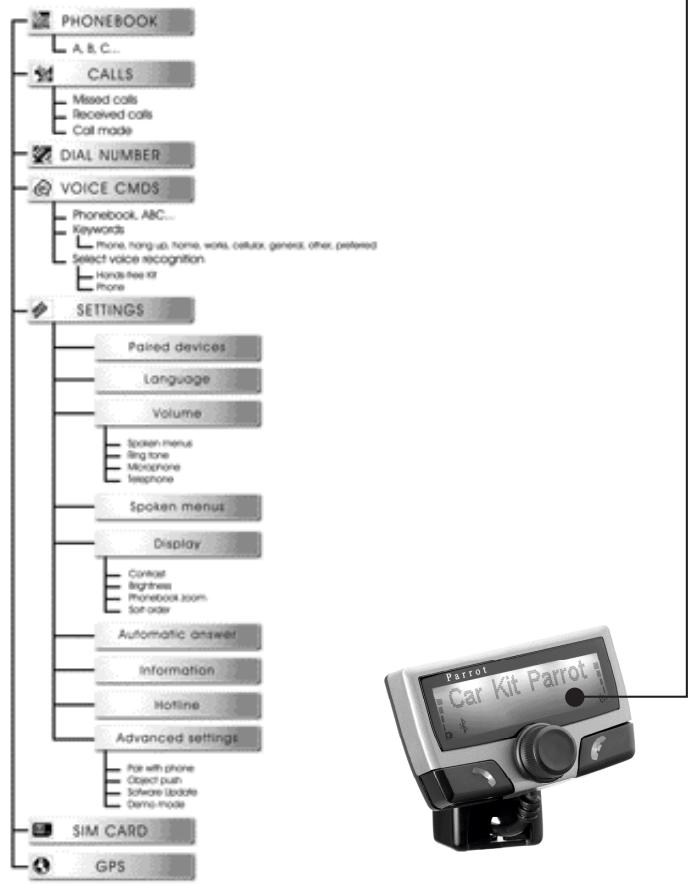
OUTLINE
INTRODUCTION
Bluetooth technology offers voice and data transmission via a short-distance radio link. It can link a wide range of wireless electronic equipments and spread the communication possibilities of mobile telephones and numerous pieces of equipment.
Based in Paris, founded in 1994 by Henri SEYDOUX, Parrot S.A is one of the fastest-growing companies. From the very beginning its specialties have been technologies associated with voice recognition and signal processing for telecoms and cars.
The Parrot CK3100 Car Kit allows you to use your cellular phone while driving your car
with the best of comfort and the best security possible.
The names of your callers will appear on the screen.
■ Your phonebook is accessible from the control screen.
The voice command and the voice recognition allow you to use it without letting goof your steering scroll button.
■ Your conversation is carried over the loud speakers in your vehicle.
Functionalities
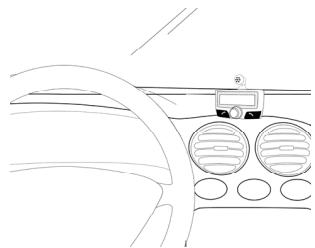
On the screen you can access your telephone phonebook.
■ Caller name display.
Voice recognition.
Volume control.
Mutes the in-car radio.
Dual call.
Pick-up and hang-up via voice command.
Contents of the package
LCD screen
■ electronic box
mute cable
Power cable
microphone
manual
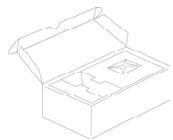
CK3100 MOUNTING
Installation of the electronic box
The CK3100 system is fitted with 4 outputs:
■ Input - in-car radio output ■ LCD screen ■ power ■ microphone
It is recommended to install all the cables before fixing the control box. Each cable supplied has a different connector to avoid wrong connections.
The box must not be installed near the heating or the air-conditioning.
Ensure that it is not exposed to sunlight. Avoid installing it behind metal walls, which could alter the quality of the bluetooth link.
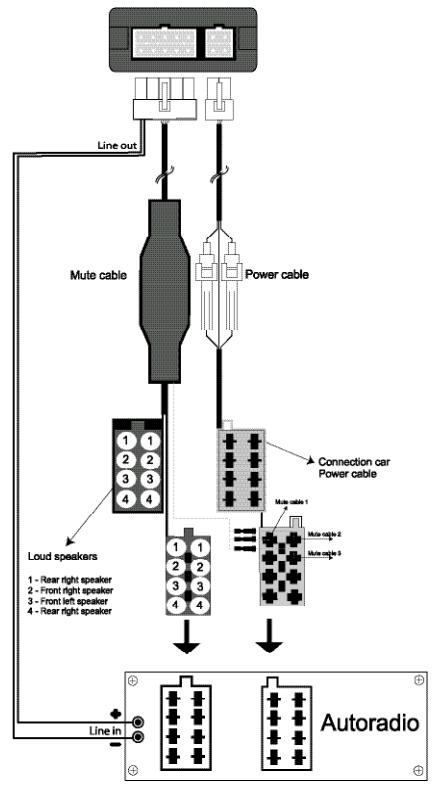
Installation of the in-car radio cable
The mute cable is equipped with black ISO connectors and with a "line out" output.
In-car radio with «line in» inputs
Preferably use this type of connection by joining the brown and green wires as well as the yellow wires of the "mute" to the back of your in-car radio.
In-car radio with «ISO» connectors
Disconnect the audio and supply bundles from the in-car radio Link the female connectors of the mute supply cables and of
the power supply cable to the in-car radio. Connect the audio and supply bundles from the vehicle to the male connectors.If the in-car radio is equipped with a mute input, connect the yellow wire of the mute cable to one of the "Mute in" inputs 1, 2 or 3.
In-car radio without «ISO» connectors
You must obtain an "ISO" adapter cable
Installation of the power supply cable
The red wire of the power cable must be connected to the permanent 12V, the orange wire to the 12V and the black wire to the earth.
Verify the electric wiring of the ISO supply bundle of the in-car radio.
In some vehicles it is necessary to reverse the positions of the red and orange wires.
This operation is simply done by reversing the fuse holders.
- Do not connect the orange wire to the permanent 12V, otherwise you risk causing the vehicle battery to go flat.
CABLE DIAGRAM CONNECTION
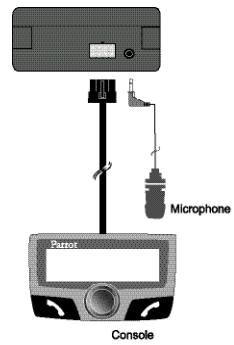
Installation of the microphone and the console

Microphone :
The microphone must be aimed at the driver and can be installed:
Anywhere on the vehicle /
On the LCD screen.
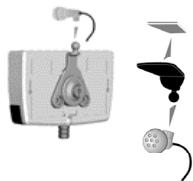

LCD screen :
Several accessories allow the screen to be installed in multiples sites in the body of the vehicle.
PAIR DEVICE AND FIRST USE
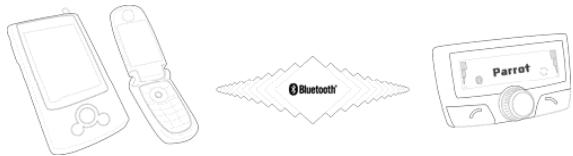
During the initial charging, it is necessary to pair your mobile phone with the hands-free kit.
Activate Bluetooth on your mobile
Search for peripheral devices:
For more information, refer to the booklet on your telephone
(Pairing section)
Or visit www.parrot.biz
Home / Support / Download
Once it is detected, "Parrot CK3100" is displayed on your mobile phone
Enter the link code 1234 and validate.
"Pairing underway" is displayed on the CK3100
"Pairing complete" is displayed on the screen, once pairing is successful.
The CK3100 then connects to your mobile phone.
Once it is connected, the Bluetooth logo is displayed on the screen (except for mobile phones fitted with the Headset profile).
■ For certain types refer to the page 12 "pair a telegramne" With certain mobile phones, the name of your mobile, the battery level and the network are displayed on the screen.
The menus are accessible from then on and the hands-free kit announces their name.
From then you are connected to the hands-free kit and can use it for communicating.
Call: Access your mobile phone's phonbook.
- Receive a call: Press the green button of the hands-free kit to pick up the mobile phone.
Hang up: Press the red button of the CK3100.
■ Messaging: You have the option of accessing the
functions of your messaging from the hands-free kit.
Click on the scroll button while communicating.
A menu appears and allows you to select a character then validate it.
Return to the communication screen by selecting the arrow.
Repeat function: Press the green key of the hands-free kit for several seconds to call the last number dialled.
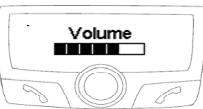
■ Communication volume: Adjust the communication
volume by turning the scroll button.
MENU
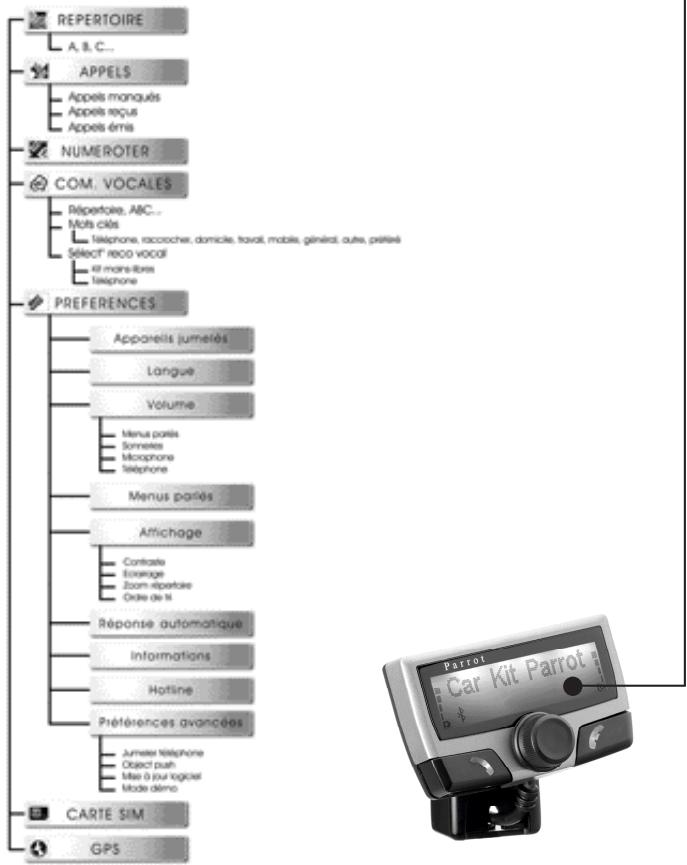
The menu of the CK3100 is made up of the following headings: phone book, call log, dial number, voice cmds, settings, SIM card, GPS.
Phonebook
Synchronisation of your telephone index with the CK3100 is one of the innovative functions of this hands-free kit.
This synchronisation is automatic with numerous telephones.
If this is not automatic, you have the option of transferring your
telephone contacts to the kit via Bluetooth.
Refer to the section "Sending contacts via Bluetooth" (or "Object push") in your telephone user manual.
Reception of contacts via Bluetooth is available for the Sony Ericsson P800/P900 and smartphones if pairing is done in the corresponding mode .
■ (refer to the "ATTENTION" section in the "Pairing" chapter) Once your contacts are transferred to the kit, you can access the voice recognition function available in the "Voice commands" menu.
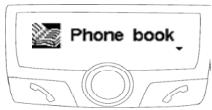
Call from the phonebook
You have the option of making a call from the menu index.
Select phonebook
Select a letter using the scroll button
Confirm by pressing the scroll button
Once the contact is selected:
the green button dials the number by default.
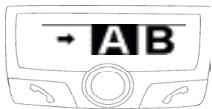
- the scroll button helps select from the different numbers of the contact.
Press the green button to call.
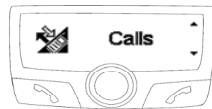
Last calls
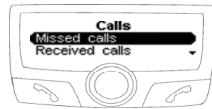
This heading displays the list of calls and is divided into 3 sub-menus:
Missed calls / received calls / sent calls
■ Select the desired contact
Press the scroll button or the green button to redial.
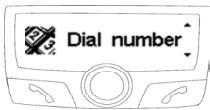
Dial a number
- Dial a number by turning the scroll button to the right or the left.
Press the scroll button to select a character.
The basket icon deletes the last character. Once the number is dialled, press the green button to make the call.

Voice commands
This menu programs the voice recognition of the hands-free kit.
It is divided into 3 sub-menus: index / key words / voice reco. selection
To attribute a voice print to a contact, select a letter:
Select the name by clicking on the scroll button.
Once the name is selected, click on the scroll button to initiate the machine learning.
Follow the instructions displayed on the screen.
Once the voice imprint is attributed, a bubble is displayed to the right of the name.
Keywords
The keywords of the CK3100 are:
telephone, hang up, address, work, mobile, general, other and preferred.
Telephone: Picks up a call or activate voice recognition.
Hang up: Terminates the communication.
Address, office, mobile, general, other, preferred: key
words by telephone number
These key words help select the desired number when a contact comprises several
words. The learning sequence is identical to that of the contacts.
The key words must be recorded to be validated.
Selection of the type of voice recognition
Recognition of the CK3100 is more
complete than that of most mobilephones and works in a noisy environment.
Reco.car-kit:voice prints registered in the memory of the hands-free kit.
Reco. telephone: voice prints registered in the memory of the telephone
Make a call via voice recognition
Press the green button, or then say "Telephone" if the key word "Telephone" is registered.
After the sound beep, pronounce the name of your contact.
The CK3100 repeats the name in case of connection, and if not offers a second
attempt following a beep.
If the contact has a single telephone number, the CK3100 calls the partner number.
If the contact has a single telephone number, the CK3100 calls the partner number.
If the contact has several numbers and the key words per telephone number are registered,
the CK3100 proposes recognising the key word linked to the number after a beep.
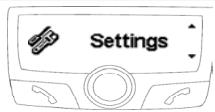
SETTINGS
This menu allows you to customise the CK3100.
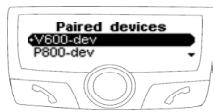
Paired devices
List: You can access the list of peripheral devices, which have been paired with the CK3100.
You have the option of connecting, dis- connecting, or wiping from the your tele- phone memory.
WARNING
If you delete a device, all the voice imprints attributed to it will be deleted.
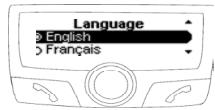
Language
■ Select the desired language.
■ Confirm by clicking on the scroll button. If you select "automatic", the hands-free kit synchronises with the language of your SIM card.
(this option is available only on certain devices)
Volume
Voice Menus:
This option allows you to adjust the volume of the messages announced by the hands-free kit and voice imprints, which you have recorded.
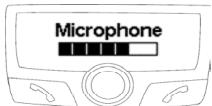
Rings and microphone:
These options let you adjust the volume of the ring and of the microphone.
Telephone:
This option allows you to adjust the volume of the communication.
Voice Menu
This function activates or deactivates the voice assistant of the menus.
The menus will be announced by the voice of the operator in the selected language.
This option optimises the search for info from the interface during driving.
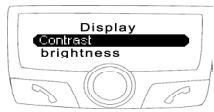
Display
3 headings allow you to personalise the display:
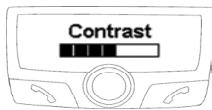
Contrast and brightness:
Use the scroll button for the desired level and validate by clicking on the latter.
Zoom phonebook:
Lets you select the resolution of the displayed text in the "phonebook" and "call logs" menus.
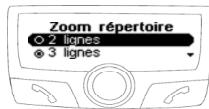
■ Select the 2-line or 3-line mode
■ Confirm by clicking on the scroll button.
Automatic response
Activate/deactivate the automatic pick-up.
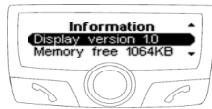
Information
Software version:
Version of the display software / Free memory.
Hotline
Our customer service is at your disposal. You can contact it via email or telephone.
Connect to www.parrot.biz for more information.
ADVANCED SETTINGS
This menu gives access to the following headings:
Pairing a telephone, object push, software upgrade, demo mode.
Pairing a telephone
Some phones require a particular setting of your hands-free kit before pairing. ( for example SonyEricsson P900, PDA running windows CE )
Select the input corresponding to your telephone, then pair your device when the CK3100 displays "Pair your telephone".
Object push
Some telephones can require a particular setting of your hands-free kit before sending contacts. ( If your telephone does not display your kit in the list of devices to which contacts can be sent, activate the "Always active" option.) Warning: this configuration of your kit can cause poor functioning with certain telephones. We recommend that you return to "Automatic" mode as soon as you have sent your contacts.
Software upgrade
Activate this option when you install an upgrade by Bluetooth of your kit, from a personal computer. This option will be automatically deactivated when restarting your kit.
■ Go to our website for more information : www.parrot.biz
Demo mode
Launch a demo of the hands-free kit. Restarting the carkit is necessary to deactivate this mode.
GPS CK3300 - CK3500
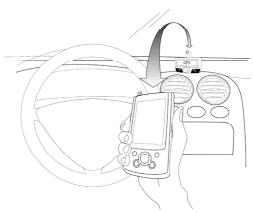
The CK3300 and CK3500 kits load a GPS (Global Positioning System) module giving access to the current position of the vehicle. This information is available via Bluetooth on a channel accessible by the majority of PDAs and Smartphones.
Connection to the GPS service
If you have a navigation application on your PDA or smartphone, all you need do is pair this peripheral device with the CK3X00, and open a series connection to the GPS port. Certain navigation applications let you directly select as Bluetooth GPS
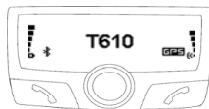
On your device the GPS configuration to be selected is NMEA 0183v2 9600, in the event it is necessary to supply this information.
Once connected, a GPS icon is visible on the screen of the CK3X00.
Voice indications of your navigation
Once the GPS service is connected the CK3X00 equipped with GPS module allows you to listen to the sound indications of your navigation software over the loud speakers of your vehicle. Your navigation
will thus be carried out under optimal conditions (this functionality is available only with certain navigation software).
To do this, from your PDA or smartphone open the service Ear phone/Headset, which is available on the car-kit.
If you want to make a call or answer an incoming call, this service is automatically closed then reopened to allow you to use telephony functionality under the best conditions.
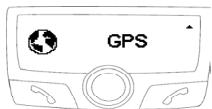
GPS Menu
In this heading you can fully disable the GPS service to prevent anyone from connecting to this service.
The Information section specifies the GPS configuration and the peripheral device currently connected to this service if it is active.
GSM OFFBOARD - CK3500
The CK3500 loads a class 8/10 GSM/GPRS module.
The presence of this module let you use the SIM Access Profile (SAP) of your telephone or even use your CK3500 directly
as a car phone, without Bluetooth telephone, with only a physical SIM card. It also lets you use your kit as Internet access point by using the GPRS.
The SIM Access Profile (SAP) allows the information on your personal SIM card to be used by Bluetooth. You thus benefit from the GSM antenna of the CK3500 and you save on the battery in your Bluetooth telephone.
Pairing
For safety reasons, the pairing procedure of a SAP telephone is different.
You must select the SIM Access Phone section in the "Preferences" / "Advanced
Pref." / "Pair Telephone" menu.
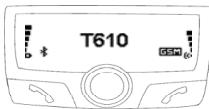
A 16-digit code is displayed on the screen of the CK3500, which is the link code to be captured on your SAP telephone. If the CK3500 requires the PIN code of your personal SIM card, It will ask you to enter it.
Functioning
The SIM Access mode is activated by default if your telephone supports it.
The CK3500 will use this mode as soon as your telephone is detected by maintaining continuity of service.
The functioning of the interface is the same as for Bluetooth telephony.
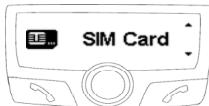
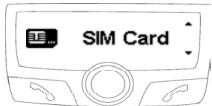
The SIM Card heading
This heading allows you to insert/modify the PIN code of your personal SIM card or to deactivate the SIM Access Profile mode.
François
OUTLINE
INTRODUCTION
GSM OFFBOARD - CK3500
GSM OFFBOARD - CK3500
II CK3500 supporta un modulo classe 8/10 GSM/GPRS.
GSM OFFBOARD - CK3500
Activate this option when you install an upgrade by bluetooth of your kit, from a personal computer. This option will be automatically deactivated when restarting your kit. Go to our website for more information : www.parrot.biz