
URC-9IN1 - Universal remote SUPPORTPLUS - Free user manual and instructions
Find the device manual for free URC-9IN1 SUPPORTPLUS in PDF.



| Product type | Universal remote |
| Brand | SUPPORTPLUS |
| Model | URC-9IN1 |
| Power supply | 4 AA/LR6 batteries (alkaline recommended) |
| Screen | LCD touchscreen |
| Compatible devices | TV, VCR, CBL/SAT, DVD, TUNER, TAPE, AMP, LD/AUX |
| Number of device keys | 9 |
| Backlight | Yes, adjustable from 5 to 30 seconds |
| Integrated clock | Yes, 12 or 24 hour mode |
| Programming | Direct setup (by brand/code) or automatic search |
| Special functions | PIP, Menu, Volume, Mute, Input, Back, Standby, Timer |
| Infrared range | Approximately 10 meters (estimated) |
| Dimensions | Approximately 200 x 60 x 30 mm (estimated) |
| Weight | Approximately 200 g (estimated) |
| Care and cleaning | Wipe with a soft, dry cloth, do not use liquids |
| Safety | Use appropriate batteries, do not expose to heat or humidity |
| Replacement parts | Batteries only (not included) |
| Repairability | Not user-repairable, contact after-sales service |
| Warranty | 2 years (standard estimate) |
Frequently Asked Questions - URC-9IN1 SUPPORTPLUS
User questions about URC-9IN1 SUPPORTPLUS
0 question about this device. Answer the ones you know or ask your own.
Ask a new question about this device
Download the instructions for your Universal remote in PDF format for free! Find your manual URC-9IN1 - SUPPORTPLUS and take your electronic device back in hand. On this page are published all the documents necessary for the use of your device. URC-9IN1 by SUPPORTPLUS.
USER MANUAL URC-9IN1 SUPPORTPLUS
European Distribution Center
De Zoeker Esch 12
NL- 7582 CN Losser
E-Mail: Service@SupportPlus.org
Tel. Nat. / internat.: 00800/7777 88 99
User's Manual for URC-F17
Contents
Introduction 18
Battery Installation 18
Look at Your Remote 19
Device Set-up 21
A. Direct Set-up (by brand and code) 21
B. Auto Search 23
Other Set-up 25
A. Set up clock 25
B. Device lock/unlock 25
C. Backlight 26
D. LCD on/off 27
E. Contrast Adjust 28
F. Clear All 29
Need Help? 30
Device Brand Code List. 87
Introduction
Thank you for choosing URC20-F17A universal touch screen remote control. You have selected a new designed touch screen universal with latest concept and technology. Based on our creative design, it has a easiest way to set up just follow the information in the LCD screen by directly inputting letters of the brand name or scroll up and down from the brand list (worldwide patent pending), even without this manual book later.
The F17A touch screen universal remote controls can control almost all brands of Television (TV), Video Recorder (VCR), (digital) Satellite receiver (CBL/SAT), Cable box (CBL/SAT), DVD player (DVD), Tuner (TUNER), CD player (CD), Audio cassette player (TAPE), Amplifier (AMP), amplifiers (AMP), Laser Disc (LD) and other audio components (AUX). It has totally 9 device buttons on the screen.
The F17 touch screen universal remote control will operate all main functions of your selected devices. It supports the PIP and Menu function for your TV as your original remote control.
The F17 touch screen universal remote control has also real time clock to show you're the week, time and AM or PM.
F17 will show you when batteries become low.
Please enjoy the time with this new intelligent touch screen universal remote control.
Battery Installation
This remote control needs 4 batteries to work with. Refer to the direction marks inside the battery apartment and put 4 pieces of fresh AA, or LR6 in the battery apartment. Alkaline batteries are recommended since it has a large LCD screen to take more power consumption than the common universal remote control.
To install the batteries: 1. Turn the remote over, pull up on the tap and lift the cover off. 2. Insert the batteries matching the batteries to the (+) and (-) marks inside the battery case. 3. Slide the battery cover back into the place.
Note:
Whenever the batteries need replacement, the LCD remote will indicate with a "Battery Low" message. Please replace them with new batteries now.
All settings you have programmed into the new remote control will be stored in memory even you take off the batteries (but you may need to reset the clock).
Battery Low SUN 12:00 AM
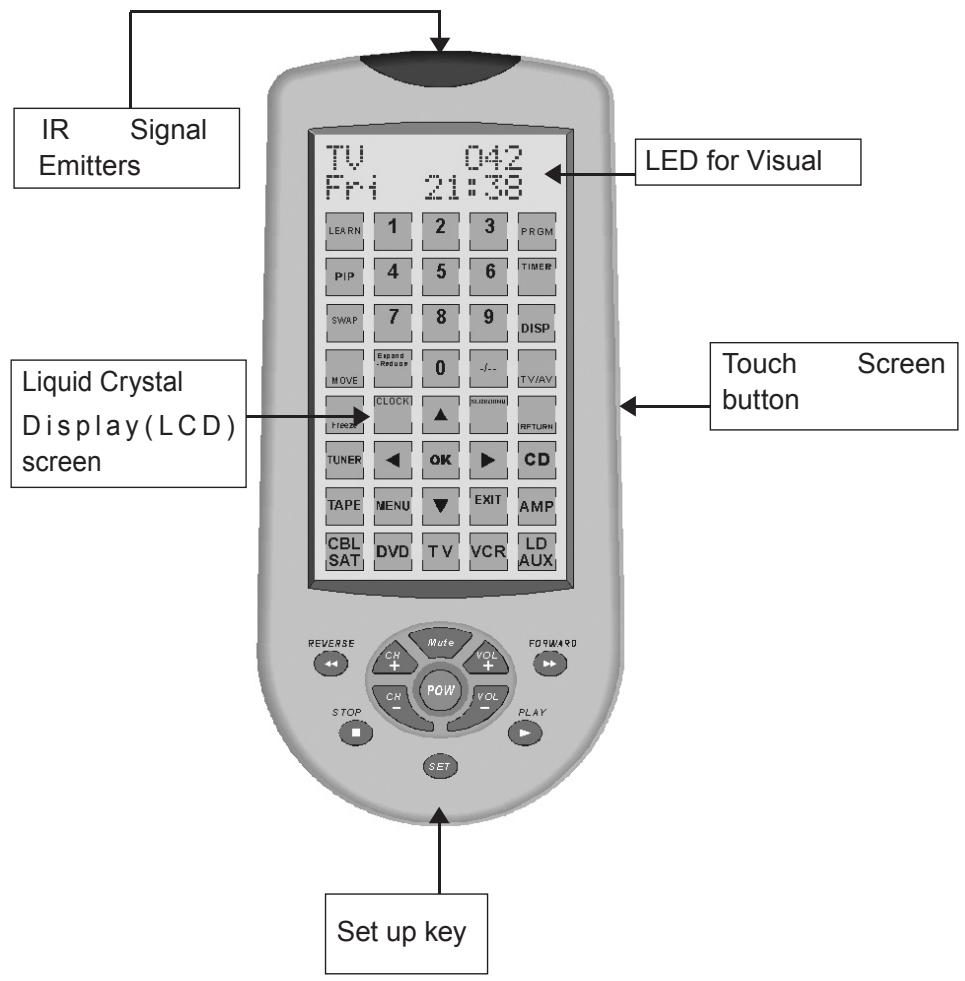
Look at Your Remote Control
SET For you start to set up (program) the remote control or show you the status in LCD screen.
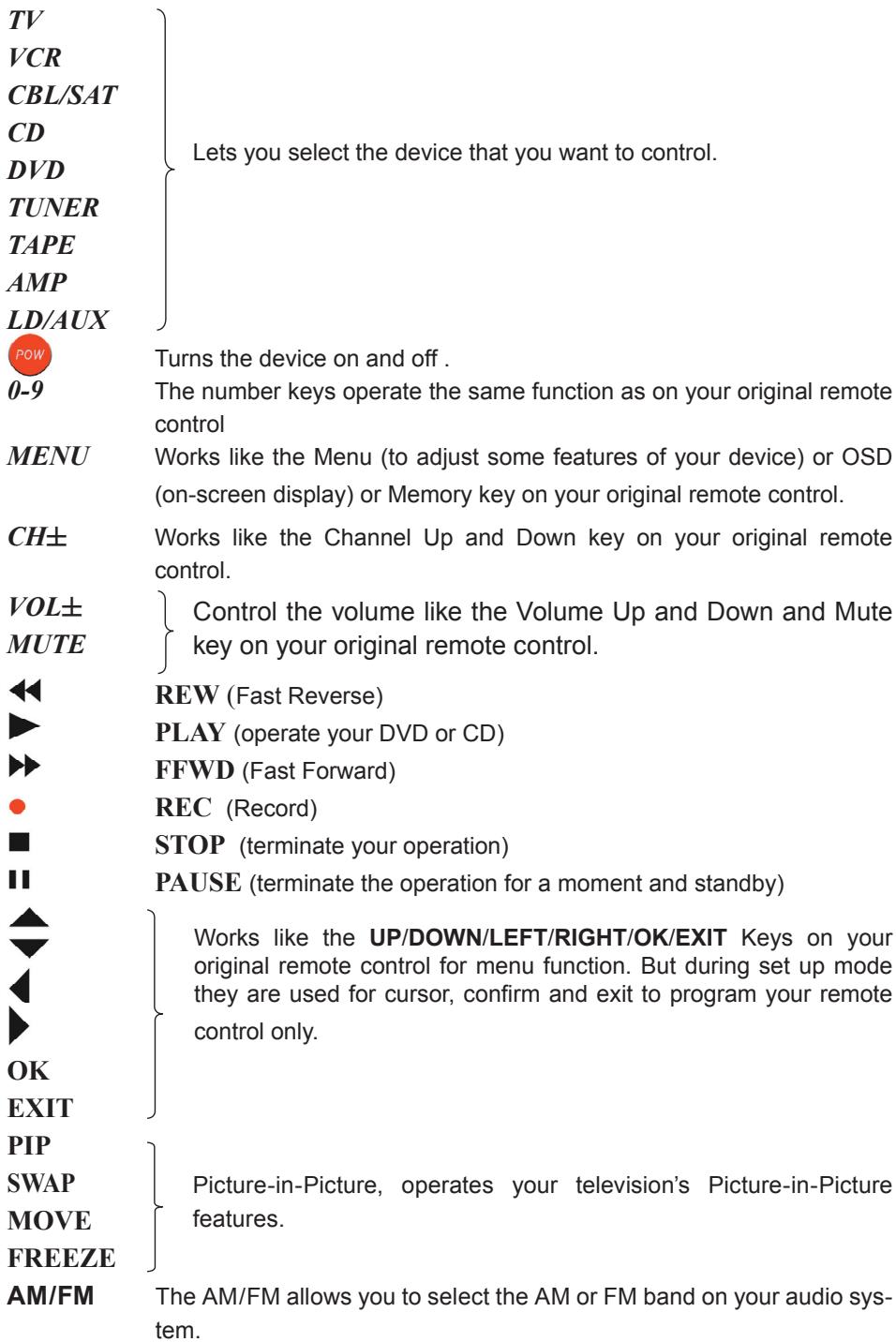
RETURN The RETURN key allows you to go to the previous channel you selected. Operates the same as the last channel.
DISP Display
PRGM Program
SLEEP The SEELP key allows you to turn your device off automatically.
TIMER Allows an event to happen at a later time, such as „turn the TV on at 7:00PM“ Timer mode allows you to set up to four individual commands. Must be reprogrammed after each event occurs.
Previous track.
Next track.
Notice:
Before any set up below, you must activate the remote control on first by touching the screen or pressing any key on the remote control
Device Set-up
A. Direct Set-up (by Brand and Code)
If you know you device's brand name, then you can set up by Direct Setup (search or input on screen by brand name directly and then choose the code).
1 Turn on the device (e.g. press the ON/OFF button on your television) you would like to operate. If it is a VCR, Please insert a tape.
2 Press and hold the SET key, then press (simultaneously) one of the device keys on the touch screen that you would like to control (e.g. TV key).
3 Then release the both pressed keys, the "TV Brand Search?" will display on the screen, then press "OK" into TV brand search or press other device key to choose another device search.
4 You can enter the brand name either directly by letters from digit-letter bttons on screen (or you can press the or to select the brand), then press the OK key to confirm the brand name that you like to control.
Note:
If you press the or key but there is no effect, that means the search ends
- Test the function of the keys (You must point your remote control to the device that you want to control when testing). If none of the keys of your new remote control work, or most of the keys work improperly, please try one another code to be selected by or , until all main functions operate properly.
- Press the OK key to save the setting and LCD shows Successful for 2 seconds and exit to current set up state. Then you can follow the instruction on the screen to quit the set up or go to other settings.
SET+TV

TV Brand
Search?
OK

AR Systems
Input Letters ^ P^ H^ I^ L^ I^
(or press)
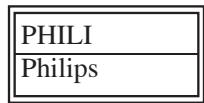

Philips
042/052
Testing the Keys. If not satisfaction, press or to choose next code
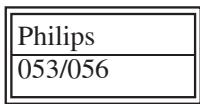
Testing the Keys, If feel the code good, press OK to save it.
Remark:
- To input the letters of the brand name, is just similar to input the words like the mobile phone.
- The keys of OK, EXIT only are used to set-up your new remote. You can't control your device during the set up.
- If the device is locked, you must first unlock the device then setting up.
- If not found brand or enter error, the screen will display "NOT FOUND" 2 seconds and over again enter.
- You can press the EXIT key to clear the wrong letter when you enter the brand name.
6.If you wait more than 30 seconds during set up or operation, the remote control will be quited the current state.
B. Auto Search
If you failed in the direct set-up or you can not find the brand name in the screen that you want, you can use the "Auto Search" to find the correct code to operate your device.
- Turn on the device (e.g. press the ON/OFF button on your television) you would like to operate. If it is a VCR, Please insert a tape.
- Press and hold the SET key for more than 3 seconds to start set up.
- The screen shows "Code Setup?", and then press the "OK" key.
- The screen shows "XX Auto Search?"(XX is a device name and XX flash, you can press device (e.g. TV) key to select desired device then press the "OK" key, the Auto Search begins and the screen display "Searching?" and with code no. increasing (You must point your remote control to the device that you want to control during Auto Search.). The remote control automatically send ON/OFF signal of each code to the device (code scan)
-
See if device reacts or not, once the device reacts, press any key to stop the search.
-
Test if main keys work good enough or not. If no key works (that means you didn't stop the search on time, you may press the or keys manually to search back to find the code that you passed), or most of keys work not good enough, please press the EXIT key to go on the search. If main keys good enough, you can press OK to save the code (the screen shows "save successful" for 2 seconds) and then you can follow the instruction on the screen to quit the set up or go to other settings.
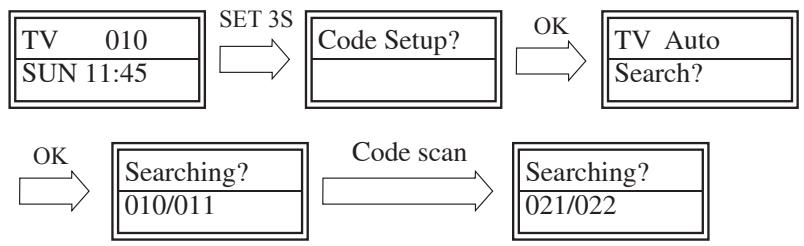
If device response, press any key to stop the search, and test keys
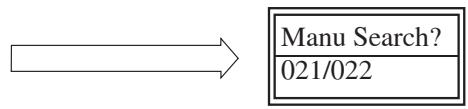
If feel the code good, press OK to save it.
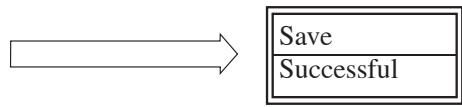
Remark:
- The keys of OK, EXIT only are used to set up your new remote control during set up, you can't control your device at this time.
- If the device is locked, you must first unlock the device then set up.
- If you want to stop the Auto Search, you can press any key to stop the search, then press the any device key, then follow the screen information to stop the search.
Other Set Up
A. Set up Clock
You can set up the clock on your new remote control and it will be displayed on the screen.
- Press and hold the SET key for more than 3 seconds, then release it.
- Press the or key to select the "Configure" menu, and then press the OK key.
- The screen shows "Time Setup?", then press the OK key.
- Press the or key to select the "12HR CLOCK" or "24HR CLOCK", and then press the OK key.
- Press the or key to select desired set up items such as day, hour and minute, accordingly press the or key to change the day, hour and minute.
- Press the OK key to save setting and LCD display Successful for 2 seconds and exit to current set up state. You can follow instruction on the menu to quit the set up or go to other settings
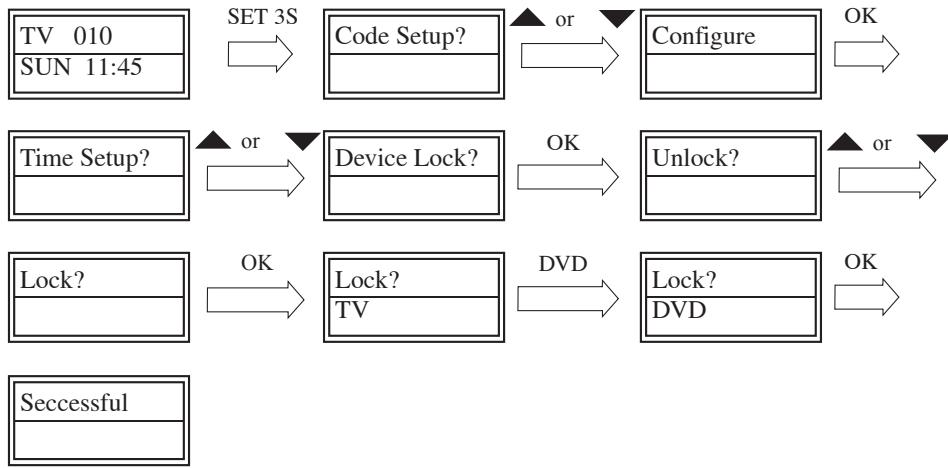
B. Device lock/unlock
You can use "Device lock" function to fix current device code and this device code can not be changed neither by brand search nor auto search. You can select the "Unlock" to quit from this function.
- Press and hold the "SET" key for more than 3 seconds, then release it.
- Press the or key to select the "Configure", and then press the OK key.
- Press the or key to select the "Device Lock", and then press the OK key.
-
Press the or key to change the "Lock" or "Unlock" mode. Then press the OK key.
-
Press device key to select the device that you want to fix (e.g. TV).
- Press the OK key to save setting and LCD display Successful for 2 seconds and exit to current set up state. You can follow the instruction on the screen to exit from set up or go to other settings.
Remark:
You can fix all current device codes.
C. Backlight
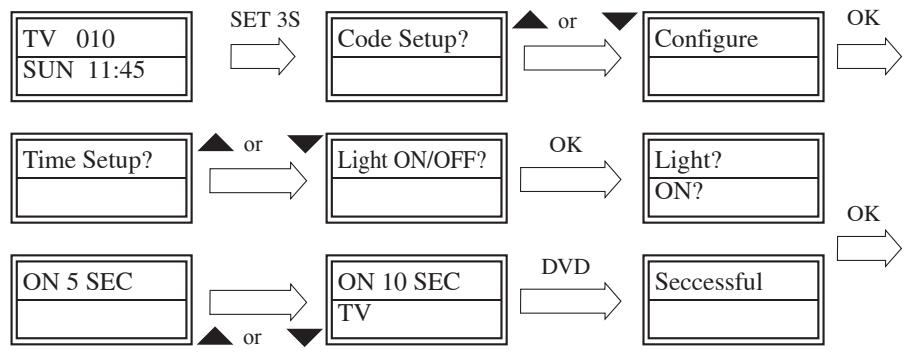
If you set "Light ON/OFF" to "OFF", the backlight will never be on. When you set "Light ON/OFF" to "ON", the backlight will be lighted up when you press any key and it will light up for a while even after you finish the operation. You can adjust the on-time length of the backlight by following steps.
- Press and hold the "SET" key for more than 3 seconds, then release the pressed key.
- Press the or key to select the "Configure", and then press the OK key.
- Press the or key to select the "Light ON /OFF? ", then press the OK key.
-
If the screen shows "Light On" (or you press the or to choose ON), and prees OK.
-
Press the or key to change length of light time from 5-30 SEC and 5seconds as a step.
- Press the OK key to save setting and LCD display Successful for 2 seconds and exit to current setup state. You can follow the instruction on the screen to exit from the set up or go to other settings.
D. LCD ON/OFF
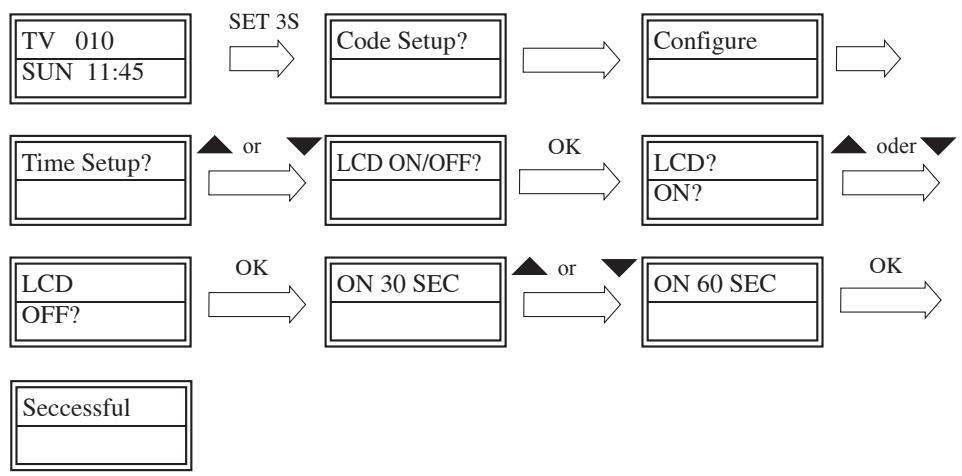
If you set "LCD ON/OFF" to "ON," that means the LCD screen is always on (it is convenient to see the status but it is bigger power consumption). If you set up "LCD ON/OFF" to "OFF", the LCD screen will be on for some time and then be off after any operation on your remote control and you can change the length of on-time as below steps.
- Press and hold the "SET" key for more than 3 seconds, then release it.
- Press the or key to select the "Configure", and then press the OK key.
- Press the or key to select the "LCD ON/OFF? ", then press the OK key.
-
Suppose that you press the or key to change from "ON" to "OFF" mode, and then press OK key.
-
Press the or key to change the LCD on-time length from 30-60 seconds and 10secod as a step.
- Press the OK key to save the setting and LCD display Successful for 2 seconds and exit to current set up state. You can follow the instruction on screen to exit from the set up or go to other settings.
E. Contrast Adjust
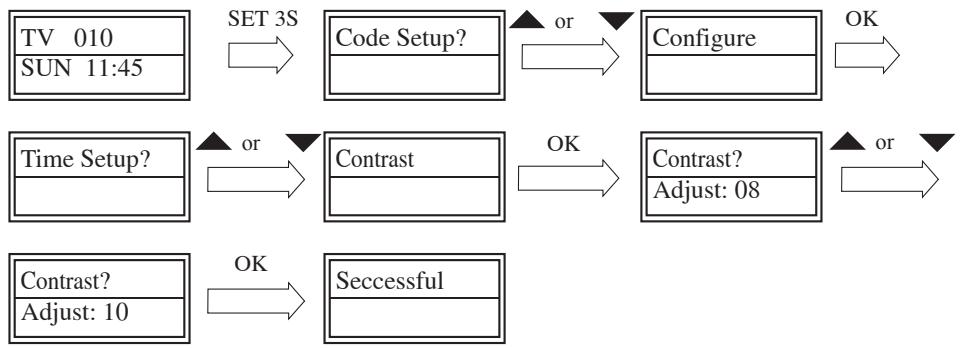
- Press and hold the "SET" key for more than 3 seconds, then release it.
- Press the or key to select the "Configure", and then press the OK key.
- Press the or key to select the "Contrast", and then press the OK key.
- Press the or key to adjust contrast level, when you satisfy it then press the OK key. The screen display Successful for 2 seconds and exit to current setup state. You can follow the instruction on the screen to exit the set up or go to other settings.
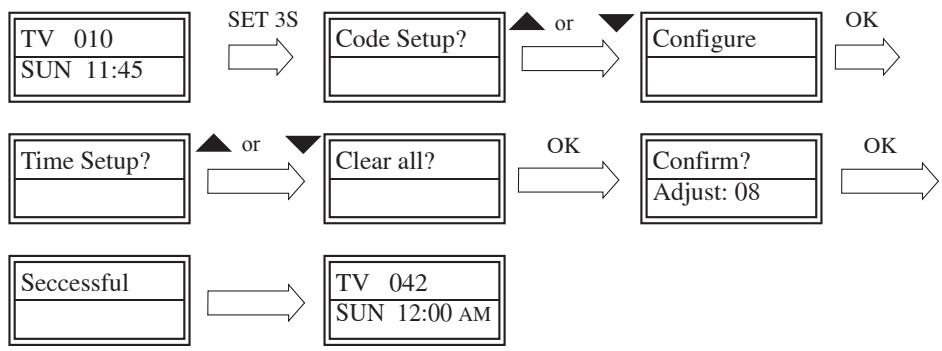
F. Clear All
To erase all the set up data, and go back to the original factory default settings.
- Press and hold the SET key for more than 3 seconds. Then release it.
- Press the or key to select the "Configure", then press the OK key.
- Press the or key to select the "Clear All?", then press the OK key.
- The screen shows "Confirm?", press the OK key again to confirm that clear all and LCD display Successful for 2 seconds and go back to the factory default page.
Need Help?
If you have questions about your remote control, just call our free phone. Before you call, please read the manual book carefully. However, if you don't find an answer to your questions in this manual, make a note of your device in the table below. Tell it to the operators when you call us.
Kaufdatum:
一
Day Month Year
Service Adresse:
European Distribution Center
De Zoeker Esch 12
NL- 7582 CN Losser
E-Mail: Service@SupportPlus.org
Tel. Nat. / internat.: 00800/7777 88 99
| Device | Brand | Model number | Model number of original remote | Code |
| TV | ||||
| VCR | ||||
| CBL/SAT | ||||
| DVD | ||||
| CD | ||||
| TUNER | ||||
| TAPE | ||||
| AMP | ||||
| AUX/LD |
Manual do utiliser para URC-F17
Índice
| Brand | TV |
| A.R.Systems | 280 |
| Accent | 280 |
| Acec | 278 |
| Admiral | 289,290,325,349 |
| Adyson | 314,315 |
| Agashi | 314,325 |
| AGB | 364 |
| Agef | 289 |
| Aiko | 275,280,285,305,314,315,325,340,343,350 |
| Aim | 280 |
| Akai | 052,053,054,055,056,057,058,059,060,061,062,063,064,065,066,067,068,069,070,071,072,073,074,075,076,078,105,127,140,153,211,215,259,275,280,285,299,303,305,313,314,315,316,325,340,343,345,350,353,356,364,365,370,372,373,377 |
| Akiba | 280,316,326,354 |
| Akito | 280 |
| Akura | 271,275,280,316,325,326,348,360 |
| Alaron | 314 |
| Alba | 271,275,279,280,299,314,316,319,321,338,342,343,349,359,369,370 |
| Albiral | 054,055,077,078,079,080,097,153,176 |
| Allorgan | 312,315,330 |
| Allstar | 280 |
| Amplivision | 315,342,346 |
| Amstrad | 265,275,280,302,316,325,343,348,350,364 |
| Anam | 275,280 |
| Anam National | 280 |
| Anglo | 275,325 |
| Anitech | 275,280,325 |
| Ansonic | 275,278,280,293,299,321,323,329,342,344,347 |
| Apollo | 355 |
| Arc en Ciel | 054,057,078,099,106,136,137,172,189,190,191,192,193,196,198,199,228,272,274,297,309,310 |
| Arcam | 314,315 |
| Ardem | 358 |
| Aristona | 052,053,056,090,099,127,129,133,210,211,212,213,214,215,216,217,218,219,220,221,222,223,224,225,226,227,278,280,365 |
| Arthur Martin | 061,063,064,066,072,095,120,123,140,141,147,148,155,172,173,174,203,230,299,346 |
| ASA | 284,289,294,295,337 |
| Asberg | 280 |
| Asora | 275 |
| Astra | 048,049 |
| Asuka | 314,315,316,325,326 |
| Atlantic | 280,312,314,323 |
| Atori | 275 |
| Auchan | 299,346 |
| Audiosonic | 280,297,315,316,325,342,358 |
| Audioton | 315,325,342,358 |
| Autovox | 289,312,315,321,336 |
| AWA | 275,277,279,280,314,344,348,373 |
| Ayomi | 320 |
| Baird | 285,286,297,304,313,315 |
| Bang& Olufsen | 289 |
| Barco | 299 |
| Basic Line | 275,280,299,316,326,344 |
| Bastide | 315 |
| Baur | 276,280,305,308,331,340,361,363 |
| Bazin | 315 |
| Beaumark | 303 |
| Beko | 280,342,358,373 |
| Beon | 280,349 |
| Best | 342 |
| Bestar | 280,342,344 |
| Binatone | 315 |
| Black Star | 321 |
| Blacktron | 326 |
| Blackway | 326 |
| Blaupunkt | 065,081,082,083,084,085,086,087,088,089,305,308,311,333,334,353 |
| Blue Sky | 271,280,316,326,354,359 |
| Blue Star | 326 |
| Bondstec | 321 |
| Boots | 315 |
| BPL | 045,046,280,326 |
| Brandt Electronique | 054,057,078,099,106,136,137,172,189,190,191,192,193,196,198,199,228,272,274,297,309,310,335,376 |
| Brinkmann | 280,349 |
| Brionvega | 280,289 |
| Britannia | 314,315 |
| Brother | 325 |
| Bruns | 289 |
| BSR | 299,330 |
| BTC | 316 |
| Bush | 271,275,279,280,299,313,315,316,319,325,326,330,338,340,343,344,359,370 |
| Capsonic | 325 |
| Carad | 280,374 |
| Carena | 280,354 |
| Carrefour | 279,284 |
| Carver | 301 |
| Cascade | 275,280 |
| Casio | 280 |
| Cathay | 280 |
| CCE | 280,315 |
| Centurion | 280 |
| Century | 289,320,321 |
| CGE | 062,067,078,090,091,092,093,094,095,096,097,098,115,153,214,287,288,299,321,342,349 |
| Changhong | 031,032,033,034,035,036,037,038,039,040,041 |
| Cimline | 275,316,319 |
| City | 275 |
| Clarivox | 078,079,080,099,100,101,102,137,200,284,349 |
| Clatronic | 275,280,293,315,316,321,325,342,343,369 |
| CMS hightec | 315 |
| Concorde | 275 |
| Condor | 275,280,293,314,321,326,342,347,349 |
| Contec | 275,277,279,314, |
| Continental Edison | 297,309,310,359 |
| Cosmel | 275 |
| Crosley | 062,067,078,090,091,092,093,094,095,096,097,098,099,100,115,119,214,287,288,289,299,321 |
| Crown | 275,280,283,313,342,349,358,359,369 |
| Cs Electronics | 314,316,321 |
| CTC | 321 |
| Curtis Mathes | 290,300 |
| Cybertron | 316 |
| Daewoo | 047,055,067,068,070,103,104,105,106,107,108,109,153,259,275,280,314,315,316,344,375 |
| Dainichi | 314,316 |
| Dansai | 275,280,314,325 |
| Dansette | 348 |
| Dantax | 342,358 |
| Datsura | 313 |
| Dawa | 280 |
| Daytron | 275,280,344 |
| De Graaf | 281,299,313 |
| Decca | 280,285,315,364 |
| Deitron | 280 |
| Denko | 325 |
| DER | 304 |
| Desmet | 280 |
| Diamant | 280 |
| Digiline | 280 |
| Dixi | 275,280,315,321 |
| Drean | 280 |
| DTS | 275 |
| Dual | 280,299,315,323,331,336 |
| Dumont | 284,285,289,293,294,315 |
| Dux | 278,280 |
| Dynatron | 280 |
| Elbe | 070,078,079,080,110,111,112,113,114,115,116,127,129,280,299,305,316,320,323,329,342,347,351,374 |
| Elcit | 289,293,299,321,364 |
| Elekta | 325,326 |
| ELG | 280 |
| Elin | 275,280,294,295,299,314,340,353 |
| Elite | 280,316 |
| Elman | 293 |
| Elta | 275,314,325 |
| Emerson | 054,055,059,060,077,078,090,093,096,097,098,099,102,115,117,118,176,214,280,284,289,302,303,321,326,343 |
| Emperor | 326 |
| Erres | 052,053,056,090,099,127,129,133,210,211,212,213,214,215,216,217,218,219,220,221,222,223,224,225,226,227,278,280 |
| ESC | 280 |
| Etron | 275,280,299 |
| Eurofeel | 325 |
| Euroman | 280,314,315,325,342 |
| Europa | 280 |
| Europhon | 280,293,299,315,321,364 |
| Expert | 299,312,323,346 |
| Exquisit | 280,321 |
| Fenner | 275,344 |
| Ferguson | 286,297,304,320,335,376 |
| Fidelity | 280,299,314,325,343 |
| Filsai | 315 |
| Finlandia | 313,337,340 |
| Finlux | 061,063,064,066,072,098,102,110,119,120,121,122,123,124,197,280,284,285,289,293,294,295,299,315,337,347,356,364,377 |
| First Line | 052,053,055,061,062,067,068,070,078,080,090,093,097,115,117,125,126,127,143,153,213,214,244,271,275,280,285,293,299,313,314,315,319,320,330,332,344,347,375 |
| Fisher | 061,070,096,099,100,118,119,122128,129,130,279,282,285,289,294,299,313,315,331,340,342 |
| Flint | 280,285,316,354 |
| FNR | 293 |
| Formenti | 289,299,314 |
| Fortress | 289,290 |
| Fraba | 280,342 |
| Friac | 275,280,293 |
| Frontech | 275,315,321,325,353 |
| Fujitsu | 275,285,293,299,312,315 |
| Fujitsu General | 275,315 |
| Funai | 325,330 |
| Galaxi | 280,293 |
| Galaxis | 280,293,342,349 |
| GBC | 275,299,316,344 |
| GE | 297,303,326,335 |
| Geant Casino | 299,346 |
| GEC | 280,285,299,315,340,364 |
| Geloso | 275,299,321,344 |
| General | 297 |
| General Technic | 275 |
| Genexxa | 280,316,348,360 |
| Goldhand | 314 |
| Goldstar | 052,054,055,060,067,070,078,086,095,127,153,154,155,156,157,158,159,160,161,162,163,164,165,166,167,173,215,230,234,243,275,280,281,299,303,314,315,321,327,340,342,345 |
| Goodmans | 275,279,280,285,315,319,325,327,335,343,344,356,359,364,365,375 |
| Gorenje | 342 |
| GPM | 316 |
| Gradient | 280,283,301 |
| Graetz | 061,063,064,066,071,072,095,119,120,122,123,137,139,140,141,142,143,144,145,146,147,148,149,150,151,152,173,174,202,230,340,343 |
| Granada | 278,279,280,282,285,296,313,315,318,335,339,346,355,364 |
| Grandin | 275,280,299,316,326,346,354,369,374 |
| Gronic | 293,315 |
| Grundig | 065,081,085,086,087,131,132,133,134,135,136,137,142,280,284,305,308,359,365 |
| Haier | 378 |
| Halifax | 314,315,325 |
| Hampton | 314,315 |
| Hanimex | 330 |
| Hanseatic | 275,280,289,299,315,326,329,330,340,342 |
| Hantarex | 275,280,293 |
| Hantor | 280 |
| Harwood | 275,280,348 |
| Hauppauge | 280 |
| HCM | 275,280,315,316,325,326,348,349 |
| Hema | 275,315 |
| Hifivox | 054,057,078,099,106,136,137,172,189,190,191,192,193,196,198,199,228,272,274,297,309 |
| Highline | 280,325 |
| Hikona | 316 |
| Hinari | 275,279,280,299,313,316,319,330,338,352,359 |
| Hisawa | 316,326,346,354 |
| Hit | 289 |
| Hitachi | 006,007,279,280,281,285,295,299,303,307,309,310,315,317,339,355,357,364,365,366,368 |
| Hitachi Fujian | 296 |
| Hitsu | 275,316,354 |
| Hornyphone | 278,280 |
| Hoshai | 316,354 |
| Huanyu | 314,344 |
| Hygashi | 314,315 |
| Hyper | 275,314,315,321 |
| Hypersonic | 340 |
| Hypson | 280,315,320,325,326,346,354 |
| Iberia | 280 |
| ICE | 275,280,314,315,316,325,343 |
| Ices | 314,316 |
| Imperial | 062,067,078,090,091,092,093,094,095,096,097,098,115,138,164,214,280,287,288,299,309,321,342,349 |
| Indiana | 280 |
| Ingelen | 061,063,064,066,071,072,095,119,120,122,123,137,139,140,141,142,143,144,145,146,147,148,149,150,151,152,173,174,202,230,359,374 |
| Ingersoll | 275 |
| Inno Hit | 275,280,285,315,316,321,327,364 |
| Interactive | 347 |
| Interbuy | 275,321,325 |
| Interfunk | 278,280,289,297,299,333,340,342,363 |
| Internal | 280 |
| Intervention | 280,293,299,315,316,321,325,326,342,343,345,353,354,358,359 |
| Irradio | 275,280,316,321,327 |
| Isukai | 280,316,326 |
| ITC | 315 |
| ITS | 280,314,316,325,326,343 |
| ITT | 299,313,337,340,355,356 |
| ITT Nokia | 061,063,064,066,071,072,095,119,120,122,123,137,139,140,141,142,143,144,145,146,147,148,149,150,151,152,173,174,202,230,299,313,337,340,355,356,373,374,377 |
| ITV | 280,321,325 |
| Jean | 279 |
| JVC | 004,195,279,283,291,304,316,343,373 |
| Kaisui | 275,280,314,315,316,326,354 |
| Kamp | 314 |
| Kapsch | 061,063,064,066,071,072,095,119,120,122,123,137,139,140,141,142,143,144,145,146,147,148,149,150,150,152,173,174,202,230,294,299,312,323,340 |
| Karcher | 280,293,325,326,342,374 |
| Kawasho | 314 |
| KB Aristocrat | 299 |
| Kendo | 280,293,319,321,342,345,347,374, |
| Kennedy | 299,312,351, |
| Kingsley | 314 |
| Kneissel | 280,320,323,329,342,347,351,374 |
| Kolster | 280,293 |
| Konka | 001,027,028,029,030,051,280,316,343 |
| Kontakt | 359 |
| Korpel | 280 |
| Korting | 289,342 |
| Kosmos | 280 |
| Kotron | 325,348 |
| Kraking | 320 |
| Kriesler | 052,053,056,090,099,127,129,133,210,211,212,213,214,215,216,217,218,219,220,221,222,223,224,225,226,227 |
| KTV | 315 |
| Kyoshu | 325,348,349 |
| Kyoto | 299 |
| Lemair | 347 |
| Lenco | 275,280,294,299 |
| Lenoir | 275 |
| Lesa | 321 |
| Leyco | 280,285,325,330,369 |
| LG | 052,054,055,060,067,070,078,086,095,127,153,154,155,156,157,158,159,160,161,162163,164,165,166,167,173,215,230,234,243,275,280,299,303,314,315,321,327,340,342345 |
| Liesenkotter | 278,280,333,334 |
| Lifetec | 271,275,280,316,325,344,363 |
| Lloyd's | 275 |
| Loewe | 280,289,329,342,363 |
| Loewe Opta | 079,099,122,168,169,170,171 |
| Logik | 277,343 |
| Logix | 271 |
| Luma | 275,280,299,312,323,344,347 |
| Lumatron | 280, 286, 299, 312, 315,323, 325, 340 |
| Lux May | 275,280 |
| Luxor | 061,063,064,066,070,072,095,120,123,137,141,155,165,172,173,174,175,230,299,307,313,327,337,339,340,355,356 |
| Lxl | 303 |
| Madison | 280 |
| Magnadyne | 289,293,299,321,364 |
| Magnafon | 293,314,364 |
| Magnavox | 052,053,056,090,099,127,129,133,210,211,212,213,214,215,216,217,218,219,220,221,222,223,224,225,226,227,279,280 |
| Magnum | 265 |
| Mandor | 325 |
| Manesth | 280,315,319,325,330 |
| Manhattan | 280,271 |
| Marantz | 052,210,280 |
| Marelli | 289 |
| Mark | 275,280,314,315,344 |
| Masuda | 275,316,343 |
| Matsui | 275,277,279,280,282,285,299,302,305,308,313,315,319,330,335,338,343,350,352,354,359,364,365,369 |
| Mediator | 278,280,365 |
| Medion | 280,271 |
| Megas | 374 |
| Megatron | 303 |
| Melectronic | 275,280,294,295,297,314,315,321,337,344,347,356,363 |
| Melvox | 346 |
| Memorex | 275,303,322 |
| Memphis | 275,285 |
| Mercury | 275,280 |
| Metz | 065,086,087,099,132,133,176,177,178,179,180,181,182,183,289,305,308,341 |
| MGA | 303 |
| Micromaxx | 280,271 |
| Minerva | 065,081,085,086,087,131,132,133,134,135,136,137,142,284,305,308,359, |
| Minoka | 280,348 |
| Mitsubishi | 279,280,289,290,296,303,363 |
| Mivar | 070,079,116,127,184,185,186,187,314,327,328,329,342 |
| Monaco | 275 |
| Morgan's | 280 |
| Motorola | 290 |
| MTC | 314,342,363 |
| Multistandard | 293 |
| Multitec | 271,280 |
| Multiotech | 275,280,293,314,315,321,342,358 |
| Murphy | 285,294,299,314 |
| Musikland | 316 |
| NAD | 300,303,340 |
| Naiko | 280 |
| Nakimura | 280,344 |
| Naonis | 052,053,055,110,111,112,114,120,124,129,138,139,150,153,162,172,193,197,216,243,244 |
| NAT | 318 |
| National | 078,103,119,132,204,205,206,207,208,209,318 |
| NEC | 275,277,279,280,301,315,344,354 |
| Neckermann | 276,280,289,299,305,311,315,321,333,342,347,349,361,365 |
| Nel | 280,343 |
| Nesco | 321 |
| Netsat | 280 |
| Neufunk | 275,280,365,374 |
| New Tech | 275,280,315,353,365 |
| New World | 316 |
| Nicamagic | 314 |
| Nikkai | 275,279,280,285,314,315,316,325 |
| Nikko | 303 |
| Noblex | 280,325 |
| Nobliko | 284,293,314 |
| Nogamatic | 054,057,078,099,106,136,137,172,189,190,191,192,193,196,198,199,228,272,274,297,309 |
| Nokia | 061,063,064,066,071,072,095,119,120,122,123,137,139,140,141,142,143,144,145,146,147,148,149,150,151,152,173,174,202,230,299,313,337,340,344,355,356,373,377 |
| Nordmende | 057,119,188,189,190,191,192,193,196,197,198,199,280,297,308,309,310,335 |
| Novatronic | 280,295,344 |
| eanic | 061,063,064,072,095,119,141,148,173,200,201,202,203,230,299,313,330,340,346,366 |
| Odeon | 325 |
| Okano | 280,285,325,342 |
| Omega | 325 |
| Onwa | 316,343,350,370 |
| Opera | 280 |
| Optimus | 300,322 |
| Optonica | 290 |
| Orbit | 280 |
| Orion | 275,277,280,293,302,319,325,330,332,338,348,352,365 |
| Online | 280,316 |
| Ormond | 271 |
| Osaki | 280,285,315,316,325,344,348,360 |
| Osio | 280 |
| Oso | 316 |
| Osume | 279,285,316 |
| Otto Versand | 276,279,280,290,297,305,308,315,318,319,321,330,331,340,361,363,365 |
| Pael | 314 |
| Palladium | 276,280,289,299,305,311,315,321,333,342,347,349,361,365 |
| Palsonic | 280,315,325,345,348 |
| Panama | 275,280,314,315,321,325 |
| Panasonic | 009,078,103,119,132,194,204,205,206,207,208,209,280,298,299,318,322,340,341,364 |
| Panavision | 280,347 |
| Pathe Cinema | 299,314,320,329,346 |
| Pathe Marconi | 054,057,078,099,106,136,137,172,189,190,191,192,193,196,198,199,228,272,274,297,309,310 |
| Pausa | 275 |
| Perdio | 280,285,299 |
| Perfekt | 280 |
| Pershin | 346 |
| Philco | 019,062,067,078,090,091,092,093,094,095,096,097,098,099,100,115,119,214,280,287,288,289,299,321,342,349 |
| Philharmonic | 315 |
| Philips | 042,052,053,056,090,099,127,129,133,210,211,212,213,214,215,216,217,218,219,220,221,222,223,224,225,226,227,278,280,289,305,344,365 |
| Phoenix | 280,285,289,299,314,342,358 |
| Phonola | 052,053,056,090,099,127,129,133,210,211,212,213,214,215,216,217,218,219,220,221,222,223,224,225,226.278,280,289,314,365 |
| Pioneer | 280,297,300,340,342 |
| Pionier | 342,358 |
| Plantron | 275,280,325 |
| Playsonic | 315 |
| Poppy | 275 |
| Portland | 344 |
| Powerpoint | 359 |
| Prandoni Prince | 321,340,364 |
| Precision | 315 |
| Prima | 275,325 |
| Prinz | 285,307 |
| Profex | 275,299 |
| Profitronic | 280,293 |
| Proline | 278,280,285,332,376 |
| Prosonic | 271,280,314,342,343,344,369 |
| Protech | 271,275,280,293,315,321,325,349 |
| Proton | 303 |
| Provision | 280 |
| Pye | 052,053,056,090,099,127,129,133,210,211,212,213,214,215,216,217,218,219,220,221,222,223,224,225,225,226,227,278,280,289,344,365 |
| Pymi | 275 |
| Quadra Vision | 346 |
| Quasar | 321,322 |
| Quelle | 271,276,277,279,280,284,287,288,294,295,297,305,308,311,315,321,325,327,333,340,363 |
| Questa | 279 |
| Qunda | 014 |
| Radialva | 280,297,299,316 |
| Radiola | 052,053,056,090,099,127,129,133,210,211,212,213,214,215,216,217,218,219,220,221,222,223,224,225,226,227,278,280,365 |
| Radiomarelli | 280,289,321,364 |
| RadioShack | 280,303 |
| Radiotone | 265,275,280,325,342,348,349,369 |
| Rank | 284 |
| RC | 017 |
| RCA | 290,335,376 |
| Realistic | 303 |
| Recor | 280 |
| Rectiligne | 280 |
| Rediffusion | 279,340 |
| Redstar | 280 |
| Reflex | 280 |
| Revox | 280,342 |
| Rex | 052,053,055,110,111,112,114,120,124,129,138,139,150,153,162,172,193,197,216,243,244,299,312,321,323,347 |
| RFT | 285,289,325,329,342 |
| Rhapsody | 314 |
| R-Line | 280 |
| Roadstar | 275,280,316,325,349 |
| Robotron | 289 |
| Roxy | 353 |
| Royal Lux | 342,348 |
| Saba | 057,079,099,106,172,189,190,191,192,193,196,198,199,228,229,274,289,297,299,309,310,335,340,364,376 |
| Sagem | 326,354,374 |
| Saisho | 275,277,299,302,315,319,325,364 |
| Salora | 061,063,064,066,072,095,120,123,140,141,147,148,155,172,173,174,203,230,299,307,327,339,340,364 |
| Sambers | 293,364 |
| Samsung | 055,056,058,060,067,069,070,096,118,126,153,155,165,212,231,232,233,234,235,236,237,238,275,280,285,303,313,314,315,325,327,342,353,365,367,371 |
| Sandra | 314,315 |
| Sanela | 320 |
| Sansui | 043,044,280,343 |
| Santon | 275 |
| Sanyo | 003,010,011,013,067,070,096,099,100,118,119,122,126,128,129,140,141,157,238,239,240,241,242,275,277,279,280,282,285,294,299,313,314,315,329,342 |
| Save | 280 |
| SBR | 052,053,056,090,099,127,129,133,210,211,212,213,214,215,216,217,218,219,220,221,222,223,224,225,226,227,278,280,365 |
| Schaub Lorenz | 373 |
| Schneider France | 052,053,056,090,099,127,129,133,210,211,212,213,214,215,216,217,218,219,220,221,222,223,224,225,225,226,227,265,271,278,280,299,315,316,321,323,331,336,340,343,365 |
| Scott | 303 |
| Sears | 303 |
| SEG | 271,275,279,280,293,299,314,315,321,325,359 |
| Sel | 276,280,289,293,299,312,330,364 |
| Seleco | 052,053,055,110,111,112,114,120,124,129,138,139,150,153,162,172,193,197,216,243,244,299,312,323,347 |
| Sencora | 275 |
| Sentra | 275,316 |
| Serie Dorada | 303 |
| Serino | 354,374 |
| Sharp | 008,018,129,195,245,246,247,248,249,250,251,279,283,290,291,330 |
| Shorai | 330 |
| Siam | 280 |
| Siarem | 289,293,299 |
| Siemens | 054,065,082,083,084,085,086,087,132,133,135,159,241,280,305,308,311,333,334 |
| Siera | 052,053,056,090,099,127,129,133,210,211,212,213,214,215,216,217,218,219,220,221,222,223,224,225,228,227,278,280,365 |
| Siesta | 342 |
| Silva | 280,314 |
| Silver | 279,340 |
| Singer | 275,280,289,293,321,346,351 |
| Sinudyne | 053,054,056,061,067,077,099,110,114,119,125,154,176,212,213,219,252,253,254,255,256,257,258,259,260,261,263,276,280,289,293,299,302,312,319,330,340,364 |
| Skantic | 339 |
| Sky | 280 |
| Skyworth | 002,024,025 |
| Solavox | 285,299,340 |
| Sonawa | 316 |
| Sonitron | 313,315,342 |
| Sonneclair | 280 |
| Sonoko | 275,280,315,325,326 |
| Sonolor | 061,063,064,072,095,119,141,148,173,200,201,202,203,230,276,299,313,340,346,361 |
| Sontec | 280,330,342 |
| Sony | 012,128,240,264,266,267,268,276,277,279,287,293,306,361 |
| Sound & Vision | 293,316,344 |
| Soundesign | 303 |
| Soundwave | 280,349 |
| Ssangyong | 275 |
| Standard | 275,280,315,316,344 |
| Starlite | 275,280,299,325 |
| Stenway | 316,326 |
| Stern | 052,053,055,110,111,112,114,120,124,129,138,139,150,153,162,172,193,197,216,243,244,299,312,323 |
| Strato | 275,280,325 |
| Sunkai | 280,316,319,330,332,338,354,359 |
| Sunstar | 275,280,343,369 |
| Sunwood | 275,280 |
| Super Tech | 275,280,314,316,365 |
| Superla | 314,364 |
| Supra | 275,344 |
| Susumu | 335 |
| Sutron | 275 |
| Swissline | 321 |
| Sydney | 314,315 |
| Sytong | 314 |
| Tandberg | 297,309,340,341,347 |
| Tandy | 285,290,315,316,321 |
| Tashiko | 279,299,301,314,315 |
| Tatung | 277,280,285,315,364 |
| TCL | 016,020,021,022,023,026,050 |
| Teac | 275,280,303,325,348,354,363 |
| TEC | 275,315,321,323,335 |
| Tech Line | 271,280 |
| Technica | 316 |
| Technics | 322 |
| Tedelex | 315 |
| Teiron | 275 |
| Teleavia | 054,057,078,099,106,136,137,172,189,190,191,192,193,196,198,199,228,272,274,297,309 |
| Telecor | 280,299,315,316,323 |
| Telefunken | 057,094,106,189,190,191,192,193,198,199,229,269,270,272,273,280,286,287,288,292,297,309,324,335,358,376 |
| Telefusion | 280 |
| Telegazi | 280,299,316,323,325 |
| Telemeister | 280 |
| Telesonic | 280 |
| Telestar | 280 |
| Teletech | 271,275,280,321 |
| Teleton | 279,299,312,315,323 |
| Televideon | 299,314 |
| Televiso | 346 |
| Temco | 330 |
| Tempest | 275,280 |
| Tensai | 275,280,294,295,315,316,321,330,343,344,345 |
| Tenson | 275 |
| Tevion | 280,265,271 |
| Texet | 275,315,344 |
| Thomson | 054,057,078,099,106,136,137,172,189,190,191,192,193,196,198,199,228,272,274,280,297,309,310,335,376 |
| Thorn | 280,286,287,288,294,304,320,335,344,363 |
| TMK | 303 |
| Tokai | 275,280,285,299,315,344,353 |
| Tokyo | 314,353 |
| Tomashi | 316,326 |
| Toshiba | 005,279,284,293,315,362 |
| Towada | 293,315 |
| Toyoda | 275 |
| Trakton | 325 |
| Trans Continens | 280,315 |
| Transonic | 280,354,363,371 |
| Transtec | 314 |
| Trident | 315,364 |
| Tristar | 316 |
| Triumph | 280,302,337,364,365 |
| Uher | 280,312,323,331,342,344,349,358 |
| Ultravox | 280,289,293,299,314,321,344 |
| Unic Line | 280,355 |
| United | 280 |
| Universum | 271,276,277,279,280,284,287,294,295,297,299,302,308,311,315,321,325,327,330,333,334,337,340,342,347,349,355,356,361,363,377 |
| Univox | 280,289,299,320 |
| Vestel | 280,299,315 |
| Vexa | 275,280 |
| Victor | 283 |
| Videologique | 314,315,316 |
| VideoSystem | 280 |
| Videotechnic | 314,315,344 |
| Videoton | 299,339 |
| Vidikron | 293 |
| Vidtech | 279,303 |
| Visiola | 314 |
| Vision | 280 |
| Vistar | 312,340 |
| Vortec | 280 |
| Voxson | 280,289,349 |
| Waltham | 280,315,339,349 |
| Watson | 271,275,280,299,316,369 |
| Watt Radio | 293,299,314 |
| Wega | 279,280,289 |
| Wegavox | 275 |
| Weltblick | 280 |
| Wharfedale | 280 |
| White Westinghouse | 280,314 |
| Winco | 348 |
| Windstar | 326 |
| Xoceco | 015 |
| Xrypton | 280 |
| Yamishi | 280,315,316,326,354 |
| Yokan | 280 |
| Yoko | 275,280,314,315,316,321,325,342 |
| Yorx | 316 |
| Zanussi | 052,053,055,110,111,112,114,120,124,129,138,139,150,153,162,172,193,197,216,243,244,312,315 |
| Zoppas | 052,053,055,110,111,112,114,120,124,129,138,139,150,153,162,172,193,197,216,243,244 |
VCR
| Brand | VCR |
| Adelsound | 002 |
| Adyson | 015 |
| Aiwa | 001,007,009,024,029,030 |
| Akai | 004,009,018,022,025,030 |
| Akiba | 015 |
| Akura | 009,015 |
| Alba | 001,004,015,023,025,029,030 |
| Allorgan | 022 |
| Allstar | 016 |
| Ambassador | 004 |
| Amstrad | 001,015,023 |
| Anitech | 015 |
| Ansonic | 002 |
| Aristona | 016 |
| ASA | 007,016 |
| Asuka | 001,007,008,015,016 |
| Audiosonic | 023 |
| Audioton | 004 |
| AWA | 007,011,023 |
| Baird | 001,009,017,018,023 |
| Basic Line | 004,015,023 |
| Bestar | 004,023 |
| Black Panther | 023 |
| Blaupunkt | 016,019,020,021 |
| Blue Sky | 007,015,029,030 |
| Bondstec | 004,015 |
| Brandt | 009,026,027 |
| Brinkmann | 029 |
| Bush | 001,015,023,025,029,030 |
| Carena | 016 |
| Carrefour | 012 |
| Casio | 001 |
| Cathay | 023 |
| Catron | 004 |
| CGE | 001,009 |
| Cimline | 015 |
| Clatronic | 004,015 |
| Combitech | 030 |
| Condor | 004,023 |
| Crown | 004,015,023 |
| Daewoo | 004,012,023,030 |
| Dansai | 015,023 |
| Daytron | 023 |
| De Graaf | 010,013,016,017 |
| Decca | 001,003,009,014,016,029 |
| Deifton | 023 |
| Denko | 015 |
| Diamant | 007 |
| Dual | 001,009,016,023 |
| Dumont | 001,016,017 |
| Elbe | 008,023 |
| Elcatech | 015 |
| Elin | 022 |
| Elsay | 015 |
| Elta | 015,023 |
| Emerson | 012,015 |
| ESC | 004,022,023 |
| Etzuko | 015 |
| Europhon | 004 |
| Fenner | 004 |
| Ferguson | 001,009,023,026,027 |
| Fidelity | 001,015,022 |
| Finlandia | 001,010,013,016,017 |
| Finlux | 001,010,016,017 |
| Firstline | 007,010,011,012,015,023,029 |
| Fisher | 004,008,017 |
| Frontech | 004 |
| Fujitsu | 001 |
| Funai | 001 |
| Galaxi | 001 |
| GBC | 004 |
| GEC | 016 |
| General | 004 |
| General Technic | 029 |
| Genexxa | 017 |
| Goldhand | 015 |
| GoldStar | 001,007 |
| Goodmans | 001,004,007,015,016,022,023,029 |
| Gradiente | 003 |
| Graetz | 009,017,022 |
| Granada | 001,007,010,013,016,017,021,022 |
| Grandin | 001,004,007,015,023 |
| Grundig | 016,020,021,026,028,029 |
| Hanimex | 030 |
| Hanseatic | 007,016,023 |
| Hantor | 004 |
| Harwood | 015 |
| HCM | 015 |
| Hinari | 002,009,015,023,030 |
| Hisawa | 030 |
| Hitachi | 001,002,009,010,016,017,022 |
| Hornyphone | 016 |
| Hypson | 015,023,030 |
| Impego | 004 |
| Imperial | 001,022 |
| Ingersoll | 002,022 |
| Inno Hit | 004,015,022,023 |
| Interbuy | 007,015 |
| Interfunk | 016,017 |
| Internal | 023 |
| International | 023 |
| Intervention | 001,007,023,029 |
| Irradio | 007,015,016 |
| ITT | 009,017,018,022 |
| ITT Nokia | 013 |
| ITV | 004,007,023 |
| JVC | 003,009,014 |
| Kaisui | 015 |
| Karcher | 023 |
| Kendo | 007,015,018,025,029 |
| Kenwood | 008,009 |
| Kneissel | 007,029,030 |
| Korpel | 015 |
| Kuwa | 021 |
| Kyoto | 015 |
| Leyco | 015 |
| LG | 001,007,023 |
| Lifetec | 029 |
| Loewe | 002,007,016,019,031 |
| Logik | 002,015,018,022 |
| Lumatron | 023 |
| Luxor | 011,013,015,017,018 |
| Magnavox | 016 |
| Manesth | 012,015,016 |
| Marantz | 008,016 |
| Mark | 004,023 |
| Matsui | 001,002,007,022,029,030 |
| Mediator | 016 |
| Medion | 029,030 |
| Melectronic | 001,007,008 |
| Memorex | 001,007,013,017 |
| Memphis | 015 |
| Metz | 016,019,020,021,028,031 |
| Micormay | 029 |
| Migros | 001 |
| Minerva | 020 |
| Mitsubishi | 011,014,016 |
| Multitech | 001,004,015,017 |
| Murphy | 001 |
| NAD | 017 |
| National | 019,021 |
| NEC | 007,008,009,014,017 |
| Neckermann | 009,016 |
| Nesco | 001,015,030 |
| Nikkai | 004,015,023 |
| Nokia | 009,010,013,016,017,018,022,023,025 |
| Nordmende | 009,014,026,027 |
| Oceanic | 001,009,013,016,017,018 |
| Okano | 015,023,025,029, |
| Orion | 002,029,030 |
| Orson | 001 |
| Osaki | 001,007,015 |
| Otto Versand | 016 |
| Palladium | 002,007,009,015,022,025 |
| Palsonic | 001,015 |
| Panasonic | 019,021,031 |
| Pathe Cinema | 002,011 |
| Pathe Marconi | 009 |
| Perdio | 001 |
| Philco | 008,015 |
| Philips | 016 |
| Phonola | 016 |
| Pioneer | 010,014,016 |
| Portland | 004,023 |
| Prinz | 001 |
| Profitronic | 016,022 |
| Proline | 001,026,027 |
| ProSCO | 023 |
| Prosonic | 001,023 |
| Protech | 016 |
| Provision | 023 |
| Pye | 016 |
| Quelle | 016 |
| Radialva | 007,013,015,016 |
| Radiola | 016 |
| Rank | 009 |
| Rex | 009 |
| RFT | 004,015 |
| Roadstar | 007,015,022,023 |
| Royal | 015 |
| Saba | 009,023,026,027 |
| Saisho | 002,029 |
| Salora | 011,017,018 |
| Samsung | 022 |
| Samurai | 004 |
| Sansui | 009,014,015,018,029 |
| Sanwa | 002 |
| Sanyo | 013,014,017 |
| Saville | 022,023,030 |
| SBR | 016 |
| Scan Sonic | 022 |
| Schaub Lorenz | 001,009,017,018,025 |
| Schneider | 001,007,015,016,022,023 |
| Seaway | 023 |
| SEG | 015,022,023 |
| Sei-Sinudyne | 002,016 |
| Seleco | 003,004,007,009 |
| Semivox | 012 |
| Sentra | 004,015 |
| Setron | 015 |
| Sharp | 007,013 |
| Shintom | 015,017 |
| Shivaki | 007 |
| Shorai | 002 |
| Siemens | 007,016,017,020 |
| Siera | 016 |
| Silva | 007 |
| Silver | 023 |
| Sinudyne | 002,016 |
| Solavox | 004 |
| Sonneclair | 015 |
| Sonoko | 023 |
| Sonolor | 013 |
| Sontec | 007 |
| Sony | 005,006,018 |
| Soundwave | 007 |
| Ssangyong | 015 |
| Standard | 023 |
| Starlite | 007,017 |
| Stern | 023 |
| Sunkai | 023,029 |
| Sunstar | 001 |
| Suntronic | 001 |
| Sunwood | 015 |
| Supra | 007,022 |
| Symphonic | 001,015 |
| Taisho | 002 |
| Tandberg | 023 |
| Tashiko | 001,007,013,016,022 |
| Tatung | 001,009,011,013,016,029,030 |
| Teac | 001,007,009,016,023,024 |
| TEC | 004,015,023 |
| TechniSat | 029 |
| Teleavia | 009 |
| Telefunken | 009,023,026,027 |
| Teletech | 001,015,023, |
| Tempest | 004 |
| Tenosal | 015 |
| Tensai | 001,002,007,015 |
| Tevion | 029 |
| Thomson | 009,026,027 |
| Thorn | 007,009,017 |
| Tokai | 007,009,015,017 |
| Tokiwa | 015 |
| Topline | 029 |
| Toshiba | 009,011,012,016 |
| Towada | 015 |
| Trakton | 004 |
| TVA | 004 |
| Uher | 007,022 |
| Uictor | 003,014 |
| Ultravox | 023 |
| Unitech | 022 |
| United Quick Star | 023 |
| Universum | 001,007,016 018,020,022,029 |
| Watson | 016,030 |
| Weltblick | 007 |
| Yamishi | 015,023 |
| Yokan | 015 |
| Yoko | 004,007,015,022 |
SAT
| Brand | SAT | CBL |
| Absat | 085 | |
| Aegir | 053 | |
| AGS | 066 | |
| Akai | 035,052 | |
| Akena | 066 | |
| Alba | 048,049,052,059,071 | |
| Aldes | 040, 053 | |
| Allsat | 035 | |
| Allsonic | 040,045 | |
| Alltech | 071 | |
| Alpha | 035,066 | |
| Altai | 047 | |
| Amitronica | 071 | |
| Ampere | 029,047,084 | |
| Amstrad | 004,029,037,038,042,047,071,075,086,089,094 | |
| Anglo | 071 | |
| Ankaro | 040,045,071 | |
| Anttron | 048,059 | |
| Apollo | 048 | |
| Arcon | 068 | |
| Armstrong | 035,037 | |
| Asat | 035 | |
| ASLF | 071 | |
| AST | 041,043 | |
| Astacom | 066,069 | |
| Astra | 012,026,037,058 | |
| Astro | 034,044,045,051,053,059,065 | |
| Astrx | 016 | |
| Athena | 066 | |
| Audioton | 059 | |
| Austar | 039,050,064,089,092 | |
| Avalon | 047 | |
| Axiel | 066 | |
| Axis | 045 | |
| Barcom | 026 | |
| Beko | 049 | |
| Best | 045 | |
| Blaupunkt | 034 | |
| Blue Sky | 071,094 | |
| Boca | 029,037,079,84 | |
| Brain Wave | 068 | |
| Broco | 071 | |
| BskyB | 004,086 | |
| BT | 052,066,069 | 099 |
| Bubu Sat | 071 | |
| BVV | 068 | |
| Cabletime | 104,106 | |
| Cambridge | 051,052 | |
| Canal Satellite | 087 | |
| Century | 001 | |
| Chess | 033,057 | |
| CityCom | 028,058,082 | |
| Clark | 059 | |
| CNT | 053 | |
| Colombia | 066 | |
| Comcrypt | 103 | |
| Commlink | 040 | |
| Comtec | 040 | |
| Condor | 045,058 | |
| Connexions | 045,047 | |
| Conrad | 028,045,051,056,058 | |
| Crown | 037 | |
| Cryptovision | 049 | |
| Daewoo | 048,071 | |
| Daumling | 079 | |
| D-box | 073,091 | |
| Delfa | 089 | |
| Discoverer | 057 | |
| Discovery | 066 | |
| Diseqc | 069 | |
| Distratel | 025,094 | |
| Distrisat | 035 | |
| DNR | 068 | |
| DNT | 035,047 | |
| DST | 048 | |
| Dune | 045 | |
| Echostar | 047,066,071,087,090 | |
| Einhell | 029,037,038,040,048,051,071,079 | |
| Elekta | 053 | |
| Elta | 035,045,048 | |
| Emanon | 048 | |
| Emme Esse | 045,090 | |
| Engel | 071 | |
| EP Sat | 049 | |
| Eurieult | 025,031,094 | |
| Eurocrypt | 026,049 | |
| Europa | 035,051,058,089 | |
| European | 079 | |
| Eurosat | 037 | |
| Eurosky | 028,029,037,045,058 | |
| Eurostar | 058,093 | |
| Exator | 048,052,059 | |
| Fenner | 066 | |
| Ferguson | 049 | |
| Fidelity | 038,051 | |
| Filmnet | 103 | |
| Finlandia | 026,049 | |
| Finlux | 026,049,056 | |
| Flair Mate | 071 | |
| Fortec star | 013,014 | |
| Foxtel | 050,072,092 | |
| Fracarro | 048,066,090 | |
| France Telecom | 105,107 | |
| Freecom | 048 | |
| FTE | 045,071 | |
| Fuba | 026,034,045,047,048,056 | |
| Galaxis | 039,040,045,068,087,089 | |
| Galaxisat | 041 | |
| Gardiner | 082 | |
| GMI | 037 | |
| Goldbox | 087 | |
| Goodmans | 049 | |
| Granada | 026 | |
| Grandin | 025,031 | |
| Grundig | 004,034,042,055,076,081,086,092,094 | |
| Hanseatic | 057 | |
| Hantor | 048 | |
| Hanuri | 053 | |
| Hase & lgel | 068 | |
| Heliocom | 058 | |
| Hinari | 048 | |
| Hirschmann | 034,047,051,056,069 | |
| Hitachi | 049 | |
| HNE | 075 | |
| Houston | 066 | |
| Humax | 009,039,089 | |
| Huth | 029,037,040,058,079 | |
| Hypson | 031 | |
| Imex | 025,031 | |
| International | 029 | |
| Intertronic | 037 | |
| Intervision | 058,062 | |
| Invideoo | 090 | |
| Italtel | 090 | |
| ITT Nokia | 026,049,056,073,091 | |
| Jerrold | 098 | |
| JOK | 067,069 | |
| JVC | 052,055 | |
| Kabelvision | 098 | |
| Kamm | 071,093 | |
| Kathrein | 034,035,044,059,061,065,066,071,082 | |
| Key West | 079 | |
| Kiton | 027 | |
| Kolon | 048 | |
| Konig | 058 | |
| KR | 059 | |
| Kreiselmeyer | 034 | |
| K-SAT | 071 | |
| Kyostar | 048,059 | |
| L&S Electronic | 045 | |
| Lasat | 028,029,033,037,045,053,058 | |
| Lemon | 068 | |
| Lenco | 028,045,048,058,068,071 | |
| Lenson | 051 | |
| Lexus | 035 | |
| Leyco | 052 | |
| Lifesat | 045,057 | |
| Loewe | 037 | |
| Lorenzen | 029,058,068,075,079 | |
| Lupus | 045 | |
| Luxor | 026,042,051,056,091 | |
| M&bl | 057 | |
| Macab | 107 | |
| Manata | 031,066,069,071 | |
| Manhattan | 049,053,066,069 | |
| Marantz | 035 | |
| Maspro | 034,055,068,071,076 | |
| Matsui | 034,055,069 | |
| Max | 058 | |
| MB | 057 | |
| Mediabox | 087 | |
| Mediamarkt | 037 | |
| MediaSat | 051,087 | |
| Medion | 045,071 | |
| Medison | 071 | |
| Mega | 035 | |
| Melectronic | 082 | |
| Metronic | 025,031,037,040,048,053,059,082,094 | |
| Metz | 034 | |
| Micro | 058,059 | |
| Micro electronic | 071 | |
| Micro Technology | 071 | |
| Microtec | 071 | |
| Minerva | 055 | |
| Mitsubishi | 049 | |
| Mnet | 103 | |
| Morgan's | 029,035,037,071,079,084 | |
| Mr Zapp | 107 | |
| Multichoice | 064,092 | |
| Multitech | 033 | |
| Muratto | 041 | |
| Mysat | 071 | |
| Neuhaus | 051,058,068,071 | |
| Neusat | 068,071 | |
| NextWave | 074 | |
| Nikko | 037,071,073 | |
| Nokia | 007,008,024,026,049,056,073,087,091,097 | |
| Nordmende | 048,049,053 | |
| Octagon | 048,059 | |
| Okano | 037 | |
| On Digital | 002,005,006,007,023,030,032,036,077 | |
| Optus | 092 | |
| Orbit | 043 | |
| Orbitech | 033,048,051,054 | |
| Origio | 050 | |
| OSAT | 042 | |
| Oxford | 052,066 | |
| Pace | 003,004,023,036,049,050,072,078,080,086,095 | |
| Packsat | 069 | |
| Palladium | 037,048,051,055 | |
| Palsat | 051 | |
| Panasat | 060,092 | |
| Panasonic | 004,049,086 | |
| Panda | 026,034,049,058 | |
| Patriot | 052,066 | |
| Philips | 005,006,030,034,035,049,055,059,066,069,076,081,082,087 | 105,107 |
| Phonotrend | 040,089 | |
| Pioneer | 087 | |
| Planet | 090 | |
| Polytron | 047 | |
| Predki | 048 | |
| Preisner | 029,037,047,079 | |
| Premiere | 087,091 | |
| Profile | 066 | |
| Prosat | 040,062 | |
| Prosonic | 075 | |
| Provision | 053 | |
| PVP Stereo Visual | 098 | |
| Pye | 055 | |
| Quadral | 040,045,062,066,069 | |
| Quelle | 028,038,058,075 | |
| Radiola | 035 | |
| Radix | 047 | |
| Rainbow | 059 | |
| Red Star | 045 | |
| RFT | 035,040 | |
| Roadstar | 071 | |
| Rover | 062,071 | |
| Saba | 028,053,058,067,068,069,094 | |
| Sabre | 049 | |
| Sagem | 083 | |
| Salora | 026 | |
| Samsung | 048,087 | |
| SAT | 041,043,051 | |
| Sat Partner | 048,053,059 | |
| Sat Plus | 033 | |
| Sat Team | 071 | |
| Satcom | 057,058 | |
| Satec | 071 | |
| Satelco | 045 | |
| Satline | 062 | |
| Schäcke | 059 | |
| Schneider | 069,081 | |
| Schwaiger | 033,057,058,068,074,094 | |
| Scientific Atlanta | 101 | |
| SCS | 028 | |
| Sedea Electronique | 048 | |
| Seemann | 037,047,052 | |
| SEG | 027,045,048,057,075 | |
| Segem | 107 | |
| Seleco | 090 | |
| Servi Sat | 031 | |
| Siemens | 034 | |
| Skantin | 071 | |
| Skinsat | 051 | |
| SKR | 071 | |
| Sky | 004,010,011,086,088,095 | |
| Skymaster | 033,040,057,062,071,093 | |
| Skymax | 035 | |
| SkySat | 033,057 | |
| SL | 029,037,068,075 | |
| Smart | 029 | |
| Sony | 004,049,086,087 | |
| Starland | 071 | |
| Strong | 017,045,048,053,059,087,092 | |
| STV1 | 031 | |
| Sumida | 037 | |
| Sunny Sound | 045 | |
| Sunsat | 071 | |
| Sunstar | 029,037,045,079 | |
| Tantec | 049 | |
| Tatung | 049 | |
| TechniSat | 035,051,054 | |
| Technowelt | 058 | |
| Teco | 037 | |
| Telasat | 028,057,058, | |
| Tele+1 | 103 | |
| Teleciel | 059 | |
| Telecom | 071 | |
| Telefunken | 048,069 | |
| Teleka | 037,047,051,058,059,068,076 | |
| Telemaster | 053 | |
| Teleppiu | 103 | |
| Telesat | 057,058 | |
| Telestar | 051 | |
| Teletech | 027,093 | |
| Televes | 049,051 | |
| Thomson | 028,049,058,066,069,070,071,083,087 | |
| Thorn | 049 | |
| Tioko | 037 | |
| Tokai | 035 | |
| Tonna | 049,051,066,071 | |
| Toshiba | 002,032,049 | |
| TPS | 083 | |
| Triad | 041,043,046 | |
| Triasat | 051 | |
| Triax | 028,035,047,051,071,087 | |
| Tudi | 102 | |
| UEC | 092 | |
| Uniden | 015 | |
| Unisat | 035,037 | |
| United Cable | 098 | |
| Universum | 028,034,055,058,075 | |
| Variosat | 034 | |
| Ventana | 035 | |
| Vestel | 075 | |
| Videocrpt | 096 | |
| Videoway | 100 | |
| Visiopass | 105,107 | |
| Visiosat | 043,067,071 | |
| Vortec | 048 | |
| Vtech | 041,043,067,082 | |
| Way | 022 | |
| Wela | 029,071,079 | |
| Westminster | 099 | |
| Wetekom | 033,051,057,084 | |
| Wewa | 049 | |
| Wibo | 037 | |
| Winer | 018,019,020,021, | |
| Wintergarten | 040 | |
| Wisi | 034,041,043,046,047,049,051,058,063,067 | |
| Woorisat | 053 | |
| Worldsat | 066,069 | |
| XCOM | 085 | |
| Xrypton | 045 | |
| Xsat | 066,071,085 | |
| Zaunkonig | 068 | |
| Zehnder | 027,028,041,045,053,075,082 | |
| Zenith | 088 | |
| Zeta Technology | 035 | |
| Zodiac | 059 | |
| Zwergnase | 037,079 |
CD
| Brand | CD |
| Aiwa | 009 |
| Alba | 014 |
| Alto | 015 |
| Arcam | 010 |
| Audio Research | 010 |
| Audiolab | 010 |
| Audiomeca | 010 |
| Audioton | 010 |
| BAT | 010 |
| Bush | 014 |
| California Audio Lab | 004 |
| Cambridge Audio | 010, 015 |
| Craig | 014 |
| Cyrus | 010 |
| Denon | 002 |
| DKK | 001 |
| Eclipse | 015 |
| Fidelity | 015 |
| Gemini | 015 |
| Genexxa | 001,005,007 |
| Goldmund | 010 |
| Goodmans | 014,015 |
| Grundig | 010 |
| Harman/Kardon | 010,011 |
| HCM | 015 |
| Hiro | 015 |
| JVC | 008 |
| Kenwood | 003,007 |
| Krell | 010 |
| Lansay | 015 |
| Linn | 010 |
| Marantz | 010 |
| Matsui | 010 |
| MCS | 004 |
| Memorex | 005 |
| Meridian | 010 |
| Micromega | 010 |
| Mission | 010 |
| MTC | 015 |
| NAD | 001 |
| Naim | 010 |
| NSM | 010 |
| Panasonic | 004,012 |
| Philips | 010,016 |
| Pioneer | 005 |
| Proton | 010 |
| QED | 010 |
| Quad | 010 |
| Radiotone | 014,015 |
| Revox | 010 |
| Rotel | 010 |
| SAE | 010 |
| Sansui | 010,015 |
| Schneider | 014 |
| Sharp | 007,017 |
| Siemens | 010 |
| Sony | 001,013 |
| SuperTech | 015 |
| Synergy | 015 |
| Tandy | 005 |
| Teac | 015 |
| Technics | 004,012 |
| Thorens | 010 |
| Thule | 010 |
| Universum | 010 |
| Victor | 008 |
| Watson | 014 |
| Yamaha | 006 |
| Zenith | 014 |
DVD
| Brand | DVD |
| 3DLAB | 020 |
| APEX | 013 |
| CyberHome | 008 |
| Daewoo | 010 |
| Denon | 016 |
| Denzel | 026 |
| Diamond | 024 |
| GoldStar | 023 |
| Grundig | 020 |
| Hitachi | 026 |
| Kenwood | 016 |
| LG | 023 |
| Magnavox | 006,017 |
| Marantz | 020 |
| Matsui | 024 |
| Micromega | 020 |
| Mustek | 011,012 |
| Onkyo | 017 |
| Optimus | 018 |
| Oritron | 024 |
| Panasonic | 001,004,005,016 |
| Philco | 003 |
| Philips | 002,017,020 |
| Pioneer | 018,021 |
| Proline | 025 |
| Raite | 026 |
| RCA | 007,014 |
| Samsung | 022 |
| SEG | 026 |
| Sony | 019 |
| SVA | 015 |
| Technics | 016 |
| Tokai | 026 |
| Toshiba | 017 |
| Universum | 023 |
| Yamaha | 016 |
| Yamakawa | 026 |
| Zenith | 017,023 |
| Others | 009 |
TAPE
| Brand | TAPE |
| Grundig | 001 |
| Harman/Kardon | 001 |
| Magnavox | 001 |
| Marantz | 001 |
| Panasonic | 003 |
| Philips | 001,003 |
| Revox | 001 |
| Sansui | 001 |
| Sony | 002,004 |
| Technics | 003 |
| Thorens | 001 |
| Universum | 001 |
AMP
| Brand | AMP |
| Aiwa | 001,005,011 |
| BAT | 007 |
| Bush | 007,012 |
| Denon | 006 |
| Goldmund | 007 |
| Goodmans | 012 |
| Grundig | 007,013 |
| JVC | 003 |
| Linn | 007 |
| Marantz | 007,009 |
| Mark | 007 |
| Meridian | 007 |
| Micromega | 007 |
| Naim | 007 |
| Panasonic | 008 |
| Philips | 007 |
| Pioneer | 002,007 |
| Quad | 007 |
| Roadstar | 013 |
| Sansui | 009 |
| Sony | 001,005 |
| Teac | 012 |
| Technics | 008 |
| Telefunken | 013 |
| Thorens | 007 |
| Universum | 007 |
| Yamaha | 004,010 |
TUNER
| Brand | B. TUNER |
| Aiwa | 001,002,003 |
| Akai | 004 |
| Arcam | 005 |
| Cambridge Audio | 005 |
| Carver | 006 |
| Denon | 007 |
| Fisher | 006 |
| Goldmund | 005 |
| Grundig | 005,008 |
| Harman/Kardon | 009,005 |
| Inkel | 010,011 |
| JBL | 009 |
| JVC | 012,013 |
| Kenwood | 010,014,015 |
| Marantz | 005,008 |
| Micromega | 005 |
| NAD | 016 |
| Onkyo | 017 |
| Panasonic | 018,019,020 |
| Philips | 005 |
| Pioneer | 021,022 |
| Revox | 005 |
| Sansui | 005 |
| Sanyo | 006,008 |
| Schneider | 009 |
| Sharp | 023 |
| Sherwood | 011 |
| Sony | 003,024 |
| Teac | 009 |
| Technics | 018,019,020 |
| Thorens | 005 |
| Universum | 005 |
| Victor | 012 |
| Yamaha | 025 |
AUX
| Brand | AUX | LD | VCD |
| Carver | 003 | ||
| Denon | 004 | ||
| Grundig | 001,002 | 004 | |
| Harman/Kardon | 001 | 003 | |
| Magnavox | 003 | ||
| Marantz | 001,002 | 003 | |
| Mitsubishi | 004 | ||
| NAD | 004 | ||
| Pioneer | 004 | ||
| Philips | 001,002 | 003 | |
| Sony | 005 | ||
| Technics | 001 | ||
| Telefunken | 004 | ||
| Theta Digital | 003 | ||
| Universum | 002 |