
SP-URC-81-L - Remote control SUPPORTPLUS - Free user manual and instructions
Find the device manual for free SP-URC-81-L SUPPORTPLUS in PDF.



| Product Type | 8-in-1 Universal Remote Control |
| Brand | SUPPORTPLUS |
| Model | SP-URC-81-L |
| Compatibility | TV, DVD, SAT, VCR, TUNER, CD, TAPE, AUX |
| Power Supply | 2 AAA 1.5V batteries |
| Programming Methods | By brand code, auto search, manual search |
| Display of Stored Codes | By flashing of the LED (SET + number key) |
| Code Protection | Yes (SET + 7 to lock, SET + 8 to unlock) |
| Reset Function | Yes (SET + 0 for 3 seconds) |
| OSD Menu Control | Yes, via MENU and OK keys |
| Number of Controllable Devices | 8 |
| Infrared Range | Approximately 10 meters (estimate) |
| Dimensions | Approximately 200 x 50 x 25 mm (estimate) |
| Weight | Approximately 100 g (with batteries) |
| Maintenance and Cleaning | Clean with a soft, dry cloth. Do not use solvents. |
| Safety | Avoid exposure to moisture, liquids, and extreme temperatures. |
| Spare Parts and Repairability | No detachable parts. Repair by customer service only. |
| Warranty | Contact customer service by mail (address in the manual) |
Frequently Asked Questions - SP-URC-81-L SUPPORTPLUS
User questions about SP-URC-81-L SUPPORTPLUS
0 question about this device. Answer the ones you know or ask your own.
Ask a new question about this device
Download the instructions for your Remote control in PDF format for free! Find your manual SP-URC-81-L - SUPPORTPLUS and take your electronic device back in hand. On this page are published all the documents necessary for the use of your device. SP-URC-81-L by SUPPORTPLUS.
USER MANUAL SP-URC-81-L SUPPORTPLUS
European Distribution Centre
Londoner Strasse 11
D-48455 Gildehaus
Germany
E-Mail:
Info@SupportPlus.org
Tel.nat./internat.:
00800 77 77 88 99
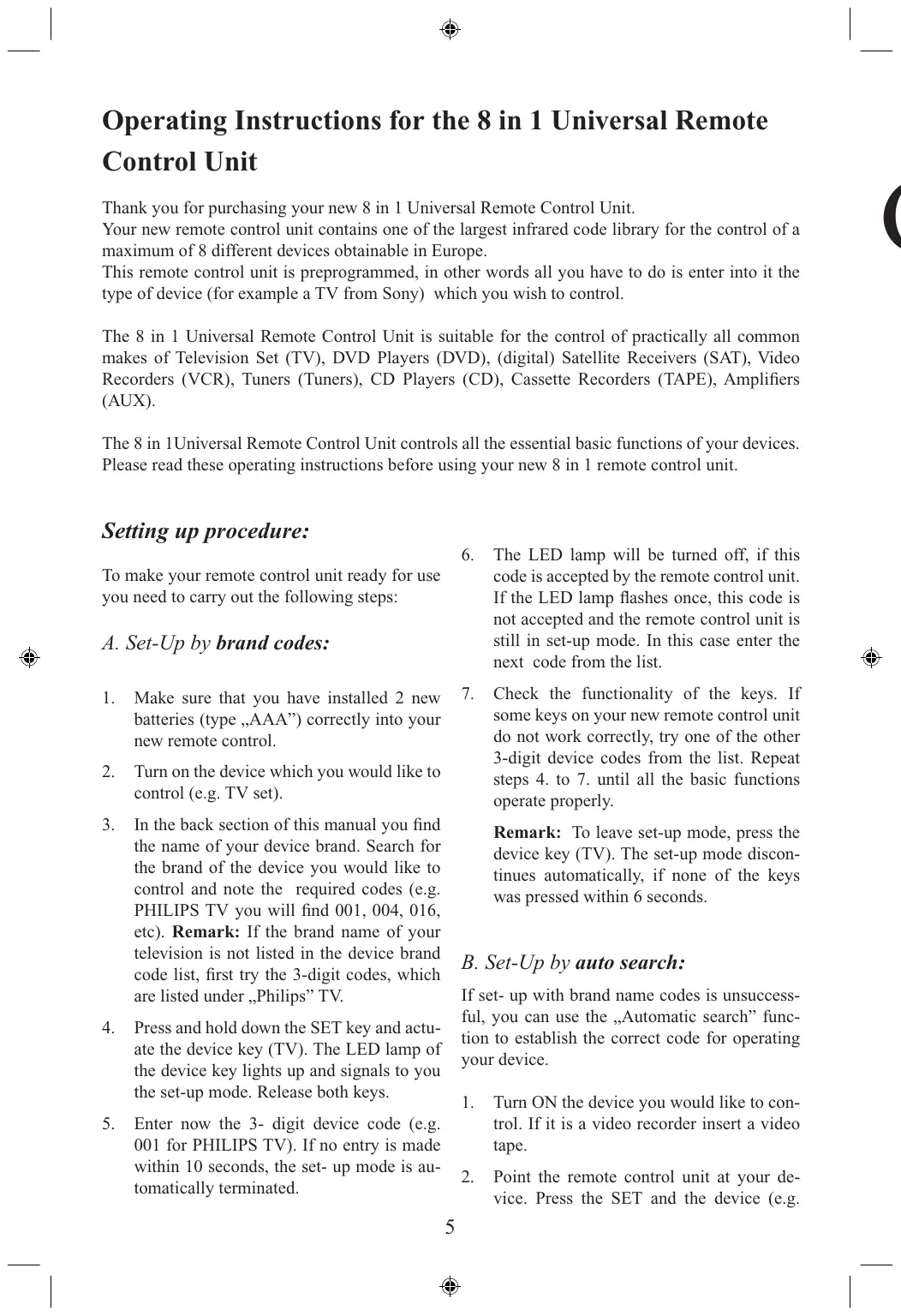
Operating Instructions for the 8 in 1 Universal Remote Control Unit
Thank you for purchasing your new 8 in 1 Universal Remote Control Unit.
Your new remote control unit contains one of the largest infrared code library for the control of a maximum of 8 different devices obtainable in Europe.
This remote control unit is preprogrammed, in other words all you have to do is enter into it the type of device (for example a TV from Sony) which you wish to control.
The 8 in 1 Universal Remote Control Unit is suitable for the control of practically all common makes of Television Set (TV), DVD Players (DVD), (digital) Satellite Receivers (SAT), Video Recorders (VCR), Tuners (Tuners), CD Players (CD), Cassette Recorders (TAPE), Amplifiers (AUX).
The 8 in 1 Universal Remote Control Unit controls all the essential basic functions of your devices. Please read these operating instructions before using your new 8 in 1 remote control unit.
Setting up procedure:
To make your remote control unit ready for use you need to carry out the following steps:
A. Set-Up by brand codes:
- Make sure that you have installed 2 new batteries (type „AAA“) correctly into your new remote control.
- Turn on the device which you would like to control (e.g. TV set).
- In the back section of this manual you find the name of your device brand. Search for the brand of the device you would like to control and note the required codes (e.g. PHILIPS TV you will find 001, 004, 016, etc). Remark: If the brand name of your television is not listed in the device brand code list, first try the 3-digit codes, which are listed under „Philips" TV.
- Press and hold down the SET key and actuate the device key (TV). The LED lamp of the device key lights up and signals to you the set-up mode. Release both keys.
-
Enter now the 3-digit device code (e.g. 001 for PHILIPS TV). If no entry is made within 10 seconds, the set-up mode is automatically terminated.
-
The LED lamp will be turned off, if this code is accepted by the remote control unit. If the LED lamp flashes once, this code is not accepted and the remote control unit is still in set-up mode. In this case enter the next code from the list.
- Check the functionality of the keys. If some keys on your new remote control unit do not work correctly, try one of the other 3-digit device codes from the list. Repeat steps 4. to 7. until all the basic functions operate properly.
Remark: To leave set-up mode, press the device key (TV). The set-up mode discontinues automatically, if none of the keys was pressed within 6 seconds.
B. Set-Up by auto search:
If set-up with brand name codes is unsuccessful, you can use the „Automatic search” function to establish the correct code for operating your device.
- Turn ON the device you would like to control. If it is a video recorder insert a video tape.
- Point the remote control unit at your device. Press the SET and the device (e.g.
TV) keys simultaneously and hold both down for 3 seconds.
-
The LED-lamp starts flashing. The OFF signal is automatically transmitted to the device being searched for. If the device (TV) switches itself off, immediately press the device key (TV) to save the code which has been found.
-
Turn on the device again by pressing the „ON” key or the „1” key. Check the functions of the keys on the remote control unit. If some keys do not work correctly, you can start the search run again (see Points 2-3) to establish a suitable code.
Remark: To terminate the search run press any key or the device key. The LED lamp stops flashing and the search run is terminated. You can start the search run again at any time.
C. Set-Up by manual search:
If setting up with brand name codes is unsuccessful, you can also use the „Manual Search” to find the correct code to operate your device.
-
Turn on the device you would like to control. If it is a video recorder ( VCR) insert a video tape.
-
Point the remote control unit at your device. Press and hold the SET key. Press simultaneously the device key, that you would like to control (TV).
-
The LED- lamp of the device key will be turned on, to inform you, that you are in the set-up mode. Release both keys.
-
Press the POWER key (ON - OFF key). If it is a Video Recorder, DVD Player or CD Player, please press the yellow PLAY key.
-
The LED-lamp keeps now flashing, to confirm the "Manual Search" mode.
-
Check the functionality of the keys, ( not POWER - or PLAY KEY). If the keys work properly, press the device key ( TV ) to confirm the correct code. If the keys do not work properly, repeat step 2. to 6. If the searched-for device switches itself
off, press the device key (TV) to terminate the search run and to save the code which has been found. Switch on the searched-for device (TV) again with the POWER key (ON - OFF key) or by pressing the „1" key. Here too you should test the functions of the other keys. If not all keys function here, you can restart the search run (see Point 2).
Remark: If the device is a video recorder / CD player / DVD player the „play operation" is started when the code is found. When the play operation has started you should press the device key (VCR, CD, DVD), to save the code which has been found.
Now check the functions of the device keys on your remote control unit.
If most of the keys does not function properly repeat steps 1 - 7 until the key assignments function correctly.
To abort the manual search run, press any key or the device key. The LED lamp will switched off and the search run terminated. The search run is automatically terminated if no entries are made within 10 seconds.
D. Display of device codes:
The device code, which has been saved in your remote control unit, can be called up as follows:
- Press the SET key and hold it down. Now actuate number key 1 to display the 3-digit code of the 100th position. Count how often the LED flashes. If the LED doesn't flash the digit is ZERO. Example for Code 028:
- Press SET and „1" LED flashes 0 - times.
- Press SET and „,2" LED flashes 2 - times.
- Press SET and „3" LED flashes 8 - times.
E. Reset / delete function:
To delete the codes, which have been entered in the remote control unit, press and hold down
the SET key. Then press the „ZERO" key for more than 3 seconds.
The LED will flash twice and then all the codes saved in the remote control unit are deleted.
F. Write-protection of device codes:
To protect the device codes from being inadvertently overwritten / deleted, you should carry out the following:
- Press the device group key (TV), press and hold down the SET key and press the 7^ key on the numerical block. Then release the two keys, the LED will flash twice and the code is then protected from being overwritten / deleted.
- To cancel write protection, press the SET key and hold it down, then activate the ^ 8" key, the LED flashes twice and the protection has been cancelled.
G. On Screen Menu Control
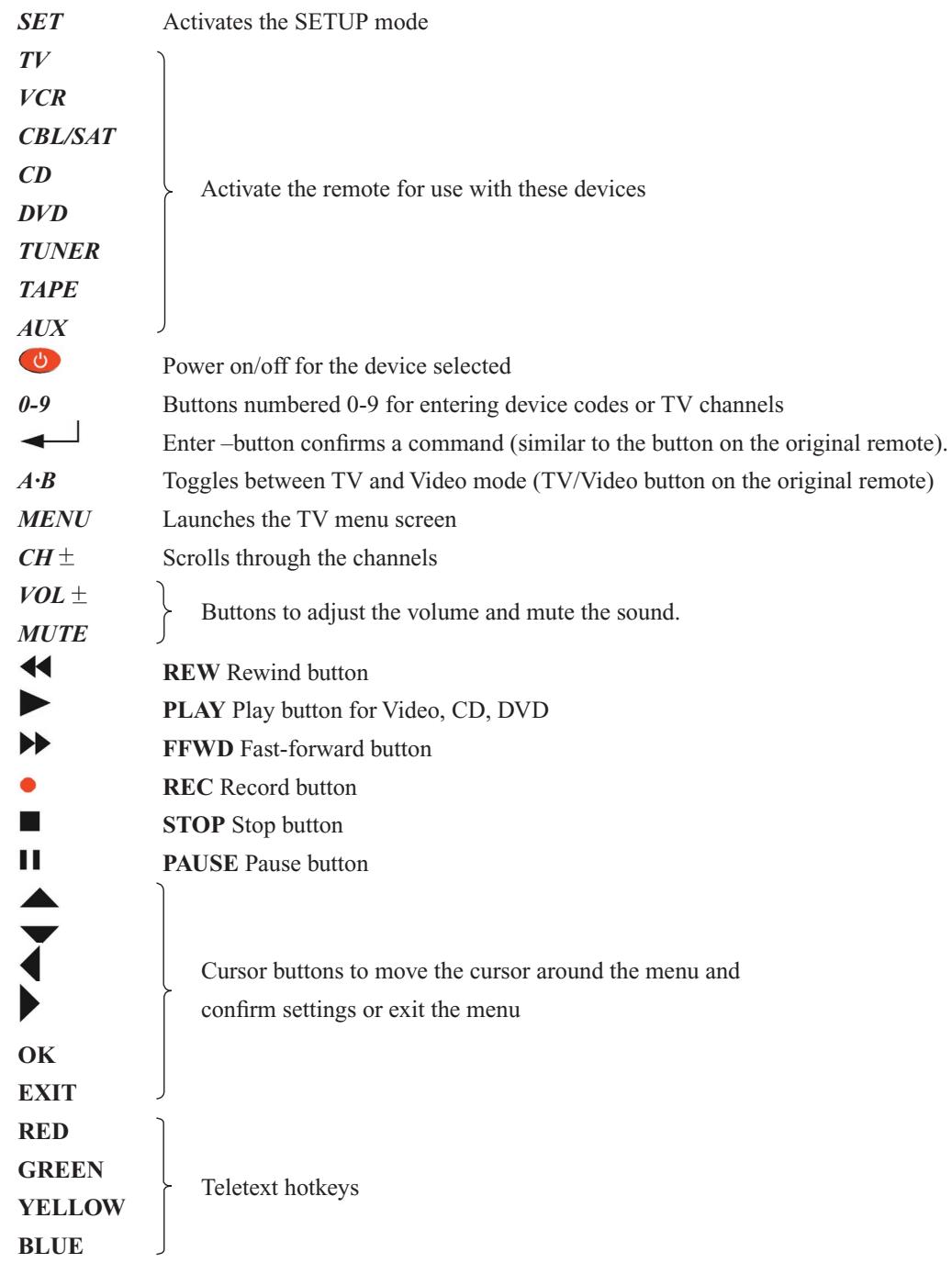
Your new remote control is preprogrammed to operate the menu -only if your device is equipped with such on screen menu function of your devices (TV, VCR, DVD, SAT) Press the [MENU] key on the remote control and the menu comes on. The cursor keys enable you to scroll the menu. The [OK] key is to confirm the menu.
H. Colour / brightness, Bass / Treble etc.
The colour / brightness, bass and treble of your televisions can be changed via the on screen menu control function (see above).
Service and warranty
Your new remote control is preprogrammed to control all basic functions of the original remote control. This means that the installation of new channels to your television can only be operated via the on-screen-menu function (if available at your television).
For service and warranty claims, please contact:
Service Center:
European Distribution Centre Londoner Strasse 11 D-48455 Gildehaus Germany
E-Mail: Info@SupportPlus.org
Tel.nat./internat.: 0080077778899
Device Brand Code List
The Device Brand Code List is printed in the back of this user's manual.
Write down the 3-digit codes needed to control your personal devices below:
| TV | DVD | SAT | VCR | TUNER | CD | TAPE | AUX |
European Distribution Centre
Londoner Strasse 11
D-48455 Gildehaus
Germany
E-Mail:
Info@SupportPlus.org
Tel.nat./internat.:
00800 77 77 88 99
Listedes codesparmarque:
European Distribution Centre
Londoner Strasse 11
D-48455 Gildehaus
Germany
E-Mail:
Info@SupportPlus.org
Tel.nat./internat.:
00800 77 77 88 99
European Distribution Centre
Londoner Strasse 11
D-48455 Gildehaus
Germany
E-Mail:
Info@SupportPlus.org
Tel.nat./internat.:
00800 77 77 88 99
European Distribution Centre
Londoner Strasse 11
D-48455 Gildehaus
Germany
E-Mail:
Info@SupportPlus.org
Tel.nat./internat.:
00800 77 77 88 99