EasyManual
SP-200P - TV DAEWOO - Free user manual and instructions
Find the device manual for free SP-200P DAEWOO in PDF.


User questions about SP-200P DAEWOO
0 question about this device. Answer the ones you know or ask your own.
Ask a new question about this device
Download the instructions for your TV in PDF format for free! Find your manual SP-200P - DAEWOO and take your electronic device back in hand. On this page are published all the documents necessary for the use of your device. SP-200P by DAEWOO.
USER MANUAL SP-200P DAEWOO
- 42” VGA wide Plasma Panel
Built in Analog Tuner
PDP has the analog tuner inside for watching terrestrial broadcasting without the need to purchase a separate broadcasting receiver.
DVD Direct Connection / Outstanding Picture Quality via a Digital Broadcast Receiver
A DVD can be directly connected to the unit so that you can view clear digital images. You can enjoy even higher quality images by connecting a digital broadcasting receiver with which digital broadcasts can be viewed.
A PC Direct Connection
PC can be connected to the PDP without a separate device and can be used as a monitor making it ideal for presentation, various events and exhibitions.
- 160^ Wide-Angle Viewing Area
- Flat Panel with No Distortion and Colour Blurring
Since Plasma TV has no problems such as distortion, blurring, flickering unlike existing CRT type displays you can enjoy Home Cinema picture quality and sound.
-
Various Video Control
-
17 Languages OSD
- 20 Step screen zooming function
- Full-screen still function
-
Various aspect ratio (16:9, 4:3, Auto, Enlarge LB, Enlarge LBS, Panorama)
-
Free Volt (100-240V~, 50/60Hz)
- DVI (Digital Visual Interface) Connection
When connected to a PC, you can receive DVI digital signals as well as the former analog signals by using DVI input and D-Sub input. Furthermore, using the DVI Input, you can receive directly a digital signal from the computer. Consequently, pictures on the screen are much more clear and fresh.
- CCF(Capsulated Colour Filter) Technology for natural colour
CCF Technology makes the picture clearer by controlling of the brightness among three different colour filters.
- MGDI (Meta Genuine Digital Image) Engine
MGDI is the image enhancement technology of Daewoo Electronics, which provides more clear, splendid, and dedicated images.
This Owner's Manual presents safety precautions and how to use the product. After reading it thoroughly, use the product safely. Keep this manual where the user can see it easily.
Failure to comply with warnings and cautions for the safe use of electric appliances may cause fire or human injury.
Safety Precautions
Power
Always obey all safety messages.
- All the safety and operating instructions should be read before the product is operated. If anything strange happens, unplug this product from the wall outlet.
- Do not disassemble or replace any parts of the TV. Refer to a qualified service personnel for repair.

WARNING
You can be Killed or seriously injured if you do not follow these instructions.
During a lightning storm, or when it is left unattended and unused for a long period of time, unplug it from the wall outlet.
It can result in fire.
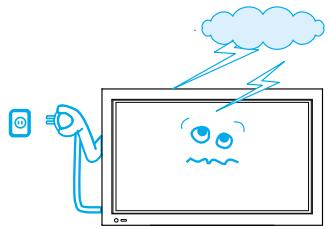
When unplugging your TV, always grip plug firmly and pull straight out from the socket.
It can result in fire or electric shock due to damaged power cord.
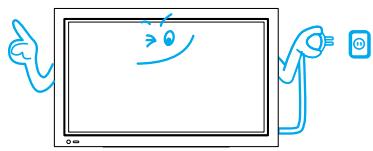
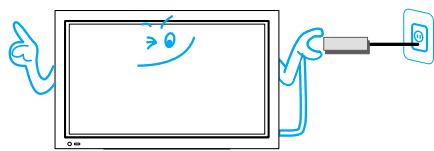
This product must be properly grounded.
- Improper grounding may cause malfunction or electric shock.
- When proper grounding is not possible, install circuit breaker.
- Do not ground to gas pipe, water pipe, lightning rod, or telephone line.
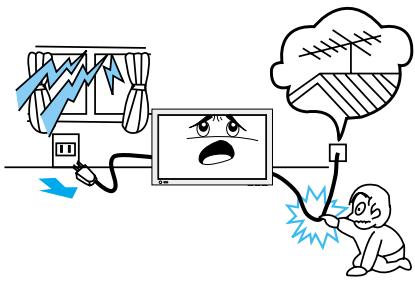
During a lightning storm, unplug the TV from the wall outlet, and do not touch the antenna.
It can cause fire or electric shock.
Installation
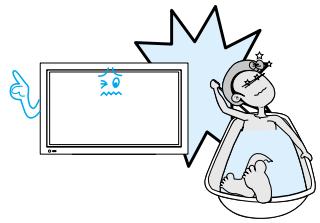
Do not use this product in the neighborhood of a bath or shower.
It can result in electric shock or fire.
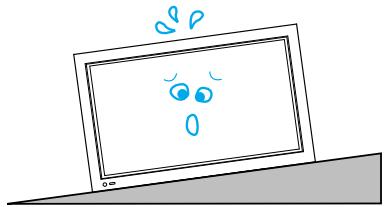
Do not place this TV on an unstable cart, stand, or table
It may cause the product and cart to overturn, damaging equipment or causing possible injury.

During Use
Do not open the cover (or back) because high voltage is present within the TV enclosure.
It may cause electric shock.
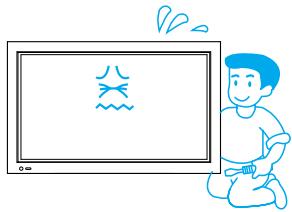
Never push any kind of objects into this product through openings at the back of TV.
It may cause fire or electric shock.
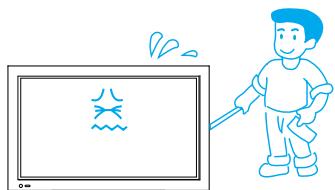
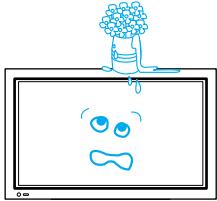
The apparatus shall not be exposed to dripping or splashing and that no objects filled with liquids, such as vases, shall be placed on the apparatus.
Spilled liquids may cause electric shock or fire.
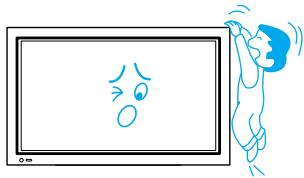
Do not allow children to play or hang on the TV.
These actions may tip it over, causing personal injury.
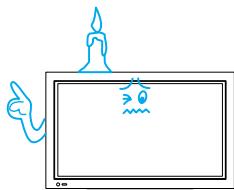
Do not place a candle or lighted cigarette on the TV.
If these fall into the inside of the tv, it may cause a fire or explosion.
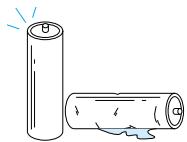
Do not disassemble batteries, and do not leave around in case children swallow them.
Heavy metal may contaminate environment, and can be harmful or detrimental to human health. (If children swallow the batteries, go to hospital and consult with a doctor.) Batteries could explode if Fitted incorrectly. Align the batteries according to the (+) and (-) indication inside the case.
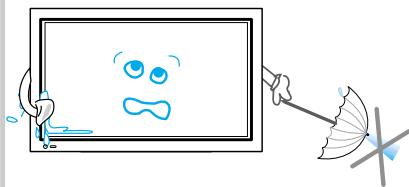
Do not spray water Onto the TV or wipe with damp cloth.
It may cause an electric shock or fire.
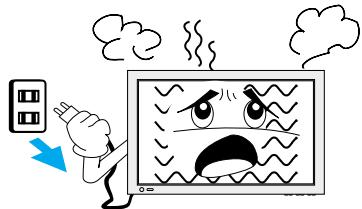
Unplug the TV from the wall outlet when smoke or a strange smell occurs, then refer to a service personnel.
Leaving the TV on in this condition, may cause fire or electric shock.
Safety Precautions
Power
Always obey all safety messages.
- All the safety and operating instructions should be read before the product is operated.
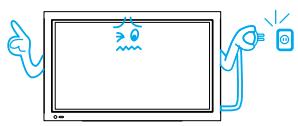
When moving your TV, remove the power plug, antenna, and cables, and be sure to move it by using two people..
Failure to follow this instruction can result in electric shock or personal injury.
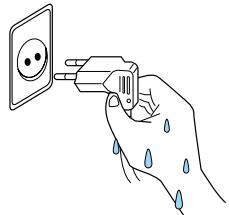
Do not touch the power plug with wet hands when plugging or unplugging it into the wall socket.
It can result in a risk of electric shock.

CAUTION
You can be injured, or this product or any other of your property can be damaged if you don't follow instructions.
Installation
Do not install the product where there is oil, smog, moist, or dust
It may cause malfunction.
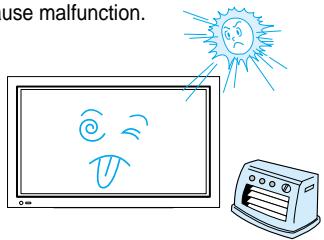
Do not install the product where it will be exposed to the direct sunlight, and the product should not be near heat sources such as radiators, stoves, etc.
It may cause malfunction.
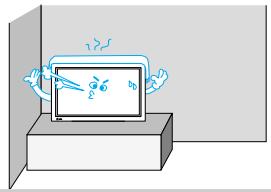
For proper ventilation, separate the product from the wall, and keep a distance of more than 10cm (4).
Due to the increase of temperature inside the TV, it may cause fire.
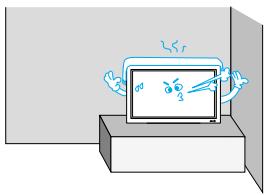
Minimum distances around the apparatus for sufficient ventilation.
Due to the increase of temperature inside the TV, it may cause fire.
If you wish to install this product on the wall or ceiling, refer to a professional.
Failure to do so may cause damage to product and injury to human.

When using an outside antenna system, do not install it in the vicinity of overhead power lines.
If the antenna touches such power lines, it may cause electric shock.
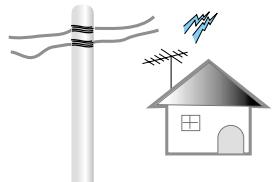
During Use
The plasma display panel consists of fine cells. Although the panels are produced with more than 99.9 percent active cells, there may be some cells that do not produce light or remain lit.
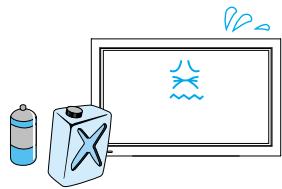
Do not wipe the TV using a cloth damped with chemicals (benzene, thinners, etc.).
The TV appearance may be marred. (Unplug the power plug and wipe with soft cloth.)
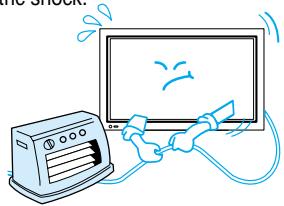
Do not place heavy objects or heat sources on the power cord.
It may damage the power cord, causing fire or electric shock.
Do not allow a still picture to be displayed for an extended period, as this can cause a permanent ghost image to remain on the Plasma Display.
Examples of still pictures include logos, video games, computer images, teletext and images displayed in 4:3 mode.
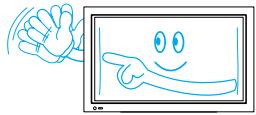
The warranty does not cover any damage caused by image retention.
Do not place any object or cover on the TV.
In an event of improper ventilation, the TV will be overheated causing fire.
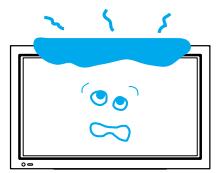
When watching the TV, the distance between the TV screen and your eye should be as 5~7 times as the diagonal distance of the TV.
Watching the TV for a long time may hurt your eye sight.
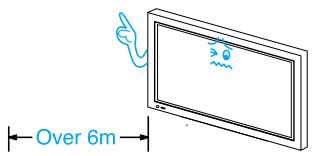
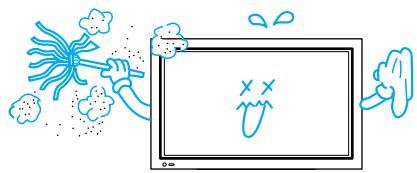
When cleaning of the inside of the TV is required, consult A qualified service personnel.
When the TV is not cleaned for a long period of time, dust in it may cause fire or malfunction.

When the TV is placed on a cart or table, the front side of the TV should not project outward.
Unbalance may cause the TV to drop, resulting in personal injury or equipment malfunction and damage.
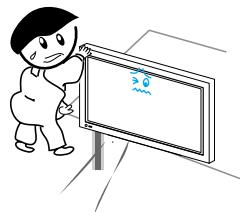
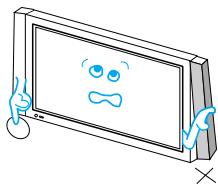
Do not grip speakers when moving the TV attached with speakers.
When moving the TV while gripping speakers, the speakers may fall from the TV due to its weight, causing personal injury.
Checking Accessories
Supplied Accessories

Note
Check to be sure that the following items are packed with your Plasma panel.
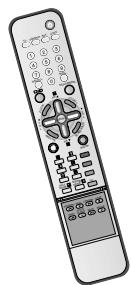
Remote Control
1 UNIT
Component Cable
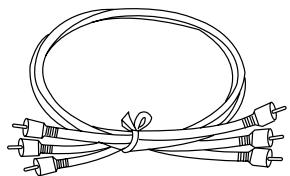
1 UNIT
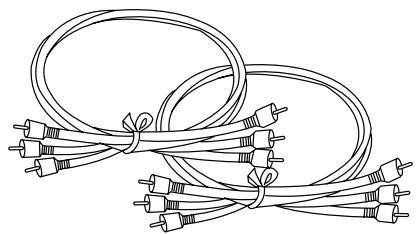
A/V Cable
2UNITS
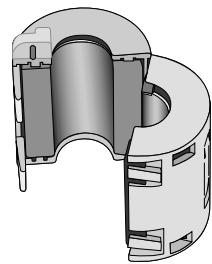
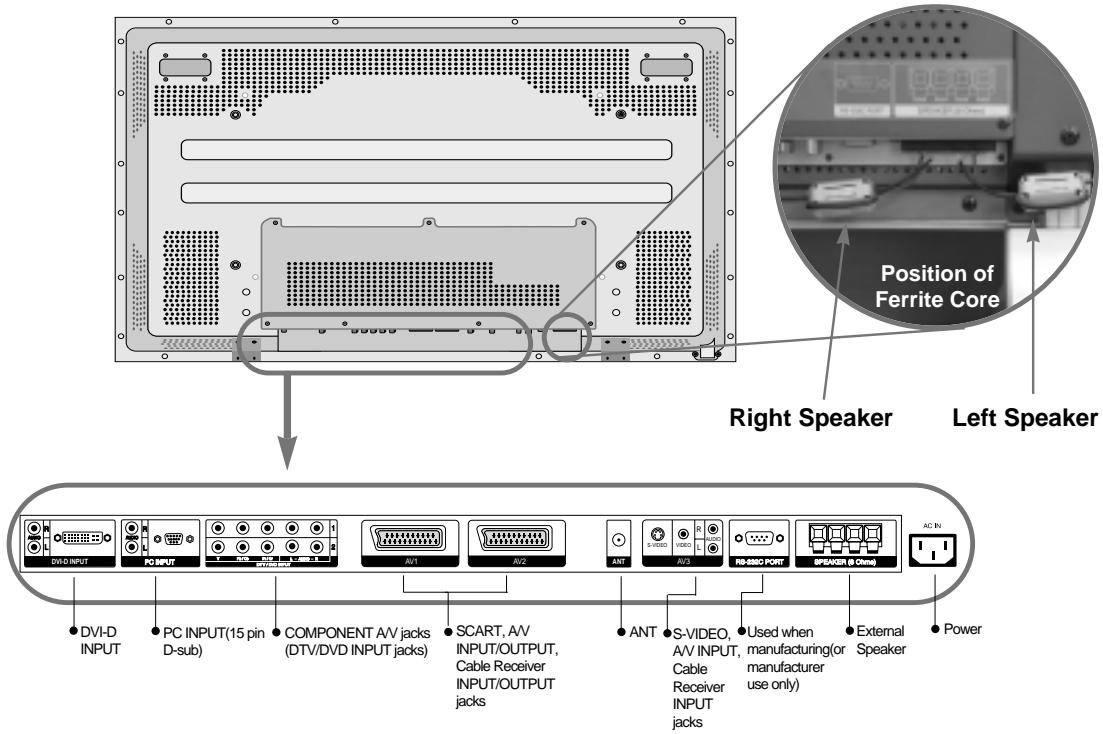
Ferrite Core
Scart(1 unit)
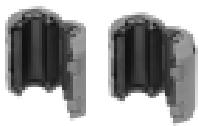
3UNITS
Place the small ferrite cores in the speaker cables close to the speaker terminals of the PDP unit.
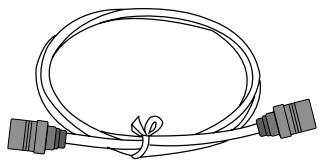
Speaker(2 units)
Coaxial Cable
1 UNIT
AC Cable 1 UNIT

Optional Accessories

Note
The following items are optional accessories. Refer purchasing optional accessories from Daewoo Electronics Local retailer or the retailer from where you purchased the unit.
Speakers
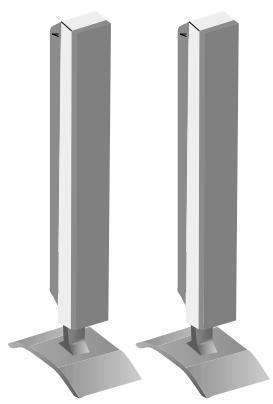
DT-P20J
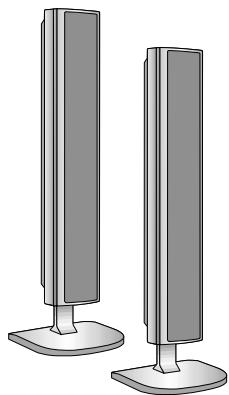
DT-P55P
DT-P20J
- Speaker Main Unit Dimension : 100(W) x 628(H) x 83(D) mm 39.37(W) x 24.72(H) x 3.27(D) inch
- Dimension Including Speaker Stand : 170(W) x 729(H) x 194(D) mm 6.69(W) x 28.7(H) x 7.64(D) inch
- Audio Amplifier : 10W + 10W
- Impedance: 8Ω
- Weight: 6.4kg(14.11 Lbs)
DT-P55P
- Speaker Main Unit Dimension : 100(W) x 628(H) x 88.5(D) mm 39.37(W) x 24.72(H) x 3.48(D) inch
- Dimension Including Speaker Stand : 210(W) x 704(H) x 210(D) mm 8.27(W) x 27.72(H) x 8.27(D) inch
- Audio Amplifier : 10W + 10W
- Impedance: 8Ω
Weight: 3.5kg(7.72Lbs)
Table Top Stand
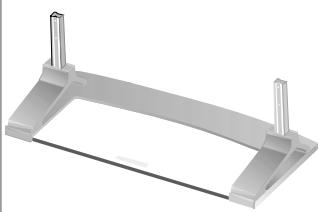
DT-T20G
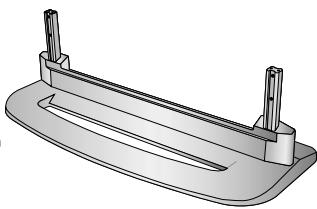
DT-T55M
Wall Mounting Unit
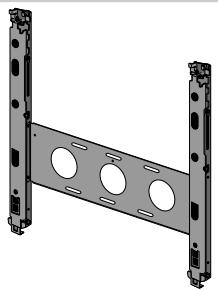
DT-T20G
- Dimension : 667(W) x 212(H) x 320(D) mm 26.26(W) x 8.35(H) x 12.6(D) inch
- Weight : 7kg(15.43 Lbs)
DT-T55M
- Dimension : 720(W) x 189(H) x 310(D) mm 26.26(W) x 7.44(H) x 12.6(D) inch
- Weight : 4.5kg(15.43 Lbs)
DSP/DP-HG10, DSP/DP-HG20, DSP/DP-HG22
- Variable Angles : 0^ ,10^ ,15^ ,20^
- Dimension : 601(W) x 592(H) x 35(D) mm 23.66(W) x 23.31(H) x 1.9(D) inch
- Weight : 4.5kg(10 Lbs)
CONTENTS
PREPARATION
4 - Safety Precautions
8 - Checking Accessories
12 • Panel Controls
13·Remote control
14 • Remote control setup
CONNECTION
15 • Antenna Connection
18 • To Watch TV
20 • Install Program
26. Watching Digital Broadcasts
28. Watching Cable Broadcasts
30. Watching Satellite Broadcasts
32 • Watching a DVD Image
34 • Watching a VCR Image
36. Watching a Camcorder/Game Console Image
38 • Connecting PC(15Pin D-Sub)
40 • Connecting PC(DVI)
APPLICATION
43 • Selecting Picture Mode
44 • Customising Picture
46 • Adjusting Screen Size (Component, AV, TV)
48 • Adjusting Screen Size(PC, DVI)
50 • Enlarging Screen Size
52. Watching a Still Image
53·Adjusting Auto Sound Mode
54 • Customising Sound Mode
56 • Selecting INPUT SIGNAL
58. Checking the Current Input Signal
59·MENU Background, Language and Child Lock Setting
61·MGDI (Meta Genuine Digital Image)
63·Time Setting
65 • Image Sticking Minimisation(ISM)
67 • Initialise Setting
69 · Setting Sleep Timer
70 • Teletext

MISC.
72·Before Requesting Service
73 • SPECIFICATIONS
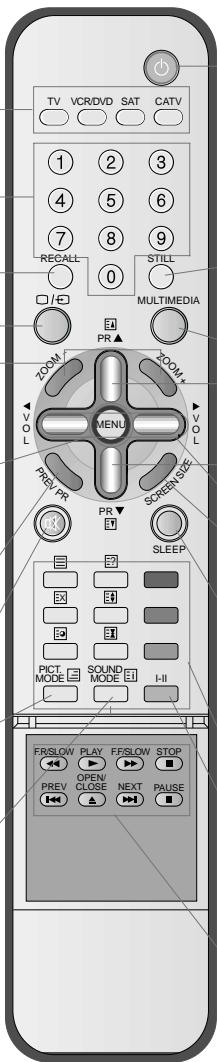
Panel Controls
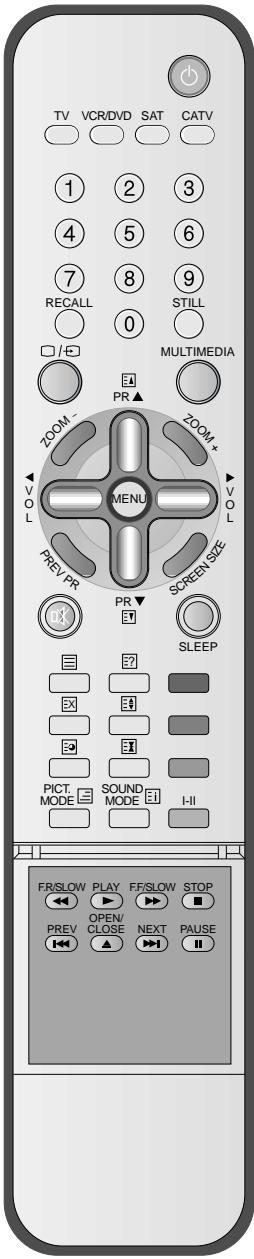
Front Panel, Back Panel, Remote Control
*Items having same names on Plasma display and the remote control would function in exactly the same way.
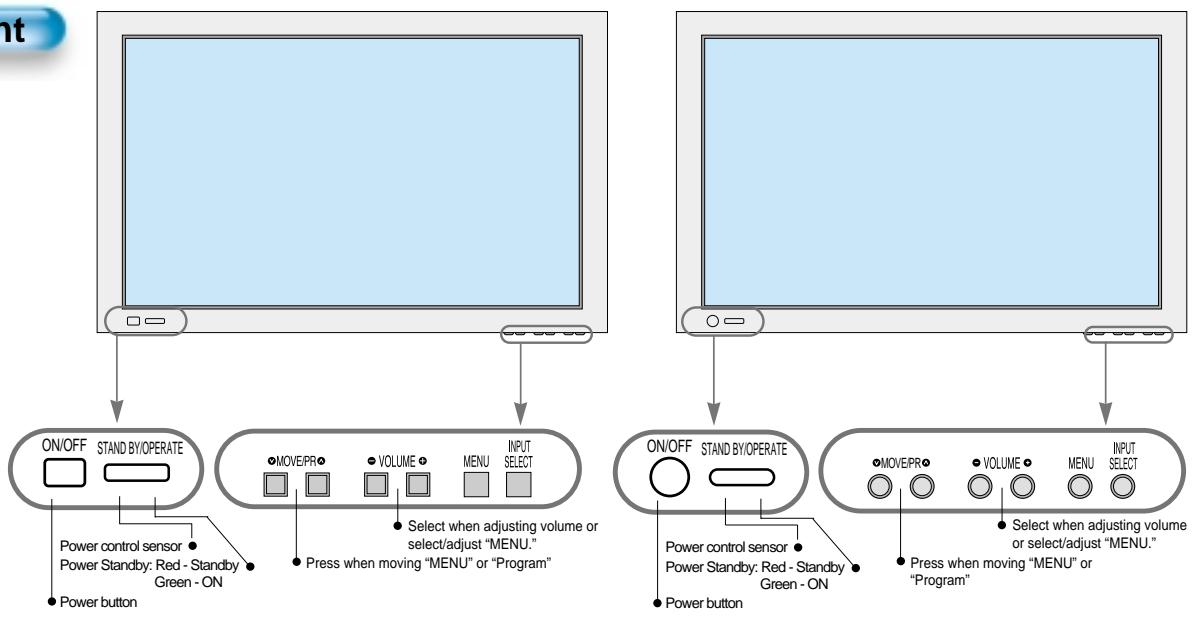
Front
Rear
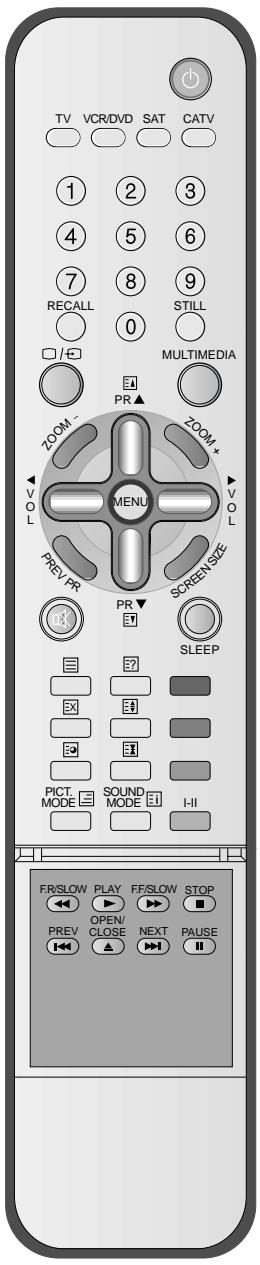
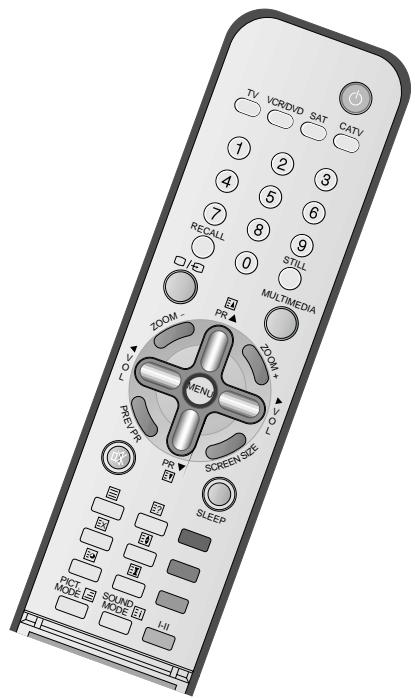
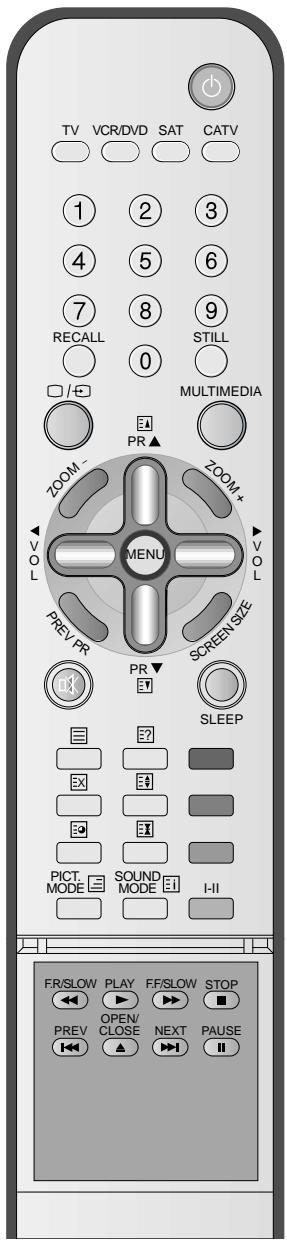
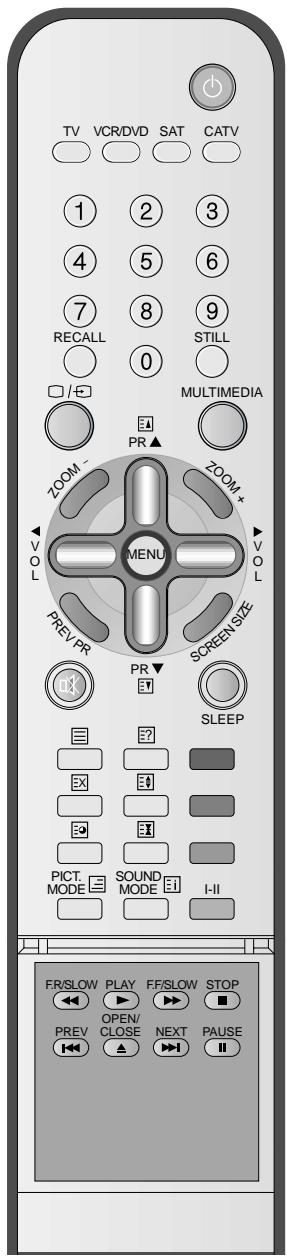
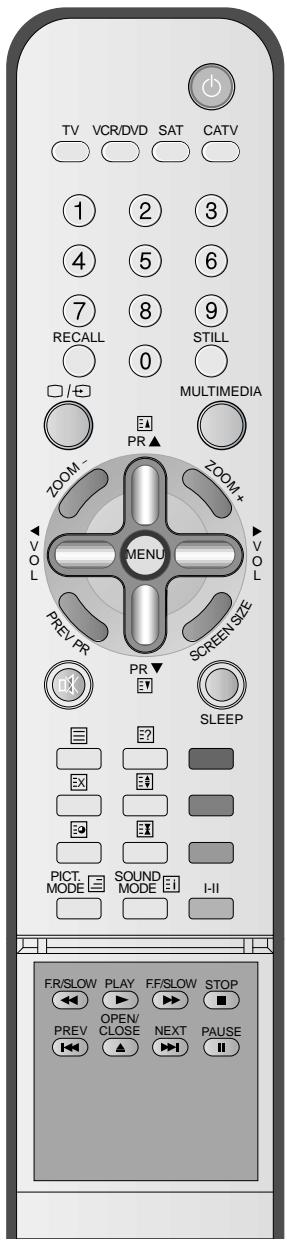
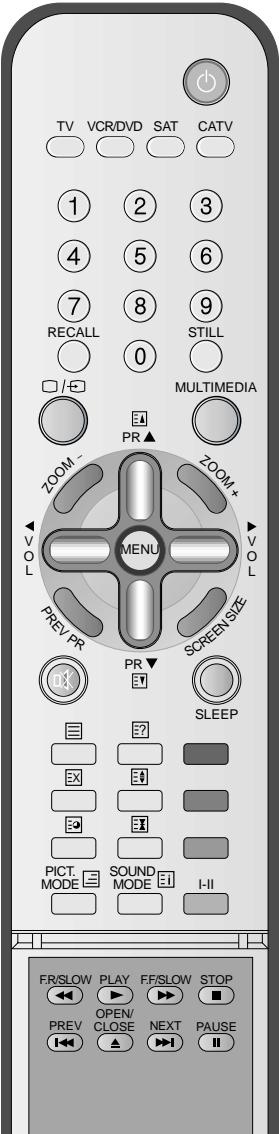
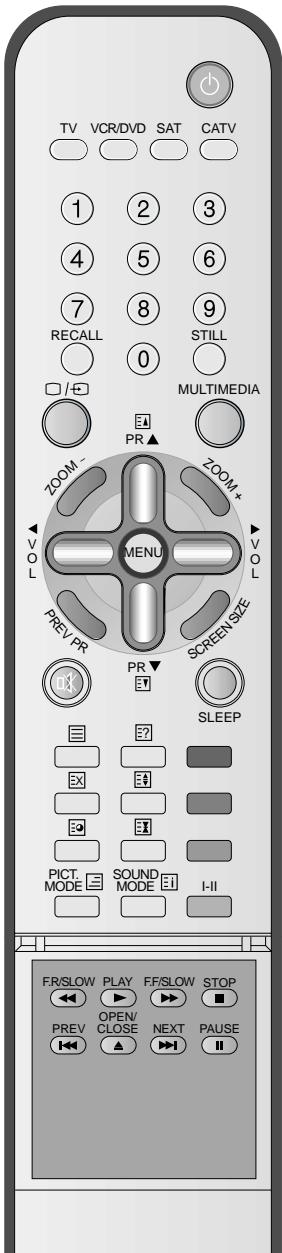
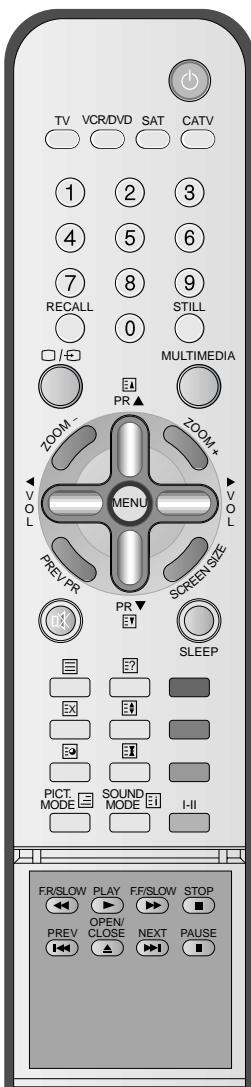
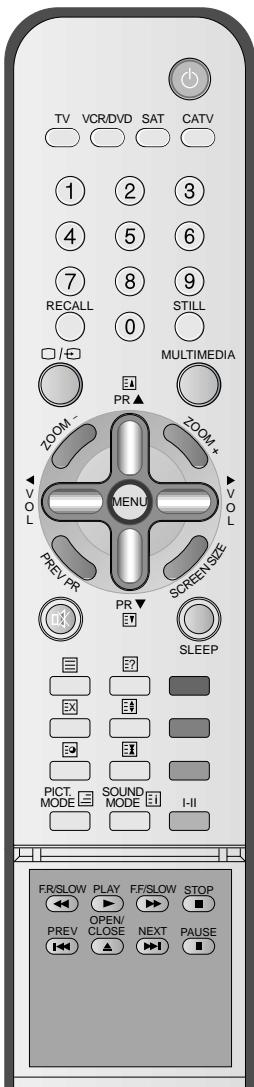
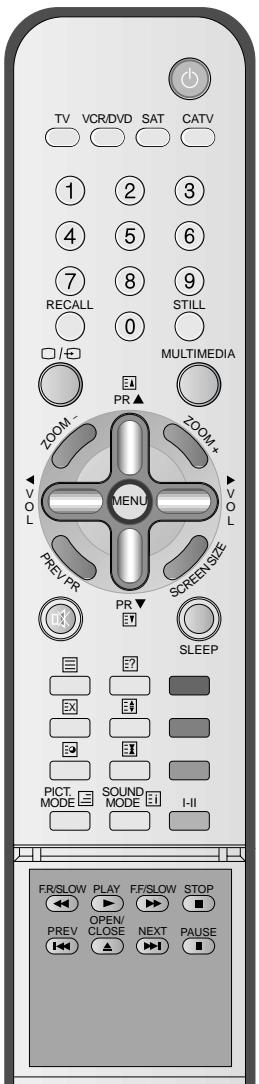
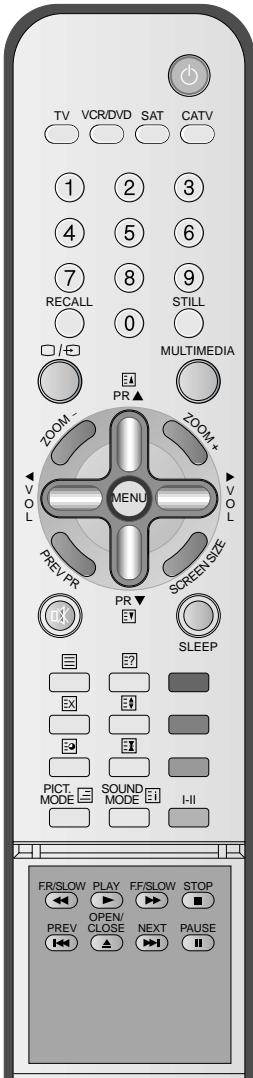
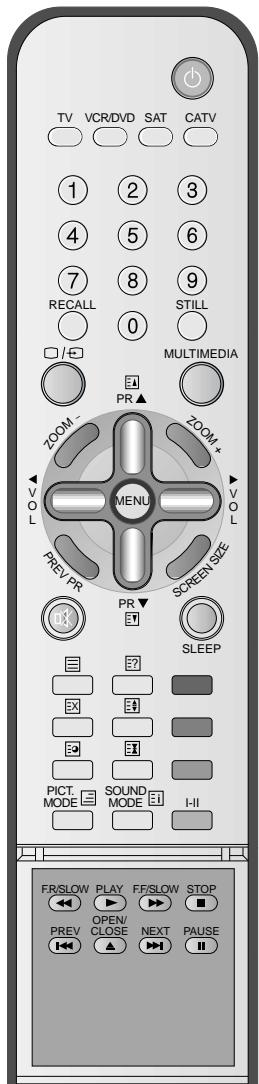
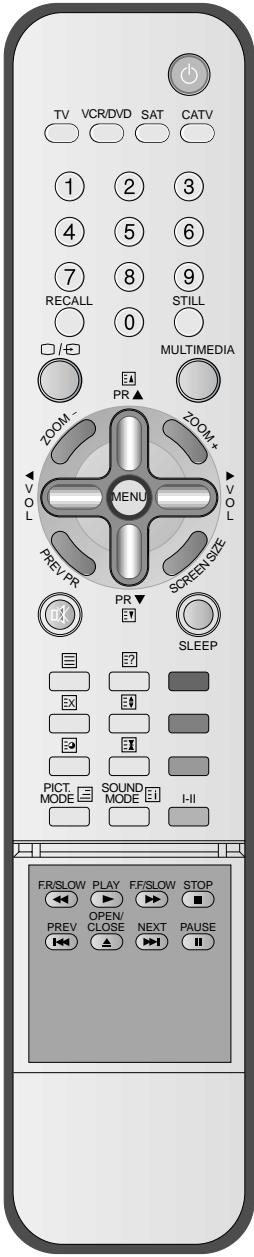
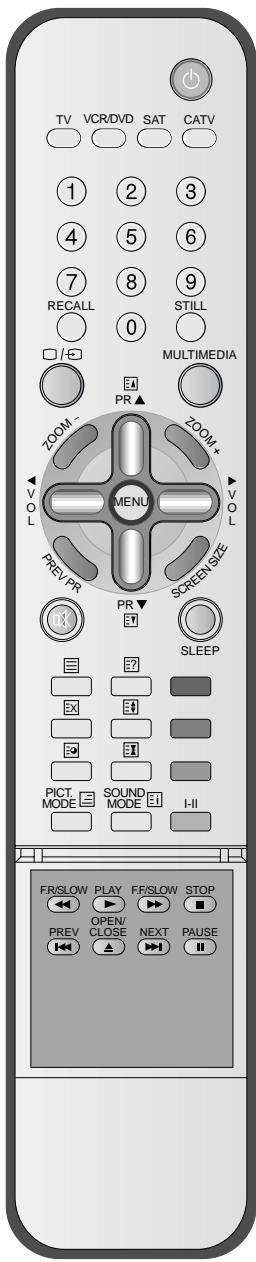
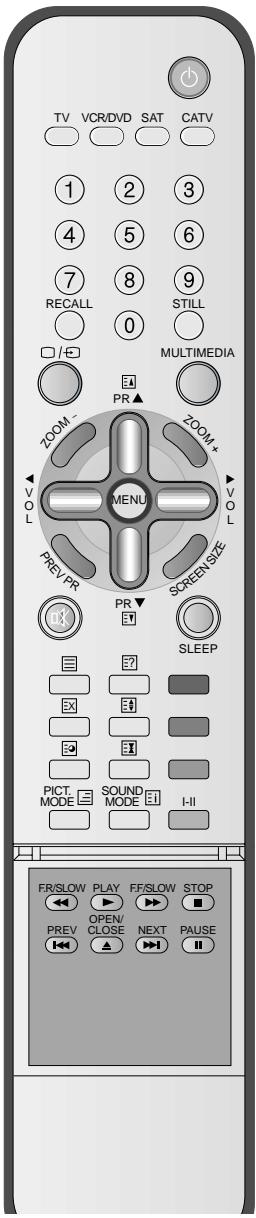
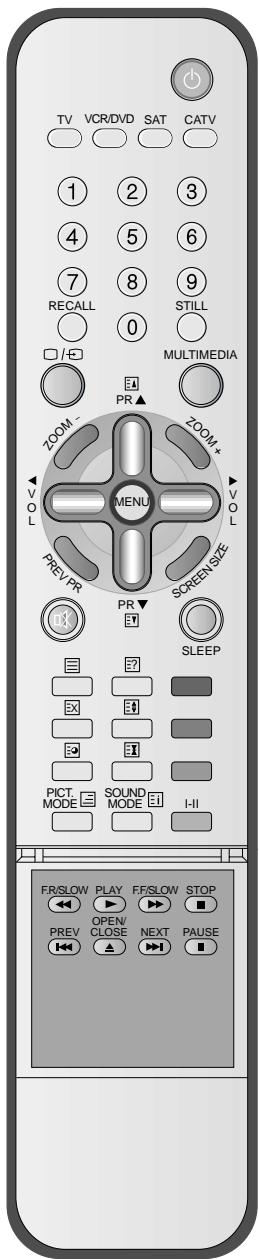
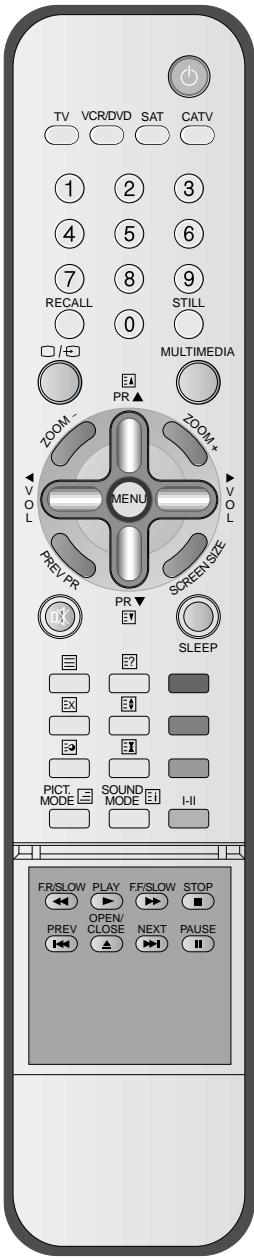
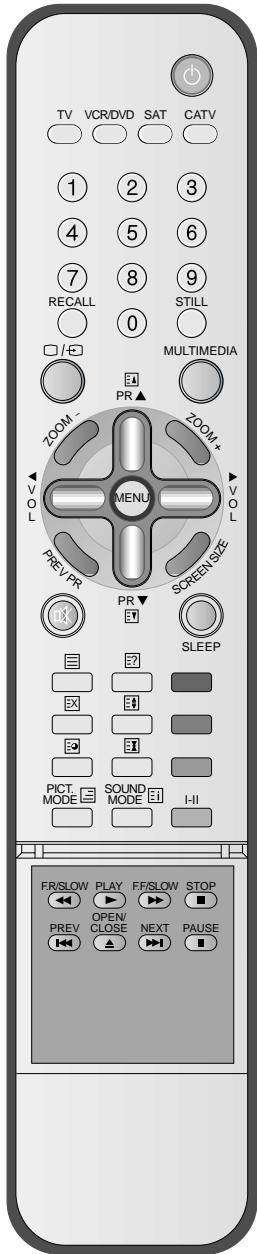
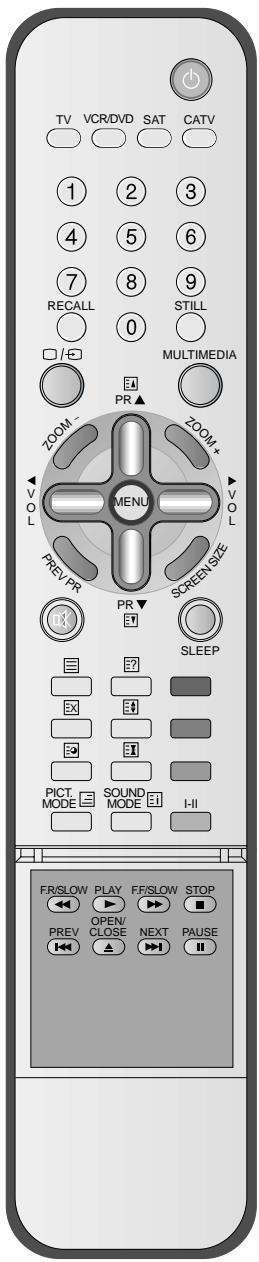
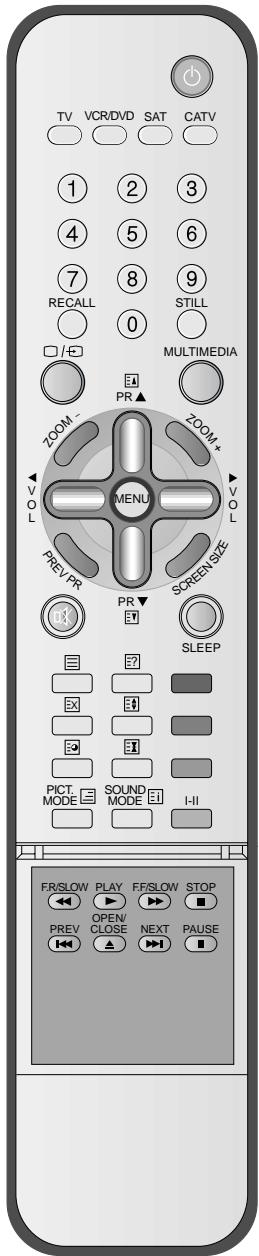
Remote Control
- The number in ( ) indicates the page in which the function of each button is explained in detail.

Note
- Use two "AAA" batteries.
- Be sure to use replacement batteries of the same type as the original ones.
- The life of a battery depends on how much it has been used.
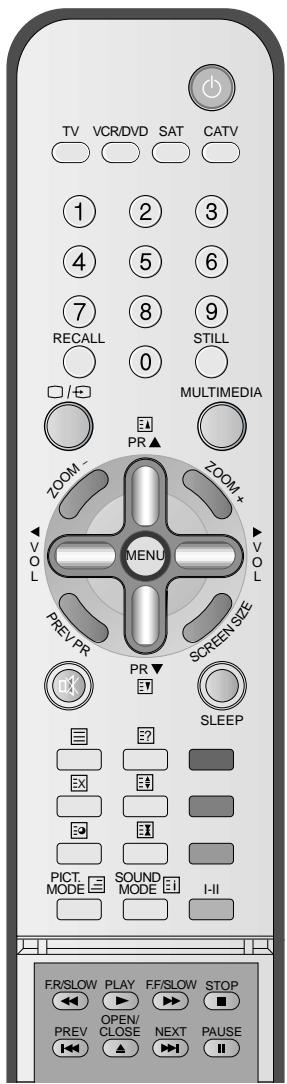
TV/VCR/DVD/SAT/CATV
19 Channel number (0~9)
Use to select channel directly 0~9
58 RECALL
Indicates the current state and resolution.
56

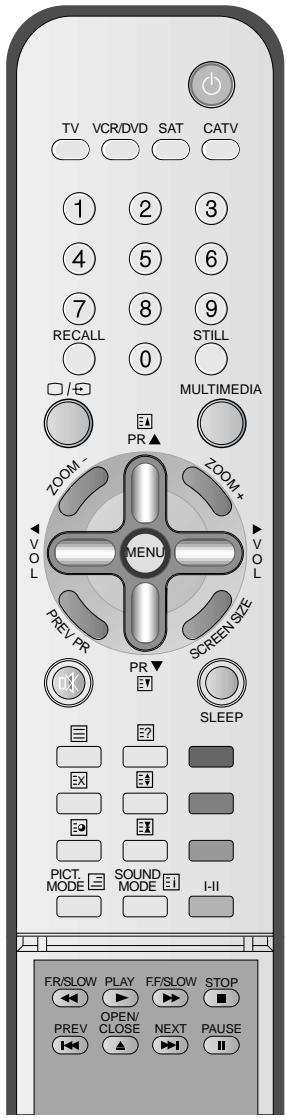
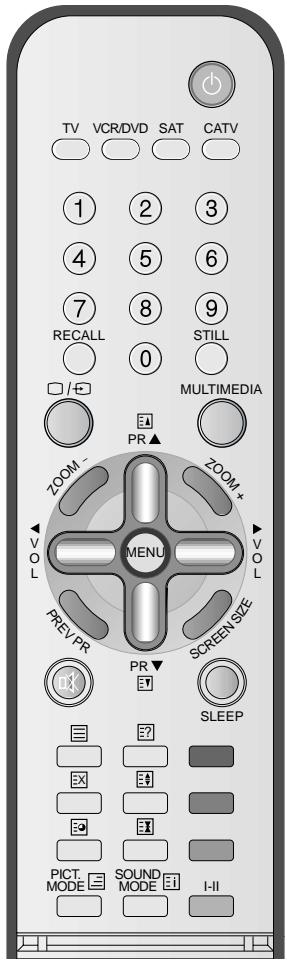
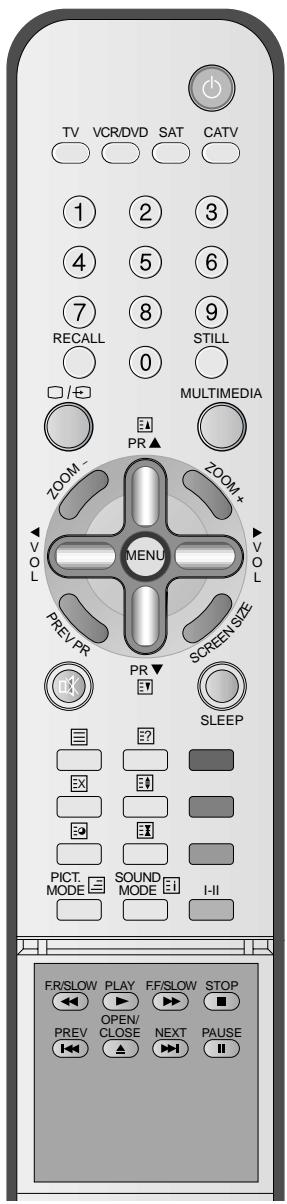
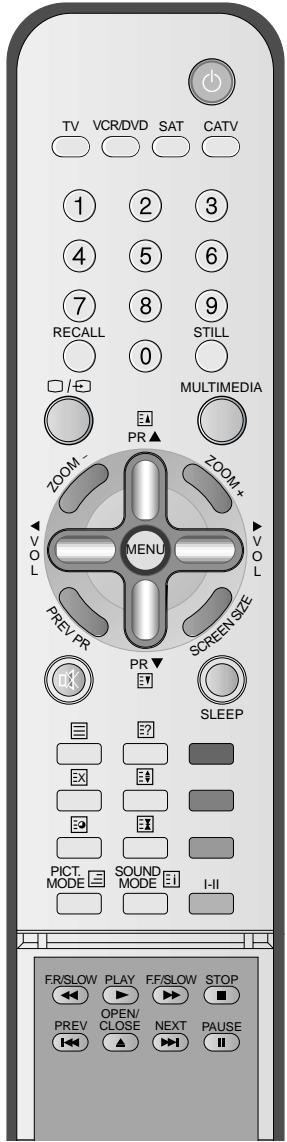
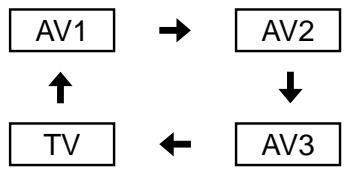
Use this function to make video input selection. It changes in the following sequence
TV->AV1->AV2->AV3
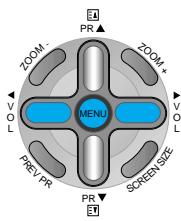
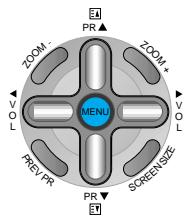
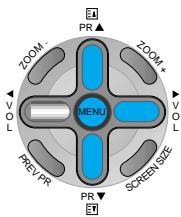
50 ZOOM button
Used to zoom the screen. To enlarge, press the (+) button, and to return to the previous condition, press the(-) button.(Zoom Mode:Zoom 0~20)
20
Menu button
Used to display a desired menu.
Previous Program button
It returns to previous channel.
Mute button
Mute sound.
43
Picture Mode button
Whenever pressing the button, it cycles following order.
Normal ->User->Cinema->Dynamic
53
Sound Mode button
Whenever pressing the button, it cycles following order.
modes: Normal -> Movie -> Music -> News -> User
Power button
19
Pressing the Power button of the TV allows the Display to be in standby. (A red light is shown in the Remote Control Sensor.) At this time, if you press the Power button of the Remote Control, the Display is turned ON (And shows a green light in the Sensor).
Still
52
Used to view a still picture whilst watching moving images.(Sound can be heard.)
Multimedia
56
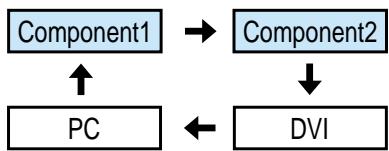
Use this function to make video input selections. It changes in the following sequence PC ->DVI -> Component 1-> Component 2->PC
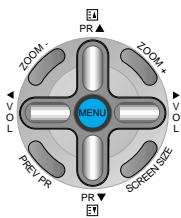
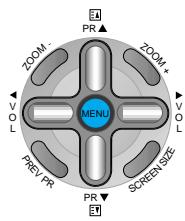
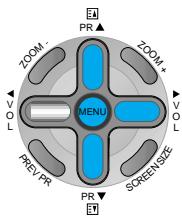
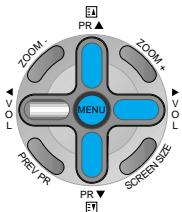
PR button / Adjusts the channel. Volume button / Adjusts the volume.
Screen Size button
Adjusts the size of the screen (Normal, 16:9, etc.)
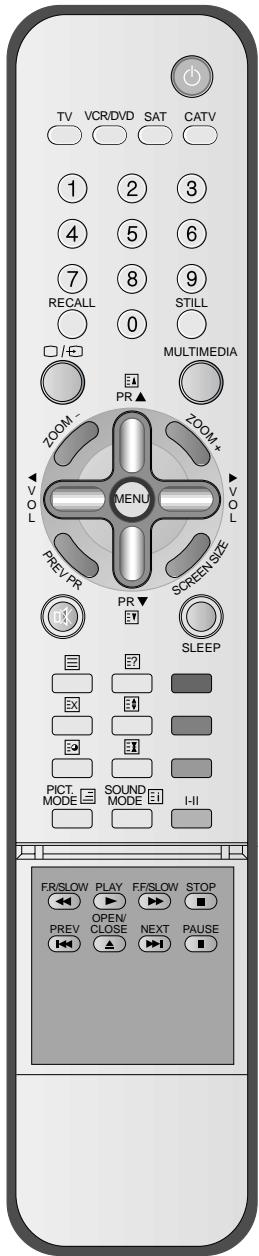
Sleep Timer 69
Each time you press this button, a different input mode appears. The sequence is as follows: 15Min. -> 30Min. -> 60Min. -> 90Min. -> 120Min. -> OFF After the time is selected, the TV automatically goes into a stand-by state.
Teletext Function
70
1-11
- Selects the language during dual language broadcast.
- Selects mono sound during stereo broadcast.
VIDEO/DVD Function
When Using Remote Control:
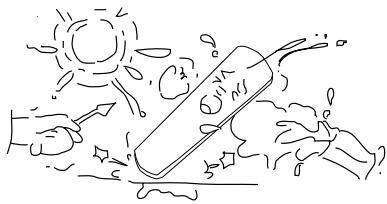
- Be sure not to allow the Remote Control to drop or to become wet.
- Keep it away from hot or moist locations.
■ Installing the Batteries in your Remote Control:
- Push to open the cover of the remote controller
- Put the batteries in the battery cell after checking the Polarities, and then shut the cover.
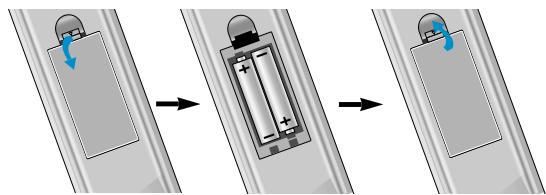
Remote Control Setup
Remote control supporting the multi brand devices.
- The remote control provided is designed to operate the Daewoo PDP set.
- However, using the remote control, you can control the Cable Converter, VCR, DVD and Satellite Broadcasting Receiver of other brands after setting up the remote control.
Notices:
- All the preset codes are erased when replacing the battery. In this case, you must set the remote control again.
- Some of the products may not be applied because of different signal system.
- This is only for the basic control of the devices.
HOW TO SET UP THE REMOTE CONTROL FOR USING OTHER DEVICES.
- Turn on the Device. (Cable Converter, VCR, DVD or Satellite Broadcasting Receiver)
- Press the device selection button of remote control until it is flickering. It takes about 3 seconds.
- Press the assigned three digits code of the device using number key button of the remote Control toward the IR receiver of the device. The code number is provided below. Whenever pressing the number, the device selection button will be flicked once.
- If the code is set properly, the device will turn off automatically. If not, repeat the process 3.
- As the device is turned off, press the flickering device selection button of the remote control once.
Then the lamp of the button will be turned off.
- Now, the setting-up of the device can be controlled by Daewoo PDP remote control.
| Remote Control Setup Code | |||
| VCR (STANDARD : 002) | SAT (STANDARD : 002) | ||
| Maker (Brand) Name | Code Number (3 digit) List | Maker (Brand) Name | Code Number (3 digit) List |
| DAEWOO | 002 008 060 062 063 067 | DAEWOO | 002 |
| 068 | PANASONIC | 030 | |
| JVC | 003 006 009 043 044 046 | PHILIPS | 018 031 032 |
| 084 089 | SAMSUNG | 079 | |
| 111 114 124 | |||
| MITSUBISHI | 046 052 075 122 | For more device codes, contact Daewoo service centre | |
| PANASONIC | 016 070 087 088 106 | ||
| PHILIPS | 005 040 042 045 048 049 | ||
| 053 064 | |||
| 078 081 090 108 | |||
| SAMSUNG | 041 055 056 059 061 065 | ||
| 066 091 095 | |||
| SHARP | 048 049 057 074 | ||
| SONY | 047 050 051 076 080 | ||
| DVD | |||
| DAEWOO | 152 160 | ||
| LG | 150 168 169 | ||
| PANASONIC | 157 170 | ||
| PHILIPS | 155 | ||
| SAMSUNG | 151 163 164 | ||
Indoor Antenna Connection
WHEN THE IMAGE IS NOT CLEAR
- Unclear screen image and bad reception may be caused by wrong antenna connection. Be sure to check its direction or installing place.
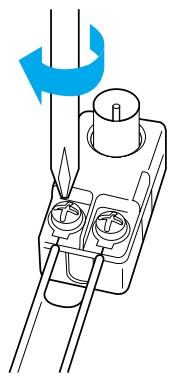
- Connect the back of the TV set.
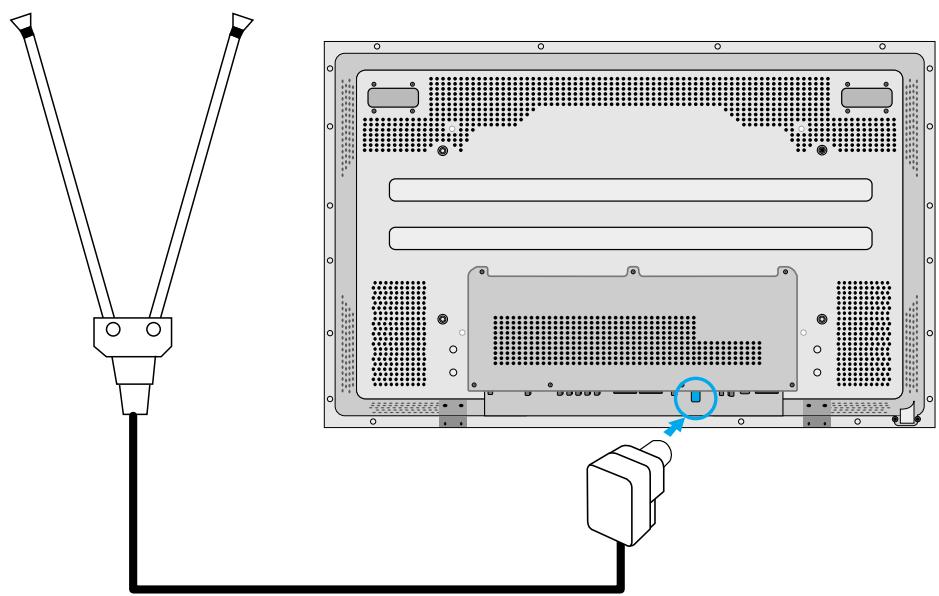
Antenna Input
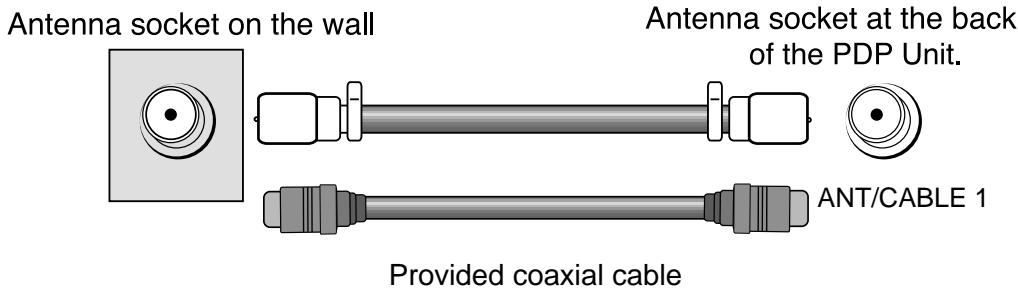
TV Antenna installation may be found in most.
When a coaxial cable is used
Plug the coaxial cable to the antenna socket, and fix it firmly. It is recommended to use the provided coaxial cable.
When a feeder cable is used
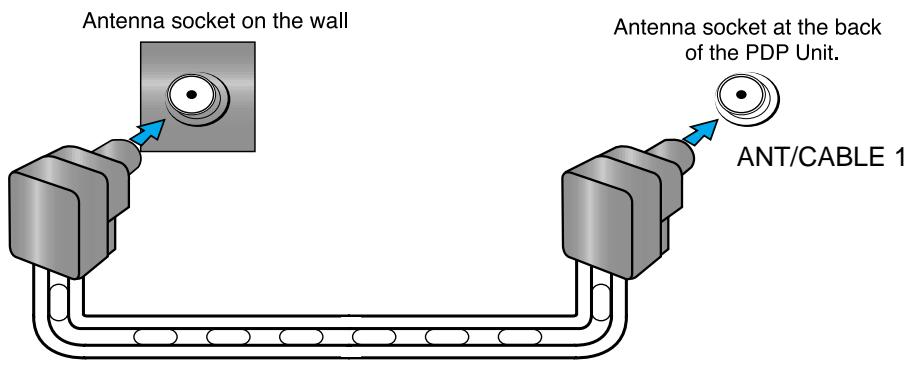
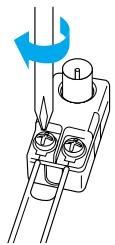
Feeder cable connection with the combining adapter

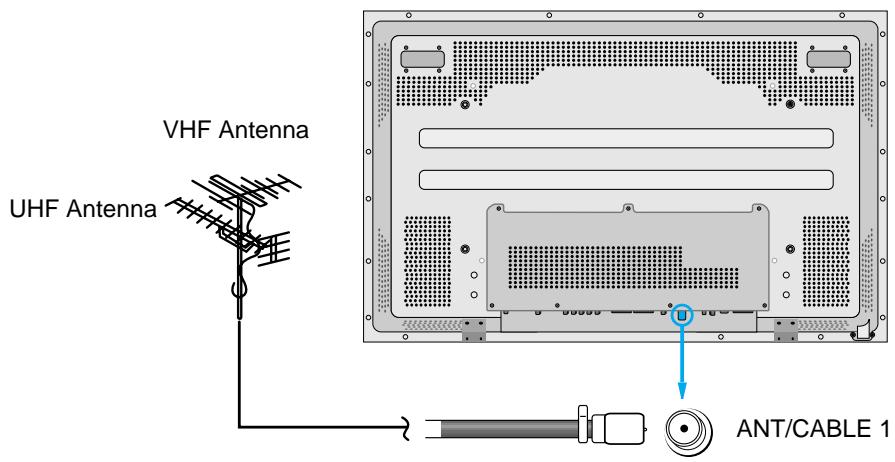
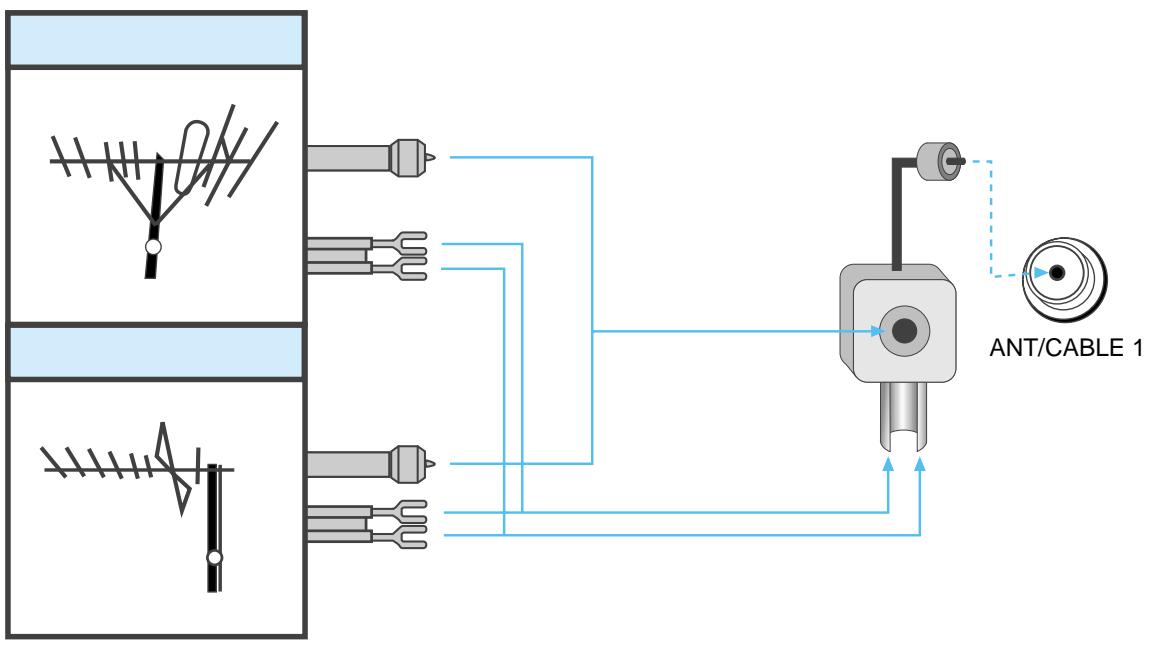
Outdoor Antenna Connection
Outdoor Antenna connection-such as VHF or/and UHF-may be necessary for installation at private houses
Single Antenna Connection.
Separate Antenna Connection.
To Watch TV
To Watch TV
- The buttons on the keypad in the PDP unit, which have the same name as those on the remote controller, perform the same function as the remote controller.
Press the "ON/OFF" button of the PDP unit.
- The “ PR▲” or power button of the remote control and the keypad on the PDP unit would be operated only when the "AC Power" of the PDP unit is supplied. Otherwise, neither the remote controller nor keypad of the PDP unit can turn on the PDP.
When pressing the Program button
- Select two digits if using the number button for Program selection. For example, to watch Program No.9, press the number buttons 0 and 9. If pressing only number 9, it takes more time than pressing two digits for selecting a channel.
To mute the sound
- Press the " ⑤ " button.
- No sound is heard if "MUTE" is displayed on the screen.
- Sound is heard again if pressing the " ⑤ " button once again. For example, you can use this button when telephone rings or when guest comes while watching TV.
Check of TV operation status
- If pressing the "Recall" button, the status of the Program or broadcasting being currently watched or entry status of video component is displayed on the screen.
Auto Power Off
- If TV broadcast for the day is finished, the TV will automatically turn off after about 30 minutes. However, if the Off-time or Sleep time is operating, it takes precedence. This Auto Power Off feature only operates in the TV mode.
Press the "ON/OFF" button.

- Press the "ON/OFF" button of the PDP unit.
The LED of the PDP unit turns on red colour. - Press the "▼PR▲", power button of the remote control, or any button on the keypad of the PDP unit.
- The LED of the PDP unit turns on "green" colour and the TV
- To watch analog TV broadcasts, select the correct input, i.e. 'PR' in the on screen display box..
2 Select Program.
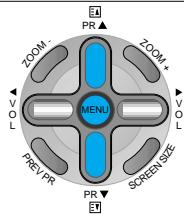
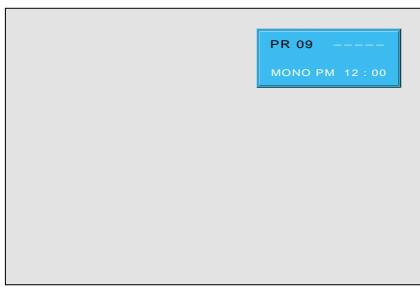
- Select the desired program by pressing the “ PR▲” button or the number button.
Ex) Program 09
3 Adjust volume.
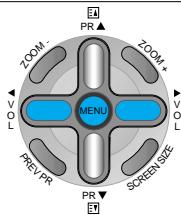
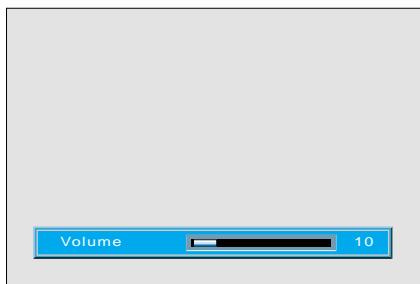
Sound reduces if pressing the " VOL" button.
Sound increases if pressing the "VOL" button.
Press the "Power" button to turn the TV off.

- TV turns off and the LED of the PDP unit changes to red colour.

Install Program
Auto Setup
- This is the function for the TV to memorise the broadcasting channels. If the Auto Setup is done, you can simply find out programs with “▼PR▲” buttons and so need not to select programs by pressing each program number.
- Up to 100 TV stations can be stored in this set by programme numbers (0 to 99). Once you have preset the stations, you will be able to use the “▼PR▲” button or Number buttons to scan the stations you programmed. Stations can be tuned using Auto Setup or Manual Setup.
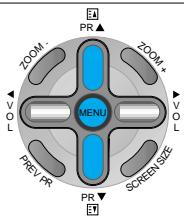
Press the "Menu" button.
- The menu screen appears as follows.
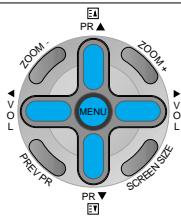
- Press the “▼PR▲” button and select “Install”.
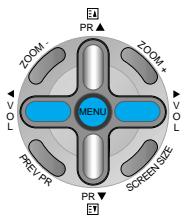
Press the “ VOL” button.
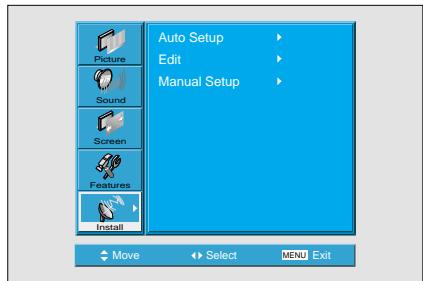

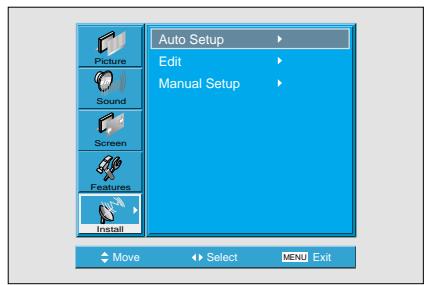
Select the "Auto Setup".
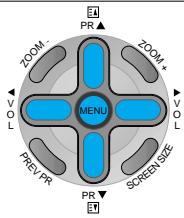
- Select the "Auto Setup" with the "▼PR▲" button.
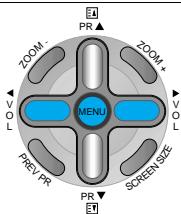
- Then press the “
” button.

Select the "Country".
- There are 18 countries for selection. Choose the desired country before starting the search.
- If there is no proper country, select the "Others".
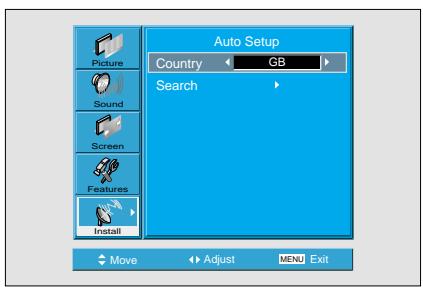

Select the "Search".
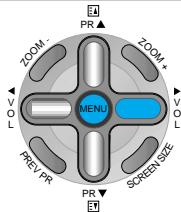
- Press the "VOL" key to start searching.
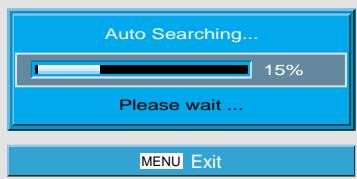
- Then it automatically searches channels as in the right.
- While searching, if you press the "Menu" button, the automatic channel search is stopped. But, channels searched by that time are saved.

Auto Search is completed.
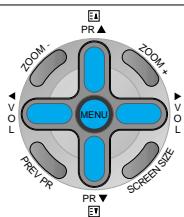
- Edit menu appears as in the right if the search is completed.
Refer to the Edit following pages.
The order of stored program may differ among countries.
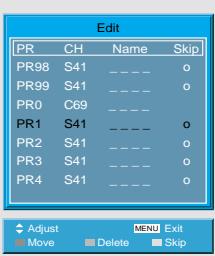

1 Deleting the program.
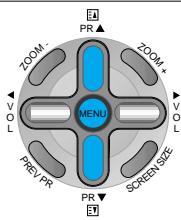
- Place the selection bar in the program that you want to delete using the "▼PR▲" buttons.
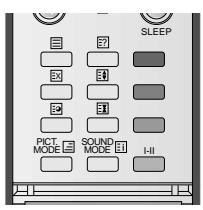
- Press the Delete(Yellow) button.
- The deleted program goes to PR number 99 for recover.
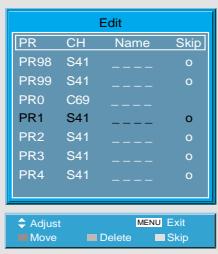
2 Moving the program positions
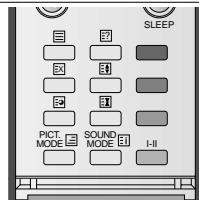
- Place the selection bar in the program that you want to move.
- Press the Move(Green) button.
It becomes ready for moving as the colour of selection changes to green. - Move the program that you desire to move.
- Press the Move(Green) button again to finish.
2 Skipping the channels
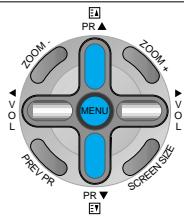
- Press the Red button to skip the selected program. In order to skip other programs, use the “▼PR▲” buttons to move to the unwanted channels.
- The program marked with circle (O) means it is skipped.
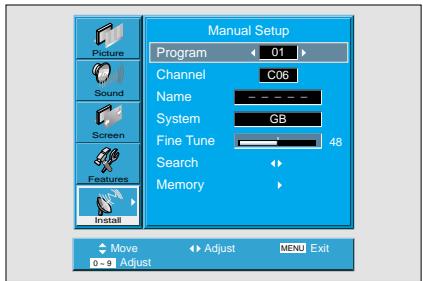
1
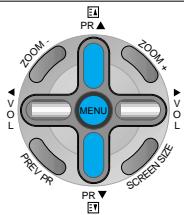
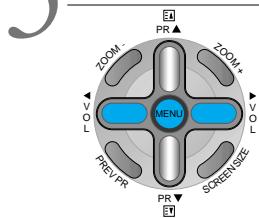
Press the Number buttons(0~9) or the “ VOL” button to select a program number you want.
2
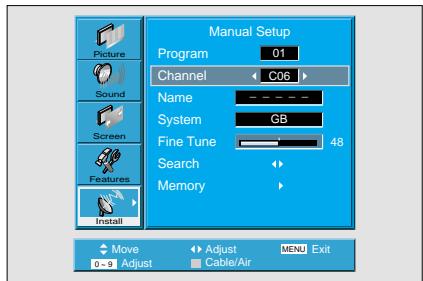
Find the desired channel.
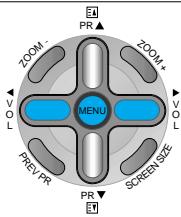
- Using “ VOL” button or number keys, select the desire channel directly.
- By pressing red teletext button, you can toggle C-channel to S-channel.
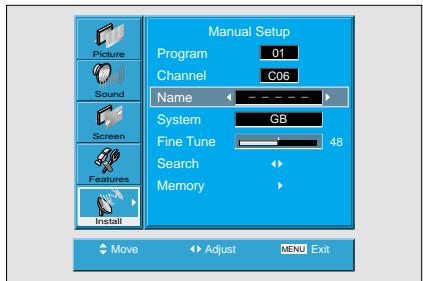
3
Name the Program.
- Using “ VOL” button, move the position where you want to write the character.
- Select the desired character with the "▼PR▲" button.
- There are A-Z, +, ,/, and 0-9 characters.
- After naming, you can exit by pressing "Menu" key.


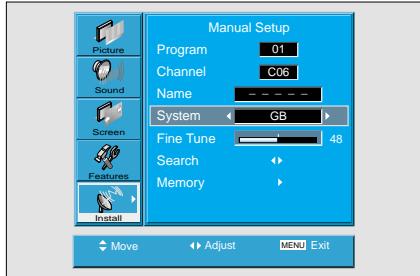
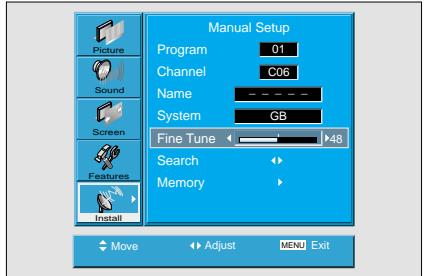
Check the System and Fine Tune.
- You can select the country with the "System" function. However, if you had Auto Setup previously, the country of the "System" will be chosen automatically.
- If you are unable to get a good picture or sound because of a poor signal reception, it is possible to adjust it with "Fine Tune", which is referred in the next page.
Find the desire channel with Search.
- By selecting the Search function, you can find the desired channel, but it searches only one channel unlike Auto Search.
- If the nearest channel is found, the searching would be stopped automatically.
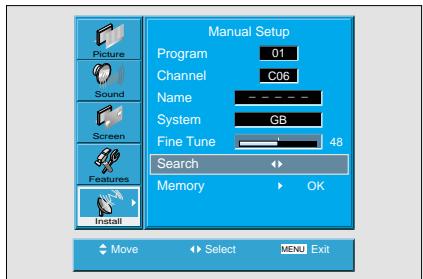
6 Memorise the Program.
- Without Memorizing, the program will not be saved.
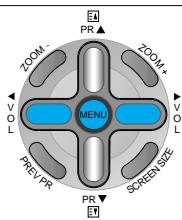
- Press "▶VOL▶" buttons to memorise the program after selecting "Memory OK".
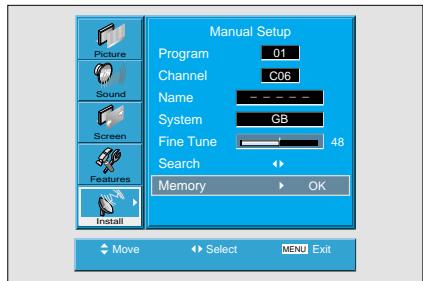
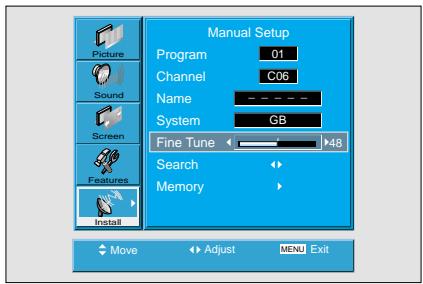
- If you are unable to get a good picture or sound because of a poor signal reception, it is possible to adjust it with the Fine Tune feature..
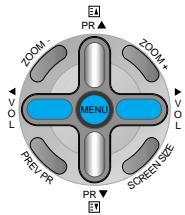
1 “ VOL” buttons to activate Fine Tune up or down.
Move the selection bar to Fine Tune and press the “ VOL” buttons to activate Fine Tune up or down.
2
Note that it operates while the “ VOL” button is being pressed.

- It will be saved only when you select "OK" in Memory.
Watching Digital Broadcasts
Watching Digital Broadcasts
- To watch digital broadcasts:
- Purchase a separate digital Broadcasting Receiver (SET-TOP BOX)
- Connect the PDP to a Digital Broadcasting Receiver as shown right.
Connect a Digital Broadcasting Receiver to the PDP
!
- Prepare supplied A/V cables.
- Connect the cables from the Digital TV Receiver output terminal to the PDP(Component 1, 2) input terminal.
- When connecting the cables, be sure to match the cable colours.
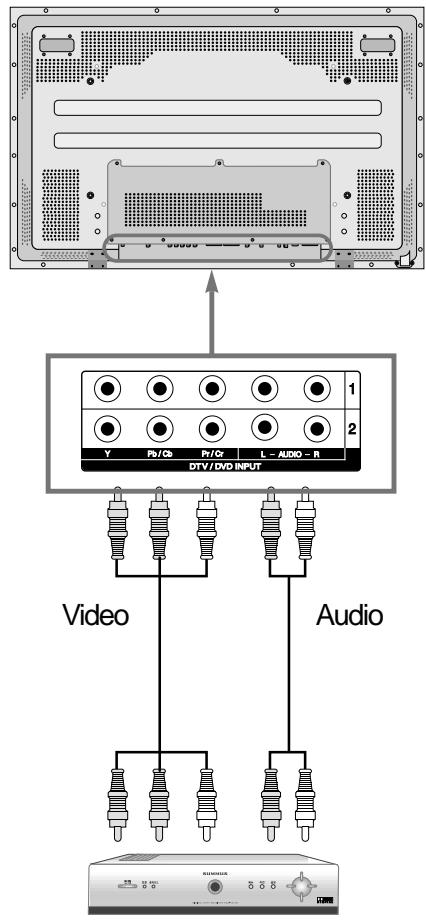
Digital Broadcasting Receiver (Set-Top Box)
2
Press the Power Buttons
- Tum the PDP and the Receiver ON.

3 Input Select
ULTIMEDIA

- Select [Component 1 or Component 2] by pressing the "Multimedia" button of the Remote Control or using the "INPUT SELECT" button of the PDP unit.
Each time you press the "Multimedia" button, different input modes appear. The sequence is as follows:
4 Select a Desired Channel and Function -Select a desired channel and function by
- Select a desired channel and function by using the Remote Control of the Digital Broadcasting Receiver.

NOTES:
1) Possible Digital Broadcasting signals: 1080i, 720p, 480p.
2) Antenna Connection: Apartment : Check if communal aerial receives digital broadcasts. Private Houses: Set the indoor/outdoor UHF antenna to the direction of the digital broadcasting transmitting company.
3) For detailed connection method, refer to the Owner's Manual of Digital Broadcasting Receiver.
4) What is a component? : Signals with which luminance and chrominance are separated, producing a sharp picture.
5) If the Digital Broadcasting Receiver has PC Output terminal or DVI Output terminal, connect to 'PC INPUT' or 'DVI INPUT' at the back panel of the PDP. When watching the PDP by PC or DVI Input, some undesired signals may be seen at the top and bottom area of the screen. In this case, select [Menu] [Screen] [V. Size] to adjust.
Watching Cable Broadcasts
Watching Cable Broadcasts
- To watch cable broadcasts, subscribe to your local Cable TV Broadcasting, and then connect a cable Broadcasting Receiver TV to the PDP as shown right.
Connect a Cable Broadcasting Receiver to the PDP.
- Prepare the AV cable.
- Connect the receiver(Output) to PDP(Video Input) as shown below.
- While using the scart cable for connection, put the ferrite core to the middle of the cable to prevent EMI (Electro Magnetic Interference).
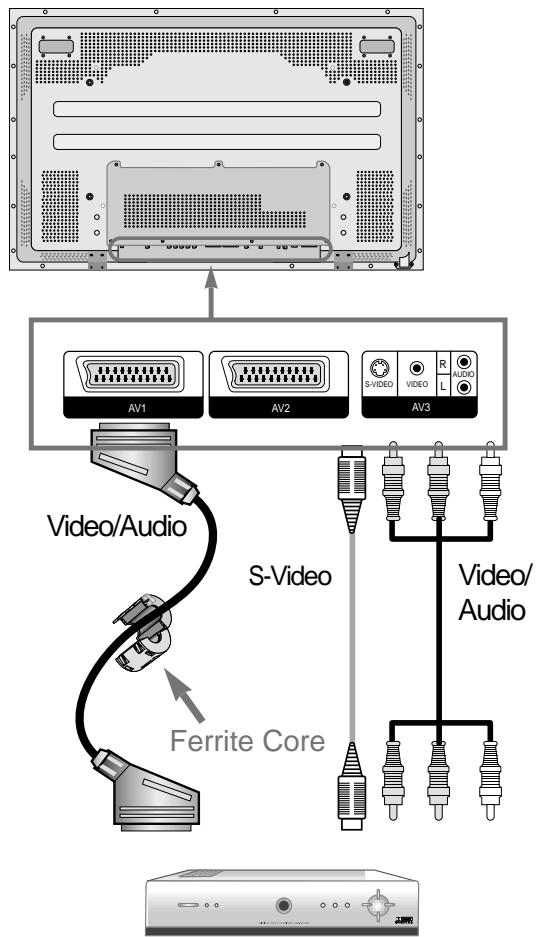
Cable Broadcasting Receiver
Press the Power Buttons
- Tum the PDP and the Receiver ON.

3 Input Select

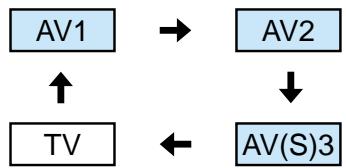
- Select [AV 1(Scart), AV 2(Scart) or AV3(S-Video)] by pressing the [ / ] button of the Remote Control or the "INPUT SELECT" Key in KeyPad of the PDP unit.
Each time you press the [ / ] button, different input modes appear. The sequence is as follows:
4 Select a Desired Program and Function
- Select a desired Program and function by using the Remote Control of the Cable Broadcasting Receiver.

NOTES:
1) If your local cable company re-transmits digital broadcasts, you may watch normal broadcasts or digital broadcasts simultaneously. For detailed information, refer to your local cable company.
2) A/V OUT OF SCART TERMINAL will provide with TV signal output of the selected channel.
Watching Satellite Broadcasts
Watching Satellite Broadcasts
- To watch satellite broadcasting, subscribe to Digital Satellite Broadcasting, then connect satellite Broadcasting Receiver to the PDP as shown right.
Connect a Satellite Broadcasting Receiver to the PDP.
Prepare the A/V cable.
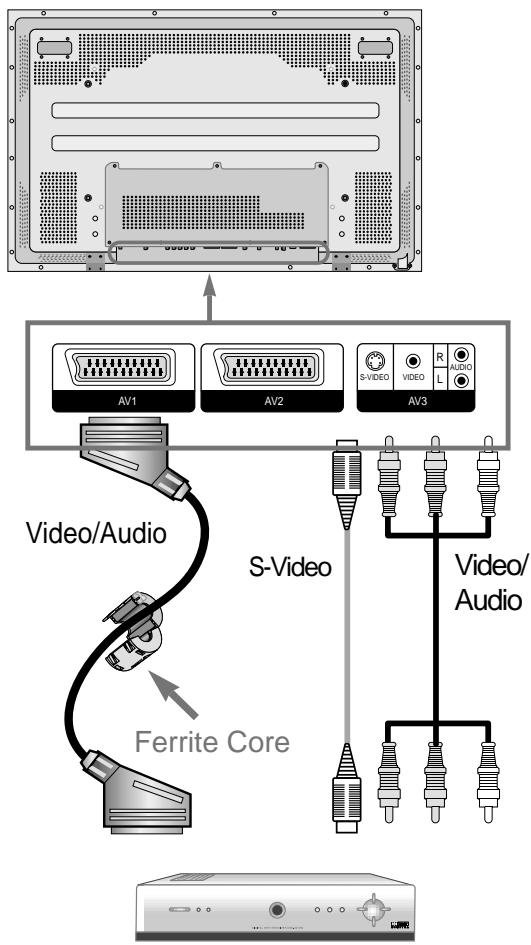
- Connect the receiver(Output) to PDP(Video Input) as shown below.
- When connecting to an external AV source, be sure to match the colours.
- While using the scarf cable for connection, put the ferrite core to the middle of the cable for preventing EMI.
Satellite Broadcasting Receiver
Press the Power Buttons
- Tum the PDP and the Receiver ON.

3 Input Select

- Select [AV 1(Scart), AV 2(Scart) or AV3(S-Video)] by pressing the [ / ] button of the Remote Control or the "INPUT SELECT" Key in KeyPad of the PDP unit.
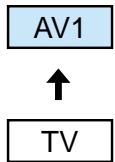
Each time you press the [ / ] button, different input modes appear. The sequence is as follows:

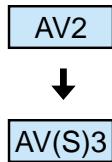

Select a Desired Program and Function
- Select a desired program and function by using the Remote Control of the Satellite Broadcasting Receiver.
Watching a DVD Image
Watching a DVD Image
- Component Input is set to 480i and 480p mode.
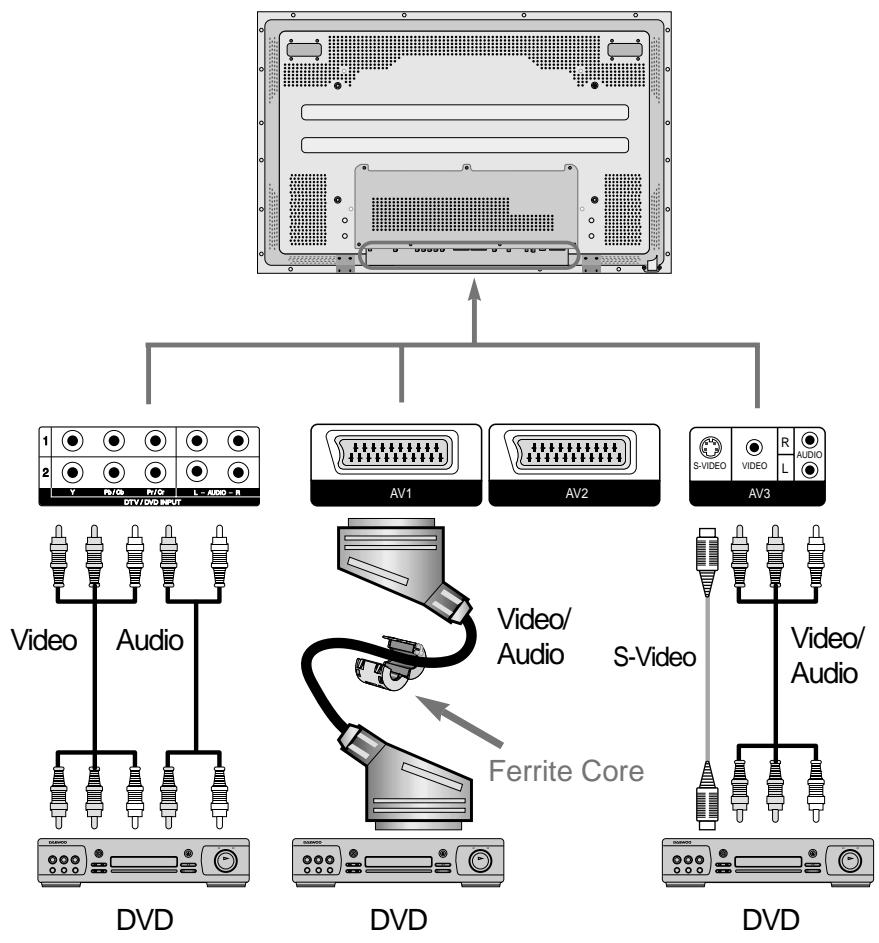
- Connect the cable from the DVD Video Output (Y, Pb/Cb, Pr/Cr) to the Component Input at the back of PDP, and connect the cable from DVD Audio output (Left, Right) to the Audio Input at the back of PDP.
1 Connect a DVD Player to the PDP.
- Prepare the AV cable.
- Connect the DVD(Output) to the PDP(Component or Video Input) as shown below.
- When connecting to an external AV source, be sure to match the colours.
- While using the scart cable for connection, put the ferrite core to the middle of the cable for preventing EMI.
Press the Power Buttons
- Turn the PDP and the DVD ON.

3 Input Select MULTIMEDIA
MULTIMEDIA


口/
- Select [Component 1 or Component 2, AV1(Scart), AV2(Scart) or AV3(S-Video)] by pressing the "MULTIMEDIA" or "□/□" button of the Remote Control or the "INPUT SELECT" Key in KeyPad of the PDP unit.
Each time you press the "MULTIMEDIA" or / - button, a different input mode appears. The sequence is as follows:
-MULTIMEDIA" button
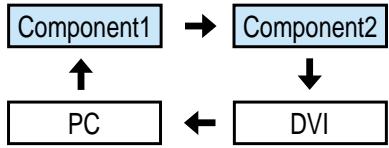
- “ / ” button

Select a Desired Title and Function
- Select a desired title and function by using the Remote Control of the DVD.

NOTES:
1) Y/Cb/Cr, which stands for Component Video DVD Player's Output can also be written as Y/B-Y/R-Y, Y/Pb/Pr depending on the kinds of DVD devices.
2) The way of connecting the DVD to the PDP is as follows: Y <> Y Cb <> Pb, B-Y, Cr <> Pr, R-Y
3) The DVD output can be Video, S-Video and/or Component Video depending on the DVD devices. There are various output modes, so be sure to check when you purchase it.
4) When connecting S-Video and Video simultaneously, only S-Video will be displayed on the screen as it takes precedence.
Watching a VCR Image
Watching a VCR Image
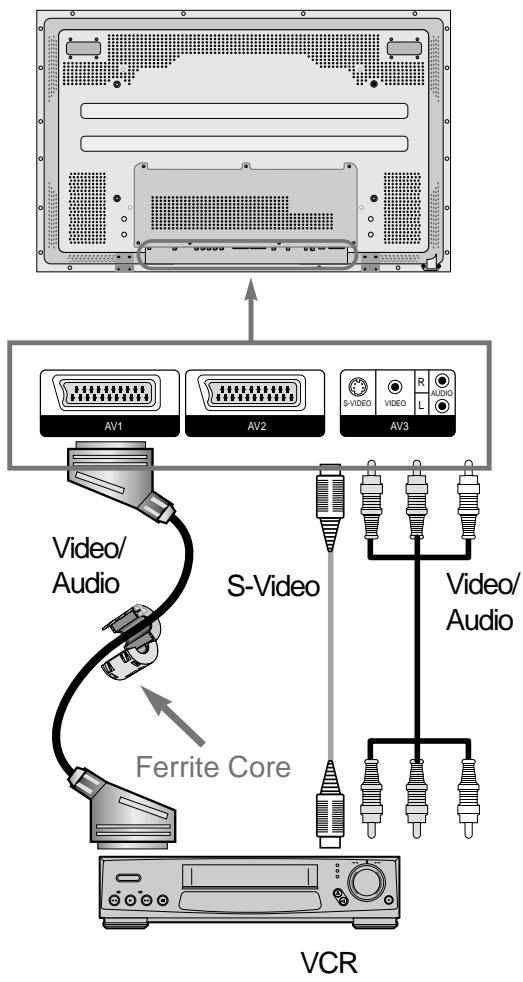
Video can use either the video terminal or the S-video terminal.
1 Connect a VCR to the PDP.
- Prepare the AV cable.
- Connect the Video(Output) to PDP(Video Input) as shown below.
- While using the scart cable for connection, put the ferrite core to the middle of the cable for preventing EMI.
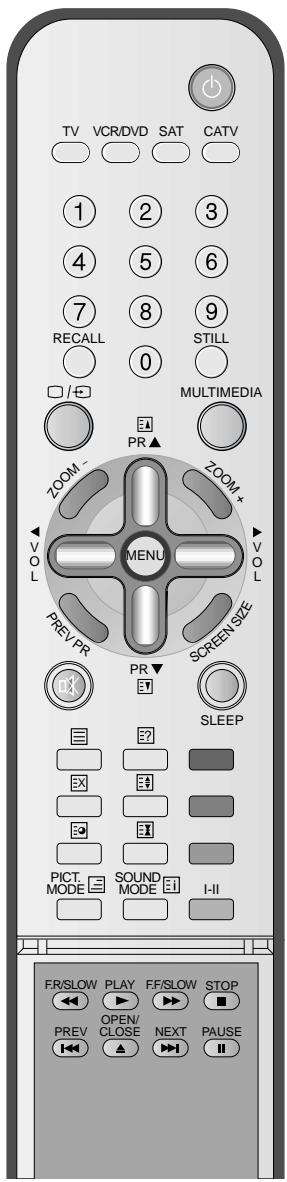
Press the Power Buttons
- Turn the PDP and the VCR ON.

3 Input Select

- Select [AV 1(Scart), AV 2(Scart) or AV 3(S-Video)] by pressing the [ / ] button of the Remote Control or the "INPUT SELECT" Key in KeyPad of the PDP unit.
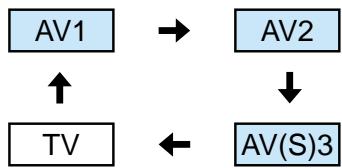
Each time you press the [ / ] button, different input modes appear. The sequence is as follows:
AV1
→
AV2

TV
←

AV(S)3

Select a Desired Title and Function
- Select a desired title and function by using the Remote Control of the VCR.

NOTES:
1) When connecting a Video, the S-Video terminal provides a better image than the Video terminal.
2) When connecting to the Video terminal, connect 3 colour AV cables (video, left audio, right audio) to the PDP; for the S-Video terminal, connect the Audio terminal (Left, Right) in the same way, and connect the S-Video cable (sold separately).
3) When connecting the Video terminal and the S-Video simultaneously, the S-Video terminal is selected. This can be checked by the [Recall] button of the Remote Control.
Watching a Camcorder/Game Console Image
Watching a Camcorder/Game Console Image
- Enjoy images recorded by camcorder or the game console after connecting to the PDP.
Connect a Camcorder/Game Console to the PDP.
Prepare the AV cable.
- Connect the Video(Output) to the PDP(Video Input) as shown below.
- When connecting to an external AV source, be sure to match the colours.
- While using the scarf cable for connection, put the ferrite core to the middle of the cable for preventing EMI.
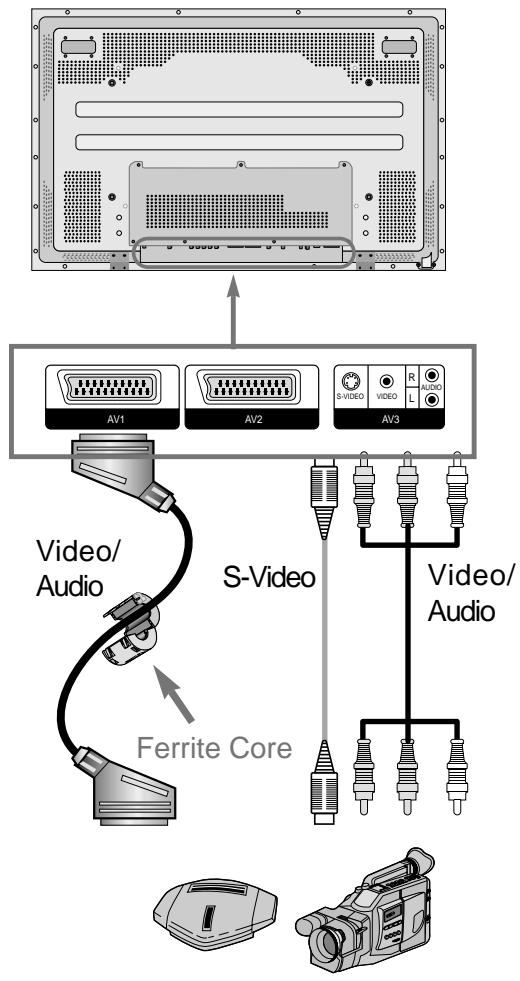
Game Console/Camcorder
Press the Power Buttons
- Turn the PDP and the
Camcorder/Game Console ON.
3 Input Select

- Select [AV 1(Scart), AV 2(Scart) or AV 3] by pressing the [ / ] button of the Remote Control or the "INPUT SELECT" Key in KeyPad of the PDP unit.
Each time you press the [ / ] button, different input modes appear. The sequence is as follows:
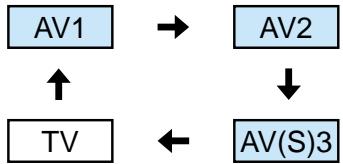
4 Select Function
- Select the Function by using the Remote Control of Camcorder or Game Console.

NOTES:
1) When connecting a Video, the S-Video terminal provides a better image than the Video terminal.
2) When connecting to the Video terminal, connect 3 colour AV cables (video, left audio, right audio) to the PDP; for the S-Video terminal, connect the Audio terminal (Left, Right) in the same way, and connect the S-Video cable(sold separately).
3) When connecting a component, refer to "Watching a DVD Image" on page 32-33.
Connecting PC(15pin D-sub)
Connecting PC
This product supports resolution of VGA, SVGA, XGA, SXGA.
- Before connecting a PC to the PDP, be sure to adjust the resolution of PC.
Before connecting to the PDP, set the resolution of the PC.
- Go to SETUP-CONTROL PANEL-DISPLAY PROPERTIES in Window Screen of the PC.
- Choose the SETTINGS tab in the DISPLAY Menu.
- In the SETTINGS Menu, select 640 x 480 or 800 x 600.
Connect the PC to the PDP.
- Prepare the PC cable (D-sub 15pin) and the PC audio cable(Sold separately).
- Connect the PC(Output) to the PDP(Input) as shown below.
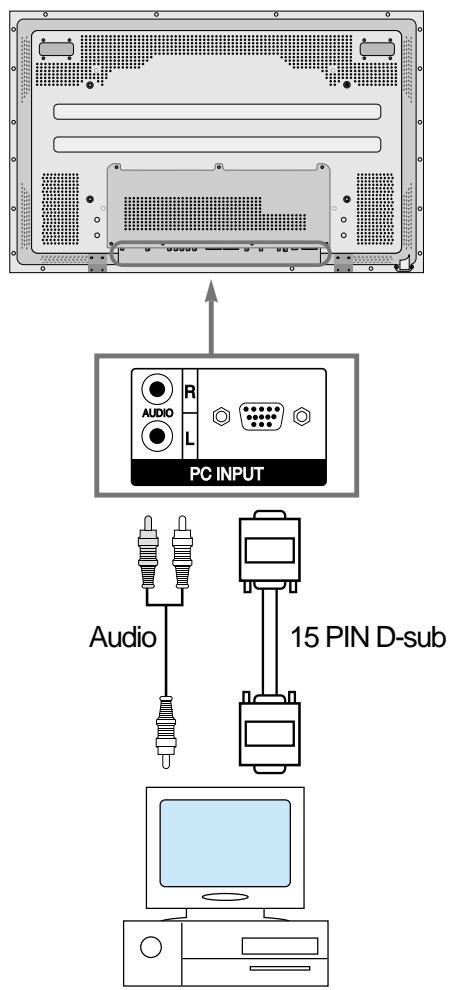
PC
2 Press the Power Buttons.
- Turn on the PDP and the PC.
4 Input Select
MULTIMEDIA

- Select [PC] by pressing the "MULTIMEDIA" button of the Remote Control or PDP unit.
Each time you press the "MULTIMEDIA" button, a different input mode appears. The sequence is as follows:
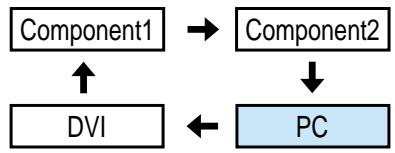
5
Enjoy Dynamic Ultra Screen Monitor by Using PC's Keyboard or Mouse.

NOTES:
1) The resolution of the PC monitor is the best at 640 × 480 (VGA).
2) If there is a [Vertical Frequency]setting menu in the [Display] Menu of the PC, adjust the frequency to 60Hz.
3) If the PC resolution is too high, it may be hard to read letters.
Select a suitable resolution.
Connecting PC(DVI)
Connecting PC
This product supports resolution of VGA, SVGA, XGA, SXGA.
- Before connecting a PC to the PDP, be sure to adjust the resolution of PC.
- This product is supported by Plug and Play only at DVI.
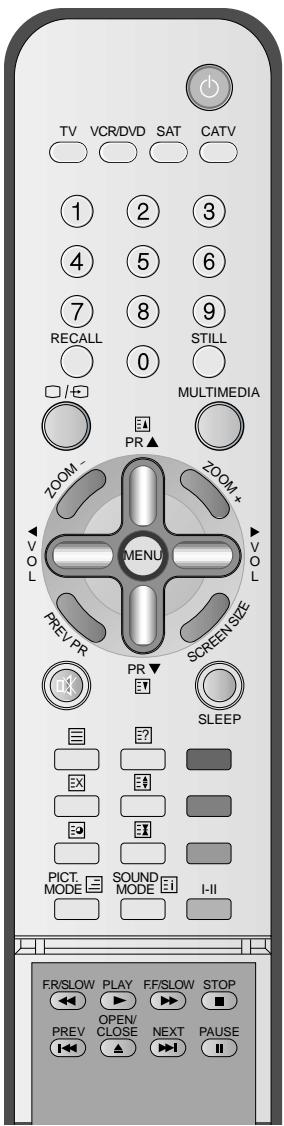
Before connecting to the PDP, set the resolution of the PC.
- Go to SETUP-CONTROL PANEL-DISPLAY PROPERTIES in Window Screen of the PC.
- Choose the SETTINGS tab in the DISPLAY Menu.
- In the SETTINGS Menu, select 640 x 480 or 800 x 600.
Connect the PC to the PDP.
Prepare the DVI cable cable(Sold separately).
- Connect the PC(Output) to the PDP(Input) as shown below.
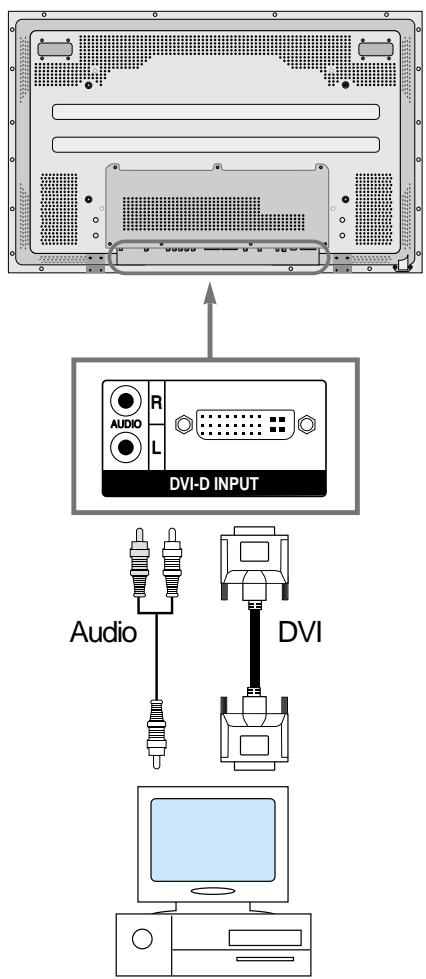
PC
2 Press the Power Buttons.
- Turn on the PDP and the PC.
4 Input Select

- Select [DVI] by pressing the "MULTIMEDIA" button of the Remote Control or the Input button on the PDP unit.
Each time you press the "MULTIMEDIA" button, a different input mode appears. The sequence is as follows:
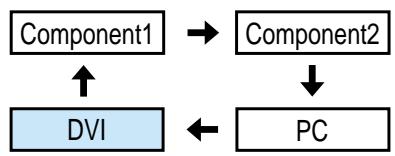
5
Enjoy Dynamic Ultra Screen Monitor by Using PC's Keyboard or Mouse.

NOTES:
1) The resolution of the PC monitor is the best at 640 × 480 (VGA).
2) If there is a [Vertical Frequency]setting menu in the [Display] Menu of the PC, adjust the frequency to 60Hz.
3) If the PC resolution is too high, it may be hard to read letters. Select a suitable resolution.
4) DVI input port receives only Digital Signal.
5) Depending on the graphic card when plug & unplug the DVI connection the screen may not display correctly. Restart the computer if this happens.
PC and DVI Input Resolution Available in PDP
- Depending on graphic card, problems like no signal detected or line noises can happen. If these problems happen, contact the graphic card company for help.
| Resolution | H Freq. (KHz) | V Freq. (Hz) | Remark | DVI | PC |
| 640x400 | 37.861 | 85.080 | VESA | O | |
| 640x480 | 31.469 | 59.940 | DOS | O | O |
| 37.861 | 72.809 | VESA | O | O | |
| 37.500 | 75.000 | VESA | O | O | |
| 43.269 | 85.061 | VESA | O | O | |
| 720x400 | 31.469 | 70.087 | IBM | O | O |
| 37.927 | 85.039 | VESA | O | ||
| 800x600 | 35.156 | 56.250 | VESA | O | O |
| 37.879 | 60.317 | VESA | O | O | |
| 48.077 | 72.188 | VESA | O | O | |
| 46.875 | 75.000 | VESA | O | O | |
| 53.674 | 85.061 | VESA | O | O | |
| 1024x768 | 48.363 | 60.004 | VESA | O | O |
| 56.476 | 70.069 | HP&VESA | O | O | |
| 60.023 | 75.029 | VESA | O | O | |
| 68.677 | 84.997 | VESA | O | ||
| 1152x864 | 67.500 | 75.000 | VESA | O | O |
| 1280x960 | 60.000 | 60.000 | VESA | O | O |
Selecting Picture Mode
1 Selecting Picture Mode
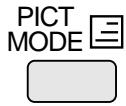
- Press the [PICTURE MODE] on the Remote Control.
- While pressing the [PICTURE MODE] for the first time, the current PICTURE MODE will be displayed.
2
Each Press of the Button Will Select One of Four Picture Modes.
Each time you press the button, a different Picture mode appears. The sequence used is as follows:

- Normal : For a highly defined image in a normally bright room
- Dynamic: For a clear-cut image emphasizing high contrast for sports viewing
- Cinema: For a movie
- User: Allows the user to customise settings as desired.
2 Menu on the Screen will disappear.
- After selecting a desired Picture mode, the menu on the screen will disappear.
- Normal, Dynamic, and Cinema Modes are factory preset values.
If you want to customise the Picture modes, refer to the following page.

NOTES:
1) Normal, Dynamic, and Cinema Modes are factory preset values.
2) When adjusting sub-menus while you are in Normal, Dynamic, and Cinema Modes, the Picture Mode will be automatically converted to User Mode, and the adjustments will be made.
3) Selecting [Initialise] in the [Features], Menu will allow the Brightness, Contrast, etc. to return to the factory preset values.
Selecting Picture Mode
- Select the Picture mode that is appropriately set depending on the kinds of pictures, and enjoy them.
Customising Picture
Customising Picture
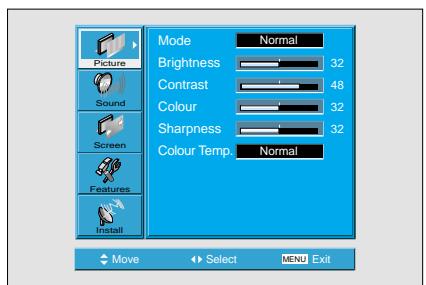
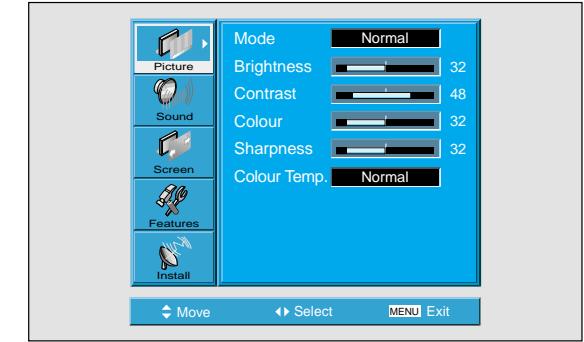
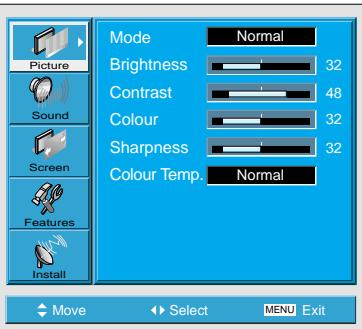
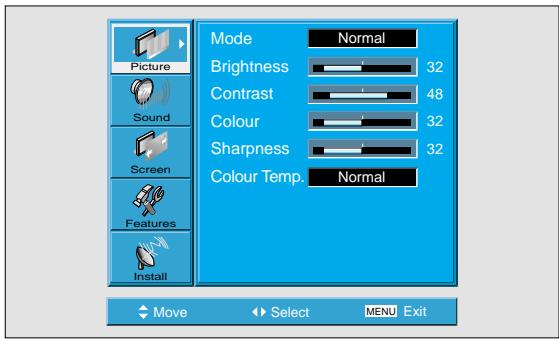
- You can adjust the colour tone and brightness to your preference.
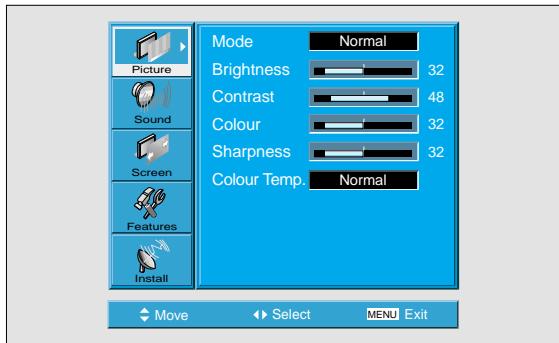
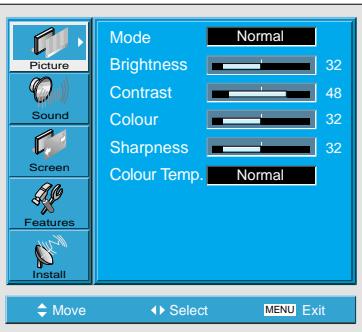
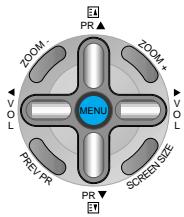
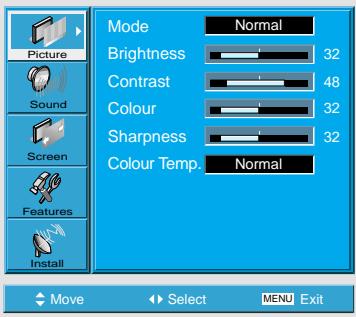
Press the MENU Button. The MENU shown
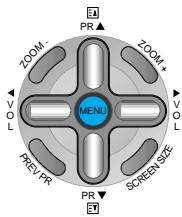
- The MENU shown below will display on the screen.
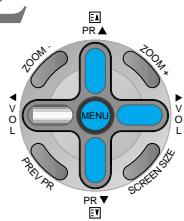
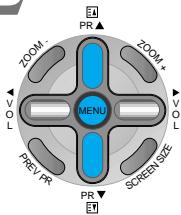
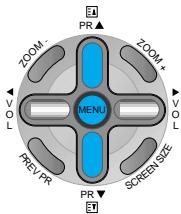
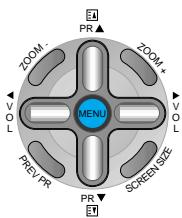
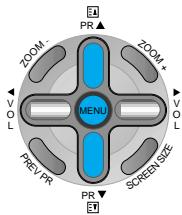
Press the PR Button.
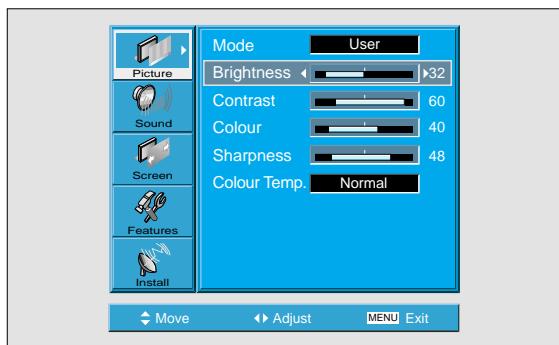
- After selecting [Picture] by the “▼ PR▲” buttons, press the “VOL▶” button. Then the sub menu of [Picture] will be displayed.
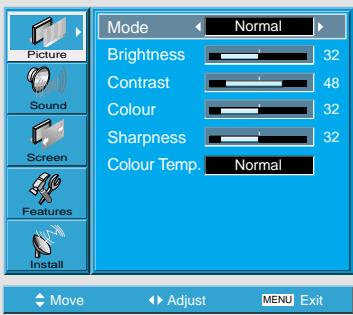
3 Select the User Mode.
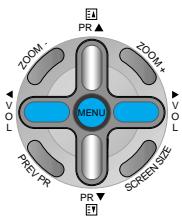
- Select [User] by the “
” buttons in the [Mode].
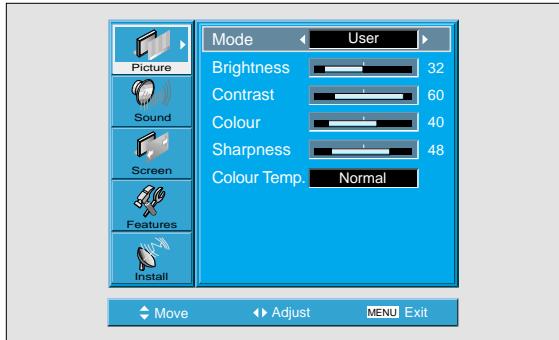

Select User Mode Adjustments
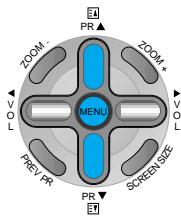
- While you are in [Picture Mode - User], press the "▼PR▲" buttons to select a specific adjustment item.
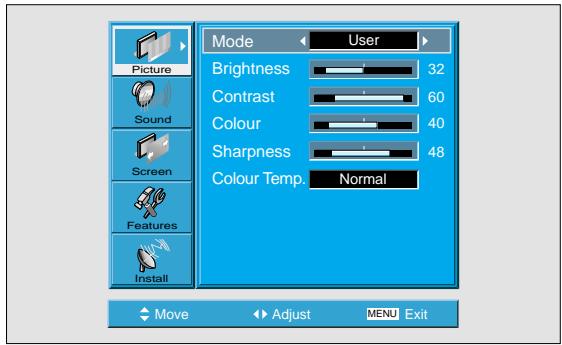

Picture Condition Adjustments
- Press the “ VOL” buttons to adjust the picture of your preference.

NOTES:
1) While you are in the PC or DVI INPUT mode, you can only adjust brightness, contrast, sharpness and colour temperature.
2) When you adjust Brightness, Contrast, and Colour in DTV mode or adjust Brightness and Contrast in PC and DVI mode, the picture is adjusted finely.
3) The adjusted values are memorised in each mode separately.
4) The Tint control is used when the input signal is NTSC or Component. If input signal is NTSC, Tint control is displayed in picture menu.
5) Selecting the Colour Temperature makes the mood : normal, warm or cold.
Adjusting Screen Size (Component, AV, TV)
Adjusting with Screen Size button
- You can adjust screen size or aspect ratio as desired.
1 Press the SCREEN SIZE Button. Each time you press the SCRE

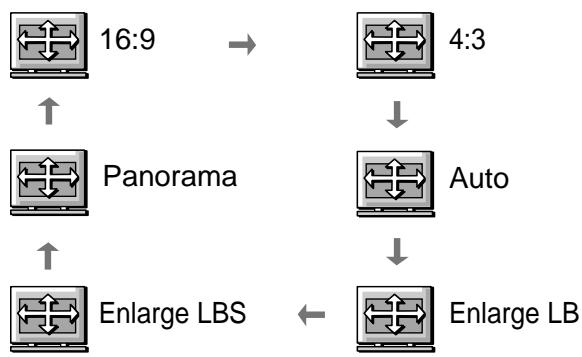
Each time you press the SCREEN SIZE button on the Remote Control, a different SCREEN SIZE appears. The sequence used is as follows:
- The current screen size will be displayed on the screen.

NOTES:
1) Displaying a picture in a 4:3 mode for a long time may cause phosphor of the PDP to be burned. So avoid displaying a picture in 4:3 screen size for a long time.
2) 16:9 : Theatre like 16:9 picture formats
4:3 : 4:3 picture formats like an Analog TV
Auto : Displays pictures of original picture size.
Enlarge LB : Enlarges the screen as to fill the black part above and below the picture.
Enlarge LBS: Enlarges the screen, and shifts up as to see the subtitles in case you are watching video with subtitles.
Panorama : 16:9 picture formats with panorama effect
3) If the picture shows unclear image in the 480P component input source, try to toggle the resolution from the DTV/DVD of the Screen Mode.
Press the MENU Button. Press the [MENU] but
![DAEWOO SP-200P - Press the MENU Button. Press the [MENU] but - 1](/content/2025/01/146668/images/db23697fff689cfce2460e1a3c366248bf85ea67ca1c775813b6f48aa4c1d56e.jpg)
- Press the [MENU] button on the Remote Control.
![DAEWOO SP-200P - Press the MENU Button. Press the [MENU] but - 2](/content/2025/01/146668/images/9f88d4c084c22fc5abd499407735b3ea9196924164d2e733253ba4308df2aa8a.jpg)
Select“Screen”.
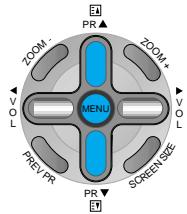
- Press the “▼PR▲” buttons to select “Screen.”
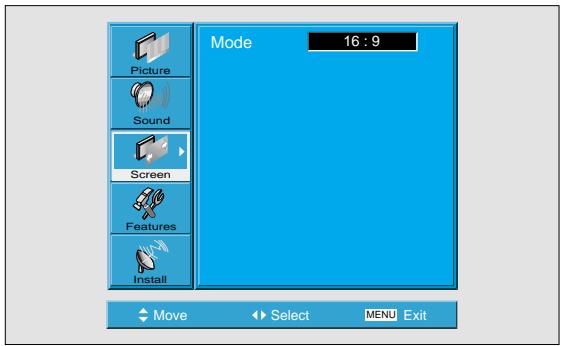
3 Select the Screen Size. Press the Volume
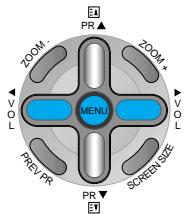
- Press the Volume “ VOL” buttons to select “Screen Size”.
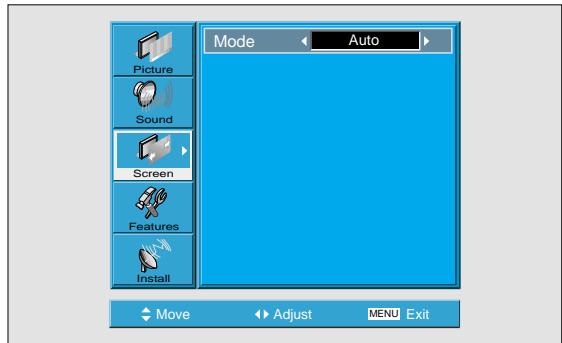
Adjusting from MENU Screen
Available Screen Mode
| Input | Available Mode |
| DVI | H, V Size |
| PC | H, V Size and Position, Phase, Frequency |
| Component (480i) | 16:9, 4:3, Auto, Enlarge LB, Enlarge LBS, Panorama |
| AV | |
| TV | |
| Component (480p or above) | 16:9 4:3 |
Adjusting Screen Size (PC, DVI)
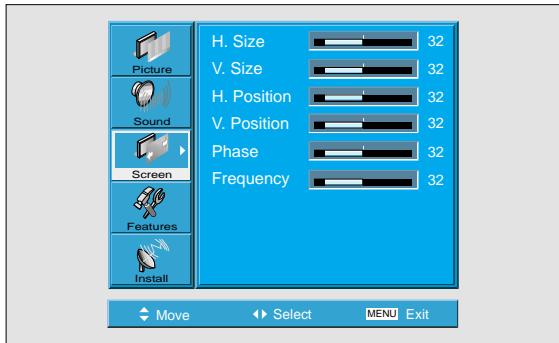
Adjusting Screen Position and Size
- You can adjust the screen position and size as desired.
Press the MENU Button.
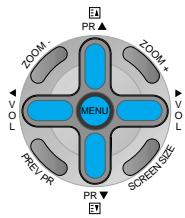
Press the “▼PR▲” Button. Press the “▼PR▲” buttons to
3 Press the Volume "▶VOL▶" Buttons. Press the Volume "▶VOL▶" buttons to e
- Press the Volume “
” buttons to enter the sub menu “Screen”.
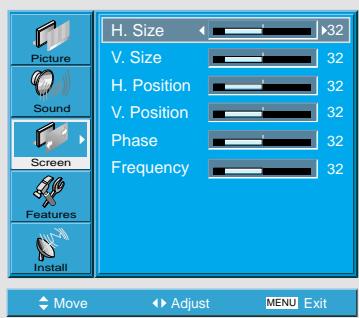
While you are in 'Screen' mode, press the "▼PR" or "PR▲" button to select a desired item, and then, adjust the value by pressing the "▲VOL" or "VOL".

NOTES:
1) Horizontal/Vertical size and position values can be adjusted only in the [PC] input mode and in the [DVI] input mode, only Horizontal/Vertical size are available.
2) H. Size: As the value increases, the screen width increases
3) V. Size: As the value increases, the screen height increases.
4) H. Position: As the value increases, the screen moves to the right.
5) V. Position: As the value increases, the screen moves up.
6) Phase: When there is jitter or blurring of the image, adjust this value.
7) Frequency: When there is jitter or blurring of the image, adjust this value.
8) In case of DVI, only H and V size can be adjusted.
9) Using Screen Size button on the remote control, you can control the H and V size directly in PC or DVI mode.
Enlarging Screen Size
Enlarging Screen Size
- You can view enlarged size of the screen with this function
Press the “ZOOM+” Button.

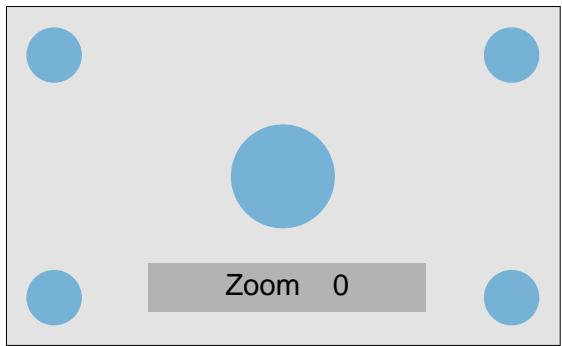
- Press the "ZOOM+" button to show currently selected screen size.
Each time you press the "ZOOM+ button, the screen size will increase stepwise in 0 ~ 20 scale. - To reduce the screen size, press the "ZOOM-" button.
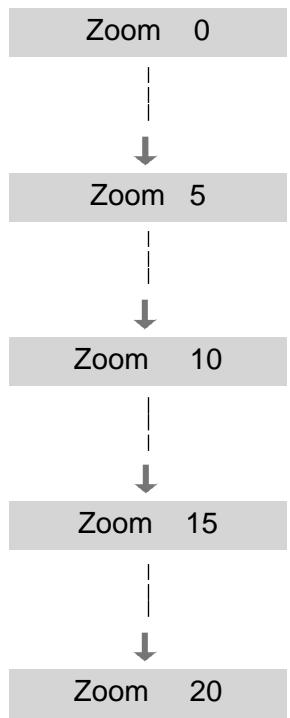
2 Move the Screen Position. While you are in the Zo
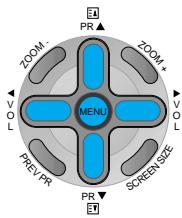
- While you are in the 'Zoom' mode, press the "▼PR▲", "▲VOL▼" buttons to move screen stepwise up/down and left/right, respectively.
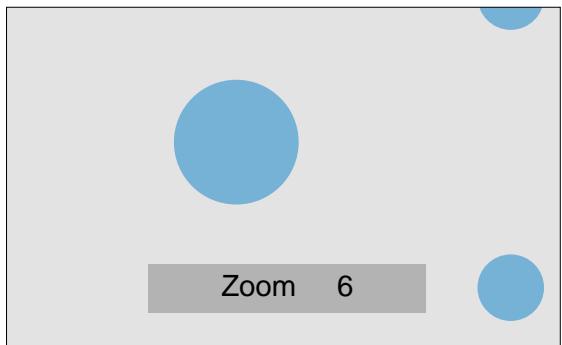

NOTES:
1) When the screen is enlarged, the pixel of the screen can become thick and dim.
2) When only subtitle of zoom level remains, you can scroll the image.
If subtitle of zoom level disappears, press zoom key, and scroll the image.
3) You can enlarge the screen in freeze mode.
Watching a STILL Image
Watching a
Still Image
- You can view still images with this function. However, displaying the same images such as still images for a long time may cause image burn.
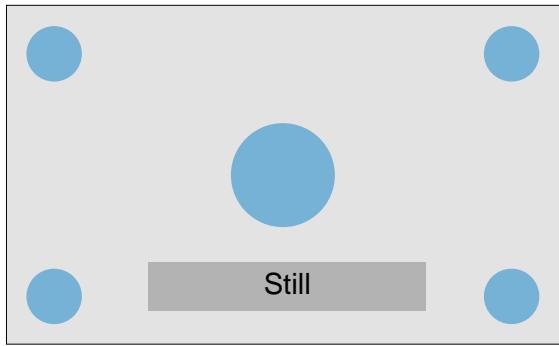
Press the " STILL" Button.

- If you wish to freeze a picture, press the "STILL" button. You can still hear the sound.
- Press " STILL" button again to cancel the " STILL" function.
- To view the enlarged images, press the "ZOOM+ button.
2 Move the Screen Position.
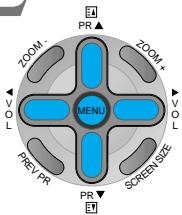
- While you are in still mode, press the “ VOL” and “ PR▲” buttons to move screen stepwise up/down and left/right.
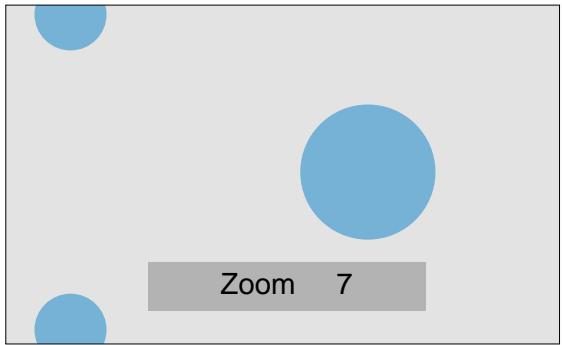

NOTES:
1) Displaying the same images such as still images for a long time may cause image burn (after-image lagging).
2) In this case, such "image burn" may become less noticeable if moving images are later displayed for a long time.
3) However, an image burn may become a permanent one, damaging the Plasma Display; therefore, avoid displaying the same images for a long time.
4) Use the function [ISM], while displaying still images for a long period of time to minimise this effect.
ISM (on or off) is in the Feature menu.
Adjusting Auto Sound Mode
1 Select "SOUND MODE". • Press the "SOUND
SOUND MODE
- Press the "SOUND MODE" on the Remote Control.
- While pressing the "SOUND MODE" for the first time, the current Sound Mode will be displayed.
Every Press of the Button Changes Modes.
SOUND MODE E1
Each time you press the button, a different sound mode appears. The sequence used is as follows:

- Normal : Suitable for watching any motion picture
- Movie : Select this mode to simulate being at a movie theatre
- Music : Ideal for listening to music
- News : Allows human voice to be heard more clearly
- User : Allows the user to adjust as desired.
2 MENU willDisappear.
- After selecting a desired Sound Mode, the on-screen menu will disappear in about 2~3 seconds.
- Normal, Movie, Music and News Modes are factory preset values. If you want to customise the sound modes for your preference, refer to the following page.
Adjusting Auto Sound Mode
- Enjoy various sound modes by selecting your favorite Sound Mode depending on the kinds of moving pictures.
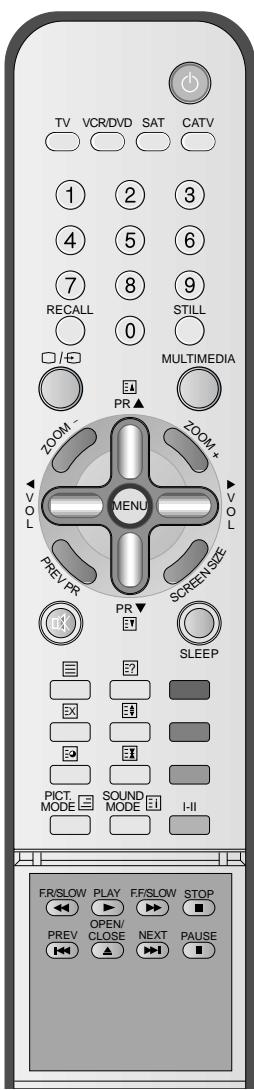
Customising Sound Mode
Customising Sound Mode
- This feature allows the user to adjust for his preference.
Press the MENU Button.
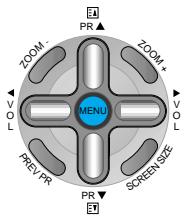
- The MENU Screen as below will be displayed.
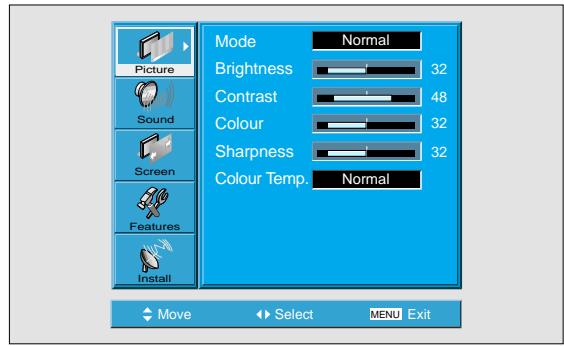
Press the “▼PR▲” Button.
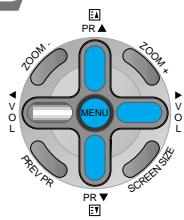
- Select [Sound] by the “▼PR▲” buttons, then press the “VOL▶” button to display the following.
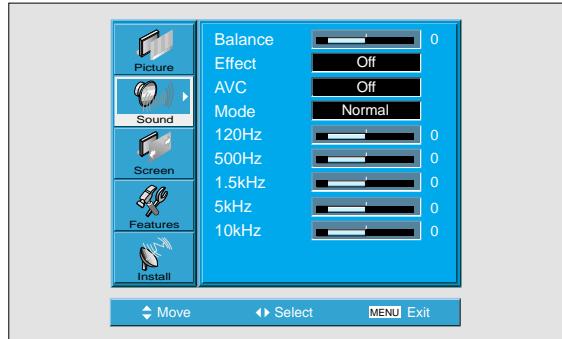
3 Select SOUND BALANCE. -Select Sound IBalance
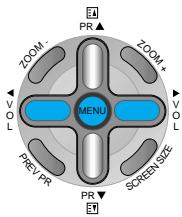
- Select Sound [Balance] by the “
” buttons, then adjust it.
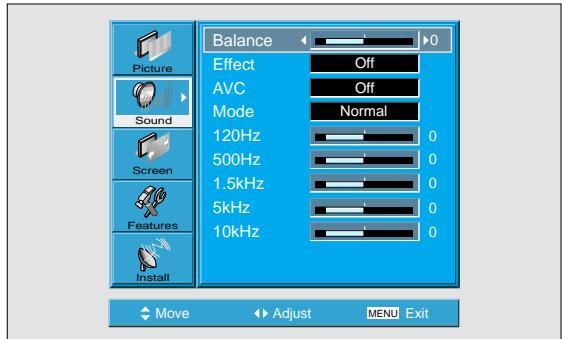
4 Select the Effect Mode. -Select [Effect] b
![DAEWOO SP-200P - Select the Effect Mode. -Select [Effect] b - 1](/content/2025/01/146668/images/0473bee3d11406e5a533c5eb7f5dcd2e1c4c0ec86ba26be50637a4387a3259b4.jpg)
- Select [Effect] by pressing the “▼PR▲” buttons, then select ON/OFF by pressing the “VOL▶” button.
- [Effect]: Used to emphasize stereo effect.
![DAEWOO SP-200P - Select the Effect Mode. -Select [Effect] b - 2](/content/2025/01/146668/images/4ca6bec2b0a4680826c16e9dd4c78c5ed052d8a956ccf62243a2d4f9e74d9282.jpg)
5 Select the Sound Mode.
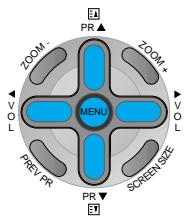
- Select the Sound Mode by pressing the “▼PR▲” buttons, then adjust it by pressing the “▲VOL▲” buttons.
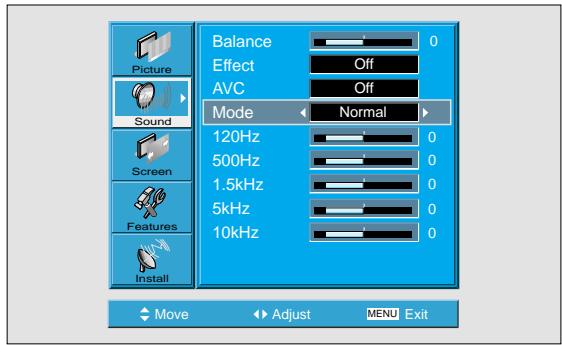

- Normal : Suitable for watching any motion picture
- Movie : Select this mode to simulate being at a movie theatre
- Music : Suitable for listening to music
- News : Allows human voice to be heard more clearly
- User : Allows the user to adjust as desired.

NOTES:
1) User Mode : Used as an Equalizer with which the user can adjust the sound frequency as desired.
2) If you modify the sound frequency in auto Sound Mode (News, Movie, Music, etc.), it is automatically switched to the User Mode.
3) For the realistic sound effect, lower than 120Hz frequency sound and greater than 10kHz frequency sound are emphasized.
4) If you make connection to the Left Audio Input as input is MONO you can hear from both speakers.
5) AVC function : This function adjusts volume to the set level automatically. However, depend on the sources, it may have different volume level because the sound sources have their own initially set up levels.
Language selection for dual language broadcast
If a programme is received in two languages (dual language), you can switch to Dual I, Dual II or F mono by pressing the I/II button of the remote control repeatedly.
Dual I
Dual I sends the primary broadcast language to the loudspeakers.
Dual II
Dual II sends the secondary broadcast language to the loudspeakers.
F Mono
F Mono sends the Mono sound to the loudspeakers.
Selecting INPUT SIGNAL
INPUT SIGNAL
- Used to select INPUT signal of external device connected to the PDP.
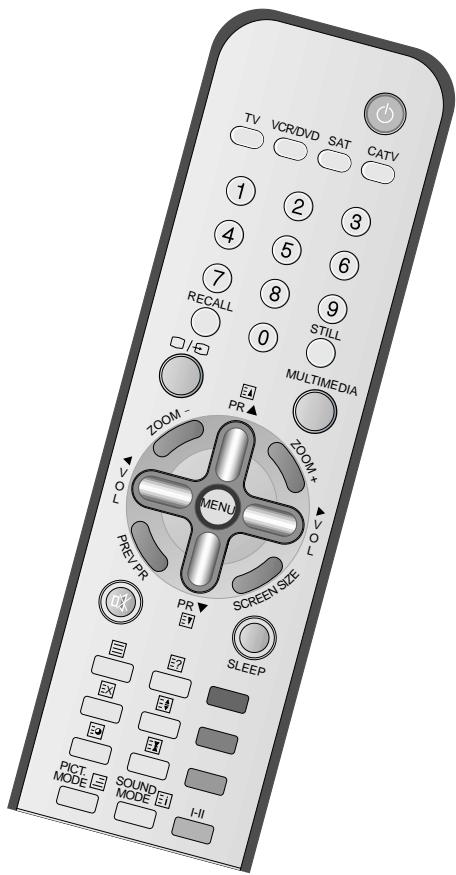

Press the "MULTIMEDIA" or "□/□" Button.


MULTIMEDIA
- Press the "MULTIMEDIA" or "□/□" button on the Remote Control or the PDP Display to select desired input signal.
Each time you press the "MULTIMEDIA" or "□/□" button, a different screen mode appears. The sequence used is as follows:

- “□/□” button
-MULTIMEDIA" button
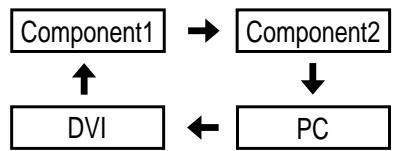
Component 1

NOTES:
1) If an external device is not connected or INPUT signal is not applied, Warning Message ("No Signal") would be displayed.
2) In this case, check if external device is connected and/or terminal connection is properly done.
3) Also, you can select input using [INPUT SELECT] button in the keypad of the PDP unit. The sequence of selection is as follows:
AV1 -> AV2 -> AV3 -> TV -> PC -> DVI ->
Component1 -> Component2 -> AV1
Checking the Current Input Signal
Checking the Current Input Signal
Used to check the INPUT signal mode, resolution, frequency(video only), etc. of the current screen.
Press the RECALL Button.

- Press the [RECALL] button on the Remote Control.
Component 1
1920 × 1080
1. If you watch Component, PC, or DVI :
Component 1 ——Displays which input terminal is used, and indicates the input signal mode.
1920 x 1080 Indicates the horizontal and vertical resolution of the current INPUT signal.
2. If you watch TV:
PR 22 PR Name Displays the program number and its name.
Mono/Stereo Time Indicates the current sound state and time.
3. If you watch VCR image:
PR 57 AV1 Displays the program number and input terminal, which is used.
PAL Time Indicates the mode and current time.
NOTES:
1) This product can receive PAL, SECAM, etc.
2) "1920 x 1080" displayed in the INPUT signal is not the resolution of the monitor, but the signal that is sent by Digital Broadcasting Receiver.
Press the MENU Button. The MENU screen w
- The MENU screen will be displayed as below.
Press the “▼PR▲” Button. Select [Features] by the
![DAEWOO SP-200P - Press the “▼PR▲” Button. Select [Features] by the - 1](/content/2025/01/146668/images/87900d5bb1624045f6905fb02e7d58cb7b4d778c14c8c7833ef8b8a297c3b90a.jpg)
- Select [Features] by the “▼PR▲” button.
![DAEWOO SP-200P - Press the “▼PR▲” Button. Select [Features] by the - 2](/content/2025/01/146668/images/048e9a10ceb978de3bc364aeab5aa7e3d6d26817cf0ddad35d1bd0c59da92c1b.jpg)
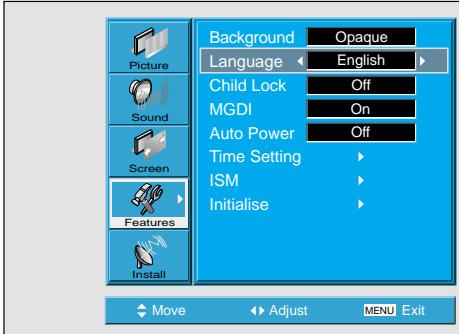
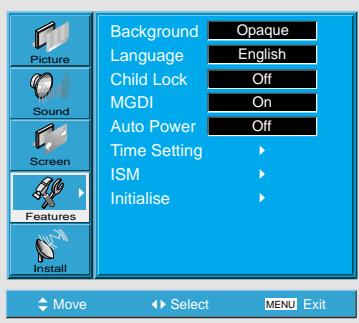
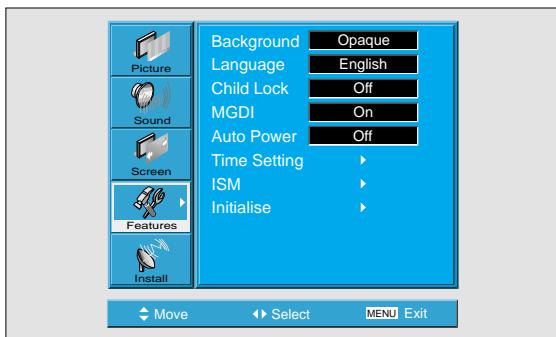
3 Select the menu Background.
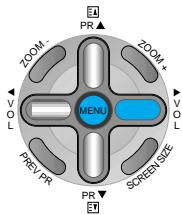
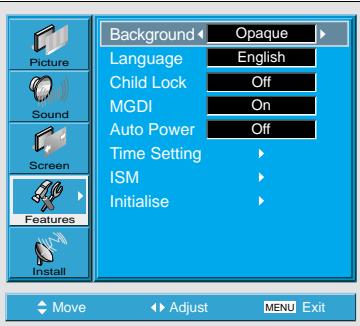
- Select the MENU [Background] by pressing the "VOL ▷" button.
- Every press of the "VOL button while you are in the[Background] would switch between Translucent/Opaque.
Selecting Languages
- Used to select transparent of MENU background and language used in MENU.
MENU Background, Language and Child Lock Setting
4
Select LANGUAGE by using the “▼PR▲” Button.
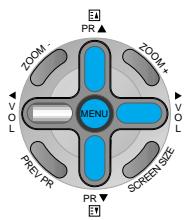
- Select LANGUAGE by using the “▼PR▲” button.
- Every press of the “VOL ” button while you are in the [LANGUAGE] mode would cycle through the different languages.

NOTES:
- When Power is turned ON first time, 'SELECT LANGUAGE' Mode will be displayed, then, select a desired language by using "VOL▶" button. (Displayed only once)
5
Chid Lock Setting
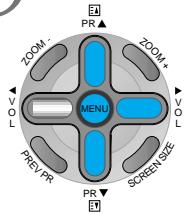
- Select [Chid Lock] by the “▼PR▲” buttons.
- Whenever "VOL" button is pressed, the lock mode would cycle On and Off.
- While the Child Lock is ON, if you have not turned off the PDP, all of keys are working normally. However, after turning the PDP off, the PDP unit will not turn on with keypad on the PDP unit, only by the remote control.

Background Language
Opaqu English

Child Lock
Off On
MGDI
Off
Auto Power
Off
Time Setting
ISM
Initialise

Move
Adjust
MENUE Exit
MGDI (Meta Genuine Digital Image)
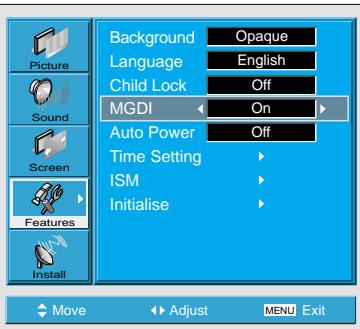
MGDI is the image enhancement technology of Daewoo Electronics, which provides more clear,
splendid, and delicated images.
Press the MENU Button.
- The MENU screen will be displayed as below.
2 Select Features
- Select [Features] by the “▼PR▲” button.
3 MGDI Demo Setting Enter the sub
- Enter the sub Menu by using the "VOL" button.
- Select the [MGDI] by pressing the “▼PR▲” button.
- You can select [MGDI] On, Off, and Demo mode by using the "VOL" button.
MGDI Demo
- When [MGDI] is set to Demo mode, Half of screen is [MGDI] ON and the other half is [MGDI] OFF.
- As [MGDI] is off, the sharpness of the Picture mode cannot be controlled.
* MGDI Demo Mode
MGDI ON
MGDI OFF
POWER/STANDBY Indicator
Front panel LED lights
- When the AC power is on : Green.
- When the AC power is in the standby mode: Red.
1
Auto Power Setting
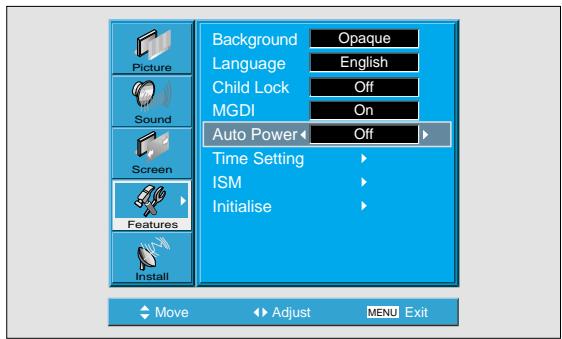
- Select the [Auto Power] by pressing the “▼PR▲” button from [Features].
- You can select [Auto Power] ON and OFF mode by using the "VOL" button.
Auto Power
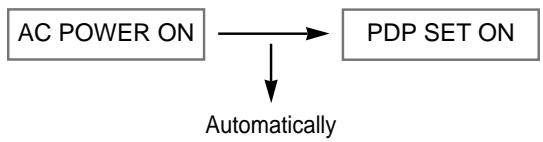
1) ON: When the AC power is ON, the TV will be turned on automatically without pressing the power button on the remote control.
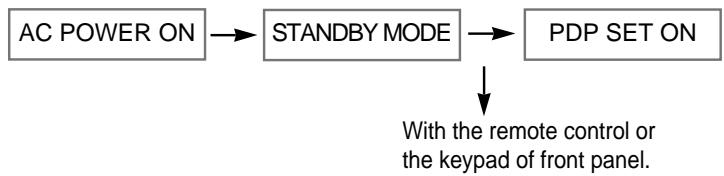
2) OFF: When the AC power is ON, the TV will be turned on by pressing the power button on the remote control or the keypad of front panel.
Time Setting
Press the MENU Button.
- The MENU screen will be displayed as below.
Select Features
- Select [Features] by the “▼PR▲” button.
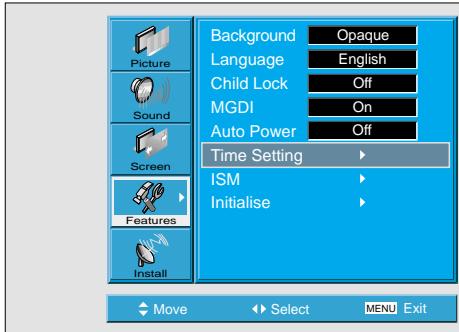
2 Select Time Setting
- Enter the sub menu by using the "VOL▶" button.
- Select the [Time setting] with the “▼ PR ▲” button.
- Enter [Time Setting] by pressing the "VOL" button.

Time Setting
- The "Current time" must be set up ahead of setting up other time memories.
4 Off-Time and Wake time setting
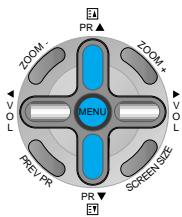
- Select Functions by pressing the “▼PR▲” button. First, set [Clock]-current time, and then You can setup off-time and wake time.
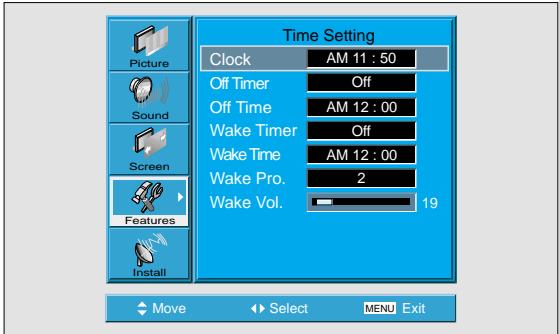

Time Setting Functions
1) This time memory function automatically turns the TV set "On" or "Off" at a desired time. Once set up, this function works every day unless the set time is canceled or the TV set is unplugged. Therefore, this function could be used for a "Get up" alarm (Morning Call) by setting up the time for "On" in the morning.
2) However, if you once power off with ON/OFF in the PDP unit, the Time Setting will be reset.
Image Sticking Minimisation(ISM)
Press the MENU Button.
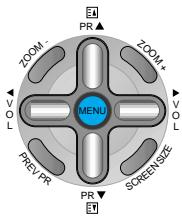
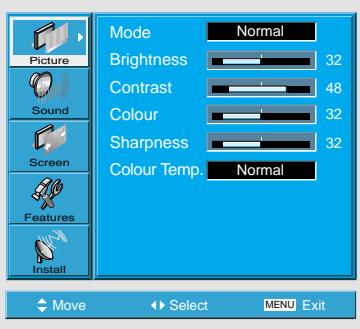
- The MENU screen will be displayed as below.
Press the “▼PR▲” Button.
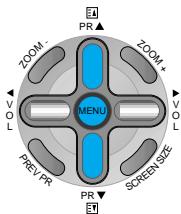
- Select [Features] by the “▼PR▲” button.
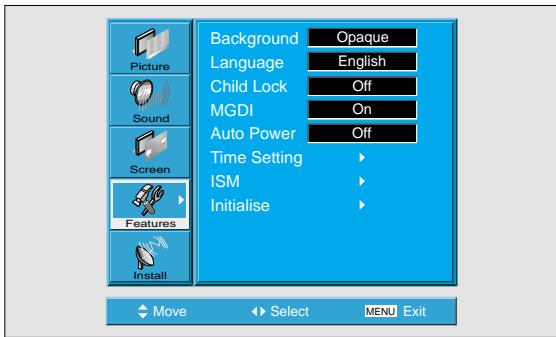
3 Select ISM.
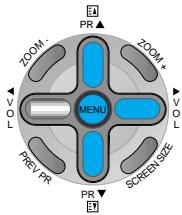
- Enter the sub menu by using the "VOL" button.
- Select the [ISM] by pressing the “▼PR▲” button.
- Press of the "VOL " button while you are in the ISM.
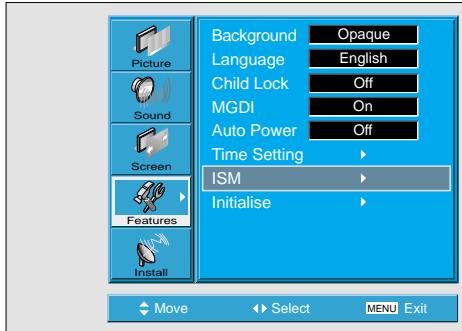
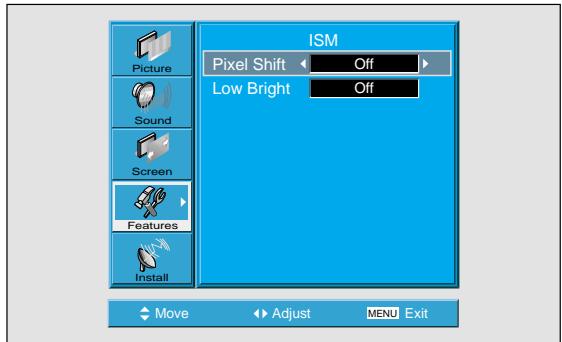
ISM
- Image burn minimisation.
- Displaying a still image like PC input for a long time causes part image sticking in the panel
- The ISM function minimise this effect.
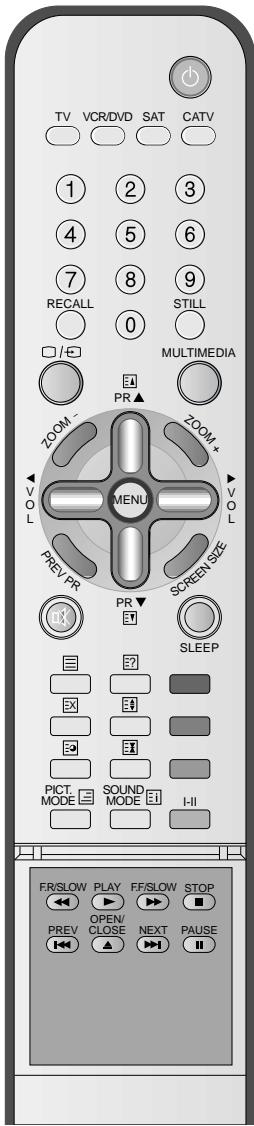
Image Sticking Minimisation(ISM)

Select Functions.
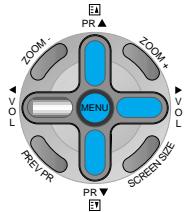
- Every press of the "VOL button after select function by the "▼PR▲" button would switch between ON/OFF.

NOTES:
- Pixel Shift : The whole screen shifts up/down, left/right at 20sec interval to minimise image sticking.
- Low Bright : When displaying a still picture or a fixed pattern for a long time, the brightness level decreases to minimise image sticking.
Initialise Setting
Press the MENU Button.
- The MENU screen will be displayed as below.
2 Select Features
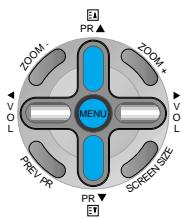
- Select [Features] by the “▼PR▲” button.
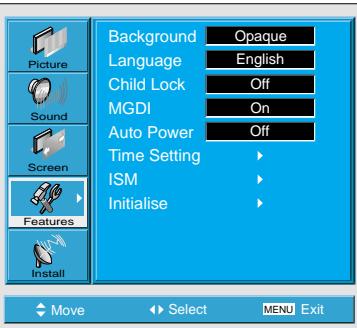
Back to Initialisation
- You can restore the values of the adjustment setting made in the MENU to factory settings.
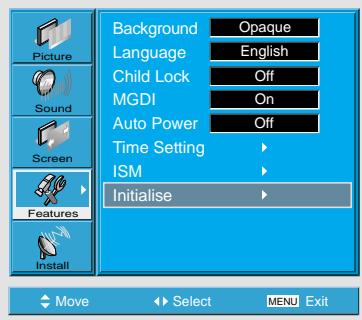
3 INITIALISATION Enter the
- Enter the sub Menu by using the "VOL" button.
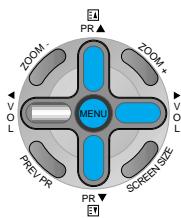
- Select the [Initialise] by pressing the “▼PR▲” button, then press the “VOL▶” button.
- A confirmation message will be displayed.
To perform initialisation, press the "VOL button after selecting [YES] by the " PR " button. - To return to MENU, press "MENU" button.
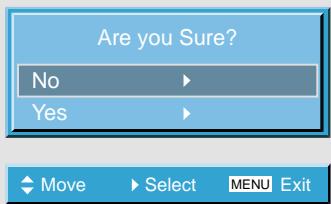

When [INITIALISATION] is completed:
1) When [INITIALISATION] is completed, those values that have been set in the User Mode of [SCREEN MODE] and [SOUND MODE] will be returned to the factory preset values.
2) Once initialised, you can not undo.
3) The items in the [SCREEN] Menu in PC or DVI INPUT are also initialised (i.e., H. Size, V. Size, H. Position, V. Position, Phase, Frequency, etc.)
4) Language, program, time, volume, OSD background, input mode are not initialised.
Setting Sleep Timer
1 Press the "SLEEP" Button. Press the "SLEEP" button

SLEEP
- Press the "SLEEP" button on the Remote Control.
- Pressing the "SLEEP" button first time will display the current setting for SLEEP TIMER.
- To cancel the SLEEP TIMER, press the "SLEEP" button to select 'OFF'.
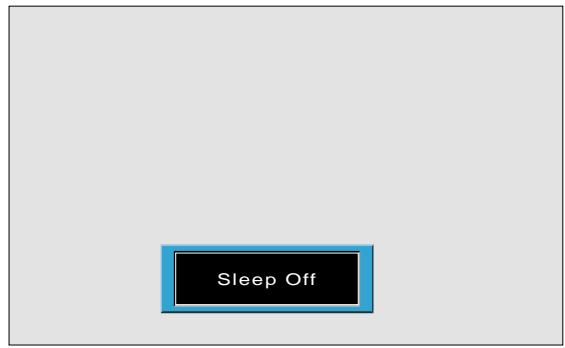
Sleep Timer off

Sleep Timer 15

Sleep Timer 30


Sleep Timer 120

Sleep Timer 90

Sleep Timer 60

NOTES:
1) On-screen information disappears if you do not take any action for about two seconds after pressing the SLEEP button.
2) If you turn the PDP off after setting SLEEP, the setting is erased.
Setting
Sleep Timer
- SLEEP TIMER turns the PDP off after a preset time.
Teletext

Switching Teletext ON/OFF
- Press the Text button (☑) The index page or the page viewed last will appear. Press the Text button again to return to the TV mode.
Colour buttons in TOP/FLOF Teletext
- A red, green, yellow and cyan field is shown at the bottom of the screen. If TOP or FLOF Teletext is transmitted by the station, pressing the corresponding colour button on the remote controller, you can select the desired page easily.
Selecting Pages
- The Page selector button 0~9 are used to enter a page number.
The selected page number appears at the top of the screen and the page appears after a short time.
The UP(▲or 4 ) / DOWN(▼or 3 ) buttons increase or decrease the current page number by 1.
Index Page
- You can switch directly to the program preview (with TOP text) or the overview page of the station you are currently viewing by pressing the Index (回) button.
Page Hold
- Several sub pages can be combined under a page number and are scrolled at an interval determined by the television station.
The presence of sub pages is indicated by, for example, 3/6 beneath the time, which means that you are looking at the 3rd page of a total of 6 pages.
If you want to look at a subpage for a longer period of time, press the Hold (3) button.
The contents of the subpage shown are kept no longer updated or switched to other subpages.
Pressing the Hold button again, the current subpage appears.

Calling Up Subpage Directly
- Pressing the Subpage( l ) button. The subpage number is displayed at the bottom of the screen. To change the subpage press the Red(-) / Green(+) buttons.
Enter the subpage number that you want to call up with the Page selector button 0~9, for example, the 2nd page, sequence 0002.
The desired subpage will eventually be displayed on the screen and holds it there.
Press this button again to exit this function.
Watching television during teletext mode
- Some pages are continually updated, for example, stock market reports, sports announcements, the latest news. If you want to watch television and stay informed at the same time, press Update (图) button.
The regular program is still visible and the teletext page number appears at the top of the screen. Pressing the Update button, the teletext page appears with the updated information.
Reveal Answer
- This function can be used on certain pages to reveal the solution of riddles. Press the Reveal button ( ) to reveal a hidden answer and press again to hide it.
Doubling Character size
- Repeatedly pressing the Size button ( ) doubles the character size in the following order. Upper half of the page Lower half of the page Return to normal size
Mix
- You can simultaneously watch TV and Teletext screen by pressing the mixed window button ( ③ ) in Teletext mode.

Before Requesting Service
Before requesting for service, check the following points once again.
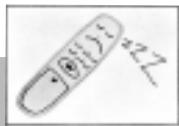
- Remote control does not function properly.
- Check for any obstacle between the Remote Control and the Display.
- Check for dead batteries and incorrect battery orientation.
- Check if the Remote Control is the right one.
- Remove any obstacle between the Remote Control and the Display.
- Replace batteries and use the correct polarity (+) or (-) of the batteries.
-
Use the correct Remote Control proper to the model.
-
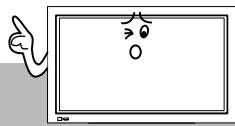
The Display makes a snapping sound.
-
Check if the pictures and sound are normal.
-
This sound is produced due to variations in room temperature.
-
This sound does not indicate that the Display has a problem if the pictures and sound can be viewed and heard properly.
-
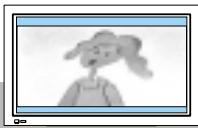
There are empty spots at the top and the bottom area of the screen.
- Check if the screen size of an image is wider than 16:9 aspect ratio (theatre screen size).
- When video screen is wider than 16:9 aspect ratio, you may see dark areas at the top and the bottom of the screen.
Before
Requesting for
Service
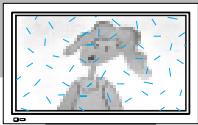
- There are spots on the screen or screen rolls.
-
Check if your product is affected by any interference from automobiles, high-voltage transmission lines, neon signs or other potential sources.
-
Screen size is suddenly changed.
- The screen size of a video image may not be matched to the size of the dark initial screen.
- Check by using other video tape.
DISPLAY UNIT
| Diagonal Size | 106cm (42") |
| Screen Aspect Ratio | 16:9 |
| System | PAL B/G, I/I, SECAM B/G, D/K, L/L' |
| Display Resolution | 853(H) ×480(V) dots |
| Pixel Pitch | 1.08(H) ×1.08(V) mm |
| Dimension | 1044(W) ×631(H) ×89(D)mm 41.10(W) ×24.84(H) ×3.50(D)inch |
| Weight | 30kg (66.13Lbs) |
| Power Requirement | 100-240V~, 50/60Hz |
- Appearance and specifications of this product are subject to change for improving the product without prior notice.
CONNECTION TERMINAL
| ITEMS | VIDEO | AUDIO | |
| EXTERNAL INPUT | DVI INPUT | DVI-D Digital Only Jack | (LEFT/RIGHT) |
| PC INPUT | one 15 pin D-sub jack | (LEFT/RIGHT) | |
| Component INPUT | two Y, Pb/Cb, Pr/Cr RCA Jack | 2sets (LEFT/RIGHT) | |
| AV 1, 2 | SCART Jack (Video In/Out, RGB In) | (LEFT/RIGHT) (In/Out) | |
| AV 3 | RCA Jack, S-VHS | (LEFT/RIGHT) | |
| TV | Standard: PAL/SECAM, B/G, D/K, I, H, L Receiving Channel: VHF Low: E2 ~ S6 Ch. (48.25MHz ~ 140.25MHz) VHF High: S7 ~ S36 Ch. (147.25MHz ~ 423.25MHz) UHF: S37 ~ E69 Ch. (431.25MHz ~ 855.25MHz) L'-SECAM: FB, FC1, FC | ||
| AUDIO OUTPUT | SPEAKER OUTPUT (8 Ohm) | 20W (10W + 10W) | |