EasyManual
DSL-15D3 - annexe 1 - TV DAEWOO - Free user manual and instructions
Find the device manual for free DSL-15D3 - annexe 1 DAEWOO in PDF.


User questions about DSL-15D3 - annexe 1 DAEWOO
0 question about this device. Answer the ones you know or ask your own.
Ask a new question about this device
Download the instructions for your TV in PDF format for free! Find your manual DSL-15D3 - annexe 1 - DAEWOO and take your electronic device back in hand. On this page are published all the documents necessary for the use of your device. DSL-15D3 - annexe 1 by DAEWOO.
USER MANUAL DSL-15D3 - annexe 1 DAEWOO
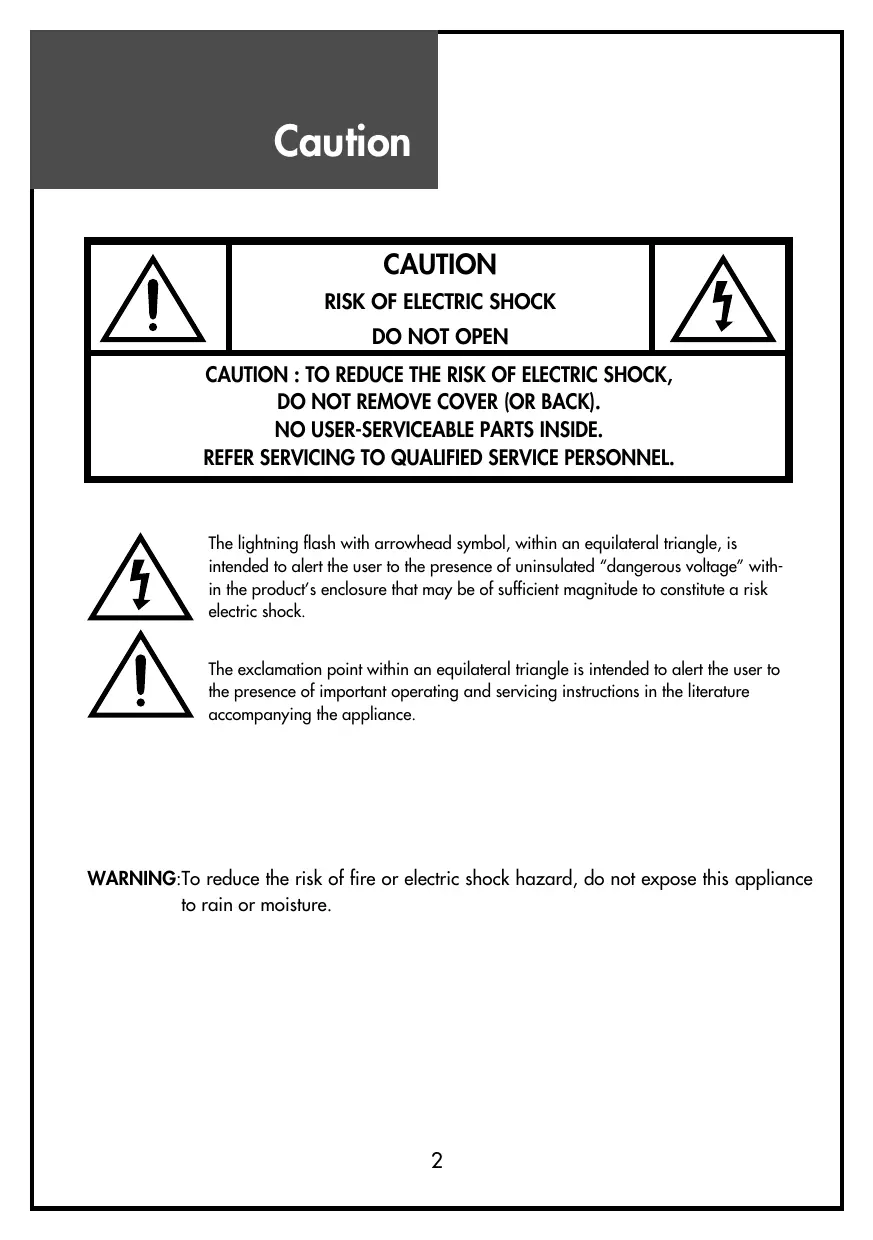
NO USER-SERVICEABLE PARTS INSIDE.
REFER SERVICING TO QUALIFIED SERVICE PERSONNEL.

The lightning flash with arrowhead symbol, within an equilateral triangle, is intended to alert the user to the presence of uninsulated "dangerous voltage" within the product's enclosure that may be of sufficient magnitude to constitute a risk electric shock.

The exclamation point within an equilateral triangle is intended to alert the user to the presence of important operating and servicing instructions in the literature accompanying the appliance.
WARNING: To reduce the risk of fire or electric shock hazard, do not expose this appliance to rain or moisture.
Safety Precautions
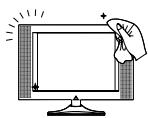
1. CLEANING
Unplug this TV equipment from the AC power outlet before cleaning.
Do not use liquid cleaner or aerosol cleaners. Use a soft and damp cloth for cleaning.
2. ATTACHMENTS
Do not use attachments not recommended by the TV equipment manufacturer as they may result in the risk of fire, electric shock or other injury.
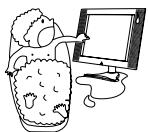
3. WATER AND MOISTURE
Do not place this TV equipment near water, for example, near bathtub, kitchen sink, laundry tub, in a wet basement, or near a swimming pool, or the like.
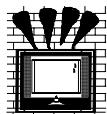
4. HEAT
Keep the TV equipment away from the heat sources such as radiator, heater, stoves and other heat-generating products.
5. SETTING
Do not place this TV on unstable cart, stand, or table. Placing the TV on an unstable base can cause the TV to fall, resulting in serious personal injuries as well as damage to the TV. Use only a cart, stand, bracket or table recommended by the manufacturer or salesperson.
6.WALL OR CEILING MOUNTING
When mounting the product on a wall or ceiling, be sure to install the product using the designated mounting tool according to the method recommended by the manufacturer.
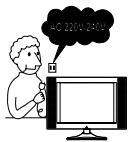
7. POWER
This TV equipment should be operated only from the type of power source indicated on the marking label. If you are not sure of the type of power supplied to your home, consult your TV dealer or local power company.
8. Pixel
The LCD panel is a very high technology product with 2,359,296(15") 2,949,120(17") 1,440,000(20") thin film transistors which give you fine picture details. Occasionally, a few non-active pixels may appear on the screen as a fixed point of blue, green or red please note that this does not affect the performance of your product.
9. SET MOVING
When moving the product, place your fingers of one hand in the socket on the back of the CTV and support the front of the TV with the other hand.


Contents
IMPORTANT SAFEGUARDS 5
SUPPLIED ACCESSORIES 6
FUNCTIONAL OVERVIEW 7
Front (Control panel) 7
Remote controller 8
PREPARATION 9
Inserting Batteries into the Remote Control Unit 9
Mains connection 9
Aerial connection 10
Connecting external equipment 12
INSTALLATION 14
Language selection 14
Automatic Tuning of TV Channels 14
Programme Editing 15
Manual Tuning 16
DAILY USE 18
Switching On and Off 18
Recall 18
Programme Selection 19
Picture Control 19
Sound Control 20
Special Features 21
Time setting 21
Wake up time setting 22
Sleep 22
Teletext (Option) 23
PC setup 25
27
TROUBLESHOOTING 28
PRODUCT SPECIFICATIONS 29
Important Safeguards
Location
Heat, Moisture, Dust, Vibration
Position your set so that bright light or sunlight doesn't fall directly onto the screen.
Care should be taken not to expose the set to any unnecessary vibration, moisture, dust or heat.
Do not expose the set to dripping or splashing.
Ventilation
Also ensure that the set is placed in a position to allow a free flow of air.
Do not cover the ventilation openings on the back cover.
Leave at least 10cm around each side of the TV set.
Mounting
This set can be positioned by using the table top stand or wall mounting bracket.
When you install the set using the wall mounting bracket, fix it carefully so it is secure.
Object Entry
Do not insert foreign objects, such as needles and coins, into the ventilation openings.
Lightning striking
You should disconnect your set from the mains and the aerial system during thunderstorms.
Cleaning
Unplug the set from the mains before cleaning.
Dust the set by wiping the LCD screen and the cabinet with a soft, clean cloth.
If the screen requires additional cleaning, use a clean, damp cloth.
Do not use liquid cleaners or aerosol cleaners.
Do not rub or strike the LCD with anything hard as this may scratch, or damage the LCD permanently.
Service
Never remove the back cover of the set as this can expose you to high voltage and other hazards.
If the set does not operate properly, unplug it and call your dealer.
Supplied Accessories
Make sure that the following accessories are provided with the product.
AC cord
AC cord
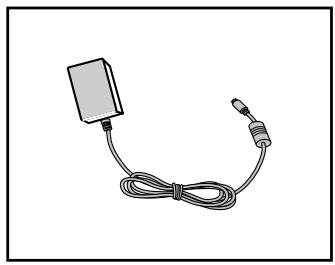
AC/DC adapter
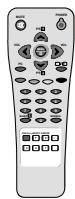
Remote controller

Instruction manual
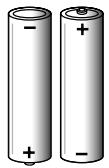
Batteries (Option)
(2x1.5V, AAA)
Functional
Overview
Front (Control panel)
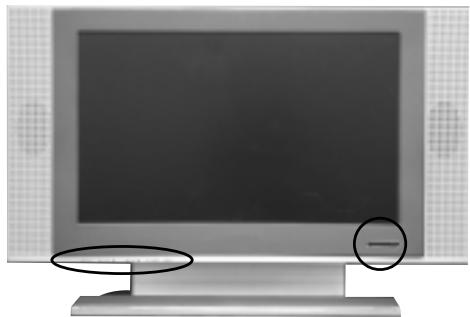
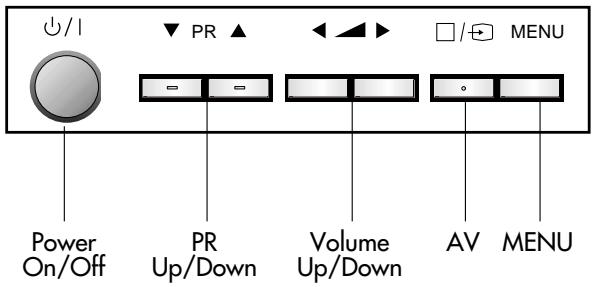
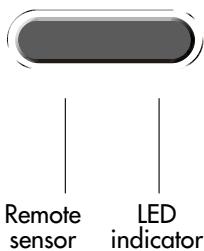
Functional
Overview
Remote Controller
[]:Teletext function
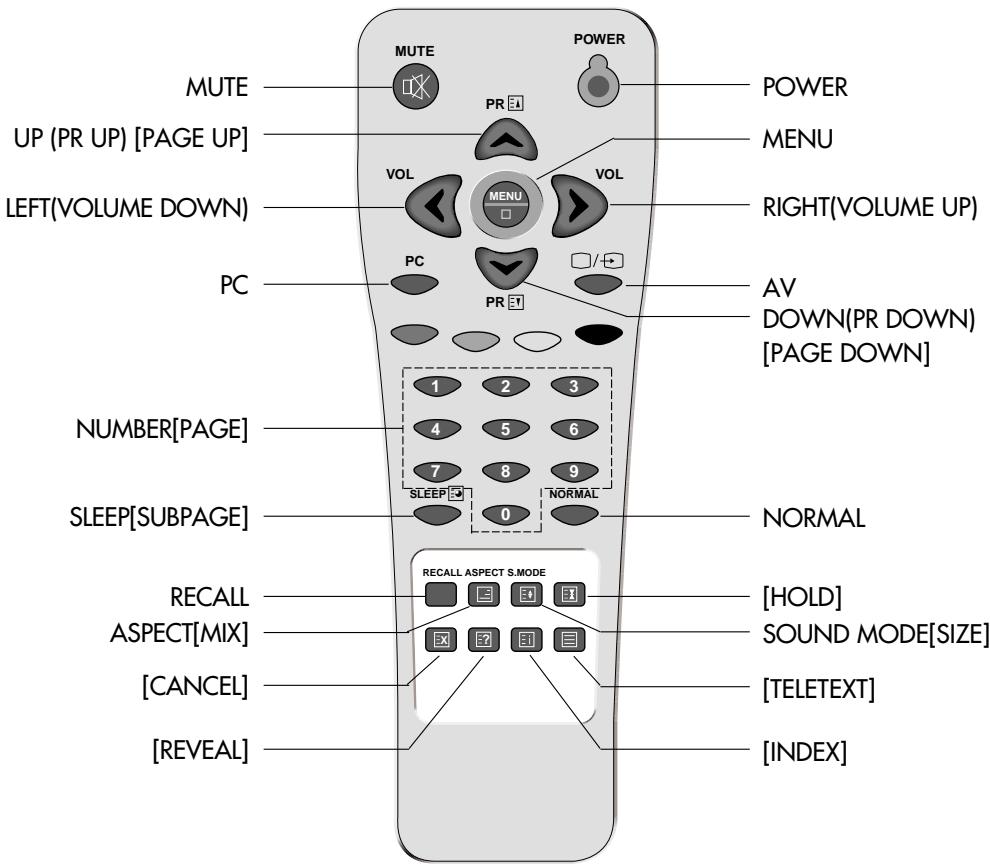
Preparation
Inserting Batteries into the Remote Control Unit
To load the batteries, turn the remote control handset over and open the battery compartment. Insert the batteries (Two 1.5v, type R03 or AAA). Make sure that the polarity matches with the (+) and (-) marks inside of the battery compartment.
Note: To avoid damage from possible battery leakage, remove the batteries if you do not plan to use the remote control handset for an extended period of time.
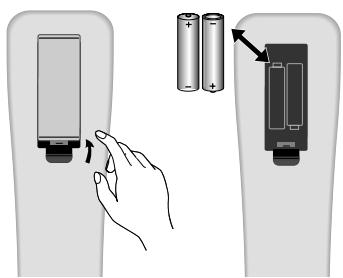
Mains Connection
- Connect the DC plug of the AC adaptor to the DC 12V(DC 15V-only 20^ ) input terminal of the set.
- Connect the AC adaptor and AC cord.
- Plug the other end of AC cord into a Power outlet with 100V - 240V AC, 50/60Hz.
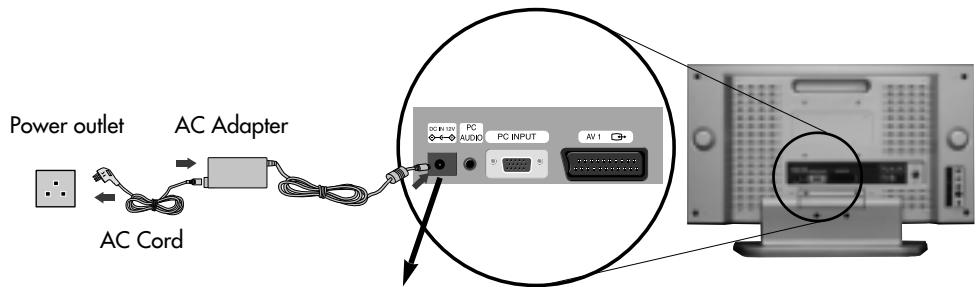
DC 12V input terminal (DC 15V-only 20^ )
Preparation
Aerial Connection
CONNECTING THE TV DIRECTLY TO AN AERIAL
Connect an aerial cable (75 ohm coaxial cable) to the Aerial terminal on the back of the TV set.
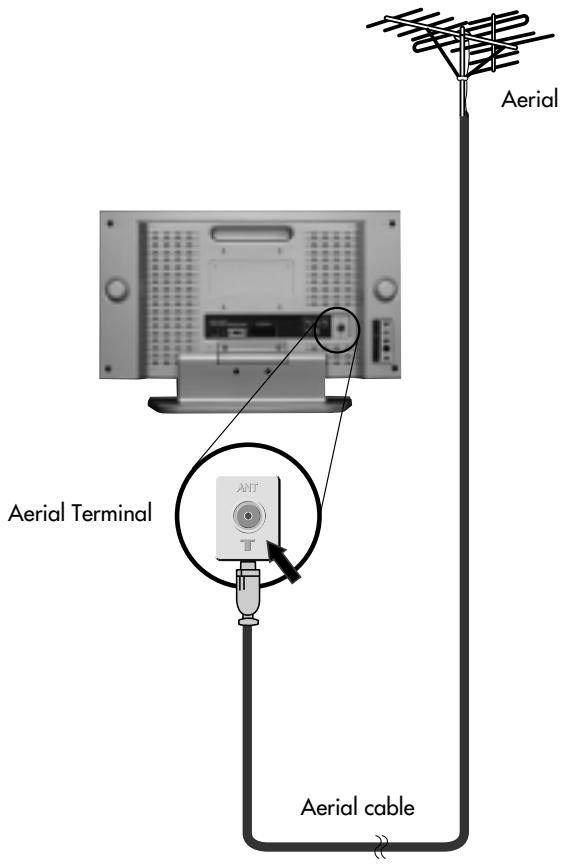
Preparation
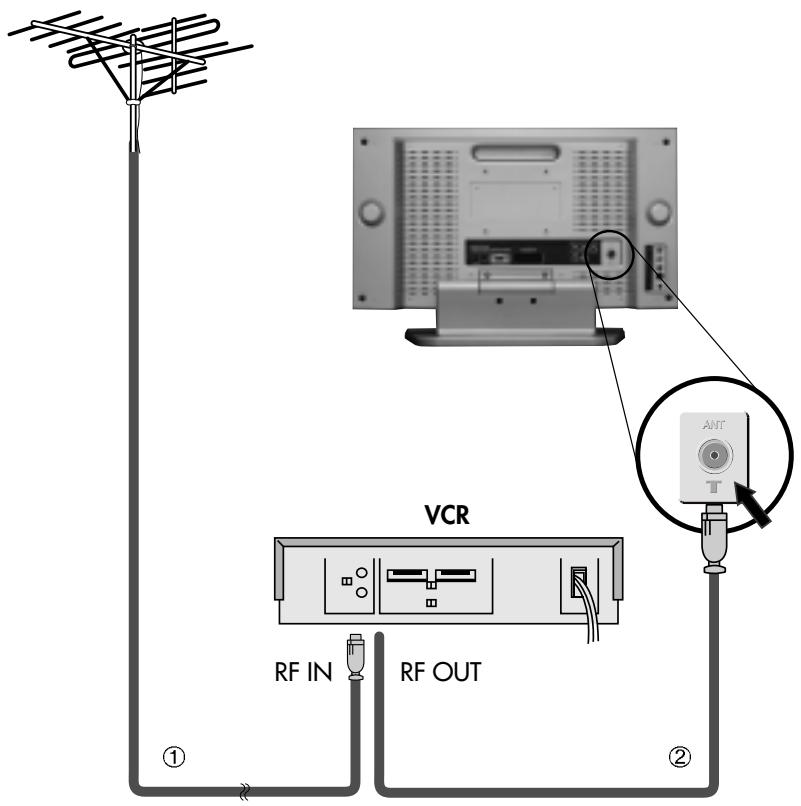
AERIAL CONNECTION WITH VCR
Connect your ① aerial cable to the RF(aerial) IN terminal on the VCR.
Connect the RF OUT terminal of the VCR to the Aerial terminal on the TV set with ② RF cable.
NOTE: If you wish to use only the Aerial (RF) connection, then you should store the VCR channel on programme number "ZERO" using the "Manual tuning" function (See page 16). Now you can watch the VCR in TV mode by selecting the programme number "PRO0".
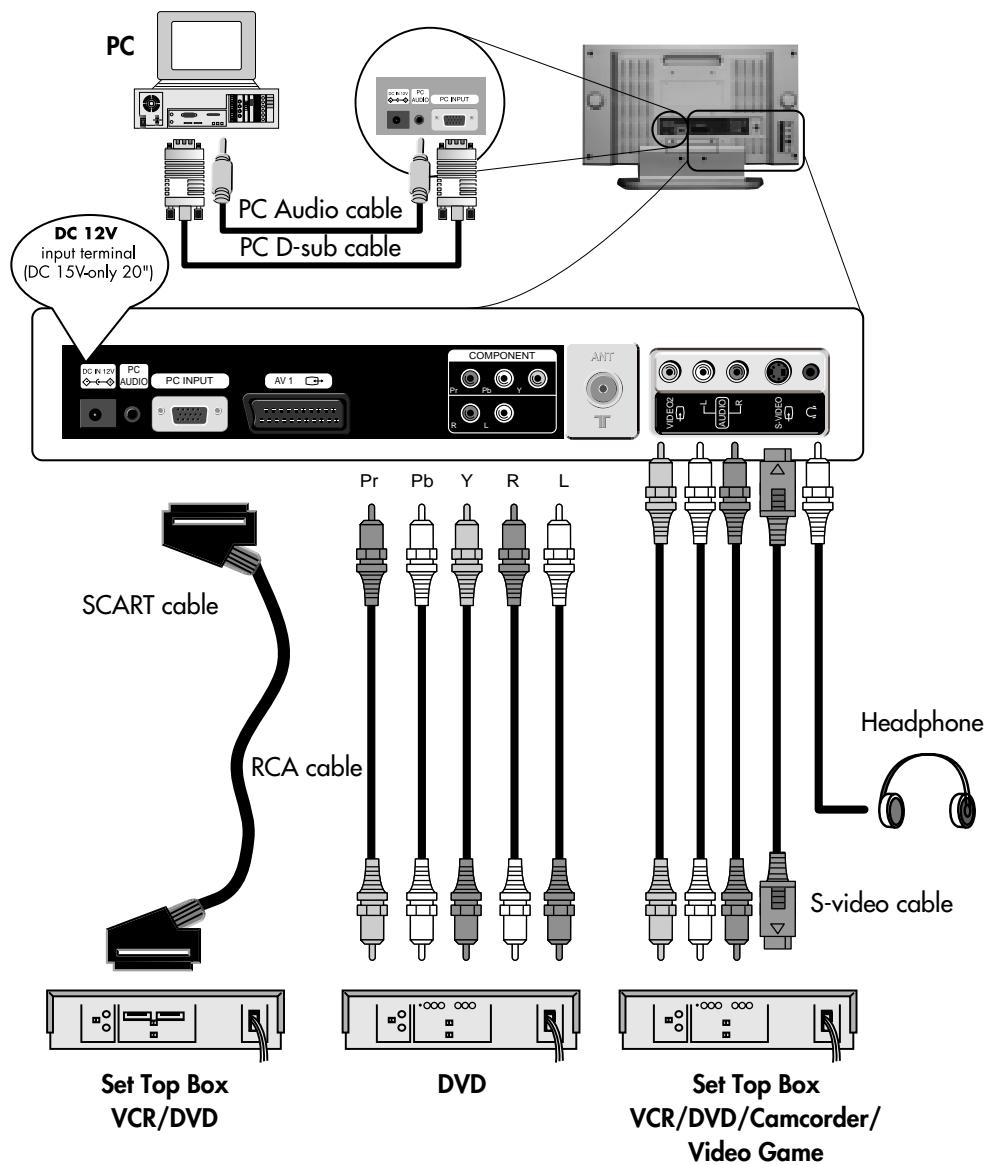
Connecting external equipment
Preparation
TV/AV/PC MODE SELECTION
Press the TV/AV( / 一 ) button on the control panel repeatedly to select the source.
You can also select the source using TV/AV( / ) button on the remote controller.
There is the direct key on the remote controller, PC, for the PC mode.
In TV mode, you can change the TV programme number with the ^PR button or the NUMBER button.
NOTE : When the TV SET has no signal, OSD(On Screen Display) appears on the screen.
AV INPUT JACK (VIDEO2)
This jack has video / audio inputs.
It is used to connect a VCR, Camcorder, DVD, STB, Video game.
S-VIDEO INPUT JACK
It has Y/C inputs. This jack is used to connect S-Video equipment.
COMPONENT INPUT JACK (COMPONENT)
This jack has Y/Pb(Cb)/Pr(Cr) inputs and audio inputs.
It is used to connect a DVD.
SCART JACK (AV1)
This jack has video / audio inputs and outputs, RGB inputs.
It is used to connect a STB, VCR, DVD.
When the signal is RGB, the TV set switches automatically to AV1 mode.
In most cases, the TV set switches automatically to AV1 mode, when the external equipment is connected in playback mode. If not, then use the AV button to select AV1.
HEADPHONE JACK
Insert the headphone plug(3.5 mm ) into this jack(, ).
The sound from the speaker will be automatically cut off.
You can control the headphone sound with the VOL button.
D-SUB JACK (PC RGB)
This jack has RGB inputs and is used to connect a PC.
See page 25 for more information of PC mode.
PC AUDIO INPUT JACK
Connect the stereo audio cable to the PC AUDIO jack and the other end to the Audio Out terminal of the Sound card on your PC.
Installation
Language Selection
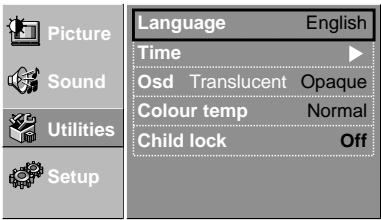
- When you turn on the TV set (see page 18) for the first time, the Language menu appears for the on-screen display.
If not,
(1) Press the MENU button to call up the menu.
(2) Move the selection bar to the Utilities menu with button.
(3) Press the VOL button.
(4) Move the selection bar to the Language with button.
- Press the button to choose the language you want.
- Press the MENU button to escape from menu.
Automatic Tuning of TV Channels
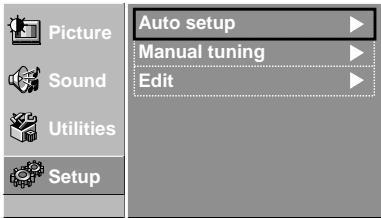
- Press the MENU button to call up the menu.
- Move the selection bar to the Setup menu with PR button.
- Press the VOL button.
- Place the selection bar on Auto setup and press the VOL button.
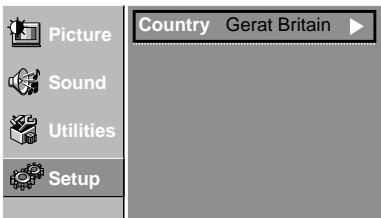
- Place the selection bar on the Country you require with PR button.





Installation
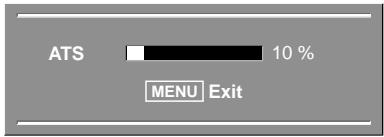
- Press the button. All available TV channels (CH) are searched for and stored from programme number (PR) 1 onwards automatically. The names of the TV channels are stored as well if the TV channels broadcast VPS, PDC or Teletext.
- Please wait until the tuning screen disappears.
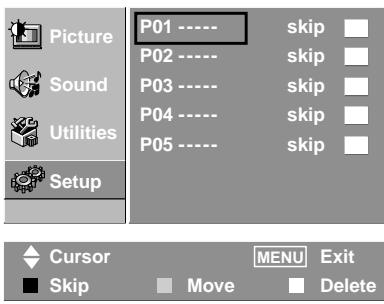
Programme Editing
Select the Edit menu from the Setup menu.
DELETING THE PROGRAMME
- Position the selection bar to the programme to delete with the PR buttons.
- Press the YELLOW button. The selected TV channel is deleted, all the following channels are shifted up one position.
MOVING THE PROGRAMME
- Select the programme to move with button.
- Press GREEN button to move the selected programme up or down to the desired programme number.
SKIPPING THE PROGRAMMES
- Select Skip "Yes" or "No" with the RED button.
- The programme marked with Skip "Yes" doesn't appear on screen when selecting a programme using the PR button.
Installation
Manual tuning
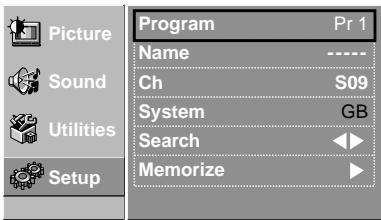
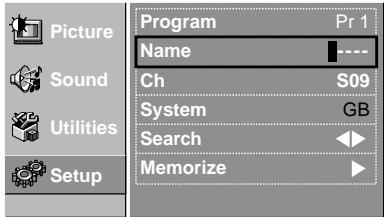
Select the Manual tuning from the Setup menu.
PROGRAMME NUMBER SELECTION
- Position a selection bar to Program.
- Press the VOL buttons to select a programme number you want.
TV SYSTEM SELECTION
If necessary, you can change the TV System.
- Position a selection bar to System.
- Select the TV system with VOL button.
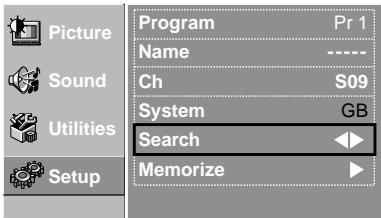
CHANNEL SEARCH
PR Search
- Position the selection bar to Search.
- Press the VOL or VOL button to search up or down.
- Searching will be stopped automatically after finding the next channel.
- Without memorizing the searched channel, it will not be stored. For saving the channel, position the selection bar to Memorize.
- Press the VOL button.


Installation
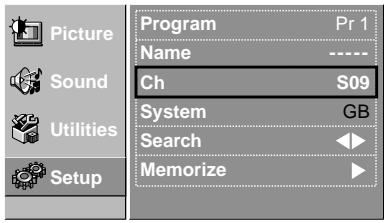
Direct Search
You can find the desired channel directly without Search function by inputting the channel number.
- Place the selection bar to 'Ch'.
- Press the VOL button of the remote control to start.
- Using button of the remote control to select the digit, which you desire to change.
- By pressing the button, you can find the desired number or character.
- For saving the channel you select, please memorize it.
ENTER A STATION NAME
You can change an existing name, or enter a name where none exists.
- Move the selection bar to Name.
- Press the VOL buttons to call up the Name menu.
- Select the position with VOL button.
4.Use the buttons to select the desired character: A B C...Z+-(blank)12...9


Daily Use
Switching On and Off
SWITCHING ON
- If the Indicator is not lit, then the TV set is powered off.
You must press the / button on the TV set.
The set will switch to stand-by mode and then the Indicator will illuminate in Red.
- Press the POWER button, ^PR button or NUMBER button on the remote controller or PR button on the TV set.
The TV set will be switched on and then the Indicator will change to Green.
SWITCHING OFF
- Press the POWER button on the remote controller to return the set to its stand-by mode.
The Indicator will illuminate in Red. - Press the / button on the TV set to switch the TV set off completely.
NOTE: If you don't use the set for extended periods of time, unplug the AC cord from Power outlet.
Recall
The Recall button is used to display the current status; Mode (AV, Component, PC) and Signal information for 4 seconds.
In TV mode, the Programme number and Station Name, Sound mode are displayed.
Programme Selection
The set has 100 programme numbers, PR00..PR99.
DIRECT SELECTION
The NUMBER buttons are used for direct programme selection.
To select a two-digit programme, press the second numbered button within 2 seconds.
▼PR▲ SELECTION
You can also select a programme by pressing step by step the buttons.
Picture Control
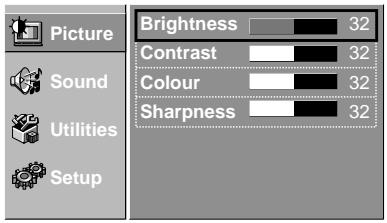
- Select the Picture menu.
- Select and adjust the level of each function: "Brightness", "Contrast", "Colour", "Sharpness".
The adjusted levels are stored automatically in Favourite mode.
NOTE: Tint is displayed only when receiving a NTSC signal. Only Brightness, Sharpness and Contrast are displayed in PC mode.
SMART NORMAL SELECTION
When you press the NORMAL button repeatedly, you can call up three pictures settings;
Normal1 Normal2 Favourite Normal1
ZOOM (ASPECT RATIO) CONTROL
You can select the desired aspect ratio with the ASPECT button on the remote controller.
(NB: It doesn't work in Component or PC mode.)
The following picture formats are available:
Normal 16:9 Zoom (15^ / 20^ )
Normal 4:3 Zoom (17^ )
Move
Adjust
MENUPrV.
Daily Use
Sound Control
VOLUME CONTROL
Adjust the volume with the VOL buttons.
MUTE
Pressing the MUTE button ( × ) turns the sound off.
The MUTE symbol will be displayed.
The sound returns if the button is pressed once more.
SOUND MODE
Stereo/Mono sound selection
When receiving a Stereo programme, Stereo mode is automatically selected.
In Stereo reception if you are unable to get good sound quality due to poor reception, you can force a change from Stereo to Mono transmission by pressing the S.MODE button.
Then the program status display indicates (Mono).
To return back to Stereo, press the S. MODE button again.
The setting can be individually selected for each PR number.
Volume

20
Pr 12
Stereo
Pr 12
Mono
Daily Use
Special Features
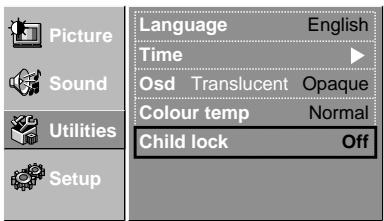
Select the Utilities menu.
CHILD LOCK
The set is child-locked by selecting "On". This prevents the use of the TV set without the remote control.
NOTE : When a Child lock is activated, the LED will be blinking the red and green in Stand-By mode.
OSD BACKGROUND
If you select Translucent, the OSD (On-Screen Display) back-ground appears translucent. If you select Opaque, the OSD back-ground appears opaque.
COLOUR TEMPERATURE CONTROL
You can change the tone of colour.
Normal: Normal white
Warm: Reddish white
Cool: Bluish white
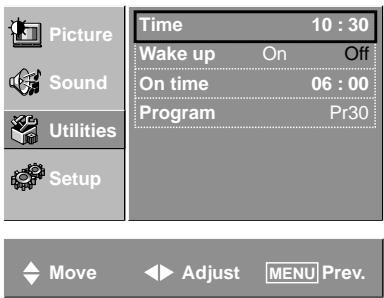
Time setting
- Select Time from the Utilities menu.
- Press the VOL button while the selection bar is on Time.
- Using ^PR and VOL buttons input the current time.
- Press the MENU button for exit.
NOTE : Even though you turn off LCD unit with remote control, the time setting will be saved. However, if you turn off the main power off from the LCD unit the time setting will be reset.
Move
Adjust
MENUPrV.
Daily Use
Wake up time Setting
Wake up
- Select the Wake up.
- Press the VOL button while the selection bar is on Wake up.
- Select wake up On or Off with the
buttons. - Press the MENU button for exit.
On time
- Select the On time.
- Press the VOL button while the selection bar is on On time.
- Using ^PR and VOL buttons, input the desired time.
- Press the MENU button for exit.
Program
- Select the Program.
- Press the VOL button while the selection bar is on Program.
- Select the desired program for Wake up program with VOL buttons.
- Press the MENU button for exit.
NOTE : The "Current time" must be set up before setting up other time memories.
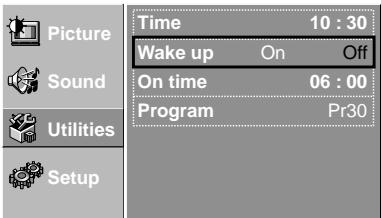

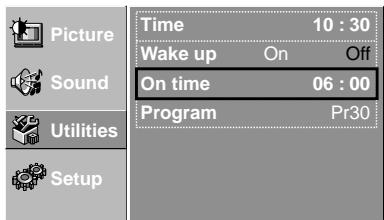

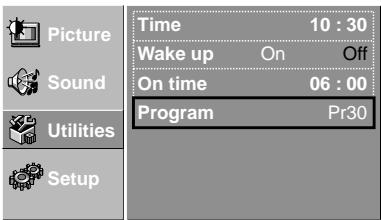

Sleep
By pressing the SLEEP button repeatedly, you can select one of the following settings:
Sleep 0 Sleep 15 Sleep 30 Sleep 60 Sleep 120 Sleep 0
The set will turn off after the time you select.
NOTE: If a broadcast signal is not present for about 30 minutes, the set will be automatically turn to stand-by mode.
Teletext (Option)
SWITCHING TELETEXT ON/OFF
Press the TELETEXT button ( ).
The index page or the page viewed last will appear.
Press the TELETEXT button again to return to the TV mode.
NOTE: Teletext works only in TV/AV mode.
COLOUR BUTTONS IN TOP/FLOF TELEXT
A red, green, yellow and blue field is shown at the bottom of the screen.
If TOP or FLOF Teletext is transmitted by the station, pressing the corresponding colour button
R,G,Y,C on the remote controller, enables you to select the desired page easily.
SELECTING PAGES
The NUMBER buttons are used to enter a page number.
The selected page number appears at the top of the screen and the page appears after a short time.
The ^PR buttons increase or decrease the current page number by 1.
INDEX PAGE
You can switch directly to the programme preview(with TOP text) or the overview page of the station you are currently viewing by pressing the INDEX button (E1).
PAGE HOLD
Several sub pages can be combined under a page number and are scrolled at an interval determined by the television station. The presence of sub pages is indicated by, for example, 3/6 beneath the time, which means that you are looking at the 3rd page of a total of 6 pages. If you want to look at a subpage for a longer period of time, press the HOLD button ( ).
The HOLD symbol appears and the contents of the subpage shown are kept on the screen and no longer updated or switched to other subpages.
Pressing the HOLD button again, the current subpage appears.
Daily Use
CALLING UP SUBPAGE DIRECTLY
Pressing the SUBPAGE button ( l ), "----" appears.
Enter the subpage number that you want to call up with the NUMBER button, for example, the 2nd page, sequence 0002.
The desired subpage will eventually be displayed on the screen and holds it there.
Meanwhile whilst you are waiting, it is possible to go back to the TV picture by pressing the
CANCEL button( 三 )on the remote and after a while, press the CANCEL button again to revert back to the saved Teletext sub page.
WATCHING TV DURING TELEXT MODE
Some pages are continually updated, for example, stock market reports, sports announcements, and the latest news.
If you want to watch television and stay informed at the same time, press CANCEL button ( × ).
The regular programme is still visible and the Teletext page number appears at the top of the screen.
Pressing the CANCEL button, the Teletext page appears with the updated information.
REVEAL ANSWER
This function can be used on certain pages to reveal the solution of riddles.
Press the REVEAL button ( ? ) to reveal a hidden answer and press again to hide it.
DOUBLING CHARACTER SIZE
Repeatedly pressing the SIZE button ( 三 ) doubles the character size in the following order:
Upper half of the page Lower half of the page Normal size
Upper half of the page
MIX
By pressing the MIX button ( ), the teletext pages will be superimposed on the TV picture. Press the MIX button again to return back to teletext pages.
PC setup
PC Mode input format.
If the signal from the PC system equals one of the standard signal modes, the screen will automatically adjust and display image. If the signal from the PC system doesn't equal any of the modes, adjust the Video card setting on the computer. For the display modes listed below, the screen image has been optimized during manufacture. The message "Out Of Range" will appear when the PC signal does not correspond to any of the below standard setting
| Standard | Resolution (Mode) | V-frequency (Hz) | H-frequency (KHz) | 15" | 17" | 20" |
| MAC | 640x480 | 66 | 35.00 | ○ | ○ | ○ |
| 832x624 | 75 | 49.73 | ○ | ○ | ○ | |
| IBM | 640x480 | 60 | 31.47 | ○ | ○ | ○ |
| 720x400 | 70 | 31.47 | ○ | ○ | ○ | |
| VESA | 640x480(VGA) | 72 | 37.86 | ○ | ○ | ○ |
| 800x600(SVGA) | 60 | 37.88 | ○ | ○ | ○ | |
| 72 | 48.08 | ○ | ○ | ○ | ||
| 1024x768(XGA) | 60 | 48.37 | ○ | ○ | X | |
| 70 | 56.48 | ○ | ○ | X | ||
| 1280x768(WXGA) | 60 | 47.70 | X | ○ | X |
Please up-grade the video card driver with the latest version because some of old version video cards may not support the 1280x768 resolution.
Daily Use
Select the Screen menu in the PC mode.
H-POSITION AND V-POSITION
Use this to adjust the horizontal and vertical position of the displayed image.
PHASE
This function allows you to remove any horizontal noise and clear or sharpen the image of characters.
FREQUENCY
This function is to minimize any vertical bars or stripes visible on the screen background. And the horizontal screen size will also change.
AUTO SETUP
This function is for the automatic adjustment of the screen POSITION, PHASE and FREQUENCY.
NOTE: Some signal from some Video cards may not function properly. If the results are unsatisfactory, adjust POSITION, PHASE and FREQUENCY manually.
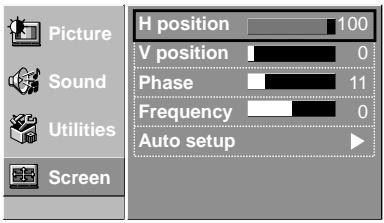
Move
Adjust
MENUPrV.
Wall/Arm Mounting
Attaching a Wall or Arm mounting device
This TV supports the VESA mounting standard and will accommodate various VESA mounting devices.
To install any VESA mounting device, please follow the manufacturer's instructions.
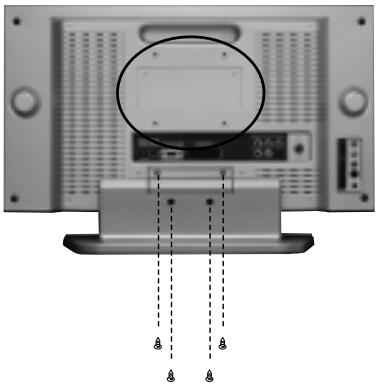
- Remove all cables connected to the TV.
- Lay the LCD TV face-down on a flat surface with a blanket or other soft materials to protect the screen.
- Remove the four screws attaching the stand. Remove stand from LCD TV.
- Remove the four screws attaching the rear cover.
- Now you are ready to install the VESA mounting device suited to your applications (see instructions below).
- Connect all cables removed at step 1.
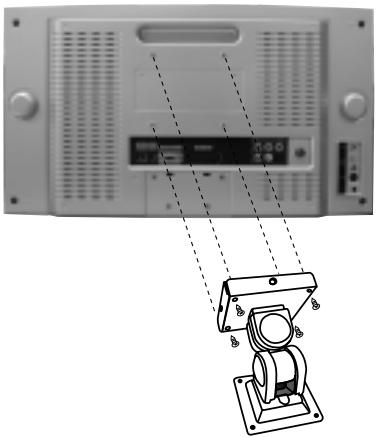
Installing VESA compliant mounting devices
- Align the mounting interface pad (100mm x 100mm hole spacing) with the holes in the televisions rear cover mounting pad.
- Secure bracket with the four screws (4mmØ) that came with the VESA mounting device.
Troubleshooting
Please check the following items before calling for the repair services.
| Problem | Check item | Reference page |
| TV set | ||
| Control/System lock up | ·The TV may have malfunctioned. ·Switch your TV off and on again with the main ↓/↑ button on the TV set. | -18 |
| Remote control does not work. | ·Perform control/system lock up reset (as above) ·Replace the batteries in the remote controller. ·Make sure the Remote sensor window is not understrong light e.g. a fluorescent lamps. | 9- |
| Local buttons do not work. | ·Has the Child lock been switched on? | 21 |
| No picture and no sound. | ·Check that the TV set is switched on at the main ↓/↑ switch. | 18 |
| No picture. | ·Make sure the brightness and contrast are not set to minimum. | 19 |
| No colour | ·Make sure the Colour is not set to minimum. ·Check the System settings. | 1916 |
| Picture is too light or too dark. | ·Adjust the Brightness, Contrast. | 19 |
| The picture is improperly tinted. | ·Adjust the Colour temperature. ·Check the Tint adjustment (NTSC signal) | 2119 |
| No sound. | ·Check that the volume is not set to minimum. ·Check sound is not muted. ·Make sure headphones are not connected. | 202013 |
| Aerial | ||
| The picture is not sharp. The picture shakes. | ·Reception may be weak. ·The quality of the broadcast may also be poor. ·Make sure the aerial is facing the correct direction. ·Chek that the outside aerial is not disconnected. | |
| The picture is ghosted. | ·Mountains or high buildings can cause double pictures. ·Try changing the direction of the aerial. | |
| The picture is spotted(snow). | ·There may be interference from automobiles, trains, high voltage lines, neon lights, etc. ·There may be interference between the aerial cable and power cable. ·Try positioning cables further apart. | |
| Picture has lines and faded colours. | ·Transmission aerial of amateur radios and cellular phones may cause interference. ·Position the TV set as far away as possible from devices that may cause interference. | |
| PC | ||
| Poor image Image is not centered on screen | ·Adjust the Phase and Frequency. ·Adjust the Horizontal and vertical position. | 2626 |
Product Specifications
| MODEL NUMBER | DSL-15D3/15D4 | DSL-17D3/17D4 | DSL-20D3/20D4 |
| PANEL | 15" TFT LCD | 17" WIDE TFT LCD | 20" TFT LCD |
| SCREEN SIZE | 381mm | 434.38mm | 510.54mm |
| DISPLAY COLOR | 16.2M | 16.2M | 16.7M |
| CONTRAST RATIO | 400 | 450 | 500 |
| PIXEL PITCH | 0.297(H)×0.297(V) | 0.2895(H)×0.2895(V) | 0.51(H)×0.51(V) |
| ASPECT RATIO | 4:3 | 16:9 | 4:3 |
| POWER REQUIREMENT | AC 100V-240V~, 50/60Hz | ||
| POWER CONSUMPTION | 34W | 40W | 50W |
| SOUND OUTPUT | 2.5W+2.5W | 2.5W+2.5W | 2.5W+2.5W |
| APPEARANCE(mm) | 463x345x215 | 544x358x215 | 608x456x215 |
| WEIGHT | 6Kg | 7Kg | 11Kg |
| NUMBER OF Pixels | 1024x768 | 1280x768 | 800x600 |
| RESOLUTION | 1024x768(XGA) | 1280X768(WXGA) | 800X600(SVGA) |
| DC POWER | DC 12V | DC 12V | DC 15V |
| TERMINALS | AV IN : COMPOSITE VIDEO, S-VIDEO, AUDIO L/R | ||
| COMPONENT : Y, Pb(Cb), Pr(Cr) [480i, 480p, 576i, 576p, 720p(50Hz/60Hz), 1080i(50Hz/60Hz)] AUDIO L/R | |||
| HEADPHONE : 3.5mm STEREO MINI-JACK | |||
| PC IN : D-SUB 15PIN RGB IN, PC AUDIO IN | |||
| ANT. IN : COAX-TYPE | |||
| RECEPTION CHANNEL | CCIR + CATV + HYPER Channel VHF-L : NZ1 ~ S7 (45.25MHz ~ 147.25MHz) VHF-H : S8 ~ S36 (154.25MHz ~ 423.25MHz) UHF : S37 ~ E69 (431.25MHz ~ 855.25MHz) | ||
Owing to out policy of continuous improvement, specifications may change.