
MD 90320 - External hard drive MEDION - Free user manual and instructions
Find the device manual for free MD 90320 MEDION in PDF.



| Product Type | External hard drive |
| Form factor | 2.5 inches |
| Size (estimated) | Approx 12 x 7 x 1.5 cm |
| Weight (estimated) | Approx 150 g |
| Interface | USB 2.0 (compatible with USB 1.1) |
| Compatible operating systems | Windows XP / Vista |
| Power | Via USB port (Y cable included with AUX POWER connector) |
| Package contents | Hard drive, USB 2.0 Y cable, user manual, warranty card |
| Main functions | Data backup, portable storage, ability to partition and format (NTFS, FAT, FAT32) |
| Care and cleaning | No maintenance required. Disconnect all cables before cleaning. Do not use solvents or caustic products. |
| Safety | Protect from shocks, do not open the casing, avoid moisture and heat. Use only interfaces conforming to EN60950 standard. |
| Spare parts and repairability | The connection cable must be replaced by a qualified professional. Repairs exclusively by MEDION or its partners. Warranty according to conditions. |
| General information | User manual available in PDF format. Telephone support available. |
Frequently Asked Questions - MD 90320 MEDION
User questions about MD 90320 MEDION
0 question about this device. Answer the ones you know or ask your own.
Ask a new question about this device
Download the instructions for your External hard drive in PDF format for free! Find your manual MD 90320 - MEDION and take your electronic device back in hand. On this page are published all the documents necessary for the use of your device. MD 90320 by MEDION.
USER MANUAL MD 90320 MEDION
Telephone:0032.077-30.81.100
Fax:0032.077-30.81.188
PC/AT-compatible computer
- Processor
Safety instructions. 3
Cleaning 5
Recycling and disposal 6
Data security 6
Introduction 7
Setting up 8
Safety and installation 3
Cabling 4
Electromagnetic compatibility/ Conformity with norms 4
Box contents. 7
System requirements 7
Connecting the cables 8
Installing the hard disk 9
Before you install your hard disk 10
Partitioning programmes 10
Partitioning the drive 10
Formattig the drive 11
Choosing between NTFS, FAT, and FAT32 11
14
Customer service 15
Requirements for optimal performance: 15
Troubleshooting 16
Do you require additional support? 17
Copying this manual. 17
Restricted Warranty 18
Copyright © 2008
All rights reserved.
This manual is protected by Copyright.
The Copyright is owned by MEDION
Trademarks:
MS-DOS and Windows are registered trademarks of Microsoft.
Other trademarks are the property of their respective owners.
We reserve the right to make technical changes.
Safety instructions
Please read this chapter carefully and observe all listed notes. This will ensure reliable operation and long life expectancy of your product. Keep these instructions with your product at all times. The proper set up, use and care can help extend the life of your product. In the event that you transfer ownership of this product, please provide these instructions to the new owner.
Safety and installation
- Changing the hard disk must only be performed by a person who is experienced in repairing and upgrading PCs.
- Should you not possess the necessary skills, call in a technician.
- Hard disks are extremely fragile. Never drop or shake the hard drive - this could irreversibly damage the data on the hard disk. Be especially careful when transporting the hard disk as we provide no guarantee for this type of damage.
- The hard drive can become warm after prolonged use.
- Never open the casing of your hard disk, if you do the hard disk will no longer be covered by our guarantee.
- Do not let children play unattended with electrical devices.
- The hard disk is not designed for use in commercial applications/situations.
- After transportation, wait until the equipment is at room temperature before turning it on. If there is a large difference in temperature or humidity, damp can build up through condensation and cause an electrical short circuit.
- Keep your hard disk and all connected equipment away from damp and avoid dust, heat and direct sunlight in order to prevent operational problems.
-
In order to avoid damage from a fall, place the hard disk on a stable and level surface which does not vibrate.
-
For additional safety, we recommend using power connection through a power surge protection unit in order to protect your equipment from power surges and lightning strikes.
- The voltages and interfaces used in the equipment are in line with the low voltage protection guidelines set out in EN60950. Connections to other equipment may only be made using similar interfaces with low voltage protection in accordance with EN 60950.
- Please use our Service Center if you have any technical problems with your hard disk. If repairs are needed, please exclusively use our authorised service partners.
- In the first hours of operation, new devices may emit a typical, unavoidable but completely harmless smell, which will decline increasingly in the course of time.
We recommend you ventilate the room regularly, to counteract the formation of the smell.
Cabling
- Arrange cables so no one can walk on or trip over them.
- Do not place objects on any of the cables.
Electromagnetic compatibility/ Conformity with norms
This device fulfils the requirements of electromagnetic compatibility and electrical safety of the following norms:
EN 55022 Information technology equipment - Radio disturbance characteristics - Limits and methods of measurement
EN 55024 Information technology equipment - Immunity characteristics - Limits and methods of measurement
EN 61000-3-2 Electromagnetic compatibility (EMC) - Limits for harmonic current emissions (equipment input current up to and including 16 A per phase)
EN 61000-3-3
Electromagnetic compatibility (EMC) - Limitation of voltage changes, voltage fluctuations and flicker in public low-voltage supply systems, for equipment with rated current <= 16 A per phase and not subject to conditional connection
EN 60950
Safety of information technology equipment
- On connecting the hard disk, you must keep to the guidelines for electromagnetic compatibility.
- Ensure your hard disk is located at least one meter away from sources of high frequency and magnetic disturbance (TVs, speakers, mobile telephones, etc.) in order to avoid operational problems and data loss.
Cleaning
- Before cleaning your hard disk drive, always unplug all connection cables.
- Do not use any solvents, corrosive or gaseous cleaning products.
Caution!
This equipment does not include any parts that need servicing or cleaning.
Recycling and disposal
Device

Packaging
At the end of its life, the appliance must not be disposed of in household rubbish. Enquire about the options for environmentally-friendly disposal with your retailer.
All packaging and packaging materials that are no longer required can and should be recycled.

Data security
Every time you update your data make back-up copies on an external storage medium. We assume no liability for data loss or damage to data storage units, and no claims can be accepted for damages resulting from the loss of data or consequential losses.
Introduction
Box contents
Please check the contents of the box and notify us within 14 days of purchase if the contents of this box is incomplete. The following should be included with the hard drive:
- External 2.5" hard disk in compact casing
- USB 2.0 Y-connection cable
- User manual, guarantee documents
System requirements
Computer
PC/AT compatible computer
- Processor
Pentium class above 200 MHz
- Operating system
Windows*XP/Vista
- Working memory
32 MB, recommended 64 MB or more
- Connection
USB
Setting up
Connecting the cables
Connect the external hard disk to your computer using a free USB port. You can also connect the hard disk to computers with a USB 1.1 port however the speed of transmission will be slower.

USB connection
(Back view)
- Start your computer and wait until Windows has been fully loaded.
-
Connect the mini-USB connector of the supplied Y-cable to the USB port of your external hard disk.
-
Connect the other end of the Y-cable which has two USB Type-A connectors with the following labels:
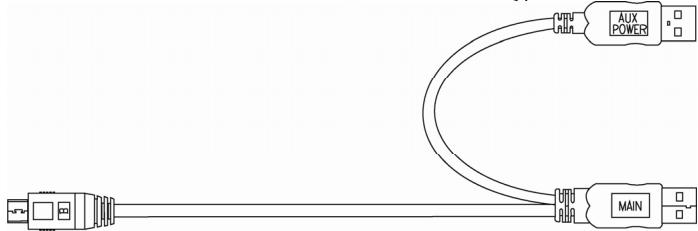
The 'MAIN' connector must be connected to your PC / Notebook at all time when in use; the 'AUX' is an addition power source, in case your PC / Notebook does not supply sufficient power strength with one USB port. We recommend to connecting both USB Type-A (MAIN & AUX) connectors to your PC / Notebook's USB ports when using the hard drive.
- With Windows XP/Vista the hard disk will be automatically recognized and connected.
Installing the hard disk
Note
Your drive has already been set up and so it is not be necessary to reformat or repartition it.
Caution!
Partitioning or formatting a disk drive deletes data. We assume no responsibility for lost data.
Before you install your hard disk …
We would like to remind you once again that when installing the new hard disk some programmes are used that could cause your data to be irreversibly lost if used incorrectly.
Note
Make a backup of all your data and check that the recovery procedure works.
Partitioning programmes
With Windows XP use the disk management help program in order to install the hard disk. You can find the program in the computer management section of control panel.
With some operating systems you must have administration rights to install a hard disk.
With Windows* ME the hard disk is installed with the DOS program FDISK. Look under help in Windows for detailed information on using this program.
Partitioning the drive
Partitioning a drive divides the space into different areas which can be accessed as separate logic drives (with letters C; D; E: etc.). Read the manual of your operating system to find out how to partition hard drives with your particular system.
Formatting the drive
In order to remove data from the hard disk, the partitions must be formatted.
Caution!
You must be totally sure about which drive letter to enter so that you don't format a drive that contains data you wish to keep.
You can carry out the partitioning using Windows Explorer (right click on the drive and select format).
Read which formatting options you have in the next section.
Choosing between NTFS, FAT, and FAT32
When you use Windows XP and Windows 2000 you can choose between three file systems for disk partitions: NTFS, FAT, and FAT32. Use the information below to compare the file systems. NTFS is the recommended file system for the following reasons:
NTFS is more powerful than FAT or FAT32, and includes features required for hosting Active Directory as well as other important security features. You can use features such as Active Directory and domain-based security only by choosing NTFS as your file system.
It is easy to convert partitions to NTFS. The Setup program makes conversion easy, whether your partitions used FAT, FAT32, or the older version of NTFS. This kind of conversion keeps your files intact (unlike formatting a partition). If you do not need to keep your files intact and you have a FAT or FAT32 partition, it is recommended that you format the partition with NTFS rather than convert from FAT or FAT32. Formatting a partition erases all data on the partition and allows you to start with a clean drive.
Whether a partition is formatted with NTFS or converted using the convert command, NTFS is the better choice of file system. (For more information about Convert.exe, after completing Setup, click Start, click Run, type cmd, and then press ENTER. In the command window, type help convert and then press ENTER.)
In order to maintain access control on files and folders and support limited accounts, you must use NTFS. If you use FAT32, all users will have access to all files on your hard drive, regardless of their account type (administrator, limited, or standard.)
NTFS is the file system that works best with large disks. (The next best file system for large disks is FAT32.)
There is one situation in which you might want to choose FAT or FAT32 as your file system. If it is necessary to have a computer that will sometimes run an earlier version of Windows and other times run Windows XP, you will need to have a FAT or FAT32 partition as the primary (or startup) partition on the hard disk. Earlier versions of Windows cannot access a partition if it uses the latest version of NTFS. The two exceptions are Windows 2000 and Windows NT 4.0 with Service Pack 4 or later. Windows NT 4.0 with Service Pack 4 or later has access to partitions with the latest version of NTFS, but with some limitations: It cannot access files that have been stored using NTFS features that did not exist when Windows NT 4.0 was released.
For anything other than a situation with multiple operating systems, however, the recommended file system is NTFS.
Important
Once you convert a drive or partition to NTFS, you cannot simply convert it back to FAT or FAT32. You will need to reformat the drive or partition which will erase all data including programs and personal files on the partition.
The following table describes the compatibility of each file system with various operating systems.
| NTFS | FAT | FAT32 |
| A computer running Windows XP or Windows 2000 can access files on an NTFS partition. A computer running Windows NT 4.0 with | Access is available through MS-DOS, all versions of Windows, Windows NT, | Access is available only through Windows 95 OSR2, Windows 98, Windows Millennium |
Service Pack 4 or later might be able to access some files. Other operating systems allow no access.
Windows 2000, Windows XP, and OS/2.
Edition, Windows 2000, and Windows XP.
The following table compares disk and file sizes possible with each file system.
| NTFS | FAT | FAT32 |
| Recommended minimum volume size is approximately 10 megabytes (MB). Volumes much larger than 2 terabytes (TB) are possible. Cannot be used on floppy disks. | Volumes from size up to 4 gigabytes (GB). Does not support domains. | Volumes from 512 MB to 2 TB. In Windows XP, you can format a FAT32 volume up to 32 GB only. Does not support domains. |
| File size limited only by size of volume. | Maximum file size is 2 GB. | Maximum file size is 4 GB. |
Deleting hard disks from the system
Depending on the operating system, the external hard disk must be disconnected before it can be deleted. Read how this works in the help files of your operating system.
- Disconnect the hard disk from the operating system if necessary using safely remove hardware wizard.
- Now pull out the plug and disconnect all the connection cables from the external hard disk.
Caution!
While accessing the hard disk, the hard disk must not be deleted or turned off. This can lead to data loss.
Customer service
Requirements for optimal performance:
- a stable, trouble-free computer
- a correctly installed operating system
- cables correctly attached to the hard disk
- regular execution of the Windows* defragmenter and scandisk programs to remove sources of error and increase the system performance.
Defragmenting your hard drive can take some time (several hours even on a fast PC), and you cannot use your PC during this time. It's advised that you leave your PC defragmenting over night. To defragment your drive in Windows XP:
- Close down all applications and disable your virus scanner if possible. Also switch off anyscreensavers.
- Click Start and then Programs->Accessories->System Tools->Disk Defragmenter
- Select a drive and click Analyze.
- Defragment if it is recommended.
ScanDisk is not present in Windows XP. Instead, use Check Disk. To start Check Disk:
- Open My Computer, right-click a drive, and then click Properties.
- On the Tools tab, under Error-checking, click Check Now
Sometimes Defragmenter or Scandisk works on 10% or 30% of a hard drive and then hangs. This is usually caused by Windows programs running in the background. If this happens you can force Windows not to run automatic background programmes. To run ScanDisk/Defrag successfully:
-
Go to Start->Run and type msconfig in the Open: box.
-
On the General tab, uncheck all items listed under Selective startup (make sure that Selective startup is selected).
- Hit apply and OK and restart Windows. This starts Windows with only the basics running; Insures nothing will interfere with ScanDisk and Defragmenter.
- Run ScanDisk and Defrag.
- Go to Start->Run and type msconfig in the Open: box. Select Normal Startup.
- Restart Windows.
Troubleshooting
PROBLEM: Windows stops responding when I disconnect the external hard drive.
ANSWER: This may occur because Windows is trying to access a file that is on external hard drive. Make sure that none of the files on the disk are open when you unplug the drive. Be sure to stop the drive before disconnecting the power or adapter cable to prevent any data loss.
PROBLEM: The drive is not recognized by my computer.
ANSWER: Restart your computer.
PROBLEM: The hard drive does not seem to have as much storage capacity as I allocated.
ANSWER: Check that your operating system and file system support the desired amount.
PROBLEM: ScanDisk reports an unrecoverable error.
ANSWER: The Scandisk program tests drives for errors. If ScanDisk finds a problem and is unable to fix it, there may be a problem with the hard disk
Do you require additional support?
If the suggestions in the previous section have not solved your problem, please contact the hotline. We will try and help you over the telephone. However, before you contact your nearest MEDION Technology Centre, please have the following information available:
- How is your computer configured?
- What additional peripherals do you use?
- What messages, if any, appear on your screen?
- What software were you using when the error occurred?
- What steps have you already undertaken to solve the problem?
- If you have already been given a customer number, please have this available.
Copying this manual
This document contains legally protected information. All rights reserved. Copying in mechanical, electronic and any other form without the written approval of the manufacturer is prohibited.
Restricted Warranty
I. General Conditions of Warranty
1. General
This warranty covers defects relating to workmanship and manufacture in MEDION products. The period during which this warranty is valid and during which claims against the warranty can be made to MEDION must be in accordance with the following terms in order to be considered eligible:
- Is effective from the date of purchase or receipt of the MEDION product from an authorised seller of MEDION products; and
- expires at the end of the warranty period specified on the warranty card provided with the product.
For the warranty to be valid, you must:
- provide suitable evidence of purchase, a copy of the original purchase receipt from an authorised seller of MEDION products is preferred; or
- register your product within 28 days of purchase either online at www.MEDION.co.uk or by completing and returning the pre-paid registration card included with the product.
Please keep the original purchase receipt and the warranty card in a safe place. MEDION and its authorised sellers reserve the right to refuse a repair under warranty or a warranty confirmation if a proof of purchase [or registration of purchase] cannot be established, or has not been, submitted.
When it is necessary to return your product for repair please ensure that your product is suitably packed for transportation.
Provided that your product is still within warranty (please check the duration of the warranty period as described above) and is eligible for repair or replacement under the terms of the warranty, to return your product, please
telephone MEDION on the service hotline number. You will be sent a pre-paid transportation box suitable for returning your product to MEDION. PLEASE MAKE SURE THAT YOU HAVE A BACKUP COPY OF ALL DATA ON THE PRODUCT BEFORE RETURNING THE PRODUCT TO MEDION. MEDION shall bear the costs of postage and packaging for returning the product and the transportation risk. However, if following examination of the defective product in question, MEDION, in its reasonable opinion, considers that the defect has been caused by:
- your operating and/or using the product other than as instructed in the accompanying documentation;
- damage caused in transit as a result of your negligence in packaging of the product; and/or
- otherwise than in accordance with the terms of this warranty;
This warranty shall be void and you may be required by MEDION to reimburse MEDION for the reasonable costs of postage and packaging before MEDION will return the product to you. If so and you would still like MEDION to repair or replace the product, MEDION may do so but you will be charged MEDION's standard rates for repair and replacement for this service.
Before returning the product, please contact MEDION via the service hotline or via the internet (www.MEDION.co.uk). You will receive a reference number (RMA No.) on the warranty card. Please mark the outside of your package to ensure that this reference number is clearly visible. Please submit a letter containing as much detailed information as possible and, a full description of the defect or fault.
This should include:
- a description of the fault;
- when it occurred, how long it has been evident and how frequently it occurs;
- any errors message(s) displayed when using the product;
- a description of the circumstance(s) and conditions in which the fault occurs; and
- whether it is an intermittent or persistent fault;
This will greatly assist MEDION in identifying the defect, when submitted together with the defective product. Unless otherwise instructed by a MEDION representative in all cases, the product must be returned complete with all parts which were included with the original product. Incomplete contents of the returned package may lead to a
delay in the repair or replacement. MEDION does not accept any liability for any additionally submitted material(s) which were not supplied with the original MEDION product.
This warranty does not affect your statutory rights in any way and is subject to the applicable legal statutes of the country where the product was sold to you by an authorised MEDION seller.
2. Scope
Subject to any exclusions set out within this warranty, where there is a defect in your MEDION product covered by this warranty, MEDION will repair or replace the MEDION product. The decision whether to repair or replace the product will be made solely at the discretion of MEDION. MEDION may, in its own discretion, replace the product returned for repair under warranty with a replacement product that is either identical or, in the event that such product(s) are no longer available, a product of equal or superior specification and quality.
No warranty is given for batteries or rechargeable batteries or for consumable materials subject to wear and tear, i.e. for parts which have to be replaced periodically during the normal use of the product, such as video-projector lamp. Non critical failures that fall within industry specified tolerances e.g. noise, LCD pixels are not covered by this warranty. Please consult the appropriate section in your user or instruction manual for this product for exact specifications and tolerances.
To the extent which is permitted under law, MEDION will accept no liability for burnt-in images on plasma or LCD products as a result of normal wear and tear during the operation of the product. Please refer to your user or instruction manual for this product for detailed operating instructions for your plasma or LCD product.
The warranty does not cover errors relating to the playback of data media in an incompatible format or created with unsuitable software.
If it is found during repair or assessment that the defect concerned is not covered under warranty, MEDION reserves the right to invoice you for all reasonable costs incurred by MEDION. These costs will be in relation to the return of the product, including reasonable administration costs, plus reasonable costs for materials used and labour provided when repairing or replacing the product. This is subject to MEDION providing you with an estimate for carrying out such work prior to costs being incurred and that you have accepted the estimate.
You are entitled to seek independent advice or consultation relating to your product or any of MEDION's findings. MEDION will not be liable for any costs incurred to you when doing so.
3. Exclusion from warranty
To the extent permitted by law, this warranty shall be void in the event that defects or loss caused by:
a. failure and damage resulting from the operation of the product in an environment other than that recommended in the accompanying user or instruction manual (e.g. in direct sunlight or in a damp room);
b. accidental damage;
C. use other than in accordance with the accompanying user or instruction manual;
d. modifications, conversions, expansions, maintenance and/or repairs made to the MEDION product by unauthorised repairers or use of unauthorised third party parts;
e. negligence;
f. virus attack or software errors; or
g. improper transportation or packaging during return of the product.
This warranty will also be considered void if labels or serial numbers of the product or of a component of the product are modified or made illegible.
To the extent permitted by law, MEDION shall; only be responsible for losses which are a reasonably foreseeable consequence of the relevant defect in the product; MEDION will not be responsible for any costs incurred in relation to software configuration; economic loss; loss of opportunity; loss of income; or loss of data or software arising out of its repair or replacement of a MEDION product under this warranty
4. Service Hotline
Before returning the product to MEDION you must contact us using the service hotline or via the internet (www.MEDION.co.uk). You will receive further instructions for making your claim under warranty when you call. The service hotline is available on 362 days in the year, including Sundays and bank holidays but excluding Christmas day, New Years Day and Easter day. The service hotline is subject to [national rate] telephone call charges. These charges are subject to change. The price of your call will be stated at the beginning of the call.
II. Special warranty conditions for MEDION PC, notebook, pocket PC (PDA) and navigation devices (PNA)
The following terms apply to MEDION PC, notebook, desktop, pocket PC and laptop products and optional items included with such products. If one of these items has a fault, you also have a warranty claim for its repair or replacement, from MEDION. The warranty covers the costs of materials and labour for repairing or replacing the defective MEDION product or the optional item in question.
Hardware connected to your product that was not produced or marketed by MEDION can invalidate the warranty if MEDION can reasonably demonstrate that damage to the MEDION product or of the optional item included with the delivery was caused by such hardware. You are entitled to seek independent advice or consultation relating to your product or any of MEDION's findings. MEDION will not be liable for any costs incurred to you when doing so.
This warranty is restricted in relation to any pre-installed operating system as well as to application programme software that is included with the MEDION product in question. This warranty is restricted as follows:
For pre-installed operating system as well as to application programme software included in the MEDION product, MEDION only guarantees the data media (e.g. the diskettes and CD-ROMs) upon which this software is delivered and warrants that such data media shall be free from material and processing defects for a period of 90 days from the date of purchase of the MEDION product from an authorised seller of MEDION. MEDION will replace defective data media free of charge.
Any claims in respect of defective pre-installed operating system as well as to application programme software are hereby expressly excluded and you should contact the relevant licensor or copyright owner of the defective software in question. MEDION does not guarantee that any software supplied with MEDION products will function without interruption, will be free from errors or that it will fulfil your requirements. MEDION does not guarantee the 100% accuracy of the maps provided with the Navigation device.
It may be necessary to delete all data in the product in order to repair the MEDION product. PLEASE MAKE SURE THAT YOU HAVE A BACKUP COPY OF ALL DATA ON THE PRODUCT BEFORE RETURNING THE PRODUCT TO MEDION. To the extent permitted by law, MEDION excludes all liability for loss of data and MEDION recommends in all cases that you back up all data on your MEDION product before returning the product to MEDION.
III. Special warranty conditions for repair on site or replacement on site
If a claim for repair or replacement on site is included within the terms of the warranty card provided with the product, the special warranty conditions for repair or replacement of your MEDION product on site apply.
The following provisions must be made by you for carrying out repairs or replacements on site:
- MEDION or its authorised personnel must have unrestricted, safe and immediate access to the products.
- Telecommunication facilities required by MEDION or its authorised personnel for proper execution of your order, for testing and diagnostic purposes and for remedying faults are provided by you at your own expense.
- You are responsible yourself for restoring the application software after the repair services have been carried out by MEDION or its authorised personnel.
- You must take all other necessary steps to enable MEDION or its authorised personnel to carry out your order properly.
- You are responsible yourself for connecting and configuring any existing external peripheral products after MEDION or its authorised personnel have carried out their repairs.
- The free cancellation period for repairs or replacements on site is 24 hours, thereafter our reasonable costs resulting from late or missing cancellation shall be invoiced at your expense.