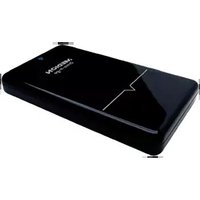
E82723 (MD 90136) - External hard drive MEDION - Free user manual and instructions
Find the device manual for free E82723 (MD 90136) MEDION in PDF.


| Product Type | External Hard Drive |
| Model | E82723 (MD 90136) |
| Form Factor | 2.5-inch |
| Interface | USB 2.0 High-Speed (compatible with USB 1.1) |
| Power Source | Bus-powered via USB (Y-cable with MAIN and AUX connectors for additional power if needed) |
| Dimensions (approx.) | 120 x 80 x 15 mm |
| Weight (approx.) | 150 g |
| Compatible Operating Systems | Windows XP, Vista, 7 |
| Preinstalled File System | NTFS (supports FAT, FAT32, NTFS) |
| Plug & Play | Yes, no driver installation required |
| Package Contents | External hard drive, USB Y-cable, user manual, warranty documents |
| Safety Certifications | CE, FCC Class B |
| Data Transfer Rate | Up to 480 Mbps (USB 2.0) |
| Special Features | Compact casing, low power consumption, supports hot-plugging |
Frequently Asked Questions - E82723 (MD 90136) MEDION
User questions about E82723 (MD 90136) MEDION
0 question about this device. Answer the ones you know or ask your own.
Ask a new question about this device
Download the instructions for your External hard drive in PDF format for free! Find your manual E82723 (MD 90136) - MEDION and take your electronic device back in hand. On this page are published all the documents necessary for the use of your device. E82723 (MD 90136) by MEDION.
USER MANUAL E82723 (MD 90136) MEDION
Safety instructions....2
Safety and installation....2
Cabling....3
Electromagnetic compatibility/ Conformity 3
FCC Compliance Statement....4
Cleaning 5
Disposal 5
Data security....5
What's in the box? 6
System requirements....6
Setting up 7
Connecting the cables....7
Installing the hard disk....8
Before you install your hard disk 8
Partitioning programmes ....8
Partitioning the drive....8
Formatting the drive....9
Choosing between NTFS, FAT, and FAT32 9
Deleting hard disks from the system....11
Customer service....12
Requirements for optimal performance: 12
Troubleshooting....13
If you need further assistance ....14
Copying this manual ....14
Copyright © 2010
All rights reserved.
This manual is protected by Copyright.
The Copyright is owned by MEDION.
Trademarks:
MS-DOS 1 and Windows 1 are registered trademarks of Microsoft.
Other trademarks are the property of their respective owners.
We reserve the right to make technical changes.
UK/ N. IRELAND HELPLINE 0871 3761020
(costs 7p/min from BT landline, mobiles costs may be higher)
REP. IRELAND HELPLINE 1-800-992508
Safety instructions
Please read this chapter carefully and observe all listed notes. This will ensure reliable operation and long life expectancy of your product. Keep these instructions with your product at all times. The proper set up, use and care can help extend the life of your product. In the event that you transfer ownership of this product, please provide these instructions to the new owner.
Safety and installation
- Never allow children to use electronic devices unsupervised. Children may not always correctly identify potential hazards.
- Hard disks are extremely fragile. Never drop or shake the hard drive - this could irreversibly damage the data on the hard disk. Be especially careful when transporting the hard disk. We provide no guarantee for this type of damage.
- The hard drive can become warm after prolonged use.
- Never open the hard disk casing. If you do so, the hard disk will no longer be covered by the guarantee.
- The hard disk is not designed for use in commercial applications/situations.
- After transportation, wait until the equipment is at room temperature before turning it on. If there is a large difference in temperature or humidity, damp can build up through condensation and cause an electrical short circuit.
- Keep your hard disk and all connected equipment away from damp and avoid dust, heat and direct sunlight in order to prevent operational problems.
- In order to avoid damage from a fall, place the hard disk on a stable and level surface which does not vibrate.
- For additional safety, we recommend using power connection through a power surge protection unit in order to protect your equipment from power surges and lightning strikes.
- The voltages and interfaces used in the equipment are in line with the low voltage protection guidelines set out in EN60950. Connections to other equipment may only be made using similar interfaces with low voltage protection in accordance with EN 60950.
- Please use our Service Center if you have any technical problems with your hard disk. If repairs are needed, please use exclusively our authorised service partners.
- In the first hours of operation, new devices may emit a typical, unavoidable but completely harmless smell, which will decline increasingly in the course of time.
We recommend that you ventilate the room regularly, in order to counteract the formation of the smell.
Cabling
- Route the cable so that no one can step on it or stumble over it.
- To avoid damage to the cable do not place any objects or furniture on it.
Electromagnetic compatibility/ Conformity
This device fulfils the requirements of electromagnetic compatibility and electrical safety of the following:
EN 55022 Information technology equipment - Radio disturbance characteristics - Limits and methods of measurement
EN 55024 Information technology equipment - Immunity characteristics - Limits and methods of measurement
EN 61000-3-2 Electromagnetic compatibility (EMC) - Limits for harmonic current emissions (equipment input current up to and including 16 A per phase)
EN 61000-3-3 Electromagnetic compatibility (EMC) - Limitation of voltage changes, voltage fluctuations and flicker in public low-voltage supply systems, for equipment with rated current <= 16 A per phase and not subject to conditional connection
EN 60950 Safety of information technology equipment
- Make sure that it is located at least one meter away from sources of high frequency and magnetic disturbance (TVs, speakers, mobile telephones, etc.) in order to avoid operational problems and data loss.
FCC Compliance Statement
This equipment has been tested and found to comply with the limits for a Class B digital device, pursuant to Part 15 of FCC Rules. These limits are designed to provide reasonable protection against harmful interference in a residential installation. This equipment generates, uses, and can radiate radio frequency energy and, if not installed and used in accordance with the instructions, may cause harmful interference to radio communications. However, there is no guarantee that interference will not occur in a particular installation. If this equipment does cause harmful interference to radio or television reception, which can be determined by turning the equipment off and on, the user is encouraged to try to correct the interference by one or more of the following measures:
- Reorient or relocate the receiving antenna.
- Increase the separation between the equipment and receiver.
- Connect the equipment into an outlet on a circuit different from that to which the receiver is connected.
- Consult the dealer or an experienced technician for help.
Changes or modifications not expressly approved by the party responsible for compliance could void the user's authority to operate the equipment. Shielded interface cables, if any, must be used in order to comply with the emission limits.
Cleaning
- As a rule, it is not necessary to clean the equipment. Before cleaning, always pull out the plug and all connection cables.
- Do not use any solvents, corrosive or gaseous cleaning products.
Caution!
This equipment does not include any parts that need servicing or cleaning.
Disposal
Device

Packaging

At the end of its life, the appliance must not be disposed of in household rubbish. Enquire about the options for environmentally-friendly disposal.
All packaging and packaging materials that are no longer required can and should be recycled.
Data security
Every time you update your data make back-up copies on an external storage medium. There is no liability assumed for data loss or damage to data storage units, and no claims can be accepted for damages resulting from the loss of data or consequential losses.
What's in the box?
Please check to ensure that the below mentioned parts are in the box and inform us if anything is missing.
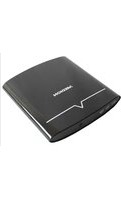
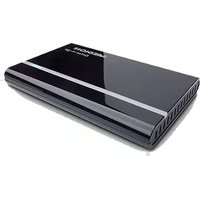
• External 2.5" hard disk in compact casing
- USB connection cable
- User manual, guarantee documents
System requirements
- Operating system Windows® XP/Vista/Windows® 7
- Connection max. 2 USB ports
Setting up
Connecting the cables
Connect the external hard disk to your computer using a free USB port. You can also connect the hard disk to computers with a USB 1.1 port however the speed of transmission will be slower.

natural_image
Simple line drawing of a rectangular container with a small rectangular object on top, no text or symbols present.USB connection (Back view)
- Start your computer and wait until Windows has been fully loaded.
- Connect the mini-USB connector of the supplied Y-cable to the USB port of your external hard disk.
- Connect the other end of the Y-cable which has two USB Type-A connectors with the following labels:

The 'MAIN' connector must be connected to your PC / Notebook at all times when in use; the 'AUX' is an addition power source, in case your PC / Notebook does not supply sufficient power strength with one USB port.
- With Windows XP/Vista/Windows® 7 the hard disk will be automatically recognized and connected.
Installing the hard disk
Note
Your drive has already been set up in the factory. It will not be necessary to reformat or repartition it.
Caution!
Partitioning or formatting a disk drive deletes data. We assume no responsibility for lost data.
Before you install your hard disk ...
We would like to remind you once again that when installing the new hard disk some programs are used that could cause your data to be irreversibly lost if used incorrectly.
Note
Make a backup of all your data and check that the recovery procedure works.
Partitioning programmes
With Windows® Vista/XP/ Windows® 7 the Windows Disk
Management Tool help program in order to install the hard disk.
You can find the program in the computer management.
With some operating systems you must have administration rights to install a hard disk.
Look under help in Windows for detailed information on using this program.
Partitioning the drive
Partitioning a drive divides the space into different areas which can be accessed as separate logic drives (with letters C:, D:, E: etc.). Read the manual of your operating system to find out how to partition hard drives with your particular system.
Formatting the drive
In order to remove data from the hard disk, the partitions must be formatted.
Caution!
You must be totally sure about which drive letter to enter so that you don't format a drive that contains data you wish to keep.
You can carry out the partitioning using Windows' Explorer (right click on the drive and select format).
Read which formatting options you have in the next section.
Choosing between NTFS, FAT, and FAT32
When you use Windows XP/Vista/Windows ® 7 and Windows 2000 you can choose between three file systems for disk partitions: NTFS, FAT, and FAT32. Use the information below to compare the file systems. NTFS is the recommended file system for the following reasons:
NTFS is more powerful than FAT or FAT32, and includes features required for hosting Active Directory as well as other important security features. You can use features such as Active Directory and domain-based security only by choosing NTFS as your file system.
It is easy to convert partitions to NTFS. The Setup program makes conversion easy, whether your partitions used FAT, FAT32, or the older version of NTFS. This kind of conversion keeps your files intact (unlike formatting a partition). If you do not need to keep your files intact and you have a FAT or FAT32 partition, it is recommended that you format the partition with NTFS rather than convert from FAT or FAT32. Formatting a partition erases all data on the partition and allows you to start with a clean drive.
Whether a partition is formatted with NTFS or converted using the convert command, NTFS is the better choice of file system. (For more information about Convert.exe, after completing Setup, click Start, click Run, type cmd, and then press ENTER. In the command window, type help convert and then press ENTER.)
In order to maintain access control on files and folders and support limited accounts, you must use NTFS. If you use FAT32, all users will have access to all files on your hard drive, regardless of their account type (administrator, limited, or standard.)
NTFS is the file system that works best with large disks. (The next best file system for large disks is FAT32.)
There is one situation in which you might want to choose FAT or FAT32 as your file system. If it is necessary to have a computer that will sometimes run an earlier version of Windows and other times run Windows XP, you will need to have a FAT or FAT32 partition as the
UK/ N. IRELAND HELPLINE 0871 3761020
(costs 7p/min from BT landline, mobiles costs may be higher)
REP. IRELAND HELPLINE 1-800-992508
primary (or startup) partition on the hard disk. Earlier versions of Windows cannot access a partition if it uses the latest version of NTFS. The two exceptions are Windows 2000 and Windows NT 4.0 with Service Pack 4 or later.
For anything other than a situation with multiple operating systems the recommended file system is NTFS.
Important
Once you convert a drive or partition to NTFS, you cannot simply convert it back to FAT or FAT32. You will need to reformat the drive or partition which will erase all data including programs and personal files on the partition.
The following table describes the compatibility of each file system with various operating systems.
| NTFS | FAT | FAT32 |
| A computer runningWindows XP / Vista / Windows® 7 or Windows 2000 can access files on an NTFS partition. A computer running Windows NT 4.0 with Service Pack 4 or later might be able to access some files. Other operating systems allow no access. | Access is available through MS-DOS, all versions of Windows, Windows NT, Windows 2000, Windows XP / Vista / Windows® 7, and OS/2. | Access is available only through Windows 95 OSR2, Windows 98, Windows Millennium Edition, Windows 2000, and Windows XP / Vista / Windows® 7. |
The following table compares disk and file sizes possible with each file system.
| NTFS | FAT | FAT32 |
| Recommended minimum volume size is approximately 10 megabytes (MB). Volumes much larger than 2 terabytes (TB) are possible. Cannot be used on floppy disks. | Volumes from size up to 4 gigabytes (GB). Does not support domains. | Volumes from 512 MB to 2 TB. In Windows XP, you can format a FAT32 volume up to 32 GB only. Does not support domains. |
| File size limited only by size of volume. | Maximum file size is 2 GB. | Maximum file size is 4 GB. |
Deleting hard disks from the system
Depending on the operating system, the external hard disk must be disconnected before it can be deleted. Read how this works in the help files of your operating system.
- Disconnect the hard disk from the operating system if necessary using the safely remove hardware wizard.
- Now disconnect all the connection cables from the external hard disk.
Caution!
While accessing the hard disk, the hard disk must not be deleted or turned off. This can lead to data loss.
Customer service
Requirements for optimal performance:
• a stable, virus-free computer
- a correctly installed operating system
• cables correctly attached to the hard disk
- regular execution of the Windows defragmenter and scandisk programs to remove sources of error and increase the system performance.
Defragmenting your hard drive can take some time (several hours even on a fast PC), and you cannot use your PC during this time. It's advised that you leave your PC defragmenting over night. To defragment your drive in Windows XP:
- Close down all applications and disable your virus scanner if possible. Also switch off any screensavers.
- Click Start and then Programs->Accessories->System Tools->Disk Defragmenter
- Select a drive and click Analyze.
- Defragment if your PC recommends it.
ScanDisk is not present in Windows XP. Instead, use Check Disk. To start Check Disk:
-
Open My Computer, right-click a drive, and then click Properties.
-
On the Tools tab, under Error-checking, click Check Now.
Sometimes Defragmenter or Scandisk works on 10% or 30% of a hard drive and then hangs. This is usually caused by Windows programs running in the background. If this happens you can force Windows not to run automatic background programmes. To run ScanDisk/Defrag successfully:
- Go to Start->Run and type msconfig in the Open: box.
- On the General tab, uncheck all items listed under Selective startup (make sure that Selective startup is selected).
- Hit apply and OK and restart Windows. This starts Windows with only the basics running; this insures nothing will interfere with ScanDisk and Defragmenter.
- Run ScanDisk and Defrag.
- Go to Start->Run and type msconfig in the Open: box. Select Normal Startup.
- Restart Windows.
Troubleshooting
PROBLEM: Windows stops responding when I disconnect the external hard drive.
ANSWER: This may occur because Windows is trying to access a file that is in the external hard drive. Make sure that none of the files on the disk are open when you unplug the drive. Be sure to stop the drive before disconnecting the power or adapter cable to prevent any data loss.
PROBLEM: The drive is not recognized by my computer.
ANSWER: Restart your computer.
PROBLEM: The hard drive does not seem to have as much storage capacity as I allocated.
ANSWER: Check that your operating system and file system support the desired amount.
PROBLEM: ScanDisk reports an unrecoverable error.
ANSWER: The Scandisk program tests drives for errors. If ScanDisk finds a problem and is unable to fix it, there may be a problem with the hard disk
If you need further assistance
If the troubleshooting suggestions in the previous section have not solved your problem, please contact our helpline. We will try and help you over the telephone. However, before you contact your nearest MEDION Technology Centre, please have the following information available:
• How is your computer configured?
• What additional peripherals do you use?
• What messages, if any, appear on your screen?
- What software were you using when the error occurred?
• What steps have you already undertaken to solve the problem?
- If you have already been given a customer number from a previous call to us, please have this available.
Copying this manual
This document contains legally protected information. All rights reserved. Copying in mechanical, electronic and any other form without the written approval of the manufacturer is prohibited.
- Safety instructions....2
- Cleaning 5
- Disposal 5
- Data security....5
- What's in the box? 6
- System requirements....6
- Setting up 7
- Customer service....12
- Safety instructions
- Safety and installation
- Cabling
- Electromagnetic compatibility/ Conformity
- FCC Compliance Statement
- Cleaning
- Caution!
- Disposal
- Data security
- What's in the box?
- System requirements
- Setting up
- Connecting the cables
- Installing the hard disk
- Note
- Before you install your hard disk ...
- Partitioning programmes
- Partitioning the drive
- Formatting the drive
- Choosing between NTFS, FAT, and FAT32
- Important
- Deleting hard disks from the system
- Customer service
- Requirements for optimal performance:
- Troubleshooting
- PROBLEM: Windows stops responding when I disconnect the external hard drive.
- PROBLEM: The drive is not recognized by my computer.
- PROBLEM: The hard drive does not seem to have as much storage capacity as I allocated.
- PROBLEM: ScanDisk reports an unrecoverable error.
- If you need further assistance
- Copying this manual
Brand : MEDION
Model : E82723 (MD 90136)
Category : External hard drive