
LCD TV MD 30325 - Television MEDION - Free user manual and instructions
Find the device manual for free LCD TV MD 30325 MEDION in PDF.


| Product type | LCD TV |
| Brand | MEDION |
| Model | LCD TV MD 30325 |
| Screen size | 32 inches (81 cm) |
| Resolution | 1366 x 768 pixels (HD Ready) |
| Backlight type | CCFL |
| Dimensions (without stand) | 80 x 49 x 10 cm (W x H x D) |
| Weight (without stand) | 12.5 kg |
| Power supply | 220-240 V, 50/60 Hz |
| Power consumption | 100 W (standby < 1 W) |
| SCART connector | 2 x SCART (input/output) |
| HDMI input | 1 x HDMI |
| Composite video input | 1 x RCA (CVBS) |
| Audio input | 1 x RCA stereo |
| Audio output | 1 x headphone jack |
| Speakers | 2 x 8 W |
| Teletext | Yes |
| Standby function | Yes |
| Parental lock | Yes |
| Supplied accessories | Remote control, power cable, stand, batteries |
| Care and cleaning | Clean the screen with a soft, dry cloth. Unplug before cleaning. |
| Safety instructions | Do not expose to humidity, do not open the casing, use on a stable surface. |
| Repairability | Repairability index not provided. Contact an authorized service center for repairs. |
Frequently Asked Questions - LCD TV MD 30325 MEDION
User questions about LCD TV MD 30325 MEDION
0 question about this device. Answer the ones you know or ask your own.
Ask a new question about this device
Download the instructions for your Television in PDF format for free! Find your manual LCD TV MD 30325 - MEDION and take your electronic device back in hand. On this page are published all the documents necessary for the use of your device. LCD TV MD 30325 by MEDION.
USER MANUAL LCD TV MD 30325 MEDION
| APS in running... | |
| Belgium | 415. 25 MHz |
| 44% | |
| P31- S 35 | 415. 25 MHz |
| Cancel | |
Canal: VHF (Band I/III)
FM (BAND U)
HYPERBAND
KABEL-TV (S1-S20)/(S21-S41)
Audio: Stereo
| APS in running... | |
| Belgium | 415. 25 MHz |
| 44% | |
| P31- S 35 | 415. 25 MHz |
| Cancel | |
Mode
Contrast
Brightness
Sharpness
Colour
Dynamic
Canais: VHF (Band I/III)
FM (BAND U)
HYPERBAND
KABEL-TV (S1-S20)/(S21-S41)
Audio: Stereo
Notes on this manual 5
Purpose of use 5
Included in the box 5
Safety instruction 6
Safety 6
Point of use 6
Repair 7
Intended Environment 7
Power Supply 7
Standards/electro-magnetic compatibility 8
Batteries and Proper Treatment 8
Setting Up 9
Unpacking 9
Connecting an antenna 9
Connecting the power supply 9
Basic Functions 10
Turning the LCD TV on and off 10
After switching on for the first time 10
Automatic channel seeking 10
Channel Search 11
Sound Settings 11
Setting the Picture 11
Zoom in PC mode 12
Other picture settings 12
Displaying information 12
Select external device 12
Video text 13
To operate video text 13
Select video text pages 13
Useful features for video text 14
PIP and PAP 15
Sources for PIP and PAP 15
Activating and modifying the PIP function 16
Activating and modifying the PAP function 17
The OSD menu 18
Navigating within the Menu 18
MenuPICTURE 19
Menu SOUND 20
Menu FUNCTION 22
Menu INSTALL 22
Save video recorder manually 24
PROGRAM TABLE 25
Menu SOURCE 26
Menu in PC mode 27
Menu PC POSITION 27
Connections and examples of connections 28
Headphones 29
DVD player 30
Video recorder 30
DVD recorder 31
Receiver (SAT, DVB-T, decoder, etc.) 31
DVD or videorecorder and Sat-receiver 32
Camcorder 32
Device with HDMI or DVI output 33
PC 33
Troubleshooting 34
Do you require additional Support? 35
Maintenance 35
Specifications 36
Recycling 36
Pixel errors with LCD TVs 37
WALL MOUNTING 38
Accessories 38
Safety instructions for wall mounting 38
Mounting the hanging elements and the device 38
Remove base 39
Fixing the steel rails to the wall 39
LCD-TV
Front
- TFT screen
- On/off light: the blue light will come on when the device is in stand-by mode. It will go off if the device is switched on.
- Loudspeakers
- Infra-red sensor: receiving area for infra-red signals from the remote control.
Operating controls on the side
- STANDBY: to switch the LCD-TV off temporarily.
- TV/AV: to select the input signal: TV (antenna, EXT-1, EXT-2, EXT-1 S, BAV, S-Video, HDMI 1, HDMI 2, YPbPr, PC.
- MENU: with this key you can display the screen menu to make adjustments to your equipment.
- +P / C H - : you can switch TV channel using these keys.
- + - : you can regulate the volume of your equipment with these keys.
Rear
- Headphone connection: to connect headphones with a 3.5mm TRS stereo connector.
- VIDEO-input (yellow) and AUDIO-inputs (red/white): to connect a device using an RCA cable.
- S-VHS input: to connect a device using an S-VHS cable.
- VGA-INPUT: to connect a PC.
- PC AUDIO IN: audio in for 3.5mm TRS stereo connector, e.g. for PCs.
- TUNER: to connect the aerial.
- Y - PB - PR - L - R: Component inputs to connect devices with Component output.
- SCART 1: 1st SCART connecting
- SCART 2: 2nd SCART connection
- SRV: only for servicing purposes. Do not try to connect a cable to this.
- Power in: to connect the supplied power cable.
- On/off switch: to put the device into stand-by mode and switch it off again.
- HDMI 1 input: to connect a device with an HDMI output.
- HDMI 2 input: to connect a device with an HDMI output.
Remote control
- STANDBY: to switch the LCD-TV off temporarily.
- Red key opens SOUND menu.
- Green key opens PICTURE menu.
- Yellow key opens FUNCTIONS menu.
- Blue key opens INSTALLATION menu.
- INFO: to display information, such as current channel number and picture format
- Direction keys
- SELECT: freeze television picture; OK. in certain menus to confirm selection
- M: open and close menu.
- -I - - : enter a number with two digits
- PP: select picture mode
- I-II: select sound mode
- AV/SOURCE: select input signal from connected devices
- TV/DTV: select TV operation; close video text
- Light to confirm key has been pressed
- : Switch video text on and off
- [?] : video text: hidden text/switching from TV mode to PC mode
- : Display time/Video text open sub-page
- : video text: stop page; : no function
- : video text: Mix (transparent picture);
: switch on PIP window if a device is connected to the digital input.
- : video text: hidden searching;
: switch on PAP window if a device is connected to the digital input. - P<P SWAP: set previous TV channel
- : video text: enlarge picture;
WIDE: select picture format
- ①: video text: call up index page
- Channel selection keys P/CH + I - .
Select the following (+) or the previous (-) channel in TV mode.
Select the following (+) or the previous (-) channel in video text mode.
- Switch volume off
- + - to increase (+) or decrease (-) volume.
- Digit keys in the TV mode: channel selection; in video text mode: page selection
NOTES ON THIS MANUAL

Read these instructions carefully under all circumstance and follow all the instructions listed. You will guarantee the reliable operation and a long life expectancy of your LCD TV in this way. Always keep these instructions at hand, close to your LCD TV. In the event that you transfer ownership of this LCD TV, please provide these instructions to the new owner.
Purpose of use
- This device serves to receive and transmit television channels. The different connection possibilities (receiver, DVD player, DVD recorder and VCR, etc.) will enable an additional expansion of the sources of reception and transmission (Receiver, DVD-Player, DVD-Recorder, Videorecorder etc.).
- This device is only suitable for using in dry, internal rooms.
- This device is not suitable as a data screen for office use.
- This device is intended for personal use only. It not intended for commercial use in a heavy industry environment. Use under extreme environmental conditions can result in damage to your device.
HD ready
"Your LCD-TV is equipped with the 'HD ready' feature. This means that it can transmit high resolution television programmes (HDTV) in principle.
It is the prerequisite that an HDTV signal is sent to the LCD TV by an external set-top box (HD-STB)
Included in the box
Check that nothing is missing from the packaging and inform us of any missing parts within 14 days after purchase. The delivery of the LCD-TV you have purchased includes:
- LCD-TV
- Connection cable
- Remote control incl. 2 batteries type RO3 (AAA) 1,5V
- Set for wall mounting (see page 38).
- Documentation
SAFETY INSTRUCTION
Safety
-
Do not allow children to play unattended on electrical equipment. Children may not always correctly recognize danger.
-
Keep the packing materials, such as foil away from children. The danger of suffocation could arise in the case of misuse.
-
Never open the housing of the TFT display (electric shock, short-circuit and the danger of fire)!
-
Do not insert any objects through the slots and openings into the inside of the TFT (electrical shock, short-circuit and the danger of fire)!
-
Slots and openings in the TFT display are for ventilation purpose. Do not cover these openings, as otherwise this may lead to overheating (overheating, danger of fire)!
-
Never exert pressure on the display. This could damage the display.
-
An injury hazard exists when the display breaks. Wear protective gloves to pack the broken parts and send them into your service center for proper disposal. Then wash your hands with soap, because it is possible for chemicals to escape.
-
Do not touch the display with your fingers or with sharp objects to avoid damage.
-
Please proceed as outlined in the service center section:
-
if the AC cable overheats or is damaged
- if liquid has gotten into the display
- if the device does not work properly
- if the device is dropped or the housing damaged
Point of use
- In the first hours of operation, new devices may emit a typical, unavoidable but completely harmless smell, which will decline increasingly in the course of time.
- We recommend you to ventilate the room regularly, in order to counteract the formation of the smell. During the development of this product, we have made sure that the applicable limits are clearly fallen below.
- Keep your LCD TV and all units connected to it away from moisture and avoid dust, heat and direct sunlight. Failure to observe these instructions can lead to malfunctions or damage to the LCD TV.
- Do not operate your device in the open air, because external influences, such as rain, snow, etc could damage the
device. - Do not subject the device to drops or splashes of water and do not place any vessels filled with water, such as vases, on the device. Water penetrating the device can impair its electrical safety.
- Do not place any open sources of fire (candles or similar objects) on the device.
- Pay attention to sufficiently large clearances in the wall cupboard. Maintain a minimum clearance of 10cm around the device for sufficient ventilation.
- Place and operate all units on a stable, level and vibration-free surface in order to avoid the LCD TV from falling.
- Avoid dazzle, reflections, extreme light/dark contrast in order to save your eyes and ensure a pleasant, ergonometric work station.
- The optimum viewing distance is 5 times the screen diagonal.
Repair
- Leave all repairs of your LCD TV to authorized and qualified personnel only.
- Should a repair be necessary, please contact one of our authorized service center.
Intended Environment
- The device can be operated at an ambient temperatures of between 5^ C to 35^ C and at a relative humidity between 20% and 85% (without condensation).
- When switched off, the monitor can be stored most reliably between -20°C - +60°C.
- Provide an interval of at least one meter from high-frequency and magnetic sources of interference (television sets, loudspeakers, mobile telephones, etc.) in order to avoid malfunctions and data loss.
- After transporting your LCD TV please wait until it has assumed the ambient temperature before connecting and switching it on.
- Large variations in temperature and humidity can cause condensation to occur inside the LCD-TV, which may cause an electrical short circuit.
- Disconnect the power plug from the power socket and the aerial from the aerial connection during storms or if the device is not being used for a long time.
Power Supply
Please pay attention: Pats of the device are still live, even if the mains switch is switched off. Pull the mains plug out of the socket, to interrupt the power supply to your LCD TV or to release the device from voltage completely.
- Operate your TFT display mains (power supply) only on grounded sockets with 230 ~V 50 ~Hz . If you have doubts about the power supply in the location where the LCD-TV is installed, consult your energy supplier.
- For additional safety we recommend use of an excessive voltage protection device to protect your LCD TV from damage resulting from voltage surges or lightning.
- To interrupt the display from mains (power supply) disconnect the plug from the socket.
- The power socket must be in the vicinity of your LCD TV and within reach of the power cables.
- If you use an extension cable, please ensure that it complies with the VDE requirements. If necessary consult your electrical equipment supplier.
- You should lay the TFT Display cables in a manner that no one can trip or step on it.
- To avoid damage of cable do not place any objects or furniture on the cable.
Standards/electro-magnetic compatibility
Your display fulfils the requirements for electro-magnetic compatibility and electrical safety specified in the following standards:
| EN 55013 | Limit values and measuring methods for radio interference by radios and television receivers and accessories |
| EN 55020 | Electromagnetic immunity of broadcast receivers and associated equipment |
| EN 60065 | Audio, video and similar electronic apparatus—Safety requirements |
| EN 61000-3-2 | Electromagnetic compatibility (EMC)—Part 3-2: Limits—Limits for harmonic current emissions (equipment input current up to and including 16 A per phase) |
| EN 61000-3-3 | Electromagnetic compatibility (EMC)—Part 3-3: Limits—Limitation of voltage changes, voltage fluctuations and flicker in public low-voltage supply systems, for equipment with rated current <= 16 A per phase and not subject to conditional connection |
Batteries and Proper Treatment
Batteries may contain combustible materials. By misuse, this may cause battery leakage, heat, explosion or ignition, bringing about injury or damage to the device.
Please observe strictly the following matters:
- Keep children away from batteries. If by any chance, the batteries are swallowed, consult a doctor immediately.
- Do not charge batteries (except rechargeable batteries).
- Do not forcibly discharge batteries.
- Do not short-circuit batteries.
- Do not heat or dispose off in fire.
- Do not disassemble or deform batteries. Your hands and fingers may be injured, or the liquid of the battery may get into your eyes or adhere to your skin. If this happens, rinse with a large quantity of water immediately and consult a doctor.
- Do not expose batteries to strong impact by dropping or throwing the batteries.
- Do not reverse the positive (+) and negative (-) terminals to avoid short-circuit.
- Do not mix used and new or different types of batteries together.
- Remove promptly the used batteries from the device.
- Remove the batteries from your device if it is not to be used for a longer period.
- Clean the battery and device contacts, if necessary, before inserting batteries.
- Replace all batteries with new batteries of the same type at the same time.

NOTE:
Read the Safety Information Chapter under all circumstances before bringing the device into operation.
Unpacking
- Have someone help you when unpacking the equipment.
- Do not carry the equipment alone, otherwise it could fall or cause personal injury.
- Open the box very carefully to prevent the equipment from being damaged. Damage can occur if a knife with a long blade is used to open the box.
- There are various small parts in the packaging (batteries, screws, etc.). Keep these out of the reach of children. There is a risk of swallowing the parts.
- Please keep the packaging material well and use it exclusively to transport the television.
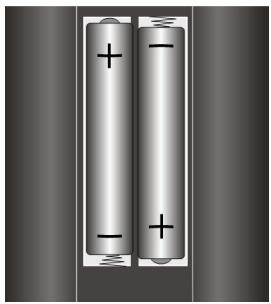
Putting the batteries into the remote control
- Remove the small cover on the battery compartment on the back of the remote control.
- Install two AAA size, type R03 batteries according to the correct polarity (marked in the battery compartment).
- Close the battery compartment.

ATTENTION!
Remove the batteries from the remote, if the device will not be used for a longer period. The remote could be damaged by leaking batteries.
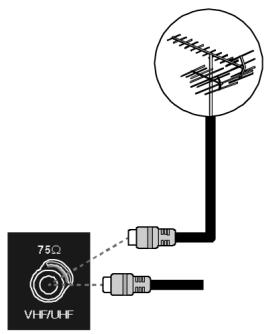
Connecting an antenna
Connect the aerial connection and the LCD-TV by means of a double screened aerial cable (not supplied) when connecting the device to the room aerial or cable system.
Connecting the power supply
Insert the plug on the supplied power cable into the connecting bush (220-240 V ~ 50 Hz) on the device and insert the other end into an easily accessible 230 V ~ 50 Hz power socket.
BASIC FUNCTIONS
Turning the LCD TV on and off
- Press the on/off switch on the back of the device. The stand-by mode will be activated and a blue light on the front will come on.
- You can switch on the device by pressing a digit key on the remote control or a P/CH channel selection key on the remote control or on the device itself. The light on the front will go out.
- You can put the device back into stand-by mode with the stand-by key on the remote control or with the stand-by key on the right side of the device.
- Press the on/off switch on the back of the device again to switch the device off completely.
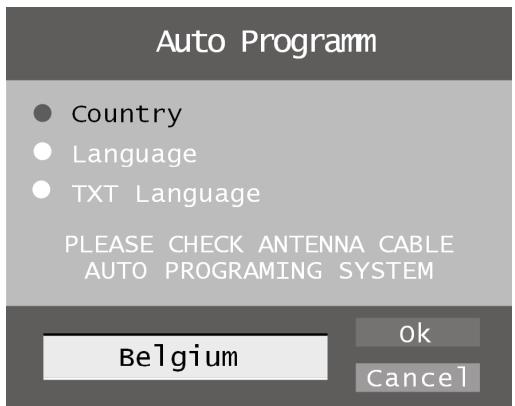
After switching on for the first time
When you switch your LCD-TV on for the first time, the Auto Programm menu will appear in English.
- If you wish to change the pre-set country setting, set the required country with the directional key. The country setting has an effect on the sequence in which channels are stored.
- Then select if necessary the Language message with the directional key and choose the required language with the directional keys.
- If you wish to change the pre-set for the video text language, use the directional key to select the message TXT Language (Language for teletext) and use the directional keys to select the required language region Westen, Ost (East), Turk/Gre (Turkish/Greek), Kyrillisch or Arabisch (also see "Menu FUNCTION", page 22).
- Then confirm the message "CHECK ANTENNA CABLE" by pressing the OK key or pressing the red key.
- You can cancel this process by pressing the blue key.
Automatic channel seeking
Automatic channel seeking will now commence. This takes a few minutes.
You can cancel this process with the blue key.
The channels are stored in a country-specific sequence in the channel locations. It is possible to store a maximum of 100 channels.
APS in running...
Belgium 415.25 MHz
44%
P31- S 35 415.25 MHz
Cancel
After automatic storage of channels is complete, the program table will be displayed (see also page 25). If this table is not modified further, it will close after a few minutes. The channel on channel location 1 will appear.
Channel Search
- You can select a channel by pressing the P/CH key (on the device or on the remote control) or by selecting the channel directly using a digit key.
- For a number with two digits first press the -/-- key.
- You can select the most recent displayed channel with the P<P/SWAP key.
Sound Settings
- You can increase or decrease the volume with the volume keys + on the remote control or on the device.
- You can switch off the sound completely and switch it on again with the key (Switch sound off).
- You can choose between mono- and stereo reproduction, Dual I and Dual II, with the I-II key. Dual I and Dual II can only be reproduced if the current broadcast supports the DUAL mode (e.g. with bilingual broadcasts).
Setting the Picture
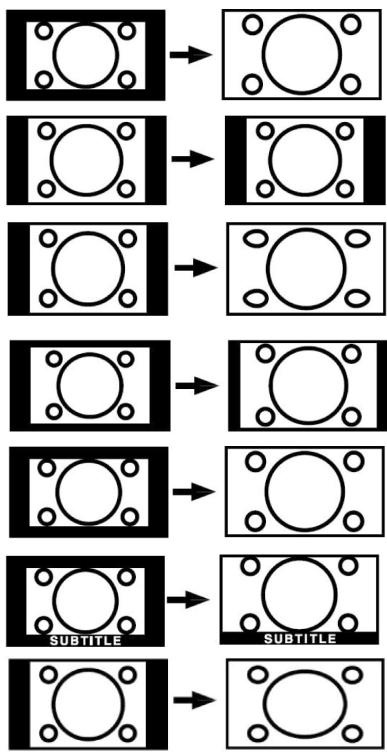
Zoom mode (WIDE key)
Press on the key to switch between the following picture formats.
- Auto: the transmitted format is automatically set to the input signal.
- 16:9: a picture in 16:9 format will be expanded to full screen size.
4:3: for undistorted display of the picture in 4:3 format. - Panoramic: the picture is stretched on the left and right sides to fill up the screen. In this case the upper and/or lower edges are somewhat cut off.
- 14:9 Zoom: a picture in 14:9 format ("Letterbox") will be expanded to the upper and lower edges of the screen.
- Cinema: a picture in 16:9 format will be expanded to full screen size.
- Subtitle: As with the "Cinema" setting. The picture is only shifted up, so that any subtitles or running text become visible.
- Zoom: the picture is automatically expanded to full picture width.
Zoom in PC mode
- lYou can make use of the 4:3 and 16:9 formats in PC mode.
Other picture settings
- You can pause and again release the picture with the OK/SELECT key.
- You can select the picture mode with the PP ("Personal Preferences") key: Natural, Cinema, Dynamic.
Displaying information
-
Press on the INFO key to display the following current settings:
-
Channel location and channel name;
- Volume setting (Mono of Stereo);
-
Picture setting.
-
You will receive the same information when you switch over to another channel.
- You can display the time in TV mode by pressing the key (Time/Sub-page videotext).
Select external device
- You can select the IN connections on the connected devices with the AV/SOURCE key.

Note that the source (the connected device) will only be recognised if this source is highlighted in the SOURCE menu when switching through with the AV/ SOURCE key (see "Menu SOURCE", page 26).
- P- : TV function (aerial signal)
- EXT - 1: device on SCART 1 input
- EXT - 2: device on SCART 2-input
- EXT-2 S: device with S-Video output on SCART 2 connection
- BAV: device on yellow/white/red RCA inputs
- S-VIDEO: device on S-Video connection
- HDMI-1: HDMI input 1
- HDMI-2: HDMI input 2
- YPbPr: device on Component video and audio inputs
PC: device on PC input
VIDEO TEXT
Your LCD-TV supports 1000 pages of Teletext. This means that the device does not need to search following input of one of these 1000 pages, but will immediately display the page in question. Video text is a free service that is broadcast by the majority of television stations and offers current information in relation to news, the weather, television programs, share prices, subtitles and other subjects. Your LCD TV offers many useful functions for operating Video text and multi-page text, storing sub-pages or fast navigation.
To operate video text
- Select a TV station on which video text is being transmitted.
- Press on the 目 key to display the basic/index page of the video text.
- The TV picture will be displayed on the left after you have pressed the key again.
- By pressing the key again, you will switch over again to TV mode.
Press the TV key to return to TV mode.
Select video text pages
Number keys
- Enter the video text page required directly as three-digit number with the number keys.
- The page number selected will be displayed in the upper left corner of the screen. The video text counter will search un-til the page number selected has been found.
Channel selection keys
- You can scroll forwards and backwards through the video text pages with the channel selection keys.
Colour buttons
- If text is displayed in colour at the bottom of the screen, you can select the associated content immediately by pressing the associated RED, GREEN, YELLOW or BLUE keys.
Subpages
"Some video text pages contain sub-pages. For example, 1/3 will be displayed at the lower edge of the screen. The sub-pages will be faded in successively at intervals of approx. 30 seconds.
You will also be able to call up the sub-pages yourself by pressing the button. A four-digit entry field, into which you will be able to enter the number of a sub-page (e.g. 0002), will appear. You can scroll through the sub-pages with the directional keys .
Useful features for video text
Combination of video text and TV picture
- Press the 3 key to display Teletext transparently (the TV picture is visible in the background).
INDEX
- Press this button to select the index page that displays the list of Teletext contents.
STOP
The video text page that you have selected may contain more information than will fit on the screen. In this case the information will be sub-divided across several sub-pages. The sub-pages will be scrolled through with regular pauses in between.
- Press the STOP key to prevent pages from changing automatically. The STOP symbol will be displayed in the top left corner of the screen and the automatic switching over of pages will be interrupted.
- Press the STOP key again to resume automatic changing of pages.
Verborgenzoeken
If you press the × key in video text mode, the video text display will move to the background. With this you can bridge waiting times until the required page displays.
- Select the required page number in the video text mode.
- Press on the × key to switch to TV mode while waiting for the video text page. A field will appear in the top left corner with the required page number or the × symbol while searching continues.
- The page number will be displayed as soon as the required page is found.
- Press the key again to display the required page.
Displaying hidden text
- You can display hidden information, such as solutions to riddles, puzzles or quizzes, by pressing the 三 key once.
- If you press the key again, the answers will be hidden again.
Doubling the page size
The video text information will be displayed in double format with this function.
- Press the 3 key to expand the top half of the page.
- Press the 三 key again to expand the lower half of the page.
- If you press the key again, the video text will appear in normal size again.
PIP AND PAP
You can display two images from different sources simultaneously on the LCD-TV screen with the PIP and PAP functions (e.g. TV picture and picture from connected DVD player).
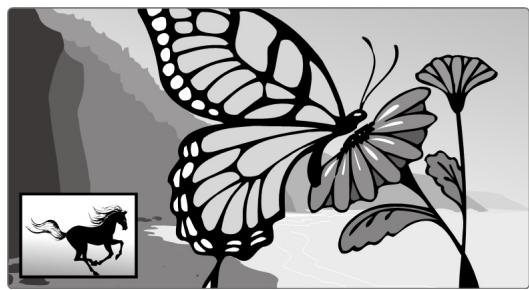
- PIP ("Picture in Picture"): A small picture (the PIP window) appears within the main picture.
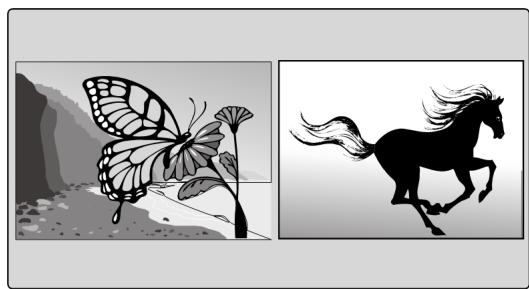
- PAP ("Picture in Picture" = The pictures are displayed side by side.
Sources for PIP and PAP

If you wish to display two pictures in the PIP or PAP mode, the picture from one source must come from one of the analog connections and the picture from the other source from one of the digital connections on the LCD-TV. You can also use two analog sources to display images.
- The following analog sources are available: Aerial (TV, TV picture), SCART connections (EXT-1, EXT-2 and EXT-2 S), Video-Audio RCA connections and (BAV), S-Video.
- The following digital sources are available: HDMI 1 and HDMI 2, Component connections (YPbPr) and PC.
You can therefore combine the TV picture with the picture from a connected PC, or the picture from a DVD player on a SCART connection with the picture from a DVD player on a HDMI connection.
Activating and modifying the PIP function
- Connect a device (e.g. a DVD player) to one of the digital inputs (HDMI 1, HDMI 2, YPbPr or PC).
- If the LCD-TV does not itself display the picture from the external device, select the source with the AV/SOURCE key or in the SOURCE menu (see page 26). The picture from the external device is now the main picture.
-
Press the key. The PIP window (small picture) will now appear with the TV programme (aerial signal) within the main picture.
-
You can select another channel for the TV picture in the PIP window with the channel select keys.
- You can select another source for the PIP window with the AV/SOURCE key (a device that is connected to one of the analog inputs).
- You can switch the sound reproduction between the main window (connected device) and the PIP window with the directional keys .
- You can swap the PIP window and the main picture with the P > P/SWAP key.
- You can close the PIP window by pressing again.
The PIP menu
You can enter various settings for the PIP window.
- While the PIP window is displayed, press on the menu key M and open the FEATURE menu (see also "Navigating within the Menu", page 18).
- Open the PIP menu with the directional key.
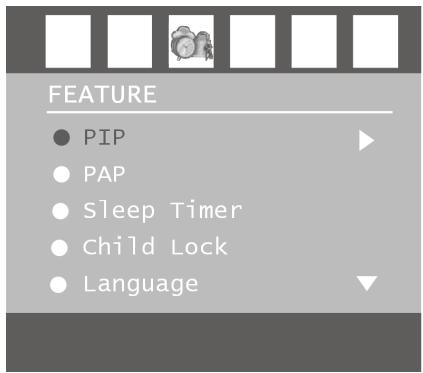
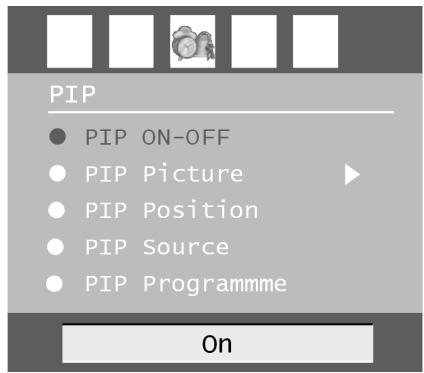
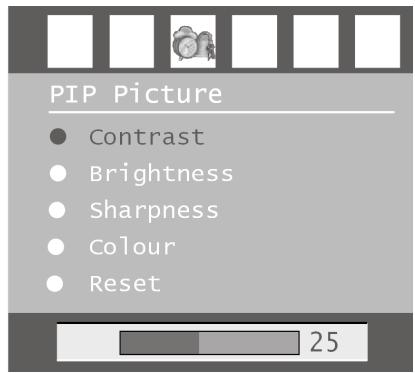
| Menu point | Settings |
| PIP ON-OFF | Switching the PIP function on or off. |
| PIP Picture | Open the PIP Picture sub-menu with the directional key▶. The settings correspond with those on the PICTURE menu, see page 19. |
| PIP Position | Select a position within the main picture with the ↓▶ key. |
| PIP Source | Select the source for the PIP picture. If the main picture comes from an analog source, then you can select from the digital and analog sources here. If the main picture comes from a digital source, then you can only select an analog source for the PIP picture. |
| PIP-zenders | Select the programme with the directional keys▶or the digit keys. |
| PIP Swap | With this you can swap the PIP picture and the main picture. |
Activating and modifying the PAP function
- Connect a device (e.g. a DVD player) to one of the digital inputs (HDMI 1, HDMI 2, YPbPr or PC).
- If the LCD-TV does not itself display the picture from the external device, select the source with the AV/SOURCE key or in the SOURCE menu (see page 26). The picture from the external device is now the main picture.
-
Press the key. The PAP window with the TV programme (aerial signal) will now appear to the right of the main picture.
-
You can select another channel for the TV picture in the PAP window with the channel select keys.
- You can select another source (a device that is connected to one of the analog inputs) for the PAP window with the AV/SOURCE key.
- You can switch the sound reproduction between the main window (connected device) and the PAP window (TV) with the directional select keys .
- You can swap the PIP window and the main picture with the P>P/SWAP key.
- You can close the PAP window by pressing again.
The PAP menu
You can enter various settings for the PAP window.
- While the PAP window is displayed, press on the menu key M and open the FEATURE menu (see also "Navigating within the Menu", page 18).
- Open the PAP menu with the directional key
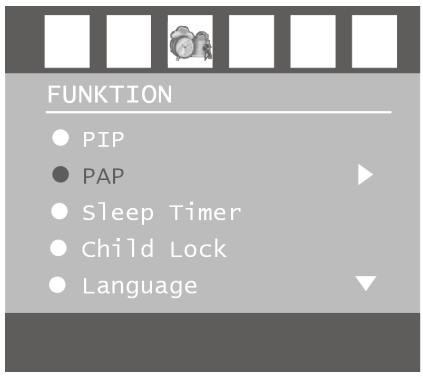
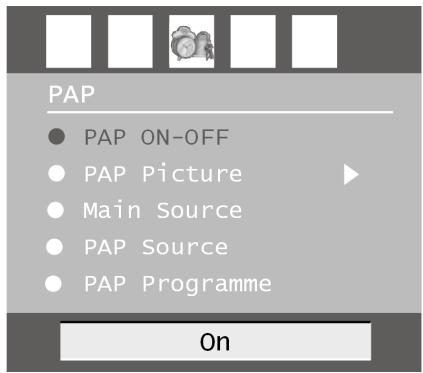
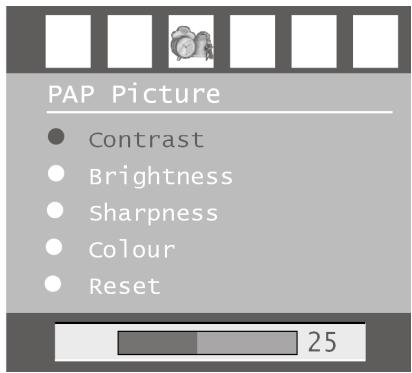
| Menu point | Settings |
| PAP ON-OFF | Switching the PAP function on or off. |
| PAP Picture | Open the PAP Picture sub-menu with the directional key▶. The settings correspond with those on the PICTURE menu, see page 19. |
| PAP Source | Select the source for the PAP picture. If the main picture comes from an analog source, then you can select from the digital and analog sources here. If the main picture comes from a digital source, then you can only select an analog source for the PAP picture. |
| PAP-zenders | Select the programme with the directional keys〈▶or the digit keys. |
| PAP SWAP | With this you can swap the PAP picture and the main picture. |
THE OSD MENU
You can set certain parameters on the LCD-TV using the OSD menu (On Screen Display).
Navigating within the Menu
- Press the M button to activate the OSD.
- Select the options from the main menu with the directional keys
- Select the options from a menu with the directional keys .
- Go back to the main menu with the directional key .
- Open a sub-menu with directional key (not available in every menu).
- Go back to the menu above with the menu key M.
- Set the required value or enter another selection with directional keys .
Close the menu with the menu key M and confirm the selection at the same time.
NB: the menu will close automatically after approx. 15, 30 or 60 seconds if no key is pressed (installing in menu FEATURE, page 22).

ATTENTION:
The menus described here may vary from the menus on your screen because of possible technical modifications.


PICTURE
Mode
Contrast
Brightness
Sharpness
Colour

Dynamic
| Menu point | Settings |
| Mode | Select image mode: Natural, Cinema, Dynamic. This function corresponds to the operation of the PP key. |
| Contrast | Reduce or increase the contrast (0-63). |
| Brightness | Reduce or increase the brightness (0-63). |
| Sharpness | Reduce or increase the sharpness (0-15). |
| Colour | Reduce or increase the saturation (0-63). |
| Colour Temp | Select hue: Normal, warm, Cold. |
| Noise Reduction | You can reduce noise in the image with this function and improve the image quality if the signal is weak. Select from Off, Low, Medium or High. |
| Filmmodus | Films are recorded with a different number of images per second than are TV images. Select On when you watch a film to see the image quality of scenes with rapid movement better. |
| 3 D Comb | The 3D comb filter is used to improve colour transitions and the colour quality of images. Select On or Off. |
| Beeldzoom | Here you can select the image settings, as with the WIDE key (see also page 11): |
| Reset | Zet met ➔ of OK alle beeldinstallingen terug op de fabriekswaarden. |
| Store | Store the settings here with ➔ or OK. |
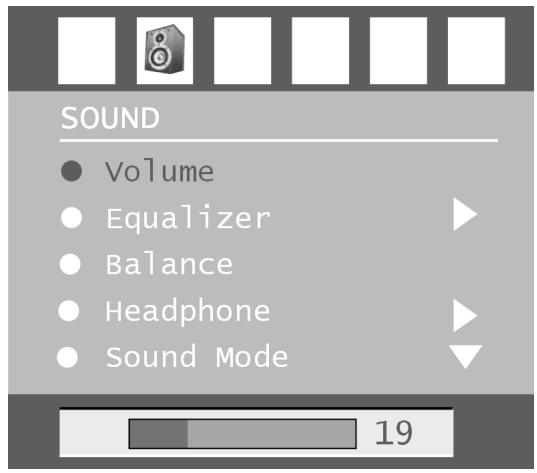
| Menu point | Settings |
| Volume | Basic setting of the volume when switching on (range 0-63). Select a limited basic volume. |
| Equalizer | Open EQUALIZER sub-menu: See following section |
| Balance | Balance between left and right loudspeaker (range -31 - 31). |
| Headphone | Opens HEADPHONE sub-menu: See next section but one. |
| Sound Mode | Sound mode: Choose between Stereo and Mono. If the current broadcast supports the DUAL mode (e.g. with bilingual broadcasts) then you can also choose here between Dual I and Dual II (original language and synchronisation). This function corresponds to the operation of the I-II key. |
| AVL | The AVL (Automatic Volume Limiting) function aligns the various volumes of the various transmissions with each other. Off: Original volumes; On: Equal volume |
| Effect | Switch sound effect on or off. If the current Sound Mode is set to Mono, the sound will be perceived as with stereo reproduction if the sound effect is switched on. If the current Sound Mode is set to Stereo, the sound will have greater depth. |
| Dynamic Bass | Set the bass sounds to Low, High or Off. The High setting is not recommended at high volume. |
| Store | Store the settings here with ▲ or OK. |
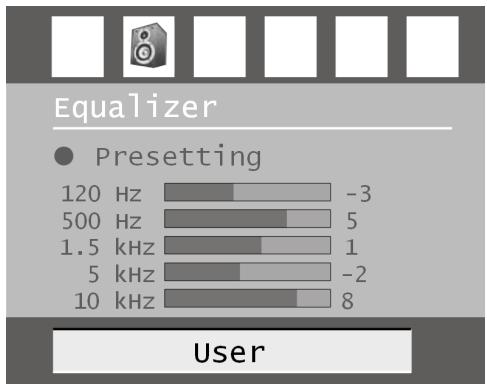
| Menu point | Settings |
| Sound Mode | Make your choice from various Equalizer pre-sets. With the Pop, Rock, Jazz and Classic settings the sound settings are optimised for the type of music in question; Normal is the normal setting. |
| User | You can define your own setting with the User setting: Choose a frequency band with ▲ ▼ Choose a value with ↦ ↦ . |
Submenu HEADPHONE
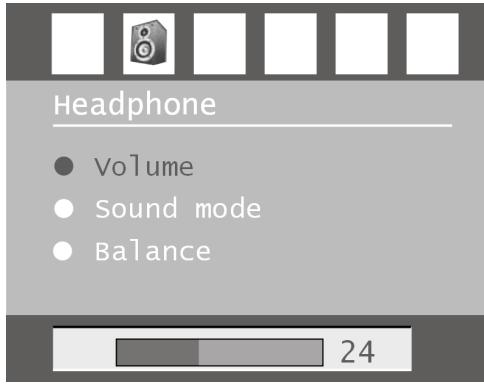
| Menu point | Settings |
| volume | Set the volume of the headphones (range 0-63). (You can only set the volume of the main speakers with the + - loudspeaker keys.)WARNING!In the first instance set the volume to a value at the lowest end of the scale before you put on the headphones. Then select a comfortable volume. Excessive volume can damage your hearing. |
| Sound Mode | Choose between Stereo and Mono for the headphones. If the current broadcast supports the DUAL mode (e.g. with bilingual broadcasts) then you can also choose here between Dual I and Dual II (original language and synchronisation). |
| Balance | Balance between left and right loudspeaker for the headphones. |
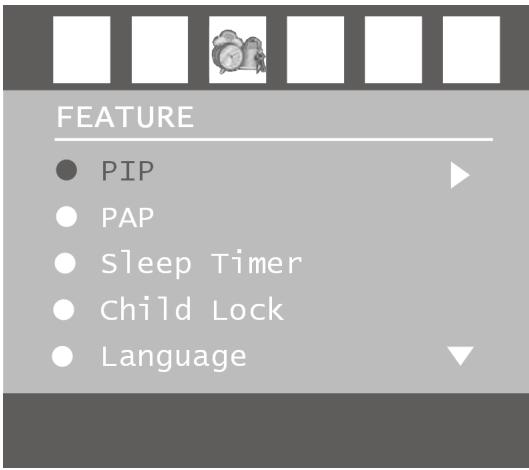
| Menu point | Settings |
| PIP | PIP menu; see page 16. |
| PAP | PAP menu; see page 15. |
| Sleep Timer | Select the time after which the device is automatically turned off. You can set the time in steps of 10 minutes (maximum 2 hours) with the directional keys ↕ ↕. The time for the Sleep Timer will start to run as soon as you have set the switch off time. Select Off to switch off this function. |
| Child Lock | If you put the setting to On , then the keys on the device will be blocked (with the exception of the on/off switch) |
| Language | Choose the language for the OSD menu. This will change immediately. |
| Ext-2 Out | This sets which signal will be put out as the output signal via the SCART-2 connection. Choose between TV, EXT-1, BAV, YPbPr Audio, PC and Audio. - If HDMI is selected as the input source, the HDMI Audio option is also available. |
| PC Audio In | This sets which signal will be input via the PC-AUDIO input. Choose between TV, EXT-1, EXT-2, BAV, YPbPr Audio and PC Audio. |
| Blue Background | If the LCD-TV does not receive any signal, a blue background will appear instead of "snow" or a black image. |
| Menu Background | Here you can make the menu background more or less transparent by means of the directional key ↕ ↕. |
| Menu Timeout | Here you can set the time after which the OSD menu will automatically close: 15, 30 or 60 seconds. |
| Teletext Language | The pre-set is West. If you are in a different language region, you can change the language setting: East, Turk/Gre, Cyrillic or Arabic. |
| Standard Format | Set the standard zoom here to Panomara, 16:9, 4:3 or 14:9-Zoom. |
Menu INSTALL
Under normal circumstances, the automatic channel seek function looks for the available channels and these are automatically stored on the channel locations in the order they are found. You can reorder the channel locations in the channel table (see menu "PROGRAM TABLE", page 25).
The INSTALL menu moreover puts you into a position to search for individual channels manually and to store them as well as to adjust the picture to the optimum setting.
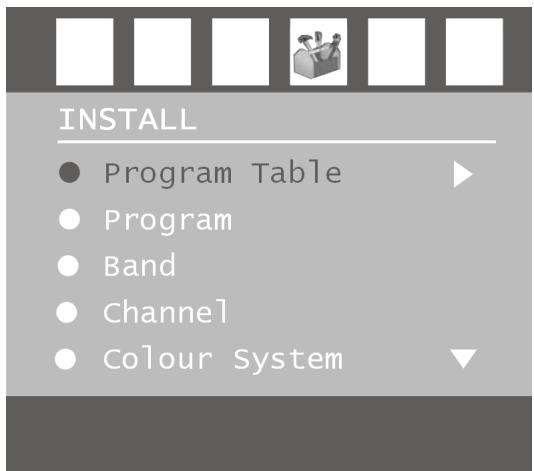
| Menu point | Settings |
| Program Table | Open the channel table (see following section) with▶. |
| Program | This displays the number of the channel location of the current channel. You can select another channel location with the directional keys▶ or with the digit keys (0 to 99).Store the new channel location with the OK key or by selecting the Store option and pressing on▶. The Stored... message will then be displayed.Remember that the current channel will be saved onto the selected channel location. The channel will be stored under the channel number (e.g. "C-25") and not under the channel name.It is advisable to reserve channel location 0 if you want to connect a video recorder. |
| Band | The television frequency band is sub-divided into channel types C (Normal channel) and S (Special channel). This displays the channel type of the currently set channel. |
| Channel | This displays the channel number of the currently set channel. You can select another channel with▶. |
| Colour System | Here you select a country-specific TV colour standard: Auto (the correct colour system is set automatically), PAL (for PAL 50 MHz), SECAM, PAL 60. If the video standard (see following option) is set to "I", then SECAM is not available.If an external source is selected (EXT - 1, etc.), NTSC 3.58 and NTSC 4.43 (usual colour format in North America) are also available.Choosing an incorrect colour system will result in an incorrect picture. |
| Sound System | Here you select a country specific TV system (video standard): BG (West Europe), I (Great Britain), L, L' (France) or DK (countries in Eastern Europe). Choosing an incorrect video standard can also result in an incorrect picture. |
| Fine Tune | Here you can adjust the picture of the currently selected channel with ⋅ . |
| Search | Here you can search channels manually. Start a search up or down with the directional keys ⋅ . The search will be interrupted with every programme that is found. The MHz value will be displayed. You can assign a location to the channel under the Program menu option. Remember that when you save a different channel that location will be written over. You can adjust the channel further using the Fine Tune menu option (see previous section). Store the channel by pressing the OK key or by selecting the Store option and pressing on ⋅ . The Stored... message will then be displayed. |
| Store | Saving selected channel (see Program and Search options). |
Save video recorder manually
The manual search function can, for example, be used to set a video recorder on the LCD-TV. Once the LCD-TV and the video recorder are connected via the aerial (see "Connections and examples of connections", page 28), you should tune your video recorder to the test signal.
- Perform the manual search action on the LCD-TV.
- Once the test signal has been found, store the test signal under channel location 0 (no TV channel is stored on this channel location).
PROGRAM TABLE
The channel table displays the currently stored channels. The channels are displayed under their channel names, insofar as the TV channel supports this function. The channel number S- or C- if the name cannot be displayed. Here "S" stands for special channel and "C" for normal channel ("Channel").
The channel memory can store 100 channels. Activate the cursor in the table with the directional key . You can open another column by going to the right column with the directional key and pressing again.
Program Table
| P01 | VTM | P11 | S 02 |
| P02 | KANA2 | P12 | S 06 |
| P03 | EEN | P13 | S 10 |
| P04 | KETNE | P14 | S 11 |
| P05 | LAUNE | P15 | C 07 |
| P06 | LADEU | P16 | C 09 |
| P07 | RTLTV | P17 | S 15 |
| P08 | VT4 | P18 | S 22 |
| P09 | VIJF | P19 | C 18 |
| P10 | VITAY | P20 | C 21 |
Name
Delete
Insert
APS
| Menu point | Settings |
| Naam | Now you can change the channel name. Highlight the required channel name and press the red key. You can now change the first letter. Select a symbol with the directional keys▲▼. - The symbols are displayed in the following sequence: A B C [t/m] Z a b c [t/m] z ( ) *+, . / [space] - 012 [t/m] 9. Use the directional key▶ to go to the next letter, and so on. At the end press the red key again to store the name. |
| Delete | Select the channel you wish to remove from the list and then press the yellow key. Press the yellow key again to confirm. The channels underneath will shift up one place in the table. |
| Insert | With this you can shift a channel to another location. Select the required channel and press the green key. Move the channel to the required location with▲▼ and press the green key again. The other channels will move as well. |
| APS | You can search for channels automatically with APS. Press the blue key. A text will appear: "WARNING! All Prestored Programs will be deleted". Select another country if necessary with the directional keys▲▶ The country setting has an effect on the sequence in which channels are stored. Press the blue key if you want to cancel the function. Press the red key or OK to start searching. The channel table will be displayed after the search is finished. |
Menu SOURCE
You can select another input source in this menu. You can also highlight a source so that you can select this directly with the AV key.
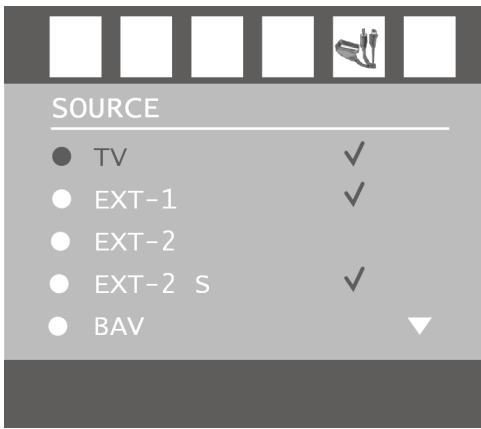
| Menu point | Settings |
| TV | Aerial use (TV channel) |
| EXT-1 | Left SCART connection (analog) |
| EXT-2 | Right SCART connection (analog) |
| EXT-2 S | Right SCART connection with transmission of S-Video picture signals (analog) |
| BAV | Video-Audio input - yellow/red/white (analog) |
| S-VIDEO | S-Video input (analog) |
| HDMI 1 | Right HDMI input (digital) |
| HDMI 2 | Left HDMI input (digital) |
| YPbPr | Component inputs (digital) |
| PC | PC input (digital) |
- Select the required source with .
- You can switch over to this source by pressing on the directional .
- You can highlight a source by pressing OK.
If the menu is closed, you can immediately select all sources that are highlighted in the menu with the AV key.
Depending on the selected external source, the INSTALL menu is unavailable or available but with fewer options.
The OSD menu has the following option in PC mode:
Menu PC POSITION
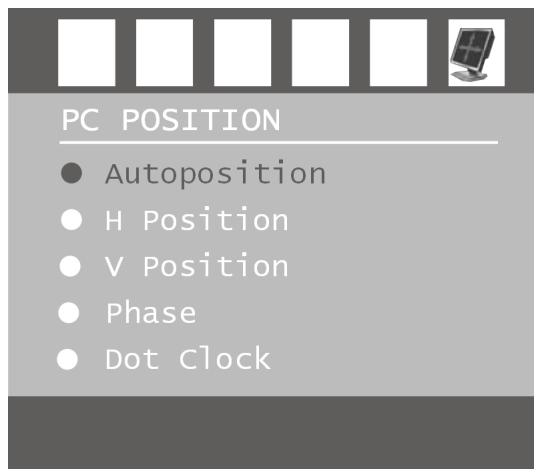
| Menu point | Settings |
| Autoposition | If the picture has shifted, you can select the Autoposition option and press OK to move it back to the middle of the screen. This function has to be performed with a full picture, otherwise the settings will not match. |
| H Position | Here you can change the horizontal position of the picture with the use of ↘ . |
| V Position | Here you can change the vertical position of the picture with the use of ↘ . |
| Phase | If the PC picture does not display clearly, you can align the picture signal here with the pixels on the LCD-TV with the use of ↘ . This makes the picture sharper and more even. |
| Dot Clock | Pixel frequency. This setting synchronises the signal display with the pixel frequency of the screen. This corrects errors that can appear as vertical stripes with pixel intensive reproductions (such as tables or texts with small fonts). Adjust the pixel frequency with ↘ . |
EN
CONNECTIONS AND EXAMPLES OF CONNECTIONS
The connections are on the rear of the device.
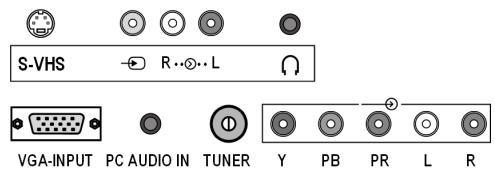
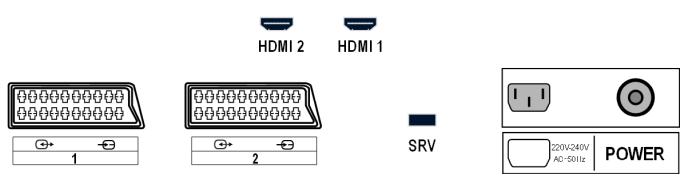
| Connection | Name of source | Examples of connections |
| S-VHS | S-VIDEO | S-VHS input (S-VIDEO) to connect a device to an S-VIDEO output (e.g. camcorder). You will need an S-Video cable for this connection. |
| R…●…L | BAV | VIDEO input (yellow) to connect devices such as camcorders, DVD players, decoders (e.g. satellite receivers), etc. AUDIO inputs L-R (red/white): Connect the left and right audio channels of the source here, if you want to reproduce the sound through the LCD-TV (e.g. camcorder). You will need RCA cables for these connections. |
| HDMI 2 | HDMI 2 | Connect headphones or earphones here with a 3.5 mm TRS stereo connector to be able to hear the sound from your device via this connection. The main loudspeaker will remain switched on. Using this appliance at full volume for extended periods of time may cause damage to the hearing ca-pacity of the listener. |
| HDMI 1 | HDMI 1 | Same as HDMI 2. |
| VGA-INPUT | PC | VGA connection. Connect your PC or notebook here. For this you need a VGA cable. |
| PC AUDIO IN | Audio input for 3.5 mm TRS stereo connector, e.g. for PCs. You can select an input source in the FEATURE menu (see page 22) for PC-AUDIO IN. | |
| TUNER | P-(Channel number) | TV function Now connect the aerial cable. |
| Y PB PR L R | YPbPr | Y - PB - PR and AUDIO L - R (left - right): Component inputs to connect devices to Component output, such as camcorders, DVD players, decoders (e.g. satellite receivers), etc. You will need a green/blue/red Component cable for this connection for the video link, as well as a red/white RCA cable for the audio link. |
| 1 | EXT-1 | SCART input to connect devices such as video recorders, DVD players, games consoles, decoders (e.g. satellite receivers), etc. You will need a SCART cable for this connection. |
| 2 | EXT-2 EXT-2 S | Same as EXT-1. You can select an output source in the FEATURE menu (see page 22) for EXT-2. This SCART connection can also transmit better S-Video image signals (for devices with an S-Video output, e.g. camcorders). The S-Video picture signal is not, however, supported by all external devices. |
| SRV | This connection is only intended for servicing purposes. Do not try to connect a device to this. | |
| 220V-240V AC~50Hz | Now connect the supplied mains cable. |
Headphones
Connect the headphones to the headphone connection . The main loudspeakers will remain on when the headphones are connected. Regulate the volume level of the headphones by means of the volume keys and the Switch Off Sound key. You can adjust the volume of the headphones in the SOUND menu, HEADPHONE sub-menu, see page 21.
DVD player
Connect a DVD player with a SCART cable to the SCART-1 or SCART-2 connections.
You can also use red-white (for sound reproduction) and yellow (for picture transmission) RCA cables.
You can also use a S-VHS cable as an alternative to the yellow RCA cable.
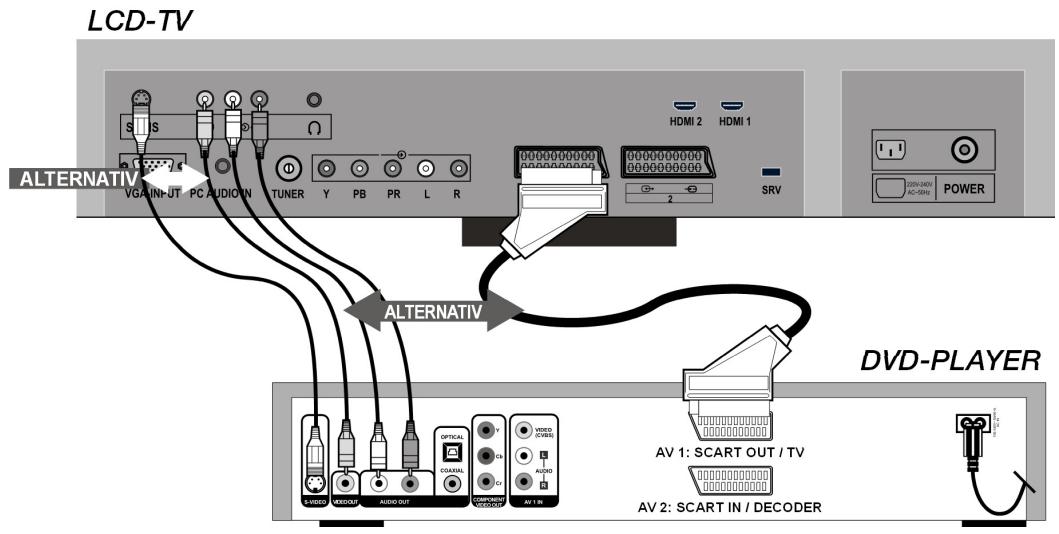
If the DVD player has YUV outputs (Y Pb Pr), it is advisable to connect these using a Component cable (green/blue/red RCA) to the Y-Pb-Pr and L-R Component inputs on the LCD-TV.
Video recorder
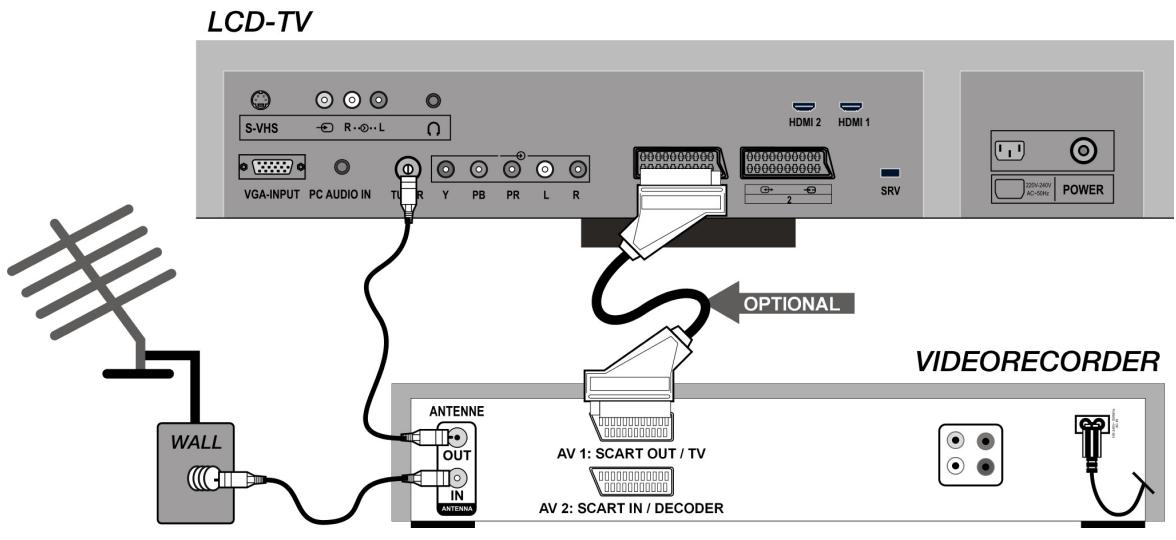
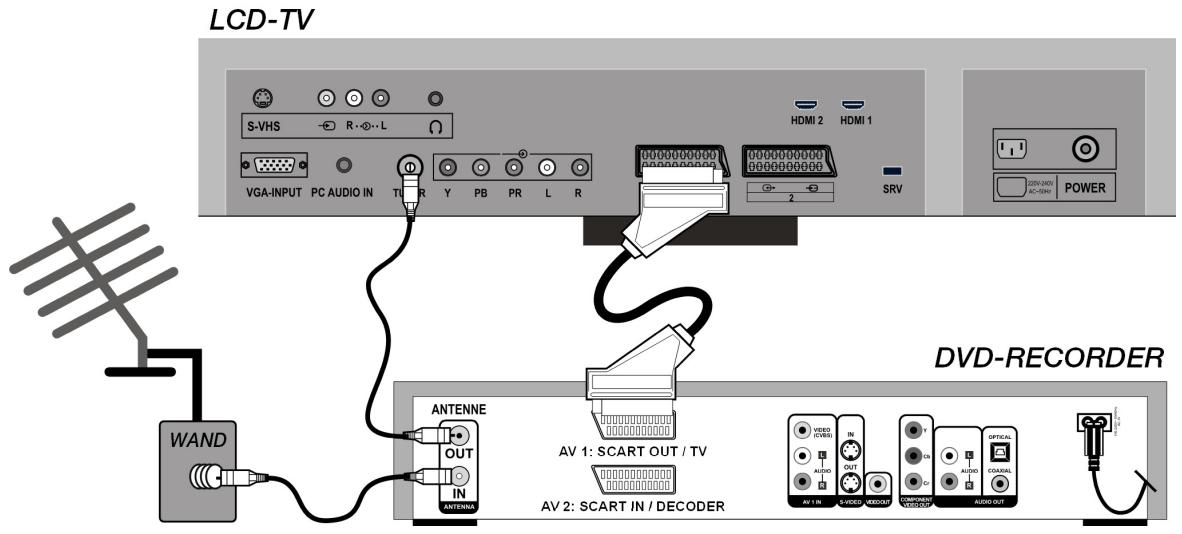
Connect an aerial cable to the aerial socket of the LCD TV and the aerial output of the video recorder, if you want to connect a video recorder to the LCD TV. Connect another aerial cable to the aerial input of the video recorder and the aerial socket on the wall.
In addition you can connect an LCD-TV and a video recorder with each other using a SCART cable. If you want to transmit stereo sound you will need a SCART connection.
DVD recorder
You can connect a DVD recorder to one of the two SCART connections on the LCD-TV using a SCART cable.
In addition connect the aerial cable in the manner described in the "Video Recorder" section (see above).
Receiver (SAT, DVB-T, decoder, etc.)
Connect a device that is intended to be used as a receiver for the LCD TV (e.g. SAT receiver, DVB-T receiver, decoder, set-top box) or a DVD recorder to the SCART socket, with a SCART cable.
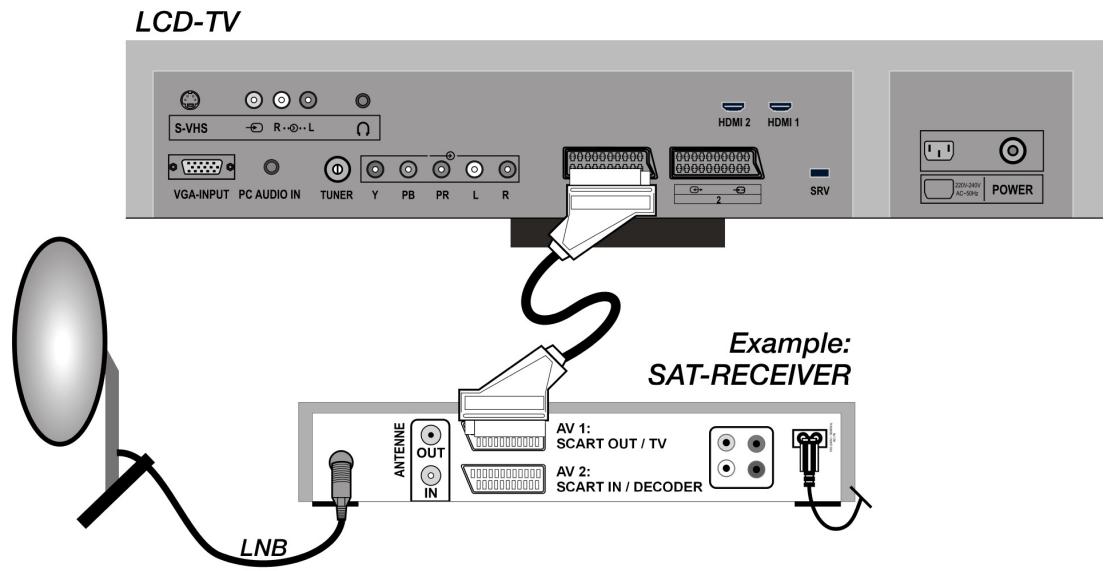
Apart from with SCART cables you can also connect the device with RCA cables (see also "DVD player", page 30):
- Connect (red-white) audio RCA cables to the audio inputs on the LCD-TV and the audio outputs on the external device.
- Connect a (yellow) video RCA cable to the video input on the LCD-TV and the audio output on the external device.
- Apart from using a video RCA cable you can also connect an S-Video video cable to the S-Video input on the LCD-TV and the S-Video output on the external device.
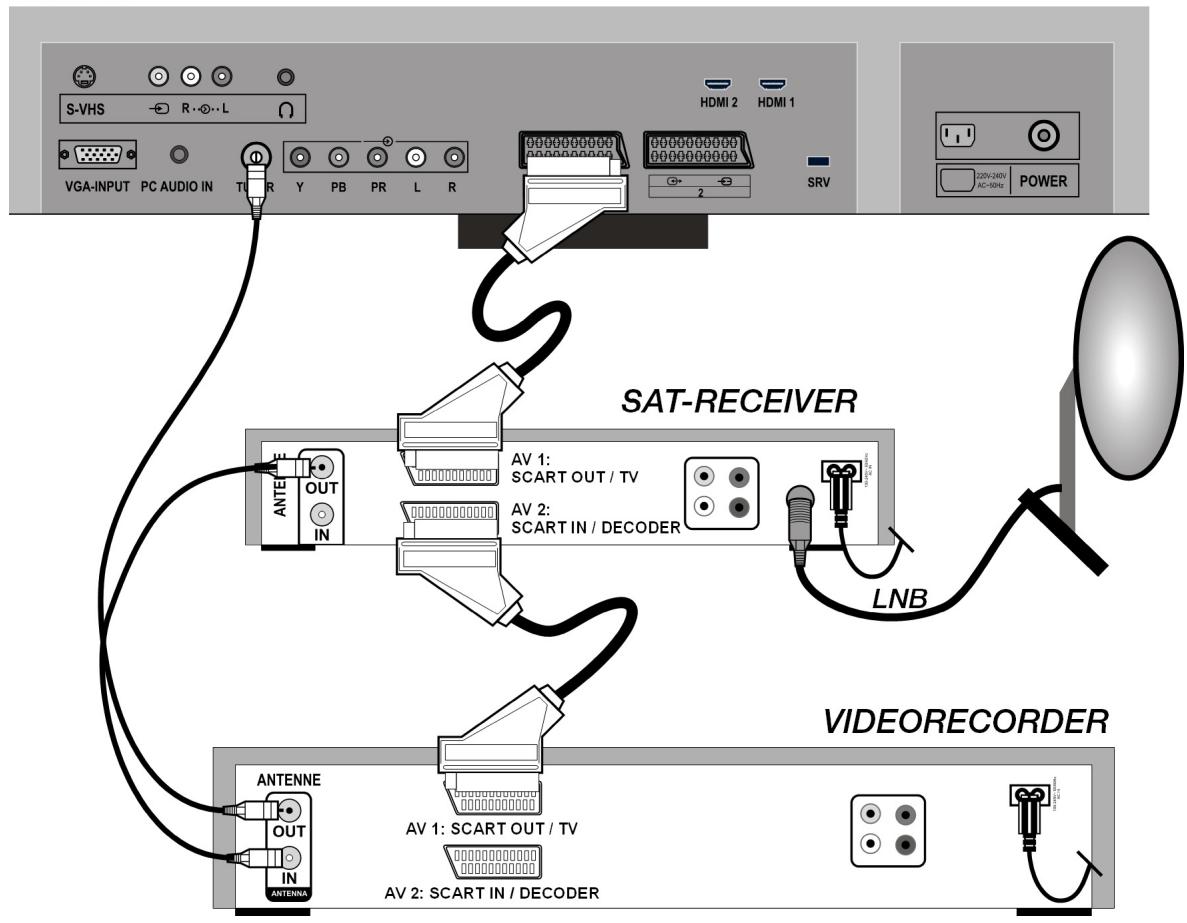
DVD or videorecorder and Sat-receiver
If you want to connect a DVD or video recorder and a satellite receiver at the same time, you can use the following connection method:
LCD-TV
Camcorder
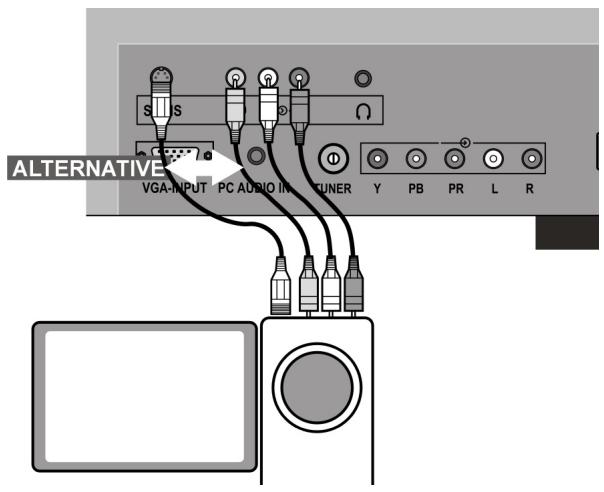
- You can reproduce the sound and pictures of a camcorder on your LCD-TV by connecting the camcorder to the AUDIO-IN connections and the VIDEO-IN connection on the LCD-TV.
- Apart from using a (yellow) video RCA cable you can also connect an S-Video video cable to the S-Video input on the LCD-TV and the S-Video output on the camcorder.
Device with HDMI or DVI output
HDMI ("High Definition Multimedia Interface") is the only interface in the entertainment electronics sector with which one can transmit audio and video data digitally at the same time. HDMI can process all picture and sound systems known at this time, including HDTV (High Definition Television), so that it can reproduce a resolution of 1080 i without loss of quality.
Many devices from the entertainment electronics sector, such as DVD players, are equipped these days with HDMI or DVI outputs.
External device with HDMI output
- Connect an HDMI cable (not supplied) to one of the two HDMI inputs on the LCD-TV and the HDMI output on the external device.
- Once you have connected the HDMI device, then switch on the LCD-TV.
- Then switch on the external HDMI reproduction device.
External device with DVI output
If the external device has a DVI output, you can also connect it to the HDMI input (HDMI is backwards compatible with DVI - "Digital Visual Interface"). For this you need an HDMI-to-DVI adapter. Given that no sound can be transmitted via the DVI output, you also need to connect an audio cable with a TRS stereo connector to PC AUDIO IN and activate the PC Audio option in the FEATURE menu under PC Audio In.
PC
The LCD-TV can be connected as a screen or additional monitor to your PC or notebook. The image on your PC or notebook will then be displayed on the LCD-TV.
Connect the LCD-TV as follows:
- Switch off both devices.
- Connect a VGA cable (screen cable; not supplied) to the VGA input on the LCD-TV and to the output for the video card on the PC or the notebook.
- Tighten the screws on the screen cable with your fingers so that the plug makes a good connection.
- If you also want sound, connect an audio cable to the PC-AUDIO-IN input.
- Switching the LCD-TV on first.
- Only then switch on the PC or notebook.
- Press the 三 key on the remote control in order to switch to PC mode. The PC image will appear on the LCD-TV. You can return to TV mode with the TV key.
If you use the LCD-TV as a second screen with your PC, then it may sometimes be necessary to adjust the screen settings in the operating system. You will find further information about matters you need to pay attention to when using more than one screen in the user manual for your PC or notebook.
TROUBLESHOOTING
Many times, problems have simple causes. We would like to give you some tips to solve some common problems. Should these tips not help, please call us!
There is no picture or sound.
- Check whether the mains cable has been connected to the socket and the mains adapter correctly.
- Check whether the signal reception has been set to TV.
- Check whether the mains switch of the device on the rear of the device has been switched on.
There is no picture. There is no picture from AV.
- Make sure the Contrast/Brightness is properly adjusted.
- Make sure all external devices are connected properly.
- Check whether the correct AV setting has been selected.
- If you want to select an input source with AV you need to highlight this in the SOURCE menu.
There is no sound.
- Make sure the volume is not set to minimum.
- Make sure the sound is not set to mute.
There is no picture or sound, just noise.
- The reception may be weak. Make sure the aerial is not disconnected.
The picture is not clear.
The reception may be weak.
- Make sure the aerial is not disconnected.
The picture is too bright or too dark.
- Check the contrast and brightness settings.
The remote control does not work.
- Check whether the batteries in the remote are operational and have been inserted correctly.
- Make sure the remote sensor window is not under strong lighting.
- Switch the device off and on again with the mains switch at the rear.
The picture is not sharp.
The reception may be weak.
- Make sure the aerial is not disconnected.
- Check the sharpness and noise suppression settings in the PICTURE menu.
A double or triple image will be displayed.
- Check if the aerial is correctly oriented.
- The signal may be reflected off hills or buildings.
The picture is spotted.
- There may be interference from automobiles, trains, high voltage lines, neon light, etc.
- There may be interference between the antenna cable and power cable. Try moving them further apart.
There are stripes on the screen or colors fade.
- Is the unit receiving interference from other devices?
- Transmission antennas of radio broadcasting station and transmission antennas of amateur radio and cellular phones may also cause interference.
- Place the unit as far apart as possible from device that may cause possible interference.
The operating buttons on the device do not function.
- The child-lock may have been activated.
Do you require additional Support?
If the suggestions in the above section have not solved your problem, please contact the hotline. We will try and help you over the telephone. However, before you contact your Service Center, please keep the following information available:
What external devices have been connected?
What messages appear on your display?
- During which operating step has the problem arisen?
- When a PC has been connected to the device:
-
What is the system configuration?
-
Which software were you using when the problem arose?
-
What steps have you already undertaken to solve the problem?
- If you have already been given a customer number, please keep this available.
MAINTENANCE
The lifespan of the LCD-TV can be extended by the following means:
- Before cleaning, always remove the power adapter plug and all connecting cables.
- Do not use any solvents, corrosive or gaseous cleaning agents.
- Clean the display with a soft, lint-free cloth.
- Ensure that no water droplets remain on the screen. Water can cause permanent discoloration.
- Do not expose the screen to bright sunlight.
- Please keep the packaging material well and use it exclusively to transport the device.

ATTENTION!
There are no user-serviceable or user-cleanable parts inside the device.
SPECIFICATIONS
Input voltage: 230V 50Hz
Visible display size: 32 inch (81 cm) TFT; 16:9-display
Power consumption: 180 W
Power consumption
standby:
TV system: PAL, SECAM, B/G, D/K, I, L/L'
Channels: VHF (Band I/III)
FM (BAND U)
HYPERBAND
KABEL-TV (S1-S20)/(S21-S41)
Audio: Stereo
Channel positions: 100
Antenna interface: 75 Ohm
Dimensions (W× H× D,
incl. stand):
Weight (incl. stand):
Stereo
100
75 Ohm
825 × 620 × 210 ~mm
approx. 18 kg
RECYCLING
Packaging

Your device is packaged to protect it against damage during transportation. The packaging is manufactured from materials that can be sent to a specialist recycling facility and disposed of in an environmentally-friendly way.
Device

At the end of its life, the appliance must not be disposed of in household rubbish. Enquire about the options for environmentally-friendly disposal.
Batteries

Do not dispose of used batteries in the household rubbish! They must be deposited at a collection point for used batteries.
PIXEL ERRORS WITH LCD TVs
Individual pixels or groups of them can fail in rare cases, in spite of the most up-to-date manufacture, because of the highly complex technology.
Active matrix LCDs (TFT) with a resolution of 1366 × 768 pixel, (WXGA) which are in turn composed of three sub-pixels each (red, green, blue), contain about 3 million addressable transistors. Because of this very high number of transistors and their extremely complex production process occasionally defective or incorrectly addressed pixels or sub-pixels may occur.
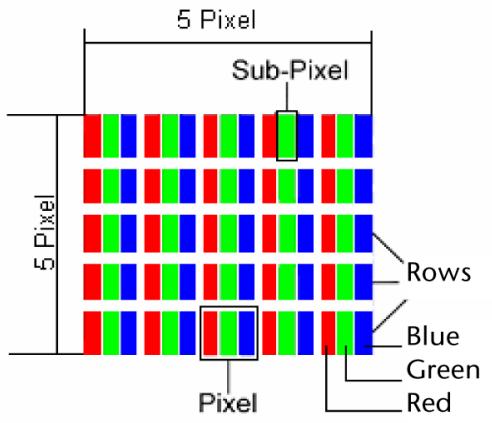
| Description | Accepted Number | |
| Bright sub-pixels | 1 sub-pixel | Max. 2 |
| Two lying next to each other (horizontally/vertically) | 0 | |
| Distance | Minimum distance between light and dark sub-pixels | Min. 5 mm |
| Dark sub-pixels | Individual | Max. 7 |
| Two lying next to each other | Max. 2 | |
| Distance | Minimum distance between light and dark sub-pixels | Min. 5 mm |
| Total number of bright and dark sub-pixels | Max. 7 | |
The Table describes the maximum number of pixel faults that are permitted to arise on the screen, without involving a guaran-tee case. Under certain circumstances, a guarantee case will be present if the number of faults given above is exceeded in one category.
Copyright © 2007
All rights reserved.
This manual is protected by copyright. All rights reserved. Copying mechanically, electronically and any other way is prohibited unless written permission from the manufacturer is obtained.
The company MEDION® owns the copyright.
Subject to technical and optical changes as well as printing errors.
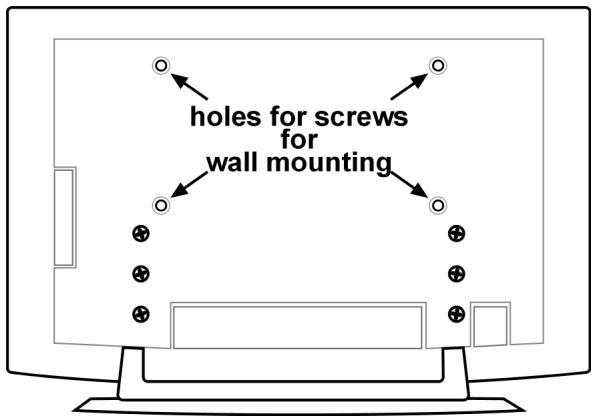
You can mount the LCD-TV onto a wall.
Accessories
The following accessories are supplied with the LCD-TV:
2 steel rails, 4 screws, 4 plastic hanging elements, 1 drill template,
1 illustrated mounting manual (applies to several types of device).
You will also need 8 rawlplugs and screws for fixing to the wall (available in trade shops).
Safety instructions for wall mounting
Be certain to adhere to the following safety instructions when mounting the unit on the wall:
- The LCD-TV must only be mounted onto straight perpendicular walls.
- Check before mounting if the load-bearing capacity of the wall equals at least three times the weight of the device (16 kg). Ask a qualified fitter for advice if in doubt.
- Switch the LCD-TV off before starting with mounting. The mains cable and aerial cable must be unplugged.
- At least two persons are required to carry out mounting.
- You will require an electric drill and a cross-head screwdriver to carry out the mounting.

ATTENTION!
Make sure that the rawlplugs and screws that you select are suitable for your wall.
Mounting the hanging elements and the device
- Push the supplied M4 x 10 screws through the plastic hanging elements. The side with the smallest diameter on the plastic hanging elements is to be found on the outside.
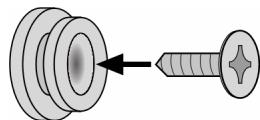
- Tighten the screws with the plastic hanging elements in the correct screw holes on the regr of the device.
See figure 5A in the illustrated manual.
Remove base
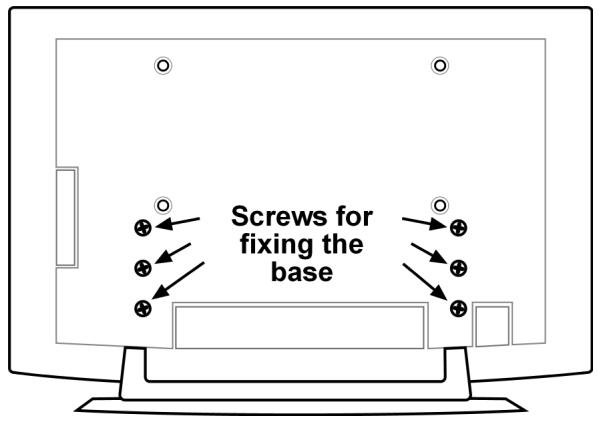
The base of the device is fixed to the rear with six screws.
- Undo the six screws with a cross-head screwdriver.
- Lift up the device, away from the base. See figure 6A in the illustrated manual.
Fixing the steel rails to the wall
- Select a location on the wall where there is sufficient distance between the LCD-TV and other objects (see section "Point of use", page 6).
Bear in mind that the hanging elements on the rear of the device will fit into the narrow ends of the hanging openings in the steel rails.
- Mark the eight drill holes in the wall with the supplied drill template.
- Drill the eight holes for the rawlplugs in the wall.
See figure 1 in the illustrated manual.
- Insert the rawlplugs.
- See figure 2 in the illustrated manual.

ATTENTION!
The rawlplugs must fit tightly! Do not hang the device on the wall if the rawlplugs are not tightly fixed.
- Attach the two steel rails each with four screws. The narrow sides of the hanging openings must face downwards.
- See figures 3 and 4 in the illustrated manual.
- Now you can hang the LCD-TV on the steel rails.
- See figures 8 and 9 in the illustrated manual.
EN
Inhalt
Uberblick 3