
C320 - Digital piano KORG - Free user manual and instructions
Find the device manual for free C320 KORG in PDF.



| Product Type | Digital Piano |
| Brand | KORG |
| Model | C320 |
| Keyboard | 88 weighted keys, touch-sensitive with hammer action (Korg RH3) |
| Polyphony | 60 notes maximum |
| Tones | 30 built-in ROM tones (including Stereo Concert Grand Piano) |
| Effects | Reverb and Chorus (3 levels each) |
| Pedals | Damper, Sostenuto, Soft (half-pedal support) |
| Metronome | With tempo, time signature, accent, and volume settings |
| Connectivity | MIDI (IN/OUT), audio outputs (L/MONO, R), audio inputs (L/MONO, R), 2 headphone jacks |
| Amplification | 2 x 25W amplifiers, 2 x 13 cm speakers |
| Power Supply | External AC adapter 100-240V, 50/60Hz, DC output 18V, 3.3A (included) |
| Dimensions (with stand) | 1396 x 462 x 869 mm |
| Weight (with stand) | 50 kg |
| Temperaments | Equal, Kirnberger, Werckmeister |
| Additional Functions | Transpose, fine tuning, Layer mode, touch settings (Light/Normal/Heavy) |
| Cleaning | Use a dry cloth. Do not use liquid or abrasive detergents. |
| Safety | Do not expose to moisture, excessive heat or dust. Unplug in case of liquid intrusion. |
| Included Accessories | AC adapter, bench, stand, pedals |
| Assembly | Stand to be assembled according to the included instructions |
Frequently Asked Questions - C320 KORG
User questions about C320 KORG
0 question about this device. Answer the ones you know or ask your own.
Ask a new question about this device
Download the instructions for your Digital piano in PDF format for free! Find your manual C320 - KORG and take your electronic device back in hand. On this page are published all the documents necessary for the use of your device. C320 by KORG.
USER MANUAL C320 KORG
Using the unit in the following locations can result in a malfunction.
- In direct sunlight
- Locations of extreme temperature or humidity
- Excessively dusty or dirty locations
- Locations of excessive vibration
Power supply
Please connect the designated AC adapter to an AC outlet of the correct voltage. Do not connect it to an AC outlet of voltage other than that for which your unit is intended.
Interference with other electrical devices
This product contains a microcomputer. Radios and televisions placed nearby may experience reception interference. Operate this unit at a suitable distance from radios and televisions.
Handling
To avoid breakage, do not apply excessive force to the switches or controls.
Care
If the exterior becomes dirty, wipe it with a clean, dry cloth. Do not use liquid cleaners such as benzene or thinner, or cleaning compounds or flammable polishes.
Keep this manual
After reading this manual, please keep it for later reference.
Keeping foreign matter out of your equipment
- Never set any container with liquid in it near this equipment. if liquid gets into the equipment, it could cause a breakdown, fire, or electrical shock.
- Be careful not to let metal objects get into the equipment. If something does slip into the equipment, unplug the AC adapter from the wall outlet. Then contact your nearest Korg dealer or the store where the equipment was purchased.
CE MARK FOR EUROPEAN HARMONIZED STANDARDS
The CE mark that is attached to our company's products of AC mains operated apparatus until December 31, 1996 means it conforms to the EMC Directive (89/336/EEC) and to the CE mark Directive (93/68/EEC).
The CE mark that is attached after January 1, 1997 means it conforms to the EMC Directive (89/336/EEC), to the CE mark Directive (93/68/ EEC) and to the Low Voltage Directive (73/23/ EEC).
In addition, the CE mark that is attached to our company's products of Battery operated apparatus means it conforms to the EMC Directive (89/336/ EEC) and to the CE mark Directive (93/68/EEC).
THE FCC REGULATION WARNING (FOR THE U.S.A. ONLY)
This equipment has been tested and found to comply with the limits for a Class B digital device, pursuant to Part 15 of the FCC Rules. These limits are designed to provide reasonable protection against harmful interference in a residential installation. This equipment generates, uses, and can radiate radio frequency energy and, if not installed and used in accordance with the instructions, may cause harmful interference to radio communications. However, there is no guarantee that interference will not occur in a particular installation. If this equipment does cause harmful interference to radio or television reception, which can be determined by turning the equipment off and on, the user is encouraged to try to correct the interference by one or more of the following measures:
Reorient or relocate the receiving antenna.
- Increase the separation between the equipment and receiver.
- Connect the equipment into an outlet on a circuit different from that to which the receiver is connected.
- Consult the dealer or an experienced radio/TV technician for help.
Unauthorized changes or modification to this system can void the user's authority to operate this equipment.
DISCLAIMER
The information contained in this manual has been carefully revised and checked through. Due to our constant efforts to improve our products, the specifications might differ to those in the manual. Korg is not responsible for any eventual differences found between the specifications and the contents of the instruction manual - the specifications being subject to change without prior notice
WARRANTY
KORG products are manufactured according to the strictest electrical and mechanical regulations that exist in various countries of the world. These products are warranted by the KORG distributor only in each country. Any KORG product that is not sold with the manufacturer's or distributor's warranty, or without a serial number, cannot benefit from servicing under the warranty. This regulation is for the consumer's own protection.
ASSISTANCE AND SERVICE FOR MUSICIANS
For repairs, contact your nearest Authorized KORG Service Center. For more information on KORG products, and to find software and accessories for your piano, please contact your local Authorized KORG distributor.
KORG ON THE INTERNET
Home page Korg Inc.: "http://www.korg.co.jp"
Home page Korg USA: "http://www.korg.com"
Home page Korg UK: "http://www.korg.co.uk"
Home page Korg Canada:
"http://www.korg canada.com"
DATA RESET
When the instrument is turned off, all parameters are reset.
© 2005 Korg Inc. Printed in Japan.
CONTENTS
Introduction 7
Main features 7
1 Panels 9
Front panel 9
Bottom panel 11
2 Before you begin 12
Connecting to an external amplification system 12
Using the headphones 12
Open the key cover 13
Turning the instrument on 13
Using the music stand 13
Adjusting the volume 14
Listening to the Demo 14
3 Basic functions 16
Playing a single sound (Single mode) 16
Playing two sounds at the same time (Layer mode) 16
Choosing the reverb and the chorus 17
Using the pedals 18
Pedal settings for the Layer mode 19
The metronome 19
4 Other functions 22
Touch settings 22
Transpose 23
Fine tuning 23
Selecting a temperament 24
5 MIDI 26
What is MIDI? 26
What can you do with MIDI? 26
Connections 26
Standard MIDI settings 27
Selecting the transmission channel 27
Using the C-320 as a multitimbral tone generator 28
Local On/Off 29
Program Change 29
Control Change 31
MIDI Data Dump 32
6Assembling the stand 34
Cautions for assembly 34
Assembling procedure 34
Check after assembly 40
Caution 40
7 Appendix 41
Troubleshooting 41
Polyphony 41
Technical specifications 42
Control panel shortcuts 43
Control panel and keyboard 43
MIDI Implementation Chart 178
Introduction
Main features
Wide range of sounds. Thirty different and expressive high-quality sounds, including a Stereo Concert Grand Piano. You can use the Layer function to simultaneously play two sounds.
Effects. The C-320 provides built-in digital effects that can simulate the natural ambience of a concert hall (Reverb) and add richness to the sound (Chorus).
Pedal effects. The C-320 provides the same three pedals as a grand piano, controlling the soft, sostenuto, and damper functions respectively. The damper pedal simulates the natural string resonances of an acoustic piano. Both the damper pedal and the soft pedal let you vary the amount of the effect by how far you press down on the pedal ("half-pedal" function).
Metronome. The built-in metronome allows you to select the time signature, tempo, and volume, and even use a bell sound as the accent.
Touch control. You can choose from three different settings to adjust how the sound will respond to your keyboard playing dynamics.
Temperaments. In addition to the Equal temperament, the C-320 allows you to select two alternative classical temperaments (Kirnberger and Werckmeister) for historically accurate performance of classical music. When selecting an acoustic piano sound, the typical Stretched Tuning is automatically selected.
Adjustable pitch. The Transpose function lets you change the pitch of the piano, and the Pitch Control function allows you to make fine tune adjustments.
MIDI capabilities. The C-320 supports the MIDI protocol, the standard that allows music data to be transferred between musical instruments and computers. MIDI
allows two or more devices to control or be controlled by each other, and also allows you to use the C-320 as a 16-part multitimbral tone generator.
Powerful integrated amplification. C-320 includes a powerful, 25 Watt amplifier, with two 13cm speakers.
Two sets of headphones. You can connect two stereo headphones, to play with your teacher or another musician.
1
Panels
Front panel
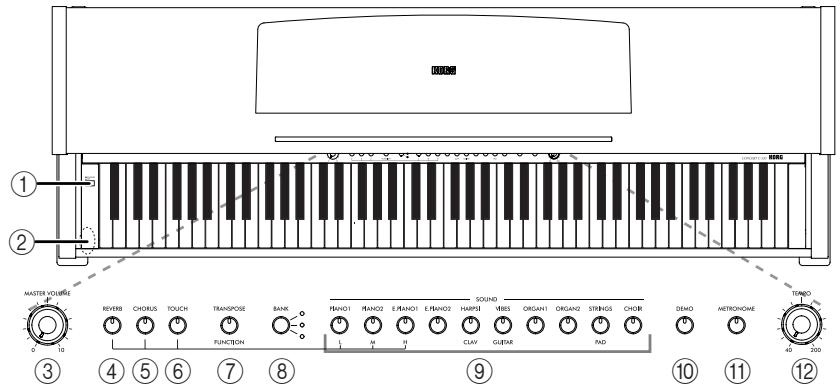
1 POWER switch: On/off switch.
2 PHONES connector: Connect one or two pairs of headphones to these jacks. The integrated speakers will turn off.
3 MASTER VOLUME knob: Adjusts the volume for the speakers, the Output and the Phones connectors.
4 REVERB button: Turns the reverb on/off. This adds ambience to the sound.
5 CHORUS button: Turns the chorus on/off. This makes the sound richer.
6 TOUCH button: Lets you select the keyboard sensitivity.
7 TRANSPOSE/FUNCTION button: Multifunction button to be used in order to modify the transpose and fine tuning functions, to program the MIDI parameters and to carry on other adjustments.
Note: When the instrument is turned off, all parameters are reset.
8 BANK button: Selects one of the 3 available banks of sounds.
9 SOUND SELECTION buttons: Press a button to select a sound (Single mode). You can press two buttons at the same time, to play two sounds at the same time on the keyboard (Layer mode).
0 DEMO button: Turns the demo mode on/off, to listen to the demo songs. Select the songs with the sound selection buttons (see above).
A METRONOME button: Turns the metronome click on/off.
B TEMPO knob: Adjusts the metronome tempo.
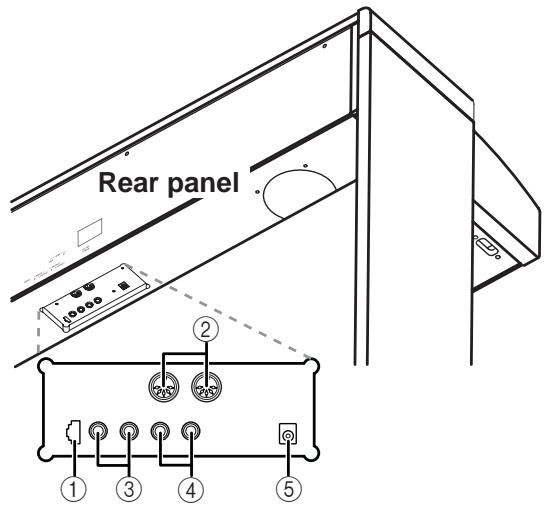
1 Pedal connector: Connect the supplied pedal to this connector.
2 MIDI (IN, OUT) connectors: Connectors that are used to connect other MIDI devices (sequencer, keyboards, etc.). OUT: Data output (to be connected to the MIDI IN connector of another MIDI device). IN: Data input (to be connected to the MIDI OUT connector of another MIDI device).
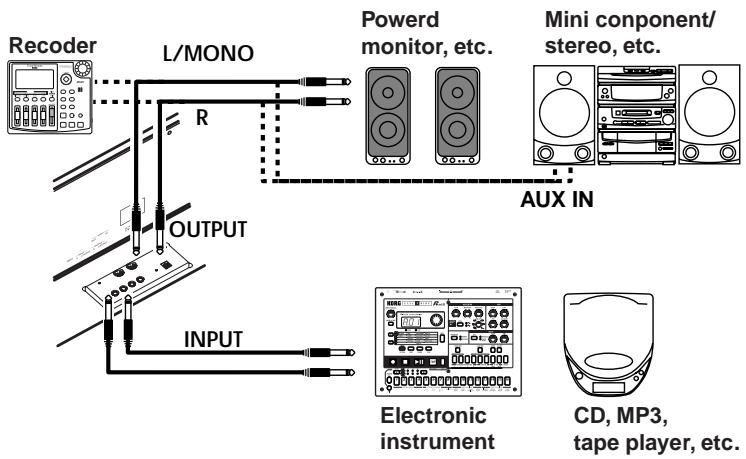
3 INPUT (L/MONO, R) connectors: Audio inputs. Connect to these connectors an external audio source, such as a CD/MP3/tape player, a mixer, or another keyboard.
Warning: Avoid connecting the output of a power amplifier to these inputs!
4 OUTPUT (L/MONO, R) connectors: Audio outputs. Connect these connectors to an external amplifying system. (With a hi-fi system use the AUX or TAPE connectors, not the PHONO connector). To amplify the C-320 in mono, connect the single L/MONO connector. Use the MASTER VOLUME knob to set the output volume.
5 AC ADAPTER connector: Connect the supplied AC/DC adapter to this connector.
2
Before you begin
Connecting to an external amplification system
Use the OUTPUT connectors, if you like to connect your C-320 to a high-quality mixer, stereo hi-fi, or a couple of active monitors. When using a stereo hi-fi, connect the OUTPUTs to the AUX or TAPE inputs (never use the PHONO inputs). For mono amplification, connect only the L/MONO output.
Using the headphones
For playing or practicing during night hours, or when you don't want to be heard by others in the same room, connect one or two pairs of high-quality headphones (32Ω impedance suggested) to the appropriate PHONES connectors. These connectors are standard 1/4" phone jacks. If your headphones have a mini-jack adapter, grasp the adapter when plugging in or out the headphones.
Warning: When using headphones, protect your hearing by avoiding extended listening at high volumes.
Open the key cover
Gently lift the center of the sliding key cover by the indented portion, and support it while you slide it carefully and fully into the C-320.
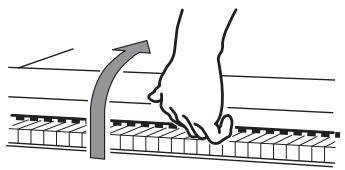
To close the key cover, gently lift the center by the indented portion, and slide it forward.
Note: Be careful not to pinch your fingers or hand while opening or closing the key cover.
Note: The key cover may be damaged if you use excessive force when opening or closing it.
Note: Before you open the key cover, make sure that no foreign objects such as papers or coins are on the top of the key cover itself. Otherwise, these objects may fall into the instrument.
Turning the instrument on
Insert the DC plug of the supplied AC adapter into the DC inlet of the C-320, then connect the AC plug to a wall socket.
After having connected the power cable, press the POWER switch. When the instrument is turned on, the buttons on the control panel will light up. To turn the instrument off, press the POWER switch again.
Note: When the instrument is turned off, all parameters are reset.
Using the music stand
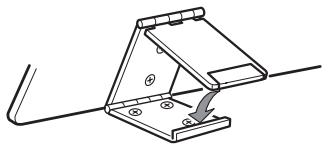
Tilt the music stand upright, and use the two stoppers located on the rear to hold the music stand in place.
Adjusting the volume
Move the MASTER VOLUME knob towards the right to increase the volume; towards the left to decrease the volume. The maximum is "10"; the minimum (silence) is "0". This control adjusts the output level of the headphones, the internal speakers and of the OUTPUTs.
Note: It is always better to start with a low volume and then increase gradually.
Listening to the Demo
The C-320 contains 30 pre-recorded demo songs. Listen to them to experience the rich sound and expressive potential of this instrument.
Listen to all songs at once. You can listen to all demo songs with a single command.
1 Press the DEMO button. The sound selection buttons will blink sequentially from left to right. After a few seconds, playback will begin. All demo songs will be played back. After the last song, the playback will begin again from the first song.
Note: Keep the TRANSPOSE/FUNCTION button pressed, and press E1 on the keyboard. All demo songs will be played back immediately.
2 During playback, you can press a sound selection button to repeat just the current bank of ten demo songs. (There are three banks of ten demo songs each: 1-10, 11-20, 21-30).
For example, if you press the CHOIR button while song number 1 is playing, song number 10 will immediately start playing, and the playback will cycle from song 1 through song 10.
3 Press the DEMO button to stop the playback and exit the demo mode.
Listen to a specified song. You can select just one demo song to be played back.
1 First of all, you must select one of the three demo song banks.
- To select the first bank (1-10), press the DEMO button once. The indicators will blink sequentially, from left to right.
- To select the second bank (11-20), press the DEMO button a second time. All indicators will blink at the same time.
- To select the third bank (21-30), press the DEMO button a third time. Adjacent indicators will blink alternatively
2 Press one of the sound selection buttons to select the corresponding song in the selected bank. The indicator on the selected demo button will stay on, while the other indicators will turn off.
After the end of the selected song, all the songs of the selected bank will be played back in cycle.
| Button | Bank 1 (1-10) | Bank 2 (11-20) | Bank 3 (21-30) |
| PIANO 1 | F. Mendelssohn-Bar-tholdy: Prelude Op.104a, no.2 | Korg Original (M. Tem-pia): Reflection | C.A. Debussy: Arabesque no.1 |
| PIANO 2 | F. Chopin: Nocturne Op.9, no.2 | S. Joplin: The Entertainer | J.S. Bach: Two-voice invention no.13 |
| E.PIANO 1 | C.A. Debussy: Clair de lune | Korg Original (M. Tem-pia): Jumper | F. Chopin: Fantasia- Impromptu Op.66 |
| E.PIANO 2 | Korg Original (M. Tem-pia): Lullaby for a Little Star | Korg Original (M. Tem-pia): All the Ones You Don't Know | J.S. Bach: Prelude in C major (from Das Wohl-temepereierte Klavier) |
| HARPSI /CLAV | L. van Beethoven: Für Elise | J.S. Bach: Italian Con-cert | Korg Original (M. Tem-pia): Rubber Bob |
| VIBES /GUITAR | F. Chopin: Etude Op.10, no.3 | Korg Original (M. Tem-pia): Jazz in Spain | R. Schumann: Trauma-rei, Op.15, no.7 |
| ORGAN 1 | W.A. Mozart: A la turque (from the Sonata in A-major K.331) | Korg Original (M. Tem-pia): Cool “B” | F. Mendelssohn-Bar-tholdy: Spring Song, Op.62, no.6 |
| ORGAN 2 | F. Chopin: Valse no.6 in D-,major Op.64, no.1 | F. Mendelssohn-Bar-tholdy: Wedding March | Korg Original (M. Tem-pia): Sunflowers |
| STRINGS /PAD | Korg Original (M. Tem-pia): Old Feather Blues | J.S. Bach: Air on the G string | P.D. Paradisi: Toccata in A major |
| CHOIR | Korg Original (M. Tem-pia): Noise of time | Korg Original (M. Tem-pia): Voice Texture | Korg Original (M. Tem-pia): Wet Raccoon Rag |
3 Press the DEMO button to stop the playback and exit the demo mode.
Note: During the demo playback you can't use the sound selection buttons to select sounds, or the REVERB and CHORUS buttons.
Adjusting the tempo of the demo songs. Use the TEMPO knob to change the tempo of the selected demo song. Normally, the playback tempo of the demo song will not match the markings of the TEMPO knob.
Note: You can't use the metronome during the demo playback.
Note: When a demo is selected, its original tempo is recalled.
3
Basic functions
Playing a single sound (Single mode)
You can select a sound from the thirty sounds supplied with the instrument.
1 Press one of the sound selection buttons in order to select a sound. The indicator on the button you pressed will light.
2 Use the BANK button to select one of the three available banks (1-10, 11-20, 21-30). Pressed a first time it selects Bank 2; pressed a second time it selects Bank 3; pressed a third time it selects Bank 1 again.
| Button | Bank 1 | # | Bank 2 | # | Bank 3 | # |
| PIANO 1 | Grand Piano | 2 | Bright Piano | 2 | Mellow Piano | 2 |
| PIANO 2 | Honky-Tonk | 2 | Detune Piano | 2 | E.Grand Piano | 1 |
| E.PIANO 1 | Club E.Piano | 2 | Stage E.Piano | 1 | Thin E.Piano | 2 |
| E.PIANO 2 | 80's E. Piano | 2 | Digital E.Piano | 1 | Vintage E. Piano | 1 |
| HARPSI/CLAV | Harpsichord | 1 | Clav. | 1 | Wah Clav. | 1 |
| VIBES/GUITAR | Vibraphone | 1 | Marimba | 1 | Acoustic Guitar | 1 |
| ORGAN 1 | Jazz Organ 1 | 2 | Jazz Organ 2 | 2 | Jazz Organ 3 | 2 |
| ORGAN 2 | Church Organ 1 | 3 | Church Organ 2 | 1 | Church Organ 3 | 1 |
| STRINGS/PAD | Slow Strings | 2 | Warm Pad | 2 | Strings | 1 |
| CHOIR | Choir Hoo | 1 | Choir Doo | 2 | Choir Pad | 2 |
(#) These columns show the number of oscillators per voice used by each sound
Playing two sounds at the same time (Layer mode)
You can play two sounds at the same time on the keyboard. This is called the Layer mode.
Note: When selecting the Layer mode, the total number of voices that can play at the same time is reduced, depending on the total number of oscillators used by the selected sounds.
Note: You can't select two sounds included under the same button.
1 Press one of the sound selection buttons in order to select the first sound. The indicator on the button you pressed will light. Use the BANK button to select a sound in one of the other banks.
2 Press another sound selection button to select the second sound. The indicator on the button you pressed will light. Use the BANK button to select a sound in one of the other banks.
3 Press both buttons at the same time to select the sounds. Both indicators will light.
Note: Steps 1 and 2 are not required, if the right banks are already selected.
Returning to the Single mode. To return to the Single mode, just press a single sound selection button.
Adjusting the volume of sounds in Layer mode. To adjust the balance between the sounds in Layer mode, hold down the button of the sound whose level you wish to decrease, and repeatedly press the button of the sound whose level you wish to raise.
Note: This setting will be memorized even after turning the Layer mode off, but will be lost when turning the instrument off. To save these settings, save them using the Data Dump function (see “MIDI Data Dump” on page 32).
Choosing the reverb and the chorus
The C-320 has two effects: reverb and chorus. The reverb simulates the sound reverberation in a room, while the chorus simulates a modulating effect that makes the sounds richer. The effect settings will be remembered even when selecting a different sound.
Note: Effect settings made in Single mode are memorized even when selecting the Layer mode, but no change made in Layer mode will be preserved.
When the instrument is turned on, the effect settings are reset to the factory settings. To save the Single mode settings, save them using the Data Dump function (see "MIDI Data Dump" on page 32).
1 Hold down the REVERB or CHORUS button, and press either the PIANO 1/L, PIANO 2/M, or E.PIANO1/H sound selection button to select the reverb or chorus depth.
| Button | Reverb depth | Chorus depth |
| PIANO 1/L | Light reverb | Light chorus |
| PIANO 2/M | Normal reverb | Normal chorus |
| E.PIANO 1/H | Deep reverb | Deep chorus |
2 To check the currently selected reverb or chorus depth, hold down the REVERB or CHORUS button, and look at which of the indicators is turned on.
3 To turn the reverb or chorus off, press the REVERB or CHORUS button. The indicator on the button will turn off.
Using the pedals
The C-320 has three pedals: soft, sostenuto, and damper. You can use these pedals to add expression to your playing, as on a traditional piano.
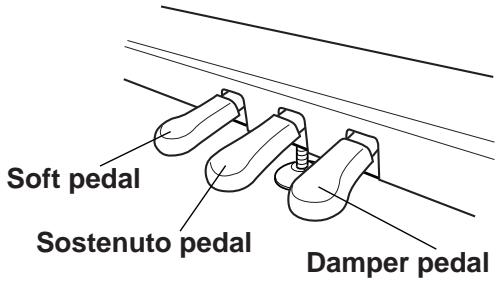
Soft pedal. Pressing this pedal will make the tone softer. You can control the softness of the tone by how far down you press the on pedal ("half-pedaling").
Sostenuto pedal. Pressing this pedal will apply the damper effect only to the notes that are already being held down on the keyboard, and will sustain only those notes. The damper effect will not be applied to any additional notes that you play while holding down the Sostenuto pedal.
Damper pedal. Pressing this pedal will sustain the sound, producing a richly resonant decay. You can control the damper depth by how far down you press the on pedal ("half-pedaling").
Pedal settings for the Layer mode
You can select which sound(s) will be affected by the damper pedal when using the Layer mode.
Note: When the instrument is turned on, the pedal settings are reset. To save these settings, save them using the Data Dump function (see “MIDI Data Dump” on page 32).
1 Hold the TRANSPOSE/FUNCTION button, and press the damper pedal. Each time you press the pedal, the indicator on the sound selection button(s) where the damper pedal is active will light.
2 When the pedal is assigned to the desired sound(s), release the TRANSPOSE/FUNCTION button.
The metronome
The C-320 incorporates a metronome, with which you can set the tempo during practice.
Starting and stopping the metronome. Press the METRONOME button to make the metronome start or stop. When turning on, the metronome is set according to the knob position, but you can adjust it with the procedure described below. After having listened to the demo, the tempo will be that of the last demo that had been listened to.
Adjusting the metronome volume. While the metronome is playing, keep the METRONOME button pressed and repeatedly press the STRINGS/PAD button (or the B5 key) to lower the volume, or the CHOIR button (or the C6 key) to raise it. To reset the volume, simultaneously press the STRINGS/PAD and CHOIR buttons (or the B5 and C6 keys on the keyboard) while holding the METRONOME button.

| Key | Effect | Key | Effect |
| B5 | Lower volume | C6 | Higher volume |
Adjusting the tempo using the TEMPO knob. Use the TEMPO knob to adjust the tempo. The range is = 40 200 .
Numeric tempo input. In some cases, you may require an exact tempo (like 127 BPM). It is possible to enter a precise tempo, using the numeric input.
1 Hold down the METRONOME button.
2 Use the keyboard to input the three-digit tempo value (insert a "0" before a two-number value).

| Key | Number | Key | Number |
| C5 | 0 | C#5 | 1 |
| D5 | 2 | D#5 | 3 |
| E5 | 4 | F5 | 5 |
| F#5 | 6 | G5 | 7 |
| G#5 | 8 | A5 | 9 |
For example, to select a tempo value of 168, keep the METRONOME button pressed, then press C#5 (1), F#5 (6), G#5 (8). To select a tempo value of 85, keep the METRONOME button pressed, then press C5 (0), G#5 (8), F5 (5).
Selecting the time signature. You can add an accent to the first beat of a measure.
| Button | Time signature |
| PIANO 1 | 2 movements (2/4, 2/8...) |
| PIANO 2 | 3 movements (3/4, 3/8...) |
| E.PIANO 1 | 4 movements (4/4, 4/8...) |
| E.PIANO 2 | 6 movements (6/4, 6/8...) |
1 While the metronome is working, keep the METRONOME button pressed and press the button that corresponds to the time signature you wish to use (see table above). The first movement of the measure will be accented.
2 To deactivate the accent, keep the METRONOME button pressed and press the sound selection button whose indicator is lit.
Note: When the instrument is turned on, the accent is automatically disabled.
Selecting a bell for the accent. The accented beat can be changed to a bell sound.
1 While the metronome is playing, hold down the METRONOME button, then press the VIBES/GUITAR sound selection button. The indicator on the button will light, and a bell sound will be heard on the first beat of the bar.
2 To return to the normal accent, hold down the METRONOME button and press the HARPSI/CLAV sound selection button to switch on the indicator on the HARPSI/CLAV button.
Note: When the instrument is turned on, the bell is automatically disabled.
4
Other functions
Touch settings
The keyboard sensitivity, or touch, can be programmed. Keep the TOUCH button pressed, and press the appropriate button to select one of the available touch settings.
| Button | Touch sensitivity |
| PIANO 1/L | Light. Loud notes can be produced even by playing lightly. |
| PIANO 2/M | Normal. Normal piano touch. |
| E.PIANO 1/H | Heavy. Loud notes can be pro- duced only by playing very hard. |
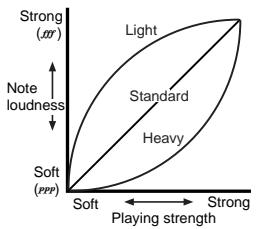
To check the currently selected setting, hold down the TOUCH button, and look at which of the indicators is turned on.
Note: When the instrument is turned on, the touch setting is reset to Normal.
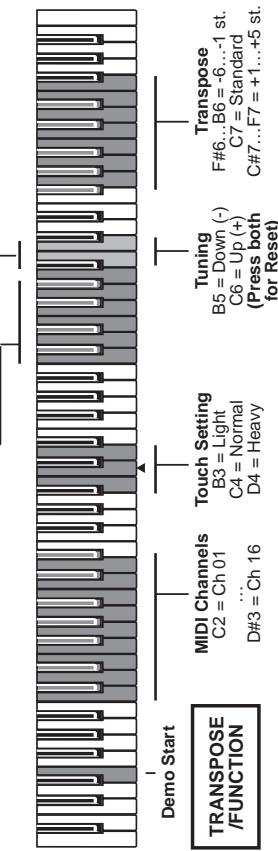
Alternatively, you can use the TRANSPOSE/FUNCTION button and the keyboard. Hold the TRANSPOSE/FUNCTION button, and press the key on keyboard that corresponds to the touch setting you wish to carry out (see table).

| Key | Touch sensitivity |
| B3 | Light. Loud notes can be produced even by playing lightly. |
| C4 | Normal. Normal piano touch. |
| D4 | Heavy. Loud notes can be produced only by playing very hard. |
Transpose
In some cases, a song may be written in a difficult key (e.g., many black keys), or you may wish to shift the pitch to match another instrument or vocalist. In such cases, you can transpose (shift the pitch) so that you can use an easier fingering, or use the same familiar fingering to play at a different pitch. This is called the Transpose function.
For example if you transpose upward by one semitone, playing the notes shown at the lower left will produce the pitches shown at the right.

Note: When the instrument is turned on, the transposing is reset.
1 Hold the TRANSPOSE/FUNCTION button, and press the key on keyboard that corresponds to the transpose you wish to carry out (see table). The TRANSPOSE/FUNCTION indicator will remain lit up, to indicate that the transpose function is active.

| Key | Effect |
| F#6 — B6 | 6 — 1 semitones below |
| C7 | Standard pitch |
| C#7 — F7 | 1 — 5 semitones higher |
2 To get back to standard pitch, hold the TRANSPOSE/FUNCTION button and press the C7 key. The TRANSPOSE/FUNCTION indicator will turn off.
Fine tuning
In order to adapt the C-320 pitch to that of another instrument, you can adjust the pitch in steps of 0.5Hz over a range of A4 = 427.5 452.5Hz . The standard tuning is A4 = 440Hz .
Note: The pitch will go back to standard level (A4 = 440 Hz) when the instrument is turned off, then on again.
1 Hold the TRANSPOSE/FUNCTION button, and press the corresponding key to change the pitch. Each time the B5 or C6 key is pressed, the pitch will be raised or lowered by 0.5Hz .
2 To get back to standard pitch, hold the TRANSPOSE/FUNCTION button and press the B5 and C6 buttons at the same time.

| Key | Fine tuning |
| B5 | Lowers the pitch by 0.5 Hz |
| B5+C6 | Standard pitch (A4 = 440 Hz) |
| C6 | Raises the pitch by 0.5 Hz |
Selecting a temperament
There are numerous classical compositions that were composed using temperaments that differ from the "equal temperament" commonly used today. In order to reproduce the original sound of such compositions, the C-320 provides Kirnberger and Werckmeister classical temperaments, in addition to the equal temperament, allowing you to select from a total of three temperaments.
To select one of the available temperaments, hold down the TOUCH button, then press the button corresponding to the desired temperament. To return to the equal tuning hold down the TOUCH button, then press the sound selection button whose indicator is lit.
| Button | Temperament |
| Both indicators turned off | Equal temperament. Nearly all keyboard instruments today use equal temperament. This temperament spaces all semitones at equal distances, and allows identical scales to be played in any key. |
| HARPSI/CLAV | Werckmeister. This is the Werckmeister III scale invented by Andreas Werckmeister, the German organist and music theoretician. This scale was created in the later Baroque period to allow relatively free transposition. |
| VIBES/GUITAR | Kirnberger. This is the Kirnberger III scale invented by Johann Phillip Kirnberger in the early 18th century, and is used mainly for tuning harpsi-chords. |
To check the currently selected temperament, hold down the TOUCH button, and look at which of the indicators is turned on.
Note: When the power is turned on, the equal temperament will be automatically selected.
About stretched tuning. In order to produce the most natural resonance, PIANO 1 and PIANO 2 sounds use a "stretched tuning" that makes the notes of the lower range slightly flatter than equal temperament, and the upper range slightly sharper. This is how an acoustic piano is normally tuned by professional tuners.
5
MIDI
What is MIDI?
MIDI, is the abbreviation of Musical Instrument Digital Interface. It is an international standard that was created to connect and transfer data between electronic musical instruments, computers and other devices.
What can you do with MIDI?
Thanks to MIDI, you can use the C-320 to control other instruments, use other instruments to control the C-320, and use a sequencer to create complex musical pieces.
When you use the C-320 keyboard or pedal, or select a sound, the notes, pedal activation and change in sound are transmitted to another instrument, or are recorded by a sequencer.
Connections
Always connect the MIDI OUT connector of the instrument to the MIDI IN connector of another instrument. Never connect two connectors of the same instrument to each other.
Connect the MIDI OUT connector of the transmitting (master) device to the MIDI IN connector of the receiving (slave) device.

To connect the C-320 to a computer, you need a MIDI interface for the computer, sequencing or musical notation software, and two standard MIDI cables. Connect
the C-320 MIDI OUT connector to the MIDI IN connector of the computer. Connect the C-320 MIDI IN connector to the MIDI OUT connector of the computer.
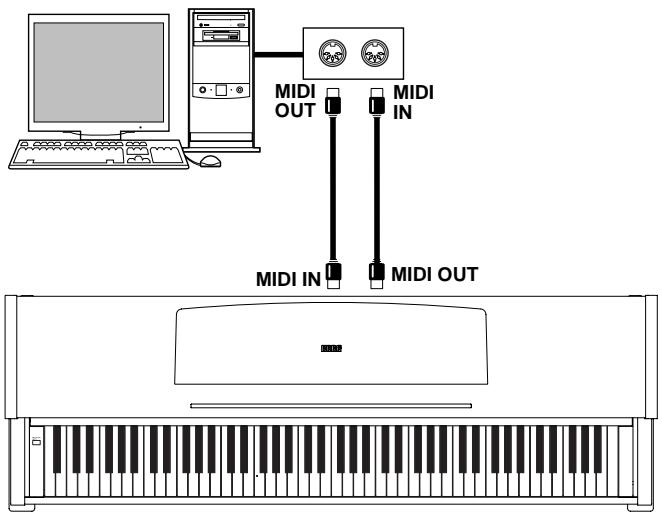
Standard MIDI settings
When turning the instrument on, the MIDI parameters of the C-320 are programmed as follows:
| Parameter | Setting |
| Transmission channel | 1 |
| Reception channel(s) | All 16 (1-16)* |
| Local | ON |
| Omni | OFF |
(*) On channel 10, only metronome notes are received (D#5, E5).
Selecting the transmission channel
The standard MIDI has 16 separate channels available for transmission and reception of data. C-320 always receives on all 16 channels, and transmits on a single channel. To transmit data from the C-320, you need to choose which of the 16 channels you wish to transmit data on.
Hold down the TRANSPOSE/FUNCTION button, and press the note in the range C2-D#3 corresponding to the desired MIDI channel.

| Key | Channel | Key | Channel |
| C2 | 1 | C#2 | 2 |
| D2 | 3 | D#2 | 4 |
| E2 | 5 | F2 | 6 |
| F#2 | 7 | G2 | 8 |
| G#2 | 9 | A2 | 10 |
| A#2 | 11 | B2 | 12 |
| C3 | 13 | C#3 | 14 |
| D3 | 15 | D#3 | 16 |
Note: When the power is turned on, channel 1 will automatically be selected.
Note: By default, channel 10 will automatically be assigned to the metronome sound (notes D#5-E5).
Note: In Layer mode, the second sound transmits on the following channel. For example, if you select channel 7, the first sound will transmit on channel 7, while the second sound will transmit on channel 8. If you select channel 16, the first sound will transmit on channel 16, while the second sound will transmit on channel 1 (cycling back to the first channel).
Using the C-320 as a multitimbral tone generator
When C-320 is controlled from an external MIDI device, it can work as a 16-part multitimbral tone generator. You can select a different sound on each of the 16 MIDI channels.
1 Use a MIDI cable to connect the C-320's MIDI IN to the MIDI OUT of a sequencer etc.
2 Transmit MIDI data from the connected sequencer (or other device). See "Program Change" on page 29 for instructions on how to select a sound using the MIDI Program Change message. Program Change reception must be activated on the C-320 (it is by default).
Read the other devices user's manual for details on sending Program Change messages.
Local On/Off
Local is the parameter that allows you to establish whether the keyboard has to play the internal sounds and transmit MIDI data at the same time (Local On), or whether it just has to transmit MIDI data and not play the internal sound (Local Off).
Local Off should be chosen when you wish to use the C-320 as a mute keyboard, to play another instrument. It should be chosen also when C-320 is connected to a sequencer via its MIDI IN and MIDI OUT connectors. This will avoid the notes to be played twice, by the keyboard and by the sequencer, producing an annoying "echo" effect.
Normally, you will choose Local On (automatically selected when turning the C-320 on), so that playing the keyboard will produce sound.
Hold down the TRANSPOSE/FUNCTION button, and press the PIANO 1 sound selection button. The Local setting will alternate to On/Off each time you press this button.
| Local status | PIANO 1 indicator status |
| Local On | Lit |
| Local Off | Dark |
Note: When the power is turned on, the Local will be automatically set to On.
Program Change
The sound of the C-320 can be selected via MIDI, by sending a Program Change message on the channel where you wish to assign the sound. The table enlists the Program Change numbers (numbering from 0-29; if the transmitting device uses numbers from 1-30, you will need to increment the number by one).
Transmitting Program Change messages. You can send a MIDI Program Change message to a MIDI device connected to the C-320 MIDI OUT, to change its sound. When selecting one of the internal sounds of the C-320 by using the sound selection buttons, a MIDI Program Change number will be transmitted, as shown in the table below.
Receiving Program Change messages. When a Program Change message is received from an external device, the corresponding internal sound will be selected
on the C-320, as shown in the following table. Only Program Change (PC) numbers in the range 0–29 have effect on the C-320, while other numbers (30-127) are ignored.
| PC# | Button | Bank | Sound |
| 0 | PIANO 1 | 1 | Grand Piano |
| 1 | 2 | Bright Piano | |
| 2 | 3 | Mellow Piano | |
| 3 | PIANO 2 | 1 | Honky-Tonk |
| 4 | 2 | Detune Piano | |
| 5 | 3 | E.Grand Piano | |
| 6 | E.PIANO 1 | 1 | Club E.Piano |
| 7 | 2 | Stage E.Piano | |
| 8 | 3 | Thin E.Piano | |
| 9 | E.PIANO 2 | 1 | 80's E.Piano |
| 10 | 2 | Digital E.Piano | |
| 11 | 3 | Vintage E.Piano | |
| 12 | HARPSI/CLAV | 1 | Harpsichord |
| 13 | 2 | Clav. | |
| 14 | 3 | Wah Clav. | |
| 15 | VIBES/GUITAR | 1 | Vibraphone |
| 16 | 2 | Marimba | |
| 17 | 3 | Acoustic Guitar | |
| 18 | ORGAN1 | 1 | Jazz Organ 1 |
| 19 | 2 | Jazz Organ 2 | |
| 20 | 3 | Jazz Organ 3 | |
| 21 | ORGAN2 | 1 | Church Organ 1 |
| 22 | 2 | Church Organ 2 | |
| 23 | 3 | Church Organ 3 | |
| 24 | STRINGS/PAD | 1 | Slow Strings |
| 25 | 2 | Warm Pad | |
| 26 | 3 | Strings | |
| 27 | CHOIR | 1 | Choir Hoo |
| 28 | 2 | Choir Doo | |
| 29 | 3 | Choir Pad |
Program Change enable/disable. To transmit and receive this kind of data, you must enable Program Change messages transmission and reception. Otherwise, you can disable Program Changes data.
Hold down the TRANSPOSE/FUNCTION button, and press the PIANO 2 sound selection button. Each time you press the switch, the setting will alternate between Enabled and Disabled.
| Program Change status | PIANO 2 indicator status |
| Enable | Lit |
| Cancel | Dark |
Note: When the power is turned on, program changes will be enabled for all MIDI channels.
Control Change
When you operate the damper pedal, adjust the balance in Layer mode, or make other adjustments on the control panel, a Control Change message is sent to a connected external MIDI device. At the same time, C-320 can receive a Control Change message from an external MIDI device connected to its MIDI IN, to control the damper pedal, volume adjustment, and other data.
Control Change enable/disable. To transmit and receive this kind of data, you must enable Control Change messages transmission and reception. Otherwise, you can disable Control Changes data.
Hold down the TRANSPOSE/FUNCTION button, and press the E.PIANO 1 sound selection button. Each time you press this button, the setting will alternate between Enabled and Disabled.
| Control Change status | E.PIANO 1 indicator status |
| Enabled | Lit |
| Disabled | Dark |
Note: When the power is turned on, Control Change messages will be enabled on all MIDI channels.
MIDI Data Dump
You can save the current sound settings (Single or Layer mode) on an external MIDI storage device, like a sequencer or a MIDI data file. You can later reload these data into the C-320, to restore a saved set of data.
Warning: To avoid loosing data, carefully read the owner's manual of your MIDI data file. Loading data into the memory of the C-320 will erase all existing data.
Hint: To avoid any trouble, don't forget to deactivate System Exclusive data reception on the connected device.
The following table shows which data are saved with the Data Dump.
| Category | Data |
| Single mode | Reverb and chorus settings (on/off status, send level) |
| Layer mode | Balance between sounds, damper pedal on/off status for each sound. |
Saving data to the data filer. Here is how to save the data of the C-320.
1 Use a MIDI cable to connect the C-320 MIDI OUT to the MIDI IN of the data file.
2 Prepare the data file to receive MIDI data.
3 On the C-320, hold down the TRANSPOSE/FUNCTION button, and press the VIBES/GUITAR sound selection button. The indicators of the TRANSPOSE/FUNCTION and VIBES/GUITAR buttons will blink, indicating that the C-320 is ready to transmit the data dump.
4 Press the TOUCH button. The data dump will begin, and the sound setting data will be transmitted to the data filer.
During a data dump operation, the C-320 will not produce sound, and no other function will work. When the data dump is completed, you will return to normal playing condition.
You may cancel a data dump operation before the data dump begins, by pressing the TRANSPOSE/FUNCTION or VIBES/GUITAR button.
Loading data from the data filer. You can load into the C-320 data you previously saved on a data filer.
1 Use a MIDI cable to connect the MIDI IN of the C-320 to the MIDI OUT of the data filer.
2 On the C-320, hold down the TRANSPOSE/FUNCTION button and press the VIBES/GUITAR sound selection button. The indicators of the TRANSPOSE/FUNCTION and VIBES/GUITAR buttons will blink, and the C-320 will wait to receive the data dump.
3 Set the data filer to send the sound setting data that were previously saved from the C-320. Please read the data filer owner's manual for details on data transmission.
The C-320 will receive the data.
When the data dump is finished, the C-320 will return to the same status it was before the data dump.
During a data dump operation, the C-320 will not produce sound, and no other function will work.
You may cancel a data dump operation before the data dump begins, by pressing the TRANSPOSE/FUNCTION or VIBES/GUITAR button.
6
Assembling the stand
Cautions for assembly
- When placing the piano on the stand, be careful not to pinch your hands.
- Be sure that the correct parts are assembled in the correct orientation and position, and follow the steps in order.
- Do not apply weight to the front edge of the piano before tightening the screws, otherwise the piano may fall down.
Assembling procedure
1 Open the packing carton and take out the contents. Check that all of the following items are available.
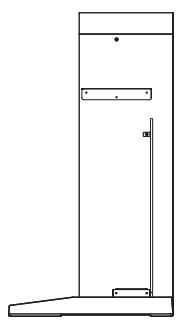
Sideboard A (Left side)
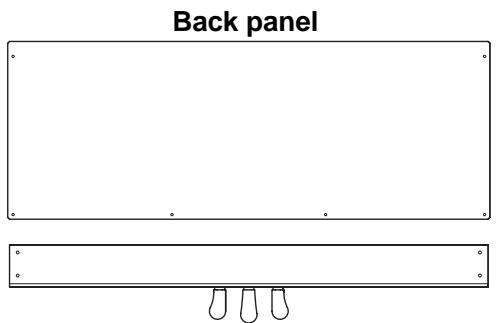
Pedal Box
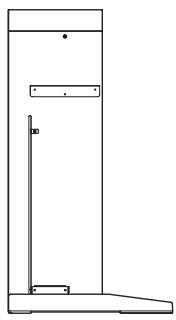
Sideboard B (Right side)
Assembly Accessories
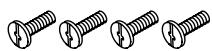
Screws (a)
(M6 x 20)...4pes.
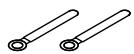
Cable holder ...2 pcs.
Screws (b)
(M4 x 14)...6pcs.

Piano Fasteners ...2 pcs.
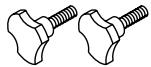
Caps...4pcs.

Adjuster...1pc.

NB: You will need a cross-point (Phillips #2) screwdriver for assembly.
2 Screw the adjuster into the pedal box as far as it will go, and attach the pedal cable. Use screws (a) to fasten the side panels to the pedal box. Make sure that there is no gap between the side panels and the pedal box.
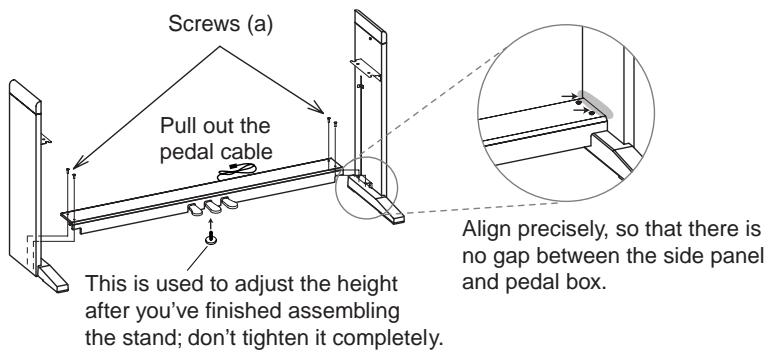
3 With the finished surface (woodgrain) facing forward, curve (bow) the back panel slightly and fit it into the grooves of the side panel.
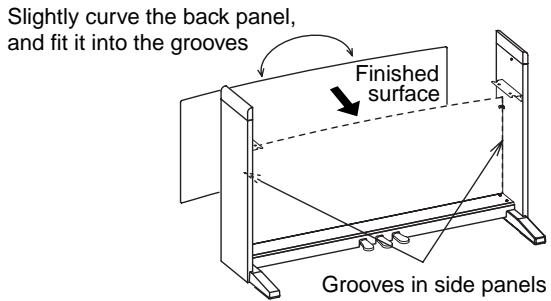
4 Use screws (b) to fasten the side panels.
Start by fastening the bottom edge of the back panel (four locations). In two locations, pass the screw through a cable holder to attach it to the stand. Attach the power cable holder at either the right side or the left side depending on the location of the AC outlet you'll be using.
Then fasten the top edge of the back panel (two locations). Don't tighten these screws completely yet, since you'll be adjusting this area after you attach the instrument to the stand.
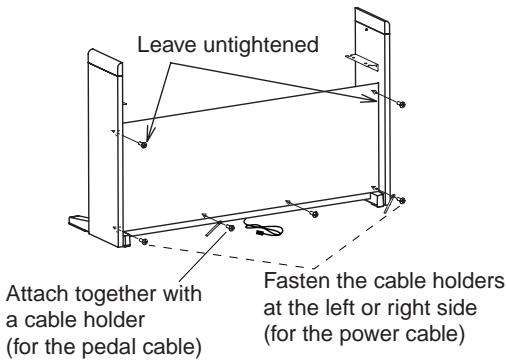
5 Make sure that the stand is not tilted and that there are no gaps in it, and then firmly tighten all of the screws, except for the two screws you left untightened.
6 Attach the instrument.
Position the screw heads protruding from the inside of the left and right sides of the stand, so that they are aligned with the grooves of the metal fitting at the left and right ends of the instrument, and gently lower the instrument onto the stand. If the instrument is aligned correctly, the screws on the inside of the side panels will fit firmly into the grooves of the metal fittings.
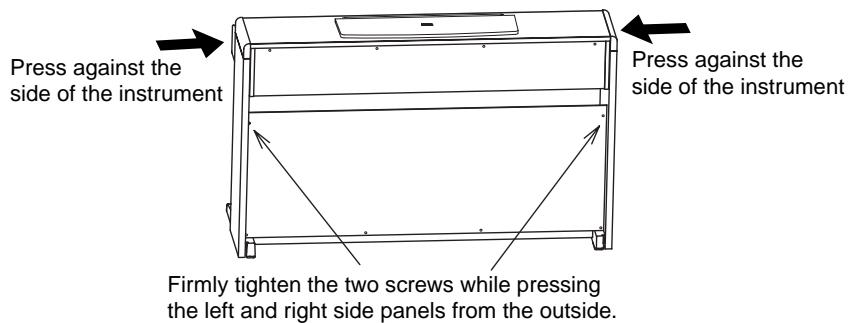
You can perform this step more easily if you use your body to apply pressure to the side panel of the stand while sliding the instrument onto the stand.
Note: Carefully lower the left and right ends of the instrument evenly, keeping the instrument level, and being careful not to pinch your hand or drop the instrument.
Note: The side panels are easily scratched; please use caution.
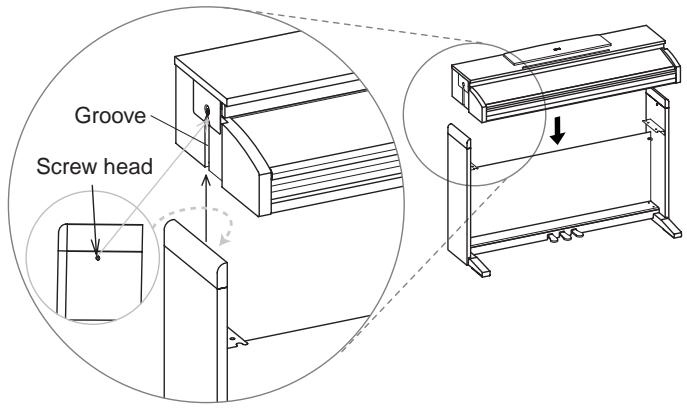
7 Make sure that there are no uneven gaps between the top surface of the instrument and the top of the side panels.
If you notice any unsightly gap, make adjustments by loosening the screws (a) that fasten the side panel to the pedal box.
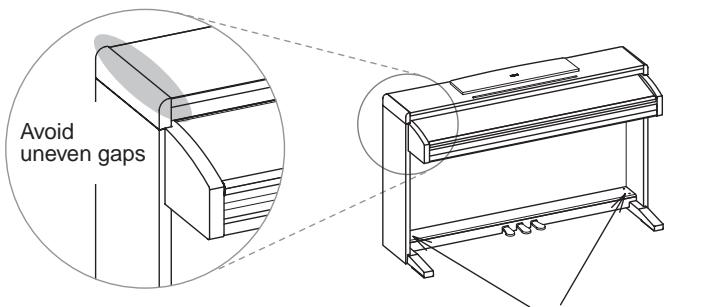
If you notice an uneven gap, loosen screws (a) to make adjustments.
If there is a very noticeable gap between the instrument and the side panels of the stand, or if the gap is uneven, it may be that the instrument was not placed correctly on the stand. If so, lift up the entire instrument and place it correctly on the stand.
Note: Lifting only one side is very dangerous and may also damage the metal fixtures of the instrument itself. You must raise or lower both left and right ends of the instrument simultaneously, keeping the instrument level.
8 While pressing the upper edge of the stand, tighten the two back panel screws that you had left untightened.
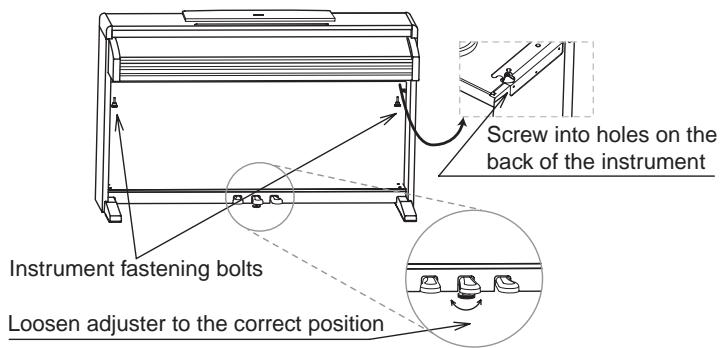
9 Fasten the instrument fastening bolts from below the instrument.
Then loosen the adjuster, and adjust it so that it is in firm contact with the floor.
Note: Unless the adjuster is in firm contact with the floor, the pedal will wobble, possibly causing malfunctions
Verify that all screws are firmly tightened. Finally, place caps on the heads of pedal box screws (a).

10 Connect the included power cable to the AC adaptor.
11 Connect the pedal cable and the DC plug of the AC adaptor to the bottom of the instrument, and use the cable retainers to fasten the cables.
Note: Pay attention to the orientation of the connector when connecting the pedal cable.
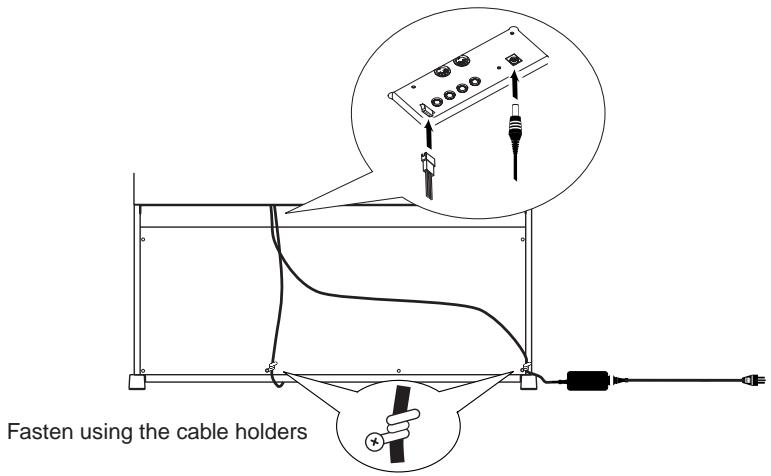
Note: When placing your digital piano, be careful that the stand is not resting on the AC adaptor cable.
Check after assembly
[·] Are any parts left over?
If any parts are left over, check the diagrams to see where they should be used.
[·] Make sure that all screws are tight.
Caution
Caution when transporting the instrument. Remove the piano from its stand, and transport them separately. After transportation, refer to these instructions and reassemble the piano and stand.
Screw loosening. After assembly, the various screws and bolts of the stand may loosen as time goes by, causing the stand to wobble. If this occurs, re-tighten the screws.
Disassembly. If you need to pack up the piano, reverse the assembly order by which the piano was attached to the stand and the stand was assembled. After disassembly, save the screws and other parts so that no parts are lost.
7
Appendix
Troubleshooting
If during use any of the following problems should occur, carefully examine the instrument to see if you can find out what the problem is, and try resolving it by following the suggestions below. If the instrument will still not function properly refer to your dealer or to an Authorized Korg Service Center.
| Problem | Possible remedy | Page |
| The instrument will not turn on. | Check that the AC adapter is correctly connected to the piano and the outlet. | 11 |
| No sound. | (1) Make sure that the volume is not set on 0. If it is, bring it up to an adequate level. | 13 |
| (2) Make sure there is not a jack plugged into one of the PHONES connectors. This would turn the internal speakers off. if so, unplug the jack. | 12 | |
| (3) Make sure that the MIDI Local function is not set on OFF. If it is, set it to ON (or turn the instrument off and then on again). | 29 |
Polyphony
The C-320 contains sampled sounds, which have been recorded, analyzed and processed from the actual sounds of the original musical instruments. These sounds usually consist of one or more different samples reproduced by pressing a key. Each sample is played back by a single oscillator. Sounds using just one oscillator have a full polyphony of max. 60 voices, while sounds using two oscillators have a limited polyphony of max. 30 notes. Sounds using more oscillators have a more limited polyphony. When the number of notes exceeds the limit of the sound, some notes will be stopped, so that the new ones can be heard.
Furthermore, when playing in Layer mode with more than two notes, the max. polyphony depends on how many oscillators are used in total. Using the REVERB, CHORUS further reduces the polyphony, respectively, by 10 and 3 notes.
Please refer to the table on page 16 for more information about the number of oscillators used by each sound.
Technical specifications
| Specifications | C-320 |
| Keyboard | 88 notes, velocity sensitive, with Korg RH3, Real Weighted Hammer Action |
| Touch selection | Light, Normal, Heavy |
| Tuning | Transpose, Fine tuning, Temperament (Equal, Kirnberger, Werck-meister) |
| Sound generation | Stereo PCM System |
| Polyphony | 60 notes (max). The use of 2-oscillator sounds, the Layer mode and/or the reverb or chorus reduces the maximum number of simultaneous notes. |
| Sounds | 30 sounds in ROM |
| Effects | Reverb, Chorus (3 levels each) |
| Demo | 30 incorporated demos |
| Metronome | Tempo, Time signature, Accent and Volume controls |
| Pedals | Damper, Soft, Sostenuto (Damper and Soft with half-pedalling) |
| Connections | Audio output (OUTPUT L/MONO, R), Audio input (INPUT L/MONO, R), 2 × Headphones, MIDI (IN, OUT), Pedals |
| Controls | Power switch, Master Volume, Reverb, Chorus, Touch, Transpose/Function, Bank, Sound selectors, Tempo, Metronome, Demo |
| Amplification | 2 × 25 Watt amplifier, 2 × 13cm speakers |
| Power supply | External switching adapter, AC100~240V, 50/60Hz, to DC18V, 3.3A |
| Dimensions (W x D x H) | 55.0 × 18.2 × 34.2 inch (1396 × 462 × 869 mm), including stand; with music stand folded down |
| Weight | 110 lbs (50 kg), including stand |
| Included accessories | AC adapter; Special chair; Special stand |
Sounds processed with INFINITYTM.
Korg reserves the right to change the specifications without notice.
Control panel shortcuts
Control panel and keyboard
| ...while pressing this one Keep this button pressed... | PIANO 1 | PIANO2 | E.PIANO 1 | E.PIANO 2 | HARPSI/CLAV | VIBES/GUITAR | ORGAN 1 | ORGAN 2 | STRINGS/PAD | CHOIR |
| REVERB | Depth = Low | Depth = Medium | Depth = High | |||||||
| CHORUS | Depth = Low | Depth = Medium | Depth = High | |||||||
| TOUCH | Light | Normal | Heavy | Werckmeister | Kirnberger | |||||
| METRONOME | Time: 2/4 | Time: 3/4 | Time: 4/4 | Time: 6/4 | Accent | Bell sound | Metro Vol. Dec. | Metro Vol. Inc. | ||
| TRANSPOSE/FUNCTION | Local On/Off | Prg.Change Rx/Tx | Crl.Change Rx/Tx | Data Dump |
The following diagram shows the various functions you can access by holding the METRONOME or TRANSPOSE/FUNCTION button down, while pressing one of the notes on the keyboard.
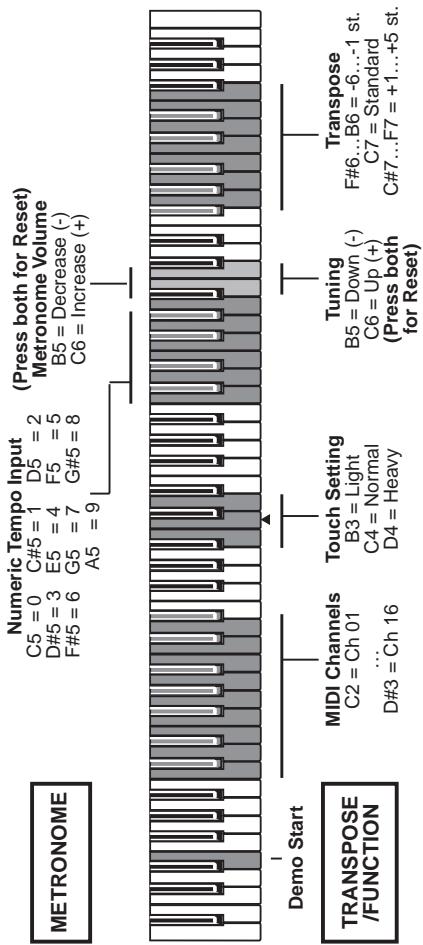
KoRG
CONCERT C-320
Mode d'emploi
PRECAUTIONS
This equipment has been tested and found to comply with the limits for a Class B digital device, pursuant to Part 15 of the FCC Rules. These limits are designed to provide reasonable protection against harmful interference in a residential installation. This equipment generates, uses, and can radiate radio frequency energy and, if not installed and used in accordance with the instructions, may cause harmful interference to radio communications. However, there is no guarantee that interference will not occur in a particular installation. If this equipment does cause harmful interference to radio or television reception, which can be determined by turning the equipment off and on, the user is encouraged to try to correct the interference by one or more of the following measures:
Reorient or relocate the receiving antenna.
- Increase the separation between the equipment and receiver.
- Connect the equipment into an outlet on a circuit different from that to which the receiver is connected.
- Consult the dealer or an experienced radio/TV technician for help.
Unauthorized changes or modification to this system can void the user's authority to operate this equipment.
RECLAMATIONS
Specifications techniques
NumericTempo Input (Press both for Reset)
C = 0, C# 3 = 1, D5 = 2 Metronome Volume
B#3-5 E3-4 F3-5 B5=Decrease(-) F#5=6 G5 =7 G#5=8 C6=Increase(+)
A5 = 9 |
KoRG
CONCERT C-320
Manuale d'uso
PRECAUZIONI
Collocazione
| Function | Transmitted | Recognized | Remarks | |
| Basic Channel | Default | 1 | 1 | |
| Changed | 1-16 | 1-16 | ||
| Mode | Default | 3 | ||
| Messages | X | X | ||
| Altered | ********** | |||
| Note Number: | True Voice | 15-113 | 0-127 | |
| ********** | 21-108 | |||
| Velocity | Note On | O 9n, V=1-127 | O 9n, V=1-127 | |
| Note Off | X | X | ||
| Aftertouch | Poly (Key) | X | X | |
| Mono (Channel) | X | X | ||
| Pitch Bend | X | O | ||
| Control Change | 7 | O | O | Volume *1 |
| 11 | X | O | Expression *1 | |
| 64 | O | O | Damper Pedal *1, *3 | |
| 66 | O | O | Sostenuto *1 | |
| 67 | O | O | Soft Pedal *1, *3 | |
| 91 | O | O | Reverb Depth *1 | |
| 93 | O | O | Chorus Depth *1 | |
| 120, 121 | X | O | All Sound Off, Reset All Controls | |
| Program Change | True # | 0-29 | 0-29 | *2 |
| ********** | 0-29 | |||
| System Exclusive | O | O | Sound Data Dump | |
| System Common | :Song Position | X | X | |
| :Song Select | X | X | ||
| :Tune | X | X | ||
| System Real Time | :Clock | X | X | |
| :Commands | X | X | ||
| Aux Messages | :Local On/Off | X | O | *4 |
| :All Notes Off | O | X | ||
| :Active Sensing | O | O | ||
| :Reset | X | X | ||
| Notes | *1: Transmitted/received when Control Changes are enabled*2: Transmitted/received when Program Changes are enabled*3: Half-pedal input/output value (0, 38, 74, 127)*4: All Notes Off is transmitted when exing the Layer mode and when selecting the Local Off status. | |||
Mode 1:OMNI ON, POLY
Mode 3:OMNI OFF, POLY
Mode 2:OMNI ON, MONO
Mode 4:OMNI OFF, MONO
O:Yes
X: No
Care Card Garantie
KORG-CARE-CARD
- Power supply
- Interference with other electrical devices
- Handling
- Care
- Keep this manual
- Keeping foreign matter out of your equipment
- CE MARK FOR EUROPEAN HARMONIZED STANDARDS
- THE FCC REGULATION WARNING (FOR THE U.S.A. ONLY)
- DISCLAIMER
- WARRANTY
- ASSISTANCE AND SERVICE FOR MUSICIANS
- KORG ON THE INTERNET
- DATA RESET
- CONTENTS
- Introduction
- Main features
- 1
- Panels
- Front panel
- 2
- Before you begin
- Connecting to an external amplification system
- Using the headphones
- Open the key cover
- Turning the instrument on
- Using the music stand
- Adjusting the volume
- Listening to the Demo
- 3
- Basic functions
- Playing a single sound (Single mode)
- Playing two sounds at the same time (Layer mode)
- Choosing the reverb and the chorus
- Using the pedals
- Pedal settings for the Layer mode
- The metronome
- 4
- Other functions
- Touch settings
- Transpose
- Fine tuning
- Selecting a temperament
- 5
- MIDI
- What is MIDI?
- What can you do with MIDI?
- Connections
- Standard MIDI settings
- Selecting the transmission channel
- Using the C-320 as a multitimbral tone generator
- Local On/Off
- Program Change
- Control Change
- MIDI Data Dump
- 6
- Assembling the stand
- Cautions for assembly
- Assembling procedure
- Assembly Accessories
- Check after assembly
- Caution
- 7
- Appendix
- Troubleshooting
- Polyphony
- KoRG
- CONCERT C-320
- Mode d'emploi
- PRECAUTIONS
- RECLAMATIONS
- Specifications techniques
- Manuale d'uso
- PRECAUZIONI
- Collocazione
- Care Card Garantie
- KORG-CARE-CARD
Brand : KORG
Model : C320
Category : Digital piano