
SP170 - Digital piano KORG - Free user manual and instructions
Find the device manual for free SP170 KORG in PDF.



| Product Type | Digital Piano |
| Brand | KORG |
| Model | SP-170 |
| Keyboard | 88 keys (A0–C8) |
| Maximum Polyphony | 120 notes (60 notes in stereo mode) |
| Preset Sounds | 10 (Piano 1, Piano 2, E. Piano 1, E. Piano 2, Harpsi, Clav, Vibraphone, P. Organ, E. Organ, Strings) |
| Connectors | Headphones × 2 (also serve as line outputs), MIDI OUT, Pedal (Damper) |
| Amplification | 9 W × 2 |
| Speakers | Oval speakers (10 cm × 5 cm) × 2 |
| Power Supply | AC adapter DC 12 V (included) |
| Power Consumption | 9 W |
| Weight | 12.1 kg |
| Dimensions (W × D × H) | 1312 × 325 × 133 mm |
| Included Accessories | AC adapter, music stand, switch pedal |
| Sound Selection | Hold A#7, B7, C8 + key in the range C7–A7 |
| Demonstration Songs | 10 songs (one per sound), continuous playback |
| Damper Pedal | Damper jack (included switch pedal, optional DS-1H) |
| Transpose | Range of ±11 semitones, accessible via keys from F#2 to B3 or C#3 to F3 |
| Tuning | Adjustable from 427.5 to 452.5 Hz in 0.5 Hz steps |
| Effects | Reverb and Chorus (on/off via keys A5/C#5 and B5/A#5) |
| Keyboard Response (Touch) | 3 levels: Light (D2), Normal (E2), Heavy (F2) |
| MIDI | MIDI OUT, channels 1–16, transmission of notes, program changes, and controllers |
| Maintenance | Clean with a dry cloth; do not use benzene, thinner, or flammable substances |
| Safety | Avoid exposure to sunlight, heat, moisture, dust, strong vibrations; do not spill liquid |
| Troubleshooting | Check power, volume, connections, and cables; contact customer service if necessary |
Frequently Asked Questions - SP170 KORG
User questions about SP170 KORG
0 question about this device. Answer the ones you know or ask your own.
Ask a new question about this device
Download the instructions for your Digital piano in PDF format for free! Find your manual SP170 - KORG and take your electronic device back in hand. On this page are published all the documents necessary for the use of your device. SP170 by KORG.
USER MANUAL SP170 KORG
Using the unit in the following locations can result in a malfunction.
- In direct sunlight
- Locations of extreme temperature or humidity
- Excessively dusty or dirty locations
- Locations of excessive vibration
- Close to magnetic fields
Power supply
Please connect the designated AC adapter to an AC outlet of the correct voltage. Do not connect it to an AC outlet of voltage other than that for which your unit is intended.
Interference with other electrical devices
Radios and televisions placed nearby may experience reception interference. Operate this unit at a suitable distance from radios and televisions.
Handling
To avoid breakage, do not apply excessive force to the switches or controls.
Care
If the exterior becomes dirty, wipe it with a clean, dry cloth. Do not use liquid cleaners such as benzene or thinner, or cleaning compounds or flammable polishes.
Keep this manual
After reading this manual, please keep it for later reference.
Keeping foreign matter out of your equipment
Never set any container with liquid in it near this equipment. If liquid gets into the equipment, it could cause a breakdown, fire, or electrical shock.
Be careful not to let metal objects get into the equipment. If something does slip into the equipment, unplug the AC adapter from the wall outlet. Then contact your nearest Korg dealer or the store where the equipment was purchased.
THE FCC REGULATION WARNING (for USA)
This equipment has been tested and found to comply with the limits for a Class B digital device, pursuant to Part 15 of the FCC Rules. These limits are designed to provide reasonable protection against harmful interference in a residential installation. This equipment generates, uses, and can radiate radio frequency energy and, if not installed and used in accordance with the instructions, may cause harmful interference to radio communications. However, there is no guarantee that interference will not occur in a particular installation. If this equipment does cause harmful interference to radio or television reception, which can be determined by turning the equipment off and on, the user is encouraged to try to correct the interference by one or more of the following measures:
- Reorient or relocate the receiving antenna.
- Increase the separation between the equipment and receiver.
- Connect the equipment into an outlet on a circuit different from that to which the receiver is connected.
- Consult the dealer or an experienced radio/TV technician for help.
Unauthorized changes or modification to this system can void the user's authority to operate this equipment.
Notice regarding disposal (EU only)

When this "crossed-out wheeled bin" symbol is displayed on the product, owner's manual, battery, or battery package, it signifies that when you wish to dispose of this product, manual, package or battery you must do so in an approved manner. Do not discard this product, manual, package or battery along with ordinary household waste.
Disposing in the correct manner will prevent harm to human health and potential damage to the environment. Since the correct method of disposal will depend on the applicable laws and regulations in your locality, please contact your local administrative body for details. If the battery contains heavy metals in excess of the regulated amount, a chemical symbol is displayed below the "crossed-out wheeled bin" symbol on the battery or battery package.
IMPORTANT NOTICE TO CONSUMERS
This product has been manufactured according to strict specifications and voltage requirements that are applicable in the country in which it is intended that this product should be used. If you have purchased this product via the internet, through mail order, and/or via a telephone sale, you must verify that this product is intended to be used in the country in which you reside.
WARNING: Use of this product in any country other than that for which it is intended could be dangerous and could invalidate the manufacturer's or distributor's warranty.
Please also retain your receipt as proof of purchase otherwise your product may be disqualified from the manufacturer's or distributor's warranty.
Internal Setup and Connections

Figure 1
1. Connecting the Power (Figure 1)
- Start with the SP-170 turned OFF. Connect the supplied AC adapter to the power cord. Insert the DC plug end into the [DC12V] jack on the rear panel. Next, plug the power cord into an AC outlet.
Pass the AC adapter cord through the cord hook so that the plug will not be removed from the jack accidentally. When you unhook the cord, do not pull the cord with force.
2 Be sure to use the supplied AC adapter. Using other AC adapters may cause the unit to malfunction.
A Be sure to plug the unit into an AC outlet of an appropriate voltage.
2. Turning the SP-170 ON
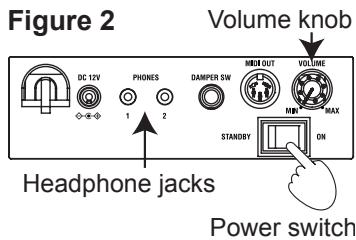
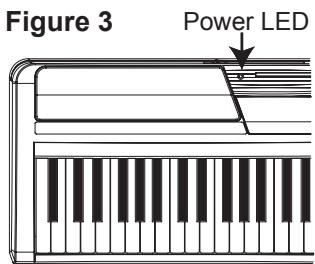
- Set the power switch on the rear panel to the "ON" position. (Figure 2) The power LED located to the left of the music stand will light up. (Figure 3)
- To turn the unit off, set the power switch to "STANDBY." The power LED will go dark.
3. Adjust the volume
- Rotate the [VOLUME] knob on the rear panel clockwise toward "MAX" to raise the volume level. Rotate it counter-clockwise toward "MIN" to lower the level. (Figure 2)
The [VOLUME] knob controls the output level of the built-in speakers and the headphones jacks.
Using headphones
When you plug in headphones, the built-in speakers will be muted. This is useful when you want to play the keyboard in the evening without bothering your family or neighbors. The SP-170 features two headphone jacks so that two people can enjoy playing and listening.
- Insert the stereo headphone plug into one of the [PHONES] jacks on the rear panel. (Figure 2)
If your headphones feature a standard-to-mini adapter plug, be sure to hold the adapter plug when you connect or disconnect the headphones.
To protect your hearing, do not listen to loud, high-volume sounds for a long period of time through headphones.
- Connecting audio components
You can use the [PHONES] jacks as line-out jacks to connect powered speakers or audio components to the keyboard. For such connections, use commercially-available cables that are appropriate for the components.
Before connecting audio components, make sure that you turn off the power to the unit and the audio components. Otherwise, damage or malfunction to the unit or components may occur.
Using the music stand
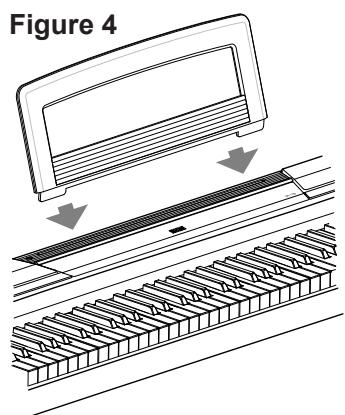
- Insert the legs of the supplied music stand into the dedicated groove located in the middle of the top panel. (Figure 4)
Playing Different Sounds
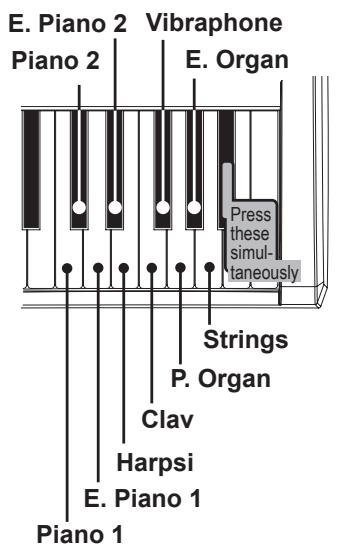
The SP-170 features 10 preset sounds.
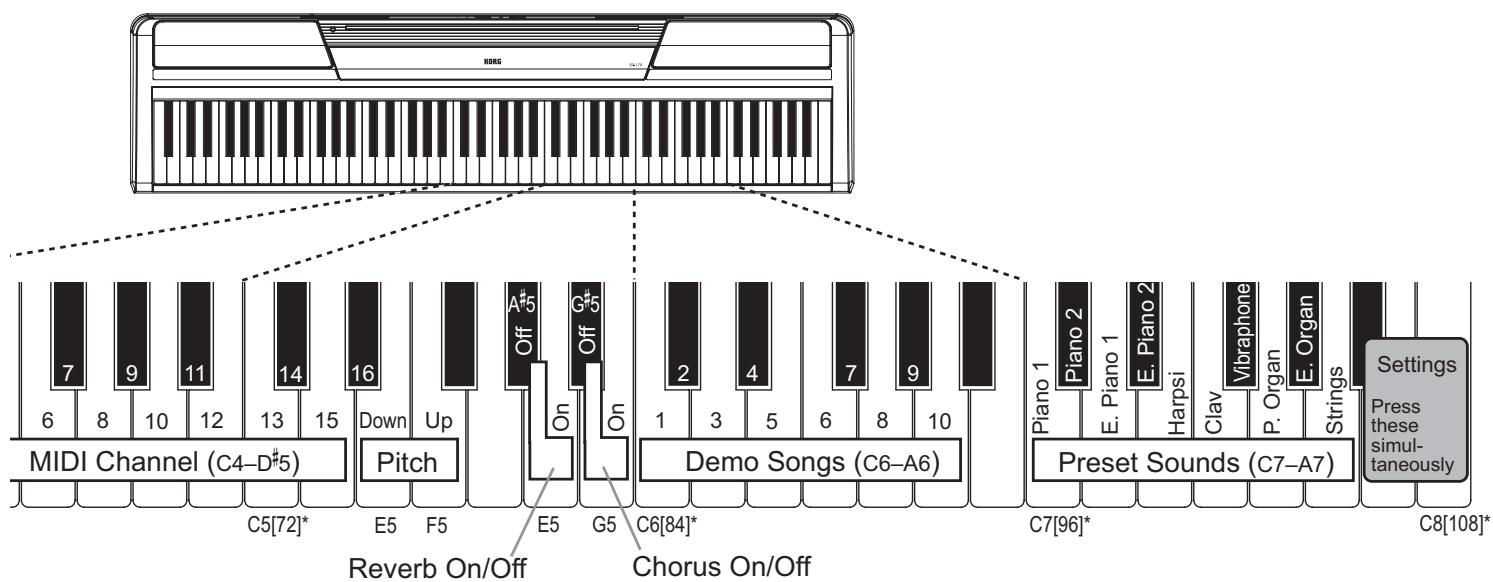
While simultaneously pressing and holding down the A#7, B7, and C8 keys (at the right end of the keyboard), press one of the keys ranging from C7 to A7. The preset sound assigned to the key that you pressed will be selected.
Whenever you turn on the power to the unit, the default preset sound (Piano 1) will be recalled.
| Piano 1: | Elegant and warm grand piano |
| Piano 2: | Clear and bright grand piano |
| E. Piano 1: | Smooth, authentic electric piano |
| E. Piano 2: | Modern, percussive electric piano |
| Harpsi: | Classical harpsichord |
| Clav: | Expressive electric clavichord |
| Vibraphone: | Smooth vibraphone |
| P. Organ: | Pipe organ |
| E. Organ: | Drawbar electronic organ |
| Strings: | Ensemble string section |
Playing Back Demo Songs
The SP-170 features 10 demo songs that use 10 preset sounds.
Play back the demo songs to discover rich and expressive sounds.
While pressing and holding down the A#7, B7, and C8 keys (at the right end of the keyboard), press one of the keys ranging from C6 to A6. The demo song assigned to the key you pressed (as shown below) will start playing.
Playback starts from the selected song, then continues and repeats all demo songs in ascending order until you stop the playback.
To stop the playback of the demo song, press the A#7, B7, and C8 keys simultaneously.
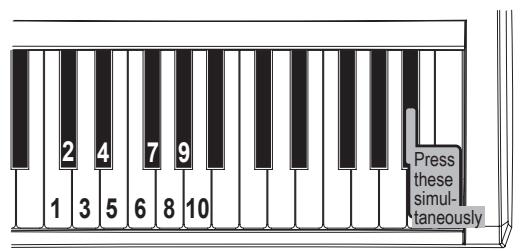
| Demo 1 (Piano 1): | Fantaisie-Impromptu Op.66 /F.Chopin |
| Demo 2 (Piano 2): | Amazing Grace/unknown (arr. : N.Nishi) |
| Demo 3 (E. Piano 1): | Ramble /M.Sakaguchi |
| Demo 4 (E. Piano 2): | KORG Original |
| Demo 5 (Harpsi): | Invention No.8/J.S.Bach |
| Demo 6 (Clav): | KORG Original |
| Demo 7 (Vibraphone): | KORG Original |
| Demo 8 (P. Organ): | Toccata in D moll/J.S.Bach |
| Demo 9 (E. Organ): | KORG Original |
| Demo 10 (Strings): | First Snow /M.Sakaguchi |
Using a Damper Pedal
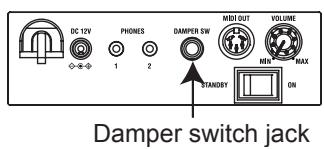
You can use the supplied pedal as a damper pedal by connecting it to the [DAMPER SW] jack on the rear panel of the unit. While you press the pedal, the sound will sustain, creating a rich, lingering sound.
Alternatively, you can use an optional DS-1H damper pedal. A half-pedal damper effect can be applied to Piano 1 or 2.
Using Other Functions
About the confirmation sound
When you press and hold down the A#7, B7, and C8 keys simultaneously at the right end of the keyboard, or you press a key where a function has been assigned, you will hear the confirmation sound. You can turn this sound off, as described below.
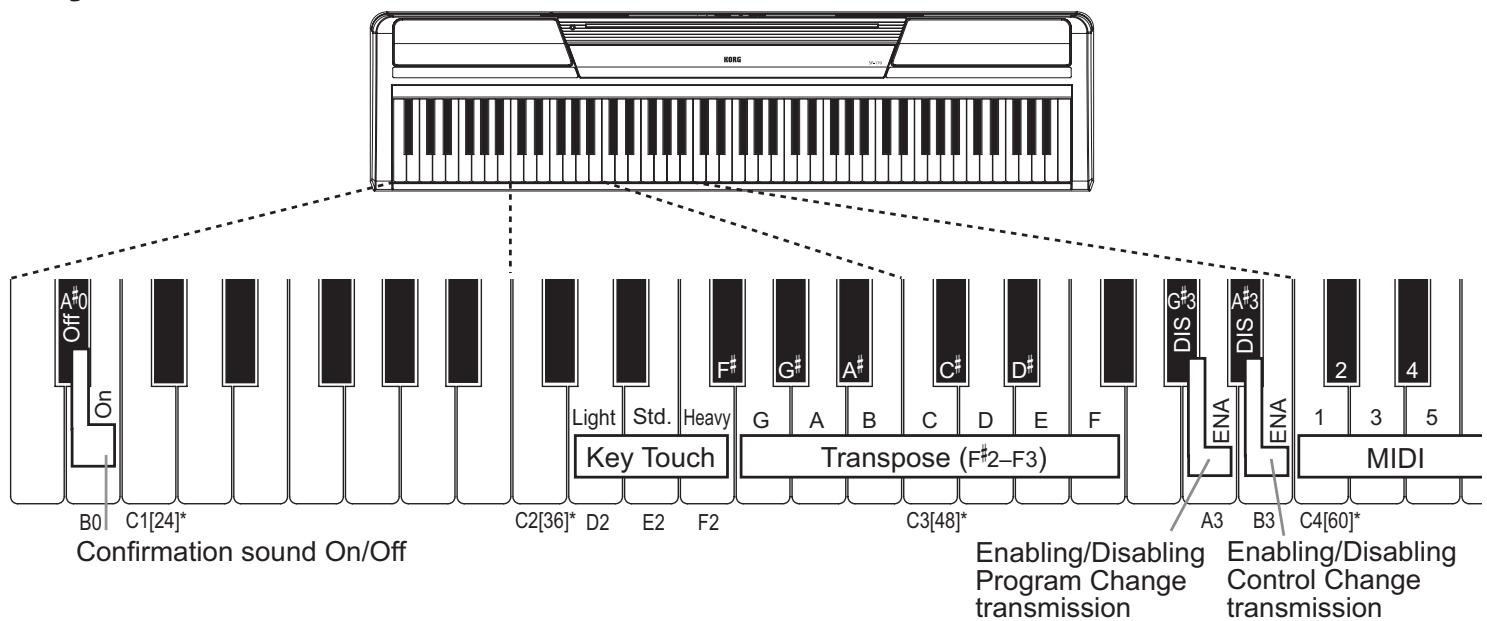
While simultaneously pressing and holding down the A#7, B7, and C8 keys, press the A#0 to turn off the confirmation sound. To turn on the confirmation sound, repeat the previous procedure but press the B0 instead of A#0.
The default setting (when you turn on the unit) is "Confirmation sound On."
In addition to selecting a preset sound or demo song, the SP-170 enables you to use various functions by pressing and holding down the A#7, B7, and C8 keys and pressing a key to where the corresponding function has been assigned. Please refer to the "MIDI" section on the next page for more information on MIDI channels and program change messages.
While pressing and holding down the A#7, B7, and C8 keys, do not play the keyboard. Otherwise, you might get an unexpected result.
Effects (Reverb and Chorus)
You can use a reverb effect to add reverberation and depth to the sound, and a chorus effect to add width and space.
- While simultaneously pressing and holding down the A#7, B7, and C8 keys, press the A5 key to turn on the reverb effect. To turn off the reverb effect, repeat the previous procedure but press the C#5 key instead of A5.
- While simultaneously pressing and holding down the A#7, B7, and C8 keys, press the B5 key to turn on the chorus effect. To turn off the chorus effect, repeat the previous procedure but press the A#5 key instead of B5.
You can apply effects to each preset sound. When you turn on the power to the unit, the effects will use the optimum settings for each preset sound.
Key Touch Control function
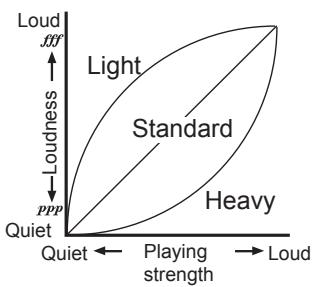
The Key Touch Control function enables you to change the way your playing strength affects the sound output level. You can set this function using the white keys in a range from D2 to F2. (See the figure on the left.)
- To play fortissimo with soft strokes (Light touch), press and hold down the A#7, B7, and C8 keys (at the right end of the keyboard), and press the D2 key.
- To play fortissimo with very strong strokes (Heavy touch), press and hold down the A#7, B7, and C8 keys, and press the F2 key.
- To simulate a normal piano touch (Standard touch), press and hold down the A#7, B7, and C8 keys, and press the E2 key.
The default setting (when you turn on the unit) is Standard touch.
Transpose function (Shifting the key)
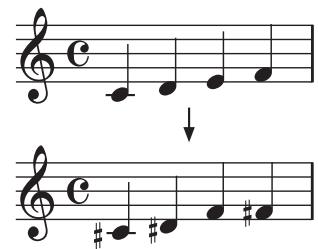
In some cases, a song may be written in a difficult key (e.g., using many black keys), or you may wish to shift the key to match another instrument or vocalist. In such cases, you can transpose (shift the key) to use an easier fingering (without playing too many black keys), or to use the same familiar fingering to play in a different key. This is called the Transpose function. You can shift the key in a range of eleven semitones. For example if you transpose upward by one semitone, playing the notes shown in the upper score to the left will produce the pitches shown in the lower score.
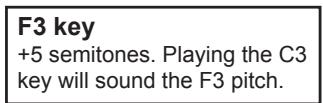
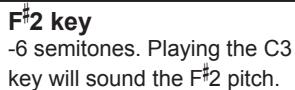
- To transpose the key, press and hold down the A#7, B7, and C8 keys, and press a key from F#2 to B3 or from C#3 to F3. The name of the key that you pressed will become the transposed key. For example, if you wish to use the C3 key to play note A2 (lower by three semitones), press and hold down the A#7, B7, and C8 keys, and press the A2 key. If you wish to use the C3 key to play note D#3 (higher by three semitones), press and hold down the A#7, B7, and C8 keys, and press the D#3 key.
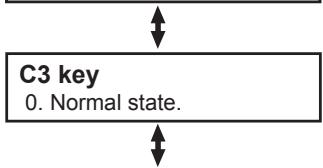
To reset the Transpose function to "No Transposition (+ / - 0) , press and hold down the A#7, B7, and C8 keys, and press the C3 key.
The default setting (when you turn on the unit) is "No Transposition."
Pitch Control function (Tuning)
Here's how to make fine adjustments to the pitch. When you're playing together with other instruments, you can use this method to fix any slight differences in pitch between instruments.
You can adjust the tuning of the SP-170 in half-step (0.5) Hz intervals over a range of 427.5 - 452.5 Hz (Hertz) by using the E5 and F5 keys.
- While pressing and holding down the A#7, B7, and C8 keys (on the right end of the keyboard), press the E5 key repeatedly to lower the pitch in 0.5Hz steps, or the F5 key repeatedly to raise the pitch in 0.5Hz steps.
- To reset the pitch to 440Hz , press and hold down the A#7, B7, and C8 keys, and press the E5 and F5 keys simultaneously.
The default setting (when you turn on the unit) is A4 = 440Hz .
MIDI
Program Change Table
| BANK# | PC# | Sound |
| 0 | 0 | Piano 1 |
| 0 | 1 | Piano 2 |
| 0 | 4 | E. Piano 1 |
| 0 | 5 | E. Piano 2 |
| 0 | 6 | Harpsi |
| 0 | 7 | Clav |
| 0 | 11 | Vibraphone |
| 0 | 19 | P. Organ |
| 0 | 16 | E. Organ |
| 0 | 48 | Strings |
CC0: Bank Select (MSB) for each sound is assigned to 121.
Using the MIDI OUT jack
The MIDI OUT jack transmits MIDI messages. When you play the keyboard, the MIDI messages will be output to control (e.g., play the sound of) an external MIDI device. Use an optional MIDI cable to connect the MIDI OUT jack of the SP-170 to the MIDI IN jack of an external MIDI device.
Changing the MIDI channel
If you're using the SP-170 as a controller to play the sound from a connected MIDI device, the MIDI channel of the SP-170 must match that of the external MIDI device.
To change the MIDI channel (1-16) that MIDI data is being transmitted from via the MIDI OUT jack on the rear panel, press and hold down the A#7, B7, and C8 keys simultaneously, and press one of the keys ranging from C4 to D#5. The default MIDI channel (when you turn on the unit) is "1."
Transmitting Program Change and Control Change messages
You can change the program number of the connected MIDI device from the SP-170. When you select a preset sound on the SP-170 (see "Playing Different Sounds" on page 4), it transmits a MIDI Program Change number (PC#) as shown in the table on the left. To disable this transmission (DIS), press and hold down the A#7, B7, and C8 keys simultaneously, and press the G#3 key. To enable this transmission (ENA), repeat the previous procedure but press the A3 key instead.
The SP-170 also transmits Control Change messages to control Damper (CC64), Bank Select (CC64), etc. of the connected MIDI device. To disable this transmission (DIS), press and hold down the A#7, B7, and C8 keys simultaneously, and press the A#3 key. To enable this transmission (ENA), repeat the previous procedure but press the B3 key instead.
The default setting (when you turn on the unit) is ENA (transmitted) for both Program and Control Change messages.
Key Functions
[ ]* indicates MIDI Note number.
Troubleshooting
If you suspect any malfunction, check the following suggestions. If the problem persists, contact your nearest Korg distributor.
Power does not turn on
- Make sure that the AC adapter is properly connected to the SP-170 and the AC outlet.
- Make sure that the power switch on the rear panel is set to ON.
No sound from the speakers
- Rotate the [VOLUME] knob on the rear panel toward MAX.
- The speakers will be muted if the headphones are connected.
Sound is interrupted
- The preset sounds of the SP-170 have been created by sampling (recording) the sounds of actual instruments, then analyzing and processing the samples. When you press a key, some sounds play a single piece of sampled data, while other sounds play two pieces of sampled data. The SP-170 uses two pieces of data for most of its preset sounds. When one of these two-sample sounds is selected (regardless of whether the damper pedal is being pressed), the maximum polyphony is 60 notes. However, with two Piano sounds, the maximum polyphony is 120 notes. If the maximum polyphony is exceeded, some of the notes will be lost.
The pitch or tone of the piano sounds wrong in some key regions
- The SP-170's piano sounds replicate the sound of an actual piano as faithfully as possible. This means that in some regions of the keyboard, you may feel that the overtones seem stronger, or that the tone or pitch seems wrong. This is not a malfunction.
Pedal is not effective
- Make sure that the pedal cable is properly connected.
Connected MIDI device does not respond to MIDI messages
- Make sure that all MIDI cables are properly connected.
- Make sure that the SP-170 is transmitting MIDI data on the same MIDI channel as that of the connected MIDI device.
Specifications
Keyboard
NH Keyboard: 88 note (A0-C8)
Maximum polyphony
120 notes /60 notes (Stereo)
Sounds
Ten sounds
Jacks
Headphones x 2 (also function as outputs), MIDI OUT, Pedal (Damper)
Amp output
9W× 2
Speakers
Oval (10cm× 5cm)× 2
Power supply
DC 12 V
Power Consumption
9 W
Weight
- 1 kg / 26.68 lbs .
Dimensions (W× D× H) 1312× 325× 133mm / 51.65^ × 12.8^ × 5.24^
Included items AC adapter, Music stand, Pedal
- Korg reserves the right to change the specifications without notice.
Précautions
Emplacement
| Function... | Transmitted | Received | Remarks | |
| Basic Channel | Default | 1 | × | |
| Change | 1-16 | × | ||
| Mode | Default | × | ||
| Messages | × | × | ||
| Altered | ********** | ********** | ||
| Note Number | True Voice | 15-113********** | ********** | |
| Velocity | Note On | ○9n, V=1-127 | × | |
| Note Off | × V=64 | × | ||
| After touch | Key's | × | × | |
| Channel | × | × | ||
| Pitch Bend | × | × | ||
| Control Change | 0 | ○ | × | Bank Select (MSB) *1 Volume *1 Bank Select (LSB) *1 Damper Pedal *1 Reset All Control *1 |
| 7 | ○ | × | ||
| 32 | ○ | × | ||
| 64 | ○ | × | ||
| 121 | ○ | × | ||
| Program Change | Ture Number | ○ | × | 0, 1, 4-7, 11, 16, 19, 48 *2 |
| ********** | × | |||
| System Exclusive | × | × | ||
| System Common | Song Position | × | × | |
| Song Select | × | × | ||
| Tune Request | × | × | ||
| System Realtime | Clock | × | × | |
| Command | × | × | ||
| Aux Messages | Local On/Off | × | × | |
| All Notes Off | ○ | × | ||
| Active Sense | ○ | × | ||
| System Reset | × | × | ||
| Notes: *1 Transmitted if control changes are enabled. *2 Transmitted if Program changes are enabled. | ||||
- Power supply
- Interference with other electrical devices
- Handling
- Care
- Keep this manual
- Keeping foreign matter out of your equipment
- THE FCC REGULATION WARNING (for USA)
- Notice regarding disposal (EU only)
- IMPORTANT NOTICE TO CONSUMERS
- Internal Setup and Connections
- Connecting the Power (Figure 1)
- Turning the SP-170 ON
- Adjust the volume
- Using headphones
- - Connecting audio components
- Using the music stand
- Playing Different Sounds
- Playing Back Demo Songs
- Using a Damper Pedal
- Using Other Functions
- About the confirmation sound
- Effects (Reverb and Chorus)
- Key Touch Control function
- Transpose function (Shifting the key)
- Pitch Control function (Tuning)
- MIDI
- Using the MIDI OUT jack
- Changing the MIDI channel
- Transmitting Program Change and Control Change messages
- Key Functions
- Troubleshooting
- Power does not turn on
- No sound from the speakers
- Sound is interrupted
- The pitch or tone of the piano sounds wrong in some key regions
- Pedal is not effective
- Connected MIDI device does not respond to MIDI messages
- Specifications
- Précautions
- Emplacement
Brand : KORG
Model : SP170
Category : Digital piano