MT1500 - Dictionary LEXIBOOK - Free user manual and instructions
Find the device manual for free MT1500 LEXIBOOK in PDF.



| Product type | Electronic translator dictionary 15 languages |
| Brand | LEXIBOOK |
| Model | MT1500 |
| Power supply | 3 AAA/LR6 alkaline batteries (4.5 V) |
| Available languages | English, French, German, Spanish, Italian, Portuguese, Polish, Dutch, Finnish, Norwegian, Danish, Swedish, Mandarin, Hungarian, Russian |
| Dictionary capacity | 10,000 words per language |
| Integrated phrases | 500 phrases per language in 8 themes |
| Pronunciation | Yes (TALK key) - 5,000 words and 100 pronounceable phrases |
| Functions | Dictionary, Phrases, Favorites, Calculator, Conversions, Games, Agenda (calendar, directory, to-do), Settings |
| Built-in games | Code 777, Snake, Hangman |
| Agenda | Calendar, phone directory, task list |
| Converter | Currency, length, weight, temperature |
| Time zones | 42 cities with daylight saving time setting |
| Built-in alarm | Yes, with programmable alarm |
| Screen | LCD |
| Auto power off | After 5 minutes of inactivity |
| Reset | Reset via hole on the back with a thin point |
| Maintenance | Clean with a soft, dry, clean cloth. Do not use detergent or solvent. |
| Safety | Do not expose to sunlight, heat, moisture, dust. Do not drop. Do not open the casing. |
| Warranty | 2 years (excluding screen breakage) |
Frequently Asked Questions - MT1500 LEXIBOOK
User questions about MT1500 LEXIBOOK
0 question about this device. Answer the ones you know or ask your own.
Ask a new question about this device
Download the instructions for your Dictionary in PDF format for free! Find your manual MT1500 - LEXIBOOK and take your electronic device back in hand. On this page are published all the documents necessary for the use of your device. MT1500 by LEXIBOOK.
USER MANUAL MT1500 LEXIBOOK
SWITCHING THE DISPLAY, HOME AND TARGET LANGUAGES 6
DICTIONARY MODE 6
PHRASES MODE 7
"SPOKEN ENTRIES ONLY" FEATURE 8
FAVOURITE LIST 9
CALCULATIONS MODE 9
GAMES 10
CALENDAR MODE 11
PHONE BOOK MODE 12
TO DO MODE 12
DEMO MODE 12
RESET 12
POWER SUPPLY 13
APPENDIX 13
PRECAUTIONS 14
WARRANTY 14
INTRODUCTION
Thank you for purchasing this MT1500 15-language translator. This product has been designed to help you translate words in English, French, German, Spanish, Italian, Portuguese, Polish, Dutch, Finnish, Norwegian, Danish, Swedish, Mandarin, Hungarian and Russian.
The database includes 10,000 words for each language, as well as 500 conversational phrases per language, which have been grouped into 8 different categories for easy access and use. Under normal use the MT1500 is designed to give many years of service. Please follow these instructions carefully to ensure your product operates correctly.
KEYGUIDE
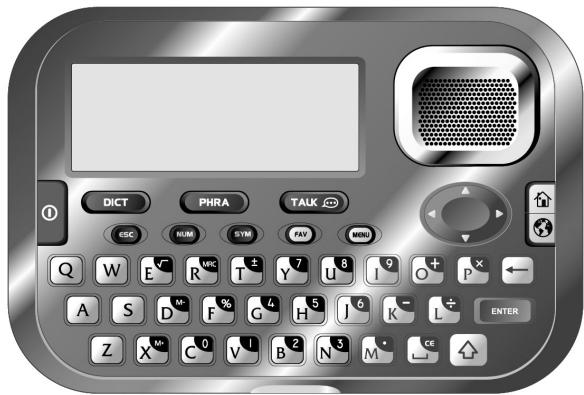
ON/OFF: To switch the unit on and off.
DICT
To select the mode for translating words ("Dictionary" mode).
PHRA
To select the mode for translating phrases ("Phrases" mode).
TALK
-
To play the word or phrase currently selected (the icon must be displayed).
-
Press and hold the TALK key to turn on the "Spoken Entries Only" mode (only the spoken words or the spoken phrases are displayed in this mode). Press and hold the key again to turn off the mode.


ESC
To go back to previous screen.
NUM
- To switch between character input and number input when using the "Organiser" functions ("Calendar", "Phone Book" and "To Do").
- Press and hold to access the "Calculations" menu.
SYM
- To enter special characters in "Dictionary" mode and when using the "Organiser" functions ("Calendar", "Phone Book" and "To Do").
- Press the SYM key and use the arrow keys to select special characters or accented letters. Then press ENTER.
FAV
To access the "Favourite List" menu.
MENU
To access special functions and the settings menu:
- Display Language
- Spoken Entries Only
- Calculations (Calculator, Conversions)
- Games (777 Game, Snake, Hangman)
- Organiser (Calendar, Phone Book, To Do)
- Demo (Start-up Guide, User Demo, International Demo)
- Settings (Volume, Time, Contrast, Key Tone)

BACKSPACE: To delete a typed character.
ENTER
- To translate the typed word or selected phrase.
To confirm option shown on screen. - To calculate answer in calculator mode (acts as =).
#
SHIFT: Hold this key and press the desired letter to enter capital letters in "Dictionary" mode and when using the "Organiser" functions ("Calendar", "Phone Book" and "To Do").
CC
SPACE: To type a space.

To scroll display up or searches for preceding words or phrases.

To scroll display down or searches for following words or phrases.

To move cursor to the left. Scroll long words or phrases to the left.

To move cursor to the right. Scroll long words or phrases to the right.
#
HOME: To select the HOME language (the language you wish to translate from).
Use the , , and keys to select the desired HOME language. Press ENTER to confirm.
Note: Press the HOME key, and then press ENTER to switch the current home language to target language and vice-versa.
#
TARGET: To select the TARGET language (the language you wish to translate to).
Use the , , and keys to select the desired TARGET language. Press ENTER to confirm.
Note: Press the TARGET key, and then press ENTER to switch the current target language to home language and vice-versa.


To type numbers in "Calculator" and "Conversions" modes.


add, subtract, multiply and divide in "Calculator" mode.

To type a decimal point in "Calculator" mode.


M+, M-, MRC in "Calculator" mode.


Percentage, Square root, Plus/Minus sign in "Calculator" mode.

CE / C in "Calculator" and "Conversions" modes.
4
GETTING STARTED
Before switching the unit on, make sure you remove the static label from the LCD screen by pulling the tab.
Removing the battery protection tab
Before you start using the unit, carefully remove the battery tab. The translator should switch on when you remove this tab.
Note: In the unlikely event that your unit does not switch on, you may need to reset it using the following procedure.
-
Turn the unit over and locate the small RESET hole on the back of the product.
-
Insert a small, thin, blunt instrument, such as a paperclip, into the hole, press gently and then release.
Switching the unit on/off
Press ① to switch the unit on. Press ① again to switch the unit off.
Note: the unit will automatically power off after 5 minutes of inactivity.
START-UP GUIDE
After removing the battery tab, changing the batteries or resetting the unit, a step by step guide will be launch automatically to help you set the basic parameters of the MT1500: the display language, the home time, the visiting city, the date, the alarm time, the HOME and TARGET languages.
Note: the default language for the start-up guide is English.
Display language
The default setting for the display language is English. You can change it for one of the 15 languages available in the unit: English, French, German, Spanish, Italian, Portuguese, Polish, Dutch, Finnish, Norwegian, Danish, Swedish, Mandarin, Hungarian and Russian.
Use the and keys to select the desired display language, then press ENTER to confirm and go to the date, time, and alarm setting.
Date, time and alarm setting
-
Press the and keys until the city of your time zone appears. Then press to move the cursor to the year.
-
Use the and keys to select the desired year, then press to move the cursor to the month. Use the same procedure to set the month and the day.
-
Press to move the cursor to the 2nd line and adjust the time. Use the same procedure as above to set the hour and the minutes.
-
Press to move the cursor to the 3rd line and use the and keys to adjust the visiting city.
Note: When you select a visiting city, the city's time will be displayed under the home time in idle mode (date and time display).
-
Press to move the cursor to the DST setting and use the and keys to switch the daylight saving time function or
-
Press to move the cursor to the alarm time and use the and keys to adjust the hours and the minutes. When the alarm function is turned on, the (品) n is displayed on screen. When the alarm rings, press any key to stop it. The alarm will ring again the next day at the same hour.
-
To cancel the alarm, press the BACKSPACE key when you're adjusting the alarm hour (the icon will disappear).
Press ENTER to save your settings and go to the HOME and TARGET languages setting.
HOME and TARGET languages setting
-
Use the , , and keys to select the desired HOME language. Press ENTER to confirm and go to the TARGET language setting.
-
Use the , , and keys to select the desired TARGET language. Press ENTER to confirm and go to the "User Demo" screen.
Note:
EN=English, FR=French, GE=German, ES=Spanish, IT=Italian, PT=Portuguese, PL=Polish, NL=Dutch,
FI=Finnish, NO=Norwegian, DK=Danish, SW=Swedish, CN=Mandarin, HU=Hungarian and RU=Russian.
User Demo
Use the and keys to select "Yes" and launch a short demonstration of the translator features, or "No" to skip the demonstration and go to the idle screen (date and time display).
Note:
- Use the ESC key at anytime to exit the start-up guide.
- If there is no input during a few minutes, the unit will automatically exit the start-up guide.
SYSTEM SETTINGS
Press MENU then use the and keys to select "Settings" and press ENTER. Use and to scroll through the following settings:
VOLUME
Press ENTER to access the volume settings. Use the and keys to adjust the volume of the spoken words or phrases between "LO", "MED" and "HI". Press ENTER to confirm.
TIME
To change the time, date and alarm settings, select the "TIME" option, then repeat steps 1 to 7 of the "Date, time and alarm setting" paragraph ("Start-up guide" section, p.5).
Note: In idle mode (date and time display), you can also press directly the ENTER key to change the time settings (the time zone's city starts blinking).
CONTRAST
Press ENTER to access the contrast settings. Use the and keys to adjust the contrast and press ENTER to confirm.
KEY TONE
Press ENTER to access the key tone settings. Use the and keys to select "ON" or "OFF" and turn on or turn off the key tone. Press ENTER to confirm.
SWITCHING THE DISPLAY, HOME AND TARGET LANGUAGE
Display language
To change the display language set during the automatic start-up guide:
- Press MENU, then use the and keys to select "Display Language". Press ENTER.
- Use the and keys to select the desired display language then press ENTER to confirm and save the changes.
Note: Press ESC at any time to exit without changing the display language.
Home and Target languages
- In "Dictionary" mode (words translation) and "Phrases" (phrases translation) mode, press the HOME or TARGET keys at any time to change the HOME or TARGET languages.
- Use the , , and keys to select the desired HOME or TARGET language.
- Press ENTER to confirm your selection and go back to "Dictionary" or "Phrases" mode.
- The HOME and TARGET languages selected will appear on the top right corner of the screen.
Example: If the HOME language is English and the TARGET language is German, the screen will display "EN>GE". Note:
- When selecting the HOME language, the icon is displayed on the top right corner.
- When selecting the TARGET language, the icon is displayed on the top right corner.
- The default language pair is English (EN) and French (FR).
- Press ESC at any time to exit without changing the SOURCE or TARGET language.
DICTIONARY MODE
The MT1500 is a 15-language translator with English, French, German, Spanish, Italian, Portuguese, Polish, Dutch, Finnish, Norwegian, Danish, Swedish, Mandarin, Hungarian and Russian. For each language, 10,000 words are available and 5,000 out of the 10,000 words can be spoken by the unit ("TALK" function).
Perform a translation
- Press the DICT key to enter the "Dictionary" mode. The message "Enter a word:" will be displayed on screen.
- Once the source and target languages have been selected, enter a word to translate. Index words will be displayed simultaneously. You can continue to key in letters or use the and keys to select an index word. A word is selected when it is displayed in a frame. Then, press ENTER to perform the translation.
- The translation will be displayed in the selected target language. If the unit finds more than one translation for a word, use the and keys to browse through all the possible translations.
- When a word can be spoken by the MT1500, the icon appears on the lower right corner of the screen. Press the TALK key to listen to its pronunciation in the target language.
- To translate the word into another language, press the TARGET key when its translation is displayed. Then use the , , and keys to select the desired target language and press ENTER. If the icon is displayed, you can use the TALK key to listen to the word's pronunciation in the new target language.
- To go back to the list of index words, use the ESC key. To go back directly to the "Enter a word:" screen, press DICT or press the ESC key repeatedly. You can also simply start typing a new word.
Note:
- When the HOME language and the TARGET language are the same, the language indicator on the upper right corner of the screen flash continuously.
- To toggle between the current home and target languages, press the HOME or the TARGET keys, then press ENTER.
- If you enter a word that is not in the unit's database, the MT1500 will display the closest match.
"Crossword" type searching
This feature can be used to find crossword solutions or to find words that match certain criteria, by typing a "?" in the place of letters in a word. To enter a "?", press the SYM key when typing a word, then use the and keys to select the desired symbol and press ENTER.
Example: The home language is English and the target language is French. You are looking for an 7-letter word where the first letter is a "c", the fourth letter is a "t" and the last letter is an "e".
| OPERATION | DISPLAY |
| Press the DICT key to enter the dictionary mode. | Enter a word: |
| Input "c??t??e". The unit automatically turns off the indexed search feature of the translator when a "?" is entered. | c??t??e |
| Press ENTER to find any possible words matching the pattern. | SEARCHING... |
| The unit displays the matching words: | c??t??e captive (adj) [prisoner] capture (n) [thief] |
| Use the ▲ and ▼ keys to select a word and press ENTER to view its translation in French. | captive (adj) [prisoner] captif (adjective) |
| Press the TALK key to listen to the word's pronunciation in French. | captive (adj) [prisoner] captive (adjective) |
Note: You can also check the translations of the word in another language (refer to the "Perform a translation" example, p.6).
Wildcard searching
You can type an asterisk "^" in place of a series of unknown letters, at the start, the middle or the end of a word. This feature allows you to find all words starting, containing or ending with a letter match. To enter a "*", press the SYM key when typing a word, then use the and keys to select the desired symbol and press ENTER.
Note:
- You can also check the translations of the word in another language (refer to the "Perform a translation" example, p.6).
- If you enter a word or letter combination that is not in the translator's database (example: "yiy"), the unit will display a flashing message "NOT FOUND", then it will bring you back to the typed word or combination.
- To find all words starting with "bre", type "bre" and press ENTER. To find all words starting with "b" and ending with "tion", type "btion" and press ENTER.
- The crossword feature can also be used in a similar way. To find all nine-letter words ending with "tion", type "????tion" and press ENTER.
PHRASES MODE
There are 500 phrases and expressions classified into 8 categories. 100 out of these 500 phrases can be spoken by the unit ("TALK" function). It is possible to translate a phrase in any of the 15 languages available. The 8 categories are listed below:
- Conversation
- Travel
- Accommodation
- Dining and going out
- Shopping
- Leisure
- Services
- Emergencies


Each one of the 8 categories contains sub-categories organised as follows:
| 1. Conversation | 2. Travel | 3. Accommodation | 4. Dining and going out |
| • Greetings • Introductions • Numbers • Time • Days • Months • Weather • Seasons • Countries and Nationalities • Continents • Asking for help | • Asking for directions • Directions on a map • Car • Renting a car • Tickets • Taxi • Bus • Train • Plane • Boat • Travelling with children • Travelling with pets • Passport and Customs | • Booking • Checking-in/out • Type of Room • Complaints • Room service • Miscellaneous | • Restaurants • Food Items • Food Allergies • Nightlife • Chat up lines |
| 5. Shopping • Supermarket • General shopping phrases • Buying groceries • Buying clothes/shoes • Buying electronics • Complaints | 6. Leisure • Sightseeing • Sports & activities • Entertainment | 7. Services • Bank • Post Office • Telephone • Internet • Office | 8. Emergencies • Medical • Help • At the Police Station • Lost and Found •Warnings |
Using the "Phrases" mode
- Press the PHRA key to select the "Phrases" mode.
- The screen displays the list of categories. Use the and keys to select a category, then press ENTER.
- Use the and keys to select a sub-category then press ENTER.
- The first phrase of the sub-category will be shown. Use the and keys to select the desired phrase, then press ENTER to display it. The HOME language on the top right corner of the screen flashes.
- When the desired phrase is displayed, press the ENTER key to view its translation in the target language. The TARGET language on the top right corner of the screen flashes. If the icon is displayed, you can use the TALK key to listen to the phrase's pronunciation in the TARGET language.
- To translate the phrase into another language, press the TARGET key when its translation is displayed. Then use the , , and keys to select the desired language and press ENTER. If the icon is displayed, you can use the TALK key to listen to the phrase's pronunciation in the new target language.
Note: When the translation is displayed, press ESC once to go back to the sub-category list or twice to go back to the category.
"SPOKEN ENTRIES ONLY" FEATURE
When the "Spoken Entries Only" feature is turned on, only words or phrases that can be spoken by the unit will be displayed in "Dictionary" and "Phrases" modes.
-
Press MENU, then use the and keys to select "Spoken Entries Only" and press ENTER.
-
Use the and keys to select "Dictionary" ("spoken words only" mode) or "Phrases" ("spoken phrases only" mode), then press ENTER to confirm.
-
Use the and keys to select "ON" ("Spoken Entries Only" feature turned on) or "OFF" ("Spoken Entries Only" feature turned off), then press ENTER to confirm. In "Dictionary" and "Phrases" modes, the icon will be displayed on screen to indicate that the "Spoken Entries Only" feature is turned on.
Note: To turn on or turn off the "Spoken Entries Only" mode, you can also press and hold the TALK key.
FAVOURITE LIST
Your translator allows you to create lists of your favourite words and phrases.
To add a word or a phrase to the favourite list
-
In "Dictionary" or in "Phrases" mode, use the and keys to select the word or the phrase you want to add to the favourite list, then press the FAV key.
-
Use the and keys to select the "Add to favourites" option, then press ENTER to confirm. The screen will display "Word added" in "Dictionary" mode, or "Phrase added" in "Phrases" mode.
Note:
- If the word or the phrase has already been added to the list, the screen will display "Already in list".
- If the translator's memory is full, you won't be able to add new words or phrases to the list and the screen will display "Memory full".
To view your favourite words or phrases
- In idle mode (date and time display), "Dictionary" or "Phrases" mode, press the FAV key.
- To view your favourite words' list, use the and keys to select "My Dictionary", then press ENTER.
- To view your favourite phrases' list, use the and keys to select "My Phrases", then press ENTER.
- You can browse through the words and phrases with the and keys. Press ENTER to display their translation in the selected TARGET language or use the TALK key to listen to their pronunciation (if the is displayed on screen).
To delete favourite words or phrases
- Select "My Dictionary" or "My Phrases" and press ENTER.
- Use the and keys to select the word or the phrase you want to delete, and press the BACKSPACE key.
- The screen will display "DELETE?" Use the and keys to select "Yes" and press ENTER to confirm and delete the selected word or phrase (or select "No" and press ENTER to cancel the deletion).
Note:
- To exit the "Favourite list" mode, press the ESC key or any other function key.
- Warning: the entire favourite lists will be deleted when you reset the unit or when you change the batteries.
CALCULATIONS MODE
Calculator
The MT1500 includes a 10-digit calculator with memory and percentage function.
- Press MENU, then use the and keys to select "Calculations" and press ENTER. OR, press and hold the NUM key.
- Use the and keys to select "Calculator" then press ENTER to confirm.
- Use the calculator keys (please refer to the "Key Guide" section p.3) to perform calculations.
Conversions
- Press MENU, then use the and keys to select "Calculations" and press ENTER. OR, press and hold the NUM key.
- Use the and keys to select "Conversions", then press ENTER to confirm.
- Use the and keys to select "Currency", "Length", "Weight" or "Temperature", then press ENTER to confirm.
Currency converter
- Select "Currency" in the "Conversions" menu, then press ENTER to confirm.
- Press the BACKSPACE key to enter the setting mode. The left currency is highlighted and the RATE becomes "0".
- Use the and keys to select the left currency (please refer to appendix 2, p.14).
- Press and use the and keys to select the right currency (please refer to appendix 2, p.14).
- Press and input the rate amount, then press ENTER key to store the setting.
- To perform a conversion, input the desired amount and the unit will automatically display the result.
- Press the and keys to change the direction of the conversion.
Length, Weight and Temperature conversion
- Select "Length", "Weight" or "Temperature" in the "Conversions" menu, then press ENTER to confirm.
- Use the and keys to select the desired conversion pair (please refer to appendix 3, p.14).
- To perform a conversion, input the desired value and the unit will automatically display the result.
- Press the and keys to change the direction of the conversion.
GAMES
There are three games available: 777 Game, Snake and Hangman.
- Press MENU then use the and keys to select "Games" and press ENTER.
- Use the and keys to select the desired game then press ENTER to confirm.
777 Game
| OPERATION | DISPLAY |
| "20" is the default BET, press the▲ and▼ keys to select one of the following bets "5/10/15/20". | 777BET20200 |
| Press ENTER to start the game. The 3 display boxes will spin for a while, and then show the result. | 7BET20188 |
| If the user gets a combination as shown, this indicates that he has won the bet. Money is paid according to the relevant loss ratio and is added to the total money. | 388 |
| If you lose, the amount of the bet will be removed from your total money. | 763188 |
| If your amount of money reaches 990, the screen will display: | WIN! |
| Otherwise, if you have lost all your money, the screen will display: | LOST |
Note:
- Press ESC to exit the game.
- Combinations and their corresponding ratio:
| window 1 | - | - | - | - | B | B | |||||
| window 2 | - | - | B | B | B | 7 | 7 | ||||
| window 3 | - | - | B | - | B | 7 | 7 | ||||
| window / loss ratio | 1pay for 1 | 1 pay for 2 | 1 pay for 3 | 1 pay for 3 | 1 pay for 5 | 1 pay for 5 | 1 pay for 10 | 1 pay for 20 | 1 pay for 30 | 1 pay for 40 | 1 pay for 50 |
Snake
| OPERATION | DISPLAY |
| 1. "SOL0" indicates the initial speed and level: S0= Speed 0, L0= Level 0 2. The second line indicates the chances (or lives). 3. The third line indicates the score. | | SOL0 000 |
| Use the ▲, ▲, ▲ and ▼ keys to move the snake. | | SOL0 000 |
| If the snake hits a wall or itself, one life is lost. | | SOL0 002 |
| The snake has to collect as many apples as possible to get to the next level. | | SOL0 002 |
| When all of the apples in one level are collected, “PASS” will be displayed onscreen. | PASS SOL1 015 |
| Press any key to begin the next level; the number of apples will increase. After going through several levels, the snake's speed will increase. If you lose all your lives, the screen will display “GAME OVER”. Press any key to start a new game. | GAME OVER! |
Note: press ESC to exit the game.
Hangman
| OPERATION | DISPLAY |
| The default number of tries is 5; it can be selected from 4 to 9. | Hangman Tries: 5 |
| Use the ▲ key to increase the number of tries, or press the▼ key to decrease it. Then, press ENTER. | Hangman Tries: 7 -------- |
| Guess the hidden word by keying in letters. Repeating a letter does not reduce the number of tries. | Hangman Tries: 3 ___LOWER |
| If you correctly guess the word within the designated number of tries. (e.g. input "r"). | Hangman YOU WIN! FLOWER |
| Otherwise: | Hangman YOU LOST! FLOWER |
Note:
-
Press ESC to exit the game.
-
The words selected by the unit are chosen in the current display language. You must change the current display language setting to play the game with words chosen in another language.
CALENDAR MODE
You can use your MT1500 to save an appointment's date (the default date is the same as the home time date), time and description.
- Press MENU then use the and keys to select "Organiser" and press ENTER.
- Use the and keys to select "Calendar" and press ENTER to confirm.
- To browse through the Calendar's entries, use the and keys.
To add a new Calendar entry
- Select the "Calendar" option and press ENTER.
- Press ENTER again to edit the date. Use the and keys or the numeric keys to set the day, then press .
- Use the same procedure to set the month and the year, then press ENTER.
- Input a description and press ENTER to validate the entry. The message "STORED" is displayed on screen.
Note:
- Use the NUM key to toggle between character input and number input.
- To exit the mode without saving the entry, press the ESC key at any time. The screen will display "QUIT?" Use the
and keys to select "Yes" and press ENTER. Or select "No" and press ENTER to resume adding the entry.
To edit a Calendar entry
- Select the "Calendar" option and press ENTER.
- Use the and keys to select the entry you want to edit and press ENTER.
- Use the , , and keys to move the cursor to the desired position.
- Use the BACKSPACE key to delete one character or number, then input the new data.
- Press ENTER to confirm and save the changes.
Note:
- Use the NUM key to toggle between character input and number input.
To exit the mode without saving the entry, press the ESC key at any time. The screen will display "QUIT?" Use the
and keys to select "Yes" and press ENTER. Or select "No" and press ENTER to resume editing the entry.

To delete a Calendar entry
- Select the "Calendar" option and press ENTER.
- Use the and keys to select the entry you want to delete and press the BACKSPACE key.
- The screen will display "DELETE?" Use the and keys to select "Yes" and press ENTER to confirm and delete the selected entry (or select "No" and press ENTER to cancel the deletion).
PHONE BOOK MODE
- Press MENU then use the and keys to select "Organiser" and press ENTER.
- Use the and keys to select "Phone Book" and press ENTER to confirm.
- To browse through the Phone Book's entries, use the and keys.
To add a new Phone Book entry
- Select the "Phone Book" option and press ENTER.
- Press ENTER and input the name of the contact. Press the ENTER key to confirm.
- Press the NUM key to switch to number input and enter the phone number of the contact. Press ENTER to confirm.
- Press the NUM key again to switch back to character input and enter a note. Press ENTER to confirm and save the contact. The message "STORED" will be displayed on screen.
Note: To exit the mode without saving the contact, press the ESC key at any time. The screen will display "QUIT?". Use the and keys to select "Yes" and press ENTER. Or select "No" and press ENTER to resume adding the entry.
To edit or delete a Phone Book entry
Same procedure as in the "Calendar" mode (see p.11)
TO DO MODE
- Press MENU then use the and keys to select "Organiser" and press ENTER.
- Use the and keys to select "To Do" and press ENTER to confirm.
- To browse through the entries, use the and keys.
To add a new To Do entry
- Select the "To do" option and press ENTER.
- Press ENTER and input a description (120 characters maximum).
- Press ENTER to confirm and save the entry. The message "STORED" will be displayed on screen.
Note:
- Use the NUM key to toggle between character input and number input.
To exit the mode without saving the entry, press the ESC key at any time. The screen will display "QUIT?" Use the
and keys to select "Yes" and press ENTER. Or select "No" and press ENTER to resume adding the entry.
To edit or delete a To D entry
Same procedure as in the "Calendar" mode (see p.11)
DEMO MODE
Start-up Guide
- Press MENU, then use the and keys to select "Demo" and press ENTER.
- Use the and keys to select "Startup Guide" and press ENTER to confirm and launch the automatic step-by-step guide (please refer to the "Start-up Guide" section p.5).
Note: The start-up guide will be launched in the selected display language.
User Demo
- Press MENU, then use the and keys to select "Demo" and press ENTER.
- Use the and keys to select "User Demo" and press ENTER to confirm and launch a short demonstration of the MT1500's features.
Note: The user demo will be played in the selected display language.
International Demo
- Press MENU, then use the and keys to select "Demo" and press ENTER.
- Use the and keys to select "International Demo" and press ENTER to confirm and launch an animated demonstration of the MT1500's features.
RESET
In the unlikely event that your unit should cease to function or stop operating you can reset it by a simple procedure.
- Turn the unit over and locate the small RESET hole on the back of the product.
- Insert a small, thin, blunt instrument, such as a paperclip, into the hole, press gently and then release.
- Your unit should now have reset and the start-up guide will be launched automatically (please refer to the "Start-up Guide" section, p.5).
Note: If the unit is still not working, the battery may need to be replaced.
12
POWER SUPPLY
The MT1500 operates with 3 x AAA/LR6 4.5V --- type batteries (included). To replace the batteries:
- Turn off the unit.
- Remove the battery cover at the back of the unit.
- Remove the batteries and insert 3 new batteries.
- Replace the battery door.
Replace batteries as per the instructions above; failure to do so may lead to the loss of information stored in the unit's memory. Non-rechargeable batteries should not be recharged. Batteries should be inserted with the correct polarity. Exhausted batteries should be removed from the unit. The supply terminals should not be short-circuited. Do not mix old and new batteries. Do not mix alkaline, standard (carbon-zinc) or rechargeable (nickel-cadmium) batteries. Do not bury or burn used batteries. Use alkaline batteries for best performance and longer life. Only use batteries of the same or equivalent types as recommended.
WARNING: If the unit malfunctions or receives an electrostatic shock, switch the unit off and on again. If this proves to be ineffective, reset the product.
APPENDIX
Appendix 1 - Time zone
| TIME ZONE | CITY NAME | ABBREVIATION | TIME DIFFERENCE |
| 01 | LONDON | LON | +0 |
| 02 | LISBON | LIS | +0 |
| 03 | PARIS | PAR | +1 |
| 04 | BERLIN | BER | +1 |
| 05 | ROME | ROM | +1 |
| 06 | AMSTERDAM | AMS | +1 |
| 07 | MADRID | MAD | +1 |
| 08 | HELSINKI | HEL | +2 |
| 09 | CAIRO | CAI | +2 |
| 10 | MOSCOW | MOW | +3 |
| 11 | RIYADH | RUH | +3 |
| 12 | TEHERAN | THR | +3.5 |
| 13 | DUBAI | DXB | +4 |
| 14 | KABUL | KBL | +4.5 |
| 15 | KARACHI | KHI | +5 |
| 16 | DELHI | DEL | +5.5 |
| 17 | DHAKA | DAC | +6 |
| 18 | YANGON | RGN | +6.5 |
| 19 | BANGKOK | BKK | +7 |
| 20 | BEIJING | BEI | +8 |
| 21 | HONG KONG | HKG | +8 |
| 22 | SINGAPORE | SIN | +8 |
| 23 | TOKYO | TYO | +9 |
| 24 | ADELAIDE | ADL | +9.5 |
| 25 | SYDNEY | SYD | +10 |
| 26 | GUAM | GUM | +10 |
| 27 | NOUMEA | NOU | +11 |
| 28 | WELLINGTON | WLG | +12 |
| 29 | AUCKLAND | AKL | +12 |
| 30 | TONGA | TNG | +13 |
| 31 | MIDWAY ISLANDS | MID | -11 |
| 32 | HONOLULU | HNL | -10 |
| 33 | ANCHORAGE | ANC | -9 |
| 34 | LOS ANGELES | LAX | -8 |
| 35 | DENVER | DEN | -7 |
| 36 | CHICAGO | CHI | -6 |
| 37 | NEW YORK | NYC | -5 |
| 38 | TORONTO | YYZ | -5 |
| 39 | CARACAS | CCS | -4 |
| 40 | RIO DE JANEIRO | RIO | -3 |
| 41 | MID ATLANTIC | MAT | -2 |
| 42 | AZORES | AZO | -1 |
Appendix 2 - Currency
Currency Code
GBP
HKD
HUF
LUF
MXN
NOK
RUB
SEK
SGD
USD
AED
AUD
CAD
CHF
CNY
DKK
EUR
FIM
Currency Description
Pound Sterling
Hong Kong Dollar
Forint
Luxembourg Franc
Mexican Peso
Norwegian Krone
Russian Ruble
Swedish Krona
Singapore Dollar
US Dollar
United Arab Emirates Dirham
Australian Dollar
Canadian Dollar
Swiss Franc
Chinese Yuan (renminbi)
Danish Krone
Euro
Finnish Mark
Country
United Kingdom
Hong Kong
Hungary
Luxembourg
Mexico
Norway
Russia
Sweden
Singapore
United States
United Arab Emirates
Australia
Canada
Swiss
China
Denmark
E.U
Finland
Appendix 3 - Weight and measures
Length
inch (Inches) < - > cm (Centimetres)
inch (Inches) < - > m (Metres)
feet < - > cm (Centimetres)
feet < - > m (Metres)
mile (Miles) < - > km (Kilometres)
yard (Yards) < - > m (Metres)
yard (Yards) < - > feet
Weight
lb (Pounds) < - > kg (Kilograms)
oz (Ounces) < - > g (Grams)
Temperature
°C (Centigrade) < - > °F (Fahrenheit)
PRECAUTIONS
Avoid extreme temperatures, direct exposure to sunlight, water, moisture and dust. Do not drop the unit. Do not use detergents, cleaning products or solvents to clean the unit. Wipe with a soft, dry cloth only. Do not use the unit near a powerful magnetic field (ex: loudspeakers), or a static source of electricity. Do not try and disassemble the unit – this will invalidate your warranty. We highly recommend you keep a hard copy of your important data. By principle, any system with an electronic memory can lose its data in certain circumstances. We cannot accept any responsibility for the loss of data caused by misuse, repair, error, battery replacement, the use of batteries after their use-by date or any other circumstance. We cannot accept any direct or indirect responsibility for financial loss or third party complaints, which could result from the use of this product and its functions, like the loss of credit card numbers or modification of data.
WARRANTY
This product is covered by our 2-year warranty. To make use of the warranty or after-sales service, please contact your retailer and supply proof of purchase, or return the unit to the address given below complete with proof of purchase.
Note: Warranty does not cover broken LCD displays. It is the nature of products utilising electronic memory that on rare occasions the information stored in the memory of the unit may be lost. Lexibook cannot accept any responsibility for the loss of data caused by misuse, attempts to repair the unit, an error, replacement of batteries, use of batteries after their use-by-date has expired, or any other circumstance. Similarly we cannot accept any direct or indirect responsibility for financial losses or complaints of third parties, which could result from the use of this product. Our warranty covers material or installation-related defects attributable to the manufacturer; with the exception of wear caused by failure to respect the instructions for use or any unauthorised work on the equipment (such as dismantling, exposure to heat or damp etc).
Note: It is recommended that all packaging be kept for future reference. Keep this instruction manual in a safe place as it contains important information.
Disclaimer
In our constant concern for improvement, the colours and details of the product may differ slightly from those shown on the packaging.
Reference: MT1500
©2008 LEXIBOOK®
Designed and developed in Europe - Made in China
LEXIBOOK UK Ltd
Unit 10 Petersfield Industrial Estate
Bedford Road, Petersfield
Hampshire, GU32 3QA,
United Kingdom
Helpline: 0808 100 3015
http://www.lexibook.com
Environmental Protection
Unwanted electrical appliances can be recycled and should not be discarded along with regular household waste! Please actively support the
conservation of resources and help protect the environment by returning this appliance to a collection centre (if available).


m = 311 ;
SOMMAIRE
INTRODUCTION 15
GUIDE DES TOUCHES 15
BIEN DEMARRER 17
GUIDE DE DEMARRAGE 17
| window 1 | - | - | - | - | B | B | |||||
| window 2 | - | - | B | B | B | 7 | 7 | ||||
| window 3 | - | - | B | - | B | 7 | 7 | ||||
| window / loss ratio | 1pay for 1 | 1 pay for 2 | 1 pay for 3 | 1 pay for 3 | 1 pay for 5 | 1 pay for 5 | 1 pay for 10 | 1 pay for 20 | 1 pay for 30 | 1 pay for 40 | 1 pay for 50 |
Le Serpent
yard (Yards) < - > feet (Pieds)
Poids
| window 1 | - | - | - | - | B | B | 7 | 7 | 7 | ||
| window 2 | - | - | B | B | B | 7 | 7 | 7 | |||
| window 3 | - | - | B | - | B | 7 | 7 | 7 | |||
| window / loss ratio | 1pay for 1 | 1 pay for 2 | 1 pay for 3 | 1 pay for 3 | 1 pay for 5 | 1 pay for 5 | 1 pay for 10 | 1 pay for 20 | 1 pay for 30 | 1 pay for 40 | 1 pay for 50 |
Schlange
yard (Yards) < - > m (Metres)
yard(Yards) < - > feet
Gewicht
| window 1 | - | - | - | - | B | B | |||||
| window 2 | - | - | B | B | B | 7 | 7 | ||||
| window 3 | - | - | B | - | B | 7 | 7 | ||||
| window / loss ratio | 1pay for 1 | 1 pay for 2 | 1 pay for 3 | 1 pay for 3 | 1 pay for 5 | 1 pay for 5 | 1 pay for 10 | 1 pay for 20 | 1 pay for 30 | 1 pay for 40 | 1 pay for 50 |
Serpiente
United Arab Emirates Dirham
Australian Dollar
Canadian Dollar
Swiss Franc
Chinese Yuan (renminbi)
Danish Krone
Euro
Finnish Mark
Pais
United Kingdom
Hong Kong
Hungary
Luxembourg
Mexico
Norway
Russia
Sweden
Singapore
United States
United Arab Emirates
Australia
Canada
Swiss
China
Denmark
E.U
Finland
feet (Pies) < - > cm (Centimetros)
feet (Pies) < - > m (Metros)
mile (Millas) < - > km (Kilometres)
yard (Yardas) < - > m (Metros)
yard (Yardas) < - > feet (Pies)
Peso
lb (libras) < - > kg (Kilogramos)
oz (Onzas) < - > g (Gramos)
Temperatura
°C (Centigrado) <-> °F (Fahrenheit)
PRECAUCIONES
| window 1 | - | - | - | - | B | B | |||||
| window 2 | - | - | B | B | B | 7 | 7 | ||||
| window 3 | - | - | B | - | B | 7 | 7 | ||||
| window / loss ratio | 1pay for 1 | 1 pay for 2 | 1 pay for 3 | 1 pay for 3 | 1 pay for 5 | 1 pay for 5 | 1 pay for 10 | 1 pay for 20 | 1 pay for 30 | 1 pay for 40 | 1 pay for 50 |
Serpiente
oz (once) < - > g (grammi)
Temperatura
°C (centigradi) <--> °F (Fahrenheit)
PRECAUZIONI
Busca do character geral
Para ver as susasPALAVRASou frases favoritas
| window 1 | - | - | - | - | B | B | |||||
| window 2 | - | - | B | B | B | 7 | 7 | ||||
| window 3 | - | - | B | - | B | 7 | 7 | ||||
| window / loss ratio | 1pay for 1 | 1 pay for 2 | 1 pay for 3 | 1 pay for 3 | 1 pay for 5 | 1 pay for 5 | 1 pay for 10 | 1 pay for 20 | 1 pay for 30 | 1 pay for 40 | 1 pay for 50 |
Cobra
OPCJA, TYLKO HASLA Z WYMOWA" 80
LISTA ULUBIONYCH 81
TRYBOBLICZANIA 81
GRY 82
TRYB KALENDARZA 83
TRYB KSIAZKI TELEFONICZNEJ 84
TRYB DO ZROBIENIA 84
TRYB DEMONTRACJI 84
RESET 84
ZASILANIE 85
ANEKS 85
SRODKI OSATROZNOSCI 86
GWARANCJA 86
WSTEP
Uwaga:gressive, no one can be left alone.
OPCJA, "TYLKO HASLA Z WYMOWA"
| window 1 | - | - | - | - | B | B | 7 | 7 | 7 | ||
| window 2 | - | - | B | B | B | 7 | 7 | 7 | |||
| window 3 | - | - | B | - | B | 7 | 7 | 7 | |||
| window / loss ratio | 1pay for 1 | 1 pay for 2 | 1 pay for 3 | 1 pay for 3 | 1 pay for 5 | 1 pay for 5 | 1 pay for 10 | 1 pay for 20 | 1 pay for 30 | 1 pay for 40 | 1 pay for 50 |
Waz
Cal (cale) < - > cm (Centymetry)
Cal (cale) < - > m (Metric)
Stopa < - > cm (Centymetry)
stopa < - > m (Metric)
mila (Mile) < - > km (Kilometry)
jard (Jardy) < - > m (Metric)
jard (Jardy) < - > stopa
Waga
lb (Functy) < - > kg (Kilogramy)
| window 1 | - | - | - | - | B | B | |||||
| window 2 | - | - | B | B | B | 7 | 7 | ||||
| window 3 | - | - | B | - | B | 7 | 7 | ||||
| window / loss ratio | 1pay for 1 | 1 pay for 2 | 1 pay for 3 | 1 pay for 3 | 1 pay for 5 | 1 pay for 5 | 1 pay for 10 | 1 pay for 20 | 1 pay for 30 | 1 pay for 40 | 1 pay for 50 |
Snake
inch (Inch) < - > cm (Centimeter)
Inch(Inch) < - > m (Meter)
voet < - > cm (Centimeter)
yard (Yards) < - > m (Meter)